What's inside
- Key Takeaways
- Quick Picks
- How Did We Choose These Picks?
- What Actually Matters in a Laptop You Carry to Every Class?
- How Does Your Course Change the Acer You Should Buy?
- Which Acer Laptops Should College Students Buy?
- How Do You Build a Dorm Desk Around a Student Laptop?
- What Should Parents Know Before Buying a Student’s Acer?
- How Does the Choice Change for Students Who Work Alongside Study?
- Is a Hand-Me-Down or Second-Hand Acer a Sensible Start?
- How Do You Stretch a Student Laptop’s Battery Through a Full Class Day?
- How Well Do These Acers Handle Group Work, Societies, and Student Life Beyond Lectures?
- Should a Student Add a Tablet Instead of Upgrading the Laptop?
- What About Accessibility and Wellbeing Features for Long Study Days?
- What Should a New Student Do in the First Month With Their Acer?
- What Happens If the Laptop Breaks Mid-Degree?
- How Do These Six Acer Student Picks Compare?
- How Should a Student Protect a Laptop Through Four Years of Campus Life?
- What Mistakes Do Students and Parents Make When Buying for College?
- Final Recommendation
- Frequently Asked Questions
- Related Guides
As an Amazon Associate I earn from qualifying purchases. This post may contain affiliate links at no extra cost to you.
widgetverdict.com is reader-supported. When you buy through links on our site, we may earn an affiliate commission.
Where to buy: The four linked Acer models below lead to their Amazon listings — check the processor, memory, and storage in the listing title before ordering. Two further Acer lines, the Swift Go 14 and the Chromebook Plus 514, are discussed as prose-only entries without purchase links, because a complete map of Acer’s student options needs them even though they sit outside this roundup’s verified pool.
A college laptop leads a harder life than any office machine. It is carried across campus in the rain, opened on lecture-hall desks the size of a paperback, balanced on dorm beds, charged in library corners, and expected — somewhere inside that chaos — to hold four years of coursework safely and run whatever a syllabus assigns. The best Acer laptops for college students are chosen against that life, not against a benchmark chart: light enough to forget in a backpack, frugal enough to survive a day of classes unplugged, tough enough for the bag-and-bus years, and honest enough in specification that the machine bought for a fresher is still serving the graduate.
Acer is a natural hunting ground for students because its range is built on value discipline. The Aspire line covers the budget-to-mainstream heartland where most students shop; the Swift branch offers a thinner, lighter step up; the Nitro line waits for students whose courses or hobbies need graphics power; and the Chromebook Plus models test how far a browser can take a degree. This guide ranks six across those branches, with the criteria weighted the way a student’s week actually weighs them — carry, battery, durability, coursework — in that order.
Key Takeaways
- Weight and battery decide a student laptop’s daily reality more than its processor does.
- The Aspire 5 14 is the strongest all-round Acer for a four-year degree; the Aspire Go 15 is the value centre.
- The Aspire 3 serves strict budgets legitimately — full Windows, full keyboard, patient pace.
- Gaming and engineering students should look at the Nitro V rather than asking an Aspire to be two machines.
- Chromebooks suit only fully browser-based degrees, and only with written confirmation from the college.
Quick Picks
| Pick | Badge | Why it earns a place |
|---|---|---|
| Acer Aspire 5 14 (Core i7-1355U) | Best overall for college | Portable 14-inch size, a tall WUXGA screen for reading, and Core i7 headroom for the whole degree. |
| Acer Aspire Go 15 | Best value | A modern, efficient full-size laptop priced for a student budget and light duties done well. |
| Acer Aspire 3 A315-24P (Ryzen 3) | Best on a strict budget | The lowest-cost legitimate Windows laptop in Acer’s range for browser-based coursework. |
| Acer Nitro V (Core i5, RTX 4050) | Best for study plus gaming | Dedicated RTX 4050 graphics for engineering software and an actual gaming life after class. |
| Acer Swift Go 14 | Best lightweight step-up (prose-only) | Acer’s thin-and-light branch for students who carry the machine all day, every day. |
| Acer Chromebook Plus 514 | Best browser-only option (prose-only) | For fully online, browser-based degrees — with compatibility caveats stated plainly. |
How Did We Choose These Picks?
We weighted the criteria the way a semester does. Portability came first: a laptop that is left in the dorm because it is heavy or its battery is short has failed at its only job, whatever its specifications promise. Battery endurance came second, measured against the real student day — back-to-back classes, library sessions, society meetings — rather than a laboratory’s video loop. Durability and repairability followed, because four years of bags and buses is a mechanical sentence, and a machine whose hinge or keyboard fades in year two is a mid-degree expense nobody budgeted.
We also deliberately included one machine from outside the Aspire heartland at each flank — a gaming Nitro below the premium line and a Chromebook beyond the Windows world — because students meet those options in every shop and deserve a verdict on them inside an Acer guide rather than a sales pitch elsewhere. Both carry their conditions in the open. A guide that only ranks the safe centre would leave the two most common student mistakes — buying graphics they do not need, and buying a browser device their exams refuse — unguarded, and guarding mistakes is half of what a buying guide is for.
Coursework compatibility acted as the gate beneath everything. Every Windows pick here runs the full software world a syllabus can assign — proctoring tools, departmental applications, office suites — and the one Chromebook entry carries its restrictions openly rather than burying them. Within those weights we spread the six across Acer’s branches and budgets, so the choice becomes a matter of matching the machine to the degree and the bank account, not of finding the one “right” answer.
What Actually Matters in a Laptop You Carry to Every Class?
Weight is the specification students misjudge most, because a shop’s table hides what a campus reveals. A kilogram’s difference is invisible in a showroom and decisive on the walk from a morning lecture to an afternoon lab, repeated two hundred days a year. Add the charger — the second weight nobody lists — and the real carried figure is the one to compare. The 14-inch machines in this guide exist because that arithmetic favours them for daily carriers; the 15-inch models answer with screens and keyboards that suit desk-heavy study patterns, and neither answer is wrong until it is mismatched to the student’s actual map of a week.
Battery is the second daily reality. A student day is not one long session but a chain of short ones — fifty minutes here, two hours there, a library evening to finish — and the machine must survive the chain without the owner performing outlet reconnaissance in every room. Efficiency processors, like the Core 3 in the Aspire Go and the Ryzen 3 in the Aspire 3, are the budget student’s friends here, trading peak speed they rarely need for endurance they use constantly. The i7 Aspire 5 balances both. The Nitro, carrying gaming hardware, makes no such bargain, and its review says so.
Screen quality threads through all three criteria in a way students underestimate at purchase. Reading is the degree’s core activity — articles, e-books, drafts, data — and a panel that is dim, washed out, or cramped taxes every one of those hours. The WUXGA screen on the Aspire 5 14 earns its emphasis in this guide because it is the rare specification a student feels in every session rather than in occasional peaks; brightness for bright libraries and sharpness for small academic text are daily mercies, and buyers comparing configurations should fund them before funding processor tiers their coursework will never invoice.
Durability is the third, and the least testable in advance. Hinges that open with one hand and hold their angle, lids that do not flex into the screen, keyboards that survive a bag’s compression — these are the qualities that separate a four-year machine from a two-year one. Acer’s mainstream lines are built to a price, and this guide’s per-model notes flag where that shows; a padded sleeve and a proper backpack compartment remain the cheapest durability upgrades in the entire student economy.
How Does Your Course Change the Acer You Should Buy?
Humanities, social sciences, business, and education degrees — the enrolment majority — live in documents, browsers, and video calls. Their ideal machine is light, long-lasting, and pleasant to read on, which is the Aspire 5 14’s exact portrait and the Aspire Go’s honest approximation. Essay-heavy students should weight the keyboard and screen above every other line on the specification sheet, because those are the tools of their trade for four years; a taller screen that shows more of a draft per glance is a writing feature, not a luxury.
Science and engineering degrees add local software with appetites: CAD, simulation, data analysis, development environments. The mainstream Aspires cover the lighter end of that world, but a student whose course leans on 3D or heavy computation should read the Nitro V’s review seriously — its dedicated graphics were bought for games, yet they accelerate exactly the workloads engineering syllabuses assign, and the machine doubles as the gaming life many students would otherwise buy a second device to have. Computer science students sit between the camps: either platform in this guide serves the coursework, with memory the figure to protect as projects grow.
Creative degrees — media, design, film — should be honest about their software’s demands in the same way, and about screens: colour quality matters to their grades in a way it does not to an essayist’s. Acer’s mainstream panels serve coursework competently; students whose programmes centre on colour-critical production should compare the Swift branch’s better displays and consider whether the degree’s centre of gravity justifies stepping outside this guide’s value heartland altogether.
Which Acer Laptops Should College Students Buy?

Acer Aspire 5 14 (Core i7-1355U) — Best overall for college
Start with the screen, because a student reads for a living. The Aspire 5 14’s WUXGA IPS panel shows more of every document than the 1080p class norm — more lines of the article, more of the draft, more rows of the data — and across four years of reading-heavy days that extra room compounds into the machine’s defining kindness. Layer the Core i7-1355U beneath it and the specification stops being a compromise in any direction a syllabus can point: heavy browser research, big documents, statistics software, light creative work, and the multitasking pile of deadline week all proceed without the owner developing workarounds.
The 14-inch chassis is the campus argument. It fits the small desks of lecture halls and seminar rooms, rides in a standard backpack without dominating it, and leaves room in that bag for the books, charger, and lunch that share the commute. Battery behaviour from the efficiency-tuned i7 suits the chained-session pattern of a class day, and the build — a step above the budget tiers in materials and feel — is the one in this guide we would bet on most confidently for the full four-year sentence.
Its costs are honest ones: it is the priciest Aspire here, and it has no number pad, which accountancy and data-heavy students should weigh before falling for the screen. For the broad centre of degrees — reading, writing, research, presentations — it is the Acer we would hand a fresher with the instruction to stop shopping. Degrees are long; a machine that removes itself from the list of things to think about is worth its premium by the second semester.
- Processor: Intel Core i7-1355U
- Display: 14-inch WUXGA (1920×1200) IPS
- Role: four-year all-round degree machine
- Portability: compact 14-inch chassis for daily carrying
- Keyboard: full-size, no dedicated number pad
Strengths
- Tall WUXGA screen is a genuine study advantage for reading and writing degrees.
- Core i7 headroom covers the whole degree’s software growth without anxiety.
- Size and build suit four years of daily campus carrying.
Trade-offs
- The highest price among this guide’s Aspire picks.
- No number pad for accountancy and data-entry-heavy courses.
- Overpowered for purely browser-based degrees, where the Go saves real money.
Best for: Students who want one Acer to carry through the entire degree without a mid-course upgrade.
Not suited for: Strict budgets, or number-pad-dependent coursework.
Acer Aspire Go 15 — Best value
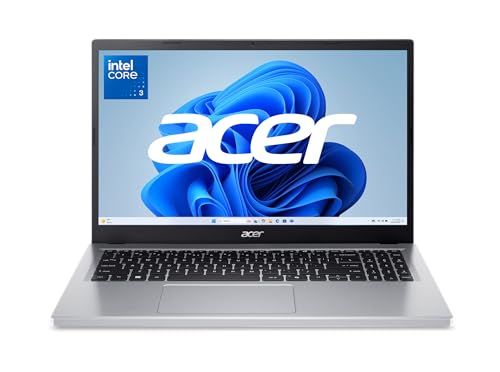
The Aspire Go 15 is the machine a careful student budget draws. Its Intel Core 3 N355 is a current-generation efficiency processor, and that pairing of modern and modest is the whole design: the browser-based substance of most degrees — learning platform, documents, research tabs, seminar calls — runs with contemporary responsiveness and sips battery while doing it, in a full-size chassis whose screen and keyboard never make the owner feel punished for saving money. It looks the part, too; Acer styled the Go branch cleanly, and a student carrying one is carrying a laptop, not an apology.
On campus, its virtues compound quietly. The efficient processor stretches across a class day. The 15-inch-class screen gives split-view study — lecture beside notes — at a size the 14-inch premium machines charge more to approach. Full Windows means the syllabus’s software list, including the proctoring tool that guards the exams, treats the machine as unremarkably legitimate. For the student whose alternative was stretching to the Aspire 5 by cutting the textbook budget, the Go is the wiser allocation: degrees are failed on missing books and missed deadlines, not on processor tiers.
Know its ceiling and it will never surprise you. Demanding local software — the engineering and creative workloads described earlier — is beyond its brief, and heavy multitasking piles will slow it where the i7 would shrug. A student whose course is known, browser-centred, and stable can buy the Go with both eyes open and spend the savings on the degree itself, which remains the point of the exercise.
- Processor: Intel Core 3 N355
- Display: 15-inch class
- Role: value pick for browser-centred degrees
- Battery character: efficiency-first, suited to class days
- Form factor: full-size mainstream chassis
Strengths
- Modern efficiency delivers a full class day and contemporary responsiveness.
- Full-size screen and keyboard at a genuinely student-sized price.
- Clean design that does not advertise its budget origins.
Trade-offs
- Performance ceiling excludes demanding departmental software.
- Heavier than the 14-inch picks for all-day carrying.
- Memory and storage are modest — verify the listing’s configuration.
Best for: Students in essay-and-browser degrees who want maximum degree per dollar.
Not suited for: Engineering, creative-production, or gaming ambitions.

Acer Aspire 3 A315-24P (Ryzen 3) — Best on a strict budget
Some students are choosing between a laptop and no laptop, and the Aspire 3 A315-24P is Acer’s answer to that exact doorway. The Ryzen 3 7320U is a proper quad-core processor; the machine runs full Windows, carries a 15.6-inch screen and a full keyboard, and costs less than the devices many students are told to settle for instead. Everything a browser-based degree requires — the platform, the documents, the calls, the exams — runs on it. The pace is patient rather than brisk, and patience, at this price, is a fair and honest trade.
Student life will test its budget nature in specific places. The build is the range’s most plastic, so the sleeve-and-backpack discipline matters more here than anywhere in this guide. Storage is modest, which makes the cloud habits every student should have — coursework backed up to the institution’s storage, media streamed rather than hoarded — into requirements rather than virtues. Multitasking has a visible ceiling: the research session with twenty tabs and a video call will make the Ryzen 3 breathe audibly through its work, though it will finish it.
Frame it correctly and it is a triumph of allocation. The money it saves against the Aspire 5 is a semester of books, a summer’s rent contribution, or the emergency fund that keeps a bad month from becoming a dropped course. Students in browser-based programmes on strict budgets should buy it without a flicker of embarrassment — and students whose courses will outgrow it by year three should treat it as the bridge it is, priced to be replaced when the degree’s demands and the student’s means have both grown.
- Processor: AMD Ryzen 3 7320U
- Display: 15.6-inch
- Role: strict-budget degree machine
- Operating system: full Windows
- Form factor: 15.6-inch mainstream chassis
Strengths
- Lowest price here for a fully legitimate Windows laptop.
- Quad-core Ryzen covers browser-based coursework dependably.
- Full-size screen and keyboard keep real study comfortable.
Trade-offs
- Patient pace under heavy multitasking or demanding software.
- Most plastic build in the guide — carry protection is essential.
- Modest storage demands cloud discipline from day one.
Best for: Strict budgets and browser-based degrees; also a rational first-year bridge machine.
Not suited for: Software-heavy courses or students who multitask aggressively.
Acer Nitro V (Core i5, RTX 4050) — Best for study plus gaming
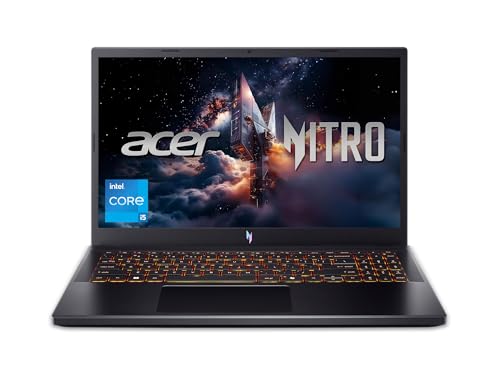
Plenty of students game, and plenty of engineering and computer-science students need graphics hardware for coursework; the Nitro V is where those two truths share one purchase. Its Core i5-13420H and RTX 4050 pairing was specified in our gaming guide as the budget gaming sweet spot, and the student case adds a dimension the gaming case lacks: the same dedicated graphics that play the esports catalogue accelerate CAD viewports, rendering exercises, machine-learning coursework at student scale, and the creative software media students run. One machine, two lives, no second device to buy, insure, or find desk room for in a dorm.
The student compromises are the gaming laptop’s eternal ones, and they should be signed knowingly. The Nitro is heavier than every Aspire here and its battery is measured in lectures, not days — the charger becomes a permanent bag resident, and outlet seats become a seating strategy. Its fans, discreet enough in class on quiet settings, announce themselves under gaming load in a way a shared dorm room will have opinions about. Its gaming styling, red accents and all, will sit in seminar rooms making a statement some students love and others would rather not make.
For the right student, none of that outweighs the consolidation: a machine that writes the essay all afternoon and runs the game all evening, that satisfies the engineering lab’s software list and the society’s tournament night. Buy it if your degree or your downtime genuinely uses a graphics card. If neither does, the Aspires above are lighter, quieter, longer-lasting company for the same four years, and the money saved is a semester of everything else.
- Graphics: NVIDIA GeForce RTX 4050
- Processor: Intel Core i5-13420H
- Role: study machine plus gaming and graphics-coursework capability
- Portability: heaviest pick in this guide; charger travels with it
- Chassis: Nitro gaming design
Strengths
- Dedicated graphics serve engineering, creative, and gaming demands in one machine.
- Strong H-series processor keeps coursework and multitasking brisk.
- Consolidates two devices into one purchase, one bag, one warranty.
Trade-offs
- Weight and battery life are the weakest in this guide for daily carrying.
- Fans and styling are gaming-forward for seminar rooms and shared dorms.
- Costs more than the Aspire value picks it shares a bag with.
Best for: Engineering, computer-science, and media students — and any student whose gaming is a real part of life.
Not suited for: Students who prize all-day battery and a light bag above graphics power.
Acer Swift Go 14 — Best lightweight step-up (prose-only)
The Swift family is Acer’s thin-and-light branch, and the Swift Go 14 is its student-shaped expression: a 14-inch machine built around portability, with slimmer construction, better materials than the Aspire mainstream, and — in many configurations — screens a clear step above the value tier, including high-resolution and OLED options in the line. For the student whose campus is large, whose commute is long, or whose back has filed a formal complaint about the current arrangement, the Swift Go is the Acer that answers the carrying question most completely while keeping full Windows and mainstream performance.
Its compromises are the thin-and-light class’s standard ones. The price steps above the Aspire 5 for similar processor tiers — the money buys the chassis, the screen, and the grams, not extra speed — and slimmer machines generally offer less upgrade room and run their fans a little harder under sustained load. Students should also check the exact display and memory configuration with care, because the Swift Go name covers a wide spread of panels and specifications at different prices.
We cover the Swift Go 14 without a purchase link in this guide, as its current configurations sat outside the verified pool. Consider it when the Aspire 5 14’s formula is right but its weight and finish are not — it is the same idea executed for the carrier, and for students who walk miles a day with their degree on their back, that execution is not a luxury but the entire requirement.
- Positioning: Acer’s thin-and-light student step-up
- Display: 14-inch, higher-tier panel options in the line
- Role: all-day carrying with premium finish
- Trade-off class: price buys portability and screen, not extra speed
- Availability note: covered without a purchase link in this guide
Strengths
- The lightest, slimmest route to a full-performance Acer student laptop.
- Screen options exceed the Aspire mainstream’s quality.
- Materials and finish suit four years of daily handling.
Trade-offs
- Premium over Aspire 5 buys portability, not processing power.
- Wide configuration spread demands careful listing-reading.
- Slim chassis leaves less upgrade room than mainstream models.
Best for: Students with long daily carries who want Acer value in a premium thin-and-light form.
Not suited for: Buyers maximising specification per dollar, who should take the Aspire 5 14.
Acer Chromebook Plus 514 — Best browser-only option (prose-only)
The Chromebook Plus 514 is the most interesting “it depends” in Acer’s student range. The Chromebook Plus tier raised the platform’s floor — capable processors, better screens and cameras, more memory than the bargain Chromebooks of memory — and the 514 applies that formula at 14 inches for students whose entire degree lives in a browser. For that student, the proposition is real: fast startup, long battery life, an operating system that maintains itself, and a price that competes with the Aspire 3 while feeling fresher in daily use.
Now the caveats, which are structural rather than incidental. ChromeOS does not run Windows or macOS applications. Exam proctoring services, departmental software, and some institutional tools require those platforms, and no student’s exam week should become the discovery of that fact. The Chromebook is therefore a legitimate choice only where the institution confirms — in writing, covering exams as well as coursework — that every requirement is browser-based, a condition most common in fully online programmes designed around the web. Even then, the student should ask what happens if a later course in the programme changes the answer.
Buy it, if your programme qualifies, as what it is: the best version of a browser appliance, superb at the daily substance of online study and disqualified from the rest by architecture. Everyone else in this guide’s audience should take the Aspire 3 at similar money and keep every door the degree might open standing open. We cover the 514 without a purchase link; let your college’s requirements page, not this paragraph, make the final call.
- Platform: ChromeOS (Chromebook Plus tier)
- Display: 14-inch
- Role: browser-only degrees with institutional confirmation
- Strengths class: battery, simplicity, self-maintenance
- Availability note: covered without a purchase link in this guide
Strengths
- Excellent battery life and instant-on simplicity for browser-based study.
- Chromebook Plus hardware tier brings real screens, cameras, and pace.
- Self-updating system removes maintenance from a student’s week.
Trade-offs
- Cannot run Windows or macOS software — proctoring and departmental tools may refuse it.
- Legitimate only with written institutional confirmation covering exams.
- Offline and local-storage workflows are limited by design.
Best for: Students in confirmed fully-browser-based online programmes.
Not suited for: Any degree with proctored exams or departmental software unless the college confirms support in writing.
How Do You Build a Dorm Desk Around a Student Laptop?
The dorm desk is the smallest workstation in the developed world, and it rewards the same vertical thinking as any small workspace. A stand that lifts the laptop’s screen to eye level converts every pick in this guide into an ergonomic home base, with an inexpensive external keyboard and mouse completing the posture — the single best health purchase of a degree, bought for less than a textbook. The laptop alone then remains the portable form for lectures and library sessions, and the student owns, in effect, two workstations for the price of one machine and three modest accessories.
Light and power finish the build. A desk lamp that does not glare on the screen, a power strip with room for the chargers of a laptop, a phone, and a lamp, and cables routed once behind the desk rather than negotiated daily — these unglamorous arrangements decide whether the desk feels like a workplace or a pile. Roommates multiply every variable: a headset becomes both a courtesy and a concentration tool, and the student whose seminar voice stays in their own ears keeps friendships that louder setups spend. Build the dorm desk deliberately in the first week, and it serves silently for four years; improvise it, and it is re-improvised every deadline week, at deadline prices.
What Should Parents Know Before Buying a Student’s Acer?
The generous instinct is to buy the best machine affordable; the wise one is to buy the machine the course requires, fully equipped. A mid-range Acer with its sleeve, spare charger, backup routine, and accidental-damage cover is a better gift than a flagship delivered bare, because the risks of student life are physical and digital far more often than computational. Ask the student — or better, the course’s published requirements — what the degree actually runs before choosing the tier, and treat any answer involving specific software as decisive.
Two further kindnesses cost little. Buy early enough that the student sets the machine up at home, transfers their life onto it calmly, and tests the college’s systems before the term’s first week turns technical problems into academic ones. And agree the failure plan in advance: what happens, whom they call, and what the backup machine arrangement is if the laptop dies in exam season. A degree conducted through one screen deserves a rehearsed answer to that question, and families who rehearse it in August never have to improvise it in May.
How Does the Choice Change for Students Who Work Alongside Study?
A large share of students hold jobs, and the working student’s laptop calculus shifts in two directions at once. Time fragments: study happens in the gaps of a working week, which rewards machines that wake instantly, hold charge across days of intermittent use, and never ambush a stolen half-hour with an update screen. The efficiency-led picks in this guide — the Aspire Go above all, and the Aspire 5 14 for those who can reach it — serve that rhythm best, because their design priority is readiness rather than spectacle.
The second shift is separation. An employer’s laptop is a tempting study machine and usually a poor one: institutional policies, monitoring software, and the simple fact that the degree should survive a job change all argue for a dedicated student machine, even a budget one. The Aspire 3’s role expands here — it is the affordable boundary between a job and an education, the device that is wholly the student’s own. Working students should also weight durability upward a tier if they can, because their machines commute twice: to work and to study, in all weathers, for years.
Is a Hand-Me-Down or Second-Hand Acer a Sensible Start?
Often, yes — with the same discipline applied to any used machine. A two- or three-year-old Aspire 5 from a family member, with its battery health checked and its drive wiped and reinstalled cleanly, can serve a browser-based degree honourably and free the budget for everything else a first year demands. The checks are mechanical: battery runtime on a real afternoon, hinge and keyboard condition, storage health, and confirmation that the machine runs a currently supported Windows version with room to spare. A hand-me-down that passes those checks is not a compromise; it is good household economics.
The cautions mirror the Aspire guide’s advice on older generations. Software support horizons are the invisible expiry date — a machine near the end of its comfortable update life is a poor foundation for a four-year degree even at a family price of zero. And the exam chain must be tested on the actual machine before the term: proctoring software, institutional sign-in, the webcam’s behaviour. A hand-me-down that clears those gates in August is a gift; one whose failures surface in December is a debt. Test early, and the second-hand route stays what it should be — the smartest money in this entire guide.
How Do You Stretch a Student Laptop’s Battery Through a Full Class Day?
Start the night before: a full charge and updates allowed to finish while plugged in, so the day begins with a machine that is neither hungry nor busy. In class, screen brightness is the largest single drain under a student’s control — set it to the room rather than to maximum, and the same battery that died at lunch begins lasting to dinner. Browser discipline follows: the twenty research tabs from yesterday’s session are a background tax on every lecture hour, and closing or suspending them is free endurance.
Know your machine’s own tools. Every pick in this guide offers battery-saver modes that trade a little responsiveness for meaningful minutes; learn where yours lives before the day you need it. Keep the charger in the bag regardless — the goal is not to prove the battery but to never think about it — and choose seats near outlets for the long library sessions rather than the short lectures, where the battery can fend for itself. Students who build these habits stop experiencing battery as a feature of the laptop at all, which is the correct relationship with it.
How Well Do These Acers Handle Group Work, Societies, and Student Life Beyond Lectures?
A degree’s laptop is also its social machine. Group projects run through shared documents and video calls scheduled around part-time jobs; societies produce posters, treasurers produce spreadsheets, and somebody’s laptop becomes the quiz night’s screen and the film society’s projector source. The demands are breadth rather than depth — a webcam and microphone that present you decently, ports that connect to whatever display a society room offers, and enough reliability that your group is never the one apologising for its technology. Every Windows pick in this guide covers that life comfortably; the Aspire 5 14’s screen and build make it the most pleasant to share a table with, and the Nitro’s graphics quietly make its owner the group’s video editor whether they volunteered or not.
There is a budgeting corollary students discover in the second year: the laptop bought only for lectures gets asked to do everything else anyway. A machine with a little headroom — in memory, in storage, in the processor’s patience — absorbs the society treasurer’s workbook and the side project’s tools without the owner shopping mid-degree. That is the practical meaning of the headroom advice repeated through this guide: not speed for its own sake, but room for the life that accumulates around the coursework.
Should a Student Add a Tablet Instead of Upgrading the Laptop?
The tablet tempts every student who has watched a classmate annotate a lecture PDF with a stylus, and as a companion it can be genuinely good — reading, annotation, and note-taking are its native arts. But the order of purchase matters more than the device. A tablet added to an adequate laptop is a luxury that earns its place; a tablet bought instead of an adequate laptop is a structural error, because the degree’s production work — essays, data, code, exams — is keyboard work, and exam proctoring and departmental software assume a real computer. Students with a fixed budget should fund the laptop properly first, to the tier their course requires, and let the tablet wait for a birthday, a job, or a second year when the foundation is secure.
Students who do pair the two should give each device its job and keep the boundary: the tablet reads and annotates, the laptop writes and submits, and the cloud keeps both honest. That division, with the laptop firmly the senior partner, is the only version of the two-device student life this guide endorses — and notably, it is available at Aspire Go money for the senior partner, which is the entire reason Acer’s value range matters to students in the first place.
What About Accessibility and Wellbeing Features for Long Study Days?
Windows’ built-in accessibility toolkit — magnification, text scaling, dictation, captioning, contrast and focus tools — runs in full on every Windows pick here, and students who rely on any part of it should configure the machine in the first week and register with the college’s support services in the same week, while accommodations for exams and coursework are still easy to arrange. The hardware questions that matter are the daily ones: a screen bright and sharp enough for low-vision reading at sensible scaling, a keyboard whose feel survives long sessions, and a weight that does not tax the student carrying it between every obligation.
Wellbeing generalises the same point to every student. Four years of study is an endurance event conducted largely through this screen, and the ergonomic setup described in the dorm-desk section — raised screen, external keyboard at home, light managed rather than endured — is not an indulgence but injury prevention bought early and cheaply. The best Acer for a student is partly the one whose daily use costs their body the least, and that quality is assembled from the machine and its modest accessories together, never from the specification sheet alone.
What Should a New Student Do in the First Month With Their Acer?
Week one belongs to systems, not settings-hunting. Sign into the institution’s accounts, install the software the syllabus names, connect the coursework folders to the college’s cloud backup, and verify — once, by restoring a test file — that the backup is real. Run the proctoring service’s practice check if your programme offers one. Photograph the serial number, file the receipt digitally, and register the warranty while the box is still in the room. None of this takes an evening; all of it is the difference between a machine that is merely owned and one that is ready.
The rest of the month is calibration. Learn where your battery actually ends on a real class day rather than trusting any figure, including the cautious ones in this guide. Discover which library seats have outlets and which seminar rooms defeat the Wi-Fi, and let that map shape your charging habits. Set the update schedule to hours when the machine is plugged in and idle, so it never performs maintenance in the middle of a deadline. By the end of the first month the laptop should have disappeared into the degree’s background — charged, backed up, understood — and a student whose machine has achieved that invisibility has bought, and built, exactly what this guide recommends.
What Happens If the Laptop Breaks Mid-Degree?
It happens to someone in every cohort every year, and the survivors share a pattern: their work was backed up, so the crisis was logistical rather than academic. Colleges are practised at this emergency — library machines, loaner programmes through IT or the library, deadline processes that exist precisely for documented hardware failure — but all of them work better for the student who reports the failure the day it happens rather than the week after. Acer’s own warranty and the accidental-damage cover discussed earlier form the repair path; local repair shops in university towns are fluent in mainstream Acer models and their parts, one of the quiet advantages of buying a high-volume range rather than an exotic one.
The deeper lesson is architectural. A degree that lives in the institution’s cloud, with local copies for convenience, can survive the total loss of any single machine. A degree that lives only on one laptop’s drive is a hostage to that laptop’s health, its bag’s zip, and one spilled drink. Students should build the first architecture in their first month, on whichever of these six machines they chose — the hardware decision matters, and the architecture decision matters more.
How Do These Six Acer Student Picks Compare?
| Pick | Branch | Size | Standout trait | Watch out for |
|---|---|---|---|---|
| Acer Aspire 5 14 (Core i7) | Aspire | 14-inch | Screen plus headroom | Price; no number pad |
| Acer Aspire Go 15 | Aspire Go | 15-inch class | Value plus efficiency | Performance ceiling |
| Acer Aspire 3 A315-24P (Ryzen 3) | Aspire | 15.6-inch | Lowest legitimate price | Patient pace; plastic build |
| Acer Nitro V (Core i5, RTX 4050) | Nitro | Gaming class | Graphics for work and play | Weight; battery |
| Acer Swift Go 14 | Swift | 14-inch | Lightest quality carry | Premium for portability |
| Acer Chromebook Plus 514 | Chromebook Plus | 14-inch | Browser simplicity | Software compatibility gate |
The organising question is not which machine is best but which constraint binds you: money, weight, graphics, or software. Name the constraint honestly and the table narrows to one or two rows — the student’s version of the same discipline this site applies to every category it covers.
How Should a Student Protect a Laptop Through Four Years of Campus Life?
Physical protection first, because campus is a contact sport. A padded sleeve for every bag journey, a backpack with a suspended laptop compartment, and the rule — learned by every student exactly once, at varying cost — that drinks and laptops occupy different surfaces. Dorm desks are small and beverages are large; the students whose machines survive four years are the ones who built the geography early. A keyboard cover is optional; the drink rule is not.
Digital protection matters as much, because the coursework is the degree’s real asset. Turn on the institution’s cloud backup for coursework folders in the first week, verify it once by restoring a file, and let it run forever. Use the password manager, keep the operating system updated on the calm schedule rather than the deadline one, and record the machine’s serial number and purchase details in the same cloud — a stolen laptop with backed-up work and a recorded serial is a bad week; without them, it is a lost semester.
One more protection is free and chronically skipped: know your college’s own resources before you need them. Most institutions run a laptop loan scheme, an IT help desk that will image and repair student machines, and emergency funds that exist precisely for the student whose laptop dies in term. The time to learn the loan scheme’s location and rules is the campus tour, not the crisis; write the help desk’s hours into the same notes as your timetable, and a hardware failure degrades from catastrophe to errand.
Finally, insure the risk you cannot carry. Many colleges offer or broker accidental-damage and theft cover priced for students, and household policies sometimes extend to a student’s term-time address. Price it in the first month, while the machine is new and the options are open — the middle of year two, standing in a puddle of coffee beside a dead keyboard, is the most expensive possible moment to discover what cover would have cost.
What Mistakes Do Students and Parents Make When Buying for College?
The most common is buying for the student you imagine rather than the course they enrolled in — the flagship bought for a browser-based degree while the textbook fund starves, or the bargain device bought for an engineering course whose software it cannot run. Read the course’s requirements before the product pages; the order matters and costs nothing. The second mistake is optimising for September: the machine must serve the final year, when projects are largest and the student is busiest, so headroom bought at enrolment is cheaper than a replacement bought in a panic at the start of year three.
A quieter mistake deserves its own mention: assuming the laptop decision ends at the laptop. The students who struggle in year one are rarely holding the wrong machine; they are holding the right machine with no backup running, no sleeve bought, no charger in the bag, and no idea what their college’s loaner scheme is. The purchase is a system — device, protection, backup, and a failure plan — and every part of it except the device is nearly free. Assemble the whole system at enrolment and the hardware debates in this guide return to their proper size: important, and smaller than the habits around them.
Third, buyers forget the accessories of survival — the sleeve, the spare charger for the bag, the backup habit — while negotiating small differences between models. Fourth, they skip the student discounts and institutional software bundles that change the true price of every option; check the college’s store and software portal before paying list anywhere. And fifth, they buy the laptop in August without testing the exam chain — proctoring software, institutional sign-in, webcam behaviour — leaving the discovery of any incompatibility to the week every other student discovers theirs.
Final Recommendation
For most students, the Aspire 5 14 is the Acer to buy: the screen for reading, the processor for the whole degree, the size for the daily carry, in one machine that asks nothing further of its owner. The Aspire Go 15 is the value answer for browser-centred degrees, the Aspire 3 the honourable floor beneath it, and the Nitro V the consolidation play for students whose coursework or evenings genuinely need graphics. The Swift Go 14 refines the formula for the longest carries, and the Chromebook Plus 514 serves the confirmed browser-only degree and no other. Buy for the final year, protect the machine like the degree it holds, and let the laptop become the least interesting thing about your education — reliably present, never the story.
Frequently Asked Questions
How much should a college student spend on an Acer laptop?
As much as the course requires and no more. Browser-based degrees are fully served by the Aspire Go or even the Aspire 3; mixed and software-heavy degrees justify the Aspire 5 14; graphics-dependent courses justify the Nitro. The wasteful purchases sit at both ends — power a humanities degree never uses, and a bargain device an engineering course outgrows in a semester.
Is 14 inches or 15.6 inches better for college?
It follows the student’s map. Daily carriers crossing campus should take 14 inches and enjoy the bag space; desk-centred students gain screen room and, on many models, a number pad at 15.6 inches. Hybrid students who carry sometimes and desk often are exactly who the 14-inch Aspire 5’s balance was designed for.
What is the best Acer for a student who studies mostly in the library?
Library study rewards battery, screen, and quiet in that order. The Aspire 5 14 leads on all three for carriers; the Aspire Go 15 is the value alternative whose efficiency suits long unplugged sessions, provided an outlet strategy covers the longest days. Whichever you choose, a seat near a power point remains the library’s oldest insider knowledge.
Can an Acer Aspire last all four years?
Yes, with the headroom to grow into the degree’s later years and the care habits this guide describes. The Aspire 5 configurations are the safest four-year bets in the range; the budget tiers last longest when their owners respect their ceilings and protect their comparatively plastic builds. Batteries may need attention before the degree ends on any machine carried daily.
Should a student buy a gaming laptop for college?
Only if gaming or graphics-dependent coursework is genuinely part of their life. The Nitro V in this guide consolidates study and play admirably, but its weight and battery are real daily taxes on a student who does neither. Buy the graphics card for a reason you can name; otherwise the Aspires are better company for four years.
When is the best time to buy a laptop for college?
After enrolment confirms the course’s requirements and the institution’s software bundles and discounts are known — and early enough to set the machine up and test the exam software before the term begins. Back-to-school promotions reward that timing; the week before classes punishes its absence.
Is it worth paying for accidental damage cover as a student?
For most students, honestly priced cover is one of the better-value lines in the whole purchase, because the risks it covers — drops, spills, the bag left in the rain — are the statistically normal events of campus life rather than edge cases. Students whose machines live on one desk at home can reasonably decline it; students whose laptops commute daily should price it before deciding, while the machine is new and the option is open.
Can a student use the same Acer for gaming societies and esports?
With the Nitro V, yes — that dual life is its design brief, and campus esports at the popular titles’ level sits comfortably within its graphics tier. The Aspire picks will run casual and older games happily but are not esports machines. Students whose competitive gaming is serious should buy the Nitro and accept its carrying taxes as the price of the second life.
Do students need a number pad?
Accountancy, finance, economics, and data-heavy science students will use one daily and should buy a size that includes it or budget for a slim external pad. Essay-and-browser degrees will never miss it. It is a course question, not a laptop question, and it should be answered from the syllabus rather than the showroom.
Related Guides
Continue the comparison with our companion roundups: best Acer Aspire laptops, best laptops for online college students, and best Acer gaming laptops.


[…] comparing with our companion roundups: best Acer Aspire laptops, best gaming laptops under every budget, and best high-refresh gaming […]