What's inside
- Key Takeaways
- Quick Picks
- How We Chose These Picks
- What Does a Student Actually Do With a Laptop All Day?
- What Does a Full Teaching Day Ask of a Battery?
- How Much Does Weight Actually Matter by Year Three?
- What Should a Student Know About Warranty and Accidents?
- How Do the Six Compare at a Glance?
- How Do You Check a Laptop Against Your Course Before Buying?
- What About Ports, Chargers and the Shared-House Reality?
- How Should Parents and Students Split This Decision?
- How Do You Make an Affordable Laptop Last the Whole Degree?
- What Mistakes Do Student Laptop Buyers Keep Making?
- Final Recommendation
- Which of These Machines Handles Group Work and Presentations Best?
- What Does the First Week With the New Laptop Look Like?
- How Should a Student Handle the Mid-Degree Slump of a Machine?
- What Accessories Genuinely Earn Their Money for Students?
- What Role Does the Operating System Play in How Old a Laptop Feels?
- How Does Storage Fill Up Across a Degree, Really?
- What Is the Smartest Way to Buy at the Start of Term?
- Frequently Asked Questions
- Related Guides
As an Amazon Associate I earn from qualifying purchases. This post may contain affiliate links at no extra cost to you.
widgetverdict.com is reader-supported. When you buy through links on our site, we may earn an affiliate commission.
Where to buy: every laptop below links to a checked Amazon listing, and between the four Windows machines and the two Chromebooks they cover the realistic shapes of a student budget.
A student laptop has the hardest job description in computing relative to its budget. The best affordable student laptops must survive being carried in a backpack every day, open and close a hundred times a week, run a lecture’s worth of tabs beside a half-written essay, stream in the evening, and still be working in the final year of the course — all at a price that competes with textbooks for the same money. Nothing about that job requires a flagship. Everything about it punishes a careless bargain, because a laptop that fails in November of the first term is the most expensive laptop a student ever owns.
So this guide shops by semester rather than by specification sheet. The six picks split into four Windows machines and two Chromebooks, because both ecosystems graduate students successfully and the right one depends on the course, the software it demands and the student’s habits. Within each group the picks disagree deliberately: a touchscreen all-rounder, a traditional workhorse, a doorway machine for the tightest budget, a big-screen Snapdragon experiment, a convertible Chromebook with real power, and a simple Chromebook for the student whose life lives in a browser.
Key Takeaways
- Sixteen gigabytes of memory is the dividing line in this list: the machines that have it will feel comfortable for a whole degree.
- The Lenovo IdeaPad Slim 3 and HP 15 are the complete Windows answers, with strong processors and 512GB of storage.
- The Acer Aspire 3 is the honest doorway machine — capable for documents and lectures, tight on storage.
- The ASUS Vivobook 16 trades compatibility questions for a big screen and Snapdragon efficiency.
- Chromebooks graduate plenty of students: the Flex 5i is genuinely powerful, the HP x360 is the simple, light option.
- Check your course’s software before choosing an ecosystem; that check decides more than any benchmark.
Quick Picks
| Pick | Badge | Why it earns its place |
|---|---|---|
| Lenovo IdeaPad Slim 3 (Ryzen 7) | The complete package | Eight-core Ryzen 7, 16GB of memory, 512GB SSD and a touchscreen in a 15.6-inch student frame. |
| HP 15 (Core i5) | The traditional workhorse | Core i5-1235U with 16GB of memory and 512GB of storage in the classic student format. |
| Acer Aspire 3 | The doorway machine | Ryzen 3 efficiency and a full HD screen for the tightest budgets, with storage as the compromise. |
| ASUS Vivobook 16 (Snapdragon X) | The big-screen experiment | A 16-inch WUXGA display, Snapdragon X platform and 16GB of memory for browser-and-document students. |
| Lenovo Flex 5i Chromebook Plus | The powerful Chromebook | Core i3-1315U, a WUXGA touchscreen and convertible form under the Chromebook Plus banner. |
| HP Chromebook x360 14 | The simple traveller | A light 2-in-1 with an N100 processor for students whose work lives entirely in the browser. |
How We Chose These Picks
We filtered for the student semester first and the specification second. Every machine here had to offer a full HD or better screen, because essays are read on it for years; enough memory to hold a lecture’s worth of tabs beside a document; and storage honest about its size, with compromises named rather than hidden. Verified listings supplied the configurations quoted, and we quoted only what those listings state. Chromebooks were judged by Chromebook standards — the Plus programme’s baseline matters — and Windows machines by the software a real course might demand, from statistics packages to light creative tools.
We also weighted the unglamorous: keyboard quality for long essays, a webcam that survives a seminar call, Wi-Fi that handles a crowded hall, and a maker’s support operation sized for a student who cannot be without the machine during term. Raw processor glamour came last, because a degree is a marathon of ordinary days, and ordinary days are decided by memory, screen and battery behaviour rather than peak anything.
What Does a Student Actually Do With a Laptop All Day?
Less glamorous work than marketing suggests, and more of it. The day is documents and slides, a learning platform with too many tabs, video lectures at increased playback speed, group documents edited by five people at once, and the occasional specialised tool — a statistics package, a coding environment, a reference manager — that the course assumes you can run. In the evening the same machine becomes the television, the games console and the video call home. A student laptop is therefore a generalist under continuous light load, and its enemies are not demanding applications but accumulation: forty tabs, three years of downloads, and a battery asked to last through back-to-back lectures.
That profile explains this list’s shape. Memory matters because accumulation is a memory problem. Storage matters because three years of coursework, photos and media grow quietly. The screen matters because it is read for hours daily. And the ecosystem question — Windows or Chrome OS — matters because the one specialised tool a course demands can settle it in a sentence, which is why the next section insists on that check before any money moves.
Lenovo IdeaPad Slim 3 (Ryzen 7) — The complete package
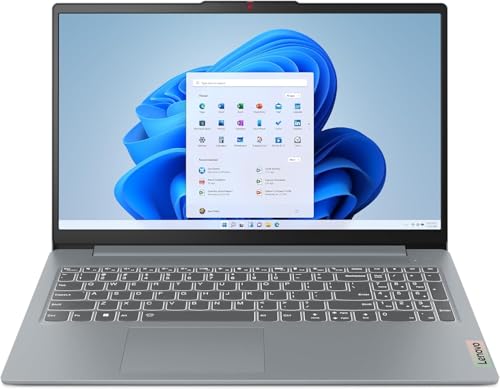
The IdeaPad Slim 3 in this configuration is the machine that makes the rest of the list explain itself. The verified listing describes a 15.6-inch full HD touchscreen driven by an eight-core AMD Ryzen 7 5825U with Radeon graphics, 16GB of memory and a 512GB SSD, running Windows 11 Home with Wi-Fi 6 and a 720p camera. Read that as a student: a processor with headroom for the heaviest multitasking a degree produces, memory that will not be the bottleneck in the final year, storage that swallows coursework and media together, and a touchscreen that earns its keep in reading, annotating and casual drawing more often than sceptics expect.
Lenovo’s student ergonomics are the quiet half of the recommendation. IdeaPad keyboards are consistently among the most comfortable at this tier for long writing, and the 15.6-inch format gives the number pad and the screen room that essay work appreciates while still fitting a lecture-hall desk and a backpack. The 5825U is a proven, efficient chip rather than an experiment, which suits a purchase that must simply work for years. If the budget reaches exactly one machine on this page without anxiety, this is the one the guide would hand to most students.
A note on the processor’s vintage, because spec-watchers will spot it: the 5825U is a mature chip rather than this season’s silicon, and in student service that is a virtue disguised as a footnote. Its behaviour is documented to exhaustion, its drivers are stable, and its eight cores remain more multitasking capacity than any humanities or business workload will honestly use. Newer badges at this tier usually arrive with less memory or storage attached; Lenovo spent the budget where a student feels it instead, and the trade deserves naming as the intelligent one.
Its compromises are the honest ones of its tier: the camera is ordinary, the build is sensible rather than luxurious, and a 15.6-inch machine is a deliberate carry rather than a featherweight. None of those touches the core job. For a Windows student who wants the specification argument settled in one purchase, the Slim 3 is the complete package its badge claims.
- Screen: 15.6-inch full HD touchscreen
- Processor and graphics: AMD Ryzen 7 5825U, eight cores, Radeon graphics
- Memory and storage: 16GB DDR4 and a 512GB SSD
- Connections and camera: Wi-Fi 6, Bluetooth 5.2, 720p HD camera
Strengths
- The strongest all-round specification in this guide at a student tier.
- Touchscreen and comfortable keyboard suit reading and writing alike.
- Memory and storage sized for a whole degree, not a first term.
Trade-offs
- Webcam is merely adequate for seminar calls.
- Fifteen-inch format is a real weight in a daily backpack.
- Finish is practical rather than premium.
Best for: most Windows students who want one purchase to cover the degree. Not suited for: students who prize minimum weight above screen and keyboard room.

HP 15 (Core i5) — The traditional workhorse
The HP 15 is the student laptop as generations have known it: a 15-inch full HD machine with a 12th-generation Intel Core i5-1235U, 16GB of memory, a 512GB SSD and Iris Xe graphics, per its verified listing. Nothing about it is experimental, and that is its appeal. The i5-1235U is a known quantity with strong everyday performance and competent integrated graphics for light creative work and casual games, the memory and storage match the Lenovo’s sensible sizing, and HP’s sheer scale means chargers, parts and support are findable anywhere a student might land.
Choose it over the IdeaPad when Intel familiarity, local availability or a particular offer makes the decision, and choose it confidently: the workhorse virtues — a full-size keyboard with number pad, a screen big enough for side-by-side documents, and performance that will not be the story of any semester — are all present. Its personality is less distinctive than the Lenovo’s touchscreen package, and its camera and speakers are ordinary student fare. But a degree is not won on personality. For the student who wants the classic answer from the biggest name in the business, this is it.
The conventional design carries its own durability case. Mainstream HP laptops of this line are serviced everywhere, their batteries and chargers are commodity items, and a machine that can be repaired in any town is a machine whose four-year plan is credible. Students move; support networks matter; the HP wears its ubiquity as a feature.
The i5-1235U deserves its own sentence of respect. It is a hybrid design with performance and efficiency cores, which in student language means it is quick when the essay software, the browser and the video call all demand attention at once, and frugal when the day is just notes and reading. Paired with Iris Xe graphics it also opens the door to the light creative work — photo editing, casual video, older games — that students reliably discover in their second year, whatever their first-year intentions were. A workhorse that can also play a little is the correct shape for a machine bought at eighteen.
- Display: 15-inch full HD
- Processor and graphics: Intel Core i5-1235U with Iris Xe graphics
- Memory and storage: 16GB of memory and a 512GB SSD
- System: Windows 11 Home, model line 15-dy5399nr
Strengths
- Proven Intel platform with strong everyday pace.
- Memory and storage sized correctly for a full course.
- HP’s support and parts network is effectively everywhere.
Trade-offs
- No touchscreen, which readers and annotators may miss.
- Camera and audio are ordinary for the class.
- Design is anonymous beside more distinctive rivals.
Best for: students who want the classic, supportable Windows workhorse. Not suited for: students who would genuinely use touch and pen-style interaction daily.

Acer Aspire 3 — The doorway machine
Every honest guide needs its doorway: the machine for the budget that cannot stretch, chosen so that its compromises land where a student can live with them. The Aspire 3’s verified listing gives a 15.6-inch full HD screen, an AMD Ryzen 3 7320U quad-core processor with Radeon graphics, 8GB of LPDDR5 memory, Wi-Fi 6 and Windows 11 Home. For lectures, documents, research and streaming, that is a complete and capable computer, and its efficiency-led chip is kind to battery life across a teaching day.
The compromise has a name and it is storage: 128GB fills quickly once Windows, applications and a media habit move in, and the owner of this machine will live in cloud storage and housekeeping in a way the 512GB owners never think about. Memory at 8GB is adequate for focused work and noticeably less comfortable for forty-tab research sessions. Neither flaw is hidden in this guide’s account, because the Aspire 3’s buyer is making a rational trade: a real, new, warrantied laptop now, with discipline about files, instead of a better machine later that the term cannot wait for. Judged as that trade, it is the most respectable doorway on the page.
Students on document-centred courses — humanities, law, languages, much of business — will feel its limits least, since their work is light and their libraries live online anyway. The student who knows their course involves large local datasets or media production should read this pick as the guide’s polite warning and stretch to the machines above it if any route exists.
There is one more buyer this machine serves well: the student replacing a dead laptop mid-degree, when the budget is whatever this month allows and the deadline is an essay due Friday. The Aspire 3 restores a full working life immediately, carries the remaining terms respectably for document-based courses, and does so without the gamble of the second-hand market. In that emergency role its compromises shrink to footnotes, and its existence in this guide is justified by that week alone.
- Screen: 15.6-inch full HD
- Processor and graphics: AMD Ryzen 3 7320U quad-core with Radeon graphics
- Memory and storage: 8GB LPDDR5 and a 128GB NVMe SSD
- Connections and system: Wi-Fi 6, Windows 11 Home
Strengths
- A complete new Windows laptop at the gentlest tier here.
- Efficient processor is gentle on battery across a teaching day.
- Full HD screen avoids the worst compromise of budget machines.
Trade-offs
- 128GB of storage demands constant housekeeping or cloud reliance.
- 8GB of memory limits heavy multitasking comfort.
- Not suited to media production or large local datasets.
Best for: document-centred students on the tightest budgets. Not suited for: anyone whose coursework carries large files or many simultaneous applications.

ASUS Vivobook 16 (Snapdragon X) — The big-screen experiment
The Vivobook 16 is the interesting machine in this guide, and it knows it. Its verified listing describes a 16-inch WUXGA display — taller and roomier than the usual full HD — driven by Qualcomm’s Snapdragon X platform with Adreno graphics, 16GB of memory and a 512GB SSD under Windows 11. The pitch to a student is space and stamina: a screen that shows a document and its sources side by side without squinting, an efficient ARM platform built for long untethered days, and modern memory and storage sizing that needs no apology.
The experiment has a condition, and this guide states it plainly: Snapdragon Windows machines run most everyday software beautifully, but compatibility with older or specialised Windows applications is a question to ask before buying, not after. For the student whose life is browser, documents, streaming and mainstream applications — a large share of all students — the answer is increasingly that everything works and the battery is remarkable. For the student whose course mandates a specific legacy engineering or statistics tool, the Intel and AMD machines above remain the safer degree. Know which student you are, and this pick resolves itself.
As a reading and writing machine, the big WUXGA panel is a genuine daily pleasure that smaller screens cannot imitate, and the Vivobook line’s build gives it a more designed feel than the workhorse tier. It is the pick for the student who wants their affordable laptop to feel like a choice rather than a compromise, and who has done the one compatibility check its platform asks for.
The sixteen-inch screen deserves a practical translation. It shows a full document page beside a research tab without either being squeezed, it turns split-screen group work from a compromise into a method, and it makes the machine a credible home television for a small student room. Students who read dense material — code, scores, spreadsheets, sheet music — feel the extra space daily. The cost is carried on the back, literally, and this guide’s position is simply that both halves of that sentence should be weighed by the person who will do the carrying.
- Display: 16-inch WUXGA at 60Hz, taller than standard full HD
- Platform and graphics: Qualcomm Snapdragon X with Adreno graphics
- Memory and storage: 16GB of memory and a 512GB SSD
- System and finish: Windows 11 in Quiet Blue
Strengths
- The roomiest, tallest screen in this guide for documents and sources.
- Efficient platform aimed at long days away from a socket.
- Memory and storage sized with no compromises.
Trade-offs
- Specialised or legacy Windows software needs a compatibility check first.
- Sixteen inches is the largest carry in the guide.
- Platform is newer, so course IT support may know it less well.
Best for: browser-and-document students who value screen space and stamina. Not suited for: courses mandating specific legacy Windows applications.

Lenovo Flex 5i Chromebook Plus — The powerful Chromebook
The Flex 5i carries the Chromebook Plus badge, and its verified specification shows what that means: a 14-inch WUXGA touchscreen in a convertible 2-in-1 body, an Intel Core i3-1315U with six cores, 8GB of memory, 128GB of eMMC storage supplemented in this listing by a 256GB SD card, a backlit keyboard and Chrome OS. This is not the Chromebook of stereotype. It is a fast, flexible machine for the student whose work lives in the browser and cloud — which, for a great many degrees, is a complete description of the work.
The convertible form earns its place in student life specifically. Tent mode turns video lectures into a small television on a desk or a train table; tablet mode suits reading and annotation; the touchscreen and WUXGA panel make long documents kinder than a budget Windows screen often manages. Chrome OS adds its own student virtues: it boots in seconds, updates invisibly, shrugs off the malware anxiety of shared networks, and stretches battery across a teaching day. The boundaries are equally clear — no full Windows applications, and local storage that assumes a cloud life — but for the right course this is arguably the most pleasant machine in the guide to actually live with.
Lenovo’s keyboard and hinge quality at this tier are the hardware half of that pleasantness. The Flex line has been refined across generations, and it shows in a machine that feels considered rather than cut down. Students whose institutions run on Google Workspace will find the integration complete; students who need one Windows-only tool should treat this pick as a delightful wrong answer and look up the page.
The Plus designation carries a practical promise beyond performance: machines in the programme are built to a higher baseline of screen, camera and update support than the Chromebook floor, and the Flex 5i’s WUXGA panel and backlit keyboard show it. For a student, the update horizon matters as much as any specification, because a laptop bought for a degree should still be receiving its platform’s care at graduation. Chromebooks publish their update commitments openly, and checking the Flex 5i’s horizon against your course length is a two-minute job this guide recommends doing before purchase, as with every Chromebook.
- Screen: 14-inch WUXGA touchscreen, convertible 2-in-1
- Processor: Intel Core i3-1315U, six cores
- Memory and storage: 8GB of memory, 128GB eMMC plus 256GB SD card in this listing
- Extras: backlit keyboard, Wi-Fi 6, Chrome OS
Strengths
- Chromebook Plus performance with a genuinely good screen and hinge.
- Convertible forms suit lectures, reading and streaming unusually well.
- Chrome OS simplicity removes maintenance from student life.
Trade-offs
- No path to full Windows applications if a course demands them.
- Local storage assumes a cloud-centred life.
- eMMC storage is slower than the SSDs in the Windows picks.
Best for: cloud-centred students, especially in Google Workspace institutions. Not suited for: courses requiring specific Windows-only software.

HP Chromebook x360 14 — The simple traveller
The HP Chromebook x360 is the lightest commitment in this guide: a 14-inch full HD IPS touchscreen convertible running an Intel N100 processor with 4GB of memory and 64GB of eMMC storage under Chrome OS, in a Sky Blue finish that at least admits a student might enjoy looking at their laptop. Its brief is simplicity itself — lectures, documents, research, streaming, communication — performed without maintenance, without update anxiety, and without the weight of a bigger machine in the bag.
Honesty about its ceiling matters. Four gigabytes of memory and an entry processor mean this is a focused machine: a document and a reasonable set of tabs, not a research sprawl. Sixty-four gigabytes assumes the cloud entirely. Within that focus, the x360 is genuinely likeable — the convertible hinge, the decent IPS screen and Chrome OS’s manners make it a better daily companion than its specification suggests, and as a second machine beside a desktop, or a primary machine for a light, organised student, it makes a case the bigger picks cannot: it is the laptop you forget you are carrying.
It is also the natural recommendation for the student whose real risk is not performance but chaos — lost files, broken installs, neglected updates — because Chrome OS forgives all three by design. What it cannot forgive is a course that demands Windows software, and that single check, made before purchase, is the whole of its fine print.
Consider it, finally, as the machine most likely to still be working, uncomplaining, at the bottom of a bag in the final term — not because it is powerful, but because there is so little in it to go wrong and so little asked of its owner. For the student whose degree is made of reading, writing and showing up, that reliability is not a compromise at all. It is the specification that mattered, wearing a small price and a blue lid.
- Display: 14-inch full HD IPS touchscreen, 2-in-1 convertible
- Processor: Intel N100
- Memory and storage: 4GB of memory and 64GB eMMC
- System and finish: Chrome OS in Sky Blue
Strengths
- Light, simple and maintenance-free for focused student work.
- Convertible IPS touchscreen is generous at this tier.
- Chrome OS forgives the chaos of student digital life.
Trade-offs
- Memory and processor suit focused work, not sprawling multitasking.
- Storage is small and entirely cloud-dependent.
- No route to Windows applications, ever.
Best for: light, organised students and second-machine duties. Not suited for: heavy multitaskers or any course with Windows-only tools.
What Does a Full Teaching Day Ask of a Battery?
More than the brochure scenario, because a teaching day is not one long session but a chain of them: a morning lecture, a library hour, a seminar, another lecture, each with the screen at reading brightness and the Wi-Fi working in a crowded hall. The machines that handle that chain gracefully share two traits in this guide — efficient processors and operating systems that sip rather than gulp. The Aspire 3’s efficiency-led Ryzen and the two Chromebooks are naturals here, and the Snapdragon Vivobook was designed around exactly this pattern of bursty, all-day, away-from-the-desk use.
The practical habits matter as much as the hardware. A student who closes the lid between sessions, keeps brightness at reading level rather than maximum, and carries the charger only on genuinely long days will find every machine in this guide sufficient. A student whose day includes video editing between lectures should weight the bigger Windows machines and plan around sockets. Battery anxiety is mostly a planning problem wearing a hardware costume, and the honest version of this guide’s advice is to buy the efficient machine and learn its rhythm in the first fortnight.
How Much Does Weight Actually Matter by Year Three?
Enormously, and in a direction first-years underestimate. A laptop is carried not on the proud first morning but on the thousandth ordinary one, in the rain, beside books and a water bottle and everything else a day accumulates. The difference between the 14-inch Chromebooks and the 16-inch Vivobook is the difference between a machine that is simply in the bag and a machine that is the bag’s main event. Neither is wrong: the student whose work is desk-based gains more from the big screen than they lose in carry, while the student who studies in five places a day should let weight argue loudly.
There is a related, quieter consideration: the desk. Lecture theatres offer famously little of it, and a 15.6-inch machine with a number pad can overhang a fold-down tablet arm in a way a 14-inch convertible never will. Students in lecture-heavy courses should picture their actual rooms before choosing a format. The guide’s spread — from the little HP x360 to the Vivobook 16 — exists so that the honest answer to the room question is available at every size.
What Should a Student Know About Warranty and Accidents?
That the standard warranty covers defects, not gravity. A student laptop’s most likely injuries — a cracked screen from a backpack drop, a keyboard seasoned with coffee — are accidents, and they are either insured against deliberately or paid for in full. Some buyers add accidental-damage cover at purchase and consider it the wisest money in the whole transaction; others self-insure with a good case and a strict no-drinks-beside-the-laptop rule. Either plan is respectable. Having no plan is the only wrong answer, because the repair bill for a screen can approach the doorway machine’s entire price.
Keep the paperwork, register the machine, and photograph its condition on arrival. Those three dull acts convert a future claim from an argument into a formality. Students should also learn their institution’s loan scheme before they need it: most universities lend machines during repairs, and knowing that in advance turns a breakdown from a catastrophe into an inconvenience with a deadline.
How Do the Six Compare at a Glance?
| Laptop | System | Memory and storage | Character |
|---|---|---|---|
| Lenovo IdeaPad Slim 3 | Windows 11 | 16GB, 512GB SSD | Complete touchscreen all-rounder |
| HP 15 | Windows 11 | 16GB, 512GB SSD | Traditional supported workhorse |
| Acer Aspire 3 | Windows 11 | 8GB, 128GB SSD | Doorway machine, storage-tight |
| ASUS Vivobook 16 | Windows 11 (Snapdragon) | 16GB, 512GB SSD | Big screen, efficient platform |
| Lenovo Flex 5i Chromebook Plus | Chrome OS | 8GB, 128GB plus SD | Powerful convertible Chromebook |
| HP Chromebook x360 14 | Chrome OS | 4GB, 64GB | Simple light traveller |
Read the memory column as the guide’s spine. The three 16GB machines are built for a degree’s accumulation; the 8GB machines serve focused work well; the 4GB traveller serves a deliberately light life. The system column is the other fork, and it should be settled by your course’s software list rather than by anyone’s ecosystem loyalty.
How Do You Check a Laptop Against Your Course Before Buying?
Start with the course handbook and the institution’s IT pages, which usually state required or recommended software plainly. Look for the specific names: the statistics package, the CAD or engineering tool, the exam software, the proctoring system. Proctoring and exam tools deserve special attention, because some have historically been picky about Chrome OS or ARM platforms, and discovering that in exam week is the nightmare this section exists to prevent. If the pages are vague, email the course administrator one specific question rather than a general one; specific questions get answered.
Then check the student’s own habits with equal honesty. A course may permit a Chromebook while the student’s part-time design work quietly requires Windows. A Windows machine may be mandated while the student’s actual life is entirely browser-based and would be happier, lighter and cheaper on the Flex 5i. The right purchase sits at the intersection of the course’s demands and the student’s real days, and both halves of that check take under an hour in total.
What About Ports, Chargers and the Shared-House Reality?
Student life runs on borrowed infrastructure: the library monitor, the seminar-room screen, a friend’s charger, the house printer of uncertain allegiance. A laptop’s ports decide how gracefully it joins that economy. The Windows machines here carry the fuller traditional selection — full-size USB for the memory sticks that still circulate coursework, HDMI for the screens that still demand it — while the Chromebooks lean on USB-C and the dongle that every Chromebook owner eventually buys and then guards like jewellery. Neither arrangement is a defect, but the student who presents often should count ports the way travellers count passport pages.
Charging tells a similar story. Machines that charge over USB-C can borrow power from a remarkable range of sources, including the power banks and docks now scattered through modern libraries. Proprietary barrel chargers work perfectly and borrow from nothing. It is a small consideration on the day of purchase and a strangely large one across four years of shared houses and forgotten cables, so this guide mentions it in the open rather than leaving it to be discovered in a crisis.
How Should Parents and Students Split This Decision?
Often two people are buying this laptop: the student who will live with it and the parent who may be funding it, and their instincts differ honourably. The funder’s instinct is durability and total cost; the student’s is the screen, the weight and whether the machine feels like theirs. This guide’s structure serves both. The specification spine — memory, storage, screen resolution — protects the funder’s interest in a machine that lasts the degree, while the spread of formats and finishes protects the student’s interest in a machine they enjoy carrying.
The one decision neither should delegate to the other is the course software check, because it is factual rather than preferential. Run it together, agree the ecosystem it dictates, and then let the student choose within the surviving picks. A laptop chosen that way tends to be both suitable and loved, which is the whole of the brief.
How Do You Make an Affordable Laptop Last the Whole Degree?
Mostly by treating its two consumables with respect. The battery ages fastest when it lives at extremes, so a machine that spends its life plugged in at a desk benefits from the maker’s battery-care settings, and a machine that travels benefits from not being run to empty daily. Storage ages by filling: leave the drive breathing room, keep the downloads folder on a monthly leash, and let cloud storage carry the archive of finished terms rather than the machine itself. The 512GB picks forgive sloppiness here; the smaller drives demand the discipline, which is another way of stating their real price.
Software hygiene completes the picture. Uninstall the trial clutter that ships with budget machines, keep one browser honest about its tab count, and let updates happen promptly rather than in a panic before an exam. None of this requires expertise, and all of it compounds: the student who spends twenty minutes a term on their machine’s housekeeping owns, in year three, a noticeably faster laptop than the identical machine next door. Affordable laptops are not short-lived laptops unless their owners make them so.
What Mistakes Do Student Laptop Buyers Keep Making?
The classic is buying for the first week instead of the final year: memory and storage that feel generous in September of year one are the constraints of year three, which is why this guide keeps pointing at the 16GB machines. The second is ignoring the course software check until the machine arrives, particularly with Chromebooks and the Snapdragon platform, both of which are excellent answers to a question some courses are not asking. Third, buyers forget the total cost of ownership — a case, a spare charger for the library bag, and cloud storage for the machine with the small drive are part of the real budget.
Fourth, students buy a screen they cannot read for hours, seduced by size or price into dim, low-resolution panels that tax every essay. Every machine here clears the full HD bar deliberately. Fifth, nobody checks the keyboard, and then writes a dissertation on it. If you can, type on the model before buying; if you cannot, weight the makers with strong keyboard reputations — Lenovo in particular — accordingly.
Final Recommendation
For most students, the Lenovo IdeaPad Slim 3 is this guide’s answer: the complete specification, the touchscreen, the keyboard and the sizing for a whole degree in one purchase that asks nothing further of its owner. The HP 15 stands beside it as the traditional alternative for buyers who value Intel familiarity and universal support. The Aspire 3 is the respectable doorway when the budget simply will not move, the Vivobook 16 the interesting big-screen choice for the browser-centred student who has run the compatibility check, and the two Chromebooks divide the cloud world between the Flex 5i’s genuine power and the little HP’s simplicity. Choose by your course’s software and your own habits, and the machine you pick will still be your machine — charged, carried and quietly competent — on the morning of your final exam.
One last word to the student reading this with a term already breathing down the page: the best laptop in this guide is the one that arrives before your next deadline and then disappears into your work. Perfection is not on offer at this tier and was never the point. A machine with enough memory, enough room, a screen you can read and a maker who will answer for it is a degree’s worth of problems solved in a single purchase — the rest is studying, which no laptop in any guide can do for you.
Which of These Machines Handles Group Work and Presentations Best?
Group work is the hidden workload of modern degrees, and it stresses odd corners of a laptop: the webcam in a call with four coursemates, the screen shared in a library booth, the port that must reach the seminar room’s display. The 15.6-inch Windows pair are the natural presenters, with full-size HDMI-era connectivity and screens a small group can gather around. The Flex 5i’s tent mode is the sleeper talent here, turning the machine into its own stand for video calls and shared viewing in cramped spaces.
Cameras across this guide are serviceable rather than cinematic, which is the honest state of the tier; a student whose course involves recorded presentations should budget for good light before good hardware, since light improves every camera on this page more than a model upgrade would. Microphones follow the same rule. The machines differ in polish, but none will embarrass a student in a seminar call, and that was a deliberate floor in the selection.
What Does the First Week With the New Laptop Look Like?
An evening of setup, a week of small discoveries. Sign in with the account the coursework will live under — changing it later is misery — install the institution’s software while the term is quiet, and open every mandated tool once, so the first seminar is not also a first launch. Set the backup before the first essay exists. Learn the keyboard shortcuts your subjects actually use. By the end of the week the machine should feel less like a purchase and more like furniture, which is the precise moment a student laptop starts doing its job.
Keep the box and paperwork until the machine has survived that week, and keep the old laptop, if there is one, until the files have demonstrably crossed over. Every year, students discover in week two that the one folder they needed lives on the machine they already gave away. The guides in this batch cannot prevent that, but this paragraph is trying.
There is a social week-one task as well: find the machine’s place in your actual rooms. The desk where essays happen, the library seat with the socket, the bag pocket the charger now owns. A student laptop succeeds by becoming infrastructure in a life, and infrastructure is placed deliberately or not at all. Do that placing while the term is young and the machine will repay the attention every day until it is replaced — ideally, on the far side of a graduation photograph.
Finally, write the machine into your emergency plan while nothing is wrong. Know the institution’s loan scheme, know where the coursework backup lives, and know which friend or family member holds the spare charger you will one day need at midnight. None of that costs anything in week one. All of it is priceless in the week it is needed, and students who arrange it early are recognisably calmer people by exam season.
How Should a Student Handle the Mid-Degree Slump of a Machine?
Every laptop feels slower in its third year, and the cause is rarely the hardware dying. It is accumulation: three years of downloads, a browser profile carrying the archaeology of six courses, startup items nobody remembers installing. The cure is an afternoon, not a purchase. Archive the finished terms to cloud or external storage, remove the applications the degree no longer needs, let the system and browser shed their caches, and the machine that felt finished usually returns to something close to its first-year self — particularly the Windows picks, whose operating system rewards exactly this kind of tidying.
The Chromebooks skip most of this biography by design, which is worth remembering when their modest specifications are compared against Windows machines on paper. Paper comparisons measure the day of purchase. Degrees are measured in years, and the machine that maintains itself has an advantage no benchmark prints. Whichever ecosystem you choose, the mid-degree afternoon of housekeeping is the highest-value maintenance in student computing, and it is free.
What Accessories Genuinely Earn Their Money for Students?
Three, and the rest is decoration. A padded sleeve or case, because the backpack is a hostile environment and screens are the most fragile expensive thing in it. A spare charger that lives in the bag, because the forgotten charger is the most common academic emergency in the developed world. And a modest USB hub or dock for the Chromebook and Snapdragon owners, because seminar rooms and library monitors still speak older port languages. Together those three cost a fraction of any machine here and remove most of the ways a student laptop lets its owner down.
Beyond the three, spend on the chair and the lamp before the laptop. A degree is read and written at a desk, and the ergonomics of that desk will be felt more by graduation than any specification in this guide. The laptop is the tool; the setup around it is the workshop, and students consistently underinvest in the workshop because it does not come in a exciting box.
What Role Does the Operating System Play in How Old a Laptop Feels?
A larger one than the hardware, by the third year. Windows machines accumulate: applications install services, services accumulate updates, and the owner’s habits decide whether the result is a tidy system or a sediment bed. Chrome OS, by contrast, stays almost exactly as fast as the day it arrived, because its model forbids most of that accumulation — which is the deepest reason the two Chromebooks in this guide can serve a degree on modest specifications. The trade is capability for calm, and students should choose it knowingly rather than discovering it.
Windows answers with breadth: every course tool, every peripheral, every odd file format a department can produce. The Snapdragon Vivobook sits interestingly between the two philosophies, running Windows with an efficiency-first discipline borrowed from the phone world. There is no universal winner here, only the match between a course’s demands and a student’s temperament, and this guide’s six were chosen so that every honest match exists somewhere in the list.
How Does Storage Fill Up Across a Degree, Really?
Slowly, then suddenly. The first year is light: documents, slides, a modest photo habit. The second year adds group project media, larger datasets, the downloaded reading that was only ever meant to be temporary. The third year adds the dissertation or final project with its versions, its data and its backups-of-backups, arriving at exactly the moment the machine can least afford to be full. This is the biography behind the guide’s storage advice: 512GB absorbs that biography without supervision, 128GB requires a student to actively manage it from the second year onward, and 64GB outsources the biography to the cloud from day one.
None of those is automatically wrong. The organised student with fast campus Wi-Fi lives happily in the cloud tiers, and the Flex 5i’s included SD expansion in this listing is a genuinely useful pressure valve. The student who works offline, travels, or simply never deletes anything should read the storage column of the comparison table as the decision itself and buy accordingly.
What Is the Smartest Way to Buy at the Start of Term?
Buy the machine before the term begins if you possibly can, because the first fortnight of a course is the worst time to learn a new keyboard, migrate files and discover a software incompatibility. A laptop bought in the quiet weeks gets its updates done, its accounts signed in, its backup running and its owner’s habits formed before the first deadline exists. The same machine bought in week three is the same hardware and a worse experience, purely because of when it arrived.
Set it up as if the degree depended on it, because in a small way it does: one cloud account for coursework with real backup behind it, the institution’s software installed and opened once before it is needed, and the recovery options recorded somewhere that is not the laptop itself. Students who do that evening of setup almost never have a laptop emergency. Students who skip it have the same emergencies as everyone else, just at worse moments.
Frequently Asked Questions
How much memory does a student laptop really need?
Sixteen gigabytes is the comfortable answer for a full degree of multitasking, and three picks here provide it. Eight gigabytes serves focused work well, especially on Chrome OS. Four gigabytes suits only a deliberately light, browser-only life like the HP x360’s.
Can a Chromebook really handle a degree?
For courses whose tools are web-based — documents, research, learning platforms, Google Workspace or Microsoft 365 online — yes, completely, and the Flex 5i shows how capable the platform has become. Courses mandating specific Windows applications are the exception that decides the question, so check first.
Is a touchscreen worth having on a student laptop?
For reading, annotating and convertible use, many students find it genuinely useful, and three picks here include one. It is a preference, not a requirement; the HP 15’s success without one proves the point. Buy it if your habits involve reading and marking up documents on the machine itself.
What about the Snapdragon Vivobook’s compatibility?
Mainstream and web applications run well, and the platform’s efficiency is real. Older, niche or course-mandated Windows software should be verified by name before purchase. If your course’s tools are confirmed or your life is browser-based, the big screen and stamina are a compelling trade.
How long should an affordable student laptop last?
A degree is the honest target, and the machines here were chosen with that horizon: memory and storage headroom, mainstream makers, and repairable, supportable designs. Battery wear is the usual first ageing symptom, and it is manageable on all of these through ordinary service channels.
Should I buy a case and a spare charger?
Yes to the case — a student laptop’s life is backpacks and lecture desks, and the case is the difference between a scratch and a cracked screen. A spare charger living in the bag ends the most common student laptop emergency of all, the flat battery in the library.
Related Guides
Student machines sit in a family of decisions covered by these companions: Best Business Student Laptops That Survive the Semester, Best Android Tablet Bluetooth Keyboards for Typing Anywhere, and Best 6.5 Speakers for Cars, Doors and DIY Builds.

[…] is one branch of the storage decision; the others live here: Best Affordable Student Laptops for Notes, Essays and Streaming, Best Business Student Laptops That Survive the Semester, and Best Android Tablet Bluetooth […]