What's inside
- Key Takeaways
- Quick Picks
- How We Chose These Picks
- How Does the ASUS Ladder Read When the Six Sit in One Table?
- Which ASUS Tier Fits a Student Budget Without Regret by Second Year?
- Why Do the Two Zenbook OLED Panels Matter More Than Their Size Suggests?
- How Should You Set Up a New ASUS Laptop in Its First Evening?
- When Does 8GB of Memory Stop Being Enough?
- Should You Pay for the Touchscreen or the Bigger Drive First?
- What Separates a Vivobook Buyer From a Zenbook Buyer, Really?
- How Do You Read an ASUS Model Name Like F1504VA or E1504FA Without a Decoder Ring?
- What Does Next Gen AI Ready on the Flagship’s Title Actually Promise?
- Which of These Six ASUS Laptops Handles Video Calls Best?
- Common Mistakes When Climbing the ASUS Range
- Why Does the Flagship Vivobook Carry a Webcam Shield Worth Mentioning?
- How Should a Household Share One ASUS Laptop Without Chaos?
- What Should You Photograph on Delivery Day?
- Why Do 15.6-Inch Laptops Still Dominate the Value End?
- How Long Should an Affordable ASUS Laptop Reasonably Last?
- What Is the Sensible First Accessory for Each Tier?
- How Should You Break In a New Laptop Battery?
- What Changes When a Student Graduates and the Laptop Goes to Work?
- Why Does This Guide Quote Listing Titles Instead of Brochure Specifications?
- Final Recommendation
- Frequently Asked Questions
- Related Guides
As an Amazon Associate I earn from qualifying purchases. This post may contain affiliate links at no extra cost to you.
widgetverdict.com is reader-supported. When you buy through links on our site, we may earn an affiliate commission.
Shoppers hunting for the best affordable asus laptops usually discover the same pleasant surprise: ASUS spreads its engineering across two families that share parts bins and design language, so money saved on the badge rarely means money saved on the screen hinge or the keyboard deck. Vivobook carries the value brief, Zenbook carries the polish brief, and the six machines gathered here trace the full staircase between a starter 15-inch notebook and a slim OLED ultraportable that still sits inside an affordable brief.
Affordable, in this guide, describes a tier rather than a sticker. Each machine below is positioned by the configuration its listing title actually states — processor, memory, storage, panel — because those four lines predict three years of daily satisfaction far better than a launch headline does. A Core 3 notebook with modest memory is the honest entry rung. An i9 Vivobook with 32GB of memory is the top rung of the value line, overlapping the Zenbooks on power while keeping the plainer Vivobook shell.
Read the picks as a ladder, not a contest. The right rung depends on whether the laptop will mostly browse and write, mostly crunch spreadsheets and photo batches, or mostly travel. Screen quality climbs as you ascend: plain FHD panels at the bottom, a touchscreen in the business Vivobook, then two OLED Zenbooks whose colour and contrast belong to a different conversation entirely. Memory climbs too, from 8GB starters to a 32GB flagship Vivobook that out-muscles many nominally premium machines.
One discipline governs every claim in the pages ahead. Specifications are asserted only where the verified listing title states them, and anything the title leaves silent — panel brightness on the Vivobooks, battery capacity, weight — is treated as unstated rather than guessed. That restraint keeps the comparison honest: you will always know which numbers are documented and which questions to ask the listing before ordering.
Key Takeaways
- The Vivobook 15 with Core i9-13900H, 32GB of memory and a 1TB SSD is the power ceiling of the ASUS value line — desktop-class specifications inside the affordable family.
- The Core 3 Vivobook 15 is the true entry rung: 8GB of memory and 256GB of storage suit browsing, documents and streaming, not heavy multitasking.
- Vivobook Go 15 pairs a Ryzen 5 with 512GB of storage and a military-grade durability note, the travel-tough option among the 15-inch picks.
- The touchscreen Vivobook 15 Business adds Windows 11 Pro, a Core 7 processor and a bundled USB hub, aiming squarely at office desks.
- Both Zenbooks use OLED panels — the A14 states 100% DCI-P3 coverage and 600-nit HDR brightness in its title — making them the colour-accurate step-ups.
- Memory is the dividing line to watch: 8GB machines are starter machines, 16GB is the comfortable middle, and 32GB is future-proofing you can feel.
Quick Picks
| Pick | Badge | Why it is here |
|---|---|---|
| ASUS Vivobook 15 (Core i9-13900H, 32GB, 1TB) | Most Powerful Vivobook Here | A Core i9-13900H with 32GB of memory and a terabyte of storage, wearing a value-line badge. |
| ASUS Vivobook 15 (Core 3 100U, 8GB, 256GB) | Entry Rung, Honestly Specced | The starter configuration of the range: Core 3 power, 8GB of memory, 256GB of storage, nothing pretended. |
| ASUS Vivobook Go 15 (Ryzen 5, 512GB) | Tough Traveller of the Line | A Ryzen 5, double the entry storage, Wi-Fi 6E and a military-grade durability claim in the title. |
| ASUS Vivobook 15 Business (Core 7 150U, Touchscreen) | Office Desk Pick | Touchscreen IPS panel, Core 7 processor, 16GB of memory, Windows 11 Pro and a USB hub in the box. |
| ASUS Zenbook A14 (Snapdragon X Plus, OLED) | Light OLED Step-Up | A 14-inch WUXGA OLED rated at 100% DCI-P3 and 600-nit HDR, on Snapdragon X Plus silicon with Windows 11 Pro. |
| ASUS Zenbook 14 OLED (Ryzen AI 9 465, Touch) | OLED Touch Flagship | A 2K OLED touchscreen at 500-nit HDR, Ryzen AI 9 power, Copilot+ status and Windows 11 Pro. |
How We Chose These Picks
Selection began with the ASUS catalogue shape itself. Rather than six near-identical Vivobooks, the guide needed the spread a real shopper faces: an entry configuration, a durability-led configuration, a business configuration, the maximum-power Vivobook, and the two Zenbooks that tempt buyers to stretch. Every pick had to be a current, verifiable listing with its headline specifications stated in its title, so the comparison rests on documented configurations rather than brochure memory.
Within that spread, balance mattered more than any single benchmark. A strong processor paired with 8GB of memory is a bottleneck wearing a fast hat, so each pick is judged on the harmony of its parts: does the storage match the processor’s ambition, does the panel do justice to the graphics, does the operating system edition fit the intended desk? The touchscreen business model, for instance, earns its place through fit — Pro software, a hub in the box — rather than raw speed.
Finally, each machine had to answer a distinct buyer’s question. If two picks answered the same question, one would have been replaced. The result is six different answers: cheapest sensible start, tough traveller, office all-rounder, maximum Vivobook power, lightest OLED step-up, and the OLED touchscreen flagship of the affordable end. Cross-shopping between them should feel like choosing a tool, not decoding a parts catalogue.
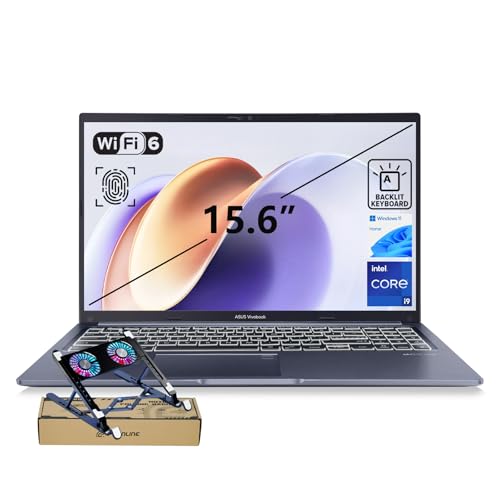
ASUS Vivobook 15 (Core i9-13900H, 32GB, 1TB) — Most Powerful Vivobook Here
Start with the specification sheet, because this Vivobook’s reads like a misprint from a class above. An Intel Core i9-13900H is a high-wattage performance processor, the kind usually reserved for creator and gaming-adjacent machines, yet here it sits in a 15.6-inch Vivobook with 32GB of memory and a 1TB solid-state drive. For compiling code, editing large photo libraries, running virtual machines for coursework, or keeping forty browser tabs beside a spreadsheet model, this configuration simply refuses to be the bottleneck. Buyers who keep a laptop five years should study this pick hardest, because memory and storage are the two specifications that age loudest, and both are maxed here.
The supporting details show ASUS spending thoughtfully around that headline power. A physical webcam shield closes over the camera with a slider — privacy you can verify with a fingertip rather than trust to software. The keyboard is backlit for late sessions, a fingerprint reader handles sign-in, and Wi-Fi 6 covers the wireless side. The bundle notation in the title, listed as a PCO Bundle, adds extras whose contents are worth confirming on the listing page itself before ordering, since bundle contents are exactly the sort of detail that changes between sellers.
What this machine does not attempt is the Zenbook trick of disappearing into a bag. The 15.6-inch FHD panel is a workhorse screen rather than a colour instrument, and the blue finish announces itself as a consumer laptop rather than a boardroom one. Judge it as a desktop replacement that occasionally travels: the value proposition is the ratio of processor, memory and storage to the Vivobook badge, and on that ratio nothing else in this guide comes close. Windows 11 Home, rather than Pro, is the one specification that marks its consumer intent.
- Display: 15.6-inch FHD
- Processor: Intel Core i9-13900H
- Memory: 32GB RAM
- Storage: 1TB SSD
- Operating system: Windows 11 Home
- Extras in title: physical webcam shield, backlit keyboard, fingerprint reader, Wi-Fi 6
Strengths
- Core i9-13900H performance in a value-family chassis
- 32GB of memory removes the usual Vivobook ceiling
- 1TB SSD ends storage anxiety for photo and project libraries
Trade-offs
- FHD panel is ordinary beside the OLED Zenbooks below
- Windows 11 Home, not the Pro edition business buyers may need
- Bundle contents need confirming on the listing before ordering
Best for: home power users, students in demanding programs, and anyone replacing a desktop with one strong machine
Not suited for: colour-critical photo or video grading, where the OLED Zenbooks serve better

ASUS Vivobook 15 (Core 3 100U, 8GB, 256GB) — Entry Rung, Honestly Specced
Every range needs a floor, and this Vivobook — model F1504VA-PS34 in Cool Silver — is the ASUS floor done properly. The Intel Core 3 100U is an efficiency-minded processor aimed at the work most laptops actually do: email, documents, video calls, streaming, light photo sorting, and the endless browser. Paired with a solid-state drive rather than a spinning disk, it will feel responsive in those tasks, waking quickly and opening applications without the grinding pauses that gave budget laptops their reputation a decade ago.
The honest limits live in the other two numbers. Eight gigabytes of memory is enough for a focused workload — a document, a call, a handful of tabs — and becomes a juggling act when a user keeps everything open at once. The 256GB drive asks for similar discipline: fine for documents and a modest photo collection, tight once games, offline video, or a large local music library arrive. Neither limit is a flaw at this tier; both are simply the price of admission, and buyers who recognise their own habits in the juggling description should climb one rung instead.
What the entry model keeps from its pricier siblings matters as much as what it trims. The 15.6-inch FHD display gives full 1080p working room, the full-size chassis leaves space for a comfortable keyboard layout, and Windows 11 Home arrives ready for the mainstream software most households run. As a first laptop for a student, a household’s shared machine, or a dedicated writing and admin computer, it covers the brief without a wasted specification. The discipline is to buy it for the job it describes, not the job you might invent later.
- Display: 15.6-inch FHD
- Processor: Intel Core 3 100U
- Memory: 8GB RAM
- Storage: 256GB SSD
- Operating system: Windows 11 Home
- Model: F1504VA-PS34, Cool Silver
Strengths
- Solid-state storage keeps the entry tier feeling quick
- Full-size 15.6-inch FHD screen for documents and streaming
- Simple, mainstream configuration with no confusing extras
Trade-offs
- 8GB of memory caps serious multitasking
- 256GB fills quickly with games or large media libraries
- No touchscreen or backlit keyboard stated in the title
Best for: first laptops, household admin machines, and students whose workload is documents, calls and browsing
Not suited for: large game installs or heavy tab-hoarding multitaskers

ASUS Vivobook Go 15 (Ryzen 5, 512GB) — Tough Traveller of the Line
The Vivobook Go 15 — model E1504FA-AS54-S — is the pick for laptops that live in backpacks, site cabins and school bags rather than on one safe desk. Its title carries a military-grade durability note, which in ASUS listings refers to testing against the MIL-STD durability family of standards; treat it as evidence the chassis was designed for knocks, not as a promise of indestructibility. Around that tougher brief, the Go keeps a full 15.6-inch FHD panel running at 60Hz and an ErgoSense keyboard, ASUS’s name for its tuned typing deck.
The configuration balances its budget differently from the Core 3 model above. The AMD Ryzen 5 processor with Radeon graphics brings stronger integrated graphics than the entry rung, useful for light photo work and casual games, while storage doubles to 512GB — the size at which a student can stop rationing space. Memory stays at 8GB, so the multitasking ceiling resembles the entry model’s even though the processor and drive are healthier. Wi-Fi 6E is a genuinely forward-looking inclusion, ready for the newer router bands many homes and campuses are adopting.
Choose the Go when the laptop’s environment is the risk factor: commuting, fieldwork, a teenager’s daily carry, a shared family machine that migrates between rooms. Its specification makes sense as insurance — a sturdier brief, a roomier drive, modern wireless — rather than as a performance play. Buyers seated permanently at one desk may prefer to trade that insurance for the touchscreen business model’s features, while buyers chasing speed should look at the i9 flagship. The Go’s virtue is that it asks the least of its owner’s care.
- Display: 15.6-inch FHD, 60Hz
- Processor: AMD Ryzen 5 (full suffix not stated in listing title)
- Graphics: AMD Radeon Graphics
- Memory: 8GB RAM
- Storage: 512GB SSD
- Extras in title: military-grade durability note, ErgoSense keyboard, Wi-Fi 6E
Strengths
- Durability-led design for bags, commutes and classrooms
- 512GB of storage doubles the entry configuration
- Wi-Fi 6E readies it for newer routers and campus networks
Trade-offs
- 8GB of memory still limits heavy multitasking
- 60Hz panel is standard fare for this tier
- Exact Ryzen 5 suffix is not stated in the listing title
Best for: students, commuters and field workers whose laptops travel daily and take knocks
Not suited for: virtual-machine workloads or very large local datasets
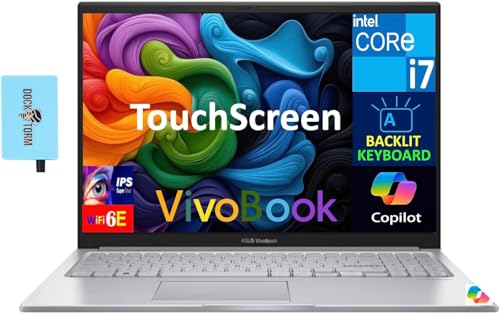
ASUS Vivobook 15 Business (Core 7 150U, Touchscreen) — Office Desk Pick
This Vivobook is specced by someone who has watched office workers actually use a laptop. The 15.6-inch touchscreen is an IPS FHD panel, so viewing angles suit two people reviewing a document side by side, and touch turns scrolling through long PDFs, signing forms and tapping through presentations into fingertip work. The Intel Core 7 150U is a modern efficiency-performance chip with headroom well beyond the Core 3 rung, and 16GB of memory — double the entry picks — lets a mail client, a CRM tab stack, a spreadsheet and a call coexist without the afternoon slowdown.
Windows 11 Pro is the specification that quietly justifies the Business name. Pro brings the management and security tooling small companies expect — domain and policy support, BitLocker drive encryption, Remote Desktop hosting — which Home editions leave out. The title also lists an HD webcam, Wi-Fi 6 and Bluetooth 5.1, the full meeting-room kit, and a Dockztorm USB hub rides in the box, expanding the port count for desks crowded with receivers, drives and wired peripherals.
Against the i9 flagship, this model trades raw muscle for fit: half the memory, half the storage, a calmer processor, but a touchscreen, the Pro operating system and the hub. For a home-office worker whose demanding moment is a fifty-tab research day rather than a render queue, that trade points the right way. For a small business buying several machines, the Pro edition also simplifies life for whoever administers them. It is the most deliberately professional machine in the Vivobook half of this guide.
- Display: 15.6-inch touchscreen IPS FHD (1920×1080)
- Processor: Intel Core 7 150U
- Memory: 16GB RAM
- Storage: 512GB SSD
- Operating system: Windows 11 Pro
- Extras in title: HD webcam, Wi-Fi 6, Bluetooth 5.1, bundled Dockztorm USB hub
Strengths
- Touchscreen IPS panel suits shared review and form work
- Windows 11 Pro fits managed small-business use
- 16GB of memory doubles the entry picks’ headroom
Trade-offs
- 512GB storage is half the flagship Vivobook’s drive
- Core 7 150U is brisk, not a match for the i9 on sustained loads
- Hub is a bundled accessory — confirm its port layout on the listing
Best for: home-office professionals and small businesses centred on Pro software and touch in one value chassis
Not suited for: sustained rendering or compiling workloads that reward the i9 flagship instead

ASUS Zenbook A14 (Snapdragon X Plus, OLED) — Light OLED Step-Up
The Zenbook A14 changes the conversation from value arithmetic to screen quality and travel weight. Its 14-inch WUXGA OLED panel is specified in the title with unusual completeness: 100% DCI-P3 colour coverage and 600 nits of HDR brightness. DCI-P3 is the colour space of cinema and modern photo workflows, so a panel covering all of it can display the saturated greens and reds that ordinary laptop screens clip. For photographers and designers working within an affordable brief, this is the first pick in the guide whose display can be trusted for colour decisions rather than merely enjoyed.
Underneath sits Qualcomm’s 8-core Snapdragon X Plus with a 45-TOPS neural processor, the Windows-on-ARM platform whose strengths are silence, cool running and long stretches away from a charger. Sixteen gigabytes of memory and a 512GB drive match the business Vivobook’s working set, while Windows 11 Pro keeps it deployable at work. The honest caveat belongs to the platform: most mainstream Windows software now runs well on ARM, yet a buyer dependent on one specialised legacy application, an unusual printer driver or x86-only plug-ins should verify that specific tool before committing.
Think of the A14 as the guide’s pivot point. Below it, money buys capacity; at the A14, money starts buying quality of experience — a panel that flatters nothing and reveals everything, a machine built to be carried all day. Frequent travellers, consultants who present from their own screen, and creators who grade on the go will feel the step-up every hour. Desk-bound buyers, by contrast, may find the larger Vivobook screens and the flagship’s memory more useful than OLED finesse at 14 inches.
- Display: 14-inch WUXGA OLED, 100% DCI-P3, 600 nits HDR
- Processor: Qualcomm Snapdragon X Plus, 8-core, 45 NPU TOPS
- Memory: 16GB RAM
- Storage: 512GB SSD
- Operating system: Windows 11 Pro
- Platform note: Windows on ARM — verify specialised legacy software
Strengths
- OLED panel with full DCI-P3 coverage stated in the title
- Snapdragon platform favours quiet, cool, mobile work
- Windows 11 Pro in a creator-and-business brief
Trade-offs
- ARM platform needs a compatibility check for niche x86 tools
- 14-inch screen is smaller than the 15.6-inch Vivobooks
- 512GB storage matches, not beats, the mid-range picks
Best for: travelling creators, presenters and professionals grading colour away from a desk monitor
Not suited for: buyers tied to specialised legacy Windows software that lacks ARM support

ASUS Zenbook 14 OLED (Ryzen AI 9 465, Touch) — OLED Touch Flagship
If the A14 is the pivot, this Zenbook 14 OLED is the destination of the affordable ASUS staircase. The panel goes further on resolution: a 2K OLED touchscreen with 500-nit HDR brightness, sharper than the A14’s WUXGA and interactive where the A14 is not. Touch on a 14-inch ultraportable earns its keep in marking up documents, sketching diagrams in meetings and navigating timelines; combined with OLED contrast, it makes the machine feel like a tablet that happens to have an excellent keyboard attached. The title’s own framing — ultra light, long battery life — states the design brief plainly.
The processor is AMD’s Ryzen AI 9 465, a current-generation AI PC chip, and the listing carries the Copilot+ PC designation, Microsoft’s tier for machines whose neural processors clear its performance threshold for on-device AI features. Sixteen gigabytes of memory and 512GB of storage mirror the A14, and Windows 11 Pro plus a backlit keyboard complete a specification with no obvious soft spot for a professional user. Among the six picks, this is the one a buyer can choose without scheduling a compromise discussion afterwards.
Why does it sit inside an affordable guide at all? Because the Zenbook line’s discipline is to deliver the premium panel and chassis while sharing platform parts with the wider range, and because a buyer stretching once, here, avoids the common two-step of buying a starter machine and replacing it within two years. The premium over the Vivobooks buys the screen, the touch layer, the AI-ready processor and the slimm slimmer travel format together. If those are the qualities your workday touches hourly, this is the rational top of the ladder rather than an indulgence.
- Display: 14-inch 2K OLED touchscreen, 500 nits HDR
- Processor: AMD Ryzen AI 9 465
- Memory: 16GB RAM
- Storage: 512GB SSD
- Operating system: Windows 11 Pro
- Extras in title: Copilot+ PC, backlit keyboard, ultra-light brief
Strengths
- Sharpest panel here: 2K OLED with touch
- Ryzen AI 9 and Copilot+ status cover on-device AI features
- Pro operating system and backlit keyboard complete the brief
Trade-offs
- Storage stays at 512GB despite flagship positioning
- Smaller screen than the 15.6-inch picks for split-screen desk work
- Touch OLED is the feature set budget buyers pay the stretch for
Best for: professionals taking the full premium brief — panel, touch, AI silicon — in one purchase
Not suited for: spreadsheet-heavy desk work better matched to the flagship Vivobook’s 32GB and 1TB
How Does the ASUS Ladder Read When the Six Sit in One Table?
Tables flatten nuance, so read this one as a map of intent rather than a league table. The first three rows climb the Vivobook value rungs — starter, traveller, office — the fourth row breaks the pattern with flagship power in the value shell, and the final two rows leave the value family entirely for OLED Zenbooks. Notice what does not vary much: every machine carries a solid-state drive, every screen is at least FHD, and Windows is current-generation throughout. The real variables are memory, panel technology and processor class, which is why those columns deserve your attention.
| Pick | Display | Processor | Memory | Storage |
|---|---|---|---|---|
| ASUS Vivobook 15 (Core i9-13900H, 32GB, 1TB) | 15.6-inch FHD | Intel Core i9-13900H | 32GB | 1TB SSD |
| ASUS Vivobook 15 (Core 3 100U, 8GB, 256GB) | 15.6-inch FHD | Intel Core 3 100U | 8GB | 256GB SSD |
| ASUS Vivobook Go 15 (Ryzen 5, 512GB) | 15.6-inch FHD 60Hz | AMD Ryzen 5 | 8GB | 512GB SSD |
| ASUS Vivobook 15 Business (Core 7 150U, Touchscreen) | 15.6-inch IPS touch FHD | Intel Core 7 150U | 16GB | 512GB SSD |
| ASUS Zenbook A14 (Snapdragon X Plus, OLED) | 14-inch WUXGA OLED | Snapdragon X Plus | 16GB | 512GB SSD |
| ASUS Zenbook 14 OLED (Ryzen AI 9 465, Touch) | 14-inch 2K OLED touch | Ryzen AI 9 465 | 16GB | 512GB SSD |
Which ASUS Tier Fits a Student Budget Without Regret by Second Year?
Match the machine to the course, not the campus shop window. A humanities student writing essays, attending video lectures and managing references lives comfortably on the Core 3 or Ryzen 5 configurations, provided the 8GB memory ceiling is respected — which means closing finished work rather than warehousing it in tabs. The moment coursework turns to statistics packages, engineering tools, code compilation or media production, the calculus flips: the business model’s 16GB or the flagship’s 32GB stops being a luxury and becomes the difference between a laptop that lasts the degree and one replaced in year two.
Storage follows the same logic of accumulation. First-year students underestimate how quickly coursework, recorded lectures and personal media compound; 256GB demands cloud discipline, 512GB breathes, and the flagship’s terabyte simply removes the topic. A useful exercise is to measure your current machine’s drive before buying — if you already hover near a quarter-terabyte with a modest library, the entry configuration will feel tight by Christmas. Buying one rung above your measured need is the cheapest insurance in student computing, cheaper than any mid-degree replacement.
Why Do the Two Zenbook OLED Panels Matter More Than Their Size Suggests?
OLED differs from the LCD panels in the Vivobooks at the level of physics: each pixel emits its own light and can switch fully off, so black is an absence of light rather than a dimmed backlight shining through. Contrast becomes effectively absolute, night scenes hold detail, and text edges sit on true black. The A14 adds a quantified colour promise — 100% DCI-P3 coverage in its title — while the Zenbook 14 counters with higher 2K resolution, touch and 500-nit HDR brightness. For photo and video work, coverage is the number that governs trust; for reading and interface work, resolution governs comfort.
There is also an honesty point worth keeping: a title that prints its colour coverage and HDR brightness is making a checkable promise, whereas panels described only as FHD leave brightness and gamut unstated. That is why the spec lists in this guide mark unstated items as unstated for the Vivobooks instead of borrowing numbers from sibling models. When you compare any laptop, treat a printed gamut figure as a feature in itself — it signals the maker expects the panel to be judged, which is precisely the judgement creative buyers need to make.
How Should You Set Up a New ASUS Laptop in Its First Evening?
Begin with updates before personalisation: run Windows Update repeatedly until it reports clear, then update the ASUS utilities and drivers through the maker’s own channel, since display, power and fingerprint behaviour often improve with early firmware. Next, sign in to your backup arrangement of choice and confirm it is actually running — a backup configured during setup week protects the machine’s entire life, while one postponed tends to be configured the week after the first scare. Move your files after the system settles, not during the update churn.
Then tune the machine to its tier. On an 8GB model, prune startup applications ruthlessly and let the browser suspend inactive tabs; on the flagship Vivobook, install your heaviest tools early and confirm the terabyte drive’s free space reads as expected in Settings. Zenbook owners should spend ten minutes in the display settings choosing colour behaviour for their work — and Snapdragon A14 owners should install their one critical specialised application first, while the return decision is still easy, to confirm the ARM platform runs it cleanly.
When Does 8GB of Memory Stop Being Enough?
Memory pressure announces itself in small ways before it becomes misery: the browser reloading tabs you left minutes ago, a video call stuttering when a spreadsheet recalculates, an application reopening instead of resurfacing. Eight gigabytes handles a single-threaded day — one main task, light support acts — gracefully. It frays when the day becomes parallel: calls plus documents plus data plus media, all live at once. Neither entry pick is broken for showing this ceiling; the ceiling is simply the honest boundary of the tier, and recognising your own parallelism is the buyer’s core skill.
Sixteen gigabytes, fitted to the business Vivobook and both Zenbooks, moves that boundary beyond most professional days, and the flagship’s 32GB moves it beyond deliberate stress: virtual machines, large datasets, serious photo batches. If your work involves any of those three, memory should outrank every other specification in this guide, including the OLED panels. Screens can be supplemented with an external monitor later; memory in this class of slim laptop cannot be supplemented at all, which is why the guide keeps returning to it as the longevity specification.
Should You Pay for the Touchscreen or the Bigger Drive First?
When a budget forces one choice, follow the hours. Touch is an interface quality you feel in small moments — a signed form here, a scrolled contract there — while storage is a capacity wall you hit all at once and cannot negotiate with. A buyer who regularly reviews documents with a pen in hand or presents standing up will use touch daily; a buyer whose photo library grows monthly will curse a small drive daily. The business Vivobook and the flagship embody exactly this fork, and neither answer is wrong — but answering for a hypothetical future self, rather than your recorded habits, is how the wrong one gets chosen.
There is an asymmetry worth naming: a cramped drive can be relieved, clumsily, with external storage and cloud subscriptions that cost money every year, whereas a missing touchscreen can never be retrofitted at all. That asymmetry argues for touch when the contest is close. It argues just as strongly the other way once games, video projects or a decade of family photos enter the picture, because those libraries punish small drives relentlessly. Weigh which regret you would rather manage — carrying an external drive, or reaching for a screen that does not respond — and the choice usually makes itself.
What Separates a Vivobook Buyer From a Zenbook Buyer, Really?
Strip away the badges and the split is philosophical. Vivobook buyers purchase capacity per unit of money: processor tiers, memory sizes, drive sizes, the arithmetic of specification sheets. Zenbook buyers purchase qualities that resist arithmetic — a panel’s colour coverage, a chassis that disappears into a carry-on, the silence of a fanless-feeling ARM machine in a meeting room. Both philosophies are respectable, and most households contain both kinds of buyer at different moments, which is why the affordable ASUS range serves each without apology.
The practical consequence is that cross-shopping should start with self-knowledge, not specifications. If your satisfaction with a laptop is mostly set by whether it ever slows down or fills up, the Vivobook flagship will delight you for years. If your satisfaction is set by what the screen shows you and how the machine feels at 6 a.m. in an airport, the Zenbooks justify their stretch the first week. Misery comes from buying by the other philosophy’s values — a specification bargain whose screen you dislike, or a beautiful panel wrapped around too little storage.
How Do You Read an ASUS Model Name Like F1504VA or E1504FA Without a Decoder Ring?
ASUS model codes look forbidding, yet they reward a minute’s attention because they pin a laptop to one exact configuration. The leading letters and digits identify the family and screen size class, the middle characters encode the platform generation, and the suffix after the dash — PS34 on the Core 3 Vivobook, AS54-S on the Go — distinguishes the specific build sold in a region. Two listings can share a friendly name like Vivobook 15 while their codes describe different processors, memory and drives, which is why this guide quotes the code wherever the title supplies one.
The habit to build is simple: when you have chosen a configuration, copy its full code into your notes and compare it character by character with the listing at checkout. Retailers’ search results mix siblings aggressively, and a one-character difference in the suffix can mean a different drive or a missing backlit keyboard. The code is the machine’s fingerprint; the friendly name is only its family name. Buyers who check the fingerprint never receive the wrong sibling, and the check costs less time than reading one review.
What Does Next Gen AI Ready on the Flagship’s Title Actually Promise?
The flagship Vivobook’s title carries a ‘Next Gen AI Ready’ phrase, and the honest reading is modest: the machine’s processor generation supports the current wave of AI-assisted features in Windows and creative applications, from background effects in calls to generative tools in photo editors. It is not the Copilot+ designation — that label, which the Zenbook 14 in this guide carries explicitly, is Microsoft’s formal tier with a neural-processing threshold attached. Marketing phrases and formal tiers live side by side in laptop listings, and learning to tell them apart protects buyers from paying for poetry.
Practically, AI readiness matters most as future-proofing. Features that run on the machine’s own silicon arrive through software updates over the laptop’s life, and a current-generation processor with generous memory — the flagship’s 32GB again — is well placed to receive them. Buyers who care about this trajectory should weigh the formal Copilot+ badge on the Zenbook 14 and the A14’s stated 45-TOPS neural processor as the guide’s two quantified data points, and treat vaguer phrases elsewhere as atmosphere rather than specification.
Which of These Six ASUS Laptops Handles Video Calls Best?
Calls are a system test disguised as a meeting: camera, microphone behaviour, network, and enough performance headroom to share a screen while notes are taken. The business Vivobook makes its case explicitly — its title lists an HD webcam alongside the touchscreen that simplifies sharing and annotating — while the flagship answers with the physical privacy shield and fingerprint sign-in that bookend a call with good security habits. Both Zenbooks present the presenter better, because OLED panels encourage the flattering screen brightness and colour that make a home office look deliberate on the other end.
The entry and Go models handle ordinary calls perfectly well; their limits appear when the call becomes a production, with virtual backgrounds, simultaneous recording and a dozen applications competing for 8GB of memory. If your working week is measured in meeting hours, that headroom argument alone can justify the business model. And whichever pick you choose, the cheapest call upgrade remains environmental: face a window or a lamp, raise the laptop to eye level on books or a stand, and even a modest webcam suddenly looks like a considered one.
Common Mistakes When Climbing the ASUS Range
**Judging the range by processor badges alone.** A Core i9 badge on the flagship does not make the Core 3 model a mistake, nor the reverse; each processor is matched to a workload. The error is buying the badge for status, or dismissing the entry chip for work it handles perfectly well. Read the whole configuration — processor, memory, storage, panel — as one sentence.
**Treating 256GB as plenty because it sounds large.** Phone backups, a game or two, offline video and a growing photo library consume a quarter-terabyte faster than intuition suggests. Buyers who already fill phones quickly should start at 512GB, and the guide’s flagship exists precisely for households tired of storage housekeeping.
**Assuming every Zenbook feature appears on every Zenbook.** The A14’s title states DCI-P3 coverage and 600-nit HDR; the Zenbook 14 states 2K resolution, touch and 500-nit HDR. They are different panels with different strengths. Conflating sibling specifications is how buyers end up surprised by a screen they never actually ordered.
**Skipping the ARM check on the Snapdragon model.** The Zenbook A14’s platform is a strength for mobile work, yet one x86-only legacy tool can undo the whole purchase. Install or verify your single most specialised application during the first days, not the first crisis.
**Ignoring the operating system edition.** Windows 11 Pro on the business Vivobook and both Zenbooks matters to anyone joining a work network, encrypting a drive or being administered by an employer’s IT. Home buyers will never miss it; business buyers discover its absence at the worst moment.
**Ordering from a sibling listing by mistake.** ASUS sells each model in multiple configurations under near-identical names, and marketplace pages make them easy to confuse. The defence is boring and total: read the full title of the exact listing you are ordering, and match processor, memory and storage digit by digit against the configuration you chose. The titles quoted in this guide are the reference copies for that check.
Why Does the Flagship Vivobook Carry a Webcam Shield Worth Mentioning?
A sliding physical shield sounds like a triviality until you consider what it replaces: trust in an indicator light, in an operating-system toggle, in every application behaving. The flagship’s shield makes privacy a mechanical fact, visible and tactile, which is why privacy-conscious buyers and employers alike value it. It also protects the lens from the smearing that backpack life inflicts. Small hardware certainties like this — a fingerprint reader that signs you in, a shield that closes — compound into a machine that feels considered, and they cost the maker little, which is precisely why their presence on a value-line flagship is a good sign.
How Should a Household Share One ASUS Laptop Without Chaos?
Give every user their own Windows account from day one; the fingerprint readers on the flagship make switching painless, and separate accounts keep desktops, browser profiles and document folders from colliding. On the terabyte model, create one shared folder for family media and let personal folders stay personal, so the big drive becomes a household asset rather than a contested pile. Schedule the machine’s updates for a quiet overnight window, agree that whoever plugs in a nearly-empty battery also plugs in the charger, and the shared laptop stops generating the small frictions that make families conclude they need two.
What Should You Photograph on Delivery Day?
Before the box is recycled, photograph the laptop’s underside label and the listing page showing the exact configuration ordered. The label records the model and serial identifiers that any warranty conversation will request, and the listing screenshot freezes the title’s promises — processor, memory, storage — against later page edits. Store both images with your receipt in the same cloud folder. It takes ninety seconds, and it converts any future dispute about what was bought from an argument into a document check, which is the kind of insurance that costs nothing until the day it is priceless.
Why Do 15.6-Inch Laptops Still Dominate the Value End?
The size persists because it solves three problems at once: a full-width keyboard with room for a number pad, a screen large enough for two documents, and a chassis with space for cooling and ports at modest cost. Fourteen-inch machines win on travel, which the Zenbooks exploit, but they ask typists and spreadsheet users to accept narrower decks. Households buying one laptop to be everything — homework desk, kitchen counter, occasional train companion — keep choosing the larger format because its compromises are the gentlest, and the three 15.6-inch Vivobooks here exist to serve exactly that household at three different depths of pocket.
How Long Should an Affordable ASUS Laptop Reasonably Last?
With configurations chosen by the memory-first rule, four to six years of mainstream service is a fair expectation, with the battery the component most likely to ask for attention first. The flagship’s 32GB and terabyte postpone the specification ageing that retires lesser machines, while entry models serve their full span when their workload stays within the tier’s design. Longevity is mostly a matching exercise performed at purchase: a laptop asked to do its own job ages slowly, and one asked to impersonate a workstation ages in public. Choose the rung honestly and the machine will repay the honesty.
What Is the Sensible First Accessory for Each Tier?
Entry-tier buyers should buy a padded sleeve and a cloud backup subscription before anything decorative, because the machine’s risks are physical and digital loss, not performance. The business model’s owner gains most from a second charger left at the desk, turning the bundled hub into a true one-cable docking ritual. Zenbook travellers should protect the panel that justified the purchase with a hard sleeve and consider a compact USB-C charger as a spare. Accessories earn their money when they defend the specific quality you paid for — a principle that keeps the accessory drawer from filling with hopeful plastic.
How Should You Break In a New Laptop Battery?
Modern lithium batteries need no ritual discharge; the useful habits are simpler. Use the machine on battery regularly rather than keeping it docked at full charge for months, avoid leaving it in hot cars, and let Windows’ own battery reporting teach you the real endurance of your configuration over the first fortnight. Manufacturer battery utilities often include a charge-limit option for desk-bound machines — worth enabling on the business Vivobook if it lives plugged in. Beyond that, relax: battery wear is measured in years, and the owners who enjoy their laptops most are the ones who stop auditioning the battery and start using the machine.
What Changes When a Student Graduates and the Laptop Goes to Work?
The machine that survived a degree carries habits into employment: the same folder discipline, the same backup routine, ideally the same configuration headroom. This transition is where the guide’s memory argument completes itself — a 16GB or 32GB laptop steps into a professional workload of calls, documents and data without ceremony, while an 8GB machine begins its second life already negotiating. If you are buying for a student near graduation, buy for the employee they are about to become. The price difference between rungs is small beside a salary; the daily friction difference is not.
Why Does This Guide Quote Listing Titles Instead of Brochure Specifications?
Because the listing title is the one document the seller must honour at the moment of sale. Brochures describe families, review samples describe one configuration among many, and memory — including a reviewer’s — blurs siblings together. Quoting titles keeps every claim in these pages tethered to a configuration a buyer can actually order, and it exposes gaps honestly: where a title is silent about brightness or colour coverage, this guide says so instead of borrowing a sibling’s numbers. It is a slower way to write a buying guide, and the only way that respects the reader’s money.
Final Recommendation
The affordable ASUS range resolves into a clear recommendation pattern. Start where your workload starts: the Core 3 Vivobook for a first or household machine, the Vivobook Go for a laptop that travels roughly, the touchscreen business model for an office desk that values Pro software and 16GB of memory. If one purchase must serve five years of growing demands, the i9 Vivobook’s 32GB and terabyte make it the longevity buy of the value family, full stop.
Stretch to Zenbook when the screen is a working tool rather than a window: the A14 for colour-trusted mobility on Snapdragon silicon, the Zenbook 14 OLED for the sharpest panel, touch and Ryzen AI power in the slimmest professional brief. Whichever rung you choose, confirm the configuration in the listing title at order time — with ASUS’s wide range, the title is the contract. For a household that asked one question — which ASUS gives the most honest laptop for the money — the answer is the rung that matches your memory needs, bought once and bought right.
One last calibration for the undecided: memory first, panel second, processor third. That ordering surprises buyers raised on processor marketing, yet it mirrors how laptops actually age — memory ceilings bite daily, screens are looked at hourly, and processors in this entire range are quick enough that their differences surface only in sustained heavy work. Apply that ordering to the six configurations above and the ladder sorts itself around your life with very little drama.
Frequently Asked Questions
Is the Core i9 Vivobook overkill for home use?
For browsing and documents, yes, cheerfully so — but overkill in processor, memory and storage is the kind that pays out over years, because those are the specifications that determine when a laptop starts feeling old. A household that keeps machines five years or more can rationally buy the headroom; a household that replaces every two years should save the difference and choose a lower rung.
Can the 8GB models be upgraded later?
Treat the memory figure in each listing title as the machine’s lifetime figure. Slim laptops in this class commonly use memory that is not user-upgradeable, and the listing title makes no upgrade promise. If your workload might grow into heavier multitasking, buy the 16GB or 32GB configuration now rather than planning a later fix that the design may not allow.
What does the military-grade note on the Vivobook Go actually mean?
It signals that the design was tested against the MIL-STD family of durability procedures — drops, vibration, temperature and humidity stresses of the sort travelling hardware meets. It is a design credential, not a guarantee against any specific accident, and a sleeve or padded bag remains wise. Read it as ‘built with knocks in mind’, which is exactly the brief a school or commuting laptop needs.
Will my Windows programs run on the Snapdragon Zenbook A14?
Mainstream applications — browsers, Office, conferencing, most creative tools — run on the platform, many natively and the rest through Windows’ built-in translation. The risk concentrates in specialised legacy software, unusual hardware drivers and some plug-ins. Identify your single most unusual program, check its maker’s ARM statement, and test it in the first days of ownership while changing your mind is still simple.
Which pick is best for photo editing?
The Zenbook A14, because its title states full DCI-P3 coverage and 600-nit HDR brightness — the only quantified colour promise among the six. The Zenbook 14 OLED is the alternative when touch and higher resolution matter more to your editing style. The Vivobooks can run editing software happily, the flagship especially, but their panels carry no colour-coverage figure in their titles, so colour decisions there deserve a calibrated external monitor.
Does the touchscreen Vivobook fold into a tablet?
No — the listing describes a touchscreen laptop, not a 2-in-1 convertible, so the screen accepts touch input while remaining a conventional clamshell. That suits tapping, scrolling and signing at a desk. Buyers wanting a screen that folds flat against the back for tablet use should shop ASUS’s convertible lines instead, which are a different family from every pick here.
Is Windows 11 Pro worth having on a home laptop?
For most home users, Home covers everything — browsing, Office, media, gaming — and Pro’s additions only matter when a machine joins an employer’s network, needs BitLocker drive encryption managed by policy, or hosts Remote Desktop sessions. If none of those sentences describes your household, treat Pro on the business Vivobook and Zenbooks as a harmless bonus rather than a reason to choose them; if one does, it becomes a genuine requirement that is expensive to retrofit.
Related Guides
The ASUS ladder is one brand’s answer; the neighbouring guides walk the same affordable question through rival ranges and through one specialist need, so you can check whether the grass really is greener before committing.
our guide to the best affordable Dell laptops and their Inspiron tiers the best affordable HP laptops, from Pavilion to Envy our engineering-focused roundup of the best affordable engineering laptops


