What's inside
- Where to Buy
- Key Takeaways
- Quick Picks
- How We Chose These Picks
- Comparison Table: The Six as Animation Machines
- How to Choose Among These Six for Animation
- Does an Animator Need an RTX 5090, or Is That Games-Market Excess?
- How Much Storage Does One Animated Production Really Consume?
- Can a 13-Inch Convertible Really Belong in an Animation Guide?
- What Should an Animator’s Render Routine Look Like on a Laptop?
- How Does Working With a Team Change the Right Choice?
- What Is the Sensible Way to Test a Finalist Before a Production Depends on It?
- How Do Playblasts, Previews and Final Renders Divide the Hardware Between Them?
- What Role Do External Monitors and Studio Storage Play Alongside These Laptops?
- Common Mistakes When Buying a Laptop for 3D Animation
- Final Recommendation
- Frequently Asked Questions
- Related Guides
As an Amazon Associate I earn from qualifying purchases. This post may contain affiliate links at no extra cost to you.
[SITE_DOMAIN] is reader-supported. When you buy through links on our site, we may earn an affiliate commission.
Where to Buy
Animation hardware hides inside configuration names, so each Amazon page below deserves a line-by-line read before a basket is filled. The ASUS ProArt P16 in its HIDevolution build should be confirmed with the RTX 5090, 64GB and 4TB pairing intact. Lenovo’s Yoga Pro 9i asks you to verify the RTX 5060 build with 32GB and its 3.2K Tandem OLED. ASUS’s ProArt PX13 convertible is the listing to check for the Ryzen AI Max+ 395 with 64GB and 2TB. Razer’s Blade 18 needs the RTX 5090 configuration distinguished from lesser builds of the same name. The ROG Strix SCAR 16 page should show its 5090 beside 32GB of DDR5 and a 2TB Gen 4 drive. HP’s ZBook Studio G11 closes the set; look for the RTX 2000 Ada with its 8GB printed in the title.
Choosing among the best laptops for animation 3d work means choosing how two very different kinds of hours will feel. The first kind is the animating hour itself: posing characters, scrubbing a timeline, watching playblasts, nudging keys while the viewport redraws a rigged scene dozens of times a minute. That hour is interactive, and it lives or dies on viewport responsiveness, screen quality and the general absence of friction. The second kind is the rendering hour: finished frames computing in sequence, the machine at full stretch, the animator planning life around its availability. That hour lives on graphics throughput, on memory holding the scene, and on storage absorbing frame after frame of output. A laptop for 3D animation must serve both hours, and the six machines here serve them in different proportions.
Two are creator laptops built expressly for this trade: an ASUS ProArt P16 carrying an RTX 5090, 64GB of memory and 4TB of storage, and its smaller sibling, a 13.3-inch ProArt PX13 convertible with a Ryzen AI Max+ 395 and 64GB. Two are gaming flagships whose hardware maps directly onto rendering: a Razer Blade 18 and an ASUS ROG Strix SCAR 16, both with RTX 5090 graphics. One is a Lenovo Yoga Pro 9i, a creator machine with an RTX 5060 and a 3.2K Tandem OLED screen that courts the animating hour most of all. And one is HP’s ZBook Studio G11, a mobile workstation whose RTX 2000 Ada states its 8GB of graphics memory in plain figures. No benchmark scores, render-time promises or certification claims appear anywhere below, because no listing title supplies them; the case for each machine is built from its named processor, graphics, memory, storage and display.
That discipline is not pedantry. Animation forums are thick with inherited numbers — render comparisons from other machines, other scenes, other versions — presented as if they were properties of the hardware. A scene is not a standard unit. What a buyer can verify, and what this guide therefore uses, is capacity: how much memory a scene can occupy, how much storage a sequence can fill, which graphics card will compute the frames, and how fine the screen is on which the motion will be judged. Buy capacity matched to your scenes and the machine will behave; buy a reputation and you are gambling with a deadline as the stake.
Key Takeaways
- Three picks carry RTX 5090 graphics — the ProArt P16, the Blade 18 and the Strix SCAR 16 — the flagship card for final-frame rendering here.
- The ProArt P16 pairs that card with the guide’s largest combined figures: 64GB of LPDDR5X memory and a 4TB PCIe SSD.
- The ProArt PX13 puts 64GB and a Ryzen AI Max+ 395 into a 13.3-inch 2-in-1 with a 3K OLED touch screen and a MicroSD reader.
- The ZBook Studio G11 is the legible workstation: its RTX 2000 Ada prints an 8GB graphics memory figure in the title.
- The Yoga Pro 9i’s 3.2K Tandem OLED at 120Hz and a stated 1000 nits is the screen built for judging motion and light.
Quick Picks
| Pick | Badge | Why it is here |
|---|---|---|
| ASUS ProArt P16 RTX 5090 | The Complete Animator | RTX 5090, 64GB and 4TB behind a 4K 120Hz OLED touch screen. |
| Lenovo Yoga Pro 9i | The Judging Screen | RTX 5060 graphics under a 3.2K Tandem OLED stated at 1000 nits. |
| ASUS ProArt PX13 | The Travelling Studio | 64GB and a 16-core AI processor in a 13.3-inch convertible body. |
| Razer Blade 18 RTX 5090 | The Big Canvas | RTX 5090 and 64GB of DDR5 behind an 18-inch dual-mode display. |
| ASUS ROG Strix SCAR 16 | The Render Traveller | RTX 5090 throughput with 32GB and 2TB in a 16-inch Nebula HDR body. |
| HP ZBook Studio G11 | The Managed Workstation | An RTX 2000 Ada with 8GB stated, 32GB DDR5 and twin Thunderbolt 4. |
How We Chose These Picks
Animation was divided into its three loads before any machine was considered. The viewport load is continuous: rigs deforming, scenes with textures and lighting previewing, the timeline scrubbed back and forth while the animator thinks in motion. It leans on the graphics card and on a screen that shows the work truthfully. The render load is sustained: sequences computing frame after frame, with the scene resident in memory throughout and the graphics card working at full stretch for hours. It leans on the card again, on system memory, and on cooling behaviour that no title can state and this guide therefore does not invent. The data load is cumulative and unusually heavy: project files, texture and simulation caches, playblasts, rendered sequences in several passes, all accumulating across a single production, let alone a career.
Graphics came first, read by name and by stated memory. Three titles name the RTX 5090, the flagship consumer card of its generation, without printing its memory; the ZBook prints its RTX 2000 Ada with 8GB; the Yoga names an RTX 5060 and the PX13 names no discrete card at all, its graphics arrangement unstated in the title and recorded as such below. Those differences are presented as differences in kind and in legibility, not converted into invented render times. A buyer planning scenes around graphics memory should treat the stated 8GB as a known room, the unified 64GB of the PX13’s platform as a different architecture to investigate in ASUS’s documentation, and the 5090 machines’ unstated figure as a number to obtain before promising a production schedule.
Memory and storage set the remaining tiers. Thirty-two gigabytes — the Yoga, the SCAR and the ZBook — is the working tier for productions of ordinary scale. Sixty-four — the ProArt P16, the PX13 and the Blade 18 — is the tier where heavy scenes, simulations and a second major application stop competing. Storage runs from the ZBook’s single terabyte, through the 2TB drives on the Yoga, PX13 and SCAR, to the ProArt P16’s 4TB, which is best understood as a production’s worth of sequences held locally without eviction. Screens were judged as the surface on which motion and light are approved: OLED dominates this shortlist, at 4K, 3.2K, 3K and 2.5K, with the Blade’s 18-inch dual-mode panel offering sheer size and the ZBook’s FHD+ standing as the plain exception.
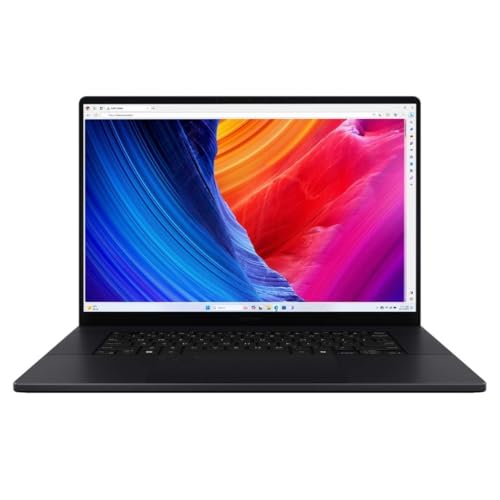
ASUS ProArt P16 RTX 5090 — The Complete Animator
If one configuration in this guide was assembled by someone who has survived an animated production, it is this one. The HIDevolution listing describes a 2025 ASUS ProArt P16 in black with a 16-inch 4K OLED touch display at 120Hz, a Ryzen AI 9 HX 370 running at a stated 2.0 GHz, an RTX 5090, 64GB of LPDDR5X memory, a 4TB PCIe SSD and Windows 11 Pro. Read against the three loads, nothing is left as the obvious bottleneck: the flagship card for viewport and render alike, memory at the generous tier for scenes that sprawl, storage at a size that treats rendered sequences as residents rather than refugees, and a 4K OLED touch panel for approving the result.
The ProArt line’s creator positioning matters in the small ways that accumulate across a production. This is a machine sold to people who animate, edit and illustrate for a living, and its specification reads accordingly — no figure is a gaming flourish, every figure is a production quantity. The touch screen earns its place in review sessions, turning a model or a frame around by hand while a director watches. What the title does not state is the RTX 5090’s graphics memory, and a production planning its largest scenes around that pool should take the figure from ASUS’s documentation; the spec box records the gap in the locked wording. A buyer should also note the HIDevolution branding: this is a configured build of the ProArt P16, and its exact specification is the one printed in this title, not the base model’s.
- Processor: Ryzen AI 9 HX 370, 2.0 GHz as stated in the title
- Graphics: RTX 5090
- Memory: 64GB LPDDR5X
- Storage: 4TB PCIe SSD
- Display: 16-inch 4K OLED touch, 120Hz
- Operating system: Windows 11 Pro
- Graphics memory figure: Not stated in the listing title — verify with the manufacturer documentation
Strengths
- RTX 5090 graphics serve both the viewport hour and the rendering hour at flagship level.
- 64GB of memory and 4TB of storage remove the two ceilings productions hit most.
- The 4K OLED touch panel approves colour and light at the standard clients will see.
Trade-offs
- The card’s graphics memory is unstated, so the largest scene planning needs ASUS’s figure.
- As a configured HIDevolution build, its specification must be matched title-for-title when ordering.
- Nothing here is sized for portability; this is a studio desk that can be carried, not a traveller.
Best for: an animator whose single machine must model, animate and render a full production, with scenes and sequences held locally throughout.
Not suited for: an animator who works in short, light scenes and presents on the move — the 4TB drive and 64GB tier are capacity this workflow never touches.
The completeness is the argument. Most laptops in this category force a choice of which load to favour; this configuration declines the choice, and for a working animator whose deadline does not care which hour failed, declining it is worth a great deal. It is the guide’s reference machine: the one the others are measured against, and the one a serious independent production can build itself around.

Lenovo Yoga Pro 9i — The Judging Screen
Animation is approved by eye, and the Yoga Pro 9i is built around the approving. Its title describes a 16-inch Aura Edition laptop with an Intel Ultra 9 285H of 16 cores, 32GB of memory, a 1TB SSD, NVIDIA GeForce RTX 5060 graphics, Windows 11 Pro and a 3.2K Tandem OLED display at 120Hz with a stated 1000 nits. That panel is the finest judging surface in this guide by the figures printed: tandem OLED construction, resolution above the ProArt’s in pixel density terms across the same size class debate aside, and a brightness figure stated outright where most titles stay silent. For the animator whose work is lighting, colour and the final look of a frame, this screen is not decoration; it is the instrument the decisions are made on.
The RTX 5060 positions the machine honestly in the middle of the graphics range here: a discrete card fully capable of driving demanding viewports and rendering productions of ordinary scale, a clear step below the 5090 trio for sequence-heavy final rendering. Thirty-two gigabytes matches that positioning, and the terabyte of storage is the configuration’s tightest figure — a working production will fill it, and its owner should plan the archive from day one. The Ultra 9 285H, with its core count printed, keeps the interactive hour fluid: scrubbing, posing and previewing are processor-and-graphics work shared between them, and this pairing is balanced for exactly that.
- Processor: Intel Ultra 9 285H, 16-core as stated in the title
- Graphics: NVIDIA GeForce RTX 5060
- Memory: 32GB
- Storage: 1TB SSD
- Display: 16-inch 3.2K Tandem OLED, 120Hz, 1000 nits as stated
- Operating system: Windows 11 Pro
- Graphics memory figure: Not stated in the listing title — verify with the manufacturer documentation
Strengths
- The 3.2K Tandem OLED at a stated 1000 nits is the guide’s premier screen for judging light.
- A 16-core Ultra 9 and a discrete RTX 5060 keep the animating hour responsive.
- Creator positioning without gaming styling suits studio and client environments alike.
Trade-offs
- The RTX 5060 renders long sequences more slowly than the 5090 picks, by class.
- 1TB of storage is the tightest figure here for sequence-heavy productions.
- 32GB is the working tier; the heaviest simulation-laden scenes will want the 64GB picks.
Best for: an animator or lighting artist whose approvals happen on the laptop screen and whose productions are of ordinary, well-managed scale.
Not suited for: a studio rendering long final sequences nightly — the RTX 5060’s class, not its quality, is the measurable limit against the 5090 machines.
There is a kind of animator this machine understands precisely: the one who is also the director, the lighter and the colourist, because the production is small and the talent is concentrated. For that person the screen is where the film is decided, and Lenovo has spent the budget accordingly. Rendering can be scheduled overnight; a misjudged frame ships forever.

ASUS ProArt PX13 — The Travelling Studio
The PX13 makes an argument no other pick attempts: that a 13.3-inch convertible can be a serious animation seat. Its title describes a 2-in-1 with a 3K OLED touch screen, a Ryzen AI Max+ 395 described as a 16-core AMD AI CPU with a 126 TOPS figure, 64GB of memory, a 2TB drive, Copilot+ creator positioning, a backlit keyboard, a MicroSD reader, WiFi 7, Bluetooth 5.4, a webcam and Windows 11 Pro. The convertible form is the headline for a particular workflow: the animator who draws. Storyboards, thumbnails, pose sketches and frame annotations happen on the folded-back screen, and the same machine then opens into a laptop for the 3D work itself — two instruments in one bag.
Honesty about graphics is required here. The title names no discrete graphics card, and this guide will not invent one; the rendering ceiling of this machine is therefore a question its buyer must settle in ASUS’s documentation, and the spec box records the silence. What the title does state is remarkable in its own right: 64GB of memory — the generous tier — inside a 13.3-inch body, and 2TB of storage, figures that embarrass larger machines. Scene-holding, application-juggling and library-keeping are all served at full scale; the open question is purely how fast final frames compute, and an animator whose rendering is modest, or who renders elsewhere, may find that question happily irrelevant. The MicroSD reader, a small line in the title, is a working animator’s detail: footage, references and assets arrive on cards, and this machine takes them natively.
- Processor: Ryzen AI Max+ 395, 16-core as stated, with a 126 TOPS figure printed
- Memory: 64GB
- Storage: 2TB
- Display: 13.3-inch 3K OLED touch, 2-in-1 convertible
- Card reader: MicroSD, as named in the title
- Wireless: WiFi 7 and Bluetooth 5.4
- Discrete graphics card: Not stated in the listing title — verify with the manufacturer documentation
Strengths
- 64GB of memory in a 13.3-inch convertible is unmatched anywhere in this guide.
- The folding 3K OLED touch screen serves drawing, boarding and annotating natively.
- A MicroSD reader and 2TB of storage suit asset-heavy travelling workflows.
Trade-offs
- No discrete graphics card is stated, so render capacity must be verified upstream.
- A 13.3-inch screen crowds a full animation interface during desk sessions.
- Small-body machines ask more of their cooling during sustained renders, qualitatively.
Best for: an animator who draws as much as they model, travels between studios, and renders modestly or elsewhere.
Not suited for: a production whose final frames must compute on this machine nightly — with no discrete card stated in the title, that duty is unverified by anything printed here.
Judged as a sketchbook that happens to hold 64GB, the PX13 is delightful. Judged as a render node, it is a question mark its title declines to answer. Whoever knows which of those two machines they are shopping for will be either thrilled or warned, and both reactions are the review doing its job.

Razer Blade 18 RTX 5090 — The Big Canvas
Scale changes animation work in ways a specification only hints at. An 18-inch screen holds the timeline, the graph editor, the viewport and the outliner in a single glance, and for an animator who lives in that interface, the Blade 18’s size is a feature before its graphics are even mentioned. The title describes a 2026 performance laptop with an RTX 5090, 64GB of DDR5, a 2TB drive, an Intel Ultra 9 290HX, an 18-inch dual-mode display offering UHD+ at 240Hz or FHD+ at 440Hz, Wi-Fi 7, Thunderbolt 5 and Windows 11, described by Razer as upgradeable and aimed at gaming and AI development. The dual-mode panel is a genuinely useful idea for this trade: high resolution for the detailed work of posing and lighting, high refresh for the fluid preview of motion.
The rendering case needs no embellishment: an RTX 5090 with 64GB of system memory behind it is the flagship arrangement for sequence work, and the 2TB drive absorbs a production’s output with room to spare. The word upgradeable, printed in the title, is worth more to an animator than to most buyers, because animation careers outlast configurations; a machine whose memory or storage can grow with the practice defers the next purchase by years. Thunderbolt 5, a generation beyond the ports named elsewhere here, future-proofs the desk side. The unstated figure remains the card’s graphics memory, recorded in the spec box as this guide always records it — a number to confirm in Razer’s documentation before the largest scenes are planned around it.
- Processor: Intel Ultra 9 290HX
- Graphics: RTX 5090
- Memory: 64GB DDR5
- Storage: 2TB
- Display: 18-inch dual mode, UHD+ 240Hz / FHD+ 440Hz
- Ports named in the title: Thunderbolt 5 (TB5)
- Graphics memory figure: Not stated in the listing title — verify with the manufacturer documentation
Strengths
- The 18-inch dual-mode canvas holds a full animation interface without compromise.
- RTX 5090 graphics with 64GB of DDR5 serve the heaviest sequence rendering here.
- Upgradeability, stated in the title, lets the machine grow with the practice.
Trade-offs
- An 18-inch machine is a desk fixture; travelling with it is a decision, not a habit.
- The 5090’s graphics memory is unstated, so scene planning needs Razer’s figure.
- Its gaming identity may not match every studio’s procurement preferences.
Best for: a desk-based animator who wants the largest working canvas and flagship rendering in one fixed station.
Not suited for: an animator who carries their studio between locations weekly — the 18-inch format is the binding physical fact of this pick.
The Blade’s deeper virtue is that it removes the second machine from a small studio’s budget. Model on it, animate on it, render on it overnight, review on its big screen in the morning — a one-machine pipeline with no hand-offs, no network copies, no version doubt. For a solo animator or a two-person team, that simplicity is a production advantage that no single specification captures.

ASUS ROG Strix SCAR 16 — The Render Traveller
The SCAR 16 answers the question the Blade 18 declines: what if the flagship rendering machine also has to travel? Its title describes a 2025 gaming laptop with a 16-inch ROG Nebula HDR display in 16:10 form at 2.5K, 240Hz and a stated 3ms, NVIDIA GeForce RTX 5090 graphics, an Intel Core Ultra 9 275HX, 32GB of DDR5, a 2TB PCIe Gen 4 SSD, Wi-Fi 7 and Windows 11 Pro. That is the 5090 rendering tier in a 16-inch body an animator can plausibly carry between a home desk, a studio and a client’s office — the render node that comes along.
The Nebula HDR panel suits the judging half of the work better than gaming branding suggests: HDR in the title, 2.5K resolution, a 16:10 proportion that gives the timeline vertical room. Thirty-two gigabytes is the working tier rather than the generous one, and a production whose scenes are built to the 64GB standard should note the difference; for the broad middle of animated work — characters, environments, sequences of ordinary ambition — the pairing of this card with this memory is proportioned fairly. Storage at 2TB of Gen 4 SSD matches the rendering brief, holding the active production and its output without the eviction routine a terabyte imposes. The graphics memory figure is, once again, a title silence, and the spec box treats it as such.
- Processor: Intel Core Ultra 9 275HX
- Graphics: NVIDIA GeForce RTX 5090
- Memory: 32GB DDR5
- Storage: 2TB PCIe Gen 4 SSD
- Display: 16-inch ROG Nebula HDR, 16:10, 2.5K, 240Hz, 3ms as stated
- Wireless: Wi-Fi 7; operating system: Windows 11 Pro
- Graphics memory figure: Not stated in the listing title — verify with the manufacturer documentation
Strengths
- RTX 5090 rendering in a 16-inch body that genuinely travels between desks.
- The Nebula HDR 2.5K panel judges light and colour to a high standard.
- 2TB of Gen 4 storage holds an active production and its rendered output together.
Trade-offs
- 32GB of memory sits a tier below the 64GB picks for the heaviest scenes.
- Gaming design language is unmistakable in conservative client settings.
- The card’s memory figure must come from ASUS’s documentation, not the title.
Best for: an animator who renders seriously and works from more than one desk, carrying the render capacity with them.
Not suited for: a scene-builder whose productions are assembled to a 64GB memory standard — that stated tier difference is the honest limit here.
Consider the freelance animator whose life is a circuit of small studios, each with a desk and a deadline. A machine like this collapses their logistics: the same hardware, the same files, the same rendering behaviour in every room, with no dependence on whatever a host studio happens to own. Consistency across locations is a professional asset, and the SCAR sells exactly that, wrapped around a flagship card.

HP ZBook Studio G11 — The Managed Workstation
Studios with pipelines, render managers and IT departments buy a different thing from freelancers, and the ZBook Studio G11 is that thing. Its title describes a 16-inch FHD+ AI mobile workstation with an NVIDIA RTX 2000 Ada carrying a stated 8GB, an Intel Ultra 7 155H, 32GB of DDR5, a 1TB SSD, Wi-Fi 7, two Thunderbolt 4 ports, an IR webcam and Windows 11 Pro, aimed at engineers and designers. The stated 8GB deserves emphasis in this company: among six machines, this is the one whose graphics capacity can be planned from the listing alone, and for a studio scheduling work across seats, a known boundary is worth more than a larger mystery.
The rest of the configuration is proportioned for professional scenes of deliberate scale. Thirty-two gigabytes holds production files of ordinary ambition with the pipeline’s other tools alongside; the terabyte is the tight figure, best paired with the network storage studios already run; the twin Thunderbolt 4 ports dock the machine into a managed desk cleanly. The FHD+ panel is the plainest screen here, and an animator approving final light on the built-in display should weigh the OLED picks; an animator approving on a calibrated external monitor — the studio norm — will never notice. No certification is claimed for this workstation anywhere in its title, and none is claimed here; its case rests on stated figures and institutional fit.
- Processor: Intel Ultra 7 155H
- Graphics: NVIDIA RTX 2000 Ada, 8GB as stated in the title
- Memory: 32GB DDR5
- Storage: 1TB SSD
- Display: 16-inch FHD+
- Ports named in the title: 2 x Thunderbolt 4
- Wireless: Wi-Fi 7; camera: IR webcam
Strengths
- A stated 8GB of graphics memory makes scene planning a matter of reading.
- Workstation programme and Pro edition suit studio pipelines and managed fleets.
- Two stated Thunderbolt 4 ports simplify the standardised studio desk.
Trade-offs
- 8GB bounds the largest GPU-resident scenes below the flagship picks’ class.
- The FHD+ screen is the plainest judging surface in this guide.
- 1TB of storage assumes studio network storage behind it.
Best for: a studio animator working inside a managed pipeline, with scenes of deliberate scale and approvals on external monitors.
Not suited for: an independent animator rendering long, heavy sequences solo — the stated 8GB and the card’s class set that ceiling plainly.
The ZBook’s presence in this guide is a reminder that animation is also an industry, with seats, schedules and support contracts. A freelancer reads its specification as modest; a studio manager reads the same lines as dependable, and both readings are correct from where they stand. Buy for the organisation you actually are.
Comparison Table: The Six as Animation Machines
| Pick | Graphics (as listed) | Memory | Storage | Screen | Animation character |
|---|---|---|---|---|---|
| ProArt P16 RTX 5090 | RTX 5090 | 64GB LPDDR5X | 4TB PCIe SSD | 16-inch 4K OLED touch 120Hz | Complete production seat |
| Yoga Pro 9i | RTX 5060 | 32GB | 1TB SSD | 16-inch 3.2K Tandem OLED 120Hz | Judging and lighting |
| ProArt PX13 | Not stated in the listing title | 64GB | 2TB | 13.3-inch 3K OLED touch | Drawing and travel |
| Blade 18 | RTX 5090 | 64GB DDR5 | 2TB | 18-inch dual-mode UHD+ | Big-canvas render station |
| Strix SCAR 16 | RTX 5090 | 32GB DDR5 | 2TB Gen 4 SSD | 16-inch Nebula HDR 2.5K | Travelling render power |
| ZBook Studio G11 | RTX 2000 Ada, 8GB | 32GB DDR5 | 1TB SSD | 16-inch FHD+ | Managed studio seat |
The graphics column contains this guide’s central honesty test. One figure is stated — the ZBook’s 8GB — one arrangement is described without a discrete card at all — the PX13 — and four cards are named without memory figures, including all three RTX 5090s. A table can only print what titles prove; a buyer planning scenes around a graphics pool must complete the picture from the manufacturers’ pages, and should treat any guide that fills those cells from memory as a guide that has stopped verifying.
How to Choose Among These Six for Animation
Start by naming your production’s centre of gravity. If final rendering dominates — sequences nightly, frames by the thousand — the RTX 5090 trio leads, and the choice among them is about setting: the ProArt P16 for the complete creator desk, the Blade 18 for the fixed big-canvas station, the SCAR 16 for the animator who moves. If the animating hour dominates — posing, lighting, approving — the Yoga Pro 9i’s screen and balanced card argue first, with the ProArt P16 as the no-compromise version of the same idea. If drawing and travel dominate, the PX13 stands alone, provided its rendering question is answered to your satisfaction in ASUS’s documentation. If the studio dominates — pipelines, fleets, support — the ZBook is the only pick speaking that language fluently.
Memory follows the scenes. Productions built from many characters, environments and simulation caches belong in the 64GB tier; disciplined productions with lean scene hygiene live well in 32GB. Storage follows the output: an animator rendering final sequences locally should count a production’s frames in terabytes and buy accordingly, which is the ProArt P16’s quiet superpower, while an animator rendering to studio storage can let the terabyte picks breathe. Screen follows the approvals: whoever signs off the light should sign it off on the finest panel the budget allows, because that decision is the one the audience eventually sees.
Finally, be honest about rendering’s address. If frames will compute on a farm, a studio server or a second machine, the laptop’s card matters less and its screen, memory and portability matter more — a calculus that rehabilitates the PX13 and the Yoga completely. If the laptop is the farm, graphics and storage are the purchase and everything else is furniture. Most animators live between those poles, and the ProArt P16 and SCAR 16 are built for the middle ground: strong everywhere, decisive where it counts.
Does an Animator Need an RTX 5090, or Is That Games-Market Excess?
It depends entirely on where frames are born. For the animator whose deliverable is the rendered sequence and whose machine is the renderer, the flagship card is not excess; it is the production line, and the difference between card classes is measured in nights. For the animator whose rendering happens elsewhere, the same card is a very expensive viewport accelerator, and the money serves better in the screen, the memory or the storage. The three 5090 picks here are therefore not a blanket recommendation but a targeted one, aimed at the first animator and priced for them. Everyone else should read the Yoga and the PX13 without feeling they have been seated at the children’s table — their specifications are aimed at different hours of the same craft.
How Much Storage Does One Animated Production Really Consume?
More than intuition suggests, because animation multiplies everything it touches. A scene exists in versions; each version spawns caches; each shot renders in passes; each pass exists at test and final resolutions; and the archive of a finished production is kept because clients return. A modest short can occupy hundreds of gigabytes without extravagance, and a series can occupy terabytes as a matter of routine. That arithmetic is why the storage column in this guide runs to 4TB at the top and why even the 2TB picks should be paired with an archiving habit. The terabyte machines are not unfit — they are fit for animators whose storage lives on a network or a disciplined external system, which describes most studios and fewer freelancers than freelancers admit.
Can a 13-Inch Convertible Really Belong in an Animation Guide?
Yes, provided its role is described honestly, as this guide has tried to do. The PX13’s stated figures — 64GB of memory, 2TB of storage, a 16-core processor, a 3K OLED touch screen in a folding body — describe a formidable machine for boarding, drawing, modelling, scene assembly and review. Its title’s silence on a discrete graphics card describes the boundary of the claim: final-frame rendering at production scale is the duty it cannot be assigned from printed evidence. Animation is a chain of crafts, and most links in that chain are not rendering. A machine that serves five links superbly and one link uncertainly earns its place, with the uncertainty labelled rather than hidden.
What Should an Animator’s Render Routine Look Like on a Laptop?
It should treat the machine as a studio that works two shifts. The animator’s shift is interactive: scenes built, poses set, previews approved, the render queue assembled with the discipline of a pilot’s checklist — output paths set, versions named, test frames examined before the long run is committed. The machine’s shift follows: sequences computing through the night or the meeting, in an order that puts the riskiest shots first so failures surface early. Hardware serves this routine in specific ways — storage that will not fill mid-queue, memory that holds the largest scene without swapping, a screen that made the test frames trustworthy — and every pick in this guide was weighed against those duties. The routine also argues for headroom: a queue that finishes at dawn with an hour to spare is a schedule; a queue that finishes at the deadline is a gamble repeated nightly.
How Does Working With a Team Change the Right Choice?
Teams trade peak capacity for consistency. A scene must open identically on the director’s machine and the junior’s; a render must behave the same on Tuesday’s seat as on Friday’s; support must be a phone call, not a forum thread. That is the ZBook’s native country, and it is also why the ProArt P16 — a creator line with a stable identity — suits small teams standardising on one strong configuration. Individual brilliance, by contrast, is the Blade’s and the SCAR’s territory: machines bought by the person who will use them, for the productions that person carries. Neither pattern is more professional. They are answers to different organisational shapes, and confusing them — buying fleet machines for a solo practice, or gaming flagships for a forty-seat studio — is how budgets get spent twice.
What Is the Sensible Way to Test a Finalist Before a Production Depends on It?
Bring your own heaviest honest scene. Not a demonstration file, not a benchmark — the production file with the rigs, the textures, the simulation cache and the lighting as they actually are, opened on the actual machine, scrubbed, posed and rendered for a sequence of representative frames. Watch where it strains: the viewport, the memory, the drive, the noise of a long render in a quiet room. Each strain names the specification to re-examine among these six, and a seller who welcomes that test is telling you something about the machine’s confidence. An afternoon of such testing is worth more than a month of reading — including, this guide freely admits, a month of reading guides.
How Do Playblasts, Previews and Final Renders Divide the Hardware Between Them?
Animators actually ask three different things of a machine across a single day, and confusing them leads to mis-bought laptops. The playblast — the quick, rough movie of a shot in progress — asks for responsiveness above all: the scene must play, scrub and re-play at the speed of thought, because timing is judged in motion and a stuttering preview hides the very flaws the playblast exists to reveal. That duty falls on the processor, the graphics card in its display role, and a screen whose refresh and clarity do not editorialize. The Blade’s dual-mode panel, offering a high-refresh mode, and the SCAR’s 240Hz Nebula display speak directly to this duty, as does every OLED here when the preview carries lighting.
The preview render — a lit, textured approximation used for approvals — asks for balance: graphics to compute it promptly, memory to hold the scene in its dressed state, a screen honest enough that the approval means something. The Yoga’s judging screen and the ProArt P16’s 4K panel are built for this middle duty, which is where much professional life is actually spent. The final render asks for endurance and capacity alone: the card computing for hours, the memory holding the heaviest version of the scene, the drive absorbing passes without filling at frame nine hundred. That duty belongs to the 5090 machines and to whichever configuration pairs the card with the deepest memory and storage — in this guide, pre-eminently the ProArt P16. A buyer who maps their own day honestly across these three duties will find that the shortlist stops looking like a ranking and starts looking like a set of specialisations, each defensible, none universal.
What Role Do External Monitors and Studio Storage Play Alongside These Laptops?
Few animators work on a laptop alone, and the titles here anticipate the desk around the machine. Stated Thunderbolt counts — twin ports on the ZBook, Thunderbolt 5 on the Blade — are the plumbing of the standard arrangement: a large calibrated monitor for approvals, fast external storage for the archive, a dock that turns arrival at the desk into a single connection. Animators who approve on an external reference monitor should discount the built-in panel accordingly, which rehabilitates the ZBook’s FHD+ screen entirely and reframes the Yoga’s Tandem OLED as a travelling approval suite rather than a desk necessity. Animators who approve on the laptop itself — freelancers, travelling directors, small teams — should do the opposite and treat the panel as a primary instrument, priced accordingly.
Studio storage changes the internal calculation just as much. A production whose files live on a fast network volume experiences the terabyte picks as roomy, because the laptop holds only the active shots; a production whose files live on the machine experiences the same terabyte as a countdown. The ProArt P16’s 4TB is best understood as internalised studio storage — the archive moved inside the laptop — and its value is highest exactly where network storage is absent: the solo studio, the home office, the location job. None of this appears in any title, yet all of it decides which title is right, which is why this guide keeps returning the reader to the shape of their own production rather than to a single crowned winner.
Common Mistakes When Buying a Laptop for 3D Animation
One widespread error is buying the card and starving the scene: a flagship graphics name beside memory and storage sized for a hobby, so the animator owns a superb renderer that cannot hold the production it was bought to render. The ProArt P16’s configuration — card, 64GB and 4TB in proportion — exists as the standing rebuke to that pattern. The opposite error also circulates: a beautiful screen and generous memory bought by an animator whose sequences then compute at a card class below the work, turning every deadline into an overnight vigil.
Underestimating output is the third error, and it is universal among animators new to long-form work. Frames are files, files are large, and a production’s rendered life dwarfs its project files; whoever sizes storage for the scenes discovers the sequences evicting them by mid-production. A fourth error is approving light on an unrepresentative screen — the FHD+ caveat in the ZBook’s review, the reason the OLED picks dominate the judging conversation. And a fifth is treating an unstated graphics memory figure as a trivial omission, when for scene planning it is the size of the stage the work must fit on; the manufacturers’ documentation is a five-minute errand that should precede, not follow, the purchase.
Final Recommendation
For the complete independent production, take the ProArt P16: RTX 5090 graphics, 64GB of memory and 4TB of storage arranged so that no load in an animator’s week is the neglected one. For the fixed big-screen station, take the Blade 18 and its dual-mode canvas; for flagship rendering that travels, the SCAR 16. For the animator whose eye is the instrument, the Yoga Pro 9i’s Tandem OLED justifies itself on every approved frame. For the drawing, travelling animator with rendering arranged elsewhere, the PX13 is a delight with its boundary honestly marked. And for the managed studio seat, the ZBook Studio’s stated figures and workstation habits close the list.
Verify before you commit, in the manner this guide has practised throughout: open the chosen listing, read its title as the specification it is — card, memory, storage, screen — and where the title is silent on the figure your scenes depend on, take that figure from the manufacturer’s documentation for the exact build. Animation is the craft of imagining motion honestly before it exists; buy the machine in the same spirit, and it will still be rendering your ideas faithfully when the current production is a memory and the next one is already open on its screen.
Frequently Asked Questions
Is 32GB of memory enough for 3D animation?
For productions of ordinary scale with disciplined scene hygiene, yes — the Yoga, SCAR and ZBook are built on that tier deliberately. Scene-heavy work with large caches and several major applications open belongs in the 64GB tier of the ProArt pair and the Blade.
Why do the RTX 5090 spec boxes not state graphics memory?
Because the listing titles name the card without printing its memory figure, and this guide works only from verified title data. The figure bounds the scenes a card can hold, so it is flagged honestly and referred to the manufacturer’s documentation for the exact configuration.
Can I animate professionally on a gaming laptop?
On the printed figures, yes. The Blade 18 and SCAR 16 carry flagship graphics, up to 64GB of memory and 2TB drives — animation hardware by any functional description. The caveats are institutional: gaming styling, and support programmes that differ from workstation contracts.
Is the PX13’s lack of a stated discrete card a deal-breaker?
Only if final rendering must happen on the machine itself at production scale. For boarding, drawing, modelling, assembly and review, its stated 64GB, 2TB and 3K OLED touch screen make it formidable. The honest move is to verify its graphics arrangement in ASUS’s documentation against your own render plans.
Which screen is best for approving final frames?
By the printed figures, the Yoga Pro 9i’s 3.2K Tandem OLED at a stated 1000 nits and the ProArt P16’s 4K OLED touch lead the guide. Animators approving on calibrated external monitors — the studio pattern — can weight that question less and the ZBook’s other virtues more.
How much storage should a freelance animator budget?
Plan in productions, not in files: a single short can occupy hundreds of gigabytes once versions, caches and rendered passes are counted. The 2TB picks are a sane freelance floor with an archiving habit; the ProArt P16’s 4TB is the configuration for animators who keep whole productions local.
Should a student animator buy for the course or for the career?
For the career, within reason. Coursework scenes are deliberately bounded; the first freelance production will not be. A student who buys the working tier — 32GB, a discrete card, 2TB where the budget allows — owns a machine that survives graduation into paid work, while the minimum viable purchase tends to be replaced at exactly the moment income is least certain. The PX13 and the Yoga both make credible student-to-professional bridges for different reasons: one for the drawing-centred student, one for the lighting-centred. What a student should not buy is the ceiling of the range for coursework alone; the ProArt P16 earns its figures on productions, and productions will come soon enough.
Does the brand of graphics card matter beyond its class?
For the purposes of anything a title can prove, class is the information: the card’s name, its stated memory where printed, and the machine around it. Deeper loyalties — to a particular ecosystem of renderers, plug-ins or studio pipelines — are real considerations in professional life, but they live in the documentation of those tools, not in these listings, and this guide leaves them there rather than dressing preference as evidence. Check your own pipeline’s stated requirements against the exact configuration, and let that check, not habit, settle the brand question.
How long should an animation laptop remain the main machine?
Long enough to amortise the productions it was bought for, which argues for buying a tier above the current need wherever the budget honestly allows. Animation careers compound: scenes grow, clients return with larger briefs, and a machine sized exactly for this year’s short becomes next year’s bottleneck in the middle of a series. The configurations here with the longest natural horizons are the ones pairing flagship graphics with the 64GB tier and multi-terabyte storage — the ProArt P16 pre-eminently, the Blade 18 beside it — because all three of their ceilings rise together. A buyer choosing a working-tier machine should do so knowingly, as a two-production decision rather than a five-year one, and price it in that spirit.
What changes when a production moves from shorts to a series?
Everything multiplies except the animator. A series reuses rigs and environments — which rewards memory and scene discipline — while multiplying episodes, versions and rendered minutes, which punishes storage and rendering capacity in direct proportion. Machines that felt generous on a short reveal their true tier on episode three. Buyers who can see series work coming should read this guide’s tiers with that multiplication in mind: the 2TB drives become working space rather than archive, the 64GB machines become the baseline for shared environments, and the ProArt P16’s 4TB stops looking extravagant and starts looking like foresight.
Is it smarter to buy one great laptop or a good laptop plus a render machine?
For a solo animator, one great laptop is usually the wiser shape: no file synchronisation, no second licence seat of attention, no version doubt at midnight, and the budget concentrated where the hands actually work. The split arrangement earns its complexity when rendering volume grows past what nights can absorb, or when a team needs seats and a node simultaneously. Until that threshold, the consolidated machines in this guide — above all the ProArt P16, which was plainly designed as a one-machine studio — deliver more production per unit of administrative effort, and administrative effort is the resource animators have least of.
A last word on noise, heat and the room a render happens in?
Titles are silent on acoustics, so this guide offers no figures — only the practical observation that a machine rendering overnight shares the room with whoever sleeps, works or records nearby, and that small studios should place the render queue’s physical home with the same care they place its schedule. It is the one specification that can only be settled in person, and one more reason the test described above, run with your own scene in your own room, outranks any paragraph.
Related Guides
Animation draws on the neighbouring crafts covered here: our content creator laptop guide, for the screens and cards that finish and publish moving work, the SketchUp laptop guide, where the same hardware is judged by modelling rather than motion, and our data science and analytics laptop roundup, for machines that treat memory as the main event.