What's inside
As an Amazon Associate I earn from qualifying purchases. This post may contain affiliate links at no extra cost to you.
Screen resolution is the number of pixels a monitor shows, and it decides how sharp the image looks, how much fits on the screen, and how comfortable the display is to use all day. A monitor with a low resolution shows large, soft pixels, while a monitor with a high resolution shows fine detail, crisp text and smooth curves, and the difference is visible the moment the two are placed side by side. Resolution is not the only thing that matters, because a high-resolution panel with poor colours is still a poor monitor, but it is the foundation, and a buyer who gets the resolution wrong will notice it every time the monitor is used.
The resolution that is right depends on the size of the monitor, because the same number of pixels looks different on different screen sizes. A 24-inch monitor at 1080p looks sharp, because the pixels are small, while a 32-inch monitor at 1080p looks soft, because the same pixels are stretched across a larger area. A 27-inch monitor at 1440p is the sweet spot for most buyers, because it is sharp enough to look good and light enough for a mid-range graphics card, while a 27-inch monitor at 4K is sharper still, but it needs a more powerful card and a scaling setting that makes text readable. This guide explains how resolution, size and scaling work together, and which combination is right for each use.
The models in this guide cover the full range of resolutions that matter, from 1440p to 4K and to the 5K display that is the sharpest monitor a buyer can put on a desk. Some are gaming monitors with a high refresh rate, some are professional displays with accurate colours, and some are all-round monitors that do everything well. All of them are real, current products from established display brands, with documented specification sheets and a track record in reviews and in everyday use, and the product sections explain the trade-offs honestly so the buyer can choose with open eyes.
Resolution is not just about sharpness, and the buying guide at the end explains the other things that matter: the pixel density, which is the number of pixels per inch and the real measure of sharpness; the scaling setting, which decides how large text and icons appear on a high-resolution display; the graphics card, which has to drive all those pixels; and the panel type, which decides whether the colours and the viewing angles are good enough to make the resolution worthwhile. A buyer who understands those four things will choose a monitor that looks sharp, fits the desk, and works with the computer that is already there.
Verified purchase links and product images are added once the store catalogue is connected. The comparison weighs the things that matter for a high-resolution display: the resolution and the pixel density, the panel type, the colour accuracy, the refresh rate, the connectivity, and the practical details such as the stand, the ports and the on-screen menu that make a monitor easy to live with day after day. A high-resolution monitor is an investment in comfort, and the models in this guide are the ones that repay it.
Quick picks: best screen resolution monitors
| # | Product | Where to buy |
|---|---|---|
| 1 | LG 27UP850-W | Check on Amazon |
| 2 | Dell UltraSharp U2723QE | Check on Amazon |
| 3 | BenQ PD2705U | Check on Amazon |
| 4 | ASUS ProArt Display PA279CV | Check on Amazon |
| 5 | Gigabyte M27U | Check on Amazon |
Quick Comparison
| Monitor | Key Specs | Best For |
|---|---|---|
| LG 27UP850-W | 27-inch 4K IPS, 60 Hz, USB-C | Best 4K resolution monitor for work |
| Dell UltraSharp U2723QE | 27-inch 4K IPS, 60 Hz, USB-C hub | Best 4K monitor for office work |
| BenQ PD2705U | 27-inch 4K IPS, 60 Hz, 99% sRGB | Best 4K monitor for designers |
| ASUS ProArt Display PA279CV | 27-inch 4K IPS, 60 Hz, 100% sRGB | Best 4K monitor for photo editing |
| Gigabyte M27U | 27-inch 4K IPS, 160 Hz, 1 ms | Best high refresh rate 4K monitor |
| Samsung ViewFinity S9 S27C90P | 27-inch 5K IPS, 60 Hz, matte display | Sharpest resolution monitor |

LG 27UP850-W
The LG 27UP850-W is the best 4K resolution monitor in this guide for work, and it is the choice for a buyer who wants a sharp, accurate 4K display with a USB-C connection for a laptop. The 27-inch IPS panel runs at 4K, which means more than eight million pixels and a pixel density that makes text crisp and images detailed, and the panel covers a wide colour gamut, which makes it suitable for photo work as well as office use. The USB-C port carries video, data and power over a single cable, which is a genuine convenience for a laptop user who wants a clean desk.
The image quality of the 27UP850-W is excellent. The 4K IPS panel shows text with a sharpness that a 1440p display cannot match, and the wide colour gamut means photos and videos look vivid and accurate. The monitor is factory calibrated, which means the colours are accurate out of the box, and the panel has wide viewing angles, so the image looks consistent from edge to edge. The 60 hertz refresh rate is fine for work and for films, although it is not a gaming monitor, and the monitor has a low blue light mode and a flicker-free backlight, which are genuine comfort features for a display that is looked at all day.
The practical details are strong. The 27UP850-W has DisplayPort, HDMI and USB-C inputs, a USB hub and a headphone output, and the stand is fully adjustable, with height, tilt, swivel and pivot, which matters for a monitor that will be used all day. The monitor supports HDR, although the performance is modest because the backlight is edge-lit, and the on-screen menu is simple and easy to navigate. The build quality is solid, with a clean white design that suits a bright office, and the monitor is backed by a good warranty.
The trade-offs are the 60 hertz refresh rate, which means the monitor is not suitable for competitive gaming, and the contrast ratio, which is typical for an IPS panel and means blacks look grey in a dark room. The HDR performance is modest, and a buyer who wants true HDR should look at a monitor with local dimming. But as a sharp 4K monitor for work, the 27UP850-W is one of the best in this guide, and it fits a buyer who works with text and images, a laptop user who wants a single-cable setup, and anyone who wants a 4K display without paying a premium.
Check price on Amazon: LG 27UP850-W

Dell UltraSharp U2723QE
The Dell UltraSharp U2723QE is the best 4K monitor in this guide for office work, and it is the choice for a buyer who wants a sharp, reliable display with a built-in USB-C hub for a whole desk of peripherals. The 27-inch IPS panel runs at 4K, with a pixel density that makes text crisp and a wide colour gamut that makes the monitor suitable for photo work. The USB-C hub is the standout feature, because it carries video, data and power over a single cable, and it has enough ports for a keyboard, a mouse, a webcam and an external drive, which means the monitor can replace a docking station entirely.
The office performance of the U2723QE is excellent. The 4K resolution means two windows side by side are both sharp and readable, and the IPS panel has wide viewing angles and accurate colours, so the image looks consistent across the whole screen. The monitor is factory calibrated, and the colour accuracy is good enough for photo work, which makes the U2723QE a versatile choice for a desk that is used for office work and for creative use. The monitor has a low blue light mode and a flicker-free backlight, and the ComfortView Plus technology reduces blue light without distorting colours, which is a genuine comfort feature for a long day.
The practical details are very good. The U2723QE has DisplayPort, HDMI and USB-C inputs, a USB hub with several ports, a headphone output and a fully adjustable stand with height, tilt, swivel and pivot. The monitor supports daisy-chaining, which means a second monitor can be connected through the first, and that is a useful feature for a dual-monitor desk. The build quality is solid and understated, with a clean design that suits an office, and the monitor is backed by the warranty and support that Dell is known for, including a premium panel guarantee.
The trade-offs are the 60 hertz refresh rate, which means the monitor is not suitable for gaming, and the contrast ratio, which is typical for an IPS panel. The monitor has no built-in speakers, so a buyer who needs sound will need separate speakers or headphones. But as a sharp 4K monitor for office work, the U2723QE is one of the best in its class, and it fits a buyer who works from home, a professional who needs a reliable display with a USB-C hub, and anyone who wants a 4K monitor that can anchor a whole desk.
Check price on Amazon: Dell UltraSharp U2723QE

BenQ PD2705U
The BenQ PD2705U is the best 4K monitor in this guide for designers, and it is the choice for a buyer who needs accurate colours, a sharp image and a display that is designed for creative work. The 27-inch IPS panel runs at 4K, with a pixel density that makes text and images crisp, and it covers 99 percent of the sRGB colour space, which is the standard for web and print design. The monitor is factory calibrated, and it comes with a calibration report, which is a level of attention to colour that few monitors in this price range offer.
The design performance of the PD2705U is excellent. The 4K IPS panel shows fine detail with a clarity that a 1440p display cannot match, and the colour accuracy means a design that looks right on the monitor will look right on a phone, a printout and a client screen. The monitor has a range of picture modes, including a CAD mode that enhances the contrast of lines, an animation mode that brightens dark areas, and a darkroom mode for working in a dim environment. The monitor also has a hotkey puck, a small controller that sits on the desk and lets the user switch modes and adjust settings without reaching for the buttons on the monitor.
The practical details are strong. The PD2705U has DisplayPort, HDMI and USB-C inputs, with the USB-C port carrying video, data and power over a single cable, and it has a USB hub and a headphone output. The stand is fully adjustable, with height, tilt, swivel and pivot, and the monitor has a low blue light mode and a flicker-free backlight. The build quality is solid, with a clean design and a metal base, and the monitor is backed by a good warranty. The monitor is designed for a designer desk, and it shows in every detail, from the hotkey puck to the calibration report.
The trade-offs are the 60 hertz refresh rate, which means the monitor is not suitable for gaming, and the contrast ratio, which is typical for an IPS panel. The monitor has no built-in speakers, so a buyer who needs sound will need separate speakers. But as a sharp 4K monitor for designers, the PD2705U is one of the best in this guide, and it fits a graphic designer, a CAD user, an animator, and anyone who needs accurate colours and a sharp image for creative work.
Check price on Amazon: BenQ PD2705U
ASUS ProArt Display PA279CV
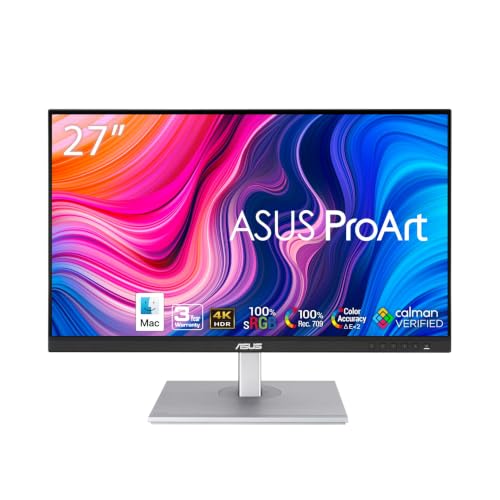
The ASUS ProArt Display PA279CV is the best 4K monitor in this guide for photo editing, and it is the choice for a buyer who needs accurate colours and a sharp image at a fair price. The 27-inch IPS panel runs at 4K, with a pixel density that makes photos look detailed and a colour gamut that covers 100 percent of the sRGB space and a wide portion of the Rec. 709 space, which is the standard for video. The monitor is factory calibrated to a tight tolerance, and it comes with a calibration report, which means the colours are accurate out of the box and the buyer does not need to calibrate it immediately.
The photo performance of the PA279CV is excellent. The 4K IPS panel shows fine detail in a photograph, from the texture of skin to the grain of a landscape, and the colour accuracy means a photo that looks right on the monitor will look right when printed or shared online. The monitor has a range of picture modes, including a ProArt preset that is tuned for photo work, and the on-screen menu allows the colour temperature, the gamma and the gamut to be adjusted precisely. The monitor also has a quick-fit virtual scale, which overlays a grid or a ruler on the screen, and that is a useful feature for a photographer who needs to check alignment or composition.
The practical details are strong. The PA279CV has DisplayPort, HDMI and USB-C inputs, with the USB-C port carrying video, data and power over a single cable, and it has a USB hub and a headphone output. The stand is fully adjustable, with height, tilt, swivel and pivot, and the monitor has a low blue light mode and a flicker-free backlight. The build quality is solid, with a clean design and a slim bezel, and the monitor is backed by a good warranty. The monitor is designed for a photo desk, and it shows in the colour accuracy and the calibration report.
The trade-offs are the 60 hertz refresh rate, which means the monitor is not suitable for gaming, and the contrast ratio, which is typical for an IPS panel. The HDR performance is modest, because the backlight is edge-lit. But as a sharp 4K monitor for photo editing, the PA279CV is one of the best value displays in this guide, and it fits a photographer, a video editor, a designer, and anyone who needs accurate colours and a sharp image without paying a premium.
Check price on Amazon: ASUS ProArt Display PA279CV

Gigabyte M27U
The Gigabyte M27U is the best high refresh rate 4K monitor in this guide, and it is the choice for a buyer who wants a sharp 4K image and a fast panel in the same display. The 27-inch IPS panel runs at 4K and 160 hertz, with a one-millisecond response time, and the combination of a high resolution and a high refresh rate is genuinely impressive in use. The 4K resolution makes text and images crisp, the 160 hertz refresh rate makes motion smooth, and the IPS panel has wide viewing angles and accurate colours that make the monitor suitable for work and creative use as well as gaming.
The gaming performance of the M27U is excellent. The 160 hertz refresh rate makes fast games feel smooth and responsive, and the one-millisecond response time keeps motion sharp with minimal ghosting. The monitor supports both G-Sync compatible and FreeSync adaptive sync, and it has HDMI 2.1 ports that allow 4K at 160 hertz from a modern graphics card or console. Reviewers praise the versatility in particular, because the M27U is one of the few 27-inch monitors that is equally convincing as a gaming display, a work display and a creative display, and that versatility is rare at this resolution and refresh rate.
The practical details are very good. The M27U has a built-in KVM switch that lets one keyboard and mouse control two computers, which is genuinely useful for a desk shared between a gaming PC and a work laptop, and it has DisplayPort, HDMI 2.1 and USB-C inputs, a USB hub and a headphone output. The stand is fully adjustable, with height, tilt, swivel and pivot, and the on-screen menu includes a range of gaming aids. The build quality is solid, with a clean design and slim bezels, and the monitor is backed by a good warranty.
The trade-offs are the contrast ratio, which is typical for an IPS panel and means blacks look grey in a dark room, and the HDR performance, which is modest because the backlight is edge-lit. The monitor needs a powerful graphics card to drive 4K at 160 frames per second, and a modest card will run it at a lower frame rate. But as a sharp, fast 4K monitor, the M27U is one of the best in this guide, and it fits a gamer who wants 4K and a high refresh rate, a buyer who works and games on the same desk, and anyone who wants a 27-inch display that does everything well.
Check price on Amazon: Gigabyte M27U
Samsung ViewFinity S9 S27C90P
The Samsung ViewFinity S9 S27C90P is the sharpest resolution monitor in this guide, and it is the choice for a buyer who wants the finest image that a 27-inch display can offer. The 27-inch IPS panel runs at 5K, which means 5120 by 2880 pixels and a pixel density of 218 pixels per inch, and that density makes text look like print, with no visible pixels at any normal viewing distance. The panel has a matte finish that cuts reflections without making the image look hazy, and it covers a wide colour gamut, which makes it suitable for photo and video work as well as office use.
The image quality of the ViewFinity S9 is outstanding. The 5K resolution shows fine detail with a clarity that a 4K display cannot match, and the difference is visible in text, in photographs and in any image with fine lines. The monitor is factory calibrated, and the colour accuracy is good enough for professional photo work, while the matte display is a genuine advantage in a bright room, because it cuts reflections without the haze that a cheap matte coating causes. The monitor also has a built-in 4K camera, which is a useful feature for video calls, and the camera can be tilted to frame the user correctly.
The practical details are strong. The ViewFinity S9 has a USB-C port with power delivery that can charge a laptop, a USB hub and a headphone output, and the stand is fully adjustable, with height, tilt, swivel and pivot. The monitor has a range of picture modes, including a mode for photo work and a mode for video, and the on-screen menu is simple and easy to navigate. The build quality is solid, with a clean design and a metal stand, and the monitor is backed by a good warranty. The monitor is designed for a creative desk, and it shows in the resolution and the matte display.
The trade-offs are the 60 hertz refresh rate, which means the monitor is not suitable for gaming, and the cost, because a 5K display is more expensive than a 4K monitor of the same size. The monitor needs a computer that can drive 5K, and an older laptop may struggle. But as the sharpest monitor in this guide, the ViewFinity S9 is in a class of its own, and it fits a photographer, a designer, a video editor, and anyone who wants the finest text and the sharpest image that a 27-inch display can offer.
Buying Guide
Pixel density: the real measure of sharpness
Pixel density, measured in pixels per inch, is the real measure of how sharp a monitor looks, because it accounts for both the resolution and the size of the screen. A 27-inch monitor at 4K has a pixel density of about 163 pixels per inch, while a 32-inch monitor at 4K has about 140, and a 27-inch monitor at 1440p has about 109. A higher pixel density means smaller pixels and a sharper image, and the difference is visible in text, where a high-density display shows smooth curves and a low-density display shows jagged edges. When comparing monitors, look at the pixel density rather than the resolution alone, because the same resolution looks different on different sizes.
1440p or 4K at 27 inches
A 27-inch monitor at 1440p is the sweet spot for most buyers, because it is sharp enough to look good and light enough for a mid-range graphics card to drive at a high frame rate. A 27-inch monitor at 4K is sharper, with a pixel density that makes text look like print, but it needs a more powerful graphics card and a scaling setting that makes text readable, because the native text size at 4K is very small. A buyer who works with text and images all day will appreciate 4K, while a gamer with a mid-range card will be happier with 1440p and a higher refresh rate. The right choice depends on the use and the graphics card.
Scaling on a high-resolution display
Scaling is the setting that decides how large text and icons appear on a high-resolution display, and it is essential for a 4K or 5K monitor, because the native text size is too small to read comfortably. A scaling level of 150 percent is common for a 27-inch 4K display, and it makes text the same size as on a 1440p display while keeping the sharpness of 4K. Some older programs do not scale well and can look blurry, although modern operating systems handle scaling much better than they used to. Check the scaling setting after connecting a high-resolution monitor, and adjust it until text is comfortable to read.
The graphics card and the resolution
A high-resolution monitor needs a graphics card that can drive it, and the demand grows quickly with the resolution. A 4K monitor has four times the pixels of a 1080p display, and a graphics card that runs a game smoothly at 1080p may struggle at 4K, particularly at a high refresh rate. A buyer who wants 4K gaming needs a powerful, modern graphics card, while a buyer who uses the monitor for office work and films can use a modest card, because those tasks are not demanding. Check the graphics card before buying a high-resolution monitor, and remember that a card can be upgraded later while the monitor stays on the desk.
Panel type and colour accuracy
Resolution is not the only thing that matters, and a high-resolution panel with poor colours is still a poor monitor. An IPS panel has wide viewing angles and accurate colours, and it is the best choice for a high-resolution display, because the wide viewing angles keep the image consistent from edge to edge. A VA panel has a higher contrast ratio but narrower viewing angles, and a TN panel has poor colours and poor viewing angles. For a buyer who works with photos or design, colour accuracy matters as much as resolution, and a factory-calibrated IPS panel is the right choice.
Ultrawide and 5K: beyond 4K
Beyond 4K, there are two directions: ultrawide, which adds width rather than height, and 5K, which adds pixels in both directions. An ultrawide monitor is wider than a standard display, which makes it good for multitasking and for immersive gaming, but it can be awkward for programs that expect a standard aspect ratio. A 5K monitor is sharper than a 4K display, with a pixel density that makes text look like print, but it is more expensive and it needs a more powerful computer. Most buyers will be happy with 4K, and ultrawide or 5K are for buyers with a specific need.
Connectivity for high-resolution monitors
A high-resolution monitor needs a fast connection, and the cable matters. DisplayPort 1.4 carries 4K at 60 hertz and higher with display stream compression, and HDMI 2.1 carries 4K at 120 hertz or higher, while an older HDMI 2.0 port is limited to 4K at 60 hertz. A USB-C port that carries video, data and power over a single cable is a genuine convenience for a laptop user, and the models in this guide that have USB-C are worth considering for a clean desk. Check the ports on the monitor and the computer before buying, and use the cable that matches the fastest port.
Text clarity and font rendering
Text clarity is the most visible benefit of a high-resolution monitor, because text is made of curves and diagonals, and a higher pixel density renders those curves more smoothly. A 4K monitor at 27 inches shows text that looks like print, with no jagged edges, while a 1440p monitor of the same size shows text that is good but visibly less smooth. Font rendering also depends on the operating system, because different systems use different anti-aliasing, and a buyer should check the text on the monitor in the operating system that will actually be used, rather than judging from a photograph, because a photograph does not show how the system renders fonts.
Frequently Asked Questions
What is the best screen resolution for a monitor?
The best screen resolution depends on the size of the monitor and the use. A 27-inch monitor at 1440p is the sweet spot for most buyers, because it is sharp enough to look good and light enough for a mid-range graphics card. A 27-inch monitor at 4K is sharper and better for work with text and images, while a 32-inch monitor at 4K is the best choice for a large display. A 24-inch monitor at 1080p is fine for a budget display, because the pixels are small enough at that size. Match the resolution to the size and the use, not to the largest number on the box.
Is 4K worth it on a 27-inch monitor?
Yes, for a buyer who works with text, photos or design, because the higher pixel density makes text look like print and images look detailed. A 4K monitor at 27 inches has a pixel density of about 163 pixels per inch, compared with about 109 for a 1440p display of the same size, and the difference is visible. A gamer with a mid-range graphics card may prefer 1440p and a higher refresh rate, because the frame rate matters more than the pixel density in a fast game, but a buyer who works all day will appreciate 4K.
What is pixel density and why does it matter?
Pixel density is the number of pixels per inch, and it is the real measure of how sharp a monitor looks, because it accounts for both the resolution and the size of the screen. A higher pixel density means smaller pixels and a sharper image, and the difference is visible in text, where a high-density display shows smooth curves and a low-density display shows jagged edges. When comparing monitors, look at the pixel density rather than the resolution alone, because the same resolution looks different on different sizes, and a 4K display at 32 inches is less sharp than a 4K display at 27 inches.
Do I need a powerful graphics card for 4K?
A buyer who wants 4K gaming needs a powerful, modern graphics card, because a 4K monitor has four times the pixels of a 1080p display, and the card has to render all of them for every frame. A buyer who uses the monitor for office work, films and photo editing can use a modest card, because those tasks are not demanding and the card only needs to show a static image. Check the graphics card before buying a high-resolution monitor, and remember that a card can be upgraded later while the monitor stays on the desk.
What is scaling and why do I need it?
Scaling is the setting that decides how large text and icons appear on a high-resolution display, and it is essential for a 4K or 5K monitor, because the native text size is too small to read comfortably. A scaling level of 150 percent is common for a 27-inch 4K display, and it makes text the same size as on a 1440p display while keeping the sharpness of 4K. Modern operating systems handle scaling well, although some older programs can look blurry, and the scaling setting should be adjusted after connecting a high-resolution monitor.
Is 5K better than 4K?
5K is sharper than 4K, with a pixel density of 218 pixels per inch on a 27-inch display, compared with about 163 for 4K, and the difference is visible in text, where 5K looks like print. 5K is more expensive than 4K, and it needs a more powerful computer to drive, so it is best for a buyer who works with text, photos or design all day and who values the sharpest possible image. Most buyers will be happy with 4K, and 5K is for a buyer with a specific need for the finest image available.
Does a higher resolution use more battery on a laptop?
Yes, slightly. A laptop driving a high-resolution external monitor uses more graphics power than driving a low-resolution display, because the graphics card has to render more pixels, and that uses more battery. The difference is small for office work, because the image is mostly static, but it is larger for gaming or video, where the card has to render new frames constantly. A laptop user who works on battery power should choose a resolution that the laptop can drive comfortably, and should use the monitor at its native resolution, because a non-native resolution can look blurry and can use more power.
Conclusion
The best screen resolution monitor is the one that matches the size, the use and the graphics card, and the models in this guide cover every combination. The LG 27UP850-W is the best 4K monitor for work, the Dell UltraSharp U2723QE is the best for office use, the BenQ PD2705U is the best for designers, the ASUS ProArt PA279CV is the best for photo editing, the Gigabyte M27U is the best high refresh rate 4K monitor, and the Samsung ViewFinity S9 is the sharpest display of all. Any of them will make text look crisp and images look detailed, and the right choice is the one that fits the desk, the work and the computer. Check the pixel density, set the scaling, and let the sharpness speak for itself.