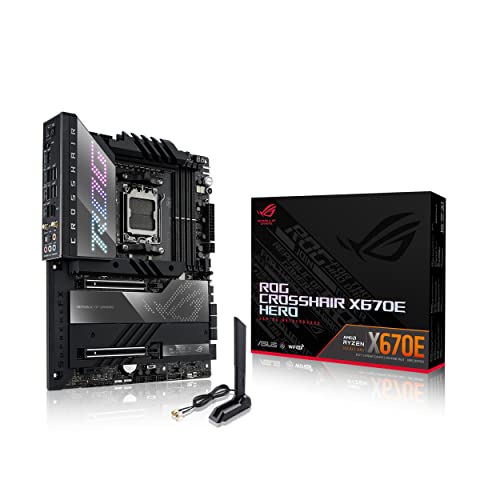
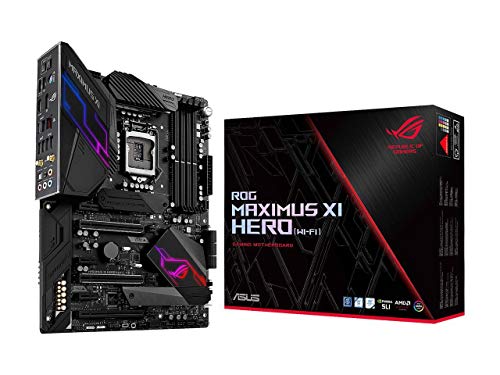
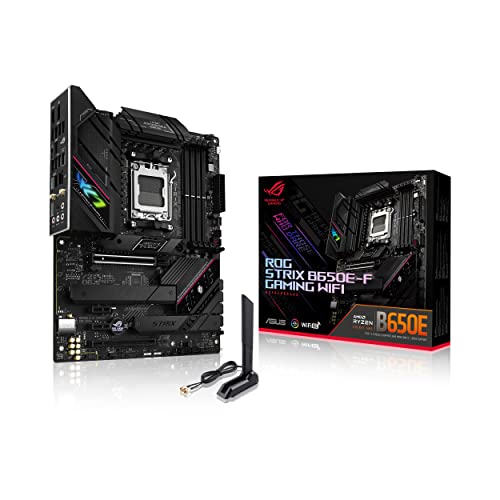
Our Top Picks


What's inside
- What U.2 Is, and Why Workstation Builders Still Care
- Anatomy of the Connector: SFF-8639 Meets SFF-8643
- The Platforms That Carried U.2
- Lane Mathematics: The Section That Decides Your Purchase
- U.2 Versus M.2: An Honest Comparison
- Cables, Adapters and the M.2 Conversion Path
- The DMI Bottleneck and Other Bandwidth Realities
- VROC, RAID and Bootable NVMe Arrays
- Endurance Metrics: Reading DWPD and TBW Like an Adult
- Mounting the Drives: Bays, Cages and Front Access
- Board Spotlights Across the Generations
- Choosing a U.2 Drive to Match the Board
- Building and Configuring: Practical Steps
- Buying a Used U.2 Board: The Inspection Checklist
- Power, Heat and the Whole-System Budget
- Three Reference Builds
- Troubleshooting the Classic U.2 Headaches
- Who Should Buy U.2 in 2026, and Who Should Not
- Enterprise Concepts That Follow the Drives Home
- Where U.2 Goes From Here
- A Final Checklist Before You Spend
- Verdict: Lanes First, Logo Last
- Check prices on Amazon
- Affiliate Disclosure
As an Amazon Associate I earn from qualifying purchases. This post may contain affiliate links at no extra cost to you.
What U.2 Is, and Why Workstation Builders Still Care
U.2 began life under the name SFF-8639, a connector designed to carry a modern storage device on a cable rather than plugging it directly into a slot. In its personal-computer form, U.2 delivers four lanes of PCI Express, plus power and management signals, to a 2.5-inch NVMe solid-state drive that looks, at a glance, like an ordinary laptop hard disk. That familiar enclosure is precisely the point. A 2.5-inch drive has room for more NAND packages, a larger controller heat spreader and, in enterprise models, power-loss protection capacitors that a gumstick M.2 card simply cannot accommodate.
Motherboards with native U.2 ports enjoyed a brief but significant moment between roughly 2015 and 2019. Intel’s X99 platform introduced many enthusiasts to the connector, the 100-series and 200-series chipsets carried it into the mainstream, and X299 workstations treated it as standard equipment. Then M.2 slots multiplied, U.2 quietly retreated to servers and high-end workstations, and a generation of excellent boards entered the used market carrying a storage interface that many buyers overlook entirely.
That oversight creates opportunity in 2026. Enterprise U.2 drives, retired from data centres in large numbers, offer capacities and endurance figures that consumer M.2 products rarely match, and they need a host that speaks their language. A motherboard with a proper U.2 port, or a well-chosen adapter path, turns those drives into fast, cool-running storage for video editing, virtualisation labs, database work and any other job where sustained writes matter more than benchmark peaks. Our research for this guide compares specifications across platform generations so you can judge where a U.2 port is genuinely wired for full speed and where it is merely decorative.
The central technical theme is lane accounting. Every U.2 port consumes four PCIe lanes, and those lanes must come from somewhere: the processor, the chipset, or a switch shared with other devices. Boards differ enormously in how honestly they allocate that budget. Some give the U.2 port a dedicated x4 feed and never blink; others share its lanes with an M.2 slot, a PCIe slot or a bank of SATA ports, so populating one connector silently disables another. Reading the lane-sharing table in a board’s manual is not optional homework for this category. It is the entire purchase decision, written in small print.
Anatomy of the Connector: SFF-8639 Meets SFF-8643
Two connector names dominate any serious discussion of U.2 on motherboards, and confusing them leads to wrongly ordered cables. At the drive end sits SFF-8639, the wide multi-purpose connector on the back of the 2.5-inch device itself, designed to mate with backplanes and cable plugs. At the motherboard end, most consumer and workstation boards expose a mini-SAS HD receptacle called SFF-8643, a compact square port that also appears on RAID controllers. The standard cable for this platform therefore runs SFF-8643 on the host side to SFF-8639 at the drive, and it carries both the PCIe data pairs and the sideband signals in one assembly.
Power delivery follows a different path from M.2. A U.2 drive does not draw its operating current through the data cable from the motherboard; instead, the drive receives power through a conventional SATA-style power connector integrated into the SFF-8639 plug end of the cable assembly or supplied by the drive enclosure. Builders moving from M.2 for the first time sometimes stare at a U.2 drive wondering where its power enters. The answer is the familiar fifteen-pin power lead from the power supply, attached at the drive end, exactly as with a SATA device.
Thickness is the hidden variable in drive selection. U.2 drives ship in 7-millimetre and 15-millimetre heights, and enterprise models with larger heatsinks or capacitor banks favour the taller profile. A motherboard does not care which height you choose, but your mounting location does: a 15-millimetre drive will not slide into a slim 2.5-inch bay designed for 7-millimetre laptop drives, and it may crowd a neighbouring device in a compact chassis. Measure the bay, not just the connector, before committing to a particular drive family.
Hot-swap behaviour also separates U.2 from its smaller cousin. The connector and the NVMe specification both contemplate surprise removal and insertion on properly designed backplanes, which is why servers present U.2 drives in front-accessible cages. A desktop motherboard port, wired through a loose cable to a drive screwed into a bay, offers no such convenience in practice, and yanking the cable from a live system invites filesystem damage. Treat desktop U.2 as fixed internal storage that merely borrows a server-grade connector.
The Platforms That Carried U.2
X99: Where Desktop U.2 Began
Intel’s X99 chipset, partner to Haswell-E and Broadwell-E processors on the LGA 2011-v3 socket, gave enthusiasts their first taste of NVMe storage beyond add-in cards. Because these processors supply up to forty PCIe 3.0 lanes directly, board makers could afford generosity: flagship X99 models offered U.2 ports fed from the CPU, multiple M.2 slots and multi-GPU support simultaneously. Boards such as the ASUS X99-A II, the Gigabyte GA-X99-Ultra Gaming and the ASRock X99 Taichi represent this era well, pairing U.2 connectivity with eight memory slots and workstation-leaning layouts. The caveat for used buyers is age combined with enthusiasm; these boards served in heavily overclocked systems, so regulator heatsink condition and socket pin health deserve the same scrutiny applied to any performance platform.
Z170 and Z270: U.2 Goes Mainstream
With Skylake and Kaby Lake, Intel moved high-speed storage I/O into the chipset itself, exposing a pool of flexible HSIO lanes that vendors could assign to PCIe slots, SATA ports, network controllers or U.2 connectors. ASUS championed the interface on boards like the ROG Maximus VIII Hero and the Z170 Deluxe, often through a bundled Hyper Kit adapter that converted an M.2 slot’s signals into a U.2 port, while rivals including Gigabyte and MSI fitted native SFF-8643 ports on selected models. Z270 refined the recipe with more chipset lanes and Optane memory support, and boards such as the ASUS ROG Maximus IX Hero kept U.2 in the specification table. The defining trait of this generation is sharing: a single group of lanes frequently serves the U.2 port, one M.2 slot and two SATA ports in rotation, and the manual’s block diagram is the only trustworthy map of which combinations can coexist.
X299: The Workstation Mainstay
X299, built for Skylake-X and Cascade Lake-X processors on LGA 2066, is where U.2 settled most comfortably. With forty-four or forty-eight processor lanes on the larger chips, plus a DMI link to a chipset carrying its own flexible I/O, boards like the ASUS ROG Rampage VI Extreme, the Gigabyte X299 Aorus Master and the ASRock X299 Taichi CLX could offer U.2 alongside triple M.2 arrays without forcing painful compromises. Many X299 models also route storage through Intel VROC, which allows bootable RAID arrays of NVMe drives under specific licensing conditions. For a storage-heavy workstation assembled from used parts in 2026, this platform remains the most natural home for U.2 drives, provided the processor chosen actually exposes enough lanes for the layout planned.
Server and Workstation Boards Beyond the Enthusiast Lines
Outside the gaming brands, manufacturers such as Supermicro, ASRock Rack and Tyan built boards where U.2 is not a garnish but the main course. Their C612, C422 and later Xeon platforms present U.2 ports in pairs or quads, wired to backplanes, with management features, ECC memory support and BIOS layouts written for administrators rather than overclockers. A single-socket workstation board from this family can be the most reliable route into multi-drive U.2 storage, at the cost of creature comforts: fan headers assume server chassis airflow, boot times stretch while controllers initialise, and consumer conveniences like friendly fan curves may be absent entirely.
Lane Mathematics: The Section That Decides Your Purchase
Every U.2 port wants four PCIe lanes carrying, on a PCIe 3.0 platform, just under four gigabytes per second of theoretical bandwidth in each direction. Where those lanes originate changes the behaviour of the whole system. Processor lanes offer the lowest latency and never contend with other storage traffic, but they are finite and shared with graphics cards. Chipset lanes travel over the DMI link to the CPU, which on Z170 and Z270 offers roughly the bandwidth of a PCIe 3.0 x4 connection for all chipset devices combined; two busy NVMe drives behind the chipset therefore queue behind one another, a fact that matters for duplicated scratch disks and matters not at all for a single boot drive.
Sharing arrangements follow a few recurring patterns that experienced builders learn to recognise. The friendliest design gives U.2 its own dedicated lanes and touches nothing else. The most common design pairs U.2 with an M.2 slot as alternatives: fit a drive in one, and the other goes dark. A third pattern steals lanes from a secondary PCIe x16 slot wired for x4 operation, which is painless unless that slot holds a capture card or a network adapter. The pattern that generates the most forum threads borrows from SATA ports, disabling two of them when a U.2 drive is present, which surprises builders who populate storage gradually and discover the conflict only when a fifth disk refuses to appear.
Our advice is procedural. Before buying any board for U.2 duty, download its manual, find the storage configuration table, and write down, in plain language, exactly what happens to every other slot and port when the U.2 connector is populated. Then compare that note against the build you actually intend, including the second drive you will inevitably add next year. A board that fits today’s plan by consuming every shared resource is a board that will frustrate tomorrow’s upgrade, and on the used market the price difference between a constrained model and a generous one is often smaller than the cost of the workaround.
Bifurcation is the related concept that governs adapter cards. Some boards can split a physical x16 slot into four x4 links, letting a passive carrier card host four NVMe devices, each with its own lanes. Support varies by BIOS and by processor, and it is documented unevenly, but where it exists it provides an escape hatch when native U.2 ports run out. Builders interested in that path should confirm bifurcation options in the BIOS release notes of the exact board revision under consideration, since a feature present on one stepping may be absent on another.
U.2 Versus M.2: An Honest Comparison
M.2 won the consumer war for understandable reasons: it needs no cables, costs little to implement and fits inside laptops. Yet the comparison looks different through workstation eyes. A U.2 drive’s metal enclosure spreads heat across a far larger surface than an M.2 card offers, and in a chassis with directed airflow it can sustain write workloads that would throttle a bare M.2 stick within minutes. Anyone who has compared sustained figures in our roundup of best m 2 pcie ssds with enterprise U.2 behaviour under a long render export understands that peak sequential numbers and sustained throughput are different conversations.
Capacity tilts the argument further. The 2.5-inch U.2 format accommodates enough NAND packages for drives of eight, fifteen or even thirty terabytes in enterprise catalogues, while consumer M.2 capacity tops out far earlier and pays a steep premium at its ceiling. Endurance follows the same gradient: data-centre U.2 drives are commonly rated for one to three full drive writes per day across a five-year service life, figures that dwarf the total-bytes-written allowances of typical desktop M.2 models. For a workstation that ingests camera media daily, that endurance is not a luxury specification; it is the difference between a drive that ages gracefully and one that becomes a maintenance schedule.
M.2 keeps real advantages, and pretending otherwise would be dishonest. It is cheaper per terabyte at consumer capacities, universally supported on modern boards, free of cable clutter and available in enormous variety, as the range covered by best 2 tb internal ssds demonstrates. The sensible workstation often uses both interfaces deliberately: an M.2 device for the operating system and applications, where its latency and simplicity shine, and U.2 capacity for media pools, virtual machine images and scratch space, where endurance and cooling dominate. Choosing U.2 is therefore rarely about rejecting M.2; it is about assigning each format the work it performs best.
Physical serviceability supplies the final contrast. Swapping an M.2 drive means opening the case, removing a graphics card in many layouts, and hunting for a tiny screw that seems designed to escape. A U.2 drive in a front bay or an accessible cage can be exchanged in seconds with the power off, and its cable can be rerouted without disturbing anything else. In a small studio where a failed drive must be replaced between client sessions, that mundane convenience has genuine economic value.
Cables, Adapters and the M.2 Conversion Path
Not every build needs a native port. The most common conversion takes an M.2 slot wired for PCIe x4 and adapts it to U.2 with a small board and an SFF-8643 receptacle, the approach ASUS popularised with its Hyper Kit. Signal integrity is the governing concern: the adapter must be short, well made and matched to the cable, because PCIe 3.0 tolerates this arrangement comfortably while PCIe 4.0 conversions become fussier about length and quality. A converted port inherits the lane-sharing rules of the M.2 slot it occupies, so the manual consultation described earlier still applies, just one step removed.
PCIe slot adapters form the second path. A simple carrier card holding an SFF-8643 connector, or a drive bay that mounts the U.2 device directly on the card, converts any spare x4-or-wider slot into a U.2 port with no chipset involvement. This route suits X99 and X299 systems with lanes to spare and older boards whose M.2 slots are absent or limited to x2 width. Boot support depends on the board’s firmware recognising NVMe devices generally, which most UEFI implementations from the relevant years do, though a few early releases need a BIOS update before an NVMe drive can serve as the system volume.
Cable quality deserves more respect than it usually receives. The SFF-8643 to SFF-8639 assembly carries high-frequency differential pairs, and a cable that has been kinked, crushed under a side panel or chewed by an over-tightened cable tie can produce the classic symptoms of a failing drive: intermittent detection, corrected error counts climbing in the logs, and throughput that collapses under load. When a U.2 installation misbehaves, substituting a known-good cable of the shortest practical length is the cheapest diagnostic step available, and it should precede any conclusion about the drive or the board. Builders comparing the broader 2.5-inch landscape, including SATA models, will find useful context in best 2 5 inch ssds, where the same enclosures serve a slower but still relevant interface.
One more adapter warning belongs in every U.2 discussion. Cables and risers sold for SAS duty look similar and sometimes share connector shells, but a U.2 NVMe link is PCI Express, not SAS, and mixing ecosystems produces expensive silence. Buy cables described explicitly for U.2 or NVMe use from sellers who state the pinout, and keep the packaging until the build has survived a week of ordinary work.
The DMI Bottleneck and Other Bandwidth Realities
Chipset-attached storage on the mainstream platforms travels to the processor across DMI, Intel’s proprietary link between the CPU and the platform controller hub. On Z170 and Z270 systems that link behaves like a PCIe 3.0 x4 connection, roughly four gigabytes per second in each direction before overhead. Every device behind the chipset shares that corridor: the U.2 drive, any M.2 drives, USB transfers, network traffic and SATA activity all take turns. A single U.2 drive benchmarking alone will report numbers close to its specification, because the corridor is momentarily its own. Start a large copy between two chipset-attached NVMe drives while a network transfer runs, and aggregate throughput settles near the corridor’s ceiling rather than the sum of the drives’ individual peaks.
Whether this matters depends entirely on workflow geometry. An editor whose U.2 volume holds media while the operating system and cache live on a processor-attached M.2 drive will rarely feel the constraint, because traffic crosses the link in one dominant direction at a time. A builder who mirrors two chipset-attached U.2 drives, or who copies between them daily, lives inside the bottleneck permanently and should choose a platform that wires storage to the processor instead. This is the practical reason X99 and X299, with their generous CPU lane counts, keep their workstation reputations: their storage does not queue at a four-lane doorway.
Latency tells a quieter version of the same story. Chipset routing adds a small hop that shows up in synthetic latency measurements and almost nowhere in lived experience. Video timelines, game loads and database queries on these platforms are governed by the drive’s controller and NAND, not by the extra nanoseconds of the chipset path. Builders should therefore weight bandwidth sharing heavily and latency barely at all when deciding where a U.2 port ought to be wired for their workload.
VROC, RAID and Bootable NVMe Arrays
Intel Virtual RAID on CPU, shortened to VROC, lets certain X299 and Xeon platforms build RAID volumes directly from NVMe drives attached to processor lanes, including bootable arrays that older chipset RAID could never offer for PCIe storage. The fine print matters. Full VROC functionality historically depended on a physical upgrade key for RAID levels beyond a simple mirrored or striped pair in some configurations, on drives that Intel had validated, and on BIOS versions that exposed the correct menus. Third-party drives often work for basic volumes and occasionally refuse advanced ones, a distinction that only reveals itself mid-configuration.
For most single-workstation builders, the honest assessment is that VROC is a specialised tool rather than a default. A striped pair doubles sequential throughput for media work but doubles the blast radius of a single drive failure, and a mirrored pair protects against downtime while doing nothing for accidental deletion or corruption. Software mirroring inside the operating system achieves much of the practical benefit with greater portability, since the array can move to another machine without negotiating with a specific platform’s firmware. Choose hardware RAID when bootable redundancy is a genuine requirement, and document the configuration thoroughly for whoever inherits the machine.
Endurance Metrics: Reading DWPD and TBW Like an Adult
Enterprise U.2 drives advertise endurance as drive writes per day, the number of complete device overwrites the NAND is rated to sustain daily across the warranty period, commonly five years. A one-DWPD eight-terabyte drive therefore tolerates roughly eight terabytes of writing every day for five years, a total that dwarfs the annual write volume of most desktop workloads by an order of magnitude. Consumer drives instead quote total bytes written, and converting between the two languages is simple arithmetic: multiply capacity by the DWPD figure and by the days in the rating period to obtain the comparable lifetime total.
Retired enterprise drives report their remaining life through SMART attributes, and reading those figures is the single most valuable skill in this market. A drive showing ninety percent of its rated endurance remaining, pulled from a read-heavy analytics cluster, is a fundamentally different purchase from a logging node’s survivor at twelve percent, even when the model numbers match exactly. Reputable sellers publish the health percentage and the total data written for each unit; sellers who describe health as untested while pricing at the level of verified stock are asking buyers to fund the gamble. Insist on the numbers, and walk away from listings that treat them as optional.
Power-loss protection separates true enterprise designs from consumer drives in a trench coat. Capacitors on the drive’s circuit board hold enough charge to flush volatile cache into NAND when power vanishes, protecting in-flight writes during outages, tripped breakers and accidental cable removal. For a workstation holding client work, that feature quietly justifies the entire U.2 detour, because the failure it prevents is the kind that surfaces days later as a corrupted project file rather than an honest error message.
Mounting the Drives: Bays, Cages and Front Access
A U.2 drive needs a home that respects its height and its appetite for air. Many mid-tower cases provide 2.5-inch trays behind the motherboard or atop the power supply shroud, positions that suit 7-millimetre drives and short cable runs but can starve a tall enterprise model of airflow. Drive cages that convert a 5.25-inch bay into two or four 2.5-inch positions, often with a small fan of their own, give U.2 installations the server-style layout the connector was designed for, including the possibility of genuine front access for swaps. When a build plans more than one U.2 drive, choosing the cage first and the case around it produces a calmer result than discovering the fit problem after the drives arrive.
Cable length interacts with case choice. SFF-8643 assemblies are commonly sold in lengths around half a metre to a metre, and every extra centimetre is another opportunity for the cable to press against a side panel or drape across a fan intake. Route the cable before mounting the drive where possible, keep its bends wide, and secure it loosely enough that removing the drive does not require cutting ties. Builders migrating from tidy M.2 installations sometimes find U.2 cabling visually untidy; a single well-routed cable to a front cage is the aesthetic answer, and it happens to be the electrically safest arrangement as well.
Board Spotlights Across the Generations
ASUS ROG Maximus VIII Hero and the Hyper Kit Era
The Maximus VIII Hero illustrates the Z170 approach at its most polished. Its native storage story centres on M.2 and SATA Express, with U.2 arriving through the bundled Hyper Kit that converts the M.2 slot into an SFF-8643 port. That arrangement means U.2 and M.2 are alternatives rather than companions on this board, a compromise the manual states plainly. In exchange, the builder gets strong audio, careful power delivery for Skylake overclocking and a BIOS whose storage menus explain themselves. As a single-drive U.2 workstation foundation built around a Core i7-6700K, it remains coherent; as a multi-drive storage box, it runs out of road quickly.
Gigabyte GA-Z170X-Gaming 7 and Native Port Rivals
Gigabyte’s upper Z170 models, along with selected boards from MSI’s Gaming M series, fitted native U.2 connectors beside their M.2 slots and marketed the pairing to early NVMe adopters. The practical difference from the adapter approach is convenience rather than speed, since the lanes still come from the same chipset pool and the same sharing tables govern coexistence. When comparing two used listings from this generation, the native-port board earns a small premium for tidier cabling and one less adapter to fail, provided its sharing table does not disable something your build requires.
ASRock X99 Taichi and ASUS X99-A II
These X99 boards suit builders who want U.2 without surrendering expansion. The Taichi pairs its U.2 port with an M.2 slot and a layout aimed at multi-card systems, while the X99-A II emphasises workstation manners: diagnostic display, robust fan control and support for both consumer and Xeon processors on the same socket. Either board, fed by a forty-lane Haswell-E or Broadwell-E chip, can run a graphics card at full width, a U.2 drive at full speed and still keep lanes in reserve, a flexibility the mainstream platforms of the same years could not approach.
ASUS ROG Rampage VI Extreme and X299 Flagships
At the summit of the X299 range, the Rampage VI Extreme treats storage as a headline feature, combining U.2 with multiple M.2 positions, a DIMM.2 riser for additional drives and VROC support for bootable NVMe arrays. Its audience is the builder assembling a machine that edits high-resolution video all day and renders all night, where drive endurance and sustained throughput justify flagship pricing even on the used market. The caution is complexity: with this many storage paths, the lane table spans pages, and a configuration error can silently demote a graphics card to x8 operation. Plan the layout on paper first.
Supermicro and ASRock Rack Workstation Boards
For pure storage service, a board such as a Supermicro X11-series single-socket workstation model or an ASRock Rack equivalent reframes the question entirely. U.2 ports arrive in multiples, remote management answers when the operating system cannot, and ECC memory support protects long-running workloads from silent corruption. These boards pair naturally with the endurance-focused drives discussed in best ssds with dram, where controller memory architecture and sustained-write behaviour receive detailed attention. The trade-offs are boot speed, fan noise assumptions and a BIOS experience that prioritises administrators, all acceptable in a machine that lives in a rack or a ventilated cupboard rather than under a desk.
Choosing a U.2 Drive to Match the Board
Drive selection begins with interface honesty: a U.2 connector also appears on SAS and SATA enterprise drives, and only an NVMe model will communicate with a motherboard U.2 port wired for PCIe. Product families such as Intel’s DC P4500 and P4600 series, the Samsung PM963 and PM983 lines, Micron’s 9200 series and Kioxia’s CM6 range are the names that recur in retired-enterprise channels, each with documented endurance tiers and firmware histories. Verify the exact model’s protocol, capacity and rated write endurance from the manufacturer’s datasheet before buying, because a single letter in an enterprise part number can separate an NVMe device from a SAS one that will sit mute in your bay.
Firmware provenance matters with ex-enterprise stock. Drives pulled from branded servers sometimes carry vendor-specific firmware that behaves oddly outside its original ecosystem, including nonstandard sector sizes that must be reformatted to 512-byte or 4K-native layouts before a desktop operating system will install cleanly. None of this is disqualifying, and the tools to inspect and reformat a drive are freely available, but a first-time U.2 builder should budget an afternoon for drive preparation and should keep the system volume on a separate, uncomplicated device until the enterprise drive has proven itself.
Cooling the drive completes the match. A 15-millimetre enterprise U.2 device converting sustained writes into heat expects moving air, ideally the directed flow of a front intake fan across the drive cage. In a silent-optimised case with sealed panels, even a U.2 drive can warm enough to throttle, so match the chassis to the workload rather than assuming the connector confers immunity. A small gap between stacked drives and a fan curve that responds to drive temperature, where the board supports it, keep performance steady through long ingest sessions.
Building and Configuring: Practical Steps
Assembly order reduces frustration. Mount the drive in its bay, connect the power lead, then route the data cable to the SFF-8643 port with gentle bends and no contact with fan blades or heatsink fins. In the BIOS, confirm the storage mode exposes NVMe devices, note which shared resources the manual says will deactivate, and only then install the operating system, with all other storage temporarily disconnected so the installer cannot scatter boot files across drives. After installation, reconnect the remaining devices one at a time and confirm that each expected volume appears, catching any sharing conflict while the cause is still obvious.
Performance expectations should be set by generation. A PCIe 3.0 x4 U.2 link delivers sequential reads in the region of three and a half gigabytes per second with a capable drive, and that ceiling belongs to the interface, not to a defect in your particular unit. PCIe 4.0 U.2 exists in the server world and appears on a small number of newer workstation boards, doubling the link rate, but the classic desktop platforms covered in this guide are 3.0 designs. Judge them by sustained throughput, latency consistency and endurance, the metrics their drives were engineered to win, rather than by a headline figure from a newer interface generation.
Backup discipline deserves a sentence in any storage guide, and U.2’s enterprise pedigree makes the reminder more important, not less. A drive rated for heavy daily writes can still fail without warning, and RAID through VROC or a software mirror protects availability rather than data history. Keep an independent copy of anything irreplaceable on separate media, and treat the speed of a U.2 array as a reason backups finish quickly, not as a reason to skip them.
Buying a Used U.2 Board: The Inspection Checklist
Second-hand U.2 boards carry the ordinary risks of vintage hardware plus one connector-specific concern. Begin with the SFF-8643 receptacle itself: its small pins tolerate limited insertion cycles and resent cables forced in at an angle, so ask for a close photograph and look for a housing that sits square and clean. A port with a cracked shell or a visibly displaced pin turns an otherwise healthy board into an adapter-card project, which may still be worth buying, but only at a price that admits the compromise openly.
Next, verify the accessories that make U.2 usable. The original cable is a genuine asset, because a known-compatible assembly removes the most common variable in a fresh installation, and any bundled M.2-to-U.2 adapter should be photographed with its model markings visible. Confirm the I/O shield is present, check the socket pins on LGA 2011-v3 and LGA 2066 boards with the same angled-light scrutiny used for any pin-grid purchase, and ask which processor the board last ran, since the answer reveals whether its firmware is current enough for your intended chip. On X299 listings, processor choice interacts with lane count directly: smaller Skylake-X models expose fewer lanes than their larger siblings, and a board that looks generous on paper can become constrained when paired with an entry processor, so match the chip’s lane figure to the board’s storage table before money moves.
Firmware currency deserves one specific question on every platform in this guide. Early BIOS releases for X99 and Z170 occasionally lacked NVMe boot support or handled it narrowly, and updating firmware on a board you have just bought is easiest while the seller’s return window remains open. Power the board, enter setup, record the version, and compare it with the manufacturer’s archive the same day the parcel arrives. Boards that demonstrate a running system in listing photographs, ideally showing the storage screen with an NVMe device enumerated, deserve their modest premium over anonymous untested stock.
Power, Heat and the Whole-System Budget
A U.2 workstation’s power story is dominated by everything except the drives. Enterprise 2.5-inch NVMe devices typically draw between eight and twenty-five watts depending on model and workload, meaningful inside a sealed enclosure yet minor beside a workstation processor and graphics card under render load. What the drives do demand is respect for the five-volt and twelve-volt rails at spin-up in multi-drive cages, where several devices waking simultaneously can trouble a tired power supply that behaves perfectly with a single drive fitted. A quality supply with headroom, and staggered spin-up where the platform offers it, keeps a four-drive cage boring in the best possible way.
Thermally, the system view matters more than any single component reading. Front intake air should meet the drive cage before it meets the graphics card, exhaust paths should not ask hot air to cross the storage bays on its way out, and the motherboard’s own chipset heatsink, which works hard on platforms routing storage through the PCH, deserves an unobstructed path. Builders who log temperatures during the first long workload, rather than the first short benchmark, learn the truth about their airflow while changes are still cheap.
Three Reference Builds
The Video Editing Workstation
Take an X299 board with a verified U.2 port, a ten-core or larger processor exposing the full lane complement, sixty-four gigabytes of memory and two enterprise U.2 drives: one for active projects and camera originals, one for exports, cache and work-in-progress renders. Keep the operating system on a modest M.2 device so a storage experiment never strands the machine, and give the drive cage its own intake fan. This arrangement sustains multi-stream high-resolution timelines without the stutter that appears when a consumer drive’s cache exhausts mid-export, and its endurance figures are measured in years of daily ingest rather than months.
The Homelab Storage Node
A Supermicro or ASRock Rack board with dual U.2 ports, a modest Xeon, ECC memory and a mirrored pair of retired data-centre drives forms a virtualisation host whose storage will outlast several generations of the machines it serves. The mirror protects availability, scheduled snapshots protect history, and the drives’ power-loss capacitors protect the writes in between. Noise and boot speed are the accepted costs, paid gladly by anyone who has rebuilt a lab from backups at two in the morning.
The Single-Drive Mainstream Build
On a Z270 board, one U.2 drive reached through the native port or a quality M.2 adapter gives a Skylake or Kaby Lake system storage endurance far beyond its original brief. The builder must surrender whatever the sharing table claims, usually an M.2 slot or a pair of SATA ports, and should choose the sacrifice consciously rather than discovering it during a later upgrade. As a way to keep a capable older machine in frontline service, few upgrades deliver as much working life per unit of effort.
Troubleshooting the Classic U.2 Headaches
A drive that never appears in the BIOS points first to the sharing table, second to the cable and third to the drive itself. Confirm that no M.2 device is occupying the lanes your U.2 port borrows, reseat both cable ends until their latches engage, and try the shortest alternative cable you own before condemning any component. A drive that appears in the BIOS but not in the operating system usually needs an NVMe driver in older Windows versions or a sector-size reformat in the case of ex-enterprise stock, both documented procedures that end happily far more often than not.
Intermittent disappearance under load is the signature of a marginal cable or a drive starved of cooling. Log the drive’s reported temperature during a sustained copy, improve airflow across the bay, and swap the cable before replacing anything expensive. Sudden throughput collapse to a fraction of expected speed, by contrast, often means the link has trained at x1 or x2 width instead of x4, visible in most drive utilities, and reseating the cable or moving an adapter card to a different slot typically restores full width. Methodical substitution, cheapest component first, solves the overwhelming majority of U.2 mysteries without a single new purchase.
Who Should Buy U.2 in 2026, and Who Should Not
The clearest beneficiaries are builders whose storage workloads are measured in hours of sustained writing: video editors ingesting and exporting large projects, photographers batch-processing raw libraries, researchers running local datasets, and homelab operators hosting many virtual machines on shared volumes. For these readers, a used X299 or server board plus retired enterprise U.2 drives delivers a combination of capacity, endurance and sustained speed that consumer hardware reaches only at far higher cost, and the platform’s quirks are a fair price for that arithmetic.
Equally clear are the readers who should pass. A gaming build gains nothing from U.2 over a modern M.2 drive, because game loading is bound by latency and decompression rather than sustained writes. A first-time builder working alone, without spare cables or a second machine for troubleshooting, will find M.2’s simplicity kinder. And anyone planning a compact, silent system should recognise that enterprise drives assume airflow and announce themselves under load. Matching the interface to the workload, rather than to its specification-sheet glamour, is the judgement this entire guide exists to support.
Between those poles sits the curious enthusiast with a homelab shelf and a tolerance for an afternoon of configuration. For that reader, a single U.2 drive on an X99 or Z270 board is an inexpensive education in enterprise storage: lane tables, sector formats, endurance ratings and thermal behaviour all become concrete rather than theoretical. Knowledge gained that way transfers directly to modern platforms, where the same accounting governs every slot and port, merely with faster numbers attached.
Enterprise Concepts That Follow the Drives Home
Retired data-centre drives bring a vocabulary that desktop builders rarely meet. Namespaces let one physical device present itself as several logical volumes with separate characteristics, a feature born for multi-tenant servers that a home user can safely leave at its defaults. Sector formatting matters more directly: many enterprise drives ship formatted with 512-byte logical sectors for compatibility, while a 4K-native format can marginally improve efficiency and alignment on modern operating systems. Reformatting is a deliberate, destructive operation performed with vendor or open-source NVMe tools, and it belongs in the preparation phase of a build, before any data entrusts itself to the drive.
Metadata and protection information fields extend the enterprise theme. Some drives arrive configured with extra bytes per sector for end-to-end data protection in systems whose entire stack understands the scheme. A desktop platform that does not understand it may refuse the drive or misreport its capacity, which looks alarming and is merely a formatting mismatch. Returning the drive to a plain sector layout resolves the confusion, and the episode teaches the central lesson of surplus enterprise hardware: the equipment is rarely broken, but it frequently assumes an ecosystem that your workstation must consciously replace.
Secure erase and firmware update tooling complete the preparation ritual. A cryptographic erase or a format with secure settings returns a second-hand drive to a clean state and clears any namespace oddities left by its previous owner, while a firmware update from the original manufacturer’s public archive can repair known quirks with specific host controllers. Both operations are documented, deliberate and best performed with the drive attached to a simple, known-good port rather than through layers of adapters. An hour spent here replaces weeks of suspicion later, when an odd behaviour would otherwise be impossible to attribute.
Where U.2 Goes From Here
The connector’s desktop story has largely been written, but its server story continues. U.2 remains a shipping standard in storage servers and workstation towers from major vendors, and its successor formats in the EDSFF family borrow the same design philosophy of cabled, serviceable, well-cooled devices. For the used-market builder, this continuity is good news: enterprise drives in the U.2 form factor will keep flowing out of refreshed data centres for years, cables and cages remain in production, and the knowledge required to use them well does not expire. A motherboard bought today for its U.2 port is therefore not a bet on a dying interface so much as a standing invitation to inexpensive, high-endurance storage for as long as the platform itself remains useful.
That longevity reframes the value calculation one final time. The relevant question is not whether U.2 defeated M.2 in some historical format contest; it plainly did not, in the consumer arena where the contest was held. The question is whether a specific workstation, performing specific sustained workloads, benefits from cool-running drives with deep endurance at second-hand prices. Where the answer is yes, the boards in this guide deliver something no amount of money spent on consumer storage quite replicates, and they deliver it through a connector that rewards careful readers of manuals. That is a niche, certainly, but it is a real one, and it is yours for the price of paying attention.
A Final Checklist Before You Spend
Distilled into a single pass, the buying process for a U.2 motherboard looks like this:
- Open the manual for the exact board revision and locate its storage configuration table before reading any listing description.
- Write down which slots, ports and connectors lose function when the U.2 connection carries a drive, then test that list against your planned build and its likely first upgrade.
- Decide whether your workload needs processor lanes for storage or can live behind the chipset link without ever noticing the difference.
- Choose the drive family by protocol first, confirming NVMe rather than SAS, then by endurance remaining, then by capacity, and only lastly by headline speed.
- Measure the intended bay for drive height, plan airflow across it, and order the shortest quality cable that reaches without strain.
- Photograph the board’s U.2 receptacle, socket pins and capacitor rows in any listing you seriously consider, and favour sellers who already show a running storage screen.
- Schedule drive preparation time for health checks, a secure erase, sector format confirmation and any firmware update the manufacturer publishes.
- Keep the system volume independent until the U.2 storage has survived a week of ordinary work without a single logged complaint.
None of these steps requires exotic equipment or unusual expertise. Together they convert a purchase that intimidates many builders into a sequence of small, verifiable decisions, each of which can be checked against a document rather than a hope. That is the working method behind every recommendation in this guide, and it scales from a single drive in a mainstream board to a cage of enterprise devices in a workstation that earns its living by the hour.
Verdict: Lanes First, Logo Last
Rank your candidates by wiring, not by branding. The best U.2 motherboard for a workstation is the one whose manual proves that the port keeps four full-speed lanes in your exact configuration, whose chipset or processor budget leaves room for the drives you will add later, and whose condition, in the case of used boards, survives the same socket, capacitor and heatsink inspection any vintage platform deserves. X299 and server-class boards offer the most forgiving lane budgets, X99 remains a flexible value, and the Z170 and Z270 generations serve single-drive builds honourably when their sharing tables are respected.
Approached that way, U.2 stops being an obscure connector and becomes what its designers intended: a durable, serviceable, high-endurance storage standard that happens to be available at used-market prices. The builders who thrive with it are the ones who read manuals before ordering cables, and their machines repay the diligence every time a long export finishes without a throttle, a stutter or a surprise.
Check prices on Amazon
Live listings for the shortlist in this guide are pulled from Amazon below, so prices and availability are always current at the moment you look.


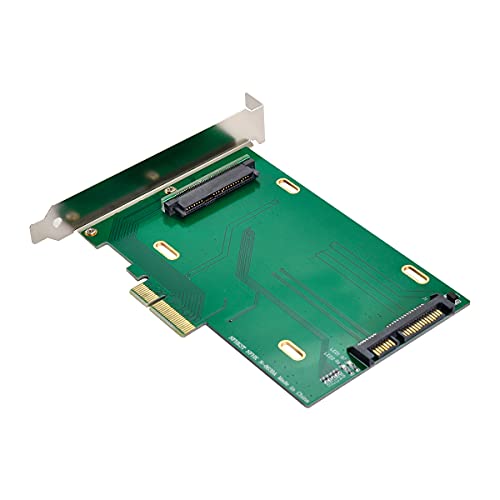
NFHK PCI-E 3.0 x4 Lane to U.2 U2 Kit SFF-8639 Host Adapter for Intel Motherboard & 750 NVMe PCIe SSD
Affiliate Disclosure
A brief note on how guides like this one pay for themselves: WidgetVerdict participates in affiliate programmes, and some links in our articles earn this site a commission when readers follow them to a retailer and complete a purchase, without adding anything to the price those readers pay. We mention it here, in a guide about a connector most retailers barely stock, because the principle does not depend on the product category: recommendations in this article follow lane tables, datasheets and endurance figures, not commission rates. Enterprise drives and used motherboards change hands quickly, so confirm protocol, capacity and condition on the seller’s own page before committing, and keep your receipts until the build has settled in.
Somewhere in a rack-bound tray tonight, a fifteen-millimetre U.2 drive is blinking its way through another terabyte of writes, quite unaware that the desktop world ever called it obsolete.