What's inside
- Key Takeaways
- Quick Picks
- How We Chose These Picks
- What Changes When a Tablet Gets This Big?
- How Do You Arrange a Desk Around a Big Tablet?
- How Do You Work in Split Screen Like You Mean It?
- What Should You Know About Pens at Canvas Size?
- How Do You Choose Between Samsung’s Three Big Tablets?
- How Do Big Tablets Handle Film, Games and Creative Apps?
- What About Battery, Heat and Noise at This Size?
- How Do the Six Compare at a Glance?
- What Mistakes Do Big-Tablet Buyers Make?
- Final Recommendation
- Frequently Asked Questions
- Related Guides
As an Amazon Associate I earn from qualifying purchases. This post may contain affiliate links at no extra cost to you.
widgetverdict.com is reader-supported. When you buy through links on our site, we may earn an affiliate commission.
Where to buy: you will not need to hunt. All six machines below carry checked listings, and the real work of this guide is matching a very large screen to the desk, the sofa or the studio it will actually live in — because at twelve inches and beyond, a tablet stops being an accessory and becomes furniture with a battery.
Twelve inches is where tablets stop asking permission. The best 12 inch tablets are bought for canvas: two full applications side by side without either apologising, a drawing surface that matches a sketchbook, a document at print size, a film that commands a room’s smaller corner. Everything in this guide is labelled with its true measurement — the class as sold runs from 12.1 to 13.1 inches, and two of our picks wear their larger sizes openly in their sections rather than hiding inside the round number. That honesty matters more here than anywhere, because the buyers of big tablets are buying area, and area should be invoiced accurately.
The six divide into three philosophies. Samsung brings three generations of large Android canvas, differentiated by panel ambition and price intent. Lenovo brings two Idea Tabs that bundle pens and cases for students and note-takers. Microsoft brings the Surface Pro, a 13 inch Windows computer that treats the tablet form as its native shape. All six are pen-aware, all six are desk-worthy, and none of them belongs in a coat pocket — which is precisely their point.
Key Takeaways
- The Galaxy Tab S10+ is the flagship canvas: a 12.4 inch AMOLED 2X display, Galaxy AI tools and an S Pen in the proposition.
- The Galaxy Tab S9 FE+ is the value route to the same 12.4 inch Samsung canvas, with the S Pen included and 256GB of storage.
- The Galaxy Tab S10 FE+ is honestly a 13.1 inch machine; we label it so and judge its extra area as a feature, not a rounding error.
- Lenovo’s Idea Tab Plus (12.1 inch) and Idea Tab Pro (12.7 inch) bundle pen and folio case, aiming at students and annotators.
- The Surface Pro is labelled 13 inches and is a full Windows Copilot+ PC — the laptop replacement of the group.
- At this size, stands, keyboards and desk space are part of the purchase; budget and plan for them.
Quick Picks
| Pick | Badge | Why it earns its place |
|---|---|---|
| Samsung Galaxy Tab S10+ | The flagship canvas | 12.4 inch AMOLED 2X, Galaxy AI, Circle to Search and an S Pen for serious note work. |
| Samsung Galaxy Tab S9 FE+ | Value big screen | The 12.4 inch Samsung experience with S Pen, 8GB of memory and 256GB of storage. |
| Samsung Galaxy Tab S10 FE+ | The honest 13.1 | A 13.1 inch LCD, S Pen included and Android 15, labelled at its true size. |
| Lenovo Idea Tab Plus | Student canvas | 12.1 inch 2.5K 90Hz screen with pen and folio case bundled for coursework. |
| Lenovo Idea Tab Pro | The bigger notebook | 12.7 inch 3K display, Dimensity 8300 and pen plus case in the box. |
| Microsoft Surface Pro 11 | The laptop replacement | A 13 inch 120Hz Windows Copilot+ PC with 16GB of memory and 512GB of storage. |
How We Chose These Picks
Size came first, with the labelling rule this guide has used throughout the batch: a pick belongs here if it is sold into the twelve-inch class, and its true measurement is printed in its section whether that figure is 12.1, 12.4, 12.7, 13 or 13.1. Two picks exceed thirteen inches’ doorstep and are flagged for it, because a buyer comparing canvas area deserves arithmetic, not atmosphere. Every pick carries a verified listing, and every specification below is drawn from that listing.
Price intent was the final filter, applied as a spread rather than a ceiling: a useful guide to this class needs its flagship, its value route and its student kits simultaneously, because big-tablet buyers cross-shop by purpose more than by budget. The six below are the result — no two of them answer the same buyer’s sentence, and the sections are written so that your sentence, whatever it is, finds its machine without wading through the other five’s virtues.
Within the class, we weighted the two jobs in the title. For split-screen work, that meant memory, processor composure and the software’s window manners. For big-canvas applications — drawing, annotating, editing, presenting — that meant the pen proposition and whether it is bundled or begged for later. The result is a list with no filler: Samsung’s trio lets buyers choose their altitude inside one ecosystem, Lenovo’s pair bundles the student’s whole kit, and the Surface Pro stands as the control group — the machine that asks whether you wanted a tablet at all, or a laptop that learned the shape.
A word about the absent iPad, because its absence will be noticed: Apple’s large models sit at sizes and in listings that this batch’s verified pool did not cover for this guide, and rather than borrow an unverified name we left the chair empty and said why. Buyers cross-shopping the Apple aisle should compare its large iPads against the S10+ and the Surface Pro on the same axes this guide uses — canvas honesty, pen completeness, kit price — and will find the arguments transfer even though the product does not appear.
We also required each pick to justify its desk footprint. A twelve-inch-class tablet displaces a laptop on a desk and a television in a small room; a pick that could not state what it displaces, and why the displacement is an improvement, did not survive the shortlist.
What Changes When a Tablet Gets This Big?
Posture, first of all. Nobody holds a 12.4 inch tablet through a film the way they hold a ten-inch one; these machines live propped, docked, lap-resting on a case or mounted, and their ergonomics are the ergonomics of furniture arrangement. That is not a criticism — it is the liberation the size offers. Freed from being held, the screen can be larger, the battery heavier, the speakers more serious, and the whole device can assume the role of a room’s second display without apologising for existing.
Reading changes too, in a direction buyers do not expect. A twelve-inch page is a magazine page, a sheet of music, a technical drawing — formats that smaller tablets crop and larger laptops make sedentary. Musicians, cooks following full-page recipes, and anyone whose documents arrive as fixed-layout PDFs discover that this size is not a bigger version of reading but a different category of it, one that stands on a stand and is read the way paper was read: at a distance, with both hands free.
Work changes with it. Split-screen at this size stops being a demonstration and becomes a desk: the spreadsheet at full width beside the email that explains it, the manuscript beside the research, the lesson beside the notebook with the pen actually moving. Buyers who have tried to work in two windows on a ten-inch tablet and given up should not conclude that two windows are a gimmick; they should conclude that their canvas was too small, which is the precise conclusion this entire class exists to sell.
How Do You Arrange a Desk Around a Big Tablet?
Give it a permanent station rather than a wandering life. A stand at eye-pleasing height, a charger that lives at that station, and the keyboard or pen docked within reach convert a big tablet from a carried object into infrastructure — the screen that is always ready for the call, the reference, the recipe or the second monitor’s job. Surface Pro owners should plan the hub and the desk layout as part of the purchase; Samsung and Lenovo owners should decide whether the tablet’s station is the desk, the kitchen or the studio, because at this size a tablet tends to marry one room.
Cable length is the station detail nobody mentions and everybody trips over, sometimes literally. A big tablet at a desk wants a cable long enough to reach its socket without crossing the workspace, routed once and forgotten. Fit it during setup, while the station is being arranged, and the machine’s charging becomes invisible — which, for a device meant to feel like furniture, is exactly the standard to hold it to.
Sound belongs in the station plan too. A big tablet’s speakers fire where the design puts them, and a station that backs the tablet against a wall or tucks it into a bookshelf corner will colour everything it plays. Leave the machine air around its edges, test the station with a familiar voice recording before the first important call, and adjust once rather than apologising weekly. Big tablets are bought partly as the room’s voice; the room should be arranged to let them speak.
Lighting deserves a thought as well. Big glossy panels are mirrors in the wrong room, and the station that faces a window will spend its afternoons showing you the garden instead of the document. Angle the station, or choose the room, accordingly — a five-minute decision that a year of squinting will either bless or curse.
How Do You Work in Split Screen Like You Mean It?
Commit to pairs, not apps. The productive unit on a big tablet is the pairing — brief beside draft, data beside document, lecture beside notebook — and every platform here lets you arrange, save or quickly summon the pairings you use weekly. Build three pairs in the first evening: your writing pair, your research pair and your meeting pair, with the video window floating where your platform allows. A big tablet that opens into a prepared pair starts work in seconds; one that opens into a home screen starts negotiation instead, and negotiations are where tablet work goes to die.
There is a discipline of mercy worth adding: close the pairs when the work ends. A big tablet left permanently in work posture becomes furniture the household walks past, while the same machine returned to a photograph, a clock face or a recipe in its off hours stays a member of the household. The station idea works best when the station has two modes — office and home — and switching between them is a ten-second ritual rather than a reconfiguration project.
Mind the orientation while you are at it. Landscape pairs suit documents and data; portrait pairs suit reading-and-annotating, where one long page towers beside a notebook. The stands and cases these picks use should be rehearsed in both, because a station that only works in landscape silently forbids half the machine’s working postures. Finally, give the floating window a job description — calculator, timer, call, reference thumbnail — rather than letting it become a wandering distraction with a border.
What Should You Know About Pens at Canvas Size?
A pen on a twelve-inch canvas stops imitating a notebook and starts replacing one, because the page is finally the size of the page. That changes which pen details matter. Palm rejection becomes non-negotiable, since a hand resting on a big screen is a hand constantly touching it. Latency becomes visible, because a stroke that trails on a small screen merely annoys, while on a canvas it breaks the illusion that you are writing rather than operating. And storage for the pen becomes a daily question: a pen with a home — a loop, a magnetic edge, a case slot — is a pen that is present for the idea; a pen in a drawer is a feature you once bought.
Charging and storage of the pen’s companions matter too: keep the pen’s home at the station, not in a bag, because canvas work is station work, and the five minutes hunting a stylus before a lecture are five minutes the lecture does not give back. Students in particular should treat the folio’s pen loop as infrastructure and use it with religious consistency for the first month, until the habit sets.
All six picks treat the pen seriously, but they bundle it differently, and the difference is a philosophy. Samsung’s FE models and both Lenovos put the pen in the box, betting that annotation should begin on day one. The flagship Samsung and the Surface Pro treat the pen as part of a professional kit assembled deliberately. Neither philosophy insults the buyer; they simply price the first week differently, and your comparison should price it too.

Samsung Galaxy Tab S10+ — The flagship canvas
The Galaxy Tab S10+ is what Samsung builds when it is showing off, and the showing-off is purposeful. The listing describes a 12.4 inch tablet with an AMOLED 2X display, 256GB of storage, Galaxy AI tools including Circle to Search, long battery life, a durable design and an S Pen for note-taking, in Moonstone Gray, as the US version. Begin with the panel: AMOLED at this size is the display argument of the entire class, with the contrast and colour depth that make films look expensive and drawings look intentional. If a big tablet’s first job is to be looked at for hours, this is the screen the others are measured against.
Longevity flatters it as well. Flagships receive their makers’ longest attention — the updates arrive first, the accessories stay stocked, the resale market stays liquid — and a big tablet is a multi-year piece of furniture in a way a small one is not. The S10+’s price buys years as much as it buys specifications, and buyers who keep machines longest will find its arithmetic kinder than its ticket suggests.
The AI layer is the second argument, and it is pitched at work rather than novelty. Circle to Search turns the canvas into a reference machine — circle the diagram, the product, the unfamiliar term, and the answer arrives without leaving the page. Galaxy AI’s note and organisation tools similarly treat the big screen as a desk where material gets processed, not merely displayed. Paired with the S Pen, which Samsung’s flagship line treats as a citizen rather than an accessory, the S10+ becomes the Android answer to the question the Surface Pro asks from the Windows side: why should a serious working surface be small?
There is a room where this tablet makes its case most eloquently: the studio desk shared with a laptop. As a drawing surface beside a computer, as a reference screen that never sleeps, as the portable portfolio that goes to the client while the workstation stays home — in those roles the S10+ stops competing with laptops and starts completing them. Flagship tablets earn their keep as second surfaces for first computers as often as they replace anything, and buyers who plan that partnership will find this pick the most willing partner in the guide.
Ownership expectations should match the flagship intent. This is a tablet that wants a stand, a keyboard for the typing days and a room of its own; carried naked between meetings it is a beautiful liability. Its storage at 256GB in the listing suits the media-and-projects life it proposes, and its durable design acknowledges that big glass lives dangerously. Buyers whose work is documents and drawings will find it the most complete Android canvas here. Buyers whose work is Windows software should keep reading to the end of the list, where their machine is waiting.
- Display: 12.4 inch AMOLED 2X
- Storage: 256GB in the listed configuration
- Pen: S Pen for note-taking
- Software: Galaxy AI tools, Circle to Search
- Build: durable design, Moonstone Gray, US version
Strengths
- The finest panel in this guide for film and drawing
- AI tools pitched at processing work, not novelty
- S Pen treated as part of the proposition
Trade-offs
- Flagship positioning demands a flagship budget
- Keyboard and stand are separate decisions
- Too much tablet for purely casual media use
Best for: Android professionals, artists and note-takers who want the class’s best canvas. Not suited for: buyers needing Windows software or a travel-light tablet.
Samsung Galaxy Tab S9 FE+ — Value big screen
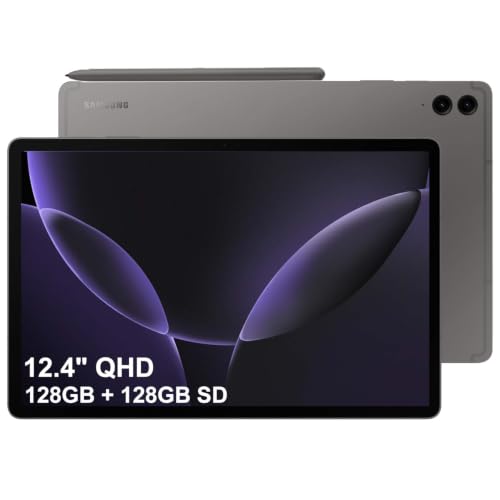
The Galaxy Tab S9 FE+ exists because Samsung understands its own flagship’s audience includes people who want the canvas without the ceremony. The listing describes a 12.4 inch touchscreen, 8GB of memory, 256GB of storage, long battery life, an included S Pen, one front and two rear cameras, and a lightweight durable design. That is the big-screen Samsung proposition with the flagship’s exotic materials traded for a calmer specification — and for split-screen work, study and family duty, the trade is intelligently aimed.
There is a strategic comfort in choosing the FE+ that flagship buyers do not get: the machine’s proposition is legible to the whole household. Children understand it, grandparents can be handed it, and its replacement cost in the imagination is low enough that people actually use it everywhere instead of protecting it from life. Expensive instruments get babied; honest canvases get used, and usage is the entire return on a tablet purchase.
The FE philosophy shows in the details that matter daily. Storage at 256GB is generous for a value-positioned machine and removes the configuration anxiety that haunts cheaper tablets. The S Pen’s inclusion matters disproportionately: a pen bought later is a pen postponed, while a pen in the box makes annotation, sketching and markup part of the machine’s first week. The camera arrangement — a pair at the rear — suits the document-scanning and whiteboard-capturing life of a working tablet better than a single lens would.
Families should notice this pick specifically. A 12.4 inch screen is a shared cinema for two children in a back seat or two adults at a kitchen table, the pen turns it into the homework surface after dinner, and the durable, lightweight build in the listing acknowledges the handling that family life guarantees. The flagship is a personal instrument; the FE+ is the same canvas socialised, and many households will honestly use it more.
Against its own flagship sibling, the honest differences are panel ambition and processing headroom: the S10+’s AMOLED is the finer screen, and demanding creative or gaming workloads will feel the flagship’s advantage. Against the Lenovo pair below, the S9 FE+ counters with Samsung’s ecosystem depth and that storage figure. For the household or student who wants the genuine big-canvas experience — two windows, a pen, room to store the work — at a value altitude, this is the class’s most balanced Samsung answer.
- Display: 12.4 inch touchscreen
- Memory and storage: 8GB RAM, 256GB
- Pen: S Pen included
- Cameras: one front, two rear
- Build: lightweight, durable design
Strengths
- Full 12.4 inch canvas at a value positioning
- S Pen in the box enables annotation immediately
- 256GB storage removes the usual configuration worry
Trade-offs
- Panel is a step below the flagship’s AMOLED
- Heavy creative workloads belong on the S10+
- Keyboard remains a separate purchase
Best for: students and households wanting Samsung’s big canvas without flagship pricing intent. Not suited for: buyers for whom the finest panel is the whole point.

Samsung Galaxy Tab S10 FE+ — The honest 13.1
Label first, because this guide’s rule is arithmetic before adjectives: the Galaxy Tab S10 FE+ is a 13.1 inch tablet. Its listing states a 13.1 inch LCD, Wi-Fi 6E, Android 15, 8GB of memory, 128GB of storage, an included S Pen and a 4K-capable camera, as an international model, in a Wi-Fi-only configuration. It sits in a twelve-inch guide because it is sold and shopped as the plus-sized sibling of this class — and because its extra area, honestly labelled, is a legitimate argument rather than a disqualification.
Set it beside a laptop, as many buyers will, and the comparison clarifies rather than embarrasses. The laptop keeps the keyboard, the ports and the heavy software; the S10 FE+ offers the larger touch canvas, the pen and the instant-on calm of a tablet, at a size where neither device looks like the other’s toy. Households increasingly keep both shapes for exactly this division of labour, and a 13.1 inch tablet is the first size at which the tablet’s half of that partnership stops feeling like the junior half.
That area changes the split-screen proposition in kind, not just degree. At 13.1 inches, two applications can each occupy the space a whole smaller tablet offers, which makes the machine a plausible single-screen office for travellers: document and spreadsheet, lesson and notebook, script and research, without the compromise choreography smaller canvases demand. The S Pen’s inclusion extends the same logic to handwriting — a 13.1 inch notebook page is a notebook page at full size, and lecture annotation or meeting notes stop feeling transcribed and start feeling written.
Its size also reframes travel. A 13.1 inch tablet is the largest screen many airlines’ tray tables accommodate gracefully, and for the traveller whose hotel room becomes an office, it can be the only screen carried — no laptop, no external monitor, just the canvas and its pen. Buyers in that specific life should weigh this pick above its class label; the extra inch is not excess for them, it is the difference between a travelling desk and a travelling compromise.
The cautions are printed in its own listing and we repeat them faithfully. It is an international model, so buyers should confirm warranty and support arrangements for their region before purchase rather than after. The configuration is Wi-Fi only, and storage at 128GB is the slimmest among the Samsung trio here — heavy local media libraries should plan accordingly. None of that erases the proposition: the largest canvas in this guide, a current Android version, a pen in the box, and a label we have kept honest so you can want it for exactly what it is.
- Display: 13.1 inch LCD (labelled honestly; class-plus size)
- Memory and storage: 8GB RAM, 128GB
- Pen: S Pen included
- System: Android 15, Wi-Fi 6E, Wi-Fi only
- Note: international model — confirm regional warranty
Strengths
- The largest canvas in the guide for split-screen work
- S Pen included for full-size note pages
- Current Android 15 and Wi-Fi 6E in the listing
Trade-offs
- International model: verify warranty arrangements first
- 128GB is the trio’s slimmest storage
- Wi-Fi only, with no cellular option in this listing
Best for: split-screen workers and note-takers who want maximum area per machine. Not suited for: buyers needing regional warranty certainty or large local storage.
Lenovo Idea Tab Plus — Student canvas
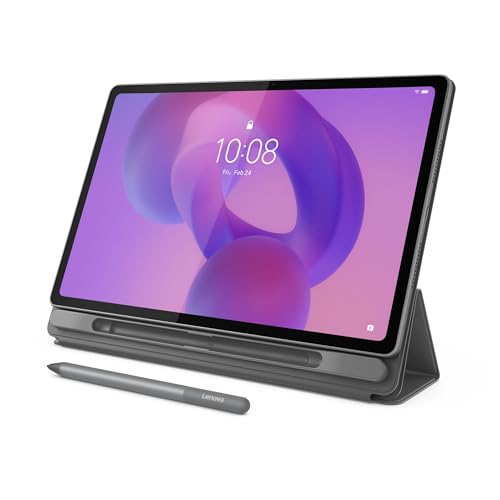
The Idea Tab Plus scales Lenovo’s student formula up to canvas size. Its listing describes a lightweight tablet with a 12.1 inch 2.5K IPS touchscreen at 90Hz, a MediaTek Dimensity 6400 processor, 8GB of memory, 128GB of storage, and a Tab Pen and folio case included. Every element of that sentence is aimed at coursework conducted on a big page: readings at print scale, problem sets beside worked examples, lecture slides annotated in the margin by a pen that was in the box rather than on a wishlist.
Its lightness, which the listing leads with, is the stealth specification of the whole Lenovo pair. Big tablets fail by staying home, and a 12.1 inch machine light enough to be carried to the library without a negotiation gets used in the places study actually happens. Lenovo has understood that a student tablet’s portability is measured in willingness, not grams, and has specified accordingly.
The display specification carries the argument. A 2.5K panel across 12.1 inches renders dense text — the textbook page, the journal article, the code listing — with the crispness that decides whether a student reads on the tablet or prints the PDF in surrender. The 90Hz refresh keeps long scrolling sessions calm, and 8GB of memory, double the student norm in our 11 inch guide, gives split-screen study the composure it needs: source on one side, notes on the other, neither reloading when touched.
Teachers preparing material will feel its virtues from the other side of the desk: slides assembled at full size, worksheets marked in a hand students can read, a screen big enough to show a small group gathered round. The Plus is priced and bundled for education’s realities — complete in the box, light enough to carry between rooms, specified for the text that education runs on — and that coherence is worth more to its audience than any single benchmark.
Against the Samsung pair, the Idea Tab Plus counters with completeness and price intent: pen and case bundled, a specification tuned for text rather than spectacle. Its panel will not match the S10+’s AMOLED for film, and its processor is a study engine rather than a creative workstation. Judged as what it declares itself to be — the big notebook for people whose work is reading, writing and marking — it is one of the most coherent propositions in this guide.
- Display: 12.1 inch 2.5K IPS touchscreen, 90Hz
- Processor: MediaTek Dimensity 6400
- Memory and storage: 8GB, 128GB
- In the box: Tab Pen and folio case
- Build: lightweight design in listing
Strengths
- Pen and case bundled — a complete study kit
- 2.5K screen renders dense text beautifully
- 8GB memory gives split-screen study real composure
Trade-offs
- Panel tuned for text, not flagship film spectacle
- Study-grade processor, not a creative workstation
- 128GB storage suits documents better than media libraries
Best for: students and annotators who work on big pages of text. Not suited for: film-first buyers or heavy creative workloads.

Lenovo Idea Tab Pro — The bigger notebook
If the Idea Tab Plus is the student’s canvas, the Idea Tab Pro is the same idea promoted. Its listing describes a 12.7 inch 3K LCD display, 8GB of memory, 128GB of storage, a MediaTek Dimensity 8300 processor — a clear step above its sibling’s chip — Google Gemini integration, and a pen and folio case included, positioned as a student tablet. The promotion runs in two directions at once: more area for the page, and more processing composure for the applications that share it.
Its relationship to the Idea Tab Plus deserves one clarifying sentence, because the two share a surname and a mission. The Plus is the undergraduate’s complete kit; the Pro is the same kit after the subjects got harder — more canvas for denser pages, more chip for heavier applications, the same pen-and-case completeness underneath. A buyer choosing between them is really reporting the density of their reading, and either answer is respectable.
The 3K panel at 12.7 inches is the specification to dwell on. Diagram-heavy disciplines — engineering sketches, anatomical plates, architectural details, sheet music — live or die on whether fine lines survive the screen, and this display is specified to keep them. Split the screen and each half still holds a legible document; open a drawing application and the canvas approximates the physical sketchbooks these students also carry. Gemini’s presence in the listing signals the study workflow Lenovo imagines: source material on the big screen, an assistant a tap away for the summary, the explanation, the second example.
Postgraduate and professional-course students are the quiet centre of its audience: readers of papers, annotators of casebooks, sketchers of systems, people whose study material arrives as dense PDFs that punish small screens. For them the Pro’s combination — the largest Lenovo canvas here, the stronger chip, the pen in the box — is not an upgrade path but a destination, the tablet equivalent of the good desk lamp bought once and used for a decade of evenings.
The Pro’s argument against its own sibling is headroom; its argument against the Samsungs is completeness at a student altitude. It will not out-panel the AMOLED flagship for entertainment, and Android’s professional creative catalogue remains thinner than the iPad world’s — though no iPad appears in this size guide’s list, buyers cross-shopping should know the Pro’s rivals wear different badges in different aisles. As a self-contained big notebook — pen, case, canvas, composure — it is the most complete student proposition at this size in the guide.
- Display: 12.7 inch 3K LCD
- Processor: MediaTek Dimensity 8300
- Memory and storage: 8GB, 128GB
- In the box: pen and folio case
- Software: Google Gemini integration in listing
Strengths
- 3K canvas keeps fine detail legible at full size
- Stronger processor than its student sibling
- Pen and case included complete the kit
Trade-offs
- LCD panel sits below AMOLED for film contrast
- Storage is document-sized rather than library-sized
- Student positioning may exceed a casual buyer’s needs
Best for: students in diagram-heavy disciplines and serious note-takers. Not suited for: entertainment-first buyers or Windows software users.

Microsoft Surface Pro 11 — The laptop replacement
The label, as always in this guide, comes first: the Surface Pro 11 in this listing is a 13 inch machine. Its specification describes a Copilot+ PC with a 2880 by 1920 LCD touchscreen at 120Hz, a ten-core Qualcomm Snapdragon X Plus processor, 16GB of memory, a 512GB SSD, Windows 11 Pro and a Wi-Fi-only configuration in black. Nothing else in this guide is a full professional computer wearing a tablet’s shape; the Surface Pro is, and its presence reframes the whole list as a question — did you want a bigger tablet, or did you want your laptop to learn a new posture?
Its tablet manners deserve a sentence amid the computer talk, because buyers cross-shopping from the Android five will ask. Detached, the Surface Pro is a large, high-resolution touchscreen with a pen proposition and a kickstand’s posture — a presentation and markup device that happens to contain a professional’s entire filing cabinet. The weight and the price are a computer’s; the convenience, in the meeting where the document must be signed, annotated and sent before the coffee cools, is entirely a tablet’s.
For split-screen work, its answer is the most literal here. Sixteen gigabytes of memory and a desktop processor hold not two applications but a working day’s worth, across a 120Hz panel that makes pen strokes and scrolling feel immediate. The resolution is the highest in the guide, the storage the largest, and Windows 11 Pro brings the managed, professional environment that offices actually deploy. Add the keyboard cover — a separate purchase, and an essential one — and the machine on the desk is a laptop; detach it, and the machine in the hand is the biggest tablet in this guide, with a pen proposition for markup and meetings.
Organisations will read this listing differently from individuals, and correctly: Windows 11 Pro, a ten-core processor and half a terabyte of storage describe a machine an IT department can deploy, manage and secure like any other professional computer, while its tablet form serves the meeting rooms, site visits and presentation floors where laptops are clumsy. The Surface Pro’s longest-running argument has never been novelty; it is that one device can hold a professional’s whole working life, and this generation’s specification states that argument at its strongest yet.
The Copilot+ designation signals the AI generation of Windows machines, with on-device assistance woven into the system rather than bolted on. Whether that matters depends on your workflow’s appetite for summaries, transcriptions and image assistance; the underlying computer matters regardless, and it is formidable. The honest boundaries are commitment and cost of completeness: the keyboard is extra, the hub is likely, and the whole proposition prices like the professional tool it is. Buyers who need Windows should not apologise for choosing it; buyers who merely admire it should notice that three Android canvases in this guide will serve pen-and-paper lives at gentler altitudes.
- Display: 13 inch LCD touchscreen, 2880 x 1920, 120Hz
- Processor: ten-core Qualcomm Snapdragon X Plus
- Memory and storage: 16GB RAM, 512GB SSD
- System: Windows 11 Pro, Copilot+ PC
- Configuration in listing: Wi-Fi only, Black
Strengths
- A genuine professional computer in tablet form
- Highest resolution and largest storage in the guide
- 120Hz panel flatters pen work and scrolling alike
Trade-offs
- Keyboard cover is essential and sold separately
- Complete kit prices like the professional tool it is
- 13 inches and desk-first ergonomics; not a travel-light slate
Best for: professionals whose work is Windows and who want one machine for desk and hand. Not suited for: casual media buyers or anyone seeking a simple, inexpensive big screen.
How Do You Choose Between Samsung’s Three Big Tablets?
By deciding what the canvas is for, in one sentence. If the sentence is “the best screen I can put on my desk”, the answer is the S10+ and its AMOLED panel. If the sentence is “a big shared screen for work, study and family, bought sensibly”, the answer is the S9 FE+, whose completeness and storage make it the trio’s diplomat. If the sentence is “the most area I can get for split-screen, and I accept the international-model homework”, the answer is the S10 FE+ at its honest 13.1 inches. Buyers who cannot finish the sentence should not buy any of them yet, because at this size an unexamined purpose becomes an expensive ornament within a month.
Notice what does not decide it: the pen, which all three include or centre; the ecosystem, which all three share; and the badge, which all three wear. The Samsung trio is a genuinely well-designed ladder, and ladders are climbed by need, not by anxiety. State the need, take the rung, and spend the difference on the stand and keyboard that complete the station.
How Do Big Tablets Handle Film, Games and Creative Apps?
Film is the size’s party trick and its most uneven test. The S10+’s AMOLED panel turns a dark film scene into the argument for the whole class; the LCD machines present the same scene honourably and with less depth, which viewers notice in a dark room and forget in a bright kitchen. All six are large enough that two people can share a screen without choreography, and all six benefit from the stands and cases their stations provide — a big tablet’s cinema is a furniture arrangement as much as a specification.
Games sort the list by processor rather than by panel. The Surface Pro’s ten-core chip and 16GB of memory run in a different league, with the caveat that Windows gaming on an Arm-based machine has its own compatibility map to check title by title. The Samsungs handle mainstream Android gaming with composure, the Lenovos handle the casual-to-moderate tier their student briefs imply, and none of the Android five should be bought as a dedicated games machine. Creative applications follow the pen logic of the earlier section: Samsung’s flagships for Android artistry, the Lenovos for annotation and study-sketching, the Surface for the professional Windows catalogue.
What About Battery, Heat and Noise at This Size?
Big tablets carry big batteries, and their endurance stories are generally kind: a working day of mixed use is the class’s realistic promise, with video playback stretching further and heavy split-screen work pulling harder. The honest variable is brightness — a 12.4 inch panel lit for a bright room is a serious power draw, and owners who station their tablet near a charger, as our desk advice suggests, will simply never meet the anxiety that portable users of smaller tablets know well.
Charging habits adapt to the size as well. These are not devices to top up from a laptop’s spare port between lessons; they want their own charger at their station, and owners who honour that will find the battery question simply disappears from daily life. The tablet that lives plugged-adjacent at its desk is always ready, and readiness — not raw hours — is what owners of big tablets actually praise after a year.
Heat and noise are where the class quietly shines. Fanless Android designs stay silent and merely warm under load, which suits shared rooms and recording-adjacent work. The Surface Pro, as a full computer, manages thermals like one and should be given the ventilation any laptop deserves. None of the six will announce itself across a quiet room, and for machines that live in bedrooms, studios and meeting rooms, that silence is a specification in everything but name.
How Do the Six Compare at a Glance?
| Pick | True size | System | Defining trait |
|---|---|---|---|
| Samsung Galaxy Tab S10+ | 12.4 inch | Android | AMOLED flagship canvas with Galaxy AI |
| Samsung Galaxy Tab S9 FE+ | 12.4 inch | Android | Value canvas, pen included, 256GB storage |
| Samsung Galaxy Tab S10 FE+ | 13.1 inch | Android | The largest area, honestly labelled |
| Lenovo Idea Tab Plus | 12.1 inch | Android | Student kit with pen and case |
| Lenovo Idea Tab Pro | 12.7 inch | Android | 3K notebook with the stronger chip |
| Microsoft Surface Pro 11 | 13 inch | Windows | The full professional computer |
What Mistakes Do Big-Tablet Buyers Make?
Before the mistakes, one habit separates delighted owners from disappointed ones in the first week: they rehearse the tablet in its real station with its real work before the returns window closes. Open the actual spreadsheet, draw the actual diagram, take the actual call. Big tablets are honest machines that reveal themselves immediately, and the buyer who tests the reality rather than the showroom fantasy keeps the right one.
The first is buying area without a station. A twelve-inch-class tablet used from a sofa cushion and a charger cable will spend its life slightly awkward, while the same machine on a stand at a chosen desk becomes infrastructure. Decide the room before the model. The second mistake is the reverse of the small-tablet error: assuming bigger is automatically better for reading, when a propped big tablet is a worse bedtime book than a held small one. Big canvases are for desks, laps with cases and shared viewing; match the size to the posture you actually use.
There is a fifth mistake, and it is a storage mistake in disguise: buying the big tablet as the household’s media archive. These machines are working surfaces, and the 128GB configurations in particular will fill with exactly the project files and downloads their size invites. Decide the archive’s home — a computer, a drive, a cloud tier — before the tablet arrives, and let the tablet be the desk rather than the warehouse.
The third mistake is comparing headline machines while ignoring bundled completeness. Lenovo’s pair arrive with pen and case; Samsung’s FE models include the pen; the flagship and the Surface Pro ask you to fund their completions separately. The honest comparison is kit against kit. The fourth is neglecting the label discipline this guide has practised: a 13.1 inch tablet in a 12 inch search is not a fraud, but it is a different object on a smaller desk, and the buyer who measures their workspace will be happier than the buyer who measures only their enthusiasm.
Final Recommendation
Choose by philosophy and the size will follow. For the finest Android canvas, the Galaxy Tab S10+ is the flagship this class deserves; for the same ecosystem at a calmer altitude, the S9 FE+ and the honestly-labelled 13.1 inch S10 FE+ divide value from area. Students should take a Lenovo kit — the Idea Tab Plus for text, the Idea Tab Pro for detail — and professionals whose world is Windows should take the Surface Pro 11 and stop pretending a tablet was ever the requirement. A big tablet succeeds when it becomes the room’s working surface, and the right pick here is the one whose canvas your desk, your subject and your hands have been waiting for.
Frequently Asked Questions
Is a 12 inch tablet too big to travel with?
It travels like a laptop rather than like a book: fine in a bag with a sleeve, awkward in a coat, and happiest when the destination has a desk. Frequent travellers who work at desks should not hesitate; travellers who work from laps and trays should rehearse the ergonomics before committing.
Why are 13 and 13.1 inch tablets in a 12 inch guide?
Because they are sold and shopped as this class’s plus models, and excluding them would hide the largest options from the buyers comparing canvas. We include them with their true sizes stated in their headings, tables and text, so the comparison stays arithmetic rather than atmospheric.
Which pick is best for drawing?
The Tab S10+, on the strength of its AMOLED panel and Samsung’s flagship pen ecosystem; the Idea Tab Pro runs it closest for students, with a 3K canvas and the pen in the box. The Surface Pro serves digital artists whose tools are Windows applications rather than tablet apps.
Do I need a keyboard for a tablet this size?
For the Surface Pro, yes — it completes the machine’s premise. For the Android picks, a keyboard converts the canvas into a typing desk and is worth it for anyone whose split-screen work involves long text; pen-first and viewing-first owners can skip it without missing the point.
How do I protect a screen this large?
With the case it travels in and the station it lives on, in that order. Big glass survives by never being the hardest object in a bag and never being balanced on a sofa arm; a folio for journeys, a stand for home, and a house rule that the tablet is set down flat or docked, never propped against a mug. Most cracked big tablets were not dropped from heights — they were leaned, once, in the wrong place.
Are big tablets good for older readers and parents?
Often the best technology gift in this entire batch of guides, because the size forgives eyesight and the station forgives dexterity: text at print scale, faces at life size, a screen that stays where it was put. The FE models and the Lenovos suit the role best, with the pen irrelevant and the canvas everything; set the text size generously at setup and the machine will be used daily rather than admired weekly.
What stand or case does a big tablet need?
One that holds the screen at eye-comfortable height without wobbling when the pen presses, which rules out the flimsiest folio angles for drawing work. Lenovo’s bundled folio cases cover the reading and viewing postures well; artists and typists should budget for a sturdier stand or a keyboard case as part of the kit, and Surface Pro owners can rely on the built-in kickstand that remains the class’s best built-in answer.
Is a big tablet good for video calls?
It is the size where group calls stop feeling like peering into a phone: several faces at natural size, a screen you can present from, and speakers that fill a small room. Camera placement and the station’s angle matter more than sensor figures; prop the tablet at eye height, face the light, and every pick in this guide becomes a respectable meeting citizen.
Can a 12 inch tablet replace a laptop?
The Surface Pro is designed to, and for Windows-based work it does. The Android picks replace a laptop for the browser-and-documents portion of a life, and complement one for everything else. The honest test is your software list: if every tool you need exists on the tablet’s platform in full form, the replacement is real; if one essential tool does not, the tablet is a companion, however large its screen.
Which pick is best for students?
The Idea Tab Plus for most coursework, on completeness and text clarity; the Idea Tab Pro when the subject is diagram-heavy and the budget allows its stronger canvas and chip. Students whose courses are Windows-software courses should look at the Surface Pro as the one-machine answer.
How much storage does a big tablet need?
More than a small one, because big tablets attract big jobs: project files, downloaded series, offline libraries. The 256GB and 512GB configurations in this guide exist for a reason, and the 128GB picks should be chosen by document-and-cloud workers rather than media archivists.
Related Guides
From the big end of the market, the neighbouring reads are Best 7 Inch Tablets: A Small Size That Is Nearly Gone, Best 8 Inch Android Tablets for One-Handed Reading and Travel and Best 10 Inch Windows Tablets for Real Desktop Apps in a Small Bag.