What's inside
- Key Takeaways
- Quick Picks
- How We Chose These Picks
- Side-by-Side Comparison
- Is QHD at 27 Inches Still the Sweet Spot in 2026?
- How Much Refresh Rate Do You Actually Need?
- Curved or Flat: Which Shape Suits Your Desk?
- What Separates a Good QHD Panel From a Great One at This Size?
- How Should You Set Up a New QHD Monitor on Day One?
- Which of These Monitors Fits a Two-Screen Desk?
- How Do These Panels Handle Text and Long Reading Sessions?
- Common Mistakes
- Final Recommendation
- Frequently Asked Questions
- Related Guides
As an Amazon Associate I earn from qualifying purchases. This post may contain affiliate links at no extra cost to you.
widgetverdict.com is reader-supported. When you buy through links on our site, we may earn an affiliate commission.
Finding the best 27 inch qhd monitors used to mean choosing between a dull office panel and a gaming screen that treated text like an afterthought. That split has mostly closed. The six screens gathered here all run the same 2560×1440 resolution on a 27-inch diagonal, yet they split into genuinely different machines: three fast LG gaming panels with curved or flat glass, a flat Samsung that courts both console and PC players, and two Dell models built around a single USB-C cable for laptop desks. Same pixel count, six different answers to the question of what a desk actually does all day.
Each of the six picks below carries an Amazon link, so you can read the full listing, confirm the exact model code, and check the price before deciding. Model codes matter in this category more than brand names do — LG alone sells three 27-inch QHD panels here with different refresh rates, curves and stands, and a mistyped suffix at checkout buys you a different monitor from the one reviewed.
One framing note before the picks. QHD at 27 inches lands at roughly 109 pixels per inch, the density where Windows and macOS text stops looking fringed without any scaling tricks, and where a graphics card works far less hard than at 4K. Everything in this guide assumes that balance is why you are shopping this size. If your work is colour-critical photo editing, the 32-inch 4K guide linked at the end serves you better; if your evenings are competitive shooters, the 240Hz discussion inside still applies, because two of these panels reach that rate.
A second framing note concerns honesty about numbers. Refresh rates and response figures in this category are measured under vendor-chosen conditions, and a 1ms claim from one brand is not laboratory-identical to a 1ms claim from another. The reviews therefore treat those figures as class indicators — this panel belongs to the fast tier, that one to the fastest — rather than as stopwatch truth, and they lean on the combinations that matter jointly: rate plus sync plus panel type. Readers cross-shopping against other guides should compare those combinations, not isolated digits.
Key Takeaways
- All six picks share 2560×1440 on 27 inches; what actually separates them is refresh rate (144Hz to 240Hz), panel shape, stand travel, and whether a USB-C port can run your whole desk.
- The LG 27GR83Q-B is the speed ceiling of the group at 240Hz with HDMI 2.1, aimed squarely at competitive players with the graphics hardware to feed it properly.
- Dell’s S2725DC is the only pick combining USB-C video, built-in speakers and a fully adjustable stand — the laptop-desk choice.
- Curved glass appears exactly once, on the LG 27GS60QC-B at a steep 1000R; the remaining five are flat, which suits shared screens and straight-line document work.
- Stand quality divides the field sharply: two picks adjust for height, swivel and pivot, while the curved LG tilts only and will likely want a monitor arm beside it.
Quick Picks
| Pick | Badge | Why it earns a place |
|---|---|---|
| LG 27GS60QC-B UltraGear | Curved immersion at 180Hz | A 1000R curve wraps the 180Hz panel around your peripheral vision for single-player gaming. |
| Samsung Odyssey G5 (G50F) | Flat Fast IPS all-rounder | 180Hz on a flat Fast IPS panel with both G-Sync Compatible and FreeSync support listed. |
| Dell 27 Plus QHD USB-C S2725DC | The laptop-desk hub | USB-C video, twin 3W speakers and a height, tilt, pivot and swivel stand in Ash White. |
| LG 27GR83Q-B UltraGear | 240Hz esports ceiling | The fastest panel here, with DisplayHDR 400, HDMI 2.1 and a headphone output carrying DTS Headphone:X. |
| Dell S2722DC | Single-cable simplicity | A QHD USB-C Dell for desks that want one cable to the laptop and nothing else to think about. |
| LG 27G61ZB-B UltraGear | 200Hz middle ground | Splits the refresh-rate difference between the 180Hz pair and the 240Hz flagship, with a full-motion stand. |
How We Chose These Picks
Every monitor in this guide was confirmed against its manufacturer’s listing title before it earned a row, and the specifications quoted in each review come from that title rather than from retailer copy or memory. Where a listing title stays silent — the Dell S2722DC names its resolution and USB-C connection and little else — the review below says so plainly instead of filling the gap with numbers borrowed from a sibling model. That discipline matters in a category where one letter in a model code changes the panel.
Refresh rate was the first filter. A 60Hz panel has no business in a 2026 roundup aimed at mixed work and play, so the floor here is the Dell S2725DC at 144Hz and the ceiling is 240Hz. Between those poles sit 180Hz and 200Hz models, and the reviews treat those numbers honestly: the jump from 144Hz to 180Hz is visible in fast camera pans, while the step to 240Hz rewards a narrower group of players with the hardware and the reflexes to use it.
Connection shaped the second cut. Three picks speak to gamers through HDMI and DisplayPort alone. Two Dells and the group divide cleanly on USB-C: the S2725DC and S2722DC accept video over USB-C, which turns them into docking points for laptops, while the LG gaming panels expect a separate dock or a desktop PC. Neither approach is wrong; they serve different desks, and the guide keeps both rather than pretending one desk type is universal.
Price behaviour shaped the shortlist too, in a way readers rarely see acknowledged. This category’s street prices slide with panel supply cycles, so the guide ranks by specification and role rather than by a snapshot figure that would rot within a month. When two picks overlap — the three LG gaming models are the obvious thicket — the reviews work to state exactly which buyer each one serves, because a well-matched 180Hz purchase beats a mismatched 240Hz one every week of the year.
Finally, ergonomics counted as a specification, not a footnote. A monitor you cannot raise to eye level costs you neck strain every working day, so stand adjustment is recorded for every pick whose listing states it, and the tilt-only stand on the curved LG is flagged as a real compromise rather than a detail. VESA mounting can rescue a weak stand, but readers should know before buying whether they will need an arm on day one.

LG 27GS60QC-B UltraGear — Curved immersion at 180Hz
The 27GS60QC-B is the only curved screen in this guide, and its 1000R curvature is the tightest radius LG sells at this size — the panel wraps noticeably, pulling the left and right edges of a game world toward your peripheral vision. Paired with a 180Hz refresh rate and a 1ms response claim, it is built for the player who sits centred, alone, in front of racing games, flight sims and sprawling single-player adventures where immersion outranks everything. The curve is the product; everything else supports it.
HDR10 support gives compatible games and video a wider brightness vocabulary than a plain SDR panel, though a curved gaming panel at this tier renders HDR as an enhancement rather than a reference-grade feature. AMD FreeSync and VESA Certified AdaptiveSync are both named in the listing, so frame pacing stays smooth whether the signal comes from a Radeon card or another AdaptiveSync source. Dynamic Action Sync, LG’s low-latency mode, rounds out a feature set that is entirely pointed at play rather than productivity.
Compromises arrive with the stand and the seating geometry. The listed stand tilts and does nothing else — no height adjustment, no swivel, no pivot — so your chair and desk height must meet the screen where it sits, or a separate arm joins the shopping list. A curve this deep also assumes a single viewer sitting in the middle; a partner watching from the sofa arm sees a distorted edge, and design work built on straight lines, from CAD to spreadsheets with long ruled rows, fights the bend all day.
Consider how the curve interacts with viewing distance. At a typical gaming desk, your eyes sit roughly an arm’s length from the glass, and a 1000R radius is calculated for about a metre — close enough that the wrap reads as depth rather than distortion once a game fills the screen. Pull the chair back for films and the effect softens; push closer for a racing cockpit view and the edges of the dashboard genuinely leave your central vision. That distance sensitivity is worth knowing before purchase, because it means this monitor rewards a deliberate desk layout: screen centred, chair fixed, wheel or controller in a repeatable spot. Players who drift between couch and desk will find the geometry changing character each time, while the settled sim racer gets the full benefit every session without touching a setting.
- Size and resolution: 27-inch, 2560×1440 QHD
- Refresh and response: 180Hz, 1ms
- Curve: 1000R curvature
- HDR: HDR10
- Sync: AMD FreeSync, VESA Certified AdaptiveSync
- Inputs: HDMI, DisplayPort
- Stand: tilt only, per listing
Strengths
- The 1000R curve genuinely changes how racing and simulation games feel from the centre seat.
- 180Hz with both FreeSync and certified AdaptiveSync covers fast play on varied hardware.
- Dynamic Action Sync addresses input latency, the quiet half of gaming responsiveness.
Trade-offs
- Tilt-only stand is the weakest ergonomic package in this guide.
- Deep curvature suits one centred viewer and penalises anyone off-axis.
- No USB-C video input, so laptop users need a dock or a second cable path.
One more consideration belongs to multi-genre players. The curve that flatters a cockpit can flatter a strategy map or an open-world horizon too, because those genres also fill the panel edge to edge with world rather than interface. Where it earns nothing is the desktop itself — file managers and browsers look faintly theatrical on a 1000R bend. Owners typically adapt within a week and stop noticing during work, but the adaptation is real, and buyers who split their hours evenly between play and paperwork should sit in front of any deep curve, even a friend’s, before committing their own desk to one.
Best for: solo gamers who play racing, flight or open-world titles from a fixed centre seat and want the screen to wrap around the game.
Not suited for: shared viewing, straight-line design work, or desks where the monitor must rise to meet a standing-desk posture.

Samsung Odyssey G5 (G50F) — Flat Fast IPS all-rounder
Samsung’s Odyssey G5 in this G50F generation takes the opposite bet from the curved LG above: a flat Fast IPS panel at the same 180Hz. Flat glass keeps geometry honest for mixed use — a spreadsheet in the morning, a shooter in the evening — and IPS technology holds colour and contrast together when you lean back or a second person pulls up a chair. For households where one monitor serves work, study and play in rotation, that flat versatility is the argument.
The sync story is unusually complete. The listing names NVIDIA G-Sync Compatible alongside AMD FreeSync, so the panel adapts its refresh to either major graphics camp without tearing, and the 1ms response time is specified as GtG, the more meaningful of the response figures vendors quote. HDR10 support is present for games and streaming content that carry it. Taken together, the specification reads like Samsung aimed this model at the buyer who refuses to declare a single allegiance — any GPU, any genre, one screen.
What the listing does not give you is a docking story or ergonomic detail. There is no USB-C video input in the title, so a laptop desk runs through HDMI or a separate hub, and stand adjustment goes unstated, which means you should expect to verify the stand on the listing itself or budget for a VESA arm if your posture demands height control. Those gaps keep the G50F behind the Dells for office-first desks even while its panel specification leads them for play.
There is a scheduling argument for this Samsung that spec sheets never capture. A household screen changes jobs several times a day — homework document at four, video call at six, ranked matches at nine — and each change punishes a specialised panel. The curved LG makes documents feel odd; a slow office Dell makes the evening session feel muddy. The G50F’s flat Fast IPS at 180Hz is the rare specification that offends nobody in that rotation. Colour shift from the sofa side of the room stays small, text stays straight, and when the games begin, the sync support covers whichever graphics card the household PC happens to hold. Buyers shopping for a shared family monitor should weigh that diplomatic quality heavily, because it prevents the second purchase — the extra screen somebody eventually demands when the first one suits only one person.
- Size and resolution: 27-inch, QHD (2560×1440 class)
- Panel: Fast IPS, flat
- Refresh and response: 180Hz, 1ms GtG
- HDR: HDR10
- Sync: NVIDIA G-Sync Compatible, AMD FreeSync
- Model code: LS27FG502ENXZA
- USB-C video: not stated in listing title
Strengths
- Dual sync certification removes the GPU-brand gamble from the purchase.
- Flat Fast IPS keeps colours stable for viewers sitting off to the side.
- 180Hz matches the curved LG’s pace without imposing a curve on work tasks.
Trade-offs
- No USB-C input named, so single-cable laptop setups are off the table.
- Stand adjustment is not stated in the listing title and needs checking.
- HDR10 at this tier improves tone but will not rival dedicated HDR displays.
Best for: mixed-use desks that alternate documents and fast games, especially households sharing one screen between different graphics cards.
Not suited for: laptop owners chasing a one-cable desk, or buyers for whom confirmed height adjustment is a condition of purchase.
Dell 27 Plus QHD USB-C S2725DC — The laptop-desk hub
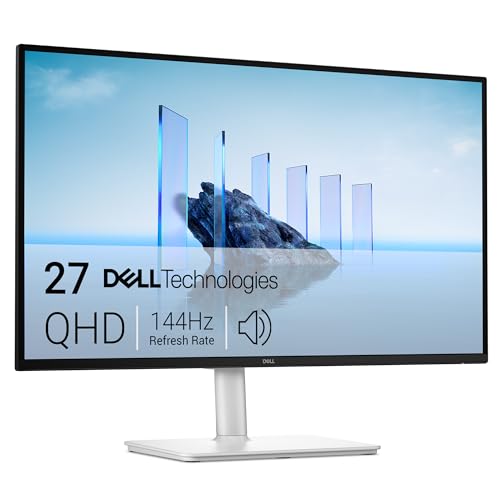
The S2725DC is what happens when Dell builds a QHD monitor around the laptop rather than the gaming rig. USB-C carries the picture from a notebook, HDMI and DisplayPort 1.4 cover everything else, and a pair of built-in 3W speakers handles calls and casual video without a soundbar colonising the desk. The finish is Ash White, a deliberate break from the black-glass sameness of the gaming panels here, and it suits the bright home-office desks this monitor is clearly designed for.
Its stand is the most complete in the guide: height, tilt, pivot and swivel are all listed, which means the screen rises to your eyes, turns to show a colleague, and rotates to portrait for long documents or code. That ergonomic range, more than any panel statistic, is what a full working day feels. Underneath the office manners sits a respectable gaming specification — 144Hz refresh, 1ms response and AMD FreeSync — so the same screen that hosts your standup meeting can run an evening session without the motion smearing a 60Hz office panel would show.
Judged purely as a gaming monitor, it concedes ground: 144Hz is the floor of this guide, there is no HDR badge in its listing, and its speakers, while handy, are 3W units suited to voices rather than film scores. Judged as the centre of a working desk, those concessions barely register. The honest summary is that Dell tuned every choice here — colour, stand, ports, speakers — toward the person whose monitor earns its keep between nine and five and plays afterwards.
Picture the morning this Dell is designed for. A laptop comes out of a bag, one USB-C cable clicks in, and the machine gains a 27-inch QHD desktop, sound for the first call of the day, and a screen already standing at eye height because yesterday’s adjustment persisted. No dock firmware, no cable bundle behind the desk, no separate speaker to power. That frictionless start, repeated two hundred working days a year, is worth more to most home offices than any single panel statistic in this guide. The pivot to portrait deserves a mention too: contract reviewers, coders and anyone reading long PDFs will find a vertical QHD page startlingly natural, and the S2725DC rotates without an aftermarket arm because Dell built the motion into the stand from the start.
- Size and resolution: 27-inch QHD, 2560×1440
- Refresh and response: 144Hz, 1ms
- Speakers: 2 × 3W built in
- Inputs: USB-C, HDMI, DisplayPort 1.4
- Stand: height, tilt, pivot, swivel
- Sync: AMD FreeSync
- Finish: Ash White
Strengths
- Full four-way stand adjustment, the best ergonomic package in this lineup.
- USB-C video plus speakers removes a dock and a soundbar from most laptop desks.
- 144Hz and FreeSync keep evening gaming honest rather than token.
Trade-offs
- Slowest refresh rate in the guide, visible to players stepping down from 180Hz or above.
- Built-in speakers serve calls and clips, not cinematic listening.
- No HDR specification appears in its listing title.
Best for: laptop-based home offices that want one cable for video, sound from the screen itself, and a stand that fits the screen to the person.
Not suited for: competitive players who count refresh rate first, or buyers building a dark, all-black gaming setup.

LG 27GR83Q-B UltraGear — 240Hz esports ceiling
Nothing else in this guide refreshes as quickly as the 27GR83Q-B. Its IPS panel runs 240Hz with a 1ms response claim, and that combination is the current competitive standard for players who compete in tactical shooters and arena titles where a duel is decided inside a handful of frames. The panel stays flat and IPS, so the speed does not cost you the viewing angles or the colour behaviour that curved or TN-era esports screens used to demand as tribute.
The connection list matches the ambition. HDMI 2.1 appears alongside DisplayPort, which matters because HDMI 2.1 carries the bandwidth for high-refresh QHD from current consoles as well as PCs — this is the one pick a PlayStation or Xbox owner can drive hard without DisplayPort. DisplayHDR 400 certification gives HDR content a defined brightness floor to work with, and the 4-pole headphone output with DTS Headphone:X support feeds positional audio straight from the monitor, a thoughtful touch for players whose PC sits far from their chair.
Its stand adjusts for tilt, height and pivot, covering the essentials for a healthy playing posture, though swivel is absent from the listing. The real cost of admission is upstream: feeding 240 frames per second at 2560×1440 takes a serious graphics card, and pairing this monitor with a mid-range GPU leaves its headline feature idle in demanding titles. Buy it as the display half of a high-end rig, or as the screen a planned GPU upgrade will grow into — not as a magic upgrade for hardware that already struggles at 144Hz.
What does 240Hz actually buy in a match? At 240 frames per second, a new image arrives every 4.2 milliseconds, so a strafing opponent is drawn in finer steps and your crosshair tracks a smoother target. The advantage is real but perishable: it shows up in flick shots and tracking aim, matters less in slow tactical holds, and vanishes entirely in titles your card renders at 120 frames. Serious players also pair this rate with low in-game settings to protect frame delivery, accepting plainer shadows in exchange for motion clarity. That trade is the esports social contract, and this LG is built for the people who sign it willingly. Everyone else should read the 200Hz review below before spending on speed they will rarely witness.
- Size and resolution: 27-inch QHD, 2560×1440
- Panel: IPS, flat
- Refresh and response: 240Hz, 1ms
- HDR: DisplayHDR 400
- Sync: G-Sync, AMD FreeSync Premium
- Inputs: HDMI 2.1, DisplayPort
- Audio: 4-pole headphone out, DTS Headphone:X (GP:X per listing)
- Stand: tilt, height, pivot
Strengths
- 240Hz at QHD is the genuine competitive tier, not a marketing rounding.
- HDMI 2.1 opens the high-refresh door to current consoles as well as PCs.
- Headphone output with spatial audio support suits desk setups far from the PC case.
Trade-offs
- Demands a powerful GPU before its headline rate appears in demanding games.
- No USB-C video input for laptop docking.
- Swivel is not among the stand adjustments the listing names.
Ownership of a panel like this changes how you shop for everything after it. Once your eyes calibrate to 240Hz motion, lesser screens feel like they are buffering reality, and your next GPU purchase gets justified by the monitor already on the desk. That halo effect is a reason to buy the 27GR83Q-B deliberately rather than impulsively: it anchors a high-end ecosystem. Players building toward that ecosystem in stages — screen now, flagship card next season — will find the LG perfectly civilised at lower rates in the meantime, since its IPS panel and sync support behave well at 144Hz while it waits for hardware that can flatter it.
Best for: competitive PC players with high-end graphics hardware, and console owners who specifically need HDMI 2.1 bandwidth at QHD.
Not suited for: mid-range rigs that cannot feed it, or laptop desks organised around a single USB-C cable.

Dell S2722DC — Single-cable simplicity
The S2722DC’s listing title is the shortest in this guide — a 27-inch USB-C monitor with QHD 2560×1440 resolution — and the review respects that brevity by claiming only what it states. What it states is, for a certain kind of buyer, exactly enough: a Dell panel at the size and resolution this whole guide is about, which takes its picture from a laptop over USB-C. One cable between notebook and screen is the entire pitch, and for tidy desks it is a strong one.
Because the listing confirms so little else, this pick suits the reader who values the Dell badge, the resolution and the connection, and who treats gaming specifications as irrelevant. No refresh rate beyond the class norm is claimed here, no HDR badge, no sync technology — if frame rates matter to your evenings, the S2725DC above or the LG panels serve you with numbers actually printed on their listings. The S2722DC instead competes on friction: arrive home, plug in one cable, and a 27-inch QHD workspace appears.
Treat the unknowns as pre-purchase homework rather than defects. Stand adjustment, speaker provision and port selection beyond USB-C all need a read of the full listing before ordering, and readers who need any of those guaranteed should choose the S2725DC, whose listing spells them out. What the S2722DC offers in exchange for that homework is a clean, earlier-generation route into the USB-C QHD desk — the concept Dell’s newer model refines, at the simpler specification level its title describes.
There is a type of desk this monitor understands instinctively: the kitchen-table office, the spare-room corner, the hot-desking spare screen that a household shares between two laptops. Such desks prize a screen that asks no questions. The S2722DC’s proposition — Dell build, the right resolution, one modern connection — fits that life without demanding the buyer learn what FreeSync tiers or HDR certifications mean. If a family member works in documents, browser tabs and video calls, the absence of gaming language in its listing is not a shortcoming; it is accurate targeting. The homework listed in the trade-offs below still stands, but it is twenty minutes of reading on the listing page, exchanged for years of uneventful service from a panel that never pretends to be a gaming screen.
- Size and resolution: 27-inch, QHD 2560×1440
- Connection named: USB-C
- Refresh rate: not stated in listing title
- HDR: not stated in listing title
- Speakers: not stated in listing title
- Stand adjustment: not stated in listing title
Strengths
- USB-C video delivers the one-cable laptop desk in its simplest form.
- QHD at 27 inches matches the sharpness sweet spot this guide is built on.
- Dell’s monitor line and support structure stand behind a no-drama specification.
Trade-offs
- The listing title leaves refresh, HDR and stand details for you to verify.
- Gaming credentials are unclaimed, so players should look at the LG picks instead.
- Its own sibling, the S2725DC, publishes a far more complete specification.
Best for: minimalists building a calm laptop desk who need QHD space and one-cable connection, and who do not play fast games.
Not suited for: anyone shopping by refresh rate or HDR badges, since this listing publishes neither.

LG 27G61ZB-B UltraGear — 200Hz middle ground
The 27G61ZB-B exists because LG’s own lineup left a gap: 180Hz panels below, a 240Hz flagship above, and players in between whose graphics cards push past 180 frames in esports titles but cannot hold 240 in everything. Its IPS QHD panel runs 200Hz with a 1ms response claim, which makes it the honest compromise pick — quicker than the volume models, less demanding of your GPU budget than the flagship, and flat-glassed for mixed use.
Support features show LG spreading flagship habits downward. HDR10 is on board, FreeSync Premium rather than the base tier handles variable refresh with low-framerate compensation behaviour, and LG Switch — the company’s utility for splitting and managing screen space — speaks to buyers who also work on this panel. The stand adjusts for tilt, height, swivel and pivot, matching the Dell S2725DC’s full range and beating both of its LG siblings here, including the 240Hz model that omits swivel.
Positioned against the 27GR83Q-B, it gives up 40Hz, the DisplayHDR 400 certification and HDMI 2.1 bragging rights; positioned against the 180Hz pair, it buys smoother motion in the titles where your card has frames to spare. That is a narrower window of superiority than any other pick claims, yet it is a real one, and it maps precisely onto the large group of players running strong-but-not-flagship GPUs. If your frame counter hovers around 200 in your main game, this monitor was specified for you.
LG Switch deserves a sentence of its own, because it hints at how LG expects this panel to be used. The utility divides the screen into window layouts and eases control when more than one source shares the display — the behaviour of a monitor that expects a work laptop beside the gaming PC, or long strategy sessions where a guide sits next to the game. Combined with the full-motion stand, it gives the 27G61ZB-B a dual-citizenship the flagship does not bother claiming. Players whose desks double as offices often end up choosing between this monitor and the Dell S2725DC, and the deciding question is refresh: 200Hz with FreeSync Premium for the player who works, or 144Hz with USB-C and speakers for the worker who plays.
- Size and resolution: 27-inch QHD, 2560×1440
- Panel: IPS, flat
- Refresh and response: 200Hz, 1ms
- HDR: HDR10
- Sync: AMD FreeSync Premium
- Software: LG Switch
- Inputs: HDMI, DisplayPort
- Stand: tilt, height, swivel, pivot
Strengths
- 200Hz fits the frame rates strong mid-high GPUs actually sustain at QHD.
- Full four-way stand matches the best ergonomics in this guide.
- FreeSync Premium tier adds low-framerate handling the base tier lacks.
Trade-offs
- Sits close to two neighbours — 180Hz below and 240Hz above — so the upgrade logic needs care.
- HDR10 without a DisplayHDR certification tier is a softer promise than the flagship’s.
- No USB-C video, keeping it a PC-first screen.
Best for: players whose rigs hold roughly 200 frames per second in their main titles and who also want a proper working stand.
Not suited for: console players needing HDMI 2.1 features, or buyers who would rather save toward the full 240Hz step.
Side-by-Side Comparison
| Pick | Panel | Refresh | Sync | Key connection | Stand |
|---|---|---|---|---|---|
| LG 27GS60QC-B | Curved 1000R | 180Hz | FreeSync, AdaptiveSync | HDMI, DisplayPort | Tilt only |
| Samsung Odyssey G5 G50F | Flat Fast IPS | 180Hz | G-Sync Compatible, FreeSync | HDMI, DisplayPort (per class) | Not stated in title |
| Dell S2725DC | Flat, Ash White | 144Hz | FreeSync | USB-C, HDMI, DP 1.4 | Height, tilt, pivot, swivel |
| LG 27GR83Q-B | Flat IPS | 240Hz | G-Sync, FreeSync Premium | HDMI 2.1, DisplayPort | Tilt, height, pivot |
| Dell S2722DC | Flat | Not stated in title | Not stated in title | USB-C | Not stated in title |
| LG 27G61ZB-B | Flat IPS | 200Hz | FreeSync Premium | HDMI, DisplayPort | Tilt, height, swivel, pivot |
Is QHD at 27 Inches Still the Sweet Spot in 2026?
Yes, and the arithmetic explains why the size refuses to die. At 2560×1440 spread over 27 inches, text renders crisply at 100% scaling on Windows, so every pixel of workspace is usable workspace — no operating system magnification quietly shrinking your spreadsheet back toward 1080p territory. Games ask your graphics card for 3.7 million pixels per frame instead of the 8.3 million a 4K panel demands, which is the difference between high settings at strong frame rates and a settings menu full of compromises.
The counterargument comes from two directions. From below, 1080p at 24 inches costs less and runs faster still, but the workspace shrinks to a single document’s width and text edges soften. From above, 4K at 32 inches offers more room and finer detail for those whose work is visual. QHD at 27 survives both attacks because it is the largest resolution most desks and mid-range GPUs handle without either scaling tricks or hardware heroics — the balanced point the six picks above all orbit.
How Much Refresh Rate Do You Actually Need?
Match the monitor to the frame rates your system truly produces, not the ones the box advertises. A player whose card holds 90 frames per second in a favourite title gains nothing from 240Hz glass; the panel can only show frames it receives. Work backwards from your own frame counter: office use and strategy titles saturate near the Dell’s 144Hz, fast-paced shooters reward 180Hz to 200Hz when the GPU cooperates, and 240Hz pays out only where a strong card meets a competitive title with settings tuned for speed.
There is also a floor below which nobody in this guide falls, and it is worth naming: every gaming pick here starts at 180Hz except the Dell hub at 144Hz, and even that Dell doubles the 60Hz of a legacy office screen. The practical difference between 144Hz and 180Hz shows in fast pans and tracking; between 200Hz and 240Hz it shows mainly to trained eyes in competitive titles. Spend your money where your own frame counter lives, and let the ladder in the Final Recommendation map your hardware to its rung.
Variable refresh matters as much as the headline number. FreeSync and G-Sync support — present across the gaming picks here in various tiers — let the panel wait for each frame instead of tearing it, which makes fluctuating frame rates feel smooth rather than merely high. A 180Hz screen with adaptive sync engaged feels better than a faster screen tearing at an uneven 150. When you set up whichever pick you buy, enabling that sync in your GPU control panel is the single highest-value click in the whole installation.
Curved or Flat: Which Shape Suits Your Desk?
Only one pick here bends, and its 1000R radius is a commitment. Curved glass earns its keep when one viewer sits centred and plays immersive titles — the wrap fills peripheral vision and keeps edge brightness consistent because every part of the panel sits at a similar distance from your eyes. It taxes anything else: a colleague viewing from the side, a second monitor angled beside it, or work full of horizontal rules that the curve gently bows.
Flat panels ask nothing of your seating and share gracefully, which is why five of six picks stay flat and why the flat Fast IPS Samsung exists as the curved LG’s direct counterpoint at the same 180Hz. Decide by picturing your ordinary evening rather than your most cinematic one. If the screen’s second job is documents, calls or a partner watching alongside, flat is the shape that never becomes a conversation.
Desk depth quietly votes in this election too. A curved panel’s corners reach toward you, which on a shallow desk steals a few centimetres of keyboard room and can push the screen closer than your eyes prefer; flat glass sits in a tidier plane against the wall. Measure your desk before falling for the wrap — sixty centimetres of depth handles either shape comfortably, while a narrow forty-five-centimetre top argues for flat. None of this appears on a specification sheet, yet it decides satisfaction in the first week more reliably than a response-time figure does.
What Separates a Good QHD Panel From a Great One at This Size?
Resolution is the entry ticket, not the differentiator — all six picks hold the same 2560×1440, yet nobody who has used them interchangeably would call them equals. The first separator is motion handling taken as a system: refresh rate, response behaviour and adaptive sync working together. A panel that refreshes quickly but tears because sync is absent, or smears because its pixel transitions lag the refresh window, delivers a worse game than its headline suggests. That is why the reviews above always quote rate, response and sync as a trio, and why the Samsung’s dual-brand sync support counts for more than a few extra hertz would.
The second separator is the stand, and it is not close. A monitor is furniture you stare at for thousands of hours; height range decides whether your neck or the screen does the adapting. The guide’s two full-motion stands — on the Dell S2725DC and the LG 27G61ZB-B — change daily comfort more than any colour statistic, and the tilt-only curved LG asks its panel to compensate for what its feet cannot do. Shoppers comparing two finalists should price a monitor arm into the weaker stand before declaring it the cheaper option, because the all-in cost often flips the ranking.
Third comes the connection philosophy. Gaming-first panels treat the monitor as an endpoint: picture in, nothing out. The Dell USB-C models treat it as a hub of the desk, feeding from a laptop and simplifying everything downstream. Neither philosophy is superior in the abstract, but mixing them up is the classic QHD disappointment — the player who buys a hub monitor and mourns its 144Hz ceiling, or the laptop user who buys 240Hz glass and gains a cable mess. Great panels are great at a defined job; this guide’s job is to make each pick’s job unmistakable.
How Should You Set Up a New QHD Monitor on Day One?
Begin with the cable, because it silently governs everything else. Use the DisplayPort or HDMI lead supplied in the box, run it from the graphics card rather than the motherboard, and then open your operating system’s display settings to confirm two numbers: 2560×1440 and the refresh rate you paid for. A startling share of high-refresh monitors live out their warranty at 60Hz because the default never got changed, and the check takes less than a minute.
Next, enable adaptive sync in your graphics control panel and set the monitor’s response or overdrive control to its middle option if it offers one; the fastest overdrive settings on many panels trade motion clarity for inverse ghosting, and the balanced setting is where the 1ms claims in these listings are most honest. Raise the screen so the top bezel sits near eye level, using the stand’s height range where fitted — the two Dells and the 200Hz LG make this easy — and tilt the panel slightly upward. Finish by loading a game or document you know well and judging the picture with your own material rather than a showroom demo loop.
Which of These Monitors Fits a Two-Screen Desk?
Dual-monitor desks reward flat glass and honest stands, which points at the Samsung G50F, the two Dells and the flat LGs rather than the curved 27GS60QC-B. Two curved panels side by side create a wrap that suits a cockpit but complicates shared viewing and window management, while flat panels tile cleanly at a slight inward angle. Matching models is the tidy route — identical panels colour-match without a calibration session — so a pair of S2725DCs gives a laptop user two USB-C-fed screens with matching stands and matching colour.
Mixed pairs work when roles differ. A 240Hz 27GR83Q-B as the primary gaming screen beside an S2722DC handling chat, documents and browser duty is a legitimate, money-aware arrangement: the expensive speed sits where frames matter, the simpler Dell covers everything static. Whatever the pairing, confirm your graphics card or dock offers two suitable outputs before ordering the second screen, because port arithmetic has ended more dual-desk plans than panel prices ever have.
How Do These Panels Handle Text and Long Reading Sessions?
Reading comfort at QHD begins with that 109-pixels-per-inch density: letterforms render with smooth edges at standard scaling, so a full day of documents does not carry the faint shimmer that 1080p at this size imposes. All six picks deliver that baseline equally, since it derives from resolution and diagonal rather than brand. Where they diverge for readers is everything around the pixels — stand height that keeps the page at a natural gaze angle, a flat surface that keeps ruled lines straight, and brightness behaviour you can tame for a dim room in the evening.
The Dell S2725DC is the reader’s pick of the six, and not because of its panel: the pivot to portrait turns long PDFs, contracts and code files into full-page reading, while the height range places that page exactly where your eyes want it. The S2722DC shares the resolution and the calm brief, subject to the stand details its listing leaves unstated. The curved LG sits at the opposite pole for prose — its wrap, so persuasive in a cockpit, bends the long horizontal lines of a spreadsheet and asks your eyes to travel a less predictable path across a page.
Gaming panels should not be dismissed for reading, though. The flat IPS screens from Samsung and LG hold contrast at oblique angles, which helps when you lean back with a long article, and their high refresh rates make scrolling through documents visibly smoother — text glides instead of juddering down the page at 200Hz. If your reading happens inside a browser between other tasks, that smoothness is a genuine quality-of-life gain. Only the committed document specialist, reading portrait PDFs for hours, needs to let reading dictate the purchase; everyone else can treat text quality as a tied category and decide on games, cables and stands.
Common Mistakes
Buying refresh rate your GPU cannot feed. A 240Hz panel behind a card that produces 100 frames per second is an expensive 100Hz experience. Check your real frame rates in your real games first, then pick the tier that matches — the 180Hz and 200Hz models exist precisely for honest hardware.
Confusing model suffixes at checkout. LG sells 180Hz, 200Hz and 240Hz 27-inch QHD panels with near-identical names, and Dell’s two USB-C models differ by far more than their codes suggest. Read the full model code on the listing against the one in this guide before paying.
Ignoring the stand until your neck complains. Tilt-only stands and unstated ergonomics are printed in this guide for a reason. If the pick you love lacks height adjustment, order the VESA arm in the same basket instead of discovering the problem across a month of sore shoulders.
Assuming USB-C on the box means one cable does everything. USB-C video simplifies a desk, but charging wattage, hub behaviour and port counts differ between the Dell models and are not all stated in their titles. If your plan depends on the monitor powering the laptop, verify the delivery figure on the listing rather than discovering a slowly draining battery during a workday.
Judging a curved panel from a showroom photograph. A 1000R curve cannot be evaluated from a product render; its effect depends on your seating distance and your tolerance for bent horizontal lines. Buyers on the fence should favour the flat picks, whose behaviour is predictable from any chair in the room.
Plugging a high-refresh monitor into the wrong port. Motherboard video outputs and ageing HDMI cables both quietly cap refresh rates. Connect through the graphics card’s DisplayPort or the specified HDMI, then confirm the selected rate in your operating system’s display settings — many 180Hz monitors spend their lives running at 60Hz because nobody checked.
Final Recommendation
Start from your desk’s primary job. If a laptop rules it, the Dell S2725DC is the complete answer — USB-C video, speakers, the best stand here, and enough refresh for evening play — while the S2722DC serves the same idea in simpler, verify-it-yourself form. If a gaming PC rules it, the choice is a refresh-rate ladder: the curved 27GS60QC-B for immersion, the flat G50F for all-round pace, the 27G61ZB-B for the 200Hz middle, and the 27GR83Q-B when your hardware and ambition both point at 240Hz.
Every route ends at the same resolution on the same diagonal, which is the quiet strength of this category: you are choosing character, not correctness. Pick the character that matches your evenings, confirm the model code on the listing, check price on Amazon, and the screen that arrives will be the one this guide described.
For the undecided reader who scrolled straight here: the Samsung G50F is the safest single answer, because flat Fast IPS at 180Hz with dual sync support disappoints almost no usage pattern. It is the recommendation for the shared, mixed, unpredictable desk — and the specialist picks above exist for everyone who already knows their desk is not that.
Frequently Asked Questions
Should I buy a monitor arm with any of these?
An arm earns its money with the tilt-only LG 27GS60QC-B, where it supplies the height range the bundled stand lacks, and with any pick if your desk is shallow or shared between sitting and standing heights. For the Dell S2725DC and LG 27G61ZB-B, whose stands already travel through height, swivel and pivot, an arm is a luxury rather than a correction. Confirm the panel’s VESA pattern on its listing before ordering an arm for a specific model.
Can a console use these QHD monitors properly?
Current consoles output QHD resolutions, and the pick that courts them hardest is the LG 27GR83Q-B, whose HDMI 2.1 input carries the bandwidth for high-refresh play. Others accept console signals over HDMI happily at their supported rates; check the listing’s stated inputs against your console’s output before ordering. Console players should also remember that a monitor has no TV tuner or smart platform inside, and the Dell S2725DC is the only pick here whose listing promises built-in speakers — everyone else needs headphones or external sound for the sofa sessions.
Do I need DisplayPort for 180Hz or 240Hz at QHD?
DisplayPort is the dependable route to the top rates on the PC picks here, and the reviews note where HDMI 2.1 is specified, since that standard also carries high-refresh QHD. Older HDMI versions and cables can cap the rate, so use the cable in the box and verify the active refresh rate in your display settings after setup.
Is HDR10 on these panels worth enabling?
On the picks that list HDR10 or DisplayHDR 400, enabling HDR improves tone in supported games and video, with the certified LG 27GR83Q-B holding the strongest claim. Treat HDR at this tier as a welcome enhancement to contrast rather than the reason for purchase; panel speed, sync and ergonomics should drive the decision.
Will a USB-C monitor charge my laptop?
The Dell picks take video over USB-C, which simplifies the desk to one cable for the picture. Charging behaviour depends on the specific model’s power delivery, which the S2722DC’s listing title does not state — confirm the wattage on the full listing if you expect that single cable to also replace your laptop’s power brick.
How long should a monitor at this level last?
Panels in this class carry no moving parts beyond their stands, and LED backlights fade gradually rather than failing suddenly, so a realistic expectation is many years of daily service. The component most likely to age out first is connectivity — a future laptop or console standard — which is another argument for the picks offering both HDMI and DisplayPort, or USB-C alongside them, rather than a single input.
What if I mostly edit photos?
None of these six is a colour-critical tool; they are work-and-play panels. Photographers should read our 32-inch 4K photo editing guide, where the picks publish AdobeRGB and P3 coverage figures, hardware calibration and DeltaE values as their headline specifications.
Related Guides
Readers weighing a wider field of view should step up to our roundup of the best 34-inch QHD gaming ultrawide monitors, where the curve becomes the whole point. Players who already know refresh rate is their top priority can go straight to the best gaming monitors at 240Hz compared across sizes and resolutions. And if your desk time is mostly retouching rather than gaming, the colour-first shortlist of the best 32-inch 4K photo editing monitors is the guide written for your workflow. Each of those companions applies the same listing-verified method used here, so the specifications you carry across will be stated on the same terms.


