What's inside
- Key Takeaways
- Quick Picks
- How We Chose These Picks
- What Does One Table Reveal About the Inspiron-to-XPS Jump?
- How Do the Three Mid Inspiron Configurations Really Differ?
- Why Does the XPS Cost More When Its Screen Is Smaller?
- How Should You Dock an XPS 13 as a Desk Machine?
- When Is 256GB of Storage Genuinely Fine?
- What Should a Snapdragon XPS Owner Do in the First 48 Hours?
- How Do You Keep an Inspiron Fast in Its Third Year?
- Which Dell Should a Small Business Buy Five Of?
- What Separates a Laptop Bought for Five Years From One Bought for Two?
- Common Mistakes When Shopping the Dell Range
- Why Does Dell Sell So Many Configurations of One Laptop?
- What Is the First Setting to Change on a New Dell?
- How Do You Tell Whether a Listing’s ‘Win11’ Means Home or Pro?
- Why Do the XPS Models List Wi-Fi 7 While Inspirons List Wi-Fi 6?
- What Should You Do With the Inspiron You Are Replacing?
- How Much Does a Number Pad Matter on a 15.6-Inch Laptop?
- Why Is Anti-Glare Worth More Than a Brighter Glossy Screen in Some Rooms?
- What Does DDR5 on the Starter Dell Signify?
- How Should You Test a New Dell’s Touchscreen in the First Week?
- How Do You Read a Battery Figure Like 41WHr Without a Reference Point?
- Why Does This Guide Distrust the Word ‘Business’ in a Title?
- What Is the Sensible Way to Insure a Laptop Bought Affordably?
- What Does a Fingerprint Reader Change About Daily Security Habits?
- How Should You Judge a Laptop Webcam Without Test Footage?
- Final Recommendation
- Frequently Asked Questions
- Related Guides
As an Amazon Associate I earn from qualifying purchases. This post may contain affiliate links at no extra cost to you.
widgetverdict.com is reader-supported. When you buy through links on our site, we may earn an affiliate commission.
Anyone pricing the best affordable dell laptops meets a range with a split personality. Inspiron is Dell’s everyman line, sold in a thicket of configurations that share names and shells while differing in the silicon that decides how the machine feels in year three. XPS is the flagship that shares almost nothing with Inspiron except the logo — thinner, sharper, built from premium intent. The six picks below map that split honestly: four Inspiron-family machines at ascending depths of specification, then two XPS 13 models that show what the stretch money buys.
The Inspiron story deserves care, because three of these picks are the same 15.6-inch line wearing different configurations, and treating them as unrelated laptops would mislead you. Read them as tiers of one design: a Core 3 starter tier, a Ryzen 5 touch tier with double the memory, and a Core i5 tier that trades storage for Windows 11 Pro and bundled Office. Above them sits a fourth Inspiron, the 3530 with a Core i7 and a terabyte, which is the line’s ceiling — the configuration for buyers who want Inspiron value with nothing left on the table.
The XPS pair then brackets the premium question from two directions. One runs Intel’s Core Ultra 7 with Thunderbolt 4 and Wi-Fi 7; the other runs Snapdragon X Elite with 32GB of memory, a 120Hz panel and a battery claim in its title that travellers will read twice. Between Inspiron’s ceiling and XPS’s floor lies the real decision of this guide: whether your money works harder as capacity inside a value shell, or as design, display and platform in a flagship shell.
As throughout this series, every specification asserted here traces to the verified listing title of that exact machine. Where a title is silent — panel brightness on most Inspirons, weight everywhere — the guide leaves the question open rather than filling it with a sibling model’s numbers. Dell’s range is wide enough that precision about which configuration says what is not pedantry; it is the entire buying skill.
Key Takeaways
- Three Inspiron 15 configurations form one ladder: Core 3 with 8GB and 512GB, Ryzen 5 with 16GB and touch, Core i5 with Windows 11 Pro and bundled Office but only 256GB of storage.
- The Inspiron 15 3530 tops the value line with a Core i7-1355U, 16GB of memory, a 1TB drive and Windows 11 Pro.
- The Dell 15 (DC15250) is the only pick whose title states panel brightness: 300 nits, anti-glare, on a WVA FHD screen.
- XPS 13 (9350) brings Thunderbolt 4, Wi-Fi 7 and Intel Arc graphics to the premium tier in a 13.4-inch FHD+ design.
- The Snapdragon XPS 13 doubles memory to 32GB, raises the panel to 120Hz and claims 27-hour battery life in its title.
- Storage is the trap specification in this range: the Pro-equipped Inspiron carries half or less of the drive of its siblings, so check the number before the badge.
Quick Picks
| Pick | Badge | Why it is here |
|---|---|---|
| Dell Inspiron 15 3530 (Core i7, Touch, 1TB) | Inspiron Line Ceiling | The fullest Inspiron brief here: Core i7-1355U, touchscreen, 16GB of memory, a terabyte of storage, Windows 11 Pro. |
| Dell 15 Laptop DC15250 (Core 3, 512GB) | Starter Tier With a Stated Screen | The entry Dell 15 states its screen honestly — 300 nits, anti-glare WVA — and pairs a Core 3 with a healthy 512GB drive. |
| Dell Inspiron 15 (Ryzen 5 7530U, Touch, 16GB) | Balanced Middle Tier | The ladder’s middle rung: six-core Ryzen 5, 16GB of memory, 512GB of storage and a touchscreen. |
| Dell Inspiron 15 (Core i5, Windows 11 Pro, Office) | Pro Software, Small Drive | Core i5-1334U, 16GB of memory, IPS touch panel, Windows 11 Pro and lifetime Office — wrapped around a 256GB drive. |
| Dell XPS 13 9350 (Core Ultra 7, 1TB) | Intel Flagship Step-Up | The XPS step-up on Intel silicon: Core Ultra 7-256V, terabyte NVMe drive, Thunderbolt 4 and Wi-Fi 7 in Platinum. |
| Dell XPS 13 (Snapdragon X Elite, 32GB, 120Hz) | Endurance Flagship | Snapdragon X Elite, 32GB of memory, a 120Hz FHD+ panel and a 27-hour battery claim — the guide’s endurance ceiling. |
How We Chose These Picks
The selection mirrors how Dell actually sells laptops. A guide that picked six unrelated Dell models would miss the lived reality of shopping this brand, which is choosing among configurations of a few lines. So the Inspiron 15 appears at several depths, deliberately, with each configuration’s trade named in plain language: the starter’s modest memory, the Ryzen tier’s touch and balance, the i5 tier’s small drive hiding behind professional software, the i7 tier’s everything-included brief.
The XPS models were chosen as a pair because they pose the premium platform question in its current form — Intel’s Core Ultra against Qualcomm’s Snapdragon X Elite — inside the same 13.4-inch flagship design. Comparing them teaches more than either could alone: same family, same screen size, different silicon philosophies, different memory ceilings, different operating system editions. A buyer who understands this pair understands the top of Dell’s affordable-adjacent market.
Balance checks ran across every pick. A terabyte beside 16GB, a small drive beside Pro software, 32GB beside an ARM platform — each pick has one specification that argues with another, and the analysis below refuses to hide those arguments. A buying guide earns trust by showing the seams in its own recommendations, and Dell’s configuration sprawl provides seams in abundance.

Dell Inspiron 15 3530 (Core i7, Touch, 1TB) — Inspiron Line Ceiling
The 3530 is what happens when the Inspiron brief is allowed to spend. A 13th-generation Intel Core i7-1355U drives it, 16GB of memory keeps a professional day parallel without complaint, and the 1TB solid-state drive is the largest in the Inspiron half of this guide — the size that ends storage management as a hobby. The 15.6-inch FHD panel is a touchscreen, which at this size serves shared review, form work and presentation tapping, and the title’s own word for the machine is Business, backed by Windows 11 Pro rather than Home.
That Pro edition matters to the buyer this machine targets. Pro unlocks the encryption, policy and remote-access tooling that small firms and IT departments expect, and pairing it with a terabyte drive and a proper webcam-and-HDMI kit makes the 3530 a credible one-box office: desk in the morning, meeting room at noon, train table in the evening. Wi-Fi 6 is the wireless standard listed; it is a generation behind the XPS pair’s Wi-Fi 7, a fair marker of where Inspiron’s budget discipline still applies.
Position it carefully against its siblings. It costs the Inspiron line’s top effort yet remains an Inspiron — a practical plastic-era design philosophy rather than the XPS’s machined minimalism. Buyers paying this tier for status will feel short-changed; buyers paying it for specification will feel they out-negotiated the catalogue. If your spreadsheet of needs reads processor, memory, storage, touch and Pro software, this is the row where every cell fills, and the XPS premium above it buys feel and platform rather than capacity.
- Display: 15.6-inch FHD touchscreen
- Processor: Intel Core i7-1355U (13th generation)
- Memory: 16GB RAM
- Storage: 1TB SSD
- Operating system: Windows 11 Pro
- Extras in title: webcam, HDMI, Wi-Fi 6, black finish
Strengths
- Terabyte drive is the Inspiron family’s roomiest here
- Core i7 and 16GB cover demanding office multitasking
- Windows 11 Pro suits business deployment
Trade-offs
- Wi-Fi 6 rather than the XPS pair’s Wi-Fi 7
- Inspiron design language stays practical, not premium
- Touch at 15.6 inches suits desk sharing more than tablet-style use
Best for: small-business buyers and power users taking the complete Inspiron specification in one order
Not suited for: design-led buyers, for whom the XPS difference would register at every lid opening

Dell 15 Laptop DC15250 (Core 3, 512GB) — Starter Tier With a Stated Screen
Dell’s current naming drops the Inspiron word for this one — it is simply the Dell 15, model DC15250 — yet the brief is the line’s starter tier: an Intel Core 3 100U, 8GB of memory and Windows 11 Home in Carbon Black. What elevates it above a generic starter is the candour of its title. The panel is specified as a 300-nit anti-glare WVA FHD display, one of the very few brightness figures anywhere in this guide’s six listings, and anti-glare coating is the finish that survives bright kitchens, classrooms and office glass without turning the screen into a mirror.
The storage decision also deserves praise: 512GB at the starter tier, double the drive of the i5 Pro configuration further down this page. Dell has spent this machine’s budget on the specification that cannot be worked around — you can close browser tabs to appease 8GB of memory, but a full drive interrupts everything — and on DDR5 memory, the current standard, rather than the older generation. The battery is stated too, a 3-cell 41WHr unit, which sets honest expectations: this is a move-between-rooms laptop, not an all-day unplugged expedition machine.
Buy it as the household or student starter that respects its owner. It will browse, write, stream, call and organise photos with solid-state responsiveness, and its screen will behave in daylight rooms where glossier rivals sulk. Its ceilings are the tier’s ceilings — parallel workloads will test 8GB, and UHD integrated graphics are for media and light creativity, not gaming ambition. Within those borders, the DC15250 is the most transparently specified starter in the guide, and transparency is a feature money should reward.
- Display: 15.6-inch FHD WVA, 300 nits, anti-glare
- Processor: Intel Core 3 100U
- Memory: 8GB DDR5 RAM
- Storage: 512GB SSD
- Battery: 3-cell 41WHr (stated in title)
- Extras in title: Intel UHD Graphics, Wi-Fi 6, Bluetooth, Windows 11 Home
Strengths
- 300-nit anti-glare panel is specified, not assumed
- 512GB drive doubles the i5 tier’s storage
- DDR5 memory keeps the platform current
Trade-offs
- 8GB of memory caps heavy multitasking
- 41WHr battery implies plug-nearby habits
- Core 3 is an efficiency chip, not a performance one
Best for: students and households taking a clearly specified starter with a daylight-friendly screen
Not suited for: all-day unplugged workers or anyone running many heavy applications at once
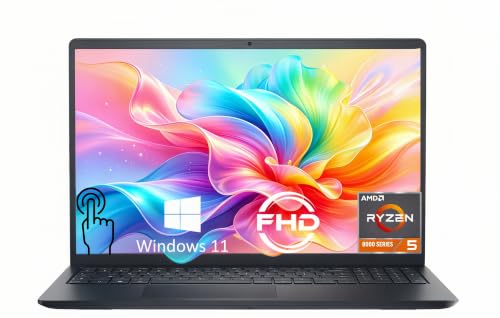
Dell Inspiron 15 (Ryzen 5 7530U, Touch, 16GB) — Balanced Middle Tier
If the Inspiron ladder has a rung where the specification simply agrees with itself, this is it. The AMD Ryzen 5 7530U is a six-core processor rated up to 4.5GHz, a genuinely capable mainstream chip; memory doubles the starter tier to 16GB; storage holds at the sensible 512GB; and the 15.6-inch FHD panel adds touch. Nothing in that sentence is a compromise wearing a costume. For the broad middle of laptop life — study, office work, family administration, photo libraries, light creative projects — this is the configuration that asks the fewest apologies over the longest span.
The AMD platform brings Radeon integrated graphics, which handle media, casual games and GPU-assisted touches in creative applications with more grace than basic integrated graphics typically manage. The title frames the machine as lightweight and portable for home, student and business use — Dell’s own positioning, and a reminder that the Inspiron brief at this tier is one laptop for every room and role, rather than a specialist tool. Windows 11 (Home, by the listing’s plain ‘Win11’) keeps it in the mainstream software world.
Compare it honestly with the rung above and below. Against the Core 3 starter, it doubles memory and adds cores and touch — upgrades felt every single day. Against the i7 3530, it surrenders the terabyte, the Pro edition and some processor ceiling, while keeping the working set most people actually touch. Buyers who cannot decide where the Inspiron ladder’s value peaks usually land here after honest reflection, and this guide agrees: for a single-laptop household that studies, works and plays lightly, the Ryzen tier is the range’s centre of gravity.
- Display: 15.6-inch FHD touchscreen
- Processor: AMD Ryzen 5 7530U, 6-core, up to 4.5GHz
- Graphics: AMD Radeon Graphics
- Memory: 16GB RAM
- Storage: 512GB SSD
- Operating system: Windows 11
Strengths
- Six-core Ryzen 5 with headroom beyond starter chips
- 16GB of memory matches the processor’s ambition
- Touchscreen adds desk-sharing versatility
Trade-offs
- 512GB storage, half the 3530’s terabyte
- Home-edition Windows beside the Pro siblings
- Panel brightness is not stated in the listing title
Best for: students and hybrid workers running one balanced laptop for study, office and home
Not suited for: buyers needing Windows 11 Pro features or terabyte-class local storage

Dell Inspiron 15 (Core i5, Windows 11 Pro, Office) — Pro Software, Small Drive
This configuration is a lesson in reading whole listings. The attractive half of its title is genuinely attractive: a 13th-generation Intel Core i5-1334U, 16GB of memory, a 15.6-inch IPS FHD touchscreen — IPS being the panel technology whose viewing angles suit shared work — plus Windows 11 Pro and a lifetime Microsoft Office bundle, with Copilot AI features named and accessories in the box. For a business buyer or a student whose life runs through Word, Excel and Outlook, that software pairing removes two subscriptions’ worth of friction on day one.
Then the storage line arrives: 256GB, the smallest drive in this guide, half the starter Dell 15’s capacity and a quarter of the 3530’s terabyte. Nothing about that number is hidden — it sits plainly in the title — yet it changes who should buy the machine. A cloud-first worker whose documents live in OneDrive or Google Drive, whose photos sync away nightly, will never feel the limit. A buyer with local game installs, video projects or a decade of unsynced family media will meet the wall within months and spend the machine’s life managing around it.
So this pick is neither the bargain its software suggests nor the trap its storage threatens; it is a specialist. Choose it when the Pro operating system and bundled Office are worth real money to you — a freelancer billing clients, a student in a business programme, a home office joining a work network — and your storage life is genuinely cloud-shaped. Everyone else on the Inspiron ladder should take the Ryzen tier’s balance or the 3530’s completeness, and treat this configuration as proof that the most important specification is sometimes the smallest number on the page.
- Display: 15.6-inch IPS FHD touchscreen
- Processor: Intel Core i5-1334U (13th generation)
- Memory: 16GB RAM
- Storage: 256GB SSD
- Operating system: Windows 11 Pro
- Extras in title: lifetime Microsoft Office, Copilot AI, bundled accessories
Strengths
- Windows 11 Pro plus lifetime Office in one purchase
- IPS touchscreen suits shared documents and presentations
- 16GB of memory supports a full office workload
Trade-offs
- 256GB is the smallest storage in this guide
- Value depends on genuinely using the bundled Office
- Accessory contents need confirming on the listing
Best for: cloud-first professionals and business students with daily Pro and Office use
Not suited for: local media libraries, game installs or video projects needing room to grow

Dell XPS 13 9350 (Core Ultra 7, 1TB) — Intel Flagship Step-Up
Crossing from Inspiron to XPS changes what a laptop is for. The 9350 shrinks the screen to 13.4 inches at FHD+ — slightly taller than standard FHD, a difference writers and coders feel as extra visible lines — and wraps it in the Platinum flagship design the line is known for. Intel’s Core Ultra 7-256V provides the power, with Intel Arc graphics that lift integrated performance into light creative and casual gaming territory, and the storage leaps to a 1TB NVMe drive, matching the biggest Inspiron while the machine itself shrinks around it.
Connectivity is where the flagship tax visibly pays out. Thunderbolt 4 ports bring single-cable docking, fast external drives and high-resolution external displays into the routine — the port standard the Inspiron tier omits — and Wi-Fi 7 readies the machine for the newest routers rather than the current ones. A backlit keyboard and Windows 11 Home complete a specification aimed at the mobile professional whose desk is wherever the laptop opens. Sixteen gigabytes of DDR5 memory is the one figure that merely matches the better Inspirons, a deliberate line Dell draws between its ranges.
The honest question for this pick is whether its virtues align with your day. If you travel, dock, present and prize a machine that feels engineered rather than assembled, the XPS justifies itself every journey. If your laptop lives on one desk driving one monitor, the 3530 Inspiron delivers more storage parity and Pro software for the value tier’s money, and the XPS premium buys qualities you will rarely touch. Flagships reward the mobile; they merely impress the stationary.
- Display: 13.4-inch FHD+
- Processor: Intel Core Ultra 7-256V
- Graphics: Intel Arc Graphics
- Memory: 16GB DDR5 RAM
- Storage: 1TB NVMe SSD
- Extras in title: Thunderbolt 4, Wi-Fi 7, backlit keyboard, Windows 11 Home, Platinum
Strengths
- Thunderbolt 4 enables true one-cable docking
- Terabyte NVMe storage in a 13.4-inch flagship
- Wi-Fi 7 and Arc graphics modernise the platform
Trade-offs
- Home edition Windows, unlike the Snapdragon XPS’s Pro
- 16GB memory matches, not exceeds, top Inspirons
- Smaller screen asks desk workers to add a monitor
Best for: mobile professionals docking, travelling and presenting from one compact machine
Not suited for: desk-bound buyers paying flagship prices for qualities they will not use

Dell XPS 13 (Snapdragon X Elite, 32GB, 120Hz) — Endurance Flagship
The second XPS answers the first with a different silicon philosophy. Qualcomm’s Snapdragon X Elite — the title itself benchmarks it against Intel’s Ultra 7-155H — powers a 13.4-inch FHD+ panel refreshing at 120Hz, double the rate of ordinary laptop screens, which makes scrolling, inking and interface motion visibly smoother. Memory doubles the Intel model’s figure to 32GB, storage holds at a terabyte, and Windows 11 Pro replaces Home, quietly making this the business-ready flagship of the pair. A fingerprint reader and backlit keyboard round out the working kit.
The headline, though, is endurance: the title claims 27-hour battery life. Treat that figure the way all manufacturer battery claims deserve — as a best-case measurement under the maker’s test conditions, not a promise for a day of video calls at full brightness — while still recognising what it signals. Snapdragon-based Windows machines are built around efficiency, and a claim of this size indicates a laptop designed to leave its charger at home for multi-day trips, a genuine change in travel behaviour rather than a spec-sheet ornament.
The platform caveat from every ARM discussion applies and should be handled early: mainstream software runs well, specialised legacy tools deserve a compatibility check in the first days. Buyers whose toolkit is browsers, Office, conferencing and modern creative applications will likely never meet the caveat. For them, this XPS is the guide’s most complete single machine — memory, storage, refresh rate, Pro software and endurance in one 13.4-inch frame — and the natural summit of the affordable Dell staircase, priced as a flagship because it behaves like one.
- Display: 13.4-inch FHD+, 120Hz
- Processor: Snapdragon X Elite
- Memory: 32GB RAM
- Storage: 1TB SSD
- Battery claim in title: 27-hour battery life (maker’s figure)
- Extras in title: Windows 11 Pro, Wi-Fi 7, fingerprint reader, backlit keyboard
Strengths
- 32GB of memory is the guide’s XPS ceiling
- 120Hz panel smooths every scroll and stroke
- 27-hour battery claim signals true travel endurance
Trade-offs
- ARM platform needs a check for specialised legacy tools
- Battery claim reflects maker test conditions, not meeting days
- Flagship positioning prices it above every Inspiron here
Best for: frequent travellers and executives prioritising endurance, memory and Pro software in one compact flagship
Not suited for: buyers dependent on x86-only specialised software or drivers
What Does One Table Reveal About the Inspiron-to-XPS Jump?
Laid side by side, the six configurations show Dell’s strategy in cross-section. The Inspiron rows vary memory, storage and software while holding the 15.6-inch format constant — the value game is configuration arithmetic. The XPS rows hold storage constant at a terabyte and vary platform, memory and refresh rate — the flagship game is experience engineering. Notice, too, the storage trap the table exposes in row four: the second-smallest processor tier carries the smallest drive, because its budget went to software. Tables like this one are why this guide insists on reading complete titles: any single column, read alone, would misrank these machines.
| Pick | Display | Processor | Memory | Storage |
|---|---|---|---|---|
| Dell Inspiron 15 3530 (Core i7, Touch, 1TB) | 15.6-inch FHD touch | Intel Core i7-1355U | 16GB | 1TB SSD |
| Dell 15 Laptop DC15250 (Core 3, 512GB) | 15.6-inch FHD WVA 300 nits | Intel Core 3 100U | 8GB DDR5 | 512GB SSD |
| Dell Inspiron 15 (Ryzen 5 7530U, Touch, 16GB) | 15.6-inch FHD touch | AMD Ryzen 5 7530U | 16GB | 512GB SSD |
| Dell Inspiron 15 (Core i5, Windows 11 Pro, Office) | 15.6-inch IPS FHD touch | Intel Core i5-1334U | 16GB | 256GB SSD |
| Dell XPS 13 9350 (Core Ultra 7, 1TB) | 13.4-inch FHD+ | Intel Core Ultra 7-256V | 16GB DDR5 | 1TB NVMe SSD |
| Dell XPS 13 (Snapdragon X Elite, 32GB, 120Hz) | 13.4-inch FHD+ 120Hz | Snapdragon X Elite | 32GB | 1TB SSD |
How Do the Three Mid Inspiron Configurations Really Differ?
Strip the names away and the three mid-tier Inspirons are one 15.6-inch touchscreen-capable design answered three ways. The Ryzen 5 configuration spends on balance: six cores, 16GB, 512GB, no professional software. The Core i5 configuration spends on identity: Pro Windows, lifetime Office, an IPS panel — funded by halving storage to 256GB. The Core 3 Dell 15 spends on candour and capacity: a stated 300-nit anti-glare screen and 512GB, funded by an efficiency processor and 8GB of memory. Same showroom family, three different answers to the question of what a mid-budget should protect.
Choosing among them is therefore a self-interrogation, not a benchmark contest. Protect memory if your days are parallel; protect software if your work joins networks and lives in Office; protect storage and screen if your days are long, bright and document-shaped. The wrong choice is rarely catastrophic — all three are competent laptops — but the right choice disappears into your routine, while the wrong one sends a small invoice of friction every week. Spend ten minutes listing your actual applications before ordering, and the ladder rung selects itself.
Why Does the XPS Cost More When Its Screen Is Smaller?
Because flagship pricing buys engineering density, not inches. The XPS 13 packs a terabyte NVMe drive, current-generation silicon, Thunderbolt 4 and Wi-Fi 7 into a 13.4-inch premium chassis designed to be carried daily for years; the Inspiron spends its budget on screen area and configuration breadth in a practical shell. Measured by specification-per-size, the XPS is the denser machine by far. Measured by screen-per-money, the Inspiron wins trivially. Both measurements are true, which is why the question is never which laptop is better, but which kind of value your routine can actually feel.
Longevity hides in the flagship’s connectivity, too. Thunderbolt 4 docks, drives and displays bought today will serve the XPS across its whole life, and Wi-Fi 7 waits for routers that have not yet reached most homes. Value-line machines age by their fixed specifications; flagships age partly by their ports and radios, which start ahead. A buyer keeping a laptop five years and travelling weekly is purchasing that head start, not merely a thinner bezel — though the thinner bezel, admittedly, is also rather nice.
How Should You Dock an XPS 13 as a Desk Machine?
Thunderbolt 4 turns the XPS into a two-life laptop: carry it all day, then land it on a desk where one cable delivers power, a large monitor, keyboard, mouse and wired networking through a dock. Choose the dock by the monitor first — its resolution and refresh needs dictate the dock class — then confirm the dock’s power delivery covers the laptop’s appetite, and only then count USB ports for your peripherals. Set the external display as the main screen in Windows, keep the laptop’s own panel as the second screen for calls and references, and the 13.4-inch compromise vanishes during desk hours.
The Inspiron tiers can join a desk too, through their HDMI and USB ports, but the ritual is multi-cable and the monitor options narrower. That difference rarely matters to a permanently desked buyer, yet for the hybrid worker it is the daily texture of the flagship premium: thirty seconds saved morning and evening, multiplied by every working week of the machine’s life. When you price the XPS, price the dock with it, and judge the pair as one system against the Inspiron’s simpler, cheaper desk story.
When Is 256GB of Storage Genuinely Fine?
The small-drive Inspiron deserves a fair hearing, because a real and growing class of users lives comfortably in 256GB. The profile is specific: documents born in cloud suites and stored there, photos that sync to a phone’s cloud library nightly, media streamed rather than downloaded, no local game library, no video projects. For that profile, local storage is a cache, not an archive, and 256GB is a rational place to save money — especially when the savings fund Pro software and Office that the same user touches hourly.
The test is evidence, not aspiration. Open your current machine and read its drive usage; if years of life have accumulated less than 150GB, you are the profile. If the meter shows 400GB and rising, no resolution to tidy up will survive contact with your habits, and the Ryzen tier’s 512GB or the terabyte models are the honest choices. Storage regret is uniquely miserable because it arrives gradually and then all at once — usually during a trip, a deadline or a system update that demands space you do not have.
What Should a Snapdragon XPS Owner Do in the First 48 Hours?
Treat the first two days as a compatibility audit conducted at leisure rather than under deadline pressure. Install your complete working toolkit — not the demo version, the real one, with its plug-ins, printer drivers and any dongle-licensed oddities — and run each tool through one genuine task. Check your video-call stack with your actual headset and camera arrangement, print a real document to your real printer, and open your largest working file. The overwhelming likelihood is that everything simply works, and you will have converted a platform question mark into settled knowledge while the purchase is still young.
Use the same window to learn the machine’s endurance honestly. Run one normal working day unplugged, note the battery percentage at close of business, and calibrate your travel habits to your own workload rather than the title’s 27-hour best case. Set up the fingerprint reader, confirm your backup is running, and register the warranty. Owners who front-load these checks own their laptops; owners who postpone them are merely borrowing certainty from a future, busier self.
How Do You Keep an Inspiron Fast in Its Third Year?
Value laptops rarely slow down because their processors age; they slow down because their software environment accretes. Audit startup applications twice a year and evict everything that does not earn its boot-time place. Keep the drive below roughly eighty percent full — solid-state drives lose responsiveness as they fill, which is another argument for the roomier configurations in this guide — and let Windows’ own storage tools clear temporary files on a schedule. Browser extensions deserve the same scepticism as startup items: each is a small tax on every tab.
On the 8GB configurations, behaviour is the upgrade: close finished work, let the browser rest inactive tabs, and avoid running a call, a cast and a backup simultaneously. None of this is glamorous, and all of it works, because the hardware in these machines remains capable long after the software habits around it decay. The third-year laptop that feels new is almost always a first-year laptop whose owner kept its environment as tidy as its specification sheet.
Which Dell Should a Small Business Buy Five Of?
Fleet buying changes the criteria: uniformity, deployability and the administrator’s sanity outrank any individual’s favourite specification. Within this guide, two candidates present themselves. The Inspiron 3530 offers Pro Windows, a terabyte and touch at value-line cost, minimising the support surprises that mixed configurations breed. The Snapdragon XPS offers the fleet a flagship’s endurance and 32GB of memory, at flagship cost, with one platform check to clear first. The i5 Office configuration tempts with bundled software, but its 256GB drive will generate the fleet’s storage tickets.
Whichever model wins, buy the five identically, image them identically, and keep one configuration document — the listing titles from purchase day — with the invoices. The most expensive sentence in small-business IT is ‘I think they’re all the same spec’, spoken over machines that are not. Dell’s configuration sprawl makes that sentence easy to say and expensive to believe, which is why this guide’s title-quoting discipline matters even more to the person buying five laptops than to the person buying one.
What Separates a Laptop Bought for Five Years From One Bought for Two?
Time horizon quietly rewrites every specification’s value. Over two years, 8GB of memory and 256GB of storage are manageable inconveniences; over five, they become the reasons a still-working laptop gets replaced, which is the least affordable outcome of all. The five-year buyer should therefore weight memory and storage — the unchangeable specifications — above processor generation, panel fashion and even build flair. In this guide that logic crowns the 3530 among Inspirons and the 32GB Snapdragon among the XPS pair, because both maximise the two numbers that cannot be revisited.
The two-year buyer, often a student on a fixed course or a worker expecting an employer machine soon, can rationally harvest the starter tiers and spend the savings elsewhere. Neither horizon is more virtuous; the mistake is mixing them — buying a two-year configuration with a five-year expectation, or gold-plating a machine that a known change will retire early. State your horizon in the first minute of shopping, out loud if necessary, and watch half the catalogue eliminate itself.
Common Mistakes When Shopping the Dell Range
**Comparing Inspirons by name instead of by configuration.** Two machines both called Inspiron 15 in this very guide differ in processor family, memory, storage, panel and operating system. The name is the family; the title’s numbers are the machine. Any comparison that stops at the name is comparing surnames.
**Overlooking the 256GB drive behind the Office bundle.** Pro Windows and lifetime Office are valuable, and they headline the i5 configuration’s listing — while the smallest storage in the guide sits quietly mid-title. Buyers who need both the software and local room should step to the 3530 rather than discover the trade in month three.
**Assuming XPS means better at everything.** The Intel XPS carries Windows Home where two Inspirons carry Pro, and its 16GB of memory merely matches the value line’s better tiers. The flagship premium buys design, ports, platform and display qualities — real things, but a specific list, not a blanket superiority.
**Reading the 27-hour battery claim as a diary entry.** It is a manufacturer’s best-case figure, useful as a signal of the Snapdragon model’s efficiency intent. Your mileage will be set by brightness, calls and workload; measure your own first day unplugged before planning a charger-free week around the number.
**Skipping the fingerprint-and-backup hour on delivery day.** The Snapdragon XPS offers fingerprint sign-in, and every pick here deserves a running backup from day one. Postponed setup is the most common and most preventable regret in laptop ownership, and it costs an hour to eliminate forever.
**Buying the starter tier for a parallel workload.** The Core 3 Dell 15 is an honest machine with an honest ceiling: 8GB of memory. A buyer whose day is calls plus documents plus data plus media should start at the 16GB Ryzen tier, because no setting or cleanup routine repeals a memory ceiling.
Why Does Dell Sell So Many Configurations of One Laptop?
Because Dell’s historic strength is build-to-order thinking: one chassis, many specification combinations, each aimed at a slightly different buyer and budget. The Inspiron 15’s spread in this guide is that philosophy visible from the outside. The benefit is granularity — somewhere in the matrix sits a configuration close to your exact needs. The cost is homework: the buyer, not the badge, must ensure the chosen combination protects the right specification. Treat the sprawl as a menu rather than a maze, order deliberately from it, and the philosophy works for you instead of on you.
What Is the First Setting to Change on a New Dell?
Set the power behaviour to match your life before anything cosmetic: choose what closing the lid does, when the screen sleeps on battery, and whether the machine may wake for updates overnight. Then run Dell’s own update utility alongside Windows Update, since firmware and driver updates in the first weeks often refine fan behaviour, battery reporting and display stability. These unglamorous fifteen minutes shape the machine’s daily manners more than any theme or wallpaper, and they are easiest to set before habits form around the defaults.
How Do You Tell Whether a Listing’s ‘Win11’ Means Home or Pro?
Read the exact words: listings that mean Pro say Pro, as the 3530, the i5 configuration and the Snapdragon XPS do in this guide. A bare ‘Win11’ with no edition named, as on the Ryzen Inspiron, should be read as the standard Home edition and verified on the listing page before ordering if the edition matters to you. Never infer Pro from a business-sounding product name; the Inspiron family sells to businesses in both editions, and the title’s explicit words are the only reliable evidence.
Why Do the XPS Models List Wi-Fi 7 While Inspirons List Wi-Fi 6?
Wireless generations are one of the quiet lines Dell draws between its ranges. Wi-Fi 6, on the Inspirons, is the mature standard that matches the routers most homes and offices run today — entirely sufficient now. Wi-Fi 7, on both XPS models, is forward capacity: it waits for the next router generation and extracts more from busy networks in the meantime. Neither choice is wrong; they are time horizons. Value buyers purchase for the network they have, flagship buyers partly for the network they will have, and the price difference includes that difference in horizon.
What Should You Do With the Inspiron You Are Replacing?
Give it a second life with a clean conscience: back up everything, then use Windows’ reset with the drive-cleaning option before the machine changes hands, whether it goes to a family member, a charity or a recycler. Remove it from your Microsoft account’s device list, and pass along the charger and any recovery notes. A five-year-old Inspiron with a tidy reset remains a perfectly good first laptop for a younger student or a household spare, and passing it on deliberately beats the drawer of forgotten machines every household otherwise accumulates.
How Much Does a Number Pad Matter on a 15.6-Inch Laptop?
For anyone who types figures daily — bookkeepers, science students, spreadsheet-driven small businesses — the wide 15.6-inch chassis’s room for a full number pad is a genuine productivity feature that no 13-inch flagship can match, whatever its other virtues. For writers and browsers, the pad is dead width that slightly offsets the keyboard. It is a small, perfect example of this guide’s whole method: a specification that is essential, irrelevant or mildly annoying depending entirely on the buyer’s real week, which is why the week must be inventoried before the laptop is chosen.
Why Is Anti-Glare Worth More Than a Brighter Glossy Screen in Some Rooms?
Glossy panels deepen colour in dim rooms but mirror windows, lamps and the user’s own face in bright ones, forcing brightness battles that drain batteries and eyes alike. The Dell 15’s anti-glare WVA panel trades a little cinematic richness for legibility in the rooms where laptops actually work — kitchens, classrooms, glass-walled offices. A stated 300 nits behind an anti-glare finish is, for daytime productivity, often worth more than a higher number behind glass. Match the finish to your brightest regular room, not your darkest.
What Does DDR5 on the Starter Dell Signify?
It signifies that the platform underneath the modest processor is current-generation, which matters for the machine’s whole life: DDR5 is the memory standard current Windows features and future software assume. A starter laptop built on a current platform ages more gracefully than one assembled from clearance generations, even when the headline processor is an efficiency model. When two starter machines compete, prefer the one whose platform — memory standard, wireless, storage type — belongs to the present, because platforms, not processors, decide when a laptop starts feeling antique.
How Should You Test a New Dell’s Touchscreen in the First Week?
Use it for the tasks touch actually serves rather than poking it in admiration: sign a real PDF, annotate a document with a finger or stylus, scroll a long report in a meeting, tap through a presentation. Check the edges and corners, where touch panels occasionally respond less eagerly, and confirm palm rejection behaves while you type with a hand resting near the screen. If touch earns a place in your routine by Friday, it was a feature; if not, you have learned something true about your habits that should steer the next purchase, which is valuable knowledge either way.
How Do You Read a Battery Figure Like 41WHr Without a Reference Point?
Watt-hours measure the fuel tank, not the mileage. The Dell 15’s stated 41WHr battery paired with an efficiency-class Core 3 will outlast the same tank behind a performance processor, because consumption is the other half of the equation. Compare watt-hours only between machines with similar silicon and screen size, and treat any unstated battery — most of this guide’s listings — as a question to ask the listing, not a void to fill with hope. A maker who prints the figure, as Dell does here, is at least inviting the comparison.
Why Does This Guide Distrust the Word ‘Business’ in a Title?
Because the word is doing marketing work until the specifications redeem it. In this guide the claim is redeemed twice — the 3530 and the i5 configuration both pair it with Windows 11 Pro, the edition whose features businesses actually deploy — and left unexamined elsewhere. Let that be the general rule: a business laptop is a laptop with Pro software, manageability and support-shaped specifications, not a colour or a label. When a title says business, search it for ‘Pro’; when the search fails, read the machine as a consumer model in a suit.
What Is the Sensible Way to Insure a Laptop Bought Affordably?
Start with the free layers: a backup running from day one, a photographed serial label, the receipt and listing title stored together, and the manufacturer’s warranty registered. Paid accidental-damage cover makes sense in proportion to the machine’s travel and the household’s accident history — a commuting student’s Inspiron and a desk-bound 3530 present different risks. The calculation should use the machine’s replacement inconvenience, not fear: what would a dead laptop cost your next fortnight? Insure the disruption you cannot absorb, self-insure the rest, and revisit the decision when the machine’s role changes.
What Does a Fingerprint Reader Change About Daily Security Habits?
It removes the small frictions that make people choose weak passwords. Signing in with a touch, several times a day, turns authentication from a typed chore into a reflex, and reflexes are what security actually runs on. The Snapdragon XPS includes the reader in its title; on machines without one, Windows Hello PIN sign-in still beats a reused password. Pair the reader with an encrypted drive and a screen that locks when you step away, and a stolen laptop becomes a hardware loss rather than a data breach — the distinction that decides how bad the day gets.
How Should You Judge a Laptop Webcam Without Test Footage?
Read what the title promises and no more. The 3530 lists a webcam without a resolution figure; the guide therefore claims nothing about its sharpness, and neither should a buyer. Judge instead by the controllable environment: any of these machines looks dramatically better facing a window, raised to eye level, with the background light behind the camera rather than behind you. If your work involves presenting to clients where image is currency, budget for an external webcam as an accessory rather than expecting a value-line integrated camera to carry your professional reputation.
Final Recommendation
The Dell range, read properly, offers a rung for nearly every honest budget. Start with the Dell 15 DC15250 when the need is a transparent starter with a daylight-friendly screen; climb to the Ryzen 5 Inspiron when one balanced machine must study, work and administer a household; choose the i5 configuration only when Pro software and bundled Office are worth more to you than storage; and take the 3530 when the Inspiron brief should arrive with nothing omitted — i7 power, touch, a terabyte and Pro in the value shell.
Above that line, the XPS pair stops being a splurge and becomes a platform decision: Intel’s Ultra 7 with Thunderbolt polish for the dock-and-travel professional, or Snapdragon’s 32GB, 120Hz endurance flagship for the traveller who wants the charger left behind. Match the machine to the shape of your week, verify the full configuration in the listing title at checkout, and a Dell bought affordably will not feel affordable in the pejorative sense — it will feel chosen.
Frequently Asked Questions
Are the three mid-range Inspirons actually the same laptop?
They share the Inspiron 15 family design and 15.6-inch format, but their configurations diverge in the specifications that decide daily feel: the Ryzen model pairs six cores with 16GB and 512GB, the Core i5 model pairs Pro software and bundled Office with only 256GB of storage, and the Core 3 Dell 15 pairs an efficiency chip and 8GB with a stated 300-nit anti-glare screen and 512GB. Same surname, three different machines — choose by the configuration, never the name.
Is Windows 11 Pro worth choosing a smaller drive for?
Only if you will use what Pro adds — business network features, BitLocker encryption management, Remote Desktop hosting — or the bundled lifetime Office daily, and your storage life is cloud-based. That combination describes a real but specific buyer. Everyone with a growing local library should protect storage first, because a full drive interrupts every task, while Home edition’s limits are invisible to most home users.
How seriously should I take the Snapdragon XPS’s 27-hour battery claim?
As a direction, not a diary. Manufacturer battery figures come from controlled tests with light workloads and managed brightness, so your video-call day will land well below the claim. What the number reliably tells you is that endurance was a design priority for this model, and Snapdragon Windows machines are built around efficiency. Run your own unplugged day in the first week and plan travel around your measured figure.
Will my printer and older software work with the Snapdragon XPS?
Modern printers with current drivers and mainstream applications generally work well on the platform. The risk lives in older peripherals with abandoned drivers and specialised x86-only tools. List your oldest device and your most unusual program, check both makers’ support statements, and test them during the first days of ownership. That small audit converts the ARM question from a gamble into a checklist.
Does the XPS 13’s smaller screen limit desk work?
On its own panel, split-screen work is tighter than on the 15.6-inch Inspirons — that is the honest trade for its portability. Through a Thunderbolt dock, though, the XPS drives a large external monitor and becomes the more capable desk machine of the two families. Judge it by your real setup: laptop-only users should weigh the smaller panel carefully; dock users will rarely think about it after the first morning.
Which pick suits a student in a four-year programme?
The Ryzen 5 Inspiron is the default answer: 16GB of memory for growing multitasking, 512GB for accumulating coursework and media, a touchscreen for annotation, and a processor with years of headroom. Students in business programmes who will live in Office and join internship networks can consider the i5 Pro configuration if their storage is cloud-based. Engineering and media students should look at the 3530’s terabyte — or at this guide’s sister roundup of engineering laptops.
What does FHD+ mean on the XPS models?
FHD+ denotes a resolution slightly taller than standard Full HD — the same width class with extra vertical pixels. On a 13.4-inch productivity screen, the extra height shows more lines of a document, more rows of a spreadsheet and more of a code file before scrolling. It is a modest specification with an outsized daily effect for readers and writers, which is why flagship productivity machines favour the taller format.
Related Guides
Dell is one answer to the affordable question; the guides below cross-check it against the ASUS ladder, the specialist engineering brief, and the creative brief where screens take priority.
our ASUS roundup of the best affordable ASUS laptops the best affordable engineering laptops for CAD and simulation work our guide to the best affordable creative laptops and their colour-led screens