What's inside
- Key Takeaways
- Quick Picks
- How did we shortlist the best time machine compatible hard drives?
- What does Time Machine actually ask of a drive?
- How do you prepare a generalist drive without losing anything?
- The six drives, examined one by one
- How do the six compare at a glance?
- What habits keep a Time Machine setup healthy for years?
- What happens as a backup drive fills and ages?
- Should you encrypt a Time Machine backup, and what does it cost you?
- Can a Time Machine drive also store ordinary files?
- How do you move a backup habit to a new Mac?
- What does a healthy first week with a new backup drive look like?
- When should a backup drive be replaced before it fails?
- Why do backups fail silently, and how would you notice?
- What mistakes do Mac owners make with backup drives?
- Final Recommendation
- How does a backup drive fit alongside cloud storage?
- Frequently Asked Questions
- Related Guides
As an Amazon Associate I earn from qualifying purchases. This post may contain affiliate links at no extra cost to you.
widgetverdict.com is reader-supported. When you buy through links on our site, we may earn an affiliate commission.
Where to buy: the six drives below all link to Amazon listings, and choosing among the best time machine compatible hard drives comes down to one formatting fact and one sizing rule, both explained before any product asks for your money.
Here is the fact, stated plainly because everything else follows from it: current macOS wants a Time Machine destination formatted as APFS. Drives sold as Mac editions arrive prepared for that life and ask almost nothing of you. Drives sold for everyone arrive formatted for Windows, and joining backup duty costs them one complete erasure and reformat, deleting anything they already hold. Neither path is difficult. The best time machine compatible hard drives are simply ordinary drives sorted by how much preparation they demand and how much history they can hold.
The sizing rule is equally plain. A backup drive should hold at least twice the data living on your Mac, because Time Machine’s value lies in versions: the document as it stood last Tuesday, the photo library before the disastrous import, the project folder before the reorganisation. Capacity buys reach into the past. Every pick below is therefore introduced with the size of Mac it honestly serves, and the smallest drive here is recommended only for genuinely small machines.
One absence deserves a sentence. Apple’s old network backup appliance was discontinued long ago, so this guide covers drives that plug directly into your Mac, which remains the arrangement most households can set up in an evening and forget about safely.
Key Takeaways
- APFS formatting is the gate every Time Machine drive must pass, Mac edition or not.
- Reformatting a generalist drive erases its contents, so move precious files first.
- WD’s two Mac editions skip preparation almost entirely and start backing up fastest.
- Buy at least twice your Mac’s used capacity, or the oldest versions vanish early.
- Encryption matters because a backup contains everything, not just recent work.
- A backup sharing your laptop bag protects against failure, not against loss.
Quick Picks
| Pick | Badge | Why it earns its place |
|---|---|---|
| WD My Passport Ultra for Mac 5TB | The Mac-ready flagship | Mac-ready five-terabyte flagship whose encryption suits a drive holding everything you own. |
| WD My Passport for Mac 2TB | The compact Mac-native | Two-terabyte Mac edition sized honestly for MacBook Airs and other lightly loaded machines. |
| WD My Passport 2TB Portable HDD | The generalist needing one reformat | Ubiquitous standard model that joins backup duty after one erasing APFS reformat. |
| WD 4TB My Passport | The roomier generalist | Four-terabyte generalist giving fuller Macs the headroom their libraries genuinely need. |
| Seagate Portable 1TB External Hard Drive | The modest starter drive | One-terabyte starter that protects small student Macs without overspending on capacity. |
| LaCie Rugged USB-C 5TB | The armoured Mac companion | Armoured five-terabyte companion for Macs that work outdoors, on location, anywhere. |
How did we shortlist the best time machine compatible hard drives?
The first filter was preparation honesty. Each candidate was classified by what its box actually delivers: Mac-ready formatting, or general formatting that a buyer must convert. Guides that blur that distinction set readers up for a confusing first evening, so this one keeps the two families visibly separate in every table and section, with the erasure warning attached to the drives it concerns rather than buried in a footnote.
The second filter was capacity realism. Models were matched against the Macs people plausibly own, from a student’s small MacBook to a family iMac carrying a decade of photographs, and any drive whose honest audience did not exist was dropped. The third filter was life pattern: desk-permanent drives, laptop-bag drives and armoured travelling drives face different risks, and the shortlist keeps one strong answer for each pattern instead of six variations on a single theme.
Security features were weighed with unusual seriousness for a storage guide, because a backup is a concentrated copy of a digital life. Password protection appears on the WD family and is noted wherever present; its absence on the plain Seagate starter is stated just as clearly. Recovery services, bundled software and shell construction were treated as secondary virtues, useful only after formatting, capacity and life pattern were right.
What does Time Machine actually ask of a drive?
Less than folklore suggests, and more than a sales page admits. The software wants a volume it can format as APFS, enough capacity to hold your data plus versions, and a connection reliable enough that hourly backups complete without drama. It does not reward fast drives in any way a user can feel, because backups happen in the background while you work. A quiet, capacious spinning drive is therefore the natural technology here, and money spent chasing speed for backup duty is money diverted from capacity.
Reliability of connection matters more than its bandwidth. A drive that disconnects when the desk is bumped, or that hides behind a flaky hub, produces the gaps in backup history that owners discover months later. Plug the backup drive directly into the Mac where possible, give a desktop setup a permanent cable route that feet cannot catch, and let laptop owners develop a docking ritual: arrive, plug in, work, and the backups happen as a side effect of ordinary desk time.
The software’s thinning behaviour deserves understanding too. When a destination fills, Time Machine deletes the oldest backups to make room for new ones, which is sensible and also final. The depth of history you keep is therefore a purchasing decision made on the day you choose capacity. Owners who have once needed a nine-month-old version of a file rarely buy small again.
How do you prepare a generalist drive without losing anything?
Begin with an inventory, not with Disk Utility. Connect the drive, open it, and look at what is actually there, including the folders you do not remember creating. Copy anything with value to the Mac itself or another drive, then verify one or two of the copied files open properly. Only a verified copy counts as a rescue; a folder dragged in haste and never checked is a hope, not a safeguard.
The reformat itself takes minutes. In Disk Utility, select the physical drive, choose erase, name it something meaningful like the Mac’s own name plus the word backup, and select APFS as the format with the standard partition scheme offered. When the Mac then asks whether the drive should be used for Time Machine, accept, and decide on backup encryption during that same flow if you want it, because adding it later means starting the backup set again.
Afterwards, patience is the only remaining task. A first backup copies everything and can run for hours, ideally overnight with the Mac plugged into power and set not to sleep. Interrupting it is not catastrophic, since the software resumes, but letting the first pass complete cleanly establishes the foundation every later hourly backup builds on. Label the drive physically before it joins the drawer or the desk permanently.
The six drives, examined one by one
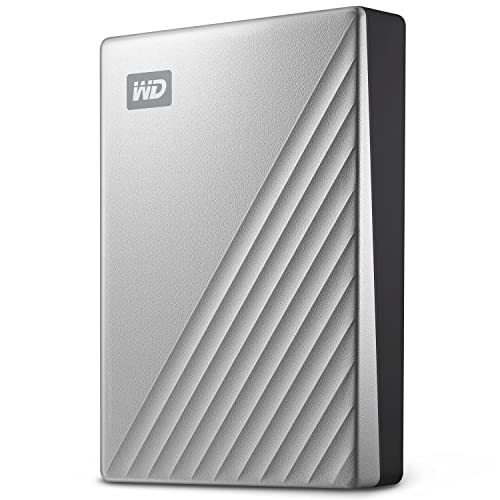
WD My Passport Ultra for Mac 5TB — The Mac-ready flagship
Two words on the box do most of this drive’s work: for Mac. Western Digital ships this Ultra formatted and intended for Apple machines, which collapses the setup ritual to plugging in a USB-C cable and accepting the prompt your Mac offers. For owners who have postponed backups for months because the process sounded technical, that absence of friction is not a luxury feature. It is the difference between a backup that exists and one that remains a good intention.
The Ultra tier adds the line’s metal-accented shell and password protection with hardware encryption, both of which matter more for backup duty than for ordinary storage. A backup drive holds everything, including the documents and photographs you would least want a stranger reading, so a drive that can lock itself earns its place on a desk that guests, cleaners or office colleagues can reach. Set the password during the same sitting as the first backup, and store it in your password manager rather than your memory.
Five terabytes is the generous end of portable backup sizing, and the maths behind it appears later in this guide: Time Machine keeps hourly, daily and weekly versions until space runs short, so capacity buys history. A Mac with a terabyte of internal storage, backed up to this drive, can reach back through many months of versions. That depth is what rescues you when a file was deleted in March and missed in June.
Nothing about this model escapes the category’s universal caveat. It is still one drive, and one drive can be stolen alongside the laptop it protects or fail in the same week. Owners with irreplaceable work should treat this WD as the local half of a wider pattern, adding an off-site copy or a cloud tier for the files that truly cannot be recreated. Within the local role, though, this is the most complete Time Machine package in portable form.
Everyday behaviour is suitably invisible. Once designated, the drive accepts hourly backups without fanfare, and its slim profile lets it live permanently behind a desktop Mac or on the corner of a work desk without becoming furniture. Owners of laptops should pair it with a short cable kept at the main charging spot, turning the backup into a by-product of the nightly charge rather than a separate chore that competes with everything else in an evening.
A word about the bundled WD utilities: they offer drive health checks and the password controls, and they are worth the five minutes they take to explore during setup week. After that, most owners never open them again, which is exactly the right relationship with backup infrastructure. Tools that demand ongoing attention get abandoned; tools that disappear get trusted for years.
- Capacity: 5TB spinning platter
- Port: USB-C, bus powered
- Format: prepared for Mac use
- Security: password protection, hardware encryption
- Role: primary Time Machine destination
Strengths
- Mac-ready with minimal setup fuss
- Encryption suits a complete-data copy
- Capacity buys deep version history
Trade-offs
- Premium over the standard line
- One drive remains one copy
- Metal shell shows desk wear
Best for: Mac owners who want the backup running today without a formatting lesson.
Not suited for: households backing up several Macs that deserve a networked destination instead.
Mac owners ready to start tonight can review the Ultra for Mac listing on Amazon. WD My Passport Ultra for Mac 5TB.

WD My Passport for Mac 2TB — The compact Mac-native
Not every Mac carries a terabyte of data. A MacBook Air used for writing, browsing, photographs and family administration may hold two hundred gigabytes in total, and backing that machine up does not require the flagship above. This two-terabyte Mac edition of the My Passport applies the same out-of-box readiness at a size matched to lighter machines, in a navy finish that distinguishes it on a shared desk from the black generalist models below.
The sizing rule that governs this category, explained fully further down, asks for a backup drive at least twice the capacity of the data being protected. Two terabytes therefore serves a half-terabyte Mac comfortably, with room for a couple of years of versions before Time Machine begins thinning the oldest snapshots. Owners should check their actual usage in the storage settings before ordering, because a video hobby quietly inflates a Mac beyond what its owner guesses.
Password protection and WD’s backup utilities carry over from the broader My Passport family, and the drive draws power from its USB connection, so it can live semi-permanently attached to a desktop Mac or travel in the laptop bag for weekly sessions. That portability supports the habit laptop owners actually keep: plug in during a long desk session, let the hourly backups accumulate, unplug and go.
The honest limitation is headroom. Macs gain data the way houses gain furniture, and a drive bought exactly to size today becomes the constraint in three years. Buyers whose storage settings already show six hundred gigabytes used should step up a size rather than save the difference. For genuinely light machines, though, this compact Mac-native is the proportionate answer.
The navy finish turns out to be a practical feature in households with several similar drives. Colour-coding by sight prevents the small domestic disaster of a backup drive being borrowed as a file shuttle, reformatted by a helpful relative, and returned empty. If your home contains teenagers, visiting family or a shared home office, the visibly different drive quietly defends itself.
Students in shared housing form another natural audience. The drive is small enough to lock in a desk drawer between sessions, password protection guards it while it sits there, and the capacity matches the documents-and-photographs profile of a degree’s worth of work. It is a first serious backup that does not look or cost like enterprise equipment.
- Capacity: 2TB spinning platter
- Port: USB 3.1 / USB 3.0, bus powered
- Format: prepared for Mac use
- Security: password protection included
- Role: backup for lighter Macs
Strengths
- Right-sized for slim MacBooks
- Mac preparation skips reformatting
- Small enough for laptop-bag duty
Trade-offs
- Headroom vanishes as libraries grow
- No room for a second Mac
- Same single-copy caveat applies
Best for: owners of lightly loaded MacBook Airs and similar machines.
Not suited for: anyone whose photo library alone already passes a terabyte.
Owners of smaller Macs can check the My Passport for Mac offer on Amazon. WD My Passport for Mac 2TB.

WD My Passport 2TB Portable HDD — The generalist needing one reformat
This is the standard My Passport, the black portable sold for every platform, and its presence here teaches the most useful lesson in the whole guide: compatibility with Time Machine is mostly about formatting, not branding. The drive inside is a close relative of the Mac edition above. What differs is preparation. It arrives formatted for Windows, and a Mac asked to use it for backups will first need it erased and reformatted as APFS, a five-minute job in Disk Utility that destroys everything on the drive at that moment.
That erasure warning deserves its own emphasis, because it is the one irreversible step in this entire article. If this drive already holds files, perhaps borrowed from a Windows machine or used for a term as general storage, reformatting deletes them all. Move anything precious elsewhere first, complete the reformat, and only then designate the drive for backups. Fresh from the box, of course, there is nothing to lose, and the process is genuinely simple.
Why buy the generalist at all? Availability and household mixing. The standard model is the one found in every shop and sale, and homes running both Windows and Mac machines sometimes prefer a fleet of identical drives whose roles can be reassigned later. A drive that begins life as a Time Machine destination can be reformatted back to Windows duty in two years, which the Mac edition can also do, but the plain model’s ubiquity makes replacements and twins effortless to source.
Features otherwise match the family pattern: password protection, hardware encryption, bundled backup software for its Windows life, and bus-powered USB convenience. Sized at two terabytes, it suits the same lighter Macs as its Mac-branded sibling, with the same warning about growing libraries. Choose between them on preparation and price on the day, not on any imagined performance gap.
Sales patterns make this model the one most likely to be bought on impulse during a general electronics trip, and there is nothing wrong with that origin story provided the preparation happens the same week. The dangerous version of this purchase is the drive that sits shrink-wrapped until a hard disk scare arrives, at which point the owner discovers the formatting step while already stressed. Unbox, convert, and start the first backup while life is calm.
Its plain black shell also makes it the easiest pick to label legibly, which is not a trivial virtue. A silver marker or a white label with the machine’s name and the words Time Machine turns a generic object into an identified one, and identified drives get plugged back in after desk reorganisations instead of being exiled to the cable drawer.
- Capacity: 2TB spinning platter
- Port: USB 3.1 / USB 3.0, bus powered
- Format: Windows-ready, needs APFS reformat
- Security: password protection, hardware encryption
- Role: backup after one-time preparation
Strengths
- Sold everywhere, easy to twin
- Reassignable between platforms later
- Full My Passport security features
Trade-offs
- Reformat erases anything present
- Setup takes an extra step
- Two terabytes suits light machines
Best for: mixed-platform households comfortable with one Disk Utility visit.
Not suited for: anyone hoping to preserve files already stored on the drive.
Shoppers comparing the standard model can view its Amazon listing here. WD My Passport 2TB Portable HDD.
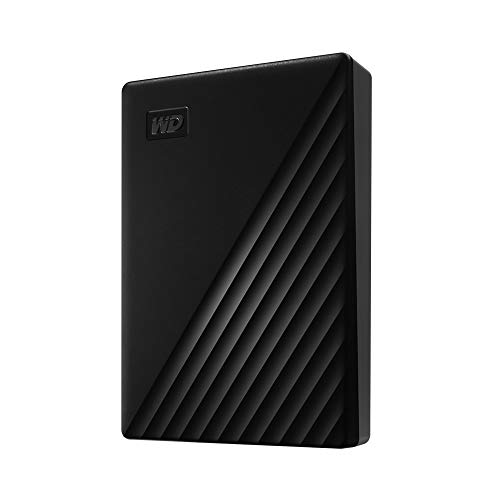
WD 4TB My Passport — The roomier generalist
Doubling the standard model’s capacity changes who it serves. Four terabytes covers a Mac carrying a terabyte of data with the two-times headroom this guide recommends, which describes a large share of real machines: the family iMac with a decade of photographs, the designer’s MacBook Pro with project archives, the household computer that several accounts share. This is the generalist sized for the median serious Mac rather than the lightest ones.
The preparation story repeats the smaller model’s: Windows formatting out of the box, an APFS reformat before Time Machine duty, and total erasure of anything the drive currently holds. Plan the reformat as part of the purchase, ideally the same evening, because a backup drive sitting in its box waiting for a free weekend protects nothing. The task is short; the procrastination it invites is the only real obstacle.
Physically, the four-terabyte portable remains a slim bus-powered unit that can perch behind an iMac or ride in a drawer between weekly sessions for a laptop. Owners of desktop Macs should simply leave it connected, since Time Machine’s hourly rhythm rewards an always-available destination, and a drive in a drawer backs up nothing on the days it is forgotten. A small label with the machine’s name prevents the classic household error of two Macs’ drives being swapped.
Against the Mac-ready Ultra at the top of this list, this model trades preparation and a little polish for capacity value. Against its two-terabyte sibling, it trades a modest price step for years of extra headroom. Buyers who understand both trades can choose calmly; the drive itself will behave identically once the first backup completes.
Families should think about whose data this drive really holds. A shared iMac often carries several user accounts, and Time Machine backs them all up together, which makes this single purchase a household safety policy rather than one person’s accessory. That framing helps justify the capacity step: the cost is divided, in effect, across every account, photograph library and school project the machine contains.
The drive also suits a staged plan. Buy it now as the primary destination, and when it eventually fills years later, it can retire into storing the family’s media archive while a fresh, larger drive assumes backup duty. Drives cascade through roles in a well-run household, and a four-terabyte unit has enough capacity to remain useful in its second career.
- Capacity: 4TB spinning platter
- Port: USB 3.1 / USB 3.0, bus powered
- Format: Windows-ready, needs APFS reformat
- Security: password protection, hardware encryption
- Role: backup for fuller Macs
Strengths
- Headroom for terabyte-class Macs
- Still slim and bus powered
- Family security features included
Trade-offs
- Reformat required before use
- Erases prior contents entirely
- Desk-permanent setup suits it best
Best for: family iMacs and professional MacBooks carrying serious data.
Not suited for: travellers who need armour more than capacity.
Owners of well-filled Macs can inspect the four-terabyte My Passport on Amazon. WD 4TB My Passport.

Seagate Portable 1TB External Hard Drive — The modest starter drive
A one-terabyte backup drive sounds undersized in a guide whose other picks run to five, yet a real population of Macs fits it honestly. The student MacBook with a 256-gigabyte internal drive, holding documents, photographs and one semester of projects, can back up to this Seagate with the recommended headroom and years of version depth. The drive’s virtue is proportion: it costs little, weighs almost nothing, and starts protecting a small machine today instead of after a saving-up period.
Seagate keeps this model deliberately plain. There is no password protection layer and no bundled software suite demanding attention; the drive is a formatted volume waiting for a job. For Time Machine that job begins with the familiar APFS reformat, since the unit ships ready for Windows and consoles, and the erasure warning applies to anything already stored on it. Fresh from the box the conversion takes minutes.
The included Rescue service year is a thoughtful extra at this tier, offering a laboratory recovery attempt if the drive fails mechanically. Backup owners should understand the irony clearly, though: a backup drive needing recovery means the backup strategy already failed somewhere, because the Mac itself should still hold the data. Rescue is a parachute for the drive, while the real protection is that two copies existed in the first place.
Treat this Seagate as a first backup, not a final architecture. It establishes the habit, proves the routine, and can later demote to second-copy duty when a larger drive takes over primary service. Students who graduate to bigger machines will find this unit still useful as the off-site twin carried between home and term-time housing.
There is a gift-giving angle to this little Seagate that deserves naming. It is the rare tech present that protects rather than distracts: a parent equipping a student heading to university, or an adult child quietly safeguarding a parent’s first Mac, can set it up in one visit and leave behind a working safety net. Few purchases at this level continue giving value every single hour afterwards.
Owners should set expectations about noise and presence. A drive this small disappears into a bag or behind a monitor, spinning up only when the Mac calls on it. Its modesty is the point: the first backup system most people keep is the one that never asks to be thought about, and this unit is engineered to be forgotten in the best sense.
- Capacity: 1TB spinning platter
- Port: USB 3.0, bus powered
- Format: general-purpose, needs APFS reformat
- Extras: one year of Rescue services
- Role: first backup for small Macs
Strengths
- Gentle price for starting out
- Pocketable and bus powered
- Rescue cover included free
Trade-offs
- Only suits genuinely small Macs
- No password protection layer
- Reformat needed before backups
Best for: students and owners of small-storage MacBooks beginning backups.
Not suited for: photo or video libraries measured in terabytes.
Students protecting a first Mac can look at the Seagate Portable listing on Amazon. Seagate Portable 1TB External Hard Drive.

LaCie Rugged USB-C 5TB — The armoured Mac companion
Some backups live dangerously. The photographer whose MacBook travels to weddings, the field researcher whose laptop works from vehicles, the student whose bag endures buses and bicycle baskets: their backup drive faces the same physical world as the machine it protects, and a slim plastic portable is not built for that companionship. LaCie’s orange armour, sealed against dust and rain and rated for drops, exists for exactly this travelling pattern.
Five terabytes inside that shell gives a working professional’s Mac proper version depth, which matters when the backup’s purpose includes recovering last month’s edit of a client project rather than merely surviving a disk failure. The USB-C connection plugs straight into modern MacBooks with no adapter, and bus power keeps the setup to a single cable at a hotel desk or a kitchen table between locations.
Preparation follows the generalist pattern rather than the Mac-edition one. The drive supports both major platforms, and Time Machine duty calls for APFS formatting before the first backup, erasing anything placed on it beforehand. Owners sometimes use the pre-backup window to shuttle a large media transfer, then reformat and dedicate the drive; that sequence is fine, provided nothing unique remains aboard when Disk Utility does its work.
One strategic warning belongs to this pick alone. A backup that travels in the same bag as the laptop protects against drive failure but not against losing the bag. Travelling owners should add a separated copy, whether a second drive left at home or a cloud tier, so that one bad evening cannot take the machine and its backup together. Armour solves impact, not geography.
The Rugged also earns consideration from Mac owners who work in dusty or damp environments even without travel: workshops, studios in converted barns, site offices and market stalls all punish ordinary electronics slowly. The sealed shell slows that punishment considerably. A backup drive that lives in such a place should be chosen like the tools around it, for the environment first and the specification sheet second.
Cable discipline matters more with this pick than any other here, because its owners move constantly. Keep the cable in the same pouch as the drive, every time, so the pair is never separated by a house move or a borrowed bag. A backup that cannot connect on the one evening a travelling Mac is home has failed at its only job, however impressive its armour looks.
- Capacity: 5TB spinning platter
- Port: USB-C, bus powered
- Shell: drop, shock, dust and rain resistant
- Format: dual-platform, needs APFS for backups
- Role: travelling Time Machine destination
Strengths
- Armour matches a travelling Mac
- Five terabytes of version depth
- Direct USB-C for modern MacBooks
Trade-offs
- Costs more than unarmoured equals
- Same-bag theft defeats it
- Reformat before first backup
Best for: photographers and field workers whose Macs earn money away from home.
Not suited for: desk-bound iMacs that never face weather or luggage.
Travelling Mac owners can confirm the Rugged USB-C listing on Amazon. LaCie Rugged USB-C 5TB.
How do the six compare at a glance?
| Pick | Capacity | Connection | Role in the setup |
|---|---|---|---|
| WD My Passport Ultra for Mac 5TB | 5TB | USB-C | Mac-ready primary backup |
| WD My Passport for Mac 2TB | 2TB | USB 3.0 | Light Macs, Mac-ready |
| WD My Passport 2TB Portable HDD | 2TB | USB 3.0 | Generalist, reformat first |
| WD 4TB My Passport | 4TB | USB 3.0 | Fuller Macs, reformat first |
| Seagate Portable 1TB External Hard Drive | 1TB | USB 3.0 | Small Macs, starter backup |
| LaCie Rugged USB-C 5TB | 5TB | USB-C | Travelling Macs, armoured |
Two families stand out in the table. The Mac editions remove preparation; the generalists remove cost and add flexibility, at the price of one erasing reformat. Capacity then sorts within each family. Read your own row by starting from your Mac’s used storage, doubling it, and finding the smallest drive that clears the figure with room to spare.
What habits keep a Time Machine setup healthy for years?
Verify occasionally that backups are actually happening. Open the Time Machine settings every month or two and read the date of the latest completed backup; a destination that silently stopped in spring is a common discovery made in autumn, usually during a crisis. The check takes twenty seconds and converts a hidden failure into a same-day fix, which is the entire philosophy of backup maintenance in miniature.
Test a restore before you need one. Pick an unimportant file, delete a copy of it, and bring it back from the backup. The rehearsal teaches the interface while the stakes are zero, and it proves the chain from drive to recovered file actually works. Professionals rehearse restores for the same reason theatres rehearse fire drills: the real event is the wrong classroom.
Mind the drive’s physical life. Keep a desk drive ventilated and its cable safe from chair wheels; carry a portable in a padded section rather than loose among keys; and spin up stored drives a few times a year if they sit as spares. When a backup drive begins clicking, disconnecting or reporting errors, replace it first and investigate second, because its contents are by definition also on the Mac, making replacement the cheapest moment in all of storage.
What happens as a backup drive fills and ages?
The graceful path is thinning: versions compress into weekly and monthly snapshots, the oldest fall away, and the backup continues. Owners notice nothing until the day they reach back for a file from two years ago and find the bridge stops at fourteen months. That discovery is the sizing rule collecting its debt. The remedy at that point is a larger destination and a fresh backup set, accepting that the deep history on the old drive retires with it.
Aging hardware adds a second timeline. A portable drive that has ridden in bags for four years has earned suspicion even if its software reports perfect health, and backup drives are the easiest devices in computing to replace proactively, precisely because their contents duplicate the machine. Many careful owners rotate a fresh drive in every three or four years and demote the veteran to storing media copies, where a failure would be an inconvenience rather than an event.
Keep the retired backup for a while after migrating. The old drive holds the deepest version history you own, and hard drive archaeology occasionally saves a project months after a migration, when someone asks for the draft everyone assumed was gone. A labelled veteran in a drawer costs nothing and has rescued more than one deadline.
Should you encrypt a Time Machine backup, and what does it cost you?
Encryption protects the copy when the drive itself is the thing that gets lost, and backup drives are lost in very ordinary ways: left in a drawer during a house move, taken in a burglary that also takes the Mac, or discarded years later by someone who does not know what it holds. An unencrypted backup in any of those moments hands a stranger your documents, photographs and saved account material in browsable form. The protection is therefore not paranoia; it is tidiness about a complete copy of your life.
The cost is a password you must keep and a restore process that asks for it. Both are manageable with a password manager, and both become hazards without one. Owners should also understand the two layers available on several picks in this guide: macOS can encrypt the backup itself, while WD’s hardware password locks the drive before any computer sees it. Using one layer thoughtfully beats stacking both carelessly and forgetting which password belongs to which prompt during a stressful restore.
Performance is not a meaningful cost on modern machines, because backups run in the background and the encryption work is modest beside the copying itself. The honest summary is that encryption trades a small amount of setup attention for a large amount of loss protection, and most owners should accept the trade on any drive that ever leaves a locked room.
Can a Time Machine drive also store ordinary files?
Technically, a drive can be partitioned so that backups occupy one volume and general files another, and macOS handles the arrangement without complaint. Whether it should is a question of discipline. A backup drive’s sacred property is that its contents are boring and predictable; mixing in the only copy of a video project quietly converts the safety net into another single point of failure, and the conversion usually happens without anyone deciding it should.
The cleaner pattern costs one extra drive: backups live alone, general storage lives elsewhere, and neither role contaminates the other. Households that absolutely must share should partition deliberately, size the general volume modestly, and accept that filling it can squeeze the backup’s version history. Convenience borrowed from a backup tends to be repaid at the worst moment, with interest.
There is one honourable exception. A brand-new generalist drive may shuttle files for a week before being reformatted into backup service, as this guide mentioned beside the LaCie pick, because at that stage nothing on it is a backup yet and the erasure is planned. The exception works because the roles are sequential and the ending is scheduled, not because mixing roles is safe.
How do you move a backup habit to a new Mac?
A new Mac offers to inherit an existing backup during setup, and accepting preserves your version history while pointing future backups at the same drive. The inheritance prompt appears when the drive is connected during the migration flow, and choosing it is generally the right move for a straightforward replacement machine. Owners who skip it can still restore individual files later, but the elegant continuity of one unbroken history is worth having.
When the new machine is an addition rather than a replacement, give it its own destination or a properly sized shared one from the start. Two machines writing to a drive sized for one will thin each other’s history aggressively, and the discovery usually arrives as a missing version during someone’s deadline. Capacity planning, once again, is the entire game.
Retire the old Mac’s backup deliberately. Keep the drive untouched for a few months after migration, because questions about old files surface slowly, then decide whether the veteran drive becomes media storage or a second-copy holder. Erasing in haste destroys history that costs nothing to keep a little longer.
What does a healthy first week with a new backup drive look like?
Day one is setup and the long first backup, ideally started in the evening so the machine can work overnight on power. Resist the urge to judge the system during that first pass; a full copy of a lived-in Mac takes the time it takes, and interrupting it repeatedly to check progress only extends the apprenticeship. By morning the drive should report a completed backup, and the settings panel becomes the place to confirm it rather than your memory of watching bars move.
Day two is the rehearsal restore described earlier in this guide: recover one harmless file and delete the recovered copy afterwards. Day three is password administration, recording every credential created during setup into a password manager, including the drive-level password if you set one. These two small appointments convert a new gadget into infrastructure, and they are the appointments most owners skip and later regret skipping.
The rest of the week should be boring. Backups accumulate hourly while the Mac is at its desk, the drive stays where it was placed, and nobody thinks about storage at all. If the first week passes without incident, the arrangement will probably serve for years with only the monthly glance this guide recommends.
When should a backup drive be replaced before it fails?
Replace on suspicion, not on certainty, because a backup drive is the one device whose failure you can schedule. Warning signs include backups that stall at the same percentage, a drive that disconnects mid-session, new clicking or grinding sounds, and health utilities reporting growing error counts. Any one of these earns the drive an honourable retirement from backup duty, whatever its warranty status or your hopes for it.
The replacement procedure is painless precisely because the Mac still holds everything. Connect the new drive, designate it, let the first full backup complete, and keep the old drive untouched for a month as a frozen archive of how things stood. That overlap month is the cheapest form of insurance in this entire article, and it costs nothing but shelf space and patience.
Age alone is a softer trigger. A drive in gentle desk service can serve far beyond four years, while a travelling portable may deserve replacement at three. Judge by life lived rather than birthdays: journeys, drops, heat and hours matter more than the calendar, and an honest owner usually knows which of their drives has had a hard life.
Why do backups fail silently, and how would you notice?
The commonest cause is disconnection without drama. A cable works loose behind a desk, a hub loses power, or a laptop simply stops visiting the desk where its drive lives, and the backup schedule quietly becomes a backup intention. macOS does warn eventually, but a warning noticed three weeks late describes three weeks of exposure, which is exactly the period in which a disk failure would have been catastrophic rather than merely annoying.
The second cause is fullness mismanaged by optimism. A drive that filled and began thinning is still backing up, so the failure is subtler: history shortens until the version you need sits just beyond the edge. Owners discover this during a restore, which is the worst classroom in computing. The monthly glance at both the latest backup date and the oldest available version prevents both failure modes with one habit.
The third cause is credential amnesia on encrypted setups, discovered at restore time. The defence is boring and total: passwords recorded in a manager on setup day, tested once during the rehearsal restore, and never trusted to memory. A backup system is a promise made to a future stressed version of yourself; keep the promise legible.
What mistakes do Mac owners make with backup drives?
Reformatting first and inventorying later. The erasure warning in this guide is repeated because the accident is common: a borrowed or repurposed drive gets converted for backups while holding the only copies of something. Five minutes of looking, and one verified copy elsewhere, make the reformat completely safe. Skipping them makes it irreversible.
Buying the same size as the Mac. A drive matching the internal capacity exactly fills quickly and thins aggressively, leaving shallow history precisely when a slow, unnoticed deletion needs a deep one. The two-times rule exists because data grows and versions accumulate; honouring it at purchase is far cheaper than migrating backup sets later.
Leaving the laptop’s drive in a drawer. Time Machine cannot back up to a destination it cannot reach. Laptop owners who store the drive away between rare manual sessions own a snapshot, not a backup system. The fix is ritual rather than technology: the drive lives where the laptop charges, and plugging in becomes part of sitting down.
Skipping the password records. Between backup encryption and drive-level password protection, a secured setup can involve credentials set once and needed years later during a restore. Passwords kept only in memory fail exactly then. Record them in a password manager at setup time, while the choosing is fresh.
Final Recommendation
Most Mac owners should simply buy one of the two Mac editions and be done by dinner: the five-terabyte Ultra for machines with serious libraries, the two-terabyte edition for genuinely light MacBooks. The preparation they skip is worth more than the small premium, because a backup that starts tonight beats a marginally cheaper one that starts eventually.
Households comfortable with Disk Utility, or mixing platforms, will find the four-terabyte generalist the value centre of this list once its one erasure is handled deliberately. Students should start with the Seagate and start now, upgrading capacity when their Mac outgrows it. Travelling professionals should let the LaCie ride along, while remembering that a separated second copy, not the armour, is what protects against losing the bag itself.
Whichever row of the table you choose, the real recommendation is the calendar entry: set the drive up the day it arrives, rehearse one restore within the week, and let the quiet hourly rhythm do the rest for years.
How does a backup drive fit alongside cloud storage?
Cloud copies and local backups solve different halves of the disaster catalogue. A local Time Machine drive restores a whole machine in hours, versions included, without depending on a connection; a cloud copy survives the fire or theft that takes the machine and its desk drive together. Owners with genuinely irreplaceable work increasingly keep both, using the local drive for speed and history and the cloud for geography.
The division also clarifies spending. Capacity for versions belongs locally, where terabytes are cheap and restore is fast. The cloud tier can be narrower, holding documents, photographs and project files rather than a bootable history of everything. Framing the two as partners rather than rivals prevents the common error of choosing one, feeling virtuous, and remaining exposed to the other half of the risk list.
One more household pattern deserves a ruling: the inherited drive. When a relative offers a retired portable as your new backup destination, accept graciously and then check its health and age before trusting it, because a backup is only as calm as the hardware underneath it. A drive with an unknown past can serve as a second copy while a fresh unit takes primary duty, which turns generosity into redundancy rather than risk.
And if your Mac’s desk sits in a room children treat as a thoroughfare, route the backup cable behind the desk and let the drive live out of the traffic pattern entirely. More backup drives are unplugged by small hands and chair wheels than by any electronic failure, and physical placement is a backup feature too.
Finally, photograph your setup once it works: drive placement, cable route and the settings screen showing a completed backup. If the arrangement is ever disturbed by a move, a cleaner or a curious grandchild, the photograph restores it in minutes instead of relying on anyone’s memory of how the quiet system was arranged.
Frequently Asked Questions
Does Time Machine need a drive formatted as APFS?
Modern versions of macOS expect APFS for new Time Machine destinations, and Disk Utility will steer you there during setup. Drives bought for Windows arrive in other formats, which is why several picks in this guide need one erasing reformat before their first backup.
How large should a Time Machine drive be compared with my Mac?
Twice the capacity of the data on your Mac is the comfortable working rule, and three times buys noticeably deeper history. Time Machine fills whatever space it is given with older versions, then thins them as the drive fills, so extra capacity is never wasted.
Will reformatting a drive for Time Machine delete its contents?
Yes, completely and by design. Changing a drive’s format erases its partition, which is why this guide repeats the warning beside every generalist pick. Copy anything worth keeping to another location first, verify the copy, and only then open Disk Utility. A drive fresh from its box has nothing to lose, so preparation is painless when done immediately.
Can one drive back up two different Macs?
Time Machine can share a destination between machines, and the drive will keep each Mac’s backups in separate folders. The arrangement works best on a roomy drive left connected to a desktop or a network point, less well on a portable that must be carried between laptops.
Should a Time Machine backup be encrypted?
If the drive could be read by strangers after a theft, yes. Backup encryption asks for a password when the backup is created and protects the copy at rest; WD’s hardware password protection on several picks here adds a second, drive-level lock. Record whichever passwords you set in a manager, because an encrypted backup you cannot unlock is indistinguishable from no backup.
What replaced the old Time Capsule for network backups?
Apple discontinued its own backup appliance years ago, and it should not be hunted down second-hand as a new solution. Current options are a drive attached directly to each Mac, a drive shared from another Mac on the network, or a modern network storage unit that advertises Time Machine support. This guide covers the direct-attached route, which remains the simplest and most reliable for most homes.
Related Guides
Backup drives sit inside a wider storage picture that our other coverage explores from different angles. Readers planning capacity may enjoy our sizing guide for external storage before committing to a terabyte figure. Those protecting a whole household can continue with the family backup planning walkthrough for multi-machine routines. And anyone whose Mac also shuttles media will find our portable drive guide for travellers a useful companion read.
Related guide: Best Seagate Hard Drives
Related guide: Best Western Digital Hard Drives