What's inside
- Key Takeaways
- Quick Picks
- How We Chose These Picks
- Comparison: The Six Picks Side by Side
- What is the difference between USB 3, USB-C and DisplayPort alternate mode?
- How did DisplayLink screens work, and should you still consider one?
- How can you check your own laptop before ordering?
- How did USB naming become so confusing in the first place?
- What does a day with a modern USB-C screen teach you?
- What maintenance does an alt-mode setup actually require?
- How do mistranslated labels turn into returned monitors?
- How do the six picks divide by the laptop you already own?
- What should a legacy USB 3 owner actually do this week?
- Which pairs of picks teach the naming lesson best?
- What will the next laptop change about this purchase?
- Which accessories make sense in an alt-mode world?
- How does the naming lesson play out in three real shops?
- What should a buyer keep as records for a USB-C screen?
- What should you do when a modern screen meets an uncooperative port?
- Is a USB-C portable monitor a good gift in a mixed household?
- How should a buyer future-proof this purchase honestly?
- What is the verdict when the label was the lesson?
- Who Should Skip This Class Altogether?
- Which verifications close out a naming-lesson purchase?
- Final Recommendation
- Frequently Asked Questions
- Where does a modern USB-C screen quietly change the day?
- Related Guides
As an Amazon Associate I earn from qualifying purchases. This post may contain affiliate links at no extra cost to you.
widgetverdict.com is reader-supported. When you buy through links on our site, we may earn an affiliate commission.
Finding the best usb 3 portable laptop monitors worth carrying means looking past the glossy product photographs and into the titles themselves, because the honest facts of this class are printed there for anyone patient enough to parse each model name character by character.
This guide begins with a confession about its own title. Buyers who type USB 3 into a search box are reaching for a familiar label from the era when USB generations were the headline — yet the portable monitors worth buying today are USB-C screens using DisplayPort alternate mode, and not one pick below will be labelled a USB 3 monitor in its specification box, because that label would be a lie of category.
The history explains the confusion honestly. True USB-A 3.0 portable monitors did exist, and they worked by software: a DisplayLink driver on the laptop compressed the picture and sent it as data, because the old rectangular port carried no native video signal. It was ingenious, it cost CPU effort and setup patience, and it is why some buyers still associate portable screens with driver discs and IT tickets.
USB-C changed the physics. A USB-C port with DisplayPort alternate mode carries a genuine video signal on dedicated wiring, so the modern ZenScreen and ThinkVision picks below need no driver theatre at all — plug in, and the picture arrives as if from a miniature HDMI. Understanding that one distinction is worth more than any single recommendation in this guide, and the picks are graded with it held firmly in view.
The six picks that follow are therefore presented as what they are — modern USB-C screens and one clamp-on extender — with the legacy USB 3 story told honestly around them, so that a buyer searching with an old word can still arrive at the right product.
Key Takeaways
- Naming lesson first: today’s picks are USB-C DisplayPort alt-mode screens, not USB 3 monitors, and this guide never confuses the two labels.
- Legacy USB-A 3.0 screens needed DisplayLink drivers because that port carries data, not a native video signal.
- The ASUS ZenScreen MB16AC and MB16ACE anchor the modern approach, with USB-C connection and travel cases.
- The Lenovo ThinkVision M14 states two USB Type-C ports, and the M14t Gen 2 raises resolution to 2240 by 1400.
- The ThinkVision M15 is the 15-inch FHD business option with the briefest, most corporate title here.
- The 14.2-inch extender pick is the clamp-on alternative, a dual-screen attachment rather than a free-standing panel.
Quick Picks
| Pick | Badge | Why it is here |
|---|---|---|
| ASUS ZenScreen MB16AC | Alt-Mode Archetype | The USB-C archetype: 1080p, auto-rotate and a foldable smart case, with no drivers in its story. |
| ASUS ZenScreen MB16ACE 15.6 Portable | Anti-Glare Alt-Mode | USB Type-C with anti-glare IPS, a lite smart case and a stated 3-year warranty. |
| Lenovo ThinkVision M14 | Dual USB-C | Two USB Type-C ports, a stated 300-nit Full HD IPS panel, in a compact 14-inch body. |
| Lenovo ThinkVision M15 | Fleet Favourite | A 15-inch FHD mobile monitor from the ThinkVision line, titled with corporate restraint. |
| Lenovo ThinkVision M14t Gen 2 | Sharper 14 Inch | The resolution step-up: a 14-inch portable panel at 2240 by 1400 from the ThinkVision line. |
| Laptop Screen Extender 14.2″ | Clamp-On Extender | The different species: a 14.2-inch FHD extender that attaches to the laptop itself, plug and play. |
How We Chose These Picks
Naming accuracy was the first gate, applied without mercy. No pick is described anywhere in this guide as a USB 3 monitor unless its title supports the label, and the specification boxes repeat the discipline, because a guide about a misleading search term has a special duty not to mislead.
Connection reality came second: each pick was read for the port it actually uses and the capability that port requires from the laptop. Where a title is silent — the business Lenovo models especially — the guide says the silence aloud and assigns the verification to the buyer rather than papering over it with an assumption.
Usefulness to the legacy searcher closed the judging. A buyer arriving from the USB 3 era needs either a modern alt-mode screen for a modern laptop or an honest pointer toward DisplayLink thinking for an older one, and the picks and the guides below were arranged to serve both arrivals with equal respect.

ASUS ZenScreen MB16AC — Alt-Mode Archetype
Hold the MB16AC up as the exhibit that explains the whole article. Its title says USB-C, plainly and only USB-C, and that single modern port does what the USB 3 era needed drivers, compression and patience to approximate: a native video signal, power alongside it, and a picture the moment the cable seats.
Auto-rotate and the foldable smart case complete a design that assumes the port question is already settled. Flip the panel and the image follows; fold the case and the stand appears. Nothing in the experience asks the owner to think about protocols, which is precisely the progress the naming lesson celebrates — the technology disappeared, and only the convenience remained.
The buyer’s one duty is verification, and it belongs to the laptop, not the screen. If your machine’s USB-C port carries DisplayPort alternate mode, the MB16AC is effortless. If it does not, no setting will save the pairing, and the honest alternatives are an HDMI-equipped portable panel or a DisplayLink dock — different tools for a genuinely different port.
The MB16AC will be remembered as the screen that made the driver disc extinct for most travellers, and its ownership story is one of absences: no software, no setup ritual, no second cable. Buyers upgrading from a DisplayLink-era panel will feel the difference in the first minute, and that minute is the entire history of this category compressed into a single plug.
- Panel: 15.6-inch 1080p, per title
- Connection: USB-C (DisplayPort alt mode class), per title
- Extras: eye care, auto-rotate, per title
- Carry: foldable smart case, per title
- Label note: a USB-C monitor, not a USB 3 monitor
Strengths
- Pure USB-C plug-and-play experience
- Auto-rotate serves portrait documents
- Smart case protects and props in one
Trade-offs
- Relies entirely on the laptop’s alt-mode port
- No HDMI fallback is claimed in the title
- No speakers are claimed in the title
Best for: modern laptop owners who want the driver-free USB-C experience in full.
Not suited for: owners of USB-C ports that carry data and charging only.

ASUS ZenScreen MB16ACE 15.6 Portable — Anti-Glare Alt-Mode
Notice the ACE’s title language: USB Type-C, spelled out in full. In a guide about naming, that precision is the product’s first virtue — ASUS tells you the connector family exactly, and the alt-mode video it implies, rather than dressing the screen in a generation number from a different branch of the USB family tree.
The rest of the specification serves bright, long, ordinary work: anti-glare IPS at full HD, eye care, a lite smart case, and a 3-year warranty that suits a screen expected to commute daily. Where the MB16AC shows off rotation, the ACE invests in surfaces and service, and many office buyers will find that the wiser trade.
It also demonstrates how a range should be read. Two ZenScreens, near-identical names, meaningfully different furniture and coatings — the variant letters are the specification. Buyers who learn to read titles at that resolution will never again need a naming-lesson article, which is the finest outcome this guide can offer.
The MB16ACE serves the legacy buyer who has become a careful modern one — the person burned once by vague labels who now reads variant letters like contracts. Its spelled-out USB Type-C naming and its warranty are promises made in the open, and its anti-glare surface is a daily repayment of the attention its buyer paid at the listing.
- Panel: 15.6-inch Full HD 1920×1080 IPS, per title
- Connection: USB Type-C, per title
- Surface: anti-glare, per title
- Carry: lite smart case, per title
- Warranty: 3-year, per title
Strengths
- Precise USB Type-C naming in the title
- Anti-glare IPS for bright workplaces
- 3-year warranty backs daily commuting
Trade-offs
- No auto-rotate is claimed for this variant
- No HDMI port is claimed in the title
- No speakers are claimed in the title
Best for: office commuters who read variant letters carefully and keep gear for years.
Not suited for: portrait-heavy readers who need the MB16AC’s auto-rotate.

Lenovo ThinkVision M14 — Dual USB-C
The M14’s title performs the naming lesson in miniature: 2xUSB Type-C Ports, counted and typed exactly. Two modern ports mean the screen can receive video and power on one while passing power onward through the other, a chain that quietly solves the single-socket laptop problem without a dock.
At 14 inches with a stated 300-nit panel, this is the fleet buyer’s portable monitor — the one issued beside 14-inch laptops in companies that standardise. Its figures are stated rather than sung, its finish is Raven Black, and its behaviour across a hundred identical desks is the entire point of the ThinkVision badge.
For the individual buyer, the M14’s appeal is matched scale. A 14-inch second screen beside a 14-inch laptop keeps window heights consistent and the bag light, and the dual ports future-proof the pairing against the next laptop, whatever sockets it brings.
Lenovo’s M14 is the fleet answer to the naming mess: two ports, typed exactly, in a title written for procurement rather than for poetry. A buyer whose workplace issues ThinkPads will find this screen already speaking their language, and the language lesson generalises — count the ports, type the ports, and the marketing fog lifts.
- Panel: 14-inch Full HD 1920×1080 IPS, per title
- Brightness: 300 nit, per title
- Response: 6ms, per title
- Connections: 2 x USB Type-C, per title
- Label note: USB Type-C ports, not USB 3 ports
Strengths
- Two USB-C ports enable power pass-through
- Stated 300-nit brightness figure
- Compact 14-inch body matches small laptops
Trade-offs
- Smaller canvas than 15.6-inch rivals
- No case is named in the title
- No HDMI option is claimed in the title
Best for: professionals whose laptop lives on USB-C and whose bag values compactness.
Not suited for: older machines that reach a second screen only through an HDMI port.

Lenovo ThinkVision M15 — Fleet Favourite
The M15’s title withholds almost everything, including its connections, and in a naming guide that silence is instructive. Corporate channels sell this screen beside ThinkPads whose USB-C alt-mode support is a known quantity, so the listing assumes the port question answered by the fleet rather than by the shopper.
The individual buyer must therefore do the fleet’s homework personally: open the full listing, confirm the USB-C connection and your own laptop’s alt-mode support, and only then enjoy what the M15 genuinely offers — a 15-inch FHD panel from a business line, in black, built for a life of being issued, carried and returned.
Judged on those terms it is a sound, unshowy tool. Fifteen inches trims the 15.6 norm just enough to matter in a packed bag, the ThinkVision badge implies serviceability, and the absence of consumer adjectives in the title is, once you learn to read it, a kind of honesty in itself.
The M15 asks its buyer to complete the research the title declines to finish, and there is a kind of respect in that division of labour when it is acknowledged honestly. Fleets complete it once for thousands of machines; individuals must complete it once for themselves, on the listing page, before the order — after which the screen’s businesslike virtues operate exactly as its lineage promises.
- Panel: 15-inch FHD, per title
- Line: ThinkVision mobile monitor, per title
- Colour: black, per title
- Resolution class: Full HD, per title
- Label note: connection details live on the listing, not the title
Strengths
- Business-line build and service expectations
- 15-inch size packs slightly easier
- Understated finish suits corporate settings
Trade-offs
- Title omits connection and accessory details
- No case or stand is described in the title
- Research burden falls on the individual buyer
Best for: ThinkPad households and companies extending a ThinkVision standard.
Its title settles almost nothing, leaving connection and accessory checks to a full listing read before ordering.
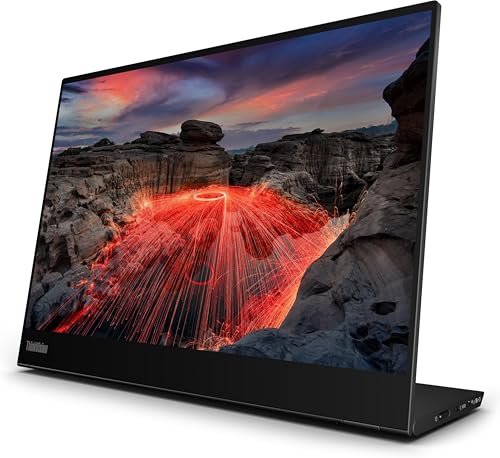
Lenovo ThinkVision M14t Gen 2 — Sharper 14 Inch
The M14t Gen 2 exists to answer the sharpness question inside a 14-inch frame. Its stated 2240 by 1400 resolution packs noticeably more pixels than the Full HD of its M14 sibling, in a taller shape that flatters documents — the same vertical dividend this series praised in 16:10 panels, delivered here in Lenovo’s corporate dialect.
The t in the name has historically marked the touch branch of this family, but this guide disciplines itself to the title in front of it, which states size and resolution and nothing more. Treat any further capability as a listing question to verify, not a fact to assume — that restraint is the naming lesson applied to features as well as to ports.
Who should pay the step-up? Readers. At 14 inches, extra resolution renders text with a crispness that long reading days reward, while the panel stays small enough for the bags the M14 serves. If your portable screen is a document machine first, this is the ThinkVision to interrogate hardest before buying.
The M14t Gen 2 rewards the reader who followed the naming lesson to its end: past the port question, into the resolution figures, where its 2240 by 1400 quietly outclasses the Full HD crowd. It is the pick for the buyer who has learned that the most important words in a title are the numbers, and who reads them the way accountants read footnotes.
- Panel: 14-inch, per title
- Resolution: 2240×1400, per title
- Line: ThinkVision M14t Gen 2, per title
- Shape note: taller than 16:9 at this resolution
- Label note: verify port details on the full listing
Strengths
- 2240×1400 sharpens text at 14 inches
- Taller shape favours documents
- ThinkVision lineage suits business travel
Trade-offs
- Title states little beyond size and resolution
- Smaller canvas than the 15-inch picks
- Port and accessory details need listing checks
Best for: readers and editors who want desktop-class text sharpness in a 14-inch traveller.
Not suited for: shortlists ranked by canvas size, where 14 inches loses to every 15-inch rival.

Laptop Screen Extender 14.2″ — Clamp-On Extender
Five of these six screens stand beside the laptop; this one attaches to it. The extender is a second panel that mounts behind the laptop screen and slides or folds into view, which abolishes the desk-space question entirely — café tables too small for two devices still fit one laptop wearing its extra display.
The title is unusually forthcoming about the terms: 1.87 pounds of stated weight, a 14.2-inch FHD panel, fit for laptops from 14 to 17.3 inches, and compatibility spanning Windows, Mac, Chrome and Android with plug-and-play wording. That breadth hints at clever connection handling, and the wise buyer will still confirm how it connects to their specific machine before ordering.
The trade is physical intimacy. An attached panel adds its weight to the laptop’s hinge and lid every hour of every day, and it travels only with that laptop, never borrowed by a console or a colleague. Choose it when desk space is your scarcest resource; choose a free-standing pick when the screen must live a life of its own.
The clamp-on extender is the pragmatist’s end-run around the whole naming debate: a second screen that attaches to the laptop and asks the desk for nothing. Its buyer should still interrogate its connection method for their machine, but its appeal is gloriously physical — when there is no room for a monitor, become part of the laptop instead.
- Panel: 14.2-inch FHD 1080p, per title
- Weight: 1.87 lbs stated in title
- Fit: laptops 14 to 17.3 inches, per title
- Compatibility: Windows, Mac, Chrome, Android, per title
- Form: attached extender, not free-standing, per title
Strengths
- Needs no desk space beside the laptop
- Stated weight and laptop fit range
- Wide operating-system compatibility claimed
Trade-offs
- Adds weight to the laptop lid and hinge
- Cannot serve other devices as a spare screen
- Connection method needs confirming per laptop
Best for: café and train workers whose tables fit exactly one laptop.
Household borrowing is impossible here: clamped behind one laptop, this panel travels only with that machine.
Comparison: The Six Picks Side by Side
| Pick | Badge | Defining fact from its title |
|---|---|---|
| ASUS ZenScreen MB16AC | Alt-Mode Archetype | Panel: 15.6-inch 1080p, per title; Connection: USB-C (DisplayPort alt mode class), per title |
| ASUS ZenScreen MB16ACE 15.6 Portable | Anti-Glare Alt-Mode | Panel: 15.6-inch Full HD 1920×1080 IPS, per title; Connection: USB Type-C, per title |
| Lenovo ThinkVision M14 | Dual USB-C | Panel: 14-inch Full HD 1920×1080 IPS, per title; Brightness: 300 nit, per title |
| Lenovo ThinkVision M15 | Fleet Favourite | Panel: 15-inch FHD, per title; Line: ThinkVision mobile monitor, per title |
| Lenovo ThinkVision M14t Gen 2 | Sharper 14 Inch | Panel: 14-inch, per title; Resolution: 2240×1400, per title |
| Laptop Screen Extender 14.2″ | Clamp-On Extender | Panel: 14.2-inch FHD 1080p, per title; Weight: 1.87 lbs stated in title |
Set side by side, the six picks are a timeline wearing product names: the archetype, the refinement, the fleet tool, the fleet’s larger sibling, the sharp heir and the clamp-on heretic. Read the table as history and the choice becomes clear — buy the present, understand the past, and let the labels fall where they honestly may.
What is the difference between USB 3, USB-C and DisplayPort alternate mode?
They are three different kinds of fact. USB 3 names a data generation — how fast information moves. USB-C names a connector shape — the small oval plug that replaced the rectangle. DisplayPort alternate mode names a capability some USB-C ports have: carrying a native video signal on dedicated wiring inside that cable. A port can be any combination of these, which is why the labels confuse everyone.
The portable-monitor consequence is stark. Video needs the alternate mode, not the generation number. A USB-C port with alt mode drives every modern pick in this guide with no drivers. A USB-A 3.0 port, however fast its data, carries no native video at all, which is why the older generation of screens leaned on DisplayLink software to fake a display over a data pipe.
When you shop, translate every label into the capability question: does this port emit DisplayPort video? The laptop’s specification answers it, the monitor’s title usually assumes it, and no cable can upgrade a port that lacks it. Learn to ask that one question and the entire USB naming thicket becomes a footpath.
How did DisplayLink screens work, and should you still consider one?
DisplayLink is software that treats a display as a data problem. A driver on the laptop renders the desktop, compresses it, and sends it across an ordinary USB connection to a chip in the monitor or dock, which reconstructs the picture. In the USB-A 3.0 era it was the only way to add a screen, and fleets used it by the thousand.
Its costs were real: installation and driver upkeep, CPU effort spent on compression, and behaviour that could falter with fast video or protected content. Against a modern alt-mode connection it loses on elegance every time. Against a laptop with no video-capable port at all, it remains a legitimate rescue — a dock or screen using it can give an older machine a second display that physics otherwise forbids.
So the verdict is situational, and this guide’s picks reflect the mainstream: alt-mode USB-C for any laptop that offers it, DisplayLink as the considered fallback for the machines that do not. What you should never do is buy an alt-mode screen for a data-only port and blame the screen — the mismatch, not the product, is the failure.
How can you check your own laptop before ordering?
Start at the port itself. A Thunderbolt or DisplayPort symbol printed beside a USB-C socket is the maker’s quiet confirmation that video lives there. No symbol is not a verdict — many makers omit the marking — so treat its presence as a yes and its absence as a maybe that sends you to the specifications.
The model’s support page settles the maybe. Search the exact model name with the words DisplayPort alternate mode, and read the port description the maker publishes. Business laptops document this diligently; consumer lines sometimes bury it, and a retailer listing that repeats the phrase is a weaker but usable witness.
Finally, borrow certainty where you can. A colleague’s USB-C monitor, a shop’s display unit, or a dock you already own will answer the question empirically in ten seconds. One successful test is worth a dozen forum threads, because port capabilities vary even between configurations of the same laptop model.
How did USB naming become so confusing in the first place?
The USB family’s naming history is a cautionary tale about labels outliving their meanings. Generations were renamed retroactively, connectors borrowed the fame of speeds they did not guarantee, and shoppers learned to search by incantation rather than by understanding. The portable-monitor shelf, where a port’s hidden capability decides everything, is simply where that confusion sends its largest bills.
The industry’s defence is that the underlying engineering genuinely improved faster than language could follow: one connector now negotiates power, data and video like a tiny diplomat. The buyer’s defence is the habit this guide teaches — translate every label into a capability question, and accept answers only from specifications, symbols and tests, never from the size of a word on a box.
There is a hopeful ending available. As alt-mode USB-C becomes the default expectation on new laptops, the question that fills this article will fade the way driver questions faded, and future buyers will find the whole debate quaint. Until that day, the lesson stands as the cheapest upgrade in portable computing: it costs one careful read and it works on every screen you will ever buy.
What does a day with a modern USB-C screen teach you?
A day with a modern USB-C screen begins with the ghost of the old ritual: the hand that once reached for a driver disc now reaches only for a cable. That absence is the day’s first pleasure, and veterans of the DisplayLink era feel it every morning like a debt finally cancelled.
Mid-morning brings the port audit that this guide has trained its reader to perform unconsciously: picture present, power flowing, the laptop’s other socket free for the charger or the hub. A setup that passes the audit disappears, and the work expands into the reclaimed attention like water into a larger vessel.
The borrowed-desk hour tests the lesson against strange hardware. A colleague’s older laptop, a meeting-room machine with a data-only port — the modern screen may refuse, and the educated owner diagnoses the refusal in seconds rather than returning a healthy product. Knowledge, in this category, is the most portable accessory of all.
Afternoon document work is where the sharper picks justify their numbers, the 2240 by 1400 panel rendering text with a calm that Full HD cannot counterfeit. The naming lesson ends here, in a way: having fought through labels to the real specification, the owner finally gets to stop thinking about specifications altogether.
Evening packing is a one-cable ceremony, and it throws the old days into relief — the driver-era traveller packed a small kit of adapters and hopes, while the alt-mode traveller packs a screen and its lead. Progress in peripherals is rarely dramatic; it is this, a bag that closes faster.
Across the day, the article’s argument completes itself in the owner’s habits. The buyer who arrived searching for an outdated term leaves with a modern screen, a correct vocabulary, and a diagnostic instinct for ports — and will never again be the person returning a good monitor to a shop because a socket kept a secret.
What maintenance does an alt-mode setup actually require?
Modern alt-mode screens ask little care beyond the physical, but their single port concentrates the risk: keep the socket clean, the cable unstressed, and the connection seated fully before blaming any software. The elegance of one cable means the one cable is also the whole story when something flickers.
Keep the vocabulary alive in your own records. Note, in the screen’s case or your kit list, what your laptop’s port carries and which cable is the video-rated one; six months from now, in a hurry, that note will save the exact confusion this guide exists to prevent.
Legacy DisplayLink equipment in the same household deserves its own discipline: drivers kept current, its dock labelled, its cables never borrowed for the alt-mode screen. Two display technologies can coexist happily in one home provided their supporting casts are never allowed to mingle in a drawer.
Finally, when a laptop is replaced, re-run the port check before assuming the screen follows it. Port capabilities vary between models and even between configurations, and the thirty-second verification is the toll the modern ecosystem charges for its elegance — cheap, but non-negotiable.
How do mistranslated labels turn into returned monitors?
Buyers arriving through the USB 3 search term make translator’s mistakes: they carry a word from one technological era into another and trust it to mean the same thing. The errors below are the mistranslations that cost the most money and the most weekends.
- Searching for a USB 3 monitor and buying a USB-C alt-mode screen for a laptop whose port carries no video.
- Labelling modern USB-C picks with a legacy generation name and then shopping for the wrong cables to match the label.
- Assuming every USB-C port is equal, when data-only ports exist on many otherwise modern laptops.
- Dismissing DisplayLink entirely, then abandoning a perfectly good older laptop that it could have rescued.
- Skipping the full listing on briefly titled business picks like the M15, and discovering the connection details after delivery.
Every mistranslation on that list is cured by the same dictionary: shape, generation and capability are three words for three facts. Learn to decline them separately and the USB family’s whole confusing grammar becomes readable, not just for monitors but for every peripheral you will ever plug in.
How do the six picks divide by the laptop you already own?
The modern ultrabook owner — USB-C everywhere, alt mode guaranteed — should simply choose by size and stand among the ZenScreen and ThinkVision picks, because the connection question that haunts this article is already answered in their favour. Theirs is the happy position the whole category was redesigned to create, and they should enjoy it without nostalgia for the driver era.
The older-laptop owner faces the honest fork this guide keeps returning to: an HDMI portable monitor for the machine as it is, or a DisplayLink dock to teach it new tricks. None of the six picks pretends otherwise, and a buyer in this position should distrust any listing that does. The fork is not a failure of shopping; it is the correct map of the territory.
The mixed household — one modern laptop, one ageing desktop, a phone, a console — should weight host breadth and fallback connections above elegance. Such households are where dual-port designs and the clamp-on extender’s wide compatibility claims earn their investigation, because a screen there must be a diplomat among generations of machinery.
The corporate-issue owner, whose laptop arrived from an IT department with its ports already chosen, should match the fleet’s own logic: ThinkVision against ThinkPad, ZenScreen against the mixed estate. Compatibility inside a managed fleet is a solved problem, and the wise buyer simply asks the fleet’s documentation which solution was chosen.
What should a legacy USB 3 owner actually do this week?
First, perform the port audit on the machine in front of you: find every socket, identify its shape, and look up its capabilities on the maker’s page. An hour of audit replaces a season of returns, and it converts the vague anxiety of this article’s title into a short list of facts about one specific laptop.
Second, if a video-capable USB-C port exists, shop the modern picks in this guide with confidence and let the legacy term go. The search phrase was a bridge; you have crossed it. Buy the stand and the size your rooms demand, keep the supplied cable, and let the driver era become a story you tell younger colleagues.
Third, if no such port exists, price the two honest routes side by side: a DisplayLink dock feeding a standard monitor, or an HDMI portable screen. Either can be the right answer for years of further service from a good machine, and both are cheaper than the new laptop that sales pages will suggest as the only door.
Fourth, whatever route wins, write the answer down: port capabilities, cable ratings, the working combination. Legacy hardware survives on documentation, and the note you leave in the laptop bag is a gift to your future self, who will otherwise repeat this entire investigation in a hotel room.
Which pairs of picks teach the naming lesson best?
The MB16AC against any remembered USB-A screen is the lesson in one comparison: same job, same size class, utterly different machinery underneath — software heroics replaced by a native signal. Owners who have used both generations do not need the argument explained; buyers who have not should trust the explanation anyway, because the returns data of the entire industry agrees with it.
The M14 against the M15 teaches the quieter lesson that titles are editorial decisions. One counts its ports in public; the other trusts its channel to know. Neither is dishonest, but only one respects a stranger’s need to decide unaided, and learning to feel that difference in your fingertips while reading listings is a skill that transfers to every product category you will ever shop.
The M14t Gen 2 against the M14 teaches the final refinement: after the ports, the numbers. Resolution figures, stated plainly, are where a careful reader’s attention should land once the connection is settled — and a buyer who has learned to read titles in that order, capability first and specification second, has graduated from this guide entirely.
What will the next laptop change about this purchase?
Almost certainly, it will forgive it. Each new laptop generation widens the alt-mode default, so a USB-C screen bought today is more likely to greet its owner’s next machine gracefully than any peripheral of the driver era ever was. That forward compatibility is an unlisted feature of every modern pick here, and it may be the most valuable one.
It may also change the size conversation. As laptops drift larger and thinner, the matched-pair logic that favours 14-inch companions for 14-inch machines will drift with them, and owners should expect their second screen to feel smaller against a future 16-inch laptop — an argument, today, for not buying the smallest pick if a replacement machine is imminent.
What the next laptop will not change is the vocabulary lesson. Ports will keep their separate facts — shape, generation, capability — under whatever names the industry invents next, and the reader who learned to separate them here will read the next decade’s listings with the same calm advantage. That, more than any single screen, is what this guide was trying to sell.
Which accessories make sense in an alt-mode world?
A video-rated spare USB-C cable is the first accessory, bought to the same capability as the supplied lead and labelled if your household contains lookalike charging cables. In a category where one lead carries the whole experience, the spare is not an accessory at all but a redundancy plan, and labelling is the difference between a plan and a drawer of mysteries.
A small powered hub earns its place when the laptop’s port count is the binding constraint, feeding the screen and the machine while adding the sockets the thin laptop omitted. Choose it for its video specification as carefully as you chose the screen — a hub is another translator in the chain, and translators must be fluent in the exact capability your setup depends on.
For households keeping a legacy machine alive, a clearly labelled DisplayLink dock is the third accessory, living beside the older computer and never travelling with the modern screen. Separation is the discipline: two display technologies, two kits, two labels, and no cable ever crosses between them in a hurry. Most cross-generational confusion is born in shared drawers, and it dies by the same labelling that saves the spare cable.
Skip the adapter assortments marketed as universal solutions. A pocketful of anonymous dongles is the old confusion in a new pouch; the alt-mode era rewards the buyer who owns few, known, labelled connections over the buyer who owns every possible one and trusts none of them.
How does the naming lesson play out in three real shops?
In the online listing, it plays out as reading order: ports before panels, capabilities before capacities. The shopper who opens a listing and scrolls first to the connection specification will finish shopping faster and return less than the shopper seduced by the hero photograph, because the connection decides whether the photograph can ever be reproduced on their own desk.
In the physical store, it plays out as a test: bring the laptop, ask for the screen to be connected to your machine, and watch the picture arrive or not arrive with your own eyes. A reputable shop welcomes the test because it prevents the return; a shop that refuses it is telling you how it expects the story to end.
In the secondhand market, it plays out as scepticism about titles copied from other titles. Sellers repeat the labels they bought under, errors included, so the used buyer verifies the model against the maker’s own page and treats every generation word in the advert as unsworn testimony. The discount is real in this market, but it is paid for in verification.
What should a buyer keep as records for a USB-C screen?
Keep a photograph of the working setup: which port, which cable, the display settings showing the arrangement. When a future laptop, update or borrowed desk breaks the spell, that photograph is the recipe for restoring it, and it costs one screenshot taken on a day when everything already works.
Keep the maker’s specification page for your laptop bookmarked beside the screen’s own page. Port capabilities are the kind of fact that is obvious while shopping and invisible six months later, and the pair of bookmarks is the whole maintenance manual this class requires.
Keep the purchase record with the screen’s case. If the panel ever needs a warranty conversation, the maker will ask questions whose answers live in that record, and a traveller who can produce them from a phone in another country is a traveller whose trip survives the failure. Documentation is the least glamorous accessory in this guide and the one most often praised afterwards.
What should you do when a modern screen meets an uncooperative port?
Do not escalate force; escalate information. Confirm from the maker’s page whether the socket carries DisplayPort alternate mode at all, because no cable, hub setting or prayer can add a capability the port was built without. This single check, performed before any further spending, is the whole troubleshooting method of the alt-mode era in miniature.
If the capability exists and the screen still sleeps, walk the chain: the supplied cable before any other, the second socket before despair, the display settings before the returns portal. Alt-mode chains fail at their joints, and the joints are few enough that a patient owner can test every one of them in ten minutes with no tools but a spare lead.
If the capability does not exist, spend nothing further on adaptation by stealth. Choose the honest routes this guide mapped — an HDMI portable for the machine as it stands, or a DisplayLink dock chosen openly for the job — and let the modern screen serve a modern machine. Money spent denying a port’s nature is the only truly wasted money in this category.
Is a USB-C portable monitor a good gift in a mixed household?
It can be the household’s favourite object or its most returned one, and the difference is a five-minute investigation the giver must perform: which machines live in that house, and does at least the main one carry video over USB-C? Gift-giving in this category is applied port literacy, and the literate giver is remembered as a genius while the guessing giver is remembered as an optimist.
Where the investigation succeeds, give the modern pick without hedging, and include the labelled spare cable and a note naming the right port on the recipient’s machine. Where it fails, give the HDMI-route screen with equal confidence; the recipient will never know a naming lesson stood behind the choice, which is exactly how good gifts work.
The clamp-on extender is the gift for the one recipient whose desk problem you have personally witnessed — the café writer, the train commuter — because its value is invisible to anyone who has not watched them work. Gifts chosen from witnessed problems are the ones that get used daily, whatever the category.
How should a buyer future-proof this purchase honestly?
Buy the connection with the longest visible future and the stand with the fewest assumptions, in that order, because laptops will change around the screen at least twice in its life. USB-C alt mode is the present tense of portable displays and shows every sign of remaining the near future’s; a screen fluent in it, standing on furniture that suits any desk, is as future-proof as this category honestly gets.
Resist paying for hypothetical capabilities your next machine might not have either. The honest future-proofing in this guide is boring: standard ports, standard mounts, a case that fits, a cable that is specified. Exotic features date like milk; standards date like furniture, and a portable screen should be bought on the furniture’s timescale.
Keep the documentation habit as the final layer of proofing: the port audit for each laptop you own, written once and kept with the screen. Machines will come and go, but a household that knows its own sockets never restarts this article’s confusion from zero, and that knowledge is the only upgrade that transfers perfectly between generations.
And when the day comes that the vocabulary changes again — as it will — greet the new labels with the discipline learned here: shape, generation and capability, asked separately, answered from specifications. The buyer who internalised that grammar owns a skill that no rebrand can obsolete.
What is the verdict when the label was the lesson?
This guide set out to sell six screens and ended up teaching a grammar, and the two achievements are the same one: a buyer who can separate shape from generation from capability will choose correctly among these picks today and among their successors for years, long after the specific models here have been replaced by faster, thinner descendants with labels nobody has invented yet.
The screens themselves deserve the final word to be about them rather than about words. The ZenScreens offer the polished, driver-free present; the ThinkVisions offer the fleet’s disciplined version of the same present; the extender offers a heretical shortcut around the desk entirely. Each is a good answer — to the question the buyer’s own laptop asks, in the vocabulary this article has tried to make legible.
So verify the port, honour the numbers, keep the right cable, and let the legacy search term retire with dignity. It brought you to the right shelf, which is all a label can ever honestly do; the choosing, as it should be, was yours.
Who Should Skip This Class Altogether?
Older laptops predating video-capable USB-C, in hands with no appetite for a DisplayLink dock, belong on a different shopping route entirely: an HDMI portable monitor will serve that machine without translation. The naming lesson still applies — it simply concludes, for that hardware, in a different and equally honest purchase.
Which verifications close out a naming-lesson purchase?
- Translate the label before buying: establish whether your laptop’s USB-C port carries DisplayPort alternate mode, from the maker’s specification.
- Never accept a generation number as a video promise; USB 3 describes data, and the picture needs its own capability.
- For briefly titled business picks, open the full listing and confirm connection, stand and case details the title omits.
- Keep the video-rated cable supplied with the screen together with it, and label any charge-only cables in the same drawer.
- If your laptop has no video-capable port, price a DisplayLink route honestly instead of forcing an alt-mode screen into a mismatch.
- For the clamp-on extender, confirm the fit range and the connection method against your exact laptop model.
Final Recommendation
Learn the one distinction — connector shape, data generation and video capability are three separate facts — and you will never buy the wrong portable screen again; every pick in this guide then becomes what it should have been all along, a simple choice about size, stands and sharpness.
Buy by capability rather than by label, and the right screen follows from that single discipline every time.
Frequently Asked Questions
Is a USB-C portable monitor the same thing as a USB 3 monitor?
No, and the difference is this guide’s whole subject. USB 3 is a data generation; USB-C is a connector, and the video in these picks travels by DisplayPort alternate mode over that connector. Calling the ZenScreen or ThinkVision picks USB 3 monitors would mislabel them, so their spec boxes here say USB-C, accurately.
Why did older portable monitors need driver discs?
Because USB-A ports carry data, not video. DisplayLink drivers compressed the desktop and sent it as data to be reconstructed by the monitor. It worked, with CPU cost and upkeep. USB-C alt mode removed the need by giving the port a native video path.
My USB-C port charges and moves files. Will it run these screens?
Not necessarily. Charging and data do not imply video; the port also needs DisplayPort alternate mode. Check for a Thunderbolt or DisplayPort symbol beside the socket, or the port description on your model’s support page, before ordering any pick in this guide.
What cable should I use with a USB-C portable monitor?
The cable supplied with the screen, which is specified to carry video and power together. Many loose USB-C cables are wired for charging and slow data only. When a screen stays black, swapping to the supplied lead is the first diagnostic, ahead of every other suspicion.
Does the clamp-on extender suit every laptop?
Its title claims fit for laptops from 14 to 17.3 inches and compatibility across Windows, Mac, Chrome and Android. Fit still depends on your lid’s size and hinge strength, and the connection method should be confirmed for your model. It trades the free-standing screen’s independence for zero desk footprint.
Where does a modern USB-C screen quietly change the day?
Set up for a grandparent’s video call, the portable screen becomes the family window — faces at a size that feels like company rather than correspondence. Owners who bought a panel for best usb 3 portable laptop monitors at work routinely discover this weekend role, and it quietly justifies the picks with speakers and simple stands, because technology that grandparents can enjoy unaided has passed the hardest usability test of all.
At a boat’s chart table, space is curved, power is precious and everything slides. A compact portable screen showing charts or weather beside the laptop earns admiration quickly in that environment. Most buyers of best usb 3 portable laptop monitors will never sail with their panel, yet the discipline the scene teaches — small footprint, modest appetite, secure footing — is the same discipline that makes a screen succeed in any tight, moving workspace.
In an exam-season bedroom, the portable screen holds the past papers while the laptop holds the notes, and the revision finally stops being a window-shuffling exercise. Parents and students shopping for best usb 3 portable laptop monitors in spring should know that the category’s plainest picks often serve this room best, because the requirement is not spectacle but a second rectangle that simply stays where it is put.
In an airport lounge corner, claimed early and defended politely, a portable screen converts a delay into a deliverable: the report finished, the deck polished, the inbox tamed before boarding. Lounges ration tables and sockets like wartime luxuries, and the best usb 3 portable laptop monitors setup that needs only one of each is the setup that gets fed, which is why seasoned travellers rehearse exactly this configuration at home.
Related Guides
From the naming lesson, the natural next reads in this series are: start with our guide to affordable 4K projectors, continue to our guide to affordable laser projectors, and finish with our guide to basement projectors.

[…] the wider second-screen and naming questions, this series continues: start with the USB 3 portable laptop monitors naming guide, continue to our guide to affordable 4K projectors, and finish with our guide to affordable laser […]