What's inside
- Key Takeaways
- Quick Picks
- How Did We Choose the Best Blender 3D Graphics Cards?
- OptiX, CUDA or HIP: Which Rendering Path Should You Buy Into?
- How Much VRAM Does a Blender Scene Really Need?
- Viewport Artist or Render Artist: Which One Are You Buying For?
- When Does a Second Card — or a Render Service — Beat a Bigger Card?
- Why Has Denoising Quietly Become a Hardware Feature?
- How Do Blender’s Own Updates Change What Your Card Is Worth?
- Six Cards, Six Render Queues: the Detailed Reviews
- The Blender Lineup on One Table
- How Do You Keep a Scene Inside the Framebuffer You Own?
- How Do You Set Blender Up to Use the Card You Bought?
- What Do Blender Artists Most Often Get Wrong Buying a Card?
- Final Recommendation
- Frequently Asked Questions
- Related Guides
As an Amazon Associate I earn from qualifying purchases. This post may contain affiliate links at no extra cost to you.
widgetverdict.com is reader-supported. When you buy through links on our site, we may earn an affiliate commission.
Where to buy: all six cards below are Amazon listings, each linked from the quick picks table and from its review heading. Blender hardware hides in two product families — professional workstation boards and high-end gaming cards — and both appear here, so read the full board name and memory figure on the listing before ordering; in this category a single word of the name routinely separates 16GB from 24GB, and that difference is the whole purchase.
The best blender 3d graphics cards are bought against a render queue, not a frame rate, and that changes every criterion a gaming guide would use. Blender’s Cycles engine renders on the GPU through vendor compute platforms — CUDA and OptiX on NVIDIA hardware, HIP on AMD’s — and a render is a sustained, minutes-to-hours computation where the card either holds the scene in memory and finishes, or runs out of VRAM and fails in ways that cost an evening. Around that hard fact orbit the softer ones: viewport smoothness while you model, denoising quality while you preview, and driver maturity inside an application whose developers test on specific hardware generations.
This guide’s six cards divide by memory and by ecosystem, and both divisions deserve to be faced before the reviews. On memory: four cards carry 24GB — the professional RTX A5500, the Titan RTX, the compact RTX PRO 4000 SFF Blackwell and the RTX 4090 — while the two RX 9070 XT boards carry 16GB. On ecosystem: NVIDIA’s OptiX path is Blender’s most developed GPU rendering route, with hardware ray tracing and AI denoising woven through it, while AMD’s HIP path has matured into a genuine option whose strength in Blender grows with each release. The reviews below keep both divisions visible, because a Blender artist choosing a card is really choosing a framebuffer size and a compute platform, and only then a brand of cooler.
Everything here is framed qualitatively, on purpose. Render times depend on the scene, the samples, the denoiser and the Blender version to a degree that makes universal numbers meaningless; anyone who has watched a simple scene render in moments and a production scene render overnight on the same card knows the truth of that. What a guide can honestly rank is capacity, platform maturity, sustained-load behaviour and fit — and those are the axes on which these six cards are judged.
It is also worth saying who should not buy anything in this guide. Artists whose Blender work is learning-stage — tutorials, first scenes, small experiments — are served by almost any modern card with a reasonable framebuffer, including ones well below this list’s floor, and their money is better held until their scenes announce their own requirements. This guide begins where that announcement has been made: the render that failed, the queue that ate the weekend, the scene that would not fit. If that has happened to you, read on with confidence that the problem is understood here.
Key Takeaways
- VRAM decides whether a Cycles render finishes at all — 24GB cards anchor this guide for production scenes.
- OptiX gives NVIDIA cards the deepest Cycles integration, including hardware ray tracing and AI denoising.
- AMD’s HIP rendering is a genuine option, and the 16GB RX 9070 XT boards are its current standard-bearers here.
- The RTX 4090 SUPRIM Liquid X pairs 24GB with flagship rendering power and liquid cooling for marathon renders.
- The RTX PRO 4000 SFF puts 24GB of ECC GDDR7 into a low-profile board for compact workstations.
- Two boards share the RX 9070 XT chip here — choose between them on cooling, size and maker.
- Viewport work and final rendering reward different things — buy for the render, enjoy the viewport.
- Measure one of your own scenes before buying; its memory readout outranks every chart in this guide.
Quick Picks
| Pick | Badge | Why it is here |
|---|---|---|
| PNY NVIDIA RTX A5500 24GB | Best Professional Blender Card | 24GB of GDDR6, professional drivers and the full OptiX path in a dual-slot workstation board. |
| NVIDIA Titan RTX | Best Legacy 24GB Flagship | The original creator flagship — 24GB and the Turing-era OptiX foundation that built modern Blender workflows. |
| NVIDIA RTX PRO 4000 SFF Blackwell 24GB | Best Compact 24GB Card | Blackwell architecture and 24GB of ECC GDDR7 in a low-profile dual-slot board. |
| ASUS Prime Radeon RX 9070 XT 16GB | Best AMD Blender Card | RDNA 4 power and 16GB for HIP rendering and fast viewports in a 2.5-slot Prime board. |
| MSI GeForce RTX 4090 SUPRIM Liquid X 24G | Fastest Rendering Muscle | 24GB of GDDR6X and flagship CUDA power under a liquid cooler built for overnight queues. |
| ASRock Radeon RX 9070 XT Challenger 16GB | Highest Stated Boost, AMD | A 2970MHz stated boost clock on the same RDNA 4 foundation, in a triple-fan Challenger board. |
How Did We Choose the Best Blender 3D Graphics Cards?
We started with the render, because Blender artists forgive a card almost anything except a failed overnight queue. Memory capacity was the first gate: 16GB as the working floor for serious scenes, 24GB preferred, since Cycles holds the entire scene — geometry, textures, acceleration structures — in the framebuffer, and the penalty for overflow is not slowness but a fallback or a failure. Every card here clears the floor, and the four 24GB cards form the guide’s production core.
Compute platform came second. Blender’s Cycles speaks CUDA and OptiX to NVIDIA cards and HIP to AMD cards, and the maturity of each path inside Blender is a real, lived difference: OptiX brings hardware ray-tracing acceleration and the AI denoiser that has reshaped preview workflows, while HIP’s progress across recent Blender generations has made the Radeon route respectable for artists whose scenes fit its framebuffer. We weighted platform maturity heavily but not absolutely, which is why two strong AMD boards stand in this guide beside four NVIDIA ones.
Third, we looked for sustained-load credibility: coolers and power designs that hold clocks through a render measured in hours, ECC memory where the professional line offers it, and form factors spanning the compact workstation and the full tower. Each pick is a verified current listing, and each is reviewed for the Blender work it will actually do — viewport, preview, final render — rather than for the games it could also play.
We deliberately included two boards on the same RDNA 4 chip and two generations of professional NVIDIA silicon, because Blender buyers shop exactly that way in practice: comparing board partners within a platform, and comparing platform generations within a budget. A guide that pretends those comparisons do not happen would be tidier and less useful. The six slots here are the six conversations a real Blender buyer is actually having.
OptiX, CUDA or HIP: Which Rendering Path Should You Buy Into?
Blender gives the buyer three doors into GPU rendering, and the card chooses the door. CUDA is the foundation path on NVIDIA hardware: universal across generations, dependable, and the route every NVIDIA card in this guide can walk. OptiX is the faster, cleverer sibling available on RTX-class hardware, engaging the ray-tracing cores for Cycles and enabling the AI denoising that lets artists judge a scene at low sample counts and trust what they see. For most NVIDIA buyers, OptiX is the daily driver and CUDA the guarantee underneath it.
HIP is AMD’s compute platform, and its Blender story is one of steady construction. Early HIP rendering carried caveats that sent cautious artists to the other ecosystem; successive Blender releases have closed much of that distance, and for scenes within a 16GB framebuffer the current RX 9070 XT boards render Cycles properly and quickly. What the AMD path does not offer is OptiX’s specific denoising and ray-tracing integration, and artists whose pipelines lean on those should weight that fact at full value rather than discovering it mid-project.
The honest summary is asymmetry without exclusion. NVIDIA’s path is more developed inside Blender today, and this guide’s four-to-two split reflects that reality rather than a brand preference. AMD’s path is viable, improving, and attached to boards with real viewport and raster strength. Choose the platform your scenes and your denoising habits need, then choose the framebuffer, then — only then — admire the cooler.
One more platform consideration belongs to mixed pipelines. Artists who move scenes between Blender and other GPU-accelerated tools — compositors, video editors, game engines — should map the whole pipeline’s platform preferences before choosing, because a card that is second-best in Blender and first everywhere else may be the right workstation purchase overall. This guide ranks for Blender, as its title promises; the pipeline view is the reader’s final adjustment, and it occasionally, legitimately, overturns the ranking.
How Much VRAM Does a Blender Scene Really Need?
More than the polygon count suggests, because a Cycles scene in memory is not just geometry. It is geometry with subdivision applied, textures at full resolution across every material, the ray-tracing acceleration structure built over all of it, plus the render buffers themselves — and at high output resolutions with multiple render layers, the buffers alone become a serious tenancy. A scene that feels modest in the viewport can arrive at the render several times larger, which is why artists learn to watch the memory readout during test renders the way pilots watch fuel.
The practical tiers map cleanly onto this guide. Sixteen gigabytes covers the broad middle of Blender work: product visualisation, character work, motion graphics and architectural scenes of ordinary ambition, with headroom that thins as texture resolutions and subdivision climb. Twenty-four gigabytes is where production habits relax — large environments, heavy geometry, 8K texture sets, complex compositing stacks — and where the overnight queue stops being a gamble. Beyond the framebuffer lies the cliff: out-of-core fallbacks and split rendering exist, but they convert a memory problem into a time problem at the worst exchange rate.
Buy for the scene you will be embarrassed about in eighteen months, not the scene on your screen today. Artists grow into their framebuffers with suspicious speed, because every technique learned — denser geometry, richer materials, higher output — spends memory. The 24GB cards in this guide are not extravagance; they are the size of the scenes their owners are about to learn to build.
Animation deserves its own line in this accounting, because it multiplies everything by the frame count without multiplying the framebuffer — the scene fits or it does not, identically, on every frame. What animation multiplies is time, which is why the render-speed tier of this guide exists. A stills artist can tolerate a slow card with a big framebuffer; an animator counting frames by the thousand cannot, and should weight the 4090’s throughput accordingly. Know which multiplication your work performs before choosing which specification to maximise.
Viewport Artist or Render Artist: Which One Are You Buying For?
Blender days divide unevenly, and the division should steer the purchase. The modelling, sculpting, shading and layout hours are viewport hours: the card is drawing the scene interactively, and responsiveness — the absence of lag between hand and screen — is the quality that matters. Almost every card in this guide, including the 16GB Radeon pair, delivers a strong viewport for scenes of ordinary size; the viewport only becomes a hardware argument when scenes grow enormous or when the artist works in rendered preview continuously, at which point the viewport quietly becomes a render and inherits all the render’s rules.
The render hours are the opposite temperament: unattended, sustained, and decided by framebuffer and compute platform. An artist who models all week and renders on Friday night is buying two different cards in one body, and the honest purchase weights the hours. Most solo artists are viewport-majority with render spikes, which is why this guide’s middle — strong viewport cards with a real framebuffer — is so populated. The render-farm temperament, queues every night and deadlines every week, is rarer and more expensive, and it is what the 24GB flagship tier exists to feed.
Studios formalise the same logic by splitting the roles: workstations specced for the viewport, render nodes specced for the queue. A solo artist can borrow the idea cheaply by remembering that the card in the desk machine will do both jobs and choosing the balance consciously, rather than discovering at the first big deadline which job the purchase actually optimised.
When Does a Second Card — or a Render Service — Beat a Bigger Card?
Every Blender artist eventually prices the alternatives to a bigger card, and the honest comparison is worth having in print. A second card in the same machine helps Cycles directly, since Blender can render across both — with the standing caveat that each card holds the whole scene, so the pair’s effective framebuffer is the smaller card’s, not the sum. Two 16GB cards render a 15GB scene faster; they do not render a 20GB scene at all. Buy the second card for speed only when memory is already sufficient.
Render services and farms rent the same capability by the job, and for the artist with occasional enormous deadlines they can be the rational peak capacity: the local card handles the daily work and the farm absorbs the launch week. The costs are upload time, data wrangling and a per-job fee that recurs forever, against the card’s one-time price that sits in the machine for years. Artists with steady queues buy hardware; artists with spiky queues rent the spikes. Both are legitimate, and the worst outcome is the middle path of an undersized card plus emergency rentals every month — the subscription you never meant to buy.
Whichever route you take, keep the local card honest. It remains the preview machine, the viewport machine and the deadline insurance, and the specifications this guide ranks — framebuffer, platform, sustained behaviour — are exactly the ones that decide whether those local jobs stay local.
There is a hybrid worth naming for growing studios: keep the strong local card for everything interactive, and add render capacity as a separate node — an older workstation, a retired gaming rig — running Blender’s command-line rendering on the same network. The node needs no monitor worth mentioning and no artist sitting at it; it needs a card with a framebuffer and a platform the scenes accept. Studios graduate to this arrangement naturally, and the cards in this guide, demoted in their turn, furnish excellent nodes.
Why Has Denoising Quietly Become a Hardware Feature?
Because it changed the economics of rendering more than any clock speed has. A denoiser takes a render computed at modest sample counts — noisy, fast — and reconstructs the clean image the samples were only hinting at. In preview work it is transformative: the artist sees something close to the final lighting and materials in seconds, and the whole iterative loop of lighting and shading tightens around that speed. In final renders it trades a managed amount of reconstruction for hours of sampling, and on deadline work that trade is made gladly.
The hardware connection is that the best-known implementation rides on NVIDIA’s platform: the OptiX denoiser uses the same ecosystem as the ray-tracing acceleration, which is a concrete, daily reason the NVIDIA path in Blender feels more developed than a feature list suggests. Open-source and vendor-neutral denoisers exist and are genuinely good — Blender ships with capable options that run anywhere — and artists on the HIP path are not left staring at noise. But the integrated smoothness of the OptiX preview loop is a lived advantage, and this guide counts it as one, in the open, rather than pretending the platforms are identical twins.
The buying translation is simple: if your Blender life is preview-led — look development, lighting, client reviews over your shoulder — the denoising pipeline is part of the card you are buying, and it should be auditioned like one. If your life is final renders at full samples, denoising matters less and the framebuffer matters more. Either way, it is a hardware-adjacent decision now, and guides that ignore it are reviewing a Blender that no longer exists.
Test it the way you will use it: take a scene you know, render the same frame at a preview sample count with each denoiser available to your platform, and judge the surfaces your work actually features — skin, fabric, foliage and glass all denoise differently, and the denoiser that flatters architecture may smear a portrait. Your materials are the benchmark, as they are for everything else in this guide.
How Do Blender’s Own Updates Change What Your Card Is Worth?
Blender is developed in the open, on a brisk release rhythm, and its hardware story is rewritten a little with every version: compute backends gain features, denoisers improve, the viewport engine is rebuilt, and yesterday’s caveat becomes today’s footnote. HIP’s progress across recent releases is the standing example in this guide — a path that cautious artists once avoided became, version by version, the respectable route the two Radeon boards now ride. The reverse also happens: new features arrive optimised for the newest architectures first, and older cards watch from the gallery for a release or two.
Two buying habits follow. First, favour the card whose platform is being actively developed toward, not merely maintained — in practice, current architectures from either vendor, which is where three of this guide’s six picks live, with the professional A5500 as the deliberate exception bought for stability. Second, treat driver and Blender versions as a pair you manage together: studios freeze both during productions for good reason, and solo artists should at least update them deliberately, one at a time, with a known test scene ready to confirm nothing regressed.
None of this makes older cards bad purchases — the Titan RTX’s slot exists because a known platform at a known behaviour has real value — but it does mean the calendar is a specification. When you compare two cards, compare their futures as well as their framebuffers: which one will next year’s Blender be kinder to? The answer is usually the newer architecture, and it occasionally outweighs a memory tier.
Six Cards, Six Render Queues: the Detailed Reviews

PNY NVIDIA RTX A5500 24GB — Best Professional Blender Card
The RTX A5500 is the card Blender professionals reach for when the workstation is a business asset: 24GB of GDDR6 on a dual-slot professional board, PNY’s reference-grade build, four DisplayPort outputs, and the professional driver branch behind it. In Blender terms its specification reads as a checklist of render-queue virtues. The framebuffer holds production scenes whole. The Ampere-generation CUDA cores and second-generation ray-tracing hardware run Cycles through CUDA and OptiX at full maturity — this is the platform Blender’s developers and plug-in authors test against, and behaviour surprises are correspondingly rare.
Its character is steadiness over spectacle. The A5500 does not chase gaming clocks; it holds professional clocks through renders that run past midnight, on drivers whose release cadence values not breaking your pipeline over squeezing a benchmark. For a studio or a freelancer whose renders are billable, that temperament is the product. The honest debits are generational: Ampere is two architectures behind the newest silicon here, its efficiency trails the Blackwell board below, and its gaming-driver sibling features are irrelevant to its purpose. None of that dents its position as the professional default — the card against which Blender workstations are still specified when reliability writes the purchase order.
Its four DisplayPort outputs deserve a Blender-specific mention: multi-monitor setups are the artist’s natural habitat — reference on one screen, the outliner and shader editor spread wide — and professional boards treat that arrangement as the main event rather than an afterthought. In a studio where the workstation also drives a colour-checking display, that output panel and the professional driver’s colour pipeline are part of what the premium buys.
- Memory: 24GB GDDR6
- Interface: PCIe 4.0 x16
- Form factor: dual slot, professional board
- Outputs: 4x DisplayPort
- Compute: CUDA and OptiX in Cycles
- Fit note: reference dual-slot design suits dense workstation builds
Strengths
- 24GB framebuffer sized for production scenes.
- Professional drivers and the most-tested Blender platform.
- Built for sustained rendering rather than benchmark peaks.
Trade-offs
- Ampere architecture trails the newest cards in efficiency.
- Professional pricing reflects its support structure, not just silicon.
- No GDDR7-era memory bandwidth for the largest texture sets.
Best for: professional Blender seats and studios whose renders are billable work. Hobbyist budgets and modest scenes point the other way — the gaming boards below render the same Cycles, faster per coin.
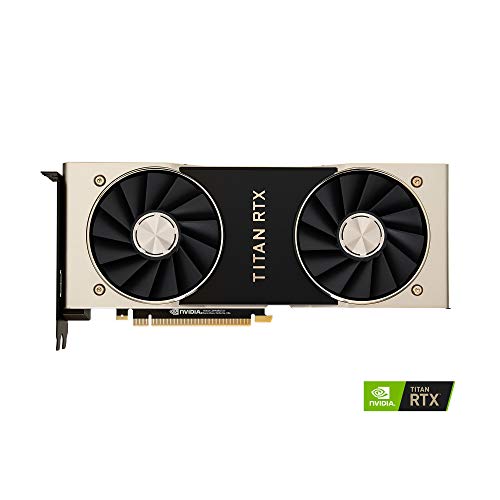
NVIDIA Titan RTX — Best Legacy 24GB Flagship
The Titan RTX is the card that taught a generation of Blender artists what a big framebuffer feels like. NVIDIA’s Turing flagship blurred the line between gaming and workstation hardware — 24GB of GDDR6 at a time when that figure was startling, full CUDA capability, and the first-generation ray-tracing hardware that let early OptiX rendering in Blender hint at what was coming. Workflows that are now standard practice — GPU rendering with hardware ray tracing, AI denoising in previews — were pioneered on this card’s generation, and a great many working pipelines were built and tuned around exactly its behaviour.
Buying one today is a deliberate, informed act, and this review treats it as such. The case for it: 24GB remains 24GB, Cycles still runs on it through CUDA and OptiX, and for an artist whose scenes outgrow 16GB but whose budget cannot reach the newer 24GB cards, a well-kept Titan RTX is a rational bridge. The case against is the calendar: Turing efficiency, encoder features and driver focus have all moved on, and any individual used or old-stock example must be inspected like the veteran it is. This is a card for buyers who know precisely which specification they are hunting — the framebuffer — and who accept the generation’s age as the price of admission.
There is also a collector’s footnote that occasionally matters in practice: Titan cards were bought by studios and labs in quantity, so the secondary supply is unusually well documented, and many examples carry a traceable working history rather than a gaming rig’s mysteries. For a legacy purchase, provenance is a specification, and this card’s provenance is often the best in its class.
- Memory: 24GB GDDR6
- Architecture: Turing, first-generation ray tracing
- Compute: CUDA and OptiX in Cycles
- Positioning: former flagship creator card
- Outputs: full-size set of its generation
- Fit note: a full-length flagship — check case clearance carefully
Strengths
- 24GB framebuffer at a legacy-card tier.
- The platform a generation of Blender pipelines was tuned on.
- Full CUDA capability with no professional-line restrictions.
Trade-offs
- Oldest architecture in this guide, with matching efficiency.
- Individual examples need careful inspection at this age.
- Newest Blender features optimise for newer hardware first.
Best for: artists who need 24GB specifically and understand the legacy trade they are making. Skip it if you want current efficiency and a long driver future — the Blackwell SFF below is the modern route to the same memory.

NVIDIA RTX PRO 4000 SFF Blackwell 24GB — Best Compact 24GB Card
The RTX PRO 4000 SFF Blackwell performs the guide’s neatest trick: it puts the newest NVIDIA architecture and 24GB of GDDR7 ECC memory into a low-profile, dual-slot board on a PCIe 5.0 x8 connection, with four Mini DisplayPort 2.1b outputs. For the Blender artist whose workstation is a compact small-form-factor machine — the kind that sits silently beside a desk rather than humming in a render closet — this is the only card here that brings a production framebuffer to that machine without rebuilding it.
Its Blender character combines the professional line’s driver steadiness with Blackwell’s current rendering features, and the ECC memory adds the professional reassurance for long queues discussed in the workstation guide. The x8 interface and the compact power envelope are the honest terms of the form factor: in exchange for fitting where no other 24GB card fits, it concedes some peak throughput to full-size boards. For a single-artist workstation that models, previews and renders in one compact box, that is an excellent bargain — the framebuffer, which is the specification Blender cannot negotiate, arrives intact, and only the flagship’s excess speed stays behind.
The SFF workstation context adds one more consideration: compact machines usually live on the desk, in the room where the artist thinks, so the card’s modest power draw is also an acoustic feature. A 24GB render capability that does not turn the studio into a server closet has a value that never appears on a specification sheet, and solo artists feel it every working day.
- Memory: 24GB GDDR7 with ECC
- Interface: PCIe 5.0 x8
- Form factor: low profile, dual slot
- Outputs: 4x Mini DisplayPort 2.1b
- Compute: CUDA and OptiX, current generation
- Fit note: the only 24GB card here that fits a low-profile chassis
Strengths
- 24GB of ECC GDDR7 in a board that fits compact workstations.
- Current Blackwell architecture and rendering features.
- Professional drivers with a small machine’s power appetite.
Trade-offs
- The x8 interface and compact envelope concede peak throughput.
- Mini DisplayPort outputs usually mean adapter cables.
- New-architecture premium over the A5500’s mature tier.
Best for: Blender artists in compact workstations who refuse to surrender the 24GB tier. Skip it if your tower has room and budget for the RTX 4090’s full flagship rendering power.

ASUS Prime Radeon RX 9070 XT 16GB — Best AMD Blender Card
The ASUS Prime RX 9070 XT is the AMD standard-bearer in this guide: RDNA 4 architecture, 16GB of GDDR6, a 2.5-slot board with Axial-tech fans, dual-ball fan bearings and a dual BIOS. For Blender, its story runs through HIP — AMD’s compute path into Cycles — and through the viewport, where this card’s raster strength makes modelling, sculpting and shading work feel immediate in a way render benchmarks never capture. A Blender day is mostly viewport, and this card honours that distribution of hours.
Its rendering position should be stated with the precision the topic deserves. HIP in current Blender is a working, supported Cycles path, and for scenes inside 16GB this board renders them properly. What it does not replicate is OptiX’s integrated ray-tracing and AI denoising pipeline, and artists whose preview workflow leans on that denoiser will feel the difference daily. The Prime board itself is a sensible vessel — durable fans, a guard for the GPU, current HDMI and DisplayPort 2.1 outputs — and for the artist whose work is viewport-heavy, whose renders fit the framebuffer, or whose wider workflow already lives on Radeon, it is the balanced AMD purchase in this guide.
The dual BIOS is a small feature with a Blender-shaped use: one profile for the quiet, conservative behaviour a shared studio prefers during modelling hours, another for the card’s full performance posture when the render queue takes the machine overnight. Artists who share rooms with their workstations learn to value such switches out of all proportion to their cost.
- Memory: 16GB GDDR6
- Interface: PCIe 5.0
- Form factor: 2.5-slot, Axial-tech fans
- Build: dual-ball fan bearings, dual BIOS, GPU Guard
- Compute: HIP in Cycles
- Fit note: standard 2.5-slot body suits most mid-tower workstations
Strengths
- Excellent viewport and raster performance for daily modelling.
- Current RDNA 4 platform with improving HIP support.
- Durable, thoughtfully built board at a mainstream tier.
Trade-offs
- 16GB caps the largest production scenes.
- No OptiX path or its AI denoising workflow.
- HIP behaviour should be tested against your plug-ins first.
Best for: viewport-heavy Blender artists and AMD-ecosystem users with scenes inside 16GB. Skip it if your pipeline leans on OptiX denoising — that dependency chooses the ecosystem for you.

MSI GeForce RTX 4090 SUPRIM Liquid X 24G — Fastest Rendering Muscle
The RTX 4090 SUPRIM Liquid X is the brute-force answer to the render queue: 24GB of GDDR6X, the flagship CUDA capability of its generation, and MSI’s liquid-cooled SUPRIM treatment — a closed-loop radiator design that moves the card’s heat out of the case and holds clocks through the kind of overnight, multi-thousand-frame renders that define production Blender work. Its stated boost clock of 2625MHz is the least interesting thing about it; the interesting things are the framebuffer, the sustained behaviour, and OptiX running on the fastest consumer silicon of its line.
For the solo artist or small studio whose bottleneck is honestly render time, this card compresses the queue like nothing else here. Scenes that fit its 24GB — which is to say, the same production class as the professional cards — render at flagship pace, with the liquid cooler keeping the card’s acoustics civilised in a shared room while it does so. The debits are physical and financial: the radiator needs a home in the case, the card’s power appetite needs a supply with conviction, and its price tier is the guide’s summit. It also lacks the professional line’s certified-driver framing, which matters to studios and not at all to most Blender seats. Judged purely as a Blender rendering engine, it is the strongest card in this guide.
The liquid cooling deserves a final practical note: radiators move heat to the case’s exhaust path rather than recirculating it around the other components, so the workstation’s CPU and drives live cooler during the same overnight renders. In a machine that works as hard as this card invites it to, that system-level kindness is part of the flagship’s real specification.
- Memory: 24GB GDDR6X
- Cooling: closed-loop liquid, SUPRIM Liquid X design
- Stated boost: 2625MHz (maker’s figure)
- Interface: PCIe 4.0 generation, 384-bit bus
- Compute: CUDA and OptiX at flagship tier
- Fit note: allow radiator mounting space in the case plan
Strengths
- The fastest Cycles rendering in this guide.
- 24GB framebuffer matches the professional cards’ capacity.
- Liquid cooling sustains clocks and civility through overnight renders.
Trade-offs
- The guide’s highest price tier and power demands.
- The radiator requires case space and planning.
- Consumer drivers, where a studio might want the professional branch.
Best for: render-bound solo artists and small studios whose queues are measured in nights. Pass it by if your scenes are modest — its power is purchased by the hour of render time it saves, and modest scenes have few hours to give back.

ASRock Radeon RX 9070 XT Challenger 16GB — Highest Stated Boost, AMD
ASRock’s Challenger version of the RX 9070 XT takes the same RDNA 4 foundation as the ASUS Prime above and turns the presentation up: a triple-fan cooler, a stated boost clock of 2970MHz — the highest headline figure in this guide — and DisplayPort 2.1a with HDMI 2.1b outputs. Two boards on one chip in one guide is deliberate, because Blender buyers genuinely choose between board partners, and the choice is made on cooling, dimensions, acoustics and the maker’s support — the silicon and the HIP rendering path are shared.
For Blender work, the Challenger’s triple-fan design is its substantive claim: sustained viewport and render loads in a warm room are where board partners differentiate themselves, and a card that holds its clocks through a long Eevee preview session or a Cycles queue earns its keep in the currency artists actually spend. Its 16GB framebuffer draws the same map as the Prime’s — the broad middle of Blender work fits, production-maximal scenes belong to the 24GB cards — and its HIP path carries the same honest notes about OptiX. Choose between the two 9070 XTs on the physical evidence and your history with each maker; choose the 9070 XT class itself when your Blender life is viewport-led and your scenes respect 16GB.
ASRock’s Challenger line has built its following on exactly this formula — the reference-class silicon, a serious cooler, an honest price posture — and Blender artists are natural Challenger customers, because the workload rewards the cooler every single day while the headline clock is merely the garnish. Between the two AMD boards, this is the one to buy when the room runs warm.
- Memory: 16GB GDDR6
- Stated boost: 2970MHz (maker’s figure)
- Cooling: triple-fan Challenger design
- Outputs: DisplayPort 2.1a, HDMI 2.1b
- Compute: HIP in Cycles, RDNA 4
- Fit note: triple-fan length — confirm the case before ordering
Strengths
- Triple-fan cooling for sustained loads in warm rooms.
- The highest stated boost clock in this guide.
- Current outputs and RDNA 4 viewport strength.
Trade-offs
- Shares the 16GB ceiling of its class.
- No OptiX path, as with all AMD picks here.
- A large board — verify case clearance before ordering.
Best for: AMD-route Blender artists who value cooling headroom and stated clocks. Leave it on the shelf if your scenes are outgrowing 16GB — no cooler fixes a framebuffer, and the 24GB cards are your guide from there.
The Blender Lineup on One Table
| Card | Memory | Compute path | Form factor | Blender role |
|---|---|---|---|---|
| PNY RTX A5500 | 24GB GDDR6 | CUDA, OptiX | Dual slot professional | Studio default for billable renders |
| NVIDIA Titan RTX | 24GB GDDR6 | CUDA, OptiX | Full-size flagship | Legacy route to a big framebuffer |
| RTX PRO 4000 SFF Blackwell | 24GB GDDR7 ECC | CUDA, OptiX | Low profile dual slot | 24GB for compact workstations |
| ASUS Prime RX 9070 XT | 16GB GDDR6 | HIP | 2.5-slot | Viewport-led AMD workstation |
| MSI RTX 4090 SUPRIM Liquid X | 24GB GDDR6X | CUDA, OptiX | Liquid-cooled flagship | Maximum render throughput |
| ASRock RX 9070 XT Challenger | 16GB GDDR6 | HIP | Triple-fan | AMD power with cooling headroom |
How Do You Keep a Scene Inside the Framebuffer You Own?
Every artist eventually meets the scene that does not fit, and the craft of fitting it is worth more than a card tier. Textures are the first audit: a production scene often carries texture resolutions far beyond what the final render can show, and halving the resolution of background sets routinely recovers gigabytes without a visible frame of difference. Render the test, compare honestly, and let the background be the background. Subdivision is the second audit — viewport and render subdivision levels exist separately for a reason, and a modifier stack tuned for the viewport’s smoothness can be quietly multiplying the render’s geometry past all need.
Instances are the third and most elegant tool: geometry referenced rather than duplicated costs the framebuffer once no matter how many times it appears, and scenes built with instancing discipline — forests, crowds, architecture, product arrays — fit in memory that naive duplication would overflow several times over. Linked libraries and collection instancing are the working artist’s version of the same idea, with the bonus that the scene file itself stays navigable.
And when the scene still does not fit, split it like a professional: render in layers and passes, composite the result, and let each pass live within the card’s means. Compositing exists in Blender’s soul for exactly this reason. The artist who masters these four habits — texture audits, subdivision discipline, instancing, layered rendering — effectively owns a larger framebuffer than the one on the box, which is the cheapest upgrade in this entire guide.
How Do You Set Blender Up to Use the Card You Bought?
The first ritual after installation happens in Blender’s preferences, under the system settings, where the compute device is chosen. Select the rendering backend your card speaks — OptiX for the RTX-class NVIDIA cards where available, CUDA as the universal NVIDIA path, HIP for the Radeon boards — and tick the graphics card so Cycles actually uses it; Blender left on CPU rendering beside a new flagship card is a rite of passage best skipped. Denoising settings follow: the OptiX denoiser for previews if your path offers it, with the final render’s denoising chosen by taste and deadline.
Then render a known scene and watch the memory readout. Every Blender artist should own one benchmark scene of their own — a representative piece of their actual work — and run it after any hardware or version change, noting the peak memory and the render behaviour. That personal benchmark is worth more than any published chart, because it measures the only workload that will ever be asked of the card: yours. Keep the file, keep the notes, and future upgrades become comparisons instead of guesses.
Save that scene’s settings as the workstation’s reference configuration, somewhere outside the project folder where version updates cannot wander off with it. When a future Blender release changes a default — and they do — the reference scene is how you notice, measure and decide, rather than discovering the change in the middle of a client’s deadline render.
Finally, set the tile and sampling habits that suit a GPU workflow: GPU rendering prefers the whole frame in one pass rather than the small tiles of the CPU era, and adaptive sampling with a good denoiser finishes most scenes sooner than brute sample counts. These settings cost nothing and routinely buy more time than a card tier — which is exactly why they belong in a hardware guide, as the free performance that should be collected before money is spent.
Do the same audit on the machine around the card while you are in the preferences: system memory generous enough that scene preparation never swaps, project files on fast storage so texture loading does not dawdle, and a power plan that does not put the workstation to sleep mid-queue — the most embarrassing render failure in the catalogue, and the only one no graphics card can prevent.
What Do Blender Artists Most Often Get Wrong Buying a Card?
The classic error is buying by gaming reputation. A card can be a magnificent gaming purchase and a mediocre Blender one if its framebuffer is small, because Cycles’ first question is never how fast the card is but whether the scene fits. The second error is the opposite romance: buying a professional board for its badge while the same money in a gaming flagship would have halved the render queue — professional drivers matter where applications are certified, and Blender, which is developed in the open and tested broadly, is often happier on raw capability than a CAD seat would be.
The third error is ignoring the viewport half of the job. Artists who render weekly but model daily sometimes optimise entirely for the render and live with a sluggish viewport for thousands of hours to save minutes on Fridays. The balanced read of this guide — render capacity first, viewport strength counted, platform habits respected — exists to prevent both distortions.
And the quiet error: never measuring your own scenes. Memory panic and memory complacency both come from guessing. One test render with the memory readout visible tells an artist which tier of this guide their work actually occupies, and it takes less time than reading the arguments about it.
A fifth error has become common with the rise of AI-adjacent workflows: assuming the card that renders Blender best is automatically the card for every other GPU task in the pipeline — upscaling, generation tools, video work. Those tools have their own platform preferences and memory habits, and a studio pipeline should be specced as a pipeline. The cards in this guide were chosen for Blender; where they also serve the neighbouring tools, the reviews are pleased to say so, but Blender cast the deciding vote.
Final Recommendation
For most Blender artists, the decision tree is short. If your scenes are production-sized and your renders are your income, take the RTX 4090 SUPRIM Liquid X for raw queue compression, or the RTX A5500 where professional drivers and studio discipline govern the purchase. If your workstation is compact, the RTX PRO 4000 SFF Blackwell is the only route to 24GB that respects the machine. If your work is viewport-led and your scenes fit 16GB, the two RX 9070 XT boards — ASUS Prime for its build, ASRock Challenger for its cooling and clocks — are the balanced AMD purchases. The Titan RTX remains the knowing legacy route to a big framebuffer.
Whatever you buy, buy the framebuffer your next year of scenes will need and the compute path your denoising habits assume, because a Blender card is judged at two in the morning, mid-queue, by whether the render finishes before the deadline wakes up.
One last discipline before the purchase: run your own benchmark scene on your current card tonight, note the peak memory and the render time, and keep the note with the order confirmation. When the new card arrives, the same scene turns this guide’s qualitative rankings into your personal verified numbers — and if the improvement is not what your scenes promised, the return window is still open and the evidence is already in your hand.
Frequently Asked Questions
Is Blender better on NVIDIA or AMD?
Today, the deepest Cycles integration belongs to NVIDIA: OptiX engages the ray-tracing hardware and its denoiser is woven into most preview workflows, and this guide’s four NVIDIA picks reflect that. AMD’s HIP path is genuinely workable and improving, and the two Radeon boards here serve viewport-heavy artists well. “Better” resolves to your scenes, your denoiser and your framebuffer, in that order.
Can Blender use two graphics cards at once?
Yes — Cycles can render across multiple GPUs of the same compute platform, dividing the work between them. Two caveats matter: each card holds the full scene in its own memory, so pairing cards does not pool their framebuffers, and mixing platforms is not the smooth path. For most artists a single card with the right memory beats a pair with compromises. Animators with sufficient memory already in hand are the exception — for them, a second card is a genuine time machine, and this guide’s heartland cards make sensible second seats.
How important is the CPU for Blender if the GPU renders?
The GPU renders, but the CPU still runs the interface, the modifiers, the simulations’ preparation and everything outside the render kernel — and it feeds the card. A weak CPU beside a flagship card produces a workstation that renders beautifully and models reluctantly. Balance the machine; the card is the headline, not the whole article. Sculpting with heavy multiresolution and physics-heavy scenes are the two workloads that expose a neglected CPU fastest.
Does ECC memory matter for Blender?
For most artists, it is a professional comfort rather than a daily necessity: renders are usually verified by looking at them, and a rare memory error is likelier to cost a re-render than a client. For very long queues, render farms and production pipelines where frames pass unwatched, ECC’s silent correction earns its place — which is why it appears on this guide’s professional picks. Animation pipelines feel the argument most strongly, since a corrupted frame discovered at the edit has a hundred siblings rendered the same night.
Eevee or Cycles: does the choice change the card?
It changes the weighting. Eevee is a raster engine, closer in appetite to a game, and it rewards the viewport-class strengths the Radeon boards show. Cycles is the compute workload this guide is built around. Artists who live in Eevee for final output can weight raster strength higher; artists who render in Cycles should buy by framebuffer and compute path exactly as the reviews advise.
Should I wait for the next card generation instead of buying now?
Only if your current card still finishes your scenes. Blender hardware ages by capability rather than by calendar: a card that holds your scenes and renders them overnight remains the right card until the scenes outgrow it, whatever launches meanwhile. Buy when the work demands it — a failed queue is a deadline argument no launch calendar can answer — and let the generations pass without anxiety in between. Your future self, mid-project, will thank the present one for the indifference.
Related Guides
Blender hardware sits at a crossroads of this cluster, and the neighbouring guides approach the same silicon from other trades. Artists building a quiet studio should start with the best silent graphics cards, readers speccing a professional seat will find the driver-and-certification view in the best workstation graphics cards, and the headset-driven demands on similar cards are covered by the best graphics cards for virtual reality.



[…] cousins across the cluster. Artists building worlds rather than flying over them should read the best blender 3d graphics cards, simmers who fly in a room where others sleep will appreciate the best silent graphics cards, and […]