What's inside
As an Amazon Associate I earn from qualifying purchases. This post may contain affiliate links at no extra cost to you.
[SITE_DOMAIN] is reader-supported. When you buy through links on our site, we may earn an affiliate commission.
Where to buy: Each machine below links to its Amazon listing from the Quick Picks table and from its review heading. Read the listing for the model on your shortlist, note its current terms there, and pair that reading with the manufacturer documentation check described in this guide before you order.
Households shopping for the best laser printers for mac and pc setups are usually shopping for peace between two ecosystems. A Mac on one desk and a Windows PC on another should not need two printers, two opinions about drivers, or a family diplomat. The good news is that a networked color laser is naturally bilingual: it sits on the home network and accepts jobs from whatever sends them. The honest complication, which this guide will not paper over, is that none of the six listing titles below mentions Mac, macOS, Windows, or AirPrint by name. What the titles do establish — wireless networking in all six, duplex color printing in all six, Ethernet on the flagship, feeders and fax on the Canons, stated speeds up to 35 pages per minute — is the substance a mixed household actually prints with, and this guide reports those claims exactly, then shows you how to confirm platform support for the precise model in the two places that settle it: the manufacturer’s specifications and, for the Apple side, Apple’s own printer records.
Why does the verification step matter more than the marketing vocabulary around it? Because platform support lives at model level. Printer families share names across variants that differ in radios, firmware, and protocol menus, and a feature present on one sibling may be absent or behave differently on another. A buyer who checks the exact model string — every letter and digit — against the maker’s documentation knows the truth before the box arrives. A buyer who assumes spends the first evening of ownership learning it. The six machines here were chosen to reward the first kind of buyer: each is a current color laser with the network manners a two-platform home needs, and each maker’s documentation is public and precise enough to confirm in minutes.
Color laser is the right shared technology for this job for a structural reason. One printer, four toners, pages that emerge dry and identical whether the sender was a Mac writing a school report or a PC producing an invoice — the machine neither knows nor cares which logo was on the lid. Scanning, where fitted, completes the shared infrastructure: the Canons and the Brother flagship pull paper back into digital life for both platforms at once. The differences that remain are the ones worth shopping by — feeder or no feeder, wired networking or wireless only, stated pace, and how completely each listing documents its mobile and network claims.
So the reviews below proceed on listed evidence, each pick judged on its title’s own words, each spec box marking plainly what a title does not state. Platform verification gets its own section, because for this keyword it is not fine print but the purchase itself. Finish the guide and you will know which of the six belongs on your network, what to confirm before ordering, and how to set the machine up so both a Mac household and a PC household — often the same household, at different desks — forget it exists.
Key Takeaways
- No listing title here names Mac, macOS, Windows, or AirPrint — platform support for the exact model must be confirmed in the manufacturer’s documentation and, for Apple printing, Apple’s published records.
- All six picks are wireless color lasers with duplex printing stated in their titles, so the shared workload of a mixed home is covered by every machine in the set.
- Brother’s MFC-L3780CDW states the richest network set: dual-band Wi-Fi, Gigabit Ethernet, and NFC alongside 31 ppm color printing and single-pass duplex scanning.
- Canon’s MF753Cdw II and LBP674Cdw II state the fastest pace at 35 PPM; the MF753Cdw II adds feeder scanning, fax, and a three-year limited warranty.
- A network printer serves both platforms by position, not by allegiance — site it on the main home network and both Macs and PCs reach it.
- Verify the exact model string, not the family name; siblings in a printer line can differ in radios and protocol support.
Quick Picks
| Printer | Badge | Why it made the cut |
|---|---|---|
| Brother MFC-L3780CDW | The connection-rich flagship | 31 ppm color, single-pass duplex scanning, dual-band Wi-Fi, Ethernet, NFC. |
| HP Color LaserJet Pro 3201dw | The print-only Pro | Wireless duplex color printing with mobile compatibility, printer only. |
| Canon imageCLASS MF656Cdw | The warranted all-rounder | 22 PPM all-in-one with feeder, fax, Mobile Ready wording, 3-year warranty. |
| Canon Color imageCLASS LBP674Cdw II | The fast print-only Canon | 35 PPM wireless duplex color printing with a 3-year limited warranty. |
| Brother HL-L3290CDW | The compact Brother multifunction | Print, scan, and copy in a compact duplex color body with Alexa. |
| Canon Color imageCLASS MF753Cdw II | The feeder flagship | 35 PPM all-in-one with feeder, fax, Mobile Ready wording, 3-year warranty. |
How picks were chosen
The frame for this guide was the mixed household itself. Every pick had to be a color laser — the shared workload of two platforms includes school colour, invoice colour, and the occasional photograph-adjacent document, and monochrome would underserve half the desks. Every pick had to state wireless networking and duplex printing in its title, because a shared printer that cannot be reached over the network or cannot print two-sided without supervision fails both platforms equally. Within that frame we spread the six across the genuine axes of choice: two print-only machines against four all-in-ones, one wired-network flagship against five wireless-only listings, and stated paces from 22 to 35 pages per minute.
Platform honesty shaped the writing as much as the choosing. Since no title names an operating system, no review below claims Mac support or Windows support on a title’s authority. Instead, each review describes the machine’s documented network and function claims — the substrate both platforms print through — and the verification section explains how a buyer confirms the exact model’s platform story in manufacturer documentation and Apple’s records. That division keeps every sentence on this page checkable, which matters in a category where a wrong assumption surfaces only after the box is open.
We also credited completeness of listing. A title that states its speed, its warranty, its feeder, and its network options lets a buyer compare without a research project; a title that speaks in adjectives alone asks for trust. The Canons here state warranties and paces; the Brother flagship states a full connection menu; the HP speaks more softly and is reviewed accordingly, on fit rather than figures. Listings that document themselves well tend to belong to product lines that document everything else well, including the platform pages this guide sends you to.
Finally, each pick had to make sense as the only printer in a two-platform home for years. That excluded nothing in this set — all six are current color lasers from the three makers whose support ecosystems a mixed household will actually use — but it set the tone of the reviews: ownership, defaults, and network placement weigh as heavily as the first week’s novelty, because a shared printer is infrastructure, and infrastructure is judged in years.

Brother MFC-L3780CDW — The connection-rich flagship
Brother’s MFC-L3780CDW states more about itself than any other listing in this set: a wireless digital color all-in-one printing at 31 ppm, with single-pass duplex copy and scan, dual-band Wi-Fi, Gigabit Ethernet, an NFC reader, and Alexa compatibility. For a Mac-and-PC household, read that list as reach. Dual-band wireless lets the printer join whichever band suits the home’s layout; Gigabit Ethernet lets a fixed desk wire it to the router for the most stable address on the network; phones and laptops from both platforms then find one machine, at one address, with the least possible discovery drama. Discovery reliability is the unglamorous foundation under every cross-platform printing story, and this Brother’s title builds it deeper than any rival here.
Single-pass duplex scanning is the second headline, and it is a workflow feature rather than a specification trophy. A two-sided contract placed in the feeder is read on both sides in one trip, becoming a file both the Mac user and the PC user can open, sign, and send onward. Households digitising paperwork for two ecosystems feel this weekly: the scan is made once, properly, and circulates. Pair that with 31 ppm color output — the pace at which a household’s mixed queue of homework, invoices, and correspondence clears without a queue forming at the tray — and the flagship’s case writes itself on listed evidence alone.
Platform verification still applies, and this guide will not exempt its favourite. Brother’s specification page for this exact model is where Mac and Windows support, and any Apple-specific printing pathways, are documented; Apple’s own printer records are the cross-check for the Apple side. Run both checks, as the verification section describes, and the purchase rests on documents rather than on this page’s enthusiasm. What the listing guarantees without any checking is the machine underneath the platform question — and on that evidence, this is the strongest all-round color laser in the six.
The NFC reader earns a precise description rather than a halo. NFC offers tap-based convenience for supported phones through the maker’s pathways; it is not a platform claim and this review does not treat it as one. Its real signal is design intent: Brother built this machine for homes where phones initiate a large share of printing, which describes the modern two-platform household accurately. Alexa compatibility extends the same intent to voice-led rooms. Neither feature should decide a purchase between platforms, but both describe a machine designed for the way mixed homes actually start print jobs.
Households persuaded by the flagship’s connection menu can look over the MFC-L3780CDW listing at Amazon to confirm the current offer, with Brother’s specification page open alongside for the platform lines the title leaves to documentation.
Ownership of a flagship is mostly defaults, and this Brother rewards an evening spent setting them. Make duplex the standard for both platforms so the household’s paper habit is two-sided without thought; set the scan destination once, properly, so feeder scans land where both the Mac and the PC look for files; and give the printer a human name in its settings, because a recognisable name in two different print dialogues prevents the small daily hesitation that erodes trust in shared machines. None of that appears in a listing title, yet all of it is what the title’s breadth is for.
- Output: digital color all-in-one laser
- Stated pace: 31 ppm color
- Scanner path: single-pass duplex copy and scan
- Connections: dual-band Wi-Fi, Gigabit Ethernet, NFC reader
- Voice wording in title: works with Alexa
- Platform support by name: Not stated in the listing title — verify with the manufacturer documentation
Strengths
- Deepest documented network set in this guide
- Single-pass two-sided scanning serves both platforms’ paperwork
- 31 ppm color pace clears a mixed household queue quickly
Trade-offs
- Fullest feature set means the most setup choices to make
- Four-toner color ownership joins the household budget
- No fax function named in its title, unlike the Canons
Best for: Mac-and-PC households wanting one wired-or-wireless color flagship for every desk
Not suited for: installations where fax capability must be documented in the listing beforehand

HP Color LaserJet Pro 3201dw — The print-only Pro
HP’s 3201dw describes itself with Pro-line economy: a color laser printer, wireless, with duplex printing, mobile compatibility, single function, aimed at the home office. No speed figure, no feeder, no scanner — and for a particular two-platform desk, that restraint is the offer. A home office that scans by phone, files digitally, and prints constantly needs a machine that does one job with professional manners: accept jobs from the Mac and the PC alike over the network, print them in duplex color, and stay out of the way. The listing’s mobile compatibility phrase adds the third source — phones — in HP’s own words.
The single-function shape has a placement virtue worth naming. Without a scanner lid or feeder tower, the 3201dw sits lower and simpler on a desk or shelf, and a home office short on surface will feel that daily. What it asks in return is honesty about the household’s paper metabolism: if signed forms regularly need scanning back out, this machine cannot do it, and one of the all-in-ones in this guide should take its place in the basket. If paper flows one way — out of the two computers, onto the page, into the world — the HP’s focus is not a limitation but a tailoring.
HP’s documentation carries the platform story, as it does for every pick here. The title’s silence on operating systems means the buyer should confirm Mac and Windows support for this exact model on HP’s specification pages, and check Apple’s records for the Apple printing pathways, before ordering. That two-source ritual is described in full later in the guide. What the title establishes unaided — wireless, duplex, color, mobile compatibility, Pro positioning for the home office — is a coherent short-job machine for a two-platform desk that prints far more than it scans.
There is a temperament argument for the HP in professional homes. Consultants, bookkeepers, and designers working across a client’s Windows world and their own Mac world need the printer to be the least political object in the room: no ecosystem allegiance, no app-first ceremony, just a network address that both platforms respect. HP’s Pro line has sold that neutrality for decades, and the 3201dw’s listing — four plain claims and a home-office address — is neutrality expressed as a title.
Home offices leaning toward the HP can open the Color LaserJet Pro 3201dw listing to review today’s terms, then settle the platform questions on HP’s own specification page for the model before checkout.
A note on colour discipline suits this HP. A print-only color laser in a home office will be asked for everything from client proofs to birthday cards, and its duplex habit is what keeps that variety affordable in paper terms: drafts two-sided by default, finals single-sided by choice. Set that default on both computers during setup week — the setting lives per platform, and a household that configures only the machine that installed the printer will spend years wondering why the other desk’s output looks different.
- Output: color laser, printer only, single function
- Duplex: two-sided printing stated in title
- Networking: wireless, per title
- Mobile wording in title: mobile compatibility
- Stated pace: Not stated in the listing title — verify with the manufacturer documentation
- Platform support by name: Not stated in the listing title — verify with the manufacturer documentation
Strengths
- Print-only focus keeps the body low and the menus simple
- Wireless duplex color covers the two-platform document diet
- Pro-line positioning suits a working home office
Trade-offs
- No scanning or copying for returning paperwork
- No stated speed figure for comparison shoppers
- Platform specifics live in HP’s documentation, not the title
Best for: two-platform home offices that print constantly and scan almost never
Not suited for: households whose signed forms must be scanned back out weekly

Canon imageCLASS MF656Cdw — The warranted all-rounder
Canon’s MF656Cdw presents the most complete paperwork triangle in this set at a calm tempo: a wireless duplex color laser all-in-one with copier, scanner, fax, an auto document feeder, Mobile Ready wording, a three-year limited warranty, and a stated 22 PPM, in white. For a Mac-and-PC household, the feeder is the feature with cross-platform consequences. Paper that arrives addressed to either desk — the insurer’s form for the PC user, the school packet for the Mac user — enters through the same feeder, becomes a file on the shared network, and stops caring which platform it visits next. The printer becomes the household’s paper border crossing, stamping documents in both directions.
The warranty deserves its sentence. Three years, stated in the title, is Canon’s confidence expressed contractually, and in a shared machine expected to serve two ecosystems through several computer replacements, that horizon changes the ownership mood from appliance anxiety to infrastructure calm. At 22 PPM the engine is the gentlest stated pace among the faster-documented picks here, but home and small-office printing is a marathon of short jobs, and the MF656Cdw’s virtues — completeness, feeder, fax, documented longevity — are marathon virtues that a sprint figure cannot measure.
Mobile Ready is Canon’s phrase, repeated here exactly, and the platform verification ritual applies to this model as to all six: Canon’s specification page for the exact MF656Cdw, cross-checked against Apple’s records for the Apple side of the house. What needs no verification is the function’s completeness. Print, scan, copy, fax, feeder, duplex, wireless — a household could run its entire paper life through this one white cabinet, with the Mac and the PC as equal citizens of its network.
Consider the household this Canon fits best: two adults, two platforms, one address that receives the extended family’s paperwork. A relative’s hospital form is faxed from the Canon; a tenancy agreement is feeder-scanned to both computers; colour pages for a school project print between invoices without a settings pilgrimage. Machines earn the word infrastructure by absorbing exactly this variety without comment, and the MF656Cdw’s listing describes that absorption function by function.
Form-heavy households can examine the MF656Cdw listing on Amazon for the present offer, keeping Canon’s specification page nearby to confirm platform support for the exact model string.
The white finish, stated in Canon’s title, plays a small domestic role worth acknowledging. A machine this complete could easily read as office furniture; in white it sits more gently in a spare bedroom or a bright home office where one of the two platforms also lives. It is a cosmetic consideration and this guide ranks it last, behind feeder, warranty, and pace — but a shared appliance is looked at by two households’ worth of eyes, and a cabinet both desks can live with is a cabinet that stays where it was placed.
- Output: color all-in-one duplex laser
- Jobs covered: print, scan, copy, fax
- Paper entry: auto document feeder
- Stated pace: 22 PPM
- Warranty wording in title: 3 year limited warranty
- Mobile wording in title: Mobile Ready
Strengths
- Complete function set with feeder and fax in one cabinet
- Three-year limited warranty stated in the listing
- Duplex color plus wireless serves both platforms evenly
Trade-offs
- 22 PPM is a calm pace beside the 35 PPM Canons below
- Feeder-topped body needs headroom above its shelf
- Platform support confirmed in documentation, not the title
Best for: mixed-platform households whose paperwork travels in both directions for years
Not suited for: deadline sprinters who rank printers by fastest stated pace alone

Canon Color imageCLASS LBP674Cdw II — The fast print-only Canon
The LBP674Cdw II is the sprinter of this set wearing a warranty: a wireless duplex color laser printer with a three-year limited warranty and a stated 35 PPM, print only. That pace, shared at the top of this guide only by its feeder-equipped sibling, changes the feel of a two-platform workday. Long documents — the PC’s report, the Mac’s manuscript, the household’s combined tax paperwork — clear the tray in a fraction of the time a gentler engine needs, and a shared printer that never becomes a queue is a shared printer nobody resents. Canon states the figure and the warranty in the same breath, which is the listing’s way of saying the speed is meant to be kept up for years.
Print-only is again the deliberate boundary. There is no scanner for the returning form, no copier for the duplicated letter; the household’s phones and its other devices must carry digitising, or an all-in-one sibling must carry the argument. The households that should choose this Canon are the ones whose paper is born digital on both platforms and merely visits paper — contracts printed for signature and filed as paper, presentations printed for the room, colour documents printed for clients. For that one-way traffic, a fast, warranted, wireless duplex engine is not a compromise but the correct tool described precisely.
Platform verification follows the guide’s standing ritual: Canon’s specifications for the exact LBP674Cdw II model string, Apple’s records for the Apple side, agreement between the two before ordering. The second-generation suffix matters here — documentation for a predecessor or a near-identical sibling is not evidence about this machine, and Canon’s model discipline makes the correct page easy to find when the buyer searches the full string. Do that, site the printer on the main network, and both platforms inherit a very quick paper exit.
Speed also has a courtesy dimension in a shared home. A 35 PPM engine spends less of the evening awake and audible per job, which matters when the printer shares a room with a television, a sleeping child, or a partner on a call. Fast machines are often sold as productivity; in a house, they are better understood as brevity — the job is done before it becomes an event — and the LBP674Cdw II’s stated pace is the briefest in this guide alongside its sibling.
Buyers who print long documents from both platforms can pull up the LBP674Cdw II listing to check the current terms, then confirm the platform lines in Canon’s documentation for the full model name.
There is a queue-psychology point about a fast shared printer. When two platforms send work to one machine, the printer’s pace decides whether sharing feels like abundance or rationing. At a stated 35 PPM, the Canon clears a long document in the time its owner spends walking to collect it, so the second platform’s job rarely waits behind the first’s. Households upgrading from a slow shared inkjet will feel this as the end of an era of negotiation — whose job is it, how long is it, can mine go first — replaced by a machine that simply keeps up.
- Output: color laser printer, print only
- Stated pace: 35 PPM
- Duplex: two-sided printing stated in title
- Warranty wording in title: 3 year limited warranty
- Networking: wireless, per title
- Scanning: none — single-function printer
Strengths
- Joint-fastest stated pace in this set at 35 PPM
- Three-year limited warranty stated alongside the speed
- Wireless duplex color suits long documents from both platforms
Trade-offs
- No scanning, copying, or fax for returning paper
- Platform support sits in Canon’s documentation
- Print-only shape wastes nothing — and offers nothing — beyond printing
Best for: two-platform homes printing long colour documents against deadlines
Not suited for: households needing a scanner on the same machine as the printer
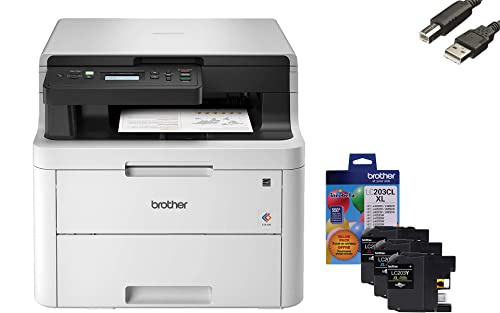
Brother HL-L3290CDW — The compact Brother multifunction
Brother’s HL-L3290CDW compresses the all-in-one idea into a compact body: a wireless compact digital color laser all-in-one with print, scan, and copy, duplex printing stated alongside a 600x2400dpi figure, and Alexa compatibility. For a mixed household short on space — the flat where the Mac lives on the kitchen table and the PC in the bedroom — this is the pick that adds a scanner without adding a furniture problem. Paper that arrives for either platform can be copied or scanned on the same compact cabinet that prints for both, and the whole arrangement fits on a sideboard.
The listing’s bundle wording deserves an honest footnote. The title describes the package as bundled with a printer cable and speaks of bonus cartridges in terms a careful buyer should read directly on the listing before ordering, because bundle contents are exactly the kind of detail that changes between sellers and over time. This guide’s advice is simple: judge the machine on its documented printer claims — compact color all-in-one, duplex, wireless, Alexa — and treat the bundle lines as a checklist to verify on the listing page itself, item by item, before the order is placed.
No feeder is named in the title, so scanning here is a sheet-at-a-time affair on the glass — entirely adequate for the certificates, signed pages, and school letters that constitute most homes’ inbound paper, and a real limit for the household scanning forty-page packets. Platform verification follows the standing pattern: Brother’s specification page for the exact HL-L3290CDW, Apple’s records for the Apple side. What the listing establishes unaided is a compact, complete, duplex color machine for the platform-mixed home whose paperwork is ordinary in volume and varied in kind.
The compact multifunction earns a paragraph about the homes that have no office at all. In a one-bedroom flat, the printer is a citizen of the living space: it prints the Mac user’s portfolio pages and the PC user’s coursework from the same shelf, copies a tenancy letter at midnight, and scans a passport page for a morning application. A machine of this size and completeness respects that reality; it does not ask the household to become an office in order to be served like one.
Space-pressed households can review the HL-L3290CDW listing on Amazon — reading the bundle description carefully there — and finish with Brother’s platform documentation for this exact model.
Scanning on a glass-only machine has a rhythm worth describing for first-time all-in-one buyers. A page goes face down, the lid closes, the scan travels to its destination, and the next page takes its place — a pace entirely suited to the five-page realities of home paperwork and genuinely tedious at fifty pages. The honest dividing line is the household’s longest regular document, not its average one. Measure the Canon feeder machines against that longest document; measure this Brother against everything else, where its compactness wins daily.
- Output: digital color laser all-in-one
- Jobs covered: print, scan, copy
- Duplex: two-sided printing stated in title
- Print resolution figure in title: 600x2400dpi
- Voice wording in title: works with Alexa
- Feeder: Not stated in the listing title — verify with the manufacturer documentation
Strengths
- Scanning and copying join color printing in a compact body
- Duplex color output covers both platforms’ documents
- Wireless and Alexa suit phone-and-voice-led homes
Trade-offs
- No feeder named — long scans go a sheet at a time
- Bundle wording in the title needs a careful listing read
- No stated engine speed in the title
Best for: space-pressed Mac-and-PC homes needing occasional scanning and copying
Not suited for: high-stack scanning households that need a document feeder

Canon Color imageCLASS MF753Cdw II — The feeder flagship
Canon’s MF753Cdw II gathers the set’s strongest claims into one cabinet: an all-in-one color duplex laser printer, wireless, with scanner, copier, fax, an auto document feeder, a three-year limited warranty, Mobile Ready wording, and a stated 35 PPM for home and office. Read that title as a checklist a two-platform household would write for itself. Pace for the long documents both platforms produce; a feeder for the paper both platforms receive; fax for the institutions that still demand it; a warranty horizon measured in years; and Canon’s Mobile Ready phrase for the phones that increasingly start the jobs. It is the most complete listing in this guide, and the review can afford to be plain about that.
The feeder-plus-pace pairing is the working heart. Inbound stacks are digitised unattended; outbound documents leave at the joint-fastest stated speed here; and because the machine is an all-in-one on the shared network, the Mac user’s scan and the PC user’s print queue through the same hardware without negotiation. Households running a small business from home — the setting where Mac-and-PC mixing is most common and paperwork is most relentless — will recognise this Canon as the machine that ends the two-device era: no separate scanner, no fax workaround, no sprint printer kept for deadline days.
Mobile Ready, repeated exactly as Canon wrote it, still routes through the verification ritual for platform specifics: Canon’s specification page for the exact MF753Cdw II string, Apple’s records for the Apple pathways, agreement between them before purchase. The second-generation suffix is not decoration; documentation for the earlier model is background reading, not evidence. What the title itself guarantees is already substantial — a complete, fast, warranted color all-in-one — and the documentation check simply extends that certainty to the platform layer where titles stay silent.
Size is the honest cost. A feeder-topped all-in-one with this function set is the largest presence in the six, and it wants a real home: a desk end, a utility shelf, a small office corner with headroom above the feeder. Households printing from a hallway console should measure before falling for the specification. But households with the room will find that the MF753Cdw II consolidates three appliances into one network address, and consolidation — one toner shelf, one machine to update, one name in every print dialogue in the house — is itself a cross-platform feature.
Home-and-office households can look over the MF753Cdw II listing at Amazon to weigh the current offer, then close the platform questions in Canon’s documentation for the full model string before ordering.
Firmware care is the flagship’s quiet obligation. A machine carrying this many network and mobile pathways benefits from its maker’s updates, which refine exactly the discovery and protocol behaviours a two-platform home depends on. Check Canon’s support page for this exact model during setup week, note the firmware version the machine reports, and revisit the question yearly. It is a five-minute liturgy that keeps a flagship behaving like one, and it belongs on the same calendar as the toner shelf check.
- Output: color all-in-one duplex laser
- Jobs covered: print, scan, copy, fax
- Paper entry: auto document feeder
- Stated pace: 35 PPM for home and office
- Warranty wording in title: 3 year limited warranty
- Mobile wording in title: Mobile Ready
Strengths
- Most complete documented function set in this guide
- 35 PPM pace with feeder scanning for two-way paperwork
- Three-year limited warranty stated in the title
Trade-offs
- Largest footprint here — feeder needs headroom
- Platform specifics confirmed via Canon’s documentation
- Fullest feature set brings the longest setup checklist
Best for: Mac-and-PC home offices with heavy two-way paperwork and room for a flagship
Not suited for: hallway-console installations with no headroom above the machine
Comparison table
| Printer | Functions | Stated speed | Feeder | Other connections named |
|---|---|---|---|---|
| Brother MFC-L3780CDW | Print, scan, copy | 31 ppm | Single-pass duplex scanning | Dual-band Wi-Fi, Gigabit Ethernet, NFC |
| HP Color LaserJet Pro 3201dw | Not stated in the listing title | None | Wireless | |
| Canon imageCLASS MF656Cdw | Print, scan, copy, fax | 22 PPM | Auto document feeder | Wireless |
| Canon Color imageCLASS LBP674Cdw II | 35 PPM | None | Wireless | |
| Brother HL-L3290CDW | Print, scan, copy | Not stated in the listing title | Not stated in the listing title | Wireless, Alexa |
| Canon Color imageCLASS MF753Cdw II | Print, scan, copy, fax | 35 PPM | Auto document feeder | Wireless |
The table’s most instructive column is the one it cannot contain: platform support by name appears in no title, so no row can claim it, and the verification section below does that work instead. What the table does compare honestly is the shape of each machine’s working life — which ones ingest paper as well as emit it, which ones state their pace, and which one, the Brother flagship, documents a wired network path for the desk that wants its printer at a permanent address.
How to choose
Sort your household’s paper by direction first. If documents are born on the Mac and the PC and merely visit paper, the two print-only machines — HP’s 3201dw for quiet focus, Canon’s LBP674Cdw II for stated 35 PPM pace with a warranty — cover the whole job, and the choice between them is temperament: understatement versus documented speed. If paper also arrives physically and must be scanned, copied, or faxed back into digital life, the decision moves to the all-in-ones, and the question becomes how the paper arrives: single sheets suit the compact Brother, stacks demand a feeder, and the two feeder Canons divide by pace and warranty emphasis.
Next, decide the network posture. Five of these six listings are wireless-only stories; the Brother MFC-L3780CDW alone documents Gigabit Ethernet and dual-band Wi-Fi, which matters in homes where the printer can live beside the router and where discovery reliability across many devices is the household’s recurring grievance. A wired printer at a stable address is the closest thing printing has to a guarantee, and in a house where two platforms and several phones all print, that guarantee is worth weighing heavily.
Then run the platform ritual for your chosen model’s exact string: the manufacturer’s specification page for Mac and Windows support, Apple’s records for the Apple printing pathways, and agreement between the sources before money moves. Finish by planning setup night — main network, duplex as the default on both platforms, one test print from the Mac and one from the PC, one scan if your pick has a scanner. A printer chosen and installed that way becomes what a two-platform home actually needs: not a Mac printer or a PC printer, but the household’s printer.
Toner and time deserve the last word in the choosing. All six machines here are four-toner color lasers, so ownership means keeping a small shelf of cartridges and replacing them as colours run down at their own rates; none of the listings states yield figures, so compare cartridge families in manufacturer documentation rather than by rumour. Households printing mostly black text with occasional colour should note that color lasers still maintain their colour supplies — a structural fact of the technology, priced into every pick in this guide equally.
Budget the machine as a household utility rather than a computer accessory, because that is how it will be used. The platform that happens to be newer this year did not buy the printer; the house did, and the house will still own it when both computers have been replaced. That framing favours the documented, warranted, well-networked picks over the merely novel, and it is why this guide weights stated warranties and connection menus so heavily: they are the parts of the purchase still paying out in year four, when the unboxing is long forgotten and the printer is simply the address both platforms trust.
How do you verify Mac and Windows support for the exact model?
Use two authorities and require them to agree. The manufacturer’s specification or support page for the full model string — every suffix included — documents operating-system support in the maker’s own words, including driver availability for Windows and the printing pathways offered to Macs. Apple’s published printer records provide the cross-check for the Apple side of the house: find the exact model, not a sibling, and confirm it appears. Agreement between the maker’s page and Apple’s record is certainty; silence or disagreement is a signal to contact the maker or choose a model whose record is clean.
Model-string discipline is the whole game. Printer families reuse familiar names across generations and variants — the II suffixes on two Canons in this guide are not decoration — and documentation for a near-identical name answers a question about a different machine. Screenshot the model string from the listing beside the model string on the documentation page; if they differ by so much as a suffix, keep searching. The ritual takes minutes, costs nothing, and is the only part of this purchase that cannot be undone by a firmware update or a settings change later.
After setup, let the machines testify. Print one real document from the Mac and one from the PC on the first evening, scan one page if your pick scans, and confirm the printer appears under a recognisable name in both print dialogues. Evidence gathered calmly, while the purchase is young, is worth more than any documentation read anxiously at a deadline.
One structural truth underlies every pick in this guide and deserves to be said plainly: a printer does not run your computers’ operating systems, and your computers do not run the printer. They converse, briefly and formally, over the network, in protocols each side documents. That is why the model-level documentation check is not pedantry — it is a reading of the conversation’s guest list before the guests are invited. Households that internalise this stop asking whether a printer is a Mac printer or a PC printer and start asking the better question: whether this exact model documents a conversation with both.
Why does network placement matter more than platform in a mixed home?
Because both platforms find the printer the same way: on the local network. A printer stranded on a guest band, an extender’s separate island, or a legacy network with a similar name is invisible to Macs and PCs alike, and the failure wears the disguise of a platform problem while being pure geography. Site the machine on the main household network — or wire it to the router where a listing offers Ethernet, as the Brother flagship does — and discovery becomes the most boring success story in the house.
Placement has a physical half too. A shared printer belongs where both desks’ owners can reach it without a expedition: paper loaded, output collected, the occasional jam cleared by whoever is nearest. Households that exile the printer to a far room discover that sharing works better when the machine is a citizen of the living space. Choose the shelf with both the network map and the household’s walking routes in mind, and the two-platform question largely answers itself.
Common mistakes
Trusting the family name instead of the model string
Shoppers read a review of one variant, check a sibling’s specification, and order a third machine whose radios and protocol menus differ. Printer families are marketing umbrellas over distinct hardware. Every verification in this guide — manufacturer page, Apple record, listing title — must be run against the exact string you are buying, suffixes included, or it verifies a printer you do not own.
Giving the printer its own network exile
Setup wizards happily join whichever network is loudest, and households accept a guest band or a mesh island, after which neither the Mac nor the PC can find the machine and both platforms get blamed in turn. Join the printer to the main network during setup, wire it if your pick documents Ethernet and the router is near, and test discovery from both computers before calling the installation finished.
Buying a scanner for a one-way household — or none for a two-way one
Paper metabolism is the most misjudged variable in printer buying. Households that scan weekly and buy print-only spend years photographing forms with phones; households that never scan and buy feeder flagships pay for a tower that gathers dust. Count a season of inbound paper honestly — forms, letters, packets, certificates — and let that count, not the showroom’s enthusiasm, decide between the print-only pair and the all-in-ones.
Skipping the two-platform rehearsal
A printer tested only from the machine that set it up is half installed. The first evening should include a real print from the Mac, a real print from the PC, a two-sided print, and a scan where fitted — performed calmly, with settings still easy to change. Households that rehearse discover their questions in safety; households that skip it discover them at deadline, in duplicate, from both platforms at once.
Final recommendation
On listed evidence, the Canon MF753Cdw II is the most complete machine here — 35 PPM, feeder, fax, warranty, all-in-one breadth — and the natural choice for a two-platform home office with room for it. The Brother MFC-L3780CDW is the network connoisseur’s pick, the only listing documenting Ethernet and dual-band wireless beside single-pass duplex scanning. The LBP674Cdw II serves print-only speed, the MF656Cdw the warranted paperwork triangle at a calmer tempo, the HP the focused print-only desk, and the compact Brother the small flat that still needs a scanner.
Every route ends at the same two checks — exact model, manufacturer’s platform page, Apple’s record — because those documents, not any sentence in a listing title, carry the Mac-and-PC promise. Run them, site the winner on your main network, rehearse from both computers on the first evening, and the printer stops belonging to either platform and starts belonging to the house, which is where the search began.
Frequently Asked Questions
Will one of these printers really serve both a Mac and a Windows PC?
That is the design intent of a networked printer: it holds one address on the home network and accepts jobs from both platforms. The listings here document the network and printing claims; platform support for the exact model is confirmed in the manufacturer’s documentation and Apple’s records, as this guide’s verification section describes. Confirm those two sources for your model’s full string, and a single machine serves both desks.
Do I need to install drivers on both computers?
Modern platforms handle much of this themselves, but the authoritative answer for a given model lives in the manufacturer’s support documentation, which states what each operating system needs. Check that page for your exact model before ordering, and plan setup night to include one test print from each computer. The rehearsal, not the reading, is what proves the installation.
Which pick is best for a small business run from home?
The Canon MF753Cdw II states the fullest business checklist — feeder, fax, 35 PPM, three-year limited warranty — while the Brother MFC-L3780CDW counters with wired networking and single-pass duplex scanning. Choose by your paper: stacks and faxes point to the Canon; network permanence and two-sided originals point to the Brother. Both ask for the same platform documentation check before purchase.
Is Ethernet worth having if the house is wireless everywhere?
For the printer, often yes. A wired printer keeps a stable network address and sidesteps band and range quirks, while every computer still reaches it wirelessly through the router. Only the Brother MFC-L3780CDW documents Ethernet in this set, so households that value that stability should weight it accordingly; wireless-only households lose nothing but that one anchor.
What if one platform finds the printer and the other cannot?
Treat it as geography until proven otherwise. Confirm both computers and the printer share the main network, confirm the printer reports itself connected, and restart the router once. Then re-run the documentation check for the exact model. Discovery failures in mixed homes are overwhelmingly network placement wearing a platform costume.
Can guests print from their own laptops without setup drama?
Generally, yes — a visitor whose laptop joins your main network can usually reach a networked printer through that platform’s ordinary printing path, and the household’s job is hospitality rather than configuration: share the Wi-Fi password, point at the printer’s recognisable name, and let the guest’s own computer do its side of the conversation. Keep the printer on the main network rather than a guest band if visitors printing matters to you, since a printer cannot serve a network it is not on.
Related Guides
Two-platform households tend to ask the neighbouring questions next — Mac-specific picks, monochrome machines for a Chromebook corner, and lasers chosen purely for a shared network — and the guides below take each in turn. printers picked specifically for Mac OS network laser printers for shared workspaces dual-tray laser printers for heavy paper days May both your computers find the same printer, at the same address, on the first try.
Related guides
- Best 17 Laptops: The Complete Tier-by-Tier Guide to Big-Screen Machines
- Best 4K Monitors for MacBook Pro: USB-C Panels With Real Power Delivery
- Best Routers for Remote Work: VPN Gateways, Travel Routers and Home Wi-Fi That Holds a Call
- Best Sim Racing Monitors: Ultrawide Cockpits From 34-Inch OLED Speed to the 49-Inch Wrap