What's inside
- Key Takeaways
- Quick Picks
- How did we choose these picks?
- What is the real difference between native G-Sync and G-Sync Compatible?
- Which 1080p G-Sync monitors deserve a place on your desk?
- How do the six picks stack up on sync, speed and role?
- How does sync behaviour change between fast shooters and heavy open worlds?
- Why did the hardware module exist, and why is certification winning?
- How do you get G-Sync running properly once the monitor arrives?
- What changes when the GeForce machine is a laptop?
- Does HDR change the G-Sync calculation?
- What should a GeForce owner check before choosing between the tiers?
- What mistakes do G-Sync shoppers keep making?
- Final Recommendation
- Frequently Asked Questions
- Related Guides
As an Amazon Associate I earn from qualifying purchases. This post may contain affiliate links at no extra cost to you.
widgetverdict.com is reader-supported. When you buy through links on our site, we may earn an affiliate commission.
Where to buy: five picks below carry verified Amazon links. The one true native-module monitor in the guide is covered in prose only, because we could not confirm its listing to our standard, and it is labelled as such rather than linked on faith.
Ask a room of PC gamers what G-Sync means and you will get one answer; read the specification sheets behind the best 1080p gsync monitors and you will find three different technologies sharing a surname. There is the original hardware module built into the monitor, there is NVIDIA’s certification programme for adaptive-sync panels, and there is plain adaptive sync that a GeForce card can drive without any certification at all. This guide separates those three honestly for every pick, because the badge on the box decides how your games behave when frame rates fall, and at 1080p frame rates fall exactly where the sync system earns its keep.
The stakes are practical. A GeForce card paired with a well-implemented variable-refresh screen delivers the tear-free, stutter-free motion that makes high-refresh gaming feel expensive in the right way. A poor pairing, an uncertified panel with a narrow range and no low-framerate compensation, can feel worse than a fixed-refresh screen because the judder arrives unpredictably. Six picks follow: one native-module reference point, four certified-compatible screens spanning 120Hz to 240Hz, and one adaptive-sync monitor included deliberately and labelled plainly, because it is the screen many searchers for this keyword will actually buy, and pretending otherwise would make the guide tidier and less useful.
Key Takeaways
- Native G-Sync uses a hardware module; G-Sync Compatible is a certification for adaptive-sync panels. They are cousins, not twins.
- At 1080p, certification matters most at low frame rates, where compensation separates smooth from juddery.
- Four of the six picks are certified-compatible models with verified listings.
- The ASUS VG249QE5A is an adaptive-sync monitor, not a G-Sync model, and it is reviewed on those terms.
- DisplayPort is the connection G-Sync behaviour is built around; HDMI support varies by model.
- Refresh ceilings from 120Hz to 240Hz matter less than the width and manners of the sync range below them.
Quick Picks
| Pick | Badge | Why it earns its place |
|---|---|---|
| Acer Predator XB253Q | Prose-only: the native-module reference | A hardware G-Sync module and esports-grade 1080p speed define what the badge originally meant. |
| ASUS TUF VG259QM5A | Fastest certified-compatible pick | 240Hz Fast IPS with G-Sync Compatible certification and FreeSync Premium in the same panel. |
| AOC 24G42HE | 200Hz value in the certified tier | G-Sync Compatible IPS at 200Hz with a three-year warranty behind it. |
| LG UltraGear 24G414B | The 144Hz all-rounder | LG’s tidy IPS tuning, HDR10 and dual sync support at the classic esports size. |
| LG 24G411A-B | Gentle-refresh dual citizen | 120Hz native with a 144Hz overclock, G-Sync Compatible and FreeSync together. |
| ASUS TUF VG249QE5A | Adaptive-Sync, honestly labelled | A strong 144Hz IPS screen that is not a G-Sync monitor, included so the distinction is concrete. |
How did we choose these picks?
The selection began with a taxonomy, because this keyword collapses without one. Every candidate was filed under native module, certified compatible, or plain adaptive sync, using the manufacturer’s own listing language rather than retailer shorthand, since shop pages routinely shorten “G-Sync Compatible” into “G-Sync” and occasionally paste the badge onto panels that merely accept a GeForce signal. Only after that filing did refresh rate, panel type and price class get a vote. The result is a list that spans the real market: a native-module Predator as the reference standard, certified panels from ASUS, AOC and LG at four different refresh ceilings, and one uncertified adaptive-sync screen whose presence teaches the distinction better than any glossary.
Links follow the verification rule used across this site. Models with confirmed listings in our checked pool carry Amazon links. The Acer Predator XB253Q, despite being the most on-keyword monitor in the guide, could not be confirmed to that standard, so it is discussed fully and linked nowhere. That will look odd to readers used to roundups where the flagship always has a buy button. It is, however, the honest shape of the evidence, and the review below gives the XB253Q the fullest treatment of any pick precisely because its technology is the reference the others are measured against.
One further filter deserves stating because readers ask about it: we did not require the newest port standards or the longest feature lists. At 1080p, a sound DisplayPort implementation carries everything these panels can display, and chasing connector novelty buys nothing visible. Ergonomic range, warranty culture and the honesty of a manufacturer’s sync language predicted owner satisfaction in our judgement far better than port-count arithmetic, so the picks skew toward makers whose listings say exactly what their panels do. In a category built on a naming confusion, that honesty is itself a feature, and it is why two LG models and an explicitly non-G-Sync ASUS can share a guide with the Predator without any of them being mis-sold.
Panel expectations were set for 1080p gaming in this era: fast IPS is the default recommendation, TN survives inside the native-module esports niche, and response-time claims were read as marketing dialect throughout. A 0.3ms or 1ms figure tells you the test mode, not the experience; overdrive tuning and sync behaviour at realistic frame rates decide what you see, and the reviews judge those qualities in those terms.
What is the real difference between native G-Sync and G-Sync Compatible?
A native G-Sync monitor contains NVIDIA’s own scaler module, a piece of hardware that takes over the panel’s timing entirely. Because NVIDIA controls the whole pipeline, the module offers variable overdrive that adjusts pixel drive strength as the refresh rate changes, a sync range that runs from 1Hz up to the panel’s ceiling, and behaviour at very low frame rates that stays smooth because the module can repeat frames intelligently. The costs are literal and figurative: the module adds money, adds a fan in some generations, historically limited port selection, and ties the screen to one GPU ecosystem.
G-Sync Compatible describes an adaptive-sync panel, built on the open VESA standard that AMD calls FreeSync, which NVIDIA has tested and certified to meet its baseline for range, flicker and artifacts. There is no NVIDIA hardware inside. The certification guarantees a variable-refresh experience that works properly with GeForce cards over DisplayPort, and in practice the best compatible panels feel indistinguishable from native ones across the frame rates games actually produce. Where the gap can appear is at the extremes: the bottom of the range, where module-based variable overdrive and frame repetition are more graceful, and in overdrive behaviour, since a compatible panel’s fixed overdrive presets were tuned for its maximum refresh and can overshoot when the rate drops.
Below certification sits plain adaptive sync, which GeForce drivers will also drive on most panels when you enable it manually. Nothing about that is illegitimate, and many uncertified panels behave beautifully. What you lose is assurance: nobody has validated that specific panel’s range edges, brightness stability or overdrive manners with a GeForce card. The VG249QE5A review below treats this tier respectfully and specifically, because at 1080p prices, this tier is where a large share of buyers land.
One more distinction matters at checkout. Retail listings compress all three tiers into the word G-Sync constantly, and a monitor described as supporting G-Sync in a shop title may mean any of them. The reliable tell is the manufacturer’s own product page and the exact phrase used: G-Sync, G-Sync Compatible, or Adaptive-Sync. This guide uses those exact phrases for every pick, and you should demand the same precision from any listing before money moves.
Which 1080p G-Sync monitors deserve a place on your desk?
Acer Predator XB253Q — Prose-only: the native-module reference
Every category needs its reference instrument, and at 1080p the Predator XB253Q is G-Sync’s. Inside its 24.5-inch esports frame sits the actual NVIDIA module, and the specification that follows from it is the one the rest of this guide keeps glancing back at: variable refresh from the very bottom of the range to a 240Hz-class ceiling, variable overdrive that tracks the frame rate instead of being tuned for one speed, and the calm behaviour in the thirties and forties that separates hardware sync from software hope. If you have ever wondered what the original G-Sync promise felt like unmediated, this class of Predator is the answer, and it remains the benchmark for judging whether a compatible panel’s compromises matter to you personally.
Living with a module monitor also has a texture owners mention. The panel wakes and syncs without negotiation, the on-screen display exposes refresh and sync status plainly, and there is a particular confidence in knowing the behaviour you researched is the behaviour the hardware was built to deliver, with no driver update capable of un-certifying it. Against that sits the module’s ecosystem gravity: the screen’s signature feature belongs to one brand of graphics card, so the monitor quietly argues for your next GPU purchase years before you make it. Some buyers experience that as loyalty rewarded; others as a sunk cost lobbying. Decide which temperament is yours before the module’s premium leaves your account, because the panel itself will serve a decade either way.
The rest of the machine is esports orthodoxy executed well. A fast panel at the size competitive players settled on, a stand with the full range of adjustment that tournament desks demand, and a design that spends its money on the module and the panel rather than on lighting theatre. Colour is tuned for clarity over cinema, which is the correct priority for its audience and the wrong one for someone hoping to double the screen for film editing. That focus is a virtue in a reference pick: it knows the job.
Why is it prose-only in a guide it arguably headlines? Because our verification process could not confirm a current listing for it to the standard every link on this site must meet, and the module-era Predators have been succeeded by newer models often enough that stale listings and near-identical names are a genuine mis-buying risk. Treat this review as the specification to shop against: if you find an XB253Q through a retailer you trust, confirm the module, the exact refresh ceiling and the port layout on that unit, and you will own the genuine article. If you cannot, the certified picks below deliver most of its experience with none of the archaeology.
- Sync: native NVIDIA G-Sync hardware module
- Class: 24.5-inch 1080p esports, high-refresh
- Stand: full ergonomic adjustment typical of the Predator line
- Coverage: prose-only; no listing met our verification standard
Strengths
- Variable overdrive and a full-width sync range set the category benchmark.
- Low-frame-rate behaviour is the smoothest in this guide.
- Esports ergonomics and sizing are exactly right for competitive desks.
Trade-offs
- The module carries a price premium over certified-compatible panels.
- Colour tuning serves competition, not media work.
- Current listings are hard to verify; variant confusion is common.
Best for: GeForce owners who want the original hardware implementation and will shop carefully for it.
Not suited for: buyers who want a one-click purchase or who split time with an AMD card.

ASUS TUF VG259QM5A — Fastest certified-compatible pick
The VG259QM5A is what the compatible tier looks like when a manufacturer stops apologising. Its Fast IPS panel runs to 240Hz at 1080p, carries G-Sync Compatible certification and FreeSync Premium in the same breath, and adds ASUS’s ELMB Sync so motion-blur reduction can run alongside variable refresh rather than forcing a choice between them. On paper and in behaviour, this is the certified panel that comes closest to the Predator’s promise: a wide, well-mannered sync range, overdrive tuned by people who understand that the rate will spend half its life below the ceiling, and motion clarity tools for the players who chase them.
The 24.5-inch size is the competitive standard for good reasons that bear repeating in a 240Hz context. At this size the whole screen stays inside sharp vision, the pixel density keeps crosshair-sized details clean, and your graphics card’s job stays achievable: holding genuinely high frame rates at 1080p is realistic for mid-range GeForce hardware in esports titles, which means the 240Hz ceiling and the sync range beneath it both get used rather than admired. ASUS’s gaming software extras, including its AI-flavoured assists, are present for those who want them and ignorable for those who do not, which is the correct way to ship software features.
Ownership details support the headline. The stand adjusts the way a competitive desk requires, the port selection assumes a PC plus one guest device rather than a museum of consoles, and ASUS’s warranty culture on the TUF line is a quiet asset in a category where a dead pixel policy can matter more than a specification. Firmware and software arrive through DisplayWidget rather than a joystick expedition, which encourages actually updating rather than enduring. A 240Hz panel also future-proofs in the specific way that matters at 1080p: your next graphics card, not your current one, is the hardware this ceiling was bought for, and the sync certification ensures the panel will greet it properly.
Certification honesty still applies. This is not the module. At the very bottom of the range, in the rare game that drags a capable system into the thirties, the Predator’s hardware remains more graceful, and the panel’s overdrive is a set of presets rather than the module’s continuous adjustment. Those are edge-of-envelope differences, and naming them is the point of this guide’s taxonomy. For the overwhelming majority of frames a GeForce card will ever send it, the VG259QM5A is effectively the native experience at a compatible price, and that is why it leads the linked picks.
- Panel: 24.5-inch Fast IPS, 1920 x 1080
- Refresh: 240Hz, G-Sync Compatible, FreeSync Premium
- Motion: ELMB Sync strobing that works with variable refresh
- Colour: wide sRGB-class gamut per ASUS listing
Strengths
- 240Hz Fast IPS motion clarity is the best among the linked picks.
- Dual certification covers GeForce and Radeon households alike.
- ELMB Sync removes the usual strobing-versus-sync compromise.
Trade-offs
- Still a certification, not the hardware module, at range extremes.
- Twenty-four-inch class size will feel small to immersion-first players.
- Its speed is wasted on systems that cannot feed high frame rates.
Best for: competitive GeForce players who want certified smoothness at full 240Hz.
Not suited for: casual players on older cards, who would pay for headroom they never reach.
AOC 24G42HE — 200Hz value in the certified tier
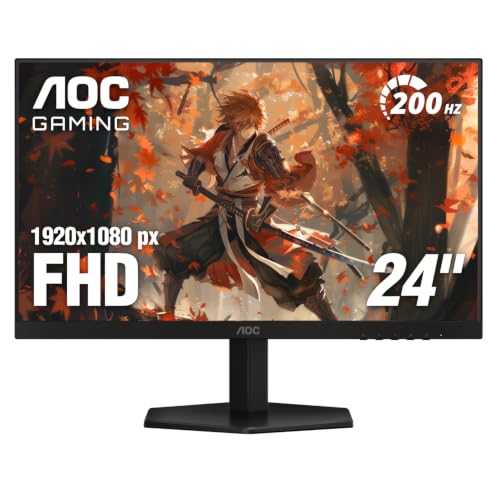
AOC’s talent is delivering the specification people actually need at the price that makes competitors uncomfortable, and the 24G42HE applies it to certified sync. A 24-inch IPS panel at 200Hz with NVIDIA G-Sync Compatible status, HDR10 support and a three-year warranty is a complete sentence in this category: no asterisk where the certification should be, no apology where the refresh rate sits. Two hundred hertz is also a shrewd ceiling. It asks less of your graphics card than 240Hz while feeling decisively faster than 144Hz, which positions this pick at the point where the curve of cost versus sensation bends.
In behaviour, the AOC is the steady middle of this guide. Its sync range covers the territory where 1080p games on sensible hardware live, its IPS panel gives it viewing angles and colour that the old TN route to cheap high refresh never offered, and its overdrive presets follow the sensible pattern of a middle setting doing the real work. The design language is gamer-flavoured without shouting, and the stand and port selection cover a normal desk without surprises, including VESA mounting for arm users and an audio output for tidy cable runs.
There is also a sizing argument in the AOC’s favour that spec tables bury. Twenty-four inches at 1080p is the density competitive players grew up trusting, fine enough that aliasing stays manageable with ordinary anti-aliasing, coarse enough that frame rates stay high. Stepping to 27 inches at this resolution, as some certified rivals invite, spends sharpness to buy immersion, a trade this guide’s curved sibling explores on VA panels. On a fast IPS screen bought for clarity, the AOC’s restraint reads as judgement rather than economy.
The compromises are the expected ones at its level. HDR10 acceptance is a compatibility statement rather than a promise of dramatic HDR pictures, since the panel’s brightness class is mainstream; treat HDR as a bonus for tone mapping, not a feature to buy for. The on-screen menu and control arrangement are functional rather than delightful. And as a certified-compatible panel it shares the tier’s physics: excellent across the realistic range, merely good at the extremes. Judged against its price class rather than against the Predator’s module, those are footnotes, and the 24G42HE is the pick we would hand to a GeForce owner who asked for certified sync without a flagship bill.
- Screen: 24-inch IPS running at 1920 x 1080
- Speed and sync: 200Hz, NVIDIA G-Sync Compatible
- Extras: HDR10 support, earphone output, VESA mount
- Warranty: three-year coverage per AOC listing
Strengths
- Certified sync and 200Hz IPS at a genuinely accessible level.
- The refresh ceiling matches what mid-range cards can sustain.
- Warranty length is generous for the class.
Trade-offs
- HDR is compatibility-grade, not a showcase feature.
- Menus and controls are workmanlike.
- Not the last word in motion clarity beside the 240Hz ASUS.
Best for: value-focused GeForce players who still want the certification, not a hope.
Not suited for: HDR enthusiasts or players determined to run the absolute fastest panel available.

LG UltraGear 24G414B — The 144Hz all-rounder
Not every G-Sync shopper is chasing the highest number, and the 24G414B is built for the large group who want certified smoothness wrapped around ordinary life. Its 24-inch IPS panel runs 144Hz with G-Sync and FreeSync support, HDR10 and a built-in speaker, and LG’s UltraGear tuning tends toward the balanced: colours that flatter games without torching accuracy, overdrive that behaves, and a stand with height adjustment that the budget tier so often skips. This is the pick for the desk that hosts ranked matches on Friday and a spreadsheet on Monday, in a household that might change GPU brands next upgrade and would rather the monitor not care.
LG’s software deserves a mention because it is where this pick quietly outclasses rivals. The LG Switch utility and the on-screen control approach make per-application picture settings and input switching less of a menu-digging exercise, which matters on a shared desk more than another ten hertz would. Reader Mode and the usual eye-comfort settings are present for the work hours. None of this photographs well for a product page, and all of it is felt weekly.
Picture quality is where LG’s panel heritage shows. The 24G414B’s colour presentation avoids the oversaturated showroom tuning that makes games look loud and skin tones strange, and its contrast, while ordinary IPS fare, is stable across the viewing angles a shared desk actually uses. For the buyer whose monitor must also be the household’s photo screen and video display, that steadiness outranks another tier of refresh. The built-in speaker will not start arguments with a soundbar, but for calls, system sounds and casual video it removes a peripheral from the desk entirely.
As a 144Hz panel in a guide containing 240Hz, the LG asks you to be honest about your games and your card. For most players, most of the time, 144Hz with proper sync is the point of diminishing returns, and the money saved against the fastest picks funds things with louder effects on enjoyment, from a better mouse to a second screen. The 24G414B’s case rests on that arithmetic, and its certification means the arithmetic comes with no sync gamble attached.
- Display: IPS at 24 inches, Full HD resolution
- Sync and speed: 144Hz with G-Sync and FreeSync support
- Extras: HDR10, built-in speaker, height-adjustable stand
- Software: LG Switch for per-app picture control
Strengths
- Balanced tuning suits gaming and everyday work equally.
- Height adjustment and a speaker make it a complete desk citizen.
- Dual sync support survives a change of GPU brand.
Trade-offs
- Competitive specialists will want more than 144Hz.
- HDR remains modest at this brightness class.
- Less motion-clarity tooling than the ASUS picks.
Best for: mixed-use GeForce desks that value manners as much as speed.
Not suited for: tournament-focused players shopping purely on refresh ceiling.

LG 24G411A-B — Gentle-refresh dual citizen
The 24G411A-B occupies the most interesting address in this guide: a native 120Hz IPS panel, overclockable to 144Hz, carrying both NVIDIA G-Sync Compatible certification and AMD FreeSync. That combination makes it the diplomat of the list. A GeForce owner gets certified behaviour today; a future Radeon owner, or a second machine with integrated AMD graphics, gets native FreeSync tomorrow; and a console sharing the desk finds refresh modes it can actually use. If your hardware allegiance is genuinely unsettled, this is the screen that refuses to take sides.
Its native rate deserves a defence against spec-sheet snobbery. One hundred and twenty hertz is a doubling of the standard office cadence and sits exactly on the output modes modern consoles and many laptops favour, so in mixed households this panel spends its life at rates its rivals only visit. The overclock to 144Hz exists for the PC sessions that want it. Motion behaviour at these rates, on a 1ms-class IPS panel with mature overdrive, is clean for everyone short of the ranked-grind specialists served by the 240Hz pick, and the colour and viewing angles are pure IPS civility.
One audience should note this pick especially: laptop-first players. A gaming laptop driving an external screen at 1080p often sustains frame rates squarely in this panel’s native band, its HDMI output finds the refresh modes the LG was designed around, and the monitor’s dual sync means the laptop’s brand of graphics, whichever it is, gets variable refresh rather than a fixed cadence. Docking setups expose specifications that desktop towers hide, and this is the pick whose specification was clearly written by someone thinking about them.
The trade is obvious and should be made with open eyes: you are accepting the lowest ceiling among the gaming picks here in exchange for the broadest compatibility. Players whose main title is a fast shooter and whose card can push far past 144 frames will feel the ceiling. Everyone else, including the sizeable group whose systems live between sixty and one hundred and twenty frames, will feel only the smoothness, and will have bought the one monitor in the guide that every device they own can fully use.
- Format: 24-inch IPS, Full HD
- Native pace: 120Hz, with an overclock reaching 144Hz
- Sync: NVIDIA G-Sync Compatible and AMD FreeSync
- Extras: HDR10, LG Switch, tilt stand
Strengths
- Certified for GeForce and native for Radeon in one panel.
- Native 120Hz suits consoles and laptops unusually well.
- The overclock covers PC sessions that want 144Hz.
Trade-offs
- Lowest refresh ceiling of the gaming picks here.
- Stand adjustment is tilt-only.
- Serious esports players should look at the 240Hz ASUS.
Best for: mixed-device households and anyone whose next GPU brand is undecided.
Not suited for: high-refresh specialists who already know their ceiling needs.

ASUS TUF VG249QE5A — Adaptive-Sync, honestly labelled
Here is the pick that explains why this guide exists. The VG249QE5A is a genuinely good 1080p gaming monitor: a 23.8-inch IPS panel at 144Hz, overclockable a touch higher, with ELMB Sync motion-blur reduction, variable overdrive, built-in speakers and ASUS’s three-year warranty culture. What it is not is a G-Sync monitor. Its listing language says Adaptive-Sync, the open standard, and nowhere claims NVIDIA certification. Search engines and shop shelves will nonetheless surface it for G-Sync queries constantly, so it belongs in this guide with its true name on it, because a GeForce card will in practice drive its variable refresh over DisplayPort in the great majority of cases, and buyers deserve to know precisely which promise they are and are not getting.
What you are getting is the panel itself, which is the strongest part of the deal. Fast IPS at this size and rate, with ASUS’s variable overdrive letting you pick a response setting per game, delivers motion that satisfies well beyond its price reputation. ELMB Sync strobing alongside adaptive sync is a feature many certified panels omit. The speakers are desk-useful, the DisplayWidget software spares you the joystick gymnastics for picture changes, and the whole package feels like the mainstream of 1080p gaming because it is.
Context from the wider market sharpens the point. A large fraction of monitors sold for GeForce systems are adaptive-sync panels in this exact position, and the sky has not fallen; forums are full of owners who enabled the driver’s checkbox once and never thought about sync again. The risk profile is real but modest, concentrated at range edges and in panels far cheaper than this one. ASUS’s implementation here, with variable overdrive exposed to the user and a panel fast enough that its presets have little work to do, is close to the best case for the uncertified tier. The review’s insistence on naming is about informed consent, not alarm.
What you are not getting is validation. NVIDIA has not certified this panel’s behaviour with GeForce cards, so its range edges, brightness stability under sync and overdrive manners at low rates are yours to discover rather than a programme’s to guarantee. Most owners will discover nothing alarming. But if the entire reason you typed this keyword into a search box was certainty about sync behaviour, certainty is what the certified picks above sell, and this one, for all its merits, does not. Buy it as an excellent adaptive-sync monitor that a GeForce card will very likely drive happily, never as a G-Sync monitor, and it will not disappoint you.
- Panel: 23.8-inch IPS, 1920 x 1080
- Refresh: 144Hz, overclock to 146Hz, Adaptive-Sync (not G-Sync certified)
- Motion: ELMB Sync, variable overdrive
- Extras: built-in speakers, DisplayWidget Center software
Strengths
- Strong Fast IPS panel with per-game overdrive control.
- ELMB Sync pairs strobing with variable refresh.
- Speakers and software make it an easy desk companion.
Trade-offs
- No NVIDIA certification; GeForce sync behaviour is unvalidated.
- Buyers specifically wanting the G-Sync promise should choose certified picks.
- Refresh ceiling is modest beside the 200Hz and 240Hz models.
Best for: informed buyers happy with adaptive sync who want ASUS panel quality.
Not suited for: anyone whose purchase is specifically the G-Sync guarantee.
How do the six picks stack up on sync, speed and role?
| Pick | Sync truth | Refresh | Role |
|---|---|---|---|
| Acer Predator XB253Q | Native G-Sync module | 240Hz class | Reference standard |
| ASUS VG259QM5A | G-Sync Compatible | 240Hz | Fastest certified |
| AOC 24G42HE | G-Sync Compatible | 200Hz | Certified value |
| LG 24G414B | G-Sync support, FreeSync | 144Hz | All-rounder |
| LG 24G411A-B | G-Sync Compatible, FreeSync | 120Hz, OC 144Hz | Dual citizen |
| ASUS VG249QE5A | Adaptive-Sync only | 144Hz, OC 146Hz | Honest outsider |
Notice what the table does not contain: a loser. The native row wins on mechanism, the certified rows win on the balance of proof and price, the 120Hz row wins on compatibility breadth, and the adaptive-sync row wins on panel value for buyers who understand it. Guides that force a single hierarchy onto genuinely different products teach readers to buy the hierarchy rather than the monitor. The honest hierarchy here is about your own certainty: how much guarantee you need, at which frame rates, for which stable of devices. Answer that and the table sorts itself, which is why the sections above spent so long on the behaviour of sync at the bottom of the range, where the tiers truly separate, instead of on the ceilings, where they mostly converge.
The table is the guide in miniature. Read down the sync column and the prices make sense; read down the refresh column and the audiences separate. The module sits alone at the top because hardware is singular. The certified tier occupies the broad middle where most GeForce owners should shop. The adaptive-sync row is not a booby prize; it is a reminder that the best panel and the best guarantee are different products, and knowing which one you bought is the whole game.
How does sync behaviour change between fast shooters and heavy open worlds?
Esports titles are the easy case for every tier in this guide, which is worth understanding because it explains why certification debates can sound overblown. A well-optimised shooter on a mid-range GeForce card at 1080p produces frame rates in the high hundreds’ neighbourhood or comfortably above two hundred, deep inside any of these panels’ ranges, where tearing vanishes, overdrive presets are operating at the rate they were tuned for, and the difference between a module and a certified scaler narrows to something even sensitive players struggle to name in blind comparisons. If your gaming life is entirely this, buy on panel quality, size and price among the certified picks and never think about sync again.
Open-world and simulation games write the harder exam. Their frame rates wander with scenery density, dipping into the fifties in cities and rising on empty roads, and those dips cross the territory where implementation quality lives. On the native module, variable overdrive keeps pixel transitions matched to the changing rate, so a dip reads as a gentle thickening of motion. On a good certified panel the same dip is nearly as clean, with perhaps a hint of overshoot on the provided presets if the rate falls far below the tuning point. On an uncertified panel this is where brightness flicker near the range floor or a hard judder at the compensation boundary can appear. The games you play most decide which of those sentences describes your evenings, and honest self-knowledge here is worth more than any badge.
Strategy, racing and older titles form the third case: modest frame rates, locked engines, or caps at sixty that make sync almost irrelevant. A panel bought for these should be chosen on colour, size and ergonomics, with certification as a tiebreaker rather than a headline. The all-rounder LG picks exist for exactly this reader, and steering them toward the 240Hz flagship would be a disservice dressed as enthusiasm.
Why did the hardware module exist, and why is certification winning?
The module was born in an era when monitor scalers simply could not vary their timing gracefully, so NVIDIA built its own, and for years the choice was genuinely binary: hardware G-Sync or tearing. The open adaptive-sync standard then arrived inside DisplayPort, panel makers improved their scalers generation by generation, and NVIDIA’s certification programme acknowledged the new reality while keeping a quality floor under its name. Each year the certified tier absorbs more of what the module pioneered, including wide ranges and low-framerate compensation, which is why the practical gap at 1080p has narrowed to the extremes described in this guide.
What the module retains is control. Variable overdrive across the whole range, guaranteed behaviour from the first hertz, and a single accountable designer for the sync experience remain real engineering advantages, visible in the hardest content. What it cannot retain is inevitability: a certified panel costs less, welcomes both GPU brands, and leaves port selection to the monitor maker rather than the module’s constraints. The market has voted accordingly, and the Predator in this guide stands as a reference partly because native 1080p modules have become the connoisseur’s choice rather than the default one.
For a buyer today the history resolves into a simple posture. Treat certification as the baseline promise worth paying for, treat the module as a specialist upgrade with specific benefits you can name, and treat uncertified adaptive sync as a panel purchase whose sync is a probable bonus. That posture, applied to the six picks above, produces exactly the recommendations this guide makes.
How do you get G-Sync running properly once the monitor arrives?
Connection first: use DisplayPort. G-Sync in all its forms was built around DisplayPort, certification testing assumes it, and several of these panels restrict their full sync range or refresh ceiling on HDMI. The cable in the box is fine; third-party cables of sensible length are fine; ancient cables of mysterious origin are the ones that produce the flicker threads filling support forums. In the monitor’s menu, confirm adaptive sync is enabled, since some models ship with it off to keep out-of-box brightness measurements tidy. Then select the panel’s maximum refresh rate in your operating system’s display settings, because a new monitor frequently defaults to 60Hz and a 240Hz screen running at 60 is the saddest silent failure in PC gaming.
In the NVIDIA control panel, the Set up G-SYNC page is where the tiers reunite: certified and native panels appear with validation noted, and uncertified adaptive-sync panels can be enabled manually with a checkbox that carries an honest warning. Enable for full-screen mode unless you specifically play windowed, since windowed sync adds variables. Cap your frame rate a few frames below the panel’s ceiling in the driver or in-game, because variable refresh works inside its range and a game slamming against the top edge falls back to different behaviour at exactly the moments of highest action. That single setting, a cap at 237 on a 240Hz screen, is the difference between a setup that feels engineered and one that feels almost right.
Verify the result before declaring victory, because sync failures are quiet. A swinging-pendulum or scrolling test scene with variable frame rate switched on will show tearing instantly if the chain is broken, and the monitor’s own information page should report a changing refresh rate as the test runs rather than a fixed number. In game, pick a scene where you can pan the camera slowly across vertical structures; tearing announces itself on those edges when sync is inactive. Five minutes of this checking protects you from the commonest disappointment in the category, which is owning a working G-Sync setup for a year while running it as a fixed-refresh screen because one menu defaulted the wrong way.
Overdrive comes last. Use the panel’s middle or recommended preset for a week before experimenting, because variable refresh changes what the right overdrive is at different rates, and certified panels ship presets chosen with that in mind. If you see bright halos trailing moving objects at low frame rates, step the overdrive down rather than up; overshoot is the usual culprit, and it is more visible than the smearing the aggressive modes exist to prevent.
What changes when the GeForce machine is a laptop?
A growing share of 1080p G-Sync shopping is done by laptop owners building a desk around a portable machine, and the details shift in ways desktop advice misses. The first is the output path: many gaming laptops route their external display ports through the discrete GPU, but some route certain ports through the integrated graphics, and variable refresh follows the discrete path. The port that carries G-Sync is usually the USB-C or DisplayPort output wired to the GeForce chip, and the laptop’s documentation, not its spec headline, says which. Plugging a certified monitor into the wrong port and concluding that sync does not work is a rite of passage worth skipping.
The second shift is thermal reality. A laptop’s sustained frame rates at 1080p are set by cooling as much as silicon, so its output wanders more across a long session than a tower’s does, dipping as the chassis heat-soaks. That wandering is precisely the workload variable refresh exists to absorb, which makes certification arguably more valuable to laptop desks than to desktop ones. The dual-sync LG picks shine here again, since a laptop’s port selection and graphics routing vary by brand in ways a forgiving monitor smooths over.
Third, expect the monitor to become the desk’s hub in practice even without a dock: keyboard and mouse live with the screen, the laptop arrives and leaves. A pick with an extra input for a work machine, a stand that holds its aim through daily cable tugs, and speakers that spare the laptop’s own strained units earns its place in this life. Judged that way, the all-rounder picks in this guide are not consolation prizes for the laptop crowd; they are the shortlist, with the 240Hz ASUS reserved for the laptop whose cooling can honestly feed it.
Does HDR change the G-Sync calculation?
Only modestly at this level, and mostly as a vocabulary lesson. Several picks accept HDR10 signals, and Windows and games will offer the toggle, but the panels’ brightness and local-dimming arrangements are mainstream, so HDR renders as a gentler tone curve rather than the highlights-and-shadow drama of a flagship television. Variable refresh and HDR do coexist happily on the certified picks, and enabling both costs nothing in sync behaviour. The mistake to avoid is paying a premium for HDR language on a 1080p gaming panel, or rejecting a good certified screen because its HDR is modest. At this size and price, sync quality, overdrive manners and panel speed remain the hierarchy, with HDR as a pleasant compatibility footnote.
What should a GeForce owner check before choosing between the tiers?
Start with the games and the card, in that order. List the titles you actually play and the frame rates your system honestly sustains in them at 1080p. If that range lives between seventy and one hundred and sixty, every certified pick in this guide will feel superb and the module’s advantages will remain theoretical. If you play demanding games that sag into the forties, or you keep monitors for many years across several cards, the native module’s low-end grace and variable overdrive start earning their premium, and the Predator’s prose-only status becomes a research project rather than a dismissal.
Then check the ecosystem you might join later. A monitor typically outlives two graphics cards. A certified-compatible or dual-sync panel forgives a future brand switch; a native module does not, and neither does it need to if your allegiance is settled. Households with two systems, a GeForce desktop and an AMD laptop, for instance, should weight the dual-citizen LG picks heavily, because a screen that syncs properly with everything in the house removes a category of small daily frictions that never appear in reviews.
Ports and ergonomics finish the checklist. Confirm the DisplayPort version and count match your setup, that a second input exists for the console or laptop that will inevitably arrive, and that the stand adjusts in height or the VESA pattern accepts your arm. Sync gets the headlines, but you will touch the stand and the ports every day, and a certified panel aimed at your chin is still aimed at your chin.
What mistakes do G-Sync shoppers keep making?
The expensive mistake is reading a shop title instead of a specification. G-Sync, G-Sync Compatible and Adaptive-Sync are three different promises sold under increasingly similar marketing, and the difference only appears after purchase, at low frame rates, in the games that dip. The second mistake is its mirror image: dismissing certified-compatible panels as fake G-Sync and overpaying for a module whose advantages your games will never exercise. Both errors come from treating the tiers as a ranking of worth rather than a description of mechanism.
Third, buyers chase the refresh ceiling and ignore the range beneath it, ending with a 240Hz panel whose uncertified sync misbehaves at the sixty frames their card actually produces. Fourth, the HDMI assumption: plugging a new G-Sync screen into HDMI out of habit and never learning what its DisplayPort connection would have unlocked. Fifth, leaving the frame-rate cap unset, then blaming the monitor for the stutter that arrives when frames collide with the ceiling. Each of these is a five-minute fix at setup time and a five-month irritation when skipped.
Final Recommendation
For most GeForce owners reading this guide, the ASUS TUF VG259QM5A is the answer that needs no qualifiers: certified-compatible sync, 240Hz Fast IPS clarity, and dual-ecosystem manners in a verified listing. Step down to the AOC 24G42HE if the budget argues, keeping the certification and surrendering only the last slice of speed, or to LG’s pair if your desk mixes work, consoles and uncertain future GPUs. Keep the Predator XB253Q as the reference it is, worth hunting through channels you trust if the hardware module’s low-end grace matches how your games actually run. And let the VG249QE5A stand as the guide’s closing lesson in miniature: an excellent monitor that never claimed this keyword’s promise, included so you can see the difference with your own eyes before a listing blurs it for you.
Frequently Asked Questions
Is G-Sync Compatible just marketing for FreeSync?
It is more specific than that. Compatible panels use the same open adaptive-sync foundation as FreeSync, but NVIDIA has tested the individual model for range, flicker and artifacts with GeForce cards and certified the result. An uncertified FreeSync panel may behave identically, but certification converts that may into a tested claim.
Do I need a native G-Sync module in 2026?
Most players do not. The module’s remaining advantages, variable overdrive and the most graceful behaviour at very low frame rates, matter in demanding games on systems that dip hard, and to owners who keep screens across many GPU generations. Certified-compatible panels cover the realistic needs of the majority at 1080p.
Will a G-Sync monitor work with an AMD card?
Compatible-tier panels will, because their adaptive sync is the open standard AMD uses, and several picks in this guide carry FreeSync explicitly. Native-module monitors historically do not offer variable refresh to AMD cards, which is the strongest practical argument for the certified tier in mixed households.
Why does my new monitor default to 60Hz?
Operating systems commonly apply a conservative rate to an unfamiliar display. Set the maximum refresh in the display settings, use DisplayPort, and confirm the rate in the monitor’s own information overlay. It is the most common reason a high-refresh purchase feels underwhelming on day one.
Should I cap my frame rate below the monitor’s maximum?
Yes, by a few frames. Variable refresh operates inside its range; a cap just under the ceiling keeps every frame inside it, avoiding the behaviour change that occurs when frames arrive faster than the panel can sync. Drivers and most games offer a limiter, and the setting is effectively free smoothness.
Does G-Sync add input lag?
Properly configured, no meaningful amount. Variable refresh delivers frames as they are ready rather than holding them for a fixed schedule, which is why the technology is favoured in competitive play. The lag horror stories trace back to vertical sync at fixed refresh, a different mechanism entirely, or to frame rates running far outside a panel’s sync range.
Can consoles use these G-Sync monitors?
Consoles use their own variable-refresh implementation over HDMI rather than G-Sync itself. Several picks here, particularly the dual-sync LG models, handle console refresh modes well at 1080p, but check the specific model’s HDMI sync range if console play is a major use.
Related Guides
Compare the other side of the sync divide in our guides to best 1080p freesync monitors curved, best 1080p monitors and best 144 hz ips monitors.