What's inside
- Key Takeaways
- Quick Picks
- How did we choose these picks?
- Why does 1080p still make sense when sharper screens exist?
- Which size and panel type suit a general-purpose desk?
- Which 1080p monitors fit the way you actually live?
- How do the six general-purpose picks compare?
- How does 1080p behave as a second screen or in a pair?
- What about students, dorms and first desks?
- What should you sort out before a 1080p monitor joins the household?
- How do long days at a 1080p screen treat your eyes?
- What does streamed video and everyday media look like at 1080p?
- How do you set up a new 1080p screen for work and play?
- What mistakes do 1080p buyers keep making?
- Final Recommendation
- Frequently Asked Questions
- Related Guides
As an Amazon Associate I earn from qualifying purchases. This post may contain affiliate links at no extra cost to you.
widgetverdict.com is reader-supported. When you buy through links on our site, we may earn an affiliate commission.
Where to buy: every pick in this guide carries a verified Amazon link, covering office, family, student and gaming desks, so the model that fits your life is one click from its listing.
Some resolutions become furniture: bought once, used for everything, thought about never. That is the honourable position of the best 1080p monitors in a market forever gesturing at sharper things, because 1920 by 1080 remains the resolution that every laptop can drive, every console can feed, every ageing desktop can push at high refresh, and every video stream on earth is mastered for. This guide is the broad one on purpose. It compares six verified 1080p screens for the mixed reality most desks actually host: work in the morning, study in the afternoon, games or a film at night, and a budget that would rather be spent once and well.
Because the brief is broad, the picks deliberately disagree with each other. An office-grade Dell with a USB hub and a height stand shares the list with a 144Hz gaming ASUS, a USB-C BenQ built for laptop people sits beside two easygoing 75Hz household screens, and a 120Hz LG covers the console corner. None of them is the best 1080p monitor in the abstract, and the guide will not pretend otherwise. Each is the best answer to a recognisable life, and the sections below are organised to help you find your life in the list rather than to crown a winner you then have to forgive daily.
Key Takeaways
- 1080p endures because everything drives it well: old laptops, consoles, modest graphics cards and every stream.
- At 24 inches the resolution is sharp enough for full-time work; at 27 it trades fineness for size.
- Refresh rate divides the list: 60 and 75Hz for calm desks, 120 and 144Hz for play.
- USB-C and proper stands are the features mixed-use buyers feel most, long after specifications fade.
- IPS is the default panel for shared and varied use; VA earns a place where contrast matters most.
- Every pick here is a verified listing, so the choice is about fit, not about hunting stock.
Quick Picks
| Pick | Badge | Why it earns its place |
|---|---|---|
| Dell P2422H | The office professional | IPS clarity, a five-port USB hub and full ergonomics for people who work at the screen all day. |
| BenQ GW2490C | The laptop person’s hybrid | USB-C single-cable docking with a surprise 144Hz panel for evening play. |
| Dell SE2422HX | The household all-rounder | 75Hz smoothness and easygoing setup for the family desk that does a bit of everything. |
| Dell SE2425H | The film-friendly VA | Deep 3000:1-class contrast for video and evening use on a simple, affordable frame. |
| ASUS TUF VG249QE5A | The gaming-leaning pick | 144Hz IPS pace and motion tools for desks where play outranks paperwork. |
| LG 24G411A-B | The console companion | Native 120Hz that consoles and laptops love, with dual sync for the PC as well. |
How did we choose these picks?
A head-term guide fails when it becomes a gaming guide in disguise, so the selection was quota’d by life rather than by specification. We required an office-first model with real ergonomics and connectivity, a laptop-first model with USB-C, at least one uncomplicated household screen at a gentle refresh rate, a contrast-led option for film lovers, and gaming represented at two intensities rather than five. Any candidate that served only one narrow tribe was sent to the specialist guides elsewhere on this site, several of which are linked at the foot of this page. What survived is a list where the disagreements are the information: if two picks both tempt you, the difference between them is a description of your own priorities.
Verification was uniform: every model below has a confirmed listing in our checked pool, so all six carry links, and the specifications quoted are the manufacturers’ own published figures for those exact models. Where a specification is commonly inflated by marketing, response time being the habitual offender, the reviews say so and move on to the behaviour that matters. Prices are not quoted anywhere in this guide, per house policy, because they move; the picks are ordered by role, and relative value is discussed in words that stay true when a sale ends.
We also weighed the unlisted specifications: how a maker’s support operation treats a dead pixel, whether stands and cables are standard enough to replace from any shop, and how the model behaves at the edges of its warranty. A general-purpose screen is infrastructure, and infrastructure is judged over years. The brands in this list are the ones whose ownership stories, gathered across many models, tend to be boring, and boring is the highest compliment infrastructure can earn.
Size discipline shaped the list too. All six picks sit at 24 inches or a breath under, because at 1080p that is the size where the resolution and the typical desk agree with each other. Twenty-seven-inch 1080p screens exist and serve console-distance setups well, but for a general guide the sharper 24-inch class is the defensible default, and the buying sections below explain the maths plainly enough for you to overrule it knowingly if your seating says otherwise.
Why does 1080p still make sense when sharper screens exist?
Begin with the arithmetic of driving pixels. A 1440p screen asks a graphics card to shade roughly seventy percent more pixels per frame than 1080p, and a 4K screen asks for four times as many. Hardware that delivers a glorious 120 frames per second at 1080p manages perhaps seventy at 1440p and thirty-five at 4K, which is why the resolution question is secretly a frame-rate question. For gaming, smoothness usually beats sharpness in the experience itself; for work, the calculus reverses only if your eyes and your window management genuinely exploit the extra space. Most mixed desks, honestly audited, do neither consistently, and 1080p collects the winnings by default.
Compatibility is the second argument, and it is unglamorous enough to be decisive. Every device in a normal household speaks 1080p fluently: the work laptop from three job changes ago, the console, the streaming stick, the Raspberry Pi project, the guest’s machine. A 1080p monitor never needs scaling apologies, never renders a legacy device’s output as a soft guess, and never makes text in an old application look like it was photographed through water. Newer resolutions are better in the specific ways their advocates list. This one is better at never being the problem.
There is also an environmental and logistical modesty to the resolution that suits the times. A 24-inch 1080p panel is light enough to move between rooms and houses without planning, sips power compared with larger sharper screens, and arrives in packaging one person can handle on stairs. These are not specifications anyone searches for, and they are the texture of ownership for a decade. The glamorous resolutions ask for stronger desks, stronger graphics cards and stronger people to carry the box; this one asks for a shelf and an afternoon.
Cost completes the case, provided it is spent correctly. The money not spent chasing pixels buys the things this guide keeps returning to: a stand that adjusts, a panel with honest colour, a USB-C port that declutters a laptop desk, a warranty from a maker who answers. A well-chosen 1080p screen is not a compromise purchase. It is a decision to allocate the budget to the parts of a monitor you touch and see every hour, rather than to a pixel count you can only verify by leaning in.
Which size and panel type suit a general-purpose desk?
Pixel density is the whole science here, and it reduces to one comparison. At 24 inches, 1080p yields a pixel pitch fine enough that text looks formed rather than assembled, icons have clean edges, and you must lean close with intent to see the grid. At 27 inches the same pixels stretch, and the grid becomes a texture visible in documents and strategy-game interfaces. Neither is unusable; the question is where your eyes spend their hours. Readers and writers should hold at 24. Viewers and players seated a little farther back can enjoy 27 and its cinema manners, accepting the coarser desktop as the toll.
Panel technology then divides by temperament. IPS, which powers five of these six picks, offers stable colour from off-centre angles, making it the natural choice for a screen that gets shared, glanced at from the side, or used standing at a kitchen counter of a desk. Its blacks are more charcoal than pitch, the tax you pay at night. VA, represented by the Dell SE2425H, inverts the bargain: contrast several times deeper, blacks that make films look expensive, and a narrower cone of best behaviour that asks the viewer to sit in the seat the screen was aimed at. For a personal evening screen, VA’s bargain is often the better one. For a family screen, IPS’s forgiveness usually wins, which is why the list weights it so heavily.
Refresh rate, finally, should be bought in the size of your actual appetite. Sixty and seventy-five hertz screens feel identical in documents and differ slightly in scrolling smoothness, with 75Hz a gentle upgrade that costs little. The jump to 120 or 144Hz is the one you feel in games and, once felt, cannot unfeel in fast scrolling either. Mixed desks that game weekly should buy into the higher band and enjoy it everywhere; desks that game monthly are paying for a sensation they will rarely invoice, and the calmer picks will serve them with money left over.
Which 1080p monitors fit the way you actually live?

Dell P2422H — The office professional
The P2422H is the pick for the reader whose monitor is a workplace. Dell’s P-series formula is deliberately unexciting and quietly excellent: a 24-inch IPS panel with accurate sRGB-class colour, a stand that adjusts in height, tilt, swivel and pivot, and a five-port USB hub that turns the screen into the desk’s docking point for keyboard, mouse, webcam and the drive that never has a home. Sixty hertz is the specification that will make gamers scroll past, and for this pick’s audience it is the correct specification, because the money lives in the ergonomics and the hub instead of in refresh they would never invoice.
Days spent in documents are where this monitor argues its case. The IPS panel keeps text contrast stable as you shift in your chair, the anti-glare surface handles office lighting without turning the screen into a mirror, and the height adjustment means the top of the panel can sit exactly where your neck wants it, a sentence that sounds trivial until you have worked a year at a screen that sat two inches too low. Pivot matters more than expected too: long documents, code and social feeds all read better in portrait, and a stand that rotates in seconds gets used, while one that needs tools does not.
There is a procurement argument for this Dell that home buyers can borrow from offices: standardisation. A P-series screen bought today can be matched by an identical unit in two years for a dual-screen desk, its cables and mounts are the industry defaults, and its documentation assumes a professional reader. Home offices increasingly live for a decade, and a monitor chosen from a business line ages inside an ecosystem that expects longevity, from replacement stands to firmware notes. That institutional dullness is, in practice, a consumer benefit.
As an evening screen it is respectable rather than thrilling. Video looks clean and colour-honest, casual games run happily at its rate, and the USB hub keeps a console-adjacent laptop life tidy. What it will not do is flatter fast games or deep-black cinema. Buy it as the professional tool it is, and its decade of unglamorous competence will out-earn any gaming feature it skipped.
- Display: 24-inch IPS, Full HD, 60Hz
- Colour: 99% sRGB-class coverage per Dell listing
- Connectivity: DisplayPort, HDMI, VGA, five USB ports
- Stand: height, tilt, swivel and pivot adjustment
Strengths
- Ergonomics and hub connectivity are best in this guide.
- Colour accuracy suits document and light creative work.
- Dell’s P-series ownership culture is businesslike and dependable.
Trade-offs
- Sixty hertz leaves fast gaming flat.
- No USB-C, so laptop users need a cable or dock for video.
- Design is office-plain by intention.
Best for: full-time desk workers and anyone building a tidy, ergonomic home office.
Not suited for: players who game more than they type.
BenQ GW2490C — The laptop person’s hybrid
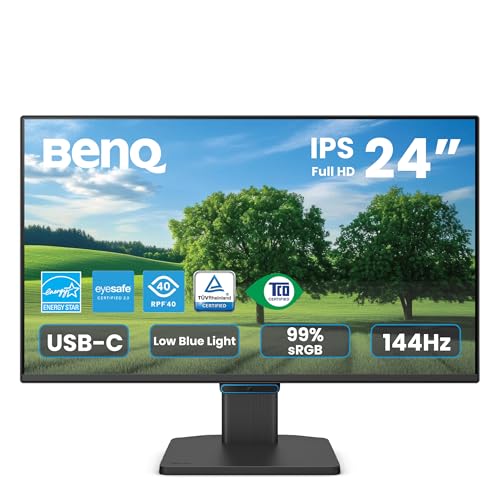
One cable is the fantasy, and the GW2490C is the pick that delivers it in this guide. Its USB-C input carries video from a laptop while the screen’s other ports handle the rest of the desk, so arriving home becomes a single plug rather than a ritual. Then the surprise: behind the home-office manners sits a 144Hz IPS panel, which makes this the rare hybrid that does not ask you to choose between a civilised workday and a properly smooth evening. BenQ labels it game-ready almost shyly. Played on, it is simply ready.
BenQ’s long-running eye-care preoccupation is the other half of the character. Flicker-free backlighting and low-blue-light modes are present without turning the picture into soup, and the company’s Visual Optimizer approach adjusts settings by content type for people who will never open a calibration menu. On a hybrid desk this matters more than peak specifications, because the screen serves documents at noon and dialogue-heavy games at nine, and a monitor that is gentle in both shifts gets kept.
Consider also what the hybrid does to a small room. A laptop desk with a dock, two cables for power and video, and a separate screen’s worth of adapters is a desk that migrates; items creep, cables tangle, the setup slowly becomes a place you tolerate. The BenQ’s single-cable arrival keeps the surface minimal enough to double as a writing desk or a dining table in a studio flat, which is not a specification at all and is, for many buyers under thirty, the actual purchase reason. Products that respect small spaces earn loyalty that refresh rates cannot buy.
The compromises are proportionate. The stand is a simpler affair than the Dell P-series offers, the speakers are for voices rather than music, and the gaming extras stop at the panel’s pace rather than extending to strobing and elaborate overlays. None of that dents the central proposition, which is the strongest in this guide for the laptop generation: one screen, one cable, no apology in either direction of the day.
- Display: 23.8-inch IPS, Full HD, 144Hz
- Connectivity: USB-C with display input, HDMI class ports
- Eye care: flicker-free, low blue light, Visual Optimizer modes
- Design: slim-bezel home-office styling
Strengths
- USB-C single-cable laptop life with a genuinely fast panel.
- Eye-comfort engineering suits long mixed days.
- The 144Hz rate makes it the hybrid with no evening asterisk.
Trade-offs
- Stand adjustment is simpler than the office Dell’s.
- Speakers cover speech, not entertainment.
- Gaming tooling is minimal beyond the panel itself.
Best for: laptop-first workers who game on the same screen after hours.
Not suited for: multi-device desks needing a full USB hub and every legacy port.

Dell SE2422HX — The household all-rounder
Some screens are bought by a household rather than a person, and the SE2422HX is designed for that committee. A 24-inch panel at 75Hz with FreeSync support, ComfortView low-blue-light tuning and an anti-glare finish, it asks nothing of its users: no menus to master, no modes to select, no stand ritual beyond tilting it roughly level. Homework, browsing, streaming, the occasional game and the video call with grandparents all pass across it without incident, which for a family desk is not a low bar but the entire job description.
The 75Hz rate is its quiet distinction. Beside a 60Hz screen the difference is a slight oiling of every motion, scrolling, window dragging, casual games, and beside a 144Hz screen it is obviously calmer, but the household that buys this monitor is not comparison-shopping against esports gear. It is replacing a television-adjacent old panel or a laptop screen that has become too small for a growing student’s work, and against those predecessors the SE2422HX feels like a revelation purchased sensibly.
Durability of relationships matters in this slot too. A family screen gets its stand bumped, its bezel wiped with whatever cloth is nearest, and its settings changed by curious hands. The SE2422HX’s simplicity is armour: there is little to misconfigure, the controls are hard to lose, and the picture returns to sensible at a button press or two. Screens with elaborate gaming menus suffer in households; this one’s plainness is a design decision the whole family benefits from without ever knowing it was made.
FreeSync support earns its mention for the household PC that games lightly: when the family machine’s graphics are integrated or elderly, variable refresh smooths exactly the uneven frame rates such hardware produces. The VA-versus-IPS question resolves here toward easy viewing and Dell’s comfort tuning. Keep expectations at the level the design sets, a dependable screen for everything a household does at a desk, and it will meet them for years without ever being discussed, which is the highest praise family technology can earn.
- Display: 24-inch class, Full HD, 75Hz
- Sync: AMD FreeSync support
- Comfort: ComfortView low-blue-light, anti-glare coating
- Setup: simple tilt stand, quick assembly
Strengths
- Effortless setup and manners for shared family use.
- The 75Hz rate smooths everyday motion noticeably over 60Hz.
- FreeSync helps modest household PCs game more smoothly.
Trade-offs
- No height adjustment or hub connectivity.
- Serious gaming and colour-critical work outgrow it.
- Feature set is intentionally minimal.
Best for: family desks, students and second screens that must simply work.
Not suited for: enthusiasts who enjoy tuning a display to their games.

Dell SE2425H — The film-friendly VA
Every general list needs the pick that breaks its own pattern for a good reason, and the SE2425H breaks the IPS pattern for contrast. Its VA panel delivers blacks in a different league from the IPS models here, with a contrast figure in the 3000:1 class, so films and evening video gain the depth that makes a modest screen feel cinematic. At 75Hz with ComfortView Plus tuning, it is otherwise a calm household monitor in the same spirit as its SE sibling above, differing mainly in what it does when the lights go down and the content turns to shadow.
The viewing-angle tax is the honest counterweight. VA’s contrast is a centred-seat pleasure; move well off axis and the picture’s gamma shifts in the familiar way. In a family arrangement where the screen is watched from one chair and a sofa edge, that tax is mild. In a kitchen-counter setup glanced at from everywhere, the IPS picks forgive more. The SE2425H therefore suits the personal evening desk, the bedroom screen, the second monitor that becomes the film monitor after dark, roles where one viewer sits where the screen expects them.
Bedroom use sharpens one more advantage: brightness behaviour at the low end. Evening viewers run screens dim, and VA panels hold their contrast character as brightness falls, where some IPS screens turn murky-grey in the shadows precisely when the room is darkest. For the film-at-midnight audience this pick serves, that low-brightness integrity is the difference between a screen that feels like a small cinema and one that feels like a laptop with ambitions. Pair it with the room’s lamp off and a streaming queue, and the modest specification list becomes irrelevant to the experience delivered.
Everything else is Dell SE-series civility: anti-glare surface, tilt stand, HDMI and even VGA for the legacy box in the cupboard. It will not excite a gamer or impress a colourist, and it is not trying to. It is the answer to a specific sentence we hear often, that the screen is mostly for video at night, and for that sentence it is the best-fitting pick in this guide.
- Display: 24-inch VA, Full HD, 75Hz
- Contrast: 3000:1 class, the deepest in this guide
- Comfort: ComfortView Plus low-blue-light tuning
- Connections: HDMI and VGA
Strengths
- Film and evening video look richer than on any IPS pick here.
- Simple, affordable route to a big contrast upgrade.
- Legacy VGA keeps old hardware welcome.
Trade-offs
- Off-centre viewing softens the contrast advantage.
- No gaming pace beyond the gentle 75Hz.
- Stand and connectivity are basic.
Best for: evening viewers, bedroom screens and film-first second monitors.
Not suited for: wide shared viewing or fast-paced gaming.

ASUS TUF VG249QE5A — The gaming-leaning pick
For the mixed desk where play is the senior partner, the VG249QE5A is the guide’s gaming representative, and it earns the role with a 144Hz IPS panel rather than with decoration. IPS matters in this slot: the same screen that runs shooters at pace on Friday must show documents and video honestly on Monday, and this panel’s viewing angles and colour stability handle the double life better than a gaming TN would. ELMB Sync motion-blur reduction, variable overdrive and built-in speakers complete a package tuned by ASUS’s TUF line for durability and sense.
The gaming behaviour is the genuine article at its level. Motion at 144Hz with well-chosen overdrive is clean enough that the screen disappears into the game, adaptive sync smooths the dips of a mid-range card, and the 23.8-inch size keeps the whole field in sharp view for competitive titles. DisplayWidget software moves the settings you actually change into the operating system, sparing you the rear-joystick archaeology that makes most monitor menus a write-only medium.
It also deserves credit for what it refuses to do. There is no RGB theatre, no spaceship stand, no attempt to charge for a gaming silhouette, because the TUF line’s premise is durability over drama. In a general guide that restraint matters: many mixed desks live in shared rooms where a shouty gaming aesthetic would be negotiated daily. The VG249QE5A can sit in a living room or a parent’s study without starting conversations, while delivering pace none of its neighbours here can match. Stealth, in this category, is a feature.
Against the calmer picks, the trades are a simpler stand than the office Dell, no USB-C docking story for laptop people, and a design accent that leans gamer without shouting. In exchange you get the only pick here whose ceiling a keen player will not immediately hit. Desks are compromises with furniture; if yours leans toward play, this is the lean to buy.
- Display: 23.8-inch IPS, Full HD
- Pace: 144Hz, overclock to 146Hz, Adaptive-Sync
- Motion tools: ELMB Sync, variable overdrive
- Extras: built-in speakers, DisplayWidget Center
Strengths
- Real gaming pace with IPS civility for daytime use.
- Motion-blur reduction that coexists with adaptive sync.
- Software control makes settings painless to adjust.
Trade-offs
- No USB-C for single-cable laptop desks.
- Stand ergonomics trail the office-focused Dell.
- Office purists may find the styling busy.
Best for: gaming-first mixed desks and keen players on sensible budgets.
Not suited for: laptop minimalists or hub-hungry office setups.

LG 24G411A-B — The console companion
Consoles changed the monitor conversation by adopting 120Hz output modes, and the 24G411A-B is the pick in this guide built exactly on that fault line. Its IPS panel runs 120Hz natively, the rate current consoles and many laptops actually request, and overclocks to 144Hz when a PC wants the extra. Add G-Sync Compatible certification and FreeSync in the same panel and you have the rare screen that every device in a mixed household can fully exploit, which is a more useful superpower than any single specification in this roundup.
On the PC side it behaves as a civilised fast IPS: clean motion, honest colour, LG’s Switch software for per-application settings, and sync manners certified for GeForce and native for Radeon. On the console side it simply accepts the high-refresh modes that 60Hz screens refuse and 144Hz screens sometimes handle awkwardly, delivering the smoother performance modes as their makers intended. For a student desk or a bedroom setup where one screen serves a console, a laptop and a desktop in rotation, that universality collapses three purchasing problems into one.
Resale and hand-me-down value quietly favour this LG as well. A screen that syncs with both GPU brands, accepts console high-refresh modes and docks happily with laptops is a screen that fits the next owner’s life too, whether that is a younger sibling’s first desk or a spare-room setup. General-purpose purchases are often really two purchases separated by years, and breadth is what survives the handover. Specialists depreciate into their niche; all-rounders just move rooms.
The ceiling is the compromise, as it is in the sync-focused guide where this model also appears: committed PC competitors will outgrow 120 to 144Hz and should take the ASUS above or the specialist guides beyond it. But as the general-purpose pick for device-rich households, the LG’s breadth beats depth. It is the monitor least likely to be the wrong answer to any question your hardware asks it this year.
- Display: 24-inch IPS, Full HD
- Pace: 120Hz native, overclock to 144Hz
- Sync: G-Sync Compatible and AMD FreeSync
- Extras: HDR10 support, LG Switch software
Strengths
- Native 120Hz matches consoles and laptops perfectly.
- Dual sync certification covers both GPU brands.
- One screen genuinely serves every device in the house.
Trade-offs
- Dedicated competitors will want a higher ceiling.
- Tilt-focused stand rather than full ergonomics.
- HDR is compatibility-grade at this class.
Best for: console-plus-PC households, students and device collectors.
Not suited for: single-purpose esports rigs chasing maximum refresh.
How do the six general-purpose picks compare?
| Pick | Panel and pace | Standout feature | Natural home |
|---|---|---|---|
| Dell P2422H | IPS, 60Hz | USB hub and full ergonomics | Home office |
| BenQ GW2490C | IPS, 144Hz | USB-C one-cable docking | Laptop hybrid desk |
| Dell SE2422HX | 24-inch, 75Hz | Effortless family manners | Shared household desk |
| Dell SE2425H | VA, 75Hz | Deep contrast | Evening film screen |
| ASUS VG249QE5A | IPS, 144Hz | Gaming pace and ELMB Sync | Play-first mixed desk |
| LG 24G411A-B | IPS, 120Hz | Dual sync, console fluency | Multi-device setup |
Two patterns in the table repay a second look. First, the gentle-refresh screens cluster around simplicity: fewer ports, simpler stands, calmer ambitions, and their prices reflect a philosophy that a household screen should be bought like a kettle, researched briefly and used for years. Second, the two 144Hz screens reach their pace by opposite roads, the BenQ arriving from the office with gaming as a gift, the ASUS arriving from gaming with office civility as its discipline. That two manufacturers converged on the same specification from opposite directions is the strongest evidence in this guide that the mixed desk is now the market’s centre of gravity, and that a buyer today is choosing among philosophies rather than among compromises.
The table’s lesson is that general-purpose is not a specification but a biography. Two of these screens share a refresh rate and nothing else; two share a brand and serve opposite evenings. Choose by the row whose natural home resembles yours, and the specifications will take care of themselves, because each pick’s numbers were chosen by its maker for exactly that home.
How does 1080p behave as a second screen or in a pair?
Many 1080p monitors are bought not as the desk’s monarch but as its second citizen, and the role has its own criteria. A second screen lives at an angle, which rewards IPS viewing stability and punishes VA’s off-centre shift whenever it carries reference material you glance at sideways. It also lives at a different height unless someone plans carefully, so a height-adjustable stand or a shared arm system matters more than in solo setups. The Dell P2422H, with its full ergonomic repertoire and hub, is the natural second-screen citizen here; the tilt-only picks can serve, but they ask the desk to adapt to them rather than the reverse.
Matching pairs deserve a warning drawn from experience: two different 1080p panels side by side will never quite agree on white, and the disagreement nags at exactly the moment you drag a window across the seam. If a pair is the plan, buy two of the same model, ideally in the same order, and calibrate them together once. If the second screen is an afterthought years later, accept the mismatch philosophically and assign roles by strength, main screen for colour-sensitive work, second for communication and reference, rather than chasing an agreement the hardware cannot reach.
There is also a refresh-rate subtlety in mixed pairs. A 144Hz main screen beside a 60Hz second screen is a common and happy arrangement for games on one and chat on the other, but window dragging between them will always reveal the difference, and some users find the contrast more annoying than a matched slower pair. Sample your own sensitivity if you can; the annoyance is personal, not technical, and no review can settle it for you.
What about students, dorms and first desks?
The student case compresses every theme in this guide into one small room. The screen must dock a laptop for essays, accept a console for the evening, survive being moved twice a year, and fit a desk that may be ninety centimetres wide. By those criteria the hybrid BenQ and the console-fluent LG divide the student vote between them: the BenQ for the laptop-centric scholar whose gaming is PC-based, the LG for the console household in miniature. The household Dells serve the younger student at home, where the desk is permanent and the budget is a parent’s, and where simple setup is worth more than any refresh figure.
Portability between terms argues for one more consideration: weight and stand design. Screens whose stands detach without tools and whose boxes survive storage are the ones that make the journey intact. Keep the packaging of whichever pick you choose, a boring sentence that has saved more student monitors than any warranty, and photograph the cable arrangement before the first teardown, because the desk you rebuild in September will not remember what July knew.
What should you sort out before a 1080p monitor joins the household?
Count the devices first, because ports are destiny. A desktop, a laptop and a console is three inputs, and a monitor with two will create a cable-swapping ritual that someone in the house will resent weekly. List every machine that will ever plug in, including the streaming stick and the work laptop that visits on Fridays, then buy the input count that covers the list with one spare. While counting, note which devices speak USB-C video, since that single fact moves the BenQ to the top of many shortlists, and which elderly machine still needs VGA, which quietly keeps the office Dell and the VA Dell in contention.
Then measure the desk and the chair’s relationship to it. A 24-inch screen wants roughly an arm’s length of viewing distance; much closer and the panel fills too much of your visual field for document work, much farther and text shrinks toward squinting. Height matters as much as distance: the top bezel should sit near eye level, which is an argument for the height-adjustable Dell or for budgeting a monitor arm alongside the tilt-only picks. Arms are the great equaliser of this category, converting any VESA-ready screen into an ergonomic one, and every pick here accepts that upgrade path.
Power and heat belong on the audit for small rooms. A 24-inch screen of this class draws modest power and radiates little heat, but a summer bedroom notices every watt, and a screen that sleeps properly when the computer does is worth more than its standby figure suggests. Check that the pick’s sleep behaviour cooperates with your machines, particularly with consoles and streaming sticks that wake displays at odd hours, and teach the household where the power button lives before the first midnight glow incident makes the lesson urgent.
Sound and light finish the audit. If the screen will carry video calls and evening viewing without external speakers, prefer the picks with built-in audio and accept their modesty. If the desk faces a window, anti-glare finishes, which all six picks wear, still benefit from a blind or a repositioned lamp. None of this is shopping, exactly; it is the difference between a monitor that fits a life and one that spends years being worked around.
How do long days at a 1080p screen treat your eyes?
Eye comfort is a system, not a feature, and the monitor is only one component. The flicker-free backlights fitted across this class remove one historical irritant entirely, and low-blue-light modes, ComfortView and Eye Care under their various brand names, warm the picture for evening sessions in ways many readers find genuinely restful. But the larger shares of comfort come from geometry and light: a screen at the right height so the neck stays neutral, brightness matched to the room so your pupils are not mediating between a beacon and a cave, and a bias toward sitting back rather than leaning in as the day lengthens. Any pick in this guide can be comfortable inside a sane setup; the most expensive panel in the world cannot rescue a bad one.
Text rendering deserves its paragraph because office hours are text hours. At 24 inches, 1080p gives operating-system text scaling a comfortable native canvas: one hundred percent scaling is legible without being coarse, documents show a full page with margins, and spreadsheets hold a useful number of columns. Readers who scale text up for comfort lose some of that spaciousness but gain smoothness, since modern systems render scaled text cleanly at this density. If your eyes need large text all day, the honest conclusion is that a bigger screen at the same resolution, accepting the coarser grid, or a sharper resolution entirely, may serve you better than any pick here, and a guide’s job includes pointing beyond its own list when the list stops fitting.
Breaks, finally, are the unpatentable feature. The screen cannot take them for you, but a setup that encourages them, a window in view, a kettle at a distance, a second screen far enough to shift focus, does more for tired eyes than any panel technology. Buy the monitor for its picture and its manners; build the comfort yourself around it.
What does streamed video and everyday media look like at 1080p?
It looks like what it was made for, which is the shortest honest answer in this guide. Streaming services master their standard tiers at 1080p, broadcast material is built around it, and the compression artefacts that do appear belong to the stream rather than the screen. A good 1080p panel shows that material natively, pixel for pixel, with no scaling guesswork softening faces or banding skies. The VA Dell adds its contrast to night scenes; the IPS picks add their stability for viewers seated around the desk. Either way, the screen is not the limiting factor in the chain, and will not be until your streaming habits change resolution, at which point the honest upgrade conversation can happen with evidence in hand.
Photographs are the one everyday medium that out-resolves the screen immediately, since any modern phone captures far more detail than 1920 by 1080 can show at once. For viewing and sharing, downscaling is invisible and kind. For editing, the resolution asks you to zoom to inspect detail, a workflow every photographer on a budget has used for decades, and the colour honesty of the IPS picks matters more to the result than the pixel count. Creators for whom editing is the main job should read this guide as a second-screen catalogue and put their primary money into a sharper, colour-led panel; everyone else can stop worrying, because the family archive will look exactly as good as it should.
How do you set up a new 1080p screen for work and play?
Start with the refresh rate, because it is the setting most often left wrong. New monitors frequently arrive running at 60Hz in the operating system’s display settings regardless of their capability, and the difference between the BenQ or ASUS at 60 and at 144 is the entire reason they were bought. Set the maximum rate, enable adaptive sync in the monitor’s menu and your graphics settings where applicable, and confirm on the monitor’s information screen that the number you chose is the number being delivered.
Colour and brightness come next, and restraint is the method. Choose the standard or sRGB-oriented preset rather than the vivid showroom mode, set brightness for the room’s evening state rather than its noon glare, and resist the calibration rabbit hole unless your work is colour-critical, in which case the office Dell’s accuracy is your starting point and a hardware calibrator is a separate, worthwhile purchase. For shared screens, agree on one preset as the household standard; a monitor whose picture changes with every user teaches everyone to stop trusting it.
Households with several users should also settle the question of profiles early. Some of these screens remember settings per input, which conveniently maps to per-person machines; others hold one global picture that the whole family shares. Either arrangement works when it is chosen deliberately. What fails is the slow drift of a shared screen whose brightness and colour temperature wander with whoever touched it last, until nobody trusts the picture and everyone blames the panel. Pick the household preset, write the settings on a card taped inside a drawer if memories differ, and let the monitor go back to being furniture in the best sense: present, useful and un-discussed.
Finally, organise the physical layer once and properly. Route cables with slack, label the inputs in the monitor’s menu if it allows renaming, and put the screen’s second input to work rather than leaving the laptop on a cable draped across the desk. A general-purpose monitor earns the title in these small arrangements, and an hour spent on them returns itself every week for the life of the screen.
What mistakes do 1080p buyers keep making?
The commonest is buying the resolution argument instead of the monitor: choosing 1080p apologetically and then skimping on stand, panel and ports, as if a sensible resolution excused a miserable screen. It does not; the picks here show how much quality the resolution’s savings can fund. The second mistake is the opposite snobbery, paying for a sharper panel than the household’s hardware can feed and then running it scaled or at low frame rates, which looks worse than honest 1080p ever does.
Third, shoppers ignore the stand until the neck ache arrives, forgetting that a tilt-only screen at the wrong height is a daily tax no specification repays. Fourth, gaming features get bought for desks that game twice a month, while USB-C and hubs, the features mixed desks touch daily, get treated as luxuries. Fifth, the second-device problem: nobody counts the console, the partner’s laptop or the streaming stick until the input shortage becomes a household negotiation. Every one of these mistakes is visible in advance from the chair you are sitting in now, which is where this guide suggests all monitor shopping should start.
Final Recommendation
If your desk has a single defining activity, the list sorts itself: the Dell P2422H for work, the ASUS for play, the LG for a console-centred life, the VA Dell for films after dark. For the genuinely mixed desk this keyword usually describes, the BenQ GW2490C is the recommendation we would defend in an argument, because its USB-C docking and 144Hz panel dissolve the work-versus-play choice that defines the category, and a monitor that never asks you to pick a side fits the way most people actually use one. Buy the screen your week describes, not the one a specification sheet flatters, and 1080p will repay you the way it has repaid a decade of sensible desks: by never being the thing you have to think about.
Frequently Asked Questions
Is 1080p enough for a 27-inch monitor?
It depends on distance and duty. For console-style viewing and games from a relaxed distance, 27-inch 1080p is perfectly enjoyable. For full-time document work at a normal desk distance, the pixel grid becomes visible and tiring, which is why this guide’s picks concentrate at 24 inches, where the resolution stays crisp for text.
Will a 1440p monitor make my 1080p content look bad?
Scaled content is handled well by modern systems, but native is always cleanest, and games must either render at the higher resolution, costing frame rate, or upscale, costing sharpness. A household whose devices and games are built around 1080p loses nothing by matching the screen to the content.
How long should a 1080p monitor last?
Physically, many years; panels and backlights in this class are mature and durable. The practical limit is connectivity and your own hardware’s evolution. Choosing a pick with the inputs your next devices will need, USB-C being the current example, extends the useful life more than any specification on the box.
Do I need FreeSync or G-Sync on a general-purpose screen?
Only if games are part of the screen’s life, and then it is genuinely valuable on modest hardware, where frame rates wander. For pure office and video use, sync is irrelevant and the money is better spent on ergonomics and connectivity, which is how the office picks in this guide allocate it.
Should a second-hand 1080p monitor be considered?
Often, yes. This class is mature, durable and plentiful on the used market, and a business-line model like the Dell P-series makes an especially safe second-hand buy. Check for dead pixels, backlight uniformity on a dark screen, and that the stand and cables are included, since missing proprietary-looking parts are where used bargains quietly stop being bargains.
Is USB-C worth prioritising?
For laptop users, emphatically yes: one cable for video and desk connection changes daily habits, not just specifications. For fixed desktop setups it is a nice-to-have that may matter at the next machine change. Judge it by the devices you own, not by fashion.
What is the difference between the two Dell SE models and the Dell P model?
Positioning. The P-series is Dell’s professional line: better stands, more ports, a USB hub and colour aimed at work, at 60Hz. The SE models are the home line: simpler stands and connectivity, gentle 75Hz rates, and in the SE2425H a VA panel for film lovers. Households should buy the SE that matches their evenings; professionals should buy the P and enjoy the ergonomics daily.
Can one monitor really serve work and gaming?
Yes, and this guide’s hybrid picks exist to prove it. The requirements are a fast IPS panel, honest colour and connectivity for both lives. What a single screen cannot do is be simultaneously the best office instrument and the best esports instrument; it can, however, be very good at both, which is what most desks need.
Related Guides
Narrow the search with our specialist guides to best 1080p gsync monitors, best 1080p pro gaming monitors and best 120 hertz monitors.


[…] the other side of the sync divide in our guides to best 1080p freesync monitors curved, best 1080p monitors and best 144 hz ips […]