What's inside
- Key Takeaways
- Quick Picks
- How We Chose These Picks
- The Dedicated Sticker Machines, in Prose
- Comparison Table
- How Does Print Then Cut Actually Work, Step by Step?
- Which Materials Should You Test in the First Week?
- How Do You Keep Registration Accurate Over Time?
- How Do You Price and Package Print Then Cut Products Sensibly?
- What Other Print Then Cut Projects Should a New Owner Try?
- How Should the Craft Room Itself Be Arranged for This Workflow?
- How Do You Troubleshoot a Sheet the Maker Refuses to Read?
- Common Mistakes Maker 3 Owners Make With Printers
- Final Recommendation
- Frequently Asked Questions
- Related Guides
As an Amazon Associate I earn from qualifying purchases. This post may contain affiliate links at no extra cost to you.
widgetverdict.com is reader-supported. When you buy through links on our site, we may earn an affiliate commission.
The best printers for cricut maker 3 owners are not really printers for the Maker 3 at all — they are printers for the Maker 3’s Print Then Cut workflow, and understanding that distinction is the whole guide. In Print Then Cut, the inkjet prints your design inside a frame of registration marks; the Maker 3’s sensor then reads those marks and cuts around the design with a precision your hands could never match. The printer’s half of that duet has specific demands: it must print the marks crisply on the matte materials stickers and labels use, feed those materials without skewing them, and lay colour down evenly enough that a cut sticker looks like a bought one.
That brief rearranges the usual printer priorities. Photo gloss performance — the headline talent of half the machines here — matters less than matte media handling, because sticker paper, matte vinyl and label stock are the Print Then Cut diet. Borderless printing matters in a specific way: designs that bleed to a sheet’s edge need it, while standard sticker sheets with margins do not. Feed reliability on slightly stiff, coated media matters most of all, because a skewed sheet wastes the print and the material in one motion, and the Maker cannot rescue a registration frame that arrived crooked.
Six inkjets from Canon, Epson and HP make the shortlist, each judged on the Print Then Cut brief first and its general talents second. A prose section at the end covers the dedicated sticker printer-cutters — the Liene PixCut S1 and Cricut’s own StickerPix Print approach — which solve the same problem in one box and suit a narrower set of crafters than the inkjet route most Maker 3 owners should take.
Key Takeaways
- Print Then Cut lives or dies on registration marks: crisp marks on matte media matter more than glossy photo brilliance.
- Canon’s PIXMA TS6420a states 4800 × 1200 dpi and auto 2-sided printing in its title — a sharp, economical sticker partner.
- Epson’s XP-8800 brings a 6-colour photo engine; the XP-7100 and XP-6100 bring 5-colour printing with borderless photo capability stated.
- The Canon TR7820 and HP Envy Photo 7975 round out the six with home all-in-one convenience around the craft work.
- Matte sticker paper and printable vinyl feed behaviour should be tested in the first week with any of these machines.
- Dedicated sticker printer-cutters exist, covered in prose, but a general inkjet serves most Maker 3 owners better.
Quick Picks
| Pick | Badge | Why it earns a place |
|---|---|---|
| Canon PIXMA TS6420a All-in-One Printer (Black) | Sharp-mark sticker partner | 4800 × 1200 dpi stated in its title, with auto 2-sided printing and an OLED display for everyday control. |
| Epson Expression Photo XP-8800 All-in-One Printer | Six-colour colour depth | A 6-colour photo engine for stickers and labels whose artwork is photographic. |
| Epson Expression Premium XP-7100 All-in-One Printer | Feeder-equipped crafter | 5-colour printing, an ADF and borderless photo printing for craft rooms that also scan artwork. |
| Canon PIXMA TR7820 All-in-One Printer | Simple home partner | A wireless home all-in-one that covers Print Then Cut alongside family printing duties. |
| Epson Expression Premium XP-6100 All-in-One Printer | Borderless five-colour value | 5-colour printing with borderless photo capability and memory-card support for craft projects. |
| HP Envy Photo 7975 Photo Printer | App-led photo partner | HP’s photo Envy with mobile printing and an Instant Ink trial for crafters who print from phones. |
How We Chose These Picks
Every candidate had to be a colour inkjet all-in-one — lasers were excluded at the door, because toner on sticker media and printable vinyl is the wrong tool for this craft and because Print Then Cut artwork is colour work. Within the inkjets we weighted the evidence in the listing titles toward the workflow’s real needs: print resolution where stated, borderless capability where stated, colour-system depth where stated, and the paper-handling hints each title offers. Where a title is silent on a Print Then Cut-relevant trait, the review notes the silence rather than importing a sibling model’s claims.
The six split into three pairs by philosophy. Canon’s pair — the sharp-specified TS6420a and the home-simple TR7820 — represents the economical route. Epson’s trio spans six-colour photographic depth (XP-8800) and two five-colour Premium models with borderless printing stated (XP-7100 with a feeder, XP-6100 without). HP’s Envy Photo 7975 represents the app-led photo line. A crafter can enter at any pair and be well served; the differences are in colour ambition and craft-room workflow, not in basic competence.
Prose-only coverage of the dedicated sticker machines was included because Maker 3 owners genuinely ask about them. They print and cut stickers in one device, which sounds like the obvious answer until the constraints — media size, media cost, single-purpose hardware — are laid beside a general inkjet’s full-page freedom. That comparison gets its own section rather than a dismissive paragraph.
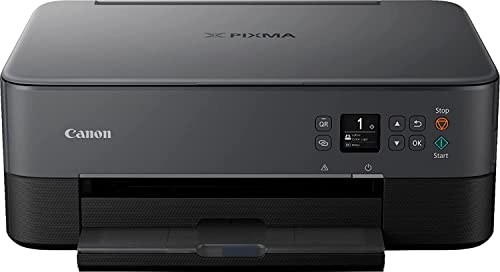
Canon PIXMA TS6420a All-in-One Printer (Black) — Sharp-mark sticker partner
The TS6420a’s title carries the single most Print Then Cut-relevant number in this guide: 4800 × 1200 dpi. Resolution on paper is not resolution in life, yet a registration mark is exactly the feature that benefits from a printer’s finest addressable detail — a small black frame whose corners the Maker’s sensor must locate unambiguously, on matte stock, under craft-room light. A machine that states its resolution proudly is telling you its printhead aims at precision, and precision is the first thing this workflow buys.
Around that number the title assembles a sensible craft-room brief: wireless colour printing with copy and scan, a 1.44-inch OLED display, 13.0 ipm speed, auto 2-sided printing, and paper handling stated up to 8.5 × 14 inches — legal length, which matters for longer sticker sheets and banner-ish craft prints more often than buyers expect. The scanning half digitises hand-drawn artwork for conversion into cut files, closing the loop between a sketchbook and a sticker. Auto duplex serves the household’s ordinary documents, keeping this from being a single-purpose purchase.
For Print Then Cut specifically, owners should run the matte-media test described later in this guide during the first week: a full sheet of your actual sticker paper, marks inspected under a lamp for edge crispness, feed watched for skew. Canon’s PIXMA line has a long craft-room history with printable media, and the TS6420a’s specification reads like it was aimed at exactly this desk. As the economical, sharp-first entry to the six, it is where most Maker 3 owners should start their comparison.
- Functions: Print, copy and scan, per the listing title
- Resolution: 4800 × 1200 dpi stated
- Speed: 13.0 ipm stated
- Paper: Up to 8.5 × 14 inches and auto 2-sided printing stated
- Display: 1.44-inch OLED stated
Strengths
- Stated resolution suits crisp registration marks.
- Legal-length paper handling widens project sizes.
- Duplex and scanning keep it useful beyond the craft desk.
Trade-offs
- Small OLED display is functional rather than luxurious.
- Colour depth is standard-class, not photo-specialist.
- Borderless behaviour is not stated in the title — verify for bleed designs.
Best for: Maker 3 owners whose sticker work is graphic, text and illustration based, wanting sharp marks and sensible running gear. Not suited for: photographic sticker lines, where the six-colour Epson’s gradients justify their premium.
Crafters starting the comparison can check price on Amazon for the TS6420a and confirm the borderless question against their design style before ordering.
The TS6420a in a working craft room earns a specific compliment: it disappears. Sheets load, marks emerge with the dense black the sensor likes, and the Maker’s pass/fail rate becomes a property of the mat and the media rather than of the printer. Owners stepping up from a basic household inkjet notice the change first in the corners of the registration frame, where cheaper printheads feather and this one holds a clean angle. That corner is a small thing to praise a machine for, until you have watched a cut wander because of its absence.
Household integration rounds the pick out. The scanner digitises the children’s drawings that become family stickers — a product category with unlimited demand at grandparent distance — and duplex keeps the printer respectable on school-document days. It is not the colour champion of this six and does not pretend to be; it is the precision-and-sense option, and most sticker catalogues are built from exactly its strengths.

Epson Expression Photo XP-8800 All-in-One Printer — Six-colour colour depth
The XP-8800 is the colour ambitious pick: its title states a wireless colour all-in-one inkjet with 6-colour photo printing, scan and copy, up to 10 ppm, and USB plus memory-card support, aimed at photos and creative projects. Six ink channels widen the colour gamut and smooth the gradients that four-colour engines render in visible steps — skies, skin, watercolour washes, the soft backgrounds of planner stickers — and in a craft market where photographic stickers and labels are a growing category, that smoothness is a product feature customers can see.
Memory-card and USB support sound archival until a crafter’s workflow explains them: artwork exported from a camera or a design tablet can print without the computer intermediary, and a craft-fair demo setup runs from a card rather than a laptop. The stated 10 ppm is the honest pace of a photo engine — this machine trades document speed for colour depth in every fibre of its brief, and buyers should accept that trade knowingly. Print Then Cut sheets are small; the pace costs little there.
The six-colour system’s running discipline mirrors its quality: more channels to keep exercised, more cartridges in the household inventory, and a stronger argument for printing something colour-rich weekly. Crafters whose sticker catalogue is photographic — pet portraits, travel journals, art prints cut to shape — will find the XP-8800 the only pick here engineered for their exact product. Crafters printing flat graphic designs will pay for colour range their artwork never visits, and should look at the five-colour pair or the Canon instead.
- Functions: Print, scan and copy, per the listing title
- Ink system: 6-colour photo printing stated
- Speed: Up to 10 ppm stated
- Inputs: USB and memory-card support stated
- Positioning: Photos and creative projects, per the title
Strengths
- Six-colour gradients serve photographic artwork.
- Card and USB printing suit craft-fair workflows.
- Photo-first engineering matches premium sticker lines.
Trade-offs
- Slowest stated pace in the six.
- Six channels mean more ink inventory to manage.
- Flat graphic work gains little from its gamut.
Best for: crafters selling or gifting photographic stickers, labels and art prints where gradient quality is the product. Not suited for: logo-and-text sticker production, whose flat colours leave its colour depth unemployed.
Photographic crafters can check price on Amazon for the XP-8800 and should budget the full six-cartridge set into their running-cost picture from the start.
Consider the XP-8800 in a journal and planner shop, the niche where its colour depth converts directly into product range. Watercolour-style sticker kits live or die on gradient behaviour: a wash that bands across a sticker is a refund, a wash that melts is a review photograph. Six channels give the shop owner headroom to print artwork as it was painted, including the pale tones four-colour engines render as paper-white or as a visible first step of colour. That headroom is the premium’s justification, stated in the only terms that matter — the finished sheet.
The memory-card slot finds a second use in that shop: the week’s bestsellers live on a card, reprinted at the fair or the market stall from the printer alone while the laptop stays home. Portable production is a small business’s quiet superpower, and two of this guide’s Epsons carry it in their titles. Owners should still calibrate at home — a card reprints a file, it does not correct one — and the first-week media tests apply with full force.
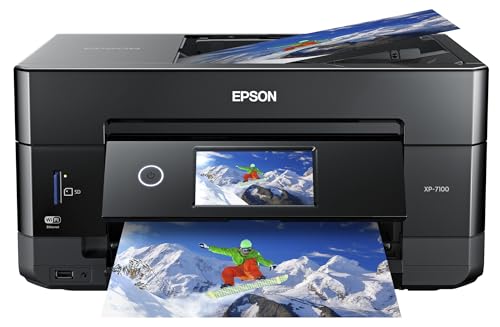
Epson Expression Premium XP-7100 All-in-One Printer — Feeder-equipped crafter
The XP-7100 pairs craft printing with the craft room’s other paper habit: scanning artwork in batches. Its title states a wireless colour all-in-one with 5-colour printing, scan and copy, up to 15.8 ppm, an ADF, and borderless photo printing, for home and photo projects. The feeder is the differentiator — a sketchbook’s worth of drawings, a class set of children’s artwork, a folder of vintage labels for reproduction all move through it in one loading, where flatbed-only machines make the same job an afternoon of lid-lifting.
Five-colour printing — the standard four plus a photo black, in Epson’s Premium arrangement — is the craft-room sweet spot for many sellers: richer photographs than a basic four-colour engine, without the six-colour XP-8800’s inventory and pace commitments. Borderless photo printing, stated plainly here, covers the bleed-to-edge designs that Print Then Cut sheets sometimes demand and that the TS6420a’s title leaves unverified. Stated speed at 15.8 ppm is brisk for the class, which matters when a market weekend needs forty sheets before Saturday.
The XP-7100 is, in short, the production crafter’s pick in this six: feeder for input, borderless five-colour for output, pace for volume. Its compromises are the class’s usual ones — cartridge costs at sustained volume, and the need to keep five channels exercised — plus a footprint that assumes the craft room is a room. Sellers whose Maker 3 work has become a small business will recognise their workflow in this machine more readily than in any other pick here.
- Functions: Print, scan and copy, per the listing title
- Ink system: 5-colour printing stated
- Speed: Up to 15.8 ppm stated
- Document handling: ADF stated
- Photo: Borderless photo printing stated
Strengths
- Feeder scanning suits artwork-heavy workflows.
- Borderless printing covers bleed designs.
- Brisk stated pace for production weekends.
Trade-offs
- Five cartridges to keep in stock and exercised.
- Larger craft-room footprint than the compacts.
- Cartridge costs climb with heavy sheet volume.
Best for: selling crafters who scan artwork in batches and print sticker sheets in production runs. Not suited for: occasional crafters, whose volume leaves its feeder and pace unrewarded.
Production crafters can check price on Amazon for the XP-7100 and verify the ADF and borderless claims in the listing, since together they carry this pick’s case.
Production rhythm on the XP-7100 settles into a two-station loop: while the Maker cuts the previous sheet, the Epson prints the next, and the feeder digests the morning’s sketch scans in the gaps. A one-person shop’s throughput is set by how rarely the human waits, and this machine’s combination — pace, feeder, borderless — attacks waiting from three directions at once. Sellers measuring their bottleneck honestly usually find it at weeding and packing, not at this printer, which is the correct place for a bottleneck to live.
One caution scales with that pace: five cartridges consumed at production speed need a stock system, even if the system is a labelled drawer and a reorder line drawn on the box. Running dry mid-run does not merely pause production; a sheet printed across a cartridge change can shift colour enough to fail a picky customer’s comparison against last month’s batch. The XP-7100 rewards the organised, and mildly taxes everyone else.

Canon PIXMA TR7820 All-in-One Printer — Simple home partner
The TR7820’s title is the shortest in this guide — a wireless home all-in-one printer, full stop — and the review must therefore be the most disciplined: this is Canon’s home PIXMA formula, print, scan and copy in a wireless body, offered as the uncomplicated partner for a Maker 3 in a household that also prints homework. Where its title is silent — resolution figures, borderless claims, speeds — this guide claims nothing, and buyers for whom a specific one of those is decisive should verify it on the listing or choose a sibling whose title states it.
That restraint cuts both ways, because the TR line’s home record is long and the machine’s role here is clear. For the large population of Maker 3 owners whose Print Then Cut work is standard sticker sheets, labels and card embellishments on matte media, a competent Canon home all-in-one is precisely the tool: marks print, sheets feed, the Maker cuts, and the same machine handles the family’s documents on weekdays. Not every craft desk needs a photo engine, and the money not spent on colour depth buys a great deal of sticker paper.
Judge the TR7820 as the baseline done properly. Its risk is not inadequacy but ambiguity — the buyer who needed borderless, or a specific paper path, and assumed. Read the listing’s full specification for those two points, run the first-week media test like every other pick here, and the machine settles into the background of the craft room, which is where a partner printer belongs: the Maker is the star of this desk, and the TR7820 seems content to be its stagehand.
- Functions: Wireless home all-in-one printer, per the listing title
- Print type: Canon PIXMA home all-in-one class
- Connectivity: Wireless stated
- Resolution: Not stated in the listing title — verify with the manufacturer documentation
- Borderless printing: Not stated in the listing title — verify with the manufacturer documentation
Strengths
- Uncomplicated home all-in-one formula.
- Canon PIXMA media handling suits craft papers.
- Covers family printing beside the craft work.
Trade-offs
- Title states few specifications to shop by.
- Photo depth is home-class rather than specialist.
- Feature hunters should verify before buying.
Best for: Maker 3 households wanting one straightforward Canon for stickers and family printing alike. Not suited for: buyers shopping on a specific stated figure — resolution, borderless, feeder — which other picks here declare openly.
Those households can check price on Amazon for the TR7820 and read its full listing specification for the two or three points their projects depend on.
What the TR7820 teaches, by contrast, is how far the baseline has risen. A generation ago, a home all-in-one asked crafters to forgive soft marks and wandering feeds as the price of the category; the current home PIXMA formula treats Print Then Cut as an ordinary Tuesday job. Maker 3 owners upgrading from a genuinely old printer will feel the improvement as a pass-rate change — fewer sheets sacrificed to drift — without being able to name the specification responsible. That is the baseline working as intended.
The honest buyer’s errand remains the listing check: confirm the paper sizes and any borderless behaviour your specific projects need, because this review has declined to invent them. Two minutes of that reading converts the TR7820 from the guide’s least-described pick into possibly its best-understood one, since every other claim about it has been kept deliberately within what its maker states.

Epson Expression Premium XP-6100 All-in-One Printer — Borderless five-colour value
The XP-6100 is the XP-7100’s formula without the feeder, and its title states the craft-relevant core completely: a wireless colour all-in-one inkjet with 5-colour printing, scan and copy, up to 15.8 ppm, borderless photo printing, and USB plus memory-card support, for home projects. For Print Then Cut, that specification is arguably the cleanest in the guide — five-colour richness, borderless when designs bleed, card inputs for computer-free printing — at the simpler end of Epson’s Premium line.
The stated pace matches its feeder-equipped sibling, so sheet production for a market or a party does not dawdle. Memory-card support repeats the XP-8800’s fair-day convenience at a humbler level. What the buyer gives up against the XP-7100 is batch scanning; what they keep is the output side entire. Crafters whose artwork is born digital — designed on a tablet or computer, never scanned from paper — lose literally nothing by that omission, which makes the XP-6100 the value-centred pick for the digital-first craft room.
Five-colour cartridge discipline applies as with its sibling: keep the set in stock, print colour weekly, and judge running costs against your sheet volume honestly. On matte sticker media, the Premium line’s colour behaviour is the reason sellers standardise on it; on glossy photo paper it doubles as the household’s photograph printer. Between the two Epson Premiums, the feeder is the whole argument — buy it if you scan stacks, skip it if you never do, and enjoy the same printed sheet either way.
- Functions: Print, scan and copy, per the listing title
- Ink system: 5-colour printing stated
- Speed: Up to 15.8 ppm stated
- Photo: Borderless photo printing stated
- Inputs: USB and memory-card support stated
Strengths
- Borderless five-colour output for bleed designs.
- Card printing suits computer-free craft setups.
- Full stated pace matches its feeder sibling.
Trade-offs
- No feeder for batch artwork scanning.
- Five-cartridge running costs at volume.
- Photo depth sits below the six-colour XP-8800.
Best for: digital-first crafters printing borderless sticker sheets who never scan in batches. Not suited for: sketchbook artists digitising stacks of drawings, who should take the XP-7100’s feeder instead.
Digital-first crafters can check price on Amazon for the XP-6100 and confirm borderless printing in the listing before the first bleed design depends on it.
The XP-6100’s card slot and borderless pairing makes it the fair-and-gift specialist of the six. A crafter selling at weekend markets can carry the printer, a card of proven designs and a stack of tested matte sheets, and produce to order at the stall — personalised names added on a tablet, printed from the card workflow, cut on the Maker beside it. That theatre sells products, and it depends on exactly the unglamorous features its title states. Home crafters gain the same convenience in miniature: the design library that lives on a card never waits for a computer to wake.
Its five-colour output also flatters the most common sticker subjects — food, flowers, animals, celebration graphics — where a photo black deepens outlines and shadows convincingly. Sellers comparing it against the TS6420a are choosing between Canon’s stated sharpness and Epson’s stated borderless colour; both are rational, and the tiebreaker is usually which ecosystem’s cartridges the household already stocks.

HP Envy Photo 7975 Photo Printer — App-led photo partner
HP’s Envy Photo 7975 closes the six from the phone’s direction: its title states a wireless colour inkjet photo printer with print, scan and copy, easy setup, mobile printing, a best-for-home positioning, a three-month Instant Ink trial, and AI-enabled features. The Envy Photo line is HP’s answer to the household that photographs everything on phones and prints from them too — and a great deal of Print Then Cut artwork begins exactly there, as a phone photograph or a design app export on the device already in the crafter’s hand.
Instant Ink reframes this pick’s running costs as a subscription measured in pages, and for sticker production that model has a specific texture: a sheet of stickers is a page, whether it carries four large designs or twenty small ones, so sellers printing dense sheets may find page-based ink pricing unusually favourable compared with coverage-based cartridge drain. The trial’s three months let a crafter test that arithmetic against real production before committing — use them at full production volume, not at hobby pace, to get the true reading.
As a photo printer first, the 7975 handles the household’s photographs with the competence its line is sold on, and its Print Then Cut marks and matte sheets are the standard inkjet story told well. Its title does not state borderless behaviour or resolution figures, so bleed-dependent designers should verify those points on the listing as with the TR7820. What it states — ease, mobility, the trial — describes a crafter who values a frictionless phone-to-sticker pipeline over specification shopping, and that crafter is numerous enough to make this a fitting final pick.
- Functions: Print, scan and copy, per the listing title
- Print type: Wireless colour inkjet photo printer
- Ink note: Three-month Instant Ink trial included, per the title
- Control: Mobile printing and easy setup stated
- Borderless printing: Not stated in the listing title — verify with the manufacturer documentation
Strengths
- Phone-first workflow suits app-born artwork.
- Page-based ink trial can favour dense sticker sheets.
- Photo-line output covers household photographs.
Trade-offs
- Key Print Then Cut figures are not stated in the title.
- Subscription value depends on steady volume.
- App-led control will not suit panel purists.
Best for: phone-centric crafters who design and print from mobile devices and print sticker sheets densely. Not suited for: specification-led buyers who want resolution and borderless claims stated before purchase.
Mobile crafters can check price on Amazon for the Envy Photo 7975 and read the trial terms and full specification on the listing in the same visit.
The Envy’s trial deserves one more practical instruction: run the trial like an auditor. Log the sheets printed, the coverage they carried and the date each cartridge warning would have arrived in a non-subscription life, because the trial’s end is a purchasing decision disguised as a settings screen. Sellers who keep that log choose correctly in both directions — some discover the subscription is the cheapest ink they have ever bought at their density, others discover their volume makes it a tax — and both discoveries are worth the notebook page they cost.
Phone-led crafters should also set the printer’s own house in order during setup week: every household device paired, the scan shortcut placed, the app updated. The Envy’s promise is that the phone is the control panel; a phone that cannot find the printer at a customer’s kitchen table breaks that promise in public. Tested at home, it holds everywhere.
The Dedicated Sticker Machines, in Prose
Two names surface whenever Maker 3 owners discuss skipping the inkjet entirely: the Liene PixCut S1 and Cricut’s StickerPix Print concept — dedicated devices that print a sticker and cut it in one unit, no separate Maker pass, no registration-mark ritual. Their appeal is real and narrow. A crafter whose entire output is small stickers, produced casually, gains a single appliance with a short learning curve and no printer-shopping at all.
The constraints explain why this guide’s linked picks are general inkjets. Dedicated sticker machines work within their own media sizes and ecosystems: full-page prints are outside their shape, media choice is limited to what the system supports, and the per-sheet economics follow the manufacturer’s consumables. A Maker 3 owner, by contrast, already owns the cutting half of the workflow in a far more capable form. Pairing it with a general inkjet buys full-page sticker sheets, labels, card stock, iron-on prints and ordinary household printing from one machine — a versatility the dedicated boxes cannot approach. Choose the dedicated route only when small stickers are truly the whole craft, forever; choose the inkjet when the Maker’s versatility is the point of your desk, as it is for nearly everyone who bought one.
Comparison Table
| Pick | Ink system (per title) | Borderless (per title) | Standout trait |
|---|---|---|---|
| Canon PIXMA TS6420a | Colour inkjet | Not stated in the listing title | 4800 × 1200 dpi stated |
| Epson Expression Photo XP-8800 | 6-colour | Not stated in the listing title | Six-colour photographic depth |
| Epson Expression Premium XP-7100 | 5-colour | Borderless photo printing stated | ADF for artwork scanning |
| Canon PIXMA TR7820 | Colour inkjet | Not stated in the listing title | Simple wireless home all-in-one |
| Epson Expression Premium XP-6100 | 5-colour | Borderless photo printing stated | Card inputs, full stated pace |
| HP Envy Photo 7975 | Colour inkjet | Not stated in the listing title | Instant Ink trial, mobile-first |
How Does Print Then Cut Actually Work, Step by Step?
The design begins in Cricut’s software, sized within the Print Then Cut area and flattened so the printed image and the cut line agree. The software adds the registration frame — the black border marks the Maker will read — and sends the sheet to the inkjet. Print it on your chosen material at the printer’s quality setting for that media, on the correct side of the sheet; printable sticker paper and vinyl have a printable face and a backing face, and confusing them is the workflow’s most expensive beginner error, paid for in one wasted sheet per lesson.
The printed sheet goes onto the Maker’s mat, aligned to the mat’s corner as the software directs, and the machine’s sensor travels to each registration mark, reading their positions to build a map of where the print actually sits — compensating for the small placement differences no human hand avoids. Then it cuts. The quality chain is only as strong as its weakest link: a smudged mark, a skewed feed, a sheet loaded against the wrong corner each degrade the map, and the cut drifts by exactly the error the map could not absorb. Crisp marks and straight feeding, this guide’s recurring themes, are not fussiness — they are the mechanism itself.
Peel, weed and inspect under the same light you will judge the finished piece by. A sticker that reads perfectly at the desk may show a hairline of white at one edge where the cut and print disagreed by a fraction; note which direction the error leaned, because consistent drift has consistent causes — usually feed or mat placement — and the second sheet can be corrected before it is printed rather than after it is cut.
Which Materials Should You Test in the First Week?
Buy small quantities of three materials and print the same test sheet on each: a matte sticker paper, a glossy sticker paper, and a matte printable vinyl if your projects point that way. The matte stocks are the workflow’s home ground — the Maker’s sensor reads marks on matte surfaces without the reflections that can trouble glossy finishes under bright craft lamps — and most sellers standardise on matte for exactly that reliability. Glossy earns its place for specific looks, tested under your own lighting rather than assumed.
Judge each test on four points: mark crispness at the corners, colour evenness across a flat block, feed straightness — did the sheet emerge square? — and the cut’s agreement with the print after the Maker pass. Record the printer settings that produced each result on the sheet itself, in pencil on the backing. Within three sheets you will know your machine’s media personality, and the settings card habit from this guide’s other chapters applies here verbatim: write it down, because memory is the first casualty of a busy craft season.
How Do You Keep Registration Accurate Over Time?
Accuracy drifts for mundane reasons, and each has a mundane counter. Feed rollers collect paper dust and the coating of a hundred sticker sheets; the manual’s cleaning sheet or roller-cleaning routine restores their grip before skew becomes a habit. Mats lose tack and let a sheet shift microscopically mid-scan; a fresh or cleaned mat is an accuracy tool, not a consumable to be nursed past its life. Craft-room lighting changes — a new lamp, a moved desk — alter what the sensor sees, and a calibration print after any room change costs one sheet and answers everything.
Printer settings are the other quiet variable. A driver update or a helpful relative can reset the media type or quality defaults, and the next sheet’s marks emerge at a different density than the calibration assumed. Tape the working settings beside the printer, as this guide keeps advising in every context, and check them when accuracy wanders before blaming the hardware. Nine wandering-cut stories in ten end at a settings card; the tenth ends at a worn mat. Both endings are cheap.
How Do You Price and Package Print Then Cut Products Sensibly?
Sellers should cost a sticker sheet the way a bakery costs a loaf: materials, machine time, and the failure rate, all three, before the price is named. The failure rate is the line beginners omit — the skewed sheet, the drifted cut, the wrong-side print — and in a new craft room it can consume a fifth of production. As the first-week tests and the settings card drive that rate down, margins improve without prices moving, which is why this guide treats calibration as a business activity rather than a hobby ritual.
Packaging is the product’s second surface. A sticker sheet in a cello sleeve with a backing card survives the post, displays at a market without curling, and photographs like a product rather than a printout. The printer’s contribution is a sheet printed cleanly to its edges of design; the Maker’s is a cut that agrees; the packaging’s is everything the customer concludes in the first three seconds. Shops that invest in the third element find the first two suddenly easier to charge for.
Keep one perfect sample of every design you sell, sleeved and dated. When a customer questions colour drift between orders, the sample settles whether the drift is real; when you reorder media from a new supplier, the sample is the comparison standard. It is the test-page habit from this guide’s other chapters, wearing craft-room clothes, and it pays for its sleeve within the season.
What Other Print Then Cut Projects Should a New Owner Try?
Labels are the workflow’s quiet triumph and the best second project after stickers. Pantry labels, classroom labels, cable and charger labels, the filing system a household has promised itself for years — all are rectangles and rounded rectangles, the shapes where Print Then Cut’s precision looks most professional and where design skill matters least. A new owner can produce a genuinely useful set on day two, which builds the confidence that artistic projects later spend.
Cardmaking is the third project family: printed sentiments, patterned layers and shaped embellishments cut to the millimetre give handmade cards a finished quality that scissors never approach. Iron-on designs for fabric follow, printed on the appropriate transfer media with the mirroring discipline the sublimation chapter of any craft education teaches — and they are the project where borderless and feed behaviour matter least and colour matters most, a useful counterweight when choosing among this guide’s six.
Gift wrap and packaging close the list: custom-printed sheets, box toppers and tags turn the Maker-and-printer pair into a household’s celebration infrastructure. Notice what all four families share — they reward the same virtues this guide has judged throughout: crisp marks, straight feeds, honest colour on matte media. A printer chosen well for stickers was, without anyone planning it, chosen well for the craft room’s whole future.
How Should the Craft Room Itself Be Arranged for This Workflow?
The printer and the Maker want to be neighbours with a staging surface between them, because every sheet travels that short road and benefits from travelling it flat, face-up and unhurried. Media storage belongs within arm’s reach of the printer, upright or flat in its packaging, away from the room’s damp corner; a sheet that absorbed a humid week feeds like a different, worse material. The mat lives flat when idle, never rolled, and its cover sheet — the plastic film owners throw away — is the dust protection that keeps its tack honest between sessions.
Lighting over the staging surface should be the light the finished work will be judged in, ideally consistent daylight-balanced illumination, because colour decisions made under a warm lamp are revised by customers under daylight. Keep a small bin at the printer for failed sheets and review it before reordering media: the bin’s contents are the workflow’s error log, and a month of skewed sheets in it points at the feed path more eloquently than any single incident. Arrange the room once with these flows in mind and the duet this guide describes — print, read, cut — becomes a rhythm instead of a series of rescues.
How Do You Troubleshoot a Sheet the Maker Refuses to Read?
Start with light, because the sensor’s world is optical. A sheet that read yesterday and fails today, in a room where a lamp moved or evening fell, is often a lighting story: close the blinds or restore the lamp and retest before touching any setting. Then inspect the marks themselves at arm’s length and closer — a mark that looks black from above can show grey banding at an angle if the printer laid it in an economy mode, and the fix is the quality setting, not a new printer.
Next, the sheet’s physical story. Is it the correct side? Is it flat on the mat, aligned to the corner the software expects, with no curled edge lifting into the sensor’s path? A sheet stored rolled or leaned can carry a curl that no amount of software patience will read through; press it flat under a book overnight and it rejoins the usable stock. Finally, the printer’s feed: a sheet that emerged with its frame microscopically skewed asks for the roller-cleaning routine before the next attempt.
Keep the failed sheet. Write the symptom and the eventual fix on its backing and file it with the test sheets, because the second occurrence of any fault is diagnosed in seconds when the first occurrence left a labelled ancestor. Craft rooms that keep this small archive stop experiencing mysterious problems; they experience known problems, briefly, which is the mature form of every workflow in this guide.
Common Mistakes Maker 3 Owners Make With Printers
Printing on the wrong side of the media stands first because everyone does it once: the backing feels printable, the printable side feels like backing, and the ink pools on the coating that was never meant to receive it. Mark the printable side of a fresh pack with a pencil note on the wrapper the day it arrives. The second mistake is judging a printer by glossy photo output and then feeding it matte sticker stock exclusively — the two behaviours are cousins, not twins, and the first-week media test exists to judge the right one.
Skipping the quality setting is the silent error. Draft and standard modes lay ink economically and read economically; registration marks printed in a light mode can sit at the edge of the sensor’s comfort, especially under warm lamps. Set the media type and quality for the actual sheet, every time, and let the settings card carry the decision. The fourth mistake is scaling designs beyond the Print Then Cut area and blaming the printer for the software’s refusal — the limit belongs to the workflow, and designing inside it is a skill, not a restriction.
Finally, owners neglect the printer between craft seasons, then meet the market-season deadline with a machine that needs cleaning cycles and a fresh cartridge set. Print something colour-rich monthly — a photograph, a test sheet, next season’s prototype — and the machine stays a partner rather than a project.
A closing observation for owners choosing between the six with a coin still spinning: the Maker 3 itself will outlast one printer, possibly two, across a crafting life. Buy the printer whose media handling and colour match the work you already sell or gift, keep the settings cards and test sheets as the transferable knowledge they are, and the next printer — whatever succeeds these models — will be chosen in an afternoon by a crafter who knows exactly which questions matter. That expertise, accumulated sheet by sheet, is the real product this workflow manufactures.
Children’s craft deserves the final practical word, because Maker households so often include them. The printer half of the workflow is the child-safe half to teach first: choosing media, loading sheets print-side correctly, reading a test sheet for crisp marks. A young crafter who learns media discipline at the printer carries it to every machine that follows, and the family’s pass rate rises with its youngest member’s standards — a sentence no specification sheet will ever print, and one every craft family recognises.
Final Recommendation
Start from your artwork. Graphic, illustrated and text-based sticker work points to the TS6420a’s stated sharpness or the TR7820’s simplicity; photographic work points to the XP-8800’s six colours; production sellers who scan artwork should take the XP-7100, digital-first crafters the XP-6100, and phone-led crafters the Envy Photo 7975 with its trial-tested ink arithmetic. Whichever arrives, spend the first week on the media tests — matte first, marks inspected, settings written down — because in Print Then Cut the printer is half of a duet, and the duet only sounds right when both halves have rehearsed together.
Seasonal production — the holiday sticker rush, the back-to-school label wave — rewards the owner who rehearsed in the quiet month: media stocked in two tested types, cartridges inventoried, the settings card verified against a fresh test sheet, and a small buffer of proven designs printed before the orders land. The Maker-and-printer duet performs best as an ensemble that has rehearsed, and the craft calendar gives every seller the rehearsal dates for free, a year in advance, in the same order every year. Use them, and December becomes the month the workflow earns rather than the month it is forgiven.
The buffer habit deserves its own emphasis because it inverts the beginner’s instinct. Beginners print to order and discover every problem at deadline; experienced sellers print the proven catalogue ahead, in the calm weeks, and reserve deadline hours for the personalised work that cannot be buffered. The printer’s duty cycle prefers it too — steady weekly work over frantic silence-then-surge — so the business rhythm and the machine’s health point, for once, in exactly the same direction. Follow that direction and the craft room’s busiest season becomes its most predictable one.
One more buffer belongs on the shelf: a spare mat and a spare set of the cartridge colours your catalogue leans on. Print Then Cut failures cluster at deadlines with the same reliability as every other machine’s failures in this guide, and the two spares convert most of those clusters into a shrug. The mat is the cheaper insurance; the cartridges are the likelier need; together they cost less than one ruined market day, which is the correct unit for pricing all craft-room insurance.
Label the spares with their purchase month when they arrive. Cartridges age on the shelf as surely as in the machine, and a spare bought for last year’s rush should be rotated into service before this year’s, so the insurance stays live rather than expiring quietly in a drawer. The same rotation applies to media: sticker paper stored beyond its season in a damp room is a false economy that announces itself at the sensor.
Rotate the mat stock on the same schedule, and the whole shelf stays honest: nothing in the craft room is older than its usefulness, and every deadline meets a bench that was prepared in a calm week by someone thinking clearly, with time to spare and good, steady light to see by.
Frequently Asked Questions
Can I use a laser printer for Print Then Cut?
It is the wrong tool for this workflow. Sticker media and printable vinyl are generally made for inkjet coating, laser heat can damage such media and the machine, and toner sits on the surface in a way that cracks and flakes on flexible stickers. The Maker 3’s craft ecosystem is built around inkjet printing, and this guide’s six picks are all inkjets for that reason.
Why do my cuts drift from the printed design?
Work the chain in order: marks crisp and dark enough, sheet fed straight, correct side printed, mat holding the sheet firmly, sensor area clean, lighting consistent. Drift with a consistent direction usually traces to feed or mat placement; random drift suggests mark quality or a shifting sheet. The accuracy section above walks the same list with its fixes.
Does borderless printing matter for stickers?
Only for designs that bleed to the sheet’s edge or for full-bleed labels. Standard sticker sheets carry margins by design, and most Print Then Cut layouts live inside them. If your product line is edge-to-edge, choose a pick whose title states borderless printing — the two Epson Premium models here — and verify the media size it applies to.
Matte or glossy sticker paper?
Matte is the reliable default: the Maker’s sensor reads registration marks on matte surfaces without fighting reflections, colours read as designed, and fingerprints stay invisible on handled products. Glossy suits specific photographic looks and should be tested under your own craft lighting before a production run depends on it.
Should I buy a dedicated sticker printer-cutter instead?
Only if small stickers are your entire craft and will remain so. The dedicated machines covered in prose simplify one job while surrendering full-page printing, media freedom and the household uses a general inkjet covers. Most Maker 3 owners bought the Maker for versatility; an inkjet partner preserves it, a dedicated box narrows it.
Related Guides
A Maker 3 desk usually grows in several directions at once. When the display beside it needs upgrading, our roundup of OLED gaming monitors covers the panels crafters also game on. Sellers formalising the whole workstation can compare computer 5K monitors for design work at higher resolution. And multi-computer craft rooms — design laptop plus family desktop — will find their switching questions answered in KVM monitors.
Related guides
- Best 3.0 Qualcomm Quick Chargers: QC 3.0 Adapters That Still Earn Their Outlet
- Best Time Machine Compatible Hard Drives: Mac-Ready and Reformatted Picks
- Best 3D Mechanical Engineering Laptops: Certified Workstations for CAD and Simulation
- Best Tattoo Printers: Thermal Stencil Machines for Clean, Lasting Transfers


[…] this guide to its neighbours. Crafters pairing a printer with a cutting machine should continue to printers for Cricut Maker 3, where colour and paper handling take over the judging. Readers speccing the wider desk can browse […]