What's inside
- Key Takeaways
- Quick Picks
- How Did We Verify WPA3 Claims for This Roundup?
- What Does WPA3 Actually Change, and What Does It Leave Alone?
- How Do You Move a Household Onto WPA3 Without Breaking It?
- What Is Transition Mode, and Why Will You Probably Live in It?
- The Six WPA3 Routers in Detail
- Claims in Print: How the Six Compare on the Headline Feature
- How Do Guest Networks and Smart Devices Fit a WPA3 Household?
- Where Do WPA3 Upgrades Usually Go Wrong?
- What Should You Do in the First Hour After Switching WPA3 On?
- Final Recommendation
- Frequently Asked Questions
- Related Guides
As an Amazon Associate I earn from qualifying purchases. This post may contain affiliate links at no extra cost to you.
widgetverdict.com is reader-supported. When you buy through links on our site, we may earn an affiliate commission.
Where to buy: security claims deserve receipts, so every pick below links to its Amazon listing — the four routers whose titles state WPA3 outright can be verified in one glance, and the two that stay silent are labelled as such in their sections.
WPA3 is the current generation of Wi-Fi security, and the reason to care is not a headline about hackers — it is a quiet upgrade to the handshake itself. Where WPA2 let an eavesdropper record your network’s traffic and grind passwords against it offline, WPA3’s modern handshake makes each password guess require a fresh interaction with the router, and adds forward secrecy so that yesterday’s captured traffic stays sealed even if a password leaks tomorrow. The best WPA 3 routers bring that handshake home; the honest complication is that your oldest devices may not speak it, which is why transition modes and honest labelling matter as much as the feature itself.
This roundup applies a stricter evidentiary rule than most. A pick is credited with WPA3 only when its listing title says so — four of the six do, in plain words. The remaining two, a mesh router and a mainstream TP-Link, are included for their other merits with their titles’ silence recorded in their spec boxes, because a security roundup that plays loose with security claims has failed at its only job. Where a claim is confirmed, we also examine what surrounds it: ports, bands, mesh architecture, and the legacy-device story.
The six also split architecturally, and the split matters. Four are single routers — one box, one location, antennas in the open. Two are mesh systems, the Deco XE75 as a three-pack and the eero 6+ as a single unit that can grow: they spread nodes around the home and manage the network as a system. WPA3 behaves the same cryptographically in both, but coverage, expansion and administration differ entirely, and each pick’s section says which world it belongs to.
Key Takeaways
- Four picks state WPA3 in their listing titles; the eero 6+ and Archer AX21 do not, and this guide flags both silences rather than assuming.
- WPA3’s real gifts are offline-guessing resistance and forward secrecy, not a faster or stronger-feeling network.
- Legacy devices are the practical catch — transition modes that run WPA3 and WPA2 together are how most homes will adopt it.
- The Deco XE75 (three-pack mesh) and eero 6+ (mesh) solve coverage as systems; the other four are single routers.
- The unbranded Wi-Fi 6 pick states WPA3 and gigabit ports but carries no maker’s name — weigh support expectations accordingly.
Quick Picks
| Pick | Badge | Why it earns its place |
|---|---|---|
| InHand Networks AX3000 WiFi 6 Router | WPA3 headline act | AX3000 Wi-Fi 6 with WPA3 named in the title, plus IPv6, 160MHz channels and a guest network for visitors. |
| Cudy WR1200 | Budget WPA3, honestly wired | AC1200 Wi-Fi 5 with WPA3 stated outright — but read its port speeds before ordering, because they are 100-megabit class. |
| WiFi 6 Router 1200Mbps with WPA3 (unbranded) | No-name WPA3 with gigabit ports | An unbranded listing claiming Wi-Fi 6, WPA3 and four gigabit ports — strong paper, anonymous maker, priced in trust accordingly. |
| TP-Link Deco XE75 (3-Pack) | Mesh with 6GHz and WPA3 | A tri-band Wi-Fi 6E mesh system covering up to 7,200 square feet, with WPA3 stated in its title. |
| Amazon eero 6+ (1-Pack) | Mesh simplicity pick | Amazon’s mesh unit for gigabit plans and 75-plus devices — included for its system virtues, with its WPA3 silence labelled. |
| TP-Link Archer AX21 | Mainstream single router | AX1800 Wi-Fi 6 with Easy Mesh — a fine router whose listing title leaves WPA3 unmentioned, so verify before relying on it. |
How Did We Verify WPA3 Claims for This Roundup?
By reading titles the way auditors read invoices. The listing title is the claim a seller is willing to print at the top of the page, so it is the claim we hold them to. InHand’s title names WPA3 security directly. Cudy’s WR1200 title names it. The unbranded router’s title names it. The Deco XE75’s title closes with it. Those four are credited, with the credit tied to the printed claim. The eero 6+ title speaks of gigabit plans, coverage and device counts, and the Archer AX21’s title speaks of Wi-Fi 6, gigabit and Easy Mesh — neither mentions WPA3, so both spec boxes below record the omission in their own words and direct you to the manufacturers’ documentation, where the current firmware’s security modes can be confirmed.
We also considered the standard’s direction of travel, because a router is a multi-year purchase and WPA3’s context is still moving. Newer wireless generations have made WPA3 a baseline expectation rather than an option — recent Wi-Fi standards require it for their full feature sets — so a router bought without it today is a router already borrowing against its own future. That trajectory strengthens the case for the four titled picks and reframes the two silent ones: the question their documentation must answer is not merely whether the current firmware offers the mode, but whether the platform is travelling with the standard or standing still beside it.
Beyond the headline check, we weighted the adoption story. WPA3 arrives in homes full of WPA2-era devices, so the useful questions are transitional: does the router run a mixed mode, can the guest network be separated, do the ports and bands serve the household while the security modernises? We also weighted architectural fit — single router versus mesh — because a household that buys the wrong shape will blame the security standard for a coverage problem.
And we kept the category’s limits in view. WPA3 protects the wireless hop between device and router. It does nothing for a weak router admin password, an unpatched firmware, or a phishing email — which is why the sections below discuss the whole posture, and why no pick here is described as making a network safe, only as modernising one layer of it.
What Does WPA3 Actually Change, and What Does It Leave Alone?
The change lives in the handshake — the opening negotiation when a device joins the network. WPA3 replaces WPA2’s pre-shared-key exchange with a protocol (SAE, in the standard’s vocabulary) in which a captured handshake cannot be taken away and attacked at leisure; each password guess needs the router’s live participation, which throttles guessing to a crawl. The same design adds forward secrecy: session keys are not derivable from the password later, so recorded traffic keeps its seal. For a home, the practical translation is that the most realistic attack on a domestic network — a neighbour or a passer-by harvesting handshakes to crack a weak password offline — is largely designed away, provided the password itself is not trivial.
A brief word on the enterprise cousin, because listings occasionally borrow its clothes. WPA3 comes in personal and enterprise flavours; the enterprise variant authenticates each user individually through a server, which is how offices and universities run their networks. Everything in this roundup is the personal variant — one strong password for the household, the SAE handshake around it — and any home listing implying enterprise machinery is dressing up. Knowing the distinction keeps a buyer from paying for a word, and from expecting per-user accounts that a home router will never ask for.
What WPA3 leaves alone is everything past the router’s door and everything beneath the wireless layer. Your traffic’s journey across the internet is unchanged. A compromised smart bulb is still compromised, though a separate guest or IoT network — offered by several picks here — limits what it can reach. And WPA3 cannot help a device too old to speak it: such devices join a transition-mode network under WPA2 rules, which is why the honest deployment pattern for years to come is mixed mode with a strong password, not a WPA3-only flag planted prematurely.
One more boundary worth stating: WPA3 certification and marketing language drift. Some listings print the claim for one mode or one band’s configuration. The title-level credit this guide gives is a starting point for your own confirmation in the manual — the same standard we applied to the two picks whose titles never made the claim at all.
How Do You Move a Household Onto WPA3 Without Breaking It?
One preliminary deserves its own emphasis because every later step depends on it: back up or photograph the current working configuration before changing a single security setting. Networks accumulate small, load-bearing peculiarities — a forwarded port for a camera, a reserved address for a printer — and a security migration that bulldozes them creates a week of small mysteries attributed, unfairly, to the new standard. With the old state recorded, every surprise during the change has a reference to be checked against, and the rollback, if it is ever needed, is a restoration rather than a reconstruction.
Inventory first. List the wireless devices that must keep working — the old tablet in the kitchen, the printer, the smart plugs, the relative’s ageing laptop — and mark which are recent enough to plausibly support WPA3. That list decides your mode: a household of recent devices can try WPA3-only on the main network; everyone else starts in transition mode, where WPA3 and WPA2 clients coexist, and tightens later as devices turn over.
Choose the password as if the standard’s designers were watching, because they effectively were. SAE’s protections assume a secret with real entropy: a long passphrase of unrelated words serves a household better than a short string of substituted characters nobody can type into a television. The password will be entered rarely — devices remember it — so optimise for strength and for the one annual occasion when a guest or a new gadget needs it read aloud without ambiguity. Write it in the household’s records, not on the router’s casing, and treat changing it as part of the upgrade itself rather than an optional garnish: a new handshake around an old, widely shared password keeps more of the past than most households intend.
Then sequence the change like an administrator, not a gambler. Update the router’s firmware before touching security settings, so the modes you are choosing between are the current ones. Set the new mode, reconnect your own primary devices first and confirm each joins, then walk the legacy list. Park stubborn or untrusted devices on the guest network — several picks here offer one — where they get internet without a route to your computers. Keep the password long and unique; WPA3 strengthens the handshake, but it cannot redeem a password printed on the fridge. Finally, write down what you set: the next person to administer this network, possibly you in three years, will be grateful.
What Is Transition Mode, and Why Will You Probably Live in It?
Transition mode — sometimes labelled WPA2/WPA3 mixed or personal transition — is the standard’s concession to reality, and understanding it prevents most of this category’s disappointment. In transition mode the router offers both handshakes at once: WPA3-capable devices negotiate the modern protocol, older devices fall back to WPA2, and the network functions as one household instead of two castes. The security purist notes, correctly, that the network’s floor is set by its weakest admitted protocol. The pragmatist answers that the alternative — a WPA3-only network that exiles the printer, the older tablet and half the smart home — produces not a more secure household but a second, forgotten WPA2 network running on the old router in the corner, which is worse in every direction.
The sensible migration is therefore staged and patient. Begin in transition mode with a strong, fresh password — the password change matters, because it retires every handshake the old network ever leaked. Let capable devices upgrade themselves silently as they are replaced over the years; phones and laptops turn over fastest, and each replacement quietly raises the network’s WPA3 share. Reserve WPA3-only for a separate, deliberately scoped network if you want one — the main SSID for your newest devices, say — while the transition network carries the household’s long tail. Several picks here, with their guest networks and multiple modes, are shaped for exactly that two-speed arrangement.
One caution belongs in bold type in the manual of the mind: transition mode is not a failure state or a temporary embarrassment. For most homes it is the correct steady state for years, and a router should be judged on how gracefully it runs the mixture — clear labelling of which mode is active, per-device visibility, no mysterious rejections of older clients — rather than on how loudly it advertises the pure mode almost nobody can switch on yet.
The Six WPA3 Routers in Detail

InHand Networks AX3000 WiFi 6 Router — WPA3 Headline Act
InHand Networks arrives from the industrial networking world, and its AX3000 router’s title reads like it: Wi-Fi 6, dual-band gigabit, WPA3 security stated outright, IPv6, parental controls, a guest network, 160MHz channel width, 1024-QAM, MU-MIMO, OFDMA, and a low-latency positioning for home or office. For a security-led roundup, this is the most complete single-router claim on the page — the headline feature is present, and the surrounding specification is the modern Wi-Fi 6 set without omissions that need explaining.
The guest network deserves emphasis in a WPA3 discussion, because it is the pragmatic half of home security: visitors and doubtful gadgets get connectivity on a separated segment while the main network runs the stricter posture. IPv6 support matters for longevity as providers lean harder on it, and 160MHz channels with OFDMA give the AX3000 class the airtime behaviour expected of a current router. Parental controls round out a listing aimed at households that administer deliberately.
The caveats are about the maker rather than the machine. InHand is a name most home buyers will not know, which means community knowledge, third-party reviews and neighbourly troubleshooting are thinner than for the biggest consumer brands; the router must stand on its specification and its maker’s support channels. The title also makes no mesh claim, so a large home should treat this as a single-router answer with a single router’s reach. As a WPA3 statement piece from an engineering-led brand, it leads this roundup on the strength of saying everything out loud.
- Wireless: AX3000 dual-band Wi-Fi 6 with 160MHz, 1024-QAM, MU-MIMO, OFDMA
- Security: WPA3 stated in the listing title; guest network included
- Ports: gigabit class, per the listing title’s gigabit designation
- Networking: IPv6 supported; parental controls
- Mesh: no mesh system claimed in the listing title
- Positioning: home or office, low-latency emphasis
InHand’s industrial heritage shows in one more way worth weighing: business-bred vendors tend to treat firmware as a long obligation rather than a launch event, because their other customers run infrastructure on it. That is an inference about culture rather than a claim from the title, and this guide labels it as such — but for a security-led purchase, the maker’s update culture is legitimately part of the evidence, and buyers can sample it directly through the firm’s published support pages before committing.
Strengths
- WPA3 is claimed in the title alongside a complete Wi-Fi 6 feature set.
- A guest network gives the security story a practical second half.
- IPv6 and 160MHz support keep the specification current for years.
Trade-offs
- A lesser-known consumer brand means a thinner community knowledge base.
- Single-router reach, with no mesh path claimed in the title.
- Low-latency positioning is a claim to test, not a measurement.
Best for: a security-conscious household or home office that wants WPA3 and the full Wi-Fi 6 set in one box. Not suited for: a large home needing mesh coverage, which this single unit does not pretend to provide.
Cudy WR1200 — Budget WPA3, Honestly Wired
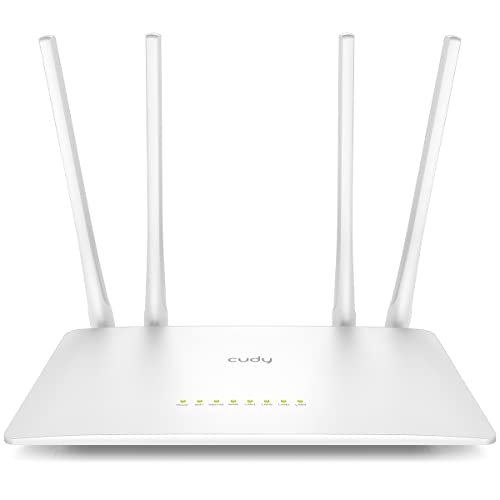
The WR1200 is the roundup’s lesson in reading the whole title. It claims WPA3 security in plain words — genuinely, at a tier where that is not guaranteed — on an AC1200 Wi-Fi 5 platform with MU-MIMO, beamforming, five operating modes, coverage of 1,100 square feet and up to 40 devices. Then, in the same title, it states five Fast Ethernet ports, and clarifies them as 100-megabit class. That candour is why the pick survives this guide’s scrutiny: the limitation is printed, not buried, and for the right household it is not disqualifying.
Who is that household? One whose internet plan sits at or below the hundred-megabit line — still a large share of real connections — and whose priority is modernising wireless security for phones, laptops and a modest device count without buying wireless capacity it cannot feed. In that home, the wired ports’ ceiling never binds, WPA3 and the guest-friendly mode set do the daily work, and the five-in-one modes give the unit later careers as an access point or extender.
Everyone else should take the title’s warning at face value. A gigabit plan behind 100-megabit ports surrenders most of itself at the router, and no security feature compensates for that arithmetic. Wi-Fi 5 also dates the wireless side beside the Wi-Fi 6 picks. The WR1200 is a coherent, honest budget instrument for a slow-plan home that cares about its handshake — and a trap, clearly signposted by its own listing, for anyone faster.
- Wireless: AC1200 dual-band Wi-Fi 5, 867 + 300 Mbps split
- Security: WPA3 stated in the listing title; MU-MIMO and beamforming also claimed
- Ports: five Fast Ethernet ports — 100-megabit class, as the title itself states
- Coverage: 1,100 square feet, up to 40 devices
- Modes: five-in-one operating modes
- Wireless generation: Wi-Fi 5 — the oldest platform in this roundup
The WR1200 also earns a footnote in the history of honest listings: it would have been easy for its title to print the wireless speeds in large type and the port speeds in none, and many listings in this tier do exactly that. Cudy printed both. A buyer on a fast plan is warned off in time, and a buyer on a slow plan gets a router whose maker demonstrably tells the truth when the truth is unflattering — a quality that matters rather more in a security product than in most.
Strengths
- WPA3 claimed outright at the budget end of the category.
- The port limitation is printed in the title, not hidden.
- Five operating modes extend the unit’s useful life.
Trade-offs
- 100-megabit ports cap any faster internet plan outright.
- Wi-Fi 5 wireless is a generation behind the other picks.
- Coverage and device figures suit small homes only.
Best for: a small home on a sub-100-megabit plan that wants WPA3 without overbuying wireless. Not suited for: any gigabit-plan household, whose speed this router’s own stated ports cannot carry.

WiFi 6 Router 1200Mbps with WPA3 (unbranded) — No-Name WPA3 With Gigabit Ports
This pick requires the plainest introduction in the roundup: it is a listing without a brand. The title describes a dual-band Wi-Fi 6 router at 1200Mbps with four gigabit Ethernet ports, WPA3, parental controls, EasyMesh support and a guest network — a specification that, on paper, answers this category’s brief completely, including the gigabit ports the Cudy above lacks. What it does not offer is a maker’s name to hold accountable, and this guide presents it exactly on those terms: an anonymous listing with a strong printed claim set.
The case for considering it is the paper itself. Wi-Fi 6 airtime behaviour, WPA3 in the title, gigabit wired ports, mesh support for expansion, and a guest network cover the checklist a security-led buyer brings. For a technically confident buyer who verifies firmware availability and return terms before ordering, an unbranded box can be a rational instrument — routers are, at this tier, substantially standardised machines.
The case against is everything a brand normally underwrites: firmware update cadence (which, for a security product, is not a detail), documentation quality, warranty handling, and the simple question of who answers when WPA3 behaves oddly with a particular device. A security feature is a promise about the future as much as the present, and an anonymous seller’s promises are worth less. Buy it, if at all, with the return window in mind and the firmware page located in advance — and let its presence here stand as the roundup’s reminder that a claim and a commitment are different things.
- Wireless: dual-band Wi-Fi 6, 1200Mbps class
- Security: WPA3 stated in the listing title; parental controls; guest network
- Ports: four gigabit Ethernet ports
- Mesh: EasyMesh support claimed in the listing title
- Brand: none — the listing carries no manufacturer name
- Support horizon: firmware and warranty rest on an unnamed seller; verify both before ordering
There is a rational shopping procedure for a listing like this one, and it is worth stating for readers tempted by the specification. Before ordering, locate the firmware download page for the exact model the listing describes; if none can be found, stop. On delivery, update the firmware before any device joins, set the security mode deliberately, and run the return window like a trial period with a checklist. An unbranded router that survives that procedure has earned its place; one that fails it has cost you a fortnight, not a network.
Strengths
- The full checklist — Wi-Fi 6, WPA3, gigabit ports — in one listing.
- EasyMesh support gives an expansion path rare at this tier.
- A guest network supports the separated-devices pattern.
Trade-offs
- No brand means no accountable firmware or support story.
- Security claims from an anonymous listing deserve extra verification.
- Documentation quality is unknown until the box arrives.
Best for: a confident buyer who verifies firmware and returns first, and values the printed specification over the badge. With no maker’s name anywhere on it, there is nobody identifiable standing behind firmware fixes — a real problem for a router bought precisely for its security.

TP-Link Deco XE75 (3-Pack) — Mesh With 6GHz and WPA3
The Deco XE75 changes the shape of the purchase: not a router but a system, three mesh units in the box, speaking tri-band Wi-Fi 6E with a 6GHz band, covering up to 7,200 square feet as a set, with WPA3 closing the listing title. For the household whose security upgrade coincides with a coverage problem — the long house, the three floors, the garden office — a mesh system is the honest answer, and this one modernises the handshake across the whole footprint rather than at a single point in the hallway.
Mesh changes the WPA3 experience in one practical way: the system administers security as a single policy, set once in the app and applied by every node, so there is no second router in a back room quietly running yesterday’s settings. The 6GHz band doubles as both client space and the system’s internal motorway, and TP-Link’s AI-driven roaming is the listing’s claim for how devices move between nodes without drama. The title’s note that a major gadget publication rated the system highly for most people is the seller’s framing; the substance is the architecture.
Scale is the decision here. Seven thousand square feet of coverage is a large house’s answer and a flat’s extravagance, and a three-pack’s nodes want thoughtful placement, not clustering around the modem. Buyers should also understand the mesh bargain generally: administration is app-led and simplified, which delights most owners and constrains the few who want wired-router depth. For the big home that wants WPA3 everywhere at once, this is the roundup’s flagship answer.
- Type: mesh Wi-Fi system, three units in the pack
- Wireless: AXE5400 tri-band Wi-Fi 6E, including the 6GHz band
- Security: WPA3 stated in the listing title
- Coverage: up to 7,200 square feet as a three-unit system
- Role: replaces router and extenders as one managed network
- Administration: app-led system management, per the mesh model
Placement discipline multiplies a mesh system’s value in a way single-router owners never face: three nodes want to form a loose triangle through the home, each within confident reach of the next, rather than a line of breadcrumbs trailing away from the modem. The XE75’s coverage figure assumes something like that geometry. Owners who cluster all three units near the internet socket have bought an expensive single router; owners who spread them own the system the title describes, with WPA3 enforced at every corner of it.
Strengths
- WPA3 applied uniformly across a whole-home mesh.
- The 6GHz band serves clients and the system’s own links.
- Three units solve coverage shapes no single router reaches.
Trade-offs
- Sized and priced as a system for large homes, not flats.
- App-led administration limits deep manual configuration.
- Node placement still decides real-world performance.
Best for: a large or multi-floor home upgrading coverage and wireless security in one move. Not suited for: a small flat, where three nodes would spend their lives within earshot of one another.

Amazon eero 6+ (1-Pack) — Mesh Simplicity Pick
The eero 6+ is the second mesh entrant, and the opposite philosophy of scale: a single unit covering up to 1,500 square feet, supporting internet plans up to a gigabit and 75-plus devices, inside Amazon’s famously hands-off mesh ecosystem — add units later and the system absorbs them. Its virtues are administrative minimalism and steady, app-guided operation, which for many households is the difference between a network that gets maintained and one that gets ignored.
Its presence in a WPA3 roundup, however, comes with this guide’s clearest label. The eero 6+ listing title does not mention WPA3 — not in a clause, not in a footnote position. That silence is not proof about the product, since eero’s documentation and firmware notes are where its security modes live, and titles are finite. But this roundup credits claims where they are printed, so the spec box below records WPA3 as unstated in the title and directs the security-led buyer to Amazon’s own documentation to confirm the current position before letting this pick compete on that axis.
Judged on what its title does claim, the eero is a coherent small-home mesh start: gigabit-plan support matches the mainstream line, the device count suits a connected household, and the single-pack format lets a flat begin with one unit and a house add more. Buy it for the mesh experience and verify the security specification through official channels; buy one of the four titled WPA3 picks if the claim must be in writing on the listing itself.
- Type: mesh Wi-Fi router, single unit (expandable within the eero system)
- Plans: supports internet plans up to a gigabit
- Coverage: up to 1,500 square feet per unit; 75+ devices
- WPA3: the listing title makes no mention of it — Amazon’s official documentation is the place to confirm the current security modes
- Administration: app-guided, deliberately minimal
- Expansion: additional eero units join the same mesh
The eero’s restraint extends to its physical design, which is not a triviality in homes where the router must live in sight. A mesh node that looks like furniture gets placed in the open, where radios belong; a bristling antenna farm gets exiled to a cupboard by the household’s aesthetic committee, and its security mode becomes irrelevant to the dead spot it was bought to fix. Industrial design is a network feature in domestic settings, and eero has built its reputation partly on understanding that.
Strengths
- The simplest mesh administration in this roundup.
- Single-unit start with painless expansion later.
- Device and plan figures match mainstream households squarely.
Trade-offs
- The listing title does not state WPA3, this guide’s core criterion.
- Minimalist administration frustrates owners who want depth.
- Coverage per unit is modest beside the Deco system’s set.
Best for: a small home that wants mesh simplicity and will confirm the security specification in Amazon’s documentation. Nowhere in its title does the word WPA3 appear — gigabit speed, 1,500 sq. ft. and 75-plus devices are there, the security badge is not.

TP-Link Archer AX21 — Mainstream Single Router
The Archer AX21 returns from this batch’s gigabit roundup in a different role: the mainstream control case. Its title promises an AX1800 Wi-Fi 6 router, dual-band, gigabit ports, Easy Mesh, Alexa support and a Certified for Humans badge — a thoroughly sensible specification that a great many households would be happy with. What the title does not contain is any mention of WPA3, and in a roundup defined by that feature, the omission is the story we are obliged to tell straight.
As with the eero, silence is not a verdict on the hardware: router security modes live in firmware and manuals, and TP-Link’s documentation for the current hardware version is the authority a buyer should consult — the spec box phrases the position accordingly. The AX21’s inclusion here is deliberate and useful. Readers will meet this router on every shortlist in its class; meeting it inside this guide, with its claim gap labelled beside rivals whose titles do make the claim, is how a shopper learns to compare evidence rather than vibes.
On its stated merits, the AX21 remains what the gigabit guide called it: the calm first step into Wi-Fi 6, expandable through Easy Mesh, painless to set up, sized for small homes. If your documentation check confirms the security mode you need on the current version, it competes on equal footing. If the check is inconclusive, the InHand and Deco picks above carry their claims in print. That is the entire decision, and it is better made with the titles side by side than with assumptions.
- Wireless: AX1800 dual-band Wi-Fi 6
- Ports: gigabit Ethernet
- Mesh: Easy Mesh compatible; works with Alexa
- WPA3: absent from the listing title’s claims — the current version’s status should be checked in TP-Link’s official documentation
- Setup: Certified for Humans device
- Coverage figure: not stated in the listing title
The AX21’s Certified for Humans badge, easy to smile at, marks the audience this decision usually lands on: the household member who administers the network for everyone and would like the security question settled without a research project. For that reader the honest summary is short — this is a good router whose listing leaves one question open, and the question takes five minutes in the maker’s documentation to close. Many purchases in this category have been made on far worse evidence than that.
Strengths
- A painless, expandable Wi-Fi 6 platform for small homes.
- Gigabit ports match mainstream internet plans exactly.
- Easy Mesh preserves the purchase when a node is added.
Trade-offs
- No WPA3 claim appears in the listing title.
- AX1800 airtime is the modest end of the Wi-Fi 6 range.
- Security verification homework falls on the buyer.
Best for: a small home that likes this router’s platform and confirms its security modes in the documentation first. Settle WPA3 before this one makes your basket: the AX1800 title advertises EasyMesh and Alexa, and leaves its security modes entirely to the documentation.
A reader who has followed the six sections will have noticed the roundup’s recurring bargain: every pick trades something printed for something unprinted. The Cudy trades port speed for a budget WPA3 claim; the unbranded listing trades accountability for completeness; the mesh pair trade configurability for uniformity; the AX21 trades a headline claim for platform polish. There is no pick here without a trade, and any guide that presents one should be read the way this one reads listings — looking for the silence.
Claims in Print: How the Six Compare on the Headline Feature
| Pick | Architecture | WPA3 in listing title | Wired note |
|---|---|---|---|
| InHand Networks AX3000 | Single router | Yes | Gigabit class |
| Cudy WR1200 | Single router | Yes | 100-megabit ports, stated in title |
| WiFi 6 Router 1200Mbps (unbranded) | Single router | Yes | Four gigabit ports |
| TP-Link Deco XE75 | Mesh system, 3-pack | Yes | Mesh nodes |
| Amazon eero 6+ | Mesh, 1-pack | Not stated in title | Gigabit-plan support |
| TP-Link Archer AX21 | Single router | Not stated in title | Gigabit ports |
Notice what the architecture column quietly does to the security question. A single router concentrates both coverage and policy in one place: simpler to reason about, and a single point whose failure or misconfiguration touches everything. A mesh distributes coverage while centralising policy in the app — the failure modes move from the hallway to the account password and the phone that holds the app. Neither is inherently safer; they fail differently, and a household should pick the failure style it is better at preventing. That is a more useful question than most security marketing ever asks, and it is answerable from the table alone.
The table is this guide’s method made visible. Four printed claims, two recorded silences, and not one of the six misrepresented to fill a cell. Around that spine, the real choices arrange themselves: mesh or single, gigabit ports or the Cudy’s stated ceiling, a named maker’s support or the unbranded listing’s paper value. WPA3 brought you here; those are the decisions that will actually furnish your hallway.
How Do Guest Networks and Smart Devices Fit a WPA3 Household?
The guest network is WPA3’s most useful accomplice, and several picks here provide one. Its logic is separation rather than strength: visitors’ phones, the doorbell, the smart plugs and the television’s streaming stick all receive internet access on a segment that cannot see your computers, your NAS or each other. If one of those devices is compromised — and the smart population is where compromise is likeliest — the damage is fenced into a paddock with no gate to the house. That architecture protects you on the days the handshake cannot, which is most days, because most home-network harm arrives through a trusted device gone wrong rather than through a cracked password.
Practically, run the arrangement in layers. The main network, in transition mode or stricter, carries the devices you personally administer: phones, laptops, the console, the NAS’s wireless clients if any. The guest or IoT network carries everything with a touchscreen you do not control or a firmware you cannot pronounce. When a smart device refuses to join the main network’s security mode — a common small drama with older chipsets — the guest segment is its dignified retirement home rather than a reason to weaken the whole house’s settings. Routers that make the second network easy to create and name, as the InHand, the unbranded listing and the mesh systems here do in their different ways, are quietly the best security purchases in the roundup.
Mesh systems deserve a specific note in this design: their single-policy administration means the guest network and the security mode are set once and enforced at every node, so the paddock has no unguarded corner in the far bedroom where an old node still runs last year’s rules. That uniformity is the mesh bargain’s security dividend, and it is a genuine argument for the Deco and eero architectures in households whose discipline is better at setup time than at maintenance time.
Where Do WPA3 Upgrades Usually Go Wrong?
A sixth error is subtler and specific to mesh buyers: assuming every node in a mixed, growing system enforces the same security because the app shows one setting. Systems generally do apply policy uniformly — that is their virtue — but a node added from a different product generation or left stranded on old firmware deserves a direct check after installation. The first-hour client-list walk recommended earlier doubles as this audit: stand in the far room, confirm your phone negotiates the expected mode there, and the system’s uniformity is evidence rather than assumption.
The commonest failure is flipping a network to WPA3-only and discovering the household’s archaeology: the printer, the old tablet, the smart TV from two generations ago, all locked out at once and all discovered during something important. Transition mode exists precisely for this; use it, and let device turnover finish the migration over years. The second error is pairing the new handshake with an old, short, shared password — WPA3 strengthens the protocol, not the secret, and a weak password remains the softest part of the system.
Third, buyers assume the feature from the category rather than the listing — the exact habit this roundup’s two labelled silences exist to break. Fourth, they forget the router’s own front door: default admin credentials and stale firmware undo more home security than any wireless standard can restore. Fifth, they expect WPA3 to fix coverage or speed complaints it has no jurisdiction over. Upgrade the handshake, keep the password long, patch the firmware — in that order of honesty.
What Should You Do in the First Hour After Switching WPA3 On?
The first hour decides whether the upgrade becomes the household’s quiet new normal or its favourite grievance, so spend it methodically. Walk the house with your own phone and confirm it joins on the new mode at the spots you actually use — desk, sofa, bed — because a security setting that quietly pushes devices onto a weaker band or a distant node will be blamed on the standard. Reconnect the shared machines next: the printer, the television, the console, testing each one’s real job rather than its mere presence in a client list. A printer that joins but will not print has not joined.
Then attend to the two records that future-you will need. Note which mode you selected — pure or transition — and which devices fell back, in the same document where the network’s password lives. And check the router’s client list for strangers: a fresh password and a fresh handshake are the one moment when the legitimate population is known exactly, so anything unexplained in that first hour deserves a question while the answer is still findable. Households that spend this hour once rarely think about WPA3 again, which is the standard’s entire ambition for its domestic life.
Decide, finally, what evidence would satisfy you, and hold the purchase to it. For some households that is the printed title claim, full stop — and four picks here meet it. For others it is the maker’s manual, read before the box is opened, which fairly admits the remaining two. What no household should accept is the third kind of evidence: a category page, a badge, a neighbour’s assurance. This guide has tried to model the first two kinds on every line, including the lines where the honest entry was a silence.
Final Recommendation
If the claim must be in print and the home is one router’s worth of space, the InHand AX3000 is this roundup’s most complete single-box answer, with the unbranded Wi-Fi 6 listing as the specification-rich gamble for buyers who verify before they trust. The Cudy WR1200 serves the slow-plan home that wants the modern handshake on a budget, its ceiling printed in its own title. For coverage-shaped problems, the Deco XE75 brings WPA3 to a whole large home as a system. The eero 6+ and Archer AX21 remain good routers whose listings leave this guide’s central question to their documentation — and a security purchase made on a documented answer, whichever way it lands, is the only kind this category should ever produce.
And remember the order of operations this whole guide implies: evidence first, architecture second, settings third. A household that buys a verified claim, in the shape its floor plan needs, and then migrates its devices patiently will never have a WPA3 horror story to tell — which is fortunate, because the households with horror stories are the ones that skipped a step and now warn their neighbours off a standard that was never the problem.
Frequently Asked Questions
How can I tell which of my devices already support WPA3?
Work from the device’s own documentation or its maker’s support page, searching the model name alongside the standard’s name; recent phones, laptops and consoles generally list it plainly. In practice, a faster field test exists: switch the router to WPA3-only briefly at a quiet moment and see what falls off the network — then switch back to transition mode and reconnect the casualties to the guest segment or schedule their replacement. Do the experiment deliberately and briefly, never on the morning of something important.
My router offers WPA3 but my oldest device stopped connecting. What now?
That is the transition-mode scenario working as designed — the device is telling you it only speaks WPA2. Return the network to the mixed setting, confirm the device rejoins, and decide its long-term home: the guest network, a wired connection if it has the port, or the replacement list. Do not solve it by weakening the password or disabling security features globally; the device is one citizen, and the constitution should not be rewritten for it.
Will WPA3 slow my network down?
Not perceptibly on any hardware in this roundup. The handshake happens when a device joins, not during data transfer, and the ongoing encryption is the same class of work WPA2 already performed. If a network feels slower after the change, the cause is almost always a device falling back to a worse band or mode, not the security protocol itself.
Can WPA2 devices join a WPA3 network?
Only if the router runs a transition or mixed mode that accepts both, which is the configuration most homes should use today. In WPA3-only mode, older devices simply cannot join. Several picks here offer guest networks as a practical annex for legacy and smart devices while the main network runs the stricter posture.
Does WPA3 replace the need for a strong Wi-Fi password?
No — it changes what an attacker can do with a captured handshake, but a short or widely shared password remains guessable through the live router and reusable by anyone it was ever given to. WPA3 plus a long, unique password is the actual recommendation; either half alone is a partial posture.
Is a mesh system or a single router better for WPA3?
Cryptographically identical; practically different. A mesh system applies one security policy across every node from a single app, which suits large homes and prevents the forgotten second router problem. A single router is simpler and cheaper where one box covers the home. Choose by floor plan, then confirm the claim — as this guide’s table shows, both architectures include picks whose titles state WPA3 and picks whose titles do not.
How can I check WPA3 support if a listing does not mention it?
Go to the manufacturer’s official support page for the exact model and hardware version, and read the specification or the current manual’s security section — that is the route this guide points to for both the eero 6+ and the Archer AX21. Seller Q&A answers and forum posts are leads, not evidence; the maker’s documentation is the document of record.
Does WPA3 protect me on public or guest networks away from home?
Only where the network itself runs it — your home router’s standard governs your home. Away from home, the protections that matter are your device’s own: current updates, a VPN on networks you do not trust, and refusal to join suspicious lookalike hotspots. WPA3’s enhanced open-network protections help on the growing number of public networks that offer them, but they are the venue’s choice, not yours.
Security, done properly, is the least visible upgrade a network ever receives: nothing gets faster, nothing new appears on the shelf, and the reward is a category of bad day that quietly stops being available. Buy the claim in print, run the mixture honestly, fence the gadgets, keep the firmware young — and let the network’s most important feature be the one nobody in the house ever has to discuss again.
One more calibration, on timing: the right moment to make this upgrade is when the household is already changing something — a new router for coverage reasons, a faster plan, a house move, a device fleet turning over. Security migrations bolted onto a calm, working network tend to be postponed forever, while the same change folded into an upgrade already happening costs one extra settings page. If this guide has arrived during such a moment, use it; the standard will repay being adopted as part of a larger refresh far more reliably than as a lonely weekend project.
Related Guides
The security layer sits inside a wider network, and these guides cover its neighbours: the best console gaming routers roundup handles the latency end of home routing, our best gigabit routers guide works through the wired mainstream in detail, and the best MU-MIMO WiFi routers collection explains how the same routers divide their airtime among your devices.
Related guide: Best DOCSIS 3.1 Routers