What's inside
- Key Takeaways
- Quick Picks
- How Did We Sort the Bulk Storage Field?
- When Does One Big Drive Stop Being Enough?
- How Should You Count the Library You Already Have?
- How Do You Fill a Bulk Drive Without Creating a Swamp?
- What Changes About Drive Care at Bulk Sizes?
- How Does the Enclosure Route Work in Practice, Bay by Bay?
- How Do You Move a Library Onto a New Bulk Drive Cleanly?
- Which Format and File System Choices Matter at This Size?
- What Does a Sensible Second-Copy Strategy Look Like at Bulk Sizes?
- Where Should a Bulk Drive Live in the House?
- How Do the Six Options Compare on Capacity and Character?
- What Goes Wrong When People Buy Bulk Storage?
- Final Recommendation
- Frequently Asked Questions
- Related Guides
As an Amazon Associate I earn from qualifying purchases. This post may contain affiliate links at no extra cost to you.
widgetverdict.com is reader-supported. When you buy through links on our site, we may earn an affiliate commission.
Where to buy: Amazon carries every pick below, from the single 20TB desktop drives down to the empty four-bay enclosure — and that enclosure is sold exactly as its listing describes, with the drives for it bought separately.
Bulk storage is a different purchase from fast storage. The best bulk storage hard drives are judged on a plain ratio — how much room you get, how simply it connects, and how gracefully it grows — because the material they hold is measured in terabytes: media libraries, ripped disc collections, virtual machine images, camera card dumps, whole-drive backups of several computers. Nobody needs that material quickly. Everybody needs it to fit, and to keep fitting next year.
The six picks here span the three honest shapes bulk storage takes. Four are large single desktop drives, from 14TB to 20TB, that solve the problem in one box. One is a 14TB drive from a smaller brand that competes on straightforward capacity. And one is not a drive at all: the TERRAMASTER D4-320 is a four-bay enclosure sold empty — diskless, in its listing’s own word — which becomes bulk storage only once you buy drives to put in it. That distinction runs through this whole guide, because an enclosure’s capacity is a decision you make at the drive shelf, not a number printed on its box.
Read with your growth rate in mind, and with a clear head about which numbers in this guide are capacities of drives and which are capacities of decisions. A library growing by two terabytes a year and a media server growing by six are both “bulk”, but they land on different picks below, and the honest answer for the fastest growers may be the enclosure plus a plan, rather than any single drive.
Key Takeaways
- Single desktop drives in this roundup top out at 20TB; beyond that, growth means a second drive or a multi-bay enclosure.
- The TERRAMASTER D4-320 is an empty enclosure — drives are sold separately — so its real capacity is whatever four drives you choose to install.
- Two of the big drives name extras in their listings: Seagate’s 20TB includes Rescue Data Recovery Services, and WD’s 18TB My Book adds password protection and auto backup software.
- The plainest drives — WD Elements at 16TB and 14TB — trade bundled features for simple plug-and-play storage.
- Count your current library and your yearly growth before choosing; bulk bought too small gets replaced, and bulk bought twice costs more than bulk bought once.
- Every pick here connects over USB, so the whole library stays movable between computers without opening a case.
- Organise before you fill: a shallow folder structure and one descriptive text file at the root keep a huge drive navigable for years.
- Tier your protection — duplicate the irreplaceable subset somewhere separate rather than trying to mirror every terabyte you own.
Quick Picks
| Pick | Badge | Why it earns its seat |
|---|---|---|
| Seagate Expansion 20TB Desktop Hard Drive | Biggest Single Box, Rescue Included | Twenty terabytes over USB 3.0 with Rescue Data Recovery Services named in the listing. |
| WD My Book 18TB Desktop Hard Drive | Protection and Backup Software | 18TB with password protection and auto backup software included, per the listing. |
| WD Elements 16TB Desktop Hard Drive | The Plain Middle | Sixteen terabytes of straightforward plug-and-play desktop storage over USB 3.0. |
| Western Digital 14TB Elements Desktop External Hard Drive | The Sensible Starting Size | The Elements formula at 14TB, for libraries that are large but not yet enormous. |
| UnionSine 14TB Desktop External Hard Drive | The Alternative-Brand 14TB | A 3.5-inch desktop drive listing compatibility with PC, Mac, TV, desktop and laptop. |
| TERRAMASTER D4-320 4-Bay Enclosure (Diskless) | Room for Four Drives You Buy Separately | An empty USB 3.2 Gen2 enclosure whose capacity is decided by the drives you install. |
How Did We Sort the Bulk Storage Field?
We began with the only question bulk buyers really ask — how much room, in what shape — and sorted the field by it. Single drives answer with a fixed number and total simplicity: unbox, plug in, fill. The enclosure answers with a ceiling and a shopping list: four bays, each waiting for a drive you choose, buy and install yourself. Neither answer is better in the abstract; they suit different relationships with hardware, and this guide refuses to blur them.
Within the single drives, we looked for meaningful differences in the listings rather than inventing them. One 20TB drive names a data recovery service. The 18TB drive names password protection and backup software. The two Elements drives name nothing beyond plug-and-play storage, which is itself a position: fewer layers, fewer dependencies. The UnionSine’s listing leads with breadth of compatibility, naming televisions among its hosts — a real consideration for media libraries that plug straight into a TV.
Every figure in this guide comes from the listing title of the product it describes. Where a title is silent — sustained transfer behaviour, noise, the drives inside an enclosure — the text says so instead of filling the silence with plausible-sounding invention.
When Does One Big Drive Stop Being Enough?
A single desktop drive is the right answer until one of three things happens. The first is arithmetic: your library, growing at its honest rate, reaches the drive’s ceiling within a couple of years, and migration becomes a recurring chore rather than an occasional one. The second is organisation: the library splits into kinds of material with different lives — media that could be re-ripped, work files that could not — and one undifferentiated pool stops making sense. The third is risk: a single box holding fourteen terabytes of anything is a single point of failure, and at some size the second copy stops being optional.
The enclosure answers the first two problems and reframes the third. Four bays let capacity grow one drive at a time, and let different drives hold different kinds of material. What an enclosure does not do — and the D4-320’s listing claims no more than this — is combine its bays into one protected volume by itself; it is a USB enclosure presenting the drives you install, and any mirroring or pooling is a scheme you arrange in software or by your own copying discipline.
Most households never hit any of the three triggers, and for them the single drives below are not a compromise but the destination. Buy the size that fits the five-year library and stop thinking about storage — that is what bulk storage is for.
There is a fourth, quieter trigger worth naming: other people. A library that begins as one person’s media collection becomes, over years, the household’s memory — the place everyone’s photographs and recordings end up. Shared libraries grow in bursts nobody predicted, because each contributor adds at their own rate. If your bulk drive is becoming the family’s default answer to “where should this go?”, plan its size for the household’s appetite, not your own — or choose the enclosure, whose bays forgive exactly this kind of underestimated future.
How Should You Count the Library You Already Have?
Measure before shopping, and measure the whole thing: the media folder, the photo library, the stack of drive images, the downloads directory that quietly became an archive. Add the working copies you intend to consolidate, because bulk storage purchases usually coincide with a tidying project. Then add a year of growth at the rate the last two years actually happened — not the rate you intend, since libraries grow by appetite, not intention, and appetites rarely shrink with time.
That total maps onto the picks directly. Under ten terabytes with slow growth, the 14TB drives give headroom without waste. Between ten and sixteen, the 16TB Elements or the 18TB My Book carry the library with margin. Approaching twenty, or growing fast enough to see twenty from here, the 20TB Seagate and the enclosure enter the conversation — the Seagate if you want it solved today, the D4-320 if you want it solvable repeatedly.
Do the count even if you suspect the answer. Households routinely discover their “small” collection is nine terabytes once the old laptops, the camera cards and the forgotten external drive in the desk drawer are added — or discover the opposite, that the feared library is four terabytes and a 14TB drive is a decade of headroom. Either discovery is cheaper made with a file browser than with a purchase, and it converts the rest of this guide from browsing into shopping.
Seagate Expansion 20TB Desktop Hard Drive — Biggest Single Box, Rescue Included
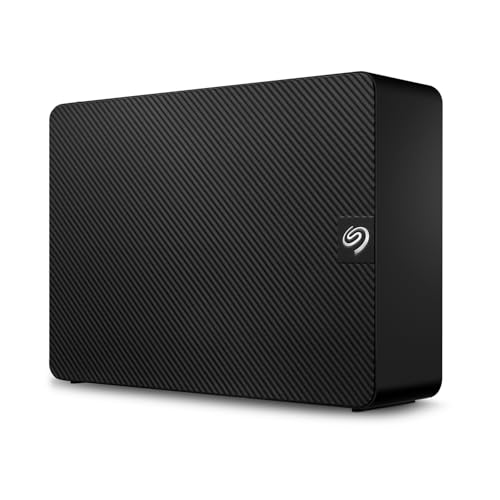
The Expansion is the straightforward answer at the top of the range: 20TB of external storage over USB 3.0, with Rescue Data Recovery Services named in the listing. For a bulk buyer, the appeal is the absence of decisions. There is no bay count to plan, no drive shopping to follow, no configuration to choose — the capacity arrives whole, and the library moves in the day the box does.
The Rescue services deserve a sentence of their own, because at bulk sizes the failure maths changes. Twenty terabytes failing is not twenty times worse than one terabyte failing in effort, but it is far worse in consequence if the material exists nowhere else. A manufacturer recovery service is a last resort, not a strategy — the strategy remains a second copy of anything irreplaceable — yet as last resorts go, having one named in the listing beats not having one. Treat this drive as the library’s home, keep a duplicate of the irreplaceable parts elsewhere, and the combination is as sound as single-drive bulk storage gets.
Physically, expect a desktop unit that wants a permanent spot and its own power. Bulk drives earn their keep by being boring: shelved, attached, filling slowly. Place it where air moves and cables are not under tension, and let it disappear into the routine.
One more use suits this drive particularly: the household consolidation. When every family member’s external drives, old laptops and card readers finally get emptied into one library, the job needs a destination with room for the mess before the sorting starts. Twenty terabytes absorbs the mess whole, duplicates and all, and lets the organising happen afterwards at leisure — the correct order of operations, and one the smaller picks cannot always offer.
- Capacity: 20TB
- Interface: USB 3.0
- Model: STKP20000400
- Recovery: Rescue Data Recovery Services named in the listing title
- Form factor: desktop external hard drive
- Password protection: the listing title does not claim it for this model — the WD My Book below is the pick that names it
Strengths
- The joint-largest capacity in this guide, delivered as one simple drive.
- Rescue Data Recovery Services give a failed unit a professional recovery route.
- Nothing to configure: capacity arrives whole and ready to fill.
Trade-offs
- Twenty terabytes in one box is a concentration of risk that demands a second copy of the important parts.
- When it fills, the next step is a whole second unit or the enclosure route.
- No password protection is claimed in the listing title.
Best for: a media library or whole-house backup target that needs the largest simple answer available. Not suited for: a library already past twenty terabytes and growing — start with the enclosure instead of migrating twice.
WD My Book 18TB Desktop Hard Drive — Protection and Backup Software
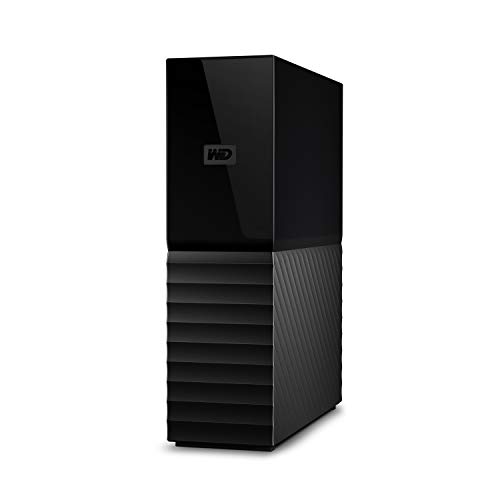
The My Book gives up two terabytes to the Seagate and buys features with them. Its listing names password protection and auto backup software alongside the 18TB capacity and USB 3.0 connection — the only pick in this roundup whose title advertises both. For bulk storage that doubles as the household backup target, that combination is coherent: the backup software keeps several computers’ backups flowing onto the drive without manual copying, and the password protection guards the result, which by definition contains a copy of everything personal in the house.
That second point is easy to underrate. A bulk drive holding media is a nuisance if stolen; a bulk drive holding full backups of the family’s computers is a biography. Password protection on the drive itself means the protection survives the drive being unplugged and carried away, rather than depending on the computer it was attached to. If your bulk drive’s job description includes “backup of everything”, this is the pick shaped for it.
The 18TB size sits in a useful middle: large enough for a serious media library plus machine backups, short of the 20TB ceiling only for the very largest collections. Buyers whose count lands between sixteen and eighteen terabytes get the features without paying the top size’s premium in shelf commitment.
There is a household-politics advantage here as well. A backup system that runs itself gets kept; one that depends on someone remembering a monthly copying session gets quietly abandoned by February. If the bulk drive’s success in your home depends on other people’s habits, bundled automation is not a luxury feature — it is the feature the whole purchase stands or falls on.
- Capacity: 18TB
- Interface: USB 3.0
- Model: WDBBGB0180HBK-NESN
- Protection named in title: password protection
- Software named in title: auto backup software included
- Recovery services: the listing title does not name a data recovery plan for this model
Strengths
- Password protection suits a drive holding whole-computer backups.
- Included auto backup software removes the manual-copy chore for several machines.
- 18TB still covers all but the very largest home libraries.
Trade-offs
- Two terabytes short of the largest single-drive option here.
- Backup software ties the routine to WD’s application staying installed and updated.
- Forgotten passwords and protected drives are an unforgiving combination; custody of the password is part of the purchase.
Best for: bulk storage that doubles as the household’s backup destination for several computers. Not suited for: a pure media shelf where backup software and password layers add nothing but steps.

WD Elements 16TB Desktop Hard Drive — The Plain Middle
The Elements line’s whole personality is restraint, and the 16TB version is its bulk expression: a desktop drive whose listing promises USB 3.0 plug-and-play storage and nothing else. No software suite, no protection layer, no services — the drive appears, the library copies across with whatever tool you already trust, and the relationship stays that simple for the life of the hardware.
There is a long-term argument for plainness in bulk storage specifically. Libraries outlive the software bundles that ship with drives; operating systems change, vendors retire applications, and the drive that needed nothing but a file system is the drive still fully usable a decade on. Sixteen terabytes is also a quietly strategic size — the point where most media libraries, even enthusiastic ones, fit with years of margin, without the buyer paying for the flagship capacity tier.
Choose this over the My Book when the drive’s job is purely to hold material you manage yourself. Choose it over the 14TB Elements when your count says the extra two terabytes postpone a second purchase by years. It is the pick for buyers who already have a copying routine and want hardware that stays out of its way.
The 16TB size also plays well as the second drive in a grown system. Households that began with a 14TB unit and filled it often discover that what they actually need is not a replacement but a sibling — media on one, backups on the other — and this drive’s plainness makes it an undemanding sibling: same behaviour, no competing software, no second ecosystem to learn.
- Capacity: 16TB
- Interface: USB 3.0
- Model: WDBWLG0160HBK-NESN
- Setup style: plug-and-play storage, per the listing title
- Bundled software: none is named in the listing title
- Password protection: the listing title does not claim it for this model
Strengths
- Total simplicity: no bundled layer between the library and the drive.
- 16TB fits most serious home libraries with growth margin.
- Agnostic about your tools — works with any copy or backup routine you already run.
Trade-offs
- No password protection or recovery service is named in the listing.
- Buyers wanting automated backups must bring their own software.
- The plain approach means drive health checks are your responsibility too.
Best for: a self-managed media or file library between ten and sixteen terabytes. Not suited for: a household backup hub that needs its own password protection and bundled backup software — that description belongs to the My Book.

Western Digital 14TB Elements Desktop External Hard Drive — The Sensible Starting Size
Fourteen terabytes is where bulk storage starts for most people, and this Elements drive is the entry point in its plainest form: USB 3.0, plug-and-play, desktop enclosure. The buyer for this pick has done the count described earlier and landed in single digits with growth — a photo library, a ripped music and film collection, a few computers’ worth of backups — and wants the problem solved for years without buying capacity that may never be used.
The honest case for starting at 14TB rather than stretching to 20TB is that unused terabytes help nobody, and the difference in commitment can fund the second drive that bulk storage eventually wants anyway. A 14TB library drive today and a second unit in three years is a growth path; a single 20TB drive filled to nineteen is a deadline. The Elements formula suits the path: identical plain behaviour if a sibling joins it later.
It shares its larger sibling’s silence on extras — no software, no protection, no recovery plan named in the listing — and the same defence applies. What you are buying is room, delivered simply, from a line whose entire reputation is that restraint.
Consider also who this drive suits temperamentally: the buyer who measures twice. If you have actually counted your library — most people never do — and the count with five years of growth lands under fourteen terabytes, stretching to a bigger drive buys nothing but a later migration date you may never need. The discipline that produced the count is the same discipline that will run the second copy when the time comes.
- Capacity: 14TB
- Interface: USB 3.0
- Model: BWLG0140HBK-NESN, per the listing title
- Setup style: plug-and-play storage
- Bundled extras: the listing title names none for this model
- Form factor: desktop external hard drive
Strengths
- The right size for libraries in the five-to-twelve terabyte range, with margin.
- Same plug-and-play plainness as the larger Elements, at a smaller commitment.
- Pairs naturally with a later twin as the library grows into a two-drive system.
Trade-offs
- Fast-growing video libraries can see the ceiling from the day of purchase.
- No bundled backup software, protection or recovery service appears in the title.
- Desktop format still needs mains power and a permanent shelf spot.
Best for: a first bulk drive for a library that currently measures in single-digit terabytes. Not suited for: a media server adding several terabytes of footage a year, which will outgrow it on schedule.
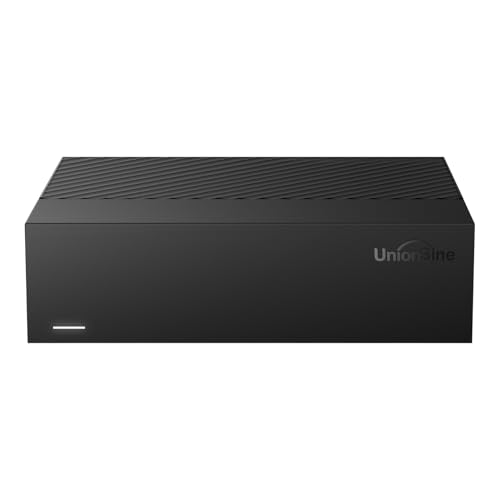
UnionSine 14TB Desktop External Hard Drive — The Alternative-Brand 14TB
UnionSine’s 14TB desktop drive competes in the same size class as the WD Elements 14TB and makes its case on breadth: its listing names compatibility with PC, Mac, TV, desktop and laptop, over USB 3.0, in a 3.5-inch desktop format. The television in that list is the detail worth pausing on. A bulk drive whose main job is holding a film and music library often lives behind the TV, plugged straight into it, and a listing that names TV hosts explicitly speaks to exactly that life.
Buying from a smaller brand is a trade that should be made with open eyes. The capacity and interface on offer match the big names at this size; what differs is the depth of the support organisation behind the box and the length of the track record you can inspect. For a media library — material that is either re-rippable or duplicated elsewhere — many buyers accept that trade comfortably. For the only copy of a family’s digital life, the calculus changes, and the brand-name picks above are the safer seats.
Used as a media shelf or as the second copy in a two-drive system, the UnionSine’s proposition is coherent: bulk room, wide host compatibility, no software layer. Judge it by the job you give it, and give it a job its support depth can carry.
The TV scenario deserves one practical footnote. Televisions can be picky about very large drives and about how they are formatted, whatever a listing’s compatibility line says, so the sensible first evening with this drive is a test: load a sample of the library, plug it into the set, and confirm the household’s actual television browses it happily before the full copy begins. That ten-minute check is worth more than any compatibility list, here and everywhere.
- Capacity: 14TB
- Interface: USB 3.0 (listed as USB3.0)
- Form factor: 3.5-inch desktop external hard drive, model HD3513
- Compatibility named in title: PC, Mac, TV, desktop and laptop
- Colour named in title: black
- Backup software: the listing title names none for this model
Strengths
- TV compatibility is named in the listing, suiting a drive that lives behind the television.
- Full 14TB bulk capacity in the same class as the brand-name entry pick.
- No bundled software layer to install or maintain.
Trade-offs
- A smaller brand’s support depth and track record are thinner than WD’s or Seagate’s.
- No recovery service or password protection is claimed in the listing title.
- Warranty specifics are not stated in the listing title, so check the product page before relying on them.
Best for: a media library plugged into a TV, or the duplicate copy in a two-drive bulk setup. Not suited for: the sole copy of irreplaceable files, where the depth of the maker’s support matters most.

TERRAMASTER D4-320 4-Bay Enclosure (Diskless) — Room for Four Drives You Buy Separately
This pick must be introduced by what it is not: it is not a hard drive, and it stores nothing on the day it arrives. The D4-320 is a four-bay external enclosure sold diskless — the listing says so twice — with a USB 3.2 Gen2 10Gbps Type-C connection, hot-swappable bays and plug-and-play operation. You supply up to four 3.5-inch or 2.5-inch drives, bought separately, and the enclosure presents them to your computer. Every capacity figure in this section is therefore your decision, not TERRAMASTER’s: four bays of modest drives make a modest library; four bays of the largest desktop drives make a library no single pick in this guide can match.
Why would a bulk buyer choose homework over a finished drive? Because growth changes shape. With the enclosure, capacity expands one drive at a time, different bays can hold different kinds of material, and a drive that fills or ages is replaced individually instead of retiring a whole library box. The 10Gbps USB connection also gives the enclosure headroom the single drives here do not claim, which matters when several bays are busy at once. Hot-swappable bays mean those changes happen without unplugging the library from the computer.
The discipline required is honesty about total cost and total responsibility. The enclosure plus four drives is a larger commitment than any single pick above, and the drives’ warranties, health and arrangement are yours to manage. Buyers who enjoy that control get the most flexible bulk storage in this guide. Buyers who want the library solved in one box should take the Seagate 20TB and never look back — both answers are respectable, and pretending the enclosure is a drive is the only wrong one.
A note for buyers upgrading from a drawer of older drives: the enclosure can give those drives a second career. A retired 4TB or 6TB unit that no longer suits front-line duty still works as a backup bay or a staging area inside the D4-320, provided it passes a health check first. That reuse is part of the enclosure’s value story — though any drive installed should be one whose failure would inconvenience you, not one whose failure would wound you, because bays do not resurrect tired hardware.
- Bays: 4, for drives bought separately — the unit is diskless and ships with no storage included
- Interface: USB 3.2 Gen2, 10Gbps, Type-C
- Bay behaviour named in title: hot swappable, plug and play
- Capacity: none built in; determined entirely by the drives you install
- RAID: the listing title does not describe built-in RAID, so treat any mirroring as something you arrange yourself
- Form factor: external desktop enclosure
Strengths
- Capacity grows one bay at a time instead of one whole library box at a time.
- The fastest connection in this roundup, at 10Gbps over Type-C.
- A failed or full drive is replaced individually, not as part of a sealed unit.
Trade-offs
- It stores nothing until you buy drives for it — the entry price is not the working price.
- No RAID or protection scheme is described in the listing title; organising the bays is your job.
- Managing four drives’ health and warranties is more work than managing one drive.
Best for: a growing library whose owner wants capacity added drive by drive, with each bay’s contents under their own control. Not suited for: anyone who wants bulk storage working the day the box arrives — this enclosure needs its drives bought and installed first.
How Do You Fill a Bulk Drive Without Creating a Swamp?
The failure mode of bulk storage is not running out of room; it is losing track of what the room holds. Fourteen terabytes with no organisation is a landfill with a USB cable. The fix costs an afternoon at the start and nothing afterwards: decide a shallow folder structure before the first copy, with top-level folders by kind — media, photographs, backups, working files — and inside them, folders named by year or by machine, never by whim. A structure you can describe in one sentence is a structure you can still navigate in ten years.
Resist the temptation to deduplicate aggressively during the great consolidation. Copies of the same photograph in three folders are untidy; a deduplication pass that deletes the wrong twin is a loss. Bulk capacity exists precisely so you do not have to make those judgements under pressure. Copy everything in, let the duplicates ride, and tidy later with the originals safely resident — tidying a drive you can afford to keep full is a leisure activity, while tidying to make room is a source of regrets.
Keep one small text file at the root of the drive describing what lives where and when it arrived. Bulk drives outlive the memory of the weekend they were filled, and that single page is the difference between a library and a mystery. If the drive holds machine backups, note which machine each belongs to and the date of the oldest restore point you are keeping; backup folders are the first place bulk quietly doubles itself when nobody is watching.
What Changes About Drive Care at Bulk Sizes?
Scale changes the chores. Copying fourteen terabytes takes hours, verifying it takes longer, and both facts argue for doing them deliberately: start the great copy in the evening, let it run overnight, and verify the next day rather than trusting a progress bar you watched for nine minutes. Use a copy tool that reports errors per file instead of stopping at the first problem or, worse, skipping silently — at bulk sizes, the difference between “copied” and “copied, three files failed” is invisible until the day you reach for one of the three.
Heat and vibration deserve a thought at this scale too. Desktop bulk drives live where they are put, often in entertainment units and stacked shelves where air barely moves. Leave space around the enclosure, keep it off other warm equipment, and do not stack a second drive directly on top of the first. None of this requires instruments; it requires remembering that a box holding your whole library should not also be the warmest object in the room.
Finally, bulk size changes the meaning of a strange noise or a slow folder. On a small drive, an odd symptom is an annoyance; on the drive holding everything, it is a instruction to copy the irreplaceable material off first and investigate second. Keep enough free space somewhere — a bay in the enclosure, an older drive, a cloud allowance — that an emergency evacuation has somewhere to go.
How Does the Enclosure Route Work in Practice, Bay by Bay?
Since the D4-320 arrives empty, its story is told in purchases. Bay one is usually a large drive bought with the enclosure, sized for the current library. Bay two arrives when growth demands it, or immediately if you intend to keep a mirrored copy of bay one by your own copying routine. Bays three and four are where the enclosure’s flexibility shows: a drive dedicated to machine backups, a drive that rotates off-site, a drive inherited from a retired single-drive setup that still has honest years in it.
This staged pattern spreads cost across years and matches spending to actual growth, which is the enclosure’s real economic argument. It also spreads decision-making: each bay’s drive is chosen for its job at the time it is bought, with the prices and capacities of that year, rather than committing the whole library’s future to one purchase. The counterweight is administration. Four drives means four health checks, four warranties in a drawer, and a labelling scheme that says which bay holds what — because in year three, “the big one, second from the left” is not documentation.
One discipline matters above the rest: never let the enclosure’s total capacity seduce you into treating its bays as one indestructible pool. They are four separate drives in one box, sharing one power supply and one shelf. A copy that matters should exist outside the box entirely, no matter how many bays the box contains.
How Do You Move a Library Onto a New Bulk Drive Cleanly?
Migration onto bulk storage is a copy of unusual size, and it rewards a procedure. Start by confirming the destination has room not just for the library but for the library plus the margin you promised yourself. Then copy in sections — one top-level folder at a time — rather than as a single multi-terabyte gesture, so that an interruption costs you one folder’s progress instead of the whole weekend’s. Keep the source drives untouched and connected throughout; the migration is not finished when the copying is, but when the verification is.
Verification at this scale means spot depth, not blind trust. Compare folder sizes and file counts between source and destination, open a sample from every section — the oldest photographs, the largest videos, the backup images — and let a checksum pass run over the irreplaceable subsets. Only when the new drive has proven it holds what the old ones held do the old drives change status, from sources to spares. Many tidy households keep the largest old drive as the library’s second copy for a full season after migration, and retire it only when the new arrangement has survived real use.
Resist reorganising and migrating in the same pass. Moving house and redecorating simultaneously is how folders vanish; copy the library as it is, verify it as it is, and reorganise afterwards on the new drive, where the space to shuffle exists and the sources still sit intact if a shuffle goes wrong.
Which Format and File System Choices Matter at This Size?
Every pick in this guide arrives ready to use with ordinary computers, and for most buyers the factory format is the correct format. The exceptions are households with a specific host in mind: a television with its own size limits, a media box with a preferred file system, a mix of Windows and Mac machines that must all write to the drive rather than merely read it. Those households should decide the format before the first great copy, because reformatting a filled 18TB drive means emptying it first — a sentence nobody wants to live through.
If the drive will hold very large individual files — disc images, virtual machines, long video captures — confirm the chosen format accepts files of that size before copying begins; older formats carry per-file ceilings that bulk material sails past. And whatever format you settle on, write it on the drive’s label alongside its role and purchase date. The next computer, the next television, the next family member who plugs the drive in will thank the label for existing.
What Does a Sensible Second-Copy Strategy Look Like at Bulk Sizes?
Duplicating twenty terabytes wholesale is expensive enough that most households should not try. The sensible strategy is tiered. Tier one — the irreplaceable material: family photographs, documents, work product, anything whose loss would be permanent — gets a true second copy on separate hardware, ideally in a separate place. Tier two — the laborious material: a ripped collection that took weekends to build — gets a copy if a spare drive exists, because re-ripping is a cost measured in evenings rather than money. Tier three — the replaceable bulk: downloads and caches that can be fetched again — rides on the single drive and takes its chances.
The picks here assemble that strategy at several scales. A 20TB Seagate as the library and a 14TB Elements holding tier one and two is a coherent household system. The enclosure route builds the tiers as bays, with the caveat from earlier standing firm: a copy inside the same box shares the box’s fate, so tier one’s copy belongs outside it — a drive at another address, or a cloud allowance for the truly irreplaceable subset. What matters is not the elegance of the arrangement but the honesty of the tiers: decide in advance what is protected, and do not let the size of the main drive blur the decision.
Review the tiers when the library changes character. The folder of phone videos that was tier three when the children were teenagers becomes tier one at their weddings. Bulk storage is a long relationship, and the strategy should age alongside the material it protects.
Where Should a Bulk Drive Live in the House?
Bulk drives are furniture as much as electronics, and placement decides how the household feels about them. A desktop drive on the main desk is convenient for the person who manages the library and faintly present for everyone else — spinning drives are not silent, and a 20TB unit working through a verification pass makes its industry known. An entertainment-unit home suits the media-focused picks, provided the unit breathes; a cupboard with the router suits the backup-focused ones, provided the cupboard is not also where the house’s heat gathers.
Two placement rules hold for every pick here. Keep the drive where its cable cannot be tripped over or its power brick kicked out mid-write, because bulk copies run for hours and interruptions cluster around foot traffic. And keep it somewhere you will still be able to reach in three years — bulk drives are bought to be forgotten, but the forgetting should be a choice, not the result of the drive disappearing behind a renovation. The enclosure, being the largest object in this guide, deserves its placement decided first; everything else in the setup will arrange itself around it.
How Do the Six Options Compare on Capacity and Character?
| Pick | Storage as sold | Connection | Character |
|---|---|---|---|
| Seagate Expansion | 20TB, ready to use | USB 3.0 | Largest single drive, Rescue services named |
| WD My Book | 18TB, ready to use | USB 3.0 | Password protection and auto backup software |
| WD Elements 16TB | 16TB, ready to use | USB 3.0 | Plain plug-and-play, nothing bundled |
| WD Elements 14TB | 14TB, ready to use | USB 3.0 | The starting size in the same plain style |
| UnionSine 14TB | 14TB, ready to use | USB 3.0 | Alternative brand, TV compatibility named |
| TERRAMASTER D4-320 | None — diskless enclosure | USB 3.2 Gen2 10Gbps Type-C | Four empty bays; capacity is the drives you add |
The last row is the one to read twice. Every other pick’s capacity is a fact; the D4-320’s capacity is a plan. Comparing it against the 20TB Seagate on terabytes alone misses the point in both directions — the enclosure can eventually hold far more, and on day one it holds nothing at all.
Among the finished drives, the spread is about extras rather than size. Two terabytes separate the My Book from the Seagate, and the My Book spends that difference on protection and backup software. The Elements pair spend nothing on extras at all, which is either leanness or bareness depending on whether you already run your own routine. The UnionSine matches the smaller Elements on capacity and answers with host breadth instead.
Notice what the table cannot show: time. A finished drive’s story ends at its capacity figure, while the enclosure’s story is a sequence of future purchases, each extending the total. Buyers comparing only today’s terabytes will always pick a finished drive; buyers comparing the next decade’s flexibility may rationally pick the empty box. Both are reading the same table correctly — they are simply planning on different clocks, and bulk storage, more than most purchases, rewards knowing which clock is yours.
What Goes Wrong When People Buy Bulk Storage?
Buying an enclosure and budgeting as if it were a drive. The D4-320’s price is the price of four empty bays. The working system costs the enclosure plus the drives, and the drives are the larger half. Budget the whole system or buy a finished drive.
Counting today’s library and forgetting the growth. A drive that fits the current collection exactly is already too small; the tidying project that follows a bulk purchase usually uncovers more material, not less. Buy for the five-year library.
Letting one box hold the only copy of everything. Bulk concentrates. The bigger the drive, the more of your life a single failure, theft or accident can take with it. Duplicate the irreplaceable parts somewhere else, even if the media bulk stays single.
Assuming the bays protect each other. An enclosure presents drives; it does not, by the evidence of its listing title, mirror them. If you want one bay’s contents duplicated on another, arrange that copy yourself and verify it happens.
Filling a drive to the final gigabyte. A completely full drive is slow to work with and impossible to reorganise. Keep a margin, and treat the approach of the margin as the signal to plan the next step while options are still cheap and unhurried.
Final Recommendation
For most bulk buyers, the answer is one of the finished drives: the Seagate Expansion 20TB if the library is large or growing fast, the WD My Book 18TB if the same box must also hold protected backups of the household’s computers, and either Elements if your own copying routine makes bundled extras pointless — 16TB for the established library, 14TB for the growing one. The UnionSine earns its place behind televisions and as a second copy. And the TERRAMASTER D4-320 is the connoisseur’s answer: an empty, fast, four-bay foundation for buyers who want their bulk storage to grow drive by drive — bought with eyes open, drives budgeted separately, and no illusion that the box alone stores anything at all.
Whichever shape you choose, buy it once and buy it honestly: count the library, price the whole working system rather than the box, and leave a margin the next five years can grow into. Bulk storage succeeds when it disappears — when the question “where does this fit?” stops being asked in your house for years at a time. Every pick above can deliver that disappearance, at its own size and in its own style.
Frequently Asked Questions
Is a 20TB single drive or a four-bay enclosure better value for bulk storage?
They optimise different things. The single 20TB drive is the cheapest route to twenty terabytes working today, with nothing else to buy. The enclosure costs more before it stores anything, then grows cheaper per added terabyte as bays fill over the years, and lets you replace individual drives. Short horizon and simple needs favour the drive; a library that will keep growing for a decade favours the enclosure.
Does the TERRAMASTER D4-320 come with any drives included?
No. Its listing describes it as diskless, which means the four bays arrive empty and every drive must be bought separately and installed by you. Its capacity is whatever the drives you choose add up to. That is the enclosure’s flexibility and its catch in a single fact, and it is why this guide never quotes a terabyte figure for it.
How much bulk storage does a media library actually need?
Count the current library, then multiply by your growth. A ripped film collection in high quality can pass ten terabytes sooner than its owner expects; a music library rarely reaches one. Photographs sit between, depending on whether video joins them. The picks here span 14TB to 20TB in single drives precisely because most home libraries, honestly counted with five years of growth, land in that band.
Should bulk storage be backed up too?
The irreplaceable parts, yes — bulk size does not exempt anything from loss. Media that can be re-ripped or re-downloaded can reasonably live on one drive. Family photographs, work files and anything that exists nowhere else deserve a second copy regardless of how large the drive holding them is. Many households split the difference: the bulk drive holds everything, and a smaller second drive or cloud copy holds the irreplaceable subset.
Can these drives plug straight into a television?
The UnionSine’s listing names TV among its compatible hosts explicitly. For the other picks, televisions vary in the file systems and drive sizes they accept, and the listing titles do not make TV claims — so check your set’s documentation for its external drive limits before assuming a 20TB library will mount. A drive the TV refuses can still serve the library through a computer or media box.
Can I start with one drive in the D4-320 and add the rest later?
Yes — that staged pattern is the enclosure’s main attraction. One drive in one bay works from the first day, and the remaining bays wait empty until growth or a new job justifies filling them. Buy the first drive for the library you have, and let each later bay be a decision made with later knowledge. The only caution is bookkeeping: label each bay’s drive and its role as you install it, because a half-filled enclosure examined two years later does not explain itself.
Do these big drives work with game consoles and media players?
Consoles and media players each impose their own rules on external storage — capacity ceilings, dedicated formatting that erases the drive for their exclusive use, or support for playback only. The listings here make their compatibility claims for computers, with the UnionSine additionally naming TV, so treat console use as a separate check against the console maker’s current documentation rather than an assumption. A drive a console reformats for itself is no longer your library drive, and the two jobs should not share hardware.
How long does it take to fill or copy a drive this size?
Longer than intuition suggests. Copying a full library of ten or more terabytes over USB is an overnight occupation, and a complete read-back verification doubles the commitment. Plan bulk moves as background events: start them in the evening, let them run unattended, and check results in the morning rather than watching progress bars. The picks here are all mechanical drives chosen for capacity, so patience is part of the format — the reward is room measured in years, and the chores, though long, are rare.
Is it smarter to buy one 20TB drive or two smaller ones?
One drive is simpler and usually cheaper per terabyte at the top of the range; two drives are more flexible and let you separate kinds of material or keep a copy in another room. The deciding question is what the second drive would do. If it would hold a genuine duplicate or a distinct library, two drives form a system. If it would hold the overflow of the same undifferentiated pile, one large drive keeps life simpler — with the enclosure waiting for the day the pile outgrows simplicity.
Related Guides
Bulk capacity raises its own follow-on questions about endurance and about the small drives that still earn a living inside older machines, covered here: Best Hard Drives for Reliability, Best Laptop Hard Drives, and Best Wireless Hard Drives for Extra Storage.