What's inside
- Key Takeaways
- Quick Picks
- How We Chose These Picks
- Comparison
- Why Has Direct-to-Disc Printing Nearly Vanished?
- A Warning About Labels, Loose Trays and Other Impostors
- How Do You Verify Disc Support for an Exact Model?
- What Media and Handling Does Real Disc Printing Need?
- How Should You Organise a Small Disc Archive Once Printing Works?
- What Should a First Print Run Look Like?
- Common Mistakes
- Final Recommendation
- Frequently Asked Questions
- Related Guides
As an Amazon Associate I earn from qualifying purchases. This post may contain affiliate links at no extra cost to you.
widgetverdict.com is reader-supported. When you buy through links on our site, we may earn an affiliate commission.
Start with the uncomfortable fact that shapes everything below: if you go shopping for the best cd dvd printers today expecting a crowded shelf of current machines that print straight onto a disc, that shelf barely exists. Direct-to-disc printing was once a headline feature on mainstream inkjets; manufacturers have quietly dropped it from most current lines, and the listings in this guide prove the point. Of the six machines gathered here, only two say anything about discs in their own listing titles at all. One is a dedicated disc publisher built for producing finished discs in batches. The other is a small thermal title printer from another era of computing. The remaining four are capable photo and all-in-one inkjets whose titles speak about wide formats, borderless photographs and wireless convenience — and say nothing whatsoever about discs.
That silence is not a technicality, and this guide will not talk its way around it. A printer either carries a disc tray, a disc path and manufacturer software that knows the printable area of a 120mm disc, or it does not. Enthusiasm, photo quality and a wide paper path do not add up to disc printing. So the honest way to read this page is as two guides woven together. The first covers the machines whose disc function is actually stated, and what kind of buyer each one serves. The second covers strong general printers that sit adjacent to the disc question, explains exactly what their titles do and do not promise, and teaches you how to verify disc support for any model — by exact model code, tray part name and manual chapter — before money changes hands. Readers who follow that verification habit will never be caught by a marketplace listing, a forum post about a discontinued sibling model, or a photograph of a printer with a disc resting decoratively on its lid.
One more distinction needs drawing before any product names appear, because confusion here wastes more money than any other in this category. Printing onto a disc means ink laid directly onto the printable coating of a special disc, through a guided tray, by a machine designed for that path. Sticking a printed paper label onto a disc is a different process with different risks. Feeding a disc through a machine on a third-party tray bought separately is a third thing again, and it only works when the printer itself was engineered for it. A full section below pulls those three apart. Keep them separate in your mind and the rest of this guide becomes straightforward.
Key Takeaways
- Only two picks state a disc function in their listing titles: the Epson Discproducer PP-100III, a CD/DVD/Blu-ray publisher and printer, and the Casio CW-E60, a CD & DVD disc title printer.
- The four desktop inkjets here — Epson XP-7100, Canon PIXMA TS702a, Epson EcoTank Photo ET-8550 and Epson XP-15000 — state photo and all-in-one features only; their disc capability is recorded in this guide as not stated in the listing title.
- Direct disc printing requires three things together: a machine built for a disc path, a proper tray or transport, and inkjet-printable discs with a printable coating.
- Adhesive disc labels and separately sold trays are not direct-to-disc printing, and a tray accessory cannot give a printer a capability its firmware and feed path never had.
- Verification is a model-code exercise: check the exact regional model in the manufacturer’s own manual for a named disc tray and a disc-printing chapter before buying.
- Disc work divides into two real jobs — publishing finished discs repeatedly, which is the PP-100III’s world, and occasional home discs, where title printing or a verified tray machine is the realistic route.
Quick Picks
| Pick | Badge | Why it earns its place |
|---|---|---|
| Epson Discproducer PP-100III | Stated disc publisher | The one machine here whose title names CD, DVD and Blu-ray publishing outright — a production tool, not a desktop accessory. |
| Epson Expression Premium XP-7100 | Compact photo all-in-one | A five-colour wireless all-in-one with an auto document feeder and borderless photo printing; its title states no disc function. |
| Canon PIXMA TS702a | Single-function simplicity | Print-only focus with AirPrint and Mopria mobile printing; nothing in its title mentions discs, trays or media beyond ordinary printing. |
| Epson EcoTank Photo ET-8550 | Wide-format tank machine | Six-colour cartridge-free printing up to 13 by 19 inches for creators; disc printing is not among the features its title states. |
| Casio CW-E60 | Stated disc title printer | A dedicated CD & DVD disc title printer — it prints titles onto discs rather than full-face artwork, a narrower and older idea. |
| Epson Expression Photo HD XP-15000 | Wide-format photo printer | Six-colour printing up to 13 by 19 inches aimed at photographers; its title is silent on any disc capability. |
How We Chose These Picks
Selection for this category began with a sweep for machines whose listings genuinely touch optical media, and that sweep returned a short, telling list. Dedicated disc publishing survives as a professional product line, represented here by Epson’s Discproducer family. Dedicated disc title printing survives as a legacy niche, represented by the Casio. Everything else in the modern printer market that a search engine will happily serve against a disc-printing query turns out, on inspection of the actual listing title, to be a photo printer, an all-in-one or a wide-format machine with no stated disc function at all. Rather than dress that up, this guide includes representative examples of those adjacent machines — the models buyers most often encounter while hunting for disc printing — and labels their status plainly in every spec box.
The judgements below therefore rest on stated facts only. When a title gives a speed, a colour count, a maximum sheet size or a feeder, that fact is used. When a title gives nothing about discs, the spec line says so in fixed wording and the surrounding analysis discusses the machine for what it verifiably is: a photo printer, a document all-in-one, a tank machine. That discipline protects readers twice over. It stops anyone buying a four-hundred-page-a-month photo printer under the illusion that a disc mode is hiding in a menu, and it also gives the adjacent machines fair treatment, because several of them are genuinely good at the jobs their titles do describe.
Finally, the guide weights the two stated disc machines by job rather than by novelty. Publishing — burning and printing finished discs as a repeatable output — is a workflow with media handling, batch logic and per-disc consistency at its centre. Home disc labelling is a smaller, occasional job where a title across the top of a disc may be all a family archive actually needs. Confusing those two jobs leads to absurd purchases in both directions: a publisher idling on a home desk, or a title printer expected to produce retail-looking full-face artwork. The reviews keep the jobs separate so the purchases can be sane.
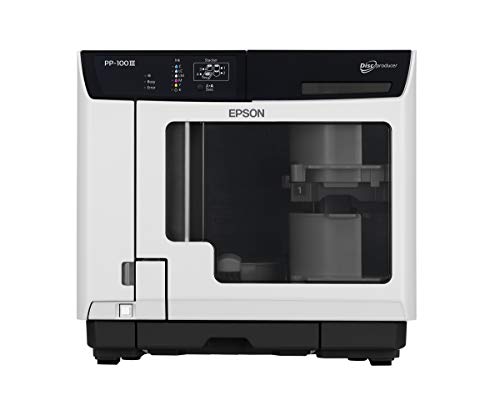
Epson Discproducer PP-100III — Stated disc publisher
Everything about this machine begins with its title, the most explicit in the guide: a CD/DVD/Blu-ray Disc Publisher and Printer. Publisher is the operative word. A publisher does not merely decorate a disc you burned elsewhere; it sits at the end of a production process, taking blank printable media and returning finished, printed discs as its normal output. That is the equipment churches, training departments, wedding videographers, small software houses, medical imaging offices and duplication services reach for when discs leave the building with their name on them. Judged as a home printer it looks enormous and excessive. Judged as a small production line in a box, its shape makes complete sense.
Production changes what matters. A desktop printer printing one disc is an event; a publisher printing discs is a routine, and routines live or die on consistency. Every disc in a run must carry the same artwork in the same position with the same colour, because a client receiving fifty discs notices the one that drifted. The publisher’s transport exists to remove human placement from that equation: discs are handled mechanically, printed in sequence, and the operator’s skill is exercised in preparing good artwork and correct data rather than in nursing each disc through a tray. Anyone whose disc work involves other people’s deadlines should read that difference carefully, because it is the entire argument for equipment of this class.
There is also an honesty point about era. Optical media has retreated from everyday computing, yet it persists stubbornly in particular corners: archival deliverables, legal and medical records, event video, houses of worship distributing recordings, and organisations whose recipients genuinely use discs. The PP-100III exists for those corners. Buying one is therefore a statement that your disc output is a continuing obligation rather than a nostalgic project. If discs are a line item in your working life — counted, scheduled, delivered — a stated publisher is the only pick in this guide that was engineered around your reality, and the rest of the page is, for you, background reading.
What this machine is not is a general printer that also does discs. It will not replace the household all-in-one, print school projects or handle your photographs on paper. Its value concentrates entirely in finished-disc output, and households should weigh that concentration soberly: floor space, learning time and media stock all commit to a single purpose. For the right buyer that focus is the appeal. For everyone else it is the warning label.
- Type: Disc publisher and printer
- Disc capability stated: CD/DVD/Blu-ray Disc Publisher and Printer
- Media stated: CD, DVD and Blu-ray discs
- Role: Batch production of finished printed discs
- Paper printing role: Not a general-purpose document or photo printer
Strengths
- Its disc function is stated outright in the listing title — no inference, no regional guesswork, no tray archaeology.
- Publishing as a single integrated job suits repeatable output where every finished disc must match the last.
- Mechanical disc handling removes per-disc placement variation from runs.
Trade-offs
- A single-purpose production machine is poor value for occasional home discs.
- It does not substitute for an everyday paper printer in a home or small office.
- Owners commit to keeping printable blank media and a disc workflow alive in an era moving away from both.
Best for: organisations and creators who produce finished CD, DVD or Blu-ray discs as a recurring deliverable. Not suited for: a desk that needs paper printing first and discs twice a year — the publisher’s single purpose would sit idle between those two outings.
For production disc work, review the current publisher listing directly: check price on Amazon.
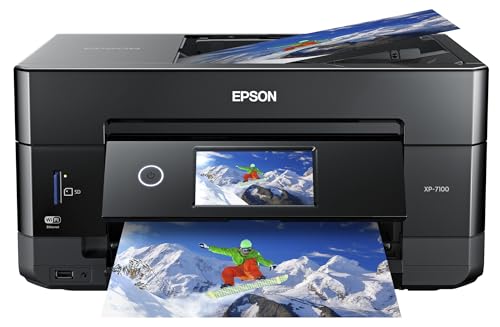
Epson Expression Premium XP-7100 — Compact photo all-in-one
Taken on its own stated terms, the XP-7100 is a well-judged home photo all-in-one. The title promises five-colour printing, scanning and copying, wireless colour output at up to 15.8 pages per minute, an auto document feeder, and borderless photo printing, aimed at home and photo projects. That is a coherent recipe: the feeder handles the paperwork side of home life, the five-colour engine handles photographs, and wireless keeps the machine available to every phone and laptop in the house. Plenty of households would be served well by exactly this balance, and nothing in this review should be read as diminishing it.
The disc question, however, gets a short and exact answer. The title states no disc printing, names no disc tray, and mentions no optical media. Accordingly, the spec box below records disc capability as not stated in the listing title, with the standard instruction to verify against manufacturer documentation for the precise model code. That verification matters more than usual with long-running model families, because manufacturers have historically sold related models in different regions with different media handling, and internet folklore about one variant migrates carelessly onto another. A photograph of a sibling model holding a disc proves nothing about the machine in a given listing.
So how should a disc-minded reader treat the XP-7100? As a paper printer to buy for paper reasons, full stop. If your real workload is photographs, school documents and household copying, its stated feature set argues for it directly. If your real workload begins with discs, this listing gives you no stated basis to proceed, and the correct next step is documentary: find the manual for the exact model and region, search it for a disc tray by name, and let the manual — not a review, not a comment thread — settle the question. Readers who do that homework before purchase are the ones who never end up owning a fine photo printer and a separate, lingering sense of having been misled.
Within its paper role, the feeder deserves emphasis because it quietly changes scanning from a page-at-a-time chore into a stack job, and home offices generate stacks: contracts, school forms, multi-page letters. Borderless photo printing similarly removes the white-edge trimming ritual from home photo projects. Both features are stated, both are useful weekly, and both are better reasons to choose this machine than a disc capability its listing never claims.
- Type: Wireless colour all-in-one inkjet
- Functions stated: Print, scan, copy
- Colour system stated: 5-colour print
- Speed stated: Up to 15.8 ppm
- Feeder stated: Auto document feeder
- Photo feature stated: Borderless photo printing
- Disc capability: Not stated in the listing title — verify with the manufacturer documentation
Strengths
- A document feeder plus five-colour photo printing covers the two halves of home printing in one stated package.
- Borderless output suits photo projects without a trimming step.
- Wireless all-in-one design fits shared household use from phones and laptops.
Trade-offs
- No disc function is stated, so disc shoppers have nothing in this listing to rely on.
- Cartridge running costs follow home photo volume in the usual way.
- Regional variants in long model families make manual-checking essential for any unstated feature.
Best for: households wanting a feeder-equipped photo all-in-one for paper work, chosen on its stated merits. Not suited for: a purchase whose first requirement is printing onto discs — this listing states no such capability to build a decision on.
Weigh the XP-7100 as a paper machine on its live listing: check price on Amazon.

Canon PIXMA TS702a — Single-function simplicity
The TS702a makes a virtue of refusal. Its title describes a wireless single-function printer — print only, no scan, no copy — with mobile printing through AirPrint and Mopria, in black. In an era of all-in-ones competing to absorb every office function ever invented, a machine that simply prints is a deliberate product. It suits the desk where scanning already lives elsewhere, where a second printer serves a single room, or where the buyer has learned that unused features are not free: they cost menu complexity every single day. For plain paper printing from phones and computers, the stated recipe is complete.
About discs, the title says nothing, and this review will follow it exactly. No disc printing is stated, no tray is named, no optical media appears. The spec box records that plainly. The TS702a’s presence in this guide is instructive rather than accidental: it is precisely the sort of well-reviewed, sensibly priced Canon that surfaces in disc-printer searches and tempts buyers into assuming that a capable printer must surely handle one more media type. Capability does not spill over like that. A feed path engineered for paper, even a very good one, says nothing about the guided, centred, slow pass a printable disc requires.
Read generously, the TS702a is the guide’s reminder to buy the stated product. Its mobile printing support is genuinely broad — AirPrint covers Apple households, Mopria covers much of Android — and a print-only machine tends to be quicker to place, simpler to share and easier to replace in kind. If the disc project in your life is real, let it be served by a machine that states the function; let the TS702a be considered, if at all, as the household’s uncomplicated paper printer standing beside that decision rather than inside it.
There is a final, practical angle. Single-function printers are often bought as the second machine — the one near the person who prints most. In that role the absence of a scanner stops mattering within a week, while the presence of reliable wireless printing matters every day. Buyers who understand their own division of labour across two machines will find this Canon easy to place. Buyers hoping one unstated feature will quietly cover their disc archive should look at the two stated disc machines in this guide and at nothing else.
- Type: Wireless single-function printer
- Functions stated: Print only — no scan or copy
- Mobile printing stated: AirPrint and Mopria
- Colour stated: Black
- Disc capability: Not stated in the listing title — verify with the manufacturer documentation
Strengths
- Print-only focus keeps operation simple for a dedicated paper-printing role.
- AirPrint and Mopria together cover the main phone platforms households actually use.
- A single-function machine suits second-printer placement near the heaviest paper user.
Trade-offs
- No scanning or copying at all, which rules it out as a household’s only printer for many families.
- Its title states no disc capability, so it cannot anchor a disc-printing plan.
- Buyers must look elsewhere in the same purchase if forms and documents need capturing.
Best for: a focused paper-printing role in a home that already scans elsewhere. Not suited for: any plan that needs a scanner on the same desk, or a stated disc function — the title offers neither.
See the TS702a’s current listing for the print-only role it actually fills: check price on Amazon.
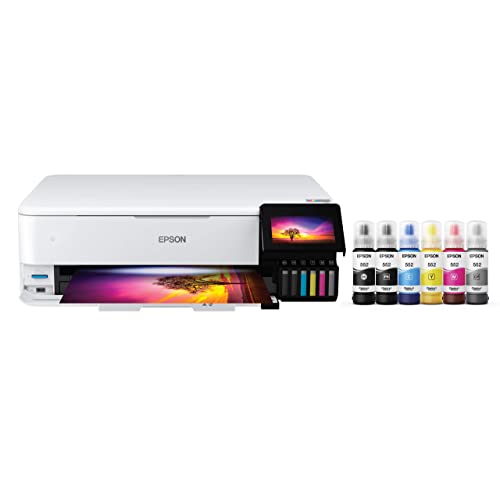
Epson EcoTank Photo ET-8550 — Wide-format tank machine
The ET-8550 is the most ambitious paper printer in this line-up. Its title describes a wireless wide-format all-in-one with cartridge-free six-colour printing, scanning and copying, speeds up to 16 pages per minute, and output up to 13 by 19 inches, aimed at creators and home studios. Each element reinforces the others. Six colours serve photographic gradation. Refillable tanks serve volume — the creator who prints proofs weekly rather than framing one photograph a year. The wide format serves work that refuses to shrink to letter size: portfolio pages, posters, large proofs. As a studio paper machine, the proposition is unusually complete.
None of that, it must be said clearly, is a disc proposition. The listing title states no disc printing and names no disc tray; the spec box records disc capability as not stated. The temptation to infer otherwise comes from a lazy syllogism — the machine handles many media, discs are a medium, therefore the machine handles discs — and it collapses on contact with how disc printing actually works. A printable disc does not flex through a paper path. It rides a rigid tray through a specific route while the head lays ink on a coated surface, and that route exists only where engineers built it. Wide-format paper handling, however impressive, is evidence about paper.
Where the ET-8550 legitimately enters a disc enthusiast’s thinking is around the disc rather than on it. Studios producing discs also produce packaging: covers, inserts, booklets, posters for the same project. A wide-format tank printer is a serious tool for that surrounding print work, and its running-cost pattern suits iterative design — print the cover, judge it at full size, adjust, print again, without the cartridge anxiety that makes creators timid. Bought for that role with clear eyes, it earns its desk space. Bought as a presumed disc printer, it becomes an expensive misunderstanding, and the distinction is entirely about reading the title honestly.
Tank ownership carries its own disciplines, worth stating for balance. Refilling is a deliberate, occasional task best kept methodical; tanks reward regular use and sulk through long neglect like most inkjets; and a wide-format machine claims real desk territory that a studio must actually have. None of these are objections. They are the ordinary terms of owning the most capable paper printer in this guide — a machine whose genuine strengths need no borrowed disc claim to justify attention.
- Type: Wireless wide-format all-in-one tank printer
- Ink system stated: Cartridge-free, 6-colour
- Functions stated: Print, scan, copy
- Speed stated: Up to 16 ppm
- Maximum size stated: 13 x 19 in.
- Audience stated: Creators and home studios
- Disc capability: Not stated in the listing title — verify with the manufacturer documentation
Strengths
- Six-colour tank printing at 13 by 19 inches is a rare and genuinely useful combination for creators.
- Refillable tanks suit proof-heavy workflows where prints are judged and remade.
- All-in-one functions keep scanning and copying in the same studio footprint.
Trade-offs
- No disc capability is stated in its title, despite the breadth of its paper handling.
- Wide-format hardware demands wide-format desk space.
- Tank economy only shows its advantage when the machine is used regularly and in volume.
Best for: creators printing large photographs and project artwork on paper, often. Not suited for: a buyer whose defining job is ink on a disc surface — nothing in this listing states that job.
Judge the ET-8550 on its studio paper merits at its current listing: check price on Amazon.

Casio CW-E60 CD & DVD Disc Title Printer — Stated disc title printer
The Casio occupies the opposite pole from the Epson publisher, and its title is equally direct: a CD & DVD Disc Title Printer. Parse those words carefully, because they promise something specific and smaller than full disc artwork. A title printer prints a title — text, and simple accompanying matter — onto the disc itself, giving a burned archive disc a legible, permanent identification that a marker pen cannot match for neatness. For the household or office whose discs carry recordings, backups and family video, a clean printed title turns a stack of anonymous silver into a findable archive. That job is modest, real and historically popular enough to support dedicated little machines like this one.
Equally important is what a title printer is not. It is not a full-face artwork printer; nobody should expect photographic coverage, edge-to-edge colour or the retail-disc look from a device whose stated job is titles. It is also, by design, a thermal-style dedicated unit rather than an inkjet — a distinction the companion guide to inkjet CD printers explores in depth, because buyers comparing mechanisms deserve to know that the Casio’s way of marking a disc belongs to a different family from ink-on-printable-coating entirely. Within its own family, though, the proposition is honest: a single-purpose machine, a single clear job, stated in five words.
Age is the caveat that hangs over the whole category of dedicated title printers. These machines come from the period when home disc burning was a mass activity, and a buyer today should approach any such listing as a legacy purchase: confirm the unit’s condition, its consumables and its software situation with the diligence you would bring to any older dedicated device, and value it as a specialised tool rather than current mainstream hardware. For the right archive — shelves of family recordings that deserve legible titles and will never need artwork — that legacy status may be entirely acceptable. For a buyer wanting a living, supported disc workflow, the publisher at the top of this guide is the stated, current-form answer.
Consider, too, the handwriting comparison, because it is the Casio’s real competition. Most home discs are identified by a marker, with the familiar results: smudged titles, fading ink, handwriting that made sense in 2011 and baffles in 2026. A title printer exists to beat exactly that baseline — consistency, legibility, permanence of identification. Judged against the marker rather than against a publisher, the little Casio’s purpose snaps into focus, and its many years on the market read less like obsolescence and more like a job that never entirely went away.
- Type: Dedicated disc title printer
- Disc capability stated: CD & DVD Disc Title Printer
- Media stated: CD and DVD discs
- Output character: Printed titles on discs, not full-face artwork
- Category note: Legacy dedicated device — verify condition and consumables on the live listing
Strengths
- Its disc function is stated in the title with no ambiguity about what it does.
- Printed titles give archive discs a legibility and permanence handwriting cannot match.
- A single-purpose unit is simple to understand and to dedicate to an archive shelf.
Trade-offs
- Titles are not artwork — full-face photographic disc designs are outside its stated job.
- As a legacy device, condition, consumables and software need careful checking per listing.
- It does nothing for paper printing, so it always sits beside another printer, never instead of one.
Best for: keepers of CD and DVD archives who want neat, permanent printed titles on their discs. Not suited for: full-colour disc artwork or a supported production workflow — those point to the publisher above, not to a title printer.
Inspect the Casio’s present listing closely, as legacy purchases deserve: check price on Amazon.
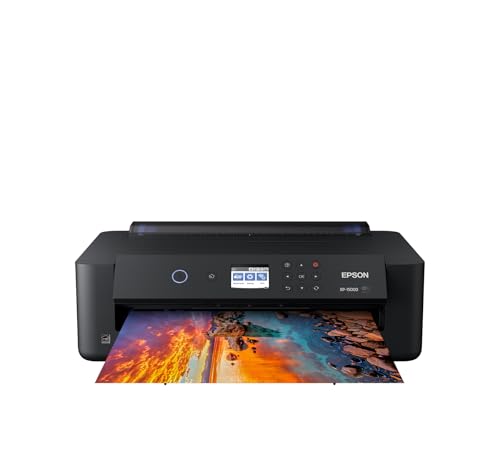
Epson Expression Photo HD XP-15000 — Wide-format photo printer
The XP-15000 closes the line-up with a photographer’s proposition. Its title states wireless wide-format inkjet printing in six colours, up to 9.2 pages per minute, output up to 13 by 19 inches, automatic two-sided printing, and an audience of photographers and home studios. The six-colour engine and the wide path are the heart of it: this is a machine for prints that will be looked at closely and kept, where tonal steps in a sky or a skin tone justify a more elaborate ink set than office printing ever needs. Auto two-sided printing, almost an aside in a photo title, quietly serves the studio’s paper documents too.
Disc capability follows the pattern of the other desktop machines here: the title states none. No disc printing, no tray, no optical media — and so the spec box records the fixed wording once more. If this repetition feels insistent, that is because the underlying market reality is insistent. Search results, recommendation lists and second-hand descriptions attach disc associations to photo printers of this era with great confidence and very mixed accuracy, because some related models in some regions did ship with disc trays in earlier generations. The only safe unit of truth is the exact model in front of you, documented by its manufacturer. Anything else is a rumour with a price attached.
On paper, the XP-15000’s case is strong enough to need no rumours. A photographer printing at 13 by 19 at home changes their relationship with their own work: proofs arrive at exhibition size, portfolios stop depending on a lab’s timetable, and the cost of an experiment falls to paper and patience. The wireless design keeps the studio desk free of cable choreography, and the six-colour output serves precisely the images — landscapes, portraits, still life — where cheaper engines band and block. Studios weighing it against the ET-8550 above are really choosing an ink economy: cartridges with a photographer’s classic workflow, or tanks with a proofing workflow. Both are defensible; neither is a disc decision.
Placement completes the picture. Wide-format printing needs a stable, roomy surface and storage for large paper that keeps it flat and clean; a studio that solves those two logistics problems will use a machine like this constantly, while a cramped desk will make 13 by 19 feel like a ceremony. Buy the format your space and your printing habits can actually sustain — that advice, unglamorous as it is, predicts satisfaction with the XP-15000 better than any specification on its box.
- Type: Wireless wide-format inkjet printer
- Colour system stated: 6-colour wide-format photo printing
- Speed stated: Up to 9.2 ppm
- Maximum size stated: 13 x 19 in.
- Duplex stated: Auto 2-sided printing
- Audience stated: Photographers and home studios
- Disc capability: Not stated in the listing title — verify with the manufacturer documentation
Strengths
- Six-colour wide-format output serves serious photographic printing at home.
- Automatic two-sided printing adds everyday document sense to a photo-first machine.
- Wireless design suits studio placement without cable constraints.
Trade-offs
- Its title states no disc function, so it offers disc shoppers no stated ground to stand on.
- Large paper needs flat, clean storage and a generous, stable surface.
- Cartridge costs follow photographic volume, especially at the largest sizes.
Best for: photographers and home studios printing their own work at up to 13 by 19 inches. Not suited for: a disc-led purchase — the listing claims photographic paper printing, and that claim should be taken at face value.
Consider the XP-15000 as the photo printer its title describes: check price on Amazon.
Comparison
| Printer | Stated disc status | Stated type | Stated highlights | Honest role |
|---|---|---|---|---|
| Epson Discproducer PP-100III | Disc Publisher and Printer stated | Dedicated publisher | CD, DVD and Blu-ray | Producing finished discs in runs |
| Epson Expression Premium XP-7100 | Not stated in title | Colour all-in-one | 5-colour, ADF, borderless photos | Home paper and photo printing |
| Canon PIXMA TS702a | Not stated in title | Single-function printer | AirPrint and Mopria | Simple dedicated paper printing |
| Epson EcoTank Photo ET-8550 | Not stated in title | Wide-format tank all-in-one | 6-colour, 13 x 19 in. | Creator paper and photo work |
| Casio CW-E60 | Disc Title Printer stated | Dedicated title printer | CD and DVD titles | Legible titles on archive discs |
| Epson Expression Photo HD XP-15000 | Not stated in title | Wide-format photo printer | 6-colour, 13 x 19 in., auto 2-sided | Photographer paper printing |
Two rows in that table carry a stated disc function and four do not, and no amount of rearranging columns changes the arithmetic. Let the table do its real work: it separates the machines you can buy for discs on the evidence of their own titles from the machines you can only buy for discs on hope. Hope is not a specification. The four unstated machines earn their places in this guide because buyers meet them on this search and deserve a clear account of what they are — good paper printers, variously feeder-equipped, tank-fed or wide-format — rather than a fog of implication.
Why Has Direct-to-Disc Printing Nearly Vanished?
The short answer is that the disc itself retreated. Streaming took the music and the films, cloud storage took the backups, and the laptop shed its optical drive without most owners noticing. Printer manufacturers, who add features to sell machines to the mainstream, watched disc printing slide from headline to footnote to absence across a decade of model cycles. A feature used by a shrinking minority is a feature that costs tooling, trays, software maintenance and support calls; the industry’s decision, however regrettable for archivists, was arithmetic rather than malice.
The retreat was uneven, which is exactly why verification matters so much now. Disc trays lingered longer in some regions and some model families than others, professional publishing never went away, and the second-hand market keeps older disc-capable machines circulating with descriptions written by sellers of varying precision. The result is a landscape where a model name alone tells you little: the same family name can cover a disc-tray variant from one market and a paper-only variant from another. Living in that landscape safely requires the documentary habit this guide keeps recommending — exact model code, manufacturer’s manual, named tray, disc chapter — applied without exception.
There is a consoling side. The niches where discs remain genuinely useful — archives meant to be read decades later, deliverables for recipients who use discs, recordings distributed within communities — are served by the stated machines that remain, and printable media continues to be manufactured for them. The feature has not died; it has specialised. Buyers who accept that specialisation, and shop inside it honestly, can still build a disc workflow that works. Buyers who expect a mainstream 2026 all-in-one to conceal a disc mode as an Easter egg will shop forever.
A Warning About Labels, Loose Trays and Other Impostors
Three products are routinely mistaken for direct disc printing, and each deserves a plain description. First, adhesive disc labels: sheets of paper labels, printed on an ordinary printer and stuck onto discs. They are not printed discs. The label is paper, its adhesive ages, and a label that lifts, bubbles or sits off-centre inside a high-speed drive is a mechanical risk to both disc and drive — which is why so many drive and disc manufacturers have warned against labels for years. Labels also add thickness unevenly and can unbalance a disc at speed. Whatever their convenience, they belong in a different mental category from ink laid directly on a printable disc surface, and this guide does not count them as disc printing.
Second, the separately sold tray. A disc tray is an accessory shaped for a specific printer’s disc path; it is not a universal key that unlocks disc printing in any machine with a slot it happens to fit. If a printer was never engineered with a disc mode — the transport, the sensor logic, the software that centres artwork on a 120mm circle — an aftermarket tray gives you a disc sitting inside a printer that does not know what to do with it, and forcing media through an unintended path risks the printer as well as the disc. A genuine tray for a genuinely disc-capable model is a legitimate spare part. The same object marketed as a conversion for an unsupported model is an impostor.
Third, the hand-drawn and marker route, included for completeness rather than condemnation. A suitable marker identifies a disc adequately for many home purposes, and for a working backup nobody else will see, adequate may be enough. But handwriting is not printing, it fades and smudges on its own timetable, and it should not borrow printing’s credibility in a listing description or a buyer’s expectations. Keep the categories clean — direct printing, title printing, labels, handwriting — and every product in this space becomes easier to judge.
How Do You Verify Disc Support for an Exact Model?
Begin with the full model code, including any regional suffix, exactly as printed on the machine or its box — not the family name from a headline. Manufacturers reuse family names across variants that differ in media handling, so the suffix is not pedantry; it is the difference between two different products sharing a marketing name. With the exact code in hand, go to the manufacturer’s own support site and download that model’s manual. Vendor documentation, for all its dryness, is the one source that cannot be guessing about its own product.
Inside the manual, search for the disc vocabulary directly: disc tray, CD/DVD printing, printable disc, media tray by its part name. A disc-capable model documents the whole procedure — tray loading, printable area dimensions, the software used to lay out artwork, warnings about handling the printable surface. A paper-only model’s manual contains none of it, and that absence, in the manufacturer’s own book, is a definitive answer rather than a gap in your research. Cross-check the specifications section for supported media types while you are there; printable discs appear as a listed media type on machines that accept them.
Then apply two sanity checks to anything the open internet told you. Photographs: a disc resting on a printer in a marketplace photo demonstrates staging, not capability. Comment threads: owners discuss the model they own, which may be a different region’s variant from a different year. Neither source outranks the manual. If, after the manual check, a model proves disc-capable, you have something better than a claim — you have the manufacturer’s own instructions, tray name and printable dimensions, which you will need on your first print run anyway. Verification is not a hurdle before the real work; done properly, it is the first page of the real work.
What Media and Handling Does Real Disc Printing Need?
Printable discs are a distinct media type. An inkjet-printable disc carries a matte coating engineered to receive ink and hold it; a ordinary shiny disc does not, and ink on an uncoated surface beads, smears and never truly sets. Within printable media, hub-printable variants carry the coating closer to the centre hole, allowing artwork to cover more of the face. Buying media therefore starts with matching the coating to the machine’s method — and, for the title printer and publisher in this guide, with following each manufacturer’s media guidance rather than assuming all printable surfaces behave identically.
Handling decides how much of that media survives to a finished archive. Printable surfaces should be touched by their edges, kept in sleeves or cases rather than stacked face to face, and given proper drying time before anything contacts the printed face. Dust is the quiet enemy: a speck under a print pass or inside a drive shows up exactly where you least want it. Studios that produce good discs treat blank media storage — closed cases, away from heat and sunlight — as part of the printing process rather than housekeeping after it, and their failure rate shows the difference.
Artwork preparation has its own rules on a circle. The printable area is an annulus: an outer edge at the disc’s rim and an inner boundary around the hub, with the exact diameters given in the machine’s documentation or software. Designs must respect that ring, keep critical text away from both edges, and accept that the centre of a disc is a hole, not a canvas. Titles, in particular, should be tested at real size for legibility — a title that reads beautifully on a monitor can vanish at 120 millimetres across a room. One test disc, judged in the hand under ordinary light, teaches more than an afternoon of on-screen adjustment.
How Should You Organise a Small Disc Archive Once Printing Works?
A printed disc is only as useful as the system that lets you find it again, and small archives fail at retrieval far more often than they fail at printing. Give every disc a short, consistent title scheme before the first print run: a collection name, a year, and a sequence number beats a shelf of whimsical one-off titles, because future searching — by eye, along a shelf — depends on patterns the eye can scan. Keep the same scheme in the printed title, on the case spine and in any catalogue file you maintain, so the three records corroborate one another instead of drifting into three private languages.
Cases deserve more thought than they usually get. A printed face should never rest against another surface under pressure, and slim cases that flex onto the disc surface undo careful handling. Store finished discs upright, in closed cases, away from radiators and sunlit shelves, and keep one handling rule for the whole household: discs travel by their edges, out of their cases only between case and drive. These are humble disciplines, borrowed from the era when discs were primary media rather than archives, and they protect the printed surface and the data layer with the same gesture.
Finally, keep a small production log for anything beyond family snapshots: date, media type, title printed, and where the disc was shelved or sent. When a disc resurfaces years later — a recording requested again, a deliverable queried — the log answers questions the disc itself cannot, and it takes under a minute per batch to keep. Archives are not really made of discs. They are made of the titles, cases and records that let a disc be found, trusted and used, and the printing covered in this guide is simply the most visible layer of that quieter system.
What Should a First Print Run Look Like?
Keep the first run deliberately small and deliberately boring. Choose one representative design — a title layout you will actually reuse — print a single disc, and judge that disc in your hand, under the light where the archive is stored, after the full drying interval has passed. Check the title’s legibility at arm’s length, the artwork’s behaviour near the hub and the rim, and the surface’s feel before sleeving. A first run treated as an experiment produces the settings, the drying habit and the title template that every later disc inherits; a first run treated as production produces a shelf of discs all sharing the same unnoticed flaw.
Common Mistakes
Assuming a good photo printer must print discs. Photo quality and disc capability are unrelated engineering decisions, and this guide’s four unstated machines demonstrate the gap: excellent stated photo features, no stated disc function. Buy the stated feature list, not the assumption.
Trusting a family name instead of a model code. Variants within one family differ by region and year in exactly the features this category cares about. The manual for your exact code is the only version of the truth that fits your machine.
Counting adhesive labels as disc printing. A stuck-on paper label is a different product with different risks, including lifting inside drives. If the goal is ink on the disc itself, labels do not reach it by a shortcut.
Buying a loose tray as a conversion kit. A tray serves a disc path that already exists. It cannot create one, and forcing the attempt risks the printer. Spare trays for stated disc models are legitimate; universal promises are not.
Expecting a title printer to produce artwork. The Casio’s stated job is titles. Judging it against full-face photographic printing guarantees disappointment with a machine doing exactly what its name says.
Buying a publisher for a hobby. The PP-100III earns its place through repetition. A handful of home discs a year will never repay a production machine’s commitment of space and attention.
Final Recommendation
Let the stated titles lead. If your work is producing finished discs for other people, on a schedule, the Epson Discproducer PP-100III is the only machine here built and billed for that life, and it should be bought as the production equipment it is. If your need is an archive shelf of home recordings carrying neat, durable titles, the Casio CW-E60 states exactly that job and no other. And if you came to this guide hoping one of the four desktop inkjets would turn out to print discs, take the guide’s central lesson with you instead: their titles do not say so, so verify any individual model in its manufacturer’s manual before believing anything else — and judge the XP-7100, TS702a, ET-8550 and XP-15000, if you buy them, on the paper and photo strengths they genuinely state. A shelf of honestly labelled discs, printed by a machine that was actually built for the job, will still be readable long after a hopeful purchase has been forgotten.
Frequently Asked Questions
Can any ordinary inkjet print onto a CD or DVD?
No. Direct disc printing needs a disc path, a tray or transport, and software that knows the printable ring of a disc. An ordinary inkjet has none of those, however good its paper printing is, which is why this guide records disc capability as not stated for the four desktop machines it covers.
What is the difference between the PP-100III and the Casio CW-E60?
Scale and ambition. The Epson is a publisher: it produces finished CD, DVD and Blu-ray discs as a production job. The Casio is a title printer: it prints titles onto CD and DVD discs for identification. One equips a workflow that ships discs; the other equips an archive that needs legible names.
Are adhesive labels a cheaper equivalent of printing on a disc?
They are a different method, not an equivalent one. A label is printed paper glued to the disc; direct printing puts ink on the disc’s own printable coating. Labels can lift, bubble or unbalance a disc in a drive, and this guide treats the two as separate categories throughout.
Does a separately sold disc tray make any printer disc-capable?
No. A tray is an accessory for a disc path the printer already has. Without the engineered path and disc mode in the machine itself, a tray changes nothing except the risk to the printer. Buy trays as spares for stated disc models only.
How can I check a model I already own?
Take the exact model code from the machine, download its manual from the manufacturer’s support site, and search the manual for a named disc tray and disc-printing instructions. If the manual documents the procedure, your model supports it; if the manual never mentions discs, treat that silence as the answer.
What discs should I buy for direct printing?
Discs sold as printable for your machine’s method, with a coating made to receive its output — inkjet-printable media for inkjet disc printing, following the manufacturer’s media guidance for dedicated units. Ordinary shiny discs are not printable media, and no printer setting will make them behave like it.
Related Guides
Readers narrowing from discs in general to DVDs in particular will find the archive and video angle developed in our guide to DVD printers. Those interested in the inkjet mechanism itself — colour counts, full-face printing and tray design — should continue to our roundup of inkjet CD printers. And for the working process, from choosing printable media to drying and sleeving finished discs, our guide to printers for printing CDs walks the job end to end.


