What's inside
- Key Takeaways
- Quick Picks
- How We Chose These Picks
- Comparison
- Full-Face, Hub-Printable and Other Media Words That Matter for DVDs
- Why Drying Time and Smudge Discipline Decide Whether a Printed DVD Lasts
- A Warning About Labels, Loose Trays and Other Impostors
- How Do You Check Whether a Printer You Meet Really Has a Disc Tray?
- How Should a DVD Library’s Paper Printing Be Organised?
- What Does Digitising a Tape Collection Teach About Disc Printing?
- How Should Box Sets and Multi-Disc Cases Change Your Printing Plan?
- A Note on Reading Ageing Faces: What Ten Years Does to a Printed DVD
- Common Mistakes
- Final Recommendation
- Frequently Asked Questions
- Related Guides
As an Amazon Associate I earn from qualifying purchases. This post may contain affiliate links at no extra cost to you.
widgetverdict.com is reader-supported. When you buy through links on our site, we may earn an affiliate commission.
A DVD collection has a particular melancholy when it is badly labelled. The discs hold wedding footage, digitised family tapes, a decade of school concerts and the only copy of a grandfather’s interview — and their faces say nothing, or say it in marker that faded sometime around the third house move. Shoppers looking for the best dvd printers usually arrive with that shelf in mind, hoping a modern printer will print handsome faces onto their archive discs. This guide owes those shoppers a straight answer before it offers any product names: in the current printer market, direct printing onto DVDs is a nearly vanished feature, and of the six machines below, exactly one states a disc function in its listing title — a professional publisher. The other five are desktop inkjets, several of them genuinely distinguished photo machines, whose titles describe paper, photographs and wireless convenience and never mention a disc at all.
That is not a reason to close the page. It is a reason to read it differently. DVD people need two things that this guide can honestly provide. The first is a clear map of what can still be bought with a stated disc function, and what that equipment is actually for. The second is a working education in the DVD-specific craft that surrounds any disc printing: full-face printable media and what hub-printable really means, how ink behaves on a disc coating, how long a printed DVD must rest before it goes into a case or a drive, and how to check — by exact model code and manual, never by family reputation — whether any particular printer you meet on the market genuinely carries a disc tray. A reader who absorbs that craft will handle the current market safely, whether they end up with a publisher, a verified older tray machine from another source, or a good paper printer bought with open eyes for the covers and booklets of a DVD library.
DVDs also raise the stakes compared with CDs in one specific way: the face of a video disc is a label for a whole film. A CD’s printed face summarises an album; a DVD’s face often has to carry a title, a date, a place and the names of the people in the footage, legibly, at a glance, decades from now. That is why the sections below dwell on legibility, on drying and smudge resistance, and on the difference between a disc that looks fine on printing day and a disc whose face still reads clearly after years in a case. Archival printing is judged by its tenth year, not its first afternoon.
Key Takeaways
- Only the Epson Discproducer PP-100III states a disc function in its title — CD/DVD/Blu-ray publisher and printer; the five desktop machines state no disc capability.
- For DVD archives, full-face printable media matters: hub-printable discs carry the printable coating closer to the centre, giving titles and artwork more of the face to work with.
- A freshly printed DVD face needs undisturbed drying time before casing or playing; handling too early is the commonest cause of smudged archive discs.
- Adhesive paper labels are not disc printing and can lift or unbalance a disc inside a drive — they are warned against separately in this guide.
- Disc support is verified by exact model code in the manufacturer’s manual, looking for a named disc tray and a disc-printing procedure; family names and photographs prove nothing.
- The desktop picks here earn consideration as paper printers for a DVD library’s covers, inserts and booklets — not as disc printers.
Quick Picks
| Pick | Badge | Why it earns its place |
|---|---|---|
| Epson Expression Premium XP-6100 | Home all-in-one | Five-colour wireless printing with borderless photos and memory card support; its title states no disc function. |
| Canon MX922 | Office-leaning all-in-one | A wireless, mobile-printing all-in-one from Canon’s office line; nothing in its title speaks of discs. |
| Epson Artisan 1430 | Wide-format classic | A wide-format colour inkjet of an earlier generation; disc capability is not stated in its listing title. |
| Canon PIXMA TS8322 | Photo all-in-one | Wireless inkjet photo printing with copier and scanner in black; its title is silent about optical media. |
| Epson Expression Photo XP-970 | Wide-format photo all-in-one | Six-colour wide-format printing with USB and memory card support; no disc function appears in its title. |
| Epson Discproducer PP-100III | Stated disc publisher | The one stated disc machine: a CD/DVD/Blu-ray publisher and printer for producing finished discs in runs. |
How We Chose These Picks
The selection mirrors the real shape of a DVD-printer search. At the top of any results page sit the desktop inkjets — current and recent Epson and Canon photo all-in-ones, a wide-format veteran, an office all-in-one — because search engines match the word printer far more readily than the word disc. At the specialist end sits actual disc equipment. This guide takes one clear representative of each machine a DVD shopper is likely to be offered, reads its listing title literally, and reports what is and is not stated. Where a title is silent about discs, the spec boxes below use fixed wording to say so, and the analysis evaluates the machine as the paper printer it declares itself to be.
DVD-specific judgement then layers over that honesty. For the archive reader, the questions that matter are about media and permanence: whether printable DVDs with full-face coatings are the right blanks, how a printed face should be dried and stored, and what a collection needs from its surrounding paper printing — covers that identify a film at shelf distance, booklets that carry chapter lists and context, case inserts that survive handling. Several desktop picks serve that surrounding work well, and the reviews say so without inflating them into disc machines.
The publisher, meanwhile, is judged as publishers should be: on the repeatability of finished-disc output. A family digitising its own tapes produces discs in ones and twos; a videographer delivers them in dozens, identical, on a date. Those are different economies, and the guide keeps them separate so that neither reader is sold the other’s equipment.

Epson Expression Premium XP-6100 — Home all-in-one
The XP-6100 presents itself, in its title’s own words, as a wireless colour all-in-one inkjet with five-colour printing, scanning and copying, speeds up to 15.8 pages per minute, borderless photo printing, USB and memory card support, aimed at home projects. For the household maintaining a DVD library, translate that list into library work: borderless printing for case covers that look finished rather than trimmed, memory card support for printing stills pulled from the same cameras that shot the family footage, and an all-in-one scanner for digitising the paper photographs and notes that belong in a family archive beside the discs. As the paper half of an archive station, the recipe is apt.
The disc half must be stated with equal clarity: the title claims no disc printing, names no tray, mentions no optical media. The spec box records disc capability as not stated in the listing title, and that entry should end any speculation. Epson’s long model history invites folklore — owners of older or regional variants describe features that migrate in retelling onto machines that never had them — and the only antidote is the manual for the exact model code being sold. A buyer who wants this machine for its stated home-project strengths can proceed happily; a buyer who wants it for DVD faces has, in this listing, no stated feature to proceed on.
Within its paper role, the five-colour engine is the point. Home photo printing lives or dies on whether faces look like faces, and an extra colour beyond the basic set exists precisely to smooth the tones that cheap engines render in visible steps. Combined with borderless output, it makes the XP-6100 a credible cover-and-stills printer for a media room: the DVD lives in a case whose cover was printed at home, at quality that does not embarrass the footage inside. That is a real contribution to a DVD collection — it is simply a contribution made of paper.
Practical ownership notes are the usual ones for a home all-in-one. Wireless setup serves the whole household’s devices; the scanner earns its keep the first time a relative’s photograph needs copying into the archive; cartridges follow photo volume. None of these considerations is exotic, and that is the machine’s appeal: it is a known quantity doing stated jobs. Buy it as such.
- Type: Wireless colour all-in-one inkjet
- Functions stated: Print, scan, copy
- Colour system stated: 5-colour print
- Speed stated: Up to 15.8 ppm
- Photo feature stated: Borderless photo printing
- Inputs stated: USB and memory card support
- Disc capability: Not stated in the listing title — verify with the manufacturer documentation
Strengths
- Five-colour borderless photo printing suits DVD case covers and archive stills.
- Memory card support fits a camera-to-print archive workflow without a computer middleman.
- Scanning and copying complete the paper side of a family archive station.
Trade-offs
- No disc function is stated, so it cannot be bought as a DVD printer on this listing’s evidence.
- Folklore about related Epson models makes manual verification essential for any unstated feature.
- Cartridge costs track photo printing volume in the ordinary way.
Best for: households wanting a photo-capable all-in-one for the paper life around a DVD library. Not suited for: printing onto the DVDs themselves — the listing states no capability that would support that purchase.
Look at the XP-6100 for the home paper role it actually describes: check price on Amazon.

Canon MX922 — Office-leaning all-in-one
The MX922’s title is the briefest in this guide: an office and business all-in-one printer with wireless and mobile printing. Brevity is itself information. Canon positioned this machine for paperwork productivity rather than photographic flourish, and a title that leads with office and business tells a DVD collector exactly where this machine’s talents were aimed — documents, forms, the administrative paper of a small organisation. Churches, clubs and schools that record their own events often run exactly such a machine at the centre of their media work: service sheets, permissions, orders of ceremony, and the registers that say which disc holds which recording.
On discs, the short title is also a silent one. No disc printing is stated, no tray is named, no optical media appears, and the spec box below says so in the guide’s fixed wording. The MX922 belongs to a generation of all-in-ones about which second-hand claims circulate freely, and the discipline this guide applies everywhere applies here with special force: a claim about an older office machine, repeated in enough listings and threads, acquires a false patina of fact. The manufacturer’s manual for the exact model remains the only authority, and buyers of any older all-in-one should consult it before assuming any media capability beyond paper.
Judged as an office all-in-one, the machine’s virtues are organisational. Wireless and mobile printing let a whole team feed one machine; an all-in-one’s scanner and copier handle the documentary churn of a small office without a second device. For the volunteer-run archive — the historical society digitising its tapes, the congregation keeping its recordings — such a machine is often the sensible centre of operations, with disc questions handled by dedicated equipment or by a verified tray machine sourced deliberately, rather than by hope invested in the office printer.
Age is the standing caveat for any established office model. A buyer should examine the live listing for the unit’s condition, included accessories and support situation with the care due to hardware from an earlier product cycle, and should weigh how the machine will be maintained. None of that diminishes the MX922’s stated role; it simply prices the role honestly, as this guide tries to price every claim it reports.
- Type: All-in-one printer, office and business line
- Positioning stated: Office and business use
- Connectivity stated: Wireless and mobile printing
- Disc capability: Not stated in the listing title — verify with the manufacturer documentation
- Listing note: Established model — check condition and completeness on the live listing
Strengths
- Office positioning suits the paperwork engine room of a club, church or small archive team.
- Wireless and mobile printing serve several contributors from their own devices.
- All-in-one functions consolidate the document work around a media project.
Trade-offs
- Its title states no disc capability whatsoever.
- An earlier-generation machine demands careful listing checks on condition and support.
- Document-first design is not aimed at photographic cover printing.
Best for: small organisations needing a wireless all-in-one for the documents surrounding their recordings. Not suited for: a DVD-face printing plan, for which this listing offers no stated support at all.
Review the MX922’s current listing with its office role in mind: check price on Amazon.

Epson Artisan 1430 — Wide-format classic
Some printers become reference points, and the Artisan 1430 is one: a wireless colour wide-format inkjet, identified in its title by its model code, from the generation when Epson’s Artisan name stood for ambitious home photo printing. Wide format is the headline that still matters. A printer that lays a photographic image across a large sheet changes what a home media room can produce — posters for the wall beside the screen, large prints of stills from family films, artwork for the covers of box sets a collector assembles by hand. The 1430’s reputation rests on that photographic, large-scale paper work, and the reputation, on the evidence of its title, is about paper.
The disc entry follows the guide’s rule without exception: the title states no disc printing, and the spec box records the fixed wording. The Artisan generation is, however, the generation most surrounded by disc folklore of any in this guide, because wide-format photo printers of that era were sold in several markets and configurations, and because their long second-hand lives have generated a decade of listings written from memory. Precisely for that reason, this model is the guide’s standing example of why verification is done in manuals rather than in comment sections. If a specific unit’s documentation names a disc tray and a disc procedure, that unit’s paperwork settles its own case; the listing title in front of us settles nothing of the kind.
Considered as a classic wide-format photo printer, the buying questions are those of any veteran machine. What is the unit’s condition, and are its consumables and support realistically obtainable? Does its wireless belong to the standards your network still speaks comfortably? A well-kept example can still serve a collector’s paper ambitions handsomely; a tired one will consume its price again in frustration. The collector who prints the artwork for a DVD library — the posters, the large stills, the display pieces — is this machine’s natural reader, and that reader should buy condition and documentation, not nostalgia.
There is also a lesson in the 1430’s longevity for DVD people generally. Equipment tied to a beloved media format outlives the format’s mainstream years, and the second-hand market becomes its natural home. Shopping there successfully is a skill: read titles literally, demand manuals, distrust inherited descriptions. This guide’s treatment of the Artisan — respect for its paper craft, refusal to inherit its folklore — is the template for that skill.
- Type: Wireless colour wide-format inkjet
- Format stated: Wide-format printing
- Model code stated: C11CB53201
- Disc capability: Not stated in the listing title — verify with the manufacturer documentation
- Listing note: Earlier-generation model — condition and documentation decide its value
Strengths
- Wide-format photographic paper printing serves posters, large stills and display artwork.
- A long-established model with a deep base of owner knowledge about its paper craft.
- Wireless design keeps a media room free of a tethered computer.
Trade-offs
- No disc function is stated in its title, despite the folklore surrounding its generation.
- Veteran hardware requires scrutiny of condition, consumables and support.
- Wide format claims serious desk space and large-paper storage.
Best for: collectors printing large photographic paper pieces for a media room or box-set project. Not suited for: a buyer seeking a stated DVD printing capability — the title offers wide-format paper printing and nothing about discs.
Examine the Artisan 1430’s live listing as the classic paper machine it is: check price on Amazon.

Canon PIXMA TS8322 — Photo all-in-one
The TS8322 arrives in black, described by its title as an all-in-one wireless inkjet photo printer with copier and scanner. Canon’s PIXMA photo line has a clear personality: these are living-room machines, designed to sit visibly in a home and produce photographs and documents without office severity. For a DVD household, the living-room framing is honest and useful. The printer that lives beside the television produces the case covers, the printed stills for the family wall, the copied documents a household generates — and it does so from the room where the discs themselves are watched, which is where most media-room printing actually happens.
Its title, predictably by now, contains no disc claim: no printing onto DVDs, no tray, no optical media of any kind. The spec box records the fixed wording. The TS8322 is included because DVD shoppers meet PIXMA photo machines constantly and because Canon’s photo marketing is persuasive enough to blur categories in a tired shopper’s mind. Resist the blur. A photo printer prints photographs — on paper. The disc is not a small round photograph, and the machine that excels at one has made no promise about the other.
On paper, the combination of photo printing with scanning and copying covers a media room’s real weekly work better than a print-only unit would. Scanning matters to collectors more than they expect: original covers wear, booklets tear, and a good scan preserves the artwork of a beloved edition before the paper fails. Copying serves the household’s documents. Wireless serves everyone’s devices. None of this is glamorous, and all of it is the actual texture of owning a collection — the discs are the treasure, but the paper around them is the daily work.
Buyers weighing the TS8322 against the Epson all-in-ones in this guide are choosing between two mature photo ecosystems, and the sensible grounds are the stated ones: design, functions, the household’s existing ink habits, the room the machine will live in. Disc capability is not among the stated grounds for any of them, and a decision made on stated grounds will still look sensible in five years — which is more than can be said for decisions made on implications.
- Type: All-in-one wireless inkjet photo printer
- Functions stated: Printer with copier and scanner
- Colour stated: Black
- Disc capability: Not stated in the listing title — verify with the manufacturer documentation
Strengths
- Photo printing plus scanning serves a collection’s covers and artwork preservation.
- A living-room design in black sits comfortably in a media room.
- Wireless all-in-one functions cover the household’s ordinary paper work.
Trade-offs
- No disc capability is stated; photo excellence implies nothing about discs.
- Collectors needing wide format must look to the wide-format picks instead.
- Its talents are paper talents, and its price should be judged against paper work.
Best for: media-room households wanting photo printing, scanning and copying in one visible, friendly machine. Not suited for: printing DVD faces, a job its title never mentions.
See how the TS8322’s current listing presents its photo role: check price on Amazon.

Epson Expression Photo XP-970 — Wide-format photo all-in-one
The XP-970 widens the all-in-one idea. Its title states wireless wide-format printing in six colours, with scanning and copying, speeds up to 8.5 pages per minute, USB and memory card support, aimed at creative projects. Six colours and a wide path in a machine that also scans is a creator’s combination: artwork and photographs can be captured, printed large, judged, adjusted and printed again without leaving the desk. For the DVD collector who designs, that loop has a specific product — the custom cover. Collections acquire personality through covers: the uniform set for the family films, the restored artwork for a worn favourite, the box-set sleeve that turns six discs into one object. A wide-format all-in-one is the natural press for that work.
The disc line is the guide’s fixed one. The title states wide format, six colours, creative projects — and nothing about printing onto a DVD. Spec box accordingly. The wide-format fact misleads disc shoppers for a simple reason: a machine that swallows a 13-inch sheet feels mechanically generous, as though any smaller medium must surely pass too. Mechanics do not work by generosity. A disc requires a guided, centred, rigid path and software that composes onto a ring; a wide paper path provides neither, and the feeling that it ought to is a feeling, not a feature.
As a creative paper machine, the XP-970’s stated inputs deserve attention. USB and memory card support suit a workflow where images arrive from cameras and archives rather than only from the network — the still frame exported to a card, the scanned photograph restored on a computer and returned. Combined with scanning at the same desk, the machine becomes a small restoration bench: capture the old, print the renewed, keep both. DVD collections maintained this way age gracefully, their paper skins renewed while the discs rest in their cases.
The trade-offs are those of ambition. Wide format needs room and large paper stored flat; six-colour printing spends ink across more cartridges; an all-in-one’s talents ask the owner to actually use them. A collector whose ambitions run to covers, posters and printed stills will find the machine proportionate. A household wanting a small printer for letters should not buy a wide-format creative bench to do it.
- Type: Wireless all-in-one wide-format printer
- Colour system stated: 6-colour wide-format print
- Functions stated: Print, scan, copy
- Speed stated: Up to 8.5 ppm
- Inputs stated: USB and memory card support
- Audience stated: Creative projects
- Disc capability: Not stated in the listing title — verify with the manufacturer documentation
Strengths
- Six-colour wide-format printing makes it a genuine press for custom DVD covers and sleeves.
- Scanning in the same machine supports restoring worn original artwork.
- Memory card and USB inputs fit camera-and-archive workflows.
Trade-offs
- Its title states no disc printing, however wide its paper path feels.
- Wide format demands space and flat storage for large paper.
- More colours mean more cartridges to keep in stock.
Best for: collectors and creators printing large, high-quality covers and artwork for their media projects. Not suited for: putting ink on a DVD itself — no such function is stated in this listing.
Weigh the XP-970 as a creative paper press at its live listing: check price on Amazon.
Epson Discproducer PP-100III — Stated disc publisher
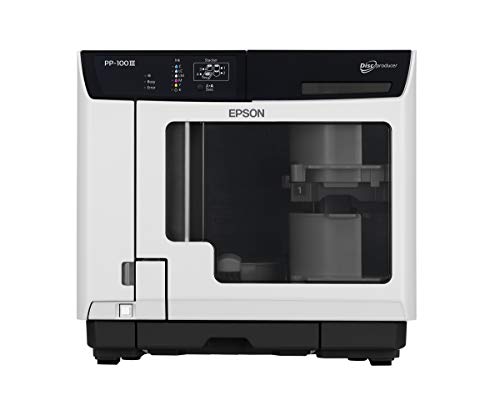
After five machines whose titles never mention a disc, the PP-100III’s title reads like a door opening: CD/DVD/Blu-ray Disc Publisher and Printer. This is the one pick in the guide whose disc function is stated outright, and it is stated in the language of production. A publisher takes blank printable discs and returns finished ones as a repeatable output — the equipment of videographers delivering wedding films, training providers shipping course discs, congregations distributing recordings, and any organisation whose discs are products rather than keepsakes. For DVD work specifically, publishing means the film and its face are finished in one workflow, identically, disc after disc.
The distinction between that and a desktop printer with a disc tray deserves emphasis, because it decides who should buy what. A tray machine prints a disc you place in it, one at a time, under your hands — a craftsman’s arrangement, right for a home archive. A publisher mechanises placement and sequence, trading the craftsman’s flexibility for the producer’s consistency. When fifty recipients will compare their discs, consistency is the quality that matters; when one family archive grows disc by disc over years, it matters far less. The PP-100III is therefore not a better version of a home disc printer. It is a different species, priced and shaped by production logic.
DVD producers should also weigh what a publisher asks in return: a commitment to printable media stock, to artwork prepared at production standard, and to a workflow that treats discs as output with deadlines. In exchange it removes the two failure modes of hand-fed disc work — placement variation and the sheer labour of repetition. Any reader who has hand-printed a run of event DVDs, one tray at a time, on a delivery deadline, understands instantly what the machine is selling. Any reader who has not will likely never need it, and should spend the money on the media-room paper printing covered by the other five picks.
Its presence at the end of this guide is deliberate. Everything before it taught the reader to ask one question — what does the title actually state? — and the PP-100III is what a yes looks like. When a machine prints discs as its purpose, its title says so in plain words. Let that plainness calibrate your expectations of every other listing you ever read in this category.
- Type: Disc publisher and printer
- Disc capability stated: CD/DVD/Blu-ray Disc Publisher and Printer
- Media stated: CD, DVD and Blu-ray discs
- Role: Repeatable production of finished printed discs
- Paper printing role: Not a general-purpose document or photo printer
Strengths
- The only pick whose disc function is stated in its own title, for CD, DVD and Blu-ray alike.
- Publishing workflow produces identical finished discs across a run.
- Mechanised handling removes hand-placement variation from production work.
Trade-offs
- Production equipment is disproportionate for a home archive growing disc by disc.
- It does not replace a paper printer for covers, documents or photographs.
- Owners commit to printable media stock and a genuine disc workflow.
Best for: videographers and organisations delivering finished DVDs as a product, repeatedly. Not suited for: a family’s occasional archive disc — the publisher’s production logic would spend its life waiting for work.
For stated, production-grade disc output, go straight to the publisher’s listing: check price on Amazon.
Comparison
| Printer | Stated disc status | Stated type | Stated highlights | Honest role |
|---|---|---|---|---|
| Epson Expression Premium XP-6100 | Not stated in title | Colour all-in-one | 5-colour, borderless, memory card | Home photo and paper work |
| Canon MX922 | Not stated in title | Office all-in-one | Wireless, mobile printing | Small-office documents |
| Epson Artisan 1430 | Not stated in title | Wide-format inkjet | Wide-format colour | Large photographic paper prints |
| Canon PIXMA TS8322 | Not stated in title | Photo all-in-one | Print, copy, scan | Media-room paper printing |
| Epson Expression Photo XP-970 | Not stated in title | Wide-format all-in-one | 6-colour, memory card | Creative covers and artwork |
| Epson Discproducer PP-100III | Publisher and Printer stated | Dedicated publisher | CD, DVD and Blu-ray | Finished discs in production runs |
Read the disc column first and the table tells its honest story in one glance: five unstated, one stated. The other columns then do their proper work, sorting the five paper machines by the jobs a DVD household actually gives paper — covers, stills, documents, posters, restored artwork. A collection needs both kinds of printing across its life. It simply must not confuse which machine does which.
Full-Face, Hub-Printable and Other Media Words That Matter for DVDs
Printable DVDs are not all coated alike, and the vocabulary on the media box decides how much of a disc’s face your design can use. A standard inkjet-printable DVD carries its coating across most of the face but stops short of the centre, leaving a broad unprintable ring around the hole. A hub-printable disc extends the coating inward, close to the hub, so artwork and text can occupy that inner territory too. For DVD faces — which often need a title, a date and a line of context — the extra printable ring is not a luxury. Titles set in the inner area stay clear of the artwork, and a design composed for the full face looks intentional rather than interrupted.
Match media to method before buying in quantity. The coating that drinks inkjet ink correctly is formulated for that process; dedicated equipment follows its own manufacturer media guidance. In every case, the disc’s own packaging vocabulary — printable, hub-printable, the stated surface type — is the specification, and a first small pack is the correct experiment before a shelf’s worth of blanks is committed. Print one disc, let it dry completely, sleeve it, and live with it for a week. Media that survives that week of ordinary handling has earned a bulk order.
There is a subtler point about permanence. A DVD archive is usually a promise made to the future — footage kept for grandchildren, records kept for decades. The face of such a disc should be printed with the same seriousness as its contents were recorded: legible type at a size age can read, contrast that survives a dim room, and information chosen for a stranger. Names in full, dates with years, places named properly. The disc that says only “Holiday — final FINAL” in fading marker is the cautionary tale every archive keeper knows; full-face printable media, used well, is how the next generation of discs avoids joining it.
Why Drying Time and Smudge Discipline Decide Whether a Printed DVD Lasts
Ink on a disc coating is a surface event, and surfaces need time. A printed DVD that goes straight from tray to case carries a face that has not finished setting; the case, the sleeve or the next disc in a stack then becomes part of the print, in the worst way — transferred ink, dulled patches, a fingerprint preserved in the coating like an insect in amber. The remedy costs nothing but patience: leave a freshly printed disc face-up, untouched, in clean air, for the full drying period the media and machine documentation advise, and treat that interval as part of the print job rather than an optional courtesy.
Smudge resistance after drying depends on the partnership between coating and ink, which is why media matching matters and why handling rules persist even for dry discs. A printable face is tougher than wet ink and more delicate than the moulded plastic of a commercial disc. Edges-only handling, sleeves rather than stacks, and storage away from heat keep a printed face honest for years. Sliding a disc face-down across a table to a friend is the sort of casual gesture archives are lost to; the face deserves the same respect as the data side, because for the person searching the shelf in ten years, the face is the data.
Test your own workflow once, deliberately. Print a sacrificial disc, then handle it at intervals — an hour, a day — noting when the surface stops feeling vulnerable. That small experiment calibrates the household’s habits better than any general instruction, because coatings, inks and climates differ. Build the observed drying time into your routine as a fixed step, the way photographers build fixing time into a darkroom process, and smudged archive faces will quietly disappear from your collection’s future.
A Warning About Labels, Loose Trays and Other Impostors
Adhesive labels are the impostor DVD households meet first, because they promise printed discs from any printer. Understand what they are: printed paper, glued on. The glue and the paper age on their own schedule, and a label that lifts at an edge, bubbles with heat or was applied a millimetre off-centre becomes a spinning imbalance inside a drive — a risk to the disc and the drive alike, which is why disc and drive makers have warned against labels for years. On an archive DVD the objection doubles: you are preserving footage for decades on a carrier whose label may not survive the decade. This guide does not count labels as disc printing, and collectors building for permanence should not either.
The separately sold tray is the second impostor. A tray is shaped for one printer’s engineered disc path; it confers nothing on a machine without that path, that transport logic and that software. Offered as a spare for a stated disc model, a tray is legitimate. Offered as a universal conversion, it is a piece of plastic and a promise it cannot keep, and feeding rigid media through an unintended path is a recognised way to damage a printer. The rule has no exceptions worth testing: tray follows capability, never the reverse.
Marker pens, the third alternative, are at least honest about what they are. A proper disc-safe marker identifies a working disc adequately, and for drafts and duplicates adequacy is a fair standard. But handwriting fades, smears and dates badly, and an archive disc identified by marker is an archive disc on a countdown. Know which of your discs are working copies and which are the archive — and let the archive get printing, by equipment that states the function, or the best identification your verified equipment can give.
How Do You Check Whether a Printer You Meet Really Has a Disc Tray?
Work from the exact model code, suffix included, and go to the manufacturer’s support pages for that code. Download the manual and search it for the disc vocabulary: a named disc tray, printable disc media in the specifications, a chapter describing how a disc is loaded and printed. Manufacturers document real features thoroughly, because owners need instructions; a disc-capable model’s manual will walk you through tray loading, printable diameters and layout software. A model without the feature will contain no such chapter, and that documented absence is a firm answer.
Treat every other source as hearsay until the manual confirms it. Seller descriptions of older machines are written from memory and optimism. Photographs stage discs on lids. Forum posts describe regional variants. Even a manufacturer’s own marketing for a family name may span variants that differ in exactly this feature. The manual for your code, in your region, is the one document that describes the machine you would actually own — and consulting it takes minutes, which is a trivial premium to pay over the cost of the wrong printer.
If the manual confirms disc support, keep it: you will need its printable-area dimensions and loading sequence on your first run, and its media guidance when you buy blanks. Verification, done this way, is not bureaucracy. It is the first working session with your own equipment, conducted before the equipment arrives.
How Should a DVD Library’s Paper Printing Be Organised?
A collection’s paper deserves a small system of its own, because covers and inserts are produced in bursts — a digitising project finishes, a box set is assembled, a shelf is re-covered — and bursts punish improvisation. Keep one cover template per collection: the same title position, type treatment and spine logic across every case, so the shelf reads as a library rather than a pile of individual decisions. Store the template with the project files, note the paper stock that produced the result you liked, and print a single proof at final size before any batch. Covers are judged at arm’s length on a shelf, not on a monitor, and the proof is where type sizes and contrast should be settled.
Booklets and inserts repay a different discipline: information density. A DVD booklet that carries a chapter list, recording notes and the names of everyone in the footage becomes more valuable every year, as memories thin and participants scatter. Print that information while it is still known, on paper that will live inside the case, and keep the digital source files with the footage masters. The collectors who do this are the reason some family archives arrive in the next generation fully explained, while others arrive as mute discs in handsome covers.
Finally, let the paper printer’s stated strengths assign the jobs. Borderless machines make the covers; wide-format machines make the posters and large stills; the office all-in-one makes the registers and the correspondence. A library maintained this way — each job on the machine that states it — stays coherent for decades, and its discs, printed only by equipment that states disc work, carry faces as honest as their covers.
What Does Digitising a Tape Collection Teach About Disc Printing?
Anyone who has digitised a box of family tapes knows the rhythm: hours of capture for minutes of footage, file names invented at midnight, and a shelf of discs burned in a burst of completion. That rhythm is where bad disc faces are born, because the printing is treated as an afterthought to the capturing. The lesson the project teaches, usually by its second box of tapes, is that identification is part of capture. A disc titled at the moment its contents are finished — while the names, dates and places are still open on the desk — carries information that no later session can reconstruct as accurately.
Build the title into the workflow, then: capture, verify the recording, compose the disc, print its face or title while the details are present, sleeve it, log it. The log matters as much as the face. A simple record — tape source, disc title, date of digitising, shelf position — turns a pile of finished discs into a collection that can be searched, lent and trusted. Families who keep that log discover, years later, that it is the most valuable document the project produced.
There is a pacing lesson too. Digitising projects stall when they are organised as heroic weekends; they finish when they are organised as a modest weekly session with a fixed sequence. Disc printing, being one step in that sequence, inherits the benefit: small, regular print runs, each dried and sleeved properly, rather than a exhausted midnight batch handled too soon and titled from memory. The archive that results is not merely neater. It is more truthful, because every face was written by someone who still remembered what the disc contained.
How Should Box Sets and Multi-Disc Cases Change Your Printing Plan?
Multi-disc releases complicate everything a single-disc workflow takes for granted. A box set’s faces must match — same title treatment, same type, same position — because the set is judged as one object when its case opens. That matching discipline argues for templates even more strongly than single discs do: compose the set’s face once, lock the title block and series numbering, and print the discs as a family rather than as individuals who happen to share a shelf. Sets also multiply the drying and sleeving steps, so a batch should be planned with physical space for every disc to rest untouched at once; a set half-dried and stacked to make room is a set quietly ruining itself in sequence.
Cases for multi-disc sets deserve the same planning. The printed cover of a six-disc case carries more identification duty than any single face inside it, because it is the object the shelf shows the world. That is where the desktop paper printers in this guide earn their most visible keep in a DVD library: a wide, well-printed cover, a booklet with the contents of each disc set out plainly, and faces or titles inside that corroborate the booklet exactly. When cover, booklet and faces agree, a set can be navigated by a stranger. When they drift apart — a renumbered disc here, a retitled booklet there — the set becomes an argument with itself, and the archive keeper loses. Print the set as one publication, in one session of decisions, and it will read as one for decades.
A Note on Reading Ageing Faces: What Ten Years Does to a Printed DVD
Keep one printed disc of your own from years ago, if you have one, and read it as evidence. The faces that survive a decade legibly share a pattern: bold titles, restrained designs, proper drying in their first hour and sleeved storage ever since. The faces that failed share the opposite pattern, and the failures are almost never the printer’s fault — they are handling’s fault, recorded permanently. That is the deepest reason this guide spends its authority on process rather than on product rankings in a thin category: in ten years, the disc in your hand will testify about your drying patience and your storage, and it will say nothing at all about which listing you bought the printer from.
Common Mistakes
Buying a photo all-in-one as a DVD printer on the strength of its photo quality. The five desktop machines in this guide state strong paper features and no disc function; photo excellence and disc capability are separate engineering decisions.
Sleeving a printed DVD while its face is still setting. Early contact is the classic cause of smudged, dulled archive faces. Drying time is part of the print job; skipping it saves minutes and costs the disc.
Choosing blanks by price before coating. A cheap non-printable or wrongly coated disc cannot take a proper print. Match the coating — full-face, hub-printable where you need the inner ring — to the machine’s method, and test a small pack first.
Gluing on labels and calling the disc printed. A paper label is a future lifting, bubbling risk inside a drive, and a poor foundation for an archive meant to last decades.
Trusting a model’s reputation across regions and years. Variants differ precisely in features like disc trays. The manual for the exact code is the only reputation that counts.
Setting archive titles too small to read. A DVD face is read at arm’s length, in shelf light, by older eyes than yours. Compose titles for that reader, at that distance.
Final Recommendation
For DVD work, buy only what is stated, and let the single stated machine define your expectations of honesty. If you produce finished DVDs for others — clients, congregations, students, customers — the Epson Discproducer PP-100III is the pick whose title promises publishing, and it should be evaluated as production equipment, on production terms. If you keep a family or organisational archive, your realistic path is a verified disc-capable machine confirmed in its manufacturer’s manual, fed with full-face printable media, given proper drying time and sleeved with discipline — and, for the paper life of that same archive, one of the five desktop machines here chosen on its stated merits: the XP-6100 or TS8322 for covers and stills, the XP-970 for wide creative work, the Artisan 1430 for large prints, the MX922 for the office paperwork around it all. What a DVD collection cannot survive is a printer bought on implication; what it thrives on is equipment whose promises were printed on its own box.
Frequently Asked Questions
Which of these printers actually prints onto DVDs?
On the evidence of the listing titles, only the Epson Discproducer PP-100III states a disc function — it is a CD/DVD/Blu-ray publisher and printer. The five desktop machines state paper and photo features only, and this guide records their disc capability as not stated in the listing title.
What does hub-printable mean, and should my archive discs be hub-printable?
It means the printable coating extends close to the centre hub, so more of the face can carry your design and text. For archive DVDs whose faces must hold a title, a date and context legibly, that extra printable ring is genuinely useful, and most archive keepers prefer it once they have composed a face both ways.
How long should a printed DVD dry before I put it in a case?
Follow the drying guidance in your machine and media documentation, and err on the side of longer: the face should be completely set before anything touches it. A practical household method is to print a test disc once and check it at intervals, then adopt the observed safe interval as a fixed step in every run.
Are stick-on labels acceptable for archive DVDs?
This guide advises against them for archives. A label is glued paper: it can lift, bubble or sit off-centre, risking imbalance in a drive, and its lifespan is shorter than the archive’s ambitions. Direct printing on a printable coating, or a dedicated title print, is the durable route.
Can I add disc printing to one of the desktop printers with a tray bought separately?
No. A tray serves a disc path the printer was engineered with; it cannot create one. Without the transport, disc mode and software inside the machine, a tray is only a shaped piece of plastic, and forcing rigid media through an unintended path can damage the printer.
The desktop printers cannot print my discs, so why are they in this guide?
Because they are what a DVD-printer search actually returns, and because a DVD library needs serious paper printing — covers, inserts, booklets, restored artwork, posters. They are presented for those stated strengths, with their disc status labelled plainly, so no reader buys one under a misapprehension.
Related Guides
For the wider picture — CDs, DVDs and Blu-ray together, and the two kinds of stated disc machine — start with our overview of CD and DVD printers. Readers who want the inkjet mechanism examined on its own, from colour counts to full-face composition, should move on to our guide to inkjet CD printers. And for the hands-on sequence of printing discs at home, from media choice to a sleeved finish, our walkthrough of printers for printing CDs covers the working process in detail.