What's inside
- Key Takeaways
- Quick Picks
- How Did We Decide Between Routers and Mesh for This Guide?
- Why Is the Basement So Hard on Wi-Fi in the First Place?
- The Standalone Path: Two Routers That Try to Reach Down
- The Mesh Path: Four Systems That Put a Node in the Room
- How Should You Place Nodes and Test a Basement Setup?
- Basement Systems Compared: Strategy, Nodes and Coverage
- What Do Basement Buyers Most Often Get Wrong?
- Final Recommendation
- Frequently Asked Questions
- How Does Your Basement’s Construction Change the Answer?
- What Are the Real Backhaul Options, Ranked for a Basement?
- Three Basements, Three Different Right Answers
- How Do You Troubleshoot a Basement That Still Misbehaves?
- What Does a Careful First Evening of Setup Look Like?
- What Else Should a Basement Network Handle Well?
- How Should You Sequence the Spending if the Budget Is Staged?
- What Should You Do in the Month After the Basement Works?
- One Last Distinction: Coverage, Capacity and the Basement’s Verdict
- Related Guides
As an Amazon Associate I earn from qualifying purchases. This post may contain affiliate links at no extra cost to you.
widgetverdict.com is reader-supported. When you buy through links on our site, we may earn an affiliate commission.
Where to buy: the routers and mesh kits in this guide are stocked by Amazon, the makers’ own stores and the usual electronics chains; the links below point at the checked listing for each system. With mesh kits especially, confirm you are ordering the pack size named in the pick — the same product line is sold as singles, two-packs and three-packs, and a basement problem solved on paper by three nodes is not solved by the one-node box that arrives instead.
The best routers for basements are chosen under a handicap no other room imposes: the signal usually has to travel down, through a floor built of joists, ducting, pipework and sometimes concrete, into a room that was wired for storage rather than for work. Everything in this guide follows from that geometry. A basement is where home networks go to be humbled — the router that floods the ground floor with signal can leave the basement desk in a dead zone two metres from a wall that speed-tests beautifully upstairs. So this guide is organised as a fork between two honest strategies, and it will not pretend they are the same strategy wearing different clothes.
Strategy one is the strong single router: a high-output standalone unit, placed as centrally and as high in the house as the connection point allows, asked to punch down through the floor on its own. Two picks follow that path — TP-Link’s Archer AX73 and NETGEAR’s Nighthawk RS140 — and they suit smaller homes, lighter basement demands and readers who want one box to manage. Strategy two is mesh: a router plus satellite nodes, with one node living in the basement itself, so the signal does not penetrate the floor at all — it travels by wire or by a dedicated wireless hop to a node already below the obstacle, then covers the basement from inside the room. Four picks follow that path. A single router, however strong, does not cover a basement the way a mesh node placed in the basement does, and any guide that blurs that distinction is selling you the first strategy while quietly delivering the second one’s promises.
Key Takeaways
- Basement coverage is a geometry problem: signal travelling down through a floor loses more than signal travelling sideways through rooms.
- This guide splits into two strategies — two long-range standalone routers, and four mesh systems that put a node inside the basement itself.
- A mesh node in the basement beats a powerful router upstairs for finished basements used as offices, gyms or gaming rooms.
- A strong standalone router remains the right answer for light basement use: a smart TV, a Peloton-class screen, occasional laptop work.
- Where an Ethernet run to the basement exists or can be added, wired backhaul turns any of the mesh picks into a far stronger system.
- Rate your basement’s construction honestly — timber floors forgive; poured concrete and foil-backed insulation do not.
Quick Picks
| Pick | Badge | Why it is here |
|---|---|---|
| TP-Link Archer AX73 (AX5400) | Standalone path — value anchor | AX5400 Wi-Fi 6 with long-range coverage positioning; the sensible single-box attempt before spending on mesh. |
| NETGEAR Nighthawk RS140 | Standalone path — Wi-Fi 7 step-up | BE5000 Wi-Fi 7, up to 2,250 sq ft, a 2.5G port and capacity for 80 devices in one modern standalone unit. |
| TP-Link Deco S4 Mesh System | Mesh path — budget three-pack | Three AC1900 nodes covering up to 5,500 sq ft; the cheapest way to put a node physically in the basement. |
| Amazon eero 6+ Mesh System | Mesh path — simplest ownership | Three-pack Wi-Fi 6 mesh for gigabit-class plans, 4,500 sq ft of coverage and 75+ devices, with near-zero administration. |
| NETGEAR Orbi 370 Mesh System | Mesh path — Wi-Fi 7 three-pack | Router plus two satellites, up to 6,000 sq ft and 5 Gbps, with a 2.5 gig port for a faster backbone. |
| TP-Link Deco XE75 Mesh System | Mesh path — 6 GHz backhaul | Tri-band Wi-Fi 6E two-pack whose 6 GHz band gives the node-to-node hop cleaner spectrum, up to 5,500 sq ft. |
How Did We Decide Between Routers and Mesh for This Guide?
The selection rule was that every pick had to answer the basement question in one of the two legitimate ways. Standalone candidates needed a credible long-range claim and enough radio capacity to serve the floors above while still pushing usable signal downward — a weak router fails the basement and the house simultaneously. Mesh candidates needed at least two nodes in the box, because a single-node “mesh” product is a router with aspirations, and they needed coverage ratings that plausibly span a house plus its lower level. Within those rules we spread the list across eras and budgets deliberately: Wi-Fi 5-era mesh value at one end, Wi-Fi 7 systems at the other, because basements house everything from a single smart TV to a full-time remote office, and the correct spend differs by an order of magnitude between those two rooms.
One more criterion ran underneath: honesty about the floor. Listings quote coverage as an open-plan square footage, and no listing can know your floor is poured concrete with radiant heating pipes. Where a pick’s claim needed qualifying for basement use, the analysis below says so rather than repeating the box number as a promise. Readers planning the gaming end of a basement setup will also find the wired-port discussion in Best WiFi 6 Gaming Routers relevant, because a basement gaming desk changes what the node or router down there must offer.
Why Is the Basement So Hard on Wi-Fi in the First Place?
Radio signals weaken with distance, but they weaken far faster through dense material, and a floor assembly is a sandwich of dense materials: subfloor, joists, insulation, ceiling board, plus the metal citizens of every house — heating ducts, water pipes, electrical runs — which reflect and scatter signal in ways no coverage diagram models. Add that basements sit at or below ground level, so exterior walls may be concrete or block, and that the room’s contents fight back: water heaters, freezers, gym equipment, storage shelving. The result is a room where signal quality varies metre by metre, which is why basement users report the maddening pattern of full bars in one chair and nothing at the desk.
Frequency choice interacts with the building. The 2.4 GHz band penetrates obstacles better and reaches further, which is why a struggling basement device often clings to it; the 5 GHz and 6 GHz bands carry far more speed but fade faster through floors. A standalone router serving a basement is therefore mostly serving it on 2.4 GHz — adequate for streaming and browsing, limiting for a workstation moving large files. A mesh node in the basement sidesteps the dilemma entirely: it receives its feed by a hop that can be arranged on favourable terms, then serves the room locally on the fast bands at short range. That architectural difference, not any specification-sheet number, is the heart of this guide.
The Standalone Path: Two Routers That Try to Reach Down

TP-Link Archer AX73 (AX5400) — Standalone value anchor
The Archer AX73 is the rational first attempt. It is a dual-band Wi-Fi 6 router in the AX5400 class, positioned by TP-Link for streaming and long-range coverage, with gigabit networking — a specification set that describes a large share of the routers currently keeping family homes online. Its role in this guide is precise: if your basement need is a television, a fitness screen, a teenager’s homework laptop and phones, and your floor is ordinary timber construction, a router of this class placed well — high, central, not in a cupboard — stands a fair chance of covering the basement adequately on its own, at a fraction of mesh money.
Placement is where the AX73’s basement story is won or lost. The instinct to leave the router beside the modem wherever the line enters — often a corner, sometimes the basement itself — wastes its range. If the connection enters upstairs, keep the router upstairs and central, and let its signal radiate down and out; if the line enters in the basement, the calculation inverts and the same router downstairs may serve the basement beautifully while the top floor becomes the problem room. Judge the result with a week of real use rather than a speed test in the doorway: streaming stability at the basement TV during the household’s busy hour is the metric that matters. If it fails that test, it fails honestly, and the mesh section below is your next step rather than a stronger version of the same bet.
- Wireless: Wi-Fi 6 dual-band, AX5400 class
- Positioning: long-range coverage, streaming households
- Wired: gigabit networking
- Role in this guide: the standalone path’s value anchor
- Basement expectation: credible for light-to-moderate use through timber floors; not a finished-office guarantee
Strengths
- AX5400 Wi-Fi 6 is a proven, well-supported class with headroom for a busy ground floor as well.
- One box, one admin interface, nothing to place or pair — the simplest possible ownership.
- Keeps total spend low enough that upgrading to mesh later is not a painful write-off.
Trade-offs
- One radio location must serve every floor; a concrete floor assembly can defeat it outright.
- Basement clients will mostly land on the slower 2.4 GHz band through the floor.
- No node to place beside a basement desk, so dead spots can only be answered by moving the whole router.
Best for: a smaller home with a timber floor and a basement used for streaming, storage-adjacent chores and occasional work.
Not suited for: a finished basement office that must hold video calls reliably through a concrete floor.

NETGEAR Nighthawk RS140 — Standalone Wi-Fi 7 step-up
The RS140 is the standalone path wearing modern clothes: Wi-Fi 7 in the BE5000 class, up to 5 Gbps of headline speed, coverage rated up to 2,250 sq ft, capacity for 80 devices, and a wired side with one 2.5G port beside three gigabit ports. NETGEAR emphasises reliable performance and easy setup, and the package suits a reader who wants the single-router strategy executed with current-generation radios — better airtime management for a crowded device list, and a multi-gig port so the internet plan is not the thing being throttled at the door.
Its basement logic needs the same honesty as the AX73’s, at a higher level of polish. Wi-Fi 7 improves how a router juggles many clients; it does not repeal the physics of a floor. The RS140’s 2,250 sq ft rating describes favourable open conditions, and a two-storey house asks it to spend that coverage across levels. Where it earns its premium over the AX73 is the margin: more device capacity for the smart-home-heavy household, a faster wired backbone for a NAS or a wired office upstairs, and radios that will still feel current when the household’s phones and laptops turn over. If your basement demand is light and your upstairs demand is growing, this is the standalone pick. If your basement demand is the entire point of the purchase, read the mesh picks first and let this be the fallback.
- Wireless: Wi-Fi 7 dual-band, BE5000, up to 5 Gbps
- Coverage: rated up to 2,250 sq ft
- Capacity: up to 80 devices
- Wired: 1 x 2.5G port, 3 x gigabit ports
- Role in this guide: the standalone path’s modern step-up
Strengths
- Wi-Fi 7 radios and 80-device capacity fit device-dense homes that strain older standalone routers.
- The 2.5G port keeps multi-gig internet plans and fast local backbones usable.
- Single-box simplicity with current-generation headroom for the floors it can reach.
Trade-offs
- Still one location: a difficult floor defeats it as surely as it defeats the cheaper AX73.
- Coverage rating is the smallest footprint figure in this guide, suiting compact homes best.
- Dual-band only, so no 6 GHz lane for the newest clients near the router.
Best for: a compact, device-heavy home that wants one modern router and asks only light duties of its basement.
Not suited for: a large multi-level house expecting one box to saturate every floor including a finished lower level.
The Mesh Path: Four Systems That Put a Node in the Room
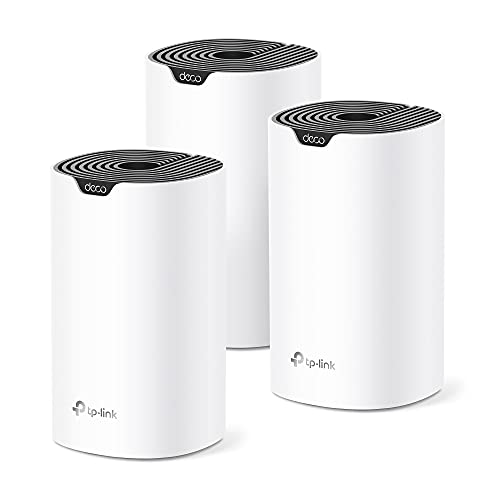
TP-Link Deco S4 Mesh System — Budget three-pack
The Deco S4 is the mesh argument at its most affordable: three AC1900 nodes, up to 5,500 sq ft of stated coverage, gigabit ports on the units, Alexa compatibility, and a brief to replace both router and extender. The technology is Wi-Fi 5-era, and this guide will not dress it up — but the architecture is the point. Three nodes mean one at the modem, one mid-house, and one in the basement itself, and that basement node, serving the room from inside the room, will outperform a far newer router shouting through the floor for the jobs a basement usually hosts: streaming, browsing, schoolwork, a smart gym screen, a workshop laptop.
Where the S4’s age shows is ceiling, not concept. AC1900-class radios and a shared backhaul mean the node-to-node hop and the client traffic divide older, narrower spectrum; a basement office moving large files all day, or a household on a very fast plan, will find the system’s limits. Gigabit ports keep wired devices honest, and a basement node with a cable to a TV or a desk is a genuinely good arrangement. Buy the S4 as the proof-of-concept for mesh in a difficult house: it fixes the geometry problem outright, and if your household later outgrows its speed, the placement lesson — node in the room — transfers to every faster system below.
- Wireless: AC1900 mesh Wi-Fi, three nodes included
- Coverage: up to 5,500 sq ft as listed
- Wired: gigabit ports
- Extras: works with Alexa; replaces router and extender roles
- Role in this guide: the mesh path’s budget entry
Strengths
- Three nodes guarantee one can live in the basement, which is the entire architectural advantage.
- The lowest-cost route in this guide to genuine whole-home-plus-basement coverage.
- Simple app-led ownership suits households that never want to see an admin page.
Trade-offs
- Wi-Fi 5-era radios cap speeds well below what fast modern plans deliver.
- Shared backhaul means the basement node’s ceiling drops as upstairs traffic climbs.
- Gigabit ports only, so no multi-gig wired future at the nodes.
Best for: a household whose basement problem is coverage itself — dead zones, dropouts — on a mainstream internet plan.
Not suited for: a basement workstation that moves large files hourly and needs fast local throughput.

Amazon eero 6+ Mesh System — Simplest ownership
The eero 6+ three-pack is the mesh path for people who regard network administration as a chore other people invented. The listing promises support for internet plans up to a gigabit, coverage up to 4,500 sq ft, and connections for 75+ devices across the three units — a specification that maps neatly onto the mainstream family home with a basement to cover. Eero’s reputation rests on setup and upkeep: the system configures through an app, updates itself, and presents the network as a list of rooms and devices rather than a matrix of radio settings.
For the basement specifically, the three-pack’s value is node arithmetic again: modem level, main living level, basement. The basement node gives the lower level a local source of Wi-Fi 6, which is a generational step up from the Deco S4’s radios and a meaningful one for a basement office or a gaming-adjacent rec room. The trade that buys this simplicity is control: readers who want manual channel plans, elaborate VLAN schemes or a wired-only management model will find eero’s abstraction a wall rather than a window, and the system’s deeper features have historically lived behind eero’s own service tiers, so check the current terms. For the household that wants the basement fixed and the subject closed, that trade is usually worth it.
- Wireless: Wi-Fi 6 mesh, three units included
- Coverage: up to 4,500 sq ft as listed
- Plan fit: supports internet plans up to a gigabit
- Capacity: 75+ connected devices
- Role in this guide: the mesh path’s low-administration option
Strengths
- Wi-Fi 6 nodes bring modern airtime handling to the basement at mainstream cost.
- Ownership is close to appliance-grade: automatic updates and app-led everything.
- Three units cover the modem floor, the living floor and the basement without extra purchases.
Trade-offs
- Advanced network controls are limited compared with enthusiast platforms.
- Coverage rating is lower than the Deco and Orbi packs here, suiting mid-size homes best.
- Some extended features sit within eero’s subscription offering; verify what your household needs.
Best for: a family home that wants the basement covered, the plan is gigabit-class or below, and nobody wants a new hobby.
Not suited for: a home-lab household that expects deep manual control over its network fabric.

NETGEAR Orbi 370 Mesh System — Wi-Fi 7 three-pack
The Orbi 370 is the mesh path at current-generation specification: a Wi-Fi 7 router plus two satellite extenders, up to 6,000 sq ft of coverage, up to 5 Gbps, 70 devices, and a 2.5 gig port in the specification. Three Wi-Fi 7 units change the basement conversation in two ways. First, the basement satellite serves the room with modern radios, so a basement office’s laptop and phone get the same generation of connection as the desk upstairs. Second, the system’s total capacity — the largest coverage figure in this guide — suits the bigger, multi-level homes where basements are most likely to be finished living space rather than storage.
Orbi’s longstanding design habit is a capable router unit with satellites that are true extensions of it, and the 370 listing’s mention of security features fits the line’s family-network positioning. The 2.5 gig port matters if your plan or your wired backbone can use it — at the router it future-proofs the internet side, and wired devices near satellites stay gigabit-honest through their local ports as listed for the system class. The honest reservation is generational economics: Wi-Fi 7 mesh is the premium tier, and a household whose clients are all Wi-Fi 5 and 6 devices is buying radio capacity its phones cannot yet use. Buy it when the house is large, the basement is a real room, and the purchase is meant to stand for the next device cycle.
- Wireless: Wi-Fi 7 mesh, router plus two satellites
- Coverage: up to 6,000 sq ft as listed
- Speed class: up to 5 Gbps; 70 devices
- Wired: 2.5 gig port named in the listing
- Extras: security features named in the listing
- Role in this guide: the mesh path’s large-home Wi-Fi 7 option
Strengths
- The largest coverage rating here, matched to genuinely big multi-level homes.
- Wi-Fi 7 satellites give the basement the same radio generation as the rest of the house.
- A 2.5 gig port keeps the system’s front door wider than gigabit-class rivals.
Trade-offs
- Premium pricing for capacity that older client devices cannot yet exploit.
- Dual-band design means backhaul shares spectrum with client traffic.
- Three full-size units need shelf space and sockets on three levels.
Best for: a large home with a finished basement that functions as an office, gym or second living room.
Not suited for: a small house where a single standalone router already reaches every room acceptably.

TP-Link Deco XE75 Mesh System — 6 GHz backhaul two-pack
The Deco XE75 is the connoisseur’s mesh pick in this guide, and the reason is one band. It is a tri-band Wi-Fi 6E system — AXE5400 class, covering up to 5,500 sq ft in the two-pack listed here — and the 6 GHz band gives the node-to-node conversation somewhere clean to happen. In a mesh system the backhaul is the hidden half of every speed test: your basement laptop talks to the basement node, and the node talks onward to the router, and if that second conversation shares the crowded 5 GHz band with every client in the house, the basement’s ceiling falls. A 6 GHz backhaul lane, lightly used by neighbours and legacy devices, keeps the hop fast — provided the nodes are placed where 6 GHz can actually travel between them, which usually means near the stairwell rather than at opposite ends of the building.
The rest of the listing supports the pitch: WPA3 security, AI-driven mesh behaviour that steers clients between nodes, and positioning for gaming and streaming households. Two nodes rather than three is the pack’s defining choice — one at the modem, one in the basement — which suits homes where the ground floor is already well served or compact enough to share the router’s own coverage. If your house needs a third node for the upper floor, price that addition before comparing against the three-packs above. For the two-level home with a serious basement, though, the XE75’s clean-backhaul design is the most technically elegant answer in this guide.
- Wireless: Wi-Fi 6E tri-band mesh, AXE5400 class, two units included
- Coverage: up to 5,500 sq ft as listed
- Bands: 6 GHz band available for clients and node backhaul
- Security: WPA3 named in the listing
- Behaviour: AI-driven mesh steering named in the listing
- Role in this guide: the mesh path’s clean-backhaul option
Strengths
- The 6 GHz band gives backhaul a clean lane that dual-band systems cannot offer.
- Wi-Fi 6E clients in the basement get modern spectrum at short range from their node.
- Two-node pack is a tidy fit for two-level homes that do not need a third unit.
Trade-offs
- Only two units in the box; larger or three-level homes may need an add-on node.
- 6 GHz backhaul fades quickly through floors, so node placement near the stairwell matters.
- Premium over Wi-Fi 6 mesh buys spectrum your older devices cannot use directly.
Best for: a two-level home with a working or gaming basement that will benefit from a clean node-to-node lane.
Not suited for: a sprawling three-storey house that needs three or more nodes from the first box.
How Should You Place Nodes and Test a Basement Setup?
Mesh placement follows one rule with a dozen corollaries: the node must be where it can both hear the router and serve the room. In basement terms, that usually means the node sits near the top of the basement stairs or in the basement room nearest the router’s position upstairs — not in the far corner behind the furnace where the desk happens to be, because a node that cannot hear the house cannot help the desk. Test by halves: stand at the node position with a phone and check the signal from upstairs first; if that link is weak, no client-side strength will rescue it. Then, and only then, optimise the node’s position within the basement for the room’s sake.
Wired backhaul is the upgrade that changes the maths completely. If the house has an Ethernet run to the basement — or a coaxial run adaptable to one, or the appetite to pull a single cable — connecting the basement node by wire removes the wireless hop’s losses entirely, and even the budget Deco S4 becomes a far stronger basement system. Readers wiring a basement desk seriously often end up thinking about the router’s port strategy as a whole, which is why Best Routers with Port Aggregation sits in this series alongside the coverage guides. And if the basement is becoming a genuine office, the companion question of secure remote access is handled in Best WireGuard Routers — a covered basement that cannot reach the office network is only half finished.
Testing deserves method. Walk the basement with a speed-test app at the desk, the sofa, the treadmill and the far corner, at the household’s busy hour, and write the numbers down per spot rather than trusting a single triumphant result by the stairs. Then repeat after any node move. Basements reward this empiricism because their dead zones are structural — a duct run or a chimney breast carves a shadow that no setting changes, and only moving a node or adding one answers it.
Basement Systems Compared: Strategy, Nodes and Coverage
| Pick | Strategy | Units | Stated coverage | Radio class |
|---|---|---|---|---|
| TP-Link Archer AX73 | Standalone router | 1 | Long-range positioning | Wi-Fi 6 AX5400 |
| NETGEAR Nighthawk RS140 | Standalone router | 1 | Up to 2,250 sq ft | Wi-Fi 7 BE5000 |
| TP-Link Deco S4 | Mesh | 3 | Up to 5,500 sq ft | AC1900 |
| Amazon eero 6+ | Mesh | 3 | Up to 4,500 sq ft | Wi-Fi 6 |
| NETGEAR Orbi 370 | Mesh | 3 | Up to 6,000 sq ft | Wi-Fi 7 |
| TP-Link Deco XE75 | Mesh | 2 | Up to 5,500 sq ft | Wi-Fi 6E tri-band |
Read the strategy column before the coverage column. The standalone rows concentrate everything in one location and ask the building to cooperate; the mesh rows distribute the radios and ask only that each hop be reasonable. Square-footage figures are stated under favourable conditions and shrink in real houses — treat them as relative sizing between systems, never as a promise about your floor.
What Do Basement Buyers Most Often Get Wrong?
The first error is buying a stronger version of a failing strategy: the basement is dead because the floor eats signal, and a more powerful router upstairs mostly shouts louder into the same floor. The second is placing the mesh node where the problem is worst rather than where the link is best — the node then faithfully rebroadcasts a weak connection. The third is testing at noon on a quiet network and declaring victory, when the basement’s real examination happens at 7 p.m. with the whole house streaming. The fourth is forgetting the wired option: a single Ethernet run, installed once, outperforms years of node shuffling. And the fifth is ignoring the basement’s own interference citizens — the treadmill’s motor, the microwave in the basement kitchenette, the neighbour’s network bleeding through a shared wall at ground level.
Final Recommendation
Decide the strategy before the product. If the basement is a light-use room and the floor is timber, start with the Archer AX73 placed high and central, and keep the receipt until a week of evenings has judged it; step up to the RS140 when the household above the basement is itself outgrowing older hardware. If the basement works for a living — office, studio, gaming room, classroom — skip the experiment and buy the architecture that answers the building: the Deco S4 to fix coverage on a budget, the eero 6+ to fix it and forget it, the Orbi 370 for a large home at the current radio generation, and the Deco XE75 when a clean 6 GHz backhaul can be arranged near the stairs. A basement does not need the strongest signal in the world; it needs a signal that starts in the room.
Frequently Asked Questions
Can one powerful router really not cover a basement?
Sometimes it can — timber floors, an open stairwell and a centrally placed router give a single unit a fair chance, which is why two standalone picks are in this guide. What a single router cannot do is match a node placed inside the basement for consistency: through-floor signal arrives weakened and mostly on the slow band, while a basement node serves the room at full local strength. The more finished and work-critical the basement, the more that difference matters.
Where exactly should the basement mesh node go?
Start near the stairwell or the basement spot closest to the router upstairs, raised on furniture rather than on the floor, away from large metal appliances. Confirm the node reports a healthy link to the system before fine-tuning its position for the room. If a wired connection is available at the desk, placing the node there with Ethernet backhaul beats any wireless placement.
Does wired backhaul make a budget mesh kit good enough?
Often, yes. Wiring the basement node removes the wireless hop that limits every mesh system, so a Deco S4 with Ethernet backhaul can outperform a faster kit whose basement node struggles to hear the router. The radios still cap client speeds at AC1900 class, but for streaming, browsing and office work that ceiling is rarely the binding constraint.
Will a mesh system help a basement gaming setup?
It helps most by giving the gaming machine something better to connect to: a node in the room, ideally wired to the console or PC from its local ports, so only one short wireless hop — or none — stands between the game and the house network. Serious basement gaming still prefers a full Ethernet run to the desk; mesh is the strong second best, and the gaming-specific router features live in this series’ gaming guide rather than in these family mesh systems.
How many nodes does a typical house with a basement need?
Three is the common answer — modem level, main living level, basement — which is why three of the four mesh picks here are three-packs or router-plus-two-satellite systems. Compact two-level homes can manage with two, as the Deco XE75 pack assumes, and large or awkward houses may need a fourth unit for an upper floor or an extension.
How Does Your Basement’s Construction Change the Answer?
Not all basements are equally hostile, and grading yours honestly saves both money and disappointment. The friendliest case is the timber-framed floor over an unfinished or lightly finished basement: joist bays, a board ceiling, signal leaking down through a dozen paths. A standalone router has a genuine chance here, and mesh nodes hear each other easily. The middle case is the finished basement in a framed house — insulation in the joist bays, a sealed ceiling, a stairwell that acts as the main signal chimney. Mesh still works comfortably, but node placement narrows to the stairwell’s neighbourhood, and the standalone bet gets longer odds.
The hard cases share density. Poured concrete floors, common in newer construction and in homes with radiant heating, attenuate signal brutally; foil-backed insulation and metal lath in older plaster do similar work. Below-grade exterior walls of block or stone kill any notion of signal arriving from a neighbour-facing direction. In these houses the standalone strategy should be considered a lottery ticket — occasionally the stairwell carries enough signal down, usually it does not — and the planning question shifts from which mesh to how the basement node gets fed: a wireless hop staged carefully down the stairwell, or a cable. Houses with radiant floors deserve a specific note, because the same pipework that heats the basement also means the room is used in winter exactly when the network is busiest; test in the season of real use if you can.
Ceiling height and room division matter at the margins. A single open rec room is one coverage problem; a basement divided into an office, a gym corner and a media room behind a closed door is three smaller ones, and a node placed for the office may leave the media room in its shadow. Walk the rooms with the door closed during testing — doors, especially solid-core ones, are cheap walls. If two basement rooms both matter and sit at opposite ends, the honest answer may be two basement nodes or one node plus a wired access point, and several systems in this guide accept additional units gracefully.
What Are the Real Backhaul Options, Ranked for a Basement?
Backhaul — the link between the basement node and the router — decides the ceiling of everything the basement does, so it deserves a ranking rather than a mention. First and best is Ethernet: a cable run, whether installed by an electrician, threaded through an existing chase, or routed neatly along a stairwell stringer. It is immune to the floor, adds no latency worth measuring, and upgrades every mesh pick in this guide simultaneously. If the house is being renovated at any point, a pair of Ethernet drops to the basement is among the highest-value cables you will ever install.
Second is a dedicated or clean wireless band. The Deco XE75’s 6 GHz backhaul is the in-guide example: spectrum with few occupants, wide channels, and a hop that — placed near the stairwell — arrives intact. Third is shared-band wireless backhaul, the default for the dual-band systems here: workable, often perfectly adequate for streaming and office traffic, but the hop and the clients divide the same airtime, so the basement’s best speeds arrive when the upstairs is quiet. Fourth, as an improvisation rather than a pick, powerline and MoCA adapters can feed a basement node where coax or clean wiring exists; they are not part of this guide’s six, but a MoCA-fed node is a legitimate architecture in a house full of cable-TV runs.
The ranking has a practical corollary: when comparing prices, compare systems as you will actually run them. A budget mesh with a cable you already own can be the strongest basement system in this guide; a premium kit whose basement node ends up two floors and a concrete slab away from its router can be the weakest. Spend first on the path, then on the radios.
Three Basements, Three Different Right Answers
The storage-and-streaming basement — a TV, a freezer, a workout screen, holiday decorations — needs the least and forgives the most. The Archer AX73 upstairs, or the Deco S4 if the TV sits in a dead corner, closes the subject. Money saved here is correctly spent elsewhere in the house, because this basement’s traffic is patient: streams buffer, screens idle, and nobody’s salary depends on the 2.4 GHz band holding up through a floor.
The working basement — a desk, two monitors, video calls from nine to five — is the room this guide was really written for. Its owner should buy architecture, not hope: a mesh node in the room, wired backhaul if any path exists, and a node position chosen by the link test rather than by the furniture. Among the picks, the eero 6+ is the low-effort version of this answer, the XE75 the high-performance version, and the Orbi 370 the version for a house big enough that the basement is one of three floors all demanding service. The standalone routers can serve this room in a framed house with a kind floor; the owner should simply hold the purchase to the standard of a week of real meetings before trusting it.
The social basement — rec room, bar, gaming corner, guest suite — sits between the two: bursty, multi-device, latency-sensitive in the evening and idle all day. Mesh earns its keep here through capacity distribution rather than raw coverage, because six guests’ phones, a console and a streaming box all land on the basement node at once. The Orbi 370’s device capacity and Wi-Fi 7 radios suit the largest version of this room; the Deco XE75 suits the gaming-leaning version, where a wired console at the node and a clean backhaul keep the evening’s matches honest.
How Do You Troubleshoot a Basement That Still Misbehaves?
Work from the link outward. First confirm the basement node’s own connection quality in the system’s app — every platform here reports it in some form — because a node rebroadcasting a poor link manufactures exactly the symptoms users blame on coverage: full bars, miserable throughput. If the link is poor, the fix is positional, and small moves matter: a metre toward the stairwell, a shelf higher, a rotation away from a metal cabinet. Change one variable, retest at the desk, and keep a note of what you moved; basement troubleshooting by random shuffling converges slowly because the room’s shadows are structural and invisible.
If the link is healthy and the desk still suffers, suspect the last metre. A node behind a television, inside a media cabinet or beside a game console’s metal chassis serves a room through its own obstacles. Raise it, clear its surroundings, and if the desk device has an Ethernet socket, cable it to the node and remove Wi-Fi from that leg entirely — a wired desk device on a mesh node is the most reliable arrangement short of a full cable run to the router. Phones and laptops that cling to the upstairs router instead of the basement node usually surrender after a Wi-Fi toggle; persistent clinging suggests the node is too far into the basement for clients to prefer it at the doorway, which argues for moving the node toward the stairs and letting it serve the room from its edge.
Interference has a basement bestiary of its own. Treadmill and elliptical motors, older fluorescent fittings, the compressor cycles of freezers and dehumidifiers, and baby monitors or cordless phones on 2.4 GHz all take bites out of the spectrum at unpredictable hours — which is why a basement that tests perfectly at noon can stumble at seven in the evening when the workout and the cooking start. If dropouts keep a schedule, hunt the appliance before the router. Moving basement clients to 5 GHz where the node’s range allows shrinks the exposed surface considerably.
What Does a Careful First Evening of Setup Look Like?
Begin before the hardware: decide where the modem and main router unit will live, because that decision constrains every hop below it. Place the main unit as central and elevated as the incoming line permits, then set up the system with only that unit live and confirm the ground floor is genuinely well served — a mesh built on a badly placed router distributes a mediocre signal with great efficiency. Add the mid-house node next if your pack has one, let the system settle, and walk the floor above the basement noting where signal begins to thin; that thinning edge is the shadow your basement node must be placed to catch, usually near the stairwell.
Bring the basement node down last, position it by the link test described earlier, and resist finalising its spot until the evening peak has passed once with the household’s normal load. Name the nodes by room in the app, turn on automatic updates, and set the guest and device settings while the layout is fresh in your mind. Then run the four-spot basement test — desk, sofa, treadmill, far corner — and file the numbers with the date. That small record becomes invaluable in six months when something changes and you need to know what “normal” was: basements evolve, storage migrates, a metal shelving unit appears exactly where the signal used to pass, and the household that measured its baseline can tell a moved node from a dying one.
What Else Should a Basement Network Handle Well?
A basement concentrates a particular kind of device: the ones that live downstairs permanently and misbehave quietly. Sump-pump monitors, water-leak sensors, the furnace’s connected thermostat head, a dehumidifier with an app, the washer and dryer that announce finished cycles — these are 2.4 GHz citizens that need reliability rather than speed, and they are a genuine argument for whichever system you choose holding the low band steadily. When you test the basement, include them: a network that streams beautifully but drops the leak sensor has failed at the job with the highest stakes in the room. Mesh systems have a quiet advantage here, because the basement node gives those small devices a near, strong signal instead of a faint shout from upstairs, and their battery-powered radios last longer for not having to strain.
Basements also collect the household’s overflow computing: the hand-me-down PC, the media server in the utility corner, the backup drive that syncs overnight. Those machines argue for wired sockets at the node and for thinking of the basement as a small branch office of the house network. If the overflow grows into a genuine server shelf, the basement conversation graduates from coverage to backbone design — port speeds, aggregation and where the switch lives — and the placement habits learned here (short paths, honest links, measured baselines) remain the foundation. A basement done well tends to stay done: the building stops changing, the nodes sit undisturbed for years, and the network downstairs becomes the most stable part of the house precisely because nobody fiddles with it.
Should the basement be on the same network as everything else?
For most homes, yes — one network keeps casting, printers and shared drives working across floors without ceremony, and every mesh pick here runs as a single system by design. Households that want the basement’s overflow machines or a tenant’s devices separated should use the guest network or the platform’s device-isolation features rather than bolting on a second router, which recreates the double-NAT problems this guide warns about elsewhere.
How Should You Sequence the Spending if the Budget Is Staged?
Many households fix a basement in stages, and the order of purchases decides whether early money stays useful. Stage one is measurement and placement: move the existing router to its best legal position, test the basement honestly for a week, and learn whether you own a coverage problem or a capacity problem. This stage costs nothing and prevents the most common waste in this category — buying mesh to cure what a two-metre router move had already solved, or buying a flagship router to cure a dead zone that no single box can reach.
Stage two is the architectural purchase: the mesh system, sized to the house, with the basement node placed by link testing. Buy the pack size the house needs rather than the one on promotion, because a system one node short recreates the original problem one floor up. Stage three, if the basement works or plays seriously, is the path upgrade: an Ethernet run to the basement node or desk, which lifts the ceiling of everything bought in stage two and never needs buying twice. Stage four is generational — when the household’s devices turn over to newer Wi-Fi, the mesh platform is replaced as a system, and the cable from stage three quietly becomes the most valuable networking asset in the house. Followed in that order, each stage makes the next one cheaper to judge, and no stage’s purchase is thrown away by the stage after it.
What Should You Do in the Month After the Basement Works?
Live with it, and let the house file its real report. The first month surfaces what no test evening can: the rainy-weekend pattern where everyone is home and downstairs at once, the work call that coincides with the washing machine’s spin cycle, the guest who sleeps in the basement room and streams until two. Note the failures with the same specificity as the baseline — room, hour, activity, which node the device had chosen — because a month of such notes converts any remaining problem from a mood into a diagnosis. Most households will find the notes emptying by the second week, which is the basement’s way of signing the work off. The minority with a persistent pattern own something better than frustration: a map of exactly where the architecture needs one more node, one cable, or one honest conversation about what a finished basement was always going to require.
One Last Distinction: Coverage, Capacity and the Basement’s Verdict
Households conflate two complaints under the word “Wi-Fi” and buy the wrong cure for both, so let the distinction close this guide. A coverage problem means the signal does not arrive — dead spots, dropped connections, the desk that cannot hold a call. A capacity problem means the signal arrives but the system is full — everything connected, everything slow at the peak hour, the basement fine at noon and miserable at seven. Mesh answers the first by architecture and helps the second by distribution; a stronger single router answers the second for the floors it reaches and does nothing for the first where the building forbids it. Diagnose which complaint your basement is actually filing — the four-spot test at the busy hour separates them cleanly, because a capacity problem shows good signal with poor throughput, while a coverage problem shows the signal itself missing — and the fork this guide opened with will feel less like a choice and more like a description of your house.
One closing observation from the testing doctrine: keep the four-spot numbers even after the system settles. A basement network’s baseline is the only evidence that will distinguish, two years from now, between a node quietly failing and a household that has simply grown — and growth, in a finished basement, is the usual story.
Related Guides
Round out the lower level with Best WiFi 6 Gaming Routers, Best Routers with Port Aggregation and Best WireGuard Routers.


