What's inside
- Key Takeaways
- Quick Picks
- How We Chose These Picks
- What Do Blue, Red Pro and Black Actually Promise?
- Elements or My Passport: Storage Alone, or Storage With a Guard?
- How Does Cache Size Fit Into the Colour Story?
- The Six Western Digital Drives in Detail
- How Long Do These Drives Serve, and When Should They Be Promoted?
- How Do the Six Western Digital Drives Line Up?
- How Do You Build a Backup Plan Around These Drives?
- What Do Western Digital Buyers Most Often Get Wrong?
- Which WD Drive Suits a Creator, a Gamer and a Household?
- Final Recommendation
- Frequently Asked Questions
- Related Guides
As an Amazon Associate I earn from qualifying purchases. This post may contain affiliate links at no extra cost to you.
widgetverdict.com is reader-supported. When you buy through links on our site, we may earn an affiliate commission.
Where to buy: Western Digital sells several generations under near-identical names, so each pick below links to the listing carrying the exact model code — WDBWLG0200HBK, WDBU6Y0050BBK, WD80EAAZ, WD161KFGX, WD102FZBX, WDBYVG0020BBK — from which every figure in its section was taken.
The best western digital hard drives are best understood through the system Western Digital spent years teaching its customers: colour as a job description. Blue is the everyday drive. Red Pro is the NAS professional. Black is performance. Around that colour-coded internal range sit two external philosophies that could not be more different in spirit — the Elements line, which sells storage and nothing else, in capacities up to the 20TB desktop giant in this guide, and My Passport, which wraps its storage in backup software and password protection. Six drives, three colours, two philosophies, one maker.
This guide reads the range the way WD designed it to be read. Start with the colour if the drive goes inside a machine, and with the philosophy if it goes outside one. The specifications in these listings are unusually complete — rotational speeds and cache sizes are printed for all three internal drives — so the sections below can be precise where precision is offered, including one figure, the WD Blue’s stated 5640 RPM, that will surprise readers expecting a rounder number. Precision quoted exactly is the theme; where a title is silent, the spec boxes say so.
Key Takeaways
- WD’s colours are job descriptions: Blue for everyday internal storage, Red Pro for NAS duty, Black for performance builds.
- The WD Elements 20TB desktop drive is the capacity headline — a USB 3.0 plug-and-play external for buyers who want storage with no software layer at all.
- The Elements Portable 5TB covers Windows and Mac over USB 3.2 Gen 1/USB 3.0 in a plug-and-play-ready portable format.
- The WD Blue 8TB internal states its figures plainly: 5640 RPM, SATA 6 Gb/s, 256MB cache, 3.5-inch — model WD80EAAZ.
- The WD Red Pro 16TB is the NAS flagship here: 7200 RPM, CMR, a 512MB cache and model code WD161KFGX.
- The WD Black 10TB is the performance internal: 7200 RPM and a 512MB cache under model WD102FZBX; the My Passport 2TB adds backup software, ransomware defence and password protection to portable storage.
Quick Picks
| Pick | Badge | Why it earns its place |
|---|---|---|
| WD Elements 20TB Desktop | The capacity giant | Twenty terabytes of USB 3.0 plug-and-play desktop storage with no software layer — storage, undiluted. |
| WD Elements Portable 5TB | The travelling five | A 5TB portable for Windows, USB 3.2 Gen 1/USB 3.0, plug-and-play ready for PC and Mac. |
| WD Blue 8TB Internal | The everyday eight | An 8TB internal at a stated 5640 RPM with a 256MB cache — the colour-coded mainstream, fully specced. |
| WD Red Pro 16TB NAS | The NAS professional | Sixteen terabytes of 7200 RPM CMR NAS storage with a 512MB cache, built for multi-bay, always-on duty. |
| WD Black 10TB Performance | The performance ten | A 10TB internal at 7200 RPM with a 512MB cache — WD’s Black label applied to capacity as well as speed. |
| WD My Passport 2TB | The protected portable | A 2TB portable with backup software, defence against ransomware and password protection, over USB 3.1/USB 3.0. |
How We Chose These Picks
We required verified listings with model codes, then sampled WD’s system as designed: one drive per colour for the internal range, and both external philosophies — Elements in its desktop-giant and portable forms, My Passport as the software-carrying alternative. Figures are quoted only from each listing title, including the ones that reward a second look: the Blue’s 5640 RPM is reproduced exactly as printed rather than rounded into the figure readers might expect, because a guide that quietly corrects a manufacturer’s stated specification has stopped being a guide.
The sibling comparison is the Best Seagate Hard Drives guide, and the contrast is instructive: where Seagate organises by workplace names and recovery services, WD organises by colour and cache. Neither system is more honest; they emphasise different evidence. Buyers speccing internal drives for a new build will find the installation side of the story in the case guides linked near the end of this article.
Judgements here weigh the stated engineering over the marketing nouns. A 512MB cache and CMR recording on the Red Pro are checkable commitments; a colour is a promise the figures must keep. Where the figures keep it — and in this range they largely do — the colour system earns its place as the fastest honest shorthand in the storage market.
What Do Blue, Red Pro and Black Actually Promise?
Blue promises competence without theatre: an internal drive for the ordinary PC, specced — in the 8TB model here — at 5640 RPM with a 256MB cache over SATA 6 Gb/s. That rotational figure is the interesting one. It sits below the 7200 RPM of the performance lines, and WD prints it plainly; the Blue’s bargain is capacity and calm everyday behaviour rather than rotational bravado, and for a library-and-storage role inside a family or office PC, that bargain is correctly struck.
Red Pro promises endurance in company: NAS duty, multi-bay enclosures, always-on operation. Its figures escalate accordingly — 7200 RPM, a 512MB cache, CMR recording stated outright. Black promises pace: the performance label, carried here by a 10TB drive at 7200 RPM with the same 512MB cache as the Red Pro, aimed at builds where the hard drive is still expected to feel quick — large game libraries, content work, machines whose owners notice storage. Three promises, three figure sets, no overlap confusion: the colour system, at its best, is exactly this legible.
Elements or My Passport: Storage Alone, or Storage With a Guard?
The external choice is a philosophical one, and WD sells both sides of it. Elements is the purist line: plug-and-play storage, no bundled software layer, nothing between the owner and the capacity — expressed at its extreme by the 20TB desktop drive, the largest single object in this guide, and at its most portable by the 5TB Elements. My Passport adds a software story to the same basic job: backup software, defence against ransomware and password protection, as its title states, in a 2TB portable that treats security as part of storage.
Neither philosophy insults the other. The Elements buyer typically has their own backup discipline — or a NAS, or a system they trust — and wants the drive to be a drive. The My Passport buyer wants the drive itself to participate in the discipline: scheduled backups prompted by its software, a password standing between a lost bag and a readable drive. That password point is the one with real teeth. A portable drive is the most losable object in computing; encryption-minded protection on the drive that travels is not a garnish, it is the feature the format most needs, and its presence is the honest reason to choose Passport over Elements at portable sizes.
How Does Cache Size Fit Into the Colour Story?
The cache figures in these titles reward a plain explanation. A drive’s cache is its short-term memory — a fast buffer that smooths the difference between the computer’s demands and the platters’ pace. The 512MB caches on the Red Pro and the Black, against the Blue’s 256MB, track their jobs: drives expected to juggle many simultaneous requests — a NAS serving a household, a performance drive feeding an editing timeline — benefit from the larger buffer, while the library drive’s steadier patterns ask less of it. Cache is not a speedometer and bigger is not automatically better; it is a working-set tool, sized here in proportion to the chaos each colour expects.
Rotational speed follows the same logic, which is why the guide has made so much of the printed figures. The 7200 RPM pair spin faster because their work is interactive or multi-user; the Blue’s stated 5640 RPM reflects a design that values its capacity class and steady behaviour over that last increment. A buyer reading all three titles in sequence can watch WD’s engineers making the trade three different ways — and can choose among them with open eyes, which is all any specification sheet owes anyone.
Together, the figures explain why this guide trusts the colour system enough to organise around it. Colours in this industry are usually paint; here they are summaries of printed engineering, verifiable in the same listing that sells the drive. When a shorthand can be checked that easily, using it is not laziness. It is literacy.
The Six Western Digital Drives in Detail

WD Elements 20TB Desktop — The capacity giant
The WD Elements 20TB desktop — WDBWLG0200HBK-NESN — is the largest single drive in either of this programme’s hard-drive guides: a USB 3.0 external described by its title with deliberate plainness as a drive for plug-and-play storage. No software suite, no colour, no performance claim. Twenty terabytes, a cable, and the Elements philosophy at its purest: storage as a utility, bought by the terabyte and used without ceremony.
That plainness is the product. The buyer for this drive is the archivist whose collection has outgrown every lesser external — the photographer with a decade of shoots, the family historian, the small studio whose project archive is its business memory. At this scale a backup stops being a folder selection and becomes a full mirror of a working life, and the absence of a software layer means the drive serves any system, any operating system and any backup tool its owner already trusts. It stays on the desk, it stays connected, and it quietly becomes the most important object in the room. Treat it that way: its own contents deserve a second copy of the truly irreplaceable, a point the mistakes section presses below.
Twenty terabytes also changes what a backup can be: not a selection of the important folders but the whole machine, its history included — full system images, every project generation, the archive and its archive. Owners stepping up from small externals consistently underestimate the behavioural change; when capacity stops rationing what may be kept, backup stops being an editorial task and becomes a habit, and habits are what actually protect data.
Place it like the institution it is: connected, ventilated and boringly permanent, with its backup schedule set on day one — a 20TB archive earns a 20TB discipline.
For the family archivist or the creator with a decade of projects, this is the drive that ends the external-storage conversation for years at a stroke.
There is a generational point here too: archives outlive the machines that made them, and a plain USB desktop drive is the most machine-agnostic object in storage. The Elements 20TB will plug into whatever replaces your current computer, and the one after that, with no software licence or account standing between the archive and its next home — an endurance case no bundled suite can match.
Buy it when the archive has become an institution; nothing else in this guide, or its Seagate sibling, holds a household’s memory at this scale in one plain box.
- Model: WDBWLG0200HBK-NESN
- Capacity: 20TB desktop external
- Interface: USB 3.0
- Philosophy: plug-and-play storage, no software layer stated
- Format: desktop, stays connected
Strengths
- Twenty terabytes in one plug-and-play unit — the largest capacity in this guide
- Elements plainness serves any backup tool or system the owner already trusts
- Desktop permanence suits full-machine mirror backups and deep archives
Trade-offs
- A single 20TB unit concentrates an archive — its crown jewels still need a second home
- Desktop format has no portability whatsoever
- No bundled backup software or password protection, by design
Best for: a deep archive or full-machine backup for a household, studio or creator with a decade of files
Not suited for: travelling storage, or an owner who wants the drive itself to manage backups and passwords — the My Passport’s brief
If twenty terabytes is the requirement, check the WD Elements 20TB listing on Amazon and confirm the model code on arrival.
WD Elements Portable 5TB — The travelling five
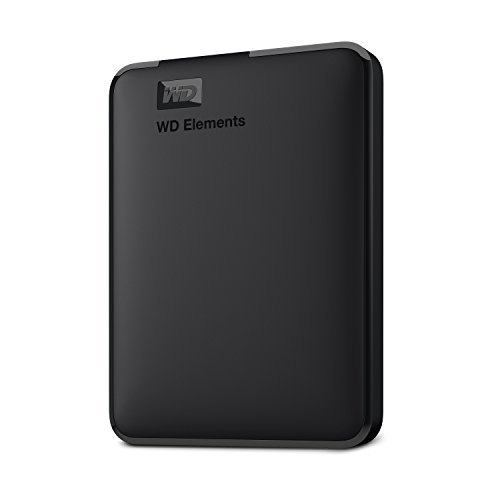
The Elements Portable 5TB — WDBU6Y0050BBK-WESN — carries the Elements philosophy into a bag: a portable external drive for Windows, running over USB 3.2 Gen 1/USB 3.0, plug-and-play ready for PC and Mac. Five terabytes is the travelling-library size — the full media collection, the project files, the game installs — in a format that asks for nothing but a cable.
Its honesty is its interface line, which gives both names for its speed class rather than dressing one as an upgrade, and its readiness claim, which the Elements line has built its name on: connect it, and it is storage. Against its own sibling in this guide, the My Passport, it trades software and password protection for simplicity and capacity per purchase. Owners whose backup discipline lives in their own system — or whose drive never leaves a trusted circle — will find that trade correctly priced. Owners carrying sensitive work through the world should read the Passport section before deciding.
The Elements Portable’s dual naming of its interface — USB 3.2 Gen 1 and USB 3.0 — is a small lesson in modern port literacy: the two labels describe the same speed class, and the drive works from either description’s ports on PC and Mac alike. What matters for the buyer is the plug-and-play readiness the title promises, and on that the Elements line’s reputation is its specification.
Its natural partner is a schedule on the laptop it serves; a portable backup that depends on being remembered is a backup that happens quarterly at best.
Between this and the My Passport, the deciding question is not capacity but custody: who guards the travelling copy — your own system, or the drive itself?
Five terabytes is also the size at which a portable stops being a backup accessory and becomes a library in its own right — the drive students graduate with, freelancers invoice from and families pass around. The Elements Portable serves that life without asking its owner to maintain anything, which is why it keeps being the recommendation for people who describe themselves, accurately, as not storage people.
Buy it when the library travels and the hands are trusted; simplicity is a feature, and this is its fullest expression in a bag.
- Model: WDBU6Y0050BBK-WESN
- Capacity: 5TB portable
- Interface: USB 3.2 Gen 1 / USB 3.0
- Compatibility: PC and Mac, plug-and-play ready
- Philosophy: Elements — storage without a software layer
Strengths
- Five terabytes of travelling storage with genuine plug-and-play simplicity
- PC and Mac readiness covers mixed households and studios
- Elements plainness means no software to learn, licence or abandon
Trade-offs
- No password protection on a drive designed to travel — the Passport’s counter-argument
- Portable duty is intermittent; not an always-on archive
- Backup discipline must come from the owner’s own system
Best for: a travelling media or project library in trusted hands, across PC and Mac
Not suited for: carrying sensitive client or personal data through the world without drive-level protection
Travellers can check the Elements Portable 5TB listing on Amazon to confirm the model code before ordering.

WD Blue 8TB Internal — The everyday eight
The WD Blue 8TB — WD80EAAZ — is the colour system’s mainstream expressed as an internal drive, and its title does something this guide wishes more listings did: it prints everything. 8TB, 5640 RPM, SATA 6 Gb/s, a 256MB cache, 3.5-inch form. That 5640 figure deserves the attention it will get: it is neither of the two speeds buyers reflexively expect, and WD publishes it anyway, because the Blue’s design trades a measure of rotational pace for its capacity class and everyday manner.
Read as a whole, the specification describes the library drive of an ordinary, well-built PC: roomy enough to end capacity management, steady in the streaming and batch patterns libraries actually see, and honest about not being the performance line. Installed beside fast system storage, it disappears into the machine’s life — which is the Blue promise, kept. Buyers who want the hard drive itself to feel quick should continue to the Black; buyers who want eight terabytes of dependable room have arrived.
The Blue’s role in a modern build deserves one clarification: at 8TB it is not the small, apologetic second drive of tradition but the library itself, sized for a decade of family media or a serious game collection. Its calmer rotational speed suits that role — libraries are read in streams and written in batches, patterns where capacity and steadiness outrank the last increment of spin.
Give the Blue the case’s best-cooled bay; an 8TB library drive works long hours during copies and rebuilds, and airflow is the cheapest longevity available.
The Blue is the internal drive this guide would hand to a non-technical relative building a family PC, precisely because its figures make no promises it cannot keep.
One more audience deserves naming: the quiet-PC builder. A library drive is the component a quiet build hears most during copies and library scans, and the Blue’s calmer rotational design is the natural citizen of such a machine. Paired with a case that takes its bays seriously, it completes a system whose storage makes its presence known by its capacity rather than its voice.
Buy it when the PC needs room more than it needs drama — the Blue’s whole character, and a compliment.
- Model: WD80EAAZ
- Capacity: 8TB internal, 3.5-inch
- Interface: SATA 6 Gb/s
- Published figures: 5640 RPM, 256MB cache
- Colour line: Blue — everyday internal storage
Strengths
- Fully published specification, including the honest 5640 RPM figure
- Eight terabytes ends capacity management for a mainstream PC’s library
- Blue-line steadiness suits the streaming and batch work libraries actually do
Trade-offs
- Rotational pace below the 7200 RPM lines — responsiveness shoppers should look at the Black
- Internal fitting needs a 3.5-inch bay and a builder’s basic confidence
- A single internal drive is storage, not a backup of its own machine
Best for: a family, office or gaming PC needing a vast, dependable internal library beside fast system storage
Not suited for: a build that wants the hard drive itself to be the responsiveness story — the Black’s role
Mainstream builders can check the WD Blue 8TB listing on Amazon and match the WD80EAAZ code to their parts list.

WD Red Pro 16TB NAS — The NAS professional
The WD Red Pro 16TB — WD161KFGX — is the professional of this guide: a NAS internal drive at 7200 RPM, SATA 6 Gb/s, with CMR recording and a 512MB cache, in a 3.5-inch format. Every figure escalates over the Blue, and the escalation is the point — Red Pro is WD’s line for multi-bay enclosures that run continuously, serve several users and hold data whose loss would be an event, not an inconvenience.
CMR is the line to underline. Conventional magnetic recording is the technology NAS arrays and their rebuild processes are built around, and WD states it in the title, where a NAS buyer can verify it before money moves. Combined with the 7200 RPM pace and the large cache, the specification describes a drive intended to work in company, under load, for years. Sixteen terabytes of it per bay means a small enclosure becomes a serious institution. In a single desktop the Red Pro would be wasted expenditure; in a NAS it is the correct professional tool, and this guide gives it the same unhedged recommendation it gave its rival-line NAS specialist: for this job, buy the drive built for it.
Sixteen terabytes per bay rewrites NAS arithmetic: a modest enclosure becomes a serious archive, and a mirrored pair becomes a household’s entire memory with room to grow into. That scale is the Red Pro’s quiet argument — fewer bays, larger drives, simpler arrays — and for home and small-team NAS owners it often proves more valuable than any single performance figure in the title.
Buy Red Pro drives for an array together where possible — matched models in matched bays age as a set, which is what NAS controllers are built to manage.
If the NAS holds the irreplaceable things, the Red Pro’s CMR line in the title is the single most important specification in this entire guide.
Array economics complete the Red Pro’s case: at sixteen terabytes, the cost of the enclosure is spread across far more stored data, and the professional premium is spread with it. NAS owners who begin with consumer drives and migrate up — a common story — usually report the migration was triggered by exactly the specifications this title prints: recording method and behaviour in company.
Buy it whenever the enclosure has multiple bays and data with dependents; the professional line exists for exactly that sentence.
- Model: WD161KFGX
- Capacity: 16TB NAS internal, 3.5-inch
- Interface: SATA 6 Gb/s
- Published figures: 7200 RPM, 512MB cache
- Recording: CMR, stated in the title; line: Red Pro NAS
Strengths
- CMR recording stated outright — the specification NAS rebuilds depend on
- 7200 RPM and a 512MB cache equip it for multi-user, always-on duty
- Sixteen terabytes per bay turns small enclosures into serious archives
Trade-offs
- NAS engineering is wasted as a single desktop drive
- Professional line positioning reflects its specialised build
- Requires a NAS enclosure and array planning to mean anything at all
Best for: a multi-bay NAS serving a household or small team around the clock
Not suited for: a single-drive desktop, where the Blue or Black deliver the right tool for less commitment
NAS builders can check the Red Pro 16TB listing on Amazon and verify the WD161KFGX code against their enclosure plan.

WD Black 10TB Performance — The performance ten
The WD Black 10TB — WD102FZBX — carries WD’s performance colour at a capacity that used to belong to the archive lines: a 7200 RPM internal drive with a 512MB cache over SATA 6 Gb/s. The pairing is the story. Ten terabytes is library scale; 7200 RPM with that cache class is the specification of a drive still expected to respond — and the Black label is WD’s promise that both halves of that sentence are intended at once.
Its natural home is the single-hard-drive performance build: the gaming machine whose library is played daily and never again wants an uninstall decision, the editing workstation whose project drive must keep up with its owner, the enthusiast PC that skipped the small-fast-drive-plus-archive pattern in favour of one large, quick store. Against the Blue it trades calm for pace at a smaller capacity; against the Red Pro it aims the same figure class at one machine’s responsiveness instead of an array’s endurance. That is a clean, legible set of choices — the colour system working exactly as designed.
The Black label carries an expectation this drive’s figures honour: the same rotational speed and cache class as the NAS flagship, pointed at a single machine’s responsiveness instead of an array’s endurance. In a workstation that edits from its hard drive or a gaming build whose library is played rather than archived, that orientation is the difference between storage that is merely present and storage that participates.
The Black rewards being the build’s only hard drive: with its speed figures, splitting the library across lesser drives dilutes the very responsiveness it was bought for.
Gamers should read the Black’s capacity as the feature and its speed as the bonus: ten terabytes ends the library shuffle, at a pace that never feels like the archive tier.
The Black also settles a modern argument about game storage: as libraries pass several terabytes, the choice is no longer between fast and large but about which single drive refuses the compromise least. Ten terabytes at this figure set is WD’s answer, and for the player whose rotation is a dozen large titles deep, it ends the storage negotiation entirely.
Buy it when one drive must be both the library and the pace — the Black is the only pick here making that promise in print.
- Model: WD102FZBX
- Capacity: 10TB internal, 3.5-inch
- Interface: SATA 6 Gb/s
- Published figures: 7200 RPM, 512MB cache
- Colour line: Black — performance
Strengths
- Performance figures — 7200 RPM, 512MB cache — at a full 10TB capacity
- Black-line responsiveness for libraries that are used, not just stored
- One-drive simplicity for performance builds that reject the two-tier pattern
Trade-offs
- Smaller capacity than the Blue 8TB’s value story and the Red Pro’s 16TB — pace is the purchase
- Performance internals still cannot match solid-state responsiveness for system duty
- Its pace is wasted in a pure archive role where the Blue’s calm would serve as well
Best for: a gaming or editing build wanting one large, quick hard drive as its main store
Not suited for: a silent archive role, or a NAS — the Red Pro owns the enclosure
Performance builders can check the WD Black 10TB listing on Amazon to confirm the WD102FZBX model code.

WD My Passport 2TB — The protected portable
The WD My Passport 2TB — WDBYVG0020BBK-WESN, in black — is the portable that brought its own guard: a 2TB external with backup software carrying defence against ransomware, and password protection, over USB 3.1/USB 3.0. In a guide where the Elements line argues that a drive should be only a drive, the Passport argues the opposite with equal coherence: a portable drive is the most losable, most targeted storage you own, so the drive itself should participate in its own protection.
That argument lands hardest for its natural owner — the professional whose bag contains client work, the student whose thesis exists in one travelling copy, the photographer whose card backups happen in the field. For them the software is not bloat but the workflow: prompted, scheduled backups with a protected target, and a password between a lost drive and a stranger’s curiosity. Two terabytes is the modest figure in this guide, and it is correctly sized for its job — the working set that travels, protected — while the archives stay home on the Elements giant. The two philosophies in this guide are not rivals so much as a division of labour, and the Passport’s half is the one with the seatbelt.
The ransomware-defence point in its title deserves a sober reading: backup software with such defences guards the backup itself — the copy an attack most wants to reach — and a password stands guard over the physical drive. Neither makes an owner invulnerable; both make the portable copy a harder target than the unprotected drives most bags carry, and in security, harder is usually the whole game.
Set the password before the first backup, not after the first trip; protection configured in calm is the only kind that exists in a crisis.
For professionals carrying client work, the Passport’s protection story is not an upsell — it is the difference between a lost drive and a lost drive plus a disclosure conversation.
There is a teaching virtue in the Passport as a first backup drive: its software makes the abstract idea of a backup into a visible, scheduled routine, and owners who learn the habit on it keep the habit for life, long after the drive itself has been promoted to drawer duty. Tools that teach while they protect are rarer than tools that merely protect.
Buy it when the bag contains things that are not yours to lose; the password is the product, and the storage comes with it.
- Model: WDBYVG0020BBK-WESN
- Capacity: 2TB portable
- Interface: USB 3.1 / USB 3.0 compatible
- Software: backup software with defence against ransomware, as stated in the title
- Protection: password protection; colour: black
Strengths
- Password protection answers the portable format’s defining risk — loss
- Backup software with ransomware defence guards the copy attacks target first
- Two terabytes is rightly sized for a protected travelling working set
Trade-offs
- Software layer must be set up to exist — protection is configured, not automatic
- Smallest capacity in this guide; archives belong on the desktop drives
- Owners loyal to their own backup tools may prefer the Elements plainness
Best for: a professional or student carrying important work that must stay backed up and unreadable if lost
Not suited for: bulk travelling libraries in trusted hands — the Elements Portable’s simpler, larger brief
Professionals on the move can check the My Passport 2TB listing on Amazon and plan its password setup for the day it arrives.
How Long Do These Drives Serve, and When Should They Be Promoted?
Hard drives rarely die on schedule; they are retired by arithmetic. A drive is finished when its capacity stops fitting the library’s growth, when its role has been absorbed by a bigger sibling, or when its age makes its owner nervous about the wrong things at the wrong times. The healthy pattern in a WD household is promotion: the Black’s arrival moves the Blue to archive duty, the new Elements giant demotes the old portable to the off-site copy, the Red Pro pair’s expansion turns yesterday’s NAS drive into the cold spare. Storage bought in a system cascades; storage bought as isolated bargains just accumulates.
That cascade is one more reason the printed figures in these listings matter years after purchase. The owner deciding whether a five-year-old internal can serve as an archive drive needs its rotational speed, cache and recording method — the same lines this guide quoted on day one. Keep the listing details with the drive’s label, and the promotion decision in year five is a reading exercise rather than an archaeology dig. Few technology purchases repay record-keeping this directly.
As for outright failure, plan for it the way this guide’s Seagate sibling prescribes: copies in two places, roles written down, verification by occasionally reading the backup. A drive from any maker, at any colour, can fail on any given Tuesday. A system built from these six, mirrored as their philosophies invite, treats that Tuesday as a shopping errand. That difference — not a terabyte figure, not a cache size — is the real product being bought across this entire guide.
How Do the Six Western Digital Drives Line Up?
| Drive | Lives | Capacity | Published RPM / cache | Defining trait |
|---|---|---|---|---|
| Elements 20TB Desktop | On a desk | 20TB | External, USB 3.0 | Capacity with no software layer |
| Elements Portable 5TB | In a bag | 5TB | External, USB 3.2 Gen 1 | Plug-and-play travelling library |
| WD Blue 8TB | Inside a PC | 8TB | 5640 RPM / 256MB | Everyday internal library |
| WD Red Pro 16TB | Inside a NAS | 16TB | 7200 RPM / 512MB, CMR | Always-on professional |
| WD Black 10TB | Inside a PC | 10TB | 7200 RPM / 512MB | Performance at library scale |
| My Passport 2TB | In a bag | 2TB | External, USB 3.1/3.0 | Backup software and password |
The internal trio is the table’s cleanest lesson: three colours, three figure sets, three jobs, all printed. Buyers fitting one of them into a new machine will find the bay, airflow and cable side of the installation in the Best NZXT PC Cases and Best Cooler Master PC Cases guides, several of whose cases still give 3.5-inch drives a proper home.
How Do You Build a Backup Plan Around These Drives?
Assign each drive a sentence. The Elements 20TB is the archive that never leaves the desk. The Elements Portable or the My Passport is the copy that travels — with the Passport carrying anything whose loss would be a disclosure as well as a disaster. The internal drives are working storage, and working storage is not a backup of itself, so every internal library in this guide should have its important contents mirrored to one of the externals on a schedule. Written down, that is a plan. Left unwritten, it is a pile of drives and a hope.
Then automate ruthlessly. The Passport’s bundled software exists to make its owner’s backups happen without memory; Elements owners should pair their drives with the scheduling tools their operating system already provides. The verification habit matters as much as the schedule: open a file from the backup monthly, because a backup that has never been read is a rumour. These are unglamorous rituals, and they are the entire difference between the owners who describe a drive failure as an errand and the owners who describe it as a bereavement.
What Do Western Digital Buyers Most Often Get Wrong?
The first error is colour confusion: a Blue bought for a NAS, a Red Pro bought for a gaming rig, each a fine drive in the wrong job — the colour system exists precisely to prevent this, and it only works if it is read. The second is figure blindness: skipping the printed RPM and cache lines, which in this range are unusually informative, and buying on capacity alone. The third is the Elements misunderstanding in both directions — expecting software and protection the line deliberately omits, or dismissing the Passport’s software as bloat when its password is the one feature a travelling drive genuinely needs.
The deepest error is the oldest in storage: one drive, one copy, complete confidence. A 20TB archive with no second home for its irreplaceable contents is not a backup strategy with a large capacity; it is a single point of failure with a large capacity. WD’s own range, read whole, argues against it — the externals and internals are designed to mirror each other, and the owners who use them that way are the ones this guide is written for.
Which WD Drive Suits a Creator, a Gamer and a Household?
The creator’s storage life divides by custody. Work in progress belongs on fast internal storage — the Black if the projects live on a hard drive, at a pace that respects deadlines — and the finished archive belongs on the Elements 20TB, whose scale turns project retention from an agonising selection into a default. The travelling working set, the portfolio and the client deliveries belong on the Passport, guarded. Three drives, three custodies, no overlap confusion: the creator who can say which drive holds what, at any moment, has a system; the one who cannot has a search problem with terabytes in it.
The gamer’s answer is simpler and is mostly the Black: a library that never forces an uninstall, at figures that keep load behaviour respectable, inside the machine. The household’s answer is the Blue inside the family PC for the shared library, an Elements — portable or desktop by the house’s habits — as the backup the library is mirrored to, and, when the household graduates to serving several machines at once, the Red Pro in a NAS as the grown-up form of the same idea. Notice that each household in this paragraph owns more than one drive. That is not upselling; it is the shape of data that survives.
Final Recommendation
Inside a machine, let the colour decide: Blue for the everyday library, Black for the performance build that wants its hard drive to keep up, Red Pro — without a runner-up — for the NAS. Outside a machine, let custody decide: Elements for storage in trusted places, at 5TB for the bag and 20TB for the desk archive of record, and My Passport for the working set that travels through the world and must be able to protect itself. It is a rare range where the maker’s own organising system is also the correct buying advice, and this guide is happy to say so.
Western Digital labelled its drives by the work they do; buy the label that matches your work, and the drive will match it back.
Frequently Asked Questions
Is the WD Blue’s 5640 RPM a mistake in the listing?
No — it is the figure the listing title publishes for the WD80EAAZ, and this guide reproduces it exactly. The Blue line’s design sits below the 7200 RPM performance and NAS lines, trading some rotational pace for its capacity class and everyday role. Buyers who want 7200 RPM should choose the Black or Red Pro, whose titles state it.
What does CMR mean on the Red Pro, and why does it matter?
Conventional magnetic recording — data written without the overlapping tracks some other recording methods use. NAS controllers and array rebuilds are built around CMR behaviour, which is why WD states it in the Red Pro’s title and why NAS buyers should treat that line as a requirement, not a detail.
Elements or My Passport for a laptop backup?
Both work; the difference is who runs the backup and who guards the drive. The Elements Portable relies on your own tools and discipline, with more capacity per purchase. The My Passport brings backup software, ransomware defence for the backup and password protection for the drive itself. If the laptop bag leaves trusted spaces, the Passport’s guard is worth its capacity trade.
Can the WD Black serve as a system drive?
It can, and in a hard-drive-only build its 7200 RPM and 512MB cache make it the best-suited internal here for that duty. Most modern builds still pair a small solid-state system drive with a Black as the large, quick library — the pattern this drive’s capacity and pace were shaped for.
Is 20TB overkill for a home archive?
For documents alone, certainly. For a household’s full media history, a creator’s project archive or complete machine mirrors kept over years, it is the size that stops the archive from needing editorial decisions. The Elements 20TB’s plainness suits that institutional role: any system, any tool, no software layer to age out.
Which WD drive belongs in a NAS?
The Red Pro, by design and by specification: CMR recording, 7200 RPM, a 512MB cache and the NAS line’s always-on intent. The Blue is a desktop drive and should stay in desktops; using it in a multi-bay enclosure is the false economy this guide and its Seagate sibling both warn against.
Can the Elements 20TB hold a full mirror of the internal drives here?
On capacity alone, yes for the two desktop internals: the WD Blue holds 8TB and the WD Black holds 10TB, so a complete mirror of both asks for 18TB before formatting and version history enter the picture. The Elements desktop drive’s 20TB therefore covers that pair with a modest margin, which suits a single archive copy rather than generations of kept versions. The Red Pro’s 16TB belongs to a different ledger, because a NAS array normally protects itself through its own redundancy and still deserves a separate copy elsewhere. Leave room beyond that budget for the library’s growth, rather than filling the archive to its last gigabyte.
A closing reflection on the two philosophies that run through this guide, because they outlast any single model. The Elements idea — storage as a utility, plain and enormous — trusts the owner. The Passport idea — storage with a guard — protects the owner from the world’s two most reliable events: forgetting, and losing things. WD sells both without embarrassment, and the colour-coded internals extend the same respect inward: three honest figure sets for three honest jobs. Ranges this legible are rare in any category of technology, and they deserve to be met with equally legible buying: know the job, read the figures, choose the label.
Record the model code when you buy, and label the drive with its role and its year. WD’s naming system makes its drives easy to choose and, paradoxically, easy to confuse in a drawer three years later — black boxes accumulate, and the code is the memory. The owner who labelled theirs can rebuild the whole system from the drawer in an afternoon: this one is the archive, this one travels, this one guards. Storage, organised once, stays organised.
And let the second copy exist before it is needed. Every drive in this guide — the giant, the professional, the guarded portable — is a single object subject to the physics of single objects. The range is designed as a system of mirrors: internal to external, working set to archive, home to bag. Use it as the system it is, and Western Digital’s colours stop being a marketing chart and become what their engineers plainly intended — a map of where your data lives, and how well each home suits it.
One more habit separates the households whose storage stories end well: the annual ten minutes. Once a year, read the labels, open one file from each backup, check the archive’s remaining room against the library’s growth, and write the year’s one storage decision — a promotion, an addition, a retirement — on the calendar rather than in a panic. Ten minutes, annually, is the entire administrative cost of the system this guide describes. The drives, for their part, ask nothing more: they spin, they hold, they wait to be read. It is the least demanding infrastructure in the home, and the only kind whose failure is measured in memories.
Buy the first drive of the system with that annual ritual already imagined, and the choice usually clarifies itself: the archive that will be checked, the portable that will be labelled, the internal whose figures will still make sense in five years. Western Digital’s range, uniquely among storage line-ups, lets you rehearse that future in the listing itself — colour, figures, philosophy, all printed before purchase. Few buying decisions in technology offer that courtesy. Take it.
Finally, consider what this range says about the hard drive itself in an age that keeps announcing its funeral. Capacities of sixteen and twenty terabytes, recording methods refined for arrays that never sleep, caches sized for multi-user chaos, portables that guard themselves — this is not a technology winding down but one that has settled into its permanent work: holding the world’s accumulated data at a cost nothing else approaches. The six drives above are that settlement’s current form, colour-coded, fully specced and honestly labelled. The funeral, whenever it comes, will find them still spinning.
If a single sentence from this guide deserves to survive the scroll, it is the one the comparison table keeps teaching: in this range, the colour is the specification’s summary, and the specification is printed right beside it. No other storage maker hands its buyers a shorthand that can be verified in the same breath that uses it. Learn the three colours and the two philosophies, and you can walk into any listing page in this category — this maker’s or its rival’s — already knowing which questions the page must answer.
And when the drive arrives, give it its sentence before its first file: archive, traveller, library, array, performance store or guarded working set. A drive with a sentence becomes part of a system; a drive without one becomes a mystery with a capacity. The six above were each designed for exactly one of those sentences — the whole art of buying them well is matching the sentence to the shelf, the bag or the bay where the drive will actually spend its life.
There is a fitting symmetry in ending here: the maker that colour-coded its internals also sells the plainest external in the guide and the most guarded one, as if to say that every storage decision is finally the same decision — how much help do you want from the object itself? Answer that once, honestly, and the six-way choice in this guide collapses into the one or two drives that were always yours. The rest is arithmetic: terabytes, bays, and the calendar of a library that only ever grows.
One last check before any of these six is ordered, and it is the check this guide has modelled throughout: open the listing, find the model code, and read the title’s figures aloud against your parts list — bay size, interface, capacity, and for the internals the RPM and cache you are actually buying. Thirty seconds of that literacy prevents the only returns this category really suffers, the ones caused by a near-identical name. Western Digital publishes everything needed for the check in the title itself; the least a buyer can do is read it as carefully as it was written.
Related Guides
The rival range and the cases for the internal drives are covered in the companion guides: Best Seagate Hard Drives, Best NZXT PC Cases, and Best Cooler Master PC Cases.