What's inside
- Key Takeaways
- Quick Picks
- How picks were chosen
- Comparison table
- How to choose
- Why does a wired printer serve wireless devices better than a wireless one?
- What should an office configure on a network printer during setup week?
- How many devices should one network printer honestly serve?
- Common mistakes
- Final recommendation
- Frequently Asked Questions
- Related Guides
As an Amazon Associate I earn from qualifying purchases. This post may contain affiliate links at no extra cost to you.
[SITE_DOMAIN] is reader-supported. When you buy through links on our site, we may earn an affiliate commission.
Where to buy: Each printer below is listed on Amazon and linked from the Quick Picks table and from its review heading. Open the listing for the model on your shortlist to see its current terms, and read its networking claims against the distinctions this guide draws before ordering.
The best network laser printers are not really bought for printing. They are bought for the moment a dozen devices — office desktops, laptops on the sofa, phones in pockets, a tablet in the meeting room — all reach for the same machine and find it, at the same address, without a cable changing hands or a colleague’s computer acting as gatekeeper. This guide judges six monochrome business lasers on exactly that quality, and it begins with the discipline the category demands: networking claims are read from listing titles, exactly as written. Gigabit Ethernet is documented on Brother’s HL-L5210DW; Ethernet beside wireless is documented on Lexmark’s MS431dw and, as Ethernet connectivity, on HP’s LaserJet Pro 4001dn. The other three titles tell wireless stories of different richness — Canon’s pair at a stated 42 PPM, Brother’s enterprise machine with its large paper capacity — and where a title does not name a wired port, this guide does not award one.
That precision matters because network is the one feature a buyer cannot retrofit with good intentions. A printer’s position on your network — wired at a fixed address, wireless on the main band, or stranded somewhere in between — decides discovery reliability for every device it serves, and discovery reliability is the difference between infrastructure and appliance drama. The reviews below therefore lead with each machine’s documented network posture, then weigh the office virtues around it: duplex printing on five of the six titles, stated pace where titles give it, paper capacity claims, fax and scanning on the one all-in-one, and the enterprise positioning that separates fleet machines from desk machines.
All six are monochrome lasers, because network printing at office rhythm is black-text printing: invoices, statements, contracts, correspondence, and the long tail of business paper. One toner, duplex engines, and paper systems built for volume are the category’s native virtues, and colour would be a tax on all of them. What varies — and what this guide exists to sort — is how each machine joins the network, how fast its title says it prints, and how completely it equips the room it will serve.
Read the six with your own network map in mind: where the router lives, where the printer can live, which devices will send work and how often the room fills. The right pick is the one whose documented posture matches that map — wired permanence for the fixed office, wireless freedom for the flexible one, enterprise capacity for the room that prints like a department — and whose other claims, read literally, cover the paper your office actually moves.
Key Takeaways
- Ethernet is documented in only three titles here — Gigabit Ethernet on the Brother HL-L5210DW, wireless with Ethernet on the Lexmark MS431dw, and Ethernet connectivity on the HP LaserJet Pro 4001dn — and is not assumed for the other three.
- Canon’s imageCLASS MF465dw II is the set’s only all-in-one, adding scan, copy, and fax to a stated 42 PPM wireless duplex engine with expandable paper capacity.
- Canon’s LBP246dw II matches that stated 42 PPM in a single-function wireless machine with a one-year limited warranty in its title.
- Brother’s HL-L6310DW Enterprise is positioned for low-cost printing with a large paper capacity, its title telling a wireless networking story.
- Five of the six titles state duplex or two-sided printing; HP’s 4001dn title does not use the word, so two-sided output on that model is a documentation check rather than a listing claim.
- A network printer’s address is its identity: wire it where you can, site it on the main network where you cannot, and rehearse discovery from every device class on setup night.
Quick Picks
| Printer | Badge | Why it made the cut |
|---|---|---|
| Brother HL-L5210DW | The wired-and-wireless anchor | Duplex printing with wireless, Gigabit Ethernet, and mobile printing. |
| Brother HL-L6310DW Enterprise | The enterprise capacity play | Low-cost printing positioning with wireless networking and large paper capacity. |
| Canon imageCLASS MF465dw II | The networked all-in-one | 42 PPM with print, copy, scan, fax, and expandable paper capacity. |
| Lexmark MS431dw | Wireless with Ethernet, cloud-ready | Ethernet beside wireless, mobile-friendly and cloud connection wording. |
| HP LaserJet Pro 4001dn | The Ethernet Pro | Fast black-and-white printing with mobile printing and Ethernet connectivity. |
| Canon imageCLASS LBP246dw II | The brisk single-function Canon | 42 PPM wireless duplex printing with a one-year limited warranty. |
How picks were chosen
The frame was the shared office, stated plainly: every pick is a monochrome laser whose title documents networking as a headline feature, and five of the six claim two-sided printing in so many words — the HP’s silence on duplex is recorded in its review rather than smoothed over, because a network printer guide that invents claims fails the room it serves. Within that frame we spread the set across the real axes of network choice. Three machines document Ethernet in their titles and three tell wireless-only stories; one is an all-in-one with fax; one carries an enterprise badge with a large-paper-capacity claim; two state a 42 PPM pace and the rest are reviewed on posture rather than pace.
Networking wording was treated as evidence, not atmosphere. Wireless networking, Gigabit Ethernet, Ethernet connectivity, mobile printing, mobile-friendly, cloud connection — each phrase in each title is reported in its review in the maker’s own terms, and the spec boxes mark plainly what a title leaves unstated, including Ethernet on the three machines whose titles never name it. Offices standardising on wired infrastructure deserve to know which machines document a port; offices running wireless deserve to know that three of these titles promise them nothing less for the omission.
We also weighed the claims that decide a network printer’s second year: paper capacity and its expandability, because a shared machine’s tray is refilled by whoever loses the argument; enterprise and low-cost positioning, because a room’s printer consumes toner at a room’s rate; and warranty wording where a title states it. None of those appears in a speed figure, and all of them appear in the lived experience of the office that buys the machine.
Finally, the set was kept to current business models from the four makers whose network ecosystems offices actually run — Brother, Canon, HP, and Lexmark — because a network printer is partly a promise of firmware care and documentation over years, and those promises are only as good as the organisations behind them. The reviews judge the listings; the choosing section helps you match one to your network map.

Brother HL-L5210DW — The wired-and-wireless anchor
Brother’s HL-L5210DW states the most complete network sentence in this set: a business monochrome laser printer with duplex printing, wireless, Gigabit Ethernet, mobile printing, and Alexa compatibility. Each element has a distinct job. Gigabit Ethernet lets the office wire the machine to the router or switch, giving it the most stable address a printer can hold — the address that never wanders, never sulks after a band change, and appears in every print dialogue in the building with metronomic reliability. Wireless covers the rooms and devices beyond the cable’s reach. Mobile printing brings the phones; Alexa serves the voice-led office. Together they describe a machine designed to be found by everything, which is the entire job description of a network printer.
Duplex printing, claimed outright, completes the office manners: two-sided output as the documented default behaviour for drafts, file copies, and internal documents. The title states no engine speed and no tray capacity, and this review will not borrow figures from the model’s siblings — Brother’s documentation holds them for the buyer whose volumes make them decisive. What the title establishes is the posture, and for a network purchase the posture is the purchase: this is the machine an office installs once, wires once, and then forgets, which is the highest state a shared printer can achieve.
Consider the office this Brother anchors: a dozen seats, a meeting room, a stream of visitors with laptops. The printer sits by the switch, wired, named clearly, holding one address through router reboots and band rearrangements while wireless devices reach it through the same network. Discovery failures — the small daily tax of lesser network printers — simply do not occur, and the office’s mental model of printing becomes a utility model: send, walk, collect. That transformation is worth more than any pace figure, and it is documented in a single line of this listing’s title.
The Alexa line deserves its usual calm reading: voice-start convenience for the offices that use it, ignorable for those that do not, and no substitute for the network virtues that precede it in the title. Judge the HL-L5210DW on its Ethernet and its duplex, and it is this guide’s anchor recommendation for the wired office; judge it as part of a Brother-standardised fleet and it is also the citizen every other Brother in the building already speaks to.
Wired offices can open the HL-L5210DW listing on Amazon to weigh the current offer, with Brother’s specification page alongside for the pace and capacity figures the title leaves to documentation.
Firmware care is the anchor’s quiet subscription. A machine whose value is its network behaviour benefits from its maker’s updates, which refine discovery and protocol manners over the machine’s life. Check Brother’s support page for this exact model during setup week, note the reported firmware against the newest available, and revisit the question yearly alongside the toner shelf. Five minutes of liturgy, performed annually, is what keeps an anchor behaving like one in year four.
- Output: business monochrome laser printer
- Duplex: two-sided printing stated in title
- Connections: wireless, Gigabit Ethernet, mobile printing
- Voice wording in title: Alexa compatible
- Engine speed: Not stated in the listing title — verify with the manufacturer documentation
- Tray capacity: Not stated in the listing title — verify with the manufacturer documentation
Strengths
- Gigabit Ethernet plus wireless gives permanence and reach together
- Duplex printing claimed for the office’s two-sided defaults
- Mobile printing covers the phone-originated share of office work
Trade-offs
- No stated speed or tray figures for volume planners
- Print-only — no scanning for the office’s returning paper
- Fullest network menu means the most setup choices to make well
Best for: offices wanting one wired-anchored monochrome printer every device can always find
Not suited for: departments that need scanning and copying on the same networked machine

Brother HL-L6310DW Enterprise — The enterprise capacity play
The HL-L6310DW carries an Enterprise badge and an enterprise argument: a monochrome laser printer with low-cost printing positioning, wireless networking, and a large paper capacity, plus Alexa compatibility. Read those claims as a fleet manager reads them. Low-cost printing is a running-cost posture — the machine positioned for offices where toner consumption is a budget line, not an afterthought. Large paper capacity is a labour claim: a shared printer’s tray is refilled by people whose time costs money, and capacity stretches the interval between refills across the room’s whole appetite. Wireless networking places that capacity wherever the office needs it without waiting for a cable run.
The title’s silence deserves the guide’s standard honesty: no Ethernet is named, so wired permanence is not this listing’s documented story, and no engine speed is stated, so pace comparisons belong to Brother’s documentation. What the title documents is a positioning — enterprise volume, economical running, generous paper — and positionings of this kind are how manufacturers tell fleet buyers which shelf a machine belongs on. An office outgrowing a desk printer, printing like a small department, is the reader this title addresses.
There is a scaling story here worth spelling out. Offices rarely regret buying capacity ahead of need in a network printer, because the machine’s constituency grows: new starters, new devices, a second team’s work routed to the reliable printer down the hall. A large-capacity, low-cost-positioned engine absorbs that growth without becoming the room’s bottleneck or its recurring errand. The HL-L6310DW is the set’s deliberate over-provision — the machine bought for the office of next year as much as this one — and its title, unusually, says so in as many words.
Alexa compatibility rides along as the modern office’s small convenience, noted and ranked last as it should be. The enterprise case rests on capacity and running posture, and offices weighing this Brother against its wired sibling above should let the network decide: cable available and permanence prized, take the anchor; placement freedom and departmental appetite prized, take the enterprise machine and its deeper tray story.
Growing offices can look over the HL-L6310DW listing at Amazon for today’s terms, then confirm pace and the wired question in Brother’s documentation for the exact model before committing.
Capacity changes an office’s emotional relationship with its printer in a way worth describing. A standard tray makes printing a resource the room monitors; a large tray makes it a utility the room assumes. People stop hoarding print jobs for a single trip, stop asking whose turn it is to refill, and stop keeping a private desk printer as insurance. That behavioural shift — from monitored resource to assumed utility — is the enterprise badge’s real deliverable, and it is why capacity, unglamorous as it sounds, is a network feature in its own right.
- Output: enterprise monochrome laser printer
- Positioning in title: low-cost printing
- Paper claim in title: large paper capacity
- Networking: wireless networking, per title
- Voice wording in title: works with Alexa
- Ethernet: Not stated in the listing title — verify with the manufacturer documentation
Strengths
- Large paper capacity stretches refill intervals for a whole room
- Low-cost printing posture suits toner-hungry departments
- Enterprise positioning matches offices outgrowing desk printers
Trade-offs
- No Ethernet documented in the title
- No stated engine speed figure
- Capacity is wasted on a two-person office’s gentle appetite
Best for: growing offices and small departments printing at enterprise rhythm over wireless
Not suited for: wired-only installations requiring an Ethernet claim in the listing
Canon imageCLASS MF465dw II — The networked all-in-one
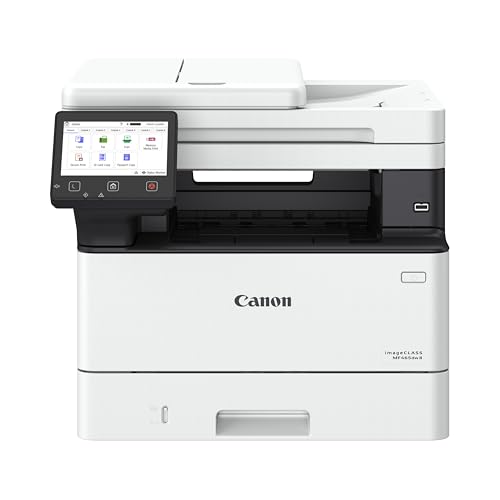
Canon’s MF465dw II is the set’s only machine that brings paper back: a monochrome wireless duplex laser printer with print, copy, scan, and fax, expandable paper capacity, and a stated 42 PPM. In a network guide, an all-in-one changes the conversation, because the network now runs in both directions — documents leave every desk as prints and return from the world as scans, filed to the shared places the office actually uses. The MF465dw II is therefore not merely a printer with extras; it is the room’s paper border crossing, and its stated 42 PPM engine keeps the outbound side brisk while the scanning side handles the inbound stacks.
Expandable paper capacity is the claim with the longest shadow. A shared machine’s appetite grows with its constituency, and a printer whose paper system can expand meets that growth with hardware rather than with a replacement purchase. Offices should read the claim as Canon’s acknowledgement that this machine is bought for a trajectory, not a snapshot — the department’s volume next year is part of this year’s specification. The title does not enumerate the expansion’s sizes, so capacity planners belong on Canon’s specification page for the exact model, where the paper system is described in full.
The networking story, as titled, is wireless — no Ethernet is named — and this review records that plainly rather than assuming a port from the model’s class. For most offices, a well-sited wireless all-in-one on the main network serves every desk without drama, and the fax and scan functions care about the network only as a road to their destinations. Offices whose infrastructure policy demands wired endpoints should verify the port question in Canon’s documentation or take one of the Ethernet-documented picks; offices free to choose will find the Canon’s completeness — four functions, a fast stated engine, expandable paper — the most office per network address in this set.
Fax, the unfashionable function, completes the profile for the offices still summoned by clinics, solicitors, and public bodies. A networked all-in-one that can receive a fax and route it into the office’s digital life closes the last analogue gap in the paperwork loop. Combined with duplex printing claimed in the title, the MF465dw II describes a machine through which an office’s entire paper existence — in, out, copied, faxed — can pass at 42 PPM.
Paper-intensive offices can examine the MF465dw II listing on Amazon for the present offer, keeping Canon’s documentation open for the paper-expansion details and the wired question.
One workflow deserves spelling out for the all-in-one’s buyer: the scan destination is the feature. Set, during setup week, where feeder scans land — the shared folder, the document system, the addresses the office actually reads — and test one stack end to end. An all-in-one whose scans arrive where people look becomes the office’s memory; one whose scans vanish into an unconfigured menu becomes a printer with a lid. Canon gives this machine the hardware for the first outcome; the setup evening decides whether the office gets it.
- Output: monochrome laser all-in-one
- Jobs covered: print, copy, scan, fax
- Stated pace: 42 PPM
- Duplex: two-sided printing stated in title
- Paper claim in title: expandable paper capacity
- Ethernet: Not stated in the listing title — verify with the manufacturer documentation
Strengths
- Only pick here that scans, copies, and faxes as well as prints
- Stated 42 PPM engine keeps a shared queue moving
- Expandable paper capacity matches a growing office’s appetite
Trade-offs
- Wireless story as titled — wired offices must verify the port
- All-in-one body is the largest presence in this set
- Expansion sizes require Canon’s documentation to plan
Best for: offices needing one networked machine for the whole paperwork loop at pace
Not suited for: print-only departments that would never lift the scanner lid
Lexmark MS431dw — Wireless with Ethernet, cloud-ready
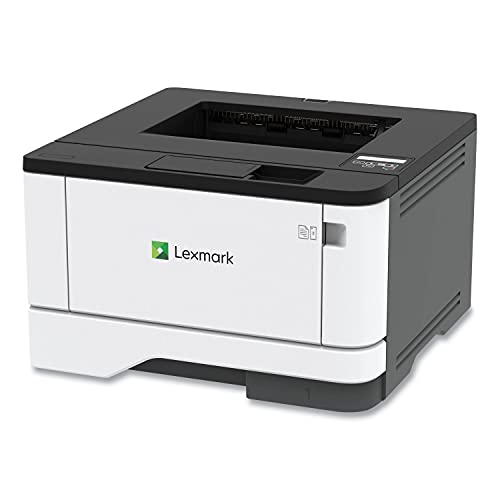
Lexmark’s MS431dw phrases its network identity in the title’s own compact grammar: a black-and-white laser printer, wireless with Ethernet, mobile-friendly, with cloud connection and automatic two-sided printing, identified by its 4-Series badge and model code. The pairing in that phrase is the pick’s whole case — wireless with Ethernet, both, in writing — which gives an office the installer’s choice: wire the machine at a permanent address where the cabling allows, or place it wirelessly where it does not, with the same model serving both futures. Printers are replaced less often than offices are rearranged, and a machine documenting both paths survives the rearrangement.
Cloud connection is the title’s most modern phrase and deserves a precise reading. It documents that this printer’s world extends beyond the local network to cloud services, in Lexmark’s own terms; the specific services and their configuration live in Lexmark’s documentation, where an office with a cloud workflow should confirm the fit for its exact platforms. Mobile-friendly, likewise, is the maker’s wording for the phone relationship — recorded here as written, with the detail left to the same documentation. What needs no documentation is the shape: a two-sided mono engine with both network paths and a cloudward face, aimed at offices whose documents no longer live in one building.
Automatic two-sided printing, stated in full, keeps the document manners complete, and the absence of a stated pace figure in the title sends tempo-led buyers to Lexmark’s specification page — a normal errand, noted without drama. Within this set, the Lexmark is the diplomat: not the fastest documented engine, not the deepest paper story, but the machine whose title most explicitly refuses to choose between the wired office and the wireless one, and adds the cloud as a third constituency.
Lexmark’s office heritage is the quiet substrate. This is a maker whose machines live in managed fleets, and the MS431dw’s vocabulary — series badge, model code, security-conscious fleet dialect elsewhere in its line — speaks to buyers who think in fleets even when buying one machine. A small office standardising early on a fleet dialect gains documentation depth and a support trail that a lone purchase rarely considers and frequently appreciates in year three.
Offices straddling wired and wireless can pull up the MS431dw listing at Amazon to check today’s terms, then confirm cloud specifics and pace in Lexmark’s documentation for the exact model.
There is a future-proofing reading of the Lexmark’s title that cautious buyers will appreciate. Offices change their minds about topology: the wireless printer gets wired when the office is recabled; the wired printer moves to a wireless corner when the team expands. A machine documenting both paths in its title is insured against both changes of mind, and its cloud wording insures it, in the maker’s own terms, against the documents moving off the local network altogether. Few titles in this set buy their owners as many futures at once.
- Output: black-and-white laser printer, 4-Series
- Connections: wireless with Ethernet, stated in title
- Mobile wording in title: mobile-friendly
- Cloud wording in title: cloud connection
- Duplex: automatic two-sided printing stated
- Stated pace: Not stated in the listing title — verify with the manufacturer documentation
Strengths
- Wireless and Ethernet both documented — placement freedom with permanence available
- Cloud connection wording suits distributed, multi-site offices
- Automatic two-sided printing claimed in full
Trade-offs
- No stated pace figure in the title
- Cloud specifics require Lexmark’s documentation to evaluate
- Print-only — no scanning for returning paper
Best for: offices that want wired permanence available without surrendering wireless placement
Not suited for: selections made by ranking network printers on a stated speed figure alone

HP LaserJet Pro 4001dn — The Ethernet Pro
HP’s LaserJet Pro 4001dn states its network identity in the Pro line’s dialect: a monochrome laser printer with fast black-and-white printing, mobile printing, Ethernet connectivity, and fast printing said twice for emphasis. The Ethernet claim is the structural one. This is a wired network printer by its title’s own account — no wireless is named — and that posture suits the office whose infrastructure is cabling: the printer takes a fixed address on the wired network, every desk reaches it through the switches, and discovery becomes a non-event for the machine’s entire service life. In buildings with structured cabling and an IT habit, that is not a limitation but the correct description of how printing should feel.
Mobile printing, claimed in the title, extends the wired machine’s reach to the phones and tablets that increasingly originate office documents — the devices join the same network wirelessly and meet the printer at its fixed address, which is precisely why a wired printer serves a wireless device fleet so well: the anchor is stable even when everything that prints to it is mobile. Fast is HP’s word for the engine, stated without a figure, so pace-led buyers should take the number from HP’s documentation for the exact model; this review records the positioning and declines to counterfeit the numeral.
The 4001dn’s argument, assembled, is permanence. A Pro-line mono engine, wired once, printing office paper at a business tempo, reachable by desktops through the cabling and by phones through the network — it is the set’s portrait of printing as building services, like lighting or heating: installed, addressed, and expected. Offices that think of their printer that way will find HP’s title written in their language, and offices needing wireless placement should note the title’s silence and choose a dual-path machine instead.
One operational note suits the wired posture: give the machine its address deliberately during setup, record it where the office keeps such things, and name the printer for its room. A fixed-address machine rewards a fixed identity, and the small ceremony of documenting both — address and name — is what separates an installed network printer from a merely connected one when the office grows and a second machine arrives.
Cabled offices can review the LaserJet Pro 4001dn listing on Amazon for the current offer, and consult HP’s documentation for the engine figure and paper details the title summarises.
A note on the doubled fast in HP’s title, read charitably: the Pro line sells tempo as a temperament rather than a figure, and the offices that buy it are buying the absence of a queue as a permanent condition. Such buyers should still take the numeral from HP’s documentation — temperament is not a specification — but they can recognise their own priorities in the listing’s insistence. In a wired office where the printer is building services, a machine that promises to be quick and then gets out of the way is promising exactly the right thing.
- Output: monochrome laser printer, LaserJet Pro line
- Networking: Ethernet connectivity, stated in title
- Mobile wording in title: mobile printing
- Positioning in title: fast black-and-white printing
- Wireless: Not stated in the listing title — verify with the manufacturer documentation
- Duplex wording: Not stated in the listing title — verify with the manufacturer documentation
Strengths
- Ethernet permanence gives every desk a stable target
- Mobile printing covers the phone fleet through the same network
- Pro-line ecosystem brings long support and supply trails
Trade-offs
- No wireless named — placement follows the cabling
- No stated speed figure, only a fast positioning
- Duplex not claimed in the title’s words — verify if essential
Best for: cabled offices wanting a fixed-address monochrome printer for every desk
Not suited for: offices needing to site the printer beyond the reach of a network point

Canon imageCLASS LBP246dw II — The brisk single-function Canon
Canon’s LBP246dw II closes the set with a sprinter’s title: a monochrome duplex wireless laser printer, single function, with a one-year limited warranty and a stated 42 PPM. The pace matches the all-in-one Canon’s figure at the top of this set’s documented range, and here it arrives without the scanner, the fax, or the feeder — a print-only engine for the office whose paper is born digital and merely visits paper on its way out. In a network guide, that focus has its own virtue: the machine does one job on the shared network, at a stated brisk tempo, with two-sided printing claimed outright.
Wireless is the title’s network story, complete in itself: the machine joins the office network without a cable deciding its chair, and every device on that network — desktops, laptops, phones through their ordinary paths — inherits a fast mono engine at a shared address. No Ethernet is named, and wired-policy offices should apply the usual discipline: verify in Canon’s documentation or choose a documented-port pick. For the flexible office, the wireless posture plus the stated pace is the entire requirement, met in a single line.
The one-year limited warranty, stated in the title, sets the documented support horizon — shorter than the three-year figures Canon states elsewhere in this batch’s wider family, and recorded here without varnish because buyers comparing the two Canons deserve the difference in plain view. What the LBP246dw II offers in exchange is simplicity at speed: fewer functions to configure, a single-function body to place, and an engine whose stated tempo is the joint-fastest in the set. Offices that print far more than they scan will read that trade as correctly priced.
The second-generation suffix, as throughout this guide, is a documentation instruction: Canon’s pages for the earlier model are background, and the exact LBP246dw II string is the one whose specification settles any question the title leaves open. Run that check, site the machine on the main office network, set duplex as the fleet default, and the Canon becomes what its title promises — the fast, quiet paper exit every desk in the office shares.
Print-heavy offices can look at the LBP246dw II listing on Amazon for today’s terms, finishing with Canon’s specification page for the exact model string.
Single-function purity has a network benefit that rarely gets named: there is simply less to configure, less to go wrong, and less for a new starter to misunderstand. The LBP246dw II asks its installer for an address, a name, and a duplex default, and then it is finished — an afternoon’s less ceremony than an all-in-one demands. Offices that rotate staff or lack a resident technician should count that simplicity as a feature with a weekly dividend, paid in questions never asked.
- Output: monochrome laser printer, single function
- Stated pace: 42 PPM
- Duplex: two-sided printing stated in title
- Networking: wireless, per title
- Warranty wording in title: 1 year limited warranty
- Ethernet: Not stated in the listing title — verify with the manufacturer documentation
Strengths
- Joint-fastest stated pace in this set at 42 PPM
- Single-function focus keeps setup and placement simple
- Duplex wireless printing covers the shared office workload
Trade-offs
- No scanning, copying, or fax for returning paper
- No Ethernet documented in the title
- One-year warranty is the shortest horizon stated here
Best for: wireless offices printing long monochrome documents against deadlines
Not suited for: offices whose paper must be scanned back into the network daily
Comparison table
| Printer | Functions | Stated speed | Ethernet in title | Wireless in title |
|---|---|---|---|---|
| Brother HL-L5210DW | Not stated in the listing title | Gigabit Ethernet | Yes | |
| Brother HL-L6310DW Enterprise | Not stated in the listing title | Not stated in the listing title | Yes | |
| Canon imageCLASS MF465dw II | Print, copy, scan, fax | 42 PPM | Not stated in the listing title | Yes |
| Lexmark MS431dw | Not stated in the listing title | Yes, with wireless | Yes | |
| HP LaserJet Pro 4001dn | Not stated in the listing title | Ethernet connectivity | Not stated in the listing title | |
| Canon imageCLASS LBP246dw II | 42 PPM | Not stated in the listing title | Yes |
The two network columns are the guide’s argument in miniature: three machines document a wired path, three do not, one documents no wireless at all, and no column borrows a claim from a sibling or a spec sheet to fill a gap. An office’s cabling map should be laid over this table before any other comparison is run, because the fastest engine in the set is worthless to a desk that cannot find it, and the most complete network menu is wasted on a room that needed only a wire.
How to choose
Start with the building, not the printer. If your office has network points where a printer can live, the Ethernet-documented machines — Brother’s HL-L5210DW with its Gigabit claim, Lexmark’s dual-path MS431dw, HP’s wired 4001dn — offer the permanence that makes shared printing boring in the best way. If the printer must live beyond the cabling, the wireless stories take over: the enterprise Brother for capacity, the two Canons for stated 42 PPM pace, divided by whether paper must also be scanned, copied, and faxed or only printed.
Next, count the paper’s directions. One-way traffic — born digital, printed, filed — suits the five print-only machines and keeps the purchase focused on engine and network. Two-way traffic, where paper arrives and must return as scans, points at the MF465dw II alone in this set, with its expandable capacity planning for the traffic’s growth. Offices routinely misjudge this count by remembering a quiet month; use a busy one.
Then weigh the documented ownership claims: the enterprise Brother’s large capacity and low-cost posture for a department’s appetite, the Canon all-in-one’s expandability, the LBP246dw II’s stated warranty horizon against the field. And finish with the installation plan — address strategy, printer name, duplex defaults on every desk, and a discovery rehearsal from a desktop, a laptop, and a phone on the first evening. A network printer is a system that includes its setup; buy the machine whose documented posture fits your map, then finish the system properly.
Toner logistics close the choosing loop, because a network printer consumes at the room’s rate, not a desk’s. None of these titles states a yield figure, so this guide will not rank the six by cartridge economy; the structural advice is to check your chosen model’s toner family in the manufacturer’s documentation, keep one spare cartridge in the building from the first month onward, and let the enterprise Brother’s low-cost positioning speak to you if the room’s volume is the kind that makes toner a budget conversation. A shared printer that runs dry on a deadline morning teaches the whole office the same lesson at once, which is an expensive way to learn inventory.
Paper deserves the same systems treatment. A network printer’s tray should hold the office’s true stock, loaded deep, with the refill point — the level at which someone orders or fetches more — agreed before it is reached. These are unglamorous arrangements, and they are the difference between a network printer as infrastructure and a network printer as a recurring meeting topic. The machines in this set all have the engines for the first outcome; the office supplies the arrangements.
Why does a wired printer serve wireless devices better than a wireless one?
It sounds paradoxical until the topology is drawn. Phones and laptops reach the printer through the office router; the printer’s own link to that router is the one segment every job must cross. A wireless printer crosses it through the same contested air as every other device, at whatever range and obstruction its shelf imposes. A wired printer crosses it through a cable, at full speed, immune to walls and neighbours — so the wireless fleet’s jobs arrive at a machine whose own connection never fluctuates. The anchor is wired precisely so that everything mobile can rely on it.
The corollary is placement discipline for wireless machines. A wireless network printer should live where the signal is strong and the route to the router is short — not in the far corner that happened to have a shelf. Offices that site wireless printers by furniture rather than by signal manufacture their own discovery failures, then blame the printer’s networking. Let the signal map choose the shelf, and the wireless picks in this set will serve as reliably as their wired cousins.
What should an office configure on a network printer during setup week?
Identity first: a fixed or reserved address where the infrastructure allows it, and a human name — the room, not the model string — so every print dialogue in the office presents a recognisable citizen. Defaults second: duplex as the office standard, the correct paper source and stock settings, and the scan destinations if the machine is the Canon all-in-one, set once and tested rather than discovered per user. Access third: whatever administrative protection the model offers, applied while the setup is calm, so the printer’s settings are not a public surface on the office network.
Rehearsal last, and it is not optional. Print from a wired desktop, a wireless laptop, and a phone; scan one stack if the machine scans; send the machine a long document and a two-sided one. Every device class that will ever use the printer should meet it during setup week, in daylight, with the installer present — because the alternative is each class meeting it separately, at deadline, with the installer in a meeting. Network printers reward rehearsed offices with years of silence.
Security hygiene belongs in the same conversation, briefly and without alarm. A network printer is a small computer holding a memory of the office’s documents, sitting on the office’s network, and it deserves the ordinary courtesies: its administrative settings protected where the model offers protection, its firmware kept within sight of the maker’s current version, and any remote-access feature the office does not use left off. None of this requires a specialist; it requires treating the printer, once, during setup week, as the network citizen it is — the same week its address, name, and defaults are set. Offices that perform that single act of citizenship rarely think about the subject again.
How many devices should one network printer honestly serve?
More than intuition suggests, because office printing is bursty rather than continuous: a room of twenty people produces a few dozen jobs a day, arriving in clusters around meetings and deadlines. A business laser’s engine and paper system — the virtues these titles document — absorb those clusters easily; the true limits are human ones, the queue at the tray and the walk to collect. Offices outgrow a network printer socially before they outgrow it mechanically, which is why capacity claims and stated pace matter: they stretch the social limit, the point at which a second machine becomes a relief rather than a luxury.
The practical test is the busiest hour of your busiest week. If, in that hour, the printer’s tray is a meeting point and its queue a conversation, the room has outgrown one machine — and the correct response is a second network address, not a bigger argument. Until that hour arrives, any pick in this set will serve a whole office’s devices, provided the network posture was chosen honestly and the setup rehearsal was performed in full.
Visitors complete the network picture. Every office printer eventually serves a guest — the auditor’s laptop, the client’s phone, the new starter on their first morning — and a machine at a stable address under a human name serves them without an IT escort. Keep the guest path in mind during setup week: if visitors print often, the printer belongs on the network segment guests can reach, and its name should be the word a receptionist can say over the phone. Hospitality, in a network printer, is a configuration choice made once and enjoyed by strangers for years.
Common mistakes
Assuming every business printer has an Ethernet port
Three of these six titles never mention Ethernet, and business-class confidence leads buyers to assume the port is universal until the machine arrives facing a wired-only desk. Ports are hardware, and hardware is documented per model. If your installation requires a wire, buy a title that documents one — three here do — or verify the exact model in the manufacturer’s specification before ordering.
Siting a wireless printer by furniture instead of signal
The far corner with the spare shelf is where wireless printers go to become unreliable. Discovery failures, dropped jobs, and slow first pages follow the signal map, not the spec sheet. Walk the room with the network in mind, place the machine where the router’s reach is strong, and test from the farthest desk during setup week rather than discovering the dead zone at the first deadline.
Leaving the printer’s name as its model string
A print dialogue offering a cryptic model code teaches every user to hesitate, guess, and occasionally print to the wrong machine when a second one arrives. Name the printer for its room during setup — the word the office uses in speech — and the hesitation disappears from every desk at once. It is the cheapest usability upgrade in network printing, and the most skipped.
Skipping the per-device rehearsal
An office that tests its new printer only from the installer’s laptop has verified one path of the six its staff will use. Desktops, laptops, phones, and the meeting-room machine each deserve one real job during setup week, while the installer and the settings are both still present. The rehearsal takes twenty minutes; the un-rehearsed office pays the same twenty minutes back, with interest, at the worst possible moments.
Final recommendation
For the office that can wire its printer, the Brother HL-L5210DW is this guide’s anchor: Gigabit Ethernet and wireless and mobile printing in one documented sentence, with duplex printing for the office’s two-sided defaults. Offices straddling both worlds should take Lexmark’s MS431dw for its both-paths title and cloud wording; cabled traditionalists, HP’s 4001dn. Among the wireless stories, the Canon MF465dw II is the complete paperwork machine at a stated 42 PPM, the LBP246dw II its print-only sprinter sibling, and the enterprise Brother the capacity play for a room outgrowing desk printing.
Whichever machine takes the address, finish the installation like infrastructure: named for its room, duplex by default, rehearsed from every device class in the building. A network laser installed that way stops being a printer the office manages and becomes an address the office trusts — which is what the search was always asking for.
Frequently Asked Questions
Is Ethernet really better than wireless for an office printer?
For the printer’s own link, generally yes: a wired connection is immune to range, walls, and band congestion, so every device that prints through the router meets a machine whose connection never fluctuates. Wireless printers serve perfectly well when sited within strong signal. The titles here document which machines offer which paths — three name Ethernet, one names no wireless — so choose the posture your building supports.
Can phones print to a wired-only network printer?
Yes, provided the phones and the printer share the same network: the phone reaches the router wirelessly, the router reaches the printer by cable, and the job crosses both segments. HP’s 4001dn states mobile printing in its title alongside Ethernet connectivity, which describes exactly that arrangement. The requirement is a shared network, not a shared medium.
Which pick should a small department with heavy volume choose?
Start with the Brother HL-L6310DW Enterprise, whose title pairs a large paper capacity with low-cost printing positioning — the two claims a department feels monthly. If the department’s paper must also be scanned and faxed, the Canon MF465dw II adds those functions with expandable capacity at a stated 42 PPM. Verify any unstated figures in the manufacturer’s documentation for the exact model before ordering.
What does expandable paper capacity actually buy an office?
Time between refills, and headroom for growth. A shared printer’s tray is emptied by the whole room’s appetite; a paper system that can expand lets the office stretch refill intervals and absorb new staff or a busier season without replacing the machine. Canon states the expandability on the MF465dw II without enumerating sizes in the title, so planners should read the paper system in Canon’s specification for the exact model.
Do I need to give the printer a fixed address?
It is strongly advisable where your router allows a reservation or a static assignment, because a printer whose address wanders becomes a printer that devices intermittently cannot find. The setup-week discipline in this guide — fixed address, human name, per-device rehearsal — converts a network printer from a connected device into office infrastructure, and it costs less than half an hour.
Related Guides
Network decisions lead naturally to the neighbouring ones — two-tray paper logistics, Mac-and-PC fleets, and the lasers chosen for mixed desks — and the guides below take each of them up. dual-tray laser printers for two-stock offices laser printers for Mac and PC homes printers picked for Mac OS desks May your printer hold one address, answer to its room’s name, and be found by every device that asks.