What's inside
- Key Takeaways
- Quick Picks
- How We Chose These Picks
- Portable or Desktop: Which 6TB Shape Earns Your Money?
- Why Has 6TB Become the Crossroads Capacity?
- How Do You Set Up a Desktop 6TB Drive for Full-Time Desk Duty?
- How Much of a 6TB Drive Will Your Library Actually Fill?
- What Changes When a Backup Target Reaches 6TB?
- How Does a 6TB Drive Change a Home Media Library’s Habits?
- What Should Gamers Know Before Parking a Library on 6TB?
- How Do You Keep a Large External Drive Healthy for Years?
- When Should a 6TB Buyer Choose a NAS Instead of an External Drive?
- Which 6TB Buying Errors Keep Recurring?
- Final Recommendation
- Frequently Asked Questions
- Related Guides
As an Amazon Associate I earn from qualifying purchases. This post may contain affiliate links at no extra cost to you.
widgetverdict.com is reader-supported. When you buy through links on our site, we may earn an affiliate commission.
Six terabytes is where two different products meet under one search term, and untangling them is the real work of any guide to the best 6tb hard drives. At this capacity you can buy a portable drive — the new ceiling of the 2.5-inch format, running from a single USB cable — or a desktop external, a larger powered box that sits permanently beside the computer it serves. Same capacity, same connection, entirely different lives. This guide covers both shapes honestly: two portables and two desktop externals with verified listings, plus a further desktop model and a hub-equipped variant described without links, so that the first decision — which shape — is made with the full market in view.
The portable shape at 6TB is a recent development; the format’s ceiling sat at 5TB for years before WD pushed it upward, and the two portable picks here are both WD models for that reason. The desktop shape at 6TB is mature and contested, with Seagate’s Expansion line and WD’s desktop ranges competing on enclosure features — encryption, backup software, front-panel ports — rather than on the drives inside, which are close cousins across the industry. Readers who already know their shape can go straight to its picks; readers who do not should read the comparison section first, because at 6TB the shape decision matters more than the brand decision.
One expectation to set for the whole class: 6TB external drives are bulk instruments. They are bought to hold backups, media libraries, game collections and archives, and they are judged by capacity, manners and the systems around them — not by speed, where any SSD outclasses them, and not by silence records, where the desktop models’ larger mechanisms and fans of moving air make themselves politely known. Buy them for room, and they repay you for years.
Key Takeaways
- The first 6TB decision is shape: portable for a drive that travels and runs from one cable, desktop for a drive that anchors a desk with its own power supply.
- WD Elements 6TB Portable is the plain portable answer; WD My Passport 6TB adds hardware password protection for data that leaves the house.
- WD Elements Desktop 6TB and Seagate Expansion 6TB are the desk anchors — no encryption on the WD, Rescue services association on the Seagate.
- The prose-only My Book 6TB and Backup Plus Hub 6TB complete the desktop map with encryption and front USB ports respectively.
- At 6TB, your backup and organisation systems matter more than the drive choice; a library this size needs versioning, labels and a second copy somewhere.
Quick Picks
| Drive | Badge | Why it earns its place |
|---|---|---|
| WD Elements 6TB Portable | Portable maximum, plainly done | The largest bus-powered capacity in a bare, software-free case for backups that happen anywhere. |
| WD My Passport 6TB | Encrypted portable | Hardware password protection and backup software wrapped around the same class-leading portable capacity. |
| WD Elements Desktop 6TB | Desk-bound value | A powered desktop external with no software layer — the set-and-forget archive box. |
| Seagate Expansion 6TB | Desktop rival with Rescue | Seagate’s straightforward desktop capacity, with data-recovery services attached to the listing. |
| WD My Book 6TB | Encrypted desktop, unlinked | WD’s fuller-featured desktop line with password protection, described without a verified listing. |
| Seagate Backup Plus Hub 6TB | Hub-fronted desktop, unlinked | A desktop drive whose face carries USB ports for charging and peripherals, covered prose-only. |
How We Chose These Picks
The shortlist was organised by shape before brand, because the shape determines the ownership experience: whether the drive needs a power socket, whether it can travel, how it sounds across a room and what happens when it is knocked. Two portables and four desktop-format candidates were selected so that each shape offers a plain option and a featured option — encryption on one side, recovery services or a front hub on the other — giving readers a decision tree instead of a beauty contest between near-identical boxes.
Desktop externals were judged on the enclosure as much as the mechanism, because at this level the mechanisms converge: power supply quality, ventilation, the honesty of the case’s footprint claims and whether the bundled software respects the owner’s existing systems. Portables were judged by the standards of the 5TB class they extend — one-cable manners, case discipline and the presence or absence of a software layer — with the new capacity treated as the headline it is.
Pool verification decided the links, as throughout this series. Four models matched verified listings exactly. The My Book 6TB and Backup Plus Hub 6TB are current, widely stocked products whose listings could not be matched to the pool with confidence, so they are analysed fully and linked never — the reader keeps the comparison, and sources those two through a retailer of their choice.
WD Elements 6TB Portable — Portable maximum, plainly done
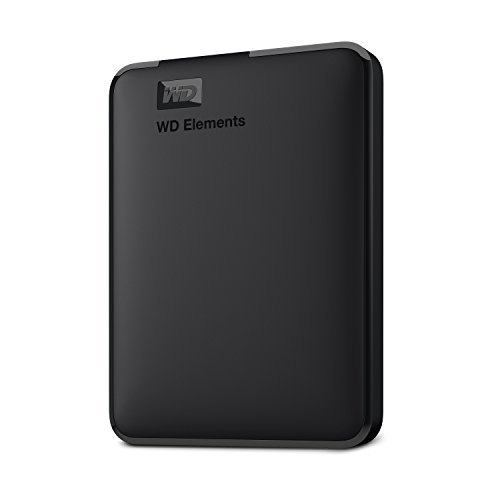
Until recently this product could not exist: the portable format’s ceiling was 5TB, and the Elements 6TB is part of the small group of drives that moved it. The significance is practical rather than ceremonial. A backup target or media library that had outgrown the old ceiling no longer forces a jump to a powered desktop box or a pair of smaller portables; it fits, whole, into a drive that still runs from one cable and still disappears into a laptop sleeve. For travelling professionals whose library is their livelihood — photographers, videographers, field researchers — that single fact reorganises the kit bag.
The Elements formula at this capacity is unchanged, and deliberately so: no bundled software, no encryption chip, no dashboard, just a slim case and a filesystem waiting for your systems to use it. The drive arrives ready for Windows and reformats for Mac in moments. Everything the 5TB Elements was praised for in its own guide — the absence of a proprietary layer, the drawer-in-six-years mountability — carries over intact, because nothing about the ownership model changed except the number on the box.
Physics sends its invoice in the usual places. A 6TB portable is built on shingled recording and a multi-platter mechanism, so sustained random writes are not its talent and a certain mechanical presence accompanies large copies. Its roles are the portable roles — backup target, library carrier, archive ferry — performed at the format’s maximum scale. Ask it to be a working scratch disk for video editing and it will disappoint; ask it to hold the entire project archive and bring it home safely, and nothing else in this guide does the job in one cable-powered object.
Buy it as the portable default at this capacity, the way its 5TB sibling is the default in its class: when your systems are your own, your data’s protection is arranged elsewhere, and what you need from the drive is room, manners and invisibility. The My Passport below adds the protection layer for those whose threat model requires it; everyone else can let the Elements be the end of the portable question at 6TB.
Kit-bag arithmetic shows the portable’s worth in one line: this drive plus its cable weighs less than the camera battery kit most travelling shooters already carry, yet it holds an entire season of work. Equipment that adds capability without adding a packing decision is equipment that actually gets packed — and a backup drive that travels is worth several that were left at home for being one object too many.
- Capacity and format: 6TB in the slim 2.5-inch portable format
- Connection: USB 3.2 Gen 1 / USB 3.0, one cable for data and power
- Power: bus-powered — no adapter to carry or lose
- Software: none bundled, by design
- Encryption: none built in; pair with system-level tools if needed
- Positioning: the portable format’s current capacity ceiling
Strengths
- Largest one-cable capacity available in a portable hard drive.
- Bare-disk honesty: every system you already use works with it.
- Travels in a sleeve; backs up anywhere a laptop opens.
Trade-offs
- No hardware encryption for sensitive data in transit.
- Shingled portable mechanism dislikes sustained random writes.
- Plain shell, plain protection — a sleeve is on you.
Best for: travelling libraries and backup targets at maximum portable scale.
Not suited for: active editing scratch duty or unencrypted sensitive data on the road.
WD My Passport 6TB — Encrypted portable
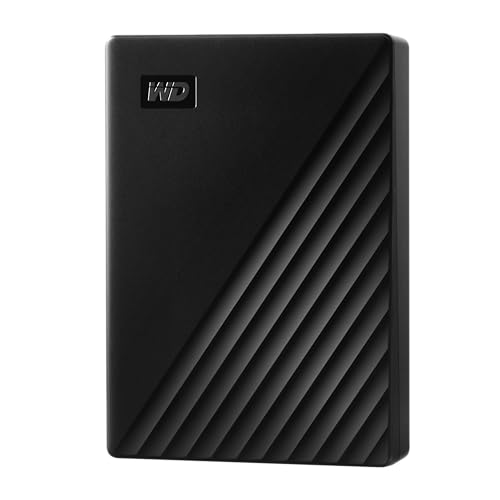
The My Passport 6TB pairs the format’s new maximum capacity with the feature its line exists for: built-in password protection backed by hardware encryption. The combination answers the specific anxiety of the large portable — the more a drive holds, the more its loss matters — by making the contents unreadable without the password even if the mechanism leaves its case. A 6TB drive can carry a household’s entire digital estate; this is the version of that drive designed to be lost, left in a taxi or stored in someone else’s building without the data travelling with the hardware.
The encryption discipline described in the 5TB guide applies with greater force here, because the stakes scale with the capacity: the password must be recorded in a password manager on the day it is set, the household’s other stakeholders must know where that record lives, and everyone must understand that a forgotten password means a wiped drive by design. WD’s software offers an auto-unlock option for trusted computers, which softens daily friction without weakening the protection when the drive is elsewhere — a thoughtful arrangement for a drive that is both a desk regular and an offsite rotation partner.
Around the encryption, the package mirrors its smaller sibling: slim coloured case, bus power, backup software available for scheduled copies with the maker’s current suite. The software remains optional, and the drive behaves as a plain disk for owners with their own systems — the correct hierarchy, in which the Passport’s one compulsory idea is the password and everything else is an offer.
Choose it over the Elements when the 6TB drive will hold personal, client or financial data beyond your own four walls: the offsite backup rotation, the photographer’s travelling archive, the sole trader’s records drive. Choose the Elements when the drive’s world is your own desk and bag, and the password would be a ritual without a threat to answer. Capacity is identical between them; geography decides.
There is a quieter audience for this pick: the family archivist digitising a generation’s worth of photographs, videos and documents into one master collection. That collection’s travelling copy — to a sibling’s house, to a safe deposit arrangement, to the adult child who becomes its second custodian — should be the encrypted one, because a family archive in transit is exactly the data whose loss would be both permanent and private. The Passport was designed, whether WD pictured it or not, for the custodian’s journey.
- Capacity and format: 6TB portable, slim Passport case
- Connection: USB single cable, fully bus-powered
- Protection: password security with hardware encryption built in
- Software: WD backup suite available, optional
- Convenience: auto-unlock for trusted computers via the software
- Warning that matters: a forgotten password cannot be bypassed
Strengths
- Maximum portable capacity with genuine hardware encryption.
- Offsite and travel roles become safe by design.
- Backup software on offer without being compulsory.
Trade-offs
- Password loss is data loss, permanently and by intention.
- Costs more than the plain Elements for the same capacity.
- Encryption features live inside WD’s software ecosystem.
Best for: offsite rotations and travelling archives of personal or client data.
Not suited for: households likely to lose track of a password.

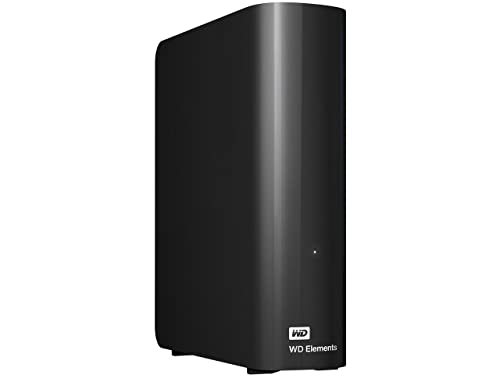
WD Elements Desktop 6TB — Desk-bound value
The desktop member of the Elements family trades the portable’s freedom for the desk’s virtues: a 3.5-inch mechanism in a powered enclosure, higher sustained throughput than the portables, and a design that assumes it will sit in one place for years doing unglamorous, essential work. This is the classic backup box — the drive that lives behind the monitor, receives the nightly backup, holds the household media library and is otherwise ignored — and at 6TB it does that job for libraries that have outgrown every smaller class.
The powered design changes daily life in small, compounding ways. There is a wall adapter to accommodate and a power switch to know about; in exchange, the drive never bargains with a USB port for current, spins a larger mechanism that handles long backup sessions without the portables’ thermal or power anxieties, and presents a stable, always-addressable target for scheduled software. Desktop drives also tend to outlive portables in backup service for the simplest of reasons: nothing ever drops them, plugs them in at an angle or packs them under a charger.
WD keeps the desktop Elements as bare as its portable sibling — no encryption, no bundled suite beyond the basics — which suits the role. A desk-bound backup target inside your own home gains little from a password and much from being a standards-compliant disk that any system can read in an emergency, including a borrowed computer on the worst day of the year. Owners who need the drive itself to encrypt should look at the prose-only My Book below; owners who need it to be rescued should look at the Seagate beside it.
Placement is the only craft the desktop Elements asks of you: ventilation around the enclosure, a surface that will not transmit every desk vibration, and a cable run that a chair leg cannot find. Give it those, set the backup schedule, and the drive becomes infrastructure — the kind of purchase whose success is measured in how completely it is forgotten between the day it arrives and the day it saves you.
Renters and frequent movers sometimes dismiss desktop drives as furniture they cannot commit to, and at 6TB the dismissal deserves a second look: the enclosure is smaller than a hardback novel, moves in the same box as the monitor, and asks only for a socket at the other end. Stationary is a description of its working hours, not a life sentence — the desktop Elements has anchored many desks in many homes across a single ownership, which is more continuity than most portables ever see.
- Capacity and format: 6TB in a powered 3.5-inch desktop enclosure
- Connection: USB 3.0 to the computer
- Power: mains adapter supplied — plan a socket for it
- Software: minimal; designed to serve your existing backup tools
- Encryption: none built into this model
- Role profile: stationary backup target and media library anchor
Strengths
- Powered stability for nightly, unattended backup sessions.
- Larger mechanism handles long copies without portable anxieties.
- Bare-disk readability on any computer in an emergency.
Trade-offs
- Needs a power socket and a permanent address on the desk.
- No encryption for owners who want the drive to protect itself.
- Not a travel object in any sense.
Best for: the household’s fixed backup and media anchor.
Not suited for: any role involving a bag, a journey or a borrowed desk.
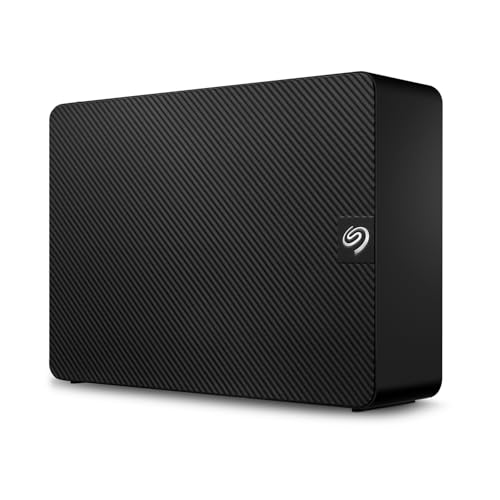
Seagate Expansion 6TB — Desktop rival with Rescue
Seagate’s Expansion desktop line is the WD desktop Elements’ mirror and rival: a black powered enclosure, a 3.5-inch mechanism, drag-and-drop positioning and no interest in managing your data for you. The 6TB member competes on the same desk-bound virtues — capacity, stability, invisibility — with one addition in its listing that the WD lacks: Seagate’s Rescue data-recovery services. For a drive whose entire job is holding the household’s accumulated digital life, that association is a considered differentiator rather than a sticker.
Rescue deserves its honest framing, as it did in the 5TB guide: a recovery service is a second chance, not a strategy. It applies when a drive fails mechanically with data that exists nowhere else — a situation good systems are designed never to reach — and it converts some of those failures from total losses into waiting periods. Buyers who keep proper second copies will likely never use it; buyers who do not yet keep them gain a safety net while their habits improve. Either way, its presence costs the Expansion nothing in daily behaviour.
In daily behaviour the Expansion is as plain as its rival: it mounts, it holds, it serves the backup schedule and the media library, and its enclosure’s manners are desk-appropriate. Seagate’s desktop boxes have a slightly more compact footprint reputation than WD’s book-shaped cases, which matters on shallow shelves; the drive inside spins with the same desktop-class presence as any 3.5-inch mechanism, audible in a silent room at close range and irrelevant across a normal one.
Between this and the WD desktop pick, the decision is genuinely a coin weighted by small preferences: Rescue services versus a preference for WD’s ecosystem, the better price on the day, the case shape that fits your shelf. That is a healthy state for a mature category to be in, and buyers should feel free to let those small weights decide without suspecting they have missed a hidden specification that matters.
Households choosing between this and the WD desktop pick often overlook the support dimension: Seagate’s documentation, firmware utilities and recovery pathway form a distinct ecosystem with its own habits, and a household already fluent in it — from an earlier Seagate drive that served well — gains real value from continuity. Brand loyalty is usually sentiment; ecosystem fluency is a skill, and it is allowed to count in a decision this close.
- Capacity and format: 6TB powered desktop enclosure
- Connection: USB 3.0, drag-and-drop ready
- Power: mains adapter, stationary design
- Services: Rescue data-recovery association per the listing
- Software: deliberately minimal
- Model reference: STKP6000400
Strengths
- Rescue services soften the worst-case scenario.
- Plain, immediate drag-and-drop behaviour.
- Compact desktop footprint for shallow shelves.
Trade-offs
- No encryption built into the enclosure.
- Recovery services are a safety net, not a backup substitute.
- Desk-bound by design, adapter and all.
Best for: desk-bound archives whose owners value a recovery safety net.
Not suited for: travel, or buyers wanting built-in encryption.
WD My Book 6TB — Encrypted desktop, unlinked
WD’s My Book is the desktop line for buyers who found the Elements Desktop too bare: same book-shaped enclosure family, same stationary brief, but with password protection and hardware encryption added, plus WD’s fuller backup software offering. At 6TB it is the desk-bound counterpart of the My Passport argument — a drive that can hold an entire household archive and protect it against the physical risks a home still contains: burglary, the curious visitor, the drive carried out with other equipment in a hurried clear-out.
The encryption calculus on a desktop drive differs subtly from a portable’s. The drive rarely travels, so the password guards against rarer, larger events rather than daily exposure — which makes the forgotten-password risk the weightier side of the bargain for many households. Set it with the password recorded properly, or do not set it at all; the My Book works perfectly well as an unencrypted drive, and its software can be used for scheduling alone. Flexibility, here, is the feature.
No pool listing could be verified for the My Book 6TB, so it stands in this guide as a prose-only pick: fully comparable, deliberately unlinked. Readers whose shortlist is “desktop, 6TB, encrypted” have exactly one candidate in this guide, and it is this one; source it from your preferred retailer and apply every other piece of guidance here — placement, scheduling, second copies — unchanged.
The My Book’s book styling is not vanity: a drive designed to stand visibly on a shelf among actual books gets ventilated, noticed and dusted, while a drive hidden in a tangle behind the desk gets none of those kindnesses. Several owners keep their My Book in the open for exactly this reason, and the encryption means its visibility costs nothing in exposure — the one desktop pick that can be both displayed and discreet about its contents.
- Capacity and format: 6TB in WD’s book-style desktop enclosure
- Connection: USB to the host computer
- Power: mains adapter, stationary by design
- Protection: password security with hardware encryption available
- Software: WD backup tools included in the offering
- Positioning: WD’s featured desktop line, one step above the Elements range
Strengths
- The encrypted option in this guide’s desktop class.
- Fuller software suite for households without their own.
- Same stationary virtues as the plainer desktop picks.
Trade-offs
- No verified link here; sourcing is the reader’s task.
- Encryption’s password risk needs deliberate management.
- Book-style case is the largest footprint in the guide.
Best for: desk-bound archives that need the drive itself to be locked.
Not suited for: buyers wanting a verified purchase link in this guide.
Seagate Backup Plus Hub 6TB — Hub-fronted desktop, unlinked
The Backup Plus Hub adds one idea to the desktop formula, and it is a good one: the front of the enclosure carries USB ports, turning the drive into a small powered hub that can charge a phone and host peripherals while it stores. On a crowded desk — especially one served by a laptop with two ports and ambitions — a storage box that gives connections back instead of only taking them earns its footprint twice. At 6TB it pairs that trick with full desktop capacity and Seagate’s backup software ecosystem.
The hub feature reframes the drive’s placement: it wants to live at the front of the desk, within arm’s reach, rather than hidden behind the monitor with the other backup boxes. That visibility suits its second job as a charging point and a drop target for quick copies from cameras and sticks. Owners should simply remember that a drive placed for convenience is also placed for knocks, and give it the stable, set-back-from-the-edge position any mechanical drive deserves.
Like the My Book above, the Hub appears without a link because no pool listing could be verified for it; it is a current Seagate product that readers may source independently. Its candidacy is specific — desks short of ports, households that charge everything in one place — and for those desks it is not a novelty but the most rational box in this guide.
Small studios discover a second use for the Hub’s front ports: the camera-card reader and the client USB stick plug into the drive that will hold the session’s files, shortening the path from capture to backed-up copy to a single arm’s reach. Workflow geography sounds trivial until a deadline is involved, at which point the difference between a port in front of you and a port behind the monitor is measured in errors not made.
- Capacity and format: 6TB desktop enclosure with a difference
- Connection: USB to the computer, plus front-facing USB ports
- Power: mains adapter, which also feeds the hub ports
- Extras: front ports for charging devices and quick peripheral hookups
- Software: Seagate backup tools available in its ecosystem
- Positioning: Seagate’s hub-fronted branch of its desktop external range
Strengths
- Gives desk ports back while it stores — rare and useful.
- Front placement suits quick copies and charging.
- Full desktop capacity and backup software support.
Trade-offs
- No link in this guide to purchase through.
- Front-of-desk placement invites knocks if placed carelessly.
- Hub electronics add a failure domain plain enclosures avoid.
Best for: port-starved desks and laptop-based setups.
Not suited for: hidden-away backup duty, where its talents are wasted.
Portable or Desktop: Which 6TB Shape Earns Your Money?
| Drive | Shape / power | Signature feature | Its home is… |
|---|---|---|---|
| WD Elements 6TB Portable | Portable / bus-powered | None — deliberately | A laptop bag, anywhere |
| WD My Passport 6TB | Portable / bus-powered | Hardware encryption | Offsite rotation, travel |
| WD Elements Desktop 6TB | Desktop / mains | Bare-disk simplicity | Behind the monitor |
| Seagate Expansion 6TB | Desktop / mains | Rescue services | A shelf by the desk |
| WD My Book 6TB | Desktop / mains | Encryption + software | A locked-down home office |
| Seagate Backup Plus Hub 6TB | Desktop / mains | Front USB hub ports | The front of the desk |
Read the table by power first. Bus power means freedom and a ceiling on mechanism size; mains power means a fixed address and a larger, calmer drive. Then read it by the feature column, which is where these six actually diverge: two kinds of encryption, one recovery service, one hub, and two deliberate absences of everything. A buyer who knows where the drive will sleep and what its worst day looks like can finish their decision from these six rows alone.
Why Has 6TB Become the Crossroads Capacity?
Capacities acquire personalities from the formats that offer them, and 6TB is the first size where the portable and desktop shelves overlap at full strength. Below it, portables rule the conversation; above it, at 8TB and beyond, desktop enclosures and internal drives take over almost entirely, because the 2.5-inch format cannot follow. A buyer at 6TB is therefore choosing not just a size but a direction: the last stop of the portable line, or the first confident step onto the desktop shelf.
The overlap also disciplines prices. Desktop 6TB drives must justify themselves against portables that need no socket, and portables must justify their premium against desktop boxes with larger mechanisms — competition that keeps the whole crossroads honest. Buyers benefit from standing exactly here: it is the capacity with the most shapes, the most features and the most rivalry per terabyte in the external market.
There is also a resale-and-hand-me-down reality at the crossroads: desktop 6TB drives hold a long second life as other households’ first big backup box, and portables at the format ceiling stay desirable to travellers for years. A drive bought well at this capacity rarely becomes worthless; it becomes someone else’s sensible purchase, which is one more reason to buy the shape honestly rather than the shape that was on sale.
Growth planning belongs in the same thought. A library growing past 6TB will leave the portable format behind entirely, so a portable bought at this size should be bought for the life it will actually lead — the travelling years — rather than as a stepping stone. A desktop bought at this size, by contrast, can be joined later by larger siblings on the same shelf without changing the system’s shape at all.
How Do You Set Up a Desktop 6TB Drive for Full-Time Desk Duty?
Placement comes before cables. Stand the enclosure where its vents breathe, on a surface that does not hum along with it, away from the desk’s edge and the chair’s casters, with the power adapter’s cable slack rather than strained. Desktop drives die of their environments more often than their mechanisms: heat from a sealed cabinet, vibration from a shared shelf with a printer, the slow lean of a book-style case nudged weekly by a cleaner’s cloth. Choose the spot as if the drive will live there for five years, because it will.
Cable dressing sounds like vanity until a drive is unplugged by a vacuum cleaner’s pass or a foot finding the wrong loop: route the USB and power leads behind the desk’s fixed objects, leave a service loop rather than tension, and keep the adapter’s brick where its heat can escape. The goal is a drive that cannot be disconnected by accident — because the most common desktop-drive incident in real homes is not failure but interruption, usually mid-backup and always at ankle height.
Then give the drive its working configuration in one sitting: format or confirm its filesystem for the machines it serves, name the volume for its role, set the backup schedule or the media library’s path, and run the first full job while you are present to watch it complete. A desktop drive’s first week should include one full-capacity-scale operation — the initial backup or library copy — because that is the workload that reveals any problem while returns are still effortless.
Close the setup with the paperwork of ownership: the purchase record and serial noted, a health baseline saved, and a calendar entry a few years out to review the drive’s condition and this guide’s successors. Desktop drives reward exactly this unglamorous competence with the longest, quietest service lives in external storage.
How Much of a 6TB Drive Will Your Library Actually Fill?
Capacity anxiety runs in both directions, and 6TB is large enough to make both visible. The household that buys it for a 900GB photo archive has purchased a decade of headroom — sensible, because archives only grow and because backup targets should be at least twice the data they protect once versioning is counted. The studio that buys it for an active video archive growing by a terabyte a quarter has purchased a postponement — also sometimes sensible, provided the next step, the 8TB shelf or a NAS, is already understood as the destination rather than discovered as an emergency.
A useful sizing habit is to measure the growth, not the library: note the archive’s size today and its size a year ago, and let the difference, multiplied by the years you intend the drive to serve, choose the capacity. Libraries growing slowly make 6TB a long home; libraries growing quickly make it a well-chosen staging post. Either conclusion is a success of planning — the only failure is buying a size with no idea which of the two it is.
Photographers feel the sizing question in its sharpest form, because a single season of modern high-resolution shooting can add a terabyte without anyone noticing until the card wallet is empty. For that audience the honest advice is to size the working archive and the backup target as a pair — the drive that holds the season and the drive that protects it bought in the same decision — rather than discovering in October that the backup stopped fitting in June.
Fill discipline matters at this scale too. A 6TB drive run permanently at the brim slows its own housekeeping and leaves backup software no room for the version history that justifies its existence. Treat the last terabyte as the planning reserve — the space that absorbs a new camera, a console’s worth of installs or a project’s fat year — and let its consumption be the signal that starts the next capacity conversation early and calmly.
What Changes When a Backup Target Reaches 6TB?
Scale changes the backup’s character. At 6TB, a full backup is an event measured in hours, so the system’s centre of gravity shifts decisively to incremental discipline: small nightly changes, versioned history, and full images as occasional milestones rather than weekly rituals. Software choice matters more here than at smaller sizes, because a tool that handles versions elegantly across terabytes is worth real money in restored evenings, while a clumsy one turns every restore into an excavation.
Verification scales with it. Spot-restoring a file proves the path works; at 6TB, also prove the catalogue — that the backup software’s index of what it holds is itself intact and browsable — because a restore that begins by rebuilding a damaged catalogue across six terabytes teaches patience nobody budgeted for. Test restores quarterly, from different eras of the history, and let the results — not the software’s green ticks — certify the system.
Restore time belongs in the same planning, because a backup is only as good as the afternoon it takes to come back. Restoring six terabytes is a half-day event even when everything works; households whose work cannot pause that long should hold their most critical subset — current projects, the document archive — on a faster, smaller tier as well, so that the essential restore is quick and the bulk restore can take its time. Tiering by urgency, like tiering by shape, is a decision this capacity forces and rewards.
Finally, a 6TB target concentrates risk exactly as much as it concentrates data, which returns this guide to its standing rule with the volume raised: a second copy, on a different device, in a different place. The portable picks in this guide make an elegant rotation partner for the desktop ones, and that pairing — desk anchor plus travelling copy — is the most complete home storage system this capacity class can build.
How Does a 6TB Drive Change a Home Media Library’s Habits?
A library that fits changes the behaviour of everyone who uses it. At smaller capacities, households curate by deletion — the finished series removed, the old game uninstalled, the raw footage culled hard — and every deletion is a small wager that the content will never be wanted again. Six terabytes postpones those wagers for years: the whole collection stays addressable, the media server presents everything it owns, and rediscovery — the film watched again after a decade, the child’s game revisited — becomes a feature of the house rather than an accident of what survived.
That abundance has one discipline attached: organisation must scale with capacity or the library becomes a warehouse nobody can search. Consistent naming, a folder hierarchy by kind and year, and a media server that indexes rather than merely lists are what separate a 6TB library from a 6TB pile. The drives in this guide hold the bytes indifferently; the household’s habits decide whether those bytes remain a collection.
The library’s growth also argues for a standing purchase rule inside the household: when the anchor drive crosses the planning reserve described later in this guide, the next drive is bought then — in a calm week, at a researched price — rather than in the panicked hour when a backup fails for space. Storage bought calmly is consistently cheaper and always better chosen than storage bought in an emergency, and the reserve line is what converts the emergency back into an errand.
Sharing rules deserve a sentence at this scale too. A desktop 6TB anchor can serve the whole home’s screens through the network, which makes it shared infrastructure with shared consequences: one person’s reorganisation is everyone’s missing folder. Agree the library’s structure as a household, keep the backup copy sacred and read-only in spirit, and the anchor drive becomes the rare piece of technology the whole family values for the same reason.
What Should Gamers Know Before Parking a Library on 6TB?
Console storage economics made this capacity a gaming purchase as much as a backup one, and the rules from the 5TB guide scale up unchanged: current-generation titles generally must play from internal or approved storage, so a 6TB external is the vault — the complete library, held locally, ending re-downloads — plus direct-play storage for the previous generation’s catalogue. PC gamers face fewer platform restrictions and can play older or less demanding titles straight from the drive, reserving internal SSD space for the current rotation.
The vault logic is stronger at 6TB than anywhere below it, because this is the size at which “everything the household owns, installed or archived, in one place” stops being an aspiration. Game sizes keep growing, and a vault that absorbs the growth for years — rather than a season — changes the emotional texture of a new release from “what must I delete?” to a non-event. For multi-gamer households sharing one connection, that alone can justify the capacity.
Households should also agree whose library the vault is. A drive bought for one console has a way of becoming the family’s general overflow within a month, and the day it is needed as a backup target it will be full of somebody’s games. Roles in storage are like roles in a kitchen: they work when they are assigned out loud, and they dissolve when everyone assumes someone else is keeping track.
One caution travels with the convenience: a vault drive that also becomes the backup target, the media library and the household’s spare disk has quietly become four single points of failure wearing one case. Keep the gaming vault to its role, or duplicate it like anything else that matters — the discipline is identical to the backup rule, because from the data’s point of view there is no difference.
How Do You Keep a Large External Drive Healthy for Years?
Heat, vibration and power quality are the three slow variables, and all three are set by placement rather than by the drive’s brand. Ventilation first: an enclosure in open air lives years longer than its twin in a sealed cabinet, whatever the badge says. Vibration second: a desktop drive sharing a shelf with a subwoofer or a printer is being aged by its neighbours, and a portable carried daily should ride padded, not loose. Power third: a surge-protected strip for the desktop picks, and patient spin-down habits for the portables, cost little and pay in years.
Monitoring is the active half of longevity. Read the drive’s health report a few times a year — the same rhythm as the backup tests it should accompany — and treat the first reallocated sector as a scheduling event: the successor gets bought while the veteran still copies willingly. Drives managed this way are replaced on the owner’s timetable; drives ignored are replaced on the drive’s, which is always worse.
Seasonal checks give the monitoring a rhythm: align the health review with the household’s other twice-yearly rituals — the clock change, the smoke-alarm battery — so that it happens without depending on anyone remembering storage specifically. Systems survive on borrowed rituals far better than on dedicated intentions, and a drive checked on a borrowed schedule is a drive that gets checked.
Handling completes the picture, and it is mostly a list of small courtesies: eject before unplugging, let a spinning drive settle before moving it, keep cables unstressed and connectors clean, and never stack heavy objects on an enclosure that looks flat enough to invite it. None of this is expertise. It is the accumulated folk wisdom of everyone who has kept mechanical drives alive across decades, and at 6TB — with this much of a household’s life in one box — it is worth practising deliberately.
When Should a 6TB Buyer Choose a NAS Instead of an External Drive?
The external drive’s honest limit is that it serves one computer’s neighbourhood at a time, and some households outgrow that arrangement before they outgrow the capacity. When three or four machines all need the same library, when the television, the laptop and the office PC each keep asking for the same archive, the answer stops being a bigger external and becomes network storage — a NAS that holds the collection centrally and serves every screen at once. Recognising that threshold early saves a buyer from purchasing a 6TB external to do a NAS’s job badly.
The signals are behavioural rather than technical: the drive spends its life being carried between two desks; two people need it simultaneously every week; the household’s real problem is access, not space. Any one of those says the next purchase should change the architecture, not the capacity. The internal-drive guides in this series cover the NAS side of that decision, and the 4TB guide’s IronWolf discussion is the natural bridge.
None of this demotes the external drive, which remains the NAS’s best companion rather than its victim: the network box itself needs a backup, and a 6TB external — especially a portable that can rotate offsite — is precisely that backup’s natural form. Households graduate from external to network storage and keep the external in service for the rest of its life, one rung up the ladder of copies. Buying the 6TB external today therefore wastes nothing even in the household that will own a NAS next year.
The crossroads metaphor completes itself here: 6TB is where a household’s storage stops being a peripheral and starts being a system, whichever direction the next step takes. Buy the drive that serves the current step honestly, keep the second-copy discipline through every transition, and the system will grow without ever holding a crisis.
Which 6TB Buying Errors Keep Recurring?
Buying the portable for a desk that never moves. A portable doing stationary duty spends its premium on a travel talent it never uses, while its smaller mechanism works harder than a desktop drive would. If the drive’s home is a desk, buy the desk’s shape.
Buying the desktop for a bag. The mirror error, and the more damaging one: a mains-powered 3.5-inch enclosure carried between sites is a drive being shaken, unplugged and improvised around. Portables exist precisely because this ends badly.
Letting one 6TB drive be the whole plan. Six terabytes of sole-copy data is not a storage system; it is a single point of failure with a large blast radius. The bigger the drive, the more its contents need a second home.
Forgetting the socket. Desktop picks need mains power and a switch within reach. A desk with no spare outlet, or a setup that powers down at a single strip, can leave the backup drive off during its scheduled window — check the power geography before the drive arrives.
Ignoring filesystem citizenship. A 6TB drive formatted for one operating system will be borrowed by the other at the worst moment. Decide exFAT for mixed households or commit to one ecosystem, before the first backup makes the decision expensive to change.
Final Recommendation
Decide the shape, then the feature. Travelling or rotating offsite: the Elements 6TB Portable for plain duty, the My Passport 6TB when the data needs a password between it and the world. Anchoring a desk: the Elements Desktop for bare simplicity, the Expansion for its recovery safety net, the My Book when the drive itself must lock, and the Backup Plus Hub when the desk is starved of ports. Every one of those sentences describes a complete, defensible purchase.
At the crossroads capacity, the best drive is the one whose shape matches its address — get the address right, and 6TB takes care of itself.
If the decision still feels open after all of this, default to the household’s centre of gravity: the desk that everything returns to argues for a desktop pick, the bag that everything travels in argues for a portable, and the data that cannot be lost argues, as always, for two of something rather than one of anything. Six terabytes bought on that logic will not be the purchase you revisit with regret; it will be the one you stop thinking about, which in storage is the definition of money well spent and a decision properly closed. Buy it, place it, schedule it, and let six terabytes quietly get on with holding your digital life.
Frequently Asked Questions
Is a 6TB portable really powered by USB alone?
Yes. Both portable picks here run entirely from the host’s USB port, data and power on one cable, like their 5TB predecessors. Very old ports and unpowered hubs can under-deliver; a direct connection is the dependable arrangement for the initial full backup especially.
Why do desktop 6TB drives cost less per terabyte than portables?
The 3.5-inch mechanism is cheaper to build at capacity, and the enclosure competes on a mature, crowded shelf. You are paying the portable premium for miniaturisation and bus power — worth it when the drive travels, wasted when it never leaves the desk, which is why this guide insists on the shape decision first.
Can one of these drives serve both my backup and my media library?
It can, and many do — with one discipline: the backup portion must remain a backup, meaning its contents also exist on the machines it protects, and the media portion should be treated as replaceable or separately copied. Trouble begins when the same drive quietly becomes the only home of both, which is a systems failure, not a capacity one.
Does the My Passport’s encryption slow the drive down?
Hardware encryption is handled by the drive’s own electronics at line speed for practical purposes; owners do not experience it as a performance tax. The real costs are administrative — password custody and the impossibility of recovery without it — and those are the terms to weigh, not throughput.
How long do desktop external drives typically serve?
Stationary, ventilated and undisturbed, a desktop external commonly serves for many years — frequently outliving the computer it was bought beside. Its enemies are heat, knocks and power irregularities rather than hours, which is why this guide spends so much of its length on placement.
Should I buy 6TB now or jump straight to 8TB?
Let the growth measurement decide: if your library’s yearly growth, multiplied by the years of service you expect, stays inside 6TB with the planning reserve intact, buy here and enjoy the crossroads value. If the arithmetic overflows, the 8TB guide is the correct next read — buying one size up beats migrating twice.
Related Guides
The neighbouring capacities and the headsets that share so many desks with these drives continue the story:
- the best 8TB hard drives for libraries that outgrow this class
- our selection of the best 10 headsets
- the best 120 dollar headsets for work and play
Related guides
- Best 14-Inch High-End Laptops: Flagships From Apple, Lenovo, ASUS and LG
- Best 15 Laptops Under $1000: Six 15-Inch Machines That Spend the Budget Honestly
- Best Battery NiMH Chargers: Six Units That Understand the Chemistry
- Best 3D Printers With Auto Leveling: Beds That Set Themselves, Ranked by How Much Else They Calibrate