What's inside
- Key Takeaways
- Quick Picks
- How We Chose These Picks
- What Actually Makes a Router Simple to Live With?
- App-Guided or App-Free: Which Philosophy of Easy Suits You?
- How Do You Set Up a Simple Router Without the Usual Tears?
- How Do You Set Up a Router for Someone Else Without Becoming Their Help Desk?
- What Should a Simple Router’s App or Page Actually Show You?
- Where Should a Simple Router Sit, and How Much Coverage Should You Believe?
- When the Internet Drops, What Is the Calm Order of Checks?
- Six Routers That Keep the Setup Short, Taken One at a Time
- Six Easy Routers, Side by Side at a Glance
- Which Setup Mistakes Make Simple Routers Feel Complicated?
- Final Recommendation
- Frequently Asked Questions
- Related Guides
As an Amazon Associate I earn from qualifying purchases. This post may contain affiliate links at no extra cost to you.
widgetverdict.com is reader-supported. When you buy through links on our site, we may earn an affiliate commission.
Where to buy: the six routers below are all sold through Amazon listings we checked against our pool, and every ease-of-use claim in this guide traces back to words in those listings — a certification named in a title, a setup promise printed by the maker, an app the title mentions. Where a title says nothing about setup, the analysis below says so too, because “simple” is the entire subject here and inflating it would defeat the purpose.
The best simple wifi routers share a trait that spec sheets barely capture: they respect the person setting them up. That person might be you on a Saturday morning, a parent who describes themselves as “not a computer person,” or a landlord equipping a rental between tenants. Whoever holds the box, the test is the same — how many minutes and how much jargon stand between opening it and a working network with a password on it?
Manufacturers signal simplicity in different dialects, and this guide reads all of them. One pick carries a “Certified for Humans” designation in its title, a programme literally built around un-boxing without dread. Another promises setup in five steps and setup without any app at all. A mesh system in the middle of the list outsources nearly every decision to its app and its cloud. A NETGEAR entry prints “Easy Set Up” in its title as a headline feature alongside speed. These are different philosophies of easy, and the right one depends on whether you find apps comforting or intrusive, and on whether the router is for your home or someone else’s.
One honesty note before the picks: no router in this guide has a special mode for older users, and none of the listings claims one. Simplicity here means guided setup, plain-language apps, few decisions demanded and sensible defaults — not a separate “senior mode,” which does not exist in these titles and will not be invented in these pages. What does exist, across all six, is a setup story short enough to survive being talked through over the phone, which is the real-world test most simple routers are bought to pass.
Our Top Picks
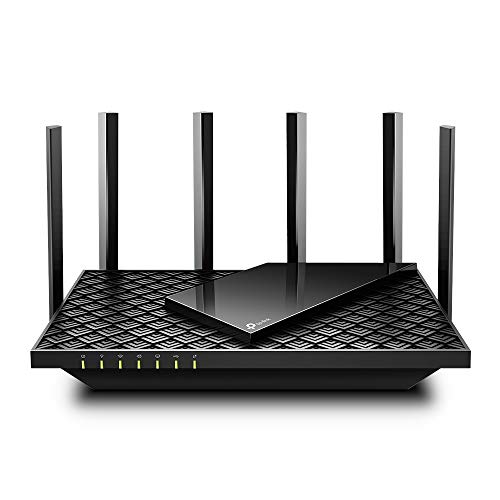
 TP-Link AC1900 Smart WiFi Router Dual Band RouterWi-Fi 5 AC19009.57 x 6.32 x 1.28 inches0.91 poundsCheck on Amazon
Key Takeaways
- Ease shows up in titles: look for setup promises, app guidance and human-focused certifications, not just speed classes.
- The eero 6 removes the most decisions; the LNN-AX3000 removes the app itself — opposite ideas of simple.
- Wi-Fi 6 appears on three picks, so simple no longer means settling for an old wireless standard.
- Watch the wired ports: one pick’s four Ethernet ports run at 100 Mbps, which caps fast internet plans.
- Simple routers still need a password change and an update check on day one — easy is not the same as automatic.
Quick Picks
| Pick | Badge | Why it earns its place |
|---|---|---|
| TP-Link Archer AX21 | Certified for Humans | A Wi-Fi 6 TP-Link whose title carries the Certified for Humans designation and Alexa compatibility. |
| TP-Link Archer A8 (AC1900 listing) | Big-router, plain setup | AC1900 speed with MU-MIMO and gigabit ports for a home that wants capacity without complication. |
| Amazon eero 6 mesh wifi router – Supports internet plans up to | Fewest decisions | A single mesh unit covering up to 1,500 sq. ft. and 75+ devices, guided entirely by its app. |
| NETGEAR Nighthawk R6700AX WiFi 6 Router | Easy Set Up, printed | NETGEAR puts the setup promise in the title, with Wi-Fi 6 and four gigabit ports behind it. |
| Tenda AC1200 Smart WiFi Router | App-guided budget route | Tenda’s smart app walks the setup, with guest Wi-Fi and parental controls in the title. |
| LNN-AX3000 WiFi 6 Router | No app required | Five-step setup with no app demanded at all, for buyers who distrust app-first hardware. |
How We Chose These Picks
We began by reading titles the way a nervous buyer reads a box in a shop aisle: what does this maker promise about the first thirty minutes? Picks earned their places by making that promise explicitly — a certification programme named in the title, a step count, an easy-setup claim, an app designed to guide rather than configure. Routers that are excellent but silent about setup did not qualify, because a simple-router guide that smuggles in enthusiast hardware has failed its only job.
The second filter was the second month, not the first day. A simple router must stay simple after setup: an app that remains understandable, a guest network a visitor can be given without a lecture, parental controls that a tired parent can find at 9 p.m. Titles naming guest Wi-Fi and parental controls scored accordingly. So did the absence of demands — one pick’s insistence that no app is required is, for a certain buyer, the most considerate feature in this entire guide.
We also weighted the maker’s likely staying power in a household’s life. A simple router is a five-year appliance, and the app or page it depends on must age gracefully alongside it. The big ecosystems in this guide — TP-Link, NETGEAR, Amazon’s eero — bring the documentation depth, replacement-unit availability and update habits that a five-year promise needs. The one smaller brand on the list was admitted knowingly, because its app-free design is precisely the hedge against ecosystem dependence: a router managed through a browser page owes nothing to any company’s servers, and that independence is its own form of longevity.
Finally we checked the unglamorous numbers a title does state — port speeds, coverage figures, device counts — and flagged the one real trap in the list: a pick whose Ethernet ports are 100 Mbps parts in a gigabit world. Simple should never mean secretly capped, and where a title reveals a limit like that, the analysis below puts it in plain sight rather than in a footnote.
What Actually Makes a Router Simple to Live With?
Setup is only the first chapter. A router earns the word simple across three acts: the installation, the ordinary week, and the bad day. Installation is where the marketing aims — guided apps, QR codes, pre-named networks, passwords printed on labels so the first connection needs no invention. The six picks here attack that act in their own ways, from TP-Link’s human-certification programme to LNN’s five printed steps, and any of them beats the blinking-light archaeology older routers demanded.
The ordinary week tests different virtues: a network name and password the household can remember and share, a guest network for visitors that takes seconds to offer, and an app or page that answers “is the internet down or is it just us?” without a forum expedition. Routers that hide their own status force their owners into superstition — unplugging things in ritual order — and superstition is the opposite of simple.
The bad day is the real examination. Internet providers fail; firmware needs updating; a new games console refuses an old security setting. A simple router shortens the bad day with clear lights, a legible app status, an update path that does not require courage, and a factory-reset procedure documented where a stressed person can find it. Judge every pick below against that day, not the unboxing, and the ranking in your head will sort itself.
App-Guided or App-Free: Which Philosophy of Easy Suits You?
The app-guided school, represented here by eero, Tenda and the mainstream TP-Link and NETGEAR models, treats the phone as the remote control your router always lacked. Its strengths are real: plain language, pictures of cables, automatic updates, and a status screen a non-specialist can interpret. Its costs are also real: an account to create, a phone that must be present, and a quiet dependency on the maker’s cloud continuing to exist and behave. For a router you are installing in a parent’s home, the app school’s killer feature is remote visibility — you can see their network’s health from your phone, in your city, before they finish describing the blinking.
The app-free school, represented by the LNN-AX3000’s “No App Required” title claim, treats the browser page as sufficient and the account as an imposition. Its setup happens through the same web interface routers have used for decades, ideally with a wizard that asks few questions. This suits buyers who keep a household offline-by-preference, who are equipping a space without wanting another login in their life, or who simply believe a router should work when a company’s servers do not.
Neither philosophy is more honest; they are simple for different people. The mistake is buying one philosophy while wanting the other — the app-sceptic furious at an account prompt, the nervous beginner stranded in a raw browser page. Read each pick below for its school first and its speed class second, because you will live with the philosophy daily and notice the speed rarely. If your needs grow toward whole-home coverage later, our guide to Best Mesh Wifi 6 Routers takes the app-guided idea to its multi-room conclusion.
How Do You Set Up a Simple Router Without the Usual Tears?
Begin before the box opens: photograph the label. The default network name, default password and model details printed there are the keys to every later recovery, and a photo in your phone outlives the sticker’s adhesive. Then connect in the right order — modem powered and settled first, router cabled to it second, router powered third — because half of all “broken router” stories are really a modem that never finished negotiating with the provider.
During setup, make three decisions well. Name the network something recognisable but not identifying; a street address in a network name is a small gift to strangers. Set a wireless password you can say aloud over the phone without spelling bees — length beats symbol soup for a home network. And write the administrator password, which is different from the Wi-Fi password, on paper that lives in a drawer near the router; future you, mid-outage, is not present you.
Finish with the two chores the guided flows sometimes rush past. Check for a firmware update and apply it while the network is still new and nothing depends on it yet. Then turn on the guest network and test it with your own phone, so the first visitor is not the test case. Finally, walk the home with a phone in hand — the far bedroom, the garden door, the desk — and note the weak corners while repositioning is still easy. A simple router placed badly is a complicated evening; placed well in the first hour, it is furniture.
How Do You Set Up a Router for Someone Else Without Becoming Their Help Desk?
Equipping a parent, a tenant or a friend is a different discipline from equipping yourself, because every future confusion routes back to your phone. The professional move is to leave the network in a state a stranger could describe: one network name, written on a card taped inside a kitchen cupboard along with the Wi-Fi password, the administrator password, and the date you set it up. That card has ended more support calls than any feature in this guide.
Choose the pick for their temperament, not your taste. A relative who lights up at a tidy app gets an app-guided router, and you install that app on your own phone too, with their permission, so “the internet is broken” becomes a status you can check rather than a riddle you must interpret. A relative who distrusts accounts gets the app-free treatment, and you accept the drive over as the price of their comfort. Both are simple; they are simple for different nervous systems.
Finish the job with the chores remote hands forget: guest network on and tested, updates left enabled, the old router unplugged and put in a cupboard rather than left glowing in the chain, and one test call from the far bedroom before you leave. Then resist improving it on later visits. A network that stays boring for three years is the masterpiece of this genre, and every unnecessary tweak is a crack in it.
What Should a Simple Router’s App or Page Actually Show You?
Whether management happens in an app or a browser page, four screens separate a humane router from a hostile one. The first is status in plain words: connected or not, and if not, whether the fault sits with the provider’s line or the home’s side of it. A router that can say “your internet line is down” saves its owner the entire unplug-everything ritual, and any of the guided picks here builds its home screen around some version of that sentence.
The second screen is the device list, written for humans: names you recognise or can rename, grouped so the television and the mystery gadget are distinguishable. This list is where everyday simplicity compounds — spotting that a forgotten tablet is the thing waking at 3 a.m., or that a guest’s phone from Easter is still remembered. The third screen is the guest network switch, one tap, with the password visible enough to read aloud. The fourth is updates: a clear statement of whether the router is current, and a button rather than a treasure hunt when it is not.
Notice what is absent from that list: nothing about channels, transmit power or acronyms. Those belong to routers bought for control, a legitimate hobby with its own guides on this site. The simple router’s interface is a promise that the four screens above are the whole job, and the picks in this guide were chosen because their titles and ecosystems make that promise credibly — a certification, a step count, an app philosophy, or a printed two-word pledge.
Where Should a Simple Router Sit, and How Much Coverage Should You Believe?
Every title in this guide that mentions coverage prints a square-foot figure, and every one of those figures was earned in conditions kinder than your home: open space, friendly walls, no Victorian brick or foil-backed insulation. Treat the printed number as a ceiling for a cooperative flat, and expect a stubborn house — chimney breasts, bathrooms tiled like bunkers, a garden office — to tax it heavily. This is not makers lying; it is physics rounding in their favour, and the simple-router answer is placement before power.
Placement rules are few and unglamorous. Central beats convenient: a router in the middle of the home covers in a circle, while one exiled to the entry corner wastes half its circle on the street. Elevated beats hidden: a shelf at head height outperforms a tangle behind the television, and both outperform the inside of a cabinet, which is where routers go to be forgotten and to overheat. Out in the open beats tucked behind metal, mirrors and fish tanks, each of which eats signal in its own way.
Walk-test before you commit. With the router provisionally placed, stand where life happens — the desk, the bed, the sofa’s far end, the kitchen stool where calls get taken — and look at what your phone reports, then run one real task in the worst spot rather than admiring bars in the best. If a corner fails, move the router a room closer before you shop for help; geography fixes more coverage complaints than hardware does. When geography cannot fix it, the honest escalations are a mesh unit in the same ecosystem — the eero’s whole design, or the AX21’s Easy Mesh path — not a louder single box shouting through brick.
When the Internet Drops, What Is the Calm Order of Checks?
A simple router earns its name on the worst evening of the year, and a fixed ladder of checks — performed in order, without skipping — is what calm looks like. Rung one: is it everything or one thing? If a second device also fails, the network or the line is at fault; if only one device fails, restart that device and leave the router alone. More routers are rebooted innocent than guilty.
Rung two: look at the lights or the app’s status screen, whichever your pick offers, and let it classify the fault. The app-guided picks exist for this moment — a status that separates “your provider’s line is down” from “your router needs attention” converts panic into waiting, which is the correct activity during a provider outage. Rung three, only if the router itself is implicated: power it off, count slowly to thirty — the pause matters, capacitors and sessions need it — and power it on, then give it several unhurried minutes before judging. Rung four: the modem gets the same treatment, alone, before the router rejoins it.
What the ladder forbids is the factory reset as an early move. A reset erases the network name, the passwords and every setting, converting a ten-minute outage into an evening of re-setup — the exact fate this category exists to prevent. Reset is the last rung, reached for when a password is forgotten or a configuration is genuinely corrupt, and performed with the label photo and the cupboard card at hand. Households that keep the ladder on the same card as the passwords discover that most “internet emergencies” end at rung two, with the kettle on.
Six Routers That Keep the Setup Short, Taken One at a Time

TP-Link Archer AX21 — Certified for Humans
The Archer AX21’s title carries a designation no other pick here can match: “A Certified for Humans Device.” That programme, run through Amazon’s certification scheme, exists to mark products whose setup and everyday use were designed to be frustration-free — products tested against the standard of a person who did not study networking and does not intend to start. For this guide’s purposes it is the closest thing to a simplicity credential that a listing can carry, and the AX21 pairs it with hardware that is anything but a compromise: the title describes an AX1800 Wi-Fi 6 router, dual band, with gigabit ports, Easy Mesh support and Alexa compatibility.
The Wi-Fi 6 point deserves emphasis because simple routers historically meant old routers. An AX1800 class machine handles a modern household’s mix — calls, streaming, a shelf of smart-home gadgets — with the efficiency improvements Wi-Fi 6 brought to crowded airwaves. Easy Mesh, TP-Link’s mesh system named in the title, gives the router a growth path: a compatible extender later, added through the same ecosystem, rather than a replacement purchase when a dead corner finally annoys you enough.
There is a subtler ease dividend in buying a current, mainstream model like this: the internet is full of answers for it. A question typed at midnight about an Archer in TP-Link’s current line returns walkthroughs with screenshots of the same screens you are staring at, because thousands of households share your exact box. Obscure hardware makes every small confusion a research project; popular hardware makes it a search. For a category defined by low friction, that ambient documentation is a feature as real as any port.
Alexa compatibility, also in the title, will divide readers neatly. In a home already run by voice, asking for a guest network or a reboot by voice is a genuine ease feature; in a home that keeps assistants unplugged, it is inert decoration. Either way the router does not depend on it. The AX21’s claim on this guide’s top slot is the combination: a certification aimed at humans, a current wireless standard, and an ecosystem exit ramp — simple today, not trapped tomorrow.
- Wireless class in listing title: AX1800 Wi-Fi 6, dual band
- Simplicity credential in title: A Certified for Humans Device
- Wired ports in title: Gigabit
- Mesh named in title: Easy Mesh
- Voice assistant in title: Works with Alexa
- Version noted in title: Archer AX21 V5
Strengths
- The only pick whose simplicity is a named certification in the title
- Wi-Fi 6 rather than a previous generation’s leftovers
- Easy Mesh offers a same-brand path to wider coverage
Trade-offs
- AX1800 is the entry Wi-Fi 6 class, not a speed flagship
- Alexa features only matter in an Alexa household
- Mesh growth means buying into TP-Link’s Easy Mesh specifically
Best for: a household wanting certified-easy setup without giving up Wi-Fi 6.
Not suited for: a large home expecting one box to cover every corner unaided.
Start your shortlist with the Archer AX21’s listing if the Certified for Humans idea appeals — it is the thesis of this whole guide, printed on one box.
TP-Link Archer A8 (AC1900 listing) — Big-router, plain setup
The Archer A8 is the pick for a home whose problem is load rather than fear. Its title describes an AC1900 smart Wi-Fi router with high-speed MU-MIMO, dual band, gigabit ports and guest Wi-Fi support. Nothing in that title promises a five-minute setup in so many words; the simplicity here is of the older school — a mainstream TP-Link with a conventional guided setup, bought by people who find the standard process perfectly manageable and want capacity headroom instead of hand-holding.
MU-MIMO is the feature doing quiet work in that title. It lets the router converse with several devices in parallel rather than in strict rotation, which is precisely the shape of a modern evening: two streams, a call, phones idling, a console updating. AC1900 is a Wi-Fi 5 class, a generation behind the Wi-Fi 6 picks here, and the honest framing is that the A8 trades the newest standard for a mature, well-understood platform with generous headline capacity. Buyers whose internet plan and devices are themselves Wi-Fi 5 era lose nothing by that trade.
There is a household shape this pick fits with unusual precision: the one that outgrew its provider’s free router. The symptoms are familiar — the evening slowdown when everyone arrives home, the video call that degrades when a console wakes, the sense that the internet plan being paid for is not the internet being experienced. The A8’s answer is capacity and order rather than novelty: more simultaneous conversation via MU-MIMO, gigabit wired ports for the desk and the television, and a setup process identical in spirit to the one the household already survived once. Upgrading within a familiar philosophy is itself a form of simplicity.
Guest Wi-Fi support, named in the title, is the everyday-ease feature to weigh. A household that hosts — family weekends, a home business’s clients, teenagers’ friends — uses a guest network weekly, and having it as a headline feature rather than a buried menu is the kind of simplicity that compounds. MU-MIMO as a topic has its own deeper literature; our guide to Best MU-MIMO WiFi Routers for Homes Where Everything Connects at Once is the place to compare implementations once this pick has made the concept feel necessary.
- Wireless class in listing title: AC1900, dual band
- Multi-device feature in title: High Speed MU-MIMO
- Wired ports in title: Gigabit
- Everyday feature in title: Supports Guest WiFi
- Model named in title: Archer A8
Strengths
- Capacity headroom for device-heavy evenings
- Guest network treated as a headline feature
- Gigabit ports throughout, no hidden wired ceiling
Trade-offs
- Wi-Fi 5 platform in a guide with Wi-Fi 6 rivals
- No named setup certification or step-count promise in the title
- Single-unit coverage, with no mesh named in the title
Best for: a busy household that finds standard setup fine and wants load capacity.
Not suited for: a first-time buyer wanting a guided, certified hand-hold.
The Archer A8 is the grown-up’s simple: nothing exotic, nothing capped, and a guest network ready before the first visitors arrive.
Amazon eero 6 mesh wifi router – Supports internet plans up to — Fewest decisions
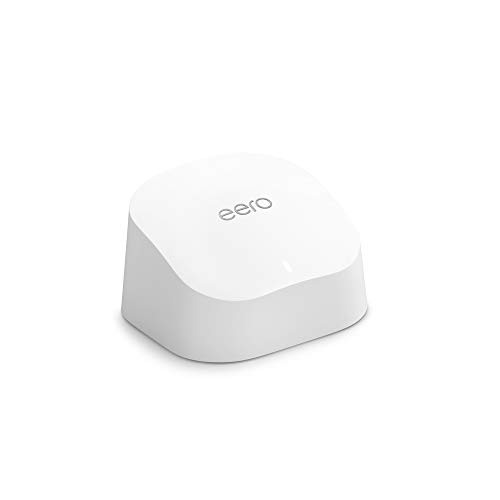
The eero 6 approaches simplicity by subtraction. The title describes a mesh Wi-Fi router supporting internet plans up to 900 Mbps, covering up to 1,500 sq. ft., connecting 75+ devices, sold here as a 1-pack. Behind those numbers sits the eero philosophy: the app decides channel, band and optimisation, the unit updates itself, and the owner’s job shrinks to placement and a password. For the buyer whose ideal router interaction is none at all, no other pick in this guide goes as far.
The 1-pack framing matters. One eero is a router for a flat or small home at the coverage figure the title states; the mesh promise is that a second and third unit join the same network through the app when the home or the household outgrows the first. That makes this the only pick whose coverage story is “add another identical box later” rather than “buy a bigger box now,” which suits renters and growing families equally.
Renters develop a particular affection for systems shaped like this one, and the reasons are practical. A single unit serves the first flat; the same unit, joined by a sibling, serves the house two moves later; nothing is discarded and nothing is re-learned, because the app and the network’s name travel with the household. For people whose homes change more often than their routers should, an expandable 1-pack is a different kind of economy — not the cheapest box today, but the one that never has to be bought twice.
The trade-offs are the philosophy’s shadow. Decision-removal means decision-denial: tinkerers will find settings they expect simply absent, and the system’s app-and-account centred life is the opposite of the LNN pick’s stance later in this guide. The device count in the title — 75+ — also tells you who eero built this for: not a laptop and a phone, but the modern accumulation of bulbs, plugs, speakers and sensors, each sipping bandwidth and each expecting the router to simply cope.
- Plan support in listing title: internet plans up to 900 Mbps
- Coverage in title: up to 1,500 sq. ft.
- Device count in title: 75+ devices
- Pack size in title: 1-pack, expandable within the eero mesh system
- Class: dual-band mesh Wi-Fi of the Wi-Fi 6 generation, per the product line name
Strengths
- Fewest decisions of any pick — the app runs the network
- Coverage grows by adding identical units, not by replacement
- Device headroom aimed squarely at smart-home accumulation
Trade-offs
- Settings depth is deliberately shallow
- App-and-account centred, which some buyers actively avoid
- One pack covers a modest home; bigger homes budget for more units
Best for: a buyer who wants the router to disappear from their attention entirely.
Not suited for: a settings tinkerer — the missing menus are the product, not a flaw.
Choose the eero 6 when your ideal setup story ends with “and then I forgot about it,” and let the 1-pack be the start of a system rather than the whole of it.

NETGEAR Nighthawk R6700AX WiFi 6 Router — Easy Set Up, printed
NETGEAR prints its pitch in the title: “Easy Set Up.” The full listing describes a Wi-Fi 6 router covering up to 1,500 sq ft at 1.8 Gbps class speed, with reliable performance, support for 20 devices, four gigabit ports and dual-band AX1800 operation. Where TP-Link’s AX21 carries a certification, the R6700AX carries a promise in plain words — and for a buyer comparing boxes on a shelf, the effect is similar: this maker expects the setup to be part of why you choose it.
The numbers sketch a specific home: 1,500 square feet and 20 devices is a flat, a small house, a couple with a work-from-home desk and a television’s worth of streaming. Within that sketch the hardware is complete — Wi-Fi 6, gigabit wired ports for the desk and the TV box, no port-speed traps. The Nighthawk name brings NETGEAR’s app-based management world with it, which is the mainstream app-guided school: account, app, guided flow, and a dashboard a non-specialist can read.
Set this pick beside the Archer AX21 and the guide’s central comparison appears: two AX1800 Wi-Fi 6 routers with gigabit ports, one waving a certification and mesh ecosystem, the other waving a setup promise and the Nighthawk badge. Neither title gives a decisive hardware victory, so the choice honestly reduces to ecosystem taste — TP-Link’s Easy Mesh growth path versus NETGEAR’s app and brand familiarity. A simple-router guide can ask for no cleaner coin flip.
- Wireless class in listing title: Wi-Fi 6, AX1800, 1.8 Gbps, dual band
- Setup claim in title: Easy Set Up
- Coverage and devices in title: up to 1,500 sq ft, 20 devices
- Wired ports in title: 4× Gigabit Ports
- Brand line: NETGEAR Nighthawk R6700AX
Strengths
- Setup ease stated as a headline promise in the title
- Wi-Fi 6 with a full set of gigabit ports
- Coverage and device figures matched to flats and small houses
Trade-offs
- 20-device framing is the smallest household scope in this guide
- No mesh system named in the title for later expansion
- Lives in NETGEAR’s app-and-account world, like it or not
Best for: a small household that trusts a plain-English setup promise from a big brand.
Not suited for: a device-stuffed smart home counting far past twenty gadgets.
The R6700AX makes its case in two words of its own title; if those two words are what you came for, the hardware behind them does not embarrass them.

Tenda AC1200 Smart WiFi Router — App-guided budget route
Tenda’s AC6, sold under the title “Tenda AC1200 Smart WiFi Router,” builds its simplicity around the words “Smart APP”: the listing describes a high-speed dual-band router with a smart app, four 100 Mbps Fast Ethernet ports, guest Wi-Fi support, access point mode, IPv6 and parental controls. The app is the guide rail here — Tenda’s pitch is that the phone in your pocket walks you through setup and then stays useful for the everyday chores, which is a coherent story for a first router in a small home.
Now the flag this guide promised to plant in plain sight: those four Ethernet ports are 100 Mbps Fast Ethernet, not gigabit. For a household on a modest internet plan, with everything important on Wi-Fi, that ceiling may never be touched — the wireless side is the product. But a buyer on a fast fibre plan who wires a desktop or a NAS would cap that device at a tenth of the line’s potential, and no app update fixes a port. Read this pick’s wired story as its defining condition, not a detail.
Consider who this router quietly suits best: the first flat, the spare room turned office, the holiday let whose owner wants a guest network and parental controls without a networking vocabulary. In those settings the internet plan is rarely the fastest on the street, the devices are nearly all wireless, and the app-guided setup means the person installing it — possibly not the person who bought it — succeeds on the first attempt. Judged in its intended habitat rather than against a fibre-fed desk battlestation, the AC6’s compromises line up with its audience’s actual priorities.
Within that condition, the feature list is thoughtfully everyday: guest Wi-Fi for visitors, parental controls named outright, an access point mode that lets the box serve a second life extending an existing network rather than heading it. IPv6 support in the title is the kind of future-proofing budget routers often skip. The AC6 is the guide’s clearest lesson that simple and cheap can coexist with honest limits — provided the limits are printed, read and accepted before the purchase rather than discovered after.
- Wireless class in listing title: AC1200, dual band
- Setup route in title: Smart APP
- Wired ports in title: 4 x 100 Mbps Fast Ethernet Ports — read this twice
- Everyday features in title: Guest WiFi, Parental Controls
- Extra modes in title: Access Point Mode, IPv6
- Model named in title: AC6
Strengths
- App-guided setup and management at a budget position
- Guest network and parental controls named in the title
- Access point mode gives it a second career
Trade-offs
- 100 Mbps Ethernet ports cap any wired device and fast plans
- AC1200 is the modest end of dual-band classes
- Wi-Fi 5 generation, behind the Wi-Fi 6 picks here
Best for: a small, mostly-wireless home on a modest internet plan.
Not suited for: a fast fibre household with wired desktops or a NAS to feed.
Buy the Tenda with your eyes open about its ports and it is a friendly first router; buy it for a gigabit desk setup and the disappointment is scheduled in advance.

LNN-AX3000 WiFi 6 Router — No app required
The LNN-AX3000’s title makes the most distinctive promise in this guide: “No App Required.” Around it, the listing describes a Wi-Fi 6 router for the home at up to 1800Mbps, supporting 20+ devices, with five antennas, FCC certification and a “5 Steps Setup.” Read that combination carefully, because it defines a buyer the big brands underserve: someone who wants modern wireless and a short setup, but who will not create an account, install a vendor’s app, or accept a router that sulks when a cloud service sneezes.
One inconsistency in the listing deserves the same daylight as Tenda’s ports. The model name says AX3000 while the title’s own speed line says “Up to 1800Mbps,” a figure that belongs to the AX1800 class. We report both exactly as printed and treat the lower, explicit figure as the honest one to plan around; a buyer should do the same and let the name be a name. Title inflation of this kind is exactly why this guide quotes listings rather than paraphrasing them into compliments.
There is a small, telling detail in the title’s device figure: “20+ Devices” rather than a heroic count. A maker willing to print a modest number is a maker whose other numbers deserve a hearing, and in a category where titles elsewhere promise the moon, that restraint reads as character. It also frames the intended home honestly — a couple, a family, a modest constellation of gadgets — rather than a gadget warehouse.
Five antennas and five setup steps round out a pick aimed at straightforward homes: a browser-based configuration, a network that runs locally, and hardware that asks nothing of your phone. The lesser-known brand is the genuine trade-off — documentation, community knowledge and long-term update attention cannot be assumed at TP-Link or NETGEAR depth, and the buyer choosing app-freedom is also choosing self-reliance. For an office or warehouse corner where a simple, self-contained box is the requirement, that trade can be attractive; our guide to Best Wi-Fi Routers and Access Points for Offices and Warehouses covers the sterner end of that use case.
- Wireless in listing title: Wi-Fi 6; name says AX3000, title speed line says up to 1800Mbps — plan by the printed speed
- Setup claims in title: No App Required, 5 Steps Setup
- Devices in title: 20+ devices
- Antennas in title: 5 Antennas
- Certification in title: FCC Certified
Strengths
- The only pick that frees you from accounts and apps entirely
- Five-step setup promise, the most countable claim in the guide
- Wi-Fi 6 generation despite the app-free stance
Trade-offs
- Title’s name and speed line disagree — trust the speed line
- Smaller brand means thinner documentation and community help
- Browser-page setup asks slightly more of a nervous beginner
Best for: a privacy-minded buyer who wants setup short and accounts nonexistent.
Not suited for: a beginner who wants an app to hold their hand throughout.
The LNN is the contrarian’s simple — five steps, no app, no account — and its title’s own numbers are quoted above so you can judge its honesty for yourself.
Six Easy Routers, Side by Side at a Glance
| Pick | Simplicity story per title | Wireless class per title | Watch-out |
|---|---|---|---|
| TP-Link Archer AX21 | Certified for Humans designation | AX1800 Wi-Fi 6 | Mesh growth stays inside Easy Mesh |
| TP-Link Archer A8 (AC1900 listing) | Conventional guided setup, guest Wi-Fi headline | AC1900 Wi-Fi 5 | Older wireless generation |
| Amazon eero 6 mesh wifi router – Supports internet plans up to | App decides nearly everything | Mesh Wi-Fi 6 generation | Shallow settings by design |
| NETGEAR Nighthawk R6700AX WiFi 6 Router | “Easy Set Up” promised in the title | AX1800 Wi-Fi 6 | Framed for 20 devices |
| Tenda AC1200 Smart WiFi Router | Smart APP guidance | AC1200 Wi-Fi 5 | Ethernet ports are 100 Mbps |
| LNN-AX3000 WiFi 6 Router | No app required, 5 steps setup | Wi-Fi 6, title speed up to 1800Mbps | Name and speed line disagree |
Which Setup Mistakes Make Simple Routers Feel Complicated?
The most common is placement by convenience: the router lands wherever the modem already sits — a floor corner, a metal cabinet, behind the television — and the household then blames the router for physics. Central, elevated and unhidden beats any feature in this guide. Second is skipping the administrator password change because setup “already finished”; the guided flow ending is not the job ending, and the router’s own front door deserves its own key distinct from the Wi-Fi password.
Third is the double-router accident: a new simple router plugged into an old router nobody removed, producing two networks, two sets of rules and a printer visible to nobody. One router should route; anything else in the chain should be a modem alone or a box deliberately set to access point mode — a mode the Tenda in this guide explicitly offers. Fourth is naming the new network differently from the old one and then re-pairing thirty smart devices one by one, when keeping the old name and password would have let them all rejoin silently. Simplicity is often just refusing to create work.
And a word for the password-on-the-label habit: the printed defaults are for the first connection only. A household that leaves them in charge has published its keys under the router, where any guest, cleaner or curious teenager can photograph them. Changing both passwords during setup is the single minute that separates a simple network from an open one.
Last comes update neglect. Easy routers increasingly update themselves or nudge through their apps, but a buyer who disabled the nudges during setup has quietly opted out of the arrangement. Leave the update prompts on. The simple life is a maintained life.
Final Recommendation
For most homes, the Archer AX21 is this guide’s answer: a named human-first certification, Wi-Fi 6, gigabit ports and a mesh path, in that order of importance. Pick the eero 6 instead if your true wish is to never think about the router again and you accept an app-run network as the price. Pick the LNN if your wish is the mirror image — no app, no account, five steps. The R6700AX splits the difference for small homes that trust NETGEAR’s plain promise, the A8 serves device-heavy houses that never feared setup, and the Tenda serves small wireless homes honestly within its wired ceiling. Simple, it turns out, is not one product; it is the match between a household and a philosophy, and every philosophy worth having is represented on this page.
One last discipline applies whichever name you choose: buy the router your household’s next three years need, not its last three. Device counts only climb, plans only speed up, and the simple router’s bargain — set it once, forget it — only holds if the box is not outgrown by spring. The headroom figures printed in these titles, the device counts and plan ceilings, are the numbers to compare against your trajectory. Choose the philosophy that fits your temperament and the capacity that fits your future, and the setup everyone dreads becomes the shortest story in the house.
Frequently Asked Questions
Does a simple router mean a weak router?
No — three of the six picks here are Wi-Fi 6 models, and the AC1900 A8 carries more multi-device machinery than many enthusiast boxes of a few years ago. Simple describes the setup and the daily interface, not the ceiling. What you give up at this end of the market is settings depth and exotic features, not the ability to run a modern household.
Is there a router here with a special mode for elderly users?
None of these listings names such a mode, and we will not pretend otherwise. What genuinely helps an older relative is what these picks do offer: a guided or very short setup you can complete for them, a guest network you can enable before visiting grandchildren arrive, and — in the app-guided cases — remote visibility so you can check their network’s health from your own phone instead of diagnosing by description.
Can I keep my old network name and password when I switch?
Yes, and for a device-filled home you should. Set the new router’s network name and wireless password to match the old router’s exactly, and phones, televisions, plugs and printers will rejoin without individual attention. Change them later, one deliberate evening, if you want a fresh start — not during the swap, when every device in the house is watching.
Which pick should I buy for a parent who lives in another city?
The app-guided ones, with eero 6 the extreme case: its app-centred management means you can see the network’s status and often resolve the problem from your own home. The Archer AX21 and R6700AX also live in app ecosystems. The LNN is the wrong gift for this job precisely because of its virtue — no app means no remote window for you.
Why does one pick have only 100 Mbps Ethernet ports, and should I care?
The Tenda AC6’s title states four 100 Mbps Fast Ethernet ports. Care if your internet plan is faster than that and anything important — a desktop, a console, a storage box — plugs in with a cable, because the port becomes that device’s ceiling. Care much less if the home is entirely wireless on a modest plan; the Wi-Fi side never meets the limit.
How long should setting up one of these actually take?
For the guided picks, plan on the length of a kettle boiling twice: unbox, cable, follow the flow, change two passwords, test in three rooms. The LNN promises its own count — five steps. Budget longer only for the chores that surround any router swap: repositioning for coverage, and the smart-home stragglers that need a nudge regardless of brand.
What do I do when a simple router’s app cannot find the router?
Work the physical layer first, in order: confirm the router’s power light, reseat the cable between modem and router until it clicks, give the modem a full minute alone after its own restart before the router joins it, and stand in the same room with the phone for the pairing attempt. App discovery failures are overwhelmingly cable, timing or distance stories wearing a software costume; the elaborate fixes are for after the boring ones have been honestly tried.
Should I replace a working older router just because setup was awful?
Not for the setup’s sake — that pain is behind you. Replace it when the reasons in this guide bite: coverage corners that never healed, a device count that outgrew its class, an app or page you dread opening on the bad days, or updates that stopped arriving. A router is infrastructure, and infrastructure is judged on the years, not the afternoon it was installed.
Can a simple router handle working from home properly?
Yes, provided the class matches the job. A Wi-Fi 6 pick like the AX21 or R6700AX, or the capacity-minded A8, will carry calls, cloud documents and a work laptop’s backups without drama on a typical home plan; place the desk within honest range or wire it into a gigabit port for the important hours. What home workers should actually interrogate is the internet plan’s upload side and the router’s placement, not exotic features — the simple picks fail at physics, not at meetings.
Related Guides
When a single simple box stops covering the house, continue with Best Mesh Wifi 6 Routers; for a deeper look at the multi-device technology behind one pick here, see Best MU-MIMO WiFi Routers for Homes Where Everything Connects at Once; and for sterner spaces than living rooms, our Best Wi-Fi Routers and Access Points for Offices and Warehouses guide takes the same plain-dealing approach to bigger floors.