What's inside
- Key Takeaways
- Quick Picks
- How Did We Choose These Affordable Inkjet Printers?
- Which Ink System Actually Saves You Money: Cartridges or Tanks?
- The Six Best Affordable Inkjet Printers, Reviewed in Detail
- How Do the Six Picks Compare Side by Side?
- How Should You Set Up a Budget Inkjet to Avoid Clogged Nozzles?
- Which Paper Should You Actually Buy for a Home Inkjet?
- How Do You Keep Ink Costs Down Without Ruining Your Prints?
- What Does a Week of Family Printing Look Like on Each Ink System?
- How Do You Match a Printer to Your Household Type?
- How Should You Set Up a New Inkjet, Step by Step?
- Should You Choose Inkjet or Laser at This End of the Market?
- How Honest Are Print Speed Claims, and What Should You Expect?
- How Good Are the Scanners and Copiers in Budget All-in-Ones?
- What Will Two Years of Ownership Actually Cost?
- How Do Warranty and Support Differ Between the Brands Here?
- Where Should the Printer Live, and How Far From the Router Can It Be?
- What Should You Do in the First Month of Ownership?
- What Mistakes Do Buyers Make With Cheap Inkjet Printers?
- Final Recommendation
- Frequently Asked Questions
- Related Guides
As an Amazon Associate I earn from qualifying purchases. This post may contain affiliate links at no extra cost to you.
widgetverdict.com is reader-supported. When you buy through links on our site, we may earn an affiliate commission.
Where to buy: Every printer in this guide is sold through the Amazon listings linked in the Quick Picks table and in each detailed review below. Stock on the most popular budget models moves quickly at the start of a school term, so if a listing shows a long delivery estimate, check the same model under the other picks before settling for a machine that does not fit your workload.
Finding the best affordable inkjet printers used to mean accepting slow pages, flimsy trays and cartridges that emptied before the month did. That bargain has changed. The current budget field splits into two honest camps: compact cartridge machines that cost little up front and ask little of your desk, and refillable tank machines that cost more on day one and then print for months on the ink already in the box. Both camps appear in this guide, because “affordable” means something different to a student printing ten pages a week than it does to a parent printing homework, forms and the occasional photo every single day.
What follows is a six-printer shortlist built around running cost first and sticker appeal second. Each pick was chosen for a distinct job: the small family all-in-one, the home-office machine with a proper document feeder, the tank printer for light use, the tank printer for heavy use, the fast office inkjet for shared work, and the big-paper option for households that print posters, certificates and ledger-size spreadsheets. Read the detailed sections before you buy, because the cheapest machine on this page is only cheap if its ink system matches the way you actually print.
Key Takeaways
- Running cost, not the shelf price, decides whether an inkjet is genuinely affordable over two years of ownership.
- Refillable tank printers such as the Epson EcoTank models suit anyone printing weekly; cartridge models suit occasional printing.
- An automatic document feeder is the single feature home offices miss most after buying a flatbed-only machine.
- Every pick here prints on both sides of the page automatically except where the detailed review says otherwise.
- Borderless photo printing at home sizes is standard in this class, but paper handling separates the six picks clearly.
- Buy the printer whose ink you can get delivered tomorrow, because a deadline never waits for a specialty cartridge.
Quick Picks
| Printer | Badge | Why it made the list |
|---|---|---|
| Canon PIXMA TS7720 | Best for small families | A compact all-in-one with auto duplex and a friendly touchscreen that disappears into a living-room corner. |
| Canon PIXMA TR8620a | Best home-office all-in-one | Adds a 20-sheet document feeder, fax and Ethernet to the family-printer formula. |
| Epson EcoTank ET-4800 | Best tank value for light use | Refillable tanks and a document feeder at the lowest entry point in the EcoTank line. |
| Epson EcoTank ET-4850 | Best tank printer for heavy use | Faster engine, a 250-sheet tray and a colour touchscreen for households that print daily. |
| HP OfficeJet Pro 9125e | Best for shared office work | Office-grade speed and a 250-sheet tray in a machine priced for home budgets. |
| Brother MFC-J6960DW | Best for big paper | Prints and scans up to 11 x 17 inches, which no other pick on this page can do. |
How Did We Choose These Affordable Inkjet Printers?
We started with the running-cost maths, because that is where budget printers stop being bargains. For cartridge models we compared the page yields of the standard and high-yield cartridges each machine accepts, and we favoured printers whose high-yield options are widely stocked. For tank models we looked at the volume of ink included in the box and the price of a full refill set, since a tank printer only pays back if you actually print enough pages to drain the first fill.
Paper handling came next. A rear feed that accepts envelopes and card stock matters more to most households than a second cassette, and an automatic document feeder matters more than either if you scan signed forms or multi-page school documents. We also weighted two-sided printing heavily: at this end of the market, manual duplex is still common, and flipping a stack by hand is exactly the kind of friction that makes people stop printing altogether.
Finally, we checked the unglamorous details that decide whether a printer stays in service: whether the print head is user-replaceable or built into the cartridge, whether the printer keeps working with one colour empty when you only need black text, and whether setup runs through a phone app that a non-technical family member can repeat after a router change. Printers that failed those everyday tests did not make the six, however attractive their headline specifications looked.
Which Ink System Actually Saves You Money: Cartridges or Tanks?
The honest answer depends on your monthly page count, and it is worth doing the rough arithmetic before you fall for either design. A cartridge printer such as the PIXMA TS7720 asks very little of your wallet on the day you buy it, and if you print twenty pages a month, the cartridges it ships with may last the better part of a year. At that volume, a tank printer’s higher purchase price never earns itself back, and the tank machine’s ink sits in its reservoirs slowly ageing while you barely print.
Cross roughly a hundred pages a month and the picture inverts. High-yield cartridges soften the blow, but a household printing school projects, work documents and return labels every week will buy several sets a year. The EcoTank models flip the cost structure: the ink in the box covers thousands of pages, and a refill set costs a fraction of an equivalent stack of cartridges. The ET-4800 and ET-4850 in this guide exist for exactly that household, and the difference between them is speed and tray capacity rather than ink economics, which are generous on both.
There is a middle path worth knowing about. Brother’s INKvestment design, represented here by the MFC-J6960DW, uses cartridges too, but they are large, slow-emptying ones, and the printer meters ink from an internal reservoir so a cartridge change rarely interrupts a job. It suits people who want cartridge convenience without cartridge frequency, particularly if they also need the big paper handling that model brings.
The Six Best Affordable Inkjet Printers, Reviewed in Detail

Canon PIXMA TS7720 — Best for small families
The TS7720 is the printer we would hand to a family that prints in bursts: a permission slip tonight, a boarding pass tomorrow, a sheet of photos at the weekend. Its two-paper-source design is the quiet highlight. The rear tray takes photo paper, envelopes and heavier stock without emptying the main cassette, so the machine can sit loaded with plain paper and still accept a one-off job without a paper swap ritual. Print quality on plain paper is crisp enough for school essays, and on glossy stock its ink system keeps colours lively while skin tones avoid the waxy look cheap inkjets often produce.
Day to day, the 2.7-inch touchscreen and the printer’s compact footprint do the persuading. It fits on a bookshelf shelf, the scanner lid handles a passport or a child’s drawing without fuss, and automatic two-sided printing is standard, which is still not a given at this level. Speed is modest rather than slow; a ten-page document arrives in a couple of minutes, and the first page appears quickly enough that nobody stands over it. Where it asks for compromise is volume: the cassette is small, and a household printing a novel draft every week will refill paper often and cartridges sooner than tank owners ever think about ink.
- Functions: Colour printing, scanning and copying
- Ink: FINE cartridges, standard and high-yield sizes
- Connectivity: Wi-Fi, USB, AirPrint and Mopria support
- Duplex: Automatic two-sided printing
- Display: 2.7-inch colour touchscreen
Strengths
- Rear tray swallows photo paper and envelopes without disturbing the plain-paper cassette.
- Small footprint and a touchscreen a first-time owner can learn in one sitting.
- Borderless photos up to letter size look genuinely good on Canon glossy stock.
Trade-offs
- Small paper cassette means frequent refills in a busy household.
- No document feeder, so multi-page scanning is a page-at-a-time chore.
- Cartridge costs climb quickly if your page count grows past occasional use.
Best for: Families printing a few dozen pages a month who want photos and documents from one small machine. Not suited for: Anyone scanning contracts or printing daily homework for several children.

Canon PIXMA TR8620a — Best home-office all-in-one
Think of the TR8620a as the TS7720’s older sibling who got a job. The headline addition is a 20-sheet automatic document feeder on top, and it changes the machine’s character completely: a signed agreement, a stack of receipts or a chapter of a manuscript can be scanned or copied while you make coffee. It also keeps a fax modem, which sounds antique until a medical office or a solicitor asks for one, and it adds Ethernet for a wired connection that never drops off the network the way a marginal Wi-Fi signal can.
The five-ink system includes a pigment black alongside the dye colours, and text pages show the benefit: letters stay dense and sharp even on inexpensive copier paper, where dye-only machines can feather at the edges. Two paper sources mirror the family model, with a rear feed for special stock. The trade is size and pace. The TR8620a occupies a proper desk footprint, its document feeder is a light-duty design that prefers clean, flat originals, and its running costs follow the cartridge pattern, so a heavy-printing office should read the EcoTank sections below before deciding this is the one.
- Functions: Print, scan, copy and fax in colour
- Ink: Five-ink system with pigment black for text
- Document feeder: 20-sheet automatic feeder
- Connectivity: Wi-Fi, Ethernet, USB, AirPrint
- Duplex: Automatic two-sided printing
Strengths
- Document feeder and fax make it a complete small-office hub in one box.
- Pigment black produces office-grade text on cheap paper.
- Ethernet option suits a fixed desk where Wi-Fi reception is unreliable.
Trade-offs
- Larger and heavier than the family PIXMA models.
- Feeder struggles with crumpled or stapled originals.
- Cartridge running costs are the familiar budget-inkjet weakness at high volume.
Best for: Home workers who scan signed pages weekly and still print family photos. Not suited for: Minimalist desks or anyone whose printing is ninety percent photographs.

Epson EcoTank ET-4800 — Best tank value for light use
The ET-4800 is where the EcoTank idea stops being a premium experiment and becomes the sensible default for a household that prints every week. You fill its four reservoirs from bottles, the ink in the box is measured in thousands of pages rather than hundreds, and the running-cost conversation effectively ends for a year or more. It keeps a document feeder, which several cheaper tank printers drop, and adds Ethernet beside Wi-Fi for anyone whose router lives in another room.
Honesty about pace matters here. At around ten pages a minute for black text, the ET-4800 is the slowest engine in this guide, and its small non-touch display feels a generation old beside the Canon touchscreens. Photo output is perfectly pleasant for school projects and fridge prints, but the four-colour system cannot match a dedicated photo printer’s subtlety in skies and skin. What it offers instead is freedom from the cartridge errand: no mid-print colour emergency, no subscription maths, just a printer that sits ready and prints cheaply whenever the household remembers it exists.
- Functions: Supertank colour printing with scan, copy and fax
- Ink: Refillable EcoFit bottles, four reservoirs
- Document feeder: 30-sheet automatic feeder
- Connectivity: Wi-Fi, Ethernet, USB
- Duplex: Manual two-sided printing
Strengths
- Ink included in the box covers a typical household for a very long stretch.
- Document feeder included at the EcoTank entry point.
- Refill bottles are inexpensive and mess-controlled thanks to keyed nozzles.
Trade-offs
- Slowest print speeds in this roundup.
- Manual duplex means flipping stacks yourself for two-sided jobs.
- Basic display and controls feel dated next to touchscreen rivals.
Best for: Households printing weekly that want the cartridge era to end. Not suited for: Deadline printing, where its leisurely pace becomes the story.

Epson EcoTank ET-4850 — Best tank printer for heavy use
If the ET-4800 is the tank printer for ordinary weeks, the ET-4850 is the one for households that run a small operation from the kitchen table: a tutor printing workbooks, a seller printing labels and invoices, a parent producing the school newsletter. The engine is roughly half again as fast, the paper tray holds 250 sheets so Monday’s printing does not start with a refill, and the colour touchscreen makes standalone copying and scanning feel like using an appliance rather than administering one.
It also restores automatic two-sided printing, which its cheaper sibling lacks, and that single feature saves real paper across a year of drafts. Print quality steps up slightly in text sharpness, and the fax modem and document feeder carry over for form-heavy households. The compromises are the purchase price, which is the highest among the inkjets here, and photo output that remains good rather than great. Judge it as an office appliance that happens to print colour well, and its position at the top of the tank range makes complete sense.
- Functions: Supertank colour printing with scan, copy and fax
- Ink: Refillable EcoFit bottles, four reservoirs
- Paper: 250-sheet front tray
- Connectivity: Wi-Fi, Ethernet, USB, voice-activated printing
- Duplex: Automatic two-sided printing
Strengths
- Big tray and faster engine suit daily, whole-family printing.
- Automatic duplex returns, saving paper on long drafts.
- Touchscreen makes copying and scanning painless without a computer.
Trade-offs
- Highest purchase price of the inkjets in this guide.
- Photos are solid, not class-leading.
- Substantial footprint for a spare-room desk.
Best for: Heavy home users who want tank economics with office manners. Not suited for: Occasional printers, who will never drain the first ink fill.
HP OfficeJet Pro 9125e — Best for shared office work
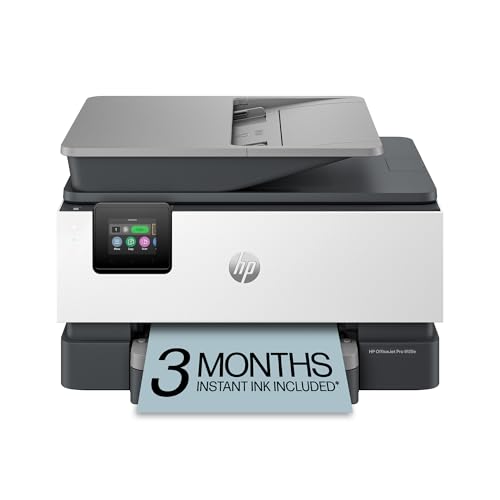
The 9125e is an office printer wearing a home-friendly price, and the difference shows in the paper path. A 250-sheet tray, a document feeder rated for real stacks, and print speeds that clear twenty pages a minute mean three people can share it without a queue forming at the desk. HP’s thermal inkjet engine lays down pigment inks that resist smearing from a highlighter, which matters when the output is client paperwork rather than family notices.
It is also the most connected machine here in the small-office sense: dual-band Wi-Fi, Ethernet, and an app workflow that handles scan-to-email and cloud folders without a PC in the middle. The “e” in its name signals HP’s connected-printer programme, which includes an ink subscription trial; read those terms as you would any subscription, because the printer also works perfectly well with ordinary cartridges bought as needed. Running costs sit between the Canons and the EcoTanks. Buy it for throughput and paper handling, not for the absolute cheapest page.
- Functions: Print, scan, copy and fax in colour
- Ink: Pigment cartridges, high-yield options available
- Paper: 250-sheet tray plus document feeder
- Connectivity: Dual-band Wi-Fi, Ethernet, USB
- Duplex: Automatic two-sided printing and scanning assistance
Strengths
- Fastest document printing in this guide.
- Serious tray and feeder capacity for shared use.
- Pigment output survives highlighters and coffee-ring accidents.
Trade-offs
- Subscription prompts during setup need a careful read.
- Photo printing is competent rather than a reason to buy it.
- Bulkiest of the cartridge models here.
Best for: A home office shared by two or three people with daily paperwork. Not suited for: Photo hobbyists or the very tightest budgets.
Brother MFC-J6960DW — Best for big paper
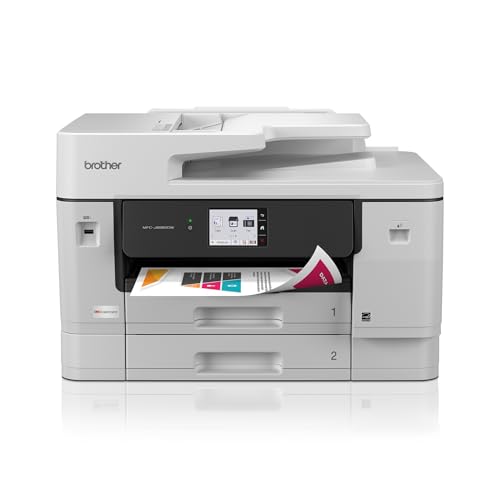
Every other printer in this guide stops at legal size. The MFC-J6960DW prints, scans and copies up to 11 x 17 inches, and that one capability rewrites what a home office can produce: ledger spreadsheets you can actually read, posters for the school fair, sewing patterns, architectural sketches, certificates with room to breathe. Brother’s INKvestment cartridges pair with an internal ink reservoir, so the machine keeps printing while a cartridge runs low and replacement sets are large, infrequent purchases rather than monthly errands.
The supporting cast is complete: a 3.5-inch touchscreen, dual paper trays plus a multipurpose feed, automatic two-sided printing, and wired or wireless networking. It is, predictably, the largest and heaviest machine here, and its photo output on glossy paper is outclassed by the Canons. But it answers a question none of the others can. If your printing life includes anything bigger than a standard page, this is the affordable way to bring it home instead of paying a copy shop per sheet.
- Functions: Print, scan, copy and fax in colour
- Ink: INKvestment high-capacity cartridges with internal reservoir
- Paper: Up to 11 x 17 inches; dual trays plus multipurpose feed
- Connectivity: Wi-Fi, Ethernet, USB, NFC touch-to-print
- Display: 3.5-inch colour touchscreen
Strengths
- Ledger-size printing and scanning in a home-office footprint.
- Large cartridges and an internal reservoir smooth out running costs.
- Two trays keep plain and special paper loaded at once.
Trade-offs
- Needs a sturdy, deep surface; it dwarfs the compact picks.
- Glossy photo quality trails the Canon models.
- Overkill for households that never print beyond letter size.
Best for: Anyone printing spreadsheets, posters or patterns at tabloid size. Not suited for: Small desks or photo-first buyers.
How Do the Six Picks Compare Side by Side?
| Printer | Ink system | Feeder | Max paper | Duplex |
|---|---|---|---|---|
| Canon PIXMA TS7720 | Cartridges | None | Letter / legal | Automatic |
| Canon PIXMA TR8620a | Five cartridges | 20 sheets | Letter / legal | Automatic |
| Epson EcoTank ET-4800 | Refillable tanks | 30 sheets | Letter / legal | Manual |
| Epson EcoTank ET-4850 | Refillable tanks | Yes | Letter / legal | Automatic |
| HP OfficeJet Pro 9125e | Pigment cartridges | Yes | Letter / legal | Automatic |
| Brother MFC-J6960DW | INKvestment cartridges | Yes | 11 x 17 inches | Automatic |
Read the table as a decision tree. If paper size is your constraint, only one row survives. If scanning stacks is your constraint, cross out the TS7720. If running cost dominates, the two EcoTank rows are your shortlist, and the choice between them is speed and tray size. Everything else is refinement.
How Should You Set Up a Budget Inkjet to Avoid Clogged Nozzles?
Clogging, not mechanical failure, is what kills affordable inkjets, and it is mostly a placement and habit problem. Put the printer where it will actually be used, on a stable surface away from a radiator or a sunny window, because heat thickens ink at the nozzles and a wobbling shelf disturbs calibration. During setup, run the alignment and nozzle-check routines the manufacturer provides rather than skipping them in the excitement of a first print; those two pages establish the baseline you will compare against for the life of the machine.
After that, the rule is simple: print something in colour at least every couple of weeks. A single test page exercises every nozzle and costs almost nothing, while a printer left idle for three months may need several cleaning cycles that drink ink and sometimes still lose. Tank owners should also keep the printer level and avoid moving it with full reservoirs, and cartridge owners should keep one spare set in the house so a low-ink warning never becomes a midnight emergency. Leave the printer powered at the wall if its manual recommends it; most modern inkjets run tiny maintenance routines while idle that prevent exactly the clog you would otherwise pay to clear.
Which Paper Should You Actually Buy for a Home Inkjet?
Paper is the cheapest print-quality upgrade there is, and the one most households never make because the printer seems to be the interesting part. Standard 80gsm copier paper drinks ink, which is why text can look grey and colours washed out even on a good machine. A slightly heavier, brighter inkjet paper with a smooth coating holds the droplet at the surface, and the same file suddenly prints with dense blacks and clean edges. Keep one ream of decent inkjet paper for final copies, presentations and anything leaving the house, and run drafts on the cheap stock.
For photographs, the paper decides even more. Glossy photo paper in 4 x 6 and letter sizes suits the Canon models particularly well, and choosing the exact paper type in the print driver matters as much as the sheet itself: tell the driver it is printing on glossy and it lays down ink in a different pattern than it uses for matte. Print one test photo before a batch, because a driver left on “plain paper” while feeding glossy stock produces the smeared, dull result people often blame on the printer. Store photo paper flat, in its sleeve, away from humidity, and handle it by the edges; fingerprints show up under gloss exactly where a thumb held the sheet.
Special media deserves a mention because affordable inkjets handle more of it than owners expect. Envelopes print cleanly from the rear feed of the Canon and Brother models, iron-on transfers and sticker sheets work if you respect the one-sheet-at-a-time guidance, and card stock up to moderate weights passes through straight paper paths without curling. What none of these machines enjoys is a mixed stack: five sheets of photo paper buried in plain stock confuses every sensor in the path. Feed specials one job at a time and they stop being special occasions.
How Do You Keep Ink Costs Down Without Ruining Your Prints?
Start with the driver settings nobody opens. Every pick in this guide offers a draft or economy mode that lays down less ink, and for internal documents, drafts of essays and anything destined for a recycling bin, that mode is the correct one. Reserve the highest quality settings for final copies. The savings compound quietly: a household that drafts in economy mode and prints finals at standard quality can stretch a cartridge set or a tank fill far beyond the yields quoted on the box, because those yields assume standard pages throughout.
Second, print in black deliberately. Many inkjets mix colour ink into black text on some settings to deepen it, which is why a printer that “only prints documents” still empties its colour cartridges. Selecting genuine monochrome or grayscale printing for text work slows that drain on the Canon and HP models. Third, be sceptical of the low-ink warning’s timing. Printers warn early by design; a cartridge reporting low often has a useful reserve left, and replacing at the first warning throws away ink you paid for. Replace when print quality actually fades, keep the spare ready, and the swap costs you one page instead of a shopping trip.
Finally, think in pages per bottle or cartridge rather than price per box when you restock. High-yield cartridges cost more on the shelf and less per page, and EcoTank refill bottles are the extreme case of the same logic. Compatible third-party ink is a judgement call: it can work well, but it can also shift colours and, in the worst cases, clog a print head that costs more than the savings. For a printer bought specifically to be cheap to run, genuine ink bought in high-yield form is usually the calmer bargain.
What Does a Week of Family Printing Look Like on Each Ink System?
Picture a fairly ordinary week. Monday brings two homework sheets and a permission slip. Tuesday, a grandparent phones and asks for printed photos of the weekend, so six 4 x 6 prints come off the Canon. Wednesday is work: a twelve-page report, printed twice because the first copy went to a colleague, and a return label for a parcel. Thursday, someone scans a signed form and emails it. Friday, tickets for Saturday. Across that week the cartridge printer used a noticeable slice of its colour set on the photos and the report’s charts, while the EcoTank’s reservoirs barely moved on their gauges. Neither experience is wrong; they are priced differently because the week costs them differently.
The week also exposes the handling differences. The report’s twelve pages sat in the HP’s big tray without a refill, while the compact Canon needed its cassette checked first. The signed form went through the TR8620a’s feeder in one pass; on the flatbed-only TS7720 it would have been one page, which is fine for a single form and tedious for a ten-page agreement. The photos were the Canon’s moment; the Brother spent its week waiting for the one job only it could do, a ledger-size spreadsheet for a home renovation budget, and earned its shelf space in a single print. Matching the machine to your own version of that week is the whole art of choosing from this list.
How Do You Match a Printer to Your Household Type?
The student household prints in spikes: nothing for weeks, then forty pages the night before a deadline. For that rhythm, the danger is not running cost but readiness, because ink dries during the quiet weeks. A cartridge Canon that gets a small colour page printed every fortnight survives the pattern happily, and its modest purchase price matches a student budget. The deadline spike itself is short enough that modest print speeds never matter; nobody’s essay was late because a page took eight seconds instead of five.
The young-family household prints constantly and unpredictably: worksheets, colouring pages, party invitations, photos for grandparents, forms for everyone. This is EcoTank territory, and specifically the ET-4800 if the budget is tight or the ET-4850 if two adults also work from home. The tank removes the mental tax of printing; when ink is effectively prepaid for thousands of pages, nobody rations a child’s project or reprints a photo to fix a crooked border. That freedom, more than the arithmetic, is what owners of tank printers talk about a year later.
The home-business household prints for other people, and other people notice quality and delays. Invoices, packing slips, labels and the occasional glossy flyer argue for the OfficeJet Pro 9125e’s speed and pigment ink, or the Brother if any of that material runs oversize. A business also scans more than it expects: receipts, signed orders, identity documents for onboarding. That is why every serious contender for this household carries a document feeder, and why the flatbed-only family models, charming as they are, should stay in the family rooms they were designed for.
The occasional-printing household is the easiest to serve and the easiest to serve badly. If the printer emerges monthly for a ticket or a form, almost any machine here works, but the discipline of a fortnightly test page matters more than the model badge. Choose the TS7720, keep it somewhere it will be seen rather than boxed in a cupboard, and it will be ready on the rare day it is needed.
How Should You Set Up a New Inkjet, Step by Step?
Unbox on a table, not the floor, and remove every strip of transit tape, including the pieces inside the scanner lid and around the ink carriage that the quick-start sheet illustrates. Load the ink before the first power-on if the manual asks for it: tank models want their reservoirs filled before the initial charge cycle, and cartridge models want the cartridges seated so the printer can prime with them. That first priming is the one time the printer drinks deeply, and interrupting it to move the machine or switch it off is how first-day faults happen.
Connect the printer to your network before installing anything on a computer. The touchscreen models walk you through Wi-Fi selection on the device itself, and joining the printer first means every phone and laptop in the house then discovers it automatically through AirPrint or the manufacturer’s app. Print the network confirmation page and keep it with the manual; it records the printer’s network name, which is the detail every future troubleshooting session begins with. If your router broadcasts both frequency bands under one name, these printers roam happily, but a printer placed at the edge of coverage will drop jobs mid-queue, so check the signal at the printer’s shelf, not at your desk.
Finish by printing three things: a nozzle check, one colour photograph on proper photo paper, and a two-sided document. Those three pages test every system the machine owns — ink delivery, colour handling and the duplex path — while the return window is wide open. Scan the photograph back in as your fourth test. A printer that passes all four on day one will almost certainly still be passing them in year three, and any fault you find now is the retailer’s problem rather than yours.
Should You Choose Inkjet or Laser at This End of the Market?
It is the standing question of budget printing, and the answer turns on what your pages look like. If eighty percent of your output is black text, a monochrome laser is faster, sharper and cheaper per page than anything in this guide, and we say so plainly because steering a text-only household into inkjet helps nobody. Lasers also sit idle for months without drying out, which suits the print-twice-a-year household better than any inkjet ever will.
Inkjet wins the moment colour, photographs or paper variety enter the picture. Colour lasers at this level cost more to buy and much more to feed, their photo output on glossy stock is poor, and none handles the range of media — envelopes, card, transfers, labels — that a rear-feed inkjet swallows. Inkjet is also the only route to the tank economics that make heavy colour printing at home genuinely cheap. So the dividing line is honest: text-only and rarely, buy laser; colour, photos or volume, buy from this page. Many households end up owning one of each eventually, and if that is your future, the inkjet half of the partnership should be the one whose ink system matches your colour volume.
How Honest Are Print Speed Claims, and What Should You Expect?
Every printer box advertises pages per minute, and every one of those numbers was measured under conditions that flatter the machine: a simple text document, draft-friendly settings, and the clock starting after the first page has already been processed. Your mileage will be lower, particularly on the first page of a job, when the printer wakes, connects, and prepares its ink system before anything moves. That warm-up, called first-page-out time, matters more in home use than raw speed, because home jobs are short. A printer that starts in ten seconds and prints at ten pages a minute beats a faster engine that takes a minute to wake when all you need is one boarding pass.
Colour pages slow every machine here, and photo printing slows them dramatically, which is normal rather than a fault. A full-page photograph at best quality can take several minutes on the Canon models because the head makes multiple passes laying down ink in fine droplets. Judge speed by the job you repeat most. For the homework-and-forms household, all six picks are fast enough. For the tutor printing forty workbooks, the gap between the ET-4800’s pace and the OfficeJet Pro’s is the difference between an errand and an afternoon, and that is precisely why both machines are on this list for different readers.
Duplex printing deserves a footnote in any speed discussion. Automatic two-sided printing pauses briefly between sides while the ink on the first side sets, so a duplex document always takes longer than the same pages printed single-sided. It is still faster than standing at the machine flipping a stack, and the pause is the price of pages that do not smear when the second side prints. If you print long drafts daily, run one test both ways and time it; the result will tell you more than any specification sheet.
How Good Are the Scanners and Copiers in Budget All-in-Ones?
Printing gets the attention, but for many households the scanner is the half of the machine that justifies its shelf space. All six picks scan in colour at resolutions far beyond what documents need, and the practical differences lie elsewhere: in whether a document feeder exists, in how the lid handles a book spine, and in how painless the scan-to-phone or scan-to-email workflow feels. The flatbeds here hinge generously enough for a paperback or a child’s chunky art book, and the feeder models handle the paperwork stacks.
Copying is the scanner’s public performance. Standalone copying — walk up, press one button, receive a copy — is where the touchscreen models earn their keep, because resizing, darkness adjustment and two-sided copying are reachable without a computer. The ET-4800’s button-driven panel does the same jobs with more presses. None of this is glamorous, and all of it is the difference between a machine the whole household uses confidently and one that only its purchaser dares to touch.
One honest limitation applies across the board: budget scanners are slow at high resolutions and their software is functional rather than delightful. Scanning a shoebox of photographs for archiving is possible on any of these, but it is a weekend-per-box project. If photo archiving is a primary goal rather than an occasional one, that points you toward the photo-focused guide linked at the end of this article, where the balance of features shifts accordingly.
What Will Two Years of Ownership Actually Cost?
Run a simple thought experiment with a household printing two hundred pages a month, mixed documents and a few photographs. The cartridge printers in this guide will consume several sets of cartridges across two years at that pace, with high-yield sets stretching each interval; the total ink bill will comfortably exceed the printer’s purchase price, which is the business model and not a scandal, provided you chose it knowingly. The OfficeJet Pro sits at the efficient end of cartridge ownership thanks to its large cartridges, and the Brother’s INKvestment design stretches intervals further still.
The EcoTank pair invert the experiment. The ink in the box may carry that household through most of the two years, and a refill set near the end costs less than a single round of cartridges for the others. Across twenty-four months, the tank printers’ total cost of ownership lands well below the cartridge models at this volume, and the gap widens with every additional page. Drop the volume to thirty pages a month and the experiment flips again: the cartridge machines’ low entry price wins, because the tank’s included ink cannot be spent fast enough to repay its premium.
Paper and electricity barely move these totals; ink is the story. The practical takeaway is to estimate your monthly pages honestly — count last month’s printing if you can — and then let that single number choose your ink system. Everything else in this guide is refinement, but that one decision determines whether your affordable printer is still affordable in year two.
How Do Warranty and Support Differ Between the Brands Here?
All four brands cover their machines for at least the first year, and registration sometimes extends promotional cover, so the ten minutes spent registering a new printer is worth it. The practical differences are in how support reaches you. Canon and Epson both run mature phone and chat support with deep online knowledge bases for the PIXMA and EcoTank lines, and because these model families sell in large numbers, community answers exist for almost any error code you can name. HP leans into its app for diagnostics, which genuinely resolves common connection faults without a call. Brother’s support culture is famously plain-spoken, and its printers tend to expose more self-service maintenance — user-replaceable parts and manual cleaning routines — than rivals allow.
Print heads are the component to ask about. On the Canon models the head is a replaceable part; on the Epson models it is built for the life of the machine and protected by the habit of regular printing. Neither arrangement is superior in itself, but it changes the stakes of neglect: a Canon can often be revived with a new head, while an Epson that has dried out after a year in a cupboard may be beyond economical rescue. Buy the machine whose care routine you will actually perform.
Where Should the Printer Live, and How Far From the Router Can It Be?
Placement decides more printer happiness than any specification. Inkjet printers want a flat, stable surface with clearance above for the scanner lid and behind for the rear feed, in a room that stays at ordinary living temperature. A garage or an unheated porch invites condensation and thickened ink; a shelf directly above a radiator dries nozzles between uses. The models with rear trays — both Canons and the Brother — need a hand’s breadth of space behind them so a sheet of card can stand in the feed without bending against a wall, a detail that only becomes obvious after the furniture is arranged.
Wi-Fi range is the other placement variable. Every pick here connects wirelessly, and all of them behave well within a room or two of the router. Through two walls and a floor, the marginal machines start dropping jobs, and the symptom — a print that arrives twenty minutes late or not at all — looks like a printer fault when it is really a signal problem. The Ethernet-capable models, the TR8620a, both EcoTanks, the HP and the Brother, offer the permanent cure for a fixed desk: one cable and the question never arises again. For a printer that must live at the far end of the house, a mesh Wi-Fi node in the same room is the other honest fix, and cheaper than replacing a printer that was never broken.
What Should You Do in the First Month of Ownership?
Treat the first month as a shakedown. Keep the box until it ends, because returns without packaging are a misery nobody needs. Print your real work, not test pages: the newsletter, the photographs, the long document with charts. Note which jobs made you walk back to the machine — a paper refill, a flipped stack, a setting buried three menus deep — because those small frictions are the ones that compound across years, and several can be solved in the first month by changing a default. Set your preferred quality mode, your duplex preference and your quiet hours once, in the driver and on the device, and every later job inherits them.
Buy your first spare ink during that month, while the printer is new and the model numbers are fresh in your mind, and write the cartridge or bottle code on a card taped inside a kitchen drawer. Future you, facing a low-ink warning at nine in the evening before a school morning, will be grateful. Finally, register the warranty and photograph the serial label with your phone. None of this is exciting, and all of it is the difference between a printer that serves quietly for years and one that becomes a household grievance by Christmas.
What Mistakes Do Buyers Make With Cheap Inkjet Printers?
The classic error is buying on shelf price alone and discovering the cartridge treadmill a month later. A printer that costs very little but drinks small, expensive cartridges can pass a tank printer’s total cost within a single busy term. The second error is ignoring the document feeder. Buyers picture printing when they shop, then spend two years scanning multi-page forms one sheet at a time and cursing the flatbed they chose.
Third, people feed the wrong paper through the main cassette. Thick card and glossy photo stock belong in the rear or multipurpose feed on machines that have one; forcing them through a U-turn paper path invites jams and skewed prints. Fourth, owners let firmware and ink subscriptions sign themselves up during setup without reading the terms. Spend the extra three minutes at installation deciding how you want to buy ink, and the printer will never surprise you with a programme you did not choose.
Final Recommendation
For most households, the Epson EcoTank ET-4800 is the affordable inkjet that stays affordable: the ink in the box carries a weekly-printing family a very long way, and its document feeder covers the scanning most homes actually do. Step up to the ET-4850 if your printing is daily, choose the PIXMA TS7720 if you print occasionally and want the smallest, friendliest machine, and let the Brother MFC-J6960DW take the job the moment anything larger than a standard page enters your life. A budget printer earns its place by the pages it produces in year two, not by the applause it gets on day one.
Frequently Asked Questions
Is a tank printer worth it if I only print a few pages a month?
Usually not. At very low volumes the included ink in a tank printer can take years to use, and the higher purchase price never pays back. A compact cartridge model such as the PIXMA TS7720 fits occasional printing better, provided you print a colour page every couple of weeks to keep the nozzles healthy.
Can these printers print decent photos?
Yes, within limits. The Canon models produce the most pleasing glossy prints in this group, with borderless output up to letter size, while the EcoTank models handle snapshots and school projects well. None replaces a dedicated multi-ink photo printer for exhibition work, and paper choice matters as much as the machine.
What does automatic duplex actually save?
It halves paper use on long documents and, just as importantly, removes the flip-the-stack errors that waste pages and patience. On the one manual-duplex pick in this guide, the ET-4800, the driver guides you through reinsertion, but busy households generally prefer the automatic versions.
Do I need a printer with fax in 2026?
Most households do not, but some landlords, clinics and legal offices still request faxes, and four of these six picks include the capability at no real penalty. If you never fax, treat its presence as harmless; if you might, it is far cheaper bundled in than solved later.
How long should a budget inkjet last?
With regular light use and the anti-clog habits described above, three to five years is a fair expectation. The usual failure is dried or clogged nozzles after long idle periods, not worn mechanics, which is why the cheapest maintenance is simply printing regularly.
Can I print from a phone on all six?
Yes. Every pick supports printing from phones and tablets through AirPrint on Apple devices and manufacturer or Mopria apps on Android. The HP and Brother models add the most polished scan-to-cloud workflows, while the Canons and Epsons handle straightforward photo and document printing from the handset without fuss.
Related Guides
Keep exploring the printer shelf: our guide to the best affordable photo printers goes deeper on glossy output, the best affordable Wi-Fi printers compares wireless setups room by room, and the best all-in-one laser printers covers the toner alternative for text-heavy homes.