Our Top Picks


What's inside
- The naming trap: most 34-inch screens are not actually 4K
- Pixel density at 34 inches and what it does to text
- Scaling on Windows and macOS, explained in workspace terms
- Bandwidth: why the port version decides refresh rate and colour depth
- USB-C single-cable docking: video, data and power in one lead
- Panel technologies at this size: IPS, VA and OLED characters
- Colour claims: coverage percentages, bit depth and calibration paperwork
- Brightness, HDR tiers and what a certification logo actually promises
- Refresh rate, response and adaptive sync in a productivity-first size
- Text rendering, subpixel layouts and operating-system quirks
- Ergonomics, stands, mounts and desk geometry
- Built-in extras: speakers, webcams, sensors and menu design
- Creative work on a tall UHD canvas
- Office productivity: windows, documents and video calls
- How this format compares with neighbouring choices
- Dead pixels, uniformity and warranty language
- Power draw, heat and multi-monitor energy habits
- Setting up and verifying a new panel in the first hour
- Troubleshooting the complaints that follow this category home
- Longevity, resale and the slow pace of monitor progress
- Watching films and playing games on a tall 16:9 frame
- Pairing the panel with the rest of the desk
- Refurbished units, panel generations and buying timing
- Reading a specification sheet line by line without being misled
- Who should walk away from this format entirely
- Check prices on Amazon
- Decision checklist for the 34-inch UHD buyer
As an Amazon Associate I earn from qualifying purchases. This post may contain affiliate links at no extra cost to you.
Affiliate disclosure: This page contains affiliate links, and purchases made through them may pay us a small commission that supports the site. Prices and availability change independently of that arrangement, and our specification comparisons are drawn from manufacturer documentation and published standards.
The naming trap: most 34-inch screens are not actually 4K
Shoppers searching for a 34-inch 4K monitor walk into a labelling maze, because the size class is dominated by a different resolution than the phrase suggests. True 4K UHD means 3840 by 2160 pixels in a 16:9 frame, roughly 8.3 million pixels in total. The far more common 34-inch format is ultrawide: 3440 by 1440 pixels stretched into a 21:9 frame, about 4.95 million pixels. Retail listings, marketplace filters and even some manufacturer category pages blur the two together under loose phrases like 4K ultrawide or WQHD, and buyers who skip the resolution line in the specification table can end up with two-thirds of the pixels they expected.
Genuine 34-inch UHD panels do exist, produced in smaller volumes for professional and prosumer lines, and they behave like an enlarged 27-inch 4K display rather than like a widescreen cinema panel. The distinction reshapes everything downstream: pixel density, operating-system scaling, the bandwidth a cable must carry, how much spreadsheet fits on screen, and whether video footage fills the frame or sits inside black bars. Establishing which of the two formats a listing describes is therefore the first and most consequential check in this entire category, more important than brand, panel technology or any colour claim printed below it.
Aspect ratio explains the divergence. A 16:9 screen at 34 inches measures roughly 75 centimetres wide and 42 centimetres tall in viewable area, while a 21:9 ultrawide of the same diagonal stretches wider, near 79 centimetres, and stands shorter at about 34 centimetres. Diagonal numbers alone conceal that geometry. Two products sharing a shelf label can present documents, timelines and games in fundamentally different shapes, and the taller UHD frame suits page-based work while the broader ultrawide favours side-by-side windows and panoramic media.
Pixel density at 34 inches and what it does to text
Divide 3840 horizontal pixels across a 34-inch 16:9 panel and density lands near 129 pixels per inch. That figure sits between a 27-inch UHD screen at about 163 ppi and a 32-inch UHD model near 138 ppi, and it shapes how an operating system should present the image. At native resolution with no scaling, interface elements become small: menu text shrinks, ribbon icons tighten, and readers lean closer than ergonomics recommends. Run the same panel with sensible scaling and it delivers the classic high-density bargain — a workspace equivalent to a smaller logical resolution, rendered with far smoother letterforms.
The ultrawide alternative at 3440 by 1440 resolves to roughly 110 ppi, close to a 27-inch 1440p monitor, and most people use it at 100 percent scaling comfortably. Its text looks good but not exceptional; diagonal strokes in small fonts show faint stepping under close inspection. The UHD panel, scaled, produces visibly crisper type because each logical pixel is drawn by a surplus of physical ones. Writers, editors, programmers and spreadsheet-heavy analysts — people whose day is mostly glyphs — feel that difference for hours at a time, long after gamers have stopped noticing resolution entirely.
Viewing distance mediates the benefit. Sit 60 to 80 centimetres from the screen, a normal desk arrangement, and the retina-class effect of the denser panel holds up; push the display a metre away on a deep desk or wall mount and the advantage narrows, because the eye resolves less detail at range. Anyone planning an unusually deep setup should weigh whether the premium for true UHD still pays, or whether the money serves better in a larger panel, a superior stand or a second screen.
Scaling on Windows and macOS, explained in workspace terms
Scaling decides how much room the desktop feels like it has. On Windows, a 34-inch UHD panel at 150 percent scaling yields an effective workspace of 2560 by 1440 logical pixels with very sharp rendering — a popular sweet spot that pairs roomy window layouts with crisp text. At 125 percent the logical space grows to about 3072 by 1728, suiting younger eyes and larger desks, while 175 percent trades space away for comfort. Modern Windows applications handle fractional scaling gracefully; a minority of older utilities still render slightly soft, a quirk worth knowing for offices dependent on legacy software.
macOS approaches the question through its Retina framework, treating high-density panels as logical resolutions backed by doubled pixels. On a 3840-wide panel, the system offers scaled modes that look like 3008, 2560 or 1920 across, each rendered internally at high resolution then downsampled, which costs a little graphics effort and can soften the image fractionally in the intermediate modes. The looks-like 2560 by 1440 setting is the common choice, mirroring the Windows sweet spot. Mac laptops drive such a panel happily over a single USB-C connection, subject to the port discussion below.
Fractional scaling also influences performance. A modest integrated GPU pushing 8.3 million physical pixels, plus scaling overhead, plus a second display, may hesitate during heavy window animations or large photo exports even though everyday office work feels fine. Buyers pairing a true UHD 34-inch screen with an ageing laptop should check the machine’s published external-display support — maximum resolution, refresh rate and number of simultaneous screens — before assuming the combination will sing.
Bandwidth: why the port version decides refresh rate and colour depth
Every pixel on a 3840 by 2160 panel must travel down a cable sixty or more times per second, and the arithmetic quickly outruns older connections. HDMI 2.0 offers 18 gigabits per second of bandwidth, enough for UHD at 60 Hz with 8-bit colour, but not for higher refresh rates without chroma subsampling compromises. HDMI 2.1 expands that ceiling dramatically to 48 gigabits per second in full specification, enabling UHD at 120 Hz and beyond with full colour information. DisplayPort 1.4, using HBR3 signalling at 32.4 gigabits per second raw, handles UHD 60 Hz easily and reaches higher rates with Display Stream Compression, a visually lossless technique that modern graphics cards and panels support widely.
Chroma subsampling is the shortcut to recognise and avoid for desktop work. A 4:2:0 signal discards colour detail between neighbouring pixels, which video hides well but coloured text exposes brutally: red letters on a dark background smear, fine interface lines tint oddly, and code editors look subtly wrong. Specification pages that promise high refresh over a limited port sometimes rely on subsampling to get there. For creative and office use, insist on 4:4:4 delivery at the chosen resolution and refresh rate; for pure video playback the compromise matters far less.
Cable quality and length sit underneath these headline numbers. A certified ultra-high-speed HDMI lead or a VESA-certified DisplayPort cable of sane length — two metres or less for the highest rates — prevents the flickers, dropouts and renegotiated resolutions that plague bargain leads. When a monitor intermittently blacks out at its top specification, the cable is the first suspect, ahead of the panel and the graphics card. best 4k monitor graphics cards explores the graphics side of that chain for readers planning a full upgrade.
Refresh ceilings also depend on which input a given model wires to which standard. Some panels pair HDMI 2.1 with DisplayPort 1.4, others economise with HDMI 2.0 beside a full DisplayPort implementation, and a few route their best specification through USB-C only. The input table in the manual, not the marketing banner, states which socket delivers what. Mapping your computer’s outputs against that table before purchase avoids the deflating discovery that a laptop’s only port is the monitor’s weakest one.
USB-C single-cable docking: video, data and power in one lead
A USB-C input with DisplayPort alternate mode lets one cable carry the picture from a laptop, while the monitor returns power to charge that laptop and hosts USB peripherals through a built-in hub. Desk clutter collapses to a single connection, and hot-desking households or offices gain a graceful routine: arrive, plug once, and keyboard, mouse, webcam and notebook charging all wake together. The details decide whether that promise survives contact with a specific laptop.
Power delivery wattage is the first detail. Monitors commonly offer 65, 90 or 96 watts upstream, with some providing as little as 15 or 45. A thin ultraportable sips contentedly at 65; a 16-inch workstation notebook may merely slow its discharge at that level under load, or display a weak-charger warning. Manufacturer pages state the figure, sometimes buried in the USB-C row of the connectivity table. Match it against the wattage of the adapter the laptop shipped with, allowing a small deficit only if the machine spends its docked hours on email and documents rather than rendering or compiling.
Hub behaviour forms the second detail. Downstream USB ports on the monitor may run at USB 2.0 speeds when the single cable devotes its lanes to full-resolution video, or at USB 3.x speeds with a reduced video ceiling, depending on how the monitor and laptop negotiate lane allocation. A few designs include an Ethernet socket, turning the display into a genuine dock; others expect a separate adapter. KVM switches, present on some models, let two computers share the panel and its peripherals with a button press — a feature home-office workers with a personal and an employer machine will use daily. best 4k monitors macbook pro covers laptop-specific pairing questions in greater depth.
Daisy-chaining a second monitor from the first requires DisplayPort multi-stream transport output, a feature far from universal and absent on macOS for external displays in most configurations. Buyers dreaming of a one-cable, two-screen desk should verify MST support explicitly rather than extrapolating from the presence of multiple ports.
Panel technologies at this size: IPS, VA and OLED characters
IPS panels dominate the true-UHD 34-inch niche and earn that position through wide viewing angles and stable colour as the viewer shifts position — relevant on a wide screen whose edges already sit at an angle to the eye. Contrast is their modest weakness, with typical published ratios around 1000:1 leaving blacks looking dark grey in a dim room, and some units exhibit a faint glow in corners on dark scenes, a trait user communities discuss under the shorthand of IPS glow. For bright offices and colour-sensitive work, the trade remains favourable.
VA technology answers with contrast ratios commonly published at 3000:1 or higher, producing deeper blacks for film and evening use, at the cost of slower pixel transitions in dark shades and some colour shift off-axis. In the 34-inch class VA appears mostly in ultrawide gaming models rather than true UHD panels, so a buyer committed to VA contrast usually accepts the 3440 by 1440 resolution as part of the bargain. That coupling of traits is worth stating plainly, since it forces a genuine priority decision rather than a spec-sheet compromise.
OLED entries at this size are almost entirely ultrawide as well, built on panels with 3440 by 1440 resolution, perfect blacks, near-instant response and vivid colour, balanced against lower full-screen brightness, the long-term risk of burn-in from static interface elements, and text rendering quirks from non-standard subpixel layouts. A true 3840 by 2160 OLED at 34 inches remains rare in manufacturer line-ups. Productivity users with static toolbars should weigh the burn-in discussion seriously, reading the maker’s panel-care features and warranty language on the subject before committing.
Colour claims: coverage percentages, bit depth and calibration paperwork
Manufacturer colour claims arrive as coverage percentages against named reference spaces: sRGB for web and general computing, DCI-P3 for cinema-derived content and much modern HDR material, and Adobe RGB for certain print-oriented photographic workflows. A specification such as 98 percent DCI-P3 describes how much of that triangle of possible colours the panel can reproduce, measured under the maker’s stated conditions. Coverage is not accuracy. A screen can span a wide gamut while rendering individual colours imprecisely out of the box, which is why the two ideas must be judged separately.
Accuracy evidence comes from factory calibration reports included with many professional-leaning models: a printed sheet reporting average and maximum Delta E values against sRGB or another target, measured for that individual unit before shipping. An average Delta E below two is generally considered visually indistinguishable from the target for most viewers. Panels without any report may still perform well, but the claim rests on faith rather than documentation. Creators who bill clients for colour-critical work usually add a hardware colorimeter to the setup regardless, profiling the panel in its actual lighting environment.
Bit depth shapes gradients. An 8-bit panel displays 16.7 million colours; a 10-bit path reaches roughly 1.07 billion and smooths skies, shadows and studio backdrops that band visibly at 8 bits. Many consumer models achieve 10-bit output through frame rate control, dithering between adjacent shades rapidly enough that the eye integrates them — an accepted technique whose results satisfy most viewers. A true 10-bit chain also demands the source, cable bandwidth and application cooperate, so toggling a setting in the graphics panel does not guarantee the full path is active. Video editors working in HDR timelines benefit most; office users will never notice the distinction.
Colour-space modes in the on-screen menu matter practically. An sRGB clamp mode prevents the oversaturated reds and greens that a wide-gamut panel shows when displaying ordinary web content uncorrected, while colour-managed applications on both major operating systems handle the mapping themselves for photographs and video. Buyers confused by neon-looking browsers on a new wide-gamut screen are usually one menu setting away from sanity. best 32 inch 4k photo editing monitors goes further into photographic requirements for readers whose work is image-first.
Brightness, HDR tiers and what a certification logo actually promises
Standard dynamic range brightness on desktop monitors typically publishes between 300 and 450 candelas per square metre, enough for offices with ordinary daylight when paired with an anti-glare surface. Sun-drenched rooms facing the screen push buyers toward the higher end or toward repositioning the desk, since no mainstream panel outmuscles direct sun gracefully. Matte coatings scatter reflections at a slight cost to perceived contrast and sparkle, a trade most productivity users accept gladly.
HDR badges require translation. VESA’s DisplayHDR tiers certify minimum peak brightness, contrast behaviour and colour capabilities: the 400 tier, especially in its True Black OLED variant excluded, largely certifies that a panel accepts HDR signals and reaches 400 nits, without demanding local dimming, so HDR video can look little better — occasionally worse — than SDR on such screens. Higher tiers at 600 and above, and True Black designations for emissive panels, impose progressively more meaningful requirements including dimming behaviour. A 34-inch panel with full-array local dimming remains uncommon; most LCD models rely on edge lighting, which limits HDR drama to highlights rather than scene-wide contrast.
For predominantly office and creative SDR work, these HDR distinctions recede in importance behind uniformity, accurate sRGB handling and comfortable brightness control at the low end — including how dim the panel goes for evening work without flicker. Flicker-free backlight claims and low-blue-light modes address comfort during long sessions, and readers sensitive to pulse-width modulation should seek models using DC dimming or high-frequency modulation, information manufacturers publish inconsistently and specialist coverage discusses in depth.
Refresh rate, response and adaptive sync in a productivity-first size
Most true-UHD 34-inch panels run at 60 Hz, a ceiling set by bandwidth economics and their professional positioning. Sixty hertz serves documents, photography, video editing timelines and strategy games perfectly well, and mouse movement feels adequately fluid to anyone not arriving from a high-refresh gaming setup. A smaller set of models reaches 100, 120 or 144 Hz, demanding the port and cable combinations described earlier and a graphics card able to feed them, in exchange for visibly smoother scrolling, window dragging and gameplay.
Ultrawide siblings invert the priority: 100 to 240 Hz offerings abound there, which is why players who prize motion clarity migrate to 3440 by 1440 despite the lower pixel count. The decision between density and speed is the defining fork of this whole size class, and it should be made deliberately. Competitive players gain more from hertz; readers, editors and analysts gain more from pixels. Hybrid users split by their dominant hours, not by their most glamorous ones.
Adaptive sync — FreeSync on one side, G-Sync compatibility on the other — smooths variable frame rates by matching the panel’s refresh to the graphics card’s output, eliminating tearing without the stutter of traditional vertical sync. On 60 Hz productivity panels the feature still helps casual gaming and video playback judder, and its presence costs nothing when unused. Response-time figures on specification sheets are measured under aggressive overdrive settings that can introduce inverse ghosting, so treat the printed millisecond number as a class indicator rather than a promise, and prefer models whose menus offer several overdrive levels so the middle setting can be chosen.
Text rendering, subpixel layouts and operating-system quirks
Operating systems assume a standard red-green-blue stripe arrangement when smoothing font edges, and conventional LCD panels cooperate. OLED panels using triangular or RWBG subpixel structures break that assumption, producing coloured fringes on fine text that some owners never notice and others cannot unsee. Windows ClearType tuning and third-party adjustments mitigate the effect partially. Anyone considering an ultrawide OLED primarily for writing and code should read owner discussions about text clarity with their specific use in mind, because this single trait decides long-term satisfaction for text workers more than any gaming-oriented strength redeems it.
On LCD panels the high pixel density of true UHD sidesteps most rendering debates: at 129 ppi with scaling, glyph edges are drawn from such abundance that even imperfect smoothing looks clean. This is an underappreciated argument for the genuine 4K option in this size class. The screen simply removes a category of complaint, letting attention return to the words themselves.
Screen uniformity also shows itself in text work, since pale document backgrounds expose brightness variation and colour tinting across a panel mercilessly. Manufacturer uniformity compensation features, offered on some professional lines, measure and correct regions of the panel at the factory. Without them, mild variation is normal and usually tolerable; strong blotching visible on a plain grey or white screen is grounds for exchange under most retailers’ policies, and checking during the returns window with a full-screen pale document is a five-minute insurance policy.
Ergonomics, stands, mounts and desk geometry
A 34-inch panel is a large object in peripheral vision, and its stand determines whether long days end comfortably. Height adjustment matters most: the top of the screen should sit near eye level, which fixed stands frequently miss for taller or shorter users. Tilt and swivel follow, while pivot to portrait orientation is rare and largely impractical at this width. Specification tables list adjustment ranges in millimetres and degrees; a stand offering 100 millimetres or more of height travel accommodates most bodies and desk heights.
VESA mounting compatibility, typically a 100 by 100 millimetre pattern at this size, opens the door to monitor arms that reclaim desk depth and position the screen precisely. Check the panel’s weight without its stand against the arm’s rated capacity, and note that ultrawide models shift their centre of gravity in ways that stress cheaper arms into slow sagging. Cable channels in stands and arms keep the single-cable promise tidy rather than theoretical.
Desk depth deserves arithmetic before purchase. A 60-centimetre-deep desk with a big stand footprint can push the panel uncomfortably close, exaggerating the need to turn the head across a wide frame. Seventy-five to ninety centimetres of depth, or a wall mount or arm that tucks the screen back, restores a natural viewing distance around 70 centimetres where the full width reads at a glance. Curvature enters here for ultrawide models: a gentle 1800R or 1500R bend wraps the edges toward the viewer, easing focus distance variation, while true-UHD 34-inch panels are almost always flat — another quiet difference between the two families. best ultrawide monitors for office work examines the curved ultrawide route specifically for desk workers tempted by it.
Built-in extras: speakers, webcams, sensors and menu design
Integrated speakers on monitors serve calls and system sounds adequately and music poorly, constrained by tiny drivers and downward or rearward firing positions. A handful of models invest in better audio, but the general rule stands: treat speakers as a convenience for video meetings, not a replacement for dedicated sound. Similarly, pop-up webcams and presence sensors appear on collaboration-focused models, valuable in managed office fleets, less so at home where a separate camera already exists.
Ambient light sensors that adjust brightness automatically divide opinion; in stable office lighting they work invisibly, while in rooms with shifting daylight they can hunt distractingly. The on-screen display and its controls shape daily friction more than any of these extras. A small joystick behind the lower bezel beats a row of identical buttons, and software control utilities from major makers let settings change from the desktop instead. Input switching speed matters for multi-computer desks: a slow, menu-buried source change becomes a daily tax, whereas a dedicated button or reliable auto-switching fades into the background.
Picture-by-picture and picture-in-picture modes let two sources share the panel — a work laptop beside a personal machine, or a console alongside a desktop. On a 3840-wide screen, a picture-by-picture split yields two 1920 by 2160 halves, each a respectable portrait-ish workspace, a trick ultrawide owners use constantly and UHD owners can exploit in the vertical dimension instead. Confirm the specific modes in the manual, since implementations vary in which input combinations they allow.
Creative work on a tall UHD canvas
Video editors gain a particular advantage from genuine 3840 width: footage can be previewed at full UHD resolution in a one-to-one region while timelines, scopes and bins occupy surrounding space, or the programme monitor can run at a generous 50 percent scale with every detail still legible. The 2160-pixel height also stacks timeline tracks vertically in a way the shorter ultrawide frame cannot match. Colour work benefits when the panel’s published gamut and calibration paperwork, discussed earlier, support the delivery target — Rec. 709 for broadcast-style work, DCI-P3 for cinema-leaning projects.
Photographers see a similar geometry dividend. A 3:2 image from most interchangeable-lens cameras fills a 16:9 screen more completely than it fills a 21:9 one, leaving room for tool panels without shrinking the photograph to a letterbox strip. Retouching at 100 percent magnification reveals true detail because the panel’s density renders individual pixels below the threshold of casual visibility at normal distances, encouraging honest sharpening decisions rather than the over-processing that coarse screens provoke.
Designers and layout artists work in pages, and pages are tall. A 2160-line canvas shows a full document spread with toolbars remaining, reducing the scroll-and-zoom rhythm that fragments concentration. CAD users appreciate vertical room for model trees and property panels beside the drawing. None of these advantages appear in gaming-oriented marketing, yet they constitute the daily reality of the professionals this format quietly serves.
Office productivity: windows, documents and video calls
Knowledge work on this panel revolves around window management. With scaling set for a 2560-wide logical desktop, two substantial documents sit side by side at readable sizes, or three narrower columns serve messaging, email and a working document together. Operating-system snapping features and third-party layout utilities tame the arrangement; without them, a large screen can degenerate into overlapping chaos that wastes its own area. A week of deliberate layout habits pays for the hardware.
Spreadsheets exploit the pixel surplus in both directions: more columns across before letters shrink, and more rows down thanks to the tall frame. Financial models, project plans and data tables that demanded constant horizontal scrolling on smaller screens become surveyable at once, which changes the quality of review meetings held around them. Presenting from the same panel over a call is equally comfortable, since screen-sharing a UHD feed lets viewers zoom into detail, though presenters should confirm their conferencing application handles high-resolution sharing without crushing frame rates on modest connections.
Reading long documents benefits from the density as much as from the size. Two pages side by side at full height, rendered with the crispness described earlier, approximate the experience of paper on a stand — a comparison researchers, lawyers and editors, who live in PDFs, will appreciate within the first hour.
How this format compares with neighbouring choices
Against a 32-inch UHD monitor, the 34-inch version trades a little density for a larger canvas and usually a higher price, since the panel is a less common cut of glass. Buyers seated close who prize maximum sharpness may prefer the 32; those seated at arm’s length who prize presence choose the 34. Against dual 27-inch screens, a single large panel eliminates the central bezel, the colour mismatch between two units and the second stand’s footprint, while surrendering total pixel count and the ability to angle one screen toward a collaborator. Against a 34-inch ultrawide, the comparison returns to the opening theme: workspace shape and text crispness versus width, curvature and gaming refresh rates.
A 40-inch UHD display looms as the next step up, delivering the same pixel count across a still larger area at lower density, effectively a 4K television’s geometry refined for desks. Some professionals love the immersion; others find the head movement and sheer brightness area fatiguing. The 34-inch size occupies the temperate middle of this family, large enough to feel expansive, small enough to remain a desk object rather than furniture.
Dead pixels, uniformity and warranty language
Panel policies on defective pixels follow international norms that tolerate a small number of bright or dark subpixel defects depending on class, and manufacturers state their class in warranty documents few buyers open. A premium professional line may promise zero bright-dot defects; mainstream lines allow a few. Reading that clause before purchase, and inspecting the delivered unit promptly with full-screen black, white and primary-colour fields, converts a potential argument into a simple exchange inside the returns window.
Backlight bleed along edges, visible on dark scenes in dark rooms, varies unit to unit within the same model and fuels many forum complaints. Moderate bleed is a known characteristic of large LCD panels rather than damage; severe patches that intrude on normal content justify a return. OLED models sidestep bleed entirely while introducing their own considerations around image retention, which makers address with pixel-refresh routines and warranty clauses that should be read with equal care.
Burn-in warranties, dead-pixel classes, and advance-replacement terms for professional lines are unglamorous documents, yet they define ownership for the five-plus years a monitor typically serves — far longer than most computers it will partner. A monitor outlives laptops; buying it with that horizon in mind argues for the maker whose support infrastructure and spare-parts record inspire confidence.
Power draw, heat and multi-monitor energy habits
A large UHD panel typically consumes somewhere between 30 and 70 watts in normal operation depending on brightness, with USB-C power delivery to a laptop adding the delivered wattage on top when the monitor acts as charger. Manufacturer energy labels and specification tables state typical and maximum figures. Across a working year the cost is modest for one desk, but facilities managers equipping floors of these displays care about the aggregate, as do home workers watching a smart meter during peak tariff hours.
Heat follows consumption: the panel radiates gentle warmth into the room, welcome in winter, noticeable in a small summer office. Ventilation slots along the top edge should stay unobstructed by draped cloths or shelving. Sleep behaviour matters to both bills and convenience — a monitor that wakes instantly on signal beats one that needs ten seconds of negotiation each morning, and presence-detection sleep features on some models trim idle draw without any routine change from the user.
Setting up and verifying a new panel in the first hour
Unbox onto a soft surface, attach the stand before lifting by the panel edges, and connect initially with the cable the manufacturer included, since bundled leads are guaranteed to match the port specification the maker advertises. Power on and walk the menu once: set the colour mode deliberately rather than accepting a vivid showroom default, choose sRGB mode for general work if offered, and set brightness for the room — a value that leaves white paper on the desk looking no brighter than the screen’s whites is a sound starting point for eye comfort.
Next, confirm the operating system reports the intended resolution and refresh rate, because systems occasionally default to a safe lower mode over an unfamiliar connection. Graphics control panels expose the active colour depth and chroma format for verification against the expectations set earlier in this guide. A full-screen document checks text rendering, a grey field checks uniformity, and a familiar photograph checks that skin tones have not drifted into showroom exaggeration. Each check takes a minute and catches a different family of problem while returns remain painless.
Laptop users should then rehearse the docking routine completely: close the lid if that is the intended posture, confirm charging wattage behaviour under a working load, wake the machine from sleep with the lid shut, and disconnect and reconnect to watch the hub peripherals return. Quirks discovered during this rehearsal — a webcam that needs a different port, a wake setting buried in the BIOS — are trivial at setup and maddening at the start of a Monday meeting.
Troubleshooting the complaints that follow this category home
Flickering at high refresh almost always traces to cable quality, excessive length or a port that does not support the requested mode, in that order of probability. Sparkles or snow in dark areas point to a marginal DisplayPort link retraining under strain; reseating connectors and shortening the chain, removing adapters, resolves most cases. A picture that drops when a fridge motor starts suggests power-line noise interacting with a borderline cable, again a cabling story rather than a panel death sentence.
Text that looks fuzzy despite correct resolution usually means scaling is being applied twice, an application is overriding system settings, or the connection has silently fallen back to a subsampled chroma mode. Checking the monitor’s own information page, which reports the incoming signal format on most models, distinguishes these causes quickly. Washed-out HDR video on an SDR desktop points to an operating-system HDR toggle left enabled, which remaps the entire desktop through a tone curve intended for video; most productivity users should leave that toggle off except inside supported applications.
A laptop that charges slowly or not at all through the monitor invites a checklist of its own: the cable must support power delivery at the required wattage, the specific USB-C port used must be the one wired for upstream charging, and the monitor’s USB hub may need its upstream connection recognised before delivery begins. Each product’s manual maps these ports; the rear panel’s tiny icons reward a torch and thirty seconds of attention.
Longevity, resale and the slow pace of monitor progress
Display technology for productivity evolves gradually compared with phones or laptops, which makes a well-chosen panel a long-lived purchase and a reasonable second-hand consideration. Backlights dim slowly over years, and a panel that began at 350 nits may settle near 300 after heavy use — still serviceable for office work. When buying used, hours of operation matter more than cosmetic age, and some professional models expose a usage counter in their service menus.
Standards drift is the main obsolescence vector: a panel bought today with HDMI 2.1, DisplayPort 1.4 and strong USB-C will interface gracefully with the next two laptops its owner buys, while a panel missing the current port generation ages prematurely despite a flawless screen. That asymmetry argues for spending on connectivity before spending on exotic panel features, a prioritisation this guide has returned to repeatedly because port tables, unlike marketing adjectives, determine whether the daily connection ritual feels effortless or improvised.
Resale values reward mainstream specifications and complete accessories: the original stand, cables and box all ease a future sale when an eventual upgrade arrives. Keeping the factory calibration report with those papers adds credibility for creator buyers, a small act of foresight that costs nothing at unboxing time.
Watching films and playing games on a tall 16:9 frame
Mainstream film and television framing suits this panel naturally, because 16:9 is the native shape of broadcast and streaming content. A UHD stream fills the entire screen with no unused area, and the panel’s pixel count matches the source one for one, so no scaling artefacts intervene. Cinemascope films shot near 2.39:1 letterbox on any 16:9 display, including this one; the resulting image still spans the full width and presents at an impressive size, simply with black bands above and below that an LCD renders as dark grey in a lit room and an emissive panel would render as true black.
The ultrawide sibling reverses that experience: cinemascope content fills its 21:9 frame gloriously while ordinary television acquires side pillars. Neither is wrong; the household’s viewing diet decides. A buyer whose evenings centre on prestige television and broadcast sport will fill the UHD frame more often, while a film devotee may accept pillarboxed series for the sake of full-bleed cinema.
Gaming on the true-UHD panel emphasises spectacle over speed. Modern consoles target UHD output and pair naturally with its resolution and HDR input handling, while PC players must budget graphics power honestly: rendering 8.3 million pixels at high settings is roughly twice the workload of the ultrawide’s 4.95 million, and frame rates respond accordingly. Upscaling technologies from both major graphics vendors soften that demand considerably, reconstructing a convincing UHD image from a lower internal render, and their quality at this pixel density is high precisely because so many target pixels exist to work with. Players who value fluidity above spectacle already know their answer from the refresh discussion; players who explore slow, beautiful worlds will find this resolution intoxicating.
Pairing the panel with the rest of the desk
A screen this size rearranges its neighbourhood. Speakers that once flanked a smaller monitor now sit wider apart or move onto stands, and their imaging changes with the geometry; soundbar-style solutions designed for desks exist partly because large panels squeezed traditional speaker placement. A desk lamp’s arm must reach around a broader obstruction, and bias lighting — a soft light strip behind the panel — earns its reputation in this company, easing the contrast between a bright screen and a dark wall during evening sessions and reducing perceived black-level problems on LCD models.
Webcam placement follows the panel’s height: perched on top of a 34-inch screen, a camera may look down at its subject from an unflattering altitude, especially with the display raised. Some owners mount the camera at mid-bezel height on a small arm, accepting a dot of hardware over the image area during calls in exchange for eye-level framing. Microphone arms, headphone hooks and the humble cable tray all deserve a fresh plan rather than inherited positions from a smaller setup.
Second screens, where retained, usually demote to portrait orientation beside the main panel, holding reference documents, chat or monitoring dashboards. The tall UHD centrepiece plus a portrait companion is a configuration knowledge workers describe with unusual affection, because each display does the job its shape suits. Graphics hardware requirements grow accordingly, returning to the laptop display-support limits mentioned earlier; verifying the total pixel budget of the whole desk, not just the headline monitor, prevents an expensive surprise.
Refurbished units, panel generations and buying timing
Manufacturer-refurbished monitors from professional lines can represent strong value, typically carrying shorter warranties but passing factory inspection that includes panel uniformity and pixel checks. The questions to ask are precise: what warranty remains, which pixel policy applies, and whether accessories — especially the correct high-bandwidth cables and the stand — are included or must be sourced separately. A refurbished unit missing its stand is only a bargain for a buyer who already owns a suitable arm.
Panel generations within a model line change quietly over a production run, and two units with identical model numbers bought a year apart may use revised panels with slightly different characteristics. This is normal industry practice rather than deception, but it explains why measurements in older coverage occasionally diverge from a freshly delivered unit’s behaviour. Buyers matching two panels for colour consistency should purchase them together from the same batch where possible.
Release cycles in this niche move slowly, with professional lines refreshing every few years rather than annually. That sluggish rhythm is good news for buyers: a current model is unlikely to be embarrassed by a successor next season, and discounts on the outgoing generation tend to be modest rather than dramatic. Waiting for a revolutionary price drop in this category usually means waiting indefinitely, while the productivity difference between a cramped screen and a spacious one compounds daily.
Reading a specification sheet line by line without being misled
Contrast ratio illustrates how a single honest number can still mislead. The figure printed for LCD panels describes a full-screen white measured against a full-screen black in sequence, not the simultaneous contrast within a real image, where backlight behaviour and panel leakage compress the difference substantially. Dynamic contrast figures, sometimes quoted in the millions, describe a backlight dimming trick across time and can be disregarded for comparison purposes entirely. Judge real contrast expectations by panel family — IPS modest, VA strong, OLED effectively infinite — and let the printed static ratio serve only as confirmation of that family.
Response-time lines carry a similar caveat, since makers quote the fastest grey-to-grey transition achievable under maximum overdrive rather than an average across transitions. Two panels both claiming the same millisecond figure can feel quite different in motion. Viewing-angle figures, conventionally measured at the point where contrast falls to a tenth of its centre value, sound generous at 178 degrees yet say little about colour shift at the moderate angles a wide screen actually imposes on its own edges. These are not fabrications; they are standardised measurements whose definitions flatter, and reading them comparatively within one brand’s range is safer than comparing across brands.
Colour-space lines occasionally quote volume rather than coverage, a larger and more impressive number measured differently, and the two should never be compared directly. Brightness lines may distinguish typical from peak HDR values several hundred nits apart. Power lines may or may not include the wattage being forwarded to a docked laptop. In each case the remedy is identical: open the full specification PDF or the manual rather than the retail summary, find the footnotes, and compare like with like. Ten minutes of that discipline prevents nearly every disappointment described in owner forums for this category.
Certification logos compress some of this diligence. An eye-comfort certification from a recognised testing house, a VESA mount standard, a DisplayHDR tier, an energy label — each represents third-party verification of something specific, and each says nothing beyond its scope. Collectively they sketch a maker’s willingness to submit to measurement, which correlates with the undocumented qualities owners live with for years: firmware polish, menu sanity, and support that answers.
Who should walk away from this format entirely
Honest guidance includes the exits. Competitive players chasing the highest possible frame rates will be happier on a smaller, faster panel, and no affection for pixel density changes that arithmetic. Travellers who hot-desk with a laptop screen as their primary display gain little from a fixed large monitor they rarely sit before. Buyers whose graphics hardware predates DisplayPort 1.4 and HDMI 2.0 face a chain of adapters and compromises that erodes the single-cable elegance entirely; for them, a 1440p panel matched to the machine they own delivers a better daily experience today, with the UHD upgrade deferred until the computer itself is replaced.
Equally, anyone whose work is a single application used full-screen — a writer in one document, a trader watching one chart — may find a quality 27-inch UHD display delivers the same focus for less money and less desk. The 34-inch UHD proposition is fundamentally about comfortable multiplicity: several legible things at once, rendered beautifully, on one uninterrupted canvas. Readers who recognise their own working day in that description are precisely the audience this format was made for, and they tend to report, months later, that returning to anything smaller feels like working through a letterbox.
There is a final, almost sentimental consideration that specification sheets cannot capture: a monitor is the object a knowledge worker looks at more than any other possession, more than the computer driving it, the phone beside it or the room around it. Its qualities compound across thousands of hours in a way that a faster processor’s never quite do, because they are experienced continuously rather than in benchmarks. That is the honest case for buying the panel carefully, even generously, within this format — and for refusing to let a confusing product title decide what actually arrives on the desk.
Budget allocation within the purchase deserves one practical note: reserve a small portion for the unglamorous companions — a certified cable of the right length, perhaps an arm, perhaps a colorimeter borrowed or bought for creator work. A superb panel hobbled by a flickering bargain lead or a wobbling stand delivers a fraction of its promise, while a mid-tier panel properly connected and positioned often delights its owner for years. The system, as always, is the product.
Check prices on Amazon
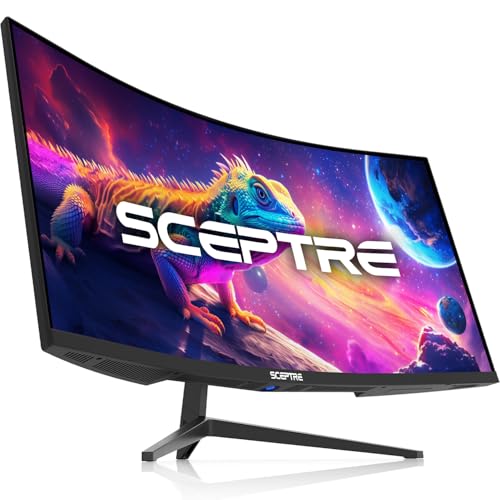
Live listings for the shortlist in this guide are pulled from Amazon below, so prices and availability are always current at the moment you look.



Decision checklist for the 34-inch UHD buyer
Confirm, from the resolution line of the specification table rather than the product title, that the panel is genuinely 3840 by 2160 rather than an ultrawide wearing similar language. Decide the scaling mode you will live in and picture the resulting logical workspace against your daily applications. Audit the port table input by input against your computer’s outputs, verifying refresh rate, chroma format and colour depth at the combination you intend to run. If a laptop will dock, match the USB-C power figure to its adapter, and clarify hub speeds, KVM and Ethernet according to your peripherals.
Then weigh the panel traits in the order your work demands: gamut coverage and calibration documentation for creators, uniformity and sRGB behaviour for document professionals, refresh and adaptive sync for those who play after hours. Measure the desk, plan the viewing distance, and confirm stand adjustability or VESA compatibility with an arm rated for the weight. Read the defective-pixel clause and the warranty length. None of these steps requires specialist equipment, and together they take less time than returning a 34-inch box.
Get those fundamentals right and a 34-inch 4K monitor becomes what its best owners describe: not a spectacle, but a calm, spacious window that quietly makes every document sharper, every timeline wider and every working day a little less cramped than the one before.