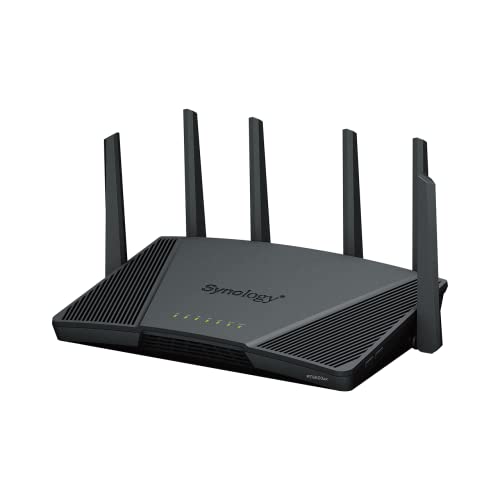
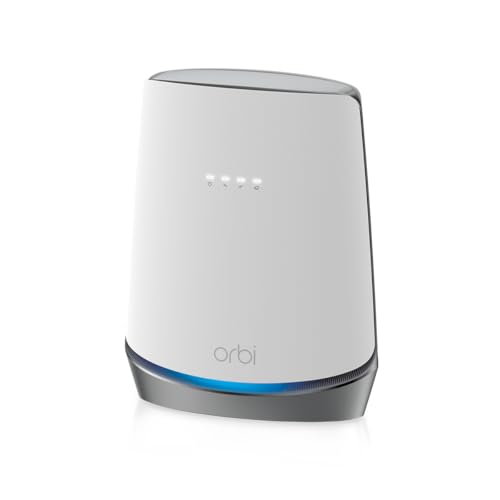
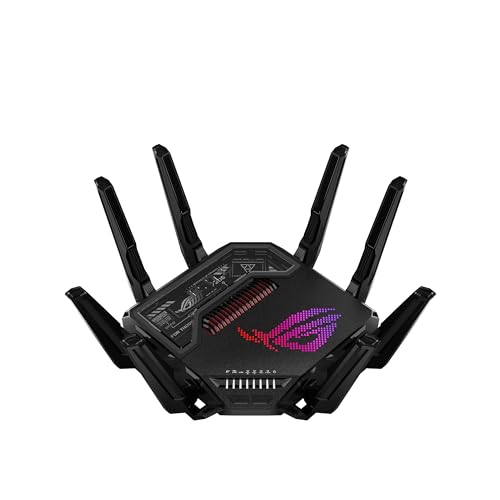
Our Top Picks
 TP-Link Archer BE12000 Tri-Band Wi-Fi 7 RouterWiFi 7, Tri-Band BE1200010.57 x 1.87 x 6.02 inches1.76 poundsCheck on Amazon
 TP-Link AC1900 Smart WiFi Router Dual Band RouterWi-Fi 5 AC19009.57 x 6.32 x 1.28 inches0.91 poundsCheck on Amazon
 TP-Link Tri-Band BE11000 Wi-Fi 7 Gaming Router9.33 x 7.6 x 5.1 inches12.01 x 10.51 x 5.67 inches2.45 poundsCheck on Amazon
 TP-Link Deco 7 Outdoor BE65 BE11000 Tri-Band Wi-Fi1 Pack6.93 x 4.23 x 4.23 inches2.31 poundsCheck on Amazon


What's inside
- What band steering actually does, step by step
- The three standards underneath: 802.11k, 802.11v, and 802.11r
- Single name or separate names: the real trade-off
- How the three bands behave inside real walls
- Load balancing, OFDMA, and airtime fairness
- When switching steering off is the correct answer
- Mesh systems, backhaul, and steering between nodes
- What to look for when buying a steering router
- A setup sequence that avoids the usual mistakes
- Interference sources that steering cannot fix
- Steering behaviour by device category
- Apartments, houses, and the geography of thresholds
- Check prices on Amazon
- Questions buyers ask most often
As an Amazon Associate I earn from qualifying purchases. This post may contain affiliate links at no extra cost to you.
One network name for the whole home sounds simple, yet the simplicity hides a constant negotiation. Your phone, laptop, television, and doorbell all share that name, while the router quietly decides which radio band each device should use at a given moment. Band steering is the name for that decision process. It nudges dual-band and tri-band clients toward the band most likely to give them a clean, fast link, and it tries to move them again when conditions change. Understanding how those nudges work explains both the smooth evenings when every stream starts instantly and the frustrating afternoons when a laptop clings to a weak signal from two rooms away.
A quick note on how this guide is funded before the technical detail. Pages here may contain links to retailers, and a purchase made through one of those links may earn a commission that supports the research behind the guide at no extra cost to readers. The comparisons below rest on published specification documents and aggregated buyer feedback, not on direct hands-on use of the products discussed.
Start with the physical difference between the bands, because steering logic follows from it. The 2.4 GHz band travels farther and passes through walls more readily, but it offers fewer non-overlapping channels and shares spectrum with Bluetooth devices, microwave ovens, and neighbouring networks. The 5 GHz band provides far more channel space and supports wider channels, though its signals fade faster through masonry and floors. The 6 GHz band, used by Wi-Fi 6E and Wi-Fi 7 equipment, adds a large block of comparatively clean spectrum with shorter range again. A steering system constantly weighs reach against capacity.
That weighing is not done by the client alone. In a network with separate names per band, the person holding the phone chooses, often once, and the choice stays fixed until the signal collapses. With a single name, the access point can withhold a probe response on one band, answer eagerly on another, or send a formal transition request suggesting a move. The client still makes the final association decision in most cases, which is why two phones in the same room sometimes land on different bands. Steering is persuasion backed by protocol, not remote control.
What band steering actually does, step by step
When a device wakes or enters the home, it scans channels and sends probe requests. A router with steering enabled may ignore the probe on 2.4 GHz for a short interval if it heard the same device probing on 5 GHz, reasoning that a client capable of the faster band should try there first. This technique, sometimes called probe suppression, costs a second or two during connection and saves the client from settling on the slower band out of habit. If no 5 GHz probe appears, the router answers on 2.4 GHz normally, so older equipment still connects without drama.
Signal strength, reported as RSSI in decibel-milliwatts, supplies the second input. Vendors set thresholds, often somewhere near the point where a 5 GHz link drops toward the low minus-seventies, below which throughput falls and retries multiply. Cross that line while roaming down a hallway and the access point may issue a transition suggestion, hoping the client accepts 2.4 GHz before the call or stream degrades. Thresholds differ between brands and firmware versions, and some interfaces expose them as an aggressiveness slider rather than a numeric field.
Load forms the third input, and it is the one buyers most often misunderstand. A band can show an excellent signal while its airtime is saturated by a backup job, a game download, and two cloud cameras. Steering logic that watches channel utilisation can hold new clients on the emptier band even when the crowded band looks stronger on a signal meter. Airtime, not headline link rate, determines how long each packet waits for a clear slot, so a moderately strong signal on a quiet band frequently delivers lower latency than a strong signal fighting for airtime.
Client capability completes the picture. The router learns from association requests which bands, channel widths, and spatial streams a device supports. A single-stream Internet-of-things plug gains nothing from 6 GHz and may lack the radio entirely, so sensible firmware parks it on 2.4 GHz permanently. A modern laptop with two streams and 160 MHz support is a prime candidate for the widest, cleanest channel available. Good steering treats these devices differently by design; identical treatment would waste the newest hardware and destabilise the oldest.
Why sticky clients still happen
Some clients ignore transition requests because their own roaming rules prioritise stability over speed. A phone in a pocket with its screen off may refuse to roam until the current link nearly fails, conserving battery and avoiding interruptions mid-call. Others implement the relevant standards partially, acknowledging a suggestion and then rejoining the same band seconds later. The router can escalate by disconnecting the client, a blunt tool called forced steering, but each disconnection risks dropping a voice call or a payment terminal session. Conservative firmware therefore suggests first and forces rarely.
Sticky behaviour also appears when bands share a name but coverage footprints differ sharply. The 5 GHz signal may be perfectly usable at a desk yet vanish behind a tiled bathroom wall, while 2.4 GHz sails through. A client that accepted a steer at the desk wanders into the dead spot, falls back, and then refuses further moves for a backoff period written into its own software. From the sofa this looks like stubbornness. From the client’s perspective it is avoiding a band that recently failed, which is a rational reading of its own history.
The three standards underneath: 802.11k, 802.11v, and 802.11r
IEEE 802.11k gives clients a map. Through neighbour reports, an access point can tell a phone which other access points and channels exist nearby, sparing the phone a full scan of every channel. Scanning less means the radio spends less time away from its current channel, so voice packets keep flowing during the search. On a single-router network 802.11k matters less, yet it still helps the client build a candidate list quickly when several bands advertise the same network name from the same box.
IEEE 802.11v supplies the polite request itself. Its BSS Transition Management frames let an access point propose a specific target, include a reason, and optionally set a disassociation timer for clients that ignore the proposal. This is the mechanism most people mean by steering in a standards-based network. A client that supports 802.11v can weigh the suggestion against its own measurements and reply with acceptance or refusal, keeping the exchange orderly. Without 802.11v, the router falls back on cruder tricks such as delayed probe responses and selective authentication replies.
IEEE 802.11r shortens the handshake when a client does move. Reassociating normally repeats the full security negotiation, which can take long enough to clip a syllable from a Wi-Fi call. Fast BSS Transition pre-distributes key material so the move completes in a fraction of the time, making frequent steering practical rather than disruptive. The catch is compatibility: a minority of older or very cheap clients mishandle 802.11r networks and fail to join at all. Many routers therefore ship with it enabled for the main network but recommend a separate legacy network for troublesome gadgets.
Together the three standards divide labour cleanly. One informs, one proposes, and one accelerates. Marketing material often bundles them under a single roaming label, but troubleshooting improves when you identify which layer failed. A client that never learns about other bands has an information problem. A client that learns but never moves has a decision problem. A client that moves and drops audio has a transition-speed problem. Each pattern points at a different setting, and guessing without that distinction wastes an evening.
Checking support before you blame the router
Client support is uneven across product categories. Recent phones and laptops from major operating systems generally handle all three standards, while budget tablets, e-readers, printers, and smart televisions vary widely. Specification sheets sometimes list the standards under WLAN features, and router client lists occasionally show capability flags per connected device. If a single gadget misbehaves on a steered network while everything else roams smoothly, the evidence points at that gadget’s implementation, and a dedicated 2.4 GHz network for it is a legitimate engineering answer rather than a defeat.
Single name or separate names: the real trade-off
Consolidating every band under one name buys convenience that compounds daily. Guests receive one password, new phones join once, and nobody in the household needs to remember which network suffix suits the study. The router, with its global view of load and signal, usually places devices better than a person choosing from a list in a hallway. For households dominated by recent phones, tablets, and laptops, the steered single-name setup is the configuration most likely to be set once and forgotten, which is precisely what most people want from infrastructure.
Separate names buy determinism, and determinism has genuine value in specific rooms. A workstation that transfers large files to a network drive can be pinned to 5 GHz permanently, accepting weaker coverage in exchange for never being moved mid-transfer. A workbench in a garage can sit on 2.4 GHz without periodic experiments from an optimistic algorithm. Gamers who have measured their setup sometimes prefer knowing exactly which radio carries their traffic during a match. The cost is manual management forever, plus the risk that visitors and children join whichever name appears first.
Hybrid arrangements split the difference and deserve more attention than they receive. Keep the main network steered for everyday devices, then add a clearly labelled auxiliary network on 2.4 GHz for smart plugs, ageing printers, and anything that failed to join the main network. Some routers also allow a separate 5 GHz name alongside the combined one, giving the fixed workstation its deterministic home without fragmenting everything else. Document which network serves which purpose, because six months later nobody remembers why the auxiliary name exists.
Readers comparing hardware generations will notice older dual-band designs in roundups such as best ac1750 routers, and those models illustrate the baseline: steering between two bands, narrower channels, and less processing headroom for busy households. The concept has not changed, but the margin for error has shrunk as homes added cameras, speakers, and a second or third person working remotely. A steering decision that was harmless with eight clients can become visible with forty, simply because the algorithm now arbitrates among far more competing demands every minute.
How the three bands behave inside real walls
Free-space range figures flatter every band, so indoor behaviour deserves a slower look. Drywall attenuates 5 GHz modestly, brick and concrete considerably more, and foil-backed insulation or a large aquarium can behave almost like a mirror or a wall depending on angle. The 2.4 GHz band loses less energy per obstacle, which is why its footprint in a typical house extends a room or two beyond the faster bands. Steering thresholds set without regard to a building’s materials will misfire in one direction or the other: too eager in an open-plan flat, too timid in a stone cottage.
Channel width interacts with those walls in ways product boxes rarely explain. An 80 MHz channel on 5 GHz quadruples the width of a legacy 20 MHz channel and can multiply throughput for a nearby laptop, yet the wider channel also collects more neighbouring interference and reaches less far at a given power. At the far end of a house, a 40 MHz channel often delivers steadier results than the headline-grabbing wider setting. Routers that adjust width per band and per condition, sometimes labelled as dynamic or smart channel selection, apply the same philosophy as steering itself: match the radio resource to the actual link, not to the brochure.
The 6 GHz band changes the interference half of the equation more than the range half. Its spectrum is wide and, at present, comparatively empty, with channels that rarely overlap with a neighbour’s network. Its signals, however, attenuate quickly and regulatory rules in many regions restrict power for indoor low-power operation, with standard-power use tied to automated frequency coordination in some jurisdictions. Expect 6 GHz to shine in the same room or the next one, carrying the heaviest local traffic, while 2.4 GHz quietly serves the garden sensor at the fence line. Steering across all three bands is therefore a distance-sorting exercise as much as a speed-sorting one.
Tri-band hardware exists largely to give that sorting somewhere to go, a point explored from the hardware side in best 3 band routers. A third radio can absorb overflow, serve as a dedicated wireless backhaul in a mesh, or hold the 6 GHz clients apart from crowded 5 GHz channels. Whether the extra radio helps depends on the household’s geography. In a compact flat, one well-placed dual-band unit may leave a tri-band system with nothing useful to do. In a long house with a mesh node at each end, the third radio can be the difference between backhaul traffic competing with laptops and travelling on its own lane.
Reading signal numbers without fooling yourself
RSSI values reward careful interpretation. A reading around minus 50 dBm generally indicates a strong local link, minus 65 dBm remains comfortable for calls and streaming, and by minus 75 dBm most clients are working hard with retries. These are guides, not guarantees, because noise matters as much as signal: the signal-to-noise ratio decides how much of that energy is usable. A minus 60 dBm signal over a minus 90 dBm noise floor is healthy; the same signal over a minus 70 dBm floor, perhaps from a neighbour on the same channel, is not. Router dashboards that show both numbers are more useful than those showing cheerful bars.
Throughput tests need the same scepticism. Run a test beside the router and you measure the internet plan and the test server as much as the Wi-Fi. Run it from the problem chair, at the problem hour, on the device that actually struggles, and the number becomes diagnostic. Repeat after changing one setting only. Households that alter channel, width, and steering aggressiveness simultaneously learn nothing, because any improvement cannot be attributed and any regression cannot be reversed with confidence. Methodical single changes feel slow and finish faster.
Load balancing, OFDMA, and airtime fairness
Modern Wi-Fi standards attack congestion from inside the channel as well as across bands. OFDMA, introduced with Wi-Fi 6, subdivides a channel into resource units so one transmission can serve several clients at once, which suits homes full of small, chatty devices. MU-MIMO lets an access point form simultaneous streams to multiple clients on downlink, and on some implementations uplink as well. Neither feature replaces steering, but both raise the capacity of whichever band a client lands on, softening the penalty when a steering decision is imperfect.
Airtime fairness addresses a subtler failure. Without it, a distant client at a low data rate can occupy the channel for a long time sending a small amount of data, delaying everyone queued behind it. Fairness algorithms allocate time rather than frame counts, so the slow client receives its share of milliseconds and the fast clients keep their speed. The slow device does not get faster; everyone else stops subsidising it. In mixed homes where a legacy camera shares a band with new laptops, enabling airtime fairness often produces a more noticeable improvement than any steering adjustment.
Quality-of-service markings add priority on top of fairness. Wi-Fi Multimedia, universally present now, sorts traffic into voice, video, bulk, and background classes, so a call outranks a photo backup when both contend. Some routers add application-aware prioritisation for conferencing or gaming, configured per device or per activity. Keep such rules few and deliberate. Marking everything as priority is equivalent to marking nothing, and an aggressive gaming mode that starves a partner’s work call will be discovered at the worst possible moment.
Steering and these in-channel tools interact, which is why results vary between firmware versions. An update that changes OFDMA scheduling can make the previously crowded band attractive again, and the steering layer should notice through its utilisation metrics. When a router behaves noticeably better or worse after an update, resist the urge to rebuild the whole configuration. Read the release notes, test the one or two rooms that matter, and adjust a single threshold if the pattern is clear. Networks accumulate superstition quickly; written notes about what changed and when are the antidote.
When switching steering off is the correct answer
Certain devices should never be steered, and recognising them early saves days. Wireless printers with minimal networking stacks may lose their connection after a forced move and require a power cycle to rejoin. Some smart-home hubs treat a band change as a new network and drop their automations until re-paired. Medical-alert pendants, baby monitors using Wi-Fi, and alarm panels value an unchanging link far above throughput. Pin such equipment to a dedicated 2.4 GHz network, note the arrangement, and let the rest of the household enjoy steering without risk to the devices that cannot tolerate surprises.
Troubleshooting is the second legitimate reason. When a fault appears, disabling steering temporarily divides the problem space: if the fault vanishes on a fixed band, the steering layer or a client roaming bug is implicated; if it persists, look at interference, cabling, or the internet connection itself. Diagnosis by elimination only works when one variable changes at a time, and steering touches so many variables that it should be the first suspect isolated. Restore it after the fault is identified, unless the household genuinely runs better without it, which is also a valid outcome.
Very small, very open homes form the third case. In a studio flat where every device sits within a few metres of the router, nearly every client belongs on the fastest band permanently, and steering solves a problem that geography already solved. A fixed 5 or 6 GHz network for the main devices, with 2.4 GHz reserved for the smart bulbs, can be simpler and marginally more predictable. The general rule stands: steering earns its complexity when distance, walls, and device variety create real choices. Absent those choices, simplicity wins.
There is also a diagnostic pattern that points the other way. If devices near the router keep appearing on 2.4 GHz and reporting slow speeds while the faster bands sit idle, steering is failing at its first job and should not simply be abandoned. Check for a firmware fault, a mis-set band preference, or a client capability problem first. The distinction matters because abandoning steering in a large house trades one visible fault for a hundred quiet ones, as distant devices pile onto the band with the strongest-looking signal regardless of its load.
A practical off-and-on test anyone can run
Pick the two devices that generate the most complaints and the two rooms where they struggle. Record which band each device uses at three times of day, plus a speed and latency reading from the problem seat. Then fix each device to a chosen band for two days, either through separate network names or a per-device preference if the router offers one, and repeat the same readings at the same times. Compare notes rather than impressions. Two days of written numbers will settle arguments that two weeks of anecdotes cannot, and the exercise teaches the household how its own building behaves.
Mesh systems, backhaul, and steering between nodes
Mesh networking extends steering from bands to locations. The same transition standards that move a phone between radios can move it between rooms, and the phone sees one network while the system decides which node should serve it. Node steering adds signal comparisons across boxes with different positions, plus a check that the target node is not itself overloaded. A well-tuned mesh feels like coverage that follows you. A poorly tuned one produces the corridor problem: a phone clings to the far node it joined at the front door all the way to the back bedroom.
Backhaul is the traffic between nodes, and its arrangement decides how much capacity remains for clients. Dedicated backhaul radios keep that relay traffic off the client bands entirely, at the cost of hardware that sits idle in a single-node setup. Shared backhaul reuses a client band, halving effective capacity on that band in a two-node chain because each packet crosses the air twice. Wired backhaul, running Ethernet between nodes, removes the compromise and is worth the effort whenever a house has cabling or a practical route for it. Steering cannot rescue a mesh whose backhaul is saturated; the bottleneck sits upstream of every client decision.
Placement governs mesh results more than any menu setting. Nodes belong roughly halfway between the main router and the weak area, elevated, in the open, and still within solid range of the previous node, not inside the dead zone they are meant to fix. A node placed where the signal is already poor can only relay poor signal. Most mesh applications include a placement test reporting link quality between nodes; treat a marginal rating as a instruction to move the node a metre or two, rotate it, or clear the shelf in front of it, and retest before buying another node.
Wired households should also consider plain access points instead of a mesh kit. Multiple access points on Ethernet, sharing a name and the roaming standards, deliver the same user experience with predictable backhaul and often better per-node radios. The trade-off is management: a mesh kit offers one application and automatic coordination, while separate access points may need manual channel planning. For homes already wired for a fast internet plan, the discussion in best 1gbps fiber routers covers the router side of that layout, including why the gateway’s routing performance matters once Wi-Fi stops being the bottleneck.
Channel planning when neighbours are close
Automatic channel selection scans at boot and periodically thereafter, choosing the quietest channel it can find. In dense apartment blocks the quietest channel at 7 a.m. may be the busiest at 8 p.m., so systems that rescan nightly or adapt during the day hold an advantage. Manual planning still has a place: on 2.4 GHz, restrict yourself to channels 1, 6, or 11 in regions using the North American plan, since the intermediate channels overlap and create the worst kind of interference, the kind that corrupts without being recognised as a network to defer to. On 5 GHz, prefer channels that do not require a radar-avoidance move in your area if your router sits near an airport or weather radar, because a DFS event can vacate a channel mid-evening.
Transmit power deserves a mention because more is not always better. A router shouting at maximum power can be heard across the house while the phone’s quieter reply cannot make the return trip, producing the maddening one-bar-yet-connected state. In multi-node systems, slightly reduced power per node often improves roaming by making each node’s territory distinct, so clients receive a clear signal to move. Experiment with power after placement, in small steps, and judge by the problem rooms rather than by the meter beside the router.
What to look for when buying a steering router
Radio configuration is the first specification to read, and it should be read as a system rather than a headline. Count the bands, then check the stream configuration per band and the widest channel each band supports. A router that devotes generous streams to 5 GHz suits a house of laptops; one that emphasises 6 GHz suits newer devices clustered near the router. Aggregate speed classes printed on boxes sum theoretical rates across every radio and describe no experience any single client will ever have, so translate them into per-band figures before comparing two products.
Processor and memory matter more than they used to because the router is now a small network manager. Steering decisions, client tracking for dozens of devices, security filtering, a VPN server, and quality-of-service queues all consume cycles. Underpowered hardware reveals itself not in a single speed test but in a dashboard that lags, a steering decision that arrives late, or a reboot habit under load. Product documentation and aggregated buyer feedback mentioning stability under many clients are worth more than a peak throughput figure measured with one laptop in an empty room.
Ethernet ports reveal the intended audience. A household planning wired backhaul, a desktop, and a network drive needs enough gigabit ports or a plan for a small switch. Homes with multi-gig internet or a fast local server should check whether at least one port matches that rate and whether the wide-area port does too, since a single slower port caps the whole installation. The port question is unglamorous and permanent; radios get upgraded by replacement, but cabling decisions tend to stay in the walls for a decade.
Firmware policy is the quiet differentiator. Look for a published update history, automatic security updates with a clear opt-out, and a settings interface that exposes steering controls rather than hiding them behind one unexplained toggle. Useful controls include band preference per network, a per-device band lock, roaming aggressiveness, and the ability to create the auxiliary legacy network described earlier. A router that cannot exempt the one fragile printer from steering will eventually cause a support call inside your own family, usually during a deadline.
Guest networking and segmentation round out the checklist. A guest network isolates visitors from the home’s file shares and smart devices, and on better implementations it can be scheduled or bandwidth-limited. Separate Internet-of-things segmentation goes further, keeping chatty gadgets away from laptops entirely. These features interact with steering because each additional network name multiplies the band decisions in the house. Plan the names deliberately: main, guest, and legacy gadgets is a scheme most households can remember and most routers can run well.
Security settings that should accompany any setup
Choose WPA3 where the client fleet allows it, or the WPA2/WPA3 transitional mode where it does not, recognising that transitional mode inherits some older weaknesses to preserve compatibility. Disable WPS with its PIN method, which has known design flaws, and change the administration password from any default, storing it in a password manager rather than on a note near the router. Turn off remote administration from the internet unless you specifically require it, and keep the firmware update channel enabled. None of this is steering, yet a steered network that is trivially entered protects nothing, and setup day is the one day these switches are all in front of you.
DNS choice and parental controls sit one layer up and are optional rather than essential. A reputable resolver can add malware-domain filtering for the whole house in one setting. Time schedules for children’s devices are easier to enforce at the router than per device. Evaluate these after the radio fundamentals work, and add one at a time so that a later fault has an obvious recent change attached to it. The discipline of single changes, repeated throughout this guide, is the closest thing home networking has to a universal method.
A setup sequence that avoids the usual mistakes
Begin before the new router leaves its box by noting the current network names, passwords, and any port-forwarding or static-address arrangements the household depends on. Photograph the cabling behind the old equipment. Then place the new router centrally and high, away from large metal objects, aquariums, and the tangle of power supplies behind a television, and connect it alone before adding nodes or switches. Each additional box introduced later is a variable; the first hour should contain as few variables as possible.
Configure the main network with one name and steering enabled, security set as described above, and firmware updated before any client joins. Join your own phone and laptop first and walk the house slowly, watching band and signal in the router’s client list at the usual seats: desks, sofa, beds, and the kitchen table. This walk produces the baseline map every later decision references. Note the genuinely weak spots rather than pursuing perfection in a cupboard nobody works from.
Add devices in groups, ordinary clients next and fragile gadgets last, with the auxiliary 2.4 GHz network created before the gadgets arrive. As each group joins, confirm it landed on a sensible band and stays reachable after ten minutes, not merely at the moment of joining. Printers should print a test page, cameras should show live view, and speakers should play from a phone that has roamed to another room. A device that joins happily and vanishes later is the classic steering or power-save interaction, and catching it on setup day is far cheaper than catching it during a work call.
Travellers face a compressed version of the same choices, since a pocket router in a hotel room also juggles bands for several personal devices at once; the category is surveyed in best small travel routers. The home lesson transfers directly: one name, sensible defaults, and a fallback network solve most problems before they start. Finish the home setup by saving a backup of the configuration, recording the admin password location, and writing down which devices were deliberately pinned. That single page of notes is the difference between a five-minute fix next year and a factory reset.
Maintaining the network after setup day
Revisit the client list monthly for the first quarter. Look for devices that changed bands unexpectedly, unknown clients that should not be there, and firmware notices. Check that the auxiliary network has not quietly accumulated devices that belong on the main network. Speed-test from the problem chair after any major change in the household: a new neighbour, a renovated wall, a large metal appliance. Buildings change, device fleets change, and a configuration that was correct in January can be merely adequate by September without anything being broken.
Resist collecting features. A home network succeeds by disappearing, carrying calls, lessons, films, and backups without commentary. Steering, configured with an understanding of thresholds, standards, and the clients it cannot help, is one of the tools that lets it disappear. When it misbehaves, you now have a sequence: identify the client, read its signal and band history, isolate steering as a variable, and adjust one control. That sequence, applied calmly, resolves the large majority of complaints that reach support forums with the word ‘random’ in the title.
For the household choosing today, the balanced recommendation is straightforward to state and specific to apply. Buy for the bands your devices actually own, insist on exposed steering controls and a legacy fallback network, place the hardware where the people sit rather than where the cable enters, and verify the result room by room with written readings. A router chosen and installed that way will not top a benchmark chart in a laboratory, but it will carry an ordinary Tuesday evening, with its calls, streams, homework, and doorbell, without anyone in the house needing to know what RSSI means.
Interference sources that steering cannot fix
Not every slow evening is a band problem, and steering receives blame for faults it has no power to correct. A microwave oven leaks energy near 2.45 GHz while heating food, so a video call that stutters at lunch beside the kitchen may clear completely when the oven stops. Bluetooth accessories hop across the same 2.4 GHz range many times per second, usually politely, though a crowded desk of wireless peripherals adds up. Baby monitors, older cordless phones, and a neighbour’s poorly shielded equipment can raise the noise floor for a whole street of houses. Moving a client to 5 GHz helps here only because the interference stayed behind on the lower band, which is a workaround rather than a cure.
Co-channel interference from neighbouring networks behaves differently from raw noise. Wi-Fi devices defer to one another when they can decode each other’s preambles, so a neighbour on your exact channel shares airtime with you in an orderly queue. A neighbour on an overlapping channel, such as channel 3 when you use channel 1, produces energy your radio cannot decode cleanly, which corrupts frames and triggers retries instead of orderly waiting. This is why the non-overlapping channel rule matters so much on 2.4 GHz, and why a steering change that coincidentally moved clients away from a corrupted channel can look like magic when the real fix was spectrum hygiene.
Building services hide further culprits. A USB 3 port or a cheap unshielded cable near a router can radiate noise into the 2.4 GHz band, a documented quirk that surprises people when a hard drive enclosure sits on top of the router. Metal ductwork channels signals along unexpected paths, delivering a strong signal to a laundry room and a weak one to the nearer bedroom. Wireless cameras set to stream continuously at high bitrates consume airtime whether anyone watches or not. Before adjusting thresholds, walk the client list and ask which devices transmit all day, because the answer often explains the evening slowdown better than any radio setting.
Internet-side faults complete the list of impostors. A congested uplink, a failing modem, or an overloaded video service will present as buffering in exactly the rooms where Wi-Fi is suspected. The cleanest separation test is a wired device: if a laptop plugged into the router shows the same stall at the same moment, the wireless layer is innocent and steering changes will accomplish nothing. Keep a short Ethernet cable in the router’s drawer for this test. Five minutes with a cable can save a weekend of menu-diving.
Steering behaviour by device category
Phones are the most sophisticated roamers in most homes because their makers tune them for cellular handovers, a far harder problem. They scan in the background, weigh candidate bands against battery cost, and usually accept sensible transition suggestions promptly. Their weakness is power saving: a phone asleep in a bag may postpone roaming until the screen wakes, so the first seconds after picking it up can feel sluggish while it renegotiates its position. Judging a network by that first moment alone misleads; judge by the minute that follows.
Laptops vary by operating system and driver rather than by brand of router. Some expose a roaming aggressiveness setting in the adapter’s advanced properties, with higher values producing earlier band changes at the cost of more scanning and slightly higher power use. Others hide the logic entirely. A work laptop that behaves badly at home but well at the office may be following a driver policy tuned for dense enterprise access points, where another radio is always a few metres away. In a house with one router, that policy hunts for hardware that does not exist, and lowering the aggressiveness, where the setting exists, restores calm.
Televisions and streaming boxes are stationary clients with big appetites, and they reward deliberate placement decisions. Because they never move, a one-time manual assignment beats an algorithm that re-evaluates them daily: put the television on the band with the cleanest path to the router, confirm it holds that band after a restart, and leave it alone. Their large internal antennas often surprise people by holding 5 GHz through a wall that defeats a phone. Buffer memory also hides brief roaming events, so a television may appear immune to steering changes that visibly affect a voice call.
Smart-home gadgets sit at the opposite extreme of capability. Many ship with a single 2.4 GHz radio, minimal roaming support, and setup applications that require the phone to be on the same band during pairing, which is the true origin of most installation horror stories. The reliable procedure is to join the phone to the auxiliary 2.4 GHz network during setup, complete pairing, then return the phone to the main network; the gadget keeps its own connection and the phone resumes normal service. Routers that temporarily broadcast a compatibility network during setup automate exactly this dance, and it is worth checking whether yours offers it before fighting a stubborn plug for an hour.
Game consoles and desktop machines with wireless adapters care about jitter more than raw throughput, since a match or a remote-desktop session uses modest bandwidth but suffers from every retry storm. For these, the best band is the one with the lowest retry rate at the machine’s fixed location, which a week of router statistics will show more honestly than a one-off speed test. If a cable run is even remotely practical for a fixed machine, take it: no steering algorithm outperforms a wire for a device that never moves, and removing the machine from the air frees capacity for everything that genuinely needs mobility.
Apartments, houses, and the geography of thresholds
Dense apartment living inverts several home-networking instincts. Distances are short, so signal strength is rarely the limiting factor; the scarce resource is clean airtime among dozens of visible networks. Steering in this environment should favour capacity aggressively, pushing every capable client toward 5 or 6 GHz and reserving 2.4 GHz for the gadgets with no alternative. Narrower channels also earn their keep, because a 40 MHz channel that avoids two neighbours can outperform an 80 MHz channel overlapping six. Residents who measure at several times of day, including the evening peak when every neighbour streams at once, will make better choices than those who configure at noon on a weekday.
Large detached houses present the mirror image. Neighbours are too far away to matter, walls and floors dominate, and the steering problem becomes distance management across a big, quiet estate of spectrum. Wider channels are safer here, thresholds should tolerate weaker 5 GHz signals for longer before surrendering their speed advantage, and a second node or access point usually delivers more than any threshold adjustment. The household that keeps lowering thresholds to hold a distant bedroom on 5 GHz is fighting physics with software; adding a wired access point near that bedroom ends the fight permanently.
Rental homes and shared houses add a social layer to the technical one. Several adults bring several device fleets, one router password spreads widely, and nobody owns the whole problem. A guest network for visitors, a per-person understanding about wired connections for desks, and a written note of the admin password’s location prevent most friction. Steering helps here precisely because it removes per-device decisions from housemates who never agreed to become network administrators. When a shared house upgrades its router, the kindest feature is often the one nobody has to think about again.
What the router’s log can tell you
Most routers keep an event log, and steering events are among its most useful entries. Repeated association and disassociation lines for one client, cycling every few minutes, describe a device bouncing between bands or nodes, usually because its signal sits exactly at a threshold. The remedy is rarely a global change: move the device, move the node, exempt that client, or shift the threshold slightly so the boundary no longer runs through a favourite chair. A client that roams twice a day while its owner walks from desk to kitchen is healthy. A client that roams forty times while sitting still is telling you where your network’s border lies.
Logs also expose the quiet success cases that never generate complaints. A doorbell camera that has held one band for six weeks, a laptop whose transitions cluster at the same hallway point each morning, a tablet that uses 6 GHz at the desk and 2.4 GHz in the garden: these patterns confirm the system is sorting by distance and capability as designed. Skimming the log after the first week, before any problem forces the issue, teaches the normal rhythm of the house. Later, when something feels wrong, that memory of normal is the fastest diagnostic instrument available, faster than any forum search.
Check prices on Amazon
Live listings for the shortlist in this guide are pulled from Amazon below, so prices and availability are always current at the moment you look.



Questions buyers ask most often
Does steering slow down the initial connection?
Slightly, and by design. Probe suppression and capability checks can add a second or two while a device joins, because the router waits to hear whether the client offers a better band before answering on the slower one. In daily life this pause is invisible, hidden inside the time a phone spends waking and a laptop spends opening. It becomes noticeable only when a device joins and drops repeatedly, which returns to the threshold problem described above. A network where joining feels slow every time, for every device, deserves a firmware check and a look at whether an authentication setting, rather than steering, is introducing the delay.
Should the 6 GHz band share the same network name?
For most households, yes, provided every regular client handles the combined network gracefully. Sharing the name lets the steering layer treat 6 GHz as the top lane of one system, filling it with nearby high-demand devices and emptying it as they wander away. The exception mirrors the legacy rule: a specific client that fails to join, or that loses its connection whenever the 6 GHz radio is included, earns an exemption through a separate network without that band. One awkward device should set policy for itself, not for the entire house.
Can steering replace a second access point?
No, because the two tools solve different problems. Steering allocates clients among radios that exist; it cannot create coverage where no radio reaches. A bedroom where 5 GHz arrives at minus 85 dBm and 2.4 GHz barely holds a call needs hardware, placed nearer or wired in, not a cleverer allocation of the existing whisper. The honest sequence is coverage first, then steering to organise the coverage you have. Products are often sold as if intelligence compensates for placement, and the disappointment that follows is the most common story in home networking.
None of these answers depend on a particular brand, which is deliberate. The protocols are standardised, the physics is universal, and the failure modes repeat across price tiers with remarkable fidelity. Money buys better radios, faster processors, more nodes, and politer firmware; it does not buy exemption from walls. Spend first on placement and coverage, then on the management features that keep a growing fleet orderly, and treat any product promising to abolish that order of operations with the scepticism it has earned.
One last measurement habit ties the whole subject together. Once a quarter, pick the household’s busiest hour, open the router’s client list, and count how many devices sit on each band. Compare that snapshot with the fleet you own: if nearly everything capable of 5 or 6 GHz is using those bands, and the 2.4 GHz list reads like a museum of plugs, sensors, and older gadgets, the steering layer is doing its quiet work. If the snapshot shows the reverse, you have found the problem before anyone complained about it.
Band steering, understood properly, is a modest technology with an outsized effect on how a home feels at 8 p.m. It will not rescue bad placement, forgive a corrupted channel, or modernise a gadget built for another decade, and it asks in return only that its thresholds be set with the building in mind and its exceptions be granted without resentment. Get those two things right and the network recedes into the background of family life, which is where, on the evidence of every calm household that has done this work, it belonged all along.