What's inside
- Key Takeaways
- Quick Picks
- How Did We Sort Router Storage Sharing from Real NAS?
- What Can a Router’s Shared Drive Actually Do All Day?
- Which Details Decide Whether Router Storage Feels Fast or Frustrating?
- How Do You Set Up a Shared Drive on a Router, Step by Step?
- How Does Router Storage Compare with a Small NAS, Line by Line?
- Which Household Jobs Belong on the Shared Drive, and Which Do Not?
- What Should You Check During the First Month of Router Storage?
- How Will a Router-and-Drive Arrangement Age Over Five Years?
- What Else Competes for That USB Port?
- The Six at a Glance: Radios, Ports and Storage Hooks
- What Mistakes Do People Make with Router Storage?
- Final Recommendation
- Frequently Asked Questions
- Related Guides
As an Amazon Associate I earn from qualifying purchases. This post may contain affiliate links at no extra cost to you.
widgetverdict.com is reader-supported. When you buy through links on our site, we may earn an affiliate commission.
Where to buy: Amazon carries every model in this guide, and the links below lead to the listings whose titles we read line by line for storage features before including them. Routers are also sold by the manufacturers directly, but a listing title is the contract this guide holds each pick to, so Amazon is where we send you.
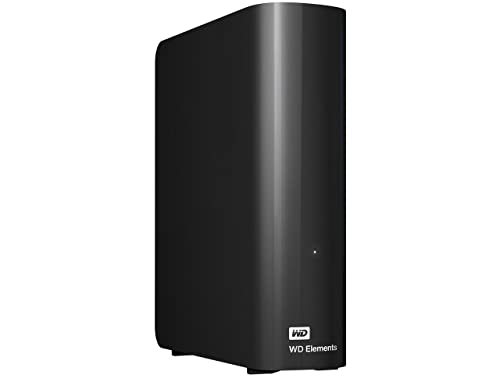
Let us begin with the honest sentence most guides in this category bury: when people search for the best routers with nas capability, what they almost always mean is a router with a USB port that can share a plugged-in drive across the home network. That is not a NAS. A dedicated network-attached storage box is a small computer in its own right, with drive bays, redundancy options, its own processor and memory, and an ecosystem of backup, media and synchronisation applications. A router sharing a USB drive offers one thing — files, reachable from devices on your network, through protocols the router’s firmware provides. For a household that wants the photo archive visible on the TV, a shared folder for scans, or a cheap always-on home for backups, that one thing is genuinely enough, and it costs a USB drive you probably already own. For anyone who needs redundancy, multiple users with permissions, or media transcoding, it is not, and no router in this guide pretends otherwise.
The six picks divide by ambition. Two current TP-Link Wi-Fi 7 routers, the Archer BE230 and BE400, carry USB 3.0 ports on modern quad-core platforms — the strongest hosts here for a shared drive. The Linksys EA8500 is an older AC2600 design whose title uniquely adds an eSATA connection beside USB 3.0. Two veteran TP-Link N600 routers, the TL-WDR3600 and TL-WDR3500, represent the budget archaeology of this feature — with an important honesty wrinkle we will come to, because one of their titles mentions a USB port and the other does not. Finally, the NewQ Filehub AC750 is not really a home router at all but a travel device built around sharing storage and card media on the road. Read the one that matches your actual ambition, and keep the router-versus-NAS distinction in front of you the whole way down. It is the rare technology purchase where the cheapest correct answer and the most expensive wrong answer sit on the same shelf, separated only by how honestly the buyer read the label.
Key Takeaways
- “NAS” on a router means USB storage sharing: one drive, shared to your network by the router’s firmware. There are no drive bays, no RAID arrays and no app store hiding inside any pick here.
- Four of the six titles state a USB 3.0 port outright; the TL-WDR3500’s title states a USB port without a speed, and the TL-WDR3600’s title does not mention USB at all — we flag that rather than smoothing it over.
- The Linksys EA8500 is the only pick whose title adds eSATA, a dedicated storage connector the newer Wi-Fi 7 models have dropped.
- A router’s processor and USB generation set the ceiling for shared-drive speed; the BE230 and BE400 pair USB 3.0 with quad-core CPUs, the strongest combination in this list.
- The NewQ Filehub solves a different problem — sharing drives and SD cards while travelling — and should not be judged as a home router.
- If losing the drive would lose the only copy of anything, you need a real backup strategy first and a router’s shared folder second.
- The share lives on your main network by design, so devices parked on a guest or IoT network will not see it — a feature wearing the disguise of a fault.
Quick Picks
| Pick | Badge | Why it earns its place |
|---|---|---|
| TP-Link Archer BE230 | The modern all-rounder | Wi-Fi 7 BE3600 platform with USB 3.0, a 2.0 GHz quad-core processor and five Ethernet ports for a busy home. |
| TP-Link Archer BE400 | The coverage play | BE6500 Wi-Fi 7, USB 3.0 and dual 2.5-gigabit ports, with coverage and device figures stated in the title. |
| Linksys EA8500 | The storage connector veteran | AC2600 4×4 MU-MIMO router whose title lists both USB 3.0 and eSATA for external drives. |
| TP-Link TL-WDR3600 | The cautious legacy pick | N600 gigabit router included with an explicit warning: its listing title never mentions a USB port. |
| TP-Link TL-WDR3500 | The honest budget classic | N600 dual-band router whose title does state a USB port, alongside IP QoS and a wireless on/off switch. |
| NewQ Filehub AC750 | The travel file hub | Portable router built to share external drives and SD cards wirelessly and back up phone photos on the move. |
How Did We Sort Router Storage Sharing from Real NAS?
Every candidate was read against a single question: what, exactly, does the listing title say this box can do with a storage device? USB 3.0 stated plainly earned the strongest footing, because the port generation is the one hardware fact that most directly governs how fast a shared drive can be read and written over the network. A USB port stated without a generation, as on the TL-WDR3500, earned a place with the limitation written next to it. A title silent on storage entirely — the TL-WDR3600 — was kept in the guide deliberately and labelled, because shoppers searching this keyword will meet that model in the wild and deserve to know its listing does not make the claim they are shopping for. The NewQ Filehub inverts the pattern: storage is not a side feature but the product’s stated purpose, with hard drive and SD card access in the title itself.
We also refused to import the vocabulary of dedicated NAS into router spec boxes. No pick below is credited with redundancy, hot-swap bays, media servers or backup applications unless its title says so, and none of the titles do. What the titles do support is a comparison of platforms: Wi-Fi generation, processor class, port counts and the storage connector itself. That is the comparison this guide makes, no more and no less.
What Can a Router’s Shared Drive Actually Do All Day?
In daily life, the shared drive becomes the house’s junk drawer and filing cabinet at once. The television or streaming box reads films and music from it. The scanner’s output folder lives on it, so any computer can reach the paperwork. Phones back up photographs to it overnight. A folder of installers, documents and school projects sits there instead of being emailed between family members. All of that works because the demand is modest: one or two devices at a time, reading or writing at the pace of ordinary files, on a network where the router was already awake all day. The arrangement shines precisely because it asks so little — no second box to buy, house, power and learn.
The limits arrive in a predictable order. Speed comes first: even with USB 3.0 and a strong processor, a router is sharing one drive through firmware that treats storage as a side job, and large sustained transfers will feel it. Simultaneity comes next: several family members streaming different files while a backup writes is where a dedicated NAS, built for exactly that queue, pulls away. Then comes resilience. A single USB drive has no second copy of anything; if it fails, the “network storage” fails with it, which is why the honest framing of this whole category is convenience storage, not a backup system. Finally there is software depth: user accounts with real permissions, versioned backups, remote access done properly, media libraries that organise themselves — these live in the NAS world. A household that reads that list and feels no pain has found its answer in this guide. A household that winces twice should price a small NAS and keep its router for routing — and if remote access to home files is part of the dream, the tunnel that reaches them matters as much as the drive, which is why so many readers pair this guide with a VPN server setup on the same class of hardware.
Which Details Decide Whether Router Storage Feels Fast or Frustrating?
The USB generation is the headline detail. USB 3.0 moves data at a multiple of the older USB 2.0 rate, and since the drive hangs off that port, the port is the narrowest bridge every file must cross. Four picks here state USB 3.0 in their titles; treat any router that hides the generation as a router asking you to lower your expectations. The processor is the second detail, and the two Wi-Fi 7 TP-Links make the point by stating quad-core CPUs in their titles — file sharing, encryption-free though it mostly is, still costs cycles on the same chip that runs your Wi-Fi, and a stronger processor keeps both jobs civil. The drive itself is the third detail, and it is yours to choose: a bus-powered portable drive is tidy, while a desktop drive with its own power supply asks nothing of the router’s USB power budget and spins down on its own schedule.
Network plumbing quietly matters too. A shared drive read over Wi-Fi by a laptop is limited by that wireless link, not the USB port; the same drive read by a desktop wired into one of the BE230’s 2.5-gigabit ports shows what the platform can really do. File format and sharing settings live in each router’s firmware pages, and because no title in this pool describes them, this guide will not pretend one brand’s sharing interface beats another’s — check the manufacturer’s documentation for the model you choose, and format the drive the way that documentation recommends rather than the way a forum post remembers. Placement is the last detail: a router in a warm cupboard with a drive taped to its top is a small reliability experiment, so give both air. And when the network grows — a drive shared here, an access point there — the tidier end of this hobby starts to look like the setups in our look at the Best Wall-Mounted Routers and Access Points, where the hardware disappears into the building and only the service remains.
How Do You Set Up a Shared Drive on a Router, Step by Step?
Begin with a drive you can afford to erase, because the cleanest first setup often starts from a format the router prefers, and learning that with the family archive aboard is a story nobody wants to tell. Plug the drive into the router’s USB port, wait for the router to notice it — the admin interface will show the device and its capacity — and open the USB or storage-sharing section of the settings. Turn sharing on, give the share a name a tired human can type, and decide the access rule before you decide anything else: an open share on a home LAN is convenient, while a password-protected share is the right default the moment guests, children or a work laptop also live on the network.
Connect from each kind of device you own and prove the path works: a computer mapping the share as a network drive, a phone’s file app browsing to it, the television finding it in its media sources. Move one large file each way and watch the time it takes; that number, not a spec sheet, is your household’s real storage speed, and it tells you whether backups belong in the overnight hours. Then set the boundaries that keep the arrangement healthy. Keep the shared drive out of the backup-of-itself fantasy — important folders on it should still be copied somewhere else on a schedule. If the router offers a safe-eject or unmount control, use it before unplugging the drive, every time. And write the share name and access details into the household’s network notes, because the person who set it up will, six months later, be a stranger to their own configuration. Readers extending a network into rooms the router cannot reach will find the companion pieces on the Best Ceiling-Mounted Routers and Access Points and the Best Bridgeable Wireless Routers useful — a shared drive is only as reachable as the network that carries it.

TP-Link Archer BE230 — The modern all-rounder
The Archer BE230 is what this category looks like when it is done with current parts. Its title stacks a dual-band BE3600 Wi-Fi 7 platform, four streams, a 2.0 GHz quad-core processor, four antennas and a port layout of two 2.5-gigabit plus three gigabit sockets — and in the middle of that list sits the USB 3.0 port that earns it this guide’s lead slot. The processor matters as much as the port: sharing files while a household streams and games is a juggling act, and a quad-core chip juggles with hands to spare. EasyMesh support means the router can be the centre of a growing mesh rather than a dead end, and the title’s mention of a Private IoT network shows TP-Link thinking about the modern house’s swarm of small devices — the same network your shared drive will serve.
The BE230’s storage story is deliberately ordinary, and that is its virtue. It will not transcode your film library or run a shelf of applications; it will put a drive on your network at USB 3.0 pace and keep it there while doing an excellent impression of a modern router. Buyers whose ambitions stop at shared folders, media for the TV and overnight phone backups are describing this product exactly.
- Class: Dual-band BE3600 Wi-Fi 7 router, 4-stream
- Storage per title: USB 3.0 port
- Processor / ports per title: 2.0 GHz quad-core; 2× 2.5G + 3× 1G Ethernet; 4 antennas
- Extras in title: VPN, EasyMesh, HomeShield, MLO, Private IoT
Strengths
- USB 3.0 backed by a stated quad-core processor — the strongest file-sharing foundation in this guide.
- Two 2.5-gigabit ports let a wired computer actually exploit the shared drive’s pace.
- EasyMesh and Wi-Fi 7 make it a platform a household can grow around for years.
Trade-offs
- It remains router storage: one drive, no redundancy, no application ecosystem.
- Wi-Fi 7 features outrun older client devices, which will connect at their own older speeds.
- The title does not describe sharing software details, so interface questions go to TP-Link’s documentation.
Best for: a household replacing its router anyway and wanting the shared-drive feature done properly on modern hardware.
Not suited for: a media hoarder planning multi-drive redundancy and library software — that budget belongs to a dedicated NAS.
Households modernising in one move should price the Archer BE230 on Amazon first; it is the pick where the storage feature and the router underneath it are equally current.

TP-Link Archer BE400 — The coverage play
The BE400 is the BE230’s bigger sibling in spirit: a BE6500 dual-band Wi-Fi 7 router whose title advertises coverage of up to 2,400 square feet and support for 90 devices, dual 2.5-gigabit ports, a quad-core CPU — and the same crucial USB 3.0 port. The difference in emphasis matters for storage more than it first appears. A shared drive is a network service, and a network service is only useful where the network reaches; a router that holds a strong signal across a larger home makes the shared folder feel instant in the rooms where people actually open it. The 90-device figure, whatever its laboratory conditions, signals a platform aimed at the device-dense modern house — phones, televisions, consoles, cameras and the drive serving them all.
Choose between the two TP-Links by the shape of your home rather than by the storage feature, which they share. A compact flat gains little from the BE400’s coverage ambitions; a sprawling house with dead corners gains a shared drive that behaves like a service instead of a rumour. As with its sibling, the storage itself stays humble — one USB 3.0 drive, shared — and the title says nothing about backup applications, so the discipline of copying important files elsewhere remains yours.
- Class: Dual-band BE6500 Wi-Fi 7 router
- Storage per title: USB 3.0 port
- Headline figures in title: Covers up to 2,400 sq. ft., 90 devices, quad-core CPU, dual 2.5Gbps ports
- Extras in title: HomeShield, Private IoT
Strengths
- Coverage and device-count ambitions make the shared drive reachable everywhere in a larger home.
- Dual 2.5-gigabit ports serve both a fast internet tier and a wired workstation pulling from the drive.
- USB 3.0 with a quad-core platform keeps sharing pace respectable under household load.
Trade-offs
- Coverage figures are the manufacturer’s own framing; walls vote against all such numbers.
- A small home pays for reach it will never use compared with the BE230.
- Storage remains a single shared drive with no redundancy story in the title.
Best for: a larger, device-crowded house that wants one strong router to host both Wi-Fi and the family drive.
Not suited for: a studio flat or a two-room rental, where the BE230 delivers the same storage feature with less surplus.
If your current router’s signal dies two rooms from the drive’s home, the BE400 listing on Amazon describes the upgrade path that fixes both problems at once — the share stops being a rumour from the far bedrooms and becomes what it was always supposed to be, a shelf every room can reach without thinking about it.

Linksys EA8500 — The storage connector veteran
The EA8500 earns its slot on a single line of its title that no other pick can match: “USB 3.0 and eSATA.” eSATA is a dedicated external-storage connector from the era when routers competed on storage connections, and its presence makes this AC2600 router a genuinely interesting host for an external drive — a cabled storage link that does not share the USB bus with anything else. Around that connector sits a 4×4 MU-MIMO dual-band gigabit router, a configuration that was flagship-class in its day and remains respectable for household wireless. For a reader who already owns an eSATA enclosure from a previous storage project, this title reads like an invitation written personally for them.
Age is the honest counterweight. The EA8500’s platform predates Wi-Fi 6 and 7, so its wireless ceiling and processor belong to an earlier generation, and a household buying a router for the next decade should weigh that. But as a storage-sharing host bought knowingly — especially at the prices older hardware tends to drift toward — its connector pair is a combination the modern market has oddly abandoned.
- Class: AC2600 dual-band gigabit router, 4×4 MU-MIMO
- Storage per title: USB 3.0 and eSATA ports
- Wireless generation: Wi-Fi 5 class (AC2600)
- Sharing software: The listing title names connectors only — capabilities beyond that belong to Linksys documentation, not to this listing
Strengths
- The only title here offering eSATA beside USB 3.0 — two distinct ways to attach a drive.
- 4×4 MU-MIMO was serious wireless hardware, and household duty has not outgrown it.
- A mature platform with a long documentation trail for its sharing features.
Trade-offs
- An older Wi-Fi generation caps the wireless side below every TP-Link Wi-Fi 7 pick here.
- eSATA enclosures are a legacy taste; most modern drives arrive USB-only.
- Its processor generation will show under heavy simultaneous sharing and streaming.
Best for: a reader with eSATA storage already on the shelf who wants a capable, proven host for it.
Not suited for: a buyer choosing a router to carry a household’s wireless into the Wi-Fi 7 era — the BE230 and BE400 are that purchase.
Owners of eSATA enclosures should check the EA8500 on Amazon while the connector combination still exists in a router at all.

TP-Link TL-WDR3600 — The cautious legacy pick
This pick carries a warning label, and the warning is the reason it is in the guide. The TL-WDR3600’s listing title describes an N600 wireless dual-band gigabit router — and says nothing whatsoever about a USB port or storage sharing. Shoppers researching this keyword will encounter this model in old forum threads and recommendation lists, because routers of its era and family were commonly discussed as drive-sharing hosts. But a guide that holds listings to their own words cannot certify what the title does not state. If you are considering this exact listing for storage duty, the burden of proof sits with the manufacturer’s documentation for the precise hardware revision being sold, checked before purchase — not with this page, and not with a decade-old thread.
Judged purely as the router its title describes, the WDR3600 is an N600 dual-band design with gigabit Ethernet, a combination that served homes well in its period and now reads as legacy equipment. It stays in this guide as an honesty exhibit: proof that “routers with NAS” searches surface models whose listings never promised the feature, and a reminder that the title is the first document to read. Buyers who want the feature guaranteed by the listing itself should look at its sibling directly below, whose title does the paperwork properly.
- Class: N600 wireless dual-band gigabit router
- Storage per title: No USB port or storage feature is mentioned anywhere in this listing’s title — confirm any storage capability in TP-Link’s documentation for the exact unit before buying for that purpose
- Wireless generation: Wi-Fi 4 class (N600)
- Role in this guide: Included with an explicit caution, not a storage recommendation
Strengths
- Gigabit Ethernet ports were ahead of many rivals in its N600 generation.
- Dual-band radios cover the basic shape of a modern home network.
- Its presence here documents exactly what its listing does and does not claim.
Trade-offs
- The listing title offers no storage claim to rely on — the central fact of this entry.
- N600 wireless is several generations behind the Wi-Fi 7 picks in this guide.
- Any storage use requires homework the listing itself does not do for you.
Best for: a reader who already owns this router and wants to know what its listing actually promises before experimenting.
Not suited for: a shopper buying specifically for a guaranteed shared-drive feature — the TL-WDR3500 below states its USB port in its title.
If you are looking at the TL-WDR3600 on Amazon, read its full listing and the linked documentation with the storage question in hand before letting it into a NAS-shaped plan.

TP-Link TL-WDR3500 — The honest budget classic
The TL-WDR3500 is the WDR3600’s sibling with its paperwork in order: the title states N600 dual-band wireless at 300Mbps on each band, gigabit-class ambitions aside, and — the line that matters here — a USB port, offered alongside IP QoS and a physical wireless on/off switch. That USB port is the household storage feature in its earliest mainstream form: plug in a drive or a printer-class device, share it to the network, and accept the pace of its generation. The title does not state a USB generation, and this guide will not upgrade it by imagination; plan for modest speeds suited to documents, music and photographs rather than a film library in a hurry.
What recommends the WDR3500 today is clarity about its station. It is a legacy router for a small home, a spare room, a workshop or a relative’s house where the network’s duties are light and a shared folder is a bonus rather than a foundation. The wireless on/off switch, a small physical mercy from its era, suits exactly those set-and-forget installations. Buy it as what its title says it is, and it will not disappoint; ask it to be a media server for a busy house and the disappointment is pre-scheduled.
- Class: N600 dual-band router, 300Mbps + 300Mbps per title
- Storage per title: USB port stated; generation not specified in the listing title, so plan around the manufacturer’s documentation rather than assuming USB 3.0 pace
- Extras in title: IP QoS, wireless on/off switch
- Wireless generation: Wi-Fi 4 class (N600)
Strengths
- The USB port is stated in the title — the storage claim is the listing’s own, not folklore.
- A physical wireless switch is a small, genuinely useful control for set-and-forget installs.
- IP QoS gives a light network a simple way to favour calls over bulk traffic.
Trade-offs
- Unspecified USB generation means shared-drive speed expectations must stay modest.
- N600 radios belong to an earlier era of home wireless.
- Everything about the platform assumes a small, undemanding network.
Best for: a light-duty home, spare room or workshop wanting a simple shared folder on legacy hardware.
Not suited for: a household expecting USB 3.0 transfer pace or modern wireless — the Archer BE230 is the contemporary answer.
For a modest network with modest storage dreams, the TL-WDR3500’s Amazon listing is refreshingly plain about what it offers — read it, and buy exactly that.
NewQ Filehub AC750 — The travel file hub
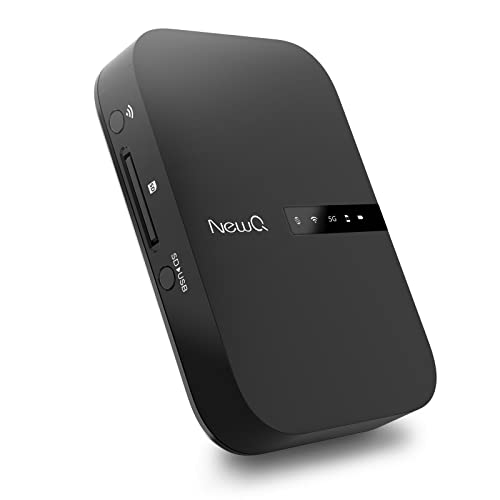
Every other pick in this guide is a router that can share a drive. The NewQ Filehub is a drive-sharing device that can route. Its title describes a portable hard drive and SD card reader combined with a mini Wi-Fi range extender, built to give wireless access to an external hard drive or USB storage device and to back up photos and files from an iPhone. That is a travel photographer’s problem stated precisely: cards fill during the day, the laptop stayed home, and the copies need to exist somewhere safer than a single SD card in a camera bag. The Filehub creates its own little network, lets phones and tablets browse the attached storage, and moves the day’s work onto a drive.
Its AC750 wireless class and travel-router scale disqualify it from home-router duty in any house larger than a hotel room, and this guide will not pretend otherwise. But within its stated mission it is the only pick whose storage features are the headline rather than a bullet point — SD card reading included, which no router above offers at all. Travellers, field workers and anyone whose “network storage” problem happens in tents, vans and rented desks will recognise their device immediately.
- Class: AC750 travel router and file hub
- Storage per title: External hard drive and USB storage access, SD card reader, phone photo and file backup
- Extras in title: Mini Wi-Fi range extender function
- Home-router role: Not its purpose — scale is travel-sized by design
Strengths
- SD card reading plus drive sharing solves the travelling photographer’s backup problem in one pocketable box.
- Wireless access to attached storage works with phones and tablets, no laptop required.
- Range-extender duty gives it a second job in hotels and rentals.
Trade-offs
- AC750 wireless and travel scale cannot serve as a whole home’s router.
- Its storage sharing is session-based travel tooling, not an always-on household archive.
- Everything about it optimises for portability over throughput.
Best for: travellers and photographers who need card and drive access from a phone, anywhere, without a computer.
Not suited for: a family looking for the always-on shared drive at the centre of a home network — start at the BE230.
If your storage problem travels with you, the NewQ Filehub listing on Amazon describes a tool shaped exactly like that problem.
How Does Router Storage Compare with a Small NAS, Line by Line?
Put the two side by side and the differences stop being vibes and become a checklist. Redundancy: a NAS can mirror one drive onto another so a failure is an errand; a router’s single drive makes a failure a loss, full stop. Users and permissions: a NAS runs accounts, so a child’s folder, a work folder and a public folder can coexist under different rules; router sharing typically offers a password or two and a broad gate. Applications: a NAS hosts photo organisers, media servers that transcode for the television, download managers, synchronisation tools that keep a laptop and a desktop in agreement; a router offers the folder, and the folder is the whole offer. Capacity growth: a NAS takes a second, third and fourth drive as the archive grows; a router takes the one drive you plug in, and when it fills, the upgrade is a bigger single drive and a copying afternoon.
Performance under load is the subtlest line. A NAS is a computer whose only job is storage, with memory and processor budgeted for queues of readers and writers. A router’s processor is a shared servant — Wi-Fi management, routing, firewall duty and your file transfer all queue at the same desk. In a quiet house the difference is invisible; in a house where a backup, two streams and a game update coincide, the NAS keeps its composure and the router’s sharing slows to a walk. None of this makes router storage a bad product. It makes it a scoped product, and the scope is printed in this comparison: one drive, light concurrency, no software ambitions. Readers who recognise their household inside that scope can buy any of the confident picks above without a flicker of regret. Readers who found themselves nodding at the NAS column three times should stop shopping for routers with ports and start shopping for the real thing — their future selves, mid-archive-migration, will send thanks.
Which Household Jobs Belong on the Shared Drive, and Which Do Not?
The jobs that belong are the ones defined by convenience rather than consequence. The media shelf belongs: films, music and recorded programmes that the television reads and the household enjoys, because a hiccup costs an evening’s entertainment and nothing more. The household commons belongs: the folder of forms, manuals, school documents and scanned letters that everyone needs twice a year and nobody can ever find. The staging shelf belongs: files in transit between machines, the installers and disk images and project exports that are too big for a message and too temporary for an archive. Phone photo drops belong, with the standing rule that the drive is a waystation — the photographs’ permanent home is a backup that exists in at least two places.
The jobs that do not belong are equally recognisable. The sole copy of anything does not belong, ever, for the arithmetic reason repeated throughout this guide. A business’s working records do not belong on a share with a household password and no audit trail. A media library that must transcode for several different screens at once does not belong on firmware that never promised the trick. And a backup target for the very computer that also holds the only other copies does not belong, because a single incident — theft, flood, one bad power event — takes both copies in the same hour. Sorting your own folders by this test takes ten minutes and is worth more than any single purchasing decision in the category: the drive’s contents should be the things the household would shrug about losing and smile about reaching.
What Should You Check During the First Month of Router Storage?
The first week teaches you the share’s real speed, so pay attention while it is still interesting. Note how long a genuinely large copy takes at the hour your household is busiest, not at dawn when the network is empty; that busy-hour figure is the one your habits must fit. Check that every device you promised access can actually reach the share after a router reboot, because some clients forget mapped drives the way guests forget a new address. In the second week, test the failure you hope never matters: unplug nothing, but look — actually look — at where the second copy of the shared folder’s important contents lives, and fix the answer if it embarrasses you. By the end of the month, review who knows the share password and whether the guest network can see the drive; both answers drift over time in every household, and a monthly glance is the difference between a tool and a liability. Owners who run this small checklist once tend to keep router storage for years without incident, because the technology was never the risky part — the assumptions were.
How Will a Router-and-Drive Arrangement Age Over Five Years?
Year one is the honeymoon measured above: the share is fast enough, the folder names still make sense, and the household wonders why it ever emailed files to itself. Year two is when the drive quietly fills, because shared storage obeys the law that any available shelf accumulates objects; the households that thrive are the ones that treat the annual tidy as a calendar event rather than a crisis, archiving the finished projects and deleting the duplicates that breed in staging folders. Year three usually brings the first device change — a new television, a laptop that speaks a newer Wi-Fi generation, a phone whose backup habits differ — and the share absorbs them all without ceremony, which is the deep, unglamorous virtue of a simple network folder: everything knows how to talk to it.
Year four is when the honest households hold the NAS conversation again, with evidence. If the log of frustrations is empty, the arrangement has years left and the conversation ends in ninety seconds. If the drive has filled twice, if three people now work from home, if the media shelf has become a media library with opinions, the evidence argues for graduation — and nothing spent on the router was wasted, because the BE230 and BE400 remain excellent routers with the drive unplugged, and the drive itself moves to backup duty. Year five belongs to the drive hardware: spinning drives age, and a five-year-old disk that holds the household commons deserves replacement on suspicion rather than post-mortem. The pattern across all five years is that router storage succeeds when it is treated as furniture — placed once, maintained lightly, replaced when worn — and fails when it is treated as a datacentre. Every pick in this guide is furniture-grade by design, and the household that buys with that metaphor in mind will find the category exactly as honest as its titles.
What Else Competes for That USB Port?
A router’s USB port leads a double life, and the second tenant is worth a paragraph before you commit the port to a drive forever. The classic alternative is a printer: a USB printer plugged into a router becomes a network printer, printable from every computer in the house without a host machine left awake. Several households in this category’s audience will face exactly that fork — drive or printer — and the titles in this pool do not arbitrate it, because printer sharing is a firmware feature no title here mentions. The manufacturer’s documentation for the specific model is, once again, the only honest referee. A second alternative tenant is a cellular modem on routers that support USB WAN duty; nothing in this pool’s titles claims that role, so it stays a documentation question too. And a third is nothing at all: a household that streams everything and keeps its files in a single well-backed-up computer may find the port’s best use is as a charging socket for a headset, which is a fine and honest outcome. The point of the fork is simply that the port is a small piece of household infrastructure with several claimants, and choosing the drive should be a decision, not a default. Decide it before the drive is formatted and filled, because reassigning a port that a household has built habits around is a negotiation nobody enjoys.
The Six at a Glance: Radios, Ports and Storage Hooks
| Pick | Wi-Fi class | Storage hook per title | Platform note |
|---|---|---|---|
| TP-Link Archer BE230 | Wi-Fi 7 BE3600 | USB 3.0 | 2.0 GHz quad-core, 2× 2.5G + 3× 1G |
| TP-Link Archer BE400 | Wi-Fi 7 BE6500 | USB 3.0 | Quad-core, dual 2.5Gbps ports |
| Linksys EA8500 | Wi-Fi 5 AC2600 | USB 3.0 and eSATA | 4×4 MU-MIMO |
| TP-Link TL-WDR3600 | Wi-Fi 4 N600 | Not mentioned in title | Gigabit Ethernet |
| TP-Link TL-WDR3500 | Wi-Fi 4 N600 | USB port (generation unstated) | IP QoS, wireless on/off switch |
| NewQ Filehub AC750 | Wi-Fi 5 AC750 | Drive + USB storage access, SD reader | Travel router / extender |
The storage column is the whole guide in miniature: three confident modern claims, one legacy connector pair, one honest legacy port, one title that stays silent — and one device that makes storage its entire identity. Print it and tape it inside the network cupboard door; it will answer most of the questions the household asks in the first month, and several in the second.
What Mistakes Do People Make with Router Storage?
The foundational mistake is expecting a NAS and receiving a shared folder. Buyers read “NAS” into a router’s USB port, then go looking for redundancy settings, user permissions and media applications that were never in the product, and conclude the router is broken when the truth is the category was mislabelled in their head. The second mistake is the single-copy archive: the shared drive becomes the only home of family photographs because it feels like a server, and a drive failure becomes a bereavement. Router storage is a convenience copy; the originals still need a backup plan. Third is the speed surprise — plugging a drive into an unspecified or older USB port and expecting the transfer pace of a wired NAS. Fourth is leaving the share wide open on a network that also hosts guests and gadgets; a password prompt is a small toll for a large calm. And the fifth is yanking the drive out without unmounting it, the small violence that corrupts filesystems quietly and is discovered months later, at the worst possible moment. A sixth, quieter mistake deserves naming because it produces more support questions than the other five combined: connecting to the share over a guest network or a segregated IoT network and concluding the drive is broken, when the router is doing exactly what it was told — keeping guest and device networks away from the household’s private resources, the shared folder first among them. The share lives on the main network by design; check which network the complaining device is actually on before rebooting anything, and the mystery usually solves itself in the time the kettle takes to boil.
Final Recommendation
Buy the Archer BE230 if you are replacing a router and want storage sharing done on current hardware; step up to the BE400 when the house is large enough that reach decides whether the shared drive feels real. Keep the EA8500 in mind if eSATA storage already lives on your shelf, treat the WDR3500 as the honest legacy option for light duty, and let the WDR3600 stand as the guide’s reminder to read titles before trusting reputations. Pack the NewQ Filehub when the storage problem travels. A router’s shared drive will never be the archive of record for a family’s life — but as the household’s always-awake common shelf, chosen with open eyes, it earns its small place in the cupboard. Choose it the way you would choose any shelf: by the wall it hangs on, the weight it must carry, and the honesty of the label on the box — and a USB 3.0 port stated plainly in a listing title, backed by a processor with room to breathe, is the most honest label this category prints.
Frequently Asked Questions
Is a router with a USB drive a real NAS?
No, and the distinction is practical rather than pedantic. A NAS is a dedicated storage computer with drive bays, redundancy options and its own application ecosystem. A router shares one attached drive to the network through its firmware. The router version covers shared folders, media for the television and simple backups of small things; the moment you need several drives protecting each other, multiple managed users or media software, you have described a NAS and should buy one.
How fast will file transfers be?
The ceiling is set by the slowest link in the chain: the USB generation on the router, the drive itself, and whether the reading device is wired or on Wi-Fi. USB 3.0 picks like the BE230, BE400 and EA8500 start from a far higher ceiling than a legacy port, and a wired computer will always show the platform at its best. No title in this pool publishes a measured sharing speed, so treat the first big file you copy at home as the honest benchmark for your setup.
Can I use the shared drive for backups?
Yes, as a destination for copies — with the emphasis on copies. A backup that exists only on the router’s drive is one drive failure away from not existing. Use the share as the convenient, always-on target that makes backing up effortless, and keep a second copy of anything irreplaceable somewhere else. Router storage makes good habits easy; it does not repeal the arithmetic of single points of failure.
Why is the TL-WDR3600 in a NAS guide if its title never mentions USB?
Because shoppers meet it under this keyword and deserve a straight answer. Its listing title describes an N600 dual-band gigabit router and makes no storage claim, so this guide includes it with the caution printed in full rather than certifying a feature the listing does not state. Anyone buying for storage should either verify the exact unit’s documentation first or choose a pick whose title carries the claim, like the TL-WDR3500.
What drive should I plug into the router?
A drive whose loss would inconvenience rather than devastate you, sized for the household’s shared material rather than its entire history. Bus-powered portable drives are tidy; desktop drives with their own power supplies ask nothing of the router’s USB power and suit always-on duty. Format and sharing options live in each router’s documentation — follow the manufacturer’s instructions for the model you own rather than generic advice, because firmware generations differ.
Can people outside my home reach the shared drive?
Not through the router’s sharing feature alone, and that restraint is a virtue. Remote access done safely usually means reaching the home network through a VPN server first and then browsing the share as if you were home. Keep the share itself off the open internet; the tunnel is the door, the folder is just a room behind it.
Should the shared drive stay awake all night?
Mostly, yes — the always-on nature of the arrangement is its charm, since a share that sleeps through the phone’s overnight backup window is a share that quietly stops being backed up to. Desktop drives with their own power supplies manage their own spin-down behaviour, and routers generally keep the share advertised regardless. If overnight noise from a spinning drive bothers the room it lives in, the fix is placement, not scheduling: a cupboard with ventilation, a shelf behind a door, anywhere the small hours stay quiet. Let the drive nap on its own hardware’s terms and keep the service itself permanently on duty.
What happens to the share when I replace the router?
The files stay exactly where they were — on the drive, in ordinary folders — because the router was only ever the share’s announcer, not its container. Unplug the drive, attach it to the new router, recreate the share with the same name and access rule, and the household’s devices will mostly find their shelf again with at most a fresh sign-in. This portability is an underappreciated virtue of the simple arrangement: nothing is locked inside a proprietary box, and the exit cost of the whole experiment is one unplugged cable.
Related Guides
Storage lives inside a wider network, so round out the picture with the Best Wall-Mounted Routers and Access Points, the Best Ceiling-Mounted Routers and Access Points and the Best Bridgeable Wireless Routers.