What's inside
- Key Takeaways
- Quick Picks
- How Did We Decide What Counts as Bridgeable?
- What Problems Does a Wireless Bridge Actually Solve?
- Which Questions Separate a Good Bridge Purchase from a Regret?
- How Do You Set Up a Wireless Bridge Without Creating a Second Network by Accident?
- Three Bridges in the Wild
- How Does a Bridge Age Inside a Growing Network?
- How Should You Think About the Security of an Invisible Cable?
- Bridge, Powerline or Cable: The Honest Contest for One Room
- What Does the First Week with a New Bridge Teach You?
- How Do You Read a Bridge’s Title Like an Installer?
- Which Devices Forgive a Bridge, and Which Keep Score?
- Bridges, Compared by Mode and Mission
- What Mistakes Turn a Bridge into a Headache?
- Final Recommendation
- Frequently Asked Questions
- Related Guides
As an Amazon Associate I earn from qualifying purchases. This post may contain affiliate links at no extra cost to you.
widgetverdict.com is reader-supported. When you buy through links on our site, we may earn an affiliate commission.
Where to buy: Amazon carries all six devices below, and every pick links to the listing whose title we checked for the word “bridge” — and for the exact company that word keeps — before including it. These are small, specialised boxes that general retailers rarely stock on shelves, so the online listings are the practical route.
A bridge is networking’s most useful small lie: two parts of a network that are not connected by cable agree to behave as if they were. The best bridgeable wireless routers and bridges in this guide exist for the moments when that lie is exactly what a building needs — a printer with only an Ethernet socket in a room with no Ethernet, a games console or media box that wants a wire, a workshop at the garden’s end, a wired device that must join a wireless world. A bridge-mode device associates with your existing Wi-Fi like any client, then offers its Ethernet port — or ports — to wired equipment, carrying their traffic across the air as if a cable ran the distance. It is the opposite direction from an access point, which turns a cable into wireless; a bridge turns wireless back into a cable’s end. Confusing the two is the category’s founding mistake, and this guide will keep them separated on every page.
The six picks divide by scale and intent. Two TP-Link travel routers — the Wi-Fi 5 multi-mode unit and the pocket TL-WR802N Nano — treat bridge as one mode among six in a traveller’s toolkit. Two TP-Link desktop access points, the TL-WA1201 and TL-WA1801, list “Desktop WiFi Bridge” in their titles as a headline function of a proper four-antenna box. And two VONETS specialists — the miniature VAR11N-300 and the industrial-flavoured VAR1800-H — are bridges first and everything else second, built to give wired machines a wireless life. Every title here states bridge functionality outright, which is this guide’s entrance requirement; where a related idea such as WDS or custom firmware is not in a title, it is not in this guide’s claims either.
Key Takeaways
- A bridge connects wired devices to an existing wireless network; an access point does the reverse. All six titles here state bridge or bridge-mode support in their own words.
- Every device behind the bridge shares the bridge’s single wireless connection, so the link’s real-world speed is the whole group’s speed.
- The TP-Link travel routers and nano treat bridging as one of several modes; the VONETS pair are dedicated bridges with router and repeater sidelines.
- The TL-WA1201 and TL-WA1801 are desktop access points whose titles headline their bridge function, with four fixed antennas and multi-SSID talents besides.
- The VAR1800-H is the heavy lifter: three gigabit ports, wide-voltage and 48V PoE power options, and IP and MAC transparent transmission for devices that dislike NAT.
- No title here mentions WDS or third-party firmware, so neither is claimed anywhere in this guide.
- A bridge’s resale and reuse value is the category’s hidden dividend: the same box serves the printer this year, the annex next year and the draughty exhibition stand in the year after that, without a single complaint.
Quick Picks
| Pick | Badge | Why it earns its place |
|---|---|---|
| TP-Link WiFi 5 Travel Router (Multi-Mode) | The six-mode traveller | Router, hotspot, bridge, range extender, access point and client modes in one dual-band travel box with USB 2.0. |
| TP-Link TL-WR802N Nano | The pocket bridge | N300 nano router with bridge, extender, access point and client modes, sized for a pocket. |
| TP-Link TL-WA1201 | The desktop all-rounder | AC1200 gigabit access point headlining its desktop bridge mode, with MU-MIMO, beamforming and four antennas. |
| TP-Link TL-WA1801 | The Wi-Fi 6 desktop bridge | AX1800 access point with bridge, client and extender modes, HE80 and passive PoE in its title. |
| VONETS VAR11N-300 | The miniature specialist | 300Mbps mini router and Wi-Fi bridge that converts wired devices to wireless, with a hotel access-point mode. |
| VONETS VAR1800-H | The transparent workhorse | 1800Mbps bridge/repeater/router with three gigabit ports and IP and MAC transparent transmission. |
How Did We Decide What Counts as Bridgeable?
The entrance exam was a single word, required in the title itself: bridge. Not “extender,” which repeats a network onward; not “client,” though client mode is the bridge’s close cousin; the explicit bridge function, stated by the manufacturer in the listing. All six picks pass that exam in their titles’ own phrasing, from the travel router’s mode list to the VONETS boxes’ very product names. Beyond the gate, we scored the things a bridge’s owner actually lives with: how many wired ports wait behind the wireless link, what power arrangements the title offers, whether the box is a dedicated bridge or a traveller for whom bridging is Tuesday’s job, and how the title describes the traffic’s treatment — the VAR1800-H’s transparent transmission being the sophisticated end of that spectrum.
We also drew the honesty lines this category needs. A bridge does not create bandwidth; it spends the host network’s. A bridge is not a mesh node, however similar the shelf talk sounds. And no firmware folklore was admitted: where a title does not name WDS, OpenWrt or DD-WRT, this guide attributes none, however lively the forum threads about a model may be. The listing is the contract; the six contracts below all say bridge.
What Problems Does a Wireless Bridge Actually Solve?
The canonical problem is the wired-only device in a wireless-only room. Printers, older televisions, desktop PCs in converted bedrooms, IP cameras, hi-fi streamers, industrial controllers, the till in a market stall — the world is full of equipment with an Ethernet socket and no radio, installed in places where running a cable means drilling, lifting floors or negotiating with a landlord. A bridge the size of a matchbox ends the argument: it joins the Wi-Fi as a client, the device plugs into it as if the wall socket had always existed, and the network never learns the difference. The second canonical problem is distance with dignity: the garden office, the garage workshop, the annex across a courtyard, where a cable run is a weekend of trenching and a bridge is an hour of alignment and testing.
The third problem is subtler and increasingly common — devices that misbehave behind double translation. Some equipment expects to be found on the network by its own address and identity; a cheap repeater that rewrites identities can leave it undiscoverable. That is the need the VAR1800-H’s title addresses with IP and MAC transparent transmission: the wired device keeps its network identity across the wireless hop, so discovery protocols and fixed addressing survive the journey. Most households will never need that sentence. The ones who do will read it in the title like a name called across a room. There is a fourth problem, quieter than the other three, that fills the order books of every bridge maker: time. A bridge is the only network infrastructure that can be fully installed between a phone call and lunch — no trades, no dust, no redecoration, no waiting for a landlord’s committee. Temporary offices, exhibition stands, seasonal shops, the six months a project team spends in a borrowed building: all of them run on bridges, because the alternative is infrastructure whose installation outlasts the tenancy. Permanence is a virtue in a headquarters and an absurdity in a pop-up, and the bridge is the rare product that understands both buildings equally well.
Which Questions Separate a Good Bridge Purchase from a Regret?
Count the wired mouths to feed. One device behind the bridge suits the nano and the travel routers; a desk with a PC, a printer and a phone wants the VAR1800-H’s three gigabit ports or a small switch behind a single-port bridge — a legitimate pattern, provided the switch’s cost joins the arithmetic. Ask next how far and through what the wireless hop must travel, because the bridge can only spend the signal it receives: a bridge installed in the room where Wi-Fi already dies will faithfully deliver that death to a wired port. Position is the bridge’s whole craft — high, clear of metal and water, in the part of the room where a phone shows honest signal. Then ask what the wired device believes about the network. A laptop-behind-a-bridge neither knows nor cares; a device that must be discovered, addressed directly or trusted by other machines may need the transparent treatment, and that requirement should be settled before the order, not after the swearing.
Power is the last question and the one titles answer unevenly. The VAR1800-H’s wide-voltage DC range and 48V PoE options suit sheds, vehicles and installations where a wall socket is a rumour; the TL-WA1801’s passive PoE suits a tidy desk run; the travel pair sip from USB-era arrangements their titles gesture at through their travel nature. And spare a thought for the network’s centre while shopping for its edges: a bridge is only as good as the router it joins, and readers rebuilding that centre for guests or for remote access will find the neighbouring guides on the Best Routers for Hotels and Guest Wi-Fi and the Best Routers for VPN Server Hosting worth the detour.
How Do You Set Up a Wireless Bridge Without Creating a Second Network by Accident?
Configure the bridge before you install it, at a desk, with a laptop wired to it and the manual open — every model here is configured through its own interface in client or bridge mode, and the desk is where mistakes are cheap. The single decision that defines success is the mode itself: choose bridge (or the client mode that the specific model uses for bridging, per its documentation), not router mode. A bridge left in router mode creates a private sub-network behind it — devices work, sort of, until discovery, sharing and inbound connections quietly fail, and the owner blames the Wi-Fi. Join the bridge to the host network with the exact SSID and password of the network it must extend, on the band that reaches its position most honestly; for a fixed installation across a building, the band with the stronger real signal at the bridge’s perch wins over the band with the prouder number.
Give the bridge a fixed, memorable address outside the router’s automatic pool, and write it on a label on the box, because the bridge you cannot find in six months is the bridge you will factory-reset at midnight. Plug in the wired device, then test the things that distinguish a bridge from a rumour: the device pulls an address from the main router, other machines can reach it by that address, and a large transfer holds its pace for minutes, not seconds. Walk the route the traffic walks and look for the dumb obstructions — the bridge perched behind the television it serves, the metal cabinet door closed against it. Finally, record the mode, the band and the address in the household network notes. A bridge configured this way becomes what it should be: a piece of cable that happens to be invisible, maintained by the notes and forgotten by everyone else. If the wired device at the end of it is a shared drive, the Best Routers with NAS Storage Sharing explains what that drive can and cannot promise once it joins the network this way.

TP-Link WiFi 5 Travel Router (Multi-Mode) — The six-mode traveller
TP-Link’s travel router arrives with the longest mode list in this guide: router, hotspot, bridge, range extender, access point and client, all named in the title, in a dual-band Wi-Fi 5 box with a USB 2.0 port. That versatility is the product. The same unit that bridges a wired printer to a home network this winter can ride in a bag next spring and turn a hotel’s wired socket or captive Wi-Fi into a personal network — a life story no dedicated bridge can match. As a bridge specifically, it offers the traveller’s version of the job: competent, quick to configure, and honest about its class, since travel hardware trades raw link speed for size and flexibility every time.
Choose it when the bridge duty is one chapter of the device’s life rather than its whole biography. A permanent installation feeding several wired devices at full tilt will outgrow it; a household that needs a bridge this month, an extender at the in-laws’ next month and a travel companion after that has found the one box that signs all three contracts.
- Form: Travel router, Wi-Fi 5 dual-band
- Modes per title: Router, hotspot, bridge, range extender, access point, client
- Extras in title: 1× USB 2.0 port
- Bridge class: One mode among six — versatility over specialisation
Strengths
- Six named modes make it the most reusable small network box in this guide.
- Dual-band operation gives the bridge a choice of lanes to the host network.
- The USB port adds light sharing tricks the dedicated bridges do not offer.
Trade-offs
- Travel scale means one wired device at a time is the natural workload.
- Wi-Fi 5 class caps the hop below the WA1801’s Wi-Fi 6 link.
- A jack of all modes is the master of none; dedicated installs deserve dedicated boxes.
Best for: a household or traveller who needs bridging among several rotating network jobs.
Not suited for: a permanent multi-device wired outpost — the VAR1800-H was built for that desk.
Read the mode list on the travel router’s Amazon listing as a whole; the bridge is one line of a longer and more useful story — the story of a box that has never once been the wrong thing to have in the bag, whatever the building turned out to need.

TP-Link TL-WR802N Nano — The pocket bridge
The TL-WR802N has been the pocket answer to small network problems for years, and its title keeps the promise compact: an N300 wireless portable nano travel router with bridge, range extender, access point and client modes, described with disarming honesty as “mobile in pocket.” As a bridge it is the minimum viable miracle — one wired device, joined to the household Wi-Fi, through a box that disappears behind the device it serves. Hotel desks, a single printer, a media player in a guest room, the network camera that must live where the cable does not: the nano’s entire career is a list of small rescues.
Its limits are printed in its class. N300 is a single-band, earlier-generation link, so the bridge’s ceiling is the lowest in this guide, and a bandwidth-hungry device behind it will feel the ceiling daily. Buy the nano for the device whose needs are modest and whose location is the whole problem — which describes a surprising fraction of the wired orphans in any home.
- Form: Nano travel router, N300
- Modes per title: Bridge, range extender, access point, client
- Size claim in title: Pocket-sized (“mobile in pocket”)
- Bridge class: Single-device rescues at N300 pace
Strengths
- The smallest, simplest bridge in the guide — deployable in minutes, forgettable for years.
- Four modes give a pocket tool more second lives than any rival here.
- Ideal for the single wired orphan whose traffic is light.
Trade-offs
- N300 single-band link is the slowest hop in this guide.
- One wired port and travel scale cap the installation’s ambition.
- No gigabit anything; wired speed inherits the wireless ceiling.
Best for: one modest wired device stranded in a wireless room, at home or on the road.
Not suited for: a desk of devices or a media workload with real bandwidth appetite.
For the classic one-device rescue, the TL-WR802N’s Amazon listing remains the smallest complete answer in the category — the kind of purchase that is forgotten by Friday and still quietly working, behind some printer or console, half a decade later.
TP-Link TL-WA1201 — The desktop all-rounder
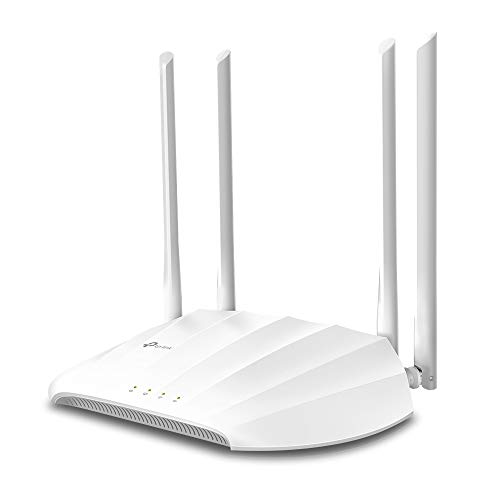
The TL-WA1201 is what happens when bridging grows up and gets a desk. Its title names it an AC1200 dual-band wireless gigabit access point, then headlines “Desktop WiFi Bridge” among its functions, adding MU-MIMO, beamforming, multi-SSID support, client and range extender modes, and four fixed antennas. Those antennas are the story for bridge duty: a desktop box that can be positioned, aimed and left in the open will hold a stronger, steadier hop than a pocket device behind a television, and the gigabit Ethernet side means the wired device is never the bottleneck the wireless link did not already impose. As an access point on other days, the multi-SSID and beamforming talents serve a small office properly.
The WA1201 asks for what the travel boxes do not: a permanent home, a power socket, and an owner configuring modes deliberately. In exchange it is the first pick in this guide that a small business could deploy at a remote desk and simply stop thinking about — the bridge as furniture rather than as gadget.
- Form: Desktop access point, AC1200 dual-band, gigabit
- Modes per title: Desktop bridge, client, range extender, access point with multi-SSID
- Radio details in title: MU-MIMO, beamforming, 4 fixed antennas
- Power: Desktop unit; the title does not offer PoE — plan on its standard power arrangement per the listing documentation
Strengths
- Four positionable antennas hold a steadier bridge hop than pocket hardware.
- Gigabit wired side respects the wired device’s own capability.
- Access-point talents give the box a second career if the layout changes.
Trade-offs
- Desktop size and power needs end the travel fantasies.
- AC1200 Wi-Fi 5 class sits a generation behind the WA1801.
- A single wired port still means one device, or a switch behind it.
Best for: a fixed desk, printer station or media corner needing a grown-up bridge with antenna authority.
Not suited for: a pocket, a suitcase or a socket-free corner.
Fixed installations should compare the TL-WA1201 on Amazon directly against its Wi-Fi 6 sibling below; the desk will tell you which it needs — and if the desk’s devices are patient and the host network is Wi-Fi 5, the desk will usually give this box its blessing and spend the difference on the cable clips and the label maker.

TP-Link TL-WA1801 — The Wi-Fi 6 desktop bridge
The TL-WA1801 is the WA1201’s successor in every way its title can express: AX1800 Wi-Fi 6 instead of AC1200, HE80 channel width named outright, beamforming, multi-SSID, client and range extender modes beside the headline desktop bridge function, four fixed antennas, gigabit Ethernet — and passive PoE, the installation detail that changes where the box may live. Passive PoE lets the WA1801 sit at the end of a single cable run carrying both data-facing power and placement freedom, up high on a shelf or cabinet where its antennas see the host network clearly, rather than tethered to wherever a socket happened to be. For a bridge — a device whose entire value is the quality of one wireless hop — that placement freedom is not a footnote; it is close to the whole product.
Wi-Fi 6’s efficiencies compound the advantage when the host network is itself Wi-Fi 6, since the hop inherits the newer generation’s manners under load. Against that, the WA1801 remains a single-port bridge at heart: one wired device, or a switch’s worth behind it. Within that shape, it is the most capable desktop bridge in this guide.
- Form: Desktop access point, AX1800 Wi-Fi 6 dual-band, gigabit
- Modes per title: Desktop bridge, client, range extender, multi-SSID access point
- Radio details in title: HE80, beamforming, 4 fixed antennas
- Power per title: Passive PoE supported
Strengths
- Wi-Fi 6 with HE80 gives the hop the newest manners and widest lane in this guide’s desktop class.
- Passive PoE frees placement, and placement is a bridge’s destiny.
- Antenna array and beamforming suit fixed links across real rooms.
Trade-offs
- Passive PoE is its own ecosystem detail — match the injector to the documentation, not to assumptions.
- Still one wired port before a switch enters the plan.
- Desktop permanence: it will not travel, and does not pretend to.
Best for: a permanent wired outpost — desk, studio, workshop bench — on a Wi-Fi 6 host network.
Not suited for: a multi-port wired cluster without adding a switch to the bill.
Permanent installations on modern networks should start at the TL-WA1801’s Amazon listing; it is the desktop bridge with nothing left to apologise for — not the hop’s generation, not the antennas, not the placement its power arrangement permits, and not the wired side waiting at the end of it.

VONETS VAR11N-300 — The miniature specialist
VONETS builds bridges the way some firms build only locks, and the VAR11N-300 is the miniature of the line: a 300Mbps mini router and Wi-Fi bridge, three-in-one across router, repeater and bridge roles, whose title states its purpose in the plainest words in this guide — “converts wired to wireless.” That is the entire job description of the category, printed on the box. Its hotel mode, an access-point arrangement for travel, gives the little unit a second life in rooms where the network is someone else’s, but the bridge is the headline and the reason the VAR11N exists.
Scale your expectations to its 300Mbps class and pocketable intent: this is a per-device instrument, the thing you wire to the printer, the camera, the controller or the older console and then forget exists. Installers keep such units in the van the way electricians keep connectors — because the call that needs one never announces itself in advance. For a single wired orphan with modest traffic, the specialist’s simplicity beats the generalist’s menu every time.
- Form: Mini router and Wi-Fi bridge, 300Mbps class
- Modes per title: 3-in-1 router, repeater, bridge; hotel mode (access point)
- Purpose per title: Converts wired devices to wireless; for travel and home
- Bridge class: Dedicated per-device bridging
Strengths
- A dedicated bridge with no menu-diving: the conversion is the product.
- Miniature size hides behind the device it serves.
- Hotel mode gives the same box a travel personality when needed.
Trade-offs
- 300Mbps class is a modest ceiling for anything beyond one light device.
- Specialist minimalism means few ports and fewer second careers.
- Documentation culture is installer-grade, not consumer-glossy.
Best for: a single wired device — printer, camera, controller — that must join Wi-Fi invisibly.
Not suited for: a media desk or any device whose appetite is measured in sustained megabits.
For the one-device conversion, the VAR11N-300’s Amazon listing is the specialist’s business card; keep the model number for the next orphan too, because in any building with a storeroom of ageing equipment, there is always a next orphan, and it always announces itself on a Friday afternoon.

VONETS VAR1800-H — The transparent workhorse
The VAR1800-H is the bridge for installations that have stopped being hobbies. Its title stacks an 1800Mbps 5.8GHz Wi-Fi bridge, repeater and router with three gigabit Ethernet ports, a wide DC12V–48V power range plus 48V PoE, and the connoisseur’s line: IP and MAC transparent transmission, supported by the brand’s TAFC stable-frequency technology. Translate the poetry and a serious machine emerges — one wireless hop feeding three wired devices at gigabit, powered by whatever a vehicle, cabinet or industrial run can offer, and carrying each device’s network identity across the hop intact, so discovery, fixed addressing and access rules built on those identities keep working on the far side.
That transparency is the dividing line between this and every cheaper bridge: equipment that must be found, trusted or addressed as itself — cameras, controllers, point-of-sale gear, the machinery of small industry — survives the crossing as a citizen rather than a translation. The wide-voltage appetite completes the portrait of a device meant for cabinets, kiosks, outbuildings and vehicles rather than desks. It is overkill for a printer and exactly right for almost everything the printer’s owners graduate to.
- Form: Wi-Fi bridge / repeater / router, 1800Mbps class, 5.8GHz
- Ports per title: 3 gigabit Ethernet ports
- Power per title: Wide voltage DC12V–48V and PoE 48V
- Signature feature: IP and MAC transparent transmission; TAFC stable frequency technology
Strengths
- Transparent transmission preserves wired devices’ identities across the hop — the pro feature of this guide.
- Three gigabit ports serve a real cluster without an added switch.
- Wide-voltage and PoE power suit cabinets, vehicles and outbuildings.
Trade-offs
- Its talents are wasted on a single light device behind a television.
- Installer-grade configuration assumes an owner comfortable with network identity concepts.
- The 5.8GHz emphasis rewards clear paths; range through masonry is physics’ department.
Best for: cameras, controllers, kiosks and outbuilding clusters that must keep their network identities.
Not suited for: a traveller’s suitcase or a single sleepy printer.
Installations with identity-sensitive equipment should read the VAR1800-H listing on Amazon in full; its transparency line is the specification that decides — and everything else in the title, the ports and the power range included, reads like a device designed by people who have actually been rained on inside a cabinet at midnight.
Three Bridges in the Wild
A market gardener runs a packing shed sixty metres from the farmhouse, with a label printer, a scale and a camera that all speak only Ethernet. A cable across the yard was quoted as a project; a VAR1800-H on the shed wall, fed by the farm’s odd assortment of available power, was an afternoon. The printer keeps its fixed address, the camera keeps its identity for the recording software in the house, and the hop crosses open air that a phone survey said was honest. Contrast the student flat where the landlord’s Wi-Fi is excellent and the tenancy forbids both drilling and a router of one’s own: a TL-WR802N behind the television gives the games console and the media box their wired dignity, and the whole installation can leave in a coat pocket at the term’s end, which is precisely the tenancy’s terms expressed as hardware.
The third bridge lives in a dental practice, of all places, where an imaging device with an Ethernet-only temperament sits in a surgery whose walls may not be opened. A TL-WA1801 on the cabinet top, placed there because its passive PoE freed it from the socket map, carries the imager’s traffic to the practice network at Wi-Fi 6 manners, and the staff’s only interaction with the arrangement is that it works. Three buildings, three budgets, one idea: the cable that is not there, installed in an afternoon and forgotten by design. If your problem rhymes with any of these, the corresponding pick above is not a compromise — it is the intended tool, and the trenching quote can be framed as a souvenir.
How Does a Bridge Age Inside a Growing Network?
Quietly, and then all at once — the bridge’s biography in every network that succeeds. In year one it serves the device it was bought for, and its invisibility is total. In year two the household or business notices the trick and begins to lean on it: a second device joins through a small switch, the hop that carried a printer now carries a workstation’s afternoons, and the link’s shared nature — invisible at light load — becomes the ceiling everyone negotiates with. This is the moment the desktop class earns its retrospective praise, because a WA1801’s antenna authority and Wi-Fi 6 manners postpone the negotiation for years, while a pocket bridge bought for a printer should never have been asked to grow a desk.
The mature pattern is promotion and replacement in the right order. When a bridged outpost becomes permanent and busy, it graduates to a real cable run or a proper access point with wired backhaul, and the bridge — unharmed, still useful — retires to the next small rescue, because bridges are the most reusable devices in networking. Owners who understand this buy the first bridge a class above the first problem, keep its box, and treat it as the network’s permanent fire brigade: deployed in an hour wherever a wired orphan appears, relieved when the permanent infrastructure arrives. The six picks span that whole career, from the nano’s pocket to the VAR1800-H’s cabinet, and a network is never poorer for owning one of each end.
How Should You Think About the Security of an Invisible Cable?
A bridge extends your network’s trust across the air, and it deserves the same three questions you would ask of a cable that left the building. First: is the hop encrypted to the current standard your router offers? The bridge joins with the network’s own credentials, so the Wi-Fi password’s strength and the encryption generation you run are the hop’s armour — a bridge is one more reason to retire ancient settings on the host network. Second: who can administer the bridge itself? Change its default admin password during the desk configuration, because a device that forwards your traffic should not answer to a password printed in a thousand manuals. Third: what, exactly, have you plugged into it? A bridge faithfully serves anything wired to it, which makes its far port a network socket in whatever room it occupies — in a guest space or a public corner, that socket should be as deliberate a decision as the guest SSID itself.
None of this is cause for alarm; it is cause for the same calm paperwork as the rest of the install. Record the bridge’s address and credentials in the network notes, keep its firmware in the same update rhythm as the router’s, and let the annual glance at the client list confirm that the only devices behind the bridge are the ones you put there. An invisible cable, documented and occasionally inspected, is as trustworthy as the visible kind — and considerably harder to trip over.
Bridge, Powerline or Cable: The Honest Contest for One Room
Every bridged room had three candidate solutions, and the bridge deserves to win only where it actually wins. The cable is the undefeated champion of performance and the undefeated loser of convenience: nothing beats it once installed, and everything about installing it — drilling, trenching, decorating, negotiating — is the tax. Powerline adapters, which send network traffic over the building’s mains wiring, are the bridge’s quietest rival: no airtime spent, no signal path to survey, but a performance hostage to the wiring’s age, circuits and noise, and a technology whose results vary by house in ways no listing can promise. The wireless bridge sits between them: faster to deploy than either, dependent on the one resource the house may or may not have in that room — honest Wi-Fi signal.
The deciding questions are therefore local and testable. Is there a phone-grade signal where the bridge would sit? Then the bridge wins on time. Is the mains wiring modern, on one consumer unit, and the room’s traffic modest? Powerline deserves its trial. Is the outpost permanent, busy and business-critical? Then the cable’s tax is simply the price of the truth, and the bridge’s correct role is the interim measure that keeps the room working until the installer comes — a role it plays so well that many interim bridges are discovered, years later, to have become the permanent arrangement by acclamation.
What Does the First Week with a New Bridge Teach You?
The first day teaches placement. Move the bridge a metre in each direction the room allows and watch a real transfer rather than a signal icon; bridges are exquisitely sensitive to the small geography of metal, water and bodies, and the best perch is frequently not the convenient one — it is the one the WA1801’s passive PoE and the desktop boxes’ antennas exist to exploit. The third day teaches load: put the bridged device through its worst honest hour, the backup, the stream, the print run during everyone else’s evening, and learn whether the shared hop’s ceiling is a fact you can live with or a negotiation you must redesign around. By the week’s end, test the failure you hope is theoretical — reboot the main router and watch the bridge rejoin and restore its device without human help, because a bridge that needs a visit after every power cut is a bridge that will eventually be unplugged in frustration and replaced by a worse idea.
Close the week with the paperwork that makes the device permanent: the label with its address, the note with its mode and band, the password changed and recorded. Bridges fail socially long before they fail electrically — forgotten, misidentified, reset by a well-meaning hand — and the first week’s ten minutes of documentation is the whole difference between an appliance and a mystery.
How Do You Read a Bridge’s Title Like an Installer?
Installers read these six titles in one pass and extract four facts, in this order. First, the mode list, because it tells you whether bridging is the product’s purpose or its hobby: the VONETS pair announce the bridge in their product names, the desktop TP-Links headline it as a function, and the travel pair list it among equals — all honest, all different purchases. Second, the wired side: ports and their speed, because the bridge’s far end is a promise made to wired equipment, and the VAR1800-H’s three gigabit ports promise a cluster while the nano’s single port promises a rescue. Third, the power arrangement, which decides where the box may live: passive PoE, wide-voltage DC and 48V PoE are placement freedoms stated in numbers, while travel power is freedom of a different, portable kind. Fourth, the treatment of identity — the transparent transmission line that appears exactly once in this pool, in the VAR1800-H’s title, and that an installer reads the way a locksmith reads a key profile.
Read in that order, the category stops being a shelf of similar small boxes and becomes a set of distinct instruments. The shopper who learns the order will also notice what none of the titles says — no WDS, no custom firmware, no range miracles — and will understand that the silences are information too, the manufacturers declining, in writing, to promise what the forum threads promise for free.
Which Devices Forgive a Bridge, and Which Keep Score?
Most wired equipment forgives a bridge completely, because most network traffic is patient. Printers, file shares, media libraries, cameras recording to a server, controllers reporting their state — these care that packets arrive, not whether they took the scenic route, and a bridge serves them indistinguishably from a cable. The score-keepers are the latency-sensitive few: competitive gaming rigs, live audio and video production gear, and anything whose work is a conversation measured in milliseconds. For those, the wireless hop adds its toll in delay and, worse, in variance — the occasional late packet that a cable would never have permitted — and no class of bridge in this guide repeals that arithmetic.
The practical wisdom is to sort the desk before choosing the box. A mixed outpost — a gaming PC beside a printer beside a backup drive — is really two installations sharing a postcode: bridge the patient devices with confidence, and let the score-keeper’s needs decide whether a cable run is finally worth its tax. Owners who make that distinction once stop blaming bridges for physics, and start deploying them exactly where their forgiveness is total — which, in most buildings, is nearly everywhere.
Bridges, Compared by Mode and Mission
| Pick | Primary mission | Bridge evidence in title | Wired side | Power note |
|---|---|---|---|---|
| TP-Link Travel Router (Wi-Fi 5) | Multi-mode travel | Bridge among six named modes | Travel-scale ports | Travel power arrangements |
| TP-Link TL-WR802N | Pocket rescues | Bridge mode named | Single-device class | Pocket-class power |
| TP-Link TL-WA1201 | Desktop bridge / AP | “Desktop WiFi Bridge” headlined | Gigabit port | Desktop power |
| TP-Link TL-WA1801 | Wi-Fi 6 desktop bridge | “Desktop WiFi Bridge” headlined | Gigabit port | Passive PoE |
| VONETS VAR11N-300 | Dedicated mini bridge | “WiFi Bridge” in product name | Per-device class | Mini-unit power |
| VONETS VAR1800-H | Transparent cluster bridge | “WiFi Bridge” in product name | 3× gigabit ports | DC12–48V and 48V PoE |
The mission column is the shopping tool: match the device’s declared purpose to your problem’s shape, and the specifications mostly rank themselves. Notice, too, what the table cannot show and the picks’ sections carry instead: the texture of ownership — whether the box wants a desk or a pocket, a platform or a power range, a household’s patience or an installer’s van. Two bridges with identical rows in this table can be entirely different purchases, and the difference is always in the sentences, never in the numbers.
What Mistakes Turn a Bridge into a Headache?
The founding mistake is buying the wrong direction — an access point to do a bridge’s job, or a bridge where an access point was needed — because the two are mirror images and their boxes use overlapping vocabulary. Read for the mode list, as this guide’s pool was read. Second is placing the bridge where the Wi-Fi is already poor and expecting the wired port to improve it; a bridge delivers the signal it receives, with interest deducted. Third is the accidental second network: a bridge left in router mode, quietly NAT-ing its devices into invisibility, discovered only when sharing and discovery fail. Fourth is forgetting that everything behind the bridge shares one hop — three streaming devices behind a pocket bridge is a queue, not a network. Fifth is the undocumented install: no recorded mode, band or address, so the first fault becomes archaeology. Each of these is a reading-and-placement failure, not a product failure, which is why the category rewards the careful out of all proportion to the money involved. A bridge bought slowly and placed thoughtfully will be forgotten for years; a bridge bought in a hurry will be remembered weekly, and never fondly, by everyone whose desk, printer or livelihood depends on it.
Final Recommendation
Match the bridge to the mission’s size. One stranded device with light traffic belongs to the VAR11N-300 or the TL-WR802N — choose the specialist for permanence, the nano for portability. A traveller whose bridge is one of six jobs should take the TP-Link travel router and its whole mode list. A fixed desk or media corner deserves the desktop class: the WA1201 where Wi-Fi 5 suffices, the WA1801 where the network is Wi-Fi 6 and placement freedom matters. And the moment wired devices must keep their identities across the hop, or a cluster needs feeding in a cabinet or outbuilding, the VAR1800-H stands alone in this guide. A bridge is a promise that a cable exists where none does — choose the box whose title makes that promise in its own words, place it where the signal is honest, and the lie will hold for years. And keep the receipt of your own reasoning: the note that says why this bridge, in this mode, at this perch, serving those devices. Networks are inherited — by partners, by successors, by your own future self at midnight — and a documented bridge is a gift to whoever inherits yours, while an undocumented one is a riddle with an Ethernet port.
Frequently Asked Questions
What is the difference between bridge mode and range extender mode?
An extender rebroadcasts the wireless network so wireless devices can roam further; a bridge converts the wireless signal back into a wired connection for devices that have no radio. Several picks here offer both modes, and the same box can do either job — but not both in the same breath, which is why the mode you select during setup, and record afterwards, defines what you actually bought.
Will devices behind a bridge be visible to the rest of my network?
In a correctly configured bridge, yes — the wired device receives its address from the main router and appears as a citizen of the same network. The exception that proves the rule is a bridge accidentally left in router mode, which hides its devices behind its own sub-network. The VAR1800-H goes further with transparent transmission of IP and MAC identity, for equipment whose discovery and trust depend on those identities surviving the hop.
How fast is a wireless bridge compared with a cable?
Slower, always, and by an amount set by the wireless hop: the bridge can only spend the real-world throughput of its link to the host network, shared among everything behind it. A gigabit port on the bridge does not change that arithmetic; it merely ensures the wired side is never the narrower door. For documents, printing, control traffic and ordinary media the hop is ample; for sustained bulk transfers, the cable remains undefeated and the bridge is the honest second best.
Can a bridge connect two buildings?
Yes, within the honest limits of the signal path — a bridge on each side of a courtyard, garden or street gap is the classic pattern, with the receiving bridge feeding wired devices or a local access point. Distance, obstruction and weather all tax the link, and the higher-class radios with positionable antennas, like the desktop pair here, earn their keep exactly on such hops. Survey the path with a phone at both ends before ordering for two.
Do I need to change anything on my main router?
Usually nothing beyond knowing its exact SSID and password. The bridge joins as a client, like any other device. Giving the bridge itself a fixed address in the router’s settings, or in the bridge’s own configuration, is the one refinement worth making, because a bridge you can always find is a bridge you can always manage.
Is WDS the same thing as bridge mode?
They are relatives, not synonyms: WDS is a specific system for linking access points together, while the bridge modes in these titles describe a device joining a network as a client and serving wired equipment. No title in this pool claims WDS, so this guide claims it for none of them; if your design specifically requires WDS behaviour, that requirement belongs in the manufacturer’s documentation for the exact model, checked before purchase.
Can I put a small switch behind a bridge to serve several devices?
Yes — it is the standard pattern for growing a one-port bridge into a small outpost, and every pick here tolerates it. Two cautions keep it honest. The shared hop does not grow with the switch: five devices behind the bridge divide the same wireless link, so the arrangement suits a cluster of patient devices rather than a row of busy workstations. And each added device inherits the bridge’s placement quality, so the switch is the moment to re-survey the perch rather than to simply celebrate the extra sockets.
Does a bridge work with any brand of main router?
In principle, yes: a bridge joins a wireless network as a client, speaking the same standards any laptop speaks, and the titles here claim no brand allegiance for the host side. In practice, keep the host network’s settings ordinary — a standard SSID, current encryption, no exotic enterprise authentication — and a bridge from any maker in this guide should associate cleanly. The exotic host configurations are the ones to verify in documentation before ordering, as with every cross-brand promise in networking.
Related Guides
A bridge is one tool in the wider kit, so continue with the Best Routers for Hotels and Guest Wi-Fi, the Best Routers for VPN Server Hosting and the Best Routers with NAS Storage Sharing.
Related guide: Best Wireless Routers for Smart Homes