What's inside
- Key Takeaways
- Quick Picks
- How We Chose These Picks
- The Six, Ranked Against Each Other on the Measures Buyers Ask About
- What Usually Occupies the Other Four Slots of a Top Ten?
- How Should You Choose Between macOS and Windows in This Six?
- Which Specifications in This Guide Will Still Matter in Four Years?
- How Do These Six Divide by Profession and by Household?
- What Does Owning Each of These Feel Like in Year Three?
- Which of These Six Should a Student Carry for Four Years?
- How Much Should the Brand’s Service Network Influence the Choice?
- What About Weight, Noise, and Heat — the Qualities No Table Captures?
- How Should You Set Up the Winner in Its First Evening?
- Common Mistakes When Choosing From a Top-Ten List
- Final Recommendation
- Frequently Asked Questions
- Related Guides
As an Amazon Associate I earn from qualifying purchases. This post may contain affiliate links at no extra cost to you.
widgetverdict.com is reader-supported. When you buy through links on our site, we may earn an affiliate commission.
Five of the laptops below carry Amazon links, where you can check price on Amazon and read the full configuration in each title; the sixth is covered in prose for you to find through the maker’s own channels and authorised sellers near you.
Search for the best 10 laptops and the internet hands you a hundred lists, most of them padded to reach the number. Ten is a satisfying count, but the honest truth of the current market is narrower: a handful of designs are so thoroughly right for most buyers that they crowd out everything else, and the remaining slots on a typical top ten are filled with near-duplicates — the same chassis in another colour, last year’s model at a clearance badge, a regional variant with a different badge on the lid. This guide declines the padding. It gives you the six laptops that would survive any serious top-ten argument, examined in the depth a real purchase deserves, and it tells you plainly what usually occupies the other four chairs.
The six span the real decision space. There is the Apple benchmark and the Windows flagship that answers it, an OLED machine with memory to spare, a value-engineered Acer that embarrasses pricier rivals, a big-screen Lenovo for buyers who want room without a workstation’s bulk, and — in prose — Microsoft’s own Surface Laptop, a superb machine whose configurations need a careful eye at checkout. Between them they cover students, professionals, creators, families, and travellers, which is what a top-ten list is supposed to do before it starts repeating itself.
Prices are deliberately absent from this guide, as they are from every guide on this site: they drift with seasons, configurations, and retailers faster than honest prose can follow. What does not drift is the relative order of value — which machine gives flagship behaviour at a mainstream position, which charges for its badge, which rewards the long-term specifier — and that order is what the ranking records. Check price on Amazon for the linked five when you shop, and compare like configurations, because a laptop’s price without its memory and storage figures is a number without a subject.
A note on how to use the ranking: the order reflects how completely each machine serves the broadest audience, not a laboratory score. Your winner may sit at number four because your life values exactly what it values. The verdict lines under each pick are written to sort readers as much as laptops — read them first if your time is short.
Key Takeaways
- The MacBook Air 13 M5 leads on the combination most buyers actually feel every single day: silence, battery stamina, and build quality without a single fan.
- Dell’s XPS 13 9350 remains the Windows flagship answer, with a 1TB drive in its verified configuration and Thunderbolt 4 docking.
- The ASUS Zenbook 14 OLED is the specification overachiever — 32GB of memory and an OLED panel in a slim 14 inch body.
- Acer’s Swift Go 14 delivers Intel Evo polish and a touchscreen at a distinctly keener position than the flagships.
- Lenovo’s IdeaPad Slim 3 15.6 is the big-screen value route: 16GB of memory and a 15.6 inch touch display for mainstream household budgets.
Quick Picks
| Pick | Badge | Why it is here |
|---|---|---|
| Apple MacBook Air 13 M5 | Top Choice | The default laptop of the decade, in its 512GB Midnight configuration, still setting the class standard. |
| Dell XPS 13 9350 | Windows Flagship | A machined-aluminium 13.4 inch flagship whose listed configuration carries a terabyte of storage. |
| ASUS Zenbook 14 OLED | Specification Leader | Ryzen AI power, 32GB of memory, and a WUXGA OLED screen in a travel-ready frame. |
| Acer Swift Go 14 | Value Polish | An Intel Evo touchscreen laptop with Core Ultra 7 power and 16GB of memory. |
| Lenovo IdeaPad Slim 3 15.6 | Big-Screen Value | A 15.6 inch touch display, Ryzen 7 processor, and 16GB of memory for mainstream buyers. |
| Microsoft Surface Laptop 13.8 | Prose Pick | Microsoft’s own beautifully made clamshell — verify its configuration carefully when ordering. |
How We Chose These Picks
A top-ten-shaped guide tempts its writer toward comprehensiveness, so the discipline here ran the other way: every candidate had to displace a named rival to enter the six. Gaming laptops were judged out of scope — not for lack of merit, but because their weight, noise, and battery profiles answer a different search, and a list that tries to crown one laptop for every life crowns none convincingly. Chromebooks likewise step aside here; they own their own category, covered elsewhere on this site, and their browser-centred strengths would be misjudged by the desktop standard applied below.
What remained was judged on the working day. Battery behaviour under real mixed use, keyboard and trackpad quality across hours rather than minutes, display character in ordinary rooms, and the maker’s record of support all outweighed benchmark peaks. Memory and storage were read as a pair — 16GB and at least 512GB form the sensible floor for a machine bought to serve four or five years, and each pick clears it. Listings were verified so that the configurations described are the configurations linked, with storage and memory stated in the titles wherever the format allows.
Longevity evidence was gathered with a sceptic’s hand. Each of these model lines has a multi-year ownership record behind it — forums, repair channels, and resale markets all testify — and a design whose owners replace it out of boredom rather than failure scored above a design with a spectacular launch and a thin history. First-generation experiments, however glowing their reviews, were held back from this six for exactly that reason: a top-ten list is a promise about years, and promises should be made by machines with years behind them.
The prose placement of the Surface Laptop follows the house rule applied across this batch: where a maker’s listings present the specification as a wide matrix of choices, the guide describes the machine and directs the buyer to verify, rather than printing a configuration it cannot pin to a title.

Apple MacBook Air 13 M5 — Top Choice
Some products win by being best at one thing; the MacBook Air wins by being second-best at almost nothing and worst at nothing at all. The M5 generation continues the formula Apple settled into years ago and has refined since: a fanless aluminium wedge, a 13.6 inch Liquid Retina display, and performance that handles the entire mainstream workload — documents, browsing with intent, photo management, light video work, development for many — without heat, noise, or drama. The verified configuration here pairs the chip with 16GB of unified memory and a 512GB SSD in the Midnight finish.
Daily life with the Air is defined by absences. No fan ever spins up in a meeting. No charger anxiety shapes the afternoon, because the battery treats a full working day as a starting assumption. No creaks, no flex, no plasticky surrender anywhere in the chassis — the machine feels milled rather than assembled, and after a month of ownership that solidity becomes the feature owners mention first. The 12MP Center Stage camera keeps you framed on calls without a separate webcam, Touch ID signs you in with a fingertip, and Wi-Fi 7 covers the network side of the future.
The 512GB drive in this configuration deserves its sentence: it is the right size for the cloud-assisted mainstream — documents local, media mixed between local and streamed, photographs synced — and buyers whose libraries are vast should know Apple sells this same machine with more room, a choice to make at purchase since nothing inside an Air can be changed later. Within its intended life, though, this is the configuration most buyers will be happiest paying for.
Against the whole Windows field, the Air’s argument is integration: hardware, operating system, and services from one maker, with resale values that testify to the arrangement years later. Buyers who need Windows software natively should keep reading — the next pick exists for them — but buyers free to choose are looking at the machine against which the rest of this guide is implicitly measured.
One more quality deserves naming because owners feel it daily and listings never mention it: the trackpad. Apple’s remains the surface every rival is graded against — large, precise, and so confident in palm rejection that typing with your wrists resting naturally never produces a wandering cursor. Paired with a keyboard that has settled into a reliable, quiet action, the Air’s input experience is the quiet reason so many writers refuse to leave the platform even when a Windows machine out-specs it on paper.
- Chip and memory: Apple M5, 16GB unified memory
- Storage in this configuration: 512GB SSD
- Display: 13.6 inch Liquid Retina panel
- Calls and security: 12MP Center Stage camera, Touch ID
- Build: fanless aluminium chassis, Midnight finish, Wi-Fi 7
Strengths
- Completely silent under every mainstream workload
- Battery stamina that removes the charger from daily planning
- Build quality and resale value lead the entire class
Trade-offs
- Storage and memory are fixed forever at purchase
- Two ports means a hub joins most desk setups
- macOS excludes Windows-only applications without workarounds
Best for: the broadest audience in computing — students, professionals, and families wanting one machine that simply works.
Not suited for: buyers tied to Windows-only software or to internal upgrade plans.

Dell XPS 13 9350 — Windows Flagship
Dell’s XPS 13 is the machine Windows buyers point to when Apple owners get smug, and the 9350 earns the gesture. Its party trick remains the footprint: a 13.4 inch FHD+ display set into a chassis barely larger than the screen itself, machined from aluminium with the tight, dense feel of a much more expensive object. The verified configuration is generously specified — Intel Core Ultra 7-256V silicon, 16GB of memory, and a 1TB NVMe drive — so the flagship experience arrives without a configurator negotiation.
The keyboard deck is where the XPS makes its boldest design statement, with a seamless, modern layout that owners either love for its cleanliness or tolerate for everything else the machine does well. The haptic trackpad disappears into the palm rest, the backlit keys suit late work, and the whole interior reads as a single considered surface. Underneath, Intel Arc graphics handle creative and casual gaming duties beyond integrated expectations, while the neural engine covers the Copilot+ checklist that increasingly defines a current Windows machine.
Connectivity follows the flagship-minimalist creed: Thunderbolt 4 ports, through which one cable can charge the machine and drive a full desk of monitors and peripherals, plus Wi-Fi 7 and Bluetooth for the wireless world. Owners with a drawer of USB-A devices will buy one small hub and then, in most reported experience, forget the grievance entirely.
Set against the Air, the XPS trades a little battery serenity for Windows breadth and that terabyte of elbow room. It is the pick for the buyer whose software, employer, or habits live in Microsoft’s world and who refuses to accept a second-tier object for the loyalty — Dell’s answer, at its best, is nobody’s consolation prize.
Travel is the XPS’s native examination and it passes with the ease of long practice: the charger is compact, the chassis shrugs off the compression of a packed carry-on, and the machine wakes from sleep in the time a boarding pass takes to scan. Consultants who measure their laptops in airport hours rather than office hours have kept this line at the top of the Windows field for a decade, and the 9350’s combination of that heritage with a terabyte of internal room is its most complete expression yet.
- Processor: Intel Core Ultra 7-256V with Arc graphics
- Memory and storage: 16GB RAM, 1TB NVMe SSD as listed
- Screen: 13.4 inch FHD+ in an ultra-compact aluminium body
- Ports: Thunderbolt 4 for charging and docking
- Wireless: Wi-Fi 7 and Bluetooth; backlit keyboard
Strengths
- The most compact full-power Windows flagship in this guide
- A terabyte of storage included in the verified configuration
- One-cable Thunderbolt docking for serious desk setups
Trade-offs
- No legacy ports without a hub or adapter
- The seamless deck design divides opinion among typists
- LCD panel lacks OLED contrast
Best for: Windows professionals set on flagship design and generous storage in a travel-size body.
Not suited for: peripheral collectors who plug in several legacy devices every day.

ASUS Zenbook 14 OLED — Specification Leader
ASUS has built the Zenbook line into the thinking buyer’s alternative, and this configuration shows why the line keeps winning converts: an AMD Ryzen AI 7 445 processor, a full 32GB of LPDDR5X memory, a 1TB SSD, and a 14 inch WUXGA OLED display, wrapped in a slim chassis that still finds room for a 180-degree hinge. On a specification table it beats machines with grander names; in the hand it feels like what it is, a premium ultrabook that happens to be specced like a workstation.
The OLED display is the sensory headline. Colour work, films, and even ordinary documents gain a depth that LCD panels in this guide cannot counterfeit, and the 14 inch canvas gives spreadsheets and timelines a little more breathing room than the 13 inch pair above. ASUS’s panel-care software works quietly underneath, shifting and refreshing to protect the technology’s longevity — the modern OLED ownership experience is far less anxious than its reputation from a decade ago suggests.
Thirty-two gigabytes of memory is the longevity headline. It is double the mainstream floor, and it changes the machine’s ageing curve: the Zenbook bought today is still comfortably specified when its owner’s projects, libraries, and browser habits have all grown teeth. Paired with the terabyte, it makes this the pick for buyers who measure a laptop’s value across five or six years rather than across a product cycle. Windows 11 Pro, a bundled mouse, and a multi-port hub in this listing round out a package that seems designed by someone who has actually unboxed a laptop and set it up at a kitchen table.
Wi-Fi 6E is the single specification where the Zenbook trails the newest flagships, a gap visible only beside the very latest routers. Everything else about the machine argues for the long term, and long-term thinkers are exactly who should buy it.
The lay-flat hinge sounds like a parlour trick until a colleague stands beside your desk: the screen folds to the table, the diagram faces both of you, and the conversation happens over the machine instead of around it. Designers and analysts who share screens socially — in studios, in workshops, across kitchen tables — cite this hinge the way travellers cite the XPS’s footprint, as the small mechanical decision that reorganised their working day.
- Processor: AMD Ryzen AI 7 445, Copilot+ ready
- Memory: 32GB LPDDR5X — the most in this guide
- Storage: 1TB SSD as listed
- Display: 14 inch WUXGA OLED, hinge folds flat to 180 degrees
- Software: Windows 11 Pro; mouse and hub bundled
Strengths
- Memory and storage headroom no rival here matches
- OLED screen elevates every kind of content
- Pro-edition Windows and practical bundled extras
Trade-offs
- Wireless stops at Wi-Fi 6E rather than 7
- OLED ownership asks for basic panel-care habits
- Slightly larger footprint than the 13 inch flagships
Best for: creators, developers, and long-horizon buyers who spec a laptop for year five.
Not suited for: ultra-minimal travellers counting every millimetre of bag space.

Acer Swift Go 14 — Value Polish
The Swift Go 14 is where this guide’s value argument lives. Acer takes Intel’s Evo platform — a certification that bundles responsiveness, battery, and connectivity standards — and builds around it a 14 inch touchscreen laptop with a Core Ultra 7 155H processor, Intel Arc graphics, 16GB of LPDDR5X memory, and a 512GB SSD. Read that specification without the badge and you would guess a flagship; Acer’s skill is delivering it at the tier below, with the savings taken from brand theatre rather than from the machine.
The touchscreen is the differentiator in daily use. The 1920 by 1200 panel accepts fingers as naturally as it displays documents, which sounds minor until a machine becomes the household’s shared screen — scrolling recipes, signing forms, presenting across a table, sketching a quick annotation. Around it, the Swift Go covers the modern checklist without fuss: fast charging manners, a good webcam for the call-heavy era, and the port variety that flagship minimalism has abandoned, to the quiet gratitude of anyone with a presentation clicker and a USB stick.
Intel’s Ultra 7 silicon gives the Swift Go a different character from the low-power flagships: it is tuned a notch toward performance, happy to chew through photo batches and compile jobs, with the Arc graphics lending casual gaming a genuine chance. Battery life remains Evo-respectable rather than Air-legendary, and the chassis, while smart and aluminium-topped in feel, does not pretend to the milled-from-billet theatre of the XPS. It is a working laptop’s laptop, and proud of the description.
For students moving up from a Chromebook, professionals buying their own machine rather than accepting an employer’s, and families wanting one good laptop rather than two mediocre ones, the Swift Go is the guide’s easiest value recommendation: flagship ingredients, honest construction, no badge tax.
Acer’s after-sales story is the part of the Swift Go pitch that rarely gets printed: the Swift line is sold in enormous volume through ordinary retail, which means chargers, parts, and service familiarity follow it into most towns. For a buyer far from a flagship brand’s boutique repair network, that ordinariness is a practical luxury — the machine a local technician has seen before is the machine that gets fixed by Friday.
- Processor: Intel Core Ultra 7 155H with Arc graphics
- Memory and storage: 16GB LPDDR5X, 512GB SSD
- Display: 14 inch 1920×1200 touchscreen
- Platform: Intel Evo certified thin-and-light
- Character: practical ports and mainstream polish
Strengths
- Flagship-grade specification at a sub-flagship position
- Touchscreen adds genuine everyday versatility
- Port selection respects real-world peripherals
Trade-offs
- Battery life is strong, not class-leading
- Chassis feel trails the milled flagships
- LCD panel, however good, is not the Zenbook’s OLED
Best for: self-funding professionals and students after flagship ingredients without the badge premium.
Not suited for: anyone who ranks maximum battery stamina above every other quality.
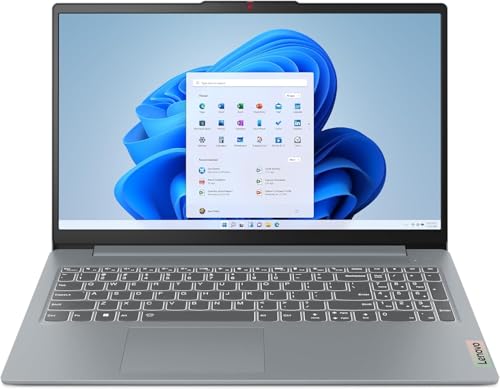
Lenovo IdeaPad Slim 3 15.6 — Big-Screen Value
Every shortlist needs its big screen, and the IdeaPad Slim 3 earns the chair by refusing the usual big-screen compromises. Its 15.6 inch Full HD touchscreen spreads work out the way smaller panels cannot — two documents side by side, a spreadsheet with its columns actually visible, a film that fills a lap — while the specification underneath stays adult: an AMD Ryzen 7 5825U processor with eight cores, Radeon graphics, 16GB of memory, and a 512GB SSD, running Windows 11 Home.
The Ryzen 7 at its heart is a proven, mature chip rather than a headline-grabber, and that maturity is a feature for this audience: drivers are settled, performance is predictable, and the eight cores make short work of the multitasking pile-up — browser, documents, calls, media — that defines a family or home-office machine. Sixteen gigabytes of memory, still not guaranteed at this tier, means the pile-up stays smooth instead of becoming a juggling act the owner must manage.
Lenovo’s IdeaPad line has spent years learning what mainstream buyers actually do with a laptop, and the lessons show in the unglamorous details: a full-size keyboard with room for a number pad’s worth of breathing space, a webcam that covers the school-and-work call baseline, and a chassis slim enough — the name is earned — to move between rooms and bags without the grunt a 15.6 inch machine used to require. It will not be mistaken for a flagship across a boardroom table, and it does not need to be; it needs to run a household’s computing for years, which it is built and specced to do.
As the only 15.6 inch machine in the six, it also serves as this guide’s reminder that screen size is a legitimate priority. Buyers who squint at 13 inch panels, who work in spreadsheets all day, or who simply prefer their computer to feel like a place rather than a tile will find their pick here, at the friendliest position in the ranking.
The touchscreen on a screen this size earns its keep in an unexpected place: the family photo library. Grandparents pinch and swipe through albums on the IdeaPad’s big panel with an ease no trackpad tutorial ever achieved, and the machine’s household role quietly expands from “the computer” to “the photo frame that also does homework.” Big touchscreens are social surfaces in a way small ones are not, and households feel the difference within the first weekend.
- Display: 15.6 inch Full HD touchscreen — the largest here
- Processor: AMD Ryzen 7 5825U, eight cores, Radeon graphics
- Memory and storage: 16GB DDR4, 512GB SSD
- System: Windows 11 Home
- Camera: 720p HD webcam for calls and classes
Strengths
- Big, touch-enabled screen for documents and media
- 16GB of memory at a mainstream position
- Proven eight-core processor with settled drivers
Trade-offs
- Larger and heavier than the travel picks above
- Webcam is baseline HD rather than a premium unit
- Memory is DDR4 rather than the newest standard
Best for: families, spreadsheet workers, and home-office buyers who prioritise screen room.
Not suited for: daily travellers whose bag and shoulders vote for 13 inches.
Microsoft Surface Laptop 13.8 — Prose Pick
Microsoft’s Surface Laptop is the Windows machine designed with an Apple owner’s eye: a clean aluminium clamshell, a bright 13.8 inch touchscreen, a keyboard and trackpad tuned by the company that also writes the operating system, and a general air of an object considered as a whole rather than assembled from a parts bin. In a guide of six, it is the connoisseur’s Windows alternative to the XPS — less interested in specification brinkmanship, more interested in the feel of the thing at 8 a.m. on a working day.
It is covered in prose for the by-now familiar reason: Microsoft sells the Surface Laptop across configurations and channels — its own store, education and business programmes, seasonal bundles — and the exact specification attached to any given offer must be read at the source. This guide will praise the design without pinning a configuration to it. Buyers should choose memory and storage deliberately on Microsoft’s own pages or an authorised listing, remembering that, as with the Air, nothing inside can be upgraded later.
Who takes this route? The Windows buyer who values coherence over charts: the person who wants the trackpad to feel exactly as the operating system’s designers intended, the screen to flatter the software it runs, and the whole object to disappear into the work. Match its configuration to your needs with the same care this guide applied to its linked picks, and the Surface Laptop rewards that care for years.
There is a historical footnote that explains the Surface Laptop’s polish: Microsoft built the line to show its hardware partners what Windows could feel like when nobody cut corners, and that demonstrator DNA survives in every generation — the even keyboard backlighting, the precisely weighted lid that opens with one finger, the speakers hidden beneath the keyboard that sound implausibly full. It is a machine designed to make an argument, and owners get to live inside the argument.
- Display: 13.8 inch touchscreen in a clean clamshell design
- Character: hardware and Windows designed by one maker
- Configurations: vary by channel — verify at order time
- Upgrades: none after purchase; specify generously
- Audience: design-led Windows buyers
Strengths
- Among the most coherent Windows laptops to use daily
- Excellent keyboard, trackpad, and display combination
- Understated design that suits any professional setting
Trade-offs
- Specification must be verified per offer and channel
- No post-purchase upgrade path for memory or storage
- Microsoft’s channel pricing varies with programmes and seasons
Best for: Windows loyalists who prize design coherence and input quality.
Not suited for: bargain hunting that demands one fixed configuration at a street price.
The Six, Ranked Against Each Other on the Measures Buyers Ask About
| Laptop | Screen | Memory | Storage as listed | Personality |
|---|---|---|---|---|
| MacBook Air 13 M5 | 13.6 inch LCD | 16GB | 512GB | Silent all-rounder |
| Dell XPS 13 9350 | 13.4 inch LCD | 16GB | 1TB | Compact Windows flagship |
| ASUS Zenbook 14 OLED | 14 inch OLED | 32GB | 1TB | Headroom maximalist |
| Acer Swift Go 14 | 14 inch touch LCD | 16GB | 512GB | Value with polish |
| IdeaPad Slim 3 15.6 | 15.6 inch touch LCD | 16GB | 512GB | Big-screen mainstream |
| Surface Laptop 13.8 | 13.8 inch touch LCD | By configuration | By configuration | Design coherence |
No column in that table crowns a single winner, which is the truthful state of the market: the Air leads on stamina and silence, the Zenbook on headroom, the IdeaPad on screen-per-commitment, the Swift Go on value. A top-ten list that pretends one machine tops every measure is selling something. This one is trying to match you to a personality you will still like in year three.
What Usually Occupies the Other Four Slots of a Top Ten?
Curiosity deserves an answer, because knowing what fills padded lists teaches you to read every ranking — including this one — with better eyes. The first filler is the sibling variant: the same laptop in a different colour or with a trivially different drive, counted as a separate entry. The second is the predecessor: last year’s model, still on sale, genuinely decent, and endlessly recycled into lists because it is easy to describe. The third is the regional or retailer-exclusive configuration, identical under the skin to a machine already listed. The fourth is the specialist — a rugged field laptop, a workstation with a certification most buyers will never need — included to make the list look comprehensive rather than to serve its readers.
There is a gentler way to say all this: the four missing chairs are not a scandal, they are an editing decision, and every honest list makes it whether it admits to the decision or not. The padded lists simply make it in the other direction, choosing the appearance of completeness over the usefulness of focus. Readers forgive a short list that knows its subject; they do not forgive discovering, three weeks after purchase, that the “seventh-best laptop of the year” was a colour variant of the second.
None of those machines is bad. Some are excellent answers to narrow questions. But a buyer with a mainstream life gains nothing from meeting them before the six designs that will actually be cross-shopped, compared, and finally chosen between. Depth on the real contenders beats breadth across the catalogue, every time, and that editorial choice — six, properly examined — is the spine of this guide.
How Should You Choose Between macOS and Windows in This Six?
Start with software, not with logos, advertising, or tribal loyalty. List the applications your week cannot run without; if any is Windows-only with no web equivalent, the decision is made and the XPS, Zenbook, Swift Go, IdeaPad, or Surface becomes your field. If everything you use lives in a browser, an office suite that exists on both sides, or Apple’s own ecosystem, then let secondary factors decide: an iPhone in your pocket tilts toward the Air’s continuity features, a household or employer built on Microsoft services tilts the other way, and a strong preference for touchscreens eliminates the Air, which has declined to offer one in every generation.
Then consider the machine’s social world. Support, repairs, and accessories follow the operating system’s flag: Apple Stores serve the Air with a walk-in convenience no rival matches in many cities, while the Windows machines spread their service across makers and retailers with more variation. Neither world is objectively kinder; they are differently organised, and the one whose organisation matches your city’s map and your patience is the right one.
Finally, ignore the religious war entirely. Both platforms in this guide run fast, secure, modern software on beautiful hardware, and the difference between a good day and a bad day on either is the specific machine, not the flag it flies. Choose the laptop; the operating system will take care of itself.
Which Specifications in This Guide Will Still Matter in Four Years?
Memory and storage, in that order, are the specifications that age in public. Sixteen gigabytes is today’s comfort and tomorrow’s floor; the Zenbook’s 32GB is the one configuration here that will feel generous at the end of a long ownership. Storage follows the same curve, which is why the terabyte machines in this ranking carry a quiet advantage their owners will feel in year three rather than in the first-week benchmarks. Screens age more gracefully — a good panel stays good — and processors age in private, felt only when a new application draws a line the old chip cannot cross.
The specification that will matter most and appears on no table is the battery’s health. All six machines will lose some stamina across years of charge cycles; the ones whose first-year stamina is longest — the Air above all — will still be serving full days when lesser batteries have tethered their machines to desks. Buy stamina the way you buy memory: as time, purchased in advance.
Warranty length belongs on the same list of slow variables. The standard year that ships with most consumer machines is the floor, and the makers in this guide all sell extensions whose value depends on how livelihood-critical the laptop is. A machine that earns your income deserves its extension priced into the purchase decision; a household’s second machine can reasonably decline it. Either way, decide at purchase, when the option is cheap and available, rather than at the first crack or spill.
Ports, by contrast, are a specification the future keeps forgiving. USB-C and Thunderbolt have standardised the desk, wireless has eaten the peripherals, and the hub in a drawer settles the rest. Do not let a port count talk you out of the machine whose screen, keyboard, and battery suit your life; the cable drawer always adapts, and your shoulders never do.
How Do These Six Divide by Profession and by Household?
Writers and academics cluster at the two ends of the size debate: the Air for the café-and-library life, the IdeaPad for the desk-bound drafter who wants one big calm screen. Analysts and spreadsheet professionals gravitate to the Zenbook and the IdeaPad for opposite reasons — headroom and OLED clarity on one side, sheer canvas on the other — while consultants who live in airports divide between the Air and the XPS along operating-system lines that their clients usually draw for them. Developers split by stack: Apple’s machine for the Unix-flavoured world, the Zenbook’s memory for the container-heavy one.
Households follow a simpler logic. The shared family laptop is usually the IdeaPad or the Swift Go — big enough or versatile enough for everyone’s homework, calls, and photographs, positioned so that its loss would be mourned rather than financially devastating. The student’s own machine is the Air or the Swift Go. The parent’s work machine is whichever flagship their employer blesses. Notice that the six divide the territory without overlap or leftovers, which is precisely what the padded versions of this list obscure with their variants and predecessors.
What Does Owning Each of These Feel Like in Year Three?
Year three is where laptops tell the truth. The Air’s owners report the most boring story in the industry: the machine feels like the machine, its battery still serves the day, and its resale listing writes itself. The XPS ages nearly as gracefully, its aluminium indifferent to fashion, its terabyte still roomy. The Zenbook’s year three is defined by its specification cushion — owners discover that the memory they overbought has become the memory their software grew into, which is the most satisfying sentence in consumer technology.
The Swift Go and IdeaPad age like honest appliances: a little shine on the keys, a battery that asks for the charger by late afternoon, and no drama anywhere. Their year-three story is value proven rather than value promised. The Surface Laptop, cared for, remains the machine its owner chooses for the important meeting — design-led objects hold their owners’ affection longer than their specifications hold their rank, and that affection is a real component of a laptop’s useful life.
Which of These Six Should a Student Carry for Four Years?
The student’s constraints are specific: a budget set by someone else, a bag that crosses a campus in all weather, a workload of documents, research, and calls, and a machine that must survive being the household’s entertainment centre in the evenings. The Air answers that brief most completely for those inside Apple’s world — its stamina outlasts library days, its build tolerates the bag, and its resale at graduation returns a meaningful share of the purchase. The Swift Go answers it for Windows households, with the touchscreen and ports that dorm life rewards and a position that leaves room in the budget for the bag, the hub, and the insurance.
The Zenbook tempts the ambitious student and should be taken seriously by anyone in design, media, or computing, where its memory and OLED panel stop being luxuries by the second year of coursework. The IdeaPad suits the student whose campus is a kitchen table — distance learners and commuters living at home gain more from its screen than they lose from its size. What a student should not do is buy the cheapest machine that boots: four years is a long sentence, and the difference between a laptop that serves it and one that merely survives it is paid back in every deadline week.
How Much Should the Brand’s Service Network Influence the Choice?
More than specification tables suggest, because a laptop’s worst day matters more than its average day. Apple’s walk-in service is the benchmark for consumers in cities that have it. Dell’s premium support tiers have a long record with business travellers. Lenovo’s network is the deepest of the Windows makers in many regions, an inheritance of its business-machine empire, and it quietly benefits IdeaPad owners as well as ThinkPad fleets. Acer and ASUS serve their owners through retail and mail-in channels that vary more by country — worth a five-minute check of your own region before the purchase, not after the accident.
The practical translation: if two finalists are otherwise equal in your judgement, choose the one whose help you can physically reach. A laptop is a livelihood tool for most of this guide’s readers, and the fastest repair is the one that starts with a short journey rather than a shipping label. It is an unglamorous criterion that owners consistently rank first in hindsight — usually in the comments they leave for guides like this one, written on a borrowed machine.
What About Weight, Noise, and Heat — the Qualities No Table Captures?
Carry each finalist’s weight in your head honestly and literally: the difference between the lightest and heaviest machines in this six is roughly the weight of a full water bottle, and whether that matters depends entirely on whether your commute is a car door or a mile of pavement. Students and travellers feel grams; desk workers feel nothing. Decide which you are before the specification table decides for you.
Noise divides the six more sharply. The Air is silent by construction — there is no fan to spin — and that silence is a genuine working quality in libraries, bedrooms, and meetings. The Windows machines all manage their fans intelligently, idling quietly through ordinary work and announcing themselves only under sustained loads, with the performance-tuned Swift Go the most willing to make itself heard. Heat follows the same pattern: every machine here is comfortable on a lap through normal work, and none should be asked to render video there.
These qualities are why this guide keeps urging a week of real life inside the returns window. A specification table can tell you a machine’s weight to the gram and nothing about whether its fan’s pitch will annoy you at midnight. Ownership is sensory; shop for it with your senses where you can.
How Should You Set Up the Winner in Its First Evening?
Update everything before installing anything of your own, while the machine is empty and patient. Then migrate deliberately rather than wholesale: documents and photographs first, applications fresh from their sources rather than dragged from the old machine, and the old laptop kept intact and un-wiped for a fortnight as the world’s most reassuring backup. Set the backup — cloud, external, or both — on the first evening, not the first scare, and encrypt the drive while the setting is in front of you.
Finish with the small ergonomics that compound: text scaling set for your eyes rather than the factory’s, the trackpad’s speed and gestures tuned, the browser signed in and synced, and the charger placed where the machine will actually live. A laptop set up with an hour’s care on day one tends to stay organised for years; a laptop set up in a hurry tends to stay in a hurry. The six machines in this guide all reward the careful evening equally.
Common Mistakes When Choosing From a Top-Ten List
Rankings seduce buyers into ordering the list instead of the machine: ordering the number one pick although your software, your hands, or your bag were describing number four. Rankings order a field for an average reader who does not exist; you exist, specifically, and the verdict lines in this guide are written for your specifics. The second mistake is specification tourism — paying for the biggest numbers in categories your work never touches, while skimping on the screen and keyboard you touch for eight hours a day.
A sixth mistake belongs uniquely to list-shopping: assuming the guide’s order is a verdict on your life. A top-ten list is a map drawn for a crowd; your route through it is your own. The reader who buys the fifth-ranked IdeaPad because their household needed a big screen has used this guide better than the reader who buys the first-ranked Air against the evidence of their own Windows-dependent desk.
Third, buyers under-specify memory and storage to hit a budget line, then spend the difference anyway across the machine’s life in external drives, cloud tiers, and eventual early replacement. Fourth, they ignore the returns window’s purpose: a laptop should be lived with for a week — typed on, carried, charged, slept beside — before the decision is final, because the qualities that decide ownership are exactly the ones no specification table records. Fifth, they forget the ecosystem bill: the hub, the case, the spare charger, and the software licences that follow any platform switch, which can quietly exceed the price gap between two finalists.
Final Recommendation
If you want one answer: buy the MacBook Air 13 M5, in this 512GB configuration for a cloud-assisted life or with more storage if your libraries are local and large, and let the matter rest. It is the machine this entire category is measured against, and it earns the position on stamina, silence, and solidity rather than on fashion. Windows buyers should divide by need: the XPS 13 for the flagship traveller, the Zenbook 14 OLED for the long-horizon specifier, the Swift Go 14 for flagship ingredients at an honest position, the IdeaPad Slim 3 for the big screen, and the Surface Laptop for the design-led who will verify their configuration with care.
Whatever you choose from these six, you are choosing from the part of the market where the engineering is proven and the regrets are rare. That — not the number ten — is what a shortlist is for: six machines, any of which can be the right one, and the right one is the one whose strengths read like a description of your own week — your software, your surfaces, your commute, your library — rather than like a description of a laboratory’s test bench or a stranger’s idea of the perfect ten.
Frequently Asked Questions
Why does this guide list six laptops when the search promises ten?
Because six is the honest count of distinct designs that lead the mainstream market right now, once gaming machines, Chromebooks, and specialist workstations are given the separate guides they deserve. The remaining slots on a typical top ten are variants, predecessors, and specialists; this guide describes what fills them in its own section rather than dressing them up as separate recommendations. Depth on six real contenders serves a buyer better than a sentence each on ten.
Is the MacBook Air really better than the Windows picks?
It is better at the particular combination of silence, stamina, and integration that most buyers feel most often. It is not better at running Windows software, offering a touchscreen, or maximising memory per pound — the Zenbook beats it at the last of those by two to one. “Better” in this guide always carries its criterion with it.
Which of these six is easiest to live with on aeroplanes?
The 13 inch pair — the Air and the XPS — were practically designed in a tray table’s image: small footprints, lids that open within a seat’s recline, and batteries that treat the flight as a rounding error. The Zenbook and Swift Go follow closely at 14 inches. The IdeaPad’s big screen is the one machine here that economy seating will argue with, which its home-and-office audience will never ask it to attempt.
How much memory and storage should a laptop bought today have?
Sixteen gigabytes of memory and at least 512GB of storage form the sensible floor for a four-to-five-year ownership, and both double gracefully: 32GB and a terabyte are the configurations that will still feel generous at the end of that span. Every pick in this guide meets the floor; the Zenbook and the XPS configuration exceed it on one axis or both.
Should I wait for the next generation instead of buying now?
Only if your current machine still serves you well and your workload has not outgrown it. Laptop generations now improve in increments rather than leaps, and every machine in this guide sits on a mature, current platform. A buyer whose laptop is failing loses more to months of limping than they gain from a spec bump; a buyer whose laptop is healthy can wait in comfort and let this same shortlist greet them, refreshed, whenever they are ready.
Are any of these laptops suitable for gaming?
For casual titles and cloud gaming services, yes — the Arc and Radeon graphics in the Windows picks handle lighter titles and streaming services comfortably, and the Air runs its own growing catalogue well. For a serious games library, a dedicated gaming laptop with a discrete graphics card is the honest recommendation, and it belongs to a different guide with different priorities.
Is a touchscreen worth having on a laptop?
On the evidence of this guide’s owners, yes for shared and presentational work, optional for solitary desk work. Four of the six picks offer touch, and their owners use it in bursts — scrolling, signing, showing, sketching — rather than as a primary input. It rarely decides a purchase alone, but between two otherwise equal machines it is the feature whose absence gets noticed, usually while reaching for a screen that does not answer.
Do I need a separate budget for accessories with these laptops?
A modest one. Every machine here benefits from a sleeve or a proper laptop bag, most desk setups want a hub for the port-light flagships, and a spare charger for the bag is the quality-of-life purchase owners recommend most after the fact. None of it is mandatory on day one; all of it together typically costs less than the gap between two adjacent configurations, which is worth remembering when the configurator tempts you upward.
What should I check during the first week with a new laptop?
Type a long document to judge the keyboard honestly, run a full day on battery to verify the stamina claims against your own workload, test every port and the webcam before the first important call, and confirm the delivered memory and storage match the order. A week of real life is the only review that cannot be argued with — including this one.
Related Guides
Keep narrowing the decision with these companions: best $1000 laptops for the strongest machines around a four-figure budget, best 11-12 inch laptops with 8GB RAM for the compact class with extra memory, and best 12-13 inch display laptops for the size band where most of this guide’s winners live.

[…] the smallest machines, the natural next steps are upward: best 10 laptops for a wider shortlist of current models, best $1000 laptops for what a four-figure budget buys at […]
[…] with serious storage built in, best 10-11 inch laptops for the smallest laptops worth carrying, and best 10 laptops for a wider shortlist of current models across […]