What's inside
- Key Takeaways
- Quick Picks
- How did we choose these 16GB and 1TB laptops — and check them?
- How do the six capacity picks compare honestly?
- Why do 16GB and 1TB work so well as a pairing?
- What should you check before ordering a capacity-led pick?
- How do you migrate onto a 1TB laptop without chaos?
- How do you keep a 1TB drive healthy and fast?
- Should you pay for 32GB now, or is 16GB honestly enough?
- How do the two numbers interact with battery and heat?
- How do you audit a listing like a professional buyer?
- What mistakes do capacity-focused buyers make?
- Final Recommendation
- How long does a terabyte actually last a typical owner?
- What is the difference between unified, LPDDR5X and DDR5 memory for a buyer?
- Frequently Asked Questions
- Related Guides
As an Amazon Associate I earn from qualifying purchases. This post may contain affiliate links at no extra cost to you.
widgetverdict.com is reader-supported. When you buy through links on our site, we may earn an affiliate commission.
Some buying guides are organised around a processor or a screen size; this one is organised around two numbers that decide how a laptop ages. The best 16gb and 1 tb laptops pair enough memory for modern multitasking with a drive large enough to postpone the storage shuffle for years — and this guide reads its own fine print aloud, because the four linked listings do not all say what the headline implies. Two of them match the brief exactly, with titles that state 16GB of memory and a 1TB SSD in so many words. The other two exceed it on memory, carrying 32GB alongside the 1TB drive, and their sections say so plainly rather than rounding them down to fit the title.
That distinction matters more than it might seem. Memory in modern laptops is almost always soldered, so the figure in the listing is the figure for the machine’s entire life, and a buyer hunting specifically for 16GB and 1TB deserves to know whether a pick matches, exceeds or merely neighbours the brief. The two prose-only picks complete the picture: machines sold in configurable ranges where a 16GB and 1TB specification genuinely exists, but where no single stable listing can be linked without risking a baited switch.
Screen sizes wander in this guide — 13.6 inches to 16.3 — because the brief is about capacity, not diagonal. What unites the six is the ownership experience the two numbers buy: dozens of applications and tabs open without the system swapping itself breathless, and a drive that swallows photo libraries, game installs and project archives without a weekly eviction meeting.
Key Takeaways
- Two linked picks match the brief word-for-word in their listing titles: the MacBook Air 13 (M5) at 16GB and 1TB, and the ASUS Vivobook 15 at 16GB and 1TB.
- Two linked picks exceed it: the Dell XPS 16 and ASUS Zenbook 14 OLED both carry 32GB of memory with their 1TB drives — more headroom, stated honestly.
- Memory is soldered on every machine here, so the listed figure is permanent; storage pressure arrives years earlier on 512GB machines than on these 1TB picks.
- The XPS 16 is the creative flagship of the group, the MacBook Air the traveller, the Zenbook 14 the OLED all-rounder and the Vivobook 15 the spacious mainstream option.
- The two prose-only picks — Dell XPS 14 and ThinkPad T14 — are configurable to exactly 16GB and 1TB; verify the figures on the exact listing before ordering.
Quick Picks
| Pick | Badge | Why it earns its place |
|---|---|---|
| Dell XPS 16 (32GB, 1TB — exceeds the brief) | 32GB upgrade pick — read the spec | The 1TB half matches exactly; the memory is 32GB, double the headline — the flagship way to over-deliver. |
| Apple MacBook Air 13 (M5, 16GB, 1TB) | Exact match — traveller | The listing title states it precisely: 16GB of unified memory and a 1TB SSD, in Apple’s lightest full laptop. |
| ASUS Zenbook 14 OLED (32GB, 1TB — exceeds the brief) | 32GB upgrade pick — OLED | Again 32GB rather than 16GB beside the 1TB drive — with a WUXGA OLED screen and a lay-flat hinge. |
| ASUS Vivobook 15 (i9, 16GB, 1TB) | Exact match — big screen | The title says it plainly: Core i9 power, 16GB of RAM and a 1TB SSD behind a 15.6-inch screen. |
| Dell XPS 14 (16GB / 1TB configuration) | Configurable exact match | Dell’s design-led 14-incher can be had in exactly 16GB and 1TB form — verify the listing’s figures before ordering. |
| Lenovo ThinkPad T14 (16GB / 1TB configuration) | Configurable workhorse | The corporate standard can be specified to exactly 16GB and 1TB — with the serviceability the class is famous for. |
How did we choose these 16GB and 1TB laptops — and check them?
We began with the listing titles themselves, because in this category the title is the contract. A pick could only be described as a 16GB and 1TB laptop if its verified listing title stated both figures, and where a title stated something better — 32GB of memory beside the 1TB drive — we kept the pick and corrected the description rather than quietly filing it under the headline. Buyers deserve guides that read listings more carefully than the marketing does.
Beyond the two numbers, we required the rest of the machine to justify them. A terabyte of storage behind a dim screen or a wheezing processor is a lopsided purchase, so each pick here pairs its capacity with a current processor and a display worth using — OLED panels on the Dell and the Zenbook, Apple’s Liquid Retina on the Air, and a full-size 15.6-inch screen on the Vivobook. Capacity is the entry ticket; coherence is the test.
We also weighed who each configuration serves. Sixteen gigabytes with a terabyte is the classic power-user pairing — developers, photographers, analysts, serious students — and the six picks spread across that audience’s shapes: the traveller, the creative, the desk anchor and the corporate standard. If two picks seem to overlap, their sections explain the different weeks they are built for.
One methodological confession completes the picture: we re-read every linked listing’s title twice, once when selecting and once when writing, because configuration drift between those two moments is a documented hazard in this category. The 32GB surprises in this guide were caught by exactly that discipline — the titles said what they said, and the guide changed to match them rather than the reverse. It is the same courtesy we ask of readers at the point of purchase, practised here at the point of writing.

Dell XPS 16 (32GB, 1TB — exceeds the brief) — 32GB upgrade pick — read the spec
Accuracy first: this XPS 16 listing specifies 32GB of memory, not 16GB, alongside its 1TB SSD. We include it at the head of this guide because a buyer searching for 16GB and 1TB is searching for a floor, not a ceiling — nobody’s workload was ever harmed by double memory — and because the rest of the machine makes it the strongest all-round pick here. But the figure is stated, not smoothed over: if your budget or your employer’s specification demands exactly 16GB, the MacBook Air and Vivobook below are your literal matches.
The machine around those numbers is Dell’s flagship: a 16.3-inch 4K OLED touchscreen at 120Hz, an Intel Ultra 9 285H, and an RTX 5060 for graphics. For the capacity-minded buyer, the lived experience is abundance — a terabyte that swallows raw photo archives and virtual machines, memory that holds the editor, the browser, the chat clients and the export queue simultaneously, and a screen that makes the whole hoard beautiful to work through.
The familiar XPS caveats apply: a minimalist glass deck with a capacitive function row that takes adjustment, USB-C-only connectivity that makes a dock a sensible companion purchase, and a flagship commitment in cost terms. What you receive for it is the guide’s most complete machine — the one whose specification has no line a power user will outgrow first.
For the capacity buyer specifically, the XPS 16’s terabyte deserves its own sentence: it is fast NVMe-class storage behind Thunderbolt 4 connectivity, so the drive’s generosity does not come with a transfer-speed asterisk when archives move on and off the machine. Pair that with the 32GB of memory and the machine’s real identity emerges — it is not a 16GB laptop with ideas above its station, but a workstation-class specification that happens to satisfy this guide’s brief on one axis and double it on the other. Buyers comparison-shopping it against literal 16GB machines should price it as the different class it is.
One XPS 16 note for the verification-minded: because this listing’s headline figure differs from the guide’s theme, screenshot its specification before ordering. If the unit that arrives carries anything less than the stated 32GB and 1TB, that record is your remedy — and the habit generalises to every pick in this guide.
The XPS 16’s Windows 11 Pro, named in its listing, belongs in a capacity guide for one reason: Pro’s encryption and management tools protect a terabyte of accumulated life better than Home’s defaults. The bigger the archive a machine carries, the more its security tier stops being a corporate footnote.
- Memory: 32GB — this listing EXCEEDS the 16GB brief; stated plainly, not rounded down
- Storage: 1TB SSD, matching the brief exactly
- Display: 16.3-inch OLED touchscreen, 4K, 120Hz
- Processor and graphics: Intel Ultra 9 285H, NVIDIA RTX 5060
- Ports: 3x Thunderbolt 4; Wi-Fi 7
- Operating system: Windows 11 Pro
Strengths
- Double the headline memory with the full terabyte — headroom on both axes
- 4K OLED touchscreen is the finest display in this guide
- RTX 5060 accelerates creative work the other picks handle on integrated graphics
Trade-offs
- Not a literal 16GB machine — exact-spec buyers should look at the Air or Vivobook
- Minimalist deck and capacitive keys ask for an adjustment period
- Flagship pricing class within this guide’s company
Best for: power users happy to be over-served on memory beyond the 16GB and 1TB they came for
Not suited for: buyers whose specification, grant or employer standard requires exactly 16GB
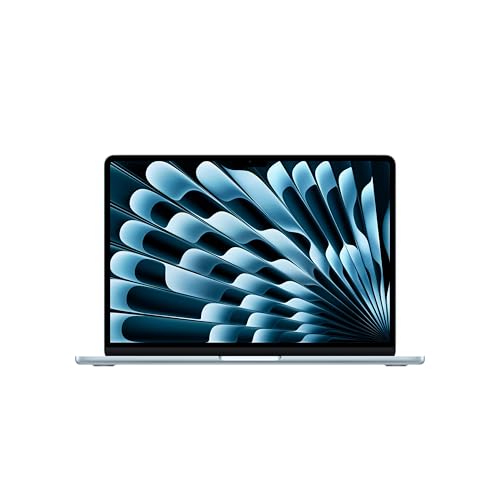
Apple MacBook Air 13 (M5, 16GB, 1TB) — Exact match — traveller
Here is the guide’s cleanest match. The listing title for this MacBook Air states 16GB of unified memory and a 1TB SSD outright, wrapped around Apple’s M5 chip and a 13.6-inch Liquid Retina display. For the traveller whose work has outgrown smaller drives — the consultant with a decade of client files, the photographer who edits on the road, the student whose library follows them — this is the configuration that ends the external-drive era without adding a gram of chassis.
The Air’s virtues are well rehearsed and remain true: silent, fanless operation, battery life that treats a working day as a light snack, a superb keyboard and trackpad, and a build that disappears into a bag. The M5’s performance covers everything short of sustained professional rendering, and the unified memory architecture makes the 16GB figure work harder than the same number suggests on a conventional machine, since the graphics and CPU share one fast pool.
The configuration’s permanence is the point to absorb. The 1TB drive and 16GB of memory are fixed forever at purchase — which is precisely why choosing this specification, rather than the smaller configurations the Air is also sold in, is the decision this guide exists to encourage. Confirm the listing in front of you states both figures; Air listings in lesser configurations share the name and the Sky Blue finish of this one.
The Air’s 1TB configuration changes the machine’s social life as much as its specification. Smaller-drive Airs live in negotiation with the cloud — which library syncs, which archive stays home — while the terabyte version simply carries everything, everywhere, and works fully on a plane, a train or a cottage connection that barely deserves the name. For professionals whose work happens where the internet is theoretical, that completeness is the configuration’s real feature, and it is why this guide treats the 1TB Air as a different product from its smaller siblings rather than a storage footnote to them.
The Air’s colour deserves a frivolous sentence that is not entirely frivolous: the Sky Blue finish named in its listing is the kind of detail that makes a machine feel chosen rather than issued, and owners keep chosen machines longer. Longevity, again, is a specification — it is just measured in affection as well as gigabytes.
Apple’s AirPlay and Continuity tricks give the terabyte Air a party piece with substance: the full local library, carried everywhere, can fill a hotel television or a client’s screen without a cloud round-trip. Capacity you can present from is capacity that earns its keep in rooms with bad Wi-Fi.
- Memory: 16GB unified — matches the brief exactly, per listing title
- Storage: 1TB SSD — matches the brief exactly
- Display: 13.6-inch Liquid Retina
- Chip: Apple M5
- Camera and security: 12MP Center Stage camera, Touch ID per listing title
- Connectivity: Wi-Fi 7; fanless design
Strengths
- The exact 16GB and 1TB pairing in the lightest package here
- Silent fanless running and exceptional battery life
- Unified memory makes 16GB behave generously in creative apps
Trade-offs
- Configuration is permanent — no memory or storage upgrades, ever
- Fanless design sustains less performance under marathon rendering loads
- Two-port life means a hub for desk duty
Best for: travellers and mobile professionals after the exact capacity pairing without carrying a gram extra
Not suited for: sustained-render workloads, or anyone who upgrades components mid-life

ASUS Zenbook 14 OLED (32GB, 1TB — above the brief) — 32GB upgrade pick — OLED
The second honest over-delivery in this guide: the Zenbook 14 OLED’s listing specifies an AMD Ryzen AI 7 445 processor with 32GB of LPDDR5X memory and a 1TB SSD. Like the XPS 16, it belongs here because the search behind this guide is for a capacity floor — and because a 14-inch OLED machine with this much memory and storage is precisely what most of those searchers are picturing. The 32GB figure is stated in its title, its spec box and this analysis, so no reader mistakes it for the literal 16GB pairing.
Around the numbers, the Zenbook is a beautifully judged all-rounder. The 14-inch WUXGA OLED delivers the contrast and colour that make both creative work and evening streaming a pleasure, the Ryzen AI 7 brings a 50-TOPS-class NPU for Copilot+ features per the model’s positioning, and the 180-degree lay-flat hinge — a small thing — turns out to be genuinely useful for showing a screen across a table. Windows 11 Pro and Wi-Fi 6E complete a specification with no obvious economising anywhere.
Its limits are the ultraportable class’s: integrated graphics, so gaming means light titles and lowered settings, and a thin chassis whose sustained performance is tuned for bursts of productivity rather than hour-long renders. For the capacity-first buyer doing knowledge work with creative leanings, neither limit bites often — and the memory headroom means the machine will still feel relaxed when browser habits have grown heavier in three years.
The Zenbook’s Ryzen AI processor deserves a word in a capacity guide, because its efficiency changes how the capacity gets used. A machine that sips power can hold its 32GB of resident applications through a day of meetings without the owner pruning background work to protect the battery — the headroom stays usable, not theoretical. Add the OLED’s modest appetite at document brightness and the Zenbook becomes the pick whose generous specification is available in the most places: desk, sofa, departure lounge, without the owner’s behaviour changing to accommodate the machine.
Zenbook buyers should know its hinge party trick has a capacity angle: laid flat at 180 degrees, the machine shares its terabyte with the table — a colleague reviewing the archive, a client approving the gallery — without a second screen. Small mechanics, daily dividends.
The Zenbook’s included software bundle in its listing — office and hub accessories vary by seller — should be inventoried on arrival, because bundled value only counts when it is activated. Capacity buyers are checklist people; the checklist extends to the box’s contents.
- Memory: 32GB LPDDR5X — this listing EXCEEDS the 16GB brief
- Storage: 1TB SSD, matching the brief exactly
- Display: 14-inch WUXGA OLED
- Processor: AMD Ryzen AI 7 445, Copilot+ PC
- Hinge: 180-degree lay-flat; backlit keyboard
- Operating system: Windows 11 Pro; Wi-Fi 6E
Strengths
- 32GB and 1TB in a slim 14-inch OLED machine — capacity without bulk
- OLED panel elevates creative work and media alike
- Lay-flat hinge and Pro Windows suit professional life
Trade-offs
- Not a literal 16GB configuration — exact-spec hunters, note the Air and Vivobook
- Integrated graphics cap gaming ambitions
- Thin chassis favours bursts over sustained rendering
Best for: knowledge workers and light creators seeking capacity headroom in a portable OLED package
Not suited for: gaming ambitions, or a contractual requirement for exactly 16GB
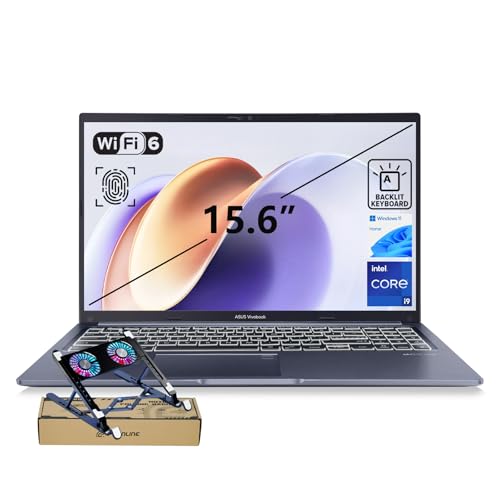
ASUS Vivobook 15 (i9, 16GB, 1TB) — Exact match — big screen
The Vivobook 15 is this guide’s second exact match, and its listing title is admirably blunt: a 15.6-inch FHD display, an Intel Core i9-13900H, 16GB of RAM and a 1TB SSD. No asterisks, no over-delivery — the precise pairing the headline promises, in the largest and most spacious chassis among the exact matches, with a processor whose core count makes short work of heavy spreadsheets, large codebases and enthusiastic multitasking.
The Vivobook line is ASUS’s mainstream range, and the practical touches show it: a physical webcam shield for privacy, a fingerprint reader for sign-in, a backlit keyboard and a full-size layout that suits number work. This is a machine designed to be a household’s or a small office’s workhorse — big screen for long documents, big drive for the family archive, enough processor for anything short of professional rendering or serious gaming.
Calibrate expectations on two fronts. The i9-13900H is a previous-generation flagship chip — still very fast, but not the latest silicon — and the FHD panel is a workhorse screen rather than a creator’s OLED: perfectly serviceable for documents and video, not the choice for colour-critical photo work. The integrated graphics likewise mark this as a productivity machine. Judged as what it is — the exact capacity pairing with room to spread out — it is the most straightforward recommendation in the guide.
The Vivobook’s i9 deserves rehabilitation in one specific arena: the many-core mainstream workload. Large spreadsheets recalculating, a dozen office applications, a browser with research sprawled across it, a video call rendering in the corner — this is the rhythm the 13900H’s core count eats for breakfast, and it is the rhythm most buyers of this machine actually live. Benchmarks that crown newer chips in single-thread sprints undersell it. For the household or office that wants the exact capacity pairing and a processor that will not be the reason the machine retires, the Vivobook’s older flagship silicon is a feature wearing a discount’s clothing.
The Vivobook’s fingerprint reader, mentioned in its listing, is the kind of feature capacity guides ignore and owners use forty times a day. A workhorse machine’s job is to disappear into routine, and biometric sign-in is disappearance technology. Judge the mainstream picks by these mercies, not only by their chips.
ASUS’s Vivobook support tier is mainstream rather than flagship, and owners should set expectations accordingly: driver support is solid, repair routes are standard retail ones. The machine’s value case never rested on white gloves — it rests on the exact figures, honestly delivered, at the mainstream’s terms.
- Memory: 16GB RAM — matches the brief exactly, per listing title
- Storage: 1TB SSD — matches the brief exactly
- Display: 15.6-inch FHD
- Processor: Intel Core i9-13900H
- Privacy and security: physical webcam shield, fingerprint reader
- Operating system: Windows 11 Home; Wi-Fi 6
Strengths
- The literal 16GB and 1TB pairing with a big, work-friendly screen
- Core i9 processor gives mainstream workloads serious pace
- Practical touches — webcam shield, fingerprint reader, full-size keyboard
Trade-offs
- Previous-generation processor, however fast it remains
- FHD panel is a workhorse, not a colour-critical display
- Integrated graphics rule out serious gaming
Best for: households, students and small offices wanting the exact pairing in a spacious, sensible machine
Not suited for: colour-critical creators, or gamers looking for a discrete GPU
Dell XPS 14 (16GB / 1TB configuration) — Configurable exact match
The XPS 14 earns its place in this guide as a configuration rather than a listing. Dell sells the model across a wide spread of memory and storage combinations, and the 16GB with 1TB pairing sits within that spread — a genuinely exact match for the brief, delivered in the line’s milled-aluminium, glass-deck design language with high-resolution display options that have included OLED panels.
As a machine, it is the XPS 16’s philosophy in a travel size: premium materials, a seamless haptic trackpad, a capacitive function row that divides opinion, and USB-C-centric connectivity. Performance configurations have centred on Intel Core Ultra processors, with the design prioritising a blend of responsiveness and efficiency over sustained maximum output. For the capacity-focused buyer, the appeal is simple — the exact two numbers, in one of the most handsome Windows chassis sold.
The prose-only treatment is the honest consequence of the configuration spread. An XPS 14 listing can carry half the memory or a different panel under the same name, so any link we published would eventually point at a machine that is not the one described. Use the checklist instead: the listing must state 16GB and 1TB in its own title or specification table, and if it states anything else, it is a different pick wearing this one’s clothes.
The XPS 14’s display options deserve emphasis for the configuration hunter: Dell has offered this line with panels ranging from excellent to reference-class, and the gap between the base screen and the OLED option is the largest single quality difference inside the model’s catalogue. A buyer verifying a listing should therefore check three figures, not two — memory, storage and panel — because an exact-capacity XPS 14 with the lesser screen is a good machine, while the same figures with the OLED make it one of the finest 14-inch laptops sold. The checklist in its section exists to land you the second machine, not the first.
For the XPS 14 configuration hunter, one more figure belongs on the checklist: the warranty tier. Dell sells this line with service levels that change the ownership experience entirely, and a verified configuration with next-day cover can be the better buy against a nominally identical listing without it.
Dell’s XPS 14 buyers should verify one more line — the panel’s resolution in figures, not adjectives. ‘High-resolution’ has covered multitudes; the number is the machine. This guide’s refrain applies to its own prose-only picks with double force.
- Target configuration: 16GB memory and 1TB SSD — confirm both figures on the exact listing
- Display: high-resolution options including OLED on some configurations
- Processor: Intel Core Ultra family in current versions
- Build: aluminium chassis, glass deck, haptic trackpad
- Ports: USB-C / Thunderbolt centric — plan a dock for desk use
Strengths
- Exact capacity pairing available in a flagship-grade design
- Display options include genuinely excellent panels
- Premium build that travels well at 14 inches
Trade-offs
- Configuration spread makes careless ordering the main risk
- Capacitive function row frustrates F-key devotees
- Minimal ports by design
Best for: design-conscious buyers who will verify the configuration and want the exact pairing in a premium shell
Not suited for: one-click buyers unwilling to read a specification table closely
Lenovo ThinkPad T14 (16GB / 1TB configuration) — Configurable workhorse
If the XPS 14 is the exact pairing as design object, the ThinkPad T14 is the exact pairing as infrastructure. Lenovo’s T-series is the laptop corporate IT departments deploy by the thousand, and its configuration catalogue includes the 16GB and 1TB specification this guide is built around, in both Intel and AMD flavours depending on generation and region. The keyboard is the line’s famous deep-travel unit, the chassis is tested against military durability standards, and the support network behind it is the industry’s benchmark.
The T14 also answers the soldered-memory anxiety that runs through this guide better than most: across its generations the T-series has often kept memory and storage more accessible than ultraportable rivals, though the exact arrangement varies by generation, so treat serviceability as a question to ask of the specific model year rather than a promise. Even where parts are fixed, published manuals and stocked spares make repairs a logistics exercise rather than a write-off.
We cover it by checklist because T14 listings span generations, processors and panel grades under one name. The listing you buy must state its generation, its 16GB and its 1TB in plain figures; a bargain T14 with half the drive is a fine laptop and a failed brief. Get the configuration right, and this is the pick most likely to still be in daily service, fully supported, when the others are heirlooms.
A note on the T14’s keyboard and ports, because capacity buyers keep machines long enough for both to matter. The ThinkPad keyboard remains the one by which laptop keyboards are judged — deep, sculpted, spill-resistant in the line’s tradition — and the T-series’ port selection, with proper USB-A, HDMI and Ethernet-class options across generations, means the machine docks into a decade of existing peripherals without a dongle census. Over a long ownership, those unglamorous continuities compound into the T14’s real argument: nothing about the machine will irritate you in year five, because nothing about it was a fashion decision in year one.
The T14’s docking story completes its infrastructure case: Lenovo’s docks and the machine’s port spread mean a T14 bought today settles into desks built a decade ago and desks not yet bought with equal ease. Capacity gets the headlines; continuity gets the decade.
Lenovo publishes the T14’s maintenance manual for anyone to download, and the capacity buyer should do exactly that before ordering: the manual’s memory and storage pages answer the serviceability question for the exact generation in your cart, in the maker’s own words.
- Target configuration: 16GB memory and 1TB SSD — confirm both on the exact listing
- Processor: Intel or AMD options by generation and region
- Keyboard: ThinkPad deep-travel unit with TrackPoint
- Build: durability-tested business chassis, published service documentation
- Note: panel grade varies by configuration — check resolution and brightness
Strengths
- Corporate-grade support, parts and documentation behind the exact pairing
- Keyboard and durability suit a decade of daily service
- Wide configuration catalogue makes the 16GB/1TB spec genuinely available
Trade-offs
- Listings span generations — specification discipline is essential
- Panel quality varies; the cheapest configurations economise there
- Business styling prioritises function over flair
Best for: professionals and IT-minded buyers seeking the exact pairing with a support network attached
Not suited for: buyers hoping for a single unambiguous listing to click without reading further
How do the six capacity picks compare honestly?
The memory column is this guide in miniature: two exact 16GB matches, two listings that exceed the brief at 32GB and say so, and two configurable models whose figures you must verify. Everything else — screen, silicon, character — spreads from there.
| Pick | Screen | Processor and graphics | Memory and storage | Character |
|---|---|---|---|---|
| Dell XPS 16 (32GB, 1TB — exceeds the brief) | 16.3-inch 4K OLED touch, 120Hz | Ultra 9 285H, RTX 5060 | 32GB (exceeds brief), 1TB SSD | The over-delivering flagship |
| Apple MacBook Air 13 (M5, 16GB, 1TB) | 13.6-inch Liquid Retina | Apple M5, integrated GPU | 16GB unified, 1TB SSD — exact match | The travelling exact-match |
| ASUS Zenbook 14 OLED (32GB, 1TB — above the brief) | 14-inch WUXGA OLED | Ryzen AI 7 445, integrated graphics | 32GB LPDDR5X (exceeds brief), 1TB SSD | The headroom all-rounder |
| ASUS Vivobook 15 (i9, 16GB, 1TB) | 15.6-inch FHD | Core i9-13900H, integrated graphics | 16GB, 1TB SSD — exact match | The spacious workhorse |
| Dell XPS 14 (16GB / 1TB configuration) | 14-inch, OLED options | Core Ultra family | 16GB / 1TB configuration — verify | The design-led exact match |
| Lenovo ThinkPad T14 (16GB / 1TB configuration) | 14-inch, panel varies by config | Intel or AMD by generation | 16GB / 1TB configuration — verify | The supported workhorse |
Why do 16GB and 1TB work so well as a pairing?
Because the two numbers relieve the two pressures that age a laptop fastest. Memory pressure is the daily one: modern work is a browser with forty tabs, a chat client, a document suite, a media player and a video call, all resident at once, and 16GB is the figure at which that crowd stops jostling. Below it, the system swaps to disk constantly; at it, the machine simply gets on with things — and the 32GB picks in this guide show what the next level of calm feels like.
Storage pressure is the cumulative one. Operating systems grow, photo libraries double, game installs swell past a hundred gigabytes, and a 512GB drive that felt airy in month one becomes a negotiation by year two. A terabyte does not make storage infinite; it moves the negotiation far enough away that most owners never hold it. Paired together, the two figures describe a machine bought once and used without management — which is the entire appeal.
There is also a resale and hand-me-down logic. A laptop with 16GB and 1TB remains a plausible main machine for its second owner years later, while a 8GB/256GB machine becomes e-waste with a keyboard. Buying the pairing is buying the whole lifespan, not just your chapter of it.
What should you check before ordering a capacity-led pick?
First, that the listing in front of you states both numbers in its own text — not in a review, not in a sibling listing, not in the guide you are reading. Configuration drift is the defining hazard of this category: the MacBook Air is sold in smaller configurations under the same name and colour, the XPS 14 and T14 span whole spreads, and even the exact-match Vivobook name covers other pairings. The title and specification table of the exact listing are the only authorities that count.
Second, the type behind the numbers. Memory described as LPDDR5X or unified is soldered and permanent — fine, if the figure is right — while a terabyte can hide different SSD speeds that matter for large-file work. Third, the rest of the machine: this guide filtered for coherent picks, but if you stray outside it, check that the screen and processor deserve the capacity, because a dim panel behind a terabyte is still a dim panel.
Finally, decide in advance how you will treat a near-miss. A listing at 32GB and 1TB exceeds the brief and needs no apology; a listing at 16GB and 512GB fails it on the number that is hardest to live around. Know which compromises you accept before the storefront starts negotiating with you.
How do you migrate onto a 1TB laptop without chaos?
Start by deciding what the new drive is for. The cleanest migrations treat the terabyte as a fresh start with imports, not a clone of every habit the old machine accumulated: move documents, photos and active projects deliberately, reinstall applications fresh, and let the old laptop — kept for a month as an archive — hold the ‘might need it’ tier until you are sure nothing calls for it.
Set the backup story up on day one, while the drive is empty and the intention is strong. A terabyte of unique files is a terabyte of risk concentrated in one aluminium box; pair the machine with an external drive or a cloud backup from the first week, and automate it so the discipline does not depend on memory. The capacity that makes these laptops delightful also makes their loss expensive.
Then enjoy the specific luxury the pairing buys: stop managing. Keep the full photo library local, let the game library sprawl, carry the project archive instead of a curated slice of it. Owners of these machines consistently report that the absence of storage anxiety — a small, constant background task simply deleted from their lives — is worth more than any benchmark in this guide.
How do you keep a 1TB drive healthy and fast?
Modern SSDs ask for less maintenance than the spinning disks they replaced, but they are not no-maintenance devices. Keep a fifth of the drive free as working room — the controller uses empty space to manage wear and sustain write speeds, and a drive run at the brim slows measurably while ageing faster. On a terabyte, that discipline still leaves 800GB of usable generosity, which is precisely the point of buying the capacity: the headroom is a performance feature, not wasted space.
Let the operating system’s own housekeeping work. TRIM runs automatically on current systems; manual defragmentation is a spinning-disk ritual that SSDs neither need nor benefit from, and third-party ‘optimiser’ utilities range from useless to harmful. Firmware updates for the drive, delivered through the manufacturer’s tools, are the one intervention worth scheduling — they fix the quiet bugs that matter.
Finally, remember that health is not the same as safety. An SSD can report perfect health the day before a laptop is stolen, spilled on or dropped. The terabyte’s contents deserve the backup regime the migration section described — automated, off the machine, tested occasionally by actually restoring a file. Capacity concentrates value; backup is how you insure the concentration.
Should you pay for 32GB now, or is 16GB honestly enough?
Answer with your workload’s biography rather than its aspirations. List the applications that are open during your busiest real hour — not your most ambitious imagined hour — and the answer usually announces itself. Documents, browsers, communication tools, media and light creative work sit comfortably in 16GB today and will for years; that is why two picks in this guide match the figure exactly and carry our recommendation without qualification.
The 32GB case rests on three honest pillars: workloads that are already heavy — virtual machines, large datasets, professional creative suites, development stacks; ownership horizons that stretch past four years, across which every workload in history has grown; and the soldered reality that the decision cannot be revisited. Two of this guide’s linked picks embody that case, labelled as exceeding the brief, and for buyers on those pillars they are not indulgences but the correct specification.
What argues against reflexive over-buying is opportunity cost. The money that doubles memory in a machine whose workload never touches it could have bought the better screen, the larger warranty or the dock — improvements its owner would feel daily. This guide’s posture is deliberately two-handed: 16GB and 1TB is a complete, respectable specification, and 32GB is a deliberate upgrade for named reasons. Choose the reasons, not the reflex.
How do the two numbers interact with battery and heat?
Capacity is not free in physics terms, though its costs are smaller than folklore suggests. Memory consumes power in proportion to its activity more than its size — a 32GB machine holding idle applications sips modestly, and modern low-power memory has narrowed the gap further — while a larger SSD’s controller draws marginally more than a small one’s. In practice, the screen and processor dominate a laptop’s energy budget so completely that the capacity figures in this guide move battery life by minutes, not hours.
Heat follows the same logic. The workloads that fill 32GB and a terabyte — big creative projects, virtual machines, sprawling datasets — are the workloads that make processors hot, and the machine’s cooling was designed for its processor, not its memory. Owners sometimes blame a capacity upgrade for a machine’s warmth when the true cause is that the capacity invited heavier work. That is not a flaw in the pairing; it is the pairing working as intended.
The practical conclusion is liberating: choose the capacity figures on their merits, for the work and the years, and let the machine’s designers worry about the watts. The picks in this guide were each engineered as coherent wholes around their stated configurations — one more reason to buy the configuration as listed rather than assembling a Frankenstein of mismatched tiers.
How do you audit a listing like a professional buyer?
Open the listing and read only three things, in this order: the title’s figures, the specification table’s figures, and the configuration selector’s figures. Where all three agree — 16GB here, 1TB there — you have found the machine. Where they disagree, the selector governs what ships and the title governs what you hoped; close the tab or reconcile them in writing with the seller. Then screenshot the agreed specification, check the seller’s returns terms for configuration errors, and only then consider the machine bought. This ninety-second ritual, applied to every pick in this guide including the linked ones, is the entire difference between the buyers this category delights and the buyers it disappoints.
What mistakes do capacity-focused buyers make?
Trusting the headline over the listing is the founding error of this category, and this guide’s structure is the counter-argument: two of its own linked picks turned out to be 32GB machines, and they are labelled as such rather than swept under the title. If a professional guide must read titles that carefully, a buyer must too. The model name is a family, not a specification; the figures in the listing’s own title are the product.
Buying the pairing in a machine that does not deserve it is the second error. Sixteen gigabytes and a terabyte behind a dim screen, a flexing keyboard or a processor two generations stale produces a laptop that is roomy and miserable. Capacity is a multiplier on the rest of the machine — it makes a good laptop last longer; it does not make a poor laptop good.
Neglecting backup because the drive is large completes the set, and it is the mistake with real teeth. A terabyte drive invites consolidation — every photo, document and project in one place — and consolidation without backup converts a theft, a spill or a drive failure from an inconvenience into a loss. The bigger the drive, the more professional the backup needs to be.
Splitting the pairing is the fourth mistake: buyers who accept 16GB with 512GB, or 32GB with 512GB, telling themselves storage is easier to forgive than memory. In the soldered era both are forever, and the drive fills on a schedule the memory does not — libraries grow monotonically, while memory pressure depends on habits. If a listing forces the split, treat the missing terabyte as the louder alarm, and let the XPS 14 and T14 checklists remind you that the full pairing exists for those willing to verify it.
Final Recommendation
Choose by which kind of honesty you need. If the brief is literal — 16GB and 1TB, exactly — the MacBook Air 13 is the traveller’s exact match and the Vivobook 15 the spacious one, and either will serve for years without a storage thought. If the brief is a floor, the XPS 16 and Zenbook 14 OLED over-deliver on memory while matching the terabyte, and they are respectively the finest creative machine and the finest all-rounder in this guide. The XPS 14 and ThinkPad T14 serve buyers seeking the exact pairing inside a design object or a support network, and are willing to verify a configuration to get it.
Whichever you choose, perform the one ritual this guide has preached throughout: read the memory and storage figures in the listing you are actually buying, out loud if necessary, and let nothing else — not the colour, not the headline, not even this guide — substitute for them. Do that, and the machine that arrives will be the machine you meant to buy, with room in its memory and room on its drive for the whole of its working life.
File the listing’s specification page — a screenshot is enough — with your warranty documents. If a configuration dispute ever arises, or when the machine is sold on years later as the exact pairing it is, that small record settles questions that memories argue about.
Screenshot the specification, file it with the warranty, and set the backup running before the first library lands. A terabyte of your life deserves paperwork as organised as the machine that carries it.
And one sentence for the reader who arrived here from a smaller specification and is wondering whether the step up is indulgence: the pairing in this guide is the point where a laptop stops being a rationing exercise. Owners rarely describe that in benchmarks; they describe it as the year they stopped thinking about their computer’s limits at all. That silence, sustained across a machine’s whole life, is what the two numbers buy.
A final housekeeping note for buyers upgrading from a smaller machine: keep the old laptop, wiped and updated, as the household’s spare for a season. The terabyte machine becomes the archive of record quickly, and a spare that can read the same files is the cheapest backup of all.
How long does a terabyte actually last a typical owner?
Longer than intuition suggests, because the great storage consumers are fewer than the small ones. A decade of phone photography, diligently kept, typically occupies a few hundred gigabytes; a professional’s raw archive can dwarf that in a year. The terabyte’s real achievement is moving the average owner out of the management business entirely — no monthly purge, no external drive tethered like an IV drip, no install-one-delete-one gaming rotation. Owners who do fill it tend to fill it with video, and video has an honest answer at any capacity: an archive drive at home, with the laptop carrying the active projects. The pairing in this guide is sized so that day arrives late, and for most owners, never.
What is the difference between unified, LPDDR5X and DDR5 memory for a buyer?
Less than the acronyms suggest, at the point of purchase. Unified memory, in the MacBook Air, is one pool shared between processor and graphics, which makes its 16GB behave efficiently in creative applications. LPDDR5X, in the Zenbook and XPS class, is low-power memory soldered for thin designs — fast, efficient and permanent. DDR5 in larger machines is the conventional form, occasionally socketed and upgradeable in business and gaming designs. For the buyer, the practical questions are only two: how much is fitted, and can it ever change? This guide answers both for every pick, because those answers — not the acronym — decide how the machine ages.
Frequently Asked Questions
Is 16GB of RAM still enough in 2026?
For the overwhelming majority of users, yes — 16GB handles heavy browsing, office suites, photo editing, light development and video calls in combination without distress, and it remains the configuration this guide is named for. The 32GB picks included here serve those who stack virtual machines, huge datasets or professional creative suites, and they are labelled as exceeding the brief rather than redefining it.
Why do two picks in a 16GB guide have 32GB?
Because their verified listings state 32GB beside the 1TB drive, and we chose honesty over tidiness. A buyer searching ’16GB and 1TB’ is setting a minimum specification, and machines that exceed the memory half while matching the storage half belong in the conversation — clearly labelled, which is what their badges, spec boxes and comparison cells all do.
Can I upgrade the memory or storage later in these laptops?
In the linked picks, plan on no. The MacBook Air, Zenbook and XPS designs fix both at purchase, and the Vivobook’s configuration should likewise be treated as final. That permanence is the entire reason this guide insists on choosing the figures carefully now. The ThinkPad T14’s serviceability varies by generation — check the specific model if future upgrades matter to you.
Is 1TB enough for gaming and photo libraries together?
For most owners, comfortably: a terabyte holds a working photo library, a rotating set of large game installs and a project archive simultaneously. The exceptions are video professionals with raw footage archives and collectors who keep everything installed forever; they should treat 1TB as the floor and plan external or network storage as the overflow, whatever laptop they buy.
Does a bigger SSD make a laptop faster?
Not in the way a processor does — but a fuller SSD makes a laptop slower, which is the same benefit viewed from the other side. Drives lose performance as they approach capacity, and a 1TB drive at half full keeps its speed where a 512GB drive at ninety percent does not. The terabyte buys sustained pace as well as space.
Is it better to buy 16GB/1TB now or wait for prices to move?
Capacity configurations follow the same promotional rhythms as the laptops themselves, and the exact pairing does see periodic offers. The discipline from the main FAQ applies: fix the figures first, then let patience hunt the configuration — never let a discount talk you down to 512GB, because the saving is spent once and the shortage is paid daily.
Why not simply buy a 512GB laptop and use cloud storage?
You can, and for the always-connected it works — until the connection does not. The terabyte’s value is independence: the full library on a plane, the project archive at a client site with guest Wi-Fi, the photo collection during an outage. Cloud storage also charges rent forever, while the drive is bought once. This guide’s pairing exists for buyers who would rather own the room than rent it.
How can I tell whether a listing’s 1TB means one internal SSD or 512GB plus bundled storage?
Read the specification table, not the headline total. A genuine match names a single internal drive, usually worded as a 1TB SSD, PCIe SSD or NVMe SSD, with no separate card or external device doing part of the arithmetic. If the figures appear as 512GB SSD plus a 512GB microSD card, memory card or portable drive, the laptop itself holds only half the brief: the extra storage is slower, removable and easy to lose, and applications or system files may not use it as internal space. Check the configuration selector as well, because it states what will actually ship.
Related Guides
Capacity questions usually arrive with size and budget questions attached — these guides cover the neighbouring ground: Best 16GB laptops Best 17.3 4K laptops Best 17.3 laptops


