What's inside
- Key Takeaways
- Quick Picks
- How We Chose These Picks
- Which First Tablet Will Still Be on the Desk When the Hobby Sticks?
- How Do the Six Beginner Tablets Compare at a Glance?
- Screen or No Screen: Which Should a Beginner Actually Start With?
- How Much Should a First Tablet Cost, and What Does the Extra Money Buy?
- What Do Beginners Actually Draw in the First Month, and Does the Tablet Matter?
- What Should the First Two Weeks With a New Tablet Look Like?
- Common Mistakes
- Final Recommendation
- Frequently Asked Questions
- Related Guides
As an Amazon Associate I earn from qualifying purchases. This post may contain affiliate links at no extra cost to you.
widgetverdict.com is reader-supported. When you buy through links on our site, we may earn an affiliate commission.
Searching for the best beginners drawing tablets usually happens at a moment of fragile enthusiasm: you, or someone you love, has decided to try digital art, and the wrong first tablet can smother that decision in a fortnight. Too small and every stroke feels like drawing through a keyhole. Too complicated and the first evening goes to drivers and menus instead of lines. Too cheaply made and the wobbly cursor convinces a new artist that the clumsiness is theirs. A beginner’s tablet has one job above all others — get out of the way while a habit forms.
The six tablets below were chosen for exactly that job, and they approach it from two directions. Five are screenless models, where your hand draws on a slab while your eyes stay on the computer monitor; they are inexpensive, durable, and forgiving of the knocks a learning desk delivers. One, the Wacom One 14, is a pen display that puts the picture under the pen, for beginners who know the screenless adjustment would be the thing that stops them. Sizes run from pocketable 6×4-inch learning pads to a full 10×6-inch tablet a beginner will not outgrow for years.
Software deserves a mention before the hardware, because beginners draw with whatever is installed. Several of these tablets include software in the box, as their listings state, and every one of them works with the free applications — Krita, Medibang, and their peers — that most new artists actually learn on. The tablet is the smaller half of a first setup; the reviews below therefore talk as much about learning curves, desk fit, and staying power as about sensors, because those are the things that decide whether a beginner is still drawing in six months.
Every specification quoted in the reviews comes from the maker’s own listing for that model — sizes, pressure levels, key counts, and compatibility are reported as printed, and no figure has been borrowed from a different generation or a review elsewhere. Beginner tablets attract recycled specifications more than most categories, because model names persist across revisions. What is printed here is what the seller claims for the tablet linked, and the verdicts are written against those claims rather than against folklore. Where a current price genuinely decides between two picks, the review says to check price on Amazon rather than anchoring the decision to a figure that may change before the box arrives.
Key Takeaways
- The Wacom Intuos Small is the safest first tablet in the guide: battery-free pen, four ExpressKeys, included software, and Mac, Windows, and Chromebook support.
- XP-Pen’s Deco 01 V3 is the beginner tablet with professional headroom — a 10×6-inch area and a 16K battery-free stylus that a learner will not outgrow quickly.
- Huion’s Inspiroy H640P adds tilt support at 6×4 inches, so pencil-style shading works from the very first lessons.
- The Wacom One 14 is the one pick with a screen: an IPS Full HD laminated display for beginners determined to draw directly on the picture.
- Start screenless unless you know the hand-eye adjustment will stop you; it is cheaper, tougher, and most beginners cross the adjustment within two weeks.
Quick Picks
| Pick | Badge | Why it is here |
|---|---|---|
| Wacom Intuos Small | The safest first step | Wired, with a battery-free pen, four ExpressKeys, and software included for Mac, Windows, and Chromebook — the beginner tablet with the fewest ways to go wrong. |
| XP-Pen Deco 01 V3 | The one you won’t outgrow | A 10×6-inch area and a 16K battery-free stylus with eight keys — beginner-priced hardware with a professional-grade drawing surface. |
| Huion Inspiroy H640P | The shading teacher | A 6×4-inch tablet with 8,192 pressure levels, tilt support, six hot keys, and a battery-free stylus for Mac, PC, and Android. |
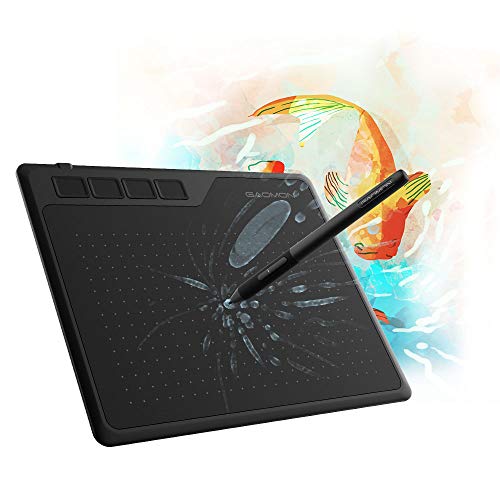
| Gaomon S620 | The pocket starter | An ultra-slim, portable 6.5×4-inch tablet with 8,192 pressure levels, four hot keys, and a battery-free stylus for digital art, note-taking, and OSU. |
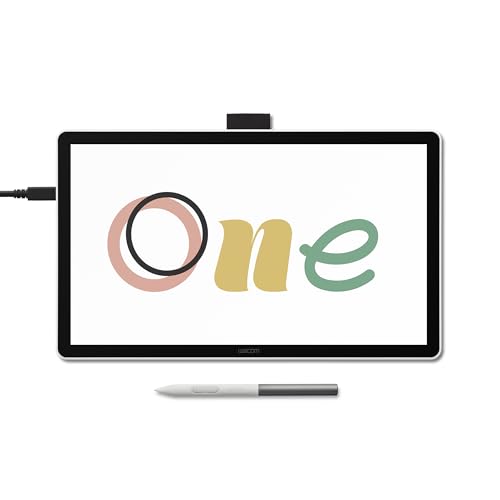
| Wacom One 14 Pen Display | The screen for beginners | A 14-inch IPS Full HD laminated pen display for beginners and students on Windows, Mac, and Chromebook — draw directly on the picture, no adjustment period. |
| XP-Pen Deco 640 | The precision trainer | A 6×4-inch tablet with 16,384 pressure levels and a battery-free stylus, aimed at drawing, teaching, designing, and editing across PC, Mac, and Android. |
How We Chose These Picks
Beginner suitability was judged by a single test: what happens in the first ten hours? A tablet passed if a new artist could unbox it, install one driver, open a free drawing application, and produce a finished — if wobbly — drawing in the first evening without consulting a forum. Models that demanded calibration rituals, account mazes, or shortcut archaeology before the first line were cut, however impressive their specifications. The survivors all clear that bar; they differ in how much room they leave for the artist who emerges after those ten hours.
Pen basics mattered more than pen fireworks. Every pick here uses a battery-free stylus, because a pen that needs charging will, with statistical certainty, be flat on the one free evening a beginner gets. Pressure levels start at 8,192 — honestly sufficient for learning line control — and rise to the 16K class on the XP-Pen models for learners whose light touch develops early. Tilt appears on the Huion H640P, which matters for anyone learning to shade with the side of a digital pencil.
Size was treated as a learning variable, not a status symbol. A 6×4-inch tablet maps neatly to a laptop screen and teaches small, controlled movements; a 10×6-inch tablet teaches arm drawing and matches a desktop monitor. Both are legitimate schools. We kept both sizes in the guide and wrote the reviews to say which learner each size serves, rather than pretending bigger is simply better for someone on their first hundred drawings.
Compatibility and bundled software closed the selection. Beginners own the computers they own — often a school Chromebook or a family Mac — so listings were checked for Mac, Windows, Chromebook, and Android support exactly as printed, and tablets that include software were favoured, because a first tablet that arrives with something to draw in removes the second decision a beginner did not know they had to make. Durability was assumed to matter: these tablets will be dropped, spilled near, and transported in school bags, and all six are built like objects that expect it.
We also considered the adults in the room. Many beginner tablets are bought by parents, partners, and teachers rather than by the artist, so setup burden on the giver counted: clear drivers, standard connections, and brands whose support pages answer beginner questions in plain language. A tablet that needs a technically confident owner to keep it running fails the beginner test even if its sensor is excellent, because the beginner’s household is part of the product’s real environment.
Which First Tablet Will Still Be on the Desk When the Hobby Sticks?
Wacom Intuos Small — The safest first step
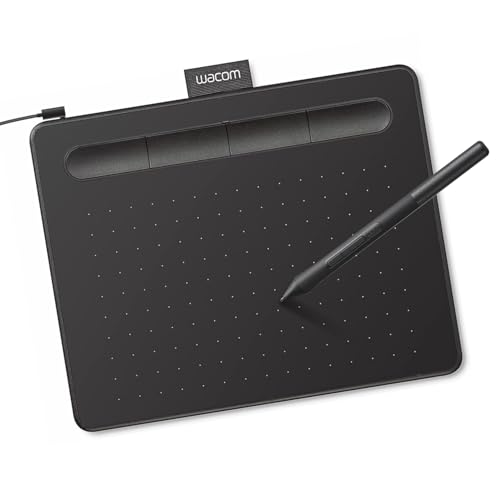
If a beginner asked for one recommendation and forbade follow-up questions, this is the tablet. The Intuos Small is Wacom’s distilled starter: a compact wired pad, a battery-free pen, four ExpressKeys for the shortcuts a beginner actually uses, and software in the box so the first evening ends with a drawing rather than a shopping list. The listing addresses creators, students, and teachers, and that breadth is the point — this is the tablet schools buy in sets and parents buy once, because its failure modes are so few.
The battery-free pen carries more beginner value than any specification on the box. A new artist’s motivation arrives in unpredictable bursts — twenty minutes before dinner, an hour on a rainy Sunday — and a pen that is always ready converts those bursts into practice. A pen that needs charging converts them into a reason to do something else. Wacom understood this decades ago, and the Intuos pen simply works every time you pick it up, with a pressure feel tuned to be forgiving: lines register at a natural touch, without the hair-trigger sensitivity that makes professional pens feel twitchy to new hands.
Four ExpressKeys sounds sparse until you watch a beginner’s actual shortcut vocabulary: undo, redo, brush size, and a colour picker cover nearly everything for months. The keys sit where the free hand rests, labelled by function in the driver, and learning to use them builds the single most valuable habit in digital art — keeping one hand on shortcuts while the other draws. Artists who form that habit early progress visibly faster, because their attention stays on the drawing instead of migrating to menus.
Chromebook compatibility quietly widens this tablet’s world. School-issued Chromebooks are the only computer many young beginners have, and most drawing tablets cannot talk to them at all. The Intuos Small can, as its listing states, which makes it the rare art tool that works identically at school and at home. Mac and Windows cover the family machines; the same small pad follows the student across all three without new drivers or new habits.
Its ceiling is honest: the small active area suits laptop screens and learning strokes, and a beginner who flourishes will eventually want a larger canvas and a finer pen — in about the time it takes to fill several digital sketchbooks. That is the correct shape for a first tablet. It costs little, risks less, teaches the fundamentals on forgiving hardware, and leaves the upgrade decision for the day the artist can make it from experience rather than guesswork.
A practical note for gift-buyers: this is the tablet least likely to generate a support phone call. The driver installs cleanly on the machines beginners own, the wired connection removes pairing from the story, and Wacom’s decades of beginner documentation mean any question a new artist types into a search engine has been answered about this product line many times. When the giver will not be in the room for setup, that accumulated documentation is a feature as real as the sensor.
- Connection: wired
- Pen: battery-free, with software included in the box
- Controls: 4 ExpressKeys
- Compatibility as listed: Mac, Windows, and Chromebook
- Audience named in the listing: creators, students, and teachers
Strengths
- Battery-free pen is always ready when a beginner’s motivation strikes
- Included software means the first evening ends with a drawing
- Works on school Chromebooks as well as home Macs and PCs
Trade-offs
- Small active area will feel tight on a large desktop monitor
- Four keys cover a beginner’s needs but not a growing shortcut vocabulary
- Wired connection keeps the tablet at the desk
Best for: first-time artists of any age — the most forgiving, best-supported start in digital drawing on offer here.
Not suited for: beginners with large desktop monitors who already know they draw big, and should start on the 10-inch model below.

XP-Pen Deco 01 V3 — The one you won’t outgrow
Most beginner tablets are built to be replaced. The Deco 01 V3 is built to be kept. Its 10×6-inch active area matches the tablets professionals use, and its battery-free stylus carries 16K pressure levels — a figure that headlines models aimed at working artists. XP-Pen describes it as designed for beginners, and it is, in the sense that nothing about it is intimidating. But a beginner who grows on this tablet grows into its full capability rather than out of the hardware, which changes the economics of starting entirely.
The large area teaches the right physical habits from the first week. New artists on small tablets learn to draw from the wrist in cramped movements, then must unlearn it later. Ten inches across lets the forearm and shoulder join the stroke, the way drawing teachers have always wanted students to work. Lines get longer, confidence follows, and the screenless adjustment — hand here, eyes there — comes easier because big targets forgive early imprecision. If a beginner’s desk and monitor can accommodate the size, this is the strongest start in the guide.
The stylus’s pressure resolution shows its value in the exercises beginners actually do. Line-weight drills, where a stroke must swell and taper on command, respond to the fine ramp. Pale construction lines under a drawing register without pressing. Shading built from many light passes accumulates smoothly instead of banding into steps. These are not professional luxuries; they are the mechanics of learning control, and having them work exactly as the tutorial on screen demonstrates removes a whole category of beginner frustration.
Eight shortcut keys give a growing artist room to expand their vocabulary — undo and brush size first, then layer commands, canvas flip, and colour picking as the habits form. Compatibility, as listed, spans Mac, PC, Android, and Chromebook, the widest spread in this guide, so the tablet follows a student from a school Chromebook to a home PC to a phone without missing a beat. Teaching and even rhythm games appear in the listing’s uses, both of which reward exactly the tracking honesty this tablet provides.
Choose it over the Wacom above when the beginner is clearly serious — drawing daily already on paper, asking for digital tools by name, filling sketchbooks. The Intuos Small is the safer gift for an untested interest; the Deco 01 V3 is the better instrument for a tested one. Either way, the learner starts on honest hardware, and this one simply postpones the upgrade conversation by years.
Parents and teachers should know the Deco 01 V3’s size cuts both ways in a shared space: it claims a proper patch of desk, which in a family home argues for a semi-permanent drawing corner rather than kitchen-table rotation. That permanence, oddly, helps beginners — a tablet that lives set up gets used in five-minute fragments, while a tablet that must be fetched, plugged, and arranged gets used on weekends. If the home can spare the corner, this model’s size becomes a habit-forming asset.
- Drawing space: a full 10 by 6 inches — the largest learning area in this guide
- Stylus: battery-free, resolving 16K pressure levels
- Shortcut hardware: eight programmable keys
- Works with Mac, PC, Android, and Chromebook, per the listing
- Listed for digital art, teaching, and rhythm-game play
Strengths
- Full-size area teaches proper arm drawing from day one
- 16K stylus gives beginners the same light-touch control as advanced models
- Broadest compatibility here — school, home, and phone all covered
Trade-offs
- Footprint is large for small desks and younger children’s workspaces
- No bundled-software emphasis; pair it with a free app like Krita
- Serious specification can tempt beginners to skip the basic drills
Best for: committed beginners, paper artists going digital: one tablet lasting from first sketch to confident work.
Not suited for: casual first-timers testing an unproven interest, for whom the smaller, simpler Intuos is the kinder start.

Huion Inspiroy H640P — The shading teacher
Tilt is the feature beginners do not know to ask for, and the H640P is the small tablet that includes it. Tilt lets the pen sense its own angle, so a digital pencil shades with its side when you roll it over, and a flat brush changes its footprint as you lean. Beginners learning from traditional media — where pencil shading is half the craft — find their paper instincts transfer instead of being retrained. Huion prints tilt right in the listing for this 6×4-inch model, alongside 8,192 pressure levels and a battery-free stylus.
The size suits the way beginners actually work. A 6×4-inch area maps proportionally onto a laptop screen, which is the machine most new artists own, so a stroke’s length on the tablet matches its length on screen without the cursor feeling either twitchy or sluggish. The tablet parks beside a laptop without rearranging the desk, travels in the same bag, and sets up in the library as easily as at home. Six hot keys hold the starter shortcut set — undo, brush size, and friends — within the free hand’s reach.
Huion pitches the H640P at beginners explicitly, naming drawing, writing, design, and teaching among its uses, and the writing mention deserves attention. New artists who are also students discover that a pen tablet transforms note-taking and homework markup: annotating PDFs, working through maths problems, signing and sketching in margins. A tablet that serves school on weekdays earns its desk space in a way a pure art tool sometimes struggles to, and the habit of picking up the pen daily — for anything — accelerates the drawing learning curve as a side effect.
Android support, as listed, adds a genuinely useful trick: connect the tablet to a phone and the sketchbook becomes pocketable. The phone’s drawing apps read the pen’s pressure, and a beginner can practise line drills on a bus with hardware that costs less than the phone’s case. Mac and PC support covers the home machines. No single feature here is dramatic, but the combination — tilt, battery-free pen, three-platform compatibility, laptop-friendly size — is the most complete small package in the guide.
Its limits are the limits of its size class. Artists who graduate to a large monitor will want a larger tablet to match, and six keys will eventually feel like a starter vocabulary. But as a first or second-year tablet for a laptop-based learner, especially one whose drawing leans on pencil-style shading, the H640P teaches more technique per square inch than anything else at its size.
One exercise shows off this tablet’s tilt better than any other: copy a shaded sphere, the classic first lesson, using only a pencil tool and the side of the pen for the soft shadow. On a tilt-blind tablet the exercise teaches pressure alone; on the H640P it teaches pressure and angle together, which is how the graphite version works and why art teachers set it. Beginners who master that sphere early carry a shading intuition that serves every subject afterward.
- Active area: 6 x 4 inches
- Pen: battery-free stylus, 8,192 pressure levels, tilt support
- Controls: 6 hot keys
- Compatibility as listed: Mac, PC, and Android
- Named uses in the listing: drawing, writing, design, and teaching for beginners
Strengths
- Tilt support lets pencil-style shading transfer from paper lessons
- Laptop-matched size travels and sets up anywhere
- Battery-free pen plus phone support makes practice genuinely portable
Trade-offs
- Small area will crowd artists who move to big monitors
- Six keys is a starter set, not a studio control bank
- No Chromebook support is printed in the listing
Best for: laptop-based beginners shading, sketching, and taking notes — one small tablet teaching real technique.
Not suited for: desktop artists with large monitors, who should begin on a 10-inch tablet instead of upgrading within the year.
Gaomon S620 — The pocket starter
The S620 is the tablet equivalent of a pocket sketchbook: ultra-slim, light, and present. Gaomon lists a 6.5×4-inch active area, 8,192 pressure levels, four hot keys, and a battery-free stylus, aimed at beginners, students, and creators across digital art, note-taking, and rhythm games. Its design bet is that the best beginner tablet is the one that is actually there — in the bag, on the train tray, beside the lecture notebook — because practice frequency beats practice grandeur for a new artist every time.
Portability at this level changes behaviour. A student can draw through a free period without a setup ritual. A commuter can run line drills against a laptop on a train table that would never fit a 10-inch tablet. The slim body slides into the same sleeve as the laptop and adds so little weight that carrying it becomes a default rather than a decision. Beginners underestimate how much of learning is simply showing up with the tool in hand; the S620 is engineered around showing up.
The specification stays honest despite the size. Eight thousand pressure levels is the established workhorse figure, enough for controlled line weight and smooth shading ramps. Four hot keys cover undo and the essentials — a beginner’s genuine vocabulary — without presenting a bewildering bank of buttons to configure. The battery-free stylus means the pen in the bag is always the pen ready to work, and Gaomon’s tracking serves the rhythm-game crowd named in the listing, which is a sterner test of a sensor than most drawing ever applies.
Note-taking is the sleeper use. Students who annotate lecture slides and work problem sets by hand find the S620 disappears into their existing routine, and every page of notes is secretly pen-control practice. By the time such a student sits down to draw deliberately, the hand-eye adjustment is already behind them — they crossed it doing homework. Few art tools smuggle their own learning curve into another subject; this one does, and teachers who issue them notice the effect.
Buy it as a starter or as a satellite. As a first tablet it serves laptop-based learners well, with the understanding that a flourishing artist will want more area within a year or two. As a second tablet — the travel companion to a big desk model — it may be the smartest purchase in this entire guide, because it keeps the practice habit alive in all the places the big tablet cannot go.
Battery-free deserves one more beginner-specific word here: children lose chargers, students forget them, and shared family tablets migrate between rooms. A stylus with no battery is a stylus that works in every one of those situations, and the S620’s whole design — slim, light, unkillable pen — is tuned for a life lived in bags and shared spaces. Treat it roughly; it was expecting you to.
- Active area: 6.5 x 4 inches
- Pen: battery-free stylus, 8,192 pressure levels
- Controls: 4 hot keys
- Form factor: ultra-slim and portable, per the listing
- Named uses in the listing: digital art, note-taking, and OSU
Strengths
- Ultra-slim body makes the tablet a default carry, not a decision
- Honest 8,192-level pen serves drawing, notes, and rhythm games alike
- Battery-free stylus is ready in every bag and classroom
Trade-offs
- Smallest learning canvas here alongside the H640P
- Four keys is the minimum viable shortcut set
- Artists who take to drawing seriously will plan a larger second tablet
Best for: students and commuters whose practice happens in fragments across the day, in more places than one desk.
Not suited for: beginners setting up a single permanent desk studio, who will use a larger area better from the start.
Wacom One 14 Pen Display — The screen for beginners
One beginner in every group tries a screenless tablet for a week, hates the hand-eye separation with sincere intensity, and quits a hobby they would have loved. The Wacom One 14 exists for that beginner. It is a 14-inch pen display — IPS, Full HD, laminated — where the drawing appears directly under the pen, exactly as it does on paper. Wacom aims it, in the listing’s words, at beginners and students learning digital art, animation, and graphic design, and it is the only screened pick in this guide because for this particular learner, the screen is not a luxury; it is the difference between starting and not starting.
Lamination matters to beginners more than they know. On a laminated display the glass bonds to the panel, so the line forms almost exactly at the pen tip instead of visibly offset beneath a layer of glass. A learner tracing their own scanned pencil drawings — one of the best beginner exercises there is — needs that honesty, because tracing teaches proportion only when the digital line lands where the hand aimed it. The IPS panel keeps colours consistent from the angles a drawing screen is actually viewed at, slouched and various.
Fourteen inches is a well-judged teaching size. It is large enough to show a full drawing with tool panels visible, small enough to sit on a student’s desk or a kitchen table without evicting everything else, and light enough to move between rooms. Windows, Mac, and Chromebook compatibility, as listed, mirrors the Intuos Small’s school-friendly breadth — a notable feat for a display, since pen displays that talk to Chromebooks are rare. The same machine-flexibility that makes the little Wacom a classroom staple is present here with a screen attached.
The trade-offs are the format’s, stated plainly. A display costs more than any screenless tablet in this guide, occupies the desk more assertively, and ties up the computer’s video connection while it works. It also needs the computer for everything — this is a screen, not a standalone device. Beginners who would happily cross the screenless adjustment pay for a solution to a problem they do not have. That is why it sits fifth here rather than first: it is the right answer for a specific, real minority.
If you are buying for a beginner who has already bounced off a screenless tablet, or whose learning style is intensely visual and tactile, this is the purchase that rescues the hobby. Watching a reluctant beginner draw directly on their own scanned sketch, grinning, is the entire argument. Everyone else can save the difference, start screenless, and keep this model in mind as the upgrade that changes the feel of drawing rather than merely enlarging it.
Students considering this display for animation should know the 14-inch Full HD canvas suits the work well: timelines and layers fit below and beside the drawing without the interface swallowing the frame. Storyboarding, in particular, benefits from the direct pen-on-image feel, because boards are drawn fast and loose and judged as a sequence — the display keeps that paper-like rhythm while adding undo, which story artists describe as the single most liberating change in their process.
- Panel: 14-inch IPS Full HD, laminated screen
- Pen: Wacom One pen included
- Compatibility as listed: Windows, Mac, and Chromebook
- Named uses in the listing: digital art, animation, and graphic design for beginners and students
- Format: pen display — requires a computer to run
Strengths
- Drawing directly on the image removes the beginner hand-eye adjustment entirely
- Laminated IPS panel keeps lines honest under the pen tip
- Chromebook support is rare among pen displays and valuable for students
Trade-offs
- Costs more than every screenless pick in this guide
- Needs a computer for everything; it is a display, not a standalone device
- Occupies more desk and a video connection while in use
Best for: beginners burned by a first screenless tablet, and visual learners whose line must appear under the pen.
Not suited for: beginners happy to learn screenless, who get more drawing per pound from the tablets above.

XP-Pen Deco 640 — The precision trainer
The Deco 640 makes a focused argument: at the size where beginners practise control, give them the finest pressure sensor in the building. Its 6×4-inch area pairs with a battery-free stylus at 16,384 pressure levels — the highest figure in this guide — so the lightest exercises a teacher can set, from ghosted construction lines to five-step shading scales, register with room to spare. XP-Pen lists it for digital drawing, teaching, designing, and editing, and that teaching word is the key to its design.
Small tablets earn their place in a beginner’s kit through mapping. Six by four inches against a laptop screen gives a near one-to-one relationship between hand movement and cursor movement, which makes the screenless adjustment feel less like translation and more like writing on a trackpad that happens to be honest. Line drills, handwriting practice, and photo-editing exercises — the listing names editing, and pressure-controlled retouching brushes are a genuine beginner-friendly use — all benefit from that tight, predictable mapping.
The OSU heritage in XP-Pen’s Deco line shows in the tracking. Rhythm gaming punishes lag and drift without mercy, and a tablet line tuned for it brings a steadiness to drawing that beginners feel as confidence: the cursor is where the pen says, every time, including at the edges of the small area where cheap sensors wander. For a learner whose frustration budget is small, that dependability is worth more than extra inches they are not ready to use.
Android compatibility, as listed, completes the practice-anywhere picture alongside PC and Mac. A phone, this tablet, and a free drawing app make a sketch kit that fits in a jacket’s worth of bag space, and beginners who practise in fragments — bus rides, waiting rooms, lunch breaks — accumulate hours that desk-bound learners never find. The battery-free stylus keeps the kit permanently ready, which is the whole secret of fragment practice: no charging ritual stands between the impulse and the exercise.
Its ceiling is visible from the start and should be stated kindly: serious artists draw on larger areas, and a beginner who commits will eventually join them. But the Deco 640’s precision makes it a trainer that stays useful even after the upgrade — as a travel tablet, a retouching pad, a teaching spare. Beginners who learn control on a fine sensor carry that control to every tablet they ever touch afterward.
A word on the Deco 640 for left-handed beginners: compact tablets reposition freely, and XP-Pen’s driver allows the tablet to be flipped so its controls sit on the side the drawing hand is not using. Left-handers on small desks often find a compact pad like this easier to place fairly than a large tablet whose bulk dictates the arrangement. It is a modest point that matters daily to about a tenth of beginners, and the big models cannot make the same promise on a cramped desk.
- Active area: 6 x 4 inches
- Pen: battery-free stylus, 16,384 pressure levels
- Compatibility as listed: PC, Mac, and Android
- Named uses in the listing: digital drawing, teaching, designing, and editing
- Format: compact pen tablet, OSU-capable drawing pad
Strengths
- 16,384 pressure levels — the finest light-touch control in this guide
- Tight laptop mapping makes the screenless adjustment feel natural
- Phone support turns fragments of the day into practice time
Trade-offs
- 6×4 inches is a training size, not a forever size
- No Chromebook support printed in the listing
- Control set is minimal compared with the key banks elsewhere here
Best for: beginners focused on line control and shading technique, especially laptop and phone artists who practise in short sessions.
Not suited for: beginners who already draw large on paper and need a 10-inch area to keep their natural stroke length.
How Do the Six Beginner Tablets Compare at a Glance?
Figures come from each maker’s listing for the exact model. The most important beginner column is the last one — what the tablet asks of you while you learn — because that, more than any sensor figure, predicts whether a first tablet gets used.
| Pick | Format and area | Pen (as listed) | Controls | Learning curve |
|---|---|---|---|---|
| Wacom Intuos Small | Screenless, small | Battery-free pen | 4 ExpressKeys | Gentle — software included |
| XP-Pen Deco 01 V3 | Screenless, 10 x 6 inches | Battery-free, 16K levels | 8 keys | Gentle — big area forgives early strokes |
| Huion Inspiroy H640P | Screenless, 6 x 4 inches | Battery-free, 8,192 levels, tilt | 6 hot keys | Gentle — tilt rewards paper habits |
| Gaomon S620 | Screenless, 6.5 x 4 inches | Battery-free, 8,192 levels | 4 hot keys | Gentlest setup — built to travel |
| Wacom One 14 | Pen display, 14-inch FHD laminated | Wacom One pen | On-screen workflow | None — draw on the picture itself |
| XP-Pen Deco 640 | Screenless, 6 x 4 inches | Battery-free, 16,384 levels | Minimal, per listing | Gentle — tight mapping feels like writing |
Screen or No Screen: Which Should a Beginner Actually Start With?
Start screenless unless you have evidence — not a hunch, evidence — that the hand-eye split will stop you. The evidence looks like this: you have tried a screenless tablet for several real sessions, or you learn every physical skill by watching your hands and cannot type without looking at the keyboard either. Screenless starters are cheaper, tougher, and leave budget for the things beginners also need, like a decent chair and time. Most new artists cross the adjustment in about two weeks of regular drawing and then forget it ever existed.
The pen display earns its premium in three beginner situations. Young children, whose motor learning is still intensely visual, often take to drawing on the image immediately while struggling with a slab. Adult beginners returning to art after decades away from it sometimes find the directness emotionally important — it feels like the sketchbook they remember. And beginners whose main computer is a desktop with a small, dim monitor may genuinely draw more on a bright 14-inch screen placed where their sketchbook used to sit. In those cases the Wacom One 14 is not an indulgence; it is the enabling purchase.
There is a hybrid path worth knowing about: start screenless, and borrow any pen display you can — a school art room, a library makerspace, a friend’s desk — for one session before deciding the format question is settled. A single hour drawing on the image tells a beginner more about their own preference than a month of reading comparisons, including this one. Preference here is physical knowledge, and physical knowledge is only honestly acquired by hand.
How Much Should a First Tablet Cost, and What Does the Extra Money Buy?
Think in tiers of commitment rather than amounts. The starter tier — the small Wacom, Huion, Gaomon, and Deco 640 in this guide — buys honest sensors and forgiving hardware for an unproven interest; nothing in it will embarrass a learner or sabotage a lesson. The step-up tier, represented by the Deco 01 V3, buys area and pen resolution: things a beginner does not need on day one but will use on day one hundred, which is why it suits beginners whose commitment is already proven on paper. The display tier buys immediacy. What extra money never buys is talent, taste, or mileage — those remain stubbornly free and stubbornly earned.
Protect the rest of the setup budget while you shop. A beginner with a modest tablet and a functioning computer, a free drawing application, and a chair that does not hurt is better equipped than a beginner with a flagship tablet balanced on a wobbling desk. If the total budget is tight, spend it in that order: tablet from this guide’s starter tier, everything else you already own, upgrade only when a specific limitation — not a vague feeling — names itself in your work.
Second-hand professional tablets complicate the tiers in a useful way: last generation’s pro models often sell near starter prices and carry excellent sensors. The risks are worn surfaces, missing nibs, and driver support that may end sooner. A confident buyer with a technically minded household can do well there; a gift for a young beginner is usually better spent on a new starter model with its warranty, its spares, and its documentation intact.
What Do Beginners Actually Draw in the First Month, and Does the Tablet Matter?
First-month drawing is remarkably consistent across beginners: fan art of beloved characters, studies of hands and faces, pets, original characters with elaborate hair, and pages of pure mark-making when a new brush is discovered. None of it stresses a tablet’s limits. What stresses the beginner is friction — setup rituals, dead pens, software confusion — and that is why this guide weights readiness and forgiveness over specifications. The tablet matters in month one mostly by disappearing, and every pick here was chosen for its ability to disappear in a slightly different living situation.
By month three the picture changes. The beginner who persists starts hitting real edges: canvas sizes grow, brush engines get explored, shortcut vocabularies lengthen. That is the moment the headroom in the Deco 01 V3 or the tilt in the H640P begins paying rent, and the moment a too-small starter would start whispering about upgrades. Choosing a first tablet is therefore a bet on which month-three artist you expect to meet — and the safest bet, for most, is the one that keeps month one frictionless.
What Should the First Two Weeks With a New Tablet Look Like?
Week one is for mileage, not masterpieces. Set the tablet up once, map the keys to undo and brush size, and then draw every day for at least twenty minutes: copies of favourite characters, studies of household objects, pages of pure line drills disguised as drawing vines and hair. Expect the screenless models to feel wrong for the first three or four sessions and noticeably less wrong by the seventh. Keep the early drawings. They become the most encouraging objects you own, because month-two you will look back and see the adjustment happen on paper.
Week two adds one skill at a time. Day eight: layers, and drawing one element per layer. Day ten: the colour picker shortcut under your free hand until it is reflex. Day twelve: a first shaded piece using pressure alone, no opacity sliders. Day fourteen: draw the same subject as day one and compare. This staged approach works because a tablet’s learning curve is actually three curves — hand-eye mapping, software habits, and drawing itself — and stacking them one at a time keeps each climb short. Beginners who try to learn all three in the first weekend are the ones who conclude, wrongly, that digital art is not for them.
Protect the streak socially as well as technically. Show someone the drawings — a parent, a friend, an online beginner community — because encouragement is fuel and the first month runs on it. Post the day-fourteen comparison pair side by side; few things motivate a new artist like visible proof that fourteen days did that. The tablet made the practice possible, but the audience, even an audience of one, makes it continue.
Common Mistakes
Buying the biggest, finest tablet for a first attempt sounds generous and often backfires. A large professional surface intimidates a beginner’s small, careful strokes, and an expensive object raises the emotional stakes of every bad drawing — as if the tablet were being wasted. Beginners draw more freely on equipment they are not afraid of disappointing. Match the tablet to the commitment you can prove, not the artist you hope to become by Christmas.
Skipping the shortcut keys is the silent progress-killer. New artists who reach for menus with the pen hand break their drawing rhythm hundreds of times a session and learn slowly because their attention keeps leaving the canvas. Programme undo and brush size on day one — every pick in this guide can hold at least those — and add one new shortcut a week. The habit compounds like interest.
Judging digital art by the first weekend is the mistake that ends the most hobbies. The first drawings on any tablet look worse than the same artist’s paper work, because two new skills are being learned at once. This says nothing about aptitude. The paper skill is still there, waiting for the mapping to settle, and the artists who push through the awkward fortnight almost universally report that the digital work catches up and then passes the paper work — because undo, layers, and infinite paper turn out to be superpowers.
Neglecting the pen’s nib finishes the list. Beginners press harder than experienced artists, wear nibs faster, and then blame the tablet for scratchy lines. Inspect the nib weekly; when it develops a flat or a sharp edge, swap it. Every tablet here ships with spares or takes standard replacements, and the thirty seconds the swap takes protects both your lines and the tablet’s surface.
One more beginner-specific trap: copying a favourite artist’s exact setup, brush settings and all, in week one. Professional settings assume professional habits — pressure curves tuned to a decade of hand control, stabilisation values matched to a personal stroke speed. Loaded onto a beginner’s tablet they make lines feel alien and convince the learner the hardware is wrong. Start with defaults, change one setting at a time, and let your own hand cast the votes.
Final Recommendation
For the typical beginner, the Wacom Intuos Small is the recommendation to beat: forgiving, supported everywhere including school Chromebooks, and bundled with software so the first evening produces art. The committed beginner should skip a step and take the Deco 01 V3’s big, fine surface. The H640P teaches shading best, the S620 travels best, the Deco 640 trains control best, and the Wacom One 14 stands ready for the beginner whose line must appear under the pen. Choose by the learner in front of you, then protect the only variable that really matters — the next fourteen days of drawing a little, every day.
One last reassurance for anyone buying with a knot of doubt: there is no pick in this guide that can ruin a beginner. The differences between these six are differences of fit — desk, screen, hand, habit — not differences between success and failure. Choose the fit that sounds like the life the tablet will actually live, buy it without a second round of research, and spend the saved deliberation on the first drawing instead. The artist a beginner becomes is decided at the desk, in the sessions after the unboxing — never in the shopping cart.
Frequently Asked Questions
Do beginners need a tablet with a screen?
Most do not. Screenless tablets cost less, survive more, and the hand-eye adjustment they require fades within about two weeks of regular drawing. A screen helps specific beginners — young children, returning artists who need paper-like directness, and anyone who has genuinely tried screenless and stalled. The Wacom One 14 in this guide covers that case without leaving the beginner tier.
What size tablet should a beginner buy?
Match the tablet to the screen it will drive. Laptop users learn comfortably on 6×4-inch models, whose mapping feels close to one-to-one. Desktop users with larger monitors should start at the 10-inch class so strokes stay at a natural scale. Oversizing a first tablet is as unhelpful as undersizing it — the goal is a mapping your hand stops noticing.
Which free software works with these tablets?
Krita is the most complete free drawing application and reads pressure and tilt from every tablet here. Medibang and FireAlpaca are lighter alternatives that suit older computers and younger artists. Several picks include bundled software as their listings state, which is worth trying first — a beginner’s best application is the one already installed when motivation strikes.
How long until digital drawing feels natural?
The mapping feels natural after roughly ten regular sessions for most learners. Software fluency — layers, brushes, shortcuts — builds over the first two or three months. Drawing skill itself is the same long, rewarding road it is on paper. The encouraging truth is that the tablet-specific part is the shortest of the three, and it is finished before the first sketchbook’s worth of digital pages is filled.
Can a beginner tablet be used for schoolwork too?
Yes, and it is one of the format’s under-sold virtues. Every model here can annotate PDFs, work through handwritten maths, and mark up documents; the listing for the H640P and S620 name writing and note-taking outright. A tablet that serves homework on weekdays gets picked up daily, and that daily contact quietly completes the drawing learning curve.
When should a beginner upgrade their tablet?
When a specific limitation names itself repeatedly: the area cramps full-page work, the shortcut vocabulary overflows the keys, the monitor outgrows the mapping. Vague dissatisfaction is not a signal — it is usually the drawing, not the device, asking for practice. Most artists in this guide’s starter tier are honestly equipped for their first one to two years.
Is a bigger tablet always easier for a beginner?
No. Bigger is easier only when it matches the screen. A large tablet driving a small laptop display makes the cursor feel sluggish and forces exaggerated hand travel for small movements, which tires new artists and blurs fine control. Match the areas, as the size section above explains, and let the beginner’s second tablet be the one that grows.
Should a beginner learn on the same tablet professionals use?
The same tier is unnecessary; the same honesty is essential. Professional tablets add dials, finer pens, and ecosystems a beginner cannot yet use, at prices that raise the stakes of every bad drawing. What a beginner must not learn on is a toy — a laggy, wobbling sensor teaches distrust of their own hand. Every pick in this guide is honest hardware; the professional tier can wait for professional needs.
Related Guides
Once the basics settle, the natural next reads are the screenless tablets ranked for accuracy and control and the comparison of drawing screens that run without any computer attached — and when Photoshop enters the picture, our guide to tablets tuned for Photoshop work on Windows picks up exactly where this one leaves off.