What's inside
- Where to Buy
- Key Takeaways
- Quick Picks
- How These Picks Were Chosen
- Comparison
- How to Choose a Touch Portable Monitor
- Why Does Touch Stop Working on Some Computers?
- Does a Touchscreen Need 10-Point Touch, or Is That a Numbers Game?
- What Should You Set Up Before a Touch Screen Meets Its First Audience?
- Common Mistakes When Buying a Touch Portable Monitor
- Final Recommendation
- Frequently Asked Questions
- Related Guides
As an Amazon Associate I earn from qualifying purchases. This post may contain affiliate links at no extra cost to you.
[SITE_DOMAIN] is reader-supported. When you buy through links on our site, we may earn an affiliate commission.
Where to Buy
Six touch screens follow, each tied to its own Amazon listing. The InnoView Touch Portable Monitor leads the set, and its page is the place to confirm the sleeve version currently shipping before you rely on it for a bag. Anyone weighing the cocopar Touch Portable Monitor should open its listing and look closely at the VESA note, since wall and arm mounting change how this screen can live. The ViewSonic TD1655 is the established name here, and its Amazon page carries the warranty wording in full for readers who buy on support as much as specification. The Acer PM161QT Touch Monitor hides a USB hub in its title, so its product page deserves a careful read to see which ports that hub actually offers. The MSI MP161E6T Touch Monitor keeps its pitch simple, and its listing will show the figure that decides whether simple is also sensible. The UPERFECT Touch Portable Monitor closes the six, with the widest colour claim of the group waiting on its page to be weighed against its cost.
Anyone searching for the best hdmi portable monitors 1920×1080 touch screen is really asking for two products fused into one object: a travel display that plugs into almost anything over HDMI, and a touch surface that lets a finger do the work of a mouse when the desk is too small, the counter too public or the presentation too informal for peripherals. All six picks here state 1080P or FHD in their titles and claim touch in their titles, and the reviews treat both claims exactly as printed — as title claims about a panel’s resolution and its touch layer, not as guarantees about how any particular computer will behave once connected.
That last distinction deserves emphasis before a single review, because it decides whether buyers feel delighted or deceived. Touch on a portable monitor is a conversation between the screen and the host, and the host sets the terms. Windows machines generally speak touch fluently. Macs do not support touch input natively at all: connect any of these six screens to a MacBook and it will work as an ordinary, perfectly good portable display whose glass simply ignores your fingers. That is a platform fact, not a defect in any pick below, and this guide repeats it wherever a title names Mac among its hosts so that Apple owners buy with open eyes.
Connection plumbing forms the second framing point. A touch portable monitor typically needs its video feed and its touch data carried together, and while USB-C can handle both in one lead, an HDMI feed usually travels with a companion USB connection so the touches can make the return journey to the computer. Titles here name HDMI and USB-C in various combinations, and the reviews note which pairing each title actually promises. Buyers planning a one-cable life should read those lines closely; buyers planning a kiosk, a till or a presentation cart will care more about stands, mounts and sleeves, which vary across this set just as widely.
Key Takeaways
- Five of the six titles state 10-point touch explicitly; the cocopar and UPERFECT titles claim touchscreen capability without printing a point count, and their spec boxes preserve that difference.
- macOS does not support touch natively, so on a Mac every pick here behaves as a non-touch display regardless of its title.
- The ViewSonic TD1655 is the only title that quantifies its USB-C power figure, at 60W, and the only one that prints a warranty term, at three years.
- Colour claims split the set: the UPERFECT states 125% sRGB and the cocopar 90% sRGB, while the other four titles print no gamut percentage.
- Mounting divides the line-up too — the cocopar and UPERFECT name VESA mounting, the InnoView packs a sleeve and built-in stand, and the Acer adds a USB hub and AdaptiveSync.
Quick Picks
| Pick | Badge | Why it earns a place |
|---|---|---|
| InnoView Touch Portable Monitor | Sleeve-and-stand traveller | 10-point touch, 1200:1 contrast figure, protective sleeve and built-in stand in the title. |
| cocopar Touch Portable Monitor | VESA-mountable touch | 90% sRGB claim, speaker, HDMI and USB-C, with VESA mounting named. |
| ViewSonic TD1655 | Established all-rounder | 10-point touch, 60W USB-C, mini HDMI, dual speakers and a three-year warranty in the title. |
| Acer PM161QT Touch Monitor | Hub-equipped option | 6ms figure, AdaptiveSync, two USB-C ports and a USB hub in the title. |
| MSI MP161E6T Touch Monitor | Straightforward touch panel | 10-point touchscreen, USB Type-C and mini-HDMI, built-in speakers. |
| UPERFECT Touch Portable Monitor | Colour-led touch pick | 125% sRGB claim, adjustable stand, speaker and VESA mounting in the title. |
How These Picks Were Chosen
The entry ticket was the keyword itself, applied without charity: a pick had to state a 1920×1080-class resolution in its title — printed as 1080P, FHD or the full pixel count — and had to claim touch in its title. Screens that are merely touch-ready, touch-compatible or bundled with a stylus they do not describe did not survive, because a buyer searching this phrase is shopping for a surface they can tap, and a guide that blurs that line wastes their money in the most literal way.
HDMI presence formed the second filter, with one honest complication. The keyword names HDMI, and five titles print HDMI or mini-HDMI outright. The set keeps faith with that by treating the HDMI-equipped screens as the core, and the reviews state each pick’s exact port wording rather than rounding mini-HDMI up to full-size or assuming a port a title never mentions. Port precision sounds pedantic until a buyer unpacks a screen beside a cable that does not fit, at which point it sounds like the whole job.
Touch claims were read with the same literal care. A title that prints 10-point touch is making a specific claim about simultaneous contact points, which matters for gestures, for two-handed kiosk use and for drawing. A title that says touchscreen without a number is making a smaller claim, and the spec boxes below preserve that gap instead of harmonising it away. Neither wording guarantees a good touch experience — latency, palm rejection and driver behaviour live below the title’s pay grade — but the wording is the evidence available, and this guide reports evidence rather than vibes.
Finally, the six were balanced by intended habitat. Two name VESA mounting and belong on arms, walls and carts. One packs a sleeve and a built-in stand for the pure travel life. One adds a hub and sync technology for the desk-bound hybrid worker. One carries a warranty and a power figure for the buyer who purchases support. A touch screen is a more personal object than a plain panel — it will literally be handled — so the guide weights where each one will be touched, and how often, as heavily as what it displays.

InnoView Touch Portable Monitor — Sleeve-and-stand traveller
InnoView’s touch entry builds its case on travel completeness. The title describes a 15.6-inch portable monitor at 60Hz with a touchscreen, 1080P resolution, 10-point touch, a protective sleeve, a built-in stand and a 1200:1 contrast figure, connected over HDMI and USB-C for laptops, PCs and phones. Two items in that list are rarer than they look. The contrast figure is the only one printed by any pick in this guide, and a stated contrast ratio gives buyers a concrete handle on how dark scenes and dense documents will separate, even if real-world contrast always depends on the room.
The sleeve and stand pairing tells the travel story plainly. A protective sleeve guards the touch glass in a bag — and touch glass earns more fingerprints, more wipes and more scratches than a panel nobody touches — while a built-in stand means the screen props itself without borrowing its own packaging as furniture. Travellers who have balanced a portable monitor against a water bottle in a departure lounge will recognise the value of a stand that is part of the product rather than an origami exercise performed under time pressure.
The 60Hz figure is printed without embarrassment, and for a touch screen that is the correct priority: touch responsiveness is about the digitiser and the connection, not the refresh ceiling, and a buyer choosing a screen for forms, signatures, point-of-sale work or presentation control will never feel the missing hertz. Gamers browsing this guide out of curiosity should note the title names laptops, PCs and phones as hosts rather than consoles, which quietly confirms the intended work.
Who it suits is the mobile professional whose touch screen must survive the bag as well as serve the desk: the inspector filling forms on site, the trainer running sessions in borrowed rooms, the field engineer whose monitor lives in a vehicle between jobs. The title names no speaker and no VESA pattern, so a buyer who needs sound from the screen or a wall mount should keep reading — but a buyer who needs a self-contained, protected, self-standing touch panel has found the most literally travel-ready specification in this set.
- Size and resolution: 15.6 inches, 1080P
- Touch: 10-point touch stated
- Refresh rate: 60Hz
- Contrast: 1200:1 stated
- Inputs: HDMI, USB-C
- Protection and stand: protective sleeve, built-in stand
- Stated hosts: laptop, PC, phone
- Speakers: Not stated in the listing title — verify with the manufacturer documentation
- VESA mounting: Not stated in the listing title — verify with the manufacturer documentation
Strengths
- The 1200:1 contrast figure is unique among these six titles.
- Sleeve and built-in stand make it self-contained for travel.
- 10-point touch is stated explicitly rather than implied.
Trade-offs
- 60Hz suits work and presentation, not fast gaming.
- No speaker is named for audio duties.
- No VESA pattern is named for arm or wall mounting.
Best for: a field worker or trainer who carries a touch screen daily and needs it protected in the bag and self-standing on any borrowed table. Not suited for: a fixed kiosk installation, because this title names no VESA mounting pattern to bolt the screen down with.
Caring for a touch screen that travels starts with the glass. Keep a microfibre cloth in the sleeve itself rather than in a different bag, because the moment a screen needs wiping is always the moment the cloth is elsewhere, and a sleeve pocket that holds the cloth turns good intentions into a routine. Learn the stand’s stable angles at home and mark the one you use for standing presentations, since a built-in stand mid-collapse during a client session teaches the lesson at the worst possible price. InnoView’s listing is where the current figure for this self-contained traveller waits when the routine sounds like yours.
cocopar Touch Portable Monitor — VESA-mountable touch
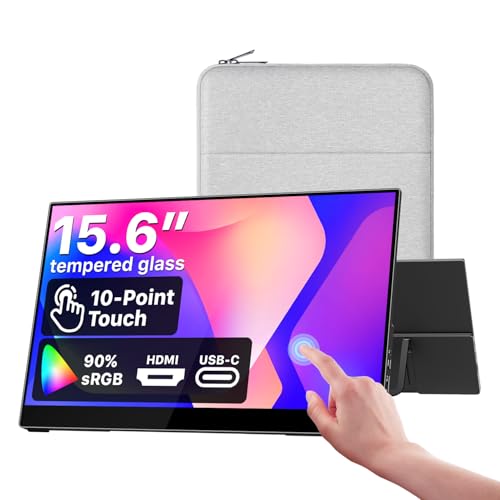
The cocopar entry pairs its touchscreen claim with the two features that decide whether a portable touch panel can graduate into a fixture: a 90% sRGB colour claim and VESA mounting. The full title describes a 15.6-inch 1080P FHD travel monitor with a speaker, HDMI and USB-C, aimed at laptops, MacBook, Surface, PC, Xbox and PS4/5. That host list is the broadest in the guide, and it contains the guide’s recurring caution in its purest form — MacBook is named as a display host, and on that MacBook the touch layer will stay silent, because macOS offers no native touch support for the screen to talk to.
VESA mounting changes the moral of the story. A portable monitor that can bolt to a standard mount can serve as a kitchen recipe screen, a workshop reference panel, a retail counter display or a wall-mounted control surface, all habitats where a propped screen would be knocked, splashed or stolen. The cocopar’s travel framing keeps it honest as a portable first, but the mount holes in its back quietly double its career options, and buyers who suspect their screen’s life will migrate from bag to bracket should weigh that heavily.
The 90% sRGB figure sits modestly below the UPERFECT’s 125% claim further down, and the honest reading is that this cocopar aims for accurate-enough colour for documents, interfaces and video rather than for colour-critical work. The built-in speaker, by contrast, is a straightforward gift for its fixture habitats: a mounted screen that can also make sound serves a kitchen timer, a waiting-room loop or a video call without a second device wired to it.
Who it suits is the buyer whose touch screen will live in two worlds — carried to sites and sessions, then mounted where it works. Home automators, small retailers, workshop owners and teachers with a permanent corner all fit. The title does not print a touch point count, so gesture-heavy users should confirm that detail on the listing page, and the refresh rate goes unstated as well. What the title does promise — touch, colour figure, speaker, mount — is a coherent portrait of a screen designed to be installed as easily as it is carried.
- Size and resolution: 15.6 inches, 1080P FHD
- Touch: touchscreen stated; point count not printed
- Colour: 90% sRGB stated
- Inputs: HDMI, USB-C
- Audio: speaker named in the title
- Mounting: VESA mountable
- Stated hosts: laptop, MacBook, Surface, PC, Xbox, PS4/5
- Touch point count: Not stated in the listing title — verify with the manufacturer documentation
- Refresh rate: Not stated in the listing title — verify with the manufacturer documentation
Strengths
- VESA mounting lets the screen graduate from bag to bracket.
- A speaker is built in for mounted and presented use.
- The widest host list here spans consoles, Surface and MacBook.
Trade-offs
- Touch point count is not printed in the title.
- On a MacBook the touch layer will not function.
- 90% sRGB is a work figure, not a colour-critical one.
Best for: a kitchen, workshop or small retail counter setup where a 15.6-inch touch screen will mount on a VESA arm or wall bracket at least part of its life. Not suited for: a MacBook owner buying specifically for touch control, because macOS gives this screen no touch channel to use and it would serve as a plain display only.
Mounted ownership has its own first-week homework. Before the bracket goes up, connect everything on a table and confirm the touch behaves with your actual computer, your actual software and the cable lengths the mount will impose, because a screen that works at arm’s length on a desk can disappoint when its USB companion cable must stretch to a machine under a counter. Route the cables with slack for the mount’s tilt range, and leave the portable habit alive by keeping the original leads coiled nearby. When a screen must earn its keep both carried and bolted, this cocopar’s Amazon page is the next stop for its current figure.

ViewSonic TD1655 — Established all-rounder
ViewSonic’s TD1655 is the pick for buyers who read warranties before refresh rates. Its title describes a 15.6-inch 1080p touch screen portable monitor with USB-C, 10-point touchscreen, 60W USB-C, mini HDMI, dual speakers, a built-in stand and a cover, for Mac, PC, laptop and travel, backed by a three-year warranty. Almost every clause in that sentence answers a question the other titles leave open, and the two most valuable answers are numbers: 60W, which quantifies the USB-C power relationship, and three years, which quantifies how long the maker stands behind the glass.
The 60W figure deserves unpacking because power is where portable setups quietly fail. A screen that can pass meaningful power through its USB-C connection can sit between a charger and a laptop, keeping the desk to a minimum of bricks and letting the laptop charge while it drives the display. Titles elsewhere in this guide stay silent on wattage entirely, so the TD1655’s printed figure is a genuine differentiator for the traveller whose hotel desk has one accessible socket and three devices competing for it.
Dual speakers, a built-in stand and a cover complete a specification that reads like a checklist written by someone who has actually travelled with a monitor. The Mac naming in its host list triggers the guide’s standing caution — the TD1655 will drive a Mac’s picture beautifully and accept no touches from it — but for Windows and ChromeOS hosts the 10-point claim supports the gestures and two-handed interactions that make touch worth having. Mini HDMI rather than full-size HDMI is the one cabling wrinkle, worth noting for buyers whose lead collection assumes the larger plug.
Who it suits is the professional buyer: the corporate traveller purchasing through a department, the consultant who bills by the day and cannot bill for a broken screen, the teacher whose equipment must survive terms rather than weeks. Its title prints no colour percentage and no refresh figure above the class conversation, so specification maximalists will keep reading. But as a portrait of a tool bought to be relied on, with its power and its warranty stated in the open, the TD1655 is the most grown-up document in this guide.
- Size and resolution: 15.6 inches, 1080p
- Touch: 10-point touchscreen stated
- USB-C power: 60W stated
- Inputs: USB-C, mini HDMI
- Audio: dual speakers
- Stand and cover: built-in stand, cover included
- Warranty: 3 years stated in the title
- Stated hosts: Mac, PC, laptop
- Colour gamut: Not stated in the listing title — verify with the manufacturer documentation
- Refresh rate: Not stated in the listing title — verify with the manufacturer documentation
Strengths
- The 60W USB-C figure is the only stated power number here.
- A three-year warranty is printed in the title.
- Dual speakers, stand and cover complete the travel kit.
Trade-offs
- Mini HDMI may need an adapter for existing full-size leads.
- No colour gamut percentage is printed.
- Touch will not function when the host is a Mac.
Best for: a professional traveller who wants the power figure and the warranty term in writing before a 15.6-inch touch screen joins the company kit. Not suited for: a cable bag built entirely around full-size HDMI leads, with adapters refused on principle, because this panel’s HDMI input is the mini format.
The TD1655 rewards a deliberate power plan. Decide which charger anchors the setup — ideally the laptop’s own — and let the screen’s 60W path simplify the chain rather than adding a second brick out of habit. Register the warranty while the box is still on the desk, a chore whose value only becomes clear on the day it is needed, and keep the cover in service even for office moves, because touch glass collects the scratches that other panels never meet. Buyers who think in years rather than in unboxings will find the TD1655’s listing on Amazon a comfortable place to confirm the current figure.

Acer PM161QT Touch Monitor — Hub-equipped option
Acer’s PM161QT is the desk worker’s entry in a travellers’ guide, and its title betrays the ambition in its final clauses: a 15.6-inch FHD 1920×1080 IPS touch portable monitor at 60Hz with a 6ms figure, AdaptiveSync, mini HDMI, two USB-C ports, a USB hub and a speaker, for laptop, PC and Mac, plus PS5, Xbox and Switch. A USB hub inside a portable monitor is a small declaration of intent — this screen expects peripherals to gather around it, which means it expects to sit still long enough for a keyboard receiver, a drive or a card reader to be worth plugging in.
The 6ms response figure and AdaptiveSync wording pull in the same direction from the gaming side: a touch portable that also minds motion. AdaptiveSync in a title promises a variable-refresh conversation with a capable host, smoothing the judder that fixed-rate panels show when a game’s output wanders. Combined with the console names in its host list, the Acer makes the most plausible case here for the hybrid user whose portable screen works documents by day and carries a console’s picture on trips — with the touch layer serving the day job and staying politely irrelevant to the evening one.
Two USB-C ports plus the hub give this Acer the richest connection story of the six, and also the most homework. A hub’s value depends on what it actually hosts and how power flows through it, details the title gestures at rather than itemises, so the listing page is the necessary second chapter for buyers whose peripheral plan is specific. The Mac naming repeats the standing caution for a third time in this guide, because repetition is cheaper than a disappointed return: picture yes, touches no, on any Apple machine.
Who it suits is the hybrid professional whose portable screen anchors a semi-permanent setup — the hot-desker who rebuilds the same workstation in three offices, the student whose dorm desk is also a gaming corner, the consultant whose hotel stays last weeks rather than nights. Pure travellers will find lighter stories elsewhere in this guide, and pure gamers will find a faster panel in the non-touch portable guides. The Acer’s bet is that most real desks are hybrids, and its title is the only one here that bets that way in writing.
- Size and resolution: 15.6 inches, FHD 1920×1080
- Panel type: IPS
- Refresh rate: 60Hz
- Response figure: 6ms stated
- Sync: AdaptiveSync stated
- Inputs: mini HDMI, 2x USB-C
- Extras: USB hub, speaker
- Stated hosts: laptop, PC, Mac, PS5, Xbox, Switch
- Touch point count: Not stated in the listing title — verify with the manufacturer documentation
- Hub port layout: Not stated in the listing title — verify with the manufacturer documentation
Strengths
- A USB hub inside a portable monitor is unique in this set.
- AdaptiveSync and a 6ms figure serve motion as well as touch.
- Two USB-C ports plus mini HDMI cover the most connection cases.
Trade-offs
- Hub details are gestured at rather than itemised in the title.
- Touch point count is not printed.
- Touch will not function when the host is a Mac.
Best for: a hot-desking hybrid worker who rebuilds the same small workstation in several places and wants peripherals to plug into the screen rather than the laptop. Not suited for: an ultralight traveller counting every accessory, because a hub-equipped screen earns its keep at desks and adds little inside a carry-on.
Build the Acer’s setup once, properly, and photograph it. Hybrid desks fail by drift — a receiver left in the wrong port, a hub chain that grew by accident — and a photograph of the working arrangement turns reconstruction in the next office into a copying exercise instead of an investigation. Test the touch with the hub fully loaded, too, since a screen juggling peripherals and power deserves to prove it can do everything at once before a working day depends on it. If the hybrid portrait matches your life, the PM161QT’s Amazon page holds its current figure and the hub details the title leaves open.

MSI MP161E6T Touch Monitor — Straightforward touch panel
MSI’s touch entry is the shortest story in this guide, and its brevity is a position rather than a gap. The title describes a Pro MP161E6T portable monitor of 15.6 inches, FHD IPS 1080p, with a 10-point touchscreen, USB Type-C, mini-HDMI, built-in speakers, for PC, Mac, PS5, PS4, Xbox and mobile, in black. Compare that with its non-touch sibling in the USB-C portable guide and a family resemblance appears: MSI writes compact, complete sentences — size, panel, the feature that defines the model, both port families, sound, hosts — and then stops talking.
Within that compactness, the essentials for this category are all present and accounted for. The touch claim carries its point count, which the cocopar and UPERFECT titles omit. Both USB Type-C and mini-HDMI are named, covering the one-cable laptop life and the console or legacy life in a single object. Speakers are built in. The host list reaches from PC to mobile and back to the PS4, which acknowledges the second-room, hand-me-down reality of portable screens more honestly than most titles bother to.
What the title withholds is equally legible: no colour percentage, no refresh figure, no stand description, no mounting claim. A buyer comparing spec boxes will find this MSI’s the quietest, and should read that quiet correctly — as a screen positioned on the strength of a complete basic recipe from an established maker, not as a screen hiding a scandal. The listing page exists to fill those columns for buyers who need them filled before money moves.
Who it suits is the buyer who wants touch added to a normal portable monitor without adopting a speciality: the family whose kitchen laptop station could use a tappable second screen, the small business whose counter display must also make sound, the traveller whose needs are ordinary and whose patience for feature archaeology is short. The Mac caution applies to its host list as it does to every Mac-naming title here. For Windows hosts, this is the guide’s most uncomplicated route from reading about touch portables to owning one.
- Size and resolution: 15.6 inches, FHD IPS 1080p
- Touch: 10-point touchscreen stated
- Inputs: USB Type-C, mini-HDMI
- Audio: built-in speakers
- Stated hosts: PC, Mac, PS5, PS4, Xbox, mobile
- Finish: black
- Colour gamut: Not stated in the listing title — verify with the manufacturer documentation
- Refresh rate: Not stated in the listing title — verify with the manufacturer documentation
- Stand type: Not stated in the listing title — verify with the manufacturer documentation
Strengths
- 10-point touch is stated with its point count.
- USB Type-C and mini-HDMI cover laptop and console hosts.
- Built-in speakers complete the basic recipe.
Trade-offs
- No colour or refresh figures are printed in the title.
- Stand arrangements are not described in the title.
- Touch will not function when the host is a Mac.
Best for: a household or small business that wants a complete, uncomplicated 15.6-inch touch portable for a Windows laptop station or counter. Not suited for: a colour-critical buyer who needs a printed gamut percentage to approve the panel, because this title offers none and the UPERFECT below prints the widest claim here.
The MSI’s simplicity suggests a simple commissioning ritual: connect it to the machine it will serve, run through the five touches you will actually use — tap, scroll, pinch, drag, right-click substitute — and confirm each feels natural at the distance you will sit. Touch screens are judged by fingertips, not by spec sheets, and ten honest minutes of use tells a buyer more than an afternoon of comparison tables. Keep the mini-HDMI lead with the screen rather than in a general cable drawer, since mini formats are the ones that vanish. When the straightforward recipe appeals, the MP161E6T’s listing carries the number to check before it joins the household.

UPERFECT Touch Portable Monitor — Colour-led touch pick
UPERFECT closes the reviews with the boldest colour claim in the guide: a portable touchscreen monitor of 15.6 inches with 125% sRGB, an adjustable stand, a speaker, VESA mounting and USB-C plus HDMI, described as an ultra-slim second screen for laptop, MacBook, phone and game console. A gamut figure above one hundred percent announces a panel that overshoots the standard colour space, which photo-adjacent users and video watchers read as richness and which interface workers should read as a setting to manage, since oversaturated system colours can make everyday screens look candied until the picture mode is tamed.
The supporting cast is unusually complete for a colour-led pick. An adjustable stand is named outright, where several rivals leave the propping arrangement to inference. A speaker is built in. VESA mounting is offered, giving this screen the same bag-to-bracket career path as the cocopar, with a wider colour claim as the differentiator between them. A buyer choosing between those two is really choosing a priority: the cocopar’s broader host list and console naming, or this UPERFECT’s colour figure and stand wording.
The silences sit where they have sat all through this guide — no touch point count, no refresh figure — and the MacBook naming carries the now-familiar consequence that the touch layer will rest on Apple machines. None of that undermines the pick’s identity. UPERFECT sells panels the way some makers sell cameras, on the image first, and a touch screen whose image leads its title is a coherent product for the creator-traveller who sketches, reviews footage and presents visuals from the same glass.
Who it suits is the visually driven traveller: the photographer checking shots on a bigger, tappable canvas, the video creator whose timeline work benefits from direct manipulation, the presenter whose material is pictures rather than forms. Buyers whose touch work is forms, tills and signatures gain nothing from the colour claim and should let the InnoView’s contrast figure or the ViewSonic’s warranty lead instead. Every guide needs one pick bought with the eyes, and in this set the UPERFECT is unambiguously it.
- Size and resolution: 15.6 inches; resolution class per listing title wording
- Touch: touchscreen stated; point count not printed
- Colour: 125% sRGB stated
- Inputs: USB-C, HDMI
- Audio: speaker named in the title
- Stand: adjustable stand
- Mounting: VESA mountable
- Stated hosts: laptop, MacBook, phone, game console
- Touch point count: Not stated in the listing title — verify with the manufacturer documentation
- Refresh rate: Not stated in the listing title — verify with the manufacturer documentation
- Numeric resolution: Not stated in the listing title — verify with the manufacturer documentation
Strengths
- 125% sRGB is the widest colour claim in this guide.
- Adjustable stand, speaker and VESA mounting are all named.
- Ultra-slim framing suits the creator who travels light.
Trade-offs
- Touch point count and refresh rate go unstated.
- Wide gamut can oversaturate everyday interface colours.
- Touch will not function when the host is a MacBook.
Best for: a travelling photographer or video creator who wants the richest colour claim available on a 15.6-inch touch portable, with a stand and a mount both offered. Not suited for: a forms-and-signatures workflow where colour is irrelevant and a stated 10-point digitiser matters more, because this title never prints its touch point count.
First ownership task for the UPERFECT is a colour decision, made once and deliberately: choose the picture mode you will live in for interface work, then the one you will switch to for photographs, and learn the menu path between them before a client or a deadline is watching. A wide-gamut panel rewards owners who treat modes as tools rather than as set-and-forget defaults. Test the VESA holes against your mount before the return window closes if the bracket life is part of the plan. Creators who buy with their eyes should finish the research the same way — the UPERFECT’s Amazon page, where the current figure can be set against the colour claim.
Comparison
| Pick | Touch claim | Colour claim | Stand / mount | Notable from title |
|---|---|---|---|---|
| InnoView Touch | 10-point | Not stated in the listing title | Sleeve, built-in stand | 1200:1 contrast, 60Hz |
| cocopar Touch | Touchscreen | 90% sRGB | VESA mountable | Speaker, widest host list |
| ViewSonic TD1655 | 10-point | Not stated in the listing title | Built-in stand, cover | 60W USB-C, dual speakers, 3-year warranty |
| Acer PM161QT | Touch (IPS panel) | Not stated in the listing title | Not stated in the listing title | USB hub, AdaptiveSync, 6ms, 2x USB-C |
| MSI MP161E6T | 10-point | Not stated in the listing title | Not stated in the listing title | Built-in speakers, PS4 among hosts |
| UPERFECT Touch | Touchscreen | 125% sRGB | Adjustable stand, VESA | Speaker, ultra-slim second screen |
The table’s most instructive column is the first one, because it shows how unevenly the word touch is documented even inside a single guide: three titles print a point count, three do not, and every one of the six goes equally quiet when attached to a Mac. The colour column tells a similar story of two claims and four silences. A buyer who learns to read absence as information — rather than as a rounding error to be optimistically filled — will shop this whole category better than a buyer who reads only the numbers that happen to be printed.
Stand and mount arrangements, by contrast, differentiate cleanly. Sleeve, cover, built-in stands, an adjustable stand and two VESA patterns describe six different physical lives, from the vehicle-borne inspector to the wall-mounted kitchen screen. Decide the physical life first and the table shortens itself; decide it last and even a perfect panel can end up propped against a mug.
How to Choose a Touch Portable Monitor
Begin with the host, because the host decides whether touch exists at all. Windows laptops and desktops are the natural partners for every pick here. ChromeOS machines generally converse with touch panels well. Macs, to state the guide’s central fact once more in the place buyers plan, will use any of these screens as a display and none of them as a touch surface, since macOS has no native touch support to offer. A Mac owner who still wants one of these panels for its picture, stand or mount should buy it as a non-touch monitor and judge it against non-touch rivals on those terms.
Next, name the touch job in a single sentence. Signing and form-filling want a stable stand and a screen that stays put under a fingertip’s pressure. Presentation control wants reach and a digitiser that forgives quick, imprecise taps. Drawing and photo work want point count, colour and a surface that tolerates a palm nearby. Kiosk and counter duty want mounting holes and cables that can be routed out of public reach. Each sentence points at a different pick in this guide, which is why the sentence must come before the shopping.
Then trace the cables on paper. An HDMI picture feed generally needs a USB companion for the touch data to return home, while a USB-C connection can carry both conversations in one lead where the host allows it. Draw your intended desk, counter or cart, count the sockets within reach, and check the port wording of your chosen pick against that drawing — mini-HDMI formats in particular have ended more setups than any panel defect ever has. A five-minute sketch is the cheapest compatibility test in this entire category.
Audio and mounting close the plan. Two picks here are silent in their titles, so a screen that must speak — for timers, calls, waiting rooms or lessons — should come from the four that name speakers, or be paired with a deliberate sound plan. A screen that must mount should come from the two that name VESA. These are binary features, present in the title or absent from it, and treating them as negotiable after purchase is how a good screen ends up returned for a reason that was printed all along.
Consider also where the screen’s controls live, because touch changes how often you will reach for them. A panel whose brightness and input buttons sit on a rear edge is a minor puzzle on a desk and a genuine annoyance inside a mount or a kiosk housing, where the edge may face a wall. Before committing to a mounted life with the cocopar or the UPERFECT, picture the weekly adjustments the installation will need — a brightness change for evening light, an input swap between two machines — and confirm from the listing photographs that those controls stay reachable in the orientation you plan. Screens that wake automatically on signal and remember their last input forgive a great deal of inaccessible plastic, and owners of fixed installations learn to value that forgiveness more than any picture mode. The same thinking applies to the power button on a counter display that staff must revive each morning: the best control layout is the one nobody has to think about after the first week.
Finally, budget a cloth and a case habit into the purchase, because touch changes the maintenance contract. A panel that is touched daily is a panel that is wiped daily, and the screens that arrive with sleeves and covers — InnoView and ViewSonic — acknowledge that contract in their packaging. Whichever pick you choose, the first accessory decision is not a stylus or a stand; it is where the microfibre cloth will live so that it is always within reach of the glass.
Why Does Touch Stop Working on Some Computers?
The screen is rarely the culprit. Touch data needs a path home to the computer and an operating system willing to listen at the other end. Connect over HDMI without the USB companion lead and the picture arrives while the touches have no road to travel, which produces the classic complaint of a touchscreen that displays beautifully and responds not at all. The fix is almost always the second cable, seated properly, in a port that carries data.
The operating system sets the second condition. Windows was built to listen for touch and generally does so without ceremony. macOS was not: Apple has kept touch out of its desktop system, so a Mac treats an attached touch portable as a monitor and nothing more, indefinitely and by design. No driver hunt will change that arrangement, and buyers should treat any suggestion otherwise — from a forum, a review or a hopeful listing bullet — as a misunderstanding of how the platform works.
The practical habit is to test touch in the first hour, with the actual host, the actual cables and the actual software the screen was bought for. A digitiser that signs a PDF in the shop demo may still disappoint inside a particular point-of-sale program or drawing app, and the return window is the only laboratory where that discovery costs nothing. Screens are patient; software quirks are forever; test the marriage, not the hardware alone.
Does a Touchscreen Need 10-Point Touch, or Is That a Numbers Game?
The point count describes how many simultaneous contacts the surface can track, and its importance depends entirely on whose hands are involved. One finger filling forms needs exactly one point and a digitiser that places it accurately. Two hands pinching, rotating and gesturing through photographs need several. A classroom or a family kitchen, where small hands arrive in pairs, can use the full ten and occasionally ask for more.
Between those cases, accuracy matters more than arithmetic. A screen that registers a tap half a centimetre from the fingertip will frustrate its owner at any point count, while a well-calibrated two-point surface serves most presentation and navigation work without complaint. Titles can only tell you the count — three of these six print ten, three print none — so the calibration half of the judgement must happen in person, during the return window, with your own software.
Read the absence of a point count correctly, too. It does not prove a one-point panel; it proves the maker chose not to print the figure in the title, which is a reason to check the listing page, not a reason to convict the screen. The discipline of this guide — claim what is printed, flag what is not, test what cannot be printed — is the whole method, and touch is where the method earns its keep most visibly.
What Should You Set Up Before a Touch Screen Meets Its First Audience?
Calibrate and clean, in that order, somewhere private. Run the host’s touch calibration with the screen at the angle and height its audience will meet, because a digitiser aligned for a desk can feel subtly wrong on a stand or a mount. Then wipe the glass properly, since the first fingerprint a client sees will be yours from the setup, magnified by every light in the room.
Rehearse the failure you fear most. For presenters that is the tap that does nothing; for counter staff it is the signature that lands offset; for teachers it is the gesture that flips two slides instead of one. Each failure has a rehearsal that exposes it and a setting or habit that prevents it, and all of that work belongs to the day before, not the minute before. A touch screen’s first public hour should be boring, and boring is an achievement you schedule.
Lock the physical arrangement last. Cables taped or routed so a sleeve cannot snag them, the stand’s angle decided, the mount’s tilt set — a touch surface invites contact, and contact moves things. The setups that survive audiences are the ones where every movable part has already been argued with and won.
Common Mistakes When Buying a Touch Portable Monitor
Buying touch for a Mac and expecting touches. macOS offers no native touch support, so the screen will serve as a display only. Mac owners should judge these picks as ordinary portables or choose a different tool for pen-and-finger work.
Connecting HDMI and forgetting the touch path. A picture feed alone cannot carry your taps back to the computer. Plan the companion USB connection from the start, especially in mounted setups where adding a cable later means dismantling the bracket.
Treating every touchscreen claim as identical. Three titles here print a 10-point count and three do not. Gesture-heavy and two-handed uses should buy the printed claim or verify the unprinted one on the listing page.
Ignoring the stand because the panel looked good. Touch applies force. A screen that rocks or slides under every tap will be hated by Friday, whatever its colour figures say.
Skipping the software test. A digitiser can behave beautifully on the desktop and awkwardly inside the one program it was bought for. Marry the screen to its real software during the return window.
Final Recommendation
Windows-based travellers should start with the InnoView for its sleeve, stand and contrast figure, or the ViewSonic TD1655 where the 60W power figure and three-year warranty matter more than any other clause. The cocopar and the UPERFECT serve the mount-it-later life, separated by colour ambition; the Acer PM161QT serves the hybrid desk with its hub and sync; and the MSI MP161E6T serves anyone who wants the complete basic recipe without a speciality attached. Mac owners are welcome to every picture in this guide and none of its touches, and should choose on stand, mount and colour alone.
Whichever screen you carry home, give it one honest hour with your own computer and your own software before the box goes out with the recycling — an hour in which the taps land where your fingers land, in the light you actually work in, is the only review that will still matter a year from now.
Frequently Asked Questions
Will touch work if I connect one of these monitors to my MacBook?
No. macOS does not support touch input natively, so the monitor will work as a portable display and its touch layer will stay inactive. MacBook owners should judge these picks on picture, stand and mounting rather than on touch.
Why does my touchscreen show a picture but ignore my taps?
The touch data almost certainly has no path back to the computer. An HDMI feed usually needs a companion USB connection to carry touches home, so check that the second cable is connected to a data-capable port.
What does 10-point touch mean?
It means the surface can track ten simultaneous contact points, which supports two-handed gestures like pinching, rotating and zooming. Three picks here state it in their titles; the other three leave the count unstated.
Can I wall-mount a portable touch monitor?
Two picks name VESA mounting in their titles, the cocopar and the UPERFECT, so those can bolt to standard arms and brackets. The others describe stands, sleeves or covers instead, and suit desks rather than walls.
Do touch portable monitors need their own power supply?
Many run from the host’s USB-C connection, and the ViewSonic TD1655 quantifies its USB-C power figure at 60W. Setups fed over HDMI may need a separate power source for the screen, so plan sockets as well as cables.
Is a touch portable monitor good for drawing?
It can serve sketching, annotation and photo gestures well, especially the colour-led UPERFECT, but these are finger-touch displays rather than dedicated pen instruments. Serious digital artists should compare them with pen-specific tablets before deciding.
Related Guides
Touch is one branch of the portable family, and the neighbouring guides cover its siblings. Readers who want the one-cable life without a touch layer should continue to Best USB Type-C Portable Monitors. Shoppers ready to leave portables behind for a fixed desk panel will find the resolution argument waiting in Best USB-C 4K Monitors.