What's inside
- Where to Buy
- Key Takeaways
- Quick Picks
- How These Picks Were Chosen
- Comparison
- How to Choose a USB-C 4K Monitor
- Is 60W of USB-C Power Enough for Your Laptop?
- Should a Creative Professional Pay for Verified Colour?
- What Should You Verify in the First Week With a 4K Docking Monitor?
- Common Mistakes When Buying a USB-C 4K Monitor
- Final Recommendation
- Frequently Asked Questions
- Related Guides
As an Amazon Associate I earn from qualifying purchases. This post may contain affiliate links at no extra cost to you.
[SITE_DOMAIN] is reader-supported. When you buy through links on our site, we may earn an affiliate commission.
Where to Buy
Each of the six desktop panels below is sold on Amazon under its own listing. The Dell S2725QC 27-inch 4K IPS USB-C monitor opens the set, and readers chasing its 120Hz figure should confirm the current number on its page before comparing it with slower rivals. The LG 27UP850K-W UltraFine 4K prints its power delivery figure in its title, so its listing is the place to check that the figure and the figure’s price still agree. Anyone whose work is colour should open the ASUS ProArt PA279CRV page and read the calibration claims there in full before deciding what they are worth. The Acer CB272K 27-inch 4K IPS makes the value argument of the group, and its Amazon page will show how strong that argument is this week. The INNOCN 27-inch 4K Monitor is the wildcard entry, best judged by reading its listing’s colour and HDR lines slowly. Finally, the LG 32UP83A-W 4K Monitor serves the big-screen buyer, and its page carries the stand details that matter at 32 inches.
Let the framing be plain from the first paragraph: the best usb c 4k monitors are desktop monitors, full stop. Nothing in this guide folds into a sleeve or runs from a laptop battery; these are 27- and 32-inch panels that live on desks, connect to a laptop or desktop over a single USB-C cable that carries picture one way and power the other, and stay there for years. That single-cable docking life is the real product being sold — the 4K panel is the display half, and the USB-C port with its power delivery figure is the desk-clearing half — and the reviews weigh both halves every time.
Power delivery is where the titles in this set diverge most usefully. Three picks print a wattage in their titles: the LG 27UP850K-W at 90W, the ASUS ProArt PA279CRV at 96W and the Acer CB272K at 90W, with the LG 32UP83A-W adding a fourth at 60W. Two titles — the Dell S2725QC and the INNOCN — name USB-C without printing a wattage at all, and their spec boxes record that silence instead of borrowing a neighbour’s number. A wattage is not a decoration: it decides whether a hungry laptop charges at full speed, merely holds its charge, or slowly loses ground through a working day, so the figure deserves the same scrutiny as the resolution.
The second divergence is purpose. One pick is a colour professional’s instrument with calibration credentials in its title. One is a 120Hz all-rounder in a category that mostly refreshes at 60Hz. One stretches the same resolution across 32 inches for readers who sit further back. The rest compete as honest office panels with different balances of stand, sync and speaker. Reading the six as six answers to six slightly different questions — rather than as a ladder with a winner — is the fastest route to the right desk.
Key Takeaways
- USB-C power delivery is printed in four titles: 96W on the ASUS ProArt, 90W on the LG 27UP850K-W and Acer CB272K, and 60W on the LG 32UP83A-W; the Dell and INNOCN titles leave wattage unstated.
- Five picks are 27-inch and one, the LG 32UP83A-W, is 32-inch; every title states 4K UHD or the full 3840×2160 count.
- The Dell S2725QC is the refresh outlier at 120Hz; the other five titles state 60Hz or leave the rate within their office positioning.
- Colour credentials peak at the ASUS ProArt with Calman Verified and Delta E<2 wording plus 99% DCI-P3 and 99% Adobe RGB claims; the INNOCN also prints a DeltaE<2 claim and HDR400.
- Only the Dell title omits a stated speaker among the office picks — the LG models, Acer and INNOCN all name built-in speakers in their titles.
Quick Picks
| Pick | Badge | Why it earns a place |
|---|---|---|
| Dell S2725QC 27-inch 4K | 120Hz all-rounder | 4K IPS at 120Hz with 99% sRGB, FreeSync Premium and three input families in the title. |
| LG 27UP850K-W UltraFine | 90W docking pick | DisplayHDR 400, DCI-P3 95% claim and USB Type-C 90W PD in the title. |
| ASUS ProArt PA279CRV | Colour professional’s panel | Calman Verified, Delta E<2, 99% DCI-P3 and 99% Adobe RGB, USB-C PD 96W, daisy chain. |
| Acer CB272K 27-inch 4K | Value docking option | USB-C 90W, FreeSync, sRGB 99% and an Ergo Stand in the title. |
| INNOCN 27-inch 4K | Colour-claim wildcard | HDR400, DeltaE<2 and 1.07B+ colours claimed for laptop and Mac mini hosts. |
| LG 32UP83A-W 4K | Big-screen option | 32 inches of 4K IPS with USB Type-C 60W PD, HDR10 and a full stand in the title. |
How These Picks Were Chosen
The entry conditions were the keyword’s own two halves, enforced through titles: a native 4K panel — stated as 4K UHD or as the full 3840×2160 figure — and a USB-C connection named in the title. That pairing removed two tempting categories of impostor: 4K monitors whose USB-C port is an afterthought with no docking role described, and USB-C office monitors at 1440p wearing a 4K guide’s clothes. What survived is a set where the single-cable laptop life is a title-level promise rather than a hopeful inference.
Power delivery was then read as a first-class specification, because in this category it behaves like one. The spread from 60W to 96W across the printed titles maps onto real machines: modest ultrabooks sip, workstations gulp, and a 16-inch laptop under load can out-draw a 60W supply while happily charging from a 96W one. The reviews therefore repeat each wattage in the form its title prints it and refuse to estimate the two missing figures, since a guessed wattage in a spec box would be worse than an honest gap.
Colour claims received the third pass, and they sort the set more sharply than resolution does. At one end sits a professional panel printing calibration verification and two gamut percentages; at the other, office panels print a single sRGB figure or an HDR badge and ask to be judged as documents-and-video screens. Neither end is pretending to be the other, which makes this an unusually honest line-up — provided the reader notices which end they are standing at before the purchase rather than after the first colour-critical deadline.
Stand and size completed the balance. Five 27-inch panels and one 32-inch panel cover the two natural desk distances, and the titles between them name tilt, height and pivot in various combinations, with the LG models printing the fullest movement lists. A monitor is furniture that glows: it will be looked at, around and past for years, and the reviews treat its physical manners — how high it rises, whether it pivots for documents, what colour its casing is — as part of the specification rather than as decoration after it.

Dell S2725QC 27-inch 4K IPS USB-C — 120Hz all-rounder
Dell’s S2725QC leads the guide because it breaks the category’s most stubborn habit: it refreshes at 120Hz in a class where 60Hz is the unquestioned norm. The title assembles a 27-inch 4K UHD IPS panel with a 120Hz rate, 99% sRGB, a 4ms figure, FreeSync Premium, 3840×2160 resolution at 163 PPI, USB-C, HDMI and DisplayPort inputs, anti-glare treatment and eye comfort technology on an LED edgelight system. Doubling the refresh rate does not turn an office panel into a gaming monitor, but it changes the feel of everything a desk does all day — scrolling documents, moving windows, scrubbing timelines — in a way that owners notice within the first hour and miss within the first hour of going back.
The 163 PPI figure deserves a closer look, because it is the only pixel-density number printed in this guide and it translates the 4K-at-27-inches proposition into a single comparable value. At that density, text renders with the smoothness that makes people describe a screen as printed rather than displayed, and interface elements stay legible at the scaling settings most operating systems choose by default. Buyers torn between 27 inches here and 32 inches at the end of the guide are really choosing between this density and a larger canvas at the same pixel count, and the Dell’s title is the only one that hands them the number to argue with.
FreeSync Premium and the three input families give the panel a mixed life: a work laptop over USB-C by day, a desktop or console over HDMI or DisplayPort when the desk changes shifts. The title’s silence is its power figure — USB-C is named, wattage is not — so the docking half of this Dell’s story must be confirmed on the listing page by any buyer whose laptop is thirsty. Anti-glare and eye comfort wording suit the bright-office reality the panel will actually face.
Who it suits is the knowledge worker who wants one excellent generalist: sharp text, fluid motion, honest colour for documents and photography-adjacent work, and a port for everything they own. Colour professionals will read 99% sRGB and keep walking toward the ASUS. Big-screen readers will keep walking toward the 32-inch LG. But as a portrait of the modern office monitor with its one anachronism — the refresh rate — removed, the S2725QC’s title is the most quietly radical document in this set.
- Size and resolution: 27 inches, 4K UHD 3840×2160, 163 PPI
- Panel type: IPS, anti-glare
- Refresh rate: 120Hz
- Response figure: 4ms stated
- Colour: 99% sRGB
- Sync: FreeSync Premium
- Inputs: USB-C, HDMI, DisplayPort
- Eye comfort: Eye Comfort Technology, LED Edgelight System
- USB-C power delivery: Not stated in the listing title — verify with the manufacturer documentation
- Speakers: Not stated in the listing title — verify with the manufacturer documentation
Strengths
- 120Hz doubles the refresh rate of the office class norm.
- 163 PPI is printed, the only density figure in this guide.
- USB-C, HDMI and DisplayPort cover every host on a desk.
Trade-offs
- USB-C wattage is not printed, so docking strength is unconfirmed.
- 99% sRGB is an office gamut, not a cinema or print gamut.
- No speaker is named for calls or casual video.
Best for: a knowledge worker who reads and scrolls all day and wants 4K text with visibly smoother motion than the 60Hz office standard. Not suited for: a buyer docking a power-hungry 16-inch laptop who needs the wattage guaranteed in writing, because this title names USB-C but never prints its power figure.
The Dell’s first-week ritual is a refresh-rate check, because systems love to default to the polite setting. Open the display settings on each host you connect, confirm the 120Hz mode is actually engaged over the cable you intend to keep, and only then judge the panel’s motion. Follow that with a scaling decision — the size at which text stays effortless at your sitting distance — and leave it alone for a fortnight, since scaling judgements made in the first hour tend to be revised by the third day. Owners who verify the mode and settle the scaling early tend to describe this screen the way its title hopes: as the office monitor that quietly feels faster than work. Its Amazon listing is where the wattage question and the current figure both get answered.

LG 27UP850K-W UltraFine 4K — 90W docking pick
LG’s 27UP850K-W writes the most complete docking sentence in the guide. Its title describes a 27-inch UltraFine 4K UHD IPS monitor with DisplayHDR 400, a built-in speaker with Maxx Audio, DCI-P3 95% colour, 60Hz refresh, USB Type-C with 90W power delivery, DisplayPort and HDMI, on a tilt, height and pivot stand. Start from the wattage: 90W is the figure that lets a single cable honestly replace a dock for the great majority of laptops, charging them at something close to their own adapter’s pace while carrying the picture back the other way.
The colour and HDR clauses aim the panel at the creative-adjacent desk. DCI-P3 95% reaches beyond the office sRGB space toward the gamut video work and modern photography actually use, and DisplayHDR 400 gives HDR content a defined, if modest, stage to perform on. The built-in speaker with named audio processing acknowledges that a one-cable desk often has no other sound device, and that calls, rough cuts and reference videos all need to be heard without a peripheral hunt. None of this makes the LG a mastering monitor; all of it makes it a monitor that a mixed creative workload can live on without apology.
The stand’s three named movements — tilt, height, pivot — complete the professional portrait. Pivot in particular is the movement whose absence owners discover latest and resent longest, the first time a tall document, a code file or a portrait-format video needs the panel turned. A white finish, visible in the model line’s presentation, suits bright rooms and design-led desks where a black slab would glower. The 60Hz rate is the specification’s one ordinary clause, and the Dell above exists for buyers who cannot forgive it.
Who it suits is the laptop-first creative professional: the designer whose MacBook or Windows ultrabook docks all day, the video editor working below the mastering tier, the photographer whose gamut needs are real but not print-critical. Its combination of printed wattage, printed gamut and printed stand movements makes it the easiest pick in the guide to justify line by line, and for buyers who purchase by justification, that quality is itself the headline feature.
- Size and resolution: 27 inches, 4K UHD 3840×2160
- Panel type: IPS
- HDR: DisplayHDR 400
- Colour: DCI-P3 95% (Typ)
- Refresh rate: 60Hz
- USB-C power delivery: 90W PD stated
- Inputs: USB Type-C, DisplayPort, HDMI
- Audio: built-in speaker with Maxx Audio
- Stand: tilt, height, pivot
Strengths
- 90W power delivery is printed and docks most laptops honestly.
- DCI-P3 95% reaches beyond office colour into creative work.
- Tilt, height and pivot are all named for the stand.
Trade-offs
- 60Hz is the ordinary rate the Dell doubles.
- DisplayHDR 400 is a modest HDR stage, not a mastering one.
- Colour stops short of the ProArt’s calibration credentials.
Best for: a creative professional docking one laptop all day who wants the wattage, the gamut and the stand movements all confirmed in the title. Not suited for: a motion-sensitive buyer who scrolls and scrubs for a living and has felt 120Hz, because this panel’s stated 60Hz will read as a step backwards every single day.
Commissioning the LG well means treating the single cable as a system rather than a wire. Use the cable rated for the full job, route it once with enough slack for the stand’s height range, and confirm the laptop reports charging at a healthy rate while the panel runs at full brightness — the two halves of the docking promise should be proven together, on the first day, under load. Then set the pivot habit early if documents feature in your work, because a movement never used in the first month tends to stay unused for years. The 27UP850K-W’s Amazon page carries the live figure for the guide’s most completely documented docking story.

ASUS ProArt PA279CRV — Colour professional’s panel
The ProArt PA279CRV is the one pick in this guide whose title argues like a lab report. It describes a 27-inch 4K UHD USB-C HDR professional monitor for Mac, Calman Verified, with Delta E<2, daisy chain support, an IPS panel, USB-C power delivery at 96W, a height-adjustable stand, 99% DCI-P3 and 99% Adobe RGB. Each clause is a credential aimed at a buyer who grades colour for a living, and the combination — verification by name, an accuracy figure, and two gamut percentages covering both the cinema and print colour spaces — has no rival anywhere else in this set.
Delta E<2 is the clause to understand. It is a claim about the distance between the colours the panel shows and the colours it was asked to show, and a figure below two describes accuracy that working professionals treat as trustworthy for client work. Paired with the Calman Verified wording — a named calibration ecosystem rather than a vague promise of goodness — it positions this panel as an instrument that arrives measured, for photographers delivering print work under the Adobe RGB claim and video editors living inside DCI-P3. Buyers whose colour needs end at looking pleasant should notice that they would be paying for tolerances they cannot see.
The professional story continues past colour. The 96W power delivery is the strongest figure in the guide, enough for the hungriest laptops in this conversation to charge properly over the docking cable. Daisy chain support lets a second monitor hang from the first, which is how multi-panel colour desks grow without a dock farm. Height adjustment is named; tilt and pivot are not itemised in the title, a small silence the spec box records, though buyers at this tier typically confirm the full stand sheet on the listing page as a matter of habit.
Who it suits is unmistakable: the photographer, retoucher, designer or video editor whose clients will see what this panel shows, and whose reputation rides on the match between screen and output. Who it does not suit is equally clear — the office buyer paying professional tolerances for spreadsheet work, or the motion-first buyer, since the title’s professional framing makes no refresh promises beyond its class. In a guide of all-rounders, the ProArt is the specialist, and it is priced and positioned by its title as exactly that.
- Size and resolution: 27 inches, 4K UHD
- Panel type: IPS
- Colour: 99% DCI-P3, 99% Adobe RGB
- Accuracy: Calman Verified, Delta E<2 stated
- USB-C power delivery: 96W PD stated
- Multi-monitor: daisy chain support stated
- Stand: height adjustable stated
- Audience stated in title: professional monitor for Mac
- Refresh rate: Not stated in the listing title — verify with the manufacturer documentation
- Speakers: Not stated in the listing title — verify with the manufacturer documentation
Strengths
- Calman Verified and Delta E<2 give colour a measurable claim.
- 99% coverage of both DCI-P3 and Adobe RGB is unique here.
- 96W is the strongest power delivery figure in the guide.
Trade-offs
- Professional tolerances cost more than office work can justify.
- Refresh rate is not printed in the title.
- No speaker is named for calls or reference audio.
Best for: a photographer or video editor whose delivered work must match the screen, docking a laptop that also appreciates the 96W figure. Not suited for: a spreadsheet-and-email desk, because the calibration credentials that define this panel would never once be exercised there.
Owning a ProArt well is mostly a matter of not squandering its calibration. Resist the urge to tune the picture by eye in the first week; the panel’s value lies in its measured state, and every casual adjustment spends accuracy that was the entire point of the purchase. Work in the colour space your delivery demands, keep ambient light in the room consistent while grading, and let the daisy chain grow the desk only when a second panel earns its place in the workflow rather than in the photograph of the desk. Professionals who protect the measured state will find this panel’s listing on Amazon the natural place to weigh its figure against the client work it will carry.

Acer CB272K 27-inch 4K IPS — Value docking option
Acer’s CB272K makes the guide’s value argument without apologising for it, and its title is more complete than its positioning might suggest: a 27-inch 4K 3840×2160 IPS office monitor at 60Hz with a 4ms figure, AMD FreeSync, sRGB 99%, HDMI, DisplayPort, USB-C at 90W, an Ergo Stand and a speaker. Read that list against the LG 27UP850K-W above and the family resemblance is strong — same size, same resolution, same printed wattage — with the differences concentrated in colour ambition and HDR, where the Acer simply makes smaller claims and expects a smaller figure in return.
The 90W figure is the headline for value buyers, because docking strength is the feature whose absence is felt daily and whose presence is usually taxed at higher tiers. A panel that charges a mainstream laptop properly while carrying its picture collapses the desk’s cable count to the same single lead the premium picks offer, and the CB272K prints that figure in the open rather than leaving it to the listing page’s fine print. FreeSync adds a variable-refresh courtesy for the desktop or console that shares the desk after hours, smoothing motion in the modes that support it.
The Ergo Stand wording is a summary rather than an itemised list — the title does not enumerate tilt, height or pivot — and the spec box preserves that summary honestly. Office buyers who need a specific movement, pivot for document work especially, should confirm the stand’s full range on the listing page against the model code CB272K bmiprux, since Acer’s office line contains near-identical siblings whose stands differ. The speaker’s presence is stated plainly, which keeps calls and training videos self-contained at a desk with no other audio device.
Who it suits is the rational office buyer: the home worker upgrading from a 1080p panel, the small business equipping several desks, the student whose laptop deserves a proper docking screen for the next four years. Its colour story — sRGB 99% — honestly bounds it to the office gamut, and HDR goes unmentioned in its title, so buyers with creative or cinema ambitions should shop higher in this guide. Within the office brief, though, the CB272K’s printed specification leaves very little to wish for, and nothing at all to guess about except its stand’s itemised range.
- Size and resolution: 27 inches, 4K 3840×2160
- Panel type: IPS
- Refresh rate: 60Hz
- Response figure: 4ms stated
- Colour: sRGB 99%
- Sync: AMD FreeSync
- Inputs: HDMI, DisplayPort, USB-C
- USB-C power delivery: 90W stated
- Stand: Ergo Stand
- Audio: speaker named in the title
- Model code: CB272K bmiprux
- HDR badge: Not stated in the listing title — verify with the manufacturer documentation
Strengths
- 90W USB-C is printed at the value end of the guide.
- FreeSync, a speaker and three input families are all named.
- sRGB 99% honestly covers the office colour brief.
Trade-offs
- Stand movements are summarised, not itemised, in the title.
- No HDR badge is claimed.
- Colour stops at the sRGB office space.
Best for: a home office or small business equipping desks with a true single-cable 4K dock whose wattage is confirmed in the title. Not suited for: a pivot-dependent document workflow bought sight unseen, because the Ergo Stand’s movements are never itemised in this title and must be confirmed against the model code first.
The Acer’s setup ritual is a stand investigation before it is anything else: work through every movement the physical stand actually offers on the day it arrives, set the height against your chair rather than against the desk’s appearance, and note which movements exist so the desk’s layout can be planned around facts. Then run the docking test under load — laptop charging, panel bright, speaker playing a call — and let the single cable prove the whole thesis at once. Value picks earn loyalty by disappearing into the working week, and the CB272K’s Amazon page is where its current figure can be compared with the premium names it quietly shadows.

INNOCN 27-inch 4K Monitor — Colour-claim wildcard
INNOCN’s 27-inch entry is the guide’s wildcard: a challenger brand printing claims that read like a raid on the professional tier. The title describes a 4K USB-C monitor for laptop, MacBook and Mac mini, with a 16:9 IPS 3840×2160 display, HDR400, a DeltaE<2 claim, DisplayPort and HDMI, 1.07B+ colours, built-in speakers and an adjustable stand, in black. Two of those clauses — the accuracy figure and the billion-colour count — belong to the vocabulary the ASUS ProArt uses, and their presence here invites the obvious question of how much of the professional story a challenger can honestly tell.
The honest reading is claim-by-claim. DeltaE<2 is printed, and this guide reports it as printed, while noting that the ProArt pairs its identical figure with a named verification ecosystem and two gamut percentages, neither of which appears here. HDR400 is stated in the same shorthand the LG uses for its DisplayHDR 400. The 1.07B+ colour count describes the panel’s addressable palette, a figure that flatters photography and video work in principle. A careful buyer treats this title as a set of promises to test during the return window rather than as credentials already earned, and that testing posture is the correct relationship with any challenger specification.
The docking story has a hole exactly where the office picks are strongest: USB-C is named as the monitor’s defining connection, yet no wattage is printed, so the charging half of the single-cable life is unquantified. Mac mini owners named in the title will not care — a desktop Mac brings its own power — but a MacBook owner docking all day should confirm the figure on the listing page before assuming the cable will also be a charger. The adjustable stand and built-in speakers round out a specification aimed squarely at the Apple-desk aesthetic the title courts.
Who it suits is the value-conscious creative hobbyist: the photographer who wants an accuracy claim and a wide palette without entering the professional tier, the Mac mini owner building a clean desk, the video hobbyist whose colour ambitions are real but recreational. Professionals delivering client work should still buy the verified instrument above. As a wildcard, though, the INNOCN earns its seat by printing numbers its price class usually whispers, and by giving test-minded buyers something concrete to verify.
- Size and resolution: 27 inches, 3840 x 2160, 16:9
- Panel type: IPS
- HDR: HDR400 stated
- Accuracy: DeltaE<2 claimed in the title
- Colour count: 1.07B+ colours stated
- Inputs: USB-C, DisplayPort, HDMI
- Audio: built-in speakers
- Stand: adjustable stand
- Stated hosts: laptop, MacBook, Mac mini
- USB-C power delivery: Not stated in the listing title — verify with the manufacturer documentation
- Refresh rate: Not stated in the listing title — verify with the manufacturer documentation
Strengths
- A DeltaE<2 claim and 1.07B+ colours headline the title.
- HDR400 and built-in speakers are both stated.
- Mac mini is named, suiting a clean Apple desktop desk.
Trade-offs
- Accuracy is claimed without a named verification programme.
- USB-C wattage is not printed for docking laptops.
- No gamut percentage accompanies the colour count.
Best for: a Mac mini or hobbyist photography desk that wants professional-flavoured colour claims at a challenger’s positioning, with speakers built in. Not suited for: a laptop dock that must double as the machine’s only charger, because this title never prints the wattage that would prove the cable can carry that duty.
The INNOCN asks its owner to be a tester, and the first week should honour that bargain. Display the photographs you know best — the ones whose colours you can recite — and judge the accuracy claim against memory and against a second screen you trust. Run an HDR clip the panel claims to support and watch the highlights behave. Confirm what the USB-C connection does to a connected laptop’s battery across a working afternoon. A wildcard that passes its owner’s own examinations becomes the best story in a guide like this; one that fails them goes back inside the window, which is what the window is for. Its Amazon listing carries the figure that decides whether the experiment is worth running.
LG 32UP83A-W 4K Monitor — Big-screen option
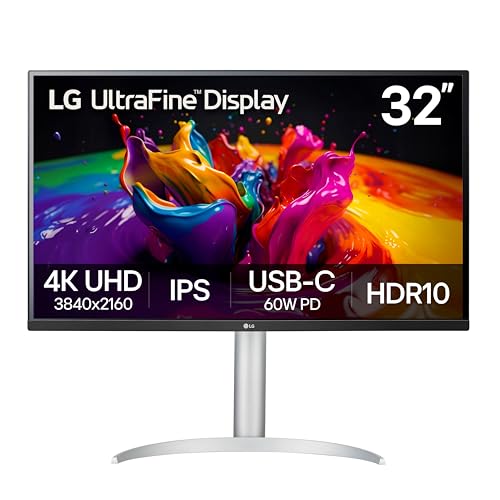
The 32UP83A-W closes the guide by stretching the shared formula across a larger canvas: a 32-inch 4K UHD 3840×2160 IPS monitor at 60Hz with USB Type-C at 60W power delivery, HDMI, DisplayPort, a built-in speaker, a tilt, height and pivot adjustable stand, Reader Mode and HDR10, in white. Every clause there will be familiar from the 27-inch reviews, and that is precisely the point — this pick exists for the buyer who read the smaller LG’s story, liked it, and sits far enough from the desk to want the same sentences written larger.
Size changes the experience in ways the shared pixel count conceals. At 32 inches, 4K lets many users run the display at little or no scaling, gaining the workspace of four honest quadrants — document, reference, communication and media, all open at once — while text remains smooth at typical desk distances. Readers who work with timelines, spreadsheets or design canvases feel that space as a daily dividend. Readers who mostly write in one window will feel it as grandeur rather than utility, and should be honest about which reader they are before paying the size premium in desk depth as well as money.
The 60W power figure is the specification’s one step down from its smaller sibling’s 90W, and at this size the trade deserves a direct look. Sixty watts charges modest laptops properly and larger ones slowly, and a buyer docking a 16-inch machine should treat the figure as a genuine constraint rather than a rounding difference: the cable will still carry the picture perfectly, but the battery may merely hold its level through a heavy day. Reader Mode, named in the title, nods to the long-document life a big office panel leads, tuning the picture toward paper-like reading.
Who it suits is the spacious desk and the four-quadrant worker: the analyst, the editor, the developer with reference material everywhere, the reader who sits back rather than leaning in. Its white finish and full stand suit bright, deliberate rooms. Shallow desks and close sitters should take the 27-inch LG instead and spend the difference elsewhere, because a 32-inch panel at arm’s length asks the neck to pan like a spectator. Judged at its intended distance, though, this is the guide’s most comfortable screen to spend a working life in front of.
- Size and resolution: 32 inches, 4K UHD 3840 x 2160
- Panel type: IPS
- Refresh rate: 60Hz
- USB-C power delivery: 60W PD stated
- Inputs: USB Type-C, HDMI, DisplayPort
- Audio: built-in speaker
- Stand: tilt, height, pivot adjustable
- HDR: HDR10 stated
- Reading feature: Reader Mode
- Finish: white
Strengths
- 32 inches of 4K supports a four-quadrant working layout.
- Tilt, height and pivot are all named for the stand.
- HDR10 and a built-in speaker complete the office picture.
Trade-offs
- 60W charges larger laptops slowly compared with 90W rivals.
- Pixel density falls behind the 27-inch picks at same count.
- The panel demands real desk depth to sit at its best distance.
Best for: a spacious desk where one 32-inch screen replaces a pair of smaller ones and a laptop docks beneath it all day. Not suited for: a shallow desk under a metre deep, because a 32-inch panel at that distance forces constant head movement that no stand adjustment can cure.
Setting up the big LG is an exercise in distance before settings. Place it, sit in your working chair, and adjust the gap until the corners of the screen fall inside a comfortable glance; only then set height and tilt, in that order, because distance changes what correct height means. Test the docking wattage against your laptop’s appetite during the heaviest hour of your day rather than during a idle morning, since a 60W supply passes gentle tests that a rendering workload would fail. Readers who give the panel its distance will understand the size argument within one working day. The 32UP83A-W’s Amazon page holds the current figure for the guide’s largest canvas.
Comparison
| Pick | Size / Resolution | USB-C power | Refresh | Notable from title |
|---|---|---|---|---|
| Dell S2725QC | 27″ / 3840×2160 | Not stated in the listing title | 120Hz | 163 PPI, 99% sRGB, FreeSync Premium |
| LG 27UP850K-W | 27″ / 3840×2160 | 90W PD | 60Hz | DisplayHDR 400, DCI-P3 95%, Maxx Audio speaker |
| ASUS ProArt PA279CRV | 27″ / 4K UHD | 96W PD | Not stated in the listing title | Calman Verified, Delta E<2, 99% DCI-P3 and Adobe RGB |
| Acer CB272K | 27″ / 3840×2160 | 90W | 60Hz | FreeSync, sRGB 99%, Ergo Stand, speaker |
| INNOCN 27-inch | 27″ / 3840 x 2160 | Not stated in the listing title | Not stated in the listing title | HDR400, DeltaE<2 claim, 1.07B+ colours |
| LG 32UP83A-W | 32″ / 3840 x 2160 | 60W PD | 60Hz | HDR10, Reader Mode, full stand, white |
The wattage column is this table’s reason to exist. Four printed figures and two honest gaps describe six different docking realities, and a buyer who sorts by that column first will eliminate more wrong purchases than a buyer who sorts by any other. The refresh column performs the opposite trick, isolating a single 120Hz panel in a 60Hz class and forcing the question of whether motion or colour or size deserves the money more.
Colour ambition forms the third axis, running from the ProArt’s verified dual-gamut credentials through the LG’s DCI-P3 claim and the INNOCN’s unverified accuracy figure, down to two honest sRGB office panels. None of these positions is a lie; they are different promises at different prices, and the table’s job is to keep a buyer from paying for the top of the axis while only needing the middle of it.
How to Choose a USB-C 4K Monitor
Start with the laptop’s appetite, because the docking promise stands or falls on wattage. Find the figure printed on your machine’s own charger, then compare it with the figures these titles print: 96W, 90W, 90W and 60W, with two titles silent. A monitor whose delivery meets or beats the charger’s figure can honestly replace the dock; one that falls short will still display beautifully while the battery negotiates a slower truce. Buyers with a modest ultrabook can ignore this entire paragraph, which is itself useful information about which tier they need.
Next, let your work name the colour tier. Documents, mail and web work live contentedly inside sRGB, and the Dell and Acer serve them completely. Video and modern photography reach into DCI-P3, where the LG 27UP850K-W waits. Print work adds Adobe RGB and accuracy credentials, where only the ProArt stands. Paying for a tier above your work buys numbers you will never see; paying for a tier below it buys regret in a currency of missed deadlines and re-done deliverables, so this is the decision to make with the most honesty and the least optimism.
Size comes third and is a question about distance, not ambition. Twenty-seven inches at a normal desk reach gives the density the Dell quantifies at 163 PPI and suits readers who lean into text. Thirty-two inches suits the sitter-back and the four-window worker, at the cost of desk depth. Measure from your eyes to the wall or window behind the desk if you must; the tape measure knows which size your room has already chosen, and arguing with it is expensive.
Refresh rate deserves a realistic paragraph rather than a headline. The Dell’s 120Hz is a genuine quality-of-life difference for scrolling, window movement and timeline work, felt daily by people who live in motion across documents. It is not a gaming transformation and it is not a colour feature, and buyers choosing between the Dell’s motion and the LG’s gamut or the ProArt’s accuracy should ask which sensation their working day actually contains more of: movement, or colour judgement.
Do not overlook the hub question hiding inside the docking question. A monitor that accepts one cable from a laptop may also offer downstream ports for the keyboard receiver, the backup drive and the card reader that otherwise compete for the laptop’s own sockets, and the titles in this guide are uneven about describing that side of their personality. Buyers whose laptop carries only two ports should treat the monitor’s downstream generosity as a genuine selection criterion and confirm it on the listing page of any pick whose title stays quiet on the subject, because a docking monitor that docks nothing but itself solves only half the desk’s problem. The same caution applies to audio routing: a one-cable desk that still needs a separate speaker or a headset dongle is a two-device desk wearing a costume. The picks that name built-in speakers — both LG models, the Acer and the INNOCN — have answered that half of the question in their titles, and buyers who run calls all day should count a stated speaker as a working feature rather than a bonus.
Finish with the physical object. A stand that rises to your eye line and pivots for your tall documents will be thanked every day; a speaker saves a peripheral; a white casing changes a bright room’s mood. These are small clauses in the titles and large facts in a five-year ownership, and they are the clauses most buyers skip on the way to the resolution they had already decided. Decide them deliberately and the monitor becomes furniture you chose, rather than a screen you merely bought.
Is 60W of USB-C Power Enough for Your Laptop?
For a large share of laptops, yes — and for a visible minority, honestly no. Modest ultrabooks ship with chargers in the same neighbourhood as the LG 32-inch’s 60W figure and will charge from it as happily as from their own brick. Larger machines with hungry processors ship with far stronger adapters, and from a 60W source they will charge slowly under light use and may simply hold their level under load, which some owners accept as a fair trade for a one-cable desk and others experience as a slow betrayal by lunchtime.
The test is printed on your existing charger, which makes this the easiest specification in the entire guide to settle before ordering. Match the monitor’s printed wattage against that number: meet it or beat it and the docking story is whole; fall short and decide, in advance and in writing if necessary, whether the laptop will keep a second charger at the desk for heavy days. The two titles that print no wattage at all — the Dell and the INNOCN — move this question to their listing pages, where it must be answered before the one-cable dream is priced into the decision.
Remember, finally, that power delivery flows through the cable as well as the port. A lead rated only for modest wattage can quietly cap a 96W monitor’s generosity, so the cable that ships in the box is the right starting point and any replacement should be chosen with the same wattage discipline as the monitor itself. The single-cable desk is a chain of three rated links — charger class, cable, port — and it performs at the level of its weakest one.
Should a Creative Professional Pay for Verified Colour?
The answer depends on who else will see the work. A photographer delivering prints, an editor whose grade will be broadcast, a designer whose client holds a brand colour in their hand — these readers are buying insurance against a mismatch between screen and world, and the ProArt’s Calman Verified wording with its Delta E<2 figure is the only insurance policy printed in this guide. For them the premium is not a luxury tax; it is the cost of not re-doing work.
Hobbyists stand in a different place, and the INNOCN exists for them. Its accuracy claim and billion-colour palette will flatter personal photography and video projects, and the absence of a verification programme matters little when the audience is the maker’s own wall or channel. The risk profile is recreational, so the evidence standard can be recreational too — provided the buyer tests the claims against photographs they know, inside the return window, rather than believing or dismissing them on faith.
Between those poles sit the working creatives whose clients view on screens rather than in print. For them the LG 27UP850K-W’s DCI-P3 95% claim is the pragmatic middle: a gamut matched to the delivery medium, a printed wattage, a full stand, and no payment for print-space credentials that screen delivery will never exercise. The tier system in this guide is a ladder of audiences, and the correct rung is the one your own audience stands on.
What Should You Verify in the First Week With a 4K Docking Monitor?
Verify the charge under load, on the heaviest afternoon you can arrange. A laptop that gains battery through a morning of email may lose it through an afternoon of rendering or compiling, and the docking promise is only honest if it survives your worst hour rather than your average one. Watch the battery indicator the way you would watch a fuel gauge on an unfamiliar road.
Verify the scaling and the text with your real applications, not with the desktop’s demo crispness. Open the densest document, the longest spreadsheet and the code file you dread, at the scaling you intend to keep, and read for twenty minutes at your real distance. A 4K panel’s entire case rests on text, and text is a use case that cannot be judged from a wallpaper photograph in a listing.
Verify the wake behaviour, too, because a docking desk lives by its mornings. Sleep the whole arrangement overnight and observe the order in which it returns: the panel should wake with the laptop, the laptop should still be charged, and the windows should be roughly where the evening left them. A setup that needs a cable re-seated or a power button hunted before coffee will be resented out of proportion to the fault, and the first week is when such resentments can still be returned to the shop instead of absorbed into the routine.
Verify the stand against your chair and your second posture. Most desks host two sittings — the upright working seat and the leaned-back reading slump — and a panel set perfectly for one will glare or loom in the other. Find the compromise position while adjustment is still a novelty you enjoy, because a month from now the stand will be wherever you left it, permanently, by the physics of human laziness.
Common Mistakes When Buying a USB-C 4K Monitor
Ignoring the wattage column entirely. A beautiful 4K picture paired with a laptop that discharges through the day is a docking failure wearing a display success as a disguise. Compare the printed watts with your charger’s figure before ordering.
Paying for print colour on a screen-delivery job. Adobe RGB credentials serve print workflows. If every client views your work on a screen, the DCI-P3 tier answers the actual brief at a kinder figure.
Choosing 32 inches for a shallow desk. The larger LG needs distance to compose its four quadrants. At arm’s length on a narrow desk, the 27-inch picks will feel sharper and calmer.
Assuming an unstated wattage equals a strong one. Two titles here print no power figure. Silence is a question for the listing page, not a promise to be rounded up in the buyer’s favour.
Judging text at the showroom scaling. Default scaling flatters every panel. Set the scaling you will actually keep, in your own applications, during the return window.
Final Recommendation
Most laptop desks should start with the LG 27UP850K-W for its printed 90W, DCI-P3 colour and full stand, or the Dell S2725QC where 120Hz motion matters more than gamut and the wattage question gets answered on its listing page. The ASUS ProArt PA279CRV is the professional’s instrument and should be bought by professionals without flinching. The Acer CB272K delivers the same 90W docking promise at the value end for honest office work, the INNOCN invites test-minded hobbyists to verify a bold colour story, and the LG 32UP83A-W gives spacious desks the big-canvas version of the whole idea.
Whichever panel you dock with, judge it at the end of your heaviest working week rather than on unboxing day — battery gained, text read, colours delivered — because a docking monitor succeeds by vanishing into the routine of work, and the week is the smallest honest unit of that routine.
Frequently Asked Questions
Can one USB-C cable really replace a dock?
For most laptops, yes: the cable carries the 4K picture to the monitor and power back to the laptop. The condition is wattage — the monitor’s printed figure should meet your laptop charger’s figure, which is why four of these titles print theirs.
Is 4K worth it at 27 inches?
At desk distance the density is the point: the Dell quantifies it at 163 PPI, and text takes on a printed smoothness that 1440p cannot match at this size. Writers, coders and spreadsheet workers feel the difference daily.
What does Delta E<2 mean?
It is a claim about colour accuracy — the distance between displayed colours and requested colours — with figures below two treated as professional-grade. The ASUS ProArt prints it alongside Calman Verified wording; the INNOCN prints the figure as a claim.
Does the 120Hz Dell make this a gaming guide?
No. These are desktop office and creative panels, and the Dell’s 120Hz serves everyday motion — scrolling, windows, timelines — rather than competitive play. It remains a work monitor that happens to feel unusually fluid.
Which pick should a Mac mini owner choose?
The INNOCN names the Mac mini in its title and suits a clean Apple desk, while the ASUS ProArt declares itself a professional monitor for Mac. A desktop Mac needs no power delivery, so the unstated wattages matter less in that setup.
Is 32 inches too big for a desk?
It depends on depth rather than taste. At a deep desk the 32-inch LG supports a comfortable four-quadrant layout; at a shallow one the same panel forces head movement, and a 27-inch pick will serve better.
Related Guides
A desktop docking screen is one answer to the laptop-display question, and the neighbouring guides cover the others. Readers working at a smaller scale should continue to Best 24-Inch USB-C Monitors, where the same single-cable idea shrinks to fit tighter desks. Travellers who need the screen to leave the desk entirely will find the portable argument in Best HDMI Portable Monitors: 1920×1080 Touch Screen Picks. And anyone comparing the touch portable route in depth can revisit Best HDMI Portable Monitors: 1920×1080 Touch Screen Picks for the full touch-by-touch account.
Related guides
- Best 17 Laptops: The Complete Tier-by-Tier Guide to Big-Screen Machines
- Best 4K Monitors for MacBook Pro: USB-C Panels With Real Power Delivery
- Best Routers for Remote Work: VPN Gateways, Travel Routers and Home Wi-Fi That Holds a Call
- Best Sim Racing Monitors: Ultrawide Cockpits From 34-Inch OLED Speed to the 49-Inch Wrap


