What's inside
- Key Takeaways
- Quick Picks
- How Did We Choose These Picks?
- 2.4GHz Receiver or Bluetooth: Which Wireless Should You Choose?
- What Should You Expect From Range, Latency and Batteries?
- What Makes a Good Wireless Mouse in a Combo Set?
- How Do Wireless Sets Serve Laptops, Media PCs and Hybrid Workers?
- What Troubleshooting Should You Know Before You Need It?
- How Long Will a Wireless Set Last, and What Should You Do With the Old One?
- How Do the Six Wireless Picks Compare Side by Side?
- How Should You Set Up a Wireless Set So It Never Lets You Down?
- What Mistakes Do Wireless Keyboard Buyers Keep Making?
- Why Do Small Desks and Shared Desks Benefit Most From Going Wireless?
- Is a Wireless Keyboard Secure Enough for Passwords and Work?
- Which Pick Belongs in Which Room?
- How Should You Clean and Store a Wireless Set?
- Final Recommendation
- Frequently Asked Questions
- Related Guides
As an Amazon Associate I earn from qualifying purchases. This post may contain affiliate links at no extra cost to you.
widgetverdict.com is reader-supported. When you buy through links on our site, we may earn an affiliate commission.
Where to buy: Amazon sells every set in this guide, with each name in the table linked to its listing; wireless combos are frequently bundled and re-bundled by third-party sellers, so use the linked pages to be certain the receiver type and layout match what is described here.
First, an honest clarification, because the phrase best WiFi keyboards deserves one: keyboards do not connect to your router, and none of these boards joins your home Wi-Fi network. “WiFi keyboard” is the name shoppers use — and the name this guide keeps, because it is the search people actually make — for a wireless keyboard: one that talks to your computer over a short-range radio link, either a 2.4GHz USB receiver or Bluetooth. The distinction matters practically, not just pedantically. A wireless keyboard needs no network, no password and no router; it works in a cabin with no internet at all, it introduces no traffic onto your Wi-Fi, and its range is measured in metres across a room rather than in coverage maps of a house.
With that settled, the category itself is the friendliest in computing. A wireless keyboard-and-mouse set is the upgrade that turns a laptop on a kitchen table into a workstation, a media PC into a couch citizen, and a cluttered desk into a clean one. Five of the six picks below are Logitech combos — a fair reflection of a market Logitech has defined for two decades — spanning the household default, the quiet set, the silent set and the comfort set, plus Logitech’s modern multi-device keyboard and a slim Arteck board for buyers who need a keyboard only. All of them run for months on their batteries, all of them wake and work without ceremony, and each suits a recognisably different desk.
Key Takeaways
- “WiFi” in this category means wireless — a 2.4GHz USB receiver or Bluetooth — never a connection through your router.
- Five picks are keyboard-and-mouse combos sharing one receiver; the K950 and the Arteck are keyboard-only picks for people whose mouse is already sorted.
- Receiver-based sets (MK270, MK335, MK540, MK295, Arteck) are plug-and-play and work before the operating system loads; the K950 adds Bluetooth multi-device switching.
- Noise divides the range: the MK295’s SilentTouch set is the quietest, the MK335 and K950 chase the same hush by different routes.
- The MK540 is the comfort flagship of the combos, with a palm rest and sculpted mouse; the MK270 is the value anchor.
- Battery life in this category is measured in months and years, not days — charging anxiety does not live here.
Quick Picks
| Pick | Badge | Why it earns its place |
|---|---|---|
| Logitech MK270 Wireless Keyboard and Mouse Combo | The household default | A full-size spill-resistant keyboard and a compact mouse on one receiver, at the friendliest position here. |
| Logitech MK335 Quiet Wireless Keyboard and Mouse Combo | The quiet combo | A low-profile quiet keyboard with a contoured mouse, in black and silver, for calmer desks. |
| Logitech MK540 Advanced Wireless Keyboard and Mouse Combo | The comfort combo | A palm-rested quiet keyboard and a full-size sculpted mouse — the premium end of the classic combos. |
| Logitech MK295 Silent Wireless Keyboard and Mouse Combo | The silent combo | SilentTouch keys and clicks that remove most typing and clicking noise from shared rooms. |
| Logitech Signature Slim K950 Wireless Keyboard | The multi-device modernist | A slim, quiet, full-size keyboard that pairs across several devices and operating systems. |
| Arteck 2.4G USB Wireless Keyboard | The slim keyboard-only pick | A full-size, slim wireless board with its own receiver for desks that need keys, not a set. |
How Did We Choose These Picks?
Wireless sets live or die on three unglamorous qualities, and those were our filters. First, connection integrity: the link had to be the kind that survives a room full of competing radios and a receiver tucked behind a desktop tower, because a keyboard that drops characters teaches its owner to hate it within a week. The receiver-based Logitech sets have two decades of refinement behind exactly this problem, which is why they dominate the list honestly rather than by favouritism. Second, battery behaviour: a set that needs feeding monthly fails the category’s promise, so every pick here measures its battery life in seasons.
We also weighed what happens in year three, because wireless sets are bought as furniture, not as fashion. Makers with permanent listings, replaceable receivers and a support channel scored over anonymous brands whose identical-looking sets vanish from sale within a season. A keyboard you cannot re-pair because its maker has evaporated is a keyboard with an expiry date, and this guide’s readers are buying the opposite of that.
Third, the pair had to work as a pair. In a combo, the mouse is not a free gift; it is half the product, sharing the receiver and the desk. We favoured sets whose mice are shaped for real hands and whose keyboards keep full layouts with number pads, because these sets equip real workstations, not just media corners. The two keyboard-only picks were admitted for the opposite reason — many buyers already own a mouse they love — and they had to justify themselves as keyboards alone: the K950 with multi-device modernity, the Arteck with slim full-size value. The result is a guide that covers the category’s actual shape instead of pretending it is more various than it is.
2.4GHz Receiver or Bluetooth: Which Wireless Should You Choose?
The receiver route is the older and, for a fixed desk, still the most dependable. A tiny USB nano receiver lives permanently in the computer; keyboard and mouse both speak to it; the connection works in setup screens and BIOS menus, wakes instantly, and never asks which device it belongs to. Its costs are a claimed USB port and a dongle that can be lost when a laptop travels — though Logitech receivers are replaceable and can be re-paired, and several sets store the receiver inside the mouse or keyboard for transport. For a desktop, a family PC or a media centre, this remains the default recommendation.
There is also a port arithmetic that decides many real purchases. A modern laptop may offer two USB-C ports and nothing else; a receiver set then needs an adapter or a dock, while a Bluetooth keyboard asks for nothing. Conversely, an older desktop with a forest of USB-A ports and no Bluetooth at all takes a receiver set in seconds and would need a Bluetooth adapter for the other route. Look at your machine’s edges before you look at any keyboard’s features — the ports you own are the first specification of the set you should buy.
Bluetooth removes the dongle and adds manners: it pairs directly with laptops, tablets and phones, and multi-device boards like the K950 can hold several pairings and switch between a work laptop, a personal tablet and a phone with a key press. Its costs are an occasional pairing ritual, a dependence on the host’s Bluetooth behaving, and no presence before the operating system loads. The modern answer for a one-computer desk is honestly either; for a multi-device desk, Bluetooth’s switching is the feature that matters; for a machine that must be controlled from its first boot screen, the receiver is the only candidate. Notice what is absent from this entire discussion: your router. None of these connections touches it, which is why a wireless keyboard works identically in a broadband palace and an off-grid cabin.
What Should You Expect From Range, Latency and Batteries?
Range first: every set here is built for a room, not a corridor — a comfortable span of metres between the desk and the receiver, with the usual caveat that metal enclosures, USB 3 hubs and a receiver buried behind a tower all shave distance. In practice, a receiver in a front port or a short extension cable makes range a non-issue in any normal room, including the living-room run from couch to media PC that these sets handle daily in millions of homes.
One more expectation to set correctly: these sets will not follow you between floors. The radio that crosses a living room happily will not reliably cross a house, and it is not meant to — a keyboard is a same-room tool, and the multi-device boards switch between machines on the same desk rather than reaching across a building. Buyers who imagine typing to the office PC from the kitchen are imagining a remote-desktop app, which is a fine tool and a different guide.
Latency is the question gamers ask, and the answer is reassuring with one boundary. For typing, browsing, media control and everyday work, receiver-based wireless is indistinguishable from a cable — the characters arrive when your fingers expect them. Competitive gaming at high levels is the boundary case where a wired or gaming-grade wireless mouse earns its premium; nobody should buy a household combo for tournament play, and nobody in this guide’s audience is being asked to. Batteries are the category’s quiet triumph: these are not rechargeable gadgets living week to week, but mostly long-life cell-powered tools that ask for fresh batteries on a schedule closer to your smoke alarm’s than your phone’s. The freedom from charging cables is, for many owners, the entire point.
What Makes a Good Wireless Mouse in a Combo Set?
Because five picks here are sets, the mouse deserves its own scrutiny. A combo mouse should first fit the hand that will use it for eight hours: the compact mouse in the MK270 suits smaller hands and travel, while the contoured full-size mice in the MK335 and MK540 suit sustained desk work. It should track on the surfaces real desks present — wood, laminate, a paper notebook in a pinch — which modern optical sensors handle without the mouse-mat ceremony of older generations. And its scroll wheel should be definite rather than free-spinning for document work, because a wheel that overshoots a spreadsheet row fifty times a day is a tax nobody itemises.
Battery and button behaviour complete the picture. The mouse in a set almost always asks for fresh cells before the keyboard does, because it works harder per hour; a set whose mouse stores the shared receiver inside itself, as several here do, is a set designed by people who have actually lost a dongle. Click feel is the last variable, and it is the MK295’s whole argument: a silent mouse beside a quiet keyboard changes the acoustic character of a room, which is why call-heavy and shared households should weigh the set’s noise as a single system rather than as two products.
How Do Wireless Sets Serve Laptops, Media PCs and Hybrid Workers?
The laptop case is the one that built this category. A laptop on a stand, at eye level, with a wireless set on the desk below it, is a workstation that packs into a drawer in thirty seconds — and the receiver sets make it a one-plug routine through a dock, while the K950 removes even that by living on Bluetooth. Hybrid workers feel the benefit twice: the same set waits at the home desk, untouched, while the laptop commutes, and pairing never enters the story because the receiver never leaves the dock.
The media PC case is the category’s second home. A receiver set turns a television-connected computer into something the whole household can drive from the couch for searches, queues and settings, with a range that crosses the room and a keyboard large enough to type on properly — the job the couch-keyboard guide handles with touchpads, and that these full sets handle with a mouse on the sofa arm or coffee table. Neither tool replaces the other; households that watch a lot usually end up owning both, and the overlap is a small price for never typing a password with a remote control again.

Logitech MK270 Wireless Keyboard and Mouse Combo — The household default
The MK270 is the set that “wireless keyboard” means in most households: a full-size keyboard with a number pad, spill-resistant construction and media hot keys, paired with a compact ambidextrous mouse, both talking to one small receiver that disappears into a USB port and is forgotten. It is the set bundled into family PCs, spare-room desks and small offices by the thousand, and its virtues are the virtues of the category itself — plug it in, and the desk is wireless, for a very long time, at a very friendly price.
The details hold up under daily use. The keyboard’s layout is completely standard, its keys are quiet low-profile membrane, and its battery life stretches across the kind of timescale that makes owners lose track of when they last changed cells; the mouse matches that frugality and carries its receiver in a storage slot when it travels. The set wakes reliably, the range covers a room, and the whole package tolerates the spills and bumps of a shared family desk with the calm of a product that has seen everything.
What it does not do is pamper. There is no palm rest, no backlight, no Bluetooth and no multi-device switching; the mouse is compact, which large hands may find small on long days; and the typing feel is honest membrane, nothing more. But as the default answer — the set you buy when the requirement is simply that the desk work wirelessly — the MK270 remains the centre of this category, and every other pick in this guide is best understood as a variation on something it does plainly.
- Layout: full-size keyboard with number pad, compact mouse
- Connections: 2.4GHz USB nano receiver, shared by both devices
- Design: spill-resistant keyboard, ambidextrous mouse
- Battery: long-life cells in both devices
- Extras: media hot keys, receiver storage in mouse
Strengths
- The category’s proven default: reliable link, huge battery intervals
- Full standard layout with spill resistance for family duty
- One receiver runs the whole set
Trade-offs
- Compact mouse can feel small in large hands
- No Bluetooth or multi-device switching
- No palm rest or backlight
Grandparents’ houses run on this set, and that is a compliment about design rather than an insult about ambition: it can be bought, installed by a visiting grandchild in four minutes, and then used for years without a single support call. Any product that removes itself from the family’s technical-support economy has understood something deep about what households actually want from technology.
Buy the MK270 when the brief is a wireless desk that simply works — a family PC, a first home office, a spare-room setup. Buyers who know they want silence, comfort or several devices should take the hint and read the variations below.
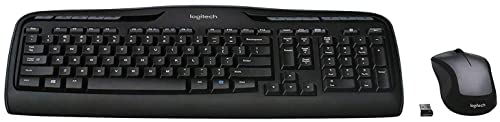
Logitech MK335 Quiet Wireless Keyboard and Mouse Combo — The quiet combo
The MK335 takes the MK270’s formula and tunes it for calmer rooms. The keyboard is a low-profile quiet design — the keystrokes land softly enough for a bedroom desk or a shared study — and the mouse steps up to a full-size contoured shape that fills the hand better than its sibling’s compact mouse. The black-and-silver finish aims at desks that find the MK270’s plain black a little municipal. Underneath, the recipe is familiar: one receiver, full layout with number pad, long battery intervals, plug-and-play manners.
Who notices the difference? Households where the computer desk shares a room with a sleeper, a television or a studying teenager — the places where the sound of typing is a social fact. The MK335’s quietness is not the engineered silence of the MK295 below; it is the ordinary softness of a well-made low-profile board, which for most shared rooms is quiet enough. The contoured mouse is the other half of its case: if the MK270’s mouse felt like a travel accessory, this one feels like the main instrument, and mouse-heavy workers will feel the upgrade in their palms within a day.
It shares the family limits: receiver-only connection, no backlight, no multi-device tricks, and a membrane feel that serves everyday typing without inspiring it. Against the MK270 it asks a little more money for quiet and comfort; against the MK540 it stops short of the palm rest and the premium finish. It is the middle child of the classic combos, and middle children of good families tend to be the ones quietly holding everything together.
- Layout: full-size quiet keyboard, contoured full-size mouse
- Connections: 2.4GHz USB receiver, shared
- Design: low-profile keys, black and silver finish
- Battery: long-life cells
- Extras: media keys, plug-and-play setup
Strengths
- Noticeably quieter typing for shared rooms
- Contoured mouse suits longer days than the compact standard
- Same dependable receiver and battery story as the MK270
Trade-offs
- Quiet, but not the engineered silence of the MK295
- No palm rest at this level
- Receiver-only; no Bluetooth flexibility
It is also the set most likely to be found in a home office that doubles as a guest room, where the desk must look calm when visitors arrive and sound calm when the household is asleep. A product can be chosen for the room it keeps as much as for the work it does, and the MK335 keeps a room well.
Choose the MK335 if the MK270’s recipe appeals but your room is shared and your mouse hand wants a fuller shape. If silence is the whole brief, keep going to the MK295; if comfort is, the MK540 is waiting.

Logitech MK540 Advanced Wireless Keyboard and Mouse Combo — The comfort combo
The MK540 is what the classic combo becomes when comfort gets a budget. The keyboard adds an integrated palm rest and a quiet, sculpted key feel with keys shaped to cradle fingertips; the mouse grows into a full-size ambidextrous design with a contoured body and a precise scroll wheel; and the whole set keeps the family’s one-receiver simplicity and long battery life. It is the set for the desk where someone actually works all day — the home office that graduated from the kitchen table and now wants its tools to feel like it.
The palm rest is the headline because it changes the typing posture of the whole day: wrists land softly instead of hovering over a hard edge, and the keyboard’s gentle tilt options let you set the angle your hands prefer. Logitech’s attention shows in smaller places too — the key legends are printed to resist wear, the mouse’s rubber sides grip kindly, and the receiver connection carries the same boring reliability as the cheaper sets, which at this level is the highest praise available. This is the combo that office workers request by name when their employer lets them choose.
The costs are size and specialisation. Keyboard plus rest claims a generous rectangle of desk, the set is receiver-only in a world drifting Bluetooth-ward, and the price sits at the top of the classic combo range — nearing territory where separate, personally chosen devices begin to compete. Judge it as the complete, comfortable, no-decisions workstation set it is: for a single-desk worker who wants to unbox one product and be done, nothing else in this guide is as finished.
- Layout: full-size keyboard with integrated palm rest
- Connections: 2.4GHz USB receiver, shared
- Mouse: full-size contoured, ambidextrous
- Battery: long-life cells in both devices
- Extras: adjustable tilt, wear-resistant legends
Strengths
- Palm rest and sculpted keys make all-day typing kinder
- Best mouse of the classic combos
- Same set-and-forget receiver reliability
Trade-offs
- Largest footprint of the combos here
- Receiver-only connection
- Top of the classic combo price band
Employers equipping remote staff reach for this set for a related reason: it is the combo least likely to generate a complaint, a return or a request for something else. When a hundred home offices must simply work, the finished, comfortable, unremarkable excellence of the MK540 is precisely the specification — a truth about organisational buying that the individual buyer can borrow for free.
Full-time home workers who want one box to finish their desk should buy the MK540 and stop browsing. Smaller desks and multi-device lives are served better elsewhere in this guide.

Logitech MK295 Silent Wireless Keyboard and Mouse Combo — The silent combo
The MK295 exists for a specific modern misery: the video call in a shared room, where every keystroke and mouse click broadcasts through your microphone to a dozen colleagues. Its SilentTouch technology removes the great majority of typing and clicking noise — the keys land with a muffled softness and the mouse clicks in a near-whisper — while keeping a full-size layout, a number pad and the family’s one-receiver wireless. In graphite, it also looks like the most contemporary of the classic combos.
The silence is the product, and it is genuinely transformative in the right rooms. Partners sleeping in the next room, babies napping in this one, housemates studying across the table, callers on the other end of your headset — all of them stop hearing your desk. What surprises new owners is that the feel survives the silencing: the keys still bottom out with a defined, if soft, landing, and the mouse tracks and scrolls like its louder siblings. Silent did not have to mean vague, and here it does not.
The compromises are the feel’s softness — typists who love a crisp, audible confirmation will find the MK295 eerily muted, because that is literally its design goal — and the usual receiver-only, no-backlight boundaries of the family. It is also a set whose value is invisible in a showroom and obvious at midnight, which makes it the pick most often bought second, after a louder set has taught the household what silence is worth. Buy it first if your rooms are shared; it is cheaper than the apology tour.
- Layout: full-size keyboard with number pad, silent mouse
- Connections: 2.4GHz USB receiver, shared
- Technology: SilentTouch keys and clicks
- Battery: long-life cells
- Finish: graphite
Strengths
- Removes most desk noise from calls and shared rooms
- Full layout and receiver reliability retained
- Feel stays defined despite the silencing
Trade-offs
- Muted feel will not please crisp-keystroke lovers
- No Bluetooth or multi-device switching
- Value only reveals itself in shared spaces
Streamers and podcasters working from small rooms form the MK295’s other constituency: a silent set keeps keyboard noise out of recordings without any software gating, and the graphite finish behaves itself on camera. Silence, it turns out, is a production feature as much as a domestic one.
Shared flats, nursery-adjacent desks and anyone whose calls carry their typing to an audience should start with the MK295. Solo workers in private offices can save the premium and take any set above.

Logitech Signature Slim K950 Wireless Keyboard — The multi-device modernist
The K950 is the one pick here that belongs to the current decade rather than the classic combo era. It is a keyboard only — no mouse is bundled, because its buyer already owns one — in a slim, full-size body with a number pad, quiet laptop-style keys, and a connection story built for the way people actually work now: pair it with up to three devices across operating systems and move between a work laptop, a home desktop and a tablet with a tap of the Easy-Switch keys. Bluetooth and Logitech’s receiver technology both feature, so the board can take the dongle route on a desktop and the Bluetooth route everywhere else.
The typing feel is the other modern note: low-profile, quiet, and precise in the manner of a good laptop keyboard, scaled up to a full desk layout. For the growing population whose fingers were trained by laptops, the K950 feels like the external keyboard their muscle memory always wanted. Logitech’s software supports it on modern systems for customising keys and checking status, and the design — slim, graphite, uncluttered — sits naturally beside current hardware in a way the older combos, for all their virtues, do not attempt.
Its boundaries are the mirror of its strengths. There is no mouse in the box, so the total cost of a full setup is higher than the combos suggest at first glance. The slim body offers no palm rest, and the low-profile keys will not convert lovers of deep, sculpted keystrokes. And its multi-device talents are wasted on a single fixed desktop, where an MK-series set does the same job with a mouse included. Buy the K950 for the multi-device life it was designed for, and it feels less like a keyboard and more like the switchboard of your whole setup.
- Layout: full-size slim with number pad, keyboard only
- Connections: Bluetooth and USB receiver, up to three devices
- Keys: quiet, low-profile, laptop-style
- Software: supported on modern Windows and macOS
- Extras: Easy-Switch device keys, cross-OS legends
Strengths
- Three-device switching across operating systems
- Modern slim design with quiet, precise keys
- Both Bluetooth and receiver routes available
Trade-offs
- No mouse included — budget for one separately
- No palm rest on the slim body
- Multi-device features wasted on a single-PC desk
There is a small delight in the K950’s switching that deserves recording: moving from a spreadsheet on the laptop to a message on the tablet without putting anything down or picking anything up feels, the first dozen times, like a magic trick — and then, like all good desk magic, it becomes simply how work is done. Tools that disappear into routine are the ones worth their premium.
Workers who live across a laptop, a desktop and a tablet should make the K950 their first look. One-machine households get more for their money from the combos, mouse and all.

Arteck 2.4G USB Wireless Keyboard — The slim keyboard-only pick
Arteck’s entry is the guide’s other keyboard-only option, aimed at a simpler brief than the K950’s: a full-size wireless keyboard, slim and light, with its own 2.4GHz receiver, for a desk that needs keys and nothing else. Arteck builds the body with a stainless-steel panel that gives the slim board a rigidity its plastic rivals lack, and the result is a keyboard that can be carried between rooms, slid into a drawer, or walloped daily by a family computer without feeling fragile.
In use it is the plug-and-play story told well: receiver in, full layout available, low-profile quiet keys, and battery intervals that stretch long enough to forget. The full-size layout with its number pad suits the home-office and homework duties this board will mostly see, and its slimness flatters small desks and tidy tastes alike. For a media PC it doubles as a couch-reachable board in a pinch — not a touchpad couch keyboard, but a proper typing board for the living room’s longer searches and messages.
Against the K950 it concedes the modern tricks: one device at a time, receiver only, no companion software story. Against the combos it concedes the mouse. What it keeps is focus and value — the least complicated way in this guide to put a good full-size wireless keyboard on a desk. Buyers who know exactly what they need, and that it is only a keyboard, will find the Arteck’s honesty refreshing.
- Layout: full-size with number pad, keyboard only
- Connections: 2.4GHz USB receiver
- Design: slim body with stainless-steel panel
- Keys: low-profile, quiet
- Battery: long intervals between changes
Strengths
- Slim yet rigid build, easy to move and store
- Full layout with number pad, no compromises of size
- Simple receiver connection with long battery life
Trade-offs
- Single-device, receiver-only connection
- No mouse and no software extras
- No multi-OS switching talents
The Arteck also travels between generations gracefully: it is the keyboard a family buys for the household computer that a parent, a teenager and a grandparent all use in one day, because it asks nothing of any of them. In a guide full of specialisation, there is room to honour the generalist that simply shows up.
Choose the Arteck when the order is precisely one wireless keyboard — for a family PC, a second desk or a media corner. Buyers building a whole setup from zero should take a combo and get the mouse in the same box.
What Troubleshooting Should You Know Before You Need It?
Wireless sets fail in a short list of predictable ways, and every one of them has a boring cure. Dropped characters or a stuttering pointer almost always mean the receiver’s path is obstructed or a USB 3 device is interfering nearby: move the receiver to a front port or onto a short extension, and move the hub away. A keyboard that stops entirely while the mouse lives on is usually a battery asking to retire — the keyboard’s cells are changed so rarely that owners forget they exist, which is a compliment disguised as a fault. A set that works in Windows but not in the boot menu wants its receiver in a different port, ideally a rear port wired directly to the motherboard.
Pairing problems belong mostly to Bluetooth. The cure sequence is unglamorous and effective: charge or replace the batteries, remove the pairing from the host’s Bluetooth list, restart the host, and pair again in a room away from other Bluetooth traffic for the first connection. The K950’s receiver route exists as the permanent escape hatch from all of this — when Bluetooth in a building misbehaves, and some buildings simply have hostile radio environments, the dongle route restores the boring reliability the category is famous for. Keep the receiver even if you pair by Bluetooth on day one; it is the set’s spare key.
How Long Will a Wireless Set Last, and What Should You Do With the Old One?
A good wireless set’s service life is set by its batteries’ chemistry and its owner’s cleaning habits rather than by its electronics. Expect years: the keyboards here have no fragile mechanisms, the mice’s switches and wheels are the usual wear points, and the receivers essentially do not age. Key legends on the cheaper sets will fade before anything stops working, and a mouse wheel may grow imprecise in year five — the standard obituary of a tool that has earned its replacement.
When a set retires, its halves can split up honourably. A working keyboard from a dead-mouse set becomes the household spare or the media PC’s board; the receiver, kept with it, preserves the pairing. Retired sets belong in e-waste recycling rather than a drawer of guilt, and their batteries should come out before storage, because a forgotten cell leaking in a drawer is the one genuinely sad ending available to this category. Buy the replacement from the same logic as the original — the desk’s actual needs, audited honestly — and the cycle of boring reliability continues.
How Do the Six Wireless Picks Compare Side by Side?
| Pick | What you get | Connection | Devices | Standout trait |
|---|---|---|---|---|
| Logitech MK270 | Keyboard + mouse | 2.4GHz receiver | 1 | Household default value |
| Logitech MK335 | Keyboard + mouse | 2.4GHz receiver | 1 | Quiet keys, contoured mouse |
| Logitech MK540 | Keyboard + mouse | 2.4GHz receiver | 1 | Palm rest comfort |
| Logitech MK295 | Keyboard + mouse | 2.4GHz receiver | 1 | SilentTouch silence |
| Logitech Signature Slim K950 | Keyboard only | Bluetooth + receiver | Up to 3 | Multi-device switching |
| Arteck 2.4G Wireless | Keyboard only | 2.4GHz receiver | 1 | Slim steel-backed board |
How Should You Set Up a Wireless Set So It Never Lets You Down?
Placement is ninety percent of wireless happiness. Give the receiver a clear life: a front or top USB port, or a short extension that lifts it out of the metal shadow behind a tower, and keep it away from USB 3 hubs and external drives, whose interference is the classic cause of the stutter blamed on innocent keyboards. Pair everything once, at the desk, before the set travels anywhere, and store the receiver in its slot inside the mouse or keyboard whenever the set moves — a dongle in a laptop bag’s lint is a dongle on its way to being lost.
Decide, too, where the set sleeps. A keyboard left face-up on a busy family desk collects the week’s crumbs and the occasional elbow; a set with a home — a slot beside the monitor, a drawer, a shelf — stays cleaner, stays findable and stays paired in every sense. Wireless freedom includes the freedom to put the keyboard away, and households that use it tend to keep their sets for years longer than households whose keyboard lives wherever it was last dropped.
Then build the battery habit that matches the hardware. These sets sip power, so the winning routine is not vigilance but a calendar: fresh cells at a memorable annual moment, or a note in the drawer with the spares. If a set ever starts dropping characters, work the boring list before condemning it — fresh batteries, receiver moved closer, interference removed — because in this category the fault is almost never the keyboard. A wireless set maintained this lightly will outlast the computer it serves, which is the category’s whole promise.
What Mistakes Do Wireless Keyboard Buyers Keep Making?
The first is the misunderstanding this guide opened with: expecting a “WiFi keyboard” to join a network, work through walls like a router, or be set up with a Wi-Fi password. It will not, because it is a wireless keyboard speaking directly to its receiver or over Bluetooth — simpler than the name suggests, and better for it. Buyers who understand that on day one are never disappointed by it.
The second is burying the receiver. A dongle behind a steel tower, inside a cabinet or on a hub behind the desk produces the dropped characters that fill one-star reviews of perfectly good sets. Ten centimetres of extension cable is the cheapest performance upgrade in this entire category.
The third is throwing the receiver away with the packaging. It happens constantly: the tiny dongle, taped inside the box or nestled in the mouse, goes out with the cardboard, and the set becomes a paperweight with excellent battery life. Open a wireless set over a table, find the receiver first, and plug it in before anything is recycled.
The fourth is buying a combo for a desk that only needs a keyboard, or a lone keyboard for a desk that needs both. The two keyboard-only picks and the four combos exist because desks differ; audit yours — mouse included — before the box is chosen, and the set will fit the life it is bought for.
Why Do Small Desks and Shared Desks Benefit Most From Going Wireless?
A cable is a small thing until a desk is small: on a narrow shelf-desk or a kitchen-table office, the keyboard’s wire dictates where the board can sit, drags against cups and notebooks, and turns every tidy-up into a negotiation. Removing it lets the keyboard live where the hands want it — centred, angled, pushed aside entirely when the table must become a table again. For the growing population whose office assembles and disassembles daily, wireless is not an aesthetic preference but the difference between a workstation and a pile of equipment.
Shared desks gain a different freedom: the set can be moved aside, stood on end in a slot, or carried to the sofa without unthreading anything, and the next user finds a clean surface rather than the previous user’s cable geometry. Hot-desking offices learned this years ago, which is why their standard issue looks so much like this guide’s table. The home desk that hosts homework at four, work at nine and a film at eight is a hot desk too, whether it calls itself one or not — and it deserves the same cabling mercy.
Is a Wireless Keyboard Secure Enough for Passwords and Work?
A reasonable question, asked more often as wireless sets move into offices. The honest answer has two halves. The radio link between a modern set and its receiver is a short-range, paired connection — a casual passer-by cannot simply listen in with a phone, and the practical risk in a home or small office is negligible for ordinary users. Bluetooth pairings on modern systems are encrypted as a matter of course. For the overwhelming majority of desks, the security of the keyboard link is not the weak point in anyone’s setup; the password habits of the human typing are.
The cautious minority — people whose work involves genuinely sensitive material under formal policies — should follow their organisation’s rules, which sometimes mandate wired peripherals, and this guide’s budget and mechanical companions cover that need. Everyone else can file keyboard-link security where it belongs: below phishing, below password reuse, and below the wisdom of locking your screen when you make tea. Buy the set that suits your room, and spend your security anxiety on the accounts, not the air.
Which Pick Belongs in Which Room?
Run the guide by rooms and the choices make themselves. The family room with one shared PC wants the MK270’s toughness and simplicity, or the Arteck if a mouse already lives there. The study and the spare-room office want quiet: the MK335 for ordinary hush, the MK295 when a baby, a microphone or a thin wall raises the stakes. The dedicated home office — the room where someone earns their living — wants the MK540’s palm rest and fuller mouse, because comfort compounds across a working year in a way that features lists never capture.
The modern apartment, where one person works across a laptop, a tablet and a phone at a single small desk, is the K950’s natural habitat; its switching turns three devices into one continuous workspace. And the media corner, where the computer is a television’s servant, can honestly use any receiver set here — though households that watch and type in equal measure should browse the couch-keyboard guide as well, because a touchpad board and a full set are partners in that room, not rivals. Rooms, like desks, should cast the deciding vote; the sets are all competent, and competence matched to the wrong room is the only failure mode left.
How Should You Clean and Store a Wireless Set?
Cleaning a wireless set begins with switching it off — most of these boards and mice have a power switch precisely so that a wipe-down does not type a paragraph of nonsense into an open document. Crumbs shake out over a bin, keys and mouse surfaces take a barely damp cloth, and the mouse’s sensor window wants a dry cotton bud whenever tracking feels gritty. Keep liquids out of the battery compartments, and if a set will be stored — a spare-room desk between visits, a set travelling in a box — take the batteries out or switch everything off, and keep the receiver in its storage slot so the set arrives as a set.
Storage has one more rule, learned by every household the hard way: the set and its receiver must live together or not at all. A keyboard in the attic and a receiver in a kitchen drawer are two pieces of e-waste holding a reunion that never happens. A labelled bag for the pair, in the same drawer as the spare cells, is the entire system — and like everything else in this category, it works because it is boring.
Final Recommendation
For most desks the MK270 remains the correct first answer: reliable, complete and priced like the commodity it has become. Shared rooms should step sideways to the MK335 for quiet or the MK295 for true silence; full-time workers should step up to the MK540’s palm rest; and the multi-device modern life belongs to the K950, with the Arteck as the slim, simple keyboard-only alternative. Whichever you choose, you are buying the same underlying freedom — a desk with no cable across it and a computer that answers from wherever you sit — and that freedom, once tasted, is why almost nobody who goes wireless ever goes back. It is not the most exciting upgrade a desk can receive, but it may be the one with the highest ratio of daily pleasure to money spent — a cable removed, a room crossed, a battery forgotten, and a keyboard that is simply where you are. Buy it once, set it up in ten honest minutes, and let it join the small company of household tools that are never discussed again precisely because they never give anyone a reason to discuss them. That quiet disappearance into the background of a household is, in the end, the highest achievement available to a keyboard — and every set in this guide is capable of it, provided its owner gives it the one thing wireless equipment actually needs: a sensible place to live and a receiver with a clear view of the room and a household that has agreed, once and for all, where the keyboard lives when the screen goes dark.
Frequently Asked Questions
Do these keyboards connect to my home Wi-Fi network?
No — and that is a feature. Despite the “WiFi keyboard” nickname, every pick here connects directly to your computer over a 2.4GHz USB receiver or Bluetooth. There is no network setup, no password, and no dependence on your router; the keyboard works anywhere the computer works, internet or not.
Can I use one set with two computers?
Only the K950 is built for that life, holding up to three pairings and switching between them from its Easy-Switch keys. The receiver-based sets belong to whichever machine holds the receiver — you can move the dongle between machines, and the set will follow it, but that is relocation rather than switching.
How long do the batteries really last?
Long enough to forget. These sets are designed around multi-month and longer intervals on ordinary cells, with the keyboard typically outlasting the mouse between changes. Exact life depends on use, but the honest summary is that battery changes in this category are an annual chore, not a weekly one.
Will a wireless set work with a smart TV or a tablet?
The K950’s Bluetooth makes it the natural partner for tablets and many smart TVs. Receiver sets can work with a TV or box that offers a USB port and standard keyboard support — common on media PCs and Android TV boxes — but check your specific device, because television USB support varies more than computer support does.
Can I replace a lost USB receiver?
For the Logitech sets, generally yes — replacement receivers are sold separately and can be paired to the set with Logitech’s free pairing utility, and many Logitech devices accept the universal Unifying-style receivers. This is one more reason the guide leans on the established maker: a lost two-gram dongle should be an errand, not the end of a keyboard’s life.
Is wireless reliable enough for all-day work?
Yes. Receiver-based sets have carried office work for two decades, and their failure modes are almost always placement problems — a buried receiver or an interfering hub — rather than the technology itself. Set the receiver up with a clear path, as described above, and a wireless desk is as dependable as a wired one, with better manners.
Related Guides
Complete the set with Best Mechanical Keyboards Under 100 Dollars for a wired typing upgrade, Best Ergonomic Keyboards for Macs for posture-first wireless, and Best Couch Keyboards for wireless control from the sofa.

[…] the tour with Best WiFi Keyboards for cable-free desks, Best Mechanical Keyboards Under 100 Dollars when the budget grows, and Best […]