What's inside
- Key Takeaways
- Quick Picks
- How Did We Choose These Picks?
- What Can a Keyboard Knob Actually Control?
- Where Should the Knob Sit, and Does a Screen Beside It Help?
- How Does a Knob Change the Way You Work and Play?
- What Should You Know About Knob Quality Before You Buy?
- Knob, Media Keys or a Separate Desk Controller: Which Is Right for You?
- Which Knob Board Fits a Studio Desk, an Office Desk and a Gaming Desk?
- How Do the Six Knob Boards Compare Side by Side?
- How Should You Set Up a Knob Board in the First Evening?
- What Mistakes Do Knob Keyboard Buyers Keep Making?
- How Long Will a Knob Keyboard Last, and What Wears Out First?
- How Do You Clean Around a Knob and Screen Without Damaging Them?
- What If You Are Left-Handed, or Your Hands Need Larger Controls?
- Final Recommendation
- Frequently Asked Questions
- Related Guides
As an Amazon Associate I earn from qualifying purchases. This post may contain affiliate links at no extra cost to you.
widgetverdict.com is reader-supported. When you buy through links on our site, we may earn an affiliate commission.
Where to buy: each of the six boards below is listed on Amazon and linked in the quick picks table; knob keyboards attract a crowd of lookalike models with wildly different dial quality, so order from the linked listings where the knob, switch and layout details match what we describe.
The best knob keyboards exist because of a small daily frustration: changing volume with a function-key chord is a two-hand, eyes-down operation, while turning a dial is something your fingers can do mid-sentence, mid-game or mid-call without thinking. A good knob is not a decoration glued onto a keyboard to justify a price rise. It is a control you will touch more often than any single letter key, and the six boards in this guide treat it with varying degrees of seriousness — as a media dial, as a programmable encoder that can zoom, scroll and scrub, and in two cases as the partner of a small screen that shows what the dial is currently doing.
Every pick here is also a proper modern mechanical keyboard in its own right: gasket-mounted, hot-swappable, mostly wireless, with the damped, deep sound that defines the current generation. That matters, because a knob cannot rescue a bad board — it can only crown a good one. Below, each pick is judged first on its dial (its feel, its placement, what it controls) and then on the keyboard underneath it, because that is the order in which you will judge it yourself after a month of ownership.
Key Takeaways
- A knob earns its space when it is reachable without looking, turns in firm steps, and presses to mute — all six picks clear that bar, with different polish.
- Most knobs here can be remapped beyond volume: timeline scrubbing, zoom, brush size and scrolling are the popular second careers.
- Two picks (F75 MAX, F108 PRO) and the SOLAKAKA pair the dial with a small screen; the rest keep the corner purely mechanical.
- Layouts span 65 percent to full-size, so knob fans no longer have to surrender a number pad to get a dial.
- Every pick is gasket-mounted and hot-swappable — the knob is the headline, not a distraction from the typing.
- Wired versus wireless divides the RK pair from the AULA family; the dial feels identical, the desk does not.
Quick Picks
| Pick | Badge | Why it earns its place |
|---|---|---|
| AULA F75 Pro Wireless Mechanical Keyboard | The knob benchmark | A 75 percent tri-mode board whose detented dial and creamy typing set the standard for the category. |
| RK ROYAL KLUDGE R75 Wired Mechanical Keyboard with Volume Knob | The wired dial board | A gasket 75 percent board with a corner knob and no battery to think about, ever. |
| EPOMAKER X Aula F75 MAX Wireless Mechanical Keyboard | The screen-and-knob showpiece | A TFT display beside the dial shows battery, mode and clock on a wireless 75 percent board. |
| RK ROYAL KLUDGE R65 Wired Gaming Keyboard with Volume Knob | The compact dial board | A 65 percent wired board that keeps a proper knob in the smallest footprint here. |
| AULA F108 PRO Wireless Mechanical Keyboard with Screen and Knob | The full-size flagship | A full layout, a screen, a knob and a very large battery for desks that want everything. |
| SOLAKAKA A99 Pro Mechanical Keyboard with LCD Screen and Metal Knob | The metal-knob contender | An LCD and a metal dial on a near-full-size tri-mode board with a creamy gasket build. |
How Did We Choose These Picks?
The knob itself was the first filter, tested on paper the way you would test it in a shop. It had to sit at a corner or edge where a hand lands without a search, turn with defined steps rather than a free-spinning vagueness, and press down for mute or a similar instant action. Boards whose dials were decorative — smooth where they should be stepped, wobbly on their stems, or buried in a row of identical keys — did not survive, however good the rest of the specification looked. The second filter was the keyboard underneath: gasket mounting or equivalent dampening, hot-swap sockets, and keycaps fit for daily use, because a dial on a rattly board is a spoiler on a car with no engine.
A note on the two returning families: AULA’s F75 line appears in this guide twice, in standard and MAX form, because the knob category genuinely runs through it — the standard board is the dial benchmark and the MAX is the screen experiment, and pretending they are one product would serve nobody. Royal Kludge’s pair, meanwhile, represent the wired minority report: two sizes, one philosophy, no batteries. The guide is a map of a real market, not a variety pack, and where the market concentrates, the guide concentrates with it.
The third filter was range. Knob keyboards used to mean one layout at one size; this guide deliberately spans a 65 percent wired board for minimal desks, two 75 percent wireless boards with different relationships to screens, a wired 75 percent alternative, and two near-full or full-size boards for people who refuse to trade their number pad for a dial. Whatever your desk, the knob you want exists below in your size — and the buying sections that follow explain what a dial can actually be made to do once software enters the picture.
What Can a Keyboard Knob Actually Control?
Volume is the day job, and it is more valuable than it sounds. A dial changes level in fine steps while a call is starting, a video is autoplaying or a game is loading — moments when hunting for a function chord means missing the thing you were trying to hear. Pressing the knob to mute is the emergency brake, and after a week of ownership most people reach for it without conscious thought. This alone justifies the corner of the board the dial occupies, which is why so many boards now include one.
There is a subtler benefit that only appears in shared spaces: a dial makes your volume changes legible to the people around you. A partner who sees your hand turn the knob down as they begin speaking reads the gesture as courtesy; the same change made by keyboard shortcut is invisible and its absence is blamed on the video. Physical controls communicate. It is a small social grace, and like most small social graces it is noticed mainly when it is missing.
The second career is where enthusiasts get interested. Through the maker’s software — and on some boards through deeper remapping tools — a knob can scroll a timeline in a video editor, change brush size in a drawing program, zoom a document or a canvas, cycle through tabs, or adjust screen brightness. The honest caveat is that software quality decides how much of this is real: some companion apps offer a tidy menu of knob assignments, others bury the option, and a few boards keep the dial as volume-only. If a second career matters to you, the picks below flag which boards treat the knob as programmable and which treat it as a very good volume control.
One more assignment deserves a paragraph because it converts sceptics: system-level control for people who present. A dial mapped to slide advancement or to scrolling a script turns a keyboard into a presentation remote with a full set of keys attached, and teachers who lecture from a laptop at the side of a room discover that the knob, not the clicker, becomes the control they reach for. The lesson generalises — the best knob assignment is the one tied to the repetitive gesture your own week contains most, which is why no review can choose it for you and why programmability, where offered, is worth more than any preset.
Feel is the third dimension. A dial with firm detents — small, definite clicks as it turns — suits volume, where steps map to level changes. A smoother dial suits scrolling and scrubbing, where continuous motion matters. Metal knobs add a cold, weighted quality that plastic cannot imitate, which is why the SOLAKAKA’s metal dial gets its own mention below. None of this appears in a specification table, and all of it appears in your hand every day.
Where Should the Knob Sit, and Does a Screen Beside It Help?
Placement follows the hand. The top-right corner is the natural home — it is where the right hand already travels for volume-adjacent keys, clear of the typing cluster so a reach never types an accidental character. All six picks put the dial in that corner’s neighbourhood. Beware boards that wedge the knob into the function row or beside the spacebar: both look clever in renders and collide with habits in real life. Size matters too; a dial your fingertip can hook and turn beats a flush disc you must pinch.
The screen question divides the guide in half. A small display beside the knob can show battery level, connection mode, the time, or an image of your choosing, and on the F75 MAX and F108 PRO it also confirms what the dial’s current layer controls — genuinely useful when one dial moonlights in three jobs. The counterargument is that a screen is a battery cost, a distraction in a dark room, and a component that can fail while a plain dial cannot. Our view: if you plan to remap the knob, the screen earns its place as a label for the current assignment; if the dial will only ever be volume, the screen is jewellery — attractive, harmless, and not worth paying extra for.
How Does a Knob Change the Way You Work and Play?
The honest answer is: in seconds, dozens of times a day. Consider the video call, the natural habitat of the modern knob. A colleague starts screen-sharing with their volume low; you roll the dial up without leaving the window or breaking your sentence. The call ends, music resumes too loud, and the dial handles that before the first chorus. None of these moments justifies a purchase alone, but they compound into the feeling that the computer’s volume has become a physical thing again, like the dial on a radio — and physical controls, once restored, are not willingly surrendered.
Gamers discover a different rhythm: game audio on the dial during play, voice chat discipline on the press-to-mute when the doorbell rings. Editors and artists, given a programmable knob, build the deepest habits — scrubbing, zooming and brush-sizing become one-handed operations that keep the other hand on the pen or the timeline. Even plain document work changes: a dial assigned to scrolling turns a long report into something you leaf through rather than drag through. The pattern across all of these is that the knob removes micro-interruptions, and micro-interruptions, multiplied by a working year, are not micro at all.
What Should You Know About Knob Quality Before You Buy?
Three failure modes haunt cheap dials, and a buyer who knows them can spot a bad board from a review’s details. The first is wobble: a knob loose on its encoder stem, which feels cheap and eventually turns inconsistently. The second is step confusion — detents so soft that volume jumps feel random, or an encoder that skips values when turned quickly, punishing exactly the fast spin a dial invites. The third is placement collision, where the knob sits close enough to the backspace or delete key that a hurried reach spins the volume instead of fixing a typo. Every pick in this guide was chosen to avoid those three sins; the differences that remain among them are of degree and taste, not of competence.
Encoder lifespan is the quieter question. A dial is a mechanical component rated for a finite number of rotations, and while reputable boards use encoders that will outlast the switches around them, no-name boards sometimes do not. This is one more reason the guide leans on established makers — AULA, Royal Kludge, EPOMAKER — with the SOLAKAKA admitted as the promising challenger rather than the safe default. If a knob ever begins to misbehave, jumping values or ignoring turns, contact the maker early; encoders usually fail progressively and warranty windows are kinder than repair bills.

AULA F75 Pro Wireless Mechanical Keyboard — The knob benchmark
Returning readers may know the F75 Pro as a sound-first 75 percent board; in this guide it wears a different hat, because its knob is the one the rest are measured against. The dial sits at the top-right, knurled for grip, turning in steps firm enough that volume changes feel deliberate rather than approximate, and pressing it mutes instantly. It is the rare budget dial that feels engineered rather than included — no wobble on the stem, no dead zone at the start of a turn, no accidental spins when your hand brushes past on the way to the mouse.
The board beneath it justifies the crown. Pre-lubed linear switches on a gasket-mounted assembly give the deep, marbly typing sound this model is known for, the side-printed PBT caps keep the deck looking clean, and tri-mode connectivity lets the same board run a desktop on its dongle and a laptop on Bluetooth. The knob works across those modes without complaint, which is not universal — some wireless boards let the dial sleep lazily — and the battery sustains the whole package through long intervals between charges. Software allows the usual remapping of keys and dial assignments within AULA’s ecosystem.
Its compromises are the 75 percent compromises: no number pad, a function row that hugs the number row closely enough to catch early mis-presses, and side-printed legends that are elegant in daylight and shy in the dark. If your knob ambitions run to multi-layer programming with an on-screen label, the F75 MAX below adds exactly that. But as the pure expression of the idea — an excellent keyboard, an excellent dial, nothing wasted — the F75 Pro remains the benchmark, and the board we would hand to someone who asked what the fuss about knobs is.
- Layout: 75 percent, knob at top-right
- Connections: Bluetooth, 2.4GHz dongle, USB-C wired
- Switches: pre-lubed linear, hot-swappable, gasket-mounted
- Knob: detented, press-to-mute, remappable in software
- Keycaps: side-printed PBT
Strengths
- Best-feeling dial at this end of the market
- Typing sound and feel match the dial’s quality
- Tri-mode wireless with a knob that behaves in every mode
Trade-offs
- No screen to label remapped dial functions
- No number pad, as with any 75 percent board
- Side-printed legends are hard to read in low light
It is worth saying who notices this board most: people who take calls at the same desk where they listen to music. The dial collapses the gap between those two audio lives into one gesture, and the board’s tidy 75 percent footprint leaves room for the notebook, phone and coffee that share a working desk. The F75 Pro does not demand that you reorganise your life around it, which is precisely why it ends up organising your desk.
If you want the dial done right on a compact wireless board, this is the purchase the rest of the guide is compared against. Buyers who need a number pad or a screen should keep reading — both exist below, separately and together.

RK ROYAL KLUDGE R75 Wired Mechanical Keyboard with Volume Knob — The wired dial board
The R75 takes the same 75 percent, gasket-mounted formula and removes exactly one thing: the wireless. What remains is a wired board with a proper volume knob, hot-swappable switches, MDA-profile PBT keycaps and the cushioned, deep sound that gasket mounting provides. For a fixed desk — and especially for a desk where a PC sleeps, wakes and occasionally needs a keyboard in its setup screens — wired is not a compromise but a philosophy: the board is awake when the machine is, the dial answers instantly, and there is no battery quietly ageing toward its replacement year.
Royal Kludge’s dial sits at the corner where your hand expects it, with stepped travel that suits volume work and a press for mute. The board’s software handles remapping for keys and dial alike, and because the connection is a cable, firmware updates and configuration never involve a pairing dance. The MDA keycaps deserve their usual caveat: their tall, sculpted shape feels wonderful to many typists and oddly dished to others, and since they are a non-standard profile, replacement sets need care when shopping. The switches arrive smooth, the stabilisers behave, and the whole board has the settled quality of a maker on its second generation of the design.
Against its wireless rivals the R75 asks you to accept a cable across the desk and a board that stays home. In exchange it undercuts the tri-mode boards’ complexity and removes every battery consideration from your life. Gamers who already run wired mice will not notice the cable at all; laptop users who dock and undock daily will notice it twice a day. Know which person you are, and the R75 either becomes the sensible centre of this guide or the easiest skip in it.
- Layout: 75 percent, knob at top-right
- Connections: USB-C wired only
- Switches: hot-swappable, gasket-mounted
- Knob: stepped volume dial with press-to-mute
- Keycaps: MDA profile PBT
Strengths
- Zero battery or pairing concerns, instant wake
- Gasket typing feel with a confident, stepped dial
- Software remapping for keys and knob
Trade-offs
- Cable is permanent; the board does not travel between machines
- MDA cap profile will not suit every typist
- No screen and no wireless bragging rights
There is a rental-desk and hot-desk argument for the R75 too: in offices where you sit somewhere new each day, a wired board pairs with whatever machine you land at, instantly, without leaving your Bluetooth profile behind on yesterday’s computer. The knob then becomes the one familiar control in an unfamiliar setup — a small anchor of personal ergonomics in a shared-desk world.
Fixed-desk workers and wired-peripheral loyalists should give the R75 a long look; it is the calm, dependable dial board. Anyone whose keyboard commutes between a laptop and a desktop will feel the cable within the first day.

EPOMAKER X Aula F75 MAX Wireless Mechanical Keyboard — The screen-and-knob showpiece
The F75 MAX starts from the F75 formula — 75 percent, gasket-mounted, tri-mode wireless, pre-lubed switches — and adds the two things its sibling lacks: a knob with broader ambitions and a TFT screen beside it to keep those ambitions labelled. The little display shows the practical data (battery, connection mode, time) and can carry a custom image, but its real job appears when you remap the dial: the screen tells you which function the knob currently owns, turning a multi-purpose dial from a memory test into a labelled control.
That pairing changes how the board is used. Volume by default, the knob can be sent to work as a zoom control while editing, a scrub wheel in a timeline, or a scroll in a long document, and the screen keeps the current assignment honest. The typing underneath remains the AULA house recipe — deep, damped, creamy — with hot-swap sockets and RGB backlighting, and the wireless modes behave across desktop and laptop. EPOMAKER’s involvement brings a more enthusiast-facing software story than the standard F75 line, which suits a board aimed at people who customise.
The costs are the screen’s costs. It sips battery that the plain F75 Pro spends on longevity, it glows in a dark room unless you tame it in settings, and it adds a component with a lifespan of its own. The board is also the one here most likely to invite fiddling — custom images, dial layers, lighting scenes — which is a feature for tinkerers and a time tax for everyone else. Buy it if the dial’s second careers genuinely appeal; the screen is the enabler that makes them usable rather than theoretical.
- Layout: 75 percent, knob with adjacent TFT screen
- Connections: Bluetooth, 2.4GHz dongle, USB-C wired
- Switches: hot-swappable, gasket-mounted
- Screen: battery, mode, clock and custom images
- Extras: RGB backlighting, enthusiast-leaning software
Strengths
- Screen makes a multi-function dial practical
- Full F75 typing quality underneath the gadgets
- Tri-mode wireless and hot-swap throughout
Trade-offs
- Screen draws battery and glows at night
- Customisation options can become a hobby of their own
- Pays for features a volume-only user will never touch
Streamers form a natural constituency for this board: the screen can carry a channel graphic or a clock while the dial rides the game volume, and the whole arrangement looks intentional on camera in a way a plain board does not. If your keyboard appears in your content, the MAX understands the assignment in a way its plainer siblings politely decline to.
Creators and tinkerers who will actually remap the dial — editors especially — get the most from the F75 MAX. If your knob will live its whole life as a volume control, the plain F75 Pro above spends the same money more wisely.

RK ROYAL KLUDGE R65 Wired Gaming Keyboard with Volume Knob — The compact dial board
The R65 answers the minimalist’s objection to this whole category: that a knob is a luxury a small board cannot afford. At 65 percent — no function row, no number pad, arrows retained — it still finds room for a proper volume knob in the top corner, proving the dial is a matter of priorities rather than square centimetres. The board is wired, gasket-mounted, hot-swappable and fitted with MDA-profile PBT keycaps, so the miniaturisation costs layout, not quality.
On a small desk the combination is persuasive. The freed width goes to the mouse, the dial handles the media duties that the missing function row would have made awkward, and the gasket assembly keeps the sound deep rather than tinny — small boards often ring, and this one largely does not. Royal Kludge’s software supports the remapping that a 65 percent board needs more than most, since layers carry the missing keys; the knob itself covers volume and mute with the same stepped confidence as its bigger sibling.
Be honest about the layout before ordering. Losing the function row means F-keys live on a layer, which programmers and spreadsheet users feel immediately and gamers barely notice. The wired connection keeps the board at one desk, and the MDA profile carries its usual love-it-or-leave-it character. Within its niche, though — the small, serious, gaming-leaning desk — the R65 is the only pick here that refuses to make you choose between a tiny footprint and a real dial.
- Layout: 65 percent with arrow keys, knob at top-right
- Connections: USB-C wired only
- Switches: hot-swappable, gasket-mounted
- Knob: stepped volume dial with press-to-mute
- Keycaps: MDA profile PBT
Strengths
- A real knob in the smallest footprint here
- Gasket sound defies the small-board stereotype
- Leaves maximum desk room for the mouse
Trade-offs
- Function row lives on a layer
- Wired only, like its R75 sibling
- Too compact for number-heavy work
Travelling gamers should also note the R65’s bag manners: the compact body and wired connection make it a natural LAN-party or tournament-practice board, and the knob survives the journey better than a protruding antenna of a design would. Small boards live rough lives in bags; this one is built plainly enough to take it.
Small-desk gamers and minimalists who refuse to give up a dial should start with the R65. If your work leans on F-keys or spreadsheets, step up to the 75 percent boards where those keys exist in the open.
AULA F108 PRO Wireless Mechanical Keyboard with Screen and Knob — The full-size flagship
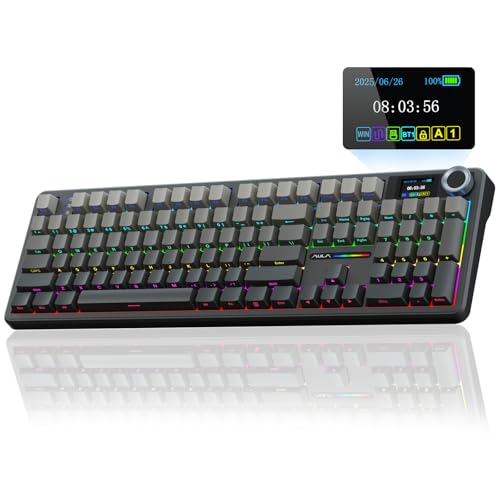
The F108 PRO is the answer for the buyer who read the 75 percent sections above with rising impatience: yes, but where is the number pad? Here it is — a full-size wireless board with every key in its traditional place, plus a screen, plus a knob, plus a battery so large (an 8000mAh cell) that the screen’s appetite stops being a serious objection. AULA built this as the no-compromise entry in its knob line, and the specification behaves like it: tri-mode connectivity, pre-lubed switches, side-printed PBT keycaps, and the damped sound the family is known for, scaled up to a full deck.
The knob and screen pairing works at this size the way it does on the F75 MAX, with one difference: a full-size board is a permanent desk resident, so the screen’s glanceable information — clock, battery, mode — becomes part of the desk’s furniture rather than a traveller’s gauge. Data-entry users get their pad, media users get their dial, and the household’s other computer can borrow the board over its second wireless mode. It is, deliberately, the board for the person who wants one keyboard that ends the shopping.
Size is the whole caveat. This is the widest, heaviest pick in the guide; small desks will feel colonised, mouse hands will travel further, and nobody is carrying it to a café. The screen carries the same night-glow consideration as its smaller sibling, and the price position is the flagship position. But judged on its own brief — everything, at once, wirelessly — the F108 PRO has no rival in this guide, and its huge battery quietly answers the objection that screens and wireless do not mix.
- Layout: full-size with number pad, knob and screen
- Connections: Bluetooth, 2.4GHz dongle, USB-C wired
- Switches: pre-lubed, hot-swappable
- Battery: very large 8000mAh cell
- Keycaps: side-printed PBT
Strengths
- Number pad, dial and screen with nothing left off
- Oversized battery neutralises the screen’s power cost
- Tri-mode wireless suits multi-machine desks
Trade-offs
- Largest and heaviest board in this guide
- Screen glow needs managing in dark rooms
- Flagship position in the budget
Households with one shared family desk will recognise the F108 PRO’s pitch immediately: it is the keyboard that ends arguments, because the spreadsheet worker, the gamer and the media watcher each find their non-negotiable present. A board that satisfies three people is cheaper than three boards that each satisfy one.
Full-size loyalists who want the modern dial-and-screen treatment without surrendering a single key should buy the F108 PRO and stop shopping. Compact-desk owners will find the same ideas in kinder dimensions above.

SOLAKAKA A99 Pro Mechanical Keyboard with LCD Screen and Metal Knob — The metal-knob contender
The A99 Pro leads with the detail your fingers will grade: its knob is metal. That sounds like a spec-sheet flourish until you turn both kinds in the same afternoon — the metal dial’s cool, weighted resistance makes plastic knobs feel like toys by comparison, and for a control touched dozens of times a day, that tactile difference is the product. Behind the dial sits an LCD screen in the F75 MAX mould, a near-full-size layout that keeps a number pad in a tightened frame, tri-mode wireless, and a gasket-mounted, hot-swappable build chasing the creamy sound brief.
SOLAKAKA is a newer name than the AULA and Royal Kludge badges around it, and the A99 Pro plays like a challenger that studied the incumbents’ reviews. The typing feel is firmly in the modern damped camp, the screen covers battery and mode with the option of custom graphics, and the board’s overall solidity flatters its price position. The near-full-size layout will suit spreadsheet users who found the F108 PRO’s full width a stretch too far, splitting the size difference between the 75 percent boards and the flagship.
The challenger status cuts both ways. Software and long-term support are less proven than the bigger brands’, the screen shares the usual battery and glow considerations, and a buyer who values a decade of firmware history will not find it here. None of that changes the tactile headline: if the dial is the reason you are buying — and in this guide, it is — the A99 Pro’s metal knob is the one your hand will remember, and the board beneath it is good enough to deserve it.
- Layout: near-full-size with number pad
- Connections: Bluetooth 5.0, 2.4GHz dongle, USB-C wired
- Switches: hot-swappable, gasket-mounted
- Knob: metal, with adjacent LCD screen
- Extras: RGB backlighting, customisable screen graphics
Strengths
- Metal dial has the best in-hand feel here
- Number pad in a tightened, manageable frame
- Tri-mode wireless with a creamy gasket build
Trade-offs
- Newer brand with a shorter support track record
- Screen adds battery draw and night glow
- Software polish trails the biggest names
One more honest note in the A99 Pro’s favour: challenger brands survive on word of mouth, and their support teams often answer like it. That is not a guarantee, and we do not print it as one, but buyers who enjoy backing the newer maker occasionally find the experience warmer than the incumbents’ ticket queues. The dial, in any case, needs no advocate beyond your own hand.
Dial connoisseurs — the buyers who know the knob is the point — should try the A99 Pro for its metal control and complete layout. Brand-history shoppers will feel safer with AULA or Royal Kludge, and should not let anyone talk them out of that instinct.
Knob, Media Keys or a Separate Desk Controller: Which Is Right for You?
Media keys are the incumbent solution, and their weakness is arithmetic: a volume key raises the level in coarse steps and demands a glance or a chord, so people use them reluctantly and overshoot constantly. A knob’s finer steps and zero-glance operation are why owners describe the change as going back to how volume always should have worked. If your current keyboard has media keys you never touch, that is not evidence you do not need volume control — it is evidence the control was badly shaped.
Separate desk controllers — the dedicated dials and control surfaces sold to streamers and editors — go further than any keyboard knob: more buttons, bigger dials, deeper software. They also cost as much as a keyboard, claim their own desk territory and cable, and serve people whose work is genuinely built around those controls. The knob keyboard is the middle path that suits most desks: one device, one cable or none, and a dial that covers the ninety percent case — volume, mute, and one favourite second job — without turning the desk into a cockpit. Choose the separate controller when your editing or streaming is professional; choose the knob board when it is a beloved part of an otherwise ordinary desk.
Which Knob Board Fits a Studio Desk, an Office Desk and a Gaming Desk?
The studio desk — editing, music, design — values the dial’s second careers above all, so the screen-labelled F75 MAX leads, with the A99 Pro’s metal dial as the choice when the work is audio-flavoured and the hand judges quality by resistance. Studio users should also weigh the keyboard’s sound, because a board recorded by a nearby microphone should thock politely or not at all; every pick here is damped enough for voice work at sensible distances.
The shared family desk — the fourth desk type nobody designs for — values a dial that survives many hands and a board that explains itself. There the F108 PRO’s screen earns its keep by showing each user what mode the board is in, and its full layout means nobody’s shortcut habits are stranded. Families should also prefer the boards whose knobs press to mute with a definite click, because a control that confirms itself gets used confidently by everyone from grandparents to children.
The office desk values discretion and reliability: the wired R75’s instant wake and zero battery story suit locked-down work machines, while the F75 Pro serves the hybrid worker who carries one board between home and office. The gaming desk splits by size — the R65 for maximum mouse room, the F75 Pro for wireless freedom — and by whether the dial will ride game volume or the whole system’s. Notice that no desk type is served by a bad keyboard with a good knob; the typing quality underneath is what you will judge at hour six, long after the dial’s novelty has settled into habit.
How Do the Six Knob Boards Compare Side by Side?
| Pick | Layout | Connection | Screen | Standout trait |
|---|---|---|---|---|
| AULA F75 Pro | 75% | Tri-mode wireless | No | Benchmark dial feel |
| RK R75 | 75% | Wired | No | Battery-free dependability |
| EPOMAKER X Aula F75 MAX | 75% | Tri-mode wireless | TFT | Labelled multi-function dial |
| RK R65 | 65% | Wired | No | Knob in the smallest body |
| AULA F108 PRO | Full-size | Tri-mode wireless | Yes | Everything, plus huge battery |
| SOLAKAKA A99 Pro | Near-full-size | Tri-mode wireless | LCD | Metal knob feel |
How Should You Set Up a Knob Board in the First Evening?
Begin with the dial’s default job and live in it for a day: volume on the turn, mute on the press, nothing clever. Then open the software once and make exactly one change — assign the knob’s second layer or long-press to the task you perform most after volume, whether that is zoom in your editor, scrolling in your reader, or brightness at your desk. One change at a time is the discipline that keeps a programmable board feeling like a tool rather than a puzzle; owners who reprogram everything on night one reliably remember none of it by Friday.
While the software is open, set the board’s sleep timer with intention. A wireless knob board that sleeps aggressively saves battery and then makes you wait — or double-turn the dial — at the start of every session, which teaches your hand to distrust the control. A slightly longer awake window costs little charge on these boards and keeps the dial’s first touch as reliable as its fiftieth. Small settings, large habits: the whole setup philosophy of this category in one example.
If your board has a screen, set its brightness and sleep behaviour before anything else, because a glowing display at 2 a.m. will teach you to hate a feature you paid for. Put something useful on it — battery and mode beat a decorative image for most people — and let custom graphics wait until the board has earned its place. Finish by testing the dial in every connection mode you use; a knob that behaves on USB but sleeps on Bluetooth is a warranty conversation best had in week one, not month six.
What Mistakes Do Knob Keyboard Buyers Keep Making?
The first is buying the knob and ignoring the keyboard. A dial cannot redeem hollow sound, scratchy switches or a layout that fights your work, yet knob-first marketing invites exactly that purchase. Read the typing sections of any review before the dial sections — including this one, which is why every pick above was required to be a good board before it was allowed to be a knob board.
The second is assuming every knob is programmable. Some dials are volume-only by design, and discovering that after purchase — when you bought the board to scrub timelines — is a self-inflicted wound. Check the software story for your specific intended use before ordering, the way you would check a monitor’s ports.
The third is remapping the dial on day one into an exotic function and never building the volume habit the knob was bought for. Live with the default for a fortnight; the second career should be chosen by experience, not by the excitement of unboxing.
The fourth is placing the board so the dial is hard to reach. A knob at the far side of a wide board, behind a monitor stand or under a shelf, becomes a knob that is never turned. Arrange the desk so the top-right corner of the keyboard is the freest space in your setup; the dial you can reach is the dial you will use fifty times a day.
How Long Will a Knob Keyboard Last, and What Wears Out First?
A modern mechanical board’s switches are rated for tens of millions of presses, so the keyboard’s practical lifespan is set by its supporting cast. On the wireless picks, the battery ages first — expect it to hold noticeably less charge after a few years of daily use, though every tri-mode board here also works wired, which converts a tired battery from a death sentence into a lifestyle choice. Keycaps shine and legends on printed caps fade; the PBT sets fitted across this guide resist both far longer than the ABS caps of older boards. Stabilisers can develop rattle that a dab of grease cures in minutes.
The knob itself is a rotary encoder, a component with its own rated lifespan of rotations. In household terms that rating translates to many years of volume duty; the realistic failure is not sudden death but a gradual untidiness — a skipped value here, a double-step there — appearing long after the board has earned its keep. Screens, where fitted, are the component with the least certain decade ahead of them, which is why the screenless picks will always have a quiet argument in their favour: fewer parts, fewer funerals. Buy any board here expecting five good years, maintain it lightly, and the dial will very likely outlast the computer it is plugged into.
How Do You Clean Around a Knob and Screen Without Damaging Them?
The dial and the display change cleaning day in two ways. Dust collects in the ring where the knob meets the case, and the correct tool is a soft brush or a puff of air — never a liquid cleaner sprayed at the gap, because the encoder beneath the cap is exactly where liquid does its worst. If the knob cap is removable on your model, pull it straight up, clean beneath it dry, and reseat it firmly; if it resists, it is not removable, and forcing it converts housekeeping into damage. Screens want a dry microfibre cloth and nothing more aggressive; fingerprints surrender to a breath of moisture on the cloth, never on the display itself.
The rest of the board follows the usual mechanical routine: keycaps off for a wash once or twice a year, the case shaken and brushed between times, and spills answered by power off, drain, and a full day of drying. A knob board’s extra components do not make it fragile — they make it specific about where the water goes. Owners who keep liquids on the far side of the desk, as every keyboard guide since the dawn of computing has begged, will find these boards age as gracefully as any in the category.
What If You Are Left-Handed, or Your Hands Need Larger Controls?
Every dial in this guide sits at the top-right, which right-handed users reach naturally and left-handed users reach across for. In practice the reach is short and the gesture is occasional rather than constant, so most left-handed owners adapt without complaint — but those who control volume constantly, DJs and audio editors among them, should test the reach honestly during the return window. A separate left-side controller remains the specialist answer for that minority.
For hands that find small controls difficult — arthritis, reduced grip, larger fingers — a knob is often easier than the media keys it replaces, because turning a dial asks for a gross movement rather than a precise fingertip chord. The larger dials here, on the F108 PRO and the metal-knobbed A99 Pro, are the friendliest targets, and their stepped travel gives confirmation you can feel rather than see. If a keyboard purchase is partly an accessibility decision, prioritise dial size and detent clarity over every other feature in this guide; they are the specifications your hands will grade.
Final Recommendation
The AULA F75 Pro is still the knob keyboard we would buy with our own money: the dial feels right, the board beneath it sounds right, and nothing about it is wasted. The F75 MAX is its remapping-minded sibling, the F108 PRO the full-size completion of the idea, and the SOLAKAKA A99 Pro the tactile indulgence whose metal dial your fingers will vote for. The Royal Kludge pair serve the wired faithful at two sizes. A last word for the undecided: the knob is the rare keyboard feature that does not ask you to change how you type, where you sit or what you play — it simply removes a friction you had stopped noticing. That is why converts sound evangelical and why the dial has spread from enthusiast boards into the mainstream in a few short years. Whichever you choose, expect a small surprise a month from now: the knob will have become the control you miss most on every other keyboard you touch — the surest sign that a small dial, chosen well, has quietly become the centre of your desk, and the first thing your hand looks for every morning.
Frequently Asked Questions
Can a keyboard knob do more than control volume?
On the programmable picks here, yes — zoom, scrolling, timeline scrubbing, brush size and brightness are the common assignments, set through the maker’s software. The screen-equipped boards (F75 MAX, F108 PRO, A99 Pro) make multi-assignment dials easier to live with because the display labels the current job.
Do knobs work in every connection mode?
Generally yes on the tri-mode boards in this guide, including over Bluetooth, though a dial may wake a sleeping board a fraction after the keys do. The wired RK boards answer instantly by definition. If you use one mode exclusively, test the knob in that mode during your first evening.
Is a metal knob actually better than a plastic one?
It feels better — cooler, heavier, more deliberate — and for a control touched constantly, feel is function. It is not more accurate, and plastic dials like the F75 Pro’s are excellent in their own right. Treat metal as a tactile upgrade worth having, not a performance claim worth paying any price for.
Will a knob get in the way of typing?
No, because every pick here parks the dial outside the typing cluster, at the top-right where a reaching hand expects it. Accidental turns are rare and become rarer as the gesture becomes habit; what owners report instead is reaching for a dial on knob-less keyboards and finding air.
Can I replace or upgrade the knob itself?
Sometimes. On several boards the dial cap pulls off and standard encoder caps fit, letting you change its size or material; the encoder beneath it is soldered and not a user part. Treat a cap swap as a cosmetic experiment, keep the original somewhere safe, and never force a dial that resists — a bent encoder stem is a warranty claim, not a mod.
Should I choose a knob board with or without a screen?
Choose the screen if you will remap the dial or if you like glanceable battery and mode information across a desk. Choose without if the knob will only ever control volume, if your room is dark and light-sensitive, or if you prefer the longer battery intervals of the screenless boards.
Related Guides
Round out your shortlist with Best Keyboards Under 20 Dollars for a spare that costs almost nothing, Best WiFi Keyboards for wireless boards without the dial, and Best Mechanical Keyboards Under 100 Dollars for the wider budget field.