What's inside
- Key Takeaways
- Quick Picks
- How Did We Choose These Drawing Tablets?
- What Should an Artist Look for in a Pen?
- How Do Drawing Apps Differ Across iPad, Android and Windows?
- Which Drawing Tablets Deserve Your Shortlist?
- How Do the Six Stack Up for Drawing?
- Where Will You Draw — Desk, Sofa or Out in the World?
- What About Colour, Brightness and Reviewing Finished Work?
- What Should Left-Handed Artists and Artists With Tired Hands Look For?
- Which Pick Suits Comics, Painting or Handwritten Notes?
- What About Nibs, Pen Care and the Cost of Keeping Drawing?
- What Should You Test in the First Week With a New Drawing Tablet?
- How Should You Set Up a Drawing Tablet for Real Work?
- What Mistakes Do Artists Make Buying a Drawing Tablet?
- Final Recommendation
- Frequently Asked Questions
- Related Guides
As an Amazon Associate I earn from qualifying purchases. This post may contain affiliate links at no extra cost to you.
widgetverdict.com is reader-supported. When you buy through links on our site, we may earn an affiliate commission.
Where to buy: All six picks have checked Amazon links. The short route: the TCL NXTPAPER 11 Plus if you want a paper-like screen and a stylus in the box, the Samsung Galaxy Tab S10 FE for the classic S Pen sketchbook, and the Lenovo Idea Tab Plus for a big 2.5K canvas with a pen and folio included.
The best affordable drawing tablets for artists begin with a distinction the listings do not always make loudly: a tablet you can draw on is not the same as a tablet built for drawing. Any slate will register a fingertip or a cheap capacitive stick. A drawing tablet earns the name with a pen that tracks pressure and tilt as a drawing tool rather than a pointing stick, a screen that does not fight the hand resting on it, and enough canvas that a sketch can breathe. This guide’s six picks all clear that bar — five of them include the pen in the box or bundle — and they clear it at prices a student, a hobbyist or a working illustrator’s second device can justify.
One honesty rule governs everything below: pen pressure figures appear only where the manufacturer’s own listing states them. Exactly one pick here, the TCL NXTPAPER 11 Plus, prints a pressure level in its title — 4096 levels, with the stylus included. For the Samsung pair, the Surface bundle and the Lenovo, the listings name the pen without quantifying it, so we describe the drawing experience in the terms that can be supported: pen included, screen size and resolution, refresh behaviour where stated, and the app ecosystems each slate opens. An artist choosing between them should weight the canvas and the software first, because at this level the pen is a given and the workflow is the variable.
Key Takeaways
- The TCL NXTPAPER 11 Plus is the only pick whose listing quantifies its pen: a 4096-level stylus included, on an 11.5-inch 2.2K 120Hz matte-style display.
- Samsung’s S Pen is included with both Galaxy picks — no separate pen purchase, no charging ritual to learn.
- The Tab S9 FE+ offers the largest Samsung canvas here at 12.4 inches with 256GB of storage for big project files.
- The iPad Air M4 is the strongest tablet of the six, but its Pencil is sold separately — budget for it openly.
- The Surface Pro bundle includes both the Pro Keyboard and the Surface Pen, making it a complete Windows drawing workstation.
- The Lenovo Idea Tab Plus pairs a 12.1-inch 2.5K 90Hz screen with a tab Pen and folio case in the box.
Quick Picks
| Pick | Badge | Why it earns its place |
|---|---|---|
| Samsung Galaxy Tab S9 FE+ | Biggest Samsung canvas | A 12.4-inch touchscreen, S Pen included and 256GB for layered project files. |
| Samsung Galaxy Tab S10 FE | Best all-round sketchbook | S Pen included, a 90Hz display, IP68 water resistance and the Exynos 1580. |
| TCL NXTPAPER 11 Plus | Best paper feel | A 4096-level stylus included and an 11.5-inch 2.2K 120Hz NXTPAPER display. |
| Apple iPad Air 11-inch (M4) | Best app ecosystem | The M4 and the deepest drawing-app catalogue — with the Pencil sold separately. |
| Microsoft Surface Pro 11 Bundle | Best desktop software | Surface Pen and Pro Keyboard in the bundle, a 13-inch OLED and full Windows 11 Pro. |
| Lenovo Idea Tab Plus | Best big-screen value | A 12.1-inch 2.5K 90Hz display with a tab Pen and folio case included. |
How Did We Choose These Drawing Tablets?
The first filter was the pen itself. A pick had to treat the stylus as the main instrument, not an afterthought: the two Samsungs include the S Pen, the TCL includes its 4096-level stylus, the Surface bundle includes the Surface Pen alongside its keyboard, and the Lenovo includes its tab Pen with a folio case. The iPad Air is the deliberate exception, included because its drawing-app ecosystem is the deepest in the field — but its Pencil is a separate purchase, and this guide says so wherever the iPad is recommended, because a drawing tablet whose pen costs extra is a different budget proposition than its headline suggests.
The second filter was canvas. Drawing punishes small screens more than any other tablet work: toolbars eat edges, reference images compete with the artwork, and a cramped canvas changes how a hand moves. Every pick here offers at least 11 inches, and four offer 12 inches or more, with resolutions from 2.2K and 2.5K up to the Surface’s OLED panel. Refresh behaviour matters to the stroke as well — a display that redraws quickly keeps the line under the pen’s tip rather than trailing behind it — so the stated 90Hz and 120Hz figures on the Lenovo, Samsung S10 FE and TCL earned real weight in the selection.
The third filter was the file life of artwork. Layered drawings grow large, and an artist’s tablet accumulates years of them. Storage of 128GB is the floor here, 256GB appears twice, and the Surface’s 512GB SSD belongs to a different class of archive altogether. None of these numbers draws a better line; all of them decide whether the tablet remains the place the work lives, or becomes a waystation to somewhere else.
A fourth, quieter filter deserves disclosure: we favoured tablets whose drawing story could be verified from their own listings. Where a listing named the pen, the screen figures and the storage plainly, the pick could be recommended on evidence. Where marketing reached for atmosphere instead of facts, we leaned on the rest of the specification and said less. Artists, of all buyers, should insist on that discipline — a drawing tool is judged by the line it makes, and a listing that will not state its pen’s basic facts is asking to be bought on faith.
What Should an Artist Look for in a Pen?
Start with what the pen asks of you. The S Pen in the Samsung listings is the low-maintenance ideal for many artists: it is included, it lives with the tablet, and Samsung’s line has made it the default instrument of Android sketching. The TCL’s stylus is the specification-forward option — the listing states 4096 pressure levels, which describes how finely the pen distinguishes a whisper of a line from a committed stroke, the quality that makes shading and inking feel analogue rather than digital. The Surface Pen arrives as part of a workstation bundle, paired with a keyboard, aimed at artists who also write, annotate and work in desktop software. The Lenovo’s tab Pen completes a big-canvas package at the friendly end of the guide.
Beyond pressure, judge a pen by the drawing session rather than the datasheet. Does the line stay glued to the tip at the speed you actually draw? Does the screen surface give the nib something to bite on, or does it skate like a pen on glass? The NXTPAPER’s whole design philosophy answers that second question with a paper-like surface, which is why traditional-media artists gravitate to it. And does the pen’s ecosystem include the apps you already draw in? That question, more than any figure, separates the iPad’s proposition from the Android pair’s, and it is why the detailed reviews below discuss software alongside hardware for every pick.
A word about the figure itself: pressure levels are a ceiling, not a grade. A well-tuned pen with fewer levels can outdraw a poorly tuned one with more, because the artist feels the curve — how pressure maps to line weight — not the count. We print the TCL’s figure because its listing states it, and we decline to invent figures for the others. Let any guide that quotes precise pen numbers for all six be read with that caution in mind.
Palm behaviour is the pen-adjacent feature artists feel within minutes. Drawing rests a hand on the glass, and a tablet-and-app combination that reads that hand as input will scatter stray marks across every session. The mature pen ecosystems in this guide — Samsung’s, Apple’s, Microsoft’s and TCL’s purpose-built pairing — are designed around the resting hand, and the drawing apps on each platform assume it. When you test any slate in a shop, do not just scribble with the pen held high; plant your palm the way you actually draw and make a slow line. That ten-second test reveals more about a drawing tablet than an afternoon of specifications.
How Do Drawing Apps Differ Across iPad, Android and Windows?
Software is the quiet decider of this entire category, because an artist’s fluency lives in an app’s gestures and menus, not in a processor. The iPad’s catalogue is the deepest for tablet-native drawing: the famous painting and comic applications treat it as their home platform, updates arrive early, and a generation of tutorials assumes its interface. An artist learning digital drawing from scratch will find the gentlest education there — provided the Pencil’s separate cost has been counted. The Android catalogue behind the Samsung, TCL and Lenovo picks is genuinely strong for sketching, painting, comics and note-based drawing, and Samsung’s own environment adds pen-first utilities; its gaps appear at the professional margins, where a specific app an artist depends on may simply not exist.
Windows, on the Surface bundle, is not a catalogue at all but the whole mainland: the full desktop illustration, photo and design suites, with plug-ins, colour management and file habits identical to a studio machine. That completeness is why the Surface exists in this guide despite its price — for an artist whose clients expect files from specific desktop software, no app-store substitute settles the matter. The practical advice is unfashionable but sound: list the three applications your work actually depends on, check which of these platforms runs all three natively, and let that answer narrow the guide before a single specification is compared.
Subscriptions deserve a mention in the software conversation, because several professional art applications now rent rather than sell. The tablet’s price is only the entry; an artist should tally the app’s ongoing cost on their chosen platform before committing, since the same creative life can carry different rent on different systems. Affordable hardware with an unexamined software subscription is a budget that leaks monthly, and the leak is easiest to plug before the first drawing, not after the fiftieth.
Which Drawing Tablets Deserve Your Shortlist?
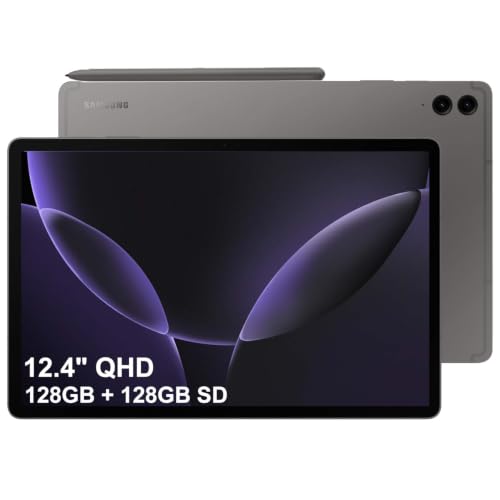
Samsung Galaxy Tab S9 FE+ — Biggest Samsung canvas
Canvas is this tablet’s argument, and it makes it at 12.4 inches. That extra space over the standard slate changes drawing posture: the artwork occupies the centre, palettes and references live at the edges, and a comic page or a fashion croquis can be worked at something approaching its printed size. The S Pen is included, as Samsung’s FE line intends, so the box contains the complete instrument. Storage is 256GB with 8GB of RAM — room for a serious archive of layered files and the memory to keep big canvases responsive — and the camera arrangement, one front and two rear, quietly serves artists who photograph sketches, textures and reference material into their workflow.
Samsung describes the design as lightweight and durable, and the FE+ suits the artist who draws in more than one place: studio desk in the morning, life-drawing class in the evening, sofa for inking at night. Its honest limits are that the listing does not state a refresh figure or a pen pressure number, so speed-of-stroke claims belong to the S10 FE below, and the very size that flatters drawing makes it a two-handed carry. For an artist whose work is large — pages, posters, detailed illustration — it is the natural first Samsung to consider, and its storage means it will hold the work as long as the work keeps coming.
- Display: 12.4 inches, touchscreen
- Pen: S Pen included
- Memory and storage: 8GB RAM, 256GB
- Cameras: 1 front, 2 rear
- Design: lightweight, durable per the listing
Strengths
- The largest Samsung canvas here, and it changes how big work feels.
- 256GB swallows layered project archives without housekeeping.
- S Pen in the box; the instrument is complete on day one.
Trade-offs
- No refresh or pressure figures stated in the listing to plan around.
- Its size is a commitment for artists who draw in transit.
- 8GB of RAM is ample, though the Surface bundle doubles it.
There is a teaching angle to this pick as well. Art schools and evening classes standardise on familiar tools, and a student arriving with the big Samsung and its S Pen is arriving with the class’s common language — file formats, pen habits, app choices all transfer. A tablet that matches the room shortens every lesson, and the FE+ adds the canvas those lessons eventually demand.
Best for: illustrators and comic artists who work large and archive everything. Not suited for: sketchers who draw mainly on trains and in cafés, who should take the smaller S10 FE.

Samsung Galaxy Tab S10 FE — Best all-round sketchbook
The S10 FE is the balanced Samsung: a large display with a stated 90Hz refresh, the S Pen included for note-taking and drawing alike, an Exynos 1580 processor, and a specification sheet that reads like it was written by someone who uses the product outdoors — IP68 water resistance headline among the features. That rating is not a drawing specification, but artists draw in the world: at a harbour wall, in a garden, beside a sink in a print studio. A slate that shrugs off splashes and dust invites the field sketching that a fragile device discourages, and the 90Hz screen keeps strokes feeling attached to the pen while it happens.
Storage is 128GB in this US-version listing, in silver, with long battery life claimed. Against its bigger sibling, the FE trades canvas and archive for pace and portability — a trade most sketchbook artists, whose drawings are many but individually light, will accept happily. Against the TCL, it offers Samsung’s mature pen-and-app environment against the NXTPAPER’s paper texture and stated pressure figure. It is the pick for the artist who wants one tablet for sketching, notes and everything else, and wants the pen to have been part of the plan from the first line of the design.
- Display: large, 90Hz refresh
- Pen: S Pen included
- Processor: Exynos 1580
- Storage: 128GB, US version
- Durability: IP68 water-resistant
Strengths
- A 90Hz display keeps fast strokes visually glued to the pen.
- IP68 resistance suits field sketching and studio accidents.
- S Pen included, with Samsung’s note and drawing environment behind it.
Trade-offs
- 128GB is half the S9 FE+ archive for heavy project hoarders.
- The listing states no pen pressure figure.
- Smaller canvas than the FE+ for page-scale work.
Sketchbook artists will also appreciate what the FE does not do: it does not ask to be the desk machine. It wakes fast, draws immediately, and treats a ten-minute study between other obligations as a first-class use. Tablets that demand a setup ritual get drawn on weekly; tablets that are simply there get drawn on daily, and daily is where sketchbooks do their work.
Best for: sketchbook artists, students and field drawers who want pace and durability in one slate. Not suited for: artists archiving huge layered files, or those wanting the largest Samsung screen.

TCL NXTPAPER 11 Plus — Best paper feel
The NXTPAPER is the romantic’s pick, and its listing makes the case in numbers: an 11.5-inch 2.2K display at 120Hz, a stylus with 4096 pressure levels included, NXTPAPER 4.0 surface technology, 8GB of RAM with 256GB of storage, AI tools, and an 8000mAh battery. The surface is the soul of it. NXTPAPER’s matte, paper-like finish exists to fix the sensation every glass-screen artist knows — the nib skating where a pencil would bite — and for artists raised on sketchbooks, that friction is not nostalgia; it is control. Lines start where intended, hatching stays even, and long sessions feel like drawing rather than ice-skating.
The 120Hz refresh is the fastest stated in this guide, serving fast gesture drawing and smooth scrolling through reference boards, and the 2.2K resolution keeps fine linework crisp when zoomed. TCL positions the device as a digital notebook and drawing tablet for study and creativity, and that dual identity suits students of art especially: notes in the lecture, studies in the studio, one device, one pen. Its cautions are ecosystem-shaped — the app catalogue is Android’s, deep but differently stocked than the iPad’s — and the brand’s drawing pedigree is younger than Samsung’s. On specification and surface, though, this is the most drawing-serious package in the guide, and the only one whose pen figure we can print.
- Display: 11.5 inches, 2.2K, 120Hz, NXTPAPER 4.0
- Pen: 4096-level stylus included
- Memory and storage: 8GB RAM, 256GB
- Battery: 8000mAh
- Extras: AI tools, digital notebook positioning
Strengths
- A paper-like surface that gives the pen real drawing friction.
- The only stated pressure figure in the guide — 4096 levels, stylus included.
- 120Hz refresh and 256GB complete a specification with no obvious gap.
Trade-offs
- Android’s drawing catalogue differs from the iPad’s; check your apps first.
- A younger drawing pedigree than Samsung’s S Pen line.
- The matte surface slightly softens media viewing compared with glossy rivals.
One more audience should hear about this tablet: writers who sketch, and sketchers who write. The notebook positioning in TCL’s listing is not decoration — a surface that feels like paper flatters handwriting as much as hatching, and the artist who journals, annotates and diagrams alongside drawing may find this the most personally satisfying device in the guide, the one that feels like a place rather than a screen.
Best for: traditional-media artists moving to digital, art students, and anyone who hates drawing on glass. Not suited for: artists committed to iPad-only apps, who should take the Air and budget for its Pencil.
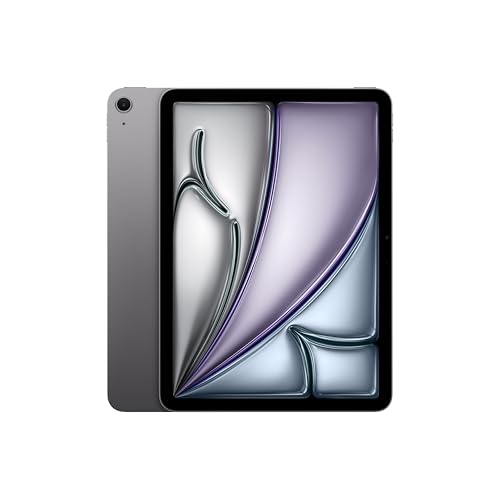
Apple iPad Air 11-inch (M4) — Best app ecosystem
The iPad Air’s case rests on two pillars: the M4 chip, which gives it the largest performance headroom of any tablet in this guide, and an app catalogue that has become the default address for digital drawing — the illustration, comic and painting apps artists ask for by name tend to live here first and fullest. The 11-inch Liquid Retina display is a superb canvas, Wi-Fi 7 with Apple’s N1 keeps large files moving, Touch ID handles sign-in, and the whole machine carries the polish of a line refined over many generations. As a piece of hardware for an artist, it is close to beyond criticism.
The criticism is commercial, and this guide will not soften it: the Apple Pencil is sold separately. A drawing tablet recommendation that omits the pen’s cost misleads, so count the Air’s true drawing price as tablet plus Pencil, and compare that figure honestly against the Samsung and TCL packages whose pens are in the box. With the Pencil added, the Air is arguably the finest drawing instrument here — and the least “affordable” reading of this guide’s title. Buy it when your workflow already lives in its apps, or when you know it will; buy the S Pen or NXTPAPER packages when you want the complete instrument in one box and one decision.
- Display: 11 inches, Liquid Retina
- Chip: Apple M4
- Storage: 128GB
- Pen: Apple Pencil — sold separately, not included
- Extras: Wi-Fi 7 with Apple N1, Touch ID, 12MP front and back cameras
Strengths
- The deepest drawing-app ecosystem in the field.
- M4 performance headroom for huge canvases and many layers.
- A refined, colour-serious display that doubles as a reference screen.
Trade-offs
- The Pencil costs extra; the drawing setup is two purchases.
- 128GB is the configuration here, tight for vast project archives.
- The total outlay stretches this guide’s affordable brief the furthest.
The Air also plays a second role no other pick matches as well: the reference and review screen. Artists draw on one device and judge on another, and the same tablet that hosts the deepest drawing catalogue also presents finished work beautifully to clients. Bought with open eyes and the Pencil in the same basket, it is the connoisseur’s route through this guide — the one that costs the most and apologises the least.
Best for: artists whose apps live on iPad, and buyers planning a long professional relationship with one slate. Not suited for: anyone needing the complete drawing kit in a single box at a single price.

Microsoft Surface Pro 11 Bundle — Best desktop software
This bundle is a workstation wearing a tablet’s shape. The listing assembles the Surface Pro 11 with the Pro Keyboard and the Surface Pen, around a 13-inch OLED touchscreen, a Snapdragon X Elite processor, 16GB of RAM, a 512GB SSD and Windows 11 Pro. For the artist whose tools are the full desktop applications — the complete illustration and photo suites, not their mobile editions — that specification is the entire argument: the same software as the studio desktop, the same files, the same plug-ins, on a slate that detaches and draws.
The Pen’s inclusion in the bundle matters more than it might appear; Surface accessories have historically been a separate-basket surprise, and here the drawing instrument and the keyboard arrive together, making the package price the real price. The OLED screen serves colour work and media equally, and Copilot+ features headline the Windows side for artists who also write and organise. The cautions are class-typical: this is the heaviest investment in the guide, Windows on a tablet asks slightly more of its owner than a pure tablet system, and battery expectations should be set by laptop habits rather than tablet ones. For the professional or serious student whose art lives in desktop software, it is not an extravagance; it is the only pick here that runs the whole studio.
- Display: 13 inches, OLED touchscreen
- Pen: Surface Pen included in the bundle
- Also included: Pro Keyboard
- Processor and memory: Snapdragon X Elite, 16GB RAM
- Storage and system: 512GB SSD, Windows 11 Pro
Strengths
- Full desktop art software, files and plug-ins on a drawing slate.
- Pen and keyboard both included — the bundle price is the real price.
- 16GB of RAM and 512GB give it the deepest working room here.
Trade-offs
- The largest investment in this guide by a clear margin.
- Windows asks more administration than a pure tablet system.
- Laptop-class size and habits rather than a casual slate’s.
Think of the bundle as the answer to a specific sentence: my art is made in desktop software, but I want to make it on the sofa, in the studio’s spare chair, at the client’s office. Every other pick asks that artist to translate their practice into an app; this one simply moves the practice. For illustrators billing by the piece, that absence of translation is not a luxury — it is billable hours returned.
Best for: professionals and serious students whose art depends on desktop applications. Not suited for: casual sketchers, for whom the Samsung and TCL picks deliver the drawing at a fraction of the commitment.
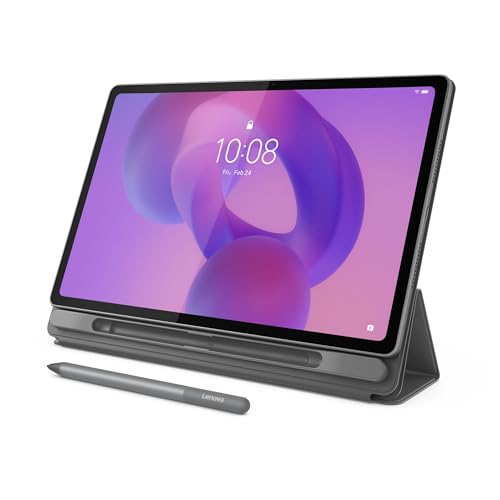
Lenovo Idea Tab Plus — Best big-screen value
The Idea Tab Plus is the quiet overachiever of this guide: a 12.1-inch 2.5K IPS touchscreen at 90Hz — resolution and refresh that would headline a pricier slate — with the tab Pen and a folio case included in the box. That combination, big sharp canvas plus pen plus protection, at the friendly end of the field, is exactly what an art student or a hobbyist levelling up from a phone needs. The MediaTek Dimensity 6400 with 8GB of memory and 128GB of storage keeps drawing apps and coursework moving, and the integrated Mali graphics handle the canvas work this class is bought for.
Its character is honest midrange in the best sense: nothing here is the guide’s extreme — not the largest screen, not the only stated pressure figure, not the desktop software — but the balance is the most complete at its level, and the folio case means the big screen is protected in the bag between classes from the first day. Artists whose practice is drawing and painting in Android’s apps, with notes and study around it, will find very little to forgive. If your budget stretches, the TCL adds its paper surface and stated pen figure; if it does not, this Lenovo is where the smart money in this guide quietly sits.
- Display: 12.1 inches, 2.5K IPS touchscreen, 90Hz
- Pen: tab Pen included
- Processor: MediaTek Dimensity 6400
- Memory and storage: 8GB, 128GB
- In the box: pen and folio case
Strengths
- A 2.5K, 90Hz canvas that out-specs its position in the guide.
- Pen and folio case included; the kit is complete and protected.
- 8GB of RAM keeps layered drawings and study apps comfortable.
Trade-offs
- No pen pressure figure stated in the listing.
- 128GB is the archive ceiling here.
- Lenovo’s pen ecosystem is smaller than Samsung’s or Apple’s.
There is also a confidence argument for the Lenovo as a first serious slate. A beginner does not yet know whether they are a painter, a comic artist or a letterer, and an affordable, complete, big-screen kit lets them find out without the purchase itself becoming a commitment to one identity. If the habit takes, the archive and the skills transfer upward later; if it does not, the tablet remains an excellent study and media machine. Low-regret purchases are how hobbies survive their first year.
Best for: art students and hobbyists wanting a big, sharp, complete drawing kit. Not suited for: professionals needing desktop software, or artists who want a stated pressure specification.
How Do the Six Stack Up for Drawing?
| Pick | Canvas | Pen | Storage | Standout |
|---|---|---|---|---|
| Samsung Galaxy Tab S9 FE+ | 12.4in | S Pen included | 256GB | Largest Samsung screen |
| Samsung Galaxy Tab S10 FE | Large, 90Hz | S Pen included | 128GB | IP68 water resistance |
| TCL NXTPAPER 11 Plus | 11.5in 2.2K, 120Hz | 4096-level stylus included | 256GB | Paper-like surface |
| Apple iPad Air (M4) | 11in Liquid Retina | Pencil sold separately | 128GB | Deepest app catalogue |
| Microsoft Surface Pro 11 Bundle | 13in OLED | Surface Pen included | 512GB | Full Windows software |
| Lenovo Idea Tab Plus | 12.1in 2.5K, 90Hz | tab Pen included | 128GB | Pen and folio in the box |
Where Will You Draw — Desk, Sofa or Out in the World?
Place shapes the right pick as much as pen does. The desk artist — monitor nearby, reference books open, hours unbroken — is served by the biggest canvases: the S9 FE+ and the Surface bundle, whose 13-inch OLED and desktop software assume a settled workspace, and the Idea Tab Plus propped in its folio. The sofa artist, drawing in the evening’s margins, wants the slate that wakes instantly and balances on a knee: the S10 FE and the TCL, with the iPad Air as the premium version of the same posture. The field artist — urban sketchers, plein-air painters, students between classes — should weight the S10 FE’s water resistance and the general rule that a tablet you are not afraid to carry is a tablet that accumulates drawings.
Most artists are all three across a week, which is why this guide’s middle picks are so competitive: they compromise gracefully in every location. But if your practice has a clear centre of gravity, let it vote first. A field sketcher who buys the desk machine will leave it at home; a page artist who buys the travel slate will fight its edges for years. The pen gets the attention in this category, yet the honest truth is that artists abandon tablets over size and place far more often than over styluses.
Bag logic completes the picture. A tablet that travels needs its pen homed — in a case loop or a folio — and its screen protected against the sketchbook’s hard companions: keys, water bottles, the corner of a hardback. The picks that bundle folios and keyboards begin that discipline in the box. The others ask for one inexpensive case decision, made on day one rather than after the first scratch writes its own review of your planning.
What About Colour, Brightness and Reviewing Finished Work?
Drawing is only half the visual job; the other half is judging what you have drawn. A screen that flatters saturation will betray an artist at print time, and a dim panel hides the pale lines that matter in a sketch. The Surface’s OLED is the review screen of this guide — deep blacks and rich colour for checking finished pieces — while the iPad’s Liquid Retina carries Apple’s long colour reputation. The IPS panels on the Lenovo and the Samsungs are honest all-rounders. The NXTPAPER’s matte surface slightly mutes perceived contrast in exchange for its drawing feel, a trade its owners accept knowingly: draw on the TCL, and if a piece is headed for print or a client, review it once on the most neutral screen you own.
Working habits can close most of the gap between panels. Keep brightness consistent rather than maximum, view finished work at the size it will be seen, and avoid judging colour under strongly tinted room light. None of the listings here makes laboratory colour claims, and this guide will not make them on the listings’ behalf — but for the web, social and study destinations most affordable-tablet artwork is headed for, every screen in this six is more than adequate, and the differences belong to the review stage rather than the drawing one.
One habit deserves promotion to a rule: proof the piece on a second device before it leaves you. A phone, a laptop, a friend’s screen — the destination audience will not see your tablet’s panel, and the thirty seconds of checking catches the washed shadow or the oversaturated sky while fixing it is still free. The picks with generous storage make keeping both the working file and the exported proof effortless, which is a final, practical argument for the 256GB and 512GB configurations.
What Should Left-Handed Artists and Artists With Tired Hands Look For?
Drawing tablets are among the few tools that can be arranged entirely around the hand that uses them, and artists whose hands need consideration should exploit that. Interface mirroring in the major drawing apps lets a left-handed artist move toolbars to the right edge, out from under the drawing arm; every platform in this guide supports the mainstream apps that offer it. Pen weight and girth matter across a long session more than any electronic figure — a slim pen that suits a fast sketcher can cramp a hand that grips firmly — and the included pens here span a useful range of shapes, one more reason the first-week audition exercises matter.
For hands that tire, the surface argument returns in a new form: a matte, paper-like finish lets the nib do some of the work of control, reducing the grip force a glass screen demands, which is a practical point in the NXTPAPER’s favour beyond romance. Session posture completes the picture — the raised far edge described in the setup section, a chair at the right height, and the tablet at the size that lets the arm draw rather than the fingers pinch. None of these considerations appears in a listing, and together they decide whether a tablet is drawn on for ten years or ten weeks.
Which Pick Suits Comics, Painting or Handwritten Notes?
Different drawing lives stress different virtues. Comics and manga work is page architecture: panels, lettering space, and long inking sessions. It rewards the biggest canvases — the S9 FE+ first, the Idea Tab Plus and Surface behind it — and pens that hold a consistent fine line for hours, which every included pen here is built to do. Digital painting is the opposite appetite: large brushes, blended colour, canvases stacked with layers. It rewards memory and processing headroom, where the iPad’s M4 and the Surface’s 16GB lead, and it forgives a smaller screen sooner than comics does, because painters zoom constantly by habit.
Handwritten notes and diagramming — the student’s and the journal-keeper’s drawing — reward the surface and the wake-up speed over everything. The NXTPAPER’s paper feel is the natural home of the pen-written page, with the S Pen pair as the mainstream alternative and their note ecosystems well worn in. An artist whose practice mixes all three lives should weight the middle picks — the TCL and the S10 FE — whose balance was designed for exactly that mixture, rather than optimising for a single genre they practise twice a year.
What About Nibs, Pen Care and the Cost of Keeping Drawing?
A drawing tablet’s running costs are small but real, and they concentrate in the pen. Nibs wear — faster on matte surfaces, which trade nib life for that beloved friction — and every ecosystem here sells replacements; the artist’s discipline is to keep spares in the same drawer as the charger, because a worn nib discovered mid-deadline scratches both the line and the mood. Pens themselves divide by temperament: the included instruments in the Samsung, TCL and Lenovo boxes are the economical path, the Surface Pen arrives inside its workstation bundle, and the iPad’s Pencil is the premium separate purchase whose cost should be counted once, honestly, at the start.
Care is mostly a matter of place. A pen that lives in a case loop, a folio or a desk pot survives; a pen loose in a bag’s depths eventually does not. The Lenovo and Surface packages help by bundling their pens with cases and keyboards that give the instrument a home, and the NXTPAPER’s notebook positioning encourages the same habit. Budget a trivial annual amount for nibs and a screen cloth, keep the pen homed, and the drawing setup’s running costs stay beneath notice — which is where an affordable guide wants them.
Charging belongs in the same drawer of habits. A pen or tablet that begins the session half-charged teaches the artist to ration strokes, and rationed strokes are visible in the work. Charge at the desk, overnight, as part of closing the studio rather than opening it, and the instrument will always be readier than the idea — which is the correct order of things.
What Should You Test in the First Week With a New Drawing Tablet?
Treat the first week as an audition with specific exercises, because drawing feel reveals itself in use, not in unboxing. Draw the same subject three ways: a slow, deliberate study, where line control and the pressure curve show themselves; a fast gesture page, where the screen’s refresh and the pen’s tracking either keep up or smear; and a finished piece in your main app, exported and viewed on another screen, which tests the whole chain from canvas to file. Rest your palm as you naturally would. Draw at your usual hour, in your usual light, in the chair where the work will actually happen.
Also test the boring machinery while it is still easy to act on: save a large layered file and reopen it, move a finished piece to your computer or cloud, and check that the pen’s replacement nibs and the case you need are findable for your model. Artists keep tablets for years, and the week-one discoveries — a pen that cramps your grip, a screen too glossy under your lamp, an app missing the one brush you live by — are exactly the discoveries that should inform an exchange rather than a resignation. Every pick in this guide will pass most artists’ auditions; the exercises exist so you learn which one passes yours.
How Should You Set Up a Drawing Tablet for Real Work?
The first hour shapes the first year. Begin with the pen: pair it, open your main drawing app, and spend ten unglamorous minutes on pressure curves and a page of test strokes — spirals, tapering lines, hatching at three speeds. Every artist’s hand is different, and the curve that flatters yours is a personal setting, not a factory default. Set the pen’s button, if it has one, to the tool you reach for most, which for most artists is the eraser or the colour picker. Then arrange the workspace: toolbars on the side opposite your drawing hand, reference images in a floating window, and autosave set short, because the only unforgivable drawing accident is a lost canvas.
Files deserve a system from the first week. Name pieces by date and subject, export finished work to a second home — cloud storage or a computer — and let the tablet hold the living archive rather than the only copy. On the 256GB and 512GB picks that discipline is comfortable; on the 128GB picks it is essential. Finally, protect the surface according to its kind: the NXTPAPER’s matte finish is the drawing surface and should not be buried under glossy protectors, while the glass-screened picks can take a matte protector if you crave more bite — a reversible experiment that many glass artists swear by and some abandon within a week. Your hand will tell you.
Posture is the setup item nobody lists and every artist feels. A big slate flat on a desk forces a hunch; a folio case, a book under the top edge, or a simple stand that raises the far side a few degrees returns the drawing position your sketchbook taught you. The Lenovo’s bundled folio and the Surface’s keyboard-equipped stance solve this in the box; the others ask for a stand or an improvised wedge. Set the angle before the first long session, because wrists remember what product pages forget.
What Mistakes Do Artists Make Buying a Drawing Tablet?
The expensive mistake is buying the tablet and forgetting the pen — the iPad Air’s Pencil is a separate purchase, and any comparison that ignores that misprices the decision. The second is chasing pressure numbers as if they were grades; only one listing here even states a figure, and the curve, the surface and the app matter more to the line than the count. Third, artists buy too little canvas and spend years zoomed-in, drawing with the wrist instead of the arm. Fourth, they ignore where their software lives: an artist fluent in one ecosystem’s apps loses weeks relearning equivalents, a cost no specification sheet refunds. And fifth, they underbuy storage, then discover that a year of layered work is a landlord that raises the rent monthly.
A sixth mistake is subtler: buying for the artist you intend to become rather than the one who showed up today. The beginner who purchases the professional workstation sometimes draws less, not more, because the machine’s seriousness raises the stakes of every sketch. The complete, friendly kits in this guide — pen in the box, canvas generous, price forgiving — exist to keep the stakes low and the drawing daily, which is the only regimen that has ever made an artist.
Final Recommendation
Choose by the hand and the software, in that order. If you draw the way you were taught on paper, the TCL NXTPAPER’s surface and stated 4096-level stylus make it the most natural first digital slate in this guide. If your sketchbook goes everywhere, the S10 FE’s pace and weather resistance travel best, and the S9 FE+ waits at home for the big pages. The Lenovo Idea Tab Plus is the student’s complete kit. The iPad Air, Pencil budgeted honestly, is the app-driven professional’s tablet; the Surface bundle is the desktop studio, folded. Our first box to open would be the TCL — it is the one pick here that was clearly designed by people asking what drawing feels like, and it answers in its surface, its pen and its numbers.
Whichever slate you choose, make one promise to it: a drawing a day for the first month, however small. The right tablet is the one still in your hand on day thirty, and every pick in this guide has earned that chance with somebody’s hand before yours.
Keep the sketchbook, too. Several artists in this guide’s audience draw in both media for years, scanning paper pages into the tablet’s archive and finishing them digitally. The slate that serves that hybrid life best is the one whose camera and storage treat paper kindly — another quiet point for the big-storage picks.
Frequently Asked Questions
How many pressure levels does a drawing pen need?
Enough that line weight responds smoothly and predictably to your hand — beyond that, tuning matters more than totals. The TCL’s listing states 4096 levels for its included stylus. The other picks’ listings do not state a figure, so judge them by pen inclusion, screen and software rather than by an invented number.
Which picks include the pen in the box?
Five of the six, happily: both Samsung tablets include the S Pen, the TCL includes its stylus, the Surface bundle includes the Surface Pen, and the Lenovo includes its tab Pen. The iPad Air’s Pencil is sold separately.
What screen size is best for drawing?
Most artists settle comfortably between 11 and 13 inches. The S9 FE+ at 12.4, the Idea Tab Plus at 12.1 and the Surface at 13 suit page-scale work and two-handed posture; the 11-inch class travels better. Smaller than that, toolbars crowd the art.
Can these tablets run professional art software?
The Surface Pro bundle runs the full Windows desktop applications without compromise. The iPad Air runs the deepest catalogue of tablet-native art apps. The Android picks run Android’s drawing apps, which cover sketching, painting and comics well — confirm your specific app before buying.
Is a matte screen better for drawing?
Many artists simply prefer it: the NXTPAPER’s paper-like surface adds friction that plain glass lacks, which steadies fine linework. Others prefer glass for colour clarity when reviewing finished work. It is a hand preference, not a hierarchy.
Do I need a screen protector for drawing?
On glass screens, a matte protector is a popular way to add drawing friction, and it can be removed if your hand dislikes it. On the NXTPAPER, the surface is already the matte drawing layer, so adding a glossy protector would defeat the design. Whatever you choose, fit it before the first long session so the feel you learn is the feel you keep.
Can a student manage with one of these instead of a graphics tablet and computer?
For most coursework, yes — the Samsung pair, TCL and Lenovo run complete drawing apps, and the Surface bundle runs the desktop software itself. Check your course’s required applications first; a class built around one desktop suite points straight at the Surface or at pairing a simpler slate with a computer you already own and know well.
How long do these tablets last an artist?
Years, if the archive is managed. The hardware in this guide is not the limiting factor for drawing — app support and storage are. The 256GB Samsung and TCL and the 512GB Surface give the longest runway; on 128GB picks, exporting finished work regularly keeps the slate fast and the archive safe. A pen with fresh nibs and a battery treated kindly will outlast several sketchbooks’ worth of ambition.
Related Guides
When the artwork needs an audience of keys, Best Affordable Tablets With Keyboards for Typing on the Go compares typing-ready slates. For a larger canvas still, Best 14 Inch Touch Screen Laptops for Work and Play covers convertible laptops. And Best 15.6 Inch Touch Screen Laptops for Big-Screen Versatility goes one size further for studio desks.


