What's inside
- Key Takeaways
- Quick Picks
- How Did We Choose These Kids’ Tablets?
- Why Does the Age Band Change the Tablet Itself?
- How Do Parental Controls Differ Between Amazon’s Garden and Open Android?
- Which Kids’ Tablets Should You Look at First?
- How Do the Six Compare at a Glance?
- What Changes When Two Children Share One Tablet?
- How Should You Set Up a Child’s Tablet on the First Day?
- Which Picks Suit Reading, Video Calls and Creative Play?
- How Well Do These Tablets Travel?
- How Long Should a Kids’ Tablet Last Before It Is Outgrown?
- How Do You Build Household Routines Around a Child’s Tablet?
- What Should You Know About Charging, Storage and Everyday Care?
- What Mistakes Do Parents Make When Buying a Kids’ Tablet?
- Final Recommendation
- Frequently Asked Questions
- Related Guides
As an Amazon Associate I earn from qualifying purchases. This post may contain affiliate links at no extra cost to you.
widgetverdict.com is reader-supported. When you buy through links on our site, we may earn an affiliate commission.
Where to buy: Every pick below has a checked Amazon link. The fastest route through this guide: the Amazon Kids Tablet 8 for ages 3–5 for a preschooler, the Amazon Kids Tablet 11 for ages 6–12 for a school-age child, and the PEICHENG Kids Tablet 7 if you want a small Android slate with its own parental controls.
The best affordable tablets for kids are not simply cheap tablets in bright colours. A child’s tablet lives a harder life than any adult device — carried by one corner, watched at arm’s length in the back of a car, charged in a tangle of cables, and asked to be a library, a cinema and a homework desk in the same afternoon. It also serves two customers at once: the child, who cares about the case colour and whether the favourite show is there, and the parent, who cares about content controls, durability and whether the thing can be configured once and then left alone. The six picks in this guide were chosen for both customers.
The organising fact of this guide is the age split printed in Amazon’s own listings. Four of the six picks are Amazon’s Kids tablets, and they come in matched pairs: an 8-inch and an 11-inch model, each offered in an edition for ages 3–5 and an edition for ages 6–12. Those editions are not the same tablet with different marketing. The younger editions bundle a year of Kids+ filled with early-learning material about letters, numbers, shapes and colours, and they wear soft bumper cases designed for small hands and short drops. The older editions aim at STEM, hobbies and homework, let parents add popular school apps, and wear slim hard cases that look like something a schoolchild would carry without embarrassment. The remaining two picks, from HOTTABLET and PEICHENG, are 7-inch Android tablets with parental controls and protective cases of their own, for families who prefer open Android to Amazon’s ecosystem.
Key Takeaways
- Match the edition to the age band first: the 3–5 editions bundle early-learning Kids+ content and soft bumpers; the 6–12 editions target STEM, hobbies and homework with slim hard cases.
- The 11-inch Kids tablets suit school-age reading and homework; the 8-inch versions suit smaller hands and car journeys.
- Amazon’s Kids line centres on its Kids+ library and parent-managed content; the two Android picks offer parental controls inside ordinary Android instead.
- The HOTTABLET 7 expands up to 1TB, the largest storage ceiling in this guide by a wide margin.
- Every pick includes a protective case in the box — with children’s tablets, that is part of the product, not an accessory.
- Buy for the child your child will be in eighteen months, not only the one today; age bands are crossed faster than tablets wear out.
Quick Picks
| Pick | Badge | Why it earns its place |
|---|---|---|
| Amazon Kids Tablet 8 (Ages 6–12) | Best 8-inch for school age | STEM and hobby content, school apps for homework, and a slim hard case in Aquatic. |
| Amazon Kids Tablet 8 (Ages 3–5) | Best 8-inch for preschool | A year of early-learning Kids+ and a soft Mystic Mountain bumper for small hands. |
| Amazon Kids Tablet 11 (Ages 6–12) | Best for homework and reading | The big screen for books and schoolwork, with STEM content and a Stellar Swirl hard case. |
| Amazon Kids Tablet 11 (Ages 3–5) | Best big screen for little kids | Early-learning Kids+ on an 11-inch canvas, wrapped in a Cool Green soft bumper. |
| HOTTABLET Kids Tablet 7 | Best storage expander | Android with parental controls, 32GB built in and expansion up to 1TB, in a silicone case. |
| PEICHENG Kids Tablet 7 | Best toddler Android | Android 12, an IPS screen, parental controls and a shockproof case sized for toddlers. |
How Did We Choose These Kids’ Tablets?
We applied three filters that adult tablet guides do not need. The first was the case: a children’s tablet sold bare is an unfinished product, so every pick here includes its protection — soft bumpers on the younger Amazon editions and the two Android slates, slim hard cases on the school-age editions. The second filter was content governance. A pick had to give parents a real mechanism, whether that is Amazon’s managed Kids+ environment, where the library is curated for the age band and parents add school apps deliberately, or the parental-control features the HOTTABLET and PEICHENG listings state outright. A tablet a parent cannot supervise is a television with no off-season, and none of these six asks a family to accept that.
The third filter was honesty about age. Children’s products are often sold with a single vague “for kids” label, but a three-year-old learning letter sounds and a ten-year-old with a homework portal need different content, different cases and arguably different screen sizes. Amazon’s listings state their age bands plainly, and we have kept those bands at the centre of the reviews rather than blurring them — where the two editions of the same tablet differ, the difference is the content library and the case, and we say exactly that. For the Android pair, the listings aim at toddlers and young children generally, with parental controls as the governing feature, and we treat them as the flexible, parent-configured alternative.
What we did not do is promise outcomes no tablet can guarantee. Screens and childhood are both subjects where adults should be careful with claims, so this guide talks about what the products include — cases, controls, content — and leaves each family to set its own rules about time and use. A good kids’ tablet makes those rules easier to keep; it does not replace them.
We also weighed the gift test, because a large share of these tablets are bought by relatives rather than parents. A giftable kids’ tablet must arrive complete — case on, library ready or controls present — and must not demand that the giver understand the child’s school platform or the household’s Wi-Fi password rituals. The Amazon editions pass that test most easily, since the band printed on the listing tells a grandparent exactly which to buy. The Android pair are better gifts from a parent to their own child, where the configuration will happen in-house.
Why Does the Age Band Change the Tablet Itself?
It is tempting to read the 3–5 and 6–12 editions as the same hardware in different colours, and the listings reward a closer look. For the younger band, the included year of Kids+ is stocked with early-learning books, apps and videos covering the alphabet, counting, shapes and colour recognition — material designed to be tapped, heard and repeated, matched to children who are not yet reading independently. The case follows the same logic: a soft bumper, thick at the corners, grippy for hands that are still calibrating their grip, in colours like Mystic Mountain and Cool Green that read as toys because, at that age, the tablet is one.
For the older band, the content pivots to STEM subjects and hobbies, and the parent is invited to add popular school apps to support homework — a deliberate widening of the gate, because a nine-year-old’s tablet must reach the school portal, the library app and the coding game, not only a curated garden. The case changes character too: a slim hard shell in Aquatic or Stellar Swirl, protective without the toddler silhouette, because a case a schoolchild is embarrassed to carry is a case that gets removed. The hardware sizes stay paired — 8 inches for portability, 11 for presence — but the experience each edition delivers is genuinely different, and buying across the bands is the most common mistake this guide exists to prevent.
There is a timing question underneath: children cross these bands quickly, and a tablet bought at four may serve until seven. Our advice is to buy for the band the child is entering, not the one they are leaving, and to remember that the content library matters more than the case — a bumper can be replaced, but an early-learning library bores a seven-year-old in a week, while a school-age library overwhelms a four-year-old just as fast.
The boundary cases deserve a word. A mature five-year-old with older siblings will often thrive in the younger hardware worn by the older band’s content if a parent curates carefully, while a six-year-old who is new to screens may settle better starting in the younger library for a season. The bands are guides drawn by people who study children, not fences; where your child sits relative to them is a judgement only someone who knows the child can make. When genuinely torn between bands, choose by content appetite rather than by birthday: the child devouring chapter books belongs with the older library even at six, and the child still sounding out words belongs with the younger one even at five and a half.
How Do Parental Controls Differ Between Amazon’s Garden and Open Android?
The deepest divide in this guide is not size or age but philosophy. Amazon’s Kids editions start from a closed library: the content is selected for the band, the child’s environment is the library, and a parent widens it deliberately — most visibly on the 6–12 editions, where school apps are added by choice. The parent’s job is supervision at the gate. The HOTTABLET and PEICHENG invert the model: ordinary Android, an open catalogue, and parental-control features the parent configures. The parent’s job there is construction — choosing every app the child will meet — followed by supervision of the controls they set.
Neither model is universally better; they suit different households. A parent with limited time and a preschooler is well served by the garden, because the curation is done by people who do it professionally and the included Kids+ year means the library is deep from the first day. A parent who already has strong views — a specific phonics app the school recommends, a language app for a bilingual household, a coding environment an older child loves — may find the garden’s gate an obstacle and open Android a relief. What matters is choosing the model consciously, because switching ecosystems later means rebuilding the child’s library and habits from the beginning.
There is also a honesty point about controls generally: they manage content and access, and the listings describe them in those terms. They do not watch the child, pace the session, or notice when a programme has upset someone. Families get the best from either model when the tablet’s controls handle the catalogue and the adults handle everything else — where the tablet lives, when it sleeps, and what happens when it is put away.
Which Kids’ Tablets Should You Look at First?

Amazon Kids Tablet 8 (Ages 6–12) — Best 8-inch for school age
This is the edition for the child who has started school and started opinions. The content library leans into books, apps and videos for STEM and hobbies — the subjects a curious eight-year-old actually pursues — and parents can add popular school apps so the same device that plays a documentary on Friday handles the homework portal on Monday. That dual citizenship is the whole argument for the 6–12 band: the tablet stops being a toy with rules and becomes a first real computer with training rails, in a size a schoolchild can carry in one hand and hold through a long car journey.
The Aquatic slim hard case marks the transition physically. Where the younger editions wear soft bumpers, this one wears a fitted hard shell — protection that assumes drops onto floors rather than fumbles onto carpets, and a profile slim enough for a school bag’s laptop sleeve or a library tote. At 8 inches the screen favours video, games and chapter books over full textbook pages, which is the honest trade of this size: portability now, presence later. For a child between six and nine especially, that trade usually lands right, because the tablet travels everywhere and a bigger screen mostly travels to the sofa.
- Age band: 6–12, per the listing
- Content: books, apps and videos for STEM and hobbies
- Parent option: add popular school apps for homework
- Case: Aquatic slim hard case included
- Size: 8 inches
Strengths
- The content library grows toward schoolwork instead of away from it.
- A hard case that protects without looking like toddler gear.
- The portable size suits the age group’s actual habits — cars, sofas, relatives’ houses.
Trade-offs
- No bundled Kids+ year is stated for this edition, unlike the 3–5 version.
- An 8-inch page is small for textbooks and two-page picture spreads.
- Children near twelve may outgrow the curated approach before the hardware ages.
Families should also think about the handover ritual with this edition. A school-age child reads the hard case and the homework-ready library as a promotion — the tablet equivalent of a first proper desk — and setting it up together, choosing the first books and adding the school apps side by side, teaches the ownership that keeps devices alive. The tablet will still be dropped; it will simply be dropped by someone who now thinks of it as theirs.
Best for: children roughly six to ten whose tablet must mix entertainment with the start of real schoolwork. Not suited for: preschoolers, who need the younger edition’s content and bumper, or older children ready for an unmanaged tablet.

Amazon Kids Tablet 8 (Ages 3–5) — Best 8-inch for preschool
Everything about this edition is calibrated for a child who cannot yet read the menus. The included year of Kids+ is stocked with early-learning books, apps and videos about letters, numbers, shapes and colours — content built around listening, tapping and repetition, the way preschool learning actually happens. A parent sets the tablet up once, hands it over, and the environment the child meets is the environment the parent chose. That closed loop is the product, and for this age it is the right product: curiosity gets a fenced garden with excellent planting.
The Mystic Mountain soft bumper is the other half of the calibration. It is thick where small hands grip and thicker at the corners where drops land, and its softness matters beyond protection — a preschooler holds a tablet against their chest, props it on their knees, and occasionally hugs it, and a bumper makes all of that comfortable rather than angular. At 8 inches the tablet is light enough for those small hands to manage without two-handed strain through a story or a programme. What it will not do is grow gracefully into homework years; the content band is the boundary, and families should buy it knowing the library, not the hardware, sets the term.
- Age band: 3–5, per the listing
- Included: 1 year of Kids+ with early-learning books, apps and videos
- Content themes: letters, numbers, shapes and colours
- Case: Mystic Mountain soft bumper included
- Size: 8 inches
Strengths
- A full year of age-matched content included, so the tablet is ready on day one.
- The soft bumper suits small grips and the drops that come with them.
- A curated environment a parent can hand over without hovering.
Trade-offs
- The early-learning library will bore a child who has moved into school-age interests.
- Content beyond the Kids+ garden is a parent’s deliberate addition, not a given.
- The Kids+ inclusion is a year; families should note what continues it afterward.
Grandparents feature in this edition’s real life more than in any other pick here. A preschooler’s tablet is often bought by, or shared with, grandparents, and the younger 8-inch edition is the easiest device in this guide to hand across a generation: the library is ready, the bumper forgives, and a video call home does not require the older operator to configure anything. If the tablet will live at a grandparent’s house for visits, this is the one to leave there.
Best for: preschoolers meeting their first tablet, and parents who want the content question answered before the box opens. Not suited for: children already in school with homework apps to run.

Amazon Kids Tablet 11 (Ages 6–12) — Best for homework and reading
The 11-inch school-age edition is the pick that treats a child’s tablet as a reading and working surface rather than a personal television. The larger screen changes what the device is for: a textbook page arrives whole, a library book reads at something like printed size, a worksheet and its instructions can share attention without constant zooming, and two children can watch a documentary together without negotiating over inches. The content follows the same seriousness — books, apps and videos for STEM and hobbies, with parents able to add popular school apps for homework.
The Stellar Swirl slim hard case keeps the bigger slate protected in a school bag while looking like something its owner chose. Families should be clear about the size’s character, though: this is a tablet that lives at tables and on sofas, travels in bags rather than hands, and suits the child whose tablet time is increasingly seated — reading, homework, drawing apps, longer programmes. For the six-to-twelve band’s upper half especially, that seated profile matches how the device will really be used, and the screen rewards it every session. Of the four Amazon editions, this is the one most likely to still be the right tablet three birthdays later.
- Age band: 6–12, per the listing
- Content: books, apps and videos for STEM and hobbies
- Parent option: add popular school apps for homework
- Case: Stellar Swirl slim hard case included
- Size: 11 inches
Strengths
- The big screen serves reading and homework better than any other pick here.
- School apps can be added, so the tablet follows the child’s curriculum.
- The hard case and size make it a shareable family screen for films and documentaries.
Trade-offs
- Too large for small hands to hold through a long journey.
- No bundled Kids+ year is stated for this edition.
- A younger six-year-old may find the size awkward before they find it useful.
It also quietly serves the parent as a second screen. A child reading on the 11-inch edition at the kitchen table is supervised by proximity, and the same screen later carries the family’s film on a train tray table or a recipe video at counter height. Few children’s products earn a second adult life; this one does, which softens the arithmetic of buying the larger edition.
Best for: school-age children, especially readers and the homework years from eight upward. Not suited for: families wanting a grab-and-go tablet for toddlers or car seats.

Amazon Kids Tablet 11 (Ages 3–5) — Best big screen for little kids
Why would a four-year-old need an 11-inch tablet? Because at that age, watching and learning are social. The big screen turns the early-learning library — the included year of Kids+ with its books, apps and videos about letters, numbers, shapes and colours — into something a parent and child share side by side, or two siblings watch together without a squabble over sightlines. Picture books gain the most: illustrations arrive at near-print scale, and the read-along experience comes closer to a lap and a real book than any small screen manages.
The Cool Green soft bumper wraps that large canvas in the younger band’s forgiving armour, thick at the corners and grippy in the hand. The honest framing is that this tablet is furniture as much as gadget: it will live propped on a kitchen table for songs and stories, on a rug for puzzles, on a grandparent’s lap for video calls where a bigger face is a kinder face. It is not the pick for a child who carries their tablet everywhere — the 8-inch younger edition exists for that life. Buy this one when the tablet’s home is the home, and its audience is often more than one.
- Age band: 3–5, per the listing
- Included: 1 year of Kids+ with early-learning books, apps and videos
- Content themes: letters, numbers, shapes and colours
- Case: Cool Green soft bumper included
- Size: 11 inches
Strengths
- The largest canvas for shared stories, songs and picture books.
- The same curated early-learning year as the 8-inch younger edition.
- A soft bumper scaled to protect a bigger, heavier slate.
Trade-offs
- The size defeats portability for the age group it serves.
- Small children cannot hold it one-handed or for long stretches.
- Like its sibling, the library’s age band sets the useful term.
One practical note for this edition: because it stays home, it becomes the device grandparents reach for on visits and the screen a parent uses to show a child something found on a phone, enlarged. A tablet that lives on a table gets used by everyone, and its big, bumpered build tolerates that communal life better than a delicate personal slate would.
Best for: families who share screen time together at home, and grandparents hosting little visitors. Not suited for: travel-heavy families, who should take the 8-inch younger edition instead.
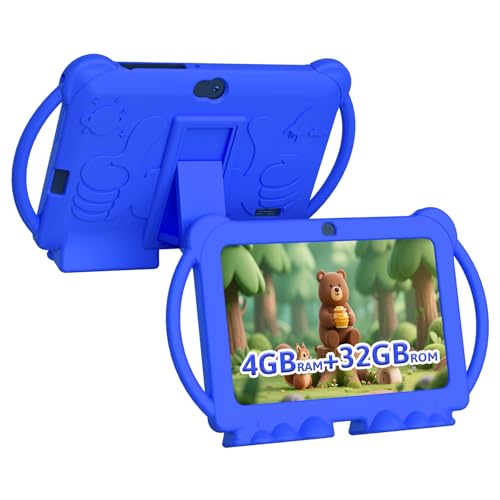
HOTTABLET Kids Tablet 7 — Best storage expander
The HOTTABLET steps outside Amazon’s garden entirely. It is a 7-inch Android tablet with 4GB of RAM and 32GB of storage, parental controls stated in the listing, Wi-Fi and Bluetooth, dual cameras and a silicone case — and one specification that dwarfs everything else in this guide: expansion up to 1TB. For a family that downloads a child’s film library, keeps years of photos on the device, or loads educational apps in bulk for offline travel, that ceiling changes the planning completely. The tablet stops being a device you curate and becomes a small archive.
The parental-control model differs from Amazon’s in kind, not just degree. There is no curated subscription library here; instead the parent configures ordinary Android — choosing the apps, setting the controls the listing provides, and building the environment by hand. That suits families who already know which apps they trust and want the freedom to install them, including ones outside any single store’s children’s section. The dual cameras serve video calls with grandparents and a child’s first photography experiments, and the silicone case in blue gives the small slate its grip and drop cushioning. The 7-inch size is the most pocketable here, a genuine hand-it-over-and-go device.
- Display: 7 inches
- Memory and storage: 4GB RAM, 32GB, expandable up to 1TB
- Controls: parental control stated in the listing
- Connectivity and cameras: Wi-Fi, Bluetooth, dual camera
- Case: silicone case included, blue
Strengths
- Expansion to 1TB removes storage planning from a parent’s life.
- Open Android lets parents choose any apps they trust, not one store’s selection.
- The smallest, most hand-over-friendly size in the guide.
Trade-offs
- No curated content library is included; the parent builds the environment.
- 32GB internal storage is modest until a card is added.
- A lesser-known brand, so support expectations should be set accordingly.
The expansion figure deserves one more moment, because it changes buying behaviour. Parents of children with fixed-storage tablets learn to ration downloads and delete favourites before trips, a small recurring friction. A card slot rated to 1TB ends that curriculum: the library simply grows. For families who fly, drive long distances, or keep a grandparent’s house stocked with the child’s programmes, that freedom is the reason to choose this pick over better-known names.
Best for: parents who want open Android and enormous downloadable room for travel and media. Not suited for: parents who want a ready-made curated library on day one.
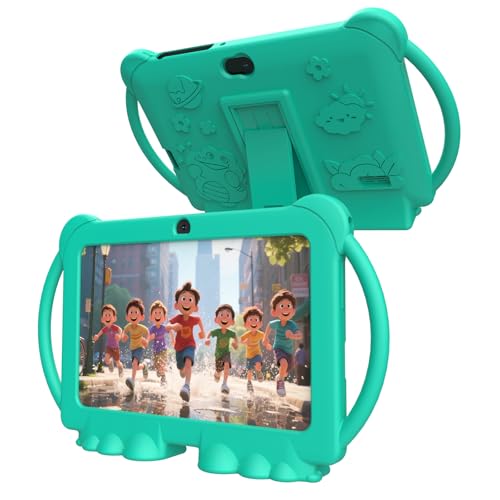
PEICHENG Kids Tablet 7 — Best toddler Android
The PEICHENG aims squarely at the toddler end of childhood and says so in its listing: a 7-inch Android 12 tablet with an IPS screen, parental controls, dual cameras and a shockproof case, in green. The IPS panel is a thoughtful inclusion at this level, because small children rarely hold a screen at the angle engineers imagine — they watch from the side, from below, from a parent’s shoulder — and a panel that holds its picture at odd angles serves that reality. Android 12 gives the software a reasonably current foundation for the educational games the listing highlights.
Like the HOTTABLET, this is a parent-configured device: the controls are provided, the app choices are yours, and no subscription library stands between your child and the open catalogue. That model rewards a parent willing to spend twenty minutes setting the tablet up — installing the chosen apps, applying the controls, arranging a simple home screen — and it punishes nobody, because the setup happens once. The specification of 4GB of RAM and 32GB of storage matches its sibling, and the shockproof case is the toddler-appropriate armour. Between the two Android picks, choose this one for the youngest children and the HOTTABLET when expansion and archiving matter more.
- Display: 7 inches, IPS
- Software: Android 12.0
- Memory and storage: 4GB RAM, 32GB
- Controls: parental control stated in the listing
- Case: shockproof case included, green
Strengths
- An IPS screen that stays watchable from a toddler’s unpredictable angles.
- Android 12 is a current-enough base for educational apps and games.
- A shockproof case designed for the age group most likely to test it.
Trade-offs
- No bundled content library; parents supply and vet the apps.
- Storage expansion is not headlined the way the HOTTABLET’s is.
- A small brand’s long-term update path is less certain than Amazon’s.
The toddler brief also explains this pick’s restraint elsewhere. It does not chase storage records or a giant screen, because its owner’s day is measured in ten-minute sessions, songs with actions, and stories before naps. A small, light, well-armoured slate that wakes quickly into a parent-arranged home screen is the correct tool for that day, and the PEICHENG’s listing reads like it was written by someone who has watched a two-year-old use a tablet — which is rarer in this market than it should be.
Best for: toddlers and preschoolers whose parents prefer open Android and will configure it themselves. Not suited for: parents wanting a curated library and managed ecosystem out of the box.
How Do the Six Compare at a Glance?
| Pick | Age focus | Size | Content model | Case |
|---|---|---|---|---|
| Amazon Kids Tablet 8 (6–12) | 6–12 | 8in | STEM/hobbies library, add school apps | Slim hard, Aquatic |
| Amazon Kids Tablet 8 (3–5) | 3–5 | 8in | 1 year Kids+ early learning | Soft bumper, Mystic Mountain |
| Amazon Kids Tablet 11 (6–12) | 6–12 | 11in | STEM/hobbies library, add school apps | Slim hard, Stellar Swirl |
| Amazon Kids Tablet 11 (3–5) | 3–5 | 11in | 1 year Kids+ early learning | Soft bumper, Cool Green |
| HOTTABLET Kids Tablet 7 | Young children | 7in | Open Android, parental controls | Silicone, blue |
| PEICHENG Kids Tablet 7 | Toddlers | 7in | Open Android 12, parental controls | Shockproof, green |
What Changes When Two Children Share One Tablet?
Sibling arithmetic shapes many purchases, and the picks divide by how well they share. The 11-inch editions are the natural shared screens: two children can watch a programme together, a parent and child can read side by side, and a homework session can be supervised without anyone squinting over a shoulder. The 8-inch editions share adequately for video but favour a single reader. The 7-inch Android pair are personal devices in practice — small, light, and priced and sized for one child each.
Content sharing has its own friction. On the Amazon editions, the library belongs to the age band, so siblings three years apart may genuinely need different editions — one reason families often end up with the 11-inch shared tablet in the older band plus a younger-band 8-inch for the preschooler, rather than two identical devices. On open Android, one tablet can carry both children’s apps side by side, with the parent’s controls mediating, which makes the HOTTABLET’s vast expansion more relevant than it first appears: two children’s libraries, downloaded, fit comfortably under its ceiling. Think of the purchase as furnishing a room, not buying a toy, and the right combination usually announces itself.
How Should You Set Up a Child’s Tablet on the First Day?
Setup is where a kids’ tablet succeeds or quietly fails, and it deserves an uninterrupted half hour before the child ever sees the device. On the Amazon editions, begin in the parent side of the system: confirm the age band matches your child, review what the Kids+ library surfaces for that band, and, on the 6–12 editions, add the school apps the tablet will need so homework never waits on a password hunt. Set the device’s bedtime and downtime behaviour if your family uses them, and decide the charging spot — a tablet that sleeps in the kitchen charges for everyone; a tablet that sleeps in a bedroom negotiates every night.
On the Android pair, the parent’s work is broader because the environment is yours to build. Install the chosen apps yourself, apply the parental controls the listings provide, arrange a home screen with only what the child should reach, and test the result by actually using the tablet as your child will — tapping where small fingers tap. Whichever ecosystem you chose, end the session by teaching the physical habits: two hands when carrying, the case stays on, the tablet’s home is its charging spot. Hardware survives childhood mostly through routines, and routines are set on day one or not at all.
Finish with the unglamorous essentials. Run the system updates while the tablet is still in adult hands, because a device that starts current stays current more easily. Download a starter library over home Wi-Fi — a shelf of books, a handful of programmes, the apps for the first week — so the child’s first experience is abundance rather than loading screens. Note the account details and the control settings somewhere you will find them in six months, when a school app must be added or a setting revisited. And keep the box and receipt until the first month has passed without incident; children’s products are exchanged for sizing and band reasons more often than for faults, and the paperwork makes that painless.
Which Picks Suit Reading, Video Calls and Creative Play?
Reading is the use parents hope for most and plan for least. For a child learning letters, the younger Amazon editions put early-learning books at the centre of the library rather than in a corner of it, and the 11-inch younger edition renders picture books at a scale that respects the illustrations. For an independent reader in the older band, the 11-inch school edition is again the natural book — chapter books at print-like size, with the STEM library feeding the nonfiction curiosity that arrives around eight or nine. The 7-inch Android tablets read adequately for short sessions, but their screens were sized for portability, and a child who catches the reading habit deserves the bigger page as a reward.
Video calls are the second defining use, because a child’s tablet is often a grandparent’s window. Both Android picks list dual cameras, so the child can be seen and can see; the Amazon editions carry the calling features of their ecosystem. Size matters here in the child’s favour — a grandparent’s face on an 11-inch screen is a presence, on a 7-inch screen a thumbnail — which is one more reason the big younger edition suits families whose relatives live far away. Creative play, the third use, splits by ecosystem: the curated libraries stock drawing and music apps chosen for the band, while open Android lets a parent install the specific art or coding app a child has taken to. None of these tablets is a pen-first drawing machine, and a child with a serious sketching habit will eventually want a slate built for a stylus; for the drawing that happens inside childhood generally, all six serve.
How Well Do These Tablets Travel?
Children’s tablets earn their keep disproportionately in transit — the long drive, the flight, the waiting room, the restaurant table before the food arrives — and travel exposes every weakness a home hides. Battery and downloads matter first: a streamed library is useless in a car, so the tablet that travels well is the one loaded the night before. That discipline favours capacity, which is the HOTTABLET’s home ground with its expansion ceiling, and it favours the Amazon editions’ libraries, which are built to be browsed and downloaded by a parent in advance rather than discovered on the road.
Size cuts both ways in transit. The 7-inch Android pair and the 8-inch Amazon editions fit a child’s hands and a seat-back pocket, and their cases shrug off the drops that happen in confined, moving spaces. The 11-inch editions travel in a parent’s bag and emerge at the destination — superb for a holiday apartment or a grandparent’s kitchen table, clumsy in a car seat. Sound deserves a thought too: every tablet here will be used with headphones in shared spaces eventually, so check your child’s headphones pair happily during setup week, not at the departure gate. A travelled tablet is a prepared tablet, and preparation is a parent’s evening, not a child’s problem.
Charging on the road is the last travel discipline. A single cable and adapter that live in the travel bag — never borrowed back into the house — prevents the classic discovery of a dead tablet and no way to revive it. Top the tablet up the night before departure rather than during the scramble of leaving, and put one downloaded programme in reserve that the child has not seen, because novelty is the most reliable entertainment a long delay can be given.
How Long Should a Kids’ Tablet Last Before It Is Outgrown?
Two clocks run on a children’s tablet, and they rarely agree. The hardware clock is generous: a cased slate with modest duties can run for years. The childhood clock is faster. A child who receives the 3–5 edition at three will be a different reader at five and a half, pressing against the library’s ceiling; a child who receives the 6–12 edition at seven may carry it to eleven without the content feeling young. Plan purchases against the childhood clock, because it strikes first.
That planning has a practical shape. Buy into the band the child is entering. If a sibling follows behind, the younger edition has a second life waiting, which transforms its value — a tablet handed down through two childhoods is among the best-value electronics a family owns. The Android pair hand down differently: wipe, reconfigure the controls for the younger child’s stage, and the same hardware starts a second tour. In every case, the case staying on and the charging routine holding are what let the hardware clock run long enough for the hand-down to happen at all.
How Do You Build Household Routines Around a Child’s Tablet?
The families who report the least tablet friction tend to share a few unglamorous habits, and none of them is an app. The tablet has a home — a shelf or a charging drawer — and it returns there, which ends the daily archaeology of finding it under sofa cushions with a flat battery. Sessions have edges: the tablet comes out for the journey, the programme, the homework, and goes away when the thing ends, rather than idling on every surface as ambient entertainment. And the adults use the same device visibly for shared purposes — the recipe, the map, the family call — so the tablet reads as a household tool the child borrows, not a private portal the child owns.
The picks support these routines differently. The Amazon editions’ managed environment suits households that want the device itself to enforce the catalogue boundary, leaving adults to enforce only the clock. The Android pair suit households comfortable enforcing both, in exchange for freedom of content. Either way, the charging spot and the put-away habit do more work than any setting, and they cost nothing. Set them in the first week, while the tablet is still a novelty that follows new rules, and they will hold for the life of the device.
What Should You Know About Charging, Storage and Everyday Care?
Children’s tablets die unglamorous deaths: a charging port wiggled loose by impatient small hands, a battery cooked by being left plugged in on a sunny windowsill, a screen scratched by a toy in the same bag. The defences are household habits. Charge at the fixed spot with the cable that lives there, and teach the two-handed unplug rather than the yank. Keep the case’s port covers and flaps as they were designed — they exist because crumbs and juice are load-bearing facts of this product category. Wipe the screen with the soft cloth you would use for glasses, because a child’s tablet accumulates a film that dims the picture and invites harder pressing from small fingers.
Storage care is digital housekeeping. Every few months, an adult should scroll the downloads with the child and delete together: finished series, outgrown games, the forty near-identical photos of the dog. On the Amazon editions this keeps the library browsable; on the Android pair it keeps the modest internal storage breathing, unless a card has taken the strain in the HOTTABLET. None of this is technical. It is the same maintenance a bicycle needs, and families who do it find these tablets lasting the full span of a childhood band instead of expiring midway through it.
What Mistakes Do Parents Make When Buying a Kids’ Tablet?
The first is buying across the age bands — the school-age edition for a four-year-old whose library then floats over their head, or the early-learning edition for a seven-year-old who exhausts it in a fortnight. The bands in these listings are unusually specific; use them. The second mistake is treating the case as packaging. On children’s tablets the bumper or hard case is load-bearing equipment, and removing it for a slimmer look removes the product’s main survival mechanism. Third, parents underestimate storage for downloads: a single holiday of films can fill a small tablet, which is why the HOTTABLET’s expansion ceiling exists and why the Amazon editions reward a download audit before trips. Fourth, families buy a second tablet too soon — one per child — when the 11-inch editions were designed to be watched and read together; siblings sharing a big screen is a feature of childhood, not a compromise.
A fifth mistake is handing over the tablet before configuring it, on the theory that setup can happen later. Later rarely comes; the child meets the unconfigured device, habits form around whatever it offers, and the parent’s intended environment becomes an argument instead of a default. The half hour of setup described above is cheapest on day one, before anyone has an opinion about how the tablet should behave.
Final Recommendation
Start with the age band and the rest of the decision makes itself. For a preschooler, the 8-inch 3–5 edition is the tablet we would hand over first — its bundled year of early-learning content and soft bumper are the preschool brief executed properly — unless your screen time is mostly shared at home, where the 11-inch younger edition turns stories into events. For a school-age child, the 11-inch 6–12 edition is the grown-up choice, with the 8-inch version as its travelling sibling. Choose the HOTTABLET or PEICHENG when you want open Android and your own app judgement in charge. Buy the band your child is growing into, keep the case on, and the tablet will do the rest.
One last consideration belongs to the adults: whichever pick you choose, the first configuration session is yours, not the child’s. Spend it before the gift is given or the journey begins, while patience is plentiful, and write down the settings you chose. A kids’ tablet bought well is mostly bought in that half hour — the hardware simply keeps the promises the setup made.
And if the decision still feels tangled, simplify it to two questions. How old is the child, honestly, in reading and habits rather than birthdays? And who will choose the apps — a curated library, or you? The first answer picks the band and size; the second picks the ecosystem. Every pick in this guide is a good answer to some combination of those two questions, which is why they are here.
Frequently Asked Questions
What is the difference between the 3–5 and 6–12 editions?
Content and case. The younger editions include a year of Kids+ stocked with early-learning material — the alphabet, counting, shapes and colour recognition — and wear soft bumpers. The older editions stock STEM and hobby content, let parents add school apps for homework, and wear slim hard cases.
Should I choose the 8-inch or the 11-inch model?
The 8-inch models travel and fit small hands; the 11-inch models serve reading, homework and shared viewing at home. Match the size to where the tablet will spend its hours, not to which looks more impressive in the box.
Do the Android picks include children’s content?
No curated library is bundled with the HOTTABLET or PEICHENG. They provide parental controls inside open Android, and the parent installs the apps. Families who want the library chosen for them should take an Amazon edition.
Can these tablets be used for school homework?
The 6–12 Amazon editions are built for it: parents can add popular school apps alongside the STEM and hobby library. The 11-inch edition’s screen suits documents and reading best. Always confirm your school’s specific platform with the school itself.
How much storage does a child’s tablet need?
Streaming needs little; downloading films and games for travel needs a great deal. The Android HOTTABLET expands up to 1TB for exactly that life. On fixed-storage picks, clear finished downloads before trips.
Are the cases really necessary?
Every pick includes one because children’s tablets are dropped, sat on and carried by corners. Keep the case on; it is part of how the product was designed to survive its owner.
Can I hand a kids’ tablet down to a younger sibling?
Yes, and it is one of the best-value moves in family tech. On the Amazon editions, confirm the new child’s age band still fits the edition; on the Android pair, reset the device, reapply the parental controls for the younger stage, and rebuild the app shelf. Keep the case on throughout — it is why the hardware survived to be handed down.
What should I do before a long trip?
Download, do not plan to stream. Fill the tablet with programmes, books and games over home Wi-Fi the night before, charge it fully, and pack the child’s headphones. The HOTTABLET’s expansion ceiling makes it the natural travel archive; on the other picks, clear finished downloads to make room.
Which pick should a grandparent buy as a gift?
An Amazon edition in the child’s correct age band, because the listing itself names the band and the tablet arrives with its case and library ready. The 8-inch editions suit a child who will carry it home; the 11-inch editions suit a tablet that will live at the grandparent’s house for visits and calls.
Related Guides
Buying for the other end of the family? Best Affordable Tablets for Elderly Parents and Grandparents looks at big text and easy video calls. If your child has started sketching, Best Affordable Drawing Tablets for Artists: Slates With Real Pens covers slates with real pens. And when homework turns into essays, Best Affordable Tablets With Keyboards for Typing on the Go rounds up the typing-ready options.

[…] for a younger reader next? See Best Affordable Tablets for Kids That Survive Childhood. Buying for a parent or grandparent instead? Best Affordable Tablets for Elderly Parents and […]