What's inside
- Key Takeaways
- Quick Picks
- How Did We Choose Tablets for Older Owners?
- What Makes Text Comfortable to Read on a Tablet?
- Should You Choose an 8-Inch or an 11-Inch Tablet for a Parent?
- How Do These Tablets Handle Photographs and Family Memories?
- Which Tablets Make Calling Family Easiest?
- How Do the Six Compare for Older Owners?
- What About Sound, Subtitles and Listening Comfort?
- How Do the Picks Handle News, Email and the Daily Paper?
- What If the Owner Has Never Used a Touchscreen Before?
- How Should Family Set Up a Tablet for a Parent?
- How Do the Picks Serve Hobbies, Faith and Community Life?
- What Happens When Something Goes Wrong?
- Is This a Gift or a Planned Purchase? The Answer Changes the Pick
- What Mistakes Do Families Make Buying for Older Parents?
- Final Recommendation
- Frequently Asked Questions
- Related Guides
As an Amazon Associate I earn from qualifying purchases. This post may contain affiliate links at no extra cost to you.
widgetverdict.com is reader-supported. When you buy through links on our site, we may earn an affiliate commission.
Where to buy: Each of the six picks below carries a checked Amazon link. For most families the short list is the Apple iPad with A16 for effortless video calls, the Amazon Alexa Tablet 8 for voice-first calling and questions, and the Lenovo Tab One for a light tablet with a case already on it.
The best affordable tablets for elderly parents and grandparents are not the fastest tablets, or the cheapest. They are the ones that disappear into a routine: the tablet that sits on the kitchen table, wakes to a grandchild’s face on a video call, shows the news in letters large enough to read without hunting for glasses, and asks so little maintenance that weeks pass between charges of attention. When a tablet fails an older owner, it rarely fails as hardware. It fails as friction — a password forgotten, an update that rearranged the home screen, a call that needed three menus. This guide chose against friction.
Three qualities decided the selection. First, legibility: screen size and clarity enough that text can be enlarged generously and still fit a page, with brightness that adjusts itself where the listing offers it. Second, calling: a front camera and an ecosystem that makes reaching family a tap or a spoken request rather than a project. Third, low administration — battery life measured in days of ordinary use, storage that does not demand spring cleaning, and designs that a visiting son or daughter can set up once, label clearly, and leave. Six tablets met that standard, from Apple’s iPad at the top of the class to a small Amazon slate that asks almost nothing of its owner at all.
A note on the word affordable in this guide’s title: for this audience it does not mean the least money that buys a screen. It means the least money that buys a tablet an older person will actually use for years — because an unused bargain is the most expensive outcome of all, and a slightly dearer tablet that hosts a hundred family calls has paid for itself in the only currency that matters here.
Key Takeaways
- The iPad with A16 is the easiest recommendation for video calls: an 11-inch Liquid Retina display, a 12MP front camera and the calling apps most families already use.
- The Alexa Tablet 8 suits parents who would rather speak than tap — it is designed around Alexa+, with Android and Google Play underneath.
- Samsung’s Galaxy Tab A11+ brings a two-year warranty and Dolby Atmos speakers that give voices extra clarity and presence.
- The Lenovo Tab One is the light, simple pick, with up to 12.5 hours of YouTube streaming per charge and a folio case included.
- The Fire HD 8 is the smallest and least demanding option for news, books and programmes.
- The Lenovo Tab M11’s ambient light sensor adjusts brightness automatically — one less setting to manage.
Quick Picks
| Pick | Badge | Why it earns its place |
|---|---|---|
| Apple iPad 11-inch (A16) | Best for video calls | A big clear screen, a 12MP front camera, Touch ID sign-in and all-day battery. |
| Amazon Alexa Tablet 8 | Best voice-first | Designed for Alexa+, on full Android with Google Play, in a handy 8.7-inch size. |
| Samsung Galaxy Tab A11+ | Best for clear sound | Dolby Atmos speakers, 6GB of RAM, expandable storage and a two-year warranty. |
| Lenovo Tab One | Best light and simple | Up to 12.5 hours of streaming, an 8.7-inch HD screen and a folio case bundled in the box. |
| Fire HD 8 | Best no-fuss entertainment | An 8-inch HD slate for programmes and books, in the version without lockscreen ads. |
| Lenovo Tab M11 | Best big text | An 11-inch 1920×1200 screen, self-adjusting brightness and a folio case included. |
How Did We Choose Tablets for Older Owners?
We imagined the real deployment: a daughter or son unboxes the tablet, sets it up at the kitchen table, writes the Wi-Fi password on a card for the fridge, and drives home. Everything after that moment is the product. So we weighted the qualities that survive distance. A front camera good enough that faces look like faces. A sign-in method, like the iPad’s Touch ID, that replaces a typed password with a fingertip. Speakers that carry a voice across a room, because the tablet will often sit at arm’s length while its owner makes tea. And a battery that forgives being forgotten — every pick here claims all-day or better endurance, and the Tab One quantifies it in streaming hours.
We also considered who provides the help desk. In practice it is family, and family helps most easily inside ecosystems they know. The iPad suits households where the children use iPhones, because the calling and messaging habits transfer. The Alexa tablet suits a home already speaking to an Amazon assistant. The Samsung suits a family with Galaxy phones. None of that is about brand loyalty; it is about the person who will answer the phone when something looks different on screen, and how quickly they can picture the screen being described.
Finally, we favoured tablets that arrive complete. The Tab One and the M11 include folio cases, which prop the screen at a reading angle on a table — the posture most older owners actually use — and protect the one component that cannot be repaired cheaply. A tablet that needs a separate case order, a separate setup visit and a separate lesson is three frictions before the first call, and this guide tried to spend those frictions wisely.
We should admit the bias in that method: it favours the familiar. A household deep in one ecosystem will find our reasoning points home, and a household starting from nothing may wonder why the iPad’s calling advantage matters if nobody in the family owns an iPhone. It matters less then — and the guide’s Android and Amazon picks exist precisely for those families. Read the reviews with your own family’s phones in mind, and the ranking will rearrange itself honestly around your circumstances, which is what a ranking for other people’s parents ought to do.
What Makes Text Comfortable to Read on a Tablet?
Legibility is a system, not a single specification. It starts with size: an 11-inch screen can enlarge text generously while keeping whole sentences on a line, which is why the iPad and the M11 anchor the reading end of this guide. The 8.7-inch pair and the 8-inch Fire ask for smaller enlargements or more scrolling, and in exchange they weigh less in the hand — a real consideration for an owner who reads in an armchair for an hour. Resolution supports the system quietly: the M11’s 1920×1200 panel keeps enlarged letters smooth-edged rather than jagged, and the iPad’s Liquid Retina display is built for the same clarity.
Brightness behaviour matters as much as brightness itself. A screen that is perfect at noon can glare at a lamp-lit evening, and an owner who must dive into settings to fix that will often simply stop reading. The M11’s ambient light sensor answers by adjusting on its own. On every pick, the setup visit should include the accessibility basics: text size raised one or two steps, bold text if the system offers it, and the home screen arranged so the enlarged icons still fit — fewer apps, bigger targets, nothing essential below the fold. Ten minutes of that work at setup is worth more than any single hardware feature in this guide.
Contrast finishes the system. Large dark text on a light background serves most readers; some prefer the reverse in the evening. Every modern tablet here offers display adjustments in its settings, and the family member doing setup should try both with the owner present, at the chair and hour where reading actually happens, rather than accepting defaults under kitchen fluorescents.
Do not overlook the humble stand in this system. A screen propped at a reading angle catches less ceiling glare than one lying flat, and it holds the page at the distance spectacles are prescribed for. The folio cases bundled with the two Lenovo picks build that angle in; for the other picks, the case you add should be chosen for its stand first and its colour second. Legibility, in the end, is mostly posture — of the screen, and of the person helping set it up.
Should You Choose an 8-Inch or an 11-Inch Tablet for a Parent?
Size, for this audience, is really a question about furniture and hands. The 11-inch pair — iPad and M11 — are table tablets: they live propped in their cases or a stand, they make calls and pages generous, and they ask to be visited rather than carried. The 8.7-inch pair split the difference, light enough for an armchair and large enough for a call. The Fire HD 8 is the true hand tablet, the one that goes to bed, to the garden, to the appointment waiting room. An owner who reads in bed and dozes with a book will drop a tablet eventually; the smaller and lighter it is, the kinder that event.
Hands decide the rest. A grip weakened by arthritis prefers the light Tab One or the Fire; an owner who mostly watches at a table never feels the iPad’s weight at all. If you can, put both sizes in the owner’s hands before deciding — in a shop, or borrowed from family — and watch which one gets picked up a second time without thinking. That instinct is better data than any specification in this guide, and it is free.
There is a middle path worth naming for the genuinely undecided: the 8.7-inch pair. The Tab One and the Alexa Tablet 8 are large enough for a caller’s face to feel present and light enough for an armchair, and for many owners that compromise is not a compromise at all but the correct answer. Size anxiety usually dissolves once the tablet is in its case on the table; buy for the room it will live in, and the inches will look after themselves.
How Do These Tablets Handle Photographs and Family Memories?
For many older owners the tablet becomes the family album, and it is worth choosing with that destiny in mind. Photographs arrive from children’s phones, gather in the photos app, and get shown across tables — which means screen size and storage quietly become memory features. The iPad and the M11, with 128GB each and 11-inch screens, are the album-class picks: years of pictures resident on the device, viewable at a size that does justice to a christening or a graduation. The Samsung matches the storage and adds expansion, so the archive can grow onto a card without a replacement decision.
The smaller picks hold photographs perfectly well for showing, but their 64GB and 32GB capacities ask the family to curate — keep the favourites resident, let the rest live in the cloud account the children manage. There is a setup task hidden here that families should not skip: arrange the album before handing the tablet over. A device that opens onto grandchildren, in order, with the blurry duplicates removed, is a joy; a device that opens onto four thousand unsorted images is a chore. Fifteen minutes of curation by the person who took the photos is one of the kindest parts of the whole setup visit.
Which Tablets Make Calling Family Easiest?

Apple iPad 11-inch (A16) — Best for video calls
If the tablet’s main job is keeping a parent present in family life, the iPad is the pick to beat. The 11-inch Liquid Retina display gives a video call room to breathe — a grandchild’s face at a size that feels like company rather than a postage stamp — and the 12MP front camera returns the compliment, sending a clear picture back. FaceTime is the path of least resistance in any family where the children carry iPhones, and where they do not, the mainstream calling apps are all here. The A16 chip is far more power than calling, news and photographs require, and that headroom is precisely the point: the tablet will feel unhurried for years.
Daily administration is where the iPad quietly wins its place. Touch ID replaces the typed password with a fingerprint, removing the single most common lockout in older owners’ lives. Battery life is rated all-day, storage is 128GB — enough for years of family photographs without a cleanup visit — and Wi-Fi 6 keeps calls stable on modern home networks. The honest costs are that this is the premium end of an affordable guide, no case is included, and the Apple ecosystem rewards families already inside it most. For a parent who will use the tablet daily for calls, news, photos and the odd programme, it remains the easiest device in this guide to recommend without a caveat paragraph.
- Display: 11 inches, Liquid Retina
- Cameras: 12MP front, 12MP back
- Storage: 128GB
- Sign-in: Touch ID
- Battery claim: all-day
Strengths
- The clearest, largest calling screen in this guide, with a front camera to match.
- Fingerprint sign-in ends the forgotten-password phone call to the family.
- Performance headroom that keeps the tablet feeling new for years.
Trade-offs
- The highest rung of this guide’s budget ladder.
- No case included; order one with a stand fold at the same time.
- Families with no other Apple devices get slightly less from the ecosystem.
One more scene decides many of these purchases: the Sunday call with three grandchildren on a sofa at the other end. The iPad’s screen keeps all three faces legible, its camera frames the parent kindly, and the call can run long without a battery thought. That is the standard this pick is bought to meet, and it meets it without the owner learning anything beyond tapping a green button and smiling.
Best for: parents and grandparents whose tablet is first a family telephone with a big screen, then everything else. Not suited for: buyers wanting the simplest possible interface at the lowest rung of the ladder.

Amazon Alexa Tablet 8 — Best voice-first
Some owners will never love tapping through screens, and this tablet was designed for them. It is built around Alexa+, Amazon’s current assistant, so the natural way to use it is to ask: call a daughter, play the radio, read the headlines, set a reminder for the tablets in the pill organiser. Voice-first design removes the two frictions that defeat many older users — finding the app, and reading the small print inside it. Underneath the assistant sits full Android with Google Play, which matters to the family helper: the apps a parent actually needs, from the pharmacy to the parish newsletter, can be installed rather than approximated.
The hardware supports the brief sensibly. The 8.7-inch display is large enough for a video call at table distance and small enough to carry from room to room; 4GB of RAM and 64GB of storage cover communication and entertainment duties without strain; the listing claims all-day battery. The Graphite finish looks like an appliance rather than a gadget, which suits a device that will live on display. Its limits are the mirror of its strengths — an owner who dislikes talking to devices will use half the product, and the screen is not the reading surface the 11-inch picks offer. In the right home, though, this is the tablet most likely to be used daily, because asking is easier than navigating.
- Display: 8.7 inches, described as vivid in the listing
- Memory and storage: 4GB RAM, 64GB
- Software: Android OS with Google Play, designed for Alexa+
- Battery claim: all-day
- Colour: Graphite
Strengths
- Voice control replaces menus for calls, reminders and questions.
- Google Play access means the family’s chosen apps can all be installed.
- A size that moves between rooms as easily as a book.
Trade-offs
- Voice-first design is wasted on owners who prefer silent tapping.
- The screen is a calling and listening surface more than a reading one.
- An assistant-centred home requires the household to be comfortable with one.
Consider the morning routine this tablet enables: the weather asked aloud while the kettle boils, the headlines read out over breakfast, a reminder spoken for the afternoon’s appointment, a call placed by name rather than by navigating a contacts list. Each of those is a small independence preserved. For an owner whose eyes tire or whose hands ache, voice is not a novelty feature — it is the interface that keeps the device theirs.
Best for: parents who already talk to a smart speaker, or who find touch menus tiring. Not suited for: keen readers, who should take an 11-inch pick, or households avoiding voice assistants.

Samsung Galaxy Tab A11+ — Best for clear sound
Hearing the call is half of calling, and the A11+ is the pick that takes audio seriously. Its Dolby Atmos speakers give voices a fullness and separation that thin tablet speakers flatten, which matters when the person on screen speaks softly, or quickly, or with an accent the years have made harder to follow. Samsung describes the design as slim and light with a large display, and the specification behind it is the strongest in this guide’s Android field: 6GB of RAM for smoothness that persists, 128GB of storage with expansion for a lifetime of photographs, and AI Assist among the listed features.
The two-year warranty deserves emphasis in this guide specifically. For an older owner, a tablet is not a hobby purchase; it is closer to a household appliance, and appliances are bought on the promise that someone stands behind them. Samsung’s warranty doubles the cover typical in this class and gives the family a clear route if anything fails. The trade-offs are a busier software layer than the simplest picks — a setup visit should declutter the home screen — and no bundled case. Bought for an owner who watches programmes without headphones and calls family across a room, the A11+ is the sound-first choice, and its support story makes it the easiest Android here to hand over with confidence.
- Memory and storage: 6GB RAM, 128GB, expandable
- Audio: Dolby Atmos speakers
- Warranty: 2 years
- Extras: AI Assist features, slim and light design
- Battery: described as long lasting in the listing
Strengths
- Speakers that give dialogue presence, for calls and programmes alike.
- The most memory here, keeping the tablet responsive as apps grow.
- A two-year warranty that suits an appliance-style purchase.
Trade-offs
- The interface needs a decluttering pass at setup for a new owner.
- No case is bundled, so add a stand case to the order.
- The listing does not headline a resolution figure for screen purists.
The Samsung also suits the grandparent who hosts: grandchildren’s programmes on a screen with sound that fills the room, photographs passed around without a squint, and a device that does not feel like the fragile option when small hands reach for it. The warranty underwrites that hospitality. Few tablets in this class can be both the owner’s appliance and the family’s visiting screen; this one can.
Best for: owners who watch and listen without headphones, and families who value a long warranty. Not suited for: buyers wanting the absolute simplest interface with nothing to tidy.

Lenovo Tab One — Best light and simple
The Tab One understands its owner. Lenovo calls it lightweight in the listing’s first breath, rates it at up to 12.5 hours of YouTube streaming — a concrete, imaginable figure: a whole day of programmes, news and music on a charge — and includes a folio case so the tablet arrives dressed for the table. The 8.7-inch HD display is honestly matched to its work: video, video calls, photographs and large-print reading in shorter sessions. With 4GB of memory, 64GB of storage and a MediaTek Helio G85 inside, nothing about the specification reaches for records, and nothing about the experience asks its owner to reach either.
This is the pick we would leave at a parent’s house as the household tablet — the one by the armchair for the crossword answers, the weather, the grandchild’s school play video, the Sunday call. Its lightness matters more than spec sheets suggest: an owner with tired wrists or a healing shoulder will simply use a light tablet more, and use is the entire point. The limits are real but well-matched to the brief — the screen is for watching rather than long documents, and buyers wanting a big reading page should step up to the M11 below, which shares this pick’s folio-case practicality at a larger size.
- Display: 8.7 inches, HD
- Battery claim: up to 12.5 hours of YouTube streaming
- Memory and storage: 4GB, 64GB
- Processor: MediaTek Helio G85
- In the box: folio case
Strengths
- Lightweight design that arthritic or tired hands will thank it for.
- A concrete streaming-hours figure to plan the day around.
- Folio case included, so it props itself for calls and programmes.
Trade-offs
- The HD screen is a watching surface, not a long-reading one.
- 64GB is adequate rather than generous for photo archives.
- Less performance headroom than the iPad or Samsung for future years.
There is a social quality to a tablet this undemanding: it gets taken to the lunch club, the neighbour’s kitchen, the hospital waiting room, because carrying it requires no thought. Devices that travel meet people, and people — a friend showing a photograph, a volunteer helping with a form — are how older owners actually expand what they do with technology. The Tab One’s lightness buys that circulation.
Best for: owners who want a light, undemanding tablet for programmes, calls and daily browsing. Not suited for: keen readers of long documents, who need the M11’s larger, sharper page.
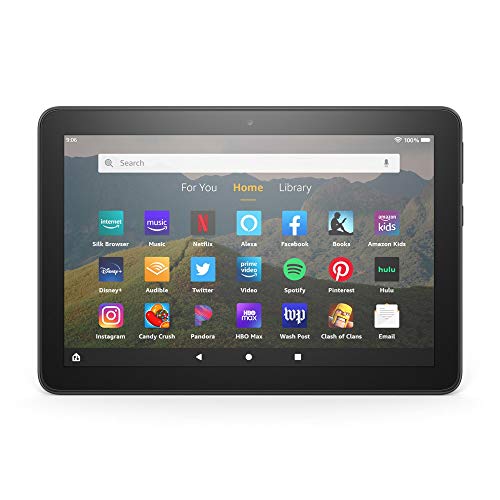
Fire HD 8 — Best no-fuss entertainment
The Fire HD 8 earns its place in this guide by asking the least. It is an 8-inch HD tablet designed, in Amazon’s words, for portable entertainment: programmes, books, radio and the web in an interface that keeps Amazon’s services at the front and complexity at the back. This listing is the version without lockscreen ads, so the screen an owner wakes is their own — a small dignity that matters daily. For a grandparent whose tablet life is the evening’s drama, the morning headlines and a library book, that simplicity is not a limitation; it is the feature.
Its boundaries should be stated kindly but clearly. The 32GB of storage suits streaming rather than archiving. The Fire environment centres Amazon’s store, so a family whose parent relies on a specific app from elsewhere should choose the Alexa Tablet 8 instead, which keeps the Amazon familiarity and opens the full Android catalogue. And as a 2020 design it moves at a gentler pace than the newer picks. Within its brief — an undemanding entertainment screen that a family can set up in minutes and an owner can run without lessons — it remains a coherent, honest little machine, and for some households it is exactly enough.
- Display: 8 inches, HD
- Storage: 32GB
- Version: without lockscreen ads
- Release: 2020 model, designed for portable entertainment
- Colour: Black
Strengths
- The simplest interface in this guide to learn and to run.
- No lockscreen ads on this listing keeps wake-ups clean.
- Small and light enough for one-handed reading and carrying.
Trade-offs
- Amazon’s app store, not Google Play, limits app choice.
- 32GB fills quickly if programmes are downloaded rather than streamed.
- An older design with a gentler pace than the newer picks.
For the right owner, the Fire’s narrowness is a kindness. There are fewer wrong turns to take, fewer settings to disturb, fewer surprises after an update. Families sometimes apologise for choosing the simple option; they should not. A tablet that does three things confidently will be used daily by someone who would have abandoned a cleverer machine by February.
Best for: grandparents who want programmes, books and news with the least possible fuss. Not suited for: owners needing a specific app outside Amazon’s store, or large offline libraries.

Lenovo Tab M11 — Best big text
For the reader in the family, the M11 is the thoughtful pick. Its 11-inch screen renders 1920×1200 pixels, so when text is enlarged — as it should be — the letters stay smooth and the page still holds a sensible amount of words. The ambient light sensor is the detail that elevates it for this guide: brightness adjusts itself as its owner moves from a bright conservatory to a lamplit chair, removing a settings chore that quietly ends many reading sessions. The folio case in the box props the page at a table, and the ten-hour battery claim covers a day of chapters without a cable in sight.
The rest of the specification supports the reading life without distracting from it: a MediaTek Helio G88 processor and 4GB of RAM for the library apps, news sites and the odd programme; 128GB of storage, which at book sizes is effectively a lifetime library, with room for photographs besides. In Luna Grey it looks like a object an adult chose, not a gadget they were given, which should not be underestimated — gifts that respect the recipient’s taste get used. Choose it when reading is the main event and calls are the supporting act; choose the iPad when that order reverses.
- Display: 11 inches, 1920×1200, ambient light sensor
- Processor: MediaTek Helio G88 octa-core
- Memory and storage: 4GB RAM, 128GB
- Battery claim: 10 hours
- In the box: folio case
Strengths
- Big, sharp text with brightness that manages itself.
- Storage enough for a lifetime of books plus the family photos.
- Folio case included for table reading from the first day.
Trade-offs
- An 11-inch slate is a two-handed, mostly seated device.
- Calling apps depend on the family’s choices rather than one built-in habit.
- 4GB of RAM is fine for reading and video, not for heavy multitasking.
The M11 also travels well between generations. It is the tablet a grandparent can hand to a visiting teenager for a game without embarrassment and reclaim for the evening’s novel without a settings expedition. That dual citizenship — respectable hardware, reader’s soul — is why it closes this guide’s six: it is the pick for the owner whose inner life is still mostly conducted in print.
Best for: readers — newspapers, library books, magazines — who want text large and effortless. Not suited for: owners who will carry the tablet room to room all day, or video-call-first families.
How Do the Six Compare for Older Owners?
| Pick | Screen | Calling style | Storage | Standout for older owners |
|---|---|---|---|---|
| Apple iPad (A16) | 11in Liquid Retina | FaceTime and apps, 12MP front camera | 128GB | Touch ID sign-in |
| Amazon Alexa Tablet 8 | 8.7in | Voice-first with Alexa+ | 64GB | Ask instead of tapping |
| Samsung Galaxy Tab A11+ | Large display | Apps, Dolby Atmos sound | 128GB, expandable | Two-year warranty |
| Lenovo Tab One | 8.7in HD | Apps, tabletop via folio | 64GB | Lightweight, case included |
| Fire HD 8 | 8in HD | Amazon services | 32GB | Simplest interface |
| Lenovo Tab M11 | 11in, 1920×1200 | Apps, big-screen calls | 128GB | Self-adjusting brightness |
What About Sound, Subtitles and Listening Comfort?
Listening is the sense this purchase most often serves after sight. Programmes watched without headphones depend on the tablet’s own speakers, and they are not equal: the Samsung’s Dolby Atmos set is the one here designed to give sound width and presence, which helps dialogue sit clear of music and background noise. On every pick, the setup visit should include turning on subtitles for the streaming apps and leaving them on — many owners who resist the idea for a week come to rely on captions permanently, for accents, for mumbling actors, for the grandchild calling from a noisy kitchen.
Volume behaviour deserves a rehearsal of its own. Show the owner the physical volume buttons and the on-screen control, set a comfortable maximum together, and check how the tablet sounds from the chair where it will actually be used, not from across the shop-quiet kitchen. If the owner uses hearing aids, ask the family which connection habits they already have with their phone, and mirror them where the tablet allows. None of this is in the listings, and all of it decides whether the evening programme is a pleasure or an effort — which is why a guide for this audience should say it plainly.
Headphones deserve a sentence in this company. Some owners prefer them for privacy in a shared house or for the clarity of sound delivered close; a simple wired or easy-pairing wireless set, tested during the setup visit, can transform a drama’s dialogue. If headphones enter the routine, leave them with the tablet at its charging spot, because a listening accessory in another room is, in practice, no accessory at all.
How Do the Picks Handle News, Email and the Daily Paper?
Beyond calls and photographs, the daily rhythm of an older owner’s tablet is news and messages, and the picks serve that rhythm at different tempos. A newspaper app or website on the 11-inch screens reads like the printed page it replaced — a full column, a photograph at honest size — which is why former broadsheet readers gravitate to the iPad and M11. On the 8.7-inch pair, the same paper becomes a pocket edition: headlines and articles in sequence, perfectly serviceable, less ceremonial. The Fire HD 8 covers headlines and its bookshop well, and asks nothing more.
Email deserves a caution that has nothing to do with hardware. Set the account up during the visit, show the owner the shape of a genuine message from family, and agree a household rule for links and attachments from strangers — the tablet’s simplicity should extend to a simple security habit: if a message asks for money, passwords or urgency, it waits for a phone call to family first. Every pick here runs a mainstream mail app well; what protects the owner is the habit, rehearsed once and written on the fridge card under the Wi-Fi password.
What If the Owner Has Never Used a Touchscreen Before?
A first touchscreen at seventy or eighty is not a lesser version of a first touchscreen at seven; it is a different learning problem, and the picks divide by how gently they teach. The Fire HD 8’s narrow world is the softest landing: few choices, big obvious targets, and entertainment that starts quickly. The Alexa Tablet 8 offers a parallel path — speak first, tap later — which lets a new owner be successful on day one while confidence with touching glass accumulates. The iPad sits between: a fuller world, but the one most family helpers can talk through over the phone from memory, because so many of them carry its sibling in their pocket.
Whichever pick a family chooses, the teaching method matters more than the machine. One skill per visit beats a syllabus. Answering a call this week; making one next week; photographs the week after. Written cards in the owner’s own words — tap the green button, speak after the tone — outlast any manual. And the tablet should never be the vehicle for a surprise: tell the owner before an update changes something, or better, let automatic updates handle the small changes quietly while the family flags the rare big one. Confidence is the real operating system here, and every pick in this guide was chosen partly for how little of it they spend.
How Should Family Set Up a Tablet for a Parent?
The setup visit decides whether the tablet becomes furniture or a drawer resident, so treat it as the main event. Work at the table where the tablet will live, with the owner beside you. Connect to their Wi-Fi and write the network name and password on a card that stays with the tablet. Sign in, then immediately reduce the world: one home screen, only the apps they will use — calls, photos, news, books, the weather — each enlarged, each labelled in words they would use. Raise the text size, set brightness behaviour, and turn on automatic updates so the machine maintains itself between visits.
Then rehearse the three journeys that matter: answering a call, making a call, and charging the tablet. Do each one twice, the second time with your hands in your lap. Agree where the tablet sleeps and charges — a fixed spot with the cable already there — because a tablet with a home is a tablet that is charged when the grandchildren ring. Finally, leave your number on the fridge card and make the first real call from your phone in the driveway; a success on day one is the foundation every later habit stands on. Remote help is easier when the family shares the ecosystem, which is why the picks were chosen partly on whose phones the children carry.
Schedule the second visit before you leave — a fortnight later, an hour, tea involved. Its agenda is small: answer the questions that only appear after real use, add the one app the owner has heard about from a friend, and increase text size again if the first setting proved timid. Tablets adopted gradually, with a known person returning, become trusted; tablets delivered complete and never revisited become ornaments. The fortnight visit is the cheapest reliability feature in this entire guide, and it is not sold in any box.
How Do the Picks Serve Hobbies, Faith and Community Life?
A tablet for an older owner is rarely only a telephone and a newspaper. It is the crossword that never runs out, the bridge club’s scores, the service sheet from church, the gardening club’s newsletter, the radio play at bedtime. These uses argue for breadth of apps — which the iPad, the Samsung and the Alexa Tablet 8, with their full stores, serve most completely — and for the patience to install the two or three hobby apps that matter during setup, rather than assuming the owner will find them. A tablet that opens onto the owner’s actual week is a tablet that gets charged.
Community life adds a social layer families should configure deliberately. Group chats with the bowls club, the family thread, the neighbourhood watch — set the notifications for these during the visit, generous for people, quiet for everything else, so the tablet’s interruptions are welcome ones. The larger screens make group photographs and shared documents kinder to read, and the voice-first Alexa pick lets an owner reply to a message without typing a paragraph on glass. None of this appears on a specification sheet, and all of it is the difference between a device that connects its owner and one that merely functions.
What Happens When Something Goes Wrong?
Plan for the bad day while everyone is calm. Something will eventually look wrong — a screen rearranged by an update, an app signed out, a grandchild’s enthusiastic reconfiguration — and the family’s response decides whether the tablet survives the incident as a trusted object. Three preparations cover most bad days. First, the fridge card: Wi-Fi details, the account password, and the phone number of the family’s designated helper, in handwriting the owner trusts. Second, automatic updates switched on, so small fixes arrive without a ceremony and the machine rarely drifts far from the state the helper last saw. Third, an agreement that nothing on the tablet is irreplaceable: photographs also live in the family’s accounts, so a reset is a remedy, not a catastrophe.
The picks support this plan unevenly, and the differences are worth naming. Samsung’s two-year warranty gives the A11+ a formal route when hardware fails. The iPad benefits from the sheer number of people who can help with it — a neighbour, a grandchild, a shop assistant in any town. The Amazon pair lean on the family’s familiarity with the household’s existing Amazon habits. None of these is a reason to buy alone, but together with the setup visit and the fortnight check-in, they form the support net that lets an older owner relax with the machine. A relaxed owner uses the tablet; a wary one apologises to it.
Is This a Gift or a Planned Purchase? The Answer Changes the Pick
Tablets for older parents arrive by two routes, and they reward different choices. The planned purchase — discussed, budgeted, perhaps tried in a shop — can support the fuller machines: the iPad or the Samsung, set up together, with the owner choosing the case colour and the first apps. The surprise gift is a riskier vehicle, and it argues for the low-friction end: the Alexa Tablet 8 if the household already speaks to an assistant, the Tab One or Fire HD 8 if it does not. A surprise that requires a manual creates homework; a surprise that wakes up ready, charged, with a photograph of the grandchildren already on it, creates delight.
Either route benefits from one discipline: buy the tablet a week before it is needed. That week is when the family member charges it, updates it, loads the photographs, rehearses the call, and writes the fridge card. The calendar pressure of a birthday morning is the enemy of patient setup, and patient setup — as this guide has argued from its first section — is most of the product an older owner actually receives.
What Mistakes Do Families Make Buying for Older Parents?
The commonest is buying the tablet they themselves want — maximum specification, maximum cleverness — for an owner who wanted a telephone with a big screen. The second is skipping the setup visit and posting the tablet with a encouraging note; unconfigured technology reads as a test, and nobody enjoys being tested by a gift. Third, families forget sound: a video call conducted at arm’s length through thin speakers is hard work for older ears, which is why the Samsung’s speakers and a sensible volume rehearsal matter. Fourth, they choose tiny storage for a parent who photographs everything, guaranteeing the full-storage warning that no remote phone call can fix happily. And fifth, they overlook the case: a stand case is not an accessory for this owner group, it is the difference between a tablet propped at a readable angle and one lying flat under the lamp’s glare.
A sixth mistake arrives later, disguised as helpfulness: the relative who visits and rearranges everything — new apps, new layout, new system — in the name of improvement. Every change spends the owner’s confidence, and confidence is the currency this whole purchase runs on. If a change is genuinely needed, make one, rehearse it together, and leave everything else exactly where the owner’s fingers expect it to be.
Final Recommendation
If your family’s phones are iPhones, buy the iPad and do not overthink it: the calls will just work, the fingerprint will spare everyone the password ritual, and the screen will flatter every grandchild. If your parent already talks to Alexa, the Alexa Tablet 8 extends a habit instead of teaching a new one. For a reader, take the M11 and set the text large before you wrap it; for a listener, the Samsung’s speakers and warranty make it the considerate Android. The Tab One and Fire HD 8 serve the households that want the lightest touch of all. Whichever you choose, deliver it set up, charged and rehearsed — the tablet is the gift, but the setup is the present.
Judge the purchase a month later, not on the day. The right tablet is the one that has quietly joined the furniture — charged, current, showing a grandchild’s photograph — while the wrong one is still being explained. Every pick here can be the right one for somebody’s parent; the family’s job is only to match the machine to the person, and then to be patient while the two get acquainted.
And keep the receipt of that patience: the first successful unassisted call, the first photograph shown to a neighbour, the first morning the headlines were read without help. Those small firsts are the review that counts, and no specification in this guide outranks them.
Frequently Asked Questions
Which tablet is easiest for a parent who is not confident with technology?
The Fire HD 8 for entertainment and the Alexa Tablet 8 for communication, because one keeps the interface minimal and the other replaces it with speech. The iPad is the easiest full tablet once a family member has arranged its home screen.
Can these tablets make video calls to phones?
Yes. The iPad uses FaceTime to Apple devices and the mainstream calling apps to everything else; the Android and Amazon picks run the major calling apps from their stores. What matters most is that the family and the parent settle on one app, rehearse it together at the kitchen table, and write its name on the card.
How large can the text get?
Every pick offers system-wide text enlargement in its accessibility settings. The 11-inch iPad and M11 keep the most content on screen at large sizes, which is why they anchor the reading end of this guide.
What if my parent forgets passwords?
Choose the iPad and set up Touch ID, so a fingerprint replaces typing. On the other picks, keep the account password on the fridge card with the Wi-Fi details, and enable automatic updates so sign-ins are rarely demanded.
Do any picks include a case?
The Lenovo Tab One and Tab M11 include folio cases. For the others, order a stand case with the tablet — propping the screen matters for calls, reading and programmes alike.
How long will the battery last between charges?
The listings claim all-day battery for the iPad and the Alexa Tablet 8, ten hours for the M11, and up to 12.5 hours of streaming for the Tab One. In ordinary mixed use — calls, news, an evening programme — expect to charge every few days rather than nightly, and keep the charger at the tablet’s home spot.
Should the tablet replace my parent’s computer?
For communication, news, photographs and programmes, yes — many owners quietly retire a wheezing desktop once a tablet is set up well. For tasks involving long documents, complex forms or a printer-centred routine, keep the computer for now and let the tablet win the daily jobs first. The iPad and the M11 come closest to full replacement because of their screen size.
What if my parent lives far away and I cannot visit to set it up?
Choose the ecosystem you can talk through blind — for most families that is the iPad if you carry an iPhone, or the Alexa Tablet 8 if the home already has an assistant you can reference. Ship the tablet to yourself first if you can, configure it with their account and your contact card, and post it ready to wake. A patient first phone call, with the tablet in their hands and yours in your imagination, finishes the job.
Related Guides
For drawing-minded relatives, Best Affordable Drawing Tablets for Artists: Slates With Real Pens covers pen-first slates. When typing enters the picture, Best Affordable Tablets With Keyboards for Typing on the Go compares the keyboard options honestly. And for a bigger screen altogether, Best 14 Inch Touch Screen Laptops for Work and Play steps up to convertible laptops.



[…] for the other end of the family? Best Affordable Tablets for Elderly Parents and Grandparents looks at big text and easy video calls. If your child has started sketching, Best Affordable […]