What's inside
- Key Takeaways
- Quick Picks
- How We Chose These Picks
- Comparison Table
- What Makes a Laptop Genuinely Easy to Live With?
- How Do You Set Up a New Laptop for a Senior User?
- Should the Laptop Live in the Cloud or on Its Own Drive?
- Common Mistakes When Buying a Laptop for a Senior
- Final Recommendation
- Frequently Asked Questions
- Related Guides
As an Amazon Associate I earn from qualifying purchases. This post may contain affiliate links at no extra cost to you.
widgetverdict.com is reader-supported. When you buy through links on our site, we may earn an affiliate commission.
The best affordable laptops for seniors are not a separate species of computer, whatever the marketing on some boxes suggests. They are ordinary, good laptops chosen by two honest criteria: a screen large enough to read comfortably at the size text naturally appears — three of the six picks stretch to 17.3 inches — and a setup simple enough that the machine becomes a tool rather than a project. Everything else follows from those two tests: generous memory where it appears, office software bundled where listings state it, numeric keypads for the household accounts, and no specification games. What this guide will not do is make health promises. No laptop here is credited with powers over eyesight or wellbeing; the claims are practical — bigger text on a bigger screen, fewer steps between opening the lid and reading the news — and practical claims are the kind a buyer can verify.
The six split into two families. Three HP machines carry the 17-inch flag: a 2026-edition Ryzen model with 16GB of memory, an OmniBook 3 with an Intel Core 5, and a touchscreen model with a terabyte of storage — the last being the only touch machine in the guide. Around them sit a smaller HP everyday laptop with cloud storage bundled, an Acer Aspire Go 15 with Windows in S Mode whose implications the review explains carefully, and a Lenovo IdeaPad Slim 3 that includes Microsoft Office and skips touch entirely. Storage ranges from a modest 128GB on two picks to that full terabyte, and the reviews treat that spread as the main homework question: how much of a life — photos, letters, documents — will live on this machine?
A note on who is buying. Many readers of this guide are purchasing for a parent, a partner or themselves after years away from the market, and the reviews are written for that reader: plain about compromises, specific about setup, and respectful of the fact that the person who will use the machine values reliability and clarity over novelty. The right laptop here is the one still being used happily in three years, not the one with the longest feature list in week one.
One promise about tone before the reviews: nothing in this guide will talk down to its reader. The questions it answers — how big, how simple, how much storage, which software arrangement — are the questions any thoughtful buyer asks, and the answers are given with the evidence attached, listing line by listing line, so that a reader can disagree with a conclusion and still use the facts. Where a listing is silent, the guide says so and moves on; where a trade is real, it is named in the open. That is the whole method, and it does not change because the audience is older.
Key Takeaways
- Three picks offer 17.3-inch screens — two HP models at full HD and one HP touchscreen at HD+ — for naturally larger text and images.
- The HP 17 touchscreen model pairs its big screen with a 1TB SSD fitted beside 16GB of RAM, the deepest specification here.
- Office software appears in several listings: Office 365 for the web on the HP 17, Office 365 on the HP everyday model, and Microsoft Office included on the Lenovo.
- The Acer Aspire Go 15 runs Windows 11 Home in S Mode, which restricts app installs to the Microsoft Store until switched out — explained in its review.
- Two picks carry only 128GB of storage, suiting cloud-based lives; the reviews flag where a photo-heavy life would outgrow them.
- Numeric keypads appear on both non-touch HP 17 models, a small mercy for household accounts and forms.
Quick Picks
| Pick | Badge | Why it earns a place |
|---|---|---|
| HP 17 Business Laptop (2026) | Big-screen all-rounder | A 17.3-inch FHD screen with 16GB of memory, a numeric keypad and Office 365 for the web. |
| HP OmniBook 3 17.3 | Simple big brand | A 17.3-inch FHD display with an Intel Core 5 and 512GB of storage in HP’s OmniBook line. |
| HP 2027 Everyday Laptop | Cloud-first simple | Office 365 and 1TB of cloud storage bundled, with fast charge and a lightweight build per its listing. |
| Acer Aspire Go 15 AI | Store-simple starter | A 15.6-inch FHD IPS screen running Windows in S Mode for a locked-down, simple start. |
| HP 17 Touchscreen Laptop | Big-screen touch | A 17.3-inch anti-glare touchscreen with 16GB of memory, a 1TB drive and Windows 11 Pro. |
| Lenovo IdeaPad Slim 3 | Office included | A 15.6-inch FHD laptop with Microsoft Office included and a deliberately no-touch screen. |
How We Chose These Picks
Screen size led, because it is the feature the category actually turns on. A 17.3-inch display shows the same web page, letter or photo larger than a 14-inch one does at identical settings — not through any trick of software, but because the picture itself is bigger — and for a reader who prefers not to lean in, that physical generosity is the product. Three picks meet the 17-inch test; the three smaller machines earn their places through simplicity or bundled software instead, and their reviews say plainly that they trade the big-screen advantage away.
Resolution was graded beside size, honestly. Two of the big HPs are full HD, which at 17.3 inches keeps text edges clean; the touchscreen HP is HD+, a lower resolution whose trade the review names — on the plus side, everything renders larger still, and for some readers that is the point; on the minus side, fine detail and crispness step down, and less fits on screen at once. Smaller picks were required to be full HD, and both are.
Simplicity was the second filter, assessed through what listings state: office software included or bundled, so letters and spreadsheets work from day one; Windows editions explained, including the S Mode question on the Acer; storage sized against the two common lives — the cloud life, where 128GB plus bundled cloud storage is coherent, and the archive life, where photos and documents accumulate locally and 512GB or the touchscreen HP’s 1TB is the honest answer.
Finally, the guide checked the unglamorous details that decide whether a machine stays loved: numeric keypads for forms and accounts, anti-glare finish where a listing states it, memory of 16GB where multitasking will grow, and brand service networks behind HP, Acer and Lenovo. No pick was credited with anything its title does not state — no battery hours beyond the words “long battery life” where that is all a listing says, no weight where none is printed — because a guide for this audience, above all audiences, should deal in verifiable things.

HP 17 Business Laptop (2026) — Big-screen all-rounder
The headline is the screen, and it should be: 17.3 inches at full HD, the largest and joint-sharpest canvas in this guide, on a 2026-edition HP powered by a current AMD Ryzen 5, with 16GB of memory and a 512GB SSD. Around that core the listing adds the details this category lives by — a numeric keypad, long battery life in the maker’s words, and Windows 11 with Office 365 for the web included. It is the most completely specified non-touch machine here, and the natural starting point for a buyer who wants the big-screen experience without a touch layer.
What does 17.3 inches actually change? A letter from the council, a news page, a grandchild’s photo — each appears physically larger, so reading happens at a natural distance with the machine on a table or a lap desk, and on-screen text can stay at its standard size rather than being enlarged until layouts break. Full HD resolution matters as the partner fact: the big picture stays a sharp picture, with text edges that do not fray. For the reader who spends the morning with the news and the afternoon with email and photographs, this combination is the category’s core promise, kept.
Sixteen gigabytes of memory gives the machine a long, calm life: the browser with its dozen tabs, the photo library, the video call and the accounts spreadsheet can coexist without the slowdowns that make older computers feel temperamental. The 512GB drive holds a serious photo archive alongside documents — years of family pictures at ordinary camera sizes — while the Ryzen 5 keeps everything feeling immediate.
Office 365 for the web deserves its precise reading: the listing offers the web editions of the Office applications, which run in the browser and cover letters, household spreadsheets and presentations for most home purposes, with documents stored online. Buyers who need the full installed desktop applications should note the distinction; buyers whose writing is letters and lists will never meet it. Either way, the machine arrives ready to write on, which is the point of the bundle.
What the lower price actually costs here shows up in the carrying, not the reading: the big screen that makes text comfortable and a first setup that needs no tinkering are kept, while portability is what gets given up. A 17-inch laptop is a home machine — superb on a table, present on a lap, and not really a travelling companion beyond the car journey to family. It is the pick for a settled life with a favourite chair and a big, clear window onto everything, and within that life it has no serious rival here except its own touchscreen sibling.
There is a visiting-family dimension to this machine that its specification quietly serves. The big screen becomes the household’s photo theatre when grandchildren visit — the holiday pictures shown at a size everyone around the table can actually see — and the video-call camera’s view of the room is matched by a display that makes the callers feel present rather than postage-stamped. Machines in this category are rarely only personal; they are the family’s window in both directions, and a 17.3-inch full HD window is the most generous one in this guide that does not ask its owner to manage a touchscreen as well.
- Processor: AMD Ryzen 5, latest per listing
- Memory: 16GB RAM
- Storage: 512GB SSD
- Display: 17.3-inch FHD
- Extras named in listing: numeric keypad, Office 365 for the web
- Battery described in listing: long battery life
- Operating system: Windows 11
Strengths
- The biggest sharp screen in the guide at 17.3-inch FHD.
- 16GB of memory keeps multitasking calm for years.
- Office 365 for the web means letters work from day one.
Trade-offs
- Seventeen inches is a home machine, not a travel one.
- Web Office differs from the full installed applications.
- No touchscreen for tap-and-scroll readers.
Best for: settled home use centred on reading, email, photos and household paperwork at a big, clear size.
Not suited for: frequent travellers, or buyers who need the full desktop Office suite installed.
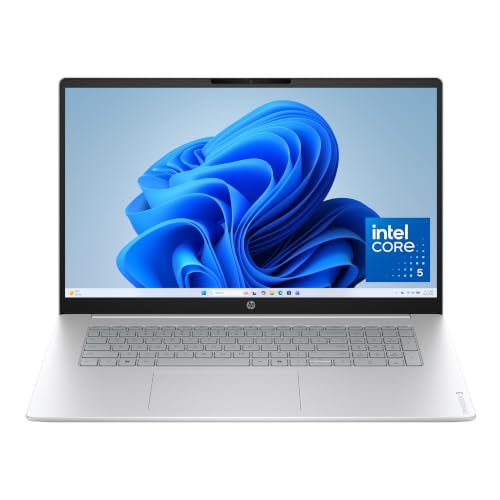
HP OmniBook 3 17.3 — Simple big brand
HP’s OmniBook 3 in 17.3-inch form is the straightforward big laptop: an FHD display, an Intel Core 5 120U processor, 8GB of memory, a 512GB SSD, Intel graphics and Windows 11 Home in a Glacier Silver finish. Where its 2026-edition sibling leads with memory and bundled Office, the OmniBook leads with simplicity — a current, name-brand machine of generous size and uncomplicated specification, from a line HP positions for everyday computing.
The screen repeats the category’s main gift at full HD: the big picture, sharply drawn. For reading, browsing, video calls and photographs, 17.3 inches at this resolution is the comfortable centre of the whole guide — large enough that nothing needs enlarging heroics, standard enough that every website and application lays out exactly as its designer expected. Buyers who have been squinting at a 14-inch machine will feel the change in the first morning.
The platform asks for one honest note: 8GB of memory is half its sibling’s allocation. For the duties this machine is bought for — browsing, email, documents, photos, calls, streaming — 8GB remains serviceable, and the Core 5 120U is a current, responsive processor. The ceiling appears if the machine’s life grows ambitious: many tabs held for days, big photo projects, several heavy applications at once. The review flags it not as a flaw but as a fit question, because a buyer whose habits are settled and light will never meet the ceiling, and a buyer whose habits are expanding should take the 16GB HP above.
Storage, by contrast, is fully grown-up: 512GB holds the archive life comfortably — the photo library, the scanned documents, the downloaded attachments of a decade — without cloud dependence. Windows 11 Home is the standard home edition, and the OmniBook name carries HP’s mainstream support and service network behind it, a consideration that matters to buyers who want a number to call rather than a forum to search.
Choose the OmniBook when the requirement reads “a big, simple, proper laptop from a big brand” and the budget prefers not to pay for memory headroom that settled habits will not use. It is the guide’s most conventional recommendation, and conventional, in this category, is a compliment.
Second-machine households will recognise this pick’s other role: the reliable spare that is not really a spare. When the main computer is occupied, being repaired or simply in another room, a big-screen OmniBook by the kitchen table covers the recipe, the news, the call and the quick letter without ceremony. Its virtue is availability at size — the screen never makes its user fetch their glasses as a precondition of use — and its simplicity means any member of the household can sit down and be oriented in seconds, because there is nothing unusual to learn.
- Processor: Intel Core 5 120U
- Graphics: Intel Graphics
- Memory: 8GB RAM
- Storage: 512GB SSD
- Display: 17.3-inch FHD
- Finish named in listing: Glacier Silver
- Operating system: Windows 11 Home
Strengths
- A 17.3-inch FHD screen delivers the category’s core comfort.
- 512GB of storage fits an archive life without cloud reliance.
- HP’s OmniBook line brings mainstream support behind it.
Trade-offs
- 8GB of memory is the guide’s lighter allocation.
- No bundled Office is named in this listing.
- Home-machine size limits travel to car journeys.
Best for: buyers wanting a big, simple, name-brand laptop for settled everyday duties.
Not suited for: growing multitaskers, or buyers who want Office bundled in the box.

HP 2027 Everyday Laptop — Cloud-first simple
This HP everyday model is the guide’s cloud-first proposition, and its listing tells that story in its own words: an Intel processor, 128GB of local storage, Copilot AI features, Office 365 bundled with 1TB of cloud storage, Windows 11, fast charge, Wi-Fi 6, long battery life in the maker’s phrasing, and a lightweight, portable build finished in Pale Rose Gold. Read together, those lines describe a machine designed around the internet rather than around its own disk — the documents live in the cloud, the applications lean on subscriptions and web services, and the laptop itself stays light, simple and quick to charge.
The honesty paragraph concerns what the listing does not state: the screen size. No dimension appears in the title, so this guide does not assign one, and a buyer for whom the big-screen test is the whole purchase should either verify the size on the product page or choose one of the 17-inch picks whose size is printed. What can be said is that the machine’s design centre is portability and simplicity rather than screen acreage — it is the pick for a life lived between rooms and relatives’ houses, not for a fixed reading chair.
The 128GB of local storage pairs logically with the 1TB of cloud storage: the machine holds the system, the applications and the current working set, while the archive — photos, documents, the family’s shared folders — lives online and follows the owner to any device. For a user whose digital life is already email, browsing, video calls and cloud documents, that division is not a compromise at all; it is simply how their computing already works, with the added safety that a lost or failed laptop loses nothing irreplaceable.
Office 365 bundled is the other pillar: the subscription applications for letters, spreadsheets and presentations, with the cloud storage behind them. Buyers should note the word subscription in their planning — such bundles run for a term and renew — and should confirm the term on the product page. Fast charge suits the portable life, topping the battery in the time a visit lasts, and the Copilot features are there for those who enjoy asking the computer questions in plain language.
As a gift, this machine has a particular logic: it arrives with its services attached, asks little setup beyond an account, and forgives its owner the whole subject of file management. As a main home computer for a photo-archiving household, its small local drive and unstated screen argue for the bigger HPs instead. The listing knows what it is; the review’s job is to make sure the buyer does too.
The Pale Rose Gold finish deserves a sentence in a category that can skew drearily grey: a machine that sits in a living room is furniture as well as equipment, and a colour chosen with some warmth signals that this laptop was designed for a home rather than requisitioned from an office. It changes nothing about the computing and something about the room — a small, legitimate pleasure that buyers purchasing for themselves, rather than being purchased for, tend to appreciate most.
- Processor: Intel CPU, model not stated in listing title
- Storage: 128GB local, 1TB cloud storage bundled
- Display: size not stated in listing title
- Software named in listing: Office 365, Copilot AI
- Charging named in listing: fast charge
- Wireless named in listing: Wi-Fi 6
- Operating system: Windows 11
Strengths
- Office 365 and 1TB of cloud storage arrive bundled and ready.
- Fast charge and a lightweight build suit a portable life.
- Cloud-first design makes a lost laptop a small event.
Trade-offs
- Screen size is not stated in the listing and needs verifying.
- 128GB of local storage depends on the cloud for archives.
- Subscription software runs for a term, then renews.
Best for: cloud-based users who browse, write and video-call between several places.
Not suited for: big-screen-first buyers, or households archiving photos locally.
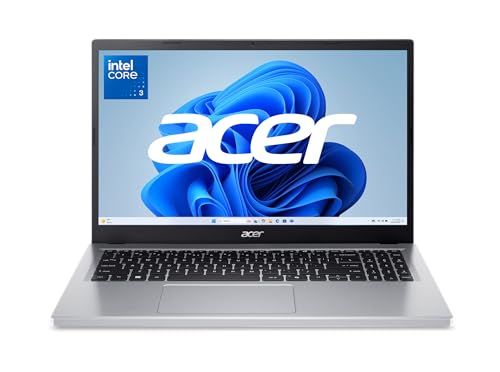
Acer Aspire Go 15 AI — Store-simple starter
Simplicity is the headline specification of Acer’s Aspire Go 15, and its defining line needs explaining before anything else: it runs Windows 11 Home in S Mode. S Mode is Microsoft’s locked-down configuration in which applications install only from the Microsoft Store — a walled garden that keeps a machine clean, quick and resistant to the accidental installs that plague less technical users — and it can be switched out of, free and permanently, if the owner later needs a program the Store does not carry. For a senior whose computing is browsing, email, photos and Office-style documents, S Mode is less a restriction than a guardrail, and this review treats it as the pick’s central, defensible idea.
The hardware around that idea is modest and modern: a 15.6-inch FHD IPS display — full HD, with the wide, stable viewing angles IPS provides — an Intel Core 3 N355 processor, 8GB of DDR5 memory, 128GB of UFS storage and Wi-Fi 6. The screen size steps down from the 17-inch picks, and the review says so without apology: this is the portable, affordable end of the guide, trading the biggest canvas for the simplest and most protected computing experience of the six.
Storage is the second fit question. At 128GB, the Aspire Go assumes the cloud-and-streaming life: photos backed up online, documents in cloud folders, music and film streamed rather than stored. A household archive kept locally will outgrow it, and the buyer should choose with that arithmetic in view — or pair the machine with the cloud habit from day one, which S Mode’s Store-centric world encourages anyway.
The Core 3 N355 and 8GB of memory set the performance tier honestly: entirely adequate for the browsing, correspondence, photo viewing and document work the machine is bought for, and not intended for heavy multitasking or large creative projects. Within its brief it will feel responsive, because S Mode machines carry little background clutter — one of the quiet virtues of the walled garden.
Buy this for the relative — or the self — who wants a computer that cannot easily be broken by a stray download, whose needs are the everyday ones, and who values a clean start over a big screen. Buy something else in this guide when the screen size is the point, or when a cherished older program lives outside the Microsoft Store and nobody wants to make the one-way switch out of S Mode on day one.
Community organisations should note this machine as well: the library volunteer coordinator, the club secretary, the parish administrator — roles held by senior users whose computing is correspondence, lists and the occasional spreadsheet, often on machines bought with small budgets and smaller IT support. A Store-guarded laptop that cannot accumulate toolbars and stray software is close to the ideal club machine, because the next volunteer inherits it in the same clean state as the last. The Aspire Go’s modesty, read in that light, is a kind of institutional wisdom.
- Processor: Intel Core 3 Processor N355
- Graphics: Intel Graphics
- Memory: 8GB DDR5
- Storage: 128GB UFS
- Display: 15.6-inch FHD IPS, 1920 x 1080
- Wireless named in listing: Wi-Fi 6
- Operating system: Windows 11 Home in S Mode
Strengths
- S Mode guardrails keep the machine clean and uncluttered.
- A full HD IPS screen keeps text sharp at 15.6 inches.
- The simplest, most protected start in the guide.
Trade-offs
- Apps are limited to the Microsoft Store unless S Mode is switched off.
- 128GB of storage assumes a cloud-based archive.
- The screen steps down from the 17-inch picks.
Best for: users seeking a protected, simple machine for browsing, email and documents.
Not suited for: owners of essential non-Store programs, or local photo archivists.

HP 17 Touchscreen Laptop — Big-screen touch
The fullest specification in the guide belongs to the machine that also touches: an HP 17 with a 17.3-inch HD+ anti-glare touchscreen, an AMD Ryzen 5 7430U processor, 16GB of memory, a 1TB SSD, Windows 11 Pro, Wi-Fi 6 and Bluetooth 5.4, with AI Copilot features named in the listing. For the buyer who wants the big screen and the deep platform and the directness of touch in one purchase, this is the guide’s summit — and its one deliberate trade, resolution, deserves the clear explanation that follows.
HD+ on 17.3 inches means fewer pixels spread across a bigger picture, and the consequence cuts both ways in a manner this category understands better than any other. Everything on screen renders larger — text, buttons, photos, the whole interface — which many readers experience as the single most comfortable property a laptop can have. The cost is sharpness: fine text edges and detailed photographs are less crisp than on the full HD 17-inch picks, and less content fits on screen at once, so pages scroll more. Neither side of that trade is a trick; it is a genuine fork between bigness and crispness, and readers should choose by which one their eyes thank them for at the end of a long article.
The anti-glare finish is the screen’s other thoughtful property: it softens reflections from windows and lamps, the lighting of real living rooms, so the big picture stays readable where the machine actually lives. Touch completes the directness — tap the headline, scroll the recipe with a floury finger’s knuckle, pinch the grandchild’s photo bigger — interactions that need no trackpad precision at all.
Behind the screen, nothing is stinted. Sixteen gigabytes and a terabyte give the machine the longest runway in the guide; the Ryzen 5 7430U is a proven, capable processor; Windows 11 Pro is the full-featured edition. A buyer can grow into this laptop for years — more photos, more documents, more video calls — without meeting a ceiling, which for this audience may be the most senior-friendly property of all: the machine will not need replacing or explaining again soon.
It is, in short, the maximalist’s pick: the biggest screen, the only touch, the deepest storage, the Pro system. Its buyer should simply walk in preferring size over sharpness with open eyes — the one judgement this guide cannot make on a reader’s behalf, because it is written on the reader’s own eyes rather than in any listing.
Reading in bed or in an armchair is where this machine’s combination stops sounding like a specification and starts sounding like an evening. The big anti-glare screen at a comfortable distance, the article scrolled by a fingertip rather than a trackpad hunt, the photograph enlarged by the same gesture a phone taught years ago — the interactions borrow from the tablet world while the platform underneath remains a full Windows laptop with a terabyte for the family archive. Buyers who have been choosing between a big tablet and a big laptop should look longest at this pick, because it is the guide’s one serious attempt to be both.
- Processor: AMD Ryzen 5 7430U
- Memory: 16GB RAM
- Storage: 1TB SSD
- Display: 17.3-inch HD+ anti-glare touchscreen
- Wireless named in listing: Wi-Fi 6, Bluetooth 5.4
- Extras named in listing: AI Copilot
- Operating system: Windows 11 Pro
Strengths
- A 17.3-inch touchscreen renders everything at the largest size here.
- 16GB of memory and 1TB of storage give years of runway.
- Anti-glare finish suits real living-room light.
Trade-offs
- HD+ resolution is less sharp than the full HD 17-inch picks.
- Less content fits on screen, so pages scroll more often.
- Pro-edition Windows brings features many home users will not need.
Best for: readers who prize the largest possible on-screen size plus touch, with a platform built to last.
Not suited for: sharpness-first readers, or buyers who keep the laptop in a small space.

Lenovo IdeaPad Slim 3 — Office included
Lenovo closes the guide with the traditionalist’s machine: a 15.6-inch full HD IdeaPad Slim 3 with an Intel N150 processor, 8GB of DDR5 memory, a 128GB SSD, Windows 11 — and two listing lines that define it. The first is “Microsoft Office Included”: the machine arrives with Office aboard, so the letters, the church newsletter, the club accounts and the family spreadsheet open on day one without a subscription conversation. The second is “No-Touch”, printed proudly in the title — a deliberate, honest specification for buyers who do not want a touchscreen and decline to pay for one.
That no-touch honesty deserves respect rather than a raised eyebrow. Touch is a feature with a price and a smudge pattern; a buyer whose computing is keyboard-and-mouse by decades of habit gains nothing from it, and Lenovo’s willingness to print the absence as a selling point is the listing equivalent of a shopkeeper who tells you what a thing is not. The screen it protects is a proper one — full HD at 15.6 inches — so text stays sharp, and the machine’s whole manner is that of a straightforward tool.
The platform is the guide’s most modest and is graded as such. The Intel N150 is an entry processor for everyday duties; 8GB of DDR5 memory covers browsing, correspondence and documents; 128GB of storage, again, draws the cloud line — this machine expects photos and archives to live online or on an external drive, and a buyer planning a local archive should look to the 512GB picks instead. None of this is hidden; the IdeaPad is the budget-conscious end of a sensible range, and its compromises are the affordable ones.
Where it shines is the total absence of theatre. No modes, no subscriptions bundled, no AI banners — a laptop that opens, works, and asks nothing. For the buyer who has been putting off replacing a ten-year-old machine because the new ones all seem to be selling something extra, the IdeaPad’s plainness is the product. Add Lenovo’s mainstream support behind it, and it becomes the guide’s recommendation for the determined traditionalist.
Gift-givers should note the Office inclusion particularly: a machine that arrives able to open the family’s existing documents — the letters and spreadsheets in Word and Excel formats that decades of life accumulate — removes the commonest first-week frustration of a new computer. That quiet compatibility, more than any processor line, is what makes this the easiest machine in the guide to hand over with confidence.
There is also a continuity argument that matters to this audience more than to any other in the guide. A person who has written letters in Word for twenty years does not experience “Office included” as a bullet point; they experience it as the new machine speaking the same language as the old one — the same menus, the same files, the same documents opening as if the computer underneath had merely been refreshed. Continuity is a feature no benchmark measures, and the IdeaPad is the only pick here that sells it outright, which is why it closes the six despite its modest processor.
- Processor: Intel N150
- Memory: 8GB DDR5
- Storage: 128GB SSD
- Display: 15.6-inch FHD, no-touch per listing
- Software named in listing: Microsoft Office included
- Positioning named in listing: laptop for everyday use
- Operating system: Windows 11
Strengths
- Microsoft Office included means documents open on day one.
- An honest no-touch screen spends nothing on unwanted features.
- Full HD resolution keeps text sharp at this size.
Trade-offs
- The N150 is an entry processor for everyday duties only.
- 128GB of storage assumes cloud or external archives.
- Fifteen inches gives up the big-screen advantage of the 17s.
Best for: traditionalists wanting a plain, Office-ready laptop with no features they did not ask for.
Not suited for: heavy multitasking, local archivists, or big-screen-first buyers.
Comparison Table
| Pick | Display | Memory | Storage | Software note |
|---|---|---|---|---|
| HP 17 Business (2026) | 17.3-inch FHD | 16GB | 512GB SSD | Office 365 for the web |
| HP OmniBook 3 17.3 | 17.3-inch FHD | 8GB | 512GB SSD | Not stated in listing title |
| HP 2027 Everyday | Size not stated in listing title | Not stated in listing title | 128GB + 1TB cloud | Office 365 bundled |
| Acer Aspire Go 15 | 15.6-inch FHD IPS | 8GB DDR5 | 128GB UFS | Windows 11 Home in S Mode |
| HP 17 Touchscreen | 17.3-inch HD+ touch, anti-glare | 16GB | 1TB SSD | Windows 11 Pro |
| Lenovo IdeaPad Slim 3 | 15.6-inch FHD, no-touch | 8GB DDR5 | 128GB SSD | Microsoft Office included |
What Makes a Laptop Genuinely Easy to Live With?
Not a feature — a ratio: the number of things that work without being asked, divided by the number of things that must be learned, found or fixed. The picks here raise that ratio in different currencies. Bundled Office means the letter can be written tonight. A numeric keypad means the form fills the way forms always have. A big screen means the page is readable before any settings are touched. S Mode means the machine cannot be quietly ruined by a bad download. Each is a small removal of friction, and friction — not capability — is what decides whether a computer gets used daily or gathers dust in a drawer by spring.
Setup help belongs in the same accounting. The easiest laptop is the one whose first hour is guided: a family member or a patient friend moving the photos, setting the text size once, pinning the three programs that matter to the taskbar, and writing the passwords in the agreed book. Buyers purchasing for a parent should budget that hour as part of the gift; it is worth more than any specification upgrade in this guide.
Finally, ease includes the machine’s manners over years: updates that happen quietly, a battery that still holds an afternoon in year three, a brand service line that answers. No listing can promise those, but mainstream lines from HP, Acer and Lenovo — every pick here — are the market’s best approximation, which is one reason this guide contains no obscure brands at all.
How Do You Set Up a New Laptop for a Senior User?
Begin before the lid opens: unbox at a table, keep the charger cable untangled and labelled, and decide where the machine will live — a fixed home base with good light makes every later step easier. On first switch-on, connect to the home Wi-Fi, let Windows finish its updates without interruption, and sign in with the account the owner will actually use, writing the credentials in the household’s chosen safe place.
Then set the comfort options once, properly. Raise the display scaling until the standard text of a news page reads easily at arm’s length — on the 17-inch picks this may need barely any increase, which is their quiet virtue — and set the mouse pointer size and speed to something unhurried. Pin the browser, the email, the photos and the video-calling program to the taskbar; remove everything else from the desktop’s first view. Simplicity on screen is a configuration, and it is set by a person, once, with care.
Finish with the safety net: turn on automatic backups to the cloud or an external drive, confirm the photo library’s new home, make one test video call to family, and agree who the first phone call goes to when something looks strange. A laptop set up this way stops being new within a week and becomes simply the computer — which is the entire goal of this category, and the standard against which all six picks should be imagined in use.
Should the Laptop Live in the Cloud or on Its Own Drive?
Two of this guide’s picks — the HP Everyday with its bundled terabyte of cloud storage, and by implication the 128GB Acer and Lenovo — assume the owner’s digital life is substantially online. The other three carry 512GB or a full terabyte locally. Neither philosophy is the modern one or the old-fashioned one; they are answers to where a particular life keeps its things, and the buyer’s task is to describe that life accurately before choosing.
The cloud life is lighter to manage: nothing to back up by hand, everything reachable from a phone or a replacement laptop, documents that survive the machine. Its dependencies are equally real — a working internet connection, a subscription that renews, accounts and passwords that must be kept straight. The local life is self-contained and private, indifferent to the router’s mood, and its duty is the backup: a drive that is never copied is an archive with a single point of failure, whatever its size.
Many households will sensibly choose the hybrid the guide’s middle picks enable: a 512GB local drive for the working archive, cloud copies for the irreplaceable photographs. The worst choice is the unchosen one — a 128GB machine bought for an archiving life, or a terabyte bought for a life that lives in a browser — and it is made, almost always, by skipping this one conversation at the kitchen table before ordering.
Common Mistakes When Buying a Laptop for a Senior
Buying the smallest, cheapest screen to save money. The screen is the interface; a cramped or dim one taxes every single session. If the budget forces one compromise, let it be storage or processor — the cloud can hold photos, but nothing external can enlarge the picture the user actually looks at. The 17-inch picks exist precisely to prevent this mistake.
Ignoring the S Mode question until a favourite program refuses to install. The Acer’s S Mode is a virtue for many and a wall for a few. Name the essential programs before ordering — the old family-tree software, the bridge game, the embroidery tool — and check whether they live in the Microsoft Store. If one does not, either plan the free switch out of S Mode or choose another pick.
Assuming bundled Office is all the same. Three different arrangements appear in this guide: Office 365 for the web, a bundled Office 365 subscription, and Microsoft Office included with the Lenovo. They differ in where the programs live and how long they run. Read the exact listing line, confirm terms on the product page, and match the arrangement to how the owner writes.
Skimping on storage for a photo-heavy life. The 128GB picks are coherent for cloud lives and cramped for local archives. A decade of family photographs deserves the 512GB or 1TB machines — or a deliberate cloud plan adopted on day one, not discovered in month nine when the drive announces itself full.
Buying for the grandchild’s visit instead of the owner’s year. A machine specced for the games and projects of visiting family, rather than for the reading, correspondence and photographs of its owner’s ordinary week, serves the rarest days worst and the commonest days barely. Guests adapt; the owner lives with the choice. Buy for the owner’s habits, and let visitors enjoy the big screen as the bonus it is.
Skipping the setup hour. The commonest failure in this category is not the wrong laptop but the unconfigured one: default text size, no backups, passwords unwritten, the old machine’s photos unmoved. Any pick in this guide, set up with an hour of care, will outperform a better machine left at its defaults.
Final Recommendation
Start with the screen — its size first, its sharpness second — and the rest of this guide resolves gently into a short errand. The HP 17 Business (2026) is the default: the biggest sharp screen, 16GB of memory, a keypad and web Office, a complete home machine. The HP 17 Touchscreen is its maximalist sibling for readers who prefer everything larger still and want touch, accepting HD+ sharpness as the trade, on the deepest platform here. The OmniBook 3 17.3 serves the buyer who wants the same big picture more simply and cheaply in spirit. Below the 17-inch line, the Lenovo IdeaPad is the traditionalist’s Office-ready plain machine, the Acer Aspire Go the protected S Mode starter, and the HP Everyday the cloud-first portable for a life lived online. None of these machines asks its owner to become a computer person; each simply does its job at a readable size, in its owner’s own home and at its owner’s own pace, which is all this category has ever really promised and all it needs to.
A final calibration for the buyer purchasing on someone else’s behalf, since that reader is half this guide’s audience. The temptation is to buy the machine you would want — the sharpest screen, the newest features — and the discipline is to buy the machine they will use: the biggest readable picture, the software that opens their existing documents, the setup that asks the fewest new habits. Every recommendation above was graded by the second standard. Hold the order to it, add the setup hour, and the gift has the best possible chance of becoming what it should be — unremarkable, daily, theirs.
Frequently Asked Questions
Is a 17-inch laptop too big?
For a home machine, rarely — it sits on a table or a lap desk and its size becomes pure benefit: larger text, larger photos, roomier everything. It is too big only for a life that carries a laptop daily in a bag, where the 15.6-inch picks or a lighter machine serve better. Most buyers in this category are furnishing a favourite spot, not a commute, and for that purpose 17 inches is the guide’s central recommendation. One practical check before ordering: measure the intended table or lap desk, because a 17-inch machine deserves its elbow room and a cramped perch can undo the comfort the size was bought for.
What does Windows S Mode mean for the Acer?
It means applications install only from the Microsoft Store, which keeps the machine clean, fast and protected from stray downloads. Browsing, email, Office-style work and most popular programs are unaffected. If an essential program lives outside the Store, S Mode can be switched off free of charge — a one-way door — or another pick chosen. The review treats it as a guardrail that suits many senior users well. The practical test takes five minutes: list the programs the owner actually opens in a week, and check each against the Store; for the great majority of everyday users the list passes whole, and for the remainder the discovery is far better made before the order than after it.
How much storage does a senior user need?
It depends entirely on where the photos live. A cloud life — photos backed up online, documents in cloud folders, entertainment streamed — fits the 128GB picks comfortably, especially with the HP Everyday’s bundled 1TB of cloud storage. A local archive of a decade’s photographs and documents wants 512GB, or the touchscreen HP’s 1TB. Decide the archive question first; the storage figure follows from it. A rough scale for the undecided: a keen family photographer’s phone-and-camera archive commonly grows by tens of gigabytes a year once videos of grandchildren are counted, so a decade of memories is a serious fraction of a small drive and a comfortable corner of a large one.
Is a touchscreen helpful, or an unnecessary extra?
Both answers are honestly represented in this guide. The HP 17 touchscreen suits readers who find tapping and scrolling more natural than a trackpad — an entirely reasonable preference, especially for reading and photos. The Lenovo prints “No-Touch” as a virtue for buyers who prefer keyboard and mouse and decline to pay for glass they will not tap. Neither is the correct philosophy; the user’s own hands decide. A helpful trial: hand the prospective owner a tablet or a touchscreen phone and watch whether they reach for screens generally — people who already live by touch will use a touchscreen laptop daily, and people who do not will leave the feature untouched for years.
Which pick is best as a gift for a parent?
The HP 17 Business (2026) for a settled home — big screen, complete specification, Office for the web ready — with the setup hour included in the gift. The HP Everyday suits a parent whose life is already online and mobile, and the Lenovo suits the parent with a shelf of existing Office documents. In every case the giver’s configuration time matters more than the last specification line. Wrap the passwords page and the first phone call into the same visit, and the gift is complete in the way that actually gets remembered: the machine simply worked, from the first morning onward. Givers who live far away can still do most of this well — the configuration in one long visit, the follow-up call in the first week, and the patience to let the new owner set the pace of learning rather than the giver’s pace of teaching.
Do these laptops come with support if something goes wrong?
All six come from mainstream makers — HP, Acer and Lenovo — with established service channels, which is a deliberate property of this selection. Exact warranty terms vary by listing and should be confirmed on the product page before ordering; check price on Amazon for the exact configuration at the same time. Beyond the warranty, the best support is the setup described above: backups on, accounts written down, and a named first phone call. Buyers should also register the machine with its maker in the first week, while the receipt is findable — a two-minute task that turns a year-two support call from an archaeology dig into a conversation.
One thought to carry out of the guide, whichever machine is chosen: the measure of success in this category is not the unboxing but the hundredth ordinary morning — the news read without a lean, the letter written without a phone call for help, the photographs shown to a visitor at a size that does them justice. Every specification in this guide was graded against that morning. Buy the machine that serves it, set it up once with care, keep its backups running without being asked, and then let it disappear into the life it was bought to support, which is the highest achievement a household computer can reach and the only verdict that will matter in three years’ time.
Related Guides
A big laptop screen pairs naturally with an even bigger, dedicated desk screen for the home office corner, and the survey of curved computer monitors ranging from compact 24-inch to 34-inch models covers the comfortable wrap-around options for longer, relaxed reading sessions at a desk. For the Mac side of the wider family, the roundup of 4K monitors for MacBook Pro with modern USB-C connections explains the one-cable desk in plain, patient terms. And the machine bought here will eventually share its desk with a printer, a good lamp and the household’s paperwork, which the guide to business computer monitors for ordinary office desks sorts by the same practical, desk-first, no-nonsense lights.
[…] whose shoulder has strong and frequently expressed opinions — and the gentler shortlist of affordable laptops for seniors, built around big screens and simple setups, weighs the same portability questions kindly and from the reader’s chair rather than the […]