What's inside
- Key Takeaways
- Quick Picks
- How We Chose These Picks
- Comparison Table
- What Should a Photographer Look for in a Laptop Screen?
- How Do You Build a Photo Workflow That a Laptop Can Sustain?
- Should a Photographer Prefer Touch or Refresh Rate?
- How Should a Photographer Set Up a Laptop Editing Space?
- Common Mistakes When Buying a Photography Laptop
- Final Recommendation
- Frequently Asked Questions
- Related Guides
As an Amazon Associate I earn from qualifying purchases. This post may contain affiliate links at no extra cost to you.
widgetverdict.com is reader-supported. When you buy through links on our site, we may earn an affiliate commission.
Photographers hunting for the best affordable laptops for photography learn quickly that the screen is the product. A camera can be upgraded later and a lens collection grows over years, but every single image a photographer makes passes across the laptop’s panel — culled on it, colour-graded on it, judged on it nightly — and a panel that misrepresents colour or crushes shadow detail quietly corrupts every decision downstream. This guide therefore judges its six picks screen-first: two OLED machines lead the field, two 2K touchscreens follow, and every listing is read strictly by what its title states about the display, because gamut percentages and brightness figures that a title does not print are figures this guide will not invent.
The spread is wider than that headline suggests. At one end sits an ASUS Zenbook 14 OLED with 32GB of memory and a terabyte of storage — a specification that would not embarrass a machine twice its tier. At the other, an HP OmniBook 3 offers a 16-inch 2K touchscreen with a bundled mouse and flash drive but only 8GB of memory and 256GB of storage, a configuration whose compromises this guide names rather than smooths over. Between them sit an Acer Swift Go with the highest-resolution OLED here, an ASUS Vivobook 15 with a big touchscreen and a bundled hub, a Lenovo IdeaPad Slim 3 with a 2K touch panel, and an Acer Aspire 16 with a fast 120Hz WUXGA screen.
Memory and storage still matter — photo libraries are the heaviest files most laptops ever hold — and the reviews grade them honestly alongside the panels. But the ordering principle stands: for photography, buy the screen you can trust, then confirm the machine behind it can hold your library and run your editor. A fast laptop with a doubtful panel is a darkroom with a crooked enlarger; everything it produces inherits the flaw.
One more discipline governs everything below: this guide distinguishes between what a panel is and what a panel is claimed to be. Listings in this market sometimes borrow the vocabulary of professional displays without printing a single verifiable figure, and the honest response is to grade the verifiable — OLED or LCD, the resolution in pixels, the refresh rate, the size — and to leave the rest as an open question for the manufacturer’s own specification sheet. Photographers, of all buyers, should appreciate the principle: an image is judged by what is actually in the frame, not by what the caption promises.
Key Takeaways
- Two OLED picks — the ASUS Zenbook 14 and the Acer Swift Go 14 — offer the strongest colour and contrast claims in the guide.
- The Acer Swift Go’s OLED runs 2880 x 1800 at 90Hz, the sharpest panel specification listed here.
- Two 2K touchscreens, the HP OmniBook 3 at 16 inches and the Lenovo IdeaPad Slim 3 at 15.3 inches, suit pen-and-finger culling workflows.
- The Zenbook 14 OLED also carries the guide’s deepest specification behind the screen: a 1TB SSD paired with 32GB of LPDDR5X memory.
- The HP OmniBook 3 is the value outlier — big 2K touch panel, but 8GB of memory and 256GB of storage demand external drives.
- No listing here states a colour-gamut figure, so this guide credits panel type and resolution only, never invented percentages.
Quick Picks
| Pick | Badge | Why it earns a place |
|---|---|---|
| HP OmniBook 3 16 | Big-screen value | A 16-inch 2K touchscreen with a mouse and flash drive bundled, at the guide’s leanest core specification. |
| ASUS Zenbook 14 OLED | Complete editor’s machine | WUXGA OLED with 32GB of memory, 1TB of storage and a lay-flat hinge for sharing edits. |
| Acer Swift Go 14 | Sharpest panel | A 2880 x 1800 OLED at 90Hz in an Intel Evo thin-and-light chassis. |
| ASUS Vivobook 15 | Touch desk machine | A 15.6-inch FHD touchscreen with a bundled USB hub for card readers and drives. |
| Lenovo IdeaPad Slim 3 15.3 | 2K touch all-rounder | A 15.3-inch 2K touchscreen with 16GB of memory and a Full HD webcam. |
| Acer Aspire 16 AI | Fast-refresh big screen | A 16-inch WUXGA panel at 120Hz with a current Core Ultra 5 and Wi-Fi 7. |
How We Chose These Picks
Panel type was the first sort, and it produced three honest tiers. OLED panels — the Zenbook 14 and the Swift Go 14 — render blacks as true black and hold contrast at angles that LCD panels struggle to match, which is why they anchor the guide for photographers whose work involves night scenes, events and any image where shadow detail carries the picture. The 2K touchscreens form the second tier: resolution above full HD with touch for culling gestures. The remaining full HD and WUXGA LCD panels form the third — capable, larger or faster, but asking the photographer to accept ordinary contrast as the price of size or refresh rate.
Resolution was graded in working terms rather than by marketing labels. A 2880 x 1800 panel shows more of the frame at 100% and renders finer detail while pixel-checking focus; a 2K panel splits the difference; a 1920 x 1080 panel at 15.6 inches will have photographers zooming more often during sharpness checks. None of these is a disqualification — photographers edited happily on full HD for a decade — but the guide ranks the experience honestly so buyers know what their money buys in daily editing feel.
Behind the screens, the floor was set at modern processors with at least 8GB of memory, with the reviews flagging where that floor creaks. Photo editing is bursty work: a RAW converter building previews, an editor holding several large files, a browser of client galleries. Sixteen gigabytes is the comfortable tier and 32GB the luxurious one, both represented here; the single 8GB pick is included for its panel and price position, with its ceiling stated in plain words rather than buried.
Storage was judged against library reality. A keen photographer’s archive grows by tens of gigabytes a month in season, so internal drives here — 256GB to 1TB — were treated as working space, with the guide assuming archives live on external drives or network storage regardless of pick. Bundled extras were credited where listings state them: the OmniBook’s mouse and flash drive, the Vivobook’s hub, the Zenbook’s mouse and 6-in-1 hub all grease the card-reader-and-drives workflow that photography demands daily.

HP OmniBook 3 16 — Big-screen value
Begin with the panel, because the panel is the argument: a 16-inch 2K touchscreen on a laptop positioned at the affordable end of this guide is a genuinely unusual offering. Sixteen inches gives photo editing the canvas it wants — image in the centre, toolbars and filmstrip around it — and 2K resolution keeps detail honest when checking focus at full screen. Touch adds the culling gesture workflow: flick through a shoot, tap the keepers, pinch into the frame that might be soft. For photographers who edit on the machine itself rather than at a docked monitor, this screen is doing heavy lifting.
The supporting specification is an AMD Ryzen 5 processor — the listing describes it as reaching up to 4.3 GHz — with Radeon 610M integrated graphics, Windows 11 Pro, and a battery claim of up to 14 hours in the title. The bundle is thoughtful: a designed mouse and a 128GB USB flash drive ride along, acknowledging that photographers live among peripherals and small transfers. As a travelling light-editing station for JPEG-heavy and moderate RAW workflows, the package coheres.
Then the honesty paragraph, and it is a significant one. Eight gigabytes of LPDDR5 memory and a 256GB SSD are the leanest core figures in this guide by a wide margin. A modern RAW workflow with a converter, an editor and a browser open will press against 8GB; a 256GB drive will hold the operating system, the applications and only a working slice of a library before external drives become mandatory rather than optional. Buyers must walk in knowing the panel is the purchase and the platform behind it is minimal.
Who, then, is it right for? The photographer whose library already lives on external drives by habit, who edits in sessions rather than marathons, and who values a big, sharp, touchable screen over deep specification. The student photographer. The second-machine buyer who needs a field laptop for culling and light edits while the heavy archive stays home. For those buyers the OmniBook’s imbalance is actually a match: money spent on the thing they look at, saved on the capacity they manage elsewhere.
It should not be bought as a primary editing station for a working professional shooting RAW daily — the memory ceiling will tax every session and the drive will demand constant housekeeping. The guide keeps it first in the table for its panel-per-price audacity, but the reviews that follow exist for buyers whose workflows need more machine behind the glass.
There is a teaching-photography angle to this machine that suits its student audience particularly well. Beginners learn editing judgement by looking — comparing a frame before and after, studying where shadows block up and highlights clip — and a big, high-resolution screen makes those lessons legible in a way a small dim panel never will. A tutor reviewing a student’s set across a table, both of them touching and turning the same large screen, is a scene this laptop was practically designed for. The modest platform even imposes a useful discipline: with storage scarce, the student must learn the archive habits — external drive, dated folders, ruthless culling — that professionals practise anyway, and must learn them in month one rather than year three.
- Processor: AMD Ryzen 5, up to 4.3 GHz per listing
- Graphics: AMD Radeon 610M
- Memory: 8GB LPDDR5
- Storage: 256GB SSD, plus 128GB USB flash drive bundled
- Display: 16-inch 2K touchscreen
- Battery claim in listing: up to 14 hours
- Operating system: Windows 11 Pro
Strengths
- A 16-inch 2K touchscreen is a rare panel at this level.
- The bundled mouse and flash drive suit field workflows.
- Windows 11 Pro and a long battery claim aid travel use.
Trade-offs
- 8GB of memory is the guide’s lowest and limits RAW multitasking.
- 256GB of storage makes external drives mandatory early.
- Integrated Radeon 610M graphics are the modest tier.
Best for: field culling and light editing by photographers whose libraries already live on external drives.
Not suited for: primary RAW editing stations, or buyers who keep whole archives on the laptop.

ASUS Zenbook 14 OLED — Complete editor’s machine
If the OmniBook is a panel in search of a platform, the Zenbook 14 OLED is the complete sentence: a 14-inch WUXGA OLED display in front of an AMD Ryzen AI 7 445 processor, 32GB of LPDDR5X memory and a 1TB SSD, with Wi-Fi 6E, a backlit keyboard, a 180-degree lay-flat hinge, lifetime Office per the listing, Windows 11 Pro, and a bundled mouse and 6-in-1 hub. Every weakness named in the previous review is answered here, and the OLED panel still leads the specification rather than trailing it.
OLED’s gift to photographers is contrast that behaves like the final image. Shadows open gradually instead of collapsing into grey-black mush; night and event photography can be graded with confidence that what the screen shows is what the file holds; saturated colours render with a depth that LCD panels at this level approximate politely. WUXGA resolution at 14 inches is dense enough that focus checks at 100% feel decisive. The listing states no gamut percentage, and this guide claims none — the panel earns its place on type and resolution, which are facts, rather than on numbers nobody printed.
The platform behind the glass is the guide’s strongest. Thirty-two gigabytes of memory lets a RAW converter, an editor with several large files open and a browser coexist without negotiation. A terabyte of storage holds a serious working library, not merely a holiday’s worth. The Ryzen AI 7 445 is a current-generation processor with Copilot+ PC positioning, and the bundled hub answers the photographer’s daily question — where do the card reader and the backup drive plug in — before it is asked.
The 180-degree hinge is a small feature with a photographer’s use case: lay the screen flat on a table and a client or a collaborator can review a set without the laptop becoming a barrier between people. Combined with the 14-inch portability, it makes the Zenbook the natural client-facing machine of the six — the one that travels to the venue, the studio visit, the wedding consultation, and edits properly when it gets home.
Compromises are mostly about size and taste. Fourteen inches is a smaller canvas than the 16-inch picks, and photographers who edit undocked for hours may prefer the bigger panels despite their lesser contrast. OLED also asks for a little care — static interface elements left at full brightness for years are not its favourite diet — though modern panel management softens the concern. Against the complete specification, these are preferences rather than flaws, and they leave the Zenbook as the guide’s most rounded photography laptop.
Consider the wedding photographer’s week as a test of this specification. Saturday is shot on two bodies; Sunday is ingest, cull and a same-weekend teaser set; Monday and Tuesday are the full edit; Wednesday is album design with the couple over a video call, the laptop’s screen shared and its lay-flat hinge earning its place on the studio table. Every stage touches a different part of the machine — storage speed at ingest, panel contrast at the edit, memory during the album software’s layered sprawl — and the Zenbook is the only pick here with headroom at every stage. That is what “complete” means in a buying guide: not the longest feature list, but the absence of a stage where the machine becomes the story.
- Processor: AMD Ryzen AI 7 445
- Memory: 32GB LPDDR5X
- Storage: 1TB SSD
- Display: 14-inch WUXGA OLED
- Hinge named in listing: 180-degree lay-flat
- Bundle named in listing: mouse and 6-in-1 hub
- Operating system: Windows 11 Pro
Strengths
- OLED contrast gives shadow detail an honest rendering.
- 32GB of memory and 1TB of storage remove platform ceilings.
- The lay-flat hinge and bundled hub suit client review work.
Trade-offs
- Fourteen inches is the joint-smallest canvas in the guide.
- No gamut figure is stated in the listing to verify against.
- OLED panels reward a little care with static screen elements.
Best for: photographers wanting one machine that edits seriously, travels well and presents to clients.
Not suited for: buyers who edit undocked for hours and need a 16-inch canvas above all.

Acer Swift Go 14 — Sharpest panel
The Swift Go 14’s listing leads with its display and so does this review: a 14-inch OLED at 2880 x 1800 with a 90Hz refresh rate — the highest resolution and the only OLED-plus-high-refresh combination in the guide. Underneath sits an Intel Core Ultra 5 125H processor with Intel Arc graphics, 16GB of LPDDR5X memory and a 512GB SSD, inside an Intel Evo thin-and-light chassis. Where the Zenbook counters with depth of specification, the Swift Go counters with sharpness: more pixels on the same 14-inch canvas than any rival here.
Resolution earns its keep in two specific photographic moments. The first is focus verification — zooming to 100% on an eye, a ring, a product label — where a denser panel shows more of the frame per zoom step and makes the sharp-or-soft call faster. The second is interface comfort: editing software is dense with small panels and smaller text, and a high-resolution screen renders that density crisply rather than forcing the photographer to scale everything up and surrender working room.
The 90Hz refresh is the panel’s subtler pleasure. Scrolling a filmstrip, panning across a large image and scrubbing through a burst sequence all move with a fluidity that 60Hz panels lack, and culling — the highest-volume activity in photography — is precisely a scrolling-and-scrubbing activity. It will not change a single edit decision, but it changes the feel of the thousand small navigations in an editing session, and tools that feel better get used more carefully.
Platform grading is midfield-honest: 16GB of memory is the comfortable tier for editing with a converter and browser alongside, 512GB is working space that assumes an external archive, and the Core Ultra 5 125H with Arc graphics handles photo workloads — which are rarely graphics-bound — without drama. Intel Evo certification signals the thin-and-light responsiveness standards of its programme, suiting a machine meant to be carried to shoots.
Choose between this and the Zenbook by deciding what your editing lacks. If the answer is memory headroom and storage, the ASUS is the buy. If the answer is panel sharpness and culling fluidity in the most portable OLED package here, the Swift Go is. Photographers who shoot tethered or travel constantly will feel the Swift Go’s lightness argument daily; studio photographers with docks may never lift it and should buy specification instead.
Street and travel photographers should picture their actual editing venues before dismissing the small screen: a night-train table, a café corner in a strange city, the passenger seat while a partner drives. In those places a 14-inch machine that opens fully and renders a frame at 2880 x 1800 is not a compromise at all — it is the only class of machine present. The Swift Go’s combination of OLED contrast, high resolution and Evo portability is aimed precisely at the photographer whose darkroom has no fixed address, and whose judgement about a frame is often made within hours of taking it, while the light that produced it is still remembered.
- Processor: Intel Core Ultra 5 125H
- Graphics: Intel Arc
- Memory: 16GB LPDDR5X
- Storage: 512GB SSD
- Display: 14-inch OLED, 2880 x 1800, 90Hz
- Platform named in listing: Intel Evo
- Positioning named in listing: thin and light
Strengths
- The 2880 x 1800 OLED is the sharpest panel in the guide.
- 90Hz refresh makes culling and panning feel fluid.
- Intel Evo thin-and-light design travels to shoots easily.
Trade-offs
- 16GB of memory trails the Zenbook’s 32GB for heavy multitasking.
- 512GB of storage assumes an external archive from the start.
- Fourteen inches limits undocked editing canvas.
Best for: travelling photographers who cull heavily and prize panel sharpness in a light machine.
Not suited for: studio editors wanting maximum memory and storage behind the screen.
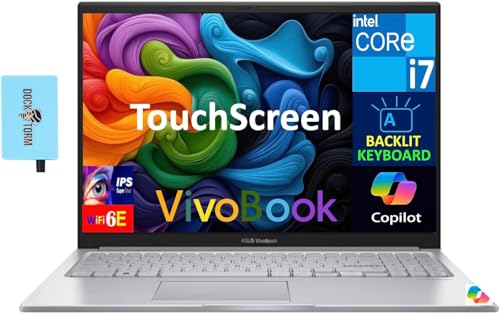
ASUS Vivobook 15 — Touch desk machine
The Vivobook 15 makes a desk photographer’s argument: a 15.6-inch touchscreen IPS panel at full HD, an Intel Core 7 150U processor, 16GB of memory, a 512GB SSD, Wi-Fi 6 and Windows 11 Pro — sold with a Dockztorm USB hub in the bundle. The screen is the largest touch canvas in the guide alongside the OmniBook, and unlike the OmniBook it arrives with a comfortable 16GB platform and a hub that acknowledges how many things a photographer plugs in.
Grade the panel without flinching: full HD IPS is the ordinary tier of this guide, below the OLED pair and the 2K touchscreens in resolution and contrast. What it offers instead is size, touch and a matte-friendly working character that many photographers prefer for long sessions under room lighting. Culling by touch on a 15.6-inch screen is genuinely pleasant — big targets, direct manipulation — and for photographers whose editing is more organise-and-adjust than pixel-grade, the panel serves the workflow honestly.
The bundled hub is a small masterstroke for this audience. Card readers, the backup drive, the tethering cable, the client’s USB stick with the brief — a photographer’s desk is a port negotiation, and a hub in the box ends the negotiation on day one. Combined with the Pro operating system, the Vivobook reads as a businesslike desk machine: not the sharpest screen here, but possibly the fewest annoyances.
The Core 7 150U is an efficiency-leaning processor, responsive for the bursty rhythm of editing and library work, and 16GB of memory matches that tier’s expectations. Heavy batch exports will take the time they take; photographers who export hundreds of RAW files nightly should weigh the Zenbook’s stronger platform. For the wedding-and-events rhythm — cull, adjust, export a gallery, deliver — the Vivobook’s balance is well judged.
Its natural rival is the IdeaPad that follows: same memory and storage tier, but a 2K touchscreen against this full HD one, and a consumer operating system against this Pro one. Photographers embedded in managed or client IT environments take the Vivobook; photographers editing purely for themselves may take the Lenovo’s sharper panel. The guide refuses to call that one for you — it depends on whose network the laptop joins.
Studio managers buying for a small team may find this the most procurable pick of the six. Windows 11 Pro slots into existing policies, the bundled hub standardises every desk’s connections in one stroke, and the big touchscreen gives assistants a culling station that needs no training manual — hand them the machine and the gesture language is already known from their phones. Not every buying decision is about the peak of the craft; some are about the floor of the working week, and the Vivobook raises that floor with unusual completeness for its tier.
- Processor: Intel Core 7 150U
- Memory: 16GB RAM
- Storage: 512GB SSD
- Display: 15.6-inch touchscreen IPS FHD, 1920 x 1080
- Bundle named in listing: Dockztorm USB hub
- Wireless named in listing: Wi-Fi 6
- Operating system: Windows 11 Pro
Strengths
- The bundled hub solves the photographer’s port shortage immediately.
- A big touchscreen suits culling and organising by hand.
- Windows 11 Pro fits client and studio IT environments.
Trade-offs
- Full HD resolution is the guide’s ordinary panel tier.
- The efficiency processor is not the fastest batch exporter here.
- No OLED contrast for critical shadow grading.
Best for: desk-based photographers who cull by touch and live among card readers and drives.
Not suited for: colour-critical graders, or heavy nightly batch-export workflows.

Lenovo IdeaPad Slim 3 15.3 — 2K touch all-rounder
Lenovo’s IdeaPad Slim 3 answers the Vivobook point for point and raises the screen: a 15.3-inch 2K touchscreen against the ASUS’s full HD panel, an AMD Ryzen 7 170 processor, 16GB of DDR5 memory, a 512GB PCIe SSD, a Full HD webcam, Wi-Fi 6 and Windows 11 Home in a Luna Grey chassis. For photographers who liked the OmniBook’s 2K touch concept but were warned off by its 8GB platform, this is the same idea executed with a proper memory allocation behind it.
Two-K resolution at 15.3 inches lands in a sweet spot for editing. It resolves noticeably finer detail than full HD during focus checks, shows more of the editing interface without scaling pain, and stops short of the battery and cost appetite of a 4K-class panel. Touch repeats the culling virtues described for its rivals, and the slightly smaller 15.3-inch footprint against the 15.6-inch machines is a rounding difference in the bag and no difference at the desk.
The Ryzen 7 170 keeps the platform current and capable; 16GB of DDR5 is the comfortable editing tier; the PCIe SSD keeps library browsing brisk. The Full HD webcam is worth its line in a photographer’s guide because client consultations, portfolio reviews and remote art direction now happen over video, and a webcam that renders the photographer — and, flipped around, a print held up to it — clearly is a working tool rather than a checkbox.
Concessions are the consumer ones. Windows 11 Home lacks the Pro management features; the listing names no bundled hub or mouse, so the port negotiation the Vivobook solves must be solved by the buyer; and the panel, while 2K, is an LCD — shadow grading will not have the OLED pair’s contrast authority. None of these touches the core proposition for a self-employed photographer, which is a sharp touch panel on a balanced platform.
As the guide’s middle made manifest — middle size, middle memory, sharper-than-middle screen — the IdeaPad is the pick most buyers could order without a second thought and regret nothing. Specialists will specialise: OLED for the graders, 16 inches for the canvas-maximalists. Everyone between those poles should start here and argue themselves out of it only with a specific reason.
Think of the enthusiast upgrading from a phone-and-tablet workflow, the point where photography gets serious enough to demand a real editor and a real file system. That buyer needs a screen that shows what the camera captured, enough memory that the editor never becomes the frustration, and a price position that leaves budget for the next lens. The IdeaPad is drawn for exactly that doorway: 2K touch to make the transition tactile and inviting, a current Ryzen to keep the software feeling instant, and no specification line that will embarrass the machine within its first two years of growing skill.
- Processor: AMD Ryzen 7 170
- Memory: 16GB DDR5 RAM
- Storage: 512GB PCIe SSD
- Display: 15.3-inch 2K touchscreen
- Webcam named in listing: Full HD
- Wireless named in listing: Wi-Fi 6
- Operating system: Windows 11 Home
Strengths
- 2K touch resolution sharpens focus checks beyond full HD.
- 16GB of memory fixes the OmniBook concept’s main weakness.
- The Full HD webcam serves client calls and print reviews well.
Trade-offs
- LCD contrast sits below the OLED picks for shadow work.
- Windows 11 Home omits Pro management features.
- No bundled hub or mouse is named in the listing.
Best for: self-employed photographers wanting a sharp touch panel on a balanced, current platform.
Not suited for: managed-IT deployments, or graders who need OLED-level contrast authority.

Acer Aspire 16 AI — Fast-refresh big screen
Acer closes the six with the biggest fast screen: a 16-inch WUXGA display running at 120Hz, driven by an Intel Core Ultra 5 226V processor — the listing credits it with up to 40 NPU TOPS — with Intel Arc 130V graphics, 16GB of LPDDR5X memory, a 512GB PCIe Gen 4 SSD and Wi-Fi 7, under a Copilot+ PC banner. The pitch is motion and modernity: a large canvas that refreshes twice as fast as most of this guide, on the newest platform silicon here.
Photographers may wonder what 120Hz does for stills, and the honest answer is: nothing to the photograph, plenty to the handling. Scrolling a ten-thousand-image library, scrubbing bursts, panning a zoomed frame — the interface keeps up with the hand instead of trailing it, and across a culling session of two thousand frames that fluidity reduces the low-grade fatigue that leads to sloppy keep-or-delete decisions late in the evening. It is a quality-of-workflow feature, and this guide grades it as such rather than pretending it improves a single pixel.
WUXGA resolution at 16 inches is the sensible middle: more working room than full HD, less demanding than 2K or 4K panels, and well matched to the Arc 130V integrated graphics for the interface-heavy, GPU-light reality of photo software. The Core Ultra 5 226V is a current efficiency-focused chip with a strong AI accelerator on paper; photographers should value it for its modern platform — Wi-Fi 7 included — rather than for AI features their editors may or may not use.
The platform figures repeat the guide’s comfortable tier: 16GB of memory, 512GB of storage, external archive assumed. No touch is named in the listing, so culling here is mouse-and-keyboard work; no bundle is named either. What the Aspire sells is singular — the big, fast screen on new silicon — and buyers whose editing style is high-volume culling at a desk will feel that singularity as a daily pleasure.
Against the Zenbook it trades contrast for size and speed; against the OmniBook it trades touch for refresh rate and a doubled memory allocation. It is the pick for the photographer who processes volume — sports, events, school contracts — where the library is a river to be channelled quickly, and the panel’s job is to keep up rather than to seduce.
The sports photographer’s deadline is the extreme case that justifies this machine’s existence. A match ends; the agency wants twenty frames within the hour; the photographer is in a press room with a card full of bursts and a laptop that must ingest, display and shortlist at speed. In that room, interface fluidity is not a luxury — the 120Hz panel, the Gen 4 SSD and the current processor are the difference between filing calmly and filing late. Photographers who never face that clock can safely prefer contrast or touch; photographers who live by it should read this pick’s specification as a checklist written for them.
- Processor: Intel Core Ultra 5 226V, up to 40 NPU TOPS per listing
- Graphics: Intel Arc 130V
- Memory: 16GB LPDDR5X
- Storage: 512GB PCIe Gen 4 SSD
- Display: 16-inch WUXGA, 120Hz
- Wireless named in listing: Wi-Fi 7
- Platform named in listing: Copilot+ PC
Strengths
- 120Hz refresh keeps high-volume culling fluid and fatigue low.
- A 16-inch WUXGA canvas balances room against cost.
- The newest platform here brings Wi-Fi 7 along.
Trade-offs
- No touchscreen is named for gesture-based culling.
- LCD contrast cannot match the OLED pair for grading.
- 512GB of storage assumes an external archive.
Best for: high-volume event and sports photographers who cull thousands of frames per session.
Not suited for: colour-critical studio graders, or touch-workflow devotees.
Comparison Table
| Pick | Display | Memory | Storage | Processor |
|---|---|---|---|---|
| HP OmniBook 3 16 | 16-inch 2K touchscreen | 8GB LPDDR5 | 256GB SSD | AMD Ryzen 5 |
| ASUS Zenbook 14 OLED | 14-inch WUXGA OLED | 32GB LPDDR5X | 1TB SSD | AMD Ryzen AI 7 445 |
| Acer Swift Go 14 | 14-inch OLED 2880 x 1800, 90Hz | 16GB LPDDR5X | 512GB SSD | Intel Core Ultra 5 125H |
| ASUS Vivobook 15 | 15.6-inch FHD touchscreen IPS | 16GB RAM | 512GB SSD | Intel Core 7 150U |
| Lenovo IdeaPad Slim 3 15.3 | 15.3-inch 2K touchscreen | 16GB DDR5 | 512GB SSD | AMD Ryzen 7 170 |
| Acer Aspire 16 AI | 16-inch WUXGA, 120Hz | 16GB LPDDR5X | 512GB Gen 4 SSD | Intel Core Ultra 5 226V |
What Should a Photographer Look for in a Laptop Screen?
Start with the two properties that cannot be fixed later: panel type and resolution. Panel type decides how shadows and saturated colours render — OLED’s self-lit pixels hold contrast that LCD panels approximate — and resolution decides how much of the image and interface coexist and how decisively focus can be judged at 100%. The listings in this guide state both plainly, and buyers should weight them in that order: type first, because it governs every image; resolution second, because it governs the working feel.
Brightness and gamut are the properties this guide pointedly does not rank, because none of the six listings states them. That restraint is deliberate and buyers should imitate it: if a specific brightness or colour-coverage figure is a requirement — for outdoor location work, for example — verify it on the manufacturer’s specification for the exact model rather than trusting a roundup, including this one. What a listing omits is not necessarily absent; it is merely unproven, and professional buyers price unproven claims at zero.
Size is the third leg, and it interacts with travel. A 16-inch panel is a studio that fits in a bag; a 14-inch panel is a companion that fits anywhere. Photographers who edit mostly at a desk with an external monitor can buy the small, deep-specified machines and dock them; photographers whose laptop screen is the editing screen should protect size more jealously. The six picks span both philosophies, and the right answer is the one that matches where the editing actually happens.
How Do You Build a Photo Workflow That a Laptop Can Sustain?
Ingest with a system, because chaos compounds. Cards go in through a reader — the bundled hubs on the Zenbook and Vivobook exist for exactly this — into dated folders with the shoot named, and the backup copy starts before the culling does. Photographers who treat the laptop as the working copy and an external drive as the archive, with a second copy somewhere else again, can survive the laptop’s loss with nothing worse than a bad day; photographers whose only copy lives on a 256GB internal drive are one spilled coffee from a professional crisis.
Cull ruthlessly and early, on the machine, while the shoot is fresh. This is where the touchscreens and the 120Hz Aspire earn their keep: fast, physical, decisive passes through the take, flagging keepers and deleting the hopeless, shrink the library’s growth rate and the archive bill together. Storage discipline is a workflow feature, and the picks with smaller drives reward photographers who practise it.
Calibrate expectations about colour workflow honestly. A laptop screen in a changing room is a moving target; serious colour work wants consistent lighting around the screen as much as a good panel under it. Edit the bulk anywhere, then do final colour passes in your controlled corner — the same desk, the same lamp, the same hour if you can. The OLED picks narrow the gap between field judgement and final judgement; none eliminates the need for a consistent environment.
Should a Photographer Prefer Touch or Refresh Rate?
The two handling features in this guide divide by temperament. Touch — on the OmniBook, the Vivobook and the IdeaPad — serves the social and organisational side of photography: sorting with a client present, culling on a sofa, reviewing a set with the machine passed hand to hand. It externalises the work, making the screen a shared surface. Refresh rate — the Swift Go’s 90Hz and the Aspire’s 120Hz — serves the solitary, high-volume side: one photographer, thousands of frames, speed and low fatigue. It internalises the work, making the interface disappear.
Neither feature grades a single photograph better, and this guide resists pretending otherwise. What they change is the photographer’s stamina and error rate across a long session, which is a real variable in professional output even if it never appears in a specification table. Buyers should choose by picturing their longest editing day of the year and asking which friction — the shared review, or the endless scroll — dominates it.
There is also a budget logic: at this level, touch and high refresh rarely arrive together, and chasing both pushes a buyer up a tier. The picks here force the honest version of the choice, and the reviews grade each machine as the specialist it is rather than marking it down for the rival’s trick.
How Should a Photographer Set Up a Laptop Editing Space?
Light first, because the screen does not exist in a vacuum. Edit in the most consistent lighting the home or studio offers — a corner away from a window’s changing daylight, a lamp that is always the same lamp — and the panel’s rendering stays comparable from session to session. Photographers who grade in a sunlit room at noon and a lamplit room at midnight are effectively editing on two different screens, whatever the specification says.
Then the physical chain. The laptop sits at a height that keeps the screen perpendicular to the gaze, since LCD panels in particular shift contrast off-angle; the OLED picks forgive more here, one of their quieter virtues. A mouse or pen tablet replaces the trackpad for local adjustments. The card reader and the backup drive live in fixed positions — through the bundled hubs where provided — so ingest is a ritual rather than a search, and the backup starts while the kettle boils rather than when someone remembers.
Software habits finish the space. A single catalogue or library system, maintained rather than restarted with every tool trial; presets treated as starting points rather than style; exports checked at delivery size on the same screen that graded them. The laptop is the darkroom now, and darkrooms were always half equipment, half discipline — the six machines here supply the equipment at an honest level, and the discipline remains, as it should, the photographer’s own.
Common Mistakes When Buying a Photography Laptop
Buying processor headlines and ignoring the panel. Photo software is rarely the bottleneck; the screen is where every decision is made. A mid-range processor behind an OLED will produce better-judged images than a flagship chip behind a washed-out panel, because the photographer can only edit what they can accurately see.
Believing gamut numbers that nobody printed. If a listing does not state a colour-coverage figure, the figure is unknown — not high, not low, unknown. Buyers with a genuine coverage requirement should verify the exact model’s manufacturer specification, and should treat any guide that invents percentages for these listings as unreliable on everything else too.
Underbuying memory for a RAW workflow. The OmniBook’s 8GB is this guide’s standing warning: converters and editors are memory-hungry, and a machine that swaps mid-session teaches sloppy, rushed editing. Sixteen gigabytes is the comfortable floor for serious stills work; 32GB, as the Zenbook shows, is where the worry ends.
Planning storage around the first month. A 256GB or 512GB drive feels roomy until the first wedding season lands on it. Decide the archive system — external drives, network storage, cloud — before the laptop arrives, and treat internal storage as working space from day one.
Forgetting that the laptop is also the archive’s front door. Every shoot enters the photographer’s world through this machine — its ports, its card reader path, its storage speed. A laptop with a fine screen and a chaotic ingest routine still produces a chaotic library. The bundled hubs on two picks here are not freebies; they are workflow infrastructure, and buyers of the other picks should budget the same solution.
Dismissing touch and refresh rate as gimmicks. Neither changes a pixel, and both change the work: touch makes culling physical and fast, 120Hz makes long scrolling sessions less fatiguing. Photographers who handle volume should weigh handling features as seriously as editing features.
Final Recommendation
One machine here is the default answer: the ASUS Zenbook 14 OLED, whose panel, 32GB memory and terabyte drive make it the only pick with no ceiling a photographer will meet soon. Buyers who order it should still add the external drive their archive deserves, because no internal disk, however generous, is a backup — a distinction this guide has pressed in every section and presses once more at the point of purchase. The Acer Swift Go 14 is its sharper, lighter rival for travellers who cull constantly and can live with 16GB and 512GB. The IdeaPad Slim 3 is the balanced middle — 2K touch, proper memory — and the Vivobook 15 its Pro-operating-system, hub-bundled desk alternative. The Aspire 16 serves the volume cullers with its big 120Hz canvas. The OmniBook 3, finally, is a panel-led bargain for field and student use, bought knowingly with its memory and storage ceilings in view. Every route starts from the screen, as photography demands — choose the panel you trust, then confirm the machine behind it matches your library’s habits.
Value, in this category, has a specific shape and a long memory worth naming before the questions begin. A photography laptop’s cost should be compared not with other laptops but with the camera kit it serves: a body and two lenses represent a serious investment, and the machine that judges every frame from that kit is the worst place in the chain to save the last increment of money. The affordable tier in this guide is not the cheap tier — it is the tier where the screen stops being the weak link, and that is the only definition of lasting value a photographer should accept.
Frequently Asked Questions
Is OLED really better for photo editing?
For contrast and shadow detail, yes — OLED pixels switch off individually, so blacks are true black and dark tones separate cleanly, which is exactly where event, night and portrait work lives. The two OLED picks here lead the guide for that reason. The caveats are care with static screen elements over years and the smaller 14-inch size both OLED picks share. Photographers coming from LCD should also expect an adjustment week: images that looked correctly exposed on a washed-out panel can reveal themselves as dark on an honest one, and that revelation, while briefly uncomfortable, is the entire point of buying the better screen.
How much memory does photo editing need?
Sixteen gigabytes is the comfortable working tier for a converter plus an editor plus a browser, and four picks here provide it. Thirty-two gigabytes, on the Zenbook, removes the ceiling for large panoramas, big layered files and heavy multitasking. Eight gigabytes, on the OmniBook, confines the machine to light and field duties — a workable role, but one to choose deliberately. A useful self-test: open your largest typical file, your converter and your browser on your current machine and watch the memory graph during a real edit. The graph does not care about marketing tiers, and the tier it points to is the tier to buy.
Can I rely on the colour figures in these listings?
Only where a listing prints them — and in this guide’s six listings, none prints a gamut or brightness figure, so none is claimed. Panel type and resolution are stated and are graded. Photographers with a hard coverage requirement should check the manufacturer’s page for the exact model before ordering; check price on Amazon for the same configuration while there. This restraint cuts both ways, fairly: some of these panels may in fact cover wide colour ranges that their listings simply do not advertise, and a buyer who verifies a pleasant surprise on the manufacturer’s sheet has lost nothing by having doubted first.
Is a touchscreen useful for photography, or a novelty?
Useful for the organisational half of the craft: culling a shoot by flicking and tapping, reviewing a set with a client, pinching into a frame to check a face. Precision editing remains mouse, pen or trackpad work. Three picks here offer touch — the OmniBook, the Vivobook and the IdeaPad — and they suit photographers whose bottleneck is sorting rather than grading. Touch also has a teaching virtue: a beginner shown a before-and-after by a hand sweeping across the actual image learns the edit’s geography faster than from any slider demonstration, which is one reason the big touch panels here keep appearing in this guide’s student and family scenarios.
Which pick suits a photographer who travels to shoots?
The Acer Swift Go 14: the sharpest OLED, a 90Hz refresh for fast culling, Intel Evo thin-and-light positioning and a current platform. The Zenbook 14 OLED is the alternative when travel editing is heavy enough to need 32GB of memory and a terabyte of working storage on the road. Both machines make the same underlying promise — that the photographer’s judgement on location will survive the journey home unchanged — and deliver it in bodies small enough that the promise is actually carried rather than left at the studio.
Do I need a 2K or higher screen to edit photos well?
Need is too strong a word — a decade of excellent photography was edited at full HD — but higher resolution repays its cost in focus-checking speed and interface room, and the 2K-and-above picks here (the OmniBook, the IdeaPad, both OLEDs) make those gains at this guide’s price level. Photographers whose work is detail-critical — product, macro, large-format printing — will feel the difference most; social and web-delivery photographers may honestly never miss it. There is a middle habit worth adopting on any panel: judge sharpness at 100% on the subject’s eye or focal point rather than at fit-to-screen, because fit-to-screen flatters soft frames on every resolution sold.
What if I mostly edit at a desk with a monitor?
Then the laptop’s panel matters less and its platform more: the Zenbook’s memory and storage, or the Vivobook’s Pro system and bundled hub, become the deciding features, and the laptop screen serves travel and backup duty. Buy the machine behind the glass in that case, and let the external monitor carry the colour-critical work. One caution survives the docking logic: the day the monitor fails, or the shoot runs long at a venue, the laptop panel becomes the editing screen without warning, so “the panel does not matter” should really mean “the panel matters less” — a distinction the 2K and OLED picks insure against rather cheaply.
Related Guides
Photographers weighing touch for culling will find the full landscape mapped in the roundup of affordable touchscreen laptops sorted by clamshell and convertible form. Those who travel to shoots should also weigh the machines in the guide to affordable lightweight laptops, where stated weights are checked listing by listing. And for the household’s second screen — the one a retired parent or partner edits holiday photos on — the selection of affordable laptops for seniors with big screens and simple setups applies the same screen-first logic kindly and patiently.

[…] who also present visuals should compare screens in the roundup of affordable laptops for photography, where panel quality leads the judging. The touch question raised by two picks here gets a full treatment in the survey of affordable […]