What's inside
- Key Takeaways
- Quick Picks
- How did we choose the best external hard drives to use with plex?
- Why does the server do the heavy lifting, not the drive?
- How much library capacity will you actually use?
- The six library drives, examined one by one
- How do the six compare side by side?
- How should you set up a new library drive for Plex?
- How do multiple simultaneous streams change the storage picture?
- What should you do when the library drive starts filling up?
- How do you keep a media library findable as it grows?
- How does recording television change the capacity maths?
- What does a sensible upgrade path look like over five years?
- Why do libraries belong on wired, always-on arrangements?
- What mistakes do Plex owners make with storage?
- Final Recommendation
- How should you handle a drive that starts behaving strangely?
- What role does music play in a Plex library’s storage plan?
- How do guests and children change good library practice?
- Frequently Asked Questions
- Related Guides
As an Amazon Associate I earn from qualifying purchases. This post may contain affiliate links at no extra cost to you.
widgetverdict.com is reader-supported. When you buy through links on our site, we may earn an affiliate commission.
Where to buy: all six desktop drives below link to checked Amazon listings, and every one of them attaches directly to the machine running your server, which is the only arrangement this guide covers.
Two clarifications belong at the front, because they prevent the commonest disappointments in this category. First, the best external hard drives to use with plex are library shelves, not servers: each pick here plugs into a computer that runs the Plex software, catalogues the media and streams it around your home. Network storage units that host Plex by themselves form a separate category with processors to evaluate, and mixing the two conversations produces bad purchases. Second, when playback struggles, the drive is almost never the culprit. Converting video for older players is processor work performed by the server, so a weak host will stumble no matter how large or quick the attached storage is.
With those boundaries drawn, the buying question becomes refreshingly simple: how much shelf space does your library need, how plain or protected should the drive be, and which port does your server offer? Every pick below is a desktop unit with mains power, because library drives live beside servers permanently, and portable drives belong to a different errand. Capacities run from eight to twenty terabytes, which spans the distance between a first dedicated library and a consolidated lifetime archive.
Streaming itself is a gentle master. A film, even a large high-bitrate one, asks the drive for a steady trickle compared with what the same drive delivers during a bulk copy.
Key Takeaways
- These drives store the library; a computer or similar host still runs the server.
- Playback conversion depends on the server’s processor, never on the attached drive.
- Buy capacity for the library you are becoming, since shelves grow by appetite.
- Plain drives suit dedicated servers; lockable drives suit shared family machines.
- Metadata feels fastest on the host’s own storage, media belongs on the big drive.
- A library worth years of ripping deserves at least a partial mirroring plan.
Quick Picks
| Pick | Badge | Why it earns its place |
|---|---|---|
| WD My Book 8TB Desktop Hard Drive | The library anchor | Eight terabytes of lockable WD storage for a library leaving the internal disk behind. |
| Seagate Expansion 8TB Desktop HDD | The drag-and-drop eight | Software-free eight terabytes that simply appears, accepts folders and serves films. |
| WD Elements Desktop 20TB HDD | The deep-archive shelf | Twenty terabytes on one volume for collectors consolidating a serious archive. |
| WD 16TB My Book Desktop External Hard Drive | The protected sixteen | Sixteen terabytes wrapped in WD password protection for shared family servers. |
| Seagate Expansion 16TB Desktop | The plain sixteen | Sixteen plain terabytes for doubling a library without changing a single habit. |
| Seagate One Touch 8TB Desktop HDD | The USB-C eight with a safety net | USB-C eight terabytes with recovery cover, aimed at compact modern servers. |
How did we choose the best external hard drives to use with plex?
The shortlist began with role discipline. Only direct-attached desktop drives were considered, because the question in the keyword is about drives used with a Plex setup, and the overwhelming majority of home servers are a computer plus attached storage. Portable models were excluded for their wandering nature and bus power, and network units were excluded because they answer a different question with a processor conversation attached.
Capacity coverage came next. A useful guide in this category should meet the reader at several points along the collecting journey, so the list spans eight, sixteen and twenty terabyte shelves, with two philosophies represented at the popular sizes: plain volumes that ask nothing, and wrapped volumes offering password protection, utilities or recovery cover. No pick duplicates another’s exact combination of size and philosophy.
Finally, each model had to be a current, verifiable listing from the two makers who dominate this shelf, with specifications stated plainly by the manufacturer. Media storage is a decades-long relationship between a household and its library, and obscure hardware with unclear support has no place holding it. Everything else, from enclosure colour to bundled trials, was treated as decoration.
Why does the server do the heavy lifting, not the drive?
Understanding the division of labour saves real money. When you press play, the server reads the file from the drive, checks whether your player can handle it as it stands, and either sends it untouched or converts it on the fly. The reading part is trivially easy for any drive in this guide. The converting part, called transcoding, can occupy an entire processor when a 4K film must be reshaped for an old tablet, and no storage purchase can accelerate arithmetic.
This is why experienced Plex owners spend on the host first: a modest modern processor with capable built-in graphics, or a machine known to handle conversions gracefully, transforms the experience more than any drive upgrade. Storage spending should follow the library’s growth curve instead. Readers whose films buffer despite a healthy network should interrogate their server’s conversion load and their players’ format support before blaming the shelf the films sit on.
The drive does have two moments of honest work. The first is the library scan, when the server catalogues everything and generates thumbnails, a sequential reading marathon that larger libraries stretch across an evening. The second is ingestion, when new rips or recordings are copied across. Both are patient, overnight-flavoured tasks, and both are handled comfortably by every desktop drive shortlisted here.
How much library capacity will you actually use?
Estimate from your shelves, not from optimism. A high-definition film rip commonly occupies the space of a small stack of downloads, a complete long-running series multiplies that by seasons, and 4K files expand every figure severalfold. Households converting a physical collection should sample their own discs: convert ten, measure them, and multiply by the shelf count. The arithmetic is sobering and far more useful than any generic table, because collections differ wildly in era, format and taste.
Then add the growth you can already predict. A library that gains a season a month and a handful of films will consume a terabyte on a schedule you can roughly calculate, and a drive bought exactly to today’s measure becomes next year’s migration project. Migrations between large drives are slow, dull and faintly risky, so the standing advice of this guide is to buy one size beyond the current need whenever the budget allows the step.
Remember also what shares the drive in many homes: recorded television, home videos, music and the household’s photo archive increasingly migrate toward the server. Capacity that looks excessive for films alone looks prudent once the family’s own recordings join the shelves. The twenty-terabyte pick exists for households that have stopped pretending their archive will shrink.
The six library drives, examined one by one

WD My Book 8TB Desktop Hard Drive — The library anchor
Most Plex libraries begin exactly here: one respectable desktop drive, plugged into the machine that runs the server, holding a collection that finally outgrew the internal disk. The My Book’s eight terabytes give a young library genuine room to breathe, covering hundreds of films and complete runs of long television series before capacity becomes a weekly thought. Its desktop format suits the role, since a server drive should stay in one place, powered and connected, rather than travelling in a bag.
Western Digital adds password protection and backup software to this line, features that matter less for media serving than for office storage yet still earn their keep. A library represents years of ripping, organising and metadata care; locking the drive adds a small barrier against casual borrowing, and the backup utilities can mirror the library’s most curated corner, such as home videos, to a second location automatically.
Behaviour in service is what owners praise. The enclosure is built for always-attached duty beside a computer that may run around the clock, and the drive spins down when idle according to its power settings, which suits a server that serves intensely at 8 p.m. and idles at 4 a.m. Streaming itself asks very little of any disk: even several simultaneous high-bitrate films amount to a gentle sequential workload that this class of drive handles without warming up.
The ceiling arrives when a household’s ambitions do. Eight terabytes that felt endless during the DVD-conversion era can shrink quickly once 4K remux files join the library, each one consuming the space of a shelf of older rips. Buyers already collecting in 4K should read this pick as a two-year answer and the sixteen and twenty terabyte models below as the longer sentence. Everyone else can start here with a clear conscience.
A detail worth planning is where this drive’s backups of itself fit in your routine. The My Book can hold the library while a modest second drive, even an older portable retired from other duties, mirrors the home-video folder and the server’s database on a weekly schedule. That division keeps the safety copy small, quick and cheap, and it is the pattern this guide would install in a family home without hesitation.
Owners migrating from a full internal disk will appreciate the breathing room most during the first scan. A fresh eight-terabyte library scan generates thumbnails and metadata for everything at once, an overnight job that smaller stopgap drives turn into a recurring annoyance each time they fill. Starting with genuine headroom converts that rite of passage into a single evening.
- Capacity: 8TB desktop platter
- Port: USB 3.0, mains powered
- Security: password protection included
- Software: WD backup utilities bundled
- Role: first dedicated library drive
Strengths
- Proven always-attached desktop design
- Lockable against casual access
- Sized generously for starting libraries
Trade-offs
- 4K collectors will outgrow it
- Mains power fixes its location
- Single drive holds the only copy
Best for: households moving a growing Plex library off an internal disk.
Not suited for: collectors already measuring their shelves in 4K remux files.
New server owners can review the My Book listing on Amazon before setup day. WD My Book 8TB Desktop Hard Drive.
Seagate Expansion 8TB Desktop HDD — The drag-and-drop eight
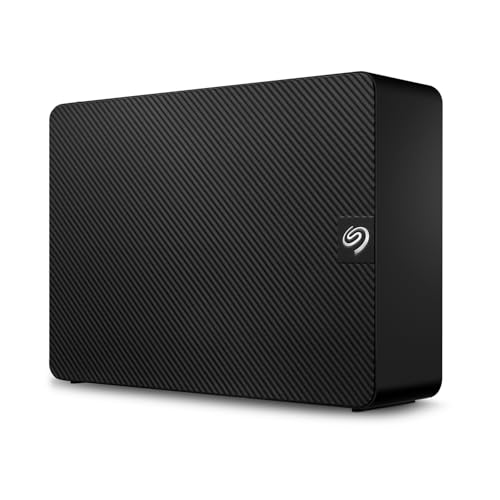
Seagate’s Expansion line makes a deliberate virtue of emptiness. There is no software suite to install, no account to create and no dashboard to learn; the drive presents itself as a large volume and waits to be filled by dragging folders across. For a Plex server that simplicity is close to ideal, because the server software itself handles organisation, metadata and sharing. The drive’s only job is to be big, present and boring, and this model performs that job description faithfully.
Setup on Windows is effectively instant, with the drive detected automatically, and Mac-based server owners will reformat before filling it, as with any general-purpose disk. Once the library folders exist, point the Plex libraries at them, let the first scan run, and the relationship between drive and server is established. Owners migrating an existing library should copy with the server stopped or the libraries paused, so files do not appear half-written to the scanner.
Eight terabytes in this plain wrapper tends to be the capacity bargain of any given week, which matters because Plex libraries grow by appetite rather than by plan. The money saved against fancier enclosures buys the second drive that a careful owner eventually wants for mirroring irreplaceable rips, or funds the small solid-state disk that makes an excellent home for the server’s metadata and thumbnails while this Seagate holds the media itself.
What you give up is the protective wrapping: no password layer, no bundled recovery service headline, and an enclosure that expects a quiet shelf rather than a busy hallway. Position it where feet, pets and cleaning routines cannot reach the power cable, because a server drive’s worst enemy is an accidental unplugging during a household tidy. Given a safe shelf, it will serve unnoticed for years.
There is an argument for buying this exact drive twice, once now and once when the first approaches fullness, and letting the pair divide films from television permanently. Two plain volumes are easier for a household to reason about than one volume with a complicated folder treaty, and the second purchase arrives only when the library has proven it needs the room. Staggered buying also staggers the drives’ ages, which quietly reduces correlated failure risk.
Keep the retail box or at least the serial number recorded in the same document as your library inventory. When a plain drive eventually needs support, the conversation goes faster with paperwork ready, and a media library’s inventory document, listing drives, capacities and purchase dates, repays its small upkeep every time the setup changes.
- Capacity: 8TB desktop platter
- Port: USB 3.0, mains powered
- Software: none required at all
- Setup: drag-and-drop simplicity
- Role: value library volume
Strengths
- Nothing to install or learn
- Capacity value funds other upgrades
- Quietly dependable in fixed duty
Trade-offs
- No password protection offered
- No recovery service bundled
- Power cable needs a safe route
Best for: pragmatists who want library space without software ceremonies.
Not suited for: shared rooms where an unlocked media archive concerns you.
Server builders who prize simplicity can check the Expansion offer on Amazon. Seagate Expansion 8TB Desktop HDD.

WD Elements Desktop 20TB HDD — The deep-archive shelf
Twenty terabytes is a statement about trajectory. This is the drive for the collector whose library passed eight terabytes some time ago, whose 4K shelves keep widening, and who would rather consolidate onto one large volume than referee a parliament of smaller disks. Consolidation has real operational value for a Plex server: one drive letter, one power supply, one library root, and no films exiled to a second volume that the household forgets to browse.
The Elements desktop line keeps the plain-spoken character of its portable relatives. No software demands installation and no encryption layer intervenes between the server and its media, which keeps behaviour predictable across operating systems and server restarts. For a drive whose entire purpose is to be mounted by a media server at 3 a.m. after a power cut, predictability outranks cleverness every time.
Large single volumes carry a planning duty smaller drives forgive. Twenty terabytes of library represents an enormous investment of ripping and curating time, and it deserves a backup conversation proportionate to its size, even if that conversation concludes with mirroring only the irreplaceable parts: home videos, rare editions, and the painstakingly tagged corners of the collection. Commercial films can be re-ripped in a disaster; your family’s footage cannot.
Physical placement also scales with capacity. This is a substantial desktop unit that wants ventilation and a permanent home near the server, ideally on the same protected power strip so a single switch governs the pair. Owners who treat it as infrastructure rather than an accessory, labelled and left alone, will find it disappears into the household’s background exactly as a library should.
Consolidation projects deserve a method. Copy one old drive at a time, verify counts and spot-play several files from the new volume, and only then retire the source drive to backup duty or storage. Rushing a twenty-terabyte migration by copying everything simultaneously invites confusion about which copy is authoritative when something hiccups at hour six. Sequential, verified moves are slower in the calendar and faster in every way that matters.
The drive also changes household conversations about deleting. With this much room, the pressure to prune borderline recordings vanishes, and families often discover they prefer keeping the school plays, the holiday footage and the odd documentary that smaller drives would have evicted. Capacity, at this scale, is partly a memory policy disguised as hardware.
- Capacity: 20TB desktop platter
- Port: USB 3.0, mains powered
- Software: none bundled or required
- Build: full-size desktop enclosure
- Role: consolidated large library
Strengths
- Ends capacity anxiety for years
- One volume simplifies library layout
- Predictable, software-free behaviour
Trade-offs
- Concentrates the whole collection
- Demands a considered backup plan
- Too large to move casually
Best for: established collectors consolidating several smaller drives into one.
Not suited for: beginners whose libraries still fit on a laptop.
Collectors planning a consolidation can view the Elements Desktop listing on Amazon. WD Elements Desktop 20TB HDD.
WD 16TB My Book Desktop External Hard Drive — The protected sixteen
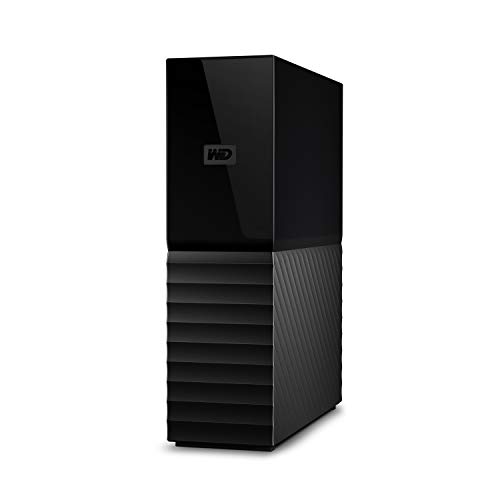
Sixteen terabytes with the My Book line’s password protection and backup software aboard suits a particular household: the one where the Plex server doubles as the family’s general computer, the library shares a desk with homework and tax documents, and a drive that can lock itself is worth having. The capacity sits in the range serious collectors actually inhabit, large enough for extensive film and television shelves in high quality, small enough to remain a single sensible purchase.
The backup software deserves its specific mention here because media servers accumulate one category of file that is not media at all: the server’s own database, view states, collections and carefully corrected metadata. Pointing WD’s utilities at that modest folder, and at any home-video directory, creates an automatic second copy of the library’s brain and its most precious content while the films themselves ride on the big volume.
In daily service the drive behaves like its eight-terabyte sibling at the top of this list, merely with twice the patience for your collecting habits. Streaming loads remain trivial for the hardware; the first library scan and any future disk-to-disk migrations are the only moments its transfer pace is even noticeable, and those are overnight jobs by nature. Set the power behaviour once, confirm the server mounts it reliably after a restart, and then forget it exists.
Buyers choosing between this and the plain Seagate sixteen below are really choosing a philosophy. This WD wraps the capacity in WD’s ecosystem of protection and utilities; the Seagate offers the same shelf space with nothing attached. Neither philosophy is wrong, and the deciding question is whether your server’s desk is a private study or a family crossroads.
Households with teenagers should think about the password feature in practical terms. The lock is not about distrust; it is about keeping a shared computer’s storage from being casually borrowed, wiped or repurposed by someone who sees an enormous empty-looking volume and a school project deadline. One conversation and one password prevent the single most common domestic data accident.
The sixteen-terabyte size also future-proofs the family’s recording habits. A household that begins recording broadcast television through the server, or archiving a growing collection of family events in high quality, will consume space at a rate that makes eight-terabyte owners migrate within a couple of years. Starting at sixteen postpones that migration past the point where it would have been annoying.
- Capacity: 16TB desktop platter
- Port: USB 3.0, mains powered
- Security: password protection included
- Software: WD backup utilities bundled
- Role: protected large library
Strengths
- Serious capacity with locking
- Utilities can guard server data
- Calm always-attached manners
Trade-offs
- Ecosystem features some skip
- Mains power fixes its location
- Still one copy of the films
Best for: family servers sharing a desk with everyday computing.
Not suited for: dedicated server corners where plain volume is preferred.
Families speccing a shared server can inspect the sixteen-terabyte My Book on Amazon. WD 16TB My Book Desktop External Hard Drive.
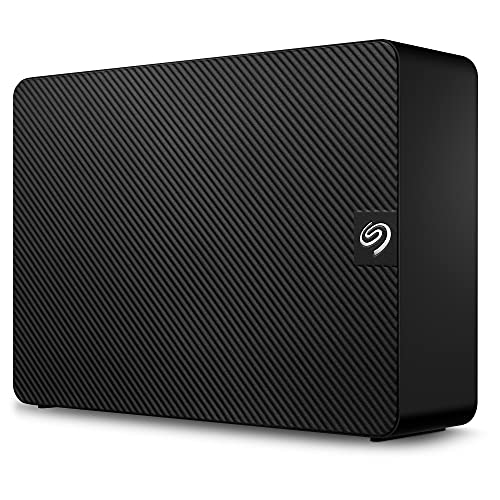
Seagate Expansion 16TB Desktop — The plain sixteen
Everything said about the eight-terabyte Expansion applies here with the volume turned up, and that continuity is precisely the appeal. Sixteen terabytes of unadorned, drag-and-drop storage lets a collector double a library without changing a single habit: same folder layout, same server settings, same absence of software intermediaries. Upgrades that demand no relearning are the upgrades that actually happen on schedule.
At this capacity the drive begins to serve a second constituency: the household digitising physical shelves in earnest. A DVD and Blu-ray conversion project generates terabytes at a pace that surprises its organisers, and having the destination space settled in advance keeps the project moving instead of pausing for storage decisions every few hundred discs. Buy the shelf before filling it is good advice for physical media; it applies equally to the digital replacement.
The absence of a password layer matters slightly more at sixteen terabytes, simply because the drive now holds more of a household’s viewing history and any home videos stored alongside. Owners bothered by that should either step across to the protected WD above or keep genuinely personal footage on a separate, locked volume and let this Seagate carry the replaceable entertainment library. Separating sensitivity levels is a tidy habit at any capacity.
As with its smaller sibling, give it a safe shelf, a protected power route, and a label with the library’s name and the date it entered service. Large plain drives are the load-bearing walls of home media; treat this one with the respect that load-bearing things deserve, and it will hold up the household’s film nights for a very long time.
Ripping projects pair naturally with a simple folder treaty on this drive: one incoming folder where fresh conversions land, separate finished shelves for films and series, and a quarantine corner for files whose names or quality need attention. The server scans the finished shelves; the incoming folder stays outside the libraries until its contents are cleaned and named. That small bureaucracy keeps a sixteen-terabyte library presentable.
When the drive eventually fills years from now, its plainness becomes an asset again. Nothing proprietary stands between the files and their next home, no software licence governs access, and the volume mounts anywhere. Plain storage ages gracefully because it never depended on an ecosystem’s mood.
- Capacity: 16TB desktop platter
- Port: USB 3.0, mains powered
- Software: none required at all
- Setup: drag-and-drop simplicity
- Role: expansion for growing libraries
Strengths
- Doubling room with zero relearning
- Ideal destination for ripping projects
- Simple behaviour at serious scale
Trade-offs
- No locking for sensitive folders
- Big first scans take patience
- Single-volume concentration risk
Best for: collectors doubling a library while keeping every habit intact.
Not suited for: owners wanting the drive itself to guard personal footage.
Growing libraries can look over the Expansion sixteen listing on Amazon. Seagate Expansion 16TB Desktop.

Seagate One Touch 8TB Desktop HDD — The USB-C eight with a safety net
The One Touch brings two distinguishing marks to an eight-terabyte field that otherwise looks uniform. The first is USB-C connectivity, which suits the growing number of compact servers, mini PCs and modern laptops whose port selection has moved beyond the older rectangular standard. One cable, no adapter hunting, and a connection that feels native to current hardware rather than inherited from it.
The second mark is Seagate’s Rescue recovery cover, and for a media library it has a particular meaning. If this drive fails mechanically, a laboratory recovery attempt may retrieve a library that took years to assemble, which is a meaningful parachute for collections rich in out-of-print rips and personal recordings. It remains a parachute rather than a strategy, and the mirroring advice elsewhere in this guide stands, but as bundled extras go it is one of the few aimed at the loss owners actually fear.
Server owners should also note the drive’s desktop-with-adapter nature despite its modern port. It belongs beside the server full-time, and its eight terabytes fit the same audience as the other eights here: libraries measured in hundreds of films rather than thousands, with high-definition rather than exclusively 4K shelves. Within that audience, the choice between this and its rivals is about ports and parachutes, not performance, because streaming never stresses any of them.
A small operational tip completes the picture. When a USB-C drive serves a mini PC server, confirm the machine’s port power behaviour during sleep, because some compact systems cut port power aggressively and the server then wakes to find its library missing. A powered hub or a port setting adjustment solves it in minutes, and discovering the quirk during setup week beats discovering it during a family film night.
The One Touch also suits the increasingly common arrangement where the server is a laptop that docks at a desk. The USB-C connection mates with the dock or the machine directly, and the library becomes available whenever the laptop is home, which for many households describes every evening that matters. Owners should simply be honest that a laptop server sleeps away from home sometimes, and set household expectations accordingly.
Its recovery cover pairs well with a modest cloud tier for the truly irreplaceable recordings. Between the laboratory parachute and a cloud copy of the family footage, an owner of this drive can assemble a safety story that covers mechanical failure and household disaster separately, which is more thoughtful protection than many larger libraries ever receive.
- Capacity: 8TB desktop platter
- Port: USB-C, mains powered
- Extras: Rescue data recovery services
- Compatibility: Windows and macOS systems
- Role: modern-port library drive
Strengths
- USB-C suits mini PC servers
- Recovery cover for the library
- Eight terabytes of calm capacity
Trade-offs
- Recovery is a parachute only
- Sleep power quirks need checking
- Same growth ceiling as other eights
Best for: mini PC and modern laptop servers wanting native USB-C storage.
Not suited for: collectors whose next purchase should plainly be sixteen terabytes.
Mini PC server owners can confirm the One Touch listing on Amazon. Seagate One Touch 8TB Desktop HDD.
How do the six compare side by side?
| Pick | Capacity | Connection | Role in the setup |
|---|---|---|---|
| WD My Book 8TB Desktop Hard Drive | 8TB | USB 3.0 | First library anchor |
| Seagate Expansion 8TB Desktop HDD | 8TB | USB 3.0 | Plain value volume |
| WD Elements Desktop 20TB HDD | 20TB | USB 3.0 | Consolidated archive |
| WD 16TB My Book Desktop External Hard Drive | 16TB | USB 3.0 | Protected family library |
| Seagate Expansion 16TB Desktop | 16TB | USB 3.0 | Plain expansion volume |
| Seagate One Touch 8TB Desktop HDD | 8TB | USB-C | Compact server library |
The table reduces to two decisions. Choose your capacity tier by the library’s trajectory, then choose your philosophy within it: plain volume, or wrapped volume with protection, utilities or recovery cover. Ports settle the only remaining question, with the USB-C One Touch answering compact modern servers that lack the older connector.
How should you set up a new library drive for Plex?
Give the drive permanence before media. Assign it a fixed drive letter or stable mount, label it physically with the library’s name, and route its power through the same protected strip as the server so the pair share a fate. Then create the top-level folder structure, films and television separated, before copying a single file. Structure imposed on an empty drive takes ten minutes; structure imposed on nine terabytes of accumulated chaos takes a weekend.
Copy the media with the server’s libraries pointed at the new folders only when the copying is complete, or pause scanning during the transfer. Half-copied films confuse catalogues and generate broken entries that linger. Once everything has landed, run the scan, spot-check a dozen titles across eras and formats, and confirm that play begins from the television you actually watch on, not merely from the server’s own screen.
Finish with the safety layer. Decide which parts of the library are irreplaceable, home recordings and rare rips chief among them, and arrange their second copy, whether to another drive, a cloud tier or a drive kept at a relative’s house. Then set a calendar reminder to check available space quarterly, because the only bad surprise a healthy library produces is a full drive discovered mid-copy.
How do multiple simultaneous streams change the storage picture?
A single film asks little of a drive, and even a busy household rarely asks for more than a handful of streams at once: a film in the living room, a series episode in a bedroom, music or a children’s programme elsewhere. Each stream is an independent sequential read, and desktop drives juggle several of them without drama because the combined demand remains a fraction of what the same hardware delivers during a bulk file copy. Storage is simply not the bottleneck in a multi-room evening.
Where households do feel limits is upstream and downstream of the disk. The server’s processor may be converting two streams while a third plays untouched, and the home network, especially older Wi-Fi reaching a far bedroom, may falter before any drive does. Owners troubleshooting a busy-evening stutter should watch the server’s conversion queue and their network’s health, in that order, and leave the library drive out of the investigation until both are cleared.
The one storage habit that helps busy households is keeping the server’s own data responsive. Posters, thumbnails and the catalogue database are consulted constantly as family members browse, and housing them on the host’s internal storage, as the FAQ suggests, makes browsing feel instant even while streams run. The big drive then does only the work it is best at: handing over large files steadily, in the background, unnoticed.
What should you do when the library drive starts filling up?
First, measure before acting. Sort the library by size and look honestly at what the terabytes became: unwatched recordings, duplicate versions of the same film in several qualities, and entire series kept from obligation rather than affection usually account for more than owners expect. A deliberate pruning pass can return a surprising amount of shelf without spending anything, and it clarifies whether the real need is capacity or housekeeping.
If the library is honestly full of things the household values, expansion follows one of two shapes. Adding a second drive splits the library across volumes, which Plex handles gracefully by pointing libraries at folders on both. Replacing the drive with a larger one keeps the single-volume simplicity at the cost of a long migration copy. Households that value tidiness migrate; households that value momentum add. Both are respectable, and the picks in this guide were chosen to make either path painless.
Whichever shape you choose, perform the change before the old drive is completely full. A volume at ninety-eight percent makes every operation slower to organise and leaves no room for the temporary copies that migrations and reorganisations naturally create. Storage work, like plumbing work, goes better with room to move.
How do you keep a media library findable as it grows?
The server’s catalogue is the map, and maps stay accurate when the territory follows rules. Consistent file naming, one folder per film, series nested by show and season, and a quarantine habit for new arrivals together keep the catalogue trustworthy at twenty terabytes as surely as at two. The moment naming discipline lapses, mismatches accumulate silently, and the household starts saying the library is badly organised when the truth is that the files are.
Collections and playlists are the second layer of findability, and they belong to the server’s database rather than the drive. That is another reason the database deserves its own backup: losing the films is a disaster, but losing years of curated collections, corrected matches and watched-state history is the quieter heartbreak that owners describe more bitterly. A small scheduled copy of that data is among the highest-value habits in this entire guide.
Finally, keep a simple inventory outside the server entirely: a document listing each drive, its capacity, its purchase date and what it holds. When a drive fails at some future point, that document turns a panic into a procedure, because everyone can see what was where and what the second copies cover. Libraries that reach this size are household infrastructure, and infrastructure deserves paperwork.
How does recording television change the capacity maths?
Households that discover the server’s recording features enter a different storage economy. A film is a deliberate acquisition; a recording schedule is an appetite that feeds itself nightly, and series passes accumulate episodes faster than families watch them. Recorded broadcasts in high definition occupy meaningful space per hour, and a season of a daily programme can quietly rival a shelf of films before anyone thinks to look.
The management answer is retention policy rather than panic. Decide how long recordings live: news and daily shows might keep a fortnight, dramas a season, and anything the family truly loves gets promoted deliberately into the permanent library with proper naming. Plex’s own settings can enforce much of this automatically, deleting watched episodes after a chosen interval, and enabling those settings early prevents the slow flood entirely.
Capacity planning should therefore count the recorder’s habits alongside the film shelves. A household recording enthusiastically should read the eight-terabyte picks as one-year answers and the sixteens as the honest starting point. There is no failure in discovering this late; there is only the mild annoyance of migrating a library that a little foresight would have housed correctly from the beginning.
What does a sensible upgrade path look like over five years?
Year one usually begins with an eight-terabyte anchor and a library that feels infinite. The wise owner spends that year on naming discipline and the irreplaceable-copy habit rather than on more hardware, because those two systems determine whether later growth is a pleasure or a swamp. The drive’s job in year one is mostly to be forgotten.
By year three the library has opinions. Either it stabilised, in which case the original drive may serve a decade, or it embraced 4K and recording, in which case a sixteen or twenty joins as the new anchor and the veteran demotes to mirroring the irreplaceable folders. That cascade, anchor to deputy to archive, is how households accumulate deep storage without ever making a frightening single purchase.
Year five is when the inventory document earns its keep. Drives have ages, roles have rotated, and the household’s memory of which box holds what has faded. The document answers instantly, the replacement cycle becomes planned rather than panicked, and the library, by now a genuine family asset, is maintained with the calm of a utility rather than the anxiety of a gadget.
Why do libraries belong on wired, always-on arrangements?
A server that vanishes from the network whenever its host sleeps, moves or updates teaches the household to distrust it, and distrusted systems stop being used. The drive’s part in reliability is presence: a desktop unit with its own power supply, attached to a host that stays awake during viewing hours, on a shelf where its cable is part of the furniture. Every element of that sentence removes a small failure mode that households otherwise rediscover monthly.
Power events deserve one specific defence. A modest uninterruptible supply under the server desk lets the host and its library ride out short outages and shut down cleanly during long ones, protecting the catalogue database from the corruption that abrupt cuts occasionally cause. It is unglamorous spending that no guest will ever admire, and it protects the library’s brain more effectively than any enclosure feature.
What mistakes do Plex owners make with storage?
Blaming the drive for conversion stutter. Buffering during a 4K film played on an old device usually means the server is converting beyond its strength. The remedy lives in the host, the player’s format support or the file itself, and owners who replace a healthy drive learn this expensively. Diagnose which stream is converting before spending anything.
Letting the library live on a wandering portable. A bus-powered drive that travels with a laptop cannot serve a household’s televisions while it is at the office. Library drives must be furniture: present, powered and connected at all hours. Owners who promote a portable to server duty should immediately buy it a permanent replacement for its travelling job.
Naming files by mood instead of pattern. Scanners match titles and years; creative filenames produce mismatched posters, merged series and films hiding inside other films’ entries. Adopt the server’s preferred naming pattern from the first folder, and let the software’s organisation be the boring kind that works while nobody watches.
Skipping the second copy of the irreplaceable. Replacing a failed drive is an afternoon; replacing a failed drive’s home videos is impossible. The mirroring plan does not need to cover every commercial film to be worthwhile. It needs to cover the recordings that exist exactly once in the universe, and it needs to exist before the failure, not after.
Final Recommendation
First-time library builders should start with either eight-terabyte anchor: the WD My Book if the server shares a family desk and locking appeals, or the Seagate Expansion if the setup is a dedicated corner and plain behaviour is preferred. Compact modern servers should take the USB-C One Touch and enjoy its recovery cover. All three leave a clear upgrade path, which matters because libraries reliably grow into their owners’ ambitions.
Established collectors should skip the eights entirely. The plain Seagate sixteen doubles a library without changing a habit, the protected WD sixteen wraps the same growth for shared machines, and the twenty-terabyte Elements ends the capacity conversation for households consolidating several ageing drives. Choose among them by desk politics and consolidation needs rather than by specification minutiae.
Whichever shelf you install, spend the first evening on permanence, structure and the irreplaceable-copy plan; a library arranged calmly at the start stays calm for years, and film night should be about the film.
How should you handle a drive that starts behaving strangely?
Treat symptoms as scheduling information. A library drive that disconnects occasionally, takes longer to appear after restarts, or produces new mechanical sounds is announcing a retirement timetable, and the correct response is to move its contents while copying is still easy. Media libraries are among the simplest datasets to migrate, being large but undemanding files, and an owner who acts on early warnings performs the move at leisure rather than under the pressure of a dead volume and a disappointed household.
Order matters during the rescue. Copy the irreplaceable material first, home recordings and rare items, then the curated shelves, and leave the easily replaced bulk for last. If the drive dies mid-migration, that ordering guarantees the losses are the ones the household can re-rip or re-download, which is the entire point of having ranked the library’s value in advance.
After the migration, keep the suspect drive out of service even if it appears to recover. Intermittent faults that vanish under light use return under load, and a library drive’s load arrives every evening. Retire it to holding unimportant copies, or recycle it, and let the replacement settle into the anchor role with the inventory document updated the same day.
What role does music play in a Plex library’s storage plan?
Music is the library’s lightweight citizen. Even a large collection of lossless albums occupies a fraction of one shelf of films, which tempts owners to treat it as an afterthought, yet its catalogue care is often deeper: years of corrected tags, playlists and personal scores that represent more curatorial hours than the film shelves combined. That imbalance is exactly why the music folder belongs in the small, diligently mirrored tier alongside the server database, whatever drive it physically sits on.
Photographs follow a similar logic when households add them to the server. Their terabytes are modest, their irreplaceability is total, and their browsing experience depends on thumbnails the server generates once and consults forever. Owners who fold photos into the Plex household should mirror that folder with the same seriousness as home videos, because a photo library exists exactly once in the world by definition.
The general principle is worth stating plainly: judge folders by replacement cost, not by size. The smallest directories in a media library are frequently the ones whose loss would actually hurt, and a storage plan that ranks by gigabytes alone protects the wrong things first.
How do guests and children change good library practice?
A household server serves people who never read guides. Children rename nothing but delete enthusiastically when given the chance, and guests with the remote can stumble into settings that puzzle the owner later. The storage-level defences are simple: the drive itself stays physically out of reach, user profiles carry sensible permissions, and anything resembling library management happens from the owner’s account alone. Most domestic data accidents are permission accidents wearing a disguise.
There is also a kindness in keeping the visible library tidy for its audience. Shelves organised by clear collections, with the family’s current favourites gathered deliberately, get used and appreciated; a raw dump of five thousand files gets scrolled past. The drive enables that tidiness by providing room to organise rather than merely accumulate, which is a soft benefit of generous capacity that specification tables never capture.
Write the household’s one storage rule where everyone can see it: nothing gets deleted from the library drive without the owner’s say-so. A sentence on a sticky note has prevented more domestic data loss than many a software feature, because it converts an invisible risk into a shared understanding at the exact place the risk lives.
Revisit that rule once a year, ideally while updating the inventory document, and let the household hear which folders are mirrored and which are replaceable. Shared knowledge is itself a backup layer, since a family that understands the system protects it in a hundred small unrecorded ways.
Pair the conversation with a spot-check: pick three titles at random, play each for a minute, and confirm the library still serves what its catalogue promises.
Frequently Asked Questions
Can Plex run from the drive itself instead of a computer?
The drives in this guide are storage, not servers. Plex needs a computer, a NAS or a similar host to run its server software, catalogue your media and stream it to your televisions and phones. These drives attach to that host and hold the library. Standalone network drives that run Plex themselves are a different category, with their own processor considerations, and are deliberately outside this shortlist.
Does a faster hard drive make Plex streaming smoother?
Almost never, because streaming a film asks for a modest, steady flow of data that any desktop drive supplies easily. Stuttering during playback usually traces back to the server converting video for an older player, a weak network link, or Wi-Fi congestion. The drive becomes relevant during library scans and large copies, not during the film itself.
What is transcoding, and why does it depend on the server rather than the drive?
Transcoding is the server’s real-time conversion of a video into a format or bitrate a particular player can handle. It is heavy arithmetic performed by the server’s processor or graphics hardware, and the storage drive merely hands over the original file at ordinary reading speed. A weak server with a huge drive will still struggle to transcode; a strong server streams happily from any pick here.
Should the Plex database live on the same drive as the media?
It can, but many owners prefer the server’s metadata, posters and thumbnails on the host’s internal solid-state storage, where thousands of tiny files load instantly when browsing. The media itself stays on the big drive. That split gives snappy menus without paying solid-state prices for terabytes of films.
How should library folders be organised on the drive?
Keep films and television in separate top-level folders, one library each, with television organised by show and season beneath that. Consistent naming saves the scanner from mismatches that owners then correct by hand for evenings.
What happens to my Plex library if the drive letter changes?
The server can lose track of media when a drive reappears under a different letter or mount point, presenting a library of missing files. Prevent it by assigning the drive a permanent letter on Windows or a stable mount on other systems during setup. If it happens anyway, reassign the original letter before rescanning, and the library usually heals without rebuilding.
Related Guides
A media library touches several neighbouring topics in our storage coverage. Readers speccing the host machine itself may start with our guide to compact home server hardware for processor guidance. Those planning a digitisation project should read the physical media conversion walkthrough before the first disc. Finally, our home backup planning guide covers the mirroring patterns this article recommends in greater depth.
Related guide: Best External Hard Drives Durability
Related guide: Best External 6 Tb Hard Drives