What's inside
- Key Takeaways
- Quick Picks
- How We Chose These Picks
- What Work Does an HDD Actually Do in a Virtualisation Setup?
- How Do the Six Entries Compare for Lab Duty?
- How Should You Lay Out a Lab’s Storage Tiers?
- What Mistakes Do Lab Builders Make With Spinning Storage?
- How Do Snapshot Chains, Cloning and Backups Stress a Bulk Drive Differently?
- What Should a Lab Owner Monitor on the Bulk Tier?
- How Does a Lab Grow From One Host to Several Without Rebuilding Its Storage?
- What Does a Sensible Snapshot and Retention Policy Look Like on Spinning Storage?
- How Do You Move a Lab’s Bulk Tier to a New Drive Without Downtime Drama?
- Final Recommendation
- Frequently Asked Questions
- Related Guides
As an Amazon Associate I earn from qualifying purchases. This post may contain affiliate links at no extra cost to you.
widgetverdict.com is reader-supported. When you buy through links on our site, we may earn an affiliate commission.
Where to buy: three of the six drives below link to checked Amazon listings; the other three are discussed without links for reasons each review states openly, because in this category the honest answer is sometimes a warning rather than a product.
Let us start with the truth that organises everything else in this guide to the best hard drives for virtual machines: a healthy virtualisation setup boots from solid-state storage. The hypervisor, the running virtual machines, anything whose random-access latency a user can feel — that work belongs on an SSD, and no spinning drive in this article pretends otherwise. What hard drives do superbly in a VM lab is the bulk work around the booting: the ISO and template library, the snapshot chains, the exported archives, the powered-down test machines, the backup target that swallows the whole lab nightly. Capacity per cost still belongs to spinning rust, and a lab’s library grows like a library — relentlessly, and mostly in files that are read sequentially or not at all.
That framing decides the six entries below. Three are linked picks we can stand behind as new listings: a 6TB surveillance-class drive that serves a lab’s bulk tier honestly, a 20TB WD Gold enterprise drive for serious archive and snapshot duty, and a 24TB IronWolf Pro for the largest home labs and small offices. Three are prose-only discussions, included because a VM storage guide that omits them would be lying by silence: an SMR desktop drive whose behaviour under VM write load is a cautionary tale, the high-RPM SAS enterprise class that this market sells almost entirely renewed, and mainstream desktop drives whose proper lab role is narrower than their marketing implies.
Key Takeaways
- Boot VMs from SSD; use hard drives for templates, ISOs, snapshots, archives and powered-down machines.
- Random-write behaviour, not sequential speed, decides whether an HDD helps or hurts a lab.
- SMR desktop drives can collapse under sustained VM write load — one is profiled here as a warning, without a link.
- The high-RPM SAS enterprise class is dominated by renewed listings, so it is discussed, not sold, in this guide.
- WD Gold 20TB and IronWolf Pro 24TB anchor the serious bulk tiers; the 6TB MaxDigitalData covers the modest lab.
- Snapshots are not backups; the lab still needs its archive copied somewhere else.
Quick Picks
| Pick | Badge | Why it earns its place |
|---|---|---|
| MaxDigitalData 6TB Surveillance HDD | The modest lab’s bulk tier | 7200 RPM, 128MB cache SATA storage with a three-year warranty stated in its listing. |
| WD Gold 20TB Enterprise HDD | The archive engine | Enterprise-class 20TB CMR storage for snapshot chains and whole-lab backups. |
| Seagate IronWolf Pro 24TB | The maximum bay | Twenty-four CMR terabytes with Rescue services for labs that measure growth in terabytes per term. |
| Seagate BarraCuda 8TB Desktop Drive (prose-only) | The cautionary tale | An SMR desktop drive discussed so you know exactly what slows down under VM write load — and why we do not link it. |
| High-RPM SAS Enterprise Drives (prose-only) | The renewed-dominated class | 10K and 15K SAS hardware explained honestly: superb lineage, almost entirely renewed at retail. |
| Mainstream Desktop Drives (prose-only) | The narrow-role class | Everyday desktop drives assessed for the one lab job they do well — cold libraries — and no other. |
How We Chose These Picks
The first decision was which lab jobs spinning drives should be hired for at all, and we were strict: bulk storage tiers, template and ISO libraries, snapshot and backup targets, and archives of dormant machines. Any drive whose honest role was “run your production VMs from this” failed the brief, because the correct product for that sentence is an SSD and this guide will not dress a hard drive up as one.
We should also declare what did not influence the selection, because lab folklore is loud. Sequential transfer numbers — the figure every listing celebrates — barely mattered, since the bulk tier’s jobs are bounded by networks, hypervisor overheads and the simple patience of overnight windows. Rotational speed mattered only at the margins of cloning and restore work. What decided the list was behaviour under sustained, mixed, unglamorous writing, because that is the bulk tier’s entire working life and the quality its failures would come from.
The second decision was condition and recording technology for the linked picks. VM-adjacent write patterns — snapshot consolidation, backup streams, template cloning — are sustained and unglamorous, so CMR behaviour and enterprise or endurance positioning mattered more than headline transfer speeds. The two big linked drives are enterprise and enterprise-NAS class for exactly that reason. The 6TB linked pick is a surveillance-class drive, and its review says plainly why that lineage suits sequential bulk duty in a small lab while its limits deserve equal plainness.
The prose-only three exist because the market will offer them to you anyway. Search results for VM storage surface SMR desktop drives at tempting capacities and renewed SAS hardware at tempting prices, and a guide that simply ignores them leaves its readers to meet those temptations unarmed. Each prose entry therefore explains the product class, its genuine uses, and the specific way it disappoints in a hypervisor’s neighbourhood — with no link, because our recommendation is understanding, not purchase.
What Work Does an HDD Actually Do in a Virtualisation Setup?
None of this demotes the hard drive to an afterthought. A lab’s SSD tier is replaced on a technology cycle and sized for the present; its spinning tier is where the lab’s accumulated work actually resides, growing quietly month after month, and it deserves founding-member status in the budget rather than whatever remains after the exciting purchases.
Picture a lab’s storage as three concentric jobs. At the centre, latency rules: the hypervisor boots, virtual machines run, databases inside them answer. SSDs own that centre, and this guide concedes it in the first paragraph. Around it sits the working library — installation images, golden templates, driver packs, the powered-off machines you spin up for a test and shut down for a month. That library is read in long sequential stretches and written in bursts, which is precisely the diet a hard drive digests happily, at capacities an SSD budget would ration.
The outer job is memory: snapshots kept for rollback points, exports of finished machines, and the nightly backup of the entire lab. Snapshot chains deserve a warning inside the compliment — they grow silently, they are not backups, and leaving a production VM running on a long chain taxes performance — but as a storage problem they are bulk, sequential and capacity-hungry, which is to say they are hard-drive-shaped. A lab that stores its centre on SSD and its memory on the drives below gets the economics right: expensive speed where speed is felt, inexpensive depth where depth is what matters.
Home labs also teach, and the bulk tier is where the teaching archive lives. A student of system administration accumulates environments the way a language student accumulates novels: the domain controller built for one certification, the mail server from another, the broken cluster that taught more than the working ones. Kept on spinning storage, that whole education remains bootable for the price of a shelf; kept nowhere, it becomes a list of things once understood. Several of this guide’s readers will buy the 6TB pick for exactly that shelf, and it is among the most defensible purchases in the article.
There is one more honest use: the deliberately slow tier. Test environments that mimic a client’s creaking infrastructure, archival machines booted twice a year, and bulk data sets a VM merely holds rather than computes on — all of these can live on spinning drives without apology, provided nobody mistakes the arrangement for a performance tier and complains about the physics they purchased.
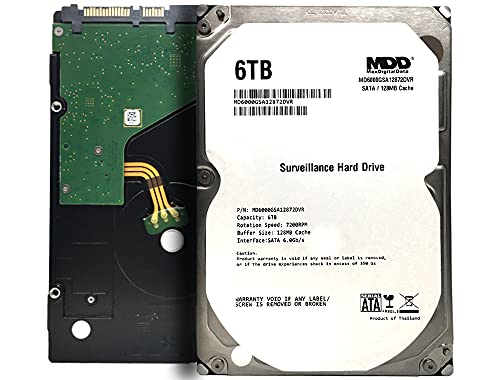
MaxDigitalData 6TB Surveillance HDD — The modest lab’s bulk tier
MaxDigitalData’s 6TB internal drive, model MD6000GSA12872DVR, is built for surveillance recording: 7200 RPM, a 128MB cache, SATA 6.0Gb/s, and a three-year warranty stated in its listing. Surveillance duty is a peculiar and useful apprenticeship for lab bulk storage, because a drive engineered to absorb continuous sequential writing from cameras has exactly the temperament a template library and backup target need — it expects to be written to, steadily, for years, and it does not flinch at the duty cycle.
Place it correctly and it earns its keep. As the datastore beneath a small lab’s ISO library, the target for nightly VM exports, or the home of powered-down test machines, 6TB is a serious amount of room at a modest commitment. Its 7200 RPM spindle keeps template clones and image restores moving at a respectable pace, and the surveillance lineage means the drive was designed for a machine that never sleeps, which describes a hypervisor host’s bulk tier precisely.
The limits deserve the same clarity. This is not an enterprise drive: it does not carry the array firmware manners or the workload positioning of the two giants below, and running a crowd of active VMs directly from it would repeat, at smaller scale, the category error this guide opened by refusing. Buy it as the lab’s library and memory, keep the running machines on SSD, and the arrangement is honest, economical and durable.
- Size: 6TB
- Spindle: 7200 RPM
- Cache: 128MB
- Interface: SATA 6.0Gb/s
- Design brief in listing: surveillance internal drive
- Warranty stated in listing: 3 years
- Model code in listing: MD6000GSA12872DVR
Strengths
- Sequential-write temperament suits libraries, exports and backup targets.
- 7200 RPM keeps cloning and restore work brisk for a bulk tier.
- Three-year warranty stated in the listing at a modest tier.
Trade-offs
- Surveillance tuning is not enterprise array tuning; keep it out of parity-heavy NAS duty.
- Six terabytes is a starting library, not a growing lab’s destination.
- Active VMs belong on SSD regardless of this drive’s virtues.
Small offices running one virtualisation host for a line-of-business application will recognise their situation in this drive too. The host’s running machines sit on its internal flash, while this drive, in a backup appliance or the host’s bulk bay, receives the nightly exports that constitute the business’s real insurance. Six terabytes of headroom means those exports keep months of history instead of a nervous week, and history, on the morning something is deleted, is the difference between a restore and a reconstruction project.
Verdict: the right first bulk drive for a home lab’s library and backup tier; graduate to the enterprise pair below when the snapshot chains start measuring themselves in tens of terabytes.

WD Gold 20TB Enterprise HDD — The archive engine
When a lab grows up, its storage problem changes species: the question stops being where templates live and becomes where the entire environment’s memory fits. The WD Gold 20TB, model WD203KRYZ, is Western Digital’s enterprise class answer at exactly that scale — 7200 RPM, SATA 6 Gb/s, CMR recording and a 512MB cache in a 3.5-inch frame. Twenty terabytes holds a snapshot strategy with genuine depth, months of whole-lab backup sets, and the exported corpses of every decommissioned machine the lab has ever loved, with room left for the library to keep growing.
Enterprise class matters in this role for a reason specific to VM work: backup and snapshot traffic arrives in overlapping waves. The nightly job streams every machine’s changes at once; a snapshot consolidation rewrites chains while a restore reads somewhere else; and the drive’s queue handling, designed for datacenter simultaneity, keeps those waves from tripping over each other the way a desktop drive’s manners would allow. The Gold’s workload positioning is the formal version of the same point — this tier is built to be written, hard, around the clock.
Deploy it as the lab’s memory and it changes the lab’s habits for the better. Retention stops being rationed, so rollback points survive long enough to be useful; exports stop being deleted to make room, so the archive becomes trustworthy; and the SSD tier can stay small and fast because nothing bulky needs to squat on it. That division of labour — flash for the present tense, this drive for the past — is the architecture this whole guide recommends, and the Gold is its fullest expression.
- Size: 20TB
- Family: WD Gold enterprise class
- Spindle: 7200 RPM
- Interface: SATA 6 Gb/s
- Recording: CMR
- Cache: 512MB
- Model code in listing: WD203KRYZ
Strengths
- Enterprise queue behaviour suits overlapping backup and snapshot waves.
- Twenty terabytes gives retention policies real depth.
- CMR recording keeps sustained write behaviour predictable.
Trade-offs
- A single huge drive concentrates the archive; it still needs its own backup elsewhere.
- Enterprise pricing for what is, deliberately, a supporting role.
- Its talents are wasted on a two-machine hobby lab.
There is a consolidation argument for this drive in multi-host homes. Several small machines, each with its own ageing bulk drive, can retire those drives into one Gold-backed storage box that every hypervisor reaches over the network — fewer, larger, better-monitored storage instead of a litter of forgotten spindles. The archive becomes one thing with one health report and one replacement plan, and the lab’s owner stops discovering, mid-incident, that the backup they trusted lived on a drive nobody had checked since installation.
Verdict: the archive engine for labs whose memory has outgrown improvisation; buy it when the snapshot and backup conversation turns from gigabytes to strategy.

Seagate IronWolf Pro 24TB — The maximum bay
The IronWolf Pro at 24TB, model ST24000NT002, is the largest drive in this guide and Seagate’s enterprise NAS flagship: CMR recording, 7200 RPM, SATA 6Gb/s, a 512MB cache, and Rescue services named in its listing. In a VM context its home is the big shared datastore — the NAS or storage server that an entire small team’s hypervisors point at for their libraries, their ISO shelves and their backup sets — where per-bay density decides how long the chassis stays relevant.
Twenty-four terabytes per bay rewrites a small lab’s ceiling. A compact enclosure that once rationed template storage now holds the library, a year of exports and the backup sets of several hosts at once, and the IronWolf Pro’s NAS-array firmware — built for multi-bay vibration and RAID error behaviour — suits the shared-datastore role in a way a lone desktop bay never asks of a drive. Rescue cover adds the final layer of the proposition: when the archive of record lives on a drive, a recovery service standing behind that drive is not a garnish.
The obligations scale with the capacity, as they always do. A datastore this size wants RAID protection rather than single-drive faith, scheduled scrubs, and a second copy of the truly irreplaceable exports living somewhere else entirely. Owners who run that discipline get the best bulk tier this guide can offer a virtualisation setup; owners who want a single giant drive to be the whole strategy should reread the key takeaways until the snapshot-versus-backup distinction stops them.
- Size: 24TB
- Family: Seagate IronWolf Pro enterprise NAS
- Spindle: 7200 RPM
- Interface: SATA 6Gb/s
- Recording: CMR
- Cache: 512MB
- Services in listing: Rescue Services named
- Model code in listing: ST24000NT002
Strengths
- Maximum per-bay capacity for shared lab datastores.
- Enterprise NAS firmware suits multi-bay storage servers.
- Rescue services back the archive-of-record role.
Trade-offs
- Demands RAID and scrub discipline to justify its scale.
- The per-drive outlay is the guide’s steepest.
- Far beyond a single-host hobby lab’s honest needs.
Coursework and certification labs feel this drive’s scale from the other direction. A class or a self-taught administrator cycling through dozens of student machines generates exports and templates at a rate that humiliates mid-size storage, and a datastore that absorbs a whole cohort’s work without weekly purges changes what the instructor dares to assign. The IronWolf Pro’s capacity is, in that setting, not indulgence but curriculum headroom — the difference between keeping every student’s environment for review and deleting last month’s to afford next month’s.
Verdict: the maximum bay for team labs and storage servers feeding several hypervisors; a solo hobbyist will find the same doctrine served at 6TB or 20TB for less.
Seagate BarraCuda 8TB Desktop Drive — The cautionary tale (prose-only)
This entry carries no link, and the absence is the review. The BarraCuda 8TB desktop drive is a perfectly respectable piece of storage for a desktop’s media shelf, but its recording technology is SMR — shingled magnetic recording — and SMR has a specific, well-documented failure mode under exactly the load a virtualisation host generates. Writing new data is fine. Rewriting data that already exists, in scattered places, under time pressure, forces the drive to reorganise its shingled bands, and throughput can fall off a cliff mid-operation.
Now translate that into VM terms. A snapshot consolidation is a rewrite storm. A backup job with deduplication touches blocks everywhere. A template being patched writes across its whole footprint. On an SMR desktop drive, each of these can slow from minutes to hours while the drive rearranges its bands, and the hypervisor’s other tenants feel the stall as if the storage had briefly left the building. Owners meet this as a mystery — the drive benchmarked fine, the lab crawls on Thursdays — and the explanation is the recording technology nobody mentioned at purchase.
Why include it at all? Because its capacity and price will keep recommending it to lab builders in search results, and the kindest thing a guide can do is name the trap precisely. If you already own one, it has honest work available: the cold library, the ISO shelf, the read-mostly archive where writes are rare and sequential. Just never let it hold a snapshot chain or a backup target’s living set, and never mistake its desktop brief for a virtualisation endorsement.
- Class: mainstream desktop internal drive
- Recording: SMR — the reason for this entry
- Honest lab roles: cold library, ISO shelf, read-mostly archive
- Roles to avoid: snapshot chains, live datastores, backup targets under rewrite load
- No link, deliberately: this entry teaches a trap rather than recommending a purchase
Strengths
- Generous desktop capacity for read-mostly shelves.
- Quiet, cool desktop manners in its intended habitat.
- Widely available, which is how the trap gets set.
Trade-offs
- SMR rewrite behaviour collapses under VM-style write patterns.
- Desktop firmware assumes a solitary bay and a light duty cycle.
- Its benchmark numbers conceal the exact weakness that matters here.
Forums are full of the archaeological evidence. Search any hypervisor community for a thread about a datastore that slows to a crawl during consolidation and a familiar pattern emerges: the hardware is new, the benchmarks were fine, the network is innocent, and somewhere down the replies a veteran asks the question that ends the mystery — is that drive SMR? This entry is that veteran, arriving before the purchase instead of after the incident. Foreknowledge is the entire difference between a bargain and a booby trap at this capacity.
Verdict: learn from it, use it cold if you own it, and do not build a lab’s working storage on it — the three linked drives above exist precisely to spare you that Thursday.
High-RPM SAS Enterprise Drives — The renewed-dominated class (prose-only)
The 10K and 15K RPM SAS drives were, for a generation, the performance tier of the datacenter: small capacities, extraordinary rotational speed, and a serial-attached interface built for serious backplanes. Home-lab folklore loves them, and the hardware itself deserves the affection — a 15K drive’s access times embarrassed early SSDs, and the engineering is magnificent. This entry exists to explain why, despite all that, the class appears here without a single link.
The retail reality is condition. These drives left frontline service years ago, and the listings a shopper meets are overwhelmingly renewed or used units from decommissioned fleets, with hours, histories and remaining life that no listing can certify. A guide that links them as recommendations would be vouching for individual strangers’ hardware. Add the practical frictions — SAS requires a compatible controller and backplane that SATA hosts lack, capacities are small by modern lab standards, and power and noise belong to a server room — and the class’s honest role in 2026 is educational: it teaches what the enterprise world valued before flash repriced everything.
None of this forbids the experiment. A hobbyist who buys renewed SAS drives knowingly, cheaply, for a thrice-backed-up scratch array in a proper chassis, is running a legitimate nostalgia project with real educational value. What this guide refuses is the implication that such a purchase is a storage strategy for a lab whose data matters. The strategy is above: CMR, new, and sized for bulk.
- Class: 10K and 15K RPM SAS enterprise drives
- Interface: SAS — needs a SAS controller and backplane
- Retail condition reality: overwhelmingly renewed or used
- Capacities: small by current lab standards
- Why no link appears here: the class’s retail condition is a lottery no guide should certify
Strengths
- Access-time performance that defined an enterprise era.
- Engineering quality from the datacenter’s golden age of spinning storage.
- Genuine educational value in a proper lab chassis.
Trade-offs
- Condition at retail is a lottery this guide will not endorse.
- SAS infrastructure requirements exclude most home hosts.
- Noise, power and tiny capacities fight modern lab economics.
There is a museum-piece pleasure in this hardware that deserves respect rather than mockery. A rack of 15K drives spinning up is one of computing’s great sounds, and the administrators who ran the world’s data on these machines built the practices — redundancy, monitoring, spares discipline — that this entire guide preaches. Owning a piece of that lineage as a learning platform honours it correctly. Asking it to be a young lab’s foundation, on a stranger’s refurbishment and yesterday’s capacities, honours nothing but nostalgia’s budget.
Verdict: admire the class, learn from it, even experiment with it knowingly — but let the linked CMR drives carry any lab whose contents you would miss.
Mainstream Desktop Drives — The narrow-role class (prose-only)
The everyday desktop drive — the WD Blue and BarraCuda mainstream class in their CMR and slower-spindle forms — is the storage most labs already own, which is why it earns a prose entry rather than silence. Its genuine lab role is real but narrow: the cold library. Installation images, archived exports, the powered-down machines from two projects ago, media a VM serves occasionally — read-mostly, write-rarely material sits happily on desktop drives for years, and using one you already own for that shelf is better economics than buying anything.
The narrowness is the point. Desktop drives assume a desktop’s life: intermittent duty, a solitary bay, an owner who tolerates a drive spending long seconds retrying a difficult read. A hypervisor’s bulk tier violates each assumption in turn — the duty is continuous, the neighbours vibrate, and a datastore that pauses for one member’s heroics stalls every tenant. None of that makes the class bad; it makes it miscast, and miscasting is the most common storage error in home labs precisely because the drive was already there, formatted and willing.
So the guidance is placement, not prohibition. Promote desktop drives to the library shelf, where their manners fit. Keep them out of snapshot chains, backup targets under daily rewrite, and any datastore an active VM calls home. And when the library outgrows the hand-me-down, the replacement to buy is one of the three linked drives above, chosen by how much memory your lab has honestly accumulated.
- Class: mainstream desktop internal drives
- Honest lab role: cold library and read-mostly archives
- Duty assumption: intermittent, single-bay desktop life
- Roles to avoid: active datastores, snapshot chains, daily backup targets
- Presented without a link, since the advice concerns a drive most readers already own
Strengths
- Already owned by most labs, making the library shelf free.
- Perfectly durable in read-mostly, write-rarely service.
- Quiet and cool beside a workstation.
Trade-offs
- Firmware patience under errors stalls hypervisor tenants.
- Not rated for the continuous duty a bulk tier assumes.
- Temptation to over-promote it is constant and costly.
Graduation, when it comes, is painless because the roles are clean. The library’s contents copy to the new bulk drive in one sequential afternoon — the desktop drive’s favourite kind of work, performed as its farewell — and the old drive retires to the drawer as the emergency spare or the off-site copy’s vessel. Labs that assign roles this clearly find that hardware almost never gets wasted; it gets demoted through a sequence of honest jobs, each matched to its manners, until age rather than miscasting ends its service.
Verdict: keep the desktop drive you own on the library shelf where it belongs, and spend new money only where the lab’s write load actually lives.
How Do the Six Entries Compare for Lab Duty?
| Entry | Capacity | Recording / class | Lab role | Linked? |
|---|---|---|---|---|
| MaxDigitalData 6TB | 6TB | Surveillance class | Small lab library and backups | Yes |
| WD Gold 20TB | 20TB | CMR enterprise | Archive and snapshot engine | Yes |
| IronWolf Pro 24TB | 24TB | CMR enterprise NAS | Shared datastore bulk tier | Yes |
| BarraCuda 8TB desktop | 8TB | SMR desktop | Cold shelf only — cautionary | No |
| High-RPM SAS class | Small | SAS enterprise, renewed retail | Education and nostalgia | No |
| Mainstream desktop class | Varies | Desktop class | Cold library you already own | No |
How Should You Lay Out a Lab’s Storage Tiers?
Draw the lab as the three jobs from the opening section and assign hardware to each without sentimentality. Tier one, the running machines: SSD, sized for the VMs that are actually powered on together, no more. Tier two, the library: the MaxDigitalData in a small lab, or a share on the big drives in a grown one — templates, ISOs, installers, dormant machines. Tier three, the memory: the Gold or the IronWolf Pro holding snapshot exports and backup sets, with the most precious exports copied once more to somewhere outside the lab’s chassis, because a backup that shares a power supply with its subject is a roommate, not a safeguard.
Sizing each tier follows from counting different things. The running tier counts machines that are on together and the working sets inside them. The library counts installation media, templates and dormant machines — a number that surprises owners the first time they actually inventory it, because every downloaded ISO since the lab began is still sitting there being storage. The memory tier counts the running tier multiplied by retention: a lab protecting a terabyte of live machines through a month of dailies and a season of weeklies discovers its archive is several times the size of the thing it protects, which is why the big drives in this guide are not indulgence but arithmetic.
Then enforce the borders. The most common lab decay is tier bleed: a test VM left running from the library tier for six months, a snapshot chain quietly becoming the only copy, the archive drive filling with working files until the backup job starts failing for space. A quarterly ten-minute audit — what is running from where, what the chains look like, how full the memory tier is — keeps the architecture honest, and the architecture, more than any drive, is what makes a lab feel fast and stay safe.
What Mistakes Do Lab Builders Make With Spinning Storage?
The founding mistake is asking a hard drive to be the running tier and then reviewing it harshly for failing an SSD’s job. Its close cousin is the SMR ambush described in the BarraCuda entry: a bulk drive bought on capacity and price, discovered mid-consolidation. Third comes snapshot theology — treating chains as backups until the day the underlying VM corrupts and the chain faithfully preserves the corruption. Fourth is the single-chassis archive, where library, memory and subject share one power supply and one incident.
One more deserves naming because it is a purchasing habit rather than a technical one: buying the bulk drive last and cheapest, after the exciting hardware has consumed the budget, as if the archive were an afterthought to the lab rather than its memory. The order of spending teaches the lab what it values. A builder who funds the bulk tier early — who treats the library and the backup target as founding infrastructure — ends up with a lab whose experiments are braver, because everything attempted there can be rolled back, restored or revisited. Storage depth is what makes a lab a place for trying things.
A fifth mistake is quieter: starving the bulk tier. Labs ration the cheap tier and splurge on the fast one, then discover that retention, history and breathing room were the features they actually missed. Spinning capacity is the least expensive insurance in the entire lab; the drives in this guide exist to be bought generously and worried about rarely.
How Do Snapshot Chains, Cloning and Backups Stress a Bulk Drive Differently?
Each of the bulk tier’s three jobs writes with a different accent, and a good bulk drive is one whose behaviour stays level under all three. Cloning a template is the polite job: a long, mostly sequential read of the golden image and a long sequential write of its copy, the workload every drive in this guide handles gracefully. Snapshot consolidation is the rude one: merging a chain means reading and rewriting blocks scattered across the parent disk’s whole history, a random-access rewrite pattern that separates CMR citizens from SMR tourists more decisively than any benchmark.
Backups sit between the two in manners and exceed both in volume. A full backup is sequential and patient; an incremental backup is a thousand small touches; a deduplicated backup set is a database in disguise, constantly rearranging its own furniture. The bulk drive that hosts backup sets is therefore doing quiet database work every night, which is why the enterprise pair in this guide earn their premium in this role specifically — their firmware and workload design assume exactly that simultaneity, while a desktop drive experiences the same evening as an ambush.
Understanding the accents lets a lab owner schedule like an adult. Consolidations belong in the small hours, staggered so two chains never merge at once; backup windows should not collide with the morning boot storm when every user starts their machine; and the bulk tier’s health reports deserve reading after the heavy jobs, when stress has had its chance to confess. None of this requires new hardware. It requires treating the bulk tier as a working citizen with a diary, rather than a bucket with a cable.
What Should a Lab Owner Monitor on the Bulk Tier?
The same telemetry discipline as any serious storage, translated into lab language. SMART reports on the bulk drives deserve a monthly glance, with reallocated and pending sectors read as trend lines rather than trivia: a count that moves is a drive scheduling its retirement, and the bulk tier is where retirement can be planned cheapest, because everything on it should exist somewhere else or be rebuildable from the library. Temperatures matter in the small enclosures labs favour; a bulk drive baking behind a hypervisor’s exhaust is aging on fast-forward, and its SMART page will eventually say so in the dialect of errors.
Capacity telemetry is the second discipline, and the more commonly skipped one. Snapshot chains and backup sets grow by appetite, not by plan, and the morning a backup job fails for space is the morning the lab discovers it has been uninsured for a week. Alerts at generous thresholds — warn early, while the response can still be a calm purchase rather than an emergency purge — are the difference between a storage system and a storage surprise. The drives in this guide are large precisely so those thresholds can be set generously; use the room.
Keep a small written register beside the monitoring habit: which drive holds which tier, when each entered service, and which exports have been copied off-site. In a one-host lab the register feels like ceremony; in the incident that eventually arrives — a failed host, a corrupted chain, a hurried rebuild at midnight — it reads like a letter from a calmer self, and it is the cheapest document in the entire lab to produce.
Finally, test restores. A backup set that has never been booted is a rumour, and the bulk tier’s whole purpose collapses if the rumour is false. Quarterly, pick one exported machine, restore it to the SSD tier, and let it start. The exercise takes an hour, verifies the chain from drive to hypervisor, and converts the archive from a belief into a demonstrated capability — which, on the one morning it matters, will feel like the best hour the lab ever spent.
How Does a Lab Grow From One Host to Several Without Rebuilding Its Storage?
The growth path matters because labs rarely stay small on purpose. The single host with its internal bulk drive becomes two hosts, then a shared storage box, then a small rack, and each transition punishes storage decisions that assumed the previous scale was permanent. The architecture in this guide scales because its roles scale: the library and memory tiers simply move from a bay inside one host to a dedicated enclosure that every host reaches, and the drives recommended here were chosen to survive that promotion — the Gold and the IronWolf Pro are as at home in a shared datastore as in a single chassis, and the MaxDigitalData’s library can be copied forward in an afternoon when its lab outgrows it.
Networking becomes the quiet partner in that growth. A shared bulk tier is only as useful as the link feeding it, and lab builders discover that the storage conversation and the network conversation are the same conversation held in two vocabularies. The practical lesson for this guide’s reader is sequencing: buy the bulk drive for the role it will hold at the next scale, not only the present one, because a drive bought for a library that becomes an archive should not need replacing at the promotion. That is the deeper reason the enterprise pair anchors this list — they are the drives a growing lab does not have to apologise for later.
Documentation scales too, or fails to. The lab notebook that records which tier holds what, which snapshot chains are sacred, and which exports live off-site is trivial at one host and indispensable at four. Spinning storage rewards the documented lab disproportionately, because the drives themselves are patient and capacious; it is the humans who forget where things live. Write the map while the lab is small enough to hold in your head, and the map will hold the lab when it no longer fits there.
What Does a Sensible Snapshot and Retention Policy Look Like on Spinning Storage?
Retention is where bulk capacity turns into operational wisdom. A sensible lab policy keeps snapshots short and purposeful — a rollback point before a patch, a checkpoint before an experiment, deleted once the change proves itself — while backups carry the long memory: daily sets for a fortnight, weekly sets for a season, monthly exports for the machines that matter, pruned by calendar rather than by panic. Spinning storage makes that policy affordable; the drives in this guide are sized so the pruning conversation happens on schedule instead of at ninety-eight percent full.
The policy should also name its exceptions in advance. The machine that runs the household’s finances, the thesis workstation, the client’s replica — these earn longer retention and an off-site copy, and writing that down while calm is what separates a policy from a hope. Everything else can live by the standard rhythm, and the standard rhythm, executed by the backup software without human heroics, is what actually protects a lab. Heroics are not a retention strategy; they are what happens when the strategy was skipped.
Review the policy against the drives twice a year. Growth in the running tier becomes growth in the memory tier with a lag, and the review is where the next bulk purchase gets planned at leisure — the 20TB step, the second enclosure, the archive’s own backup — rather than improvised during an incident. Labs, like libraries, are not built in a purchase; they are built in a practice, and the practice is mostly this: decide what memory is worth, buy the depth that holds it, and check, on a schedule, that the memory is still being written.
How Do You Move a Lab’s Bulk Tier to a New Drive Without Downtime Drama?
Bulk migrations are the bulk tier’s easiest operation, because its contents are files rather than running state. Add the new drive beside the old, let the hypervisor or the storage platform copy the library and backup sets across in the background — sequential work, performed at whatever pace the old drive enjoys — and verify the copy with checksums or test restores before the old drive’s role ends. The running machines never notice; their world is the SSD tier, and the library’s change of address is a clerical event.
The old drive then begins its second career rather than its retirement. Yesterday’s bulk tier becomes today’s off-site vessel, or the cold shelf for exports that no longer need nightly company, or the spare that waits in a drawer against the new drive’s eventual bad year. This cascade is the economic soul of spinning storage in a lab: drives demote gracefully through roles of decreasing consequence, extracting value at every step, in a way flash tiers — bought small and fast — rarely manage. Plan the cascade when you buy, and each purchase funds the next role down the line.
One caution completes the procedure: never let the migration copy be the only copy at any moment. Copy first, verify second, repurpose third — in that order, without compressing the steps because the afternoon is short. The bulk tier holds the lab’s memory, and memory deserves the courtesy of never existing in exactly one place, even for an hour, even on a quiet Sunday.
Final Recommendation
Build the lab in the order this guide is written: SSD for the machines that run, then spinning bulk for everything they remember. A small lab should start with the MaxDigitalData 6TB as its library and backup tier; a lab with real history should step to the WD Gold 20TB and let its enterprise manners carry the archive; a team datastore belongs on the IronWolf Pro 24TB with RAID and Rescue behind it. Keep SMR desktops on the cold shelf, admire the old SAS gladiators without enlisting them, and let the desktop drive you already own serve the library. A lab arranged that way spends its money exactly where latency and loss are felt — and keeps its spinning drives doing the patient, capacious work that, years from now, will quietly return a forgotten machine to life at the precise moment a client, a thesis or a memory asks for it.
Frequently Asked Questions
Can I run virtual machines directly from a hard drive at all?
You can, and for a dormant test machine or a deliberately slow environment it can even be appropriate. What you cannot do is expect SSD behaviour: several active VMs sharing one spindle will queue for its attention, and everything interactive will feel it. This guide’s architecture — flash for the running set, spinning for the library and memory — exists so that the exception never has to become the rule.
Why does SMR matter so much for snapshots?
Because snapshot work is rewriting work. Consolidations and backup passes touch existing blocks scattered across the drive, and shingled recording must reorganise its overlapping bands to honour those writes, which collapses throughput exactly when the job is largest. Sequential first-time writes hide the weakness completely, which is why SMR drives benchmark innocently and suffer specifically in VM-adjacent duty.
How much bulk capacity does a home lab need?
Count the library you have, the exports you wish you had kept, and a year of backup sets for the running machines — then double it, because snapshot history grows into whatever room it is given and rationed archives get pruned at the worst moments. For most home labs that arithmetic lands between the 6TB pick and the 20TB pick in this guide.
Are snapshots a backup?
No, and the distinction is this guide’s refrain. A snapshot is a rollback point stored beside the machine it protects; it shares the machine’s fate in any serious incident. A backup is a separate copy, on separate storage, ideally in a separate place. Snapshots are for undoing Tuesday’s mistake; backups are for surviving the month’s disaster, and a lab needs both words to mean different things.
Do I need RAID for the bulk tier?
Need is the wrong word; value is the right one. A single bulk drive holding a library you can rebuild and backups that duplicate a healthy running tier can be acceptable, because its failure costs time rather than data. The moment the bulk tier becomes the archive of record — the only exports, the only backup sets — RAID inside a storage box, plus a copy outside it, stops being decoration. Match the protection to what the tier uniquely holds, and revisit the answer every time the tier’s role grows.
Is a surveillance drive really suitable for a lab?
For the bulk tier, yes, with the placement discipline its review describes. Surveillance drives are engineered for relentless sequential writing, which is the backup target’s and library’s exact diet. What they are not is enterprise array hardware, and this guide links the MaxDigitalData for library duty only — the running machines were never its assignment.
Should the bulk tier live inside the host or in a separate NAS?
Inside the host is simpler and perfectly sound for a one-machine lab: fewer boxes, fewer links, and the bulk drive sits a short internal cable from the hypervisor. A separate NAS or storage server earns its complexity when several hosts need the same library, when the archive deserves its own RAID and monitoring, or when the backup target should survive the host’s own failure. The drives in this guide serve either arrangement; the deciding factor is how many machines the bulk tier must feed and how independently it must live.
Thin or thick provisioning: does it change the bulk advice?
It changes the capacity arithmetic, not the drive choice. Thin provisioning lets a library of dormant machines occupy only what they have actually written, which stretches a bulk tier pleasantly; it also lets optimistic owners promise more space than exists and meet the truth during a consolidation. Whichever style your platform uses, the monitoring discipline in this guide — alerts at generous thresholds, chains audited quarterly — is what keeps the promise honest, and the CMR drives above behave identically under either bookkeeping.
How many VMs can a hard drive datastore hold?
As files, as many as capacity allows — the library shelves of this guide hold dozens of dormant machines without complaint. As simultaneously running workloads, the honest answer is very few, and the guide’s opening framing exists to prevent that experiment from being run on anything you care about. Count a hard drive datastore in terabytes of memory, not in running tenants, and its arithmetic will never disappoint you.
Related Guides
A lab’s storage shelf has neighbours worth reading about before the next purchase: the drives that guard data on the move are in best hard drives for travel, the Apple-flavoured end of the desk is covered by best mac compatible hard drives, and the array that a grown lab eventually becomes is planned in best hard drives for raid storage.
Related guides
- Best Gaming Keyboard: Six Boards From Rapid-Trigger Esports Picks to Macro Flagships
- Best 3.0 Qualcomm Quick Chargers: QC 3.0 Adapters That Still Earn Their Outlet
- Best Time Machine Compatible Hard Drives: Mac-Ready and Reformatted Picks
- Best 3D Mechanical Engineering Laptops: Certified Workstations for CAD and Simulation



[…] neighbouring guides answer the ones that follow it: see how spinning storage serves a home lab in best hard drives for virtual machines, take the carry question on the road with best hard drives for travel, and settle the Apple side of […]