What's inside
- Key Takeaways
- Quick Picks
- How We Chose These Picks
- Comparison
- How Does AirPrint Actually Work?
- How Do You Set Up Printing for a Whole Apple Household?
- Which of These Printers Suits a Home Office on Apple Devices?
- What About Scanning Into an Apple Ecosystem?
- What Should You Expect When Printing Photographs From an iPhone?
- How Should an Apple Household Handle Ink and Toner?
- Common Mistakes
- Should an Apple Household Own One Printer or Two?
- Final Recommendation
- Frequently Asked Questions
- Related Guides
As an Amazon Associate I earn from qualifying purchases. This post may contain affiliate links at no extra cost to you.
widgetverdict.com is reader-supported. When you buy through links on our site, we may earn an affiliate commission.
Apple households print differently. The document starts on an iPhone in a kitchen, continues on an iPad on a train, and is finished on a Mac at a desk — and the best printers for Mac iPhone and iPad are the ones that treat that relay as normal, appearing in every device’s print sheet without cables, drivers or a family IT department. The technology that makes this possible has a name, AirPrint: Apple’s driverless printing standard, built into macOS, iOS and iPadOS, which lets an Apple device discover a printer on the local network and print to it with no software installed. This guide is about six printers for that world — and it begins, as this site’s guides do, with the honesty the subject demands.
Only one of the six listing titles below actually says “AirPrint”: the Canon PIXMA TR8620a, whose title states it outright. The other five titles say things like wireless, mobile printing and mobile compatibility — the vocabulary of the same driverless era, and a reasonable signpost, but not the word itself. This guide therefore does two things carefully. It explains how AirPrint works and why the signposts matter, as general knowledge every Apple buyer should own. And in each spec box, it records whether AirPrint is stated in that machine’s title or not, sending the reader to the manufacturer documentation for the unstated cases — because the difference between “supports AirPrint” and “probably supports AirPrint” is exactly the kind of difference that matters on setup day.
The six machines themselves span the Apple household’s whole range: two HP all-in-ones at the simple and the office-ready ends, two Canons including the AirPrint-stated TR8620a and the compact TS6520, Epson’s EcoTank ET-3850 tank machine with Ethernet and a feeder, and one monochrome laser, the Brother HL-L2460DW, for the household whose printing is documents and whose iPads are for reading them. Readers of this site’s laser-only AirPrint guide will find this a broader church: inkjet and laser, tank and cartridge, feeder and flatbed, united by one network and one Apple ecosystem.
Key Takeaways
- AirPrint is Apple’s built-in driverless printing: Macs, iPhones and iPads discover network printers and print with nothing installed — the standard this whole guide revolves around.
- Only the Canon PIXMA TR8620a states AirPrint in its listing title; the other five state wireless, mobile printing or mobile compatibility, and their spec boxes record AirPrint as not stated in the title, to be verified in documentation.
- Every pick is networked — wireless across all six, Ethernet added on the Epson ET-3850 — because AirPrint is a network conversation and cannot happen over a lone USB cable to one computer.
- The field spans the household’s real range: simple DeskJet, office-grade OfficeJet Pro, feeder-equipped Canon and Epson all-in-ones, a compact design Canon, and a monochrome laser.
- The ET-3850 is the tank option — cartridge-free colour with an auto document feeder and Ethernet, for Apple households that print in volume.
- The Brother HL-L2460DW is the laser option: monochrome, duplex, mobile printing stated — documents at laser pace for households that rarely need colour.
Quick Picks
| Pick | Badge | Why it earns its place |
|---|---|---|
| HP OfficeJet Pro 9125e | Office-ready all-in-one | A wireless colour all-in-one with mobile compatibility and print, scan, copy and fax, pitched for home and office duty. |
| Canon PIXMA TR8620a | AirPrint stated outright | The only title here that names AirPrint, in an all-in-one with a document feeder, photo and document printing, and Alexa support. |
| Canon PIXMA TS6520 | Compact Apple-desk pick | A compact wireless colour all-in-one with a 1.42-inch OLED display, for the printer that lives visibly among Apple devices. |
| Epson EcoTank ET-3850 | Tank volume with Ethernet | Cartridge-free colour printing with ADF, Ethernet and mobile printing — the high-volume Apple household’s workhorse. |
| Brother HL-L2460DW | Monochrome laser route | A wireless mono laser with duplex and mobile printing stated, for document households that print from iPads and Macs all day. |
| HP DeskJet 2923 | Simple starter | A wireless colour all-in-one with mobile compatibility, covering print, scan and copy for lighter Apple households. |
How We Chose These Picks
Selection started from the Apple ecosystem’s mechanics. AirPrint and its driverless cousins are network protocols, so every pick had to be a network printer — wireless at minimum — and every pick had to speak the mobile era’s language in its title: mobile printing, mobile compatibility, or, in the TR8620a’s case, AirPrint by name. Within that gate, the field was built to mirror the Apple household’s actual diversity. Apple homes are rarely one kind of printer user: the same family prints boarding passes, school projects, colour photographs of grandchildren, invoices for a home business and two hundred pages of a manuscript, sometimes in the same week. A guide offering six near-identical inkjets would fail that family; this one offers a ladder and two side paths.
The ladder is capability: DeskJet 2923 at the simple end, OfficeJet Pro 9125e at the office end, the feeder-equipped TR8620a and ET-3850 for document handling, the ET-3850 again for tank economics. The side paths are form and engine: the TS6520 for the household that buys with its eyes and its square footage, the Brother laser for the household that buys with its page counts. Each machine was verified against this site’s pool, and each is described only in the words its title supplies — the discipline matters most in this guide of all, because the temptation to write “AirPrint” beside every wireless printer is precisely the sloppiness the spec boxes exist to prevent.
One scope note, stated plainly: this guide covers printers for the whole Apple household across inkjet and laser. This site also maintains a narrower guide devoted to colour laser printers with AirPrint for readers whose requirement is exactly that. The two guides answer different questions; this one’s question is the household’s, and its answer is deliberately mixed.
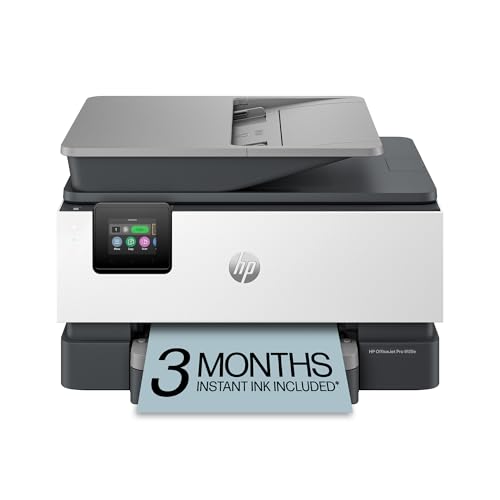
HP OfficeJet Pro 9125e — Office-ready all-in-one
The OfficeJet Pro 9125e’s title is a job description: colour inkjet, wireless, all-in-one, easy home printing, colour documents, mobile compatibility, print, scan, copy and fax, for home and office use. Read it as the specification of the household’s serious printer — the machine under the home business, the remote worker’s desk, the family whose paperwork has deadlines. “OfficeJet Pro” is HP’s business line name, and the function list backs it: the full quartet of print, scan, copy and fax, in colour, on the network. For an Apple household, the load-bearing phrase is mobile compatibility, HP’s statement that this machine is built to be printed to from phones and tablets — the iPhone and iPad’s native habitat.
AirPrint itself is not named in the title, and the spec box below records that faithfully. The Apple buyer’s verification is a two-minute documentation check, and it should be performed with the seriousness the rest of the machine deserves, because a printer bought for an Apple ecosystem on an assumption is a printer whose first evening may disappoint. What can be said from the title is that the 9125e is aimed squarely at the mobile, wireless, multi-device household — the exact population AirPrint serves — and that its office-grade function set makes it the most capable HP in this guide if the verification confirms what its positioning promises.
In the household’s division of labour, this is the machine that absorbs the grown-up printing: contracts scanned and faxed, colour documents for clients, the school form copied at midnight. Its colour is document colour — the chart, the logo, the highlighted clause — produced at an office rhythm. Households whose printing is mostly that rhythm, arriving from a scatter of Apple devices across the house, will find the 9125e’s stated recipe the most complete match in the HP half of this field.
- Type: Colour inkjet all-in-one
- Functions stated: Print, scan, copy and fax
- Connectivity stated: Wireless, with mobile compatibility
- Positioning stated: Easy home printing; home and office use
- AirPrint: Not stated in the listing title — verify with the manufacturer documentation
- Auto document feeder: Not stated in the listing title — verify with the manufacturer documentation
Strengths
- The complete office function set — print, scan, copy, fax — in colour, on the wireless network.
- Mobile compatibility is aimed at exactly the phone-and-tablet printing Apple households do.
- OfficeJet Pro positioning suits home-business and remote-work duty cycles.
Trade-offs
- AirPrint is not named in the title — the Apple buyer must verify it in documentation.
- No feeder is stated, so scanning stacks may be a flatbed task on this model.
- Its capability is wasted on a household whose printing is a few pages a month.
Best for: Apple households running a home office or business who need one capable colour all-in-one for every device. Not suited for: the lightest-use household, which would be buying a department for a desk’s worth of work.
Review the 9125e’s listing on Amazon: check price on Amazon.

Canon PIXMA TR8620a — AirPrint stated outright
One word in this title is worth the whole review’s emphasis: AirPrint, stated by Canon in the listing itself, with its registered mark. For the Apple buyer, that word is the end of the verification question that shadows the rest of this field. The TR8620a declares itself an AirPrint printer; a Mac, iPhone or iPad on the same network will find it and print to it with the operating system’s built-in machinery, no Canon software required for the printing itself. Around that declaration, the title builds a complete home-office all-in-one: copier, scanner, fax, an auto document feeder, photo and document printing, Android support alongside the Apple side, and Alexa compatibility, in black.
The feeder deserves its moment. An auto document feeder transforms the scan half of an all-in-one from a page-at-a-time ritual into a stack job — the signed contract, the school pack, the sheaf of receipts for the accountant — and in an Apple household the scanned files land in the same ecosystem the printing came from, ready to be mailed from the phone that started the job. Photo and document printing stated together describe the household’s real mixture honestly: this machine expects to print a boarding pass and a birthday photograph in the same afternoon, and to be judged on both.
As the guide’s one title-stated AirPrint machine, the TR8620a also serves as the reference point for the others’ verification: it shows what certainty looks like in a listing, and it is the natural recommendation for the Apple buyer who wants the compatibility question answered by the manufacturer in writing, in the title, before any money moves. Households deep in the Apple ecosystem, with a document habit and no patience for protocol detective work, will find this the most restful purchase in the guide.
- Type: All-in-one printer for home office
- Functions stated: Copier, scanner, fax, plus print
- Feeder stated: Auto document feeder
- AirPrint stated: Yes — named in the listing title
- Also stated: Photo and document printing, Android support, works with Alexa
- Finish stated: Black
Strengths
- AirPrint is stated in the title — the Apple compatibility question answered by Canon itself.
- An auto document feeder plus fax makes it a complete document machine, not just a printer.
- Photo and document printing are both claimed, matching the household’s mixed workload.
Trade-offs
- Cartridge ink economics apply — heavy colour volume belongs to the tank machine’s review below.
- Its full feature set is more machine than a print-occasionally household will ever open.
- Duplex is not stated in the title, so two-sided printing is a documentation question.
Best for: Apple households that want AirPrint guaranteed in writing plus a feeder-equipped all-in-one for documents. Not suited for: the very high-volume colour household, whose costs point at the EcoTank instead.
See the TR8620a’s listing on Amazon: check price on Amazon.

Canon PIXMA TS6520 — Compact Apple-desk pick
Apple households tend to care how things look on the desk, and the TS6520 is the pick that cares back. Its title leads with a 1.42-inch OLED display, a white finish, a compact design for the home and an intuitive control panel, around the family essentials of wireless colour printing, scanning and copying. The OLED matters in a way spec-readers underrate: a small OLED is crisp at an angle and in bright rooms, and on a minimalist machine the screen is the interface — status, ink, instructions — rendered in text a person can read from a chair rather than a code of blinking lights to be deciphered kneeling.
For the Apple side of its life, the title states wireless colour inkjet printing without naming AirPrint, and the spec box records the fact with the guide’s usual fidelity. The verification check belongs in this machine’s purchase as in the others’. What the title does establish is the machine’s intended habitat: the visible desk, the shared room, the shelf among the Apple devices it serves — a printer designed to be looked at, in a finish that suits bright rooms, with controls pitched at people who expect devices to explain themselves.
The omissions are the compact class’s usual ones and should be priced calmly: no document feeder is stated, no duplex is stated, no fax. The TS6520’s buyer is purchasing the everyday experience — tonight’s homework sheet from a daughter’s iPad, the recipe from a phone, the scanned drawing — executed gracefully in a small footprint. Households whose printing is heavier or more document-bound have their picks elsewhere in this guide. Households whose printer must earn its place in a beautiful room, and then behave beautifully, have this one.
- Design stated: Compact for home, intuitive control panel
- Display stated: 1.42-inch OLED display
- Type: Wireless colour inkjet printer (all-in-one)
- Functions stated: Print, scan and copy
- Finish stated: White
- AirPrint: Not stated in the listing title — verify with the manufacturer documentation
Strengths
- Compact white design suits the visible desks and shared rooms Apple households actually have.
- A small OLED display gives clear, readable status — the minimalist machine’s whole conversation.
- Wireless print, scan and copy cover the everyday Apple household workload completely.
Trade-offs
- AirPrint is unstated in the title and must be verified in documentation.
- No feeder or duplex is stated, limiting document-heavy work.
- White finishes record the evidence of inky fingers and craft afternoons.
Best for: design-conscious Apple households with everyday printing in shared rooms. Not suited for: the document-pack workflow, which needs the feeder machines above and below.
Look at the TS6520’s Amazon listing: check price on Amazon.

Epson EcoTank ET-3850 — Tank volume with Ethernet
The ET-3850 is the heavy lifter of this field, and its title carries the evidence in bulk: a wireless colour all-in-one cartridge-free supertank printer for the home office, with scanner, copier, an auto document feeder and Ethernet, mobile printing, and — a listing detail worth savouring — a bonus black ink bottle and USB cable in the box. Start with the tank. Cartridge-free supertank printing means refillable reservoirs, which means the Apple household that prints constantly — the teacher’s worksheets, the student’s course packs, the home business’s colour documents — stops rationing pages and stops meeting empty cartridges at deadline o’clock. Ink becomes a level you glance at, not an event you survive.
Then the connections, because this machine states the fullest set in the guide: wireless for the house’s scatter of devices, Ethernet for a fixed, stable network identity, mobile printing for the phones and tablets, and even a USB cable in the box for the one computer that wants a wire. For an AirPrint household, Ethernet merits a special word: AirPrint discovery over a wired printer connection is as reliable as the technology gets — the printer is always at its post, always discoverable, immune to the Wi-Fi weather at the far end of the house. AirPrint by name is not in this title, as the spec box records; mobile printing is, and the documentation check completes the picture.
The feeder completes a machine that reads like a checklist of the home office’s accumulated wishes: scan the stack, copy the pack, print the colour document from any Apple device in the building, refill the tanks twice a year and think about something else. If the Apple household’s printing has a volume problem and a document habit simultaneously, the ET-3850 is where this guide has been leading.
- Type: Wireless colour all-in-one cartridge-free supertank printer
- Functions stated: Print, scan, copy (scanner and copier stated)
- Feeder stated: Auto document feeder (ADF)
- Connectivity stated: Wireless, Ethernet, mobile printing
- Included stated: Bonus black ink bottle and USB cable
- AirPrint: Not stated in the listing title — verify with the manufacturer documentation
Strengths
- Tank ink removes the cartridge emergency from a high-volume Apple household’s life.
- ADF plus Ethernet is the document-and-stability pairing no other pick here matches.
- Mobile printing and full all-in-one functions serve every device and every job in the house.
Trade-offs
- AirPrint is not named in the title — verification in documentation is part of this purchase.
- A tank machine’s economy needs volume to justify it; light users will never cash it in.
- Its home-office scale and presence exceed what a small desk corner wants to host.
Best for: high-volume Apple households and home offices wanting colour, scanning stacks and network stability in one machine. Not suited for: the occasional printer, for whom a DeskJet’s simplicity is the honest match.
Check the ET-3850’s current listing on Amazon: check price on Amazon.

Brother HL-L2460DW — Monochrome laser route
Every Apple household guide needs its laser, because every Apple household’s printing is mostly text and text belongs to lasers. The HL-L2460DW’s title: a wireless compact monochrome laser printer with duplex and mobile printing, black-and-white output, a Refresh subscription trial included, Alexa compatibility. Translate for the Apple context. Mobile printing is stated — the phrase that places this machine in the driverless era, built to accept jobs from devices that carry no drivers, which is the iPhone and iPad’s exact situation and AirPrint’s whole philosophy. AirPrint by name is not in the title; the spec box says so; the documentation check applies. What is in the title is a compact duplex laser — the document machine par excellence — that speaks the network’s mobile language.
Duplex, stated here, is the feature document households consume most: manuscripts, course packs, contracts and revision notes emerge two-sided automatically, halving paper and shelf weight for the machine’s whole life. Laser’s other virtues are the quiet kind: toner that waits patiently through a quiet month and prints perfectly on return, text with a permanence and crispness inkjets admire, and an engine with nothing to dry out. An iPad-heavy household — reading on the tablet, printing the chapter to annotate — will find this machine’s rhythm exactly its own: send from the couch, collect from the hall, annotate at the table.
The limits are absolute and should be embraced as such: no colour, ever; no scanner; no copier. This is a printer in the strict sense, and the household that buys it should either have its scanning solved elsewhere or be certain its life is genuinely print-only. For the manuscript-and-documents household, that certainty is easy, and the HL-L2460DW becomes the most focused instrument in this guide: Apple devices for reading and writing, one compact laser for the paper, nothing in the house pretending to be something it is not.
- Type: Wireless compact monochrome laser printer, print-only
- Output stated: Black and white only
- Duplex stated: Yes
- Mobile printing stated: Yes
- Included note stated: Refresh subscription trial; works with Alexa
- AirPrint: Not stated in the listing title — verify with the manufacturer documentation
Strengths
- Laser text with stated duplex is the document household’s ideal engine.
- Mobile printing stated — built for the driverless, phone-first printing model.
- Compact and single-purpose: no unused hardware to buy, house or maintain.
Trade-offs
- Monochrome only, permanently — colour work needs another machine.
- No scanning or copying functions at all.
- AirPrint is not named in the title; Apple buyers verify it in documentation as with most picks here.
Best for: document-heavy Apple households whose printing is text — manuscripts, packs, contracts — from iPads and Macs. Not suited for: any household that prints photographs or scans forms; those jobs live in the all-in-ones above.
Compare the HL-L2460DW’s listing on Amazon: check price on Amazon.

HP DeskJet 2923 — Simple starter
The DeskJet 2923 closes the guide at its simplest point: a colour inkjet printer, wireless, all-in-one, pitched at easy home printing, colour documents, mobile compatibility, print, scan and copy, ideal home use. For the Apple household whose printing is light and whose patience for machinery is lighter, that recipe is the whole requirement. The iPhone sends the boarding pass; the iPad sends the homework; the Mac sends the form; the DeskJet prints them, scans the signed copy back, and asks nothing else of anyone. Mobile compatibility is HP’s stated phrase for that phone-first readiness, and while AirPrint is not named in the title — the spec box keeps the record straight — the machine’s entire positioning is the mobile household’s.
Simplicity at this level is a feature with a shadow, and both deserve their sentence. The feature: nothing to configure beyond the network, nothing to learn beyond the print sheet every Apple device already shows, a machine a grandparent or a child can operate after one demonstration. The shadow: no feeder is stated, no duplex is stated, and cartridge ink rewards the light use this machine is built for while taxing anything heavier. The household that prints a few colour documents a week will never meet the shadow. The household printing a thesis will meet it in the first month and should be reading the ET-3850’s review instead.
As the guide’s entry point, the 2923 also plays the role of the second printer gracefully — the machine in the spare room or the student’s digs, covering local jobs while a heavier machine elsewhere carries the household’s volume. Apple ecosystems make such arrangements painless, since every device can see every printer on the network and choose by proximity. Bought knowingly, for light duty in a mobile household, the DeskJet is not the least of these six. It is the one most precisely sized to its job.
- Type: Colour inkjet all-in-one
- Functions stated: Print, scan and copy
- Connectivity stated: Wireless, with mobile compatibility
- Positioning stated: Easy home printing, ideal home use
- AirPrint: Not stated in the listing title — verify with the manufacturer documentation
- Auto document feeder: Not stated in the listing title — verify with the manufacturer documentation
Strengths
- The simplest complete recipe for an Apple household: colour print, scan, copy, wireless, mobile-ready.
- Nothing to learn beyond the print sheet every Apple device already presents.
- Works gracefully as a light-duty main printer or a second room’s local machine.
Trade-offs
- AirPrint is not named in the title — the documentation check applies.
- No feeder or duplex is stated; document packs are beyond its design.
- Cartridge economics punish volume — heavy households belong at the tank pick.
Best for: light-printing Apple households wanting the easiest possible colour all-in-one. Not suited for: volume or document-pack work, which this guide assigns to the ET-3850 and the feeder Canons.
See the DeskJet 2923’s current Amazon listing: check price on Amazon.
Comparison
| Printer | Engine | Functions | AirPrint in title? | Networking stated | Defining trait |
|---|---|---|---|---|---|
| HP OfficeJet Pro 9125e | Colour inkjet | Print, scan, copy, fax | Not stated | Wireless | Office-ready HP all-in-one |
| Canon PIXMA TR8620a | Colour inkjet | Print, scan, copy, fax | Stated | AirPrint stated (network printing) | AirPrint declared, feeder fitted |
| Canon PIXMA TS6520 | Colour inkjet | Print, scan, copy | Not stated | Wireless | Compact OLED design pick |
| Epson EcoTank ET-3850 | Colour inkjet tank | Print, scan, copy | Not stated | Wireless + Ethernet | Tank volume with ADF |
| Brother HL-L2460DW | Mono laser | Not stated | Wireless | Duplex document laser | |
| HP DeskJet 2923 | Colour inkjet | Print, scan, copy | Not stated | Wireless | Simplest starter |
One row merits a reader’s second glance: the Brother laser is the only pick whose table entry lacks colour, a scanner and a fax — and it may still be the right row for the household reading this on an iPad with a forty-page document waiting. Tables compress away temperament; the reviews restore it. If your household’s printing arguments are about paper and pace, the laser’s row is fuller than it looks. If they are about photographs and forms, the all-in-ones’ rows are. The table sorts the machines; only the household can sort itself.
The AirPrint column is this guide in miniature: one “stated,” five honest silences, and a standing instruction to verify the five in documentation — where, in the modern driverless market, the answer is very often yes. Choose first by workload from the other columns — engine, functions, networking — then run the verification on the winner, with the TR8620a waiting for the buyer who wants the question pre-answered.
How Does AirPrint Actually Work?
AirPrint is best understood as Apple standardising the conversation between device and printer so thoroughly that no translator — no driver — is needed. Your iPhone discovers printers on the local network automatically. When you tap Print, the system asks the printer what it can do — sizes, colour, two-sided — and presents exactly those options in the familiar print sheet. The job is then rendered and sent in a standard form the printer has declared it understands. The printer’s half of the intelligence lives in the printer; the device’s half is built into every Mac, iPhone and iPad. Nothing is installed, nothing is updated by hand, and a new Apple device joining the household prints within minutes of joining the Wi-Fi.
That architecture explains this guide’s shopping logic. Because the capability lives in standards rather than in software packages, the buyer’s questions are about the printer’s protocol support — which is documented by manufacturers in their specifications, and sometimes, as with the TR8620a, declared in the listing title itself. It also explains the network’s centrality: AirPrint discovery happens on the local network, so the printer must be on the same network as the Apple devices, awake or waking, at a stable place in that network. A printer connected by USB to one Mac can sometimes be shared onward, but that is a workaround wearing the standard’s clothes; the native arrangement, and the one every pick here is built for, is the printer on the network in its own right.
It also explains why guests can print. A visitor’s iPhone on your Wi-Fi sees the same printer your own devices see, because discovery is a property of the network, not of any account or pairing. The dinner guest printing a boarding pass, the grandparent printing a photograph they just took of the grandchildren — these small hospitalities, impossible in the driver era without a ceremony, are the standard’s social dividend. Households that entertain, host family or run a small guest-facing business feel this more than they expect to, and it is worth a line in the buying decision: the printer bought on the standard serves people who do not live with it, which is a fair definition of good infrastructure.
One practical consequence deserves emphasis: because nothing is installed, nothing breaks when macOS or iOS updates. Households scarred by the old ritual — a system upgrade orphaning a printer driver the week of a deadline — will recognise AirPrint’s deepest virtue. The compatibility is maintained by Apple on one side and the printer’s firmware on the other, and the user’s maintenance burden is reduced to keeping the printer’s firmware current through its own update path.
How Do You Set Up Printing for a Whole Apple Household?
Order matters more than expertise. First, place the printer and join it to the home network — by Wi-Fi for most of these machines, or by cable for the ET-3850 if a wired post is available, which buys the stability Ethernet always buys. Second, reserve the printer a stable identity on the network if your router offers address reservation, so discovery never becomes a treasure hunt after a power cut. Third, walk the household’s devices in a deliberate lap: from each Mac, iPhone and iPad, print one test page — a photograph from one, a document from another — and confirm the printer appears in each print sheet with its options intact.
Then set the defaults that shape daily life. Where a machine offers two-sided printing, decide whether it is the household’s default for long documents. Agree where finished printing is collected, and teach the younger members of the household the three recovery skills: cancelling a job from the device that sent it, checking paper before declaring breakage, and asking before feeding the printer anything more exotic than plain paper. Finally, put the ink or toner conversation on a household footing — a spare set for cartridge machines, a glance at the tank levels for the EcoTank — because in an Apple household the printer serves everyone, and its supplies are everyone’s business.
Name the printer something the household recognises while you are about it. The print sheet lists what the network reports, and a household with one printer can survive any name — but the two-printer household, and any household whose neighbours’ devices occasionally appear in range, will bless the five minutes spent giving the machine a name like “Study Printer” instead of a model number’s alphabet soup. Small clarity, repeated at every print, compounds like interest.
The lap is worth repeating when a new device arrives or the router changes; it takes ten minutes and it converts the printer from a device that worked once into infrastructure the household trusts. Trust, in the end, is the product AirPrint sells: printing as a non-event, from any device, by any member of the family, at any hour a boarding pass can become urgent.
Which of These Printers Suits a Home Office on Apple Devices?
Read the office’s work, not its wishes. An office of documents — contracts, invoices, scanned files, the occasional fax — is served by the feeder machines: the TR8620a with AirPrint stated and a fax aboard, or the ET-3850 with its tank economy and Ethernet spine, or the OfficeJet Pro 9125e with the full office function set. An office of manuscripts and drafts is served by the Brother laser and its duplex discipline. An office that is really a desk in a living room, where the printer must be seen daily, is served by the TS6520’s compact design. The DeskJet waits for the office that is barely an office at all — a laptop, a phone, and a few pages a week.
There is a small test that cuts through the speculation, and a household can run it before spending anything: for one week, every time anyone prints, the job is noted on a sheet by the current printer — what, how many pages, colour or not, scanned or printed. Seven days of that sheet is a portrait of the household’s printing more accurate than any member’s impression of it, and it maps onto this guide’s six reviews almost mechanically. Data is not romantic, but neither is a printer bought for a household that exists only in its buyer’s imagination.
Volume arbitrates the ties. Count a month of the office’s pages honestly — most home offices are surprised in one direction or the other — and let the count choose between cartridge and tank, between the laser’s pace and the inkjet’s colour. Then run the AirPrint verification on the winner unless the winner is the TR8620a, in which case Canon has run it for you in the title. An Apple home office is a small ecosystem with outsized expectations of effortlessness; the machines above are the ones whose stated designs point at meeting them.
What About Scanning Into an Apple Ecosystem?
Printing gets the glory in an Apple household, but scanning does the paperwork. The signed form returning to school, the receipt entering the accounts, the child’s drawing becoming a message to grandparents — all of it travels through the all-in-one’s scanner, and it travels by a different road than printing. macOS carries its own scanning support through Image Capture and the Printers & Scanners settings, and manufacturers add their own applications for the fuller feature set — feeder control, file destinations, the one-tap workflows. The honest summary for a buyer is that scanning from an all-in-one into Apple devices is a solved problem with model-specific shapes, and the shape for your chosen machine is, once again, a documentation question worth the two minutes it takes.
The feeder machines in this guide — the TR8620a and the ET-3850 — change scanning’s character most. A flatbed scans the irreplaceable and the awkward: the passport, the artwork, the page of a bound book. A feeder scans the stack: the contract, the term’s forms, the archive box a household eventually digitises. Apple households tend to discover their scanning shape in the first month — a household of forms wants the feeder, a household of treasures wants the flatbed’s gentleness, and most want both, which is why feeder machines keep their flatbeds and why the all-in-one, rather than the printer, is this ecosystem’s natural citizen.
Set the destination before the habit forms. Scanned files should land somewhere the whole household can reach — a shared folder, the family’s cloud space — with names a human can search later. The machine’s job ends at a good file in the right place; the household’s job is deciding where “right” is, once, instead of excavating a downloads folder quarterly. It is the least technical advice in this guide and the advice whose absence is felt longest.
What Should You Expect When Printing Photographs From an iPhone?
Honesty, tuned to the household’s hopes. The colour inkjets in this guide will print a handsome photograph from an iPhone in the time it takes to choose it — the birthday, the holiday, the grandchild — and for the fridge door, the family album and the school project, that print is not a compromise; it is the point. AirPrint makes the path from camera roll to paper the shortest in the history of photography, and the machines here walk it gladly. What they are not is the dedicated photo printers of this site’s other guides, with their eight and nine colours and their gallery intentions; the household whose photographs are its art should read those guides for the studio machine and keep a pick from this one for the household’s everything else.
Paper is the lever the iPhone photographer actually controls. The same file printed on plain paper is a memorandum; on photo paper, with the printer told so in the print options, it is a photograph. Keep a small stock of photo paper beside whichever inkjet serves the family, teach the household that the paper choice is part of the print — chosen in the sheet before the job is sent — and the iPhone’s camera roll becomes a supply of prints rather than a archive of intentions. The TS6520’s OLED and the all-in-ones’ colour handling all serve this small ritual well; the Brother laser, magnificently, wants no part of it, and says so in monochrome.
How Should an Apple Household Handle Ink and Toner?
By treating supplies as part of the ecosystem rather than as emergencies with barcodes. The six machines here divide into three supply philosophies. The cartridge inkjets — both HPs and both Canons — sip in small vessels: right for light and moderate use, happiest with a spare set in the drawer so the deadline and the empty cartridge never meet. The EcoTank abolishes the vessel entirely in favour of visible reservoirs and occasional refills, suiting the household that prints enough to watch a level fall with satisfaction. The Brother’s toner is the ascetic of the three: long-lived, patient, indifferent to idle months.
The Apple angle is subtle but real. A household that prints from five devices generates its printing in a steady drizzle rather than in sessions, and a drizzle is exactly the pattern that empties a cartridge by surprise — no single big job warns anyone. The countermeasures are the same as ever, merely more necessary: spares bought calmly for cartridge machines, a monthly glance at the EcoTank’s windows, and a household agreement that whoever sees a low warning speaks, because in a five-device home the warning appears on whichever screen happened to ask, and silence is how surprises are scheduled.
Common Mistakes
Assuming “wireless” and “AirPrint” are synonyms. They are not, and this guide’s spec boxes exist to keep them separate: wireless is the road, AirPrint is a language spoken on it. Five of these six titles state the road without naming the language. The documentation settles the language question in minutes — skipping that check because the road looked promising is how an Apple household buys a printer it must then forgive.
Buying a USB-first printer for an Apple ecosystem. A printer whose natural life is a cable to one computer fights the household’s shape every day: the iPad cannot see it, the iPhone queues through workarounds, the new Mac must be introduced by hand. Every pick here is a network printer because the ecosystem is a network. Honour the architecture and the printing disappears into it.
Forgetting the scanner’s separate life. Printing to an Apple device is AirPrint’s story; scanning into one runs through the manufacturer’s arrangements and the Mac’s own tools, a different path with its own setup. All-in-one buyers should test the scan path in the first week — one document, from the machine, into the household’s actual workflow — rather than discovering its character during the first urgent form.
Placing the printer at the edge of the Wi-Fi and blaming Apple. Discovery failures that look like ecosystem problems are usually geography: a printer in a dead corner, dropping off the network between jobs. Move it within honest range, or use the ET-3850’s Ethernet and remove geography from the equation entirely. The standard is reliable; the radio path must be allowed to be.
Letting one device monopolise the defaults. In a multi-Mac, multi-iPad house, one person’s settings — glossy photo paper, single-sided, highest quality — become everyone’s surprise if the household never discusses its defaults. A two-minute family agreement about everyday settings prevents a year of small printing mysteries.
Should an Apple Household Own One Printer or Two?
More of them than admit it end with two, and the ecosystem makes the arrangement unusually graceful. Because every Apple device sees every network printer, a second machine is not a second regime — it is a second destination in the same print sheet. The classic pairing mirrors this guide’s own spread: a colour all-in-one where the family lives, carrying photographs, projects and scanning, and a monochrome laser where the documents live, carrying manuscripts and packs at duplex speed. Each machine does the work its engine was born for, neither is asked to compromise, and when one is busy or down, the other covers at reduced capability rather than not at all.
The pairing also solves the placement argument that single-printer households conduct for years. The beautiful compact machine can live in the living room without inheriting the thesis printing; the workhorse can live in the study without exiling the family’s colour. Households contemplating the second machine should buy the first one well — the one covering the larger share of their real printing — and let a season of use argue for its partner. What they should not do is buy one compromised machine that is half laser, half photo printer and fully neither; the six picks here were chosen as specialists and a generalist for exactly that reason.
Final Recommendation
For the Apple household that wants the compatibility question answered before purchase, the Canon PIXMA TR8620a is the guide’s restful centre: AirPrint stated in its title, a feeder and fax aboard, photo and document printing claimed together. For volume, the Epson EcoTank ET-3850 adds tank economics, an ADF and Ethernet stability. For office breadth, the HP OfficeJet Pro 9125e fields the full function set; for documents alone, the Brother HL-L2460DW is the laser the iPads deserve; for the visible desk, the Canon TS6520; for the lightest touch, the HP DeskJet 2923. Every route except the Canon’s carries the same one-step toll: verify AirPrint in the chosen model’s documentation before the money moves. Pay that small toll gladly — it is the entire difference between an Apple household that hopes its printer belongs, and one that knows.
Frequently Asked Questions
Do I need to install anything on my Mac or iPhone to use AirPrint?
No — that is the point of the standard. AirPrint is built into macOS, iOS and iPadOS: a supported printer on your network appears in the print sheet automatically, with its real options, and prints with nothing installed or configured. Manufacturers offer optional apps that add scanning and maintenance features, but the printing itself belongs to the operating system.
Only one title here says AirPrint. Should I avoid the other five?
No — you should verify them, which is a different thing. Listing titles are marketing summaries, not specifications; AirPrint support lives in each manufacturer’s documentation and specification pages, where it is either confirmed or not. The TR8620a simply spares you the step by declaring it in the title. Treat the five unstated cases as questions with a free, two-minute answer, and let the workload columns of the comparison table choose your candidate first.
Does AirPrint work over Ethernet as well as Wi-Fi?
Yes — AirPrint discovery and printing run over the local network however the printer joins it, and a wired printer is often the most reliable citizen of that network: fixed address, no signal weather, always discoverable. The ET-3850’s stated Ethernet is therefore a genuinely Apple-relevant feature, not a leftover from the office world. iPhones and iPads on the home Wi-Fi reach a wired printer through the router exactly as they reach a wireless one; the wire is invisible to them, and the stability is not.
Can iPads and iPhones print everything a Mac can?
Nearly. The print sheet on iOS and iPadOS offers the printer’s core options — copies, colour, two-sided where supported, page range — in a simplified form, and for the household’s daily printing that covers the need entirely. The Mac’s print dialogue exposes finer controls for the occasions that want them. In practice the household prints from whichever device the document is on, which is exactly the freedom the standard was built to give.
What happens when the printer is asleep and I print from my iPhone?
In the normal course of things, nothing dramatic: network printers in this class wake for incoming jobs, and the page is waiting when you reach the machine. The behaviour worth arranging in advance is the printer’s own power settings — set during the setup lap, so the machine sleeps lightly enough to hear the network and deeply enough to suit the household’s conscience about standby power. If a morning’s first print ever goes missing, the printer’s sleep settings, not the iPhone, are the first place to look.
Is a laser or an inkjet better for an Apple household?
The workload decides, as the Brother’s review argues: documents and manuscripts belong to the laser’s duplex, toner patience and text quality; colour, photographs and mixed family work belong to the inkjets; heavy colour volume belongs to the tank. Apple’s side of the bargain is identical in all three cases — the same print sheet, the same discovery — so the choice can be made purely on the printing, which is as it should be.
Will a new iPhone or Mac work with the printer I buy today?
That is the quiet dividend of buying on a standard rather than on software. Because AirPrint lives in Apple’s operating systems and the printer’s own firmware, a new device joining the household inherits the printer the moment it joins the network — no installation, no compatibility archaeology, no farewell to a printer orphaned by an upgrade. Keep the printer’s firmware current through its own update path, and the arrangement renews itself with each generation of Apple hardware the family adopts.
What should I do if my iPhone cannot see the printer?
Work the geography before the settings. Confirm the printer and the phone are on the same network, move the printer within honest Wi-Fi range or wire it if it offers Ethernet, restart the printer, and try again. Discovery is a local-network conversation; nearly every failure is a network failing to carry it, not an Apple device refusing to speak. If the printer was verified for AirPrint and the network is sound, the conversation resumes.
Related Guides
Apple households furnishing the desk around the printer should see our guide to ultrawide monitors for content creators, where the Mac’s wide-screen companions are compared. Multi-monitor Mac setups are covered in our roundup of daisy chain monitors, built around Thunderbolt-connected displays. And for glare-free screens in bright Apple-lit rooms, our selection of matte monitors completes the workstation picture.