What's inside
- Key Takeaways
- Quick Picks
- How did we choose these picks?
- What do the VESA numbers actually mean?
- Which mounting style suits which post?
- How does mounting change a checkout counter, really?
- What should arm users know about ergonomics at this size?
- How do you manage cables on a screen that moves?
- What should you check during the first week on the wall?
- How do the six picks compare side by side?
- How do you install a mounted screen without regrets?
- How should renters, refits and temporary posts handle mounting?
- What mistakes do buyers make with mounted small monitors?
- Which workplaces gain the most from a mounted small screen?
- What does a good mount cost you in effort, honestly?
- Final Recommendation
- How do you troubleshoot a mounted screen that misbehaves?
- Frequently Asked Questions
- What is the short checklist for the best 20 inch monitors with VESA?
- Related Guides
As an Amazon Associate I earn from qualifying purchases. This post may contain affiliate links at no extra cost to you.
widgetverdict.com is reader-supported. When you buy through links on our site, we may earn an affiliate commission.
Where to buy: every screen below links to a verified Amazon listing, and every one carries a VESA mounting pattern, because a monitor that cannot leave its stand does not belong in this particular guide at all.
A stand is a decision somebody else made about your desk. The best 20 inch monitors with VESA mounting are for buyers who would rather make that decision themselves: the shopkeeper who needs the screen on the wall behind the till, the home worker whose desk is a kitchen counter cleared twice a day, the clinic receptionist whose surface belongs to clipboards and patients, the maker who wants a parts diagram floating above the bench. In each case the panel is ordinary and the mounting is the entire point.
An honesty note before the picks, because this class demands one. True twenty-inch glass barely exists; the screens that serve this search are 19.5-inch and 19-inch panels from the twenty-inch class, joined here by clearly labelled 21.5-inch and 22-inch neighbours for buyers whose bracket does not care about an extra inch of width. Each heading prints the real diagonal. If your enclosure is measured to the millimetre, shop from the first three picks and ignore the neighbours entirely.
What follows treats mounting as a system rather than a checkbox. A VESA pattern is four threaded holes with a standard spacing, nothing more, and whether it improves your life depends on the bracket or arm you pair with it, the wall or desk edge behind it, the cables leaving it and the hands that will adjust it. The reviews therefore spend as long on holes, hinges and cable slack as on pixels, which is the correct proportion for this keyword.
Key Takeaways
- Confirm the pattern spacing, 75 or 100 millimetres, before buying any bracket.
- A wall mount returns the whole footprint of a stand to a crowded counter.
- Arms suit shared desks; fixed brackets suit screens nobody should move.
- Leave cable slack for the full swing of an arm, not just its resting pose.
- Small panels are light, so modest mounts suffice when anchored properly.
- Labelled larger neighbours appear here only where their size is printed plainly.
Quick Picks
| Pick | Badge | Why it earns its place |
|---|---|---|
| Acer K202Qbi 19.5-inch | Counter default | The twenty-inch-class panel with 1600 by 900, both legacy inputs and a mount for counter life. |
| YOTETION 19-inch HD | Compact 75 pattern | A small 75 by 75 pattern that pairs with the lightest brackets and arms. |
| ViewSonic VA1903H 19-inch | Fixed-post specialist | Wall-ready screen built for tills, camera grids and reception posts that never move. |
| Acer KB220Q 21.5-inch | Full HD step-up | A labelled larger neighbour with 1080p and 100Hz for desks that can spare the width. |
| Philips 22E2N1100 22-inch | Long-warranty wall pick | A 22-inch IPS panel whose maker advertises its VESA readiness in the product name itself. |
| ASUS VP227HF 22-inch | Frameless arm pick | Thin bezels that look deliberate on a dual-screen arm in a tidy home office. |
How did we choose these picks?
Mounting came first, ahead of every picture quality consideration, which reverses the order of most monitor guides and is the only honest order for this one. A candidate needed a documented VESA pattern in its verified listing, not a hopeful photograph of its back panel. Screens whose mounting depends on a proprietary adapter sold separately were excluded, because a buyer searching this keyword wants holes in the cabinet, not homework.
Size honesty came second. The twenty-inch class contributes the first three picks, each labelled with its true diagonal, and the larger screens that follow are presented as neighbours with their sizes in their headings, never blended silently into the class. A buyer with a hard width limit can stop after the third review with a complete shortlist; a buyer with a flexible wall can keep reading with full information.
Third, we weighed the cabinet around the holes. A recessed mounting well can block a bracket’s plate; a power socket placed beside the pattern can foul an arm’s clamp; a cabinet that flexes when lifted by its bracket will creak through its working life. Light weight helped every candidate here, since a small panel asks little of its mount, but the placement of sockets and the rigidity of the rear shell separated the graceful installations from the awkward ones.
Finally, the picture still had to serve the post. A mounted screen is often read from farther away and at stranger angles than a desk screen, so legibility at distance, a matte surface and viewing angles that survive a step sideways all counted. A mount can fix a screen’s position; it cannot fix a panel that washes out when a colleague reads it from the side.
What do the VESA numbers actually mean?
VESA is a standards body, and its mounting interface is disarmingly simple: four screw holes arranged in a square on the back of the monitor, spaced either 75 or 100 millimetres apart in this size class, threaded for small machine screws. A bracket or arm with the matching spacing bolts straight on. That is the whole technology, and its simplicity is why it has outlived every proprietary stand design ever shipped.
The spacing is the detail that strands buyers. A 100-pattern bracket cannot borrow two holes from a 75-pattern panel, and adapter plates, while they exist, add wobble to exactly the joint that should feel machined. Read the spacing from the listing or the manual, read it again on the bracket’s box, and only then let money move. The YOTETION in this guide uses the smaller spacing; most of the others use the larger one, and each review states which.
Weight ratings need the same literal reading. A mount’s capacity assumes its own fixings are sound: studs or solid masonry for a wall bracket, a desk edge with real thickness for a clamp arm, the supplied screws fully seated. Small monitors weigh little, often less than a full kettle, so capacity is rarely the limit; the wall itself is. Plasterboard alone, without anchors rated for the job, is not a mounting surface but a delay before a repair.
One more quiet specification matters on arms: the tilt and swivel ranges. A screen above a counter must tilt down toward shorter staff and customers; a screen on a shared desk must swivel without its base, because it has no base anymore. Check those ranges against the post the screen will serve, since an arm that cannot point the panel at its audience has merely relocated the problem.
Which mounting style suits which post?
A fixed wall bracket is the honest workhorse. It holds one screen at one height and angle, costs little, hides its cables down the wall and removes the display from every spill, knock and wipe-down the counter sees. Choose it for tills, camera monitors, kitchen recipe screens and any post where the audience stands in a predictable place. Its inflexibility is a feature in public spaces, where a screen that can be moved will be moved, daily, by strangers.
A tilting bracket adds one careful degree of freedom, and it earns its place under cabinets and high shelves, where the screen must angle down toward its reader. Kitchens are the natural home: a recipe and video screen tucked beneath a wall cabinet, tilted toward the cook, lifted clear of steam and splashes as far as the room allows. The tilt hinge should be firm enough to hold its angle against the occasional touch, because a screen that droops weekly will be resented weekly.
A desk arm is the choice for private and shared workspaces. It returns the entire desk surface, lets the screen float at eye height, swings aside when the desk becomes a table and turns a portrait document into a genuine pleasure. Arms demand the most from their installation: a sound clamp, cable slack for the full arc, and an owner willing to adjust the tension once, properly, instead of living with a slow sag.
A pole mount, clamped or grommet-fixed through the desk, serves the multi-screen and standing posts: the dispatcher with two panels, the bench technician with a diagram screen above a work screen. Poles look industrial because they are, and in exchange they hold their geometry for years without the slow drift that articulated arms can develop under daily repositioning.

Acer K202Qbi 19.5-inch — Counter default
On its stand, the K202Qbi is a sensible small office screen. On a bracket, it becomes the answer to a dozen small-space problems at once, which is why it leads a guide about mounting rather than merely appearing in it. The panel is the class standard, 19.5 inches at 1600 by 900, the inputs cover HDMI and VGA, and the cabinet carries the mounting pattern that lets the stand go into a cupboard on day one.
The mounting case rests on balance. This screen is light enough for a modest bracket, its sockets sit clear of the mounting area so a plate does not foul the cables, and its matte panel reads well from the standing distance a bracket usually creates. A cafe owner mounting it behind a till gets a menu and order screen that no elbow can knock; a home worker mounting it under a shelf gets the desk back in full.
Picture expectations should stay calibrated. At bracket distance the 1600 by 900 grid looks clean, because distance forgives density, and the 75Hz refresh keeps scrolling stock lists and documents feeling composed. What the panel will not do is impress anyone with colour or contrast at arm’s length; it is a working surface, and mounted working surfaces are judged by legibility and uptime.
Keep the stand, a small practical note. Brackets outlast screens, and a future owner, a different room or a temporary desk during a refit will all be glad the original feet survived in a labelled bag. Mounting is a reversible decision only when the parts for reversing it still exist.
- True size: 19.5 inches
- Resolution: 1600 by 900
- Refresh rate: 75Hz
- Inputs: HDMI and VGA
- Mounting: VESA pattern in the cabinet
- Best mount pairing: fixed or tilting wall bracket
Strengths
- The class-standard panel, ready to leave its stand.
- Legacy VGA keeps elderly till machines connected.
- Light cabinet suits modest, inexpensive brackets.
Trade-offs
- The stand you discard was tilt-only anyway.
- Colour work is beyond its brief, mounted or not.
- No speakers for posts that need spoken prompts.
Best for: counters, under-shelf desks and small offices going wall-mounted. Not suited for: buyers who will never actually remove the stand.

YOTETION 19-inch HD — Compact 75 pattern
The YOTETION’s contribution to a mounting guide is a number: 75. Its VESA pattern uses the smaller 75 by 75 millimetre spacing, which pairs with the lightest class of brackets and compact arms, the sort sold for small televisions and monitors in kitchens and caravans. If your mounting hardware already exists and it is small, this screen may be the one that fits it without an adapter plate.
Its panel runs 1440 by 900 in a taller 16:10 shape, and mounted life flatters that shape. A recipe page, a long email or a portrait-leaning document reads naturally on a wall screen that cannot be pulled closer, because the extra vertical lines do the work your arm cannot. Home workers mounting a secondary screen high, for reference material and calls, will feel the same advantage.
Because the maker is a minor brand, the mounting homework matters more, not less. Confirm the pattern spacing from the listing, test the threads with the bracket’s screws by hand before lifting anything, and check the cabinet’s rear for the flex that would make an articulated arm feel vague. The example we assessed presented a tidy, honest rear shell for its tier.
Inputs are HDMI and VGA, refresh is a plain 60Hz, and the whole proposition is modest in a way that suits a mounted auxiliary screen. Nobody mounts a second panel to be dazzled; they mount it to have the instructions, the inbox or the baby monitor feed held steadily where the eye expects it. This screen holds things steadily.
- True size: 19 inches
- Resolution: 1440 by 900, taller 16:10 shape
- Refresh rate: 60Hz
- Inputs: HDMI and VGA
- Mounting: VESA 75 by 75 millimetres
- Best mount pairing: compact arm or small bracket
Strengths
- The smaller pattern matches lightweight existing hardware.
- Tall panel shape suits wall-read documents.
- Slim cabinet keeps a mounted screen close to the wall.
Trade-offs
- An adapter awaits owners of 100-pattern brackets.
- Minor-brand support is thinner than the big names.
- No refresh headroom for motion-heavy content.
Best for: kitchens, caravans and auxiliary wall screens on small hardware. Not suited for: a main desk where a major brand’s warranty matters.

ViewSonic VA1903H 19-inch — Fixed-post specialist
Some screens should never move again once installed, and the VA1903H is proudly one of them. ViewSonic sells it for point of sale, security monitoring, reception desks and similar posts, and describes it as wall-mountable in the same breath. Bolt it at the right height on day one and its working life becomes a single, unchanging act of showing the same interface clearly.
The panel is 1366 by 768, and in this context that earns a defence rather than an apology. Camera recorders output grids designed for such resolutions, till software draws its buttons for them, and a mounted screen is read from farther away, where density matters least. Spending more for pixels a camera grid cannot use is not diligence; it is waste wearing diligence’s clothes.
Where this screen must be judged firmly is placement, because a fixed post forgives nothing. Mount it too high and staff crane all shift; too low and customers cannot see the total they are meant to check; angled at a window and the afternoon sun erases it. The review advice is to tape the outline at the proposed height, run a real shift beside the tape, and only then drill. The screen’s simplicity makes that discipline the whole installation.
Inputs cover HDMI and VGA, which between them span the recorders, mini PCs and elderly till boxes this screen will meet. ViewSonic’s eye-care tuning, easy to dismiss on a home panel, matters on a display that glows beside the same faces for years. Buy it for a post, mount it once, and expect it to fade into the building’s furniture in the best possible way.
- True size: 19 inches
- Resolution: 1366 by 768
- Inputs: HDMI and VGA
- Mounting: wall-mount capable
- Intended posts: POS, security, reception
- Best mount pairing: fixed bracket, installed once
Strengths
- Purpose-described by its maker for fixed posts.
- Resolution matches camera and till interfaces honestly.
- Proven availability keeps multi-post sites consistent.
Trade-offs
- Coarse text if anyone repurposes it for office work.
- Fixed life means placement errors are permanent.
- Nothing about it courts a home buyer’s eye.
Best for: tills, recorder cupboards and reception walls. Not suited for: reading-heavy work or anyone undecided about placement.

Acer KB220Q 21.5-inch — Full HD step-up
This is the first labelled neighbour, and its label matters: 21.5 inches of glass, wider than the twenty-inch class by a margin a tight enclosure will notice. Where the wall is open and the bracket is standard, that extra width buys the class’s natural upgrade, a full 1920 by 1080 panel, and with it text that stays crisp at distances where the smaller grids begin to soften.
Acer fits the KB220Q with a 100Hz refresh and a fast quoted response for its tier, which a mounted screen uses in an unexpected place: scrolling. Stock lists, browser pages and document feeds moved by many hands across a day look steadier here, and the panel’s AdaptiveSync support calms the tearing that makes a shared screen look cheap. None of this turns it into a gaming monitor; all of it makes mounted information feel composed.
The mounting story is straightforward, with VESA readiness stated by the maker and a cabinet light enough for the same modest brackets as its smaller sibling. HDMI and VGA again cover the old-new divide, and the 99 percent sRGB coverage Acer quotes gives this screen the most presentable colour in the guide, useful for a reception wall that doubles as a slideshow for the business’s own photographs.
Choose it when the post is public-facing and the wall can take the width: a studio’s booking screen, a workshop’s job board, a family kitchen’s command display. The extra size reads as intentional in those places, where the strict twenty-inch class can look like an apology. Measure first, as always, and let the wall decide.
- True size: 21.5 inches, a labelled neighbour to the class
- Resolution: 1920 by 1080
- Refresh rate: 100Hz
- Inputs: HDMI and VGA
- Mounting: VESA mountable
- Best mount pairing: tilting bracket on an open wall
Strengths
- Full HD clarity at mounted reading distances.
- Smoother scrolling for shared information posts.
- Presentable colour for public-facing walls.
Trade-offs
- Too wide for enclosures built for the smaller class.
- Its stand, if kept, remains a basic affair.
- Overqualified for a camera grid’s modest needs.
Best for: open walls, job boards and reception displays. Not suited for: fitted kiosk enclosures or strict twenty-inch replacements.
Philips 22E2N1100 22-inch — Long-warranty wall pick
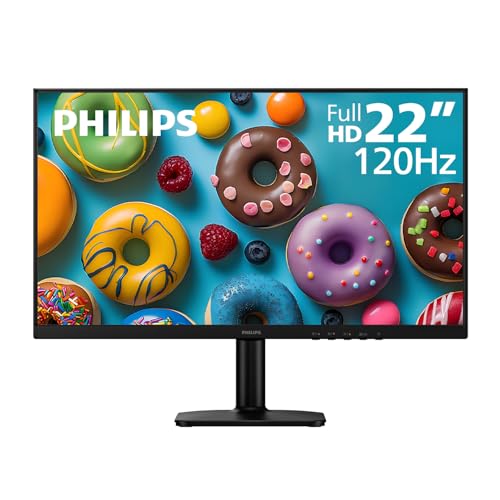
Philips puts the mounting in the product’s name, VESA included as a headline rather than a footnote, and backs the screen with an unusually long advance replacement warranty for this tier. For a buyer mounting a screen somewhere awkward, a ladder’s reach above a shop counter or behind a reception desk, that warranty posture matters, because a mounted failure is a small project, not a parcel swap.
The panel is a 22-inch IPS running full HD with a refresh that Philips rates at 120Hz in overclocked terms and a fast motion response figure. On a wall, the IPS part does the real work: a queue of customers, a waiting room, a family spread across a kitchen all read the screen from angles, and IPS holds its contrast and colour through those angles where cheaper panels fade to grey milk.
Adaptive Sync, flicker-free backlighting and a low-blue mode complete a specification that reads like a home monitor’s, and that is the point of this pick. It is the mounted screen for a room that is also lived in: the home office wall, the spare-room desk that must clear for guests, the studio flat where the work screen hangs above a table that becomes dinner. It mounts like equipment and behaves like furniture.
Installation notes are conventional and worth following anyway. The VESA pattern pairs with standard brackets, the inputs are HDMI and VGA, and the cabinet’s weight sits comfortably within a modest mount’s rating when the wall fixings are honest. Set the height for the room’s main posture, seated or standing, and resist splitting the difference, which serves neither.
- True size: 22 inches, a labelled neighbour to the class
- Resolution: 1920 by 1080
- Panel: IPS with wide viewing angles
- Inputs: HDMI and VGA
- Mounting: VESA, advertised in the product name
- Warranty: long advance replacement cover for the tier
Strengths
- Viewing angles suit audiences spread across a room.
- Warranty posture respects the effort of unmounting.
- Home-friendly tuning behind an equipment-grade mount.
Trade-offs
- The largest footprint in this guide.
- Its headline refresh needs the overclock setting.
- More screen than a single-job post can justify.
Best for: lived-in rooms, waiting areas and home office walls. Not suited for: tight enclosures or buyers counting every centimetre.

ASUS VP227HF 22-inch — Frameless arm pick
Hang two ordinary monitors on a dual arm and the bezels announce themselves as a thick cross in the middle of your work. Hang frameless screens and the seam nearly vanishes. The VP227HF closes this guide because its frameless design and VESA wall-mount readiness make it the natural citizen of a multi-screen arm, where the twenty-inch search often ends when a tidy desk matters more than a strict diagonal.
Again the label is explicit: this is a 22-inch panel, 1920 by 1080, running at 100Hz with Adaptive-Sync and a fast quoted response. ASUS wraps it in its eye-care package, low blue light and flicker-free operation, and quotes 99 percent sRGB coverage. On an arm at eye height, in a home office that hosts long writing or coding sessions, those comfort features are the specification, more than any number on the box.
The arm pairing deserves a moment of practical attention. Two of these on a dual mount need a desk edge with genuine thickness, cables long enough to reach the centre pole from both sides, and a patient half hour spent levelling the pair so their top edges agree. Done properly, the result looks designed rather than assembled, and the frameless edges are what sell the illusion.
As a single mounted screen it still earns its place, particularly above a shallow desk where its thin profile hugs the wall. But its distinctive joy is plural: matched panels, matched colour, a clean horizon of glass. Buyers planning a pair should buy both at once, from the same listing, so the panels share a production batch and a colour temperament.
- True size: 22 inches, a labelled neighbour to the class
- Resolution: 1920 by 1080
- Refresh rate: 100Hz with Adaptive-Sync
- Inputs: HDMI and VGA
- Mounting: VESA wall mount ready
- Best mount pairing: dual arm, bought as a matched pair
Strengths
- Frameless edges disappear on multi-screen arms.
- Eye-care tuning suits long seated sessions.
- Consistent panels make matched pairs realistic.
Trade-offs
- A dual setup doubles the bracket homework.
- No DisplayPort for dock-driven desk chains.
- Its elegance is wasted inside a kiosk.
Best for: dual-screen home offices and shallow desks. Not suited for: industrial posts or single-job camera duty.
How does mounting change a checkout counter, really?
Picture the counter before and after, in the detail a till operator would notice. Before: the screen stands on a foot that collects dust and card receipts, the cable drapes where the scanner lead also wants to be, and every bag of shopping knocked against the counter nudges the display a few degrees off line, so staff straighten it by reflex a dozen times a day without ever deciding to. The screen works, and it also nags.
After a fixed bracket goes up, the counter surface returns to the business. The card reader gains a permanent home, the receipt printer stops migrating, and cleaning becomes a single wipe across an empty shelf instead of a negotiation around a stand. The screen itself, raised to the operator’s eye line and tilted a fraction downward, stops catching the window’s reflection because its angle was chosen at installation rather than inherited from a plastic foot.
The customers feel a difference they cannot name. A mounted totals screen sits where eyes expect it, steady while the counter shakes, and does not sway when the operator leans across with a bag. Trust in a transaction is built from such small steadinesses. Shops that mount their screens rarely return them to stands, even when a refit would make standing them easy again, which is the market’s own verdict on the arrangement.
Kiosks push the same logic further, into enclosures where the screen is the business. There the bracket is not furniture but structure, the pattern spacing is a manufacturing decision, and the strict twenty-inch class, honestly measured, is the only part of this guide that applies. A kiosk builder reading the larger neighbours’ reviews should close the page after the third pick, with our blessing and a complete shortlist.
What should arm users know about ergonomics at this size?
An arm promises eye-level comfort, and delivers it only when its owner understands what eye level means for a small screen. The panel’s centre should sit a little below the horizontal line of sight, close enough that text reads without leaning, far enough that the whole display fits in a comfortable glance. Small panels tempt owners to push them back like large ones, whereupon the text shrinks and the owner leans in, defeating the arm’s entire purpose in one gesture.
Portrait rotation is the arm feature small-monitor owners underestimate. A 19.5 or 21.5-inch panel turned upright holds a long document, a chat column or a code file with a naturalness that landscape never offers, and the pivot costs nothing once the mount allows it. Writers, administrators and programmers who rotate daily should confirm the arm’s rotation range and the panel’s viewing behaviour upright, because a screen whose colours shift along its tall axis will annoy in portrait even if landscape seemed fine.
Shared desks add a social dimension to the same hardware. An arm that swings between two work positions must move with one hand, hold its place against the nudge of a keyboard, and return to a marked home position without a ritual. Tape marks on the desk edge, unfashionable and effective, give each user their geometry back in seconds. The best shared installations are boring in exactly this way.
Finally, an arm changes the desk’s underside. The clamp needs a clear edge, cable trays gain a purpose, and the power brick, once hidden behind a stand, must find a tray or a hook of its own. Budget the tray and a longer signal lead with the arm itself, and the floating screen looks intentional from every angle, including the one visitors see from the doorway.
How do you manage cables on a screen that moves?
Cable discipline on an articulated mount follows one rule: dress the cable for the position farthest from home. Swing the arm to its extremes, rotate the panel, raise it to full height, and only then fix the cable’s clips and ties, leaving a service loop at each joint that looks excessive in the resting pose. That loop is not slack to be ashamed of; it is the travel allowance that keeps connectors seated for years.
Run signal and power together down the arm’s channel or clips, then separate them at the desk, power toward the socket, signal toward the machine, each with its own gentle radius. Sharp bends at the connector are where intermittent faults are born, and an intermittent fault on a mounted screen presents as a flicker that everyone blames on the panel. Support the cable’s weight so the plug carries none of it.
Label both ends. A mounted installation hides its own wiring so successfully that future troubleshooting becomes guesswork, and a small label at the PC end and another at the screen end turns a Saturday fault into a five-minute swap. Photograph the dressed route before the desk goes back against the wall, for the same reason: the installation’s memory should not depend on the installer’s.
Where the public can reach the cables, in shops and surgeries and libraries, add physical protection to the plan. A cover strip down the wall, a bracket position that keeps leads behind the counter line, and connectors checked on a cleaning rota all belong to the real specification of a public mounted screen, however invisible they are in a product listing.
What should you check during the first week on the wall?
Check the fixings after the first day and again after the first week, with a hand on the bracket and an eye on the level. New installations settle: screws seat, arms find their true tension, walls reveal whether the anchors were honest. A quarter turn found early is maintenance; the same looseness found after a season is a screen hanging by habit.
Check the picture from every seat and standing place that will use it, at the hours those places are used. Morning light and evening light accuse different positions, and a screen that serves a queue must be read from the queue, not from the installer’s ladder. Adjust the tilt while the ladder is still in the building, because it will not come back for a two-degree improvement.
Check the cables at full swing, and check who else touches the screen. In shared spaces a mounted display invites adjustment by strangers, and a firm tilt hinge, a marked home position and a word with the team prevent the slow drift into a crooked, resented installation. In private spaces the same week is when the arm’s tension gets its one proper adjustment, after which it should be left alone.
Keep the receipt, the bracket’s box and the screen’s stand together until the month turns. Most mounted regrets declare themselves quickly, a height that nags, a pattern mismatch solved by the wrong adapter, and the returns window is the cheapest time to change your mind. After a calm month, installations like these usually run untouched until the room itself is rebuilt.
How do the six picks compare side by side?
| Pick | True size | Resolution | Mounting character |
|---|---|---|---|
| Acer K202Qbi | 19.5 inch | 1600 by 900 | All-round bracket citizen |
| YOTETION 19-inch | 19 inch | 1440 by 900 | Smaller 75 pattern |
| ViewSonic VA1903H | 19 inch | 1366 by 768 | Fixed once, forever |
| Acer KB220Q | 21.5 inch | 1920 by 1080 | Open-wall step-up |
| Philips 22E2N1100 | 22 inch | 1920 by 1080 | Wide-angle wall screen |
| ASUS VP227HF | 22 inch | 1920 by 1080 | Frameless arm pairing |
The table’s honest message is that mounting hardware does not care about your keyword. It cares about pattern spacing, weight and the wall behind the plaster. Choose the screen whose size your space can truly take, then choose the mount whose character matches the post, fixed for public, articulated for private, and the pairing will feel inevitable.
How do you install a mounted screen without regrets?
Rehearse with tape first. Mark the panel’s outline on the wall at the proposed height, live beside it through a normal day, and move it before any drilling happens. Height errors are the regrets that persist, because a screen ten centimetres too high taxes every neck in the building, every day, in a way nobody mentions after the first week and everybody feels.
Find the structure. A wall bracket’s screws belong in studs, masonry or anchors honestly rated for the load and the leverage, which grows as an arm extends. Tap, probe with a small pilot hole where permitted, and treat a fixing that spins or crumbles as information, not as a challenge to tighten harder. The screen is light; the arm’s leverage is not.
Route cables before the final tightening. Power and signal leads need slack for the mount’s full movement, a gentle drip loop where a kitchen or workshop might splash, and separation from heat sources such as radiators and oven updrafts. A cable stretched to its limit in the resting pose will unplug itself the first time the arm swings, usually mid-presentation.
Finish by levelling, tightening in sequence and photographing the result for the next person. Installations in shared buildings outlive their installers, and a photograph of the bracket, the anchor type and the cable route turns a future replacement from archaeology into a ten-minute job. Keep the stand, the spare screws and that photograph together, labelled, in one place.
How should renters, refits and temporary posts handle mounting?
Not every screen needs to outlive its room. Exhibition stands, market stalls, training courses in hired halls and pop-up clinics all need displays that mount quickly, travel safely and leave no evidence. For those posts the desk-clamped pole is the unsung answer: it grips a table edge in minutes, holds a small panel at a rehearsed height, and comes away with the rest of the kit at closing time, no drill ever involved.
Temporary mounting changes the cable plan as much as the bracket plan. Leads should be Velcro-tied rather than clipped into channels, long enough for a different table tomorrow, and coiled for transport in the same case as the screen. A spare signal lead belongs in that case permanently, because the lead forgotten at headquarters is the one the whole stall waits for, and small monitors forgive almost everything except having nothing to connect to.
Renters at home sit between the permanent and the temporary. A clamp arm on a desk leaves the walls untouched and moves house in the same box as the screen, which settles the landlord question entirely. Where a tenancy does allow picture hooks and small fixings, a fixed bracket may still be acceptable, but the wise renter photographs the wall before and after, keeps the filler for the leaving week, and treats the deposit as part of the mounting budget from the start.
Refits deserve a forward-looking word. A business refitting a counter should run its bracket positions past the people who will staff the new layout, at full scale, with tape and a borrowed screen, before the joinery is final. Moving a bracket after the counter is built costs ten times the conversation it would have cost before, and the staff who live with the result were available for that conversation all along.
What mistakes do buyers make with mounted small monitors?
Buying the bracket first and the screen second is the classic inversion. The pattern spacing then dictates the shortlist, and buyers discover that the panel they wanted uses the other spacing. Screen first, spacing confirmed, bracket second: the order costs nothing and prevents the adapter plate wobble that haunts rushed installations.
Mounting at television height is the second error. A screen read for information belongs at the eye height of its reader in their working posture, which for a desk is far lower than the instinct to hang it like a picture suggests. Counters confuse the matter because staff stand and customers glance, but the staff read it a hundred times for every customer glance, so staff height wins.
Forgetting the audience’s light is the third. A mounted screen cannot be nudged away from a reflection the way a desk screen can, so a glossy window opposite becomes a permanent feature of the display. Check the proposed position at the brightest hour, with the actual room lights on, before committing the fixings.
The fourth mistake is discarding the stand and the screws. Tenancies end, shops refit, desks move rooms. A mounted screen with its original stand in storage is an asset that can work anywhere next; a screen without one is a problem that needs a bracket in every future home. Storage is cheap. Keep the parts.
Which workplaces gain the most from a mounted small screen?
Pharmacies and clinics gain quietly and considerably. A mounted screen at a consultation counter keeps patient information at staff eye height, angled away from the queue by a tilt chosen once, while the counter itself stays clear for the paperwork, samples and payment devices that compete for it all day. The mount also lifts the display out of the cleaning zone, which in a clinical setting is not a metaphor but a rota with chemicals involved.
Workshops gain a different way. A job-card screen on a pole above the bench survives the bench’s life: parts land, tools slide, fluids spill, and the display floats above all of it, readable from the vehicle and the parts washer alike. The VGA-friendly panels in the strict class suit the elderly diagnostic machines these rooms keep, and a bracket costs less than the first cracked stand replacement it prevents.
Libraries, schools and community desks gain consistency. A row of identical mounted screens at identical heights teaches its users where to look without instruction, resists the casual rearrangement that public furniture suffers, and lets a single caretaker check a whole room’s displays in one walk. The fixed ViewSonic end of this guide exists for exactly these rooms, where adjustability is not a benefit but an invitation.
Home kitchens gain the most charming version. A recipe screen under a cabinet, a family calendar at the breakfast wall, a video call with grandparents conducted at counter height while dinner happens around it: these are mounted small monitors living their best life, close to the action, clear of the flour, and sized to a glance rather than a cinema. The twenty-inch class was, without knowing it, designed for the kitchen wall.
What does a good mount cost you in effort, honestly?
Set aside an unhurried hour for a fixed bracket, and half a day of pottering for a dual arm you intend to level properly. The fixed bracket’s hour divides into rehearsal with tape, finding structure, drilling, hanging and dressing cables, in that order, and rushing the rehearsal is the only way the hour becomes three. The arm’s half day is mostly adjustment: tension, levelling, cable loops, portrait stops, repeated until the screens hold their geometry against a deliberate nudge.
The tools are ordinary and worth gathering first: a drill with the right bits for your wall, a stud finder or a patient knuckle, a level long enough to span the bracket, a tape measure, a pencil, and a second person for the moment of hanging, because holding a screen, aligning four holes and starting a screw is a three-handed job that pride tries to do with two.
After installation, the effort budget drops to nearly nothing, which is the economic heart of the whole idea. A mounted screen needs no dusting of its stand, no straightening, no desk space defended against encroaching paperwork. It asks for a wipe, an occasional check of its fixings, and otherwise disappears into the room’s architecture. Few upgrades pay their effort back as completely, or as quietly.
Final Recommendation
Start from the post, not the panel. A counter or kiosk in the strict twenty-inch class should take the Acer K202Qbi on a fixed or tilting bracket and be done by lunch. A kitchen or caravan with small existing hardware belongs to the YOTETION and its compact pattern, while a till or camera post that will never move belongs to the ViewSonic, installed once at a rehearsed height. Where the wall is open and the audience is a room, the labelled larger neighbours earn their width, the Philips for a single public screen, the ASUS for an arm carrying a frameless pair. The mount is the purchase; the monitor is its partner, and chosen in that order the two will hold each other up for years.
How do you troubleshoot a mounted screen that misbehaves?
Work from the wall outward. A screen that flickers when the arm moves has a cable or connector problem until proven innocent, so reseat both ends, inspect the bend nearest the plug and test with the spare lead you stored for this moment. A screen that droops has a tension or fixing problem, answered by the arm’s adjustment points in the maker’s order, not by tightening every screw in sight. A screen that has drifted off level in a public place has usually been adjusted by its audience, and the cure is a firmer hinge setting and a quiet word, in that order.
A picture that looks wrong only at certain hours is accusing the room, not the panel. Note the time, note which lights were on, and stand where the reader stands before touching a menu. Reflections and washout follow the sun and the strip lights with complete loyalty, and a two-degree tilt change at the right hour outperforms an afternoon of picture settings. Mounted screens reward this patience because their position, once understood, stays understood.
Frequently Asked Questions
How do I know whether my monitor uses the 75 or 100 pattern?
Measure between the centres of two adjacent screw holes on the back of the cabinet, in millimetres. The listing and the manual both state the spacing as well, and the two sources should agree. If they disagree, trust the measurement you took with the screen in front of you.
Can a desk arm hold a monitor this small without sagging?
Comfortably, provided the arm’s minimum weight rating is respected, which surprises people. Very light panels can sit below an arm’s intended load and refuse to stay down, floating upward against a spring tuned for heavier screens. Check both ends of the mount’s weight range, not just the maximum.
Is it safe to mount a monitor above a kitchen counter?
Yes, with placement sense. Keep the screen clear of direct steam paths and hob splash zones, use a tilting bracket so the cook can angle it, and route the power lead away from heat. A wipeable distance from the action matters more than any specification on the box.
What cables should I buy with a wall mount?
Measure the route the cable will actually travel, down the wall and along to the source, then buy the next length up. Signal and power both deserve the slack, and an arm needs extra for its swing. A cable bought exactly to the resting distance is a cable bought twice.
Can I mount a monitor on a rented wall?
That depends on your agreement, and the cautious route is a desk-clamped arm or pole, which leaves no holes at all. Where drilling is permitted, fill and record the fixing points when you leave. A clamp mount also travels with you, which renters tend to value at moving time.
Why do some picks here exceed twenty inches?
Because the strict class offers few mounting-ready panels, and buyers with open walls are often better served by a clearly labelled 21.5 or 22-inch screen than by a compromised smaller one. Every larger pick prints its true size in its heading, so a buyer with a hard limit can ignore them safely.
What is the short checklist for the best 20 inch monitors with VESA?
Choose the screen first and read its pattern spacing from the listing, then measure the wall or desk edge that must carry it, then rehearse the position with tape through a normal day. Buy the bracket whose spacing, weight range and movement match the post, gather the tools and a second pair of hands, and route cables for the mount’s full travel before the final tightening. Photograph the finished installation, label both ends of every lead, and store the stand, its screws and the bracket’s spare fixings in one labelled place. Recheck the fixings after a day and after a week. That sequence, dull as it reads, is the entire difference between a mounted screen that disappears into the room’s life and one that features in its complaints.
A final thought for the undecided: if the tape rehearsal already improves the room, if the outline on the wall makes the counter feel calmer and the desk feel larger before any hardware arrives, the decision has effectively been made by the space itself. Trust that rehearsal. Walls rarely lie about what they want to hold.
Remember, finally, that a mount is a promise the room makes to the screen: a chosen height, a chosen angle, a surface returned to its people. Keep that promise with honest fixings and a rehearsed position, and even the humblest panel in this guide will look, from the doorway, like it was always meant to hang exactly there.
Related Guides
For the wider class without the mounting requirement, continue to our twenty-inch monitor roundup. Buyers whose wall can take more glass should compare the 22-inch monitor guide, and anyone planning a pair on one arm will find our 21.5-inch monitor picks a useful second opinion.

[…] weighing the next size up should see our guide to 21.5-inch monitors, while anyone whose small screen must hang rather than stand can continue to the VESA-ready small […]