What's inside
- Key Takeaways
- Quick Picks
- How Did We Judge Reliability Without Inventing Numbers?
- Why Does Drive Class Matter More Than Any Single Specification?
- What Does CMR Recording Have to Do With Dependability?
- How Do You Read a Drive’s Health Before It Fails?
- What Size Drive Should a Reliable Array Actually Use?
- How Should Spares and Replacements Be Planned?
- How Do Heat, Vibration and Dirty Power Actually Wear a Drive Down?
- What Should a Small Business Standardise On?
- How Do the Six Drives Compare as Reliability Buys?
- What Habits Make Any of These Drives More Reliable in Practice?
- What Mistakes Undermine Reliable Drives?
- Final Recommendation
- Frequently Asked Questions
- Related Guides
As an Amazon Associate I earn from qualifying purchases. This post may contain affiliate links at no extra cost to you.
widgetverdict.com is reader-supported. When you buy through links on our site, we may earn an affiliate commission.
Where to buy: the six internal drives below are listed on Amazon as bare drives for NAS units, servers and serious desktops — check the model number in each name against your device’s drive list before ordering, because this class of hardware rewards exact matches and punishes approximate ones.
Reliability is the least glamorous word in all of storage and the only one that matters at 3 a.m. when a volume degrades without warning. The best hard drives for reliability are not the fastest drives or the cheapest per terabyte; they are the drives built for the unglamorous arithmetic of continuous duty — spinning twenty-four hours a day, in warm enclosures, beside neighbouring drives that vibrate, under workloads that never politely pause or apologise. Every pick in this guide comes from that world: enterprise and NAS lines from Seagate, Western Digital and Toshiba, all built on CMR recording where their listings say so, all in the 3.5-inch SATA class that NAS boxes and servers are built around.
An honesty note belongs at the front of this guide, because reliability invites exaggeration and this guide declines the invitation. A drive’s listing title sometimes carries hard reliability evidence — a workload rating, stated plainly — and sometimes carries none at all. Where a title states a figure, we quote it. Where it stays silent, the spec boxes below say the figure is not stated in the listing title, and the analysis leans on what is actually there: the drive’s class, its intended home, its cache and speed class, and the services its maker attaches to it. Class is not a guarantee — any single drive can fail on its first day, and a wise buyer plans for that possibility with spares and backups rather than resenting it — but class is what you can actually buy, and this guide treats it as such.
It also treats reliability as a system property. The most dependable drive ever made still needs a backup, a NAS that reports its health, and an owner who reads the warnings. The picks below are the hardware half of that system, chosen because their makers designed and rated them for the duty that destroys lesser drives.
Key Takeaways
- All six picks are 3.5-inch internal SATA drives from enterprise or NAS lines — no consumer desktop drives appear in this guide.
- CMR recording is named in the listings for the IronWolf Pro, the WD Red Pro and the Toshiba X300 PRO; it is the recording method this duty favours.
- Only the Toshiba X300 PRO’s listing title states a workload figure — up to 300 TB per year — so other drives’ ratings are described as not stated in their listing titles rather than guessed.
- Capacities run from 10TB to 24TB, with the IronWolf Pro 24TB at the top for dense NAS builds and the 10TB enterprise pair at the fleet-and-spares end.
- Seagate attaches Rescue Services to the IronWolf Pro in its listing; the others make their case on class and design instead.
- Reliability is bought as a class and managed as a system: RAID or backups, health monitoring and a spare plan matter as much as the badge on the drive.
- Heat, vibration and dirty power wear drives down faster than calendars do — placement and a small UPS are reliability purchases too.
- A cold spare in the same model family turns a failure into an afternoon of maintenance instead of a week without redundancy.
Quick Picks
| Pick | Badge | Why it earns its seat |
|---|---|---|
| Seagate IronWolf Pro 24TB Enterprise NAS Internal HDD | The NAS Flagship | 24TB of CMR enterprise NAS storage with Rescue Services named in the listing. |
| WD Red Pro 18TB NAS Internal Hard Drive | The Proven NAS Workhorse | 18TB, CMR, 7200 RPM and a 512MB cache from WD’s NAS Pro line. |
| Western Digital 16TB WD Gold Enterprise Class Internal Hard Drive | The Data-Centre Line | WD’s enterprise-class Gold at 16TB for server and workstation duty. |
| Seagate Exos X18 10TB Enterprise Hard Drive | The Hyperscale Heritage Pick | Exos enterprise engineering at a 10TB size suited to arrays and spares. |
| WD Ultrastar DC HC510 10TB Hard Drive | The Data-Centre Veteran | Ultrastar DC lineage at 10TB, from the line built for continuous data-centre service. |
| Toshiba X300 PRO 22TB Hard Drive | The Stated Workload Rating | 22TB, CMR, and the only listing here that states its workload rate: up to 300 TB per year. |
How Did We Judge Reliability Without Inventing Numbers?
We worked from what a buyer can verify before purchase. First, class: every pick belongs to a line its maker sells explicitly for NAS, enterprise or high-workload professional use, and that positioning is stated in each listing title. Second, recording method: CMR is named where the title names it, and CMR is the method suited to sustained writing and RAID rebuilding. Third, the mechanical basics the titles do state — 7200 RPM class across the board, SATA 6Gb/s interfaces, caches from 256MB to 512MB — because a drive’s sustained behaviour follows from its mechanics.
Fourth, and most important, we respected silence. Workload ratings and MTBF figures are the standard vocabulary of reliability, and exactly one listing title in this set speaks that vocabulary out loud: the Toshiba’s, at up to 300 TB per year. For the other five, the spec boxes record that the workload rating is not stated in the listing title, and the text does not smuggle in figures from elsewhere. A buyer who needs a specific rated workload for a specific drive should pull that drive’s datasheet from the manufacturer — the honest path, and the one this guide points to rather than papering over.
Finally, we weighed what surrounds the drive: Rescue Services on the IronWolf Pro, the sheer depth of the Exos and Ultrastar lines’ deployment history as product families, and the NAS-specific positioning of the Red Pro and IronWolf Pro. Reliability is partly metallurgy and partly ecosystem, and a buyer is entitled to weigh both halves openly rather than pretending only the metal counts.
Why Does Drive Class Matter More Than Any Single Specification?
A consumer desktop drive is engineered around an assumption: it will work office hours, rest at night, and mostly read. An enterprise or NAS drive is engineered around the opposite assumption — continuous operation, constant writing, neighbours vibrating on both sides, and a workload measured in hundreds of terabytes a year. The differences that follow are not visible in a photograph: they live in the firmware’s error recovery behaviour, the vibration tolerance, the duty rating of the components, and the validation the line undergoes before it ships.
This is why two drives with identical capacity, interface and spin speed can be entirely different reliability propositions. The specification sheet tells you how a drive performs on day one; the class tells you what its maker designed it to survive by day one thousand. Buyers building a NAS that will hold a family’s photographs or a small business’s records are buying day one thousand, and should shop accordingly.
Class also shapes behaviour inside an array. NAS and enterprise firmware is tuned to fail gracefully and predictably under RAID — reporting errors quickly so the controller can rebuild from the remaining drives, rather than stalling while it retries a dying sector. In a multi-bay system, that behaviour is not a detail; it is the difference between a degraded array that rebuilds overnight and one that drops a second drive out of the set at the worst possible moment.
There is a warranty-shaped shadow to class as well, worth mentioning without quoting terms no listing here states: enterprise and NAS lines are sold into support relationships, with replacements and documentation organised around business continuity, while consumer lines are sold into retail. When something goes wrong, the class of drive you bought determines the kind of conversation you have about it. Buyers for whom that conversation matters — anyone whose storage earns money — should weigh it alongside the hardware, and confirm the exact warranty terms on the product page or datasheet before purchase, since the listing titles in this guide do not print them.
What Does CMR Recording Have to Do With Dependability?
CMR — conventional magnetic recording — writes each track independently, without overlapping its neighbours. The alternative approach overlaps tracks to pack more capacity onto a platter, and pays for it when data must be rewritten: neighbouring tracks have to be rewritten too, which slows sustained writing and complicates the drive’s life inside an array that is rebuilding under pressure. For a drive that mostly reads, the difference may never surface in ordinary weeks. For a NAS drive being written to around the clock, or an array drive rebuilding after a failure, CMR’s straightforward behaviour is the safer engineering.
That is why this guide notes CMR wherever a listing states it — the IronWolf Pro, the Red Pro and the X300 PRO all name it — and why its absence from a title is recorded rather than assumed in either direction. The Exos, Gold and Ultrastar lines carry enterprise positioning that speaks for their intended duty; where their listing titles do not spell out the recording method, the spec boxes below say exactly that, leaving the datasheet as the authority.

Seagate IronWolf Pro 24TB Enterprise NAS Internal HDD — The NAS Flagship
The IronWolf Pro is the drive this guide would hand to a NAS owner who said “just tell me the serious one.” Its listing stacks the relevant credentials without ornament: enterprise NAS positioning, CMR recording, 3.5-inch SATA 6Gb/s at 7200 RPM with a 512MB cache, a capacity of 24TB that tops this roundup, and Rescue Services included. That combination addresses both halves of reliability — the drive is built for the duty, and if the worst happens anyway, a recovery service stands behind it.
Capacity deserves a word in a reliability context, because density changes array maths. A 24TB drive lets a four-bay NAS hold what once needed eight bays, which means fewer drives spinning, fewer points of failure, and rebuilds that involve less hardware. The counterweight is rebuild time: when a drive this large fails, the array works for a long while to restore redundancy, and during that window the remaining drives carry the stress. IronWolf Pro’s NAS tuning exists for exactly that window — the drive is designed to be the survivor doing the rebuilding as much as the citizen being protected.
Its listing title does not state a workload rating or MTBF figure, and this guide will not invent one; the IronWolf Pro’s case rests on its class, its CMR recording, its cache and speed, and the Rescue Services its maker attaches. Buyers speccing against a contractual workload number should read Seagate’s datasheet for the ST24000NT002. Buyers speccing for a home or small-business NAS that must simply not be the weak link will find this the most complete answer in the set.
One scenario deserves a direct answer: the small business whose NAS is effectively its filing cabinet, email archive and project store in one. For that buyer, the IronWolf Pro’s combination — NAS firmware behaviour, CMR, top capacity and a recovery service — stacks more safeguards per bay than any other pick here, and the premium reads less like indulgence than like insurance priced in hardware.
- Capacity: 24TB
- Class: enterprise NAS internal hard drive, per the listing title
- Recording: CMR, stated in the title
- Interface and speed: SATA 6Gb/s, 7200 RPM, 512MB cache
- Model: ST24000NT002
- Workload rating: not stated in the listing title — consult the manufacturer’s datasheet for the rated figure
- Services: Rescue Services named in the listing title
Strengths
- The largest capacity here, which shrinks array size and component count.
- CMR recording and NAS-specific positioning suit continuous multi-bay duty.
- Rescue Services add a recovery path behind the array’s own redundancy.
Trade-offs
- A failed 24TB drive means a long rebuild window for the array to endure.
- Its listing title leaves the workload rating to the datasheet.
- Flagship NAS pricing per drive is the highest tier in this guide.
Best for: a multi-bay NAS holding data that matters, where capacity and class are both priorities. Not suited for: a single-drive desktop with no array and no backup plan — this drive’s engineering assumes a system around it.

WD Red Pro 18TB NAS Internal Hard Drive — The Proven NAS Workhorse
The Red Pro is WD’s answer to the same brief: an internal drive built specifically for NAS service, at 18TB, with CMR stated in the listing alongside 7200 RPM, SATA 6 Gb/s and a 512MB cache. If the IronWolf Pro is the flagship argument, the Red Pro is the establishment one — a line whose entire identity is network-attached storage, bought by NAS owners in volume for years, and sized here for the heart of the market.
Eighteen terabytes per drive assembles into serious arrays: four of these in a NAS give a household or small business a working volume that swallows media libraries, machine backups and records together, with redundancy arranged by the NAS itself. The Red Pro’s NAS positioning matters in the details a title cannot show — firmware tuned for multi-bay environments and for the error-reporting behaviour arrays depend on — and its CMR recording keeps sustained writing and rebuilds straightforward.
As with its Seagate rival, the listing title states no workload or MTBF figure, so none is quoted here; the WD181KFGX’s datasheet is the place for contractual numbers. What the title does establish — class, recording method, mechanics, capacity — is the profile of a drive designed for the exact job NAS owners need done, and for many buyers the choice between this and the IronWolf Pro will come down to capacity targets and which ecosystem their NAS already speaks most fluently.
There is also a fleet argument for the Red Pro in homes that already run WD elsewhere: spares, warranties and support conversations consolidate around one maker, and when a drive misbehaves at midnight, a familiar ecosystem is worth real money. Reliability is partly about the drive and partly about how quickly the humans around it can act, and familiarity speeds the humans.
- Capacity: 18TB
- Class: NAS internal hard drive, per the listing title
- Recording: CMR, stated in the title
- Interface and speed: SATA 6 Gb/s, 7200 RPM, 512MB cache
- Model: WD181KFGX
- Workload rating: the listing title does not publish one — the manufacturer’s datasheet carries the rated workload for this model
Strengths
- Purpose-built NAS positioning with CMR recording for array duty.
- 18TB per drive builds large redundant volumes in few bays.
- 512MB cache and 7200 RPM class match the top tier’s mechanics.
Trade-offs
- No recovery service is named in its listing title, unlike the IronWolf Pro.
- The workload rating must be confirmed from the datasheet, not the listing.
- It assumes a NAS or array context; alone in a desktop it is underemployed.
Best for: a WD-aligned NAS build that wants NAS-class CMR drives at a high capacity point. The 18TB title prints CMR, 7200 RPM and a 512MB cache, but no workload rating — anyone buying on TB-per-year numbers must open the datasheet instead.

Western Digital 16TB WD Gold Enterprise Class Internal Hard Drive — The Data-Centre Line
WD Gold is the enterprise branch of the family, and its 16TB representative here carries the plainest listing in the guide: enterprise class, 7200 RPM class, SATA 6 Gb/s, 512MB cache, 3.5-inch. No NAS branding, no services, no stated workload figure — the Gold’s argument is that data-centre engineering is the credential, and buyers who run servers and serious workstations have historically accepted that argument in large numbers.
The Gold’s natural homes are the ones where NAS drives are guests rather than residents: file servers, workstation towers holding working datasets, backup servers, and arrays administered by people who read SMART data the way other people read weather forecasts. Its enterprise class implies the design priorities that matter there — sustained duty, predictable error behaviour, components specified for continuous operation — and its 16TB capacity sits at a size where a mirrored pair already constitutes a serious departmental volume.
Choose the Gold when the destination is a server or a workstation rather than a consumer NAS, or when your organisation standardises on WD’s enterprise line for spares and support simplicity. Its listing’s silence on workload rating is handled the same way as the others’: the WD161KRYZ datasheet is authoritative, and this guide quotes only what the title states.
Backup servers are the Gold’s quiet speciality. A backup target is written to relentlessly and read in anger, and it must never become the second failure in a story that began with a first one. Enterprise-class drives earn their premium in that seat precisely because the workload is unglamorous and continuous — the two conditions this line was designed around.
- Capacity: 16TB
- Class: enterprise class internal hard drive, per the listing title
- Interface and speed: SATA 6 Gb/s, 7200 RPM class, 512MB cache
- Model: WD161KRYZ
- Recording method: the listing title does not name it for this model, so check the datasheet if CMR confirmation is required for your build
- Workload rating: not given in the listing title; the manufacturer’s specification sheet is the source for it
Strengths
- Enterprise-class engineering aimed at servers and heavy workstations.
- Top-tier mechanics: 512MB cache and 7200 RPM class.
- 16TB is a practical unit size for mirrored pairs and backup servers.
Trade-offs
- The listing confirms neither the recording method nor a workload figure.
- No recovery service or NAS-specific feature is named in the title.
- Enterprise positioning prices it above consumer drives of the same size.
Best for: a server, backup machine or professional workstation that runs continuously. Not suited for: an occasional-use desktop, where its enterprise duty design buys endurance the machine will never ask for.

Seagate Exos X18 10TB Enterprise Hard Drive — The Hyperscale Heritage Pick
The Exos line is Seagate’s enterprise family, built for the data-centre and hyperscale world, and the X18 here offers 10TB with a 256MB cache at 7200 RPM over SATA 6Gb/s, in the 512e/4Kn format the listing specifies. Ten terabytes is the modest capacity in this guide, and that modesty is a role: Exos drives serve as array members in large sets, as cold spares on the shelf, and as the working drives of servers whose storage is spread across many units rather than concentrated in a few.
There is a reliability argument for the many-smaller-drives pattern that deserves air. An array of 10TB drives rebuilds a failed member faster than an array of 24TB drives, and the blast radius of any single failure is smaller. Organisations that think in fleets think this way, and the Exos exists for them. Its listing is the most technical in the guide — sector format spelled out, model number ST10000NM018G front and centre — which suits its audience: buyers who spec from datasheets and keep spares labelled by model.
The title states neither a workload rating nor the recording method, so both are recorded here as unstated, with the datasheet as the reference. What the title establishes is lineage and mechanics, and for enterprise buyers, the Exos lineage is itself a substantial part of the product.
Home-lab builders have adopted this class of drive for a practical reason: used to fleet discipline, Exos units behave predictably under controllers, report their health without drama, and match the spares already on the shelf. A home server built from such drives inherits a professional maintenance culture along with the hardware.
- Capacity: 10TB
- Class: enterprise hard drive, per the listing title
- Interface and speed: SATA 6.0Gb/s, 7200 RPM, 256MB cache
- Sector format named in title: 512E/4KN
- Model: ST10000NM018G
- Workload rating and recording method: neither is stated in the listing title — both live in the manufacturer’s datasheet
Strengths
- Enterprise Exos lineage designed for fleet and data-centre service.
- 10TB members rebuild faster in arrays than very large drives do.
- A sensible cold-spare size for systems already running this class.
Trade-offs
- The smallest capacity here, so big volumes need many bays.
- Its listing is the sparsest on consumer-friendly detail.
- 256MB cache is half the flagship picks’ figure.
Best for: an array or server fleet standardised on enterprise drives, and for keeping a matched spare. Not suited for: a two-bay NAS chasing maximum capacity per bay, where the 18–24TB picks do more with the same slots.
WD Ultrastar DC HC510 10TB Hard Drive — The Data-Centre Veteran
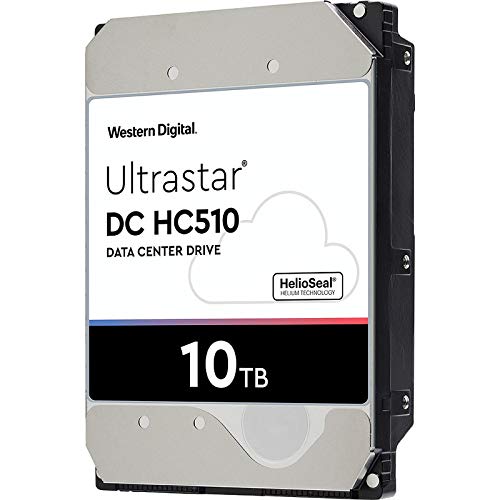
Ultrastar is the data-centre name in WD’s house — the DC in this drive’s title stands for exactly that world — and the HC510 offers 10TB at 7200 RPM class with a 256MB cache over SATA 6 Gb/s. Its listing reads like a fleet order form: model number HUH721010ALE604, capacity, class, mechanics. That terseness is appropriate. Ultrastar drives are bought by people who manage storage in racks, and who judge a drive by its behaviour across hundreds of siblings.
For the smaller buyer, the Ultrastar’s appeal is inherited discipline. A drive family designed for data-centre duty cycles brings that design margin into a home server or small-business array: continuous operation assumed, sustained workloads expected, error behaviour tuned for controllers that would rather rebuild than wait. At 10TB it plays the same fleet-and-spare role as the Exos, and the honest choice between them usually comes down to which line your existing systems already run — matched spares and familiar behaviour are reliability features in themselves.
Its title, like the Exos listing, states no workload rating and does not name the recording method; both are noted here as unstated, to be confirmed in WD’s documentation for the HUH721010ALE604 if your build requires them in writing. The class and mechanics the title does state are the working basis for its place in this guide.
The Ultrastar also illustrates a point this guide wants to leave with you: the secondhand and surplus market is full of data-centre drives, and model literacy is the buyer’s protection there. Knowing the exact model string — HUH721010ALE604 — and what its title does and does not promise is what separates a deliberate fleet purchase from a hopeful one.
- Capacity: 10TB
- Class: Ultrastar DC data-centre hard drive, per the listing title
- Interface and speed: SATA 6 Gb/s, 7200 RPM class, 256MB cache
- Model: HUH721010ALE604
- Workload rating: the listing title leaves it unstated — WD’s datasheet for this model is where the rated figure is published
- Recording method: not named in the listing title
Strengths
- Data-centre design lineage aimed at continuous, fleet-scale service.
- 10TB size suits arrays of many members and shelf spares alike.
- Mechanics match the enterprise class standard across this guide.
Trade-offs
- Capacity per bay is modest beside the 22–24TB picks.
- Neither workload rating nor recording method appears in the listing title.
- Its fleet-first presentation offers little guidance for first-time buyers.
Best for: a home server or business array that values data-centre design discipline over maximum density. Not suited for: a compact NAS where every bay must hold the largest drive available.

Toshiba X300 PRO 22TB Hard Drive — The Stated Workload Rating
The Toshiba earns a distinction no other pick here can claim: its listing title states its workload rating outright — up to 300 TB per year — alongside CMR recording, 22TB of capacity, SATA 6 Gb/s, 7200 RPM and a 512MB cache. For a guide that refuses to invent reliability figures, that transparency is gold. A buyer can compare that number against their actual annual write volume and make a judgement grounded in something firmer than class reputation.
The X300 PRO’s stated audience is creative professionals with high workloads — the video editor whose workstation ingests and renders terabytes weekly — and its specification suits that life: huge single-drive capacity for working sets, CMR for sustained writing, and a workload ceiling that acknowledges the drive will be worked, not worshipped. In a workstation or a small NAS, it offers near-flagship capacity with the most explicit durability statement in this roundup.
Note what its transparency also clarifies about the others: a stated 300 TB/year is a serious figure, and the absence of a figure in rival listings is a gap in the listing, not evidence of a lesser drive. The honest reading is that Toshiba chose to publish in the title what others leave to datasheets. If your purchasing process requires the number in writing at the point of sale, this is your pick; if you are comfortable reading one datasheet, the whole field opens.
Creative work adds one more reliability dimension the others rarely face: the drive holds work in progress, not just finished files, and its failure mid-project costs deadlines rather than merely data. A stated workload ceiling lets a studio plan around real numbers — ingest volumes, render outputs, archive rotations — instead of hoping the drive’s appetite matches the studio’s output.
- Capacity: 22TB
- Workload rating stated in title: up to 300 TB per year
- Recording: CMR, stated in the title
- Interface and speed: SATA 6 Gb/s, 7200 RPM, 512MB cache
- Model: HDWR62CXZSTB, per the listing title
- Audience named in title: high workload performance for creative professionals
Strengths
- The only listing here that publishes its workload rating in the title.
- 22TB with CMR recording suits huge working datasets and NAS duty alike.
- Top-tier cache and speed class match the flagship picks.
Trade-offs
- Its professional-workstation framing is less NAS-specific than the IronWolf or Red Pro positioning.
- No recovery service is named in the listing title.
- A single 22TB drive still concentrates risk without an array or backup behind it.
Best for: a creative workstation or NAS whose owner wants the workload rating in writing at purchase. A shelf already standardised on WD or Seagate spares gains a second ecosystem here, with its own spares logic trailing behind this 22TB Toshiba.
How Do You Read a Drive’s Health Before It Fails?
Modern drives report on themselves constantly through their health diagnostics, and the owners who benefit are the ones who look before the report becomes an obituary. The signals worth watching are trends rather than single values: a reallocated-sector count that was zero for two years and is now climbing, pending sectors that appear and multiply, temperatures that creep upward as a bay’s airflow degrades, and error counts in the NAS log that mention one bay more than the others. Any one of these, caught early, converts a failure into a scheduled replacement.
The routine costs five minutes a month. Open the NAS or server dashboard, glance at each drive’s health summary, and note anything that changed. Once or twice a year, run the platform’s extended self-test across the array during a quiet period. Keep the notes — a line in a file with the date and the counts — because a trend only exists if somebody recorded the past. The drives in this guide are built to report honestly; the reporting only helps if a human is reading.
Set up the alerts while you are at it. Every serious NAS platform can send a message when a drive’s health changes or an array degrades, and that message is the difference between learning about a failure from your phone over coffee and discovering it months later when the second drive follows the first. Five minutes of configuration, once, is the cheapest monitoring department a small system can employ.
Know your threshold in advance. Deciding, in a calm moment, that a drive with growing reallocated sectors gets replaced at the next opportunity prevents the two failure modes of judgement: panic-replacing a healthy drive over a single benign event, and rationalising a dying drive’s symptoms for six months because replacement is inconvenient this week. Write the threshold into the same note as the health log, and let past you make the decision for future you.
What Size Drive Should a Reliable Array Actually Use?
There is a tension at the heart of array design: larger drives mean fewer bays, less power and simpler management, while smaller drives mean faster rebuilds and a smaller loss when one member dies. The picks in this guide span the tension deliberately — 10TB fleet drives at one end, a 24TB flagship at the other — because the right answer depends on how many bays you own and how much degraded time you can tolerate.
A useful way to think about rebuild exposure: when a member fails, the array must read every surviving drive fully to reconstruct the lost one, and that process runs for hours at 10TB and far longer at 24TB. During those hours the array has no spare redundancy, and the surviving drives are working their hardest. Systems that cannot tolerate long exposure — businesses whose NAS is the business — often choose the 10TB class and more bays. Home systems with good backups can accept the longer window in exchange for density, provided the backup is genuinely current; the rebuild window is exactly when the backup stops being a formality.
Whichever size you choose, choose it uniformly across the array where possible, and buy the spare at the same time as the set. A spare bought later may arrive from a different production batch or, worse, be unavailable in the same model when the failure comes — and failures, unhelpfully, choose their own timing.
How Should Spares and Replacements Be Planned?
A spare drive on the shelf is the difference between an incident and an inconvenience. The plan is simple: for every array, one cold spare of the same model or a fully compatible sibling, labelled with the date it was bought and the system it belongs to. Test the spare once when it arrives — a drive that is dead on the shelf is a betrayal you want to discover in peacetime — then store it in its anti-static bag somewhere cool, dry and findable.
Replacements should be treated as a lifecycle, not an event. When a drive is replaced, the removed unit’s fate gets decided on evidence: a drive retired for age with a clean health record can demote to backup or scratch duty, clearly labelled as retired stock; a drive retired for health symptoms leaves service entirely. Mixing those categories — quietly returning a symptomatic drive to a less important array — exports the risk to a system whose owner has forgotten the history. Labels are the memory of the whole arrangement.
Finally, keep the purchase records with the spares. Model numbers, order dates and warranty status in one envelope or file turn a Sunday-evening failure into a ten-minute diagnosis of what can be claimed, swapped or reordered. Reliability, in the end, is mostly administration performed in advance.
How Do Heat, Vibration and Dirty Power Actually Wear a Drive Down?
Drives rarely die of old age in the abstract; they die of their environment, accumulated. Heat is the slow tax: a NAS wedged into a sealed entertainment unit or a server closet with no airflow runs its drives hot for years, and every component inside those drives ages faster for it. The remedy is embarrassingly simple — space around the box, a room that does not bake in summer, and a glance at the temperature figures your platform already reports. If one bay consistently runs hotter than its siblings, that is a clue about airflow, not about the drive.
Vibration is the array-specific tax. A single drive in a desktop barely knows vibration exists; six drives in a compact NAS chassis sing to each other continuously, and their heads must hold position over tracks while the chassis hums. This is one of the concrete reasons NAS and enterprise lines exist as separate products: they are designed and tested for the company of other drives. It is also why a mixed array of consumer and enterprise drives can behave worse than either would alone — the consumer drives are working in an environment their design never assumed.
Power events are the acute tax. A sudden outage mid-write can corrupt the volume being written and stress every drive in the box at once; repeated brownouts are worse than one clean blackout. A modest uninterruptible power supply, sized to let the NAS shut down gracefully, removes this entire category of wear for less than the cost of one drive in this guide. Of all the reliability spending available to a NAS owner, it is routinely the highest-value — and the most postponed, because unlike a drive, a UPS never appears in a photograph of the setup.
What Should a Small Business Standardise On?
A small business does not need the theoretically best drive; it needs a drive policy that survives staff changes. Standardising means picking one line per role — NAS drives for the NAS, enterprise drives for the server — buying spares at the same time as the primaries, and writing down the model numbers, purchase dates and replacement thresholds where the next person will find them. The six picks here map cleanly onto that policy: IronWolf Pro or Red Pro for the NAS role depending on capacity targets, Gold or Exos or Ultrastar for the server role depending on which fleet discipline the business prefers.
The policy matters more than the brand. A business running Red Pros with a labelled spare, a monthly health glance and a tested backup will out-survive a business running nominally finer drives with none of those habits. Auditors and insurers, when they ask about data at all, ask about exactly those habits. And when the business grows into a second NAS or a bigger server, the standard extends by buying more of the same line — which is why choosing a line with a future, at capacities you will still be able to source, is a business decision and not merely a technical one.
How Do the Six Drives Compare as Reliability Buys?
| Drive | Capacity | Class | What its listing states |
|---|---|---|---|
| Seagate IronWolf Pro | 24TB | Enterprise NAS | CMR, 512MB cache, Rescue Services |
| WD Red Pro | 18TB | NAS | CMR, 512MB cache, 7200 RPM |
| WD Gold | 16TB | Enterprise class | 512MB cache, 7200 RPM class |
| Seagate Exos X18 | 10TB | Enterprise | 512e/4Kn format, 256MB cache |
| WD Ultrastar DC HC510 | 10TB | Data centre | 256MB cache, 7200 RPM class |
| Toshiba X300 PRO | 22TB | High-workload professional | CMR, workload up to 300 TB/year stated |
The table’s last column is this guide’s conscience. Everything in it is quotable from a listing title; everything absent from it — most workload ratings, most recording methods, every MTBF — is absent because the titles are silent, and the correct response to that silence is a datasheet, not a guess. Buyers comparing these drives on a spreadsheet should add a column for the datasheet figures they verify themselves.
On the evidence available, the field divides by destination rather than by quality. NAS owners gravitate to the IronWolf Pro and Red Pro; server and fleet buyers to the Exos, Gold and Ultrastar; workstation owners who want a published workload figure to the X300 PRO. All six are defensible answers to the reliability question, asked in different rooms.
A second division runs by purchasing style. Some buyers spec from the listing page and want every number they rely on printed there; the X300 PRO serves them best, and the others serve them worst, through no fault of their engineering. Other buyers treat the listing as a shortlist and the datasheet as the contract; for them the whole table is open, and class, capacity and ecosystem decide. Neither style is wrong, but confusing them is — the buyer who needs a figure in writing and buys a drive whose listing omits it has created their own disappointment, whatever the drive’s quality.
What Habits Make Any of These Drives More Reliable in Practice?
Hardware class sets the ceiling; ownership sets the outcome. The habits that matter are unglamorous. Monitor health: every NAS and server platform reports drive health data, and a drive announcing reallocated sectors is giving you a gift — time to copy, replace and rebuild at leisure instead of in crisis. Keep a spare: an array that must wait a week for a replacement drive spends that week without redundancy, so a shelf spare in the same model family is the cheapest reliability upgrade in this entire guide.
Respect heat and vibration, the two environmental taxes on drive life. Bays should breathe; a NAS in a sealed cupboard beside a boiler is an oven with data in it. In multi-bay systems, the NAS-class picks here are designed with neighbouring-drive vibration in mind, which is one more reason class matters in arrays specifically. And keep the system’s other half honest: a UPS between the NAS and the wall removes the sudden-power-loss events that corrupt volumes and stress drives, at a cost lower than any single pick in this guide.
Above all, remember that no drive in this article — not one — replaces a backup. RAID keeps you working through a failure; it does nothing about deletion, ransomware, theft or fire. Reliability of hardware and safety of data are cousins, not twins, and the owners who sleep well maintain both, on a schedule written down where a successor can find it.
Test the backup, too, on a schedule. A restore performed once a year — one folder, one old project, recovered to a spare location and opened — proves the chain works while the stakes are low. Backups that have never been test-restored are hypotheses, and drives this good deserve better than to be the reliable half of an unreliable system. The full discipline is short enough to write on an index card: class-appropriate drives, a spare on the shelf, health checked monthly, backup tested yearly, environment kept cool and powered cleanly. Everything else in this guide is commentary on those five lines.
What Mistakes Undermine Reliable Drives?
Putting consumer drives in a NAS because they were cheaper. The saving is real and so is the mismatch: desktop firmware in an array can stall rebuilds and drop drives under exactly the conditions the array exists to survive. Every pick in this guide exists because that mismatch is avoidable.
Treating RAID as a backup. Redundancy protects uptime, not data. The array that rebuilds flawlessly after a drive failure will also faithfully mirror an accidental deletion to every drive it owns.
Ignoring health warnings until the second symptom. Drives usually announce their decline. An owner who replaces at the first persistent warning experiences a maintenance task; an owner who waits experiences an emergency.
Buying the largest drives for a small NAS without thinking about rebuilds. Density is seductive, but a failed 24TB member leaves the array degraded for a long rebuild. Match drive size to how long you are willing to run exposed.
Assuming a workload rating from a listing that never stated one. Five of the six titles here omit the figure. Speccing a system against a number you imagined is worse than speccing against none — pull the datasheet and write the real figure into your plan, where the next person maintaining the system can find it too.
Final Recommendation
For a NAS that holds what matters, the Seagate IronWolf Pro 24TB and WD Red Pro 18TB are the centre of this guide: purpose-built, CMR where it counts, and backed by the deepest NAS ecosystems — the Seagate adding Rescue Services, the WD offering the establishment NAS line at a slightly smaller size. For servers, fleets and spares, the Exos X18, WD Gold and Ultrastar DC HC510 bring data-centre discipline at practical sizes. And the Toshiba X300 PRO 22TB holds a distinction worth rewarding: it is the pick that tells you its workload rating — up to 300 TB per year — before you buy, which is the most reliability-literate sentence any listing in this guide contains. Choose by destination, verify the unstated figures in datasheets, keep a spare and a backup, and the best hard drives for reliability will repay the discipline with the only metric that counts: years in which nothing happened, volumes that never degraded at the worst moment, and replacements that were scheduled maintenance instead of emergencies.
Frequently Asked Questions
Does a higher workload rating mean a drive will last longer?
It means the drive is rated for more written data per year, which is a durability budget, not a lifespan promise. A drive rated at up to 300 TB per year, like the X300 PRO, is built and validated for that volume of writing; exceeding it does not break the drive on the spot, but it spends the budget the design assumed. Match the rating to your real write volume — most home NAS systems write far less than they fear — and remember that where a listing omits the rating, the datasheet, not optimism, should supply it.
Is CMR really necessary for a NAS?
For a NAS that writes often or must rebuild an array under pressure, CMR is the safer engineering, because sustained writing and rebuild behaviour stay straightforward. That is why the picks here note CMR wherever the listing states it. A mostly-read archive volume is less sensitive to the distinction, but since NAS duty is rarely purely read-only across a drive’s whole life, CMR remains the default recommendation in this class.
Can I mix these drive lines inside one NAS?
You can, and arrays will accept the mixture, but there are costs: the volume moves at the pace of its slowest member, rebuild behaviour varies by firmware philosophy, and spares management gets complicated. Fleets standardise on one line per system for those reasons. If you inherit a mixture, it is not an emergency — it is a prompt to standardise at the next replacement, ideally keeping the removed drives as labelled spares.
How long should an enterprise or NAS drive be kept in service?
Plan around the system’s tolerance rather than a calendar myth. Many owners retire drives proactively when health indicators begin moving, when the array’s capacity plan changes, or when the drive passes the age where a same-model spare is easy to source. The practical rule is to replace on evidence — health trends, error logs, rebuild behaviour — and to keep backups current enough that any single retirement is a routine afternoon rather than a rescue.
Does an enterprise drive make sense in a regular desktop PC?
It works, and for a workstation that renders, ingests or compiles around the clock it can be the right buy — the X300 PRO and Gold are aimed at exactly that life. For an ordinary office or gaming desktop that sleeps at night, the enterprise premium buys endurance the machine will never request, and the money usually serves better elsewhere in the build or in the backup the desktop should have anyway.
Are refurbished or pulled enterprise drives a smart reliability buy?
They are a different bet, and this guide’s picks are all new listings for a reason. A pulled data-centre drive may have honest years left or may arrive with its best years spent; without trustworthy health data and a seller who stands behind it, you are buying an unknown history in the component whose entire job is trustworthiness. Where budgets force the question, restrict used enterprise drives to roles with a current backup and a same-day replacement plan — and never to the only copy of anything.
What should I check first when a reliable drive starts behaving oddly?
Start with the boring suspects, because they are usually guilty: cables and connectors, the bay itself, power delivery, and heat. Swap the suspect drive’s bay with a healthy sibling’s if your platform allows it, and see whether the symptoms follow the drive or stay with the slot. Check the health log before and after. Only when the symptoms travel with the drive through every swap should the drive itself be condemned — and by then, your spare and your backup should already be part of the conversation.
Do bigger drives fail more often than smaller ones?
Capacity alone is a poor predictor; class, environment and workload dominate. What size genuinely changes is consequence and exposure: a bigger drive holds more of your life, and rebuilding it takes longer. That is why this guide pairs its largest picks with array discipline, spares and backups rather than presenting size as a risk in itself. A 24TB NAS-class drive in a monitored array with a current backup is a safer home for data than a 4TB consumer drive standing alone — the system, as ever, outranks the component.
Related Guides
Reliability questions tend to arrive alongside two others — which small drives still serve inside older laptops, and how storage escapes the desk entirely — so continue here: Best Laptop Hard Drives, Best Wireless Hard Drives for Extra Storage, and Best Hard Drives for Personal Cloud.