What's inside
- Where to Buy
- Key Takeaways
- Quick Picks
- How We Chose These Picks
- Comparison
- How to Choose a Monitor for a Mac Mini
- Does a Mac Mini Need a 5K Monitor?
- What Should You Verify When a Title Refuses to Describe the Product?
- Can One Monitor Serve a Mac Mini and a MacBook Gracefully?
- How Long Should a Mac Mini Monitor Last, and What Makes It Age Well?
- Common Mistakes When Buying a Mac Mini Monitor
- Final Recommendation
- Frequently Asked Questions
- Related Guides
As an Amazon Associate I earn from qualifying purchases. This post may contain affiliate links at no extra cost to you.
widgetverdict.com is reader-supported. When you buy through links on our site, we may earn an affiliate commission.
Where to Buy
The six screens below are each sold on Amazon, linked from their names. The Apple Studio Display is the first-party starting point — check price on Amazon from its listing page. The BenQ MA270U is the Mac-matched 27-inch alternative, and its page carries the current figure. For a 5K professional panel, look at the BenQ PD2730S and verify its cost on the listing itself. Samsung’s entry is the Samsung ViewFinity S8 27-inch, listed separately with its own live number. The BenQ PD2706U covers the calibrated 4K route, so open its page before comparing. The INNOCN 32-inch 4K Monitor closes the set at a larger size, and its listing holds both the price and the model code CB32U1 to confirm.
Choosing among the best monitors to use with mac mini is a peculiar shopping problem, because the computer itself is a small silent box with no screen of its own and strong opinions about how it wants to be driven. A Mac mini desk is built entirely around the display: the monitor is the computer’s face, its dock, often its speakers’ home and always its largest single cost after the machine itself. The six picks below approach that centrality from different directions — Apple’s own display, two BenQ lines built expressly for Mac users, a 5K Samsung, and a 32-inch INNOCN that names the Mac mini in its title outright.
Scaling is the invisible subject underneath every review here, and it deserves daylight before the products begin. macOS renders its interface most happily at densities it can scale cleanly, which is why 27-inch panels at high resolutions dominate Mac desks and why two titles in this guide print a 5K resolution or a 218 PPI figure: those densities let the system draw text at the crispness Mac users expect from the machines they already own. A 4K panel at 27 inches is the well-trodden compromise, and at 32 inches the same grid trades density for room. The reviews keep that triangle — density, size, price tier — in view for every pick, because a Mac mini owner feels a scaling mismatch every minute of every day.
Connection discipline matters just as much, and the titles here reward close reading. USB-C wattage is printed by four of the six, at 90W again and again, while Thunderbolt 4 is named once, by the BenQ PD2730S. A Mac mini draws its own power from the wall, unlike a laptop, so wattage matters less for the mini itself than for the desk around it — a MacBook that also visits, peripherals that charge, a hub that lives inside the screen. Buyers should therefore read the wattage lines as desk infrastructure rather than as a requirement of the mini, and the reviews frame them exactly that way.
Key Takeaways
- Two picks print a 5K resolution: the BenQ PD2730S at 218 PPI and the Samsung ViewFinity S8 at 5120×2880.
- The Apple Studio Display’s title is exceptionally short — standard glass and a tilt-adjustable stand are its only printed claims — so its spec box is deliberately restrained.
- Three BenQ models divide the Mac audience: the MA270U for colour matching and Mac controls, the PD2730S for 5K professional work, the PD2706U for calibrated 4K.
- USB-C at 90W is printed by four titles, and Thunderbolt 4 is named by the PD2730S alone.
- The INNOCN is the size outlier at 32 inches, and the only title to name the Mac Mini in its own wording.
Quick Picks
| Pick | Badge | Why it earns a place |
|---|---|---|
| Apple Studio Display | The first-party choice | Apple’s own display, in standard glass with a tilt-adjustable stand. |
| BenQ MA270U | Mac-matched 4K | 4K with Mac Color Match, dual USB-C and brightness control from the Mac. |
| BenQ PD2730S | 5K professional | 5K at 218 PPI with Thunderbolt 4, 98% P3 and uniformity. |
| Samsung ViewFinity S8 27-inch | 5K from Samsung | 5K at 5120×2880 with HDR10, Eye Saver Mode and USB-C. |
| BenQ PD2706U | Calibrated 4K | 4K with 95% P3, DeltaE at or below 3 and a HotKey Puck. |
| INNOCN 32-inch 4K Monitor | Big screen, mini named | 32-inch 4K at 120Hz that names the Mac Mini in its title. |
How We Chose These Picks
The first filter was Mac intent, established from titles rather than from hope. Every survivor either comes from Apple itself, prints a Mac claim in its title — Mac-ready, for Mac, Mac Color Match, designed around MacBook and Mac mini use — or carries a 5K specification that exists in the market largely because Mac scaling rewards it. General-purpose 4K panels that would work perfectly well with a mini were left for other guides, because a reader who typed this keyword deserves a shortlist where the Mac relationship is a designed feature, not a compatibility footnote discovered after purchase.
Density came second, handled as a spectrum instead of a threshold. At one end sit the 5K panels, whose pixel counts let macOS scale its interface at the crispness the platform is famous for. In the middle sit the 27-inch 4K panels, the compromise most Mac desks actually live on, sharp enough for text and forgiving of older eyes and mixed content. At the far end sits the 32-inch 4K INNOCN, which trades density for a larger canvas and a higher refresh rate. The guide refuses to declare one point on that spectrum correct, because the correct point depends on eyesight, viewing distance and how much interface a given desk keeps open.
Colour evidence formed the third pass, and here the BenQ professional line dominates the printed record: a 98% P3 figure with uniformity on the PD2730S, 99% sRGB with 95% P3 and a DeltaE claim on the PD2706U, and a Mac Color Match promise on the MA270U whose mechanism the title names without explaining. The Samsung prints HDR10 without a gamut figure, the INNOCN prints a strikingly small DeltaE claim, and the Apple title prints almost nothing at all. Those differences in evidence are preserved in the spec boxes rather than smoothed over, because a buyer choosing between first-party mystique and third-party documentation should see the trade clearly.
The final consideration was the desk as a system. A Mac mini setup accumulates a keyboard, a trackpad or mouse, backup drives, and often a MacBook that visits the same screen. KVM switching appears in two BenQ titles, a USB hub in two, daisy chaining in one, and Mac-side brightness and volume control in one — a feature so specific to this ecosystem that its presence signals how seriously its maker courted Mac owners. The set was balanced so that single-machine minimalists and two-machine households both find a champion.
Apple Studio Display — The first-party choice
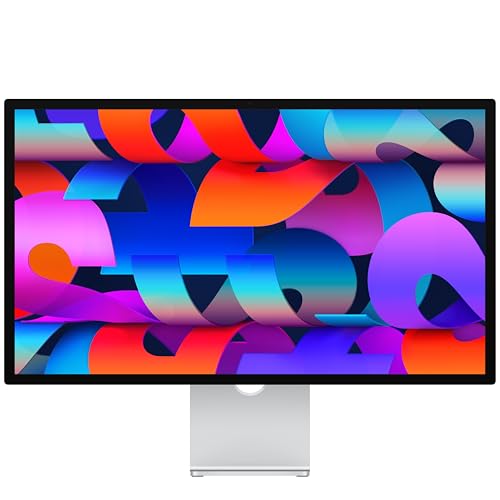
Apple’s Studio Display occupies a position no specification table can capture: it is the screen the Mac mini’s maker designed to sit above it, sold in a title of almost comic brevity. The entire listing title, as provided for this guide, reads as the product name followed by two facts — standard glass, and a tilt-adjustable stand. That is all. No resolution is printed, no port is named, no colour figure is claimed, and this review will honour that restraint absolutely: the spec box below records the two stated facts and marks the rest with the standard not-stated wording, because inventing a specification sheet for Apple would violate the discipline every other review in this guide is held to.
What can be discussed honestly is the role the product plays and the two facts themselves. Standard glass is a configuration choice within Apple’s own range, the calmer option for rooms whose lighting the owner controls, as opposed to glare-fighting finishes for difficult rooms — a desk-placement question buyers should settle by looking at their own windows before ordering. A tilt-adjustable stand defines the ergonomic contract in equally plain terms: the screen tilts, and the title promises nothing about height, so a buyer whose desk and chair demand height travel should treat that as a listing-page investigation or plan a different mounting route from the start.
The case for the Studio Display, made without a single borrowed specification, rests on integration as a philosophy. A first-party display is the one option whose maker also wrote the operating system driving it, and Mac owners who value that continuity — in setup, in support, in the long software life of the pairing — have historically paid for it gladly. The case against is written in this review’s own spec box: a buyer who shops by printed evidence will find two facts here and dozens in the BenQ reviews below, and must decide how much of the purchase can rest on trust in the badge.
It suits the Mac purist whose desk is an Apple ecosystem entire, whose room light suits standard glass, and whose posture is served by tilt alone or by a mount planned separately. It also suits the buyer who intends to keep the display across several generations of Mac mini, a lifespan over which first-party pairings tend to age gracefully. Shoppers who need any specific port, wattage or colour figure confirmed in writing before purchase should read the BenQ and Samsung reviews first and return here with their questions answered comparatively, because this title will not answer them itself.
- Configuration stated in title: Standard Glass
- Stand stated in title: Tilt-Adjustable Stand
- Size: Not stated in the listing title — verify with the manufacturer documentation
- Resolution: Not stated in the listing title — verify with the manufacturer documentation
- Colour gamut: Not stated in the listing title — verify with the manufacturer documentation
- Connectivity: Not stated in the listing title — verify with the manufacturer documentation
- Height adjustment: Not stated in the listing title — verify with the manufacturer documentation
Strengths
- First-party pairing with the Mac mini and its operating system.
- Standard glass suits controlled-light rooms without extra finish cost.
- A tilt-adjustable stand is included in the stated configuration.
Trade-offs
- The title states almost no specifications at all.
- Height adjustment is not promised in the listing title.
- Every technical question requires the listing page to answer.
Best for: a committed Apple-ecosystem desk that values first-party integration and has controlled lighting suited to standard glass. Not suited for: a procurement checklist that requires a printed resolution, port list or gamut figure, because this title supplies none of the three.
Approach the purchase as a configuration exercise. Decide the glass question from your room, the stand question from your chair and desk heights, and the trust question from your history with Apple’s displays, in that order, using the listing page for the technical inventory the title omits. Owners who settle those three questions deliberately tend to keep this display for a very long time, across several computers, which is the ownership pattern the product was plainly designed for. Owners who skip the stand question are the ones writing regretful forum posts about risers, so measure first.

BenQ MA270U — Mac-matched 4K
BenQ’s MA270U is the most explicitly Mac-courted third-party screen in this guide, and its title reads like a letter to MacBook and Mac mini owners. It is a 27-inch 4K monitor at 3840×2160, built for MacBook Pro and Air by name, with dual USB-C, 90W power delivery, a Mac Color Match feature, a USB hub, brightness and volume control operated from the Mac itself, a height and tilt adjustable stand, and a P3 colour gamut claim. Any one of those lines would earn a Mac guide’s attention; together they describe a manufacturer that studied how Mac desks actually work and built the monitor around the findings.
Brightness and volume control from the Mac deserves the spotlight, because it dissolves a daily friction most monitor reviews never mention. On a typical third-party display, adjusting brightness means reaching for buttons under a bezel and navigating a menu designed by someone who hates you. A Mac owner expects the keyboard keys to work. A title that promises control from the Mac is promising that the screen will behave like a citizen of the ecosystem rather than a foreign appliance attached to it, and for a Mac mini — a computer with no screen of its own to fall back on — that citizenship is the difference between a desk that feels designed and one that feels assembled.
Mac Color Match is named with similar intent and similar brevity. The title asserts the feature without explaining its method, so this review records the promise and declines to fabricate its mechanism: BenQ is telling Mac owners that the colour relationship between this panel and their Mac’s own displays has been considered at the factory. Owners who shuttle work between a MacBook’s screen and this monitor — the exact dual life the dual USB-C and 90W delivery anticipate — are the audience for that promise, and they can test it in the first week by simply opening the same image on both screens.
It suits the Mac household whose screen serves a mini permanently and a MacBook frequently, who wants the laptop to dock at 90W and the brightness keys to work, and who reads at 27-inch 4K density happily. Its honest limits are the absence of a printed gamut percentage — P3 is claimed as a gamut without a figure — and the absence of a calibration or DeltaE claim, both of which the professional BenQ models below supply for buyers whose work is colour-judged. As an ecosystem citizen rather than a grading instrument, though, the MA270U makes the most complete Mac argument in the guide.
- Size and resolution: 27 inches, 4K 3840×2160
- Stated audience: Monitor for MacBook Pro/Air
- USB-C: Dual USB-C, 90W Power Delivery
- Colour feature: Mac Color Match, P3 Color Gamut
- Hub: USB Hub
- Mac integration: Brightness & Volume Control on Mac
- Stand: Height & Tilt Adjustable Stand
- Gamut percentage: Not stated in the listing title — verify with the manufacturer documentation
- Calibration claim: Not stated in the listing title — verify with the manufacturer documentation
Strengths
- Brightness and volume control from the Mac itself.
- Dual USB-C with 90W delivery docks a visiting MacBook properly.
- Mac Color Match addresses the two-screen colour relationship.
Trade-offs
- P3 is claimed without a printed percentage in the title.
- No calibration or DeltaE figure appears in the title.
- Stand offers height and tilt; swivel and pivot go unmentioned.
Best for: a Mac mini desk that also docks a MacBook, where Mac-side brightness control and 90W delivery will be used every day. Not suited for: a colour-grading workflow that requires a printed gamut percentage and accuracy figure, because this title offers a matching promise instead of measurements.
Set the BenQ up as the desk’s citizen, not its guest. Route the MacBook through the second USB-C connection permanently so docking is a habit, test the keyboard brightness keys in the first hour and smile when they work, and place the same photograph on the laptop screen and the MA270U side by side to see the colour-match promise with your own eyes. If the desk’s mini and laptop swap places often, label the cables once; the whole point of this monitor is that the swap should cost ten seconds, and a labelled desk is how that point survives contact with a busy household.

BenQ PD2730S — 5K professional
The PD2730S is BenQ’s professional flagship for this ecosystem, and its title carries the density figure Mac buyers dream about: a 27-inch 5K monitor at 218 PPI. That pixel density is the one that lets macOS render its interface at the platform’s happiest scaling, with text that looks printed rather than displayed, and BenQ pairs it with a specification aimed at serious visual work — 90W Thunderbolt 4, 98% P3 colour, a Uniformity claim, a 2000:1 contrast ratio, a Nano Matte Panel, daisy chain support, a KVM, and a height-adjustable stand, addressed to 3D artists, VFX animators and game designers in the title’s own words.
Each clause of that specification maps to a professional reality. Thunderbolt 4 at 90W is the fullest connection language any title here speaks, suited to desks where drives and docks chain off the display. The 98% P3 figure is the widest printed gamut percentage in the guide, and the Uniformity claim beside it addresses the professional’s second question — not just how accurate the colour is, but how evenly that accuracy is spread across a panel where a sky gradient or a product render will expose any corner that cheats. The 2000:1 contrast figure, stated outright, deepens the dark end that VFX work lives in.
The Nano Matte finish and height adjustment complete the working-day picture, and the KVM quietly serves the studio pattern of a Mac for production beside a PC for rendering or testing. Daisy chaining extends the same logic to a second screen. Nothing in the title courts casual buyers, and that focus is the review’s compliment: this is a tool specified by people who knew which desk it would land on, for owners who will use every printed feature and resent paying for none of the unprinted ones.
It suits the professional whose Mac mini is a workstation in the full sense — driving 3D, VFX or game-development pipelines, colour-judged and deadline-bound — and who wants the 5K density the platform rewards without entering Apple’s own catalogue. Its counterpoints are positioning and appetite: it is the specialist flagship of this set, its talents are wasted on a browsing-and-email desk, and buyers whose work is ordinary office colour should let the MA270U or the PD2706U argue for their money at 4K instead.
- Size and class: 27 inches, 5K
- Pixel density: 218 PPI
- Connection: 90W Thunderbolt 4
- Colour: 98% P3
- Uniformity: stated in the listing title
- Contrast ratio: 2000:1
- Panel finish: Nano Matte Panel
- Features: Daisy Chain, KVM
- Stand: Height Adjustable
- Stated audience: 3D Artists, VFX Animators, Game Designers
Strengths
- 5K at 218 PPI gives macOS its happiest scaling density.
- 98% P3 with a uniformity claim leads the colour evidence here.
- Thunderbolt 4, KVM and daisy chaining build a studio desk.
Trade-offs
- Its professional specification is surplus for casual desk work.
- It occupies the specialist tier of this line-up.
- No DeltaE figure is printed in the listing title.
Best for: a professional Mac mini workstation in 3D, VFX or game development, needing 5K density and 98% P3 colour from one Thunderbolt 4 connection. Not suited for: a desk used mainly for browsing, mail and documents, because none of those tasks can spend the density and gamut this title charges for.
Receive this panel like the instrument it claims to be. Run the flat-field check in the first week, while the uniformity promise can still be tested against the return window, and grade a familiar render beside your previous trusted screen before retiring it. Build the Thunderbolt chain deliberately — display first, then the drives in the order your workflow touches them — and write the arrangement down, because a chained desk that works is a small system, and systems deserve documentation. The PD2730S rewards that professionalism by disappearing into productions for years.

Samsung ViewFinity S8 27-inch — 5K from Samsung
Samsung’s ViewFinity S8 gives the 5K argument a second manufacturer, and its title prints the resolution in full digits: a 27-inch high-resolution monitor at 5K, 5120×2880, with HDR10, Eye Saver Mode, a USB-C port and Samsung Display Manager, under the model code LS27H800EFAXZA. For a Mac mini owner, that 5120-wide grid is the headline, because it belongs to the same density family as the BenQ flagship above — the class of panel that lets macOS scale its interface at full crispness — offered by a maker whose design language and suite of screens some households already live with.
The supporting claims are modest and should be read at their actual size. HDR10 is named, which speaks to streamed and edited high-dynamic-range content rather than to any printed colour gamut, since no gamut percentage appears in the title. Eye Saver Mode addresses the long reading day. A USB-C port is present, with no wattage printed, so the docking story for a visiting laptop belongs on the listing page rather than in this review’s promises. Samsung Display Manager is named as the software companion, suggesting screen-layout management of the kind multi-window Mac users lean on, though the title leaves its details to the documentation.
The comparison with the BenQ PD2730S writes itself, and it is a comparison of evidence as much as of panels. The BenQ prints density, gamut, uniformity, contrast, connection type and wattage; the Samsung prints resolution, an HDR badge, a comfort mode and a port’s existence. A buyer who shops by documentation will feel the difference in their bones. A buyer who shops by panel and price tier, verifying the rest against the model code, may find the Samsung’s terser title perfectly acceptable — provided the verification actually happens, because a 5K purchase built on assumed ports is a return shipment waiting for a date.
It suits the Mac mini owner whose first requirement is the 5K grid itself — for the scaling, the text, the interface room — and whose desk does not ask the monitor to be a high-wattage dock. It also suits Samsung households standardising on one maker’s screens across rooms. Buyers who need Thunderbolt language, a KVM or a printed gamut should let the BenQ flagship’s longer title earn their money instead, and treat this S8 as what its evidence supports: a high-resolution panel with comfort features, honestly labelled and ready to be verified.
- Size and resolution: 27 inches, 5K 5120×2880
- HDR: HDR10
- Comfort: Eye Saver Mode
- Connection: USB-C Port
- Software: Samsung Display Manager
- Model code: LS27H800EFAXZA
- USB-C wattage: Not stated in the listing title — verify with the manufacturer documentation
- Colour gamut: Not stated in the listing title — verify with the manufacturer documentation
- Stand movements: Not stated in the listing title — verify with the manufacturer documentation
Strengths
- The full 5K resolution is printed in digits: 5120×2880.
- HDR10 and Eye Saver Mode cover viewing and comfort.
- USB-C connectivity is present for a tidy Mac desk.
Trade-offs
- USB-C wattage is not printed in the listing title.
- No colour gamut figure appears in the title.
- Stand movements are not stated in the listing title.
Best for: a Mac mini owner who wants the 5K grid for macOS scaling and already has charging and peripherals handled elsewhere on the desk. Not suited for: a one-cable MacBook docking setup, because this title never quantifies what its USB-C port can deliver.
Verification is this panel’s setup ritual, so perform it before the box is opened emotionally: confirm the port story, the stand story and any gamut documentation against LS27H800EFAXZA on the listing page. Once home, set the macOS scaling deliberately rather than accepting the first default, and live at your chosen setting for three full days before revisiting it, because density preferences are fatigue judgements and fatigue needs time to vote. Judged on its stated ground — a 5K canvas with comfort features — the S8 asks only to be bought with open eyes.

BenQ PD2706U — Calibrated 4K
The PD2706U is BenQ’s calibrated 4K answer for the Mac desk, and its title is the most measurement-dense of the three BenQ entries. It describes a 27-inch Mac-ready 4K UHD monitor with 90W USB-C, 99% sRGB and 95% P3 coverage, a DeltaE at or below 3, DisplayHDR 400, an IPS panel, AQCOLOR technology, factory calibration, a Uniformity claim, a HotKey Puck, an ergonomic stand, DisplayPort, a KVM and a USB hub. Where the MA270U courts the ecosystem, this model courts the evidence: nearly every clause is a number, a standard or a named system a colour-conscious buyer can weigh.
The DeltaE figure invites the comparison this guide has been careful with throughout. At or below 3, the PD2706U’s printed claim is looser than the below-2 figures the ProArt family printed in the editing guide, yet it arrives accompanied by factory calibration and a uniformity claim, which together describe a panel whose accuracy has been both measured and considered across its surface. For design, photography-adjacent development and interface work on a Mac, that combination is a serious professional brief at 4K density — and 4K at 27 inches remains the density most Mac desks actually choose once eyesight and interface size enter the vote.
The HotKey Puck is the human detail in the specification, a physical control for switching settings and inputs without menu archaeology, and its presence signals a maker thinking about the minute-to-minute life of a desk where colour modes change with tasks. The KVM and hub extend the same thought to a two-machine household. AQCOLOR is BenQ’s umbrella name for its colour technology, printed here as a badge rather than explained, and the review records it in that spirit — as the manufacturer’s label on the measurement story the rest of the title tells in numbers.
It suits the Mac-based designer-developer whose work is colour-reviewed, who wants factory calibration and uniformity at 4K rather than paying the 5K flagship’s premium for density, and whose desk runs two machines through the KVM. Buyers for whom the last increment of scaling crispness is the whole point should step up to the PD2730S; buyers who want ecosystem manners over measurements should step sideways to the MA270U. The PD2706U’s own ground — measured, calibrated, hubbed and puck-controlled — is crowded with virtues and short on apologies.
- Size and resolution: 27 inches, 4K UHD
- Panel type: IPS
- USB-C: 90W
- Colour: 99% sRGB, 95% P3
- Accuracy: DeltaE ≤3, Factory-Calibrated, Uniformity
- HDR: DisplayHDR 400
- Technology: AQCOLOR
- Controls and hub: HotKey Puck, KVM, USB Hub
- Inputs: DisplayPort (plus USB-C)
- Stand: Ergonomic
- Positioning stated in title: Mac-Ready
Strengths
- Factory calibration with uniformity and a printed DeltaE claim.
- 99% sRGB and 95% P3 cover office and wide-gamut work.
- HotKey Puck, KVM and hub serve a busy two-machine desk.
Trade-offs
- DeltaE at or below 3 is a looser claim than below-2 rivals.
- 4K density sits below the 5K picks for macOS scaling.
- Stand is called ergonomic without itemised movements.
Best for: a Mac-based designer or developer who needs calibrated 4K colour, a KVM and 90W docking in one professionally documented panel. Not suited for: a buyer determined to have the platform’s crispest scaling at 27 inches, because a 4K grid cannot match the 5K picks’ 218 PPI-class density.
Use the puck. That is the whole setup sermon for this monitor: place the HotKey Puck where your hand falls, assign it the mode changes your week actually repeats, and the panel’s calibration story becomes a daily convenience instead of a menu expedition. Run the flat-field check in week one, keep the factory calibration record with the desk’s papers, and let the KVM absorb the second machine gracefully when it arrives. A monitor this thoroughly documented deserves an owner who reads the documentation, and rewards one who does.

INNOCN 32-inch 4K Monitor — Big screen, mini named
INNOCN’s entry earns its place with a sentence no other title here dares to print: this 32-inch monitor states that it works with MacBook and Mac Mini, by name, in a guide where even Apple’s own title declines to describe itself. Around that direct address the title assembles a lively specification — 4K with a 120Hz mode and an FHD 240Hz mode, HDR400, USB-C at 90W, editing and design positioning, an IPS panel, a DeltaE below 1 claim, DisplayPort 1.4, HDMI 2.1 and a pivot stand, under the model code CB32U1. It is the biggest, fastest and most exuberantly specified screen in the set, and its review should enjoy that while reading it carefully.
The dual-rate story needs the same calm treatment the Xbox guide gave its dual modes. At 4K the stated ceiling is 120Hz, already beyond what most Mac workflows can spend, and the FHD 240Hz mode is a gaming personality that a Mac mini desk will rarely summon. Buy this screen, if you buy it, for the 4K canvas at 32 inches: the room for timelines, canvases and multi-window work, at a density gentler than the 27-inch panels and kinder to eyes that prefer larger interface elements. The speed is a bonus for the desk’s second life, not the headline.
The DeltaE below 1 claim is the boldest accuracy figure in this guide, printed by the least established name in it, and a careful review holds both halves of that sentence at once. Taken as printed, it promises colour error below the threshold of perception by a wide margin, aimed at the editing and design work the title names. A prudent buyer will verify the claim’s context on the listing page and test the panel against a trusted reference in the first week — advice this guide gives for every calibrated claim, applied here with extra warmth because the claim is extra strong.
It suits the Mac mini owner who wants a big canvas first: the designer with sprawling palettes, the developer with many windows, the household whose mini doubles as a media centre where 32 inches flatters film. The pivot stand adds a vertical personality for documents and code. Its counterpoints are density — 4K across 32 inches is the coarsest grid here — and the verification burden its bold claims carry. Buyers who read Mac forums will also note what the title does not mention: no KVM, no hub, no daisy chain, so the desk’s ecosystem must be supplied by other means.
- Size and resolution: 32 inches, 4K
- Modes: 4K 120Hz / FHD 240Hz
- HDR: HDR400
- USB-C: 90W
- Panel type: IPS
- Accuracy claim: DeltaE <1
- Inputs: DP 1.4, HDMI 2.1
- Stand: Pivot Stand
- Stated compatibility: Work with MacBook / Mac Mini, Editing, Design
- Model code: CB32U1
Strengths
- Names the Mac Mini in its title and docks at 90W USB-C.
- 32-inch 4K canvas suits sprawling creative layouts.
- A DeltaE below 1 claim leads the printed accuracy figures.
Trade-offs
- 4K at 32 inches is the coarsest density in this guide.
- The FHD 240Hz mode serves gaming, not Mac productivity.
- No KVM, hub or daisy chain is mentioned in the title.
Best for: a Mac mini owner who wants a 32-inch canvas for editing and design layouts, with 90W docking and a pivot stand. Not suited for: a text-density purist reading code at small sizes all day, because this guide’s 27-inch panels render a visibly finer grid.
Verify the bold claims kindly and early. Put a trusted reference image up in the first session, compare it with the screen it replaces, and check the pivot and the port behaviour while the return window is wide. Set the Mac’s scaling for comfort rather than for pride, since a 32-inch 4K panel’s gift is room at readable sizes, and owners who accept that gift stop apologising for the density arithmetic. If the panel passes its first week’s honest examinations, its exuberant title will have been earned in the only court that matters, which is your desk.
Comparison
| Pick | Size / Resolution | Panel | Connection | Notable from title |
|---|---|---|---|---|
| Apple Studio Display | Not stated in the listing title | Not stated in the listing title | Not stated in the listing title | Standard Glass, Tilt-Adjustable Stand |
| BenQ MA270U | 27″ / 3840×2160 | Not stated in the listing title | Dual USB-C, 90W | Mac Color Match, control from the Mac, USB hub |
| BenQ PD2730S | 27″ / 5K, 218 PPI | Nano Matte Panel | Thunderbolt 4, 90W | 98% P3, Uniformity, 2000:1, KVM |
| Samsung ViewFinity S8 | 27″ / 5120×2880 | Not stated in the listing title | USB-C | HDR10, Eye Saver Mode |
| BenQ PD2706U | 27″ / 4K UHD | IPS | USB-C, 90W | 95% P3, DeltaE ≤3, HotKey Puck, KVM |
| INNOCN 32-inch | 32″ / 4K | IPS | USB-C, 90W | 120Hz, DeltaE <1, HDMI 2.1, pivot |
The table divides into three philosophies. Apple’s row is nearly empty by its own choice, a purchase made on integration and trust. BenQ’s three rows are documentation made visible, differing by audience: ecosystem manners, 5K professionalism, calibrated 4K. Samsung and INNOCN occupy the flanks, one selling a 5K grid with comfort features, the other selling size, speed and the boldest accuracy claim in the room. A Mac mini buyer should decide which philosophy they trust before deciding which panel they want, because the philosophies predict the ownership experience better than any single specification does.
Density quietly organises the whole grid. The 5K pair promise the platform’s crispest scaling, the 27-inch 4K trio promise the mainstream compromise, and the 32-inch INNOCN promises room. None of those promises is refundable by a firmware update, so the size-and-density decision deserves the first and longest thought, with colour, docking and brand philosophy arguing afterward in that order.
How to Choose a Monitor for a Mac Mini
Start with the scaling decision, because it is the one you will feel in every sentence you read on the machine. If text crispness is your religion and your budget allows, the 5K class exists for you, in the BenQ PD2730S and the Samsung S8. If your eyes prefer larger interface elements or your work sprawls across windows, 4K at 27 or 32 inches will serve you without a whisper of shame, and the money saved buys the keyboard, the backup drive and the chair your posture actually wanted. Sit at your real viewing distance and be honest about your eyes; they are the reviewers who cannot be fired.
Decide next what the monitor must be besides a screen. A Mac mini desk with a visiting MacBook wants dual USB-C and printed wattage, which the BenQ MA270U states most completely. A two-machine desk wants a KVM, printed by two BenQ models. A minimalist desk may want nothing but the panel, in which case Apple’s restraint or Samsung’s terseness stops being a gap and becomes the point. List the devices that will touch the screen in a normal week, and let the list read the titles for you.
Colour comes third, graded by consequence. If your work is judged in colour — design, photography, video, print — buy printed evidence: gamut percentages, a DeltaE figure, a uniformity claim, factory calibration. The PD2706U and PD2730S carry that evidence in their titles. If your work is words, code and spreadsheets, colour manners matter more than colour measurements, and the MA270U’s matching promise or even the Studio Display’s integration may be the wiser spend.
Finish with the physical contract: stand movements, glass finish and room light. Height adjustment is promised outright by two BenQ titles and absent from Apple’s stated configuration, where tilt alone is named. Standard glass rewards a controlled room; matte finishes forgive a bright one. These are five-year decisions disguised as bullet points, and they deserve the same deliberation as the resolution, because you will negotiate with them every single day the mini hums beneath the desk.
Does a Mac Mini Need a 5K Monitor?
Need is too strong a word, and this guide will not use it loosely. A Mac mini drives 4K panels beautifully, and most owners of the 27-inch 4K picks here will never feel a moment’s deprivation. What 5K buys is a specific rendering luxury: at 27 inches, its density lets macOS draw the interface at the scaling the platform’s designers treat as home ground, so text and interface elements arrive at their intended sizes with maximum crispness. Readers who spend their lives in text notice it the way musicians notice a tuned piano.
The cost side of the ledger is equally specific. The 5K class concentrates in professional panels with professional positioning, and its density is wasted on desks whose work is video playback, casual browsing or large-type reading. Eyesight arbitrates more honestly than enthusiasm: an owner who reads at larger sizes gains little from pixels they cannot resolve, and should spend the difference on size, stand or sound. The two 5K titles here — BenQ’s documented flagship and Samsung’s terser alternative — let that decision be made at two levels of evidence.
A practical test exists for the undecided. Borrow an hour with any high-density Mac display — a MacBook’s own screen at its native scaling is the household version — and read your real work on it, then return to your current panel. The size of the sigh you produce is data. Buy the density that your own eyes vote for, at the size your desk can hold, and let no forum overrule the ballot.
What Should You Verify When a Title Refuses to Describe the Product?
The Studio Display review in this guide is the extreme case of a situation Mac buyers meet often: a famous product, a nearly empty title, and a crowd of assumptions rushing to fill the silence. The verification discipline is simple to state and worth practising. Work from the model or configuration name on the manufacturer’s own listing, confirm the resolution, the port list, the stand movements and the finish as separate line items, and write down what you confirmed with the date, because configurations change and memories are generous liars.
Apply the same discipline, at lower intensity, to the terser third-party titles. The Samsung S8 prints its resolution proudly and its wattage not at all; the INNOCN prints a heroic accuracy claim whose context deserves a look. In each case the listing page for the exact model is the authority, and ten minutes there is the cheapest insurance in the entire purchase. A guide like this one can hold the line on what titles promise; only the buyer can close the remaining gaps before money moves.
There is a certain pleasure in this homework, once it is reframed. A Mac mini desk is a small, deliberate system — a computer the size of a book driving a screen chosen from the whole market — and verifying the screen’s true specification is the moment the system becomes yours rather than a bundle of other people’s defaults. Do it once, do it in writing, and the next five years of mornings will be free of the low-grade doubt that unexamined purchases leave behind.
Can One Monitor Serve a Mac Mini and a MacBook Gracefully?
Yes, and three titles here were plainly designed for exactly that marriage. The pattern to look for is a pair of connections with real power behind them: dual USB-C with 90W delivery on the BenQ MA270U, so the laptop docks like it means it, or a KVM on the professional BenQ models, so keyboard and mouse follow whichever machine is awake. The mini, being a desktop, is the undemanding partner — it stays plugged in and patient — while the MacBook is the visitor whose arrival should cost one cable and no rearrangement.
The failure mode to avoid is the shared screen with a single useful input, where every laptop visit begins with a cable pulled from the mini and ends with the mini’s display settings forgotten. If your household’s MacBook visits weekly, buy the switching story in the title, not in an adapter purchased later. If it visits yearly, any pick here will do, and the money belongs in the panel itself. Frequency, as so often in desk design, is the honest specification.
How Long Should a Mac Mini Monitor Last, and What Makes It Age Well?
Longer than the computer beneath it, in most households. A Mac mini is replaced on a cycle of years, while a good display routinely serves two machines in succession, which reframes every specification in this guide as a ten-year decision rather than a five-year one. The panels that age best share unglamorous traits: connections generous enough to absorb the next machine, a stand or mount that adapts as desks and chairs change, and a maker whose model codes and support pages remain findable when a question arises in year six.
Connection generosity is where the titles here quietly separate. A screen with dual USB-C, a hub or a KVM has somewhere to put the future; a screen with a single input and a famous name has only its panel to offer the next decade, which may be enough — panels are the point, after all — but should be chosen as a conscious bet rather than discovered as a limitation. The same logic applies to the finish and the stand: rooms change more often than monitors do, and the configuration that suits today’s controlled study may face tomorrow’s bright spare room.
The practical habit that protects the investment is documentation. Keep the model code, the confirmed specifications and the settings that made the panel look right, together, somewhere the household can find them. A display’s second life — with a new mini, a child’s first desk, a studio’s spare seat — begins with that small archive, and the owners who keep it are the ones whose screens retire with honours instead of question marks.
Common Mistakes When Buying a Mac Mini Monitor
Assuming a famous product’s specifications from its reputation. Apple’s title here states two facts. Everything else belongs on the listing page, confirmed for the exact configuration you are ordering.
Buying density your eyes cannot spend. A 5K grid read at large interface sizes is an expensive way to feel virtuous. Match the panel to your actual reading distance and font sizes.
Ignoring the stand because the panel is exciting. Tilt-only is a real contract. If your chair and desk need height travel, buy a title that prints it or budget the mount in advance.
Forgetting the visiting laptop. A mini desk that also docks a MacBook needs dual connections or a KVM, decided at purchase time rather than at the first frustrated visit.
Treating wattage as a Mac mini requirement. The mini powers itself from the wall. Printed USB-C wattage is desk infrastructure for laptops and peripherals, valuable on those terms alone.
Final Recommendation
Choose the BenQ PD2730S if your Mac mini is a professional workstation and you want the fullest printed case in the guide: 5K density at 218 PPI, 98% P3, uniformity and Thunderbolt 4. Choose the BenQ MA270U if the desk is an ecosystem first, where a MacBook docks at 90W and the brightness keys must work, or the PD2706U if calibrated 4K with a KVM and a HotKey Puck fits your workflow better. The Samsung S8 serves the buyer who wants the 5K grid with comfort features and has docking handled elsewhere, the INNOCN serves the big-canvas editor who wants the mini named and a pivot stand, and the Studio Display serves the purist who values first-party integration above documented specification.
Whichever panel you choose, set its scaling deliberately, live with the choice for three days before judging it, and let your eyes deliver the verdict — a Mac mini has no screen of its own to hide behind, so the one you choose becomes the computer itself, and it should feel like the machine you meant to buy.
Frequently Asked Questions
What resolution suits a Mac mini best?
The 5K class at 27 inches gives macOS its crispest scaling, represented here by the BenQ PD2730S at 218 PPI and the Samsung S8 at 5120×2880. The 27-inch 4K panels are the mainstream compromise, and the 32-inch 4K INNOCN trades density for room.
Why does the Studio Display section list so few specifications?
Because its listing title states only standard glass and a tilt-adjustable stand. This guide reports titles as printed and marks everything else as unstated rather than borrowing figures from reputation. The listing page holds the full inventory.
Do I need Thunderbolt on the monitor?
Only one title here names it: the BenQ PD2730S, with Thunderbolt 4 at 90W. Desks chaining drives and docks through the display benefit most; simpler desks are well served by the USB-C connections the other titles print.
Can these monitors charge a MacBook as well?
Four titles print 90W USB-C delivery, which suits most MacBook models under ordinary loads. The Mac mini itself does not need the power — it plugs into the wall — so treat wattage as a service to the visiting laptop.
What is Mac Color Match on the BenQ MA270U?
It is BenQ’s named feature for aligning the monitor’s colour behaviour with Mac displays, stated in the title without a printed mechanism. Owners who work across a MacBook screen and this monitor are its audience, and the first-week side-by-side test is the way to judge it.
Which pick is best for a small desk?
Any of the 27-inch models, chosen by your other needs: the MA270U for ecosystem manners, the PD2706U for calibrated 4K, the 5K pair for density. The 32-inch INNOCN is the only pick that asks for a genuinely larger surface.
Related Guides
The Mac desk usually grows neighbours, and the neighbouring guides furnish them. Shoppers who need a genuinely large canvas should work through the best 43 inch 4k monitors, from true desk panels to TV-class screens. The studio’s paper trail — scripts, invoices and proof prints — is covered by the best home printers with low ink cost for a small office. And teams standardising on one printer maker will find their shortlist in the best brother color laser printers for desks that print in colour daily.
Related guides
- Best 14-Inch High-End Laptops: Flagships From Apple, Lenovo, ASUS and LG
- Best 15 Laptops Under $1000: Six 15-Inch Machines That Spend the Budget Honestly
- Best Battery NiMH Chargers: Six Units That Understand the Chemistry
- Best 3D Printers With Auto Leveling: Beds That Set Themselves, Ranked by How Much Else They Calibrate