What's inside
- Where to Buy
- Key Takeaways
- Quick Picks
- How We Chose These Picks
- Comparison
- How to Choose a 2K Monitor for Video Editing
- Is QHD Enough for Editing 4K Footage?
- What Does Delta E Below 2 Actually Buy an Editor?
- Do Editors Need a High Refresh Rate?
- Should an Editing Monitor Be Your Only Screen, or Half of a Pair?
- Common Mistakes When Buying an Editing Monitor
- Final Recommendation
- Frequently Asked Questions
- Related Guides
As an Amazon Associate I earn from qualifying purchases. This post may contain affiliate links at no extra cost to you.
widgetverdict.com is reader-supported. When you buy through links on our site, we may earn an affiliate commission.
Where to Buy
Six editing screens are listed below, each on Amazon under its own name and link. The BenQ PD2706QN leads the set as the Mac-ready calibrated candidate — check price on Amazon from its listing page. The ASUS ProArt PA278CV is the established ProArt route, and its page shows the figure that applies today. A newer sibling, the ASUS ProArt PA278QGV, adds a higher refresh rate, so verify its cost on the listing itself. The Dell S2725DSM brings speakers and a 144Hz panel to the argument, listed separately with its own current number. For a height-adjustable Samsung, look at the Samsung ViewFinity S6 27-inch and its Amazon page. The ASUS ProArt PA278CGRV closes the set as the Mac-focused ProArt, and its listing is where the live price lives.
Hunting for the best 2k monitors for video editing requires one translation before anything else, so here it is in plain terms: in monitor marketing, 2K has settled into meaning QHD, a resolution of 2560 by 1440 pixels. Strictly, cinema 2K describes a slightly different frame, but every title in this guide that prints a number prints 2560×1440 or calls itself 1440p QHD, and that is the resolution all six of these screens share. An editor buying a 2K monitor is buying a QHD monitor. The guide will use the two terms interchangeably from here, always meaning that same 2560 by 1440 grid, and no pick below is secretly a different resolution wearing a friendlier label.
Why would an editor choose QHD at all, in a decade of 4K footage? Because editing is not watching. A QHD panel leaves interface room for timelines, scopes and bins while asking far less of the graphics hardware during scrubbing, it matches the delivery resolution of a huge share of online video, and it lets a budget concentrate on the thing editing actually punishes: colour accuracy. That is why this line-up is dominated by calibrated professional panels — three ASUS ProArt models with Calman Verified titles and Delta E figures printed, a factory-calibrated BenQ, and two generalist screens for editors whose colour needs are lighter.
The Delta E language in those titles deserves a sentence of respect and a sentence of caution. A printed Delta E below 2, as the three ProArts claim, is a manufacturer’s statement that the panel’s colour error, as measured, sits below the threshold most viewers can perceive. It is a meaningful promise and it is also a factory-gate promise, describing the panel as shipped rather than as aged. The reviews treat it accordingly: as the strongest colour evidence a title can offer, and as a reason to re-check a panel’s behaviour after months of real work rather than as a lifetime guarantee.
Key Takeaways
- All six picks share the same grid: QHD at 2560×1440, which is what the 2K label means in this market.
- Three ASUS ProArt titles print Calman Verified status and Delta E below 2; the BenQ prints factory calibration instead.
- The BenQ PD2706QN is the colour-coverage leader on paper, at 95% P3 with 100% sRGB and Rec.709 plus a Uniformity claim.
- USB-C power is printed by two picks: 90W on the BenQ and 96W PD on the ASUS PA278CGRV.
- Refresh rates split the set by temperament: 144Hz on the Dell and the PA278CGRV, 120Hz on the PA278QGV, 100Hz on the BenQ and the Samsung.
Quick Picks
| Pick | Badge | Why it earns a place |
|---|---|---|
| BenQ PD2706QN | Calibrated Mac-ready pick | QHD with 95% P3, uniformity, 90W USB-C and daisy chaining. |
| ASUS ProArt PA278CV | The ProArt standard | Calman Verified, Delta E below 2, USB-C and a USB hub. |
| ASUS ProArt PA278QGV | ProArt at 120Hz | Calman Verified with 95% DCI-P3, HDR and Light Sync. |
| Dell S2725DSM | Editing plus speakers | QHD at 144Hz and 1ms with built-in speakers and full stand travel. |
| Samsung ViewFinity S6 27-inch | Adjustable all-rounder | QHD at 100Hz with two HDMI inputs and a four-way adjustable stand. |
| ASUS ProArt PA278CGRV | ProArt for Mac at 144Hz | Calman Verified, Auto KVM and 96W USB-C power delivery. |
How We Chose These Picks
Colour evidence was the entry ticket, graded by what a title is willing to print. A calibration badge with a named verifier, a Delta E figure, a gamut percentage with a colour space attached — these are falsifiable claims, and a professional monitor should be full of them. Four of the six picks meet that standard directly. The remaining two, the Dell and the Samsung, were admitted on different grounds that the reviews state openly: they serve editors whose work is colour-aware rather than colour-critical, and whose timelines benefit from high refresh rates, built-in speakers and generous stands. A guide that pretended all six were grading panels would be lying in the direction of its own headline.
Uniformity and panel quality formed the second pass, because an editing screen can be accurate in the centre and treacherous at the edges, where a vignette or a product label often sits. Only the BenQ prints a Uniformity claim in its title, which earns it a specific credit in its review rather than a shared assumption across the set. For the other five, uniformity belongs on the first-week checklist: display a flat grey and a flat white, look at the corners, and use the return window while it exists. That advice is not a criticism of any panel here; it is the standard professional reception procedure for a tool whose entire job is consistency.
Workflow hardware came third: USB-C wattage, daisy chaining, KVM behaviour and hubs, because an editing desk is a small ecosystem of drives, laptops and second machines. The BenQ prints daisy chain support over MST and 90W of USB-C power; the ASUS PA278CGRV prints daisy chaining, an Auto KVM and 96W of power delivery, the strongest figure here. Those lines decide whether a second screen and a second computer join the desk gracefully or through a drawer of adapters, and for editors who shuttle projects between a laptop and a tower, they can outweigh a gamut percentage.
Refresh rate, the specification editing guides usually apologise for, was weighed last and without apology. Scrubbing a timeline at 100Hz or beyond is smoother in a way editors feel in their wrists by the third hour, and high-refresh panels also serve the growing class of editors who cut gaming and sports content at high frame rates. The set spans 100Hz to 144Hz where titles state a figure, with two ProArt titles leaving the rate unprinted and the spec boxes recording that. The balance struck is deliberate: colour first, workflow second, motion third, marketing never.

BenQ PD2706QN — Calibrated Mac-ready pick
BenQ’s PD2706QN makes the most complete colour argument in this guide, and it makes it in numbers. The title describes a 27-inch 2K QHD monitor at 2560×1440, Mac-ready, on an IPS panel with 95% P3 coverage, 100% sRGB and Rec.709, a Uniformity claim, factory calibration, a 90W USB-C connection, a 100Hz refresh rate, daisy chain support over MST, an anti-glare nano matte finish and a height-adjustable stand. Nearly every clause in that sentence answers a question an editor was about to ask, which is what a professional title should do and so few manage.
The gamut pairing is the heart of it. Rec.709 at full coverage is the working space of broadcast and most online video, while 95% P3 reaches toward the wider colour of modern phone footage and HDR-adjacent workflows, so the panel speaks both the language of today’s delivery and the language of today’s cameras. Uniformity, claimed outright, addresses the editor’s quiet terror of a panel that grades the centre honestly and the corners creatively. Factory calibration is BenQ’s framing rather than a named third-party verification, and the review notes that distinction without diminishing it: the claim is calibration performed before shipping, which is the substance most buyers actually need.
Workflow hardware matches the colour story. USB-C at 90W docks a demanding laptop properly, daisy chaining lets a second screen hang from the first instead of from an increasingly fictional supply of laptop ports, and the nano matte finish keeps a bright edit suite from turning the panel into a mirror during the exact hours when clients visit. The Mac-ready label in the title is a direct address to the large population of editors cutting on Apple machines, promising them first-class citizenship rather than tolerance.
It suits the professional or serious prosumer editor whose deliverables are colour-judged, whose desk runs a laptop at its centre, and who may grow to a dual-screen setup the daisy chain already anticipates. Its honest limits are pace and verification style: 100Hz is the gentlest refresh ceiling among the stated figures here, and editors who want a Calman name attached to their calibration should compare the ProArt reviews below, where that specific badge is printed three times over.
- Size and resolution: 27 inches, 2K QHD 2560×1440
- Panel type: IPS
- Colour: 95% P3, 100% sRGB, Rec.709
- Calibration: factory-calibrated, Uniformity
- USB-C: 90W
- Refresh rate: 100Hz
- Chaining: Daisy Chain (MST)
- Finish and stand: anti-glare Nano Matte, height adjustable
- Positioning stated in title: Mac-ready
Strengths
- The widest printed colour story here: P3, sRGB and Rec.709.
- Uniformity is claimed in the title, rare and valuable for grading.
- 90W USB-C plus daisy chaining builds a real editing dock.
Trade-offs
- Calibration is factory-framed rather than Calman Verified.
- 100Hz is the lowest stated refresh ceiling in this set.
- Its talents are wasted on purely casual editing work.
Best for: a colour-judged editor on a Mac or a demanding laptop, building a one-cable QHD desk that may grow a second screen by daisy chain. Not suited for: an editor cutting high-frame-rate content who needs a stated rate well above 100Hz, because this title caps its claim exactly there.
Reception procedure matters for a panel bought on colour promises. In the first week, run a flat-field check at low brightness, where uniformity sins confess, and grade a familiar clip whose look you know from a trusted screen, comparing skin tones rather than test patterns. Set the USB-C dock up as the permanent morning ritual and confirm the laptop holds its charge through a rendering session, not just through email. A monitor with this many printed promises invites verification, and owners who verify early tend to trust the panel for years afterward, which is the correct relationship with a grading tool.

ASUS ProArt PA278CV — The ProArt standard
The PA278CV is the reference point the rest of the ProArt family in this guide is measured against, and its title states the professional creed in its classic form: a 27-inch 1440p QHD USB-C professional monitor, Calman Verified, with Delta E below 2, daisy chain support, a USB hub, an IPS panel, an ergonomic stand, 100% sRGB, Eye Care features and Rec.709. Every phrase is a checkbox an editor’s procurement form might contain. If the BenQ wins on breadth of colour spaces, this ASUS wins on the authority of a named verifier standing behind its accuracy claim.
Delta E below 2 deserves its plain-English translation in this review, since it recurs across the family. Colour error at that level sits below the threshold at which most viewers can distinguish the displayed colour from the intended one, which is a careful way of saying the panel’s mistakes are smaller than the eye’s ability to catch them. For an editor delivering to clients who will watch on unknown screens, that is the right standard to buy: your monitor should be the most honest device in the chain, so that every disagreement about colour is somebody else’s hardware confessing.
The workflow lines are complete in the ways a desk notices. USB-C is present, though the title does not print its wattage, and that omission is the review’s main errand: laptop owners should confirm the power figure on the listing page, because the difference between a dock and a display cable hides in exactly that number. Daisy chaining and a USB hub are both printed, which together describe a desk where a second monitor and a handful of peripherals attach through the screen rather than around it. The ergonomic stand is claimed without itemised movements, so posture-critical buyers have one more listing-page question to ask.
It suits the editor who wants the established professional tool with the verifier’s name attached, the colour spaces of delivery fully covered, and no experimental features between them and the timeline. Freelancers handing work to agencies will appreciate how defensible the specification reads. Its counterpoints are the unprinted USB-C wattage, an unstated refresh rate that the spec box records, and the absence of a P3 figure, which editors working heavily in wide-gamut camera colour should weigh against the BenQ and the newer ProArt models below.
- Size and resolution: 27 inches, 1440p QHD
- Panel type: IPS
- Calibration: Calman Verified, Delta E < 2
- Colour: 100% sRGB, Rec.709
- Connectivity: USB-C, USB hub, Daisy Chain
- Stand: ergonomic stand
- Comfort: Eye Care
- USB-C wattage: Not stated in the listing title — verify with the manufacturer documentation
- Refresh rate: Not stated in the listing title — verify with the manufacturer documentation
Strengths
- Calman Verified with Delta E below 2 is a named, checkable promise.
- Daisy chain and a USB hub build a tidy editing desk.
- Full sRGB and Rec.709 coverage matches delivery standards.
Trade-offs
- USB-C wattage is not printed in the listing title.
- No P3 gamut figure is claimed in the title.
- Refresh rate is not stated in the listing title.
Best for: a freelance or agency editor who needs Calman Verified accuracy for client deliverables in sRGB and Rec.709. Not suited for: a wide-gamut workflow built around P3 camera colour, because this title never prints a P3 figure.
Owners of this panel should adopt the professional habit of a reference clip: one short sequence, graded to your satisfaction, kept forever, and replayed after any driver update, operating system change or long absence. A verified panel plus a familiar reference is the closest a small studio gets to a calibration laboratory, and it costs nothing but discipline. Keep the factory paperwork with the monitor’s records as well, since a calibration claim is part of the tool’s resale and warranty story, and the editors who keep such records are invariably the ones whose colour nobody questions.
ASUS ProArt PA278QGV — ProArt at 120Hz
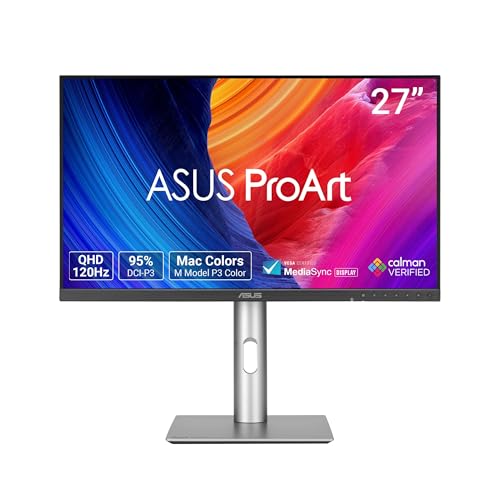
The PA278QGV reads like ASUS answering its own PA278CV with a modernised brief. The title keeps the professional core — 27-inch 1440p QHD, Calman Verified, Delta E below 2, IPS, an ergonomic stand and a USB hub — and then adds the vocabulary of a newer generation: a 120Hz refresh rate, HDR, Light Sync, 95% DCI-P3 colour, and HDMI with DisplayPort named as the inputs. For an editor whose footage increasingly arrives in wide-gamut colour from phones and cinema cameras, the P3 figure moves this model from the delivery-standard argument into the modern-capture argument without surrendering the verifier’s badge.
Light Sync is the feature a careful review must handle honestly: the title names it without explaining its mechanism, so this guide records its presence and declines to invent a manual. Its placement in the title, among colour and HDR claims, signals an intent to keep the panel’s behaviour consistent with the room or the content, and editors who care should read the listing documentation for the implementation. What can be judged from the title alone is the direction of travel — a professional panel acknowledging that editing suites have windows, lamps and changing light, rather than pretending every suite is a cave.
The 120Hz rate changes the editing feel in the specific way timeline work notices. Scrubbing is smoother, playback of high-frame-rate material is more faithfully represented, and the general interface stops behaving like office equipment. Combined with HDR being named at all — the only ProArt title here to print it — the QGV positions itself for editors whose deliverables are beginning to include HDR versions alongside the standard cut. No USB-C appears in this title, a genuine surprise in the family, and laptop-first editors should register that absence before falling for the colour story.
It suits the editor modernising a suite: wide-gamut sources, some HDR work, high-frame-rate material in the mix, and a desktop or docked setup where USB-C charging from the monitor is not the plan. It also suits buyers who want the verifier’s badge and the newer feature set in one panel rather than choosing between generations. Editors whose desk is a single laptop cable should look back at the BenQ or forward to the PA278CGRV, where the wattage is printed in large, reassuring figures.
- Size and resolution: 27 inches, 1440p QHD
- Panel type: IPS
- Calibration: Calman Verified, Delta E < 2
- Colour: 95% DCI-P3
- Refresh rate: 120Hz
- Features: HDR, Light Sync, USB hub
- Inputs: HDMI, DisplayPort
- Stand: ergonomic stand
- USB-C connection: Not stated in the listing title — verify with the manufacturer documentation
Strengths
- Calman Verified accuracy plus a 95% DCI-P3 figure.
- 120Hz brings modern motion to a professional panel.
- HDR and Light Sync acknowledge real editing rooms.
Trade-offs
- No USB-C connection is mentioned in the listing title.
- Light Sync is named without explanation in the title.
- sRGB and Rec.709 figures are not printed in this title.
Best for: an editor cutting wide-gamut and some HDR material on a desktop setup, who wants verified accuracy at 120Hz. Not suited for: a one-cable laptop desk, because this title never mentions USB-C at all.
Configure this panel by deliverable rather than by habit. Keep one preset you trust for standard Rec.709 work and treat the HDR and wide-gamut behaviour as separate modes to be entered deliberately, with a reference clip for each, because mode drift is the quiet saboteur of small suites. If the Light Sync behaviour is available in the menus, test it across a full day’s changing room light before deciding whether it serves your suite or should be switched off and forgotten; features that adapt a grading panel deserve a trial, not a default.

Dell S2725DSM — Editing plus speakers
Dell’s S2725DSM enters this guide through a different door, and its review should say so cheerfully. The title describes a 27-inch QHD monitor at 2560×1440 with a 144Hz refresh rate, a 1ms response figure, two 3W speakers, HDMI and DisplayPort 1.4, full height, tilt, pivot and swivel adjustability, AMD FreeSync, and an Ash White finish. Not one word of that is a colour-accuracy claim. This is a mainstream creator-adjacent panel, admitted because a large population of editors — social video, internal content, fast-turnaround work — need speed, sound and ergonomics more than they need a verifier’s badge, and are better served by a guide that admits it.
The speakers are the detail that will decide real purchases. Two 3W speakers inside the panel mean reference audio, client calls and quick sound checks happen without a separate audio chain, and any editor who has mixed a video while their proper speakers were borrowed by another room knows the value of a built-in fallback. They will not replace monitors for mixing, and the review will not pretend otherwise; they replace silence, which is the actual alternative on most desks at the moment a quick check is needed.
Stand travel is the fullest in this guide: height, tilt, pivot and swivel all itemised, on a panel whose white finish also suits the bright, camera-facing desks of creators who record in the same room where they edit. The 144Hz rate and 1ms figure make timeline scrubbing and preview playback the smoothest here alongside the PA278CGRV, and FreeSync covers the after-hours gaming life. What a buyer must not do is import colour expectations from the ProArt reviews into this one: no gamut figure, no calibration claim and no Delta E appear in the title, and the spec box keeps that absence visible.
It suits the high-volume editor whose work is judged on story, pace and deadlines rather than on colourimetric precision, the creator whose desk appears on camera, and the hybrid worker whose evenings include games. Colour-critical editors should treat it as a second screen candidate — a timeline-and-bins panel beside a verified grading panel is a classic suite layout — rather than as the suite’s colour authority. Judged on its own stated terms, it is a complete and likeable tool; judged on borrowed terms, everything disappoints.
- Size and resolution: 27 inches, QHD 2560×1440
- Refresh rate: 144Hz
- Response time: 1ms
- Audio: 2 x 3W speakers
- Inputs: HDMI, DisplayPort 1.4
- Stand: height, tilt, pivot, swivel
- Sync: AMD FreeSync
- Finish: Ash White
- Colour gamut: Not stated in the listing title — verify with the manufacturer documentation
- Calibration claim: Not stated in the listing title — verify with the manufacturer documentation
Strengths
- Built-in speakers cover reference audio and calls.
- 144Hz and 1ms make scrubbing and preview feel immediate.
- All four stand movements are itemised in the title.
Trade-offs
- No colour gamut or calibration claim appears in the title.
- Panel speakers are a fallback, not a mixing solution.
- No USB-C connection is mentioned in the listing title.
Best for: a fast-turnaround creator-editor who needs speakers, a full stand and 144Hz QHD in one white-finished panel. Not suited for: a colour-critical grading suite’s main seat, because this title makes no calibration or gamut promise of any kind.
Put the Dell where its virtues compound: as the energetic centre of a creator desk, or as the second screen in a suite whose first screen carries the colour authority. If it serves as the second screen, match its height and brightness to the grading panel during setup so your eyes stop renegotiating every time they cross the bezel. And use the pivot once for a vertical-video project; editors cutting for phones will discover that a portrait timeline preview changes how they frame, and this is one of the few panels here that offers the rotation without an arm.

Samsung ViewFinity S6 27-inch — Adjustable all-rounder
Samsung’s ViewFinity S6 occupies the sensible middle of this guide, and its title is a small lesson in stating the useful things plainly. It is a 27-inch QHD high-resolution monitor at 2560×1440 with a 100Hz refresh rate, TÜV certification language, a Game Mode, two HDMI inputs plus DisplayPort, and height, tilt, swivel and pivot adjustability, under the model code LS27F612EANXZA. No colour gamut is printed and no calibration is claimed, so like the Dell it is admitted as an editor’s all-rounder rather than a grading authority — but its particular mixture of ports and posture deserves a closer look than that label suggests.
Two HDMI inputs plus DisplayPort is a quietly excellent port count for an editing desk, where a tower, a laptop and perhaps a camera or a streaming device all petition for the screen. Most titles in this guide name two inputs at most; the Samsung names three, and editors who shuttle a client laptop in and out of the suite will feel that generosity weekly. The four-way stand matches the Dell’s full itemisation, which means the panel can rise, tilt, turn and rotate into whatever the room demands, including portrait orientation for vertical deliverables or document work.
The TÜV certification mention and the 100Hz rate place the panel’s character: comfort-certified, smooth enough for timeline work, and honest about being a generalist. Game Mode is named for the after-hours life, though an editing guide should note it mainly as evidence that Samsung expects this screen to be the room’s only screen, serving work and play in rotation. Panel type is not stated in the title, an omission the spec box records, and colour-critical buyers once again have their instruction: the ProArt and BenQ reviews are where printed colour promises live.
It suits the editor in a small suite or a shared studio where several machines compete for one good screen, the vertical-video cutter who will actually use the pivot, and the buyer who values a fully articulated stand and a triple-input panel over a calibration badge. It also suits, frankly, the editor whose colour work is competently handled by a second, verified screen and who needs this one to be the room’s tireless generalist. Model code discipline applies as always with Samsung families: LS27F612EANXZA is the string that separates this S6 from its many cousins.
- Size and resolution: 27 inches, QHD 2560×1440
- Refresh rate: 100Hz
- Certification: TÜV Certified (as stated in the title)
- Features: Game Mode
- Inputs: 2x HDMI, DisplayPort
- Stand: height, tilt, swivel, pivot
- Model code: LS27F612EANXZA
- Panel type: Not stated in the listing title — verify with the manufacturer documentation
- Colour gamut: Not stated in the listing title — verify with the manufacturer documentation
Strengths
- Three video inputs serve multi-machine editing desks.
- The stand offers all four movements, including pivot.
- 100Hz keeps timeline work smooth at QHD.
Trade-offs
- No gamut or calibration claim appears in the title.
- Panel type is not stated in the listing title.
- No USB-C connection is mentioned in the title.
Best for: a multi-machine editing desk that needs two HDMI inputs, DisplayPort and a fully adjustable stand on one QHD screen. Not suited for: a laptop workflow that docks through the monitor, because this title never mentions USB-C.
Exploit the input generosity deliberately: give each machine a permanent cable and label the input names in the menu if the panel allows it, so switching sources becomes a button rather than an expedition behind the desk. Set the pivot to work early if vertical video is even an occasional deliverable, because a portrait preview installed in your habits will change how confidently you frame for phones. And keep expectations calibrated to the title’s own honesty — this Samsung promises posture, ports and smoothness, and on those three promises it should be judged without mercy or apology.
ASUS ProArt PA278CGRV — ProArt for Mac at 144Hz
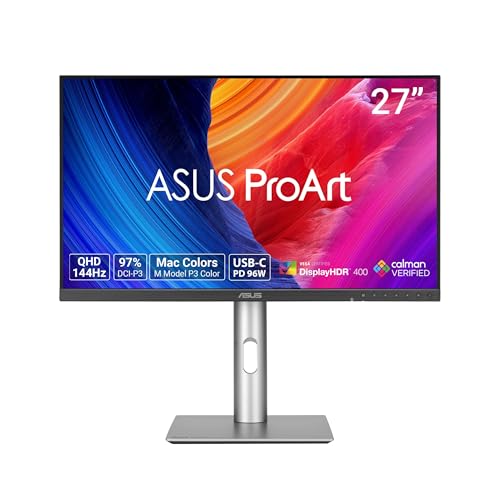
The PA278CGRV closes the guide by combining nearly every thread the previous reviews pulled separately. Its title describes a 27-inch 1440p USB-C professional monitor for Mac, Calman Verified with Delta E below 2, daisy chain support, an Auto KVM, an IPS panel, a 144Hz refresh rate, USB-C power delivery at 96W, an ergonomic stand, Light Sync, and HDMI with DisplayPort. Verified colour, the highest refresh rate among the calibrated picks, the strongest printed charging figure in the guide and a KVM for two-machine desks — in one title. If a buyer asked this guide to design its ideal editing monitor from the evidence available, the sketch would look a great deal like this.
The Auto KVM deserves the spotlight, because it solves the editing desk’s most tedious recurring problem. A suite with a Mac for editing and a PC for rendering, testing or gaming normally lives with two keyboards or a manual switch and a small daily tax of friction. An automatic KVM that follows the active input removes that tax at the monitor level, and paired with daisy chaining it describes a desk architecture rather than a mere display: two machines, potentially two screens, one set of controls, no ceremony. Editors who have never had the problem will shrug; editors who have it will already be reaching for the listing.
Power delivery at 96W is the figure Mac laptop owners in particular will circle, since it sits in the range their machines’ own adapters occupy, and the for-Mac framing in the title is ASUS addressing that audience as directly as BenQ does. Light Sync returns from the QGV review, again named without a printed mechanism, again recorded here as a presence to investigate in the documentation rather than a behaviour to invent. The 144Hz rate, shared only with the Dell in this set, gives timeline work the smoothest motion any calibrated title here offers.
It suits the two-machine editor above all, and the Mac-centred professional who wants verified colour without surrendering refresh rate or docking power. Its counterpoints are subtle: no gamut percentage is printed in this title despite the verification badge, so colour-space shoppers must consult the listing for the coverage figures the QGV and BenQ siblings state outright, and the feature richness assumes a desk complex enough to use it. A single-machine editor paying for an Auto KVM is buying a talent that will wait, unused, for a second computer that may never arrive.
- Size and resolution: 27 inches, 1440p QHD
- Panel type: IPS
- Calibration: Calman Verified, Delta E < 2
- Refresh rate: 144Hz
- USB-C: PD 96W
- Features: Daisy Chain, Auto KVM, Light Sync
- Inputs: HDMI, DisplayPort
- Stand: ergonomic stand
- Positioning stated in title: Professional Monitor for Mac
- Colour gamut: Not stated in the listing title — verify with the manufacturer documentation
Strengths
- Auto KVM and daisy chaining architect a two-machine desk.
- 96W USB-C PD is the strongest charging figure here.
- Calman Verified accuracy at a 144Hz refresh rate.
Trade-offs
- No gamut percentage is printed in the listing title.
- Its KVM talents are wasted on a single-machine desk.
- Stand movements are not itemised in the title.
Best for: a Mac-centred editor running two computers, who needs verified colour, 96W docking and an Auto KVM in one QHD panel. Not suited for: a single-laptop desk seeking the widest printed gamut figure, because this title offers verification without ever stating a coverage percentage.
Build the desk this panel imagines, in the order it imagines it. Connect the primary machine over USB-C and confirm charging under a rendering load, attach the second machine, and rehearse the KVM switch until it is muscle memory rather than a menu hunt. Daisy-chain the second screen if your suite grows that way, and keep one reference clip per machine, because a two-computer desk doubles the opportunities for settings drift. Configured with that much intention, the CGRV stops being a monitor purchase and becomes the suite’s quiet infrastructure, which is the highest ambition a professional display can have.
One last habit separates suites that trust their screens from suites that merely own them: write the settings down. Record the preset, the brightness value and the input configuration that produced your reference grade, and tape the note where a tired future self will find it after an update resets something silently. Colour drift is usually settings drift wearing a disguise, and the cheapest calibration instrument ever made is a dated note in your own handwriting saying what correct looked like.
Comparison
| Pick | Size / Resolution | Calibration | Refresh | Notable from title |
|---|---|---|---|---|
| BenQ PD2706QN | 27″ / 2560×1440 | Factory-calibrated, Uniformity | 100Hz | 95% P3, 100% sRGB/Rec.709, 90W USB-C |
| ASUS ProArt PA278CV | 27″ / 1440p QHD | Calman Verified, Delta E < 2 | Not stated in the listing title | 100% sRGB, Rec.709, USB hub, Daisy Chain |
| ASUS ProArt PA278QGV | 27″ / 1440p QHD | Calman Verified, Delta E < 2 | 120Hz | 95% DCI-P3, HDR, Light Sync |
| Dell S2725DSM | 27″ / 2560×1440 | Not stated in the listing title | 144Hz | 2x 3W speakers, full stand, FreeSync |
| Samsung ViewFinity S6 | 27″ / 2560×1440 | Not stated in the listing title | 100Hz | 2x HDMI, DP, four-way stand |
| ASUS ProArt PA278CGRV | 27″ / 1440p QHD | Calman Verified, Delta E < 2 | 144Hz | Auto KVM, 96W USB-C PD, Daisy Chain |
The table’s story is a spectrum of colour authority. At one end, four panels print calibration evidence of some kind, three of them with a named verifier and a Delta E figure. At the other end, two capable generalists print none and compete on speakers, stands, ports and pace. Neither end is the guide’s favourite; the favourite is the match between a panel’s printed promises and the judgement your deliverables actually receive. Client-graded work belongs at the calibrated end. Deadline work belongs wherever its editor is fastest.
Notice, too, how completely the resolution column agrees with itself. Six screens, one grid, no exceptions — which means the entire decision rests on colour, workflow hardware and motion, exactly the things an editor can evaluate from a title and a first week of use. A category this honest about its common ground makes the differences that remain unusually legible.
How to Choose a 2K Monitor for Video Editing
Begin by naming your colour accountability. If clients, broadcasters or your own reputation will judge the colour of your deliverables, buy printed evidence: a Calman Verified badge, a Delta E figure, gamut percentages with colour spaces attached. If your work is judged on story and speed, a generalist panel’s speakers, stand and refresh rate may serve you better for the same commitment. The expensive mistake is the middle path taken blindly — paying professional prices for a panel whose title never promised professional colour, or grading client work on a screen that promised nothing.
Match the gamut to your sources and your destinations. Delivery in sRGB and Rec.709 is fully covered by the PA278CV’s printed figures. Modern phone and cinema-camera colour argues for a P3 figure, printed by the BenQ at 95% P3 and by the PA278QGV at 95% DCI-P3. HDR ambitions, still rare at QHD, are acknowledged only by the QGV’s title. Write your last ten projects across the top of a page and tally which colour spaces they truly touched; the tally, not the trend, should choose the panel.
Design the desk’s wiring before choosing its screen. A laptop-centred suite wants printed USB-C wattage — 90W, 96W, or a figure you have verified — while a two-machine suite wants the CGRV’s Auto KVM and daisy chaining, and a multi-device room may value the Samsung’s three video inputs above all of it. Editing desks fail socially, through cables and switching friction, far more often than they fail pictorially, and the titles here are unusually informative about exactly those social details if they are read closely.
Finally, plan the reception week as part of the purchase. Flat-field checks, a reference clip, a charge-under-load test and a full day of real timeline work will confirm or deny every printed promise while the return window is open. Professional buyers of every other tool — cameras, microphones, lights — already work this way. A monitor, which will outlast most of those tools and judge all of them, deserves the same ceremony.
Sound deserves one paragraph in an editing guide, because video is half audio and desks are rarely honest about it. Only the Dell in this set prints speakers, at two times 3W, and every other pick assumes an external audio path that the buyer must supply. Proper monitoring speakers or good headphones remain the mixing standard, yet the path from timeline to ears should be planned with the same care as the picture path, including where the volume control physically lives. Suites that improvise audio end up judging mixes on laptop speakers at midnight, which is how avoidable mistakes ship.
Is QHD Enough for Editing 4K Footage?
For the edit itself, usually yes, and the reasoning is practical rather than apologetic. Editing interfaces need room for timelines, bins, scopes and previews simultaneously, and a QHD canvas provides that room while letting the preview run at a half or quarter resolution that still represents framing, focus and colour faithfully for most delivery targets. The graphics hardware breathes easier, effects preview faster, and the budget that a 4K panel would have consumed can buy the calibration that actually determines whether the finished video looks right anywhere else.
The honest exceptions are pixel-critical inspections: checking focus at one-to-one, hunting compression artefacts at delivery size, and finishing work destined for large 4K displays where flaws will be exhibited at scale. Editors who do that weekly should pair a QHD desk with access to a 4K reference, or buy at 4K and accept the interface crowding. Editors who deliver primarily to the web, where QHD and below dominate actual viewing, are not compromising at all; they are matching the tool to the destination.
There is also a middle habit worth adopting: edit at QHD, then proof at 4K. A final pass on a television or a client’s screen, in the delivery resolution and the delivery colour space, catches the class of problems no desk panel of any resolution fully predicts. The proofing habit matters more than the panel’s pixel count, and it travels with you to every future suite.
Room light gets a final vote in every suite, whether the editor ballots for it or not. A panel graded in a bright room will be judged by clients in dim ones, and the gap between those rooms is where colour arguments are born. Keep the suite’s lighting consistent before keeping it perfect: the same lamp, the same blind position, the same evening setting for every approval pass. Consistency is achievable in any room this week, while perfection usually requires a builder, and clients forgive a consistent suite almost everything except surprises.
What Does Delta E Below 2 Actually Buy an Editor?
It buys the right to stop worrying about one specific thing: that the colours you are choosing differ from the colours in the file by an amount your eyes could catch. Below that threshold, disagreements about a grade become disagreements about taste, monitors downstream or room light — all arguable, all fixable — rather than about your panel silently lying. In a client relationship, that narrowing of blame is worth money, because colour disputes are expensive in exactly the currency freelancers cannot spare, which is confidence.
It does not buy uniformity, brightness stability over years, or a gamut wide enough to contain your footage, and the titles in this guide separate those virtues carefully. The BenQ prints uniformity and breadth of gamut without the Calman name; the ProArts print the verification without a uniformity claim. A sophisticated buyer reads the two families of promise as complementary evidence and chooses which risk they would rather manage: the risk of an unverified panel, or the risk of an unexamined corner.
And it buys a starting point, not a pension. Panels drift as they age and as backlights accumulate hours, so the verified figure describes the panel that arrives, while the panel in year three is maintained by the owner’s habits — reference clips, periodic checks, sensible brightness. Buy the badge, then behave as though it needs renewing, because it does.
Do Editors Need a High Refresh Rate?
Not for the footage’s sake — most cinema and broadcast material lives at frame rates any panel here can show — but increasingly for the editor’s. Timeline scrubbing, interface animation and preview playback all feel different at 120Hz or 144Hz, and a suite is a place where feel compounds across thousands of small interactions a week. Editors who cut sports, gaming or other high-frame-rate content have the stronger claim, since their material genuinely contains the frames a faster panel can display.
The calibrated end of this guide has quietly absorbed the lesson: the PA278QGV prints 120Hz and the PA278CGRV prints 144Hz alongside their verification badges, ending the era when professional colour meant a sedate panel. The Dell, uncalibrated but quick, and the 100Hz BenQ and Samsung mark the spectrum’s other positions. No editor should buy refresh instead of colour; the modern shortlist increasingly refuses to make them choose, and this guide’s six are evidence.
Should an Editing Monitor Be Your Only Screen, or Half of a Pair?
A single QHD panel suits the editor whose suite is a laptop, a pair of headphones and a deadline, and every pick here can carry that life alone. Yet the professional pattern, once a desk matures, is a pair with divided duties: a verified panel holding the programme monitor and the scopes, and a second screen — often a generalist like the Dell or the Samsung from this very guide — carrying bins, timelines, scripts and the client call. Divided duties let each screen be judged on the job it actually does, and they let a suite grow by addition rather than by replacement.
The hardware for that growth is printed in this guide’s titles more often than buyers notice. Daisy chaining on the BenQ and the ProArt models exists precisely so a second panel can join without a port crisis, and a KVM exists so the pair can serve two machines as gracefully as one. If a dual-screen future is even plausible, weight those lines heavily today, because retrofitting connectivity is miserable while retrofitting a second panel is a pleasure.
Budget honesty completes the argument. Two good QHD screens, one verified and one generalist, frequently serve an editor better than a single panel that tries to be everything, and they degrade gracefully: when one is borrowed, repaired or upgraded, the suite limps instead of closing. The single-screen buyer should choose the most complete title their work justifies; the pair-builder should choose the most complementary two, which is a different and more interesting problem.
Common Mistakes When Buying an Editing Monitor
Reading 2K as a resolution promise it is not. In this market 2K means QHD, 2560×1440, as every numbered title here confirms. Verify the digits, not the nickname, when comparing outside this guide.
Paying for a badge the title never prints. Two excellent panels in this set make no calibration claim at all. Buy them for their stated virtues or not at all.
Confusing gamut coverage with accuracy. A wide gamut says which colours a panel can show; a Delta E figure says how truthfully it shows them. Grading needs both conversations held separately.
Skipping the flat-field check. Uniformity is claimed by exactly one title here. For the other five, your first week’s grey screen is the only uniformity evidence you will ever get for free.
Docking by hope. USB-C appears with 90W, with 96W and with no wattage at all across these titles. A laptop suite built on an unprinted figure is a suite built on a rumour.
Final Recommendation
For colour-accountable editing, choose between the BenQ PD2706QN and the ProArt family by temperament: the BenQ for the widest printed gamut story, uniformity and a 90W Mac-ready dock; the PA278CV for the classic verified sRGB and Rec.709 brief; the PA278QGV for verified colour with P3, HDR and 120Hz; and the PA278CGRV for the two-machine Mac desk, where its Auto KVM, daisy chaining and 96W delivery make it the suite’s infrastructure. The Dell S2725DSM and the Samsung ViewFinity S6 serve the deadline-driven editor honestly, with speakers, stands, ports and pace in place of badges.
Make the final decision with a reference clip in hand and a return window in front of you, because an editing monitor is the one tool whose job is to tell you the truth — and the right one, among these six, is the panel whose printed promises survive your first week of checking them.
Frequently Asked Questions
What resolution is a 2K monitor?
In monitor marketing, 2K means QHD: 2560×1440. Every pick in this guide shares that grid, whether its title prints the digits, calls itself 1440p, or uses the 2K label directly.
Which pick has the best colour accuracy on paper?
Three ProArt titles print Calman Verified status with Delta E below 2, while the BenQ prints factory calibration with the widest gamut figures and a uniformity claim. Accuracy shoppers should weigh the verifier’s name against the BenQ’s breadth.
Can I edit 4K footage on a QHD monitor?
Yes, comfortably, for most delivery targets. The preview represents framing and colour faithfully while the interface keeps its room. Pixel-critical focus checks at one-to-one are the exception that argues for a 4K reference pass.
Do I need USB-C on an editing monitor?
Laptop-centred suites benefit enormously, provided the wattage is printed or verified: 90W on the BenQ, 96W on the PA278CGRV. Desktop suites can ignore the question and choose on colour and stand.
What is daisy chaining good for?
It lets a second monitor connect through the first, saving laptop ports and cable clutter. The BenQ and two ProArt models print support for it, and multi-screen suites feel the benefit immediately.
Is a 144Hz editing monitor a gimmick?
No. The footage rarely needs it, but scrubbing and interface work feel markedly smoother, and editors cutting high-frame-rate content genuinely use it. The PA278CGRV pairs 144Hz with verified colour, which settles the argument.
Related Guides
Editing is one seat at a desk that usually holds several, and the neighbouring guides furnish the rest. Mac editors building a compact workstation should compare the best monitors to use with mac mini, from the Studio Display to 5K alternatives. Anyone tempted by a much larger canvas for the suite should work through the best 43 inch 4k monitors, covering desk panels and TV-class screens alike. And the desk’s paper output — scripts, call sheets and proof prints — is covered by the best home printers with low ink cost.