What's inside
- Key Takeaways
- Quick Picks
- How Did We Choose These WiFi Mesh Extenders?
- What Is the Difference Between a Mesh Node and an Ordinary Extender?
- How Do the Six Mesh Extenders Compare?
- Should You Add a Node, or Replace the Whole Mesh System?
- What Happens to Your Devices When You Add a Mesh Node?
- How Do You Add a Node to a Mesh System Properly?
- What Mistakes Do Mesh Extender Buyers Make?
- Final Recommendation
- Frequently Asked Questions
- Related Guides
As an Amazon Associate I earn from qualifying purchases. This post may contain affiliate links at no extra cost to you.
widgetverdict.com is reader-supported. When you buy through links on our site, we may earn an affiliate commission.
Where to buy: you will find all six units through the Amazon listings linked below — but check the compatibility notes in each pick’s section before ordering, because most of these are add-on nodes that only work with an existing system from the same family, and an incompatible bargain is no bargain at all.
The best wifi mesh extenders occupy a category with a naming problem, so this guide begins by solving it. Most products sold under this label are not extenders in the classic sense — boxes that repeat any router’s signal. They are additional nodes for a mesh system you already own: the eero units extend an eero network, the Linksys units extend a Velop network, and the ASUS unit extends an AiMesh network. Their own listings say so, in language this guide will repeat rather than soften: the eero extenders state that a required eero mesh wifi system is not included. Buy one of those nodes without the parent system and you have purchased a paperweight with excellent radios.
That is not a criticism of the products; it is their entire virtue. A node added to its own mesh joins a single coordinated network — one name, one password, devices handed from node to node by a system that manages the whole map — instead of bolting a foreign repeated network onto the side of your house’s WiFi. Roaming works the way brochures promise. Settings live in one app. The node and the system speak the same language because they were built as one organism, and the coverage each adds is stated by its maker in those terms: the eero extenders each add up to 1,500 square feet of coverage to the system they join.
The six picks therefore divide by household, not by raw merit. Two eero nodes serve the two eero generations. Two Linksys units serve Velop owners in different form factors. The ASUS RP-BE58 serves AiMesh households and, unusually, is also described by its maker as working with any WiFi router in extender mode. And the TP-Link Deco S4 in its 1-pack form is a node of the Deco system — a unit that can extend a Deco network or, as Deco units can, help start one. Read for your ecosystem first and specifications second; in this category, compatibility is the specification.
Key Takeaways
- Most “mesh extenders” are add-on nodes: eero nodes need an eero system, Linksys nodes need Velop, the ASUS node is built for AiMesh — check before buying.
- The eero listings state plainly that the required eero mesh wifi system is not included; the node alone cannot start a network.
- Each eero extender adds fifteen hundred square feet of coverage to its system, per the maker; the eero 6+ supports 75+ devices per its listing.
- The TP-Link Deco S4 1-pack is a Deco system node, maker-rated for up to 2,000 sq.ft. of coverage in its system context.
- The ASUS RP-BE58 is the flexible pick: an AiMesh extender that its maker also describes as working with any WiFi router.
- Adding a node beats adding a foreign extender when you already own the system — one network name, managed roaming, one app.
Quick Picks
| Pick | Badge | Why it earns its place |
|---|---|---|
| Amazon eero 6 mesh wifi add-on extender | Best for eero 6 homes | Adds up to 1,500 sq. ft. of Wi-Fi 6 coverage — required eero system not included, per maker. |
| Amazon eero 6+ mesh wifi extender (newest model) | Best for eero 6+ homes | Adds fifteen hundred square feet, supports 75+ devices per maker — eero system required. |
| Linksys Velop Micro Mesh WiFi 6 Add-on Node | Best Velop add-on | A dual-band WiFi 6 add-on node for Velop mesh systems. |
| Linksys WHW0101P Velop Mesh WiFi Extender: Wall Plug-in | Best plug-in Velop node | A wall plug-in node that extends a Velop mesh system from a single outlet. |
| ASUS RP-BE58 BE3600 Dual Band WiFi 7 (802.11be) Range Extender | Most flexible | An AiMesh extender for seamless mesh, also described by ASUS as working with any router. |
| TP-Link Deco S4 Whole Home Mesh WiFi System | Best Deco node | Deco S4 1-pack: a Deco system node rated up to 2,000 sq.ft., with Gigabit ports. |
How Did We Choose These WiFi Mesh Extenders?
Compatibility drew the map before quality ranked anything. A mesh extender guide that mixed ecosystems freely would be a catalogue of expensive mistakes, so we organised the shortlist by the systems households actually own — eero, Velop, AiMesh and Deco — and chose the strongest current add-on within each. Within an ecosystem, the judging criteria were the ones that decide ownership: how much coverage the maker says the node adds, which WiFi generation it speaks, what form factor it takes, and how gracefully it joins the system’s app and roaming behaviour.
We also insisted on stating each unit’s dependency in its own section, in plain sentences, rather than once in a footnote. The eero listings themselves carry the model wording — the required system is not included — and this guide treats that sentence as part of the product’s specification, as important as its coverage figure. A reader who finishes a pick’s section should know three things without scrolling: what it adds, what it requires, and what happens if they buy it without the requirement. Any section that failed that test was rewritten until it passed.
Generation matching mattered within families. An eero 6 node and an eero 6+ node both join eero networks, but they belong to different system generations with different ceilings, and the right buy depends on which system the house already runs and whether it is growing. The same logic separates the two Linksys picks by form rather than by generation: a free-standing micro node for the room with a shelf, a wall plug-in for the hallway with only a socket. Mesh buying is household buying; the guide treats it that way throughout.
Finally, we kept one bridge product in view for the reader who owns no system at all. The ASUS unit’s maker-described ability to work with any router, and the Deco S4’s ability to serve as a Deco starting point, give the system-less reader honest routes into this guide — but they are flagged as exactly that, and the reader with no mesh and no plan to build one belongs in our general extender guide instead. Categories exist to route people to the right shelf; this one routes by ecosystem.
What Is the Difference Between a Mesh Node and an Ordinary Extender?
An ordinary extender is a guest in your network: it listens to the router, repeats what it hears under its own name or a cloned one, and manages nothing. A mesh node is a citizen of its system: it coordinates with the other nodes, shares the network’s single name and password, receives its settings from the same app, and participates in steering your devices toward whichever node serves them best as you move through the house. The difference is not raw signal — a node and an extender of similar class radiate similarly — but governance. Mesh is a managed collective; extending is a solo act.
That governance shows up in the moments ordinary extenders handle clumsily. Walking from the study to the kitchen on a call, a mesh household’s phone is handed between nodes by a system watching the whole map; an extender household’s phone often clings to the weakening original signal until it drops, because nothing is coordinating the handover. Adding a second foreign extender compounds the patchwork; adding a second node compounds the system. This is why mesh owners expanding coverage should buy nodes, and why this guide exists separately from the general extender roundup.
The price of citizenship is the boundary wall: nodes serve their own system. An eero node will not join a Velop network; a Velop node will not extend a Deco system; the ASUS AiMesh node is built for ASUS’s ecosystem, with its any-router extender mode as a deliberate exception its maker describes. Households contemplating a switch of ecosystems should price the whole migration — nodes are where mesh money accumulates — and households starting fresh should choose the ecosystem as carefully as the first unit, because they are choosing the family of every future node.
Coverage arithmetic also differs. Extender claims describe a lone box’s ambition; node claims describe an addition to a system — the eero nodes’ up-to-1,500-square-feet figure is the coverage each adds to an existing eero layout, in the maker’s framing, and the Deco S4’s 2,000 square feet is stated for the unit in its system context. Read node figures as increments to a map you already own, placed where the system’s app shows the weak territory, and they become honest planning numbers rather than marketing weather.
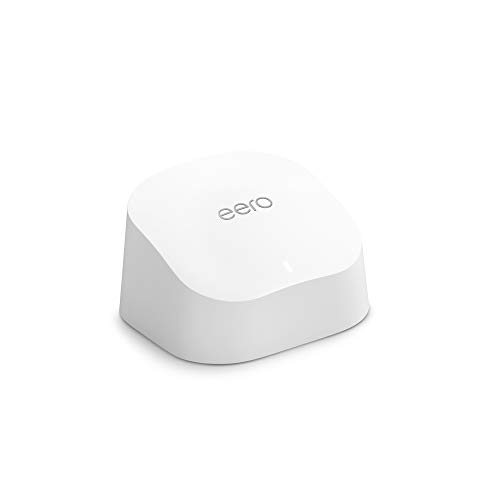
Amazon eero 6 mesh wifi add-on extender — Best for eero 6 homes
The dependency comes first, because eero prints it in the listing and so do we: this is an add-on extender for an existing eero mesh wifi system, and the required system is not included. It cannot start a network, join another brand’s mesh, or repeat a random router’s signal. What it does — superbly, within its walls — is extend an eero 6 household’s coverage by up to 1,500 square feet per the maker, as a fully governed node of the system it joins.
For the eero household, that governance is the whole experience. The node adopts the network’s name, password and settings from the eero app, appears in the same device map, and participates in the system’s steering as family members carry phones and laptops through the house. The dead bedroom stops being a separate repeated network with its own habits and becomes simply more eero. Owners expanding a system they already like will find the addition almost disappointingly uneventful — which is the highest compliment mesh hardware can earn.
Placement follows mesh logic rather than extender logic. The node wants to sit where it still enjoys a healthy connection to the rest of the system while standing at the edge of the weak territory — the eero app’s own guidance during setup reflects exactly that balance. Because the node is a citizen rather than a repeater, it does not need the desperate halfway precision of a foreign extender; it needs a good relationship with its nearest sibling node and a fair view of the room it adopts.
Generation honesty: this is the eero 6 node, matched to eero 6 systems. A household running the newer eero generation should look at the 6+ node below, and a household with no eero at all should not start here — the system itself is the first purchase, and this node is the second. Bought in the right order, by the right household, it is the simplest coverage expansion in this entire guide.
- Role: add-on extender for eero mesh systems only
- Maker statement: required eero mesh wifi system not included
- Maker figure: adds fifteen hundred square feet of Wi-Fi 6 coverage
- Standard: WiFi 6
Strengths
- Seamless governed node: one name, one app, managed roaming
- Maker-rated addition of up to 1,500 sq. ft. of Wi-Fi 6 coverage
- Setup guided inside the eero app alongside the existing system
Trade-offs
- Requires an existing eero mesh system — not included, not optional
- Useless with any other brand of router or mesh
- Generation-matched: eero 6+ households should buy their own node
Best for: eero 6 households adding coverage to one or two weak rooms.
Not suited for: anyone without an eero system, or running another mesh brand.

Amazon eero 6+ mesh wifi extender (newest model) — Best for eero 6+ homes
The same foundational sentence applies, and eero’s listing carries it as plainly as its sibling’s: this extender requires an eero mesh wifi system, and that system is not included. Within that boundary, this is the current-generation add-on — the maker describes the newest-model eero 6+ extender as adding up to 1,500 square feet of coverage and supporting 75+ devices, in a 1-pack. The device figure is the generational tell: the 6+ system family is built for the device-dense household, and its extender inherits that ambition.
Seventy-five-plus devices sounds like a data centre until a modern home is inventoried: phones, tablets, laptops, televisions, speakers, plugs, bulbs, cameras, consoles, watches, appliances with opinions. The eero 6+ household is typically the one that has already made that count with alarm, and its extender is specced by the maker to keep the system’s composure as the count grows. Adding coverage without adding capacity would strand the new rooms’ devices; this node adds both, in its maker’s framing.
The ownership experience mirrors its sibling’s, because the system is the experience: the node joins through the app, takes the network’s identity, and is steered and steering within minutes. Where the 6+ household will feel its generation is in the headroom — more devices held gracefully, a system ceiling that recedes — rather than in any single room’s transformation. Mesh purchases compound quietly, and this is the node that keeps a growing eero 6+ system’s map and capacity growing together.
The buying rule is unchanged and absolute: eero system first, this node second; a different brand’s system means a different brand’s node. Households choosing between starting with eero 6 or 6+ should decide at the system purchase, since the extender follows the system’s generation. For the household already running 6+ and watching a weak room fill with devices, this is the correct and only necessary answer.
- Role: add-on extender for eero mesh systems only
- Maker statement: required eero mesh wifi system not included
- Maker figures: adds fifteen hundred square feet; supports 75+ devices
- Positioning: newest-model eero 6+ extender, 1-pack
Strengths
- Current-generation eero node with maker-rated 75+ device support
- Adds up to 1,500 sq. ft. per maker as a governed system node
- Same one-app, one-name eero experience as the main system
Trade-offs
- Requires an existing eero mesh system, not included
- Generation-matched to the 6+ family for full benefit
- Premium node pricing within the eero ecosystem
Best for: eero 6+ households whose weak rooms are also their most device-dense.
Not suited for: non-eero households, or eero owners expecting a standalone extender.

Linksys Velop Micro Mesh WiFi 6 Add-on Node — Best Velop add-on
Linksys owners should read this pick’s name the way it is written: a Velop add-on node. It extends a Linksys Velop mesh system as a governed member of that system; it is not a universal repeater for arbitrary routers, and its value is inseparable from the Velop network it joins. Within that role it brings dual-band WiFi 6 to the Velop household’s weak territory in a compact micro form that sits on a shelf or sideboard without dominating it.
The micro format is a considered answer to a real mesh problem: nodes need positions that furniture and family life resist. A smaller node earns places a full-size tower cannot — the hallway console, the landing bookcase, the kitchen shelf — and in mesh, position quality compounds across the whole map, because each node’s relationship with its neighbours sets the system’s posture. Velop households expanding into awkward rooms will feel the format working for them before they notice anything about its radios.
As a system citizen, the node takes Velop’s single network identity and participates in the system’s roaming and management through the Linksys app, sparing the household the separate repeated network a foreign extender would impose. That is the recurring bargain of this entire guide: surrender universality, receive governance. Velop owners who have lived with their system’s calm will not need the bargain explained; owners of other systems should pass this pick by entirely, however favourable its price appears on a given day.
WiFi 6 dual-band is the right radio complement for a Velop expansion in a modern household — current-standard scheduling for the device crowd, with the node’s contribution measured in coverage and composure rather than in headline speed. Place it where the Linksys app shows the system thinning, let it adopt the network, and the Velop map grows by exactly the room that prompted the purchase.
- Role: add-on node for Linksys Velop mesh systems
- Standard: dual-band WiFi 6
- Positioning: range extender and booster within the Velop system
- Form: compact micro node
Strengths
- Governed Velop node: one network identity, app-managed
- Compact micro form earns better positions in real rooms
- Dual-band WiFi 6 matches modern Velop systems
Trade-offs
- Velop systems only — not a universal extender
- Free-standing form still needs a surface and a socket
- Ecosystem pricing applies, as with all mesh nodes
Best for: Velop households expanding coverage into rooms where a compact node fits the furniture.
Not suited for: owners of any other mesh brand, or of no mesh at all.
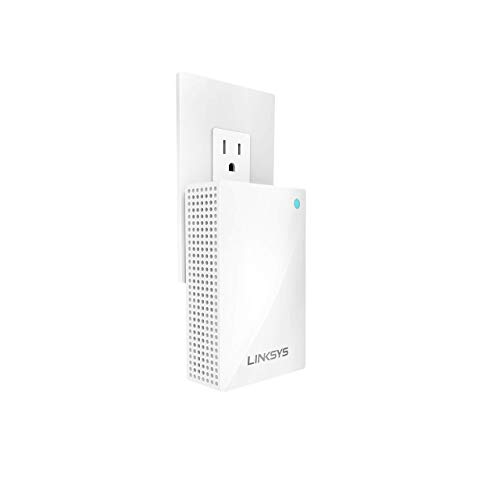
Linksys WHW0101P Velop Mesh WiFi Extender: Wall Plug-in — Best plug-in Velop node
The Velop household’s other shape of answer: a node that plugs directly into a wall outlet, described by its maker as a wall plug-in for the Velop mesh Wi-Fi system using a single outlet. The requirement is the family requirement — an existing Velop system to join — and within it, the plug-in form solves the placement problem differently from its micro sibling: no surface, no shelf, no cable, just the hallway or landing socket that mesh maps so often want and furniture so rarely provides.
Hallway sockets are mesh gold. They sit at the junctions of houses, elevated by nobody’s furniture, equidistant from the rooms that need adopting. A plug-in node colonises exactly those positions, and because it is a Velop citizen it does so without creating the separate network a plug-in foreign extender would. The household gains governed coverage from an outlet that previously powered nothing but a vacuum cleaner twice a month.
The trade for the form is presence: a plug-in node occupies its socket and lives at socket height, where heavy furniture can crowd it and signal escapes less freely than from a shelf-top position. Choose its outlet with the same care as any node position — open wall, junction position, healthy connection back to the system — and the form’s convenience survives contact with the house. The Linksys app’s setup guidance helps judge that connection quality before the position is declared final.
Buy this node when the Velop map’s weak point and a free hallway socket coincide, which in practice is often. Buy the micro node instead when the room offers a good surface and deserves a free-standing unit. Either way, the ecosystem rule stands unbent: Velop households only, and the household without Velop should admire the form factor from a distance and buy its own system’s equivalent.
- Role: plug-in extender node for Velop mesh systems
- Form: wall plug-in, single outlet per maker description
- Positioning: range and speed booster for the Velop system
- Requirement: existing Velop mesh system
Strengths
- Plug-in form colonises hallway sockets mesh maps love
- Governed Velop node with single network identity
- No surface, shelf or trailing cable required
Trade-offs
- Velop systems only
- Socket-height placement can be crowded by furniture
- Occupies the outlet it lives in
Best for: Velop households whose weak zone centres on a hallway or landing socket.
Not suited for: non-Velop homes, or positions where the only socket hides behind furniture.

ASUS RP-BE58 BE3600 Dual Band WiFi 7 (802.11be) Range Extender — Most flexible
The ASUS RP-BE58 is this guide’s bridge between two worlds, and its listing says so in terms: it is an AiMesh extender for seamless mesh WiFi, and it works with any WiFi router. Both halves matter. For the ASUS household, it is a WiFi 7 node that joins an AiMesh system as a governed citizen, extending that system’s map with current-generation radios. For the household without AiMesh, its maker-described extender mode lets it serve as a high-end conventional extender — the only pick here whose maker offers both doors.
AiMesh households get the flagship version of this guide’s bargain. The RP-BE58 brings BE3600-class WiFi 7 dual-band radios into the mesh, which suits systems whose main router is also WiFi 7 generation and whose owners are extending a map they intend to keep for years. Node generations compound like system generations: adding a WiFi 7 node to a WiFi 7 AiMesh keeps the map’s ceiling uniform, rather than anchoring the new territory to an older standard’s pace.
The any-router mode deserves respectful precision. ASUS describes the unit as working with any WiFi router, and in that mode it behaves as a premium conventional extender — repeating a foreign network with excellent radios, without AiMesh governance, because governance requires the system. Buyers using it that way should know they are purchasing superb hardware in its simpler role, and that its full value unlocks the day an AiMesh router arrives. That dual future is a legitimate buying reason for a household mid-migration toward ASUS.
WiFi 7 caveats from our other guides apply unchanged: its benefits flower in WiFi 7 company, and no node repeals placement discipline. But as the single most flexible product in this category — system node today or tomorrow, premium extender in between — the RP-BE58 earns a place that no pure-ecosystem node could occupy.
- Standard: WiFi 7 (802.11be), BE3600 dual band per maker
- Role: AiMesh extender for seamless mesh WiFi
- Maker statement: works with any WiFi router in extender mode
- Ecosystem: ASUS AiMesh
Strengths
- AiMesh node and any-router extender in one unit, per maker
- WiFi 7 BE3600 radios match current-generation ASUS systems
- Migration-friendly: value grows if an AiMesh router arrives later
Trade-offs
- Full mesh governance requires an AiMesh system
- Premium pricing for flexibility some buyers will never use
- WiFi 7 headroom awaits WiFi 7 company to matter
Best for: AiMesh households extending with WiFi 7, and ASUS-bound households wanting an extender that can become a node.
Not suited for: other mesh ecosystems expecting governed-node behaviour from it.

TP-Link Deco S4 Whole Home Mesh WiFi System — Best Deco node
The Deco S4 entry in this guide is the 1-pack, and its identity should be read exactly: a single node of TP-Link’s Deco whole-home mesh system. For a Deco household, it is the expansion unit — one more governed node for the map, rated by the maker at up to 2,000 square feet of coverage in its system context, with Gigabit ports for the wired duties nodes so often inherit. For a household without Deco, a single S4 can serve as the seed of a Deco system, since Deco units can act as the main unit — but it should be bought as the start of that system, knowingly, rather than as a lone extender for a foreign router, a job it is not shaped to do.
Deco’s appeal as an ecosystem is its calm uniformity: every unit is interchangeable in role, the app treats the map as one household network, and expansion is literally buying another of the same and letting the system adopt it. The S4 generation sits at the value end of that family — AC1900-class in the listing’s framing — which makes the 1-pack the economical way to push a Deco map into one more room without paying for radio generations the household’s devices cannot yet use.
The Gigabit ports on a node are worth their sentence in every mesh guide and get it here: nodes end up adopting wired orphans — the television near the node, the desktop in the adopted room, the printer exiled to the landing — and a node with proper ports absorbs those duties without extra hardware. In a Deco expansion, that often decides which room’s node gets bought first: the one whose wired orphans are loudest.
Buy the S4 1-pack as what it is — a Deco node, for a Deco system, existing or intended — and it is among the best-value expansions in this guide. Buy it expecting a universal extender and the mismatch will disappoint, through no fault of a unit that labelled itself a system component from the first line of its name.
- Role: Deco S4 1-pack — a node of the TP-Link Deco mesh system
- Maker figure: up to 2,000 sq.ft. coverage
- Class: AC1900 system rating per listing
- Ports: Gigabit ports
Strengths
- Interchangeable Deco node: expands or seeds a Deco system
- Maker-rated up to 2,000 sq.ft. in system context
- Gigabit ports let the node adopt wired devices in its room
Trade-offs
- A Deco system component — not a universal extender
- AC1900-class radios sit a generation behind newer Deco lines
- Single-pack coverage assumes sensible node placement
Best for: Deco households adding a room, and new buyers deliberately starting a Deco system.
Not suited for: owners wanting an extender for an existing non-Deco router.
How Do the Six Mesh Extenders Compare?
| Pick | Badge |
|---|---|
| Amazon eero 6 mesh wifi add-on extender | Best for eero 6 homes |
| Amazon eero 6+ mesh wifi extender (newest model) | Best for eero 6+ homes |
| Linksys Velop Micro Mesh WiFi 6 Add-on Node | Best Velop add-on |
| Linksys WHW0101P Velop Mesh WiFi Extender: Wall Plug-in | Best plug-in Velop node |
| ASUS RP-BE58 BE3600 Dual Band WiFi 7 (802.11be) Range Extender | Most flexible |
| TP-Link Deco S4 Whole Home Mesh WiFi System | Best Deco node |
The comparison that matters is not row against row but row against your hallway: which system already lives in your house? eero households choose between the two eero generations by the system they run. Velop households choose between the micro node and the plug-in by the position available. AiMesh households take the ASUS, with its any-router mode as a migration bridge. Deco households take the S4 pack. A reader with none of these systems should read the table as a menu of ecosystems to start — beginning with a system purchase — or return to the general extender guide, where universality is the whole point.
Generations deserve one comparative note. The ASUS node speaks WiFi 7, the eero and Linksys nodes WiFi 6, the Deco S4 an earlier AC class — and in mesh, the system’s overall ceiling tends toward its weakest working parts, which is why nodes are best bought in their system’s own generation where one exists. A mixed map still works; it simply cruises at the older node’s altitude over that node’s territory. Expansion budgets are therefore best spent keeping the map uniform, room by room, as it grows.
Should You Add a Node, or Replace the Whole Mesh System?
Expansion and replacement answer different diagnoses, and confusing them is expensive in both directions. Add a node when the system is healthy and the territory is specific: the map is calm everywhere except the new extension, the converted room, the floor the household has grown into. The system’s generation still matches the household’s devices, the app reports the existing nodes in good health, and the weak area has a plausible node position with a strong sibling relationship available. In that house, a node is a surgical purchase, and every pick in this guide is designed to be exactly that.
Replace the system when the diagnosis is general. If coverage is mediocre everywhere rather than absent somewhere, if the system’s generation trails the household’s devices by enough years that every room cruises below its potential, or if the base unit’s placement is dictated by a line location that dooms the whole map, nodes will polish a flawed foundation. A new system — chosen with the ecosystem commitment in mind, since today’s router is tomorrow’s node family — resets the map’s ceiling everywhere at once. Owners often discover that two nodes’ worth of budget, redirected into a current two-unit system, buys the transformation they were chasing room by room.
The middle case is the growing household in an older but healthy system: an eero 6 or early Velop map that works well and merely needs to reach new territory. There, the matching-generation node is usually the wise spend, because the system’s remaining years of service are real and the node will serve all of them. The exception is the household already contemplating a generation jump within a year or two; for them, a node bought today is a node retired early, and patience — or accepting the weak room briefly — is the cheaper path to the same map.
Whichever way the decision falls, make it from the app’s evidence rather than from frustration after one bad evening. Mesh systems report their own health with unusual honesty: node connection quality, client distribution, the rooms where devices cling to distant nodes. Read that evidence the way you would read a survey before extending a house, because that is precisely the purchase a node is — an extension, with the same rule that extensions reward sound foundations and expose unsound ones.
What Happens to Your Devices When You Add a Mesh Node?
From the devices’ point of view, almost nothing — and that nothing is the product. The network keeps its name, its password and its settings; phones, televisions and laptops do not need rejoining, re-teaching or forgiving. What changes is the map underneath them: the system gains a new citizen in the weak territory, and over the following hours and days the steering logic begins offering devices the closer node as they move, roam or reconnect. Owners occasionally watch the app’s device list migrate like weather across the new map, which is the system doing the job the foreign extender never could.
Stationary devices benefit in a quieter way. The television, desktop or console that sat at the edge of a distant node’s patience now finds a governed node in its own room — and if that node carries Ethernet ports, as the Deco S4 does, the household gains the option of wiring those orphans into the node and retiring their wireless struggles entirely. Many mesh expansions are secretly justified by this single move: the node is bought for the room, and the room’s wired devices are the ones that live happily ever after.
There is one honest adjustment period. Steering is conservative by design — systems prefer stability over eager hopping — so a phone may keep an adequate distant connection rather than chasing the new node mid-task. That is correct behaviour wearing an unflattering disguise, and it resolves as devices sleep, wake and move through their ordinary days. Judge a new node after a week of household life, not after an hour of impatient speed tests in the doorway, and the verdict will be the system’s real one.
How Do You Add a Node to a Mesh System Properly?
Begin inside the app, not at the socket. Every system in this guide adopts its nodes through its own application, and the app will sequence the process — power the node within comfortable range of the existing system first, let it be discovered and updated, and only then carry it to its working position. Adopting at distance, through the very weak coverage the node exists to fix, is the category’s version of the extender-in-the-dead-zone error, and it manufactures setup failures that say nothing about the hardware.
Position by relationship, not by geography alone. A node needs two things at once: a strong connection to its nearest sibling and a fair command of the weak room. Those pull in opposite directions, and the right socket is the compromise the system’s own signal feedback endorses — most apps in this guide’s ecosystems report the node’s connection quality after placement, and that report outranks your floor-plan intuition. If the only socket with a healthy sibling link sits at the weak room’s doorway rather than its centre, take it: the node serves the room from there better than a centred node with a struggling backhaul serves it from anywhere.
After adoption, walk the boundary. Mesh value lives in the handover zones between nodes, so test the route you actually travel — hallway, stairs, the doorway where calls used to wobble — rather than only the adopted room’s centre. Give the system a day of ordinary life before judging, because device steering settles with use, and then let the app’s device map tell you whether clients are adopting the new node as intended. A node nobody joins is a position problem, not a product problem, and it is cured by a different socket.
What Mistakes Do Mesh Extender Buyers Make?
Buying a node for a system they do not own leads the list by a distance — the eero paperweight problem — and it happens because listings lead with coverage numbers while the requirement sits in the specification text. This guide has stated each dependency in its pick’s first paragraph; honour that order when you shop anywhere. The second mistake is mixing generations carelessly: a map extended with an older node cruises at that node’s altitude over its territory, which owners misread as the new node underperforming rather than the system balancing honestly.
Over-buying nodes is the third mistake, and the pleasantest to have. Mesh maps saturate: past the node count a house’s size and construction can use, additional nodes add contention and cost without adding calm. Add one node, live with the map for a week, and let the app’s evidence — not the coverage arithmetic — argue for the next. The fourth mistake is the inverse: expecting one node to adopt two distant wings, when its sibling relationship can only be strong in one direction. Nodes are citizens with neighbourhoods; buy for the neighbourhood that is actually weak.
Finally, some households buy nodes when their real problem is the base system’s age or their router’s placement, and no quantity of governed nodes fully redeems a system whose heart sits in a cupboard under the stairs. If the whole map is mediocre rather than one room being weak, the honest purchase is a system conversation — repositioning, or a new generation — and the nodes in this guide will serve that new system when it comes, provided the ecosystem stays the same.
Wired backhaul deserves its paragraph in any mesh guide, because it quietly changes what a node is. Where an ecosystem lets a node connect to its system by Ethernet — through the house’s cabling, a switch, or even a powerline link of the kind our powerline guide covers — the node stops sharing airtime with its own backhaul and devotes its radios to the room it serves. A node at the end of a wire is the strongest citizen a mesh map can have, and households with any cabling at all should check their system’s wired options before assuming every node must live wirelessly. The weak room with a forgotten Ethernet socket in its wall is sometimes one cable away from being the best-served room in the house.
Guest networks and household rules travel with the system, too — a small, under-sung virtue of the node route. When coverage arrives as a governed node, the guest network, the pausing rules for the children’s devices, and the household’s other app-level decisions extend into the new territory automatically, because the territory has joined the same network rather than acquiring a neighbouring one. A foreign extender, however well placed, creates a jurisdiction where those rules apply unevenly. Families who use their mesh app’s controls seriously will feel that difference in the first week, and it is a legitimate reason — beyond roaming, beyond elegance — to keep expansions inside the ecosystem.
One audience should hear a direct word before the recommendations: the household that inherited a mesh system with a house, a tenancy or a partner, and does not know what it owns. Find the system’s name before buying anything — it is printed on the main unit, which usually sits beside the broadband socket, and visible in the WiFi settings of any connected phone. That single fact routes you to exactly one row of this guide’s table, and turns a bewildering category into a five-minute purchase. Inherited mesh is common enough now that “check the main unit first” deserves to be this category’s household proverb.
And for the household choosing its first ecosystem with expansion in mind: buy the system whose nodes you would be happy to keep buying. Node prices, form factors and generations differ between families, and the map you own in five years will be mostly nodes. The router decision is a weekend; the ecosystem decision is a tenancy. This guide’s six picks are, in that light, less six products than four long-term relationships and two bridges between them — choose the relationship, and the products follow.
Final Recommendation
Buy your own system’s node: eero 6 households the eero 6 extender, eero 6+ households its newer sibling, Velop households the micro node or the plug-in according to the position on offer, AiMesh households the WiFi 7 ASUS — which also forgives households still travelling toward ASUS — and Deco households the S4 pack, whether expanding a map or deliberately planting its first node. Every one of those purchases buys the same underlying prize: coverage that arrives as citizenship rather than as a foreign repeated network. Choose by ecosystem, place by sibling strength, and let the system do the governing it was built to do.
Keep the node’s box until the map has settled — a week of household life, as this guide keeps advising — because the return window is the final placement tool. A node that cannot find a healthy sibling relationship from any socket in the weak territory is telling you the territory needs a different geometry: a threshold position, a wired feed, or a system conversation. Hearing that message inside the window costs nothing; hearing it after costs a node.
There is a quiet satisfaction unique to this category that deserves recording before the verdicts: the evening, usually a few days after installation, when the household simply stops talking about WiFi. Nobody announces it. The call from the far bedroom just happens, the stream in the adopted room just plays, and the network returns to the invisibility that infrastructure is supposed to have. Every other guide in this series chases that evening by placement and physics; this one chases it by governance — and for the household already inside an ecosystem, governance is the shortest road there.
Second-hand nodes, finally, are this category’s quiet bargain and its quiet trap. A used node of your own ecosystem, factory-reset by its seller, can join your map at a fraction of the new price, and mesh households expand this way more often than the industry advertises. The trap is the un-reset or account-bound unit that arrives still loyal to a stranger’s network; buy used only where returns are painless, reset the node before adoption if your system allows it, and let the app confirm the node has joined your household and no other. Due diligence takes ten minutes and is the whole difference between the bargain and the paperweight.
Label the node in the app with the room it serves, while the installation is fresh in your mind; a map that reads “Landing”, “Extension” and “Loft” instead of three serial numbers is a map a future you — or a future owner — can actually reason about.
That small act of labelling, multiplied across a growing map, is what turns a collection of nodes into a household system its owners actually understand — which is, in the end, the entire promise this category makes.
Frequently Asked Questions
Can I use an eero extender without an eero system?
No. The eero extenders in this guide are add-on nodes for an existing eero mesh wifi system, and their listings state that the required system is not included. Without an eero network to join, the node has nothing to extend and cannot function as a standalone extender for another brand’s router. If you own no mesh system, either start one deliberately — system first, nodes after — or choose a universal extender from our general guide instead.
Will a Linksys Velop node work with my non-Linksys router?
Not as a mesh node. The Velop Micro and the Velop plug-in in this guide extend Velop systems, joining that system’s single managed network. They are not universal repeaters. The pick in this guide whose maker describes any-router working is the ASUS RP-BE58, in its extender mode — and even there, the governed mesh behaviour requires AiMesh. Match the node to the ecosystem, always.
Is the TP-Link Deco S4 1-pack a standalone extender?
It is a Deco system node. A single Deco unit can act as the main unit of a new Deco system, so the 1-pack can legitimately start a Deco household — but that is starting a mesh system, not extending a foreign router’s network. Existing Deco owners can add it to their map directly. Owners of other routers who want simple extension should use a universal extender; owners who want mesh should choose their ecosystem first, Deco among the options.
How many nodes does my house need?
Fewer than coverage arithmetic suggests, added one at a time. Each node in this guide adds a maker-stated increment — fifteen hundred square feet for each eero node, two thousand for the Deco S4 in context — but construction, layout and sibling distance decide the real map. Add a node for the weak territory you have, live with it for a week, and let the system app’s evidence argue for any further node. Saturated maps gain nothing but cost.
Can I mix node generations within one system?
Generally yes — systems in this guide accept their family’s nodes across generations, which is how maps grow over years. The consequence is altitude: territory served by an older node runs at that node’s standard, so a WiFi 7 system extended with an older node cruises lower over the new room. It works, and for many households it is the economical path; buyers extending a current-generation system for a demanding room should prefer the matching-generation node where one exists.
Does adding a node slow down my mesh system?
A well-placed node should not; it relieves the system by adopting territory that distant nodes were straining to serve. A badly placed node — too far from its siblings, repeating through the weak zone it was bought to fix — can underperform and even complicate steering. The app’s connection-quality feedback after placement is the arbiter: a node reporting a healthy sibling link is an asset, and one reporting a struggle should move sockets before it is judged.
I own no mesh system. Where do I start?
With the system, not with this guide’s nodes. Choose the ecosystem whose router and app suit your household — eero, Velop, Deco and AiMesh all compete honourably — buy the base system sized for your home, and return here when a specific room still needs adopting. The one partial exception is the Deco S4 1-pack, which can seed a Deco system as its main unit; even then, buy it as a deliberate first node of a Deco household, not as a universal extender.
Can a mesh node fix a room that no signal reaches at all?
A node still needs a workable relationship with its system: placed inside a completely shielded room with no sibling connection, it has nothing to govern with. The mesh answer to the truly blocked room is a node at the room’s threshold, where it hears the system and serves inward — or a node fed by wire, where the ecosystem supports wired backhaul. If neither geometry exists, the room belongs to the powerline or cabled routes covered in our other guides, and no node purchase will change that verdict.
Related Guides
- Best Netgear WiFi Range Extenders
- Best WiFi Boosters and Extenders
- Best Long Range Outdoor WiFi Extenders